> For the complete documentation index, see [llms.txt](https://missiveapp.com/docs/llms.txt). Markdown versions of documentation pages are available by appending `.md` to page URLs; this page is available as [Markdown](https://missiveapp.com/docs/advanced-features/shortcuts.md).
# Shortcuts
Keyboard shortcuts for fast navigation and actions in Missive.
Missive provides a default preset of shortcuts, perfectly crafted for the Missive app. However, if you're a die-hard Gmail user and comfortable with its shortcut system, you can switch to our Gmail preset.
For those who prefer total control, all shortcuts can be customized to suit your individual preferences.
## Overview
**Two shortcut presets are available in Missive:**
1. Default shortcut preset
2. Gmail style shortcut preset
{% hint style="info" %}
Open the **Shortcuts** tab in **Settings** > **Preferences** to view all available shortcuts and toggle your preset.
{% endhint %}
## Default preset
The default preset will feel familiar to people used to desktop applications, where most shortcuts involve modifiers (eg. Ctrl and Shift) and some other keys.
One great advantage of this preset is that by default, pressing any key will start typing in the selected conversation's comment box. Since all Missive conversations are small chat rooms, quickly navigating between each and instantly focusing the comment box upon typing makes for a productive chat workflow.
## Gmail preset
For people used to Gmail shortcuts, we've got you covered! Simply switch to the Gmail preset to restore the shortcuts you already know and love.
Note that Gmail shortcuts rely heavily on single-key actions (eg. J / K for navigation, C for Compose) so autofocusing the comment box upon typing is disabled with this preset. To focus the comment box, use Shift + C.
Gmail preset also supports key sequences (eg. G then I to go to Inbox).
## All shortcuts
The tables below show all available shortcuts for both presets. A "—" indicates the shortcut is not available in that preset.
### Navigation
| Action | Default | Gmail |
| ------------------------- | ----------------------------------------------------- | ----------------------------------------------------- |
| Go to left sidebar items | ⌘/Ctrl + 1-9 | ⌘/Ctrl + 1-9 |
| Go to right sidebar items | ⌘/Ctrl + ⌥/Alt + 1-9 | ⌘/Ctrl + ⌥/Alt + 1-9 |
| Go to Inbox | — | G then I |
| Go to Team Inboxes | — | G then U |
| Go to Assigned to me | — | G then K |
| Go to Starred | — | G then S |
| Go to Snoozed | — | G then O |
| Go to Drafts | — | G then R |
| Go to Sent | — | G then T |
| Go to All | — | G then A |
| Go to Trash | — | G then X |
| Navigate to next item | ↓ | J |
| Navigate to previous item | ↑ | K |
| Navigate to first item | ⌥/Alt + ↑ | ⌥/Alt + ↑ |
| Navigate to last item | ⌥/Alt + ↓ | ⌥/Alt + ↓ |
| Navigate back | ⌘/Ctrl + ← | ⌘/Ctrl + ← |
| Navigate forward | ⌘/Ctrl + → | ⌘/Ctrl + → |
| Open/expand item | → | Enter |
| Close/collapse item | ← | Shift + Escape |
| Read next message | — | P |
| Read previous message | — | N |
| Next scope | Tab | Tab |
| Previous scope | Shift + Tab | Shift + Tab |
| Next tab | Ctrl + Tab | Ctrl + Tab |
| Previous tab | Ctrl + Shift + Tab | Ctrl + Shift + Tab |
| Scroll up | Page Up | Page Up |
| Scroll down | Page Down | Page Down |
### Selection
| Action | Default | Gmail |
| ------------------------------- | -------------------------------------------------- | -------------------------------------------------- |
| Select next conversation | Shift + ↑ | Shift + K |
| Select previous conversation | Shift + ↓ | Shift + J |
| Select until first conversation | ⌥/Alt + Shift + ↑ | ⌥/Alt + Shift + ↑ |
| Select until last conversation | ⌥/Alt + Shift + ↓ | ⌥/Alt + Shift + ↓ |
| Select all conversations | ⌘/Ctrl + A | \* then A |
| Select read conversations | — | \* then R |
| Select unread conversations | — | \* then U |
| Deselect all conversations | — | \* then N |
### Application
| Action | Default | Gmail |
| --------------------------------- | ------------------------------------------------------------------------------------------------ | ------------------------------------------------------------------------------------------------ |
| Create new draft | ⌘/Ctrl + N | C |
| Create new email | ⌘/Ctrl + ⌥/Alt + E | ⌘/Ctrl + ⌥/Alt + E |
| Create new conversation | ⌘/Ctrl + Shift + N | D |
| Create new task | ⌘/Ctrl + T | T |
| Search | ⌘/Ctrl + F | / |
| Find in view (desktop only) | — | ⌘/Ctrl + F |
| Filter mailbox | ⌘/Ctrl + Shift + H | ⌘/Ctrl + Shift + H |
| Focus comment box | ⌘/Ctrl + Shift + C | Shift + C |
| Focus task box | ⌘/Ctrl + Shift + X | Shift + X |
| Preview selected item | Space | Space |
| Edit previous comment | ⌘/Ctrl + ↑ (twice, or ⌘/Ctrl + ⌥/Alt + ↑) | ⌘/Ctrl + ↑ (twice, or ⌘/Ctrl + ⌥/Alt + ↑) |
| Set a status | ⌘/Ctrl + Shift + Y | ⌘/Ctrl + Shift + Y |
| Enter a command | ⌘/Ctrl + K | ⌘/Ctrl + K |
| Open conversation contextual menu | ⌘/Ctrl + . | . |
| Open "More" menu | ⌘/Ctrl + G | ⌘/Ctrl + G |
| Open location | ⌘/Ctrl + L | ⌘/Ctrl + L |
| Open preferences | ⌘/Ctrl + , | ⌘/Ctrl + , |
| Open contacts | ⌘/Ctrl + Shift + , | ⌘/Ctrl + Shift + , |
| Open analytics | ⌘/Ctrl + Shift + A | ⌘/Ctrl + Shift + A |
| Toggle left sidebar | ⌘/Ctrl + S | ⌘/Ctrl + S |
| Toggle right sidebar | ⌘/Ctrl + ⌥/Alt + S | ⌘/Ctrl + ⌥/Alt + S |
| Toggle theme | ⌘/Ctrl + ⌥/Alt + T | ⌘/Ctrl + ⌥/Alt + T |
| Main right sidebar action | ⌘/Ctrl + ⌥/Alt + N | ⌘/Ctrl + ⌥/Alt + N |
| Reload | ⌘/Ctrl + ⌥/Alt + R | ⌘/Ctrl + ⌥/Alt + R |
| Clear unread marker | Shift + Escape | — |
{% hint style="info" %}
**Toggle left sidebar** works in the Mac, Windows, and mobile apps. In the web app, ⌘/Ctrl + S is reserved by the browser, so use the toggle button in the top bar instead.
{% endhint %}
### Actions
| Action | Default | Gmail |
| ---------------------------- | --------------------------------------------------- | --------------------------------------------------- |
| Archive or Remove label | Backspace or Delete | E or Y |
| Close | Shift + Backspace | Shift + E |
| Assign to me | ⌘/Ctrl + D | Q |
| Toggle my assignment status | ⌘/Ctrl + Shift + D | Shift + Q |
| Trash | ⌘/Ctrl + Backspace | # |
| Label as... | ⌘/Ctrl + Shift + L | L |
| Move to label... | ⌘/Ctrl + ⌥/Alt + L | V |
| Assign | ⌘/Ctrl + Shift + K | H |
| Snooze | ⌘/Ctrl + Shift + J | O |
| Discard snooze | ⌘/Ctrl + J | Shift + O |
| Toggle star | ⌘/Ctrl + Shift + S | S |
| Toggle watch | ⌘/Ctrl + Shift + M | M |
| Report as spam | — | ! |
| Reply | ⌘/Ctrl + R | R |
| Reply all | ⌘/Ctrl + Shift + R | Shift + R |
| Forward | ⌘/Ctrl + Shift + F | F |
| Resend | ⌘/Ctrl + Shift + E | ⌘/Ctrl + Shift + E |
| Open/focus draft | ⌘/Ctrl + Shift + D | Shift + D |
| Print | ⌘/Ctrl + P | ⌘/Ctrl + P |
| Open in new window | ⌘/Ctrl + O | ⌘/Ctrl + O |
| Undo last action | ⌘/Ctrl + Z | Z |
| Redo last action | ⌘/Ctrl + Shift + Z | Shift + Z |
| Mark as read | ⌘/Ctrl + Shift + I | Shift + I |
| Mark as unread | ⌘/Ctrl + Shift + U | Shift + U |
| Mark as important | ⌘/Ctrl + + | + |
| Mark as not important | ⌘/Ctrl + - | - |
| Expand entire conversation | ⌘/Ctrl + Shift + → | ; |
| Collapse entire conversation | ⌘/Ctrl + Shift + ← | : |
| Toggle message quote | ⌘/Ctrl + Shift + ' | — |
| Add to sidebar | ⌘/Ctrl + Shift + P | Shift + P |
| Merge... | ⌘/Ctrl + Shift + G | ⌘/Ctrl + Shift + G |
### Composer
| Action | Default | Gmail |
| ------------------ | ------------------------------------------------------- | ------------------------------------------------------- |
| Send | ⌘/Ctrl + Enter | ⌘/Ctrl + Enter |
| Send later | ⌘/Ctrl + J | ⌘/Ctrl + J |
| Send & archive | ⌘/Ctrl + Shift + Enter | ⌘/Ctrl + Shift + Enter |
| Discard draft | ⌘/Ctrl + D | ⌘/Ctrl + D |
| Add Cc recipients | ⌘/Ctrl + Shift + C | ⌘/Ctrl + Shift + C |
| Add Bcc recipients | ⌘/Ctrl + Shift + B | ⌘/Ctrl + Shift + B |
| Open responses | ⌘/Ctrl + Shift + O | ⌘/Ctrl + Shift + O |
### Formatting
| Action | Default | Gmail |
| ------------------ | ---------------------------------------------------------------------- | ---------------------------------------------------------------------- |
| Bold | ⌘/Ctrl + B | ⌘/Ctrl + B |
| Italic | ⌘/Ctrl + I | ⌘/Ctrl + I |
| Strike | ⌘/Ctrl + S | ⌘/Ctrl + S |
| Underline | ⌘/Ctrl + U | ⌘/Ctrl + U |
| Insert a link | ⌘/Ctrl + K | ⌘/Ctrl + K |
| Numbered list | ⌘/Ctrl + Shift + 7 | ⌘/Ctrl + Shift + 7 |
| Bulleted list | ⌘/Ctrl + Shift + 8 | ⌘/Ctrl + Shift + 8 |
| Remove formatting | ⌘/Ctrl + \\ | ⌘/Ctrl + \\ |
| Decrease indent | Shift + Tab or ⌘/Ctrl + \[ | Shift + Tab or ⌘/Ctrl + \[ |
| Increase indent | Tab or ⌘/Ctrl + ] | Tab or ⌘/Ctrl + ] |
| Decrease text size | ⌘/Ctrl + Shift + - | ⌘/Ctrl + Shift + - |
| Increase text size | ⌘/Ctrl + Shift + + | ⌘/Ctrl + Shift + + |
### Calendar
| Action | Default | Gmail |
| ------------------ | -------------------------------- | -------------------------------- |
| Create new event | ⌘/Ctrl + Y | X |
| Refresh events | ⌘/Ctrl + R | R |
| View day | Enter | Enter |
| Today | T | T |
| Day view | D or 1 | D or 1 |
| 2 to 9-day view | 2 to 9 | 2 to 9 |
| Week view | W or 0 | W or 0 |
| Month view | M | M |
| Agenda view | A | A |
| Show fewer hours | ⌘/Ctrl + + | ⌘/Ctrl + + |
| Show more hours | ⌘/Ctrl + - | ⌘/Ctrl + - |
| Show default hours | ⌘/Ctrl + 0 | ⌘/Ctrl + 0 |
The hours shortcuts change how many hours the day and week views fit on screen. They're only available in the desktop app, since browsers use those keys to zoom.
In the calendar, **Search** (⌘/Ctrl + F, or / with the Gmail preset) focuses the [Meet with](/docs/core-features/calendar/meet-with.md) field, and **Open location** (⌘/Ctrl + L) opens **Go to date**. See [Views and navigation](/docs/core-features/calendar/views-and-navigation.md#keyboard-shortcuts) for all calendar navigation keys.
## Customize shortcuts
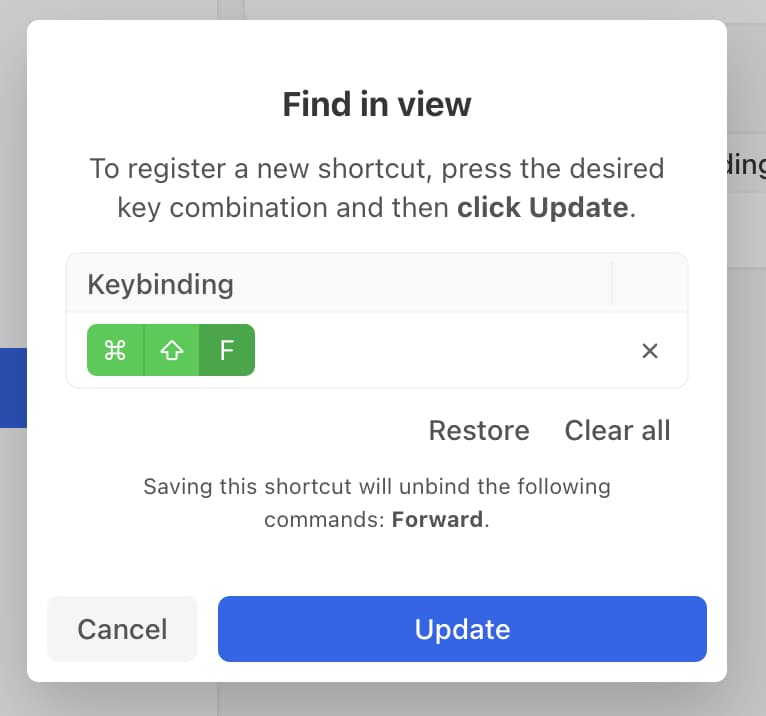
Whether you are using the default or Gmail preset, you can customize all shortcuts. Just mouse over the shortcut line and click the Edit shortcut icon.
---
# Agent Instructions
This documentation is published with GitBook. GitBook is the documentation platform designed so that both humans and AI agents can read, navigate, and reason over technical content effectively. Learn more at gitbook.com.
## Querying This Documentation
If you need additional information that is not directly available in this page, you can query the documentation by asking a question.
Perform an HTTP GET request on the following URL with the `ask` and `goal` query parameters:
```
GET https://missiveapp.com/docs/advanced-features/shortcuts.md?ask=&goal=
```
`ask` is the immediate question: it should be specific, self-contained, and written in natural language.
`goal` is what the user is ultimately trying to achieve, the reason they need the answer. Sharing it helps GitBook give you a better, more relevant answer. A goal is most helpful when it describes the outcome the user wants rather than restating the question. For example, with `ask=how do I create an API token`, a goal like `automate deployments from our CI pipeline` lets GitBook tailor the answer to that use case.
The response will contain a direct answer to the question and relevant excerpts and sources from the documentation.
Use this mechanism when the answer is not explicitly present in the current page, you need clarification or additional context, or you want to retrieve related documentation sections.