> For the complete documentation index, see [llms.txt](https://missiveapp.com/docs/llms.txt). Markdown versions of documentation pages are available by appending `.md` to page URLs; this page is available as [Markdown](https://missiveapp.com/docs/core-features/aliases-and-signatures/setting-up-aliases.md).
# Setting up aliases
Configure email aliases to send from different addresses in Missive.
In Missive, aliases are managed from the **Aliases** tab from the account settings: **Settings > Accounts**. For each alias you can define a name, a description, a signature and sharing settings.
{% hint style="warning" %}
Aliases must first have been defined on your email server ([Gmail](https://support.google.com/mail/answer/22370?hl=en), [Microsoft 365](https://learn.microsoft.com/en-us/microsoft-365/admin/email/add-another-email-alias-for-a-user?view=o365-worldwide), etc.). If you don't define the aliases first, upon sending from Missive, your email server will replace the alias with your default account address in the outgoing email’s From field
{% endhint %}
### Name
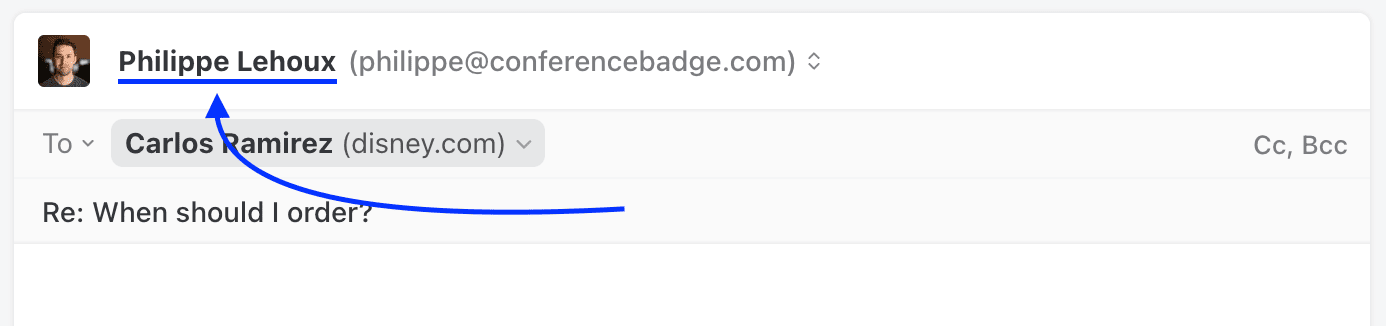
When you define a name on an alias, your email recipient will both see your email address and your name in their inbox.
{% hint style="info" %}
Both the email account owner and the delegated users can define their own name on an alias.
{% endhint %}
{% hint style="warning" %}
**Microsoft/Office 365 limitation:** Microsoft only supports alias addresses, not alias names. If your account is connected via Microsoft 365, the display name you set here will be ignored - recipients will see the default display name from your Microsoft 365 account settings instead. Only Google Workspace supports custom alias names.
{% endhint %}
### Description
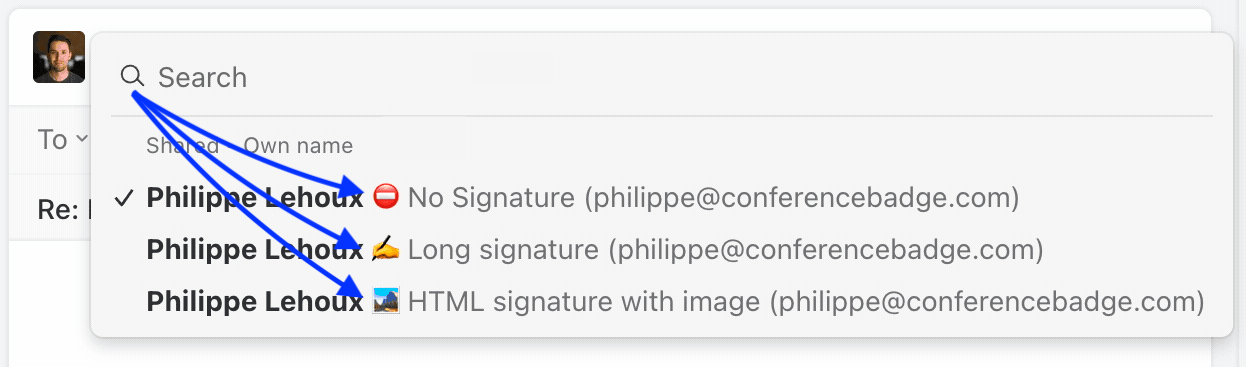
A description allows you to make aliases stand out in the *From* select menu of the draft composer, as in the below image for a user [having multiple signatures](/docs/core-features/aliases-and-signatures/faq.md#how-can-i-define-multiple-signatures-for-the-same-email-address). The description will not be visible to your email recipients.
### Never automatically select
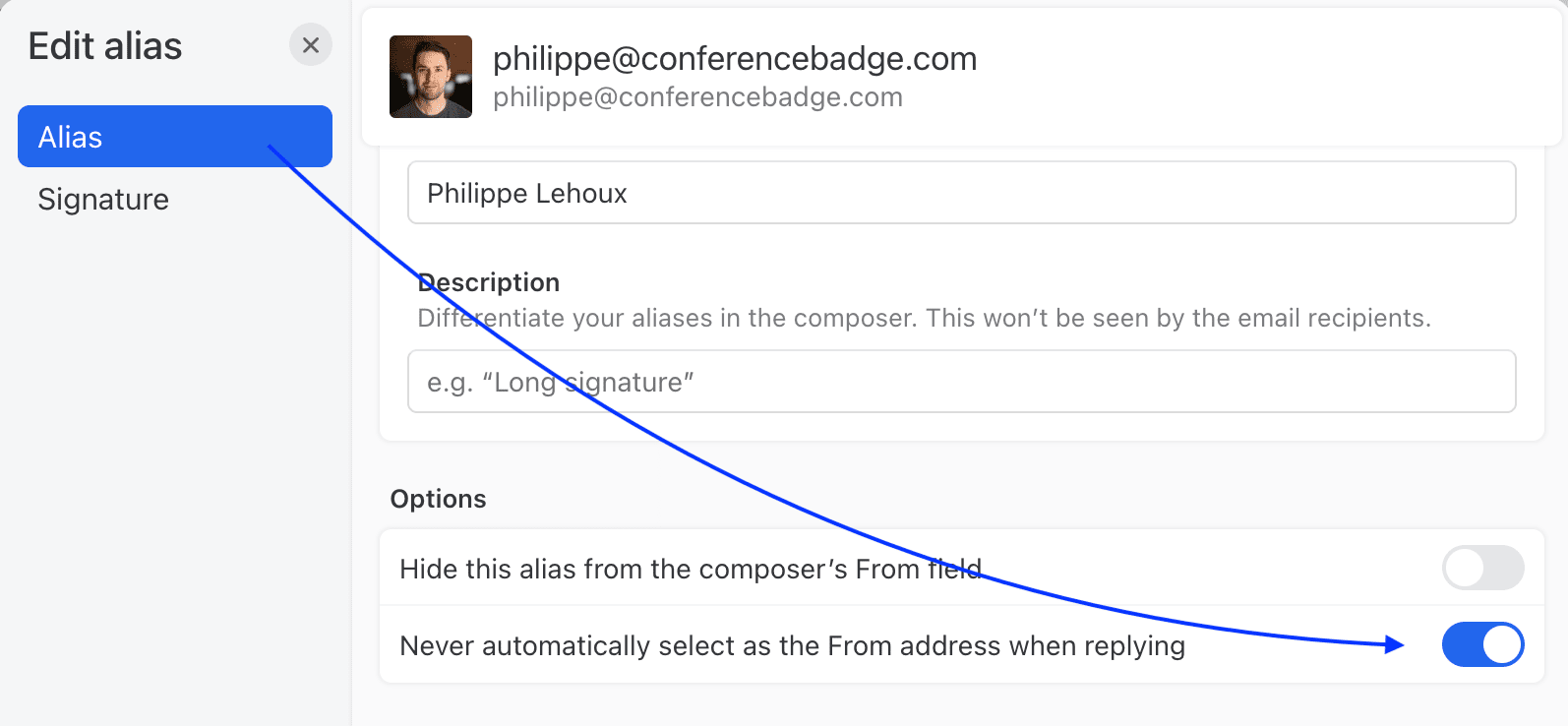
You can tell Missive to never automatically select the alias when replying / composing a new email. You’ll still be able to manually set this alias in your From field if you need to.
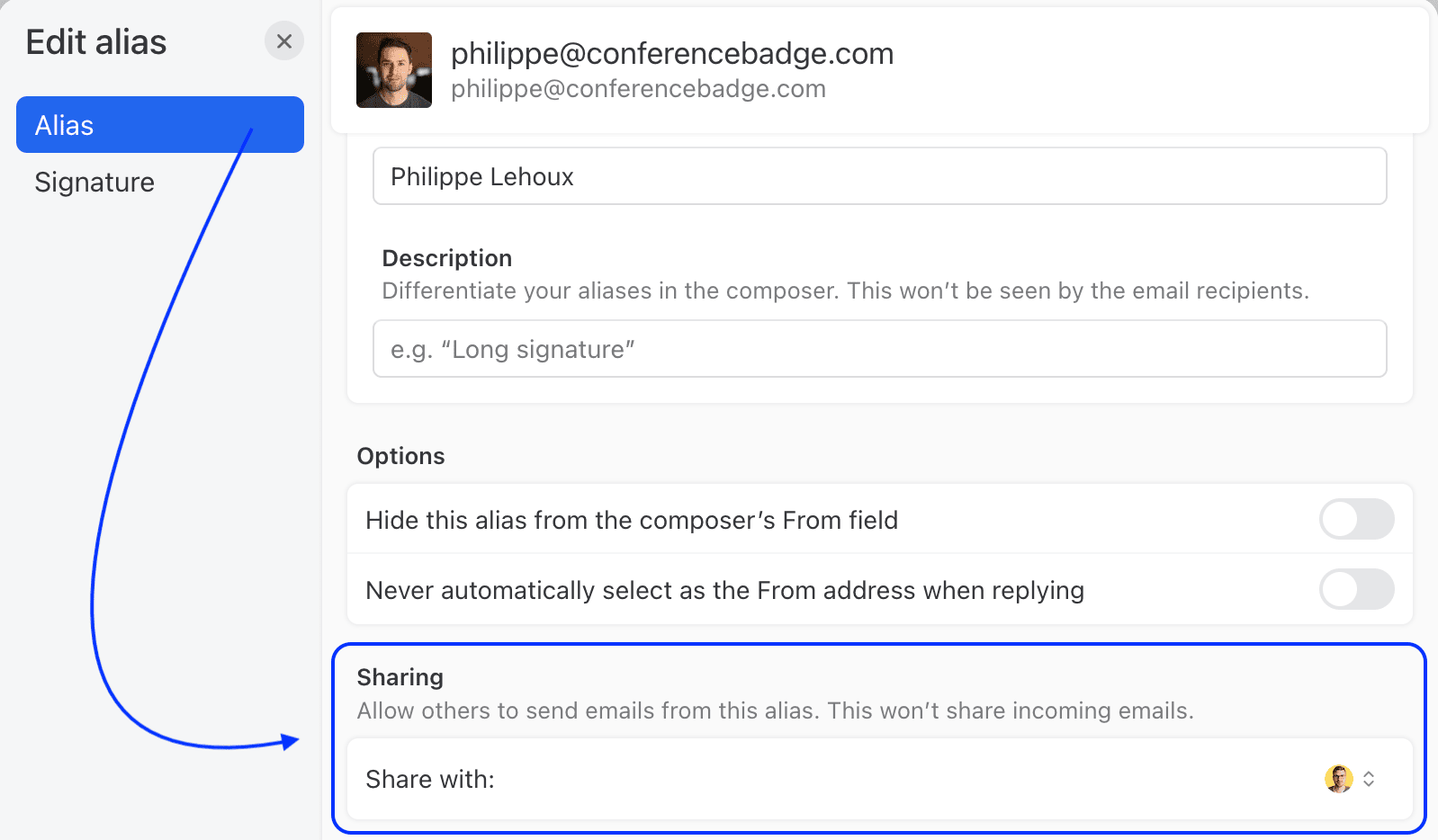
### Allow others to send emails from this alias
This setting lets you share the alias with colleagues without sharing the underlying email account, so they can send emails using the alias without gaining access to all the emails in the email account.
## Advanced
### Control which alias is used when replying
Depending if an email is sent to your sales@, help@ or a personal email address like philippe@, you might want to control what alias (email address) Missive uses by default as the **From** address in your draft.
By default, Missive will try to match the best alias by itself.
Let’s look at a few examples, given those two users:
| **🤵🏻♂️ Philippe’s aliases** | **👨🏻💻 Rafael’s aliases** |
| -------------------------------------------------------------------------------------------------------------------------- | ---------------------------------------------------------------------------------------------------------------------------------------------------- |
|
|
|
1. ✅ If an email is sent to and replied to by 🤵🏻♂️ Philippe, the **From** will be .
2. ✅ If an email is sent to and replied to by 👨🏻💻 Rafael, the **From** will be .
3. ✅ If an email is sent to and replied to by 🤵🏻♂️ Philippe, the **From** will be .
4. ❌ If an email is sent to and replied to by 👨🏻💻 Rafael, the **From** will be . Because Rafael doesn't have access to the alias Missive finds another alias from the same domain name for Rafael to reply with.
Now let’s say 🤵🏻♂️ Philippe **never wants to reply with** the alias, he can change the [**Never automatically select**](#never-automatically-select) setting on the sales@ alias.
1. ❌ If an email is sent to and replied to by 🤵🏻♂️ Philippe, the **From** will be because the **** alias is now ignored.
Keep in mind you can always manually change the **From** of your draft to another one.
If you want to always use the same alias, regardless of the email address to which the email was sent, you can make a change in the settings. Go to and check: **Settings > Preferences > Composers > Always send replies from selected address above**.
In summary, email aliases in Missive offer a flexible and efficient way to manage your email communications. They allow for personalized responses, controlled access, and team collaboration. Remember to set up your aliases on your email server first, and then customize them in Missive as needed.
---
# Agent Instructions
This documentation is published with GitBook. GitBook is the documentation platform designed so that both humans and AI agents can read, navigate, and reason over technical content effectively. Learn more at gitbook.com.
## Querying This Documentation
If you need additional information that is not directly available in this page, you can query the documentation by asking a question.
Perform an HTTP GET request on the following URL with the `ask` and `goal` query parameters:
```
GET https://missiveapp.com/docs/core-features/aliases-and-signatures/setting-up-aliases.md?ask=&goal=
```
`ask` is the immediate question: it should be specific, self-contained, and written in natural language.
`goal` is what the user is ultimately trying to achieve, the reason they need the answer. Sharing it helps GitBook give you a better, more relevant answer. A goal is most helpful when it describes the outcome the user wants rather than restating the question. For example, with `ask=how do I create an API token`, a goal like `automate deployments from our CI pipeline` lets GitBook tailor the answer to that use case.
The response will contain a direct answer to the question and relevant excerpts and sources from the documentation.
Use this mechanism when the answer is not explicitly present in the current page, you need clarification or additional context, or you want to retrieve related documentation sections.