> For the complete documentation index, see [llms.txt](https://missiveapp.com/docs/llms.txt). Markdown versions of documentation pages are available by appending `.md` to page URLs; this page is available as [Markdown](https://missiveapp.com/docs/core-features/aliases-and-signatures/setting-up-email-signatures.md).
# Setting up email signatures
Create and manage email signatures in Missive.
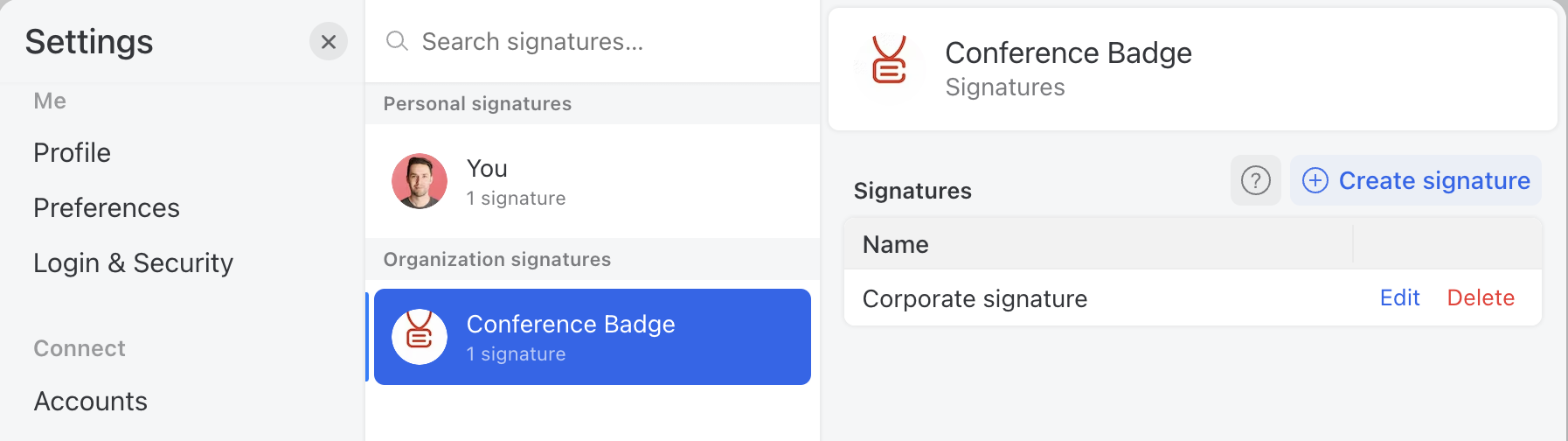
Create and edit signatures in **Settings** > **Signatures**. You can link a signature to any of your email account aliases.
You can also configure a signature from the alias settings:
* **Settings > Accounts** select the **Aliases** tab, click **Edit** next to the alias, then pick the **Signatures** tab.
### Rich text VS HTML editor
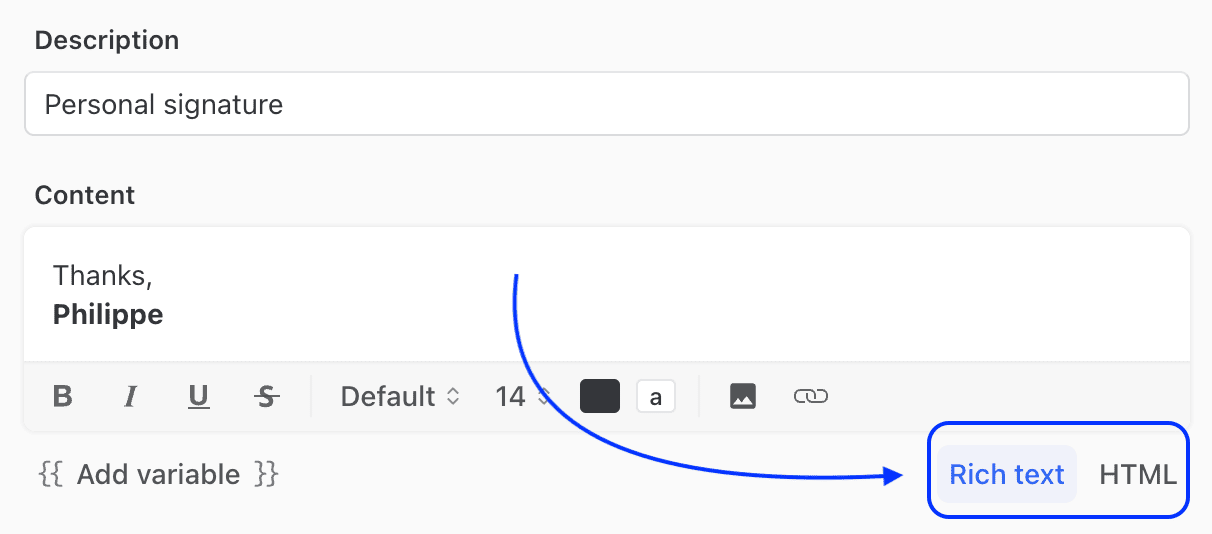
When editing your signature, you can either use the easy rich-text editor to design a simple signature or switch to the HTML editor to have complete control over your signature rendering. With the HTML editor you can copy/paste the code of the signature you were using in your previous email client.
### Insert in
The **Insert in** setting controls when Missive inserts the signature in your drafts based on where you are in a conversation:
* **All emails** — the signature is inserted in every draft, including replies.
* **First email sent** — the signature is inserted only in the first email of a conversation. No signature is added to replies.
* **First email sent, then the following signature** — the main signature is inserted in the first email, and an alternative shorter signature you define below is used on replies.
This is useful if once you’ve emailed someone you don’t want to display your full signature again.
{% hint style="info" %}
The alternative signature used on replies is rich text only — HTML is only available for the first email signature. The alternative is meant to be a shorter sign-off (e.g. your name or initials). If you need a fully HTML-formatted signature on every reply, set **Insert in** to **All emails**.
{% endhint %}
If your signature shows up on new emails but not on replies, check this setting — **First email sent** without a defined alternative will leave replies without a signature.
### Switching signatures in a draft
You can change the signature directly in the composer without changing your **From** address. Hover over the signature area at the bottom of your draft (or click into it) and a **Signature** button appears next to it. Click it to:
* Pick any of your personal or organization signatures.
* Choose **No signature** to remove it from the draft.
* Choose **Create signature…** to make a new one on the spot.
{% hint style="info" %}
This switches the signature for the current draft only. To change which signature is used by default, link it to an alias in **Settings** > **Signatures**.
{% endhint %}
### Use one signature for all
If you want all of your colleagues to have the exact same signature design, instead of having each of them create a personal signature, you can set up an organization signature in **Settings > Signatures**. Then, each employee will be able to easily select and use the signature.
Organization signatures use variables from each colleague's profile to automatically generate a personalized version for them. Learn more about managed signatures in [Managing your team signatures.](/docs/core-features/aliases-and-signatures/managing-your-team-signatures.md)
---
# Agent Instructions
This documentation is published with GitBook. GitBook is the documentation platform designed so that both humans and AI agents can read, navigate, and reason over technical content effectively. Learn more at gitbook.com.
## Querying This Documentation
If you need additional information that is not directly available in this page, you can query the documentation by asking a question.
Perform an HTTP GET request on the following URL with the `ask` and `goal` query parameters:
```
GET https://missiveapp.com/docs/core-features/aliases-and-signatures/setting-up-email-signatures.md?ask=&goal=
```
`ask` is the immediate question: it should be specific, self-contained, and written in natural language.
`goal` is what the user is ultimately trying to achieve, the reason they need the answer. Sharing it helps GitBook give you a better, more relevant answer. A goal is most helpful when it describes the outcome the user wants rather than restating the question. For example, with `ask=how do I create an API token`, a goal like `automate deployments from our CI pipeline` lets GitBook tailor the answer to that use case.
The response will contain a direct answer to the question and relevant excerpts and sources from the documentation.
Use this mechanism when the answer is not explicitly present in the current page, you need clarification or additional context, or you want to retrieve related documentation sections.