> For the complete documentation index, see [llms.txt](https://missiveapp.com/docs/llms.txt). Markdown versions of documentation pages are available by appending `.md` to page URLs; this page is available as [Markdown](https://missiveapp.com/docs/core-features/calendar.md).
# Calendar
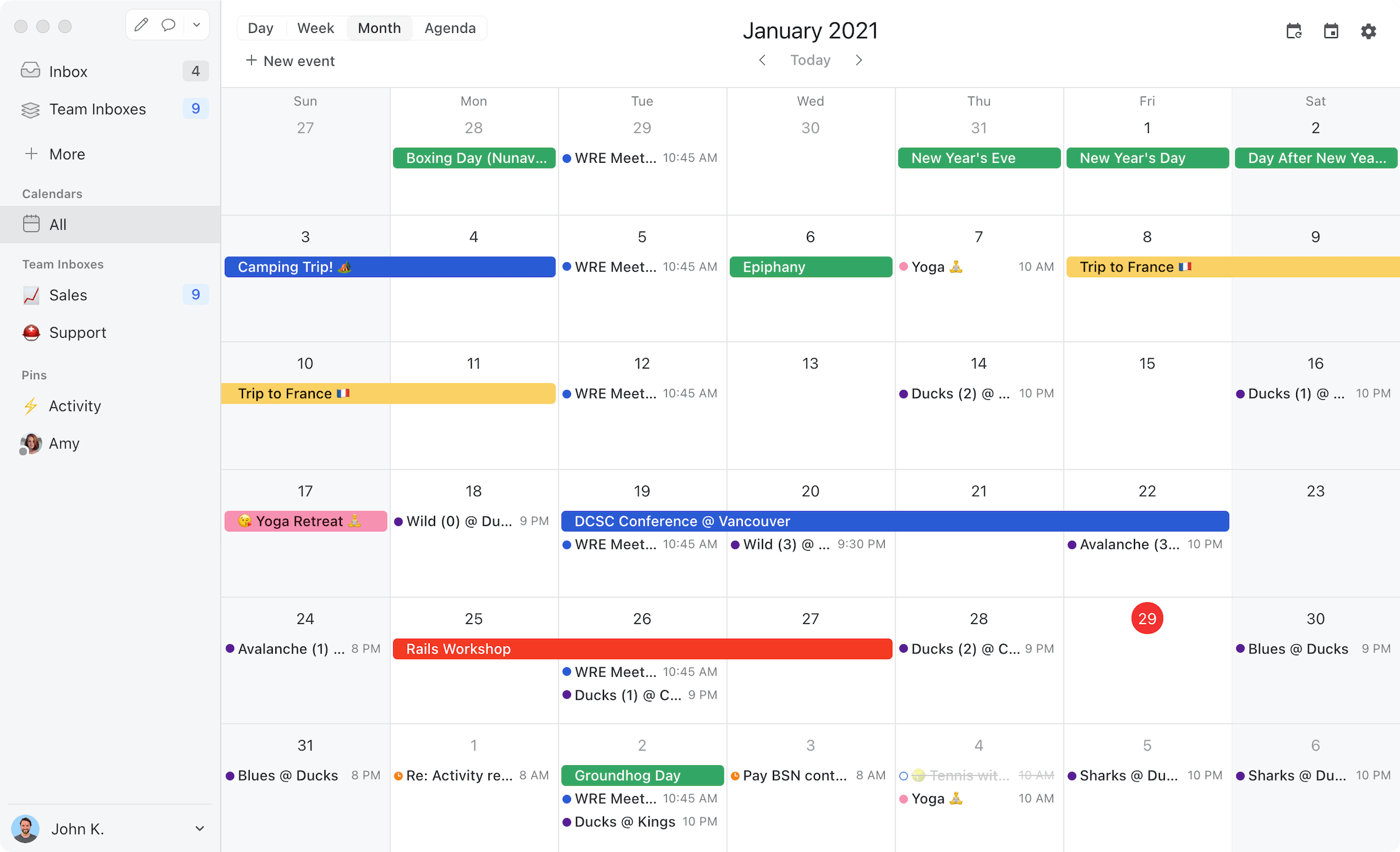
View your calendar alongside your inbox. Schedule meetings without switching apps.
Missive Calendar puts your Google and Microsoft calendars next to your conversations. Schedule meetings, check teammates' availability, answer invites, and block time for focused work without leaving Missive. Calendar accounts can be shared with your team, so an assistant can manage an executive's schedule or a whole team can see a shared calendar.
## Connect a calendar
Missive supports **Google**, **Office 365**, and **Outlook.com** calendar accounts.
1. Go to **Settings** > **Calendars**.
2. Click **Add** and select your provider.
3. Sign in and grant access.
Your calendars appear in the calendar sidebar and stay in sync with your provider. To connect an Office 365 shared mailbox calendar, enter the shared mailbox address when prompted. See [Calendar accounts and settings](/docs/core-features/calendar/accounts-and-settings.md).
{% hint style="info" %}
To open Settings, click your avatar in the bottom-left corner of the sidebar, then **Settings** (or press ⌘,).
{% endhint %}
{% hint style="info" %}
iCloud, CalDAV, and ICS subscription calendars are not supported.
{% endhint %}
## Open the calendar
Click **Calendar** in the left sidebar to open the full calendar. You can also open it in the right sidebar, next to the conversation you're reading. See [Views and navigation](/docs/core-features/calendar/views-and-navigation.md#calendar-in-the-right-sidebar).
## What you can do
| Feature | What it does |
| ------------------------------------------------------------------------------ | --------------------------------------------------------------------------------------------------------------------------------------------------------------------------------------------------------- |
| [Create and edit events](/docs/core-features/calendar/events.md) | Create events with guests, video calls, recurrence, time zones, labels or categories, and reminders. |
| [Meet with](/docs/core-features/calendar/meet-with.md) | Overlay teammates' and contacts' availability on your calendar to find a time that works. |
| [Focus time](/docs/core-features/calendar/events.md#focus-time) | Block time for deep work and automatically decline meetings that land on it (Google Workspace). |
| [Views and navigation](/docs/core-features/calendar/views-and-navigation.md) | Switch between day, multi-day, week, month, and agenda layouts. Scroll continuously, choose how many hours fit on screen, add time zones, save calendar groups, and show snoozed conversations and tasks. |
| [Calendar invites](/docs/core-features/calendar/invites.md) | Answer `.ics` invites from the conversation and spot conflicts with your day. |
| [Accounts and settings](/docs/core-features/calendar/accounts-and-settings.md) | Share calendar accounts, set defaults for new events, and manage reminders and colors. |
## Related
* [Calendar FAQ](/docs/core-features/calendar/faq.md)
* [Activity feed](/docs/core-features/activity-feed.md) - where calendar reminders appear
* [Tasks](/docs/core-features/tasks.md) - show task due dates in the calendar
* [Snoozing](/docs/core-features/conversations/snoozing.md) - show snoozed conversations in the calendar
* [Shortcuts](/docs/advanced-features/shortcuts.md#calendar)
---
# Agent Instructions
This documentation is published with GitBook. GitBook is the documentation platform designed so that both humans and AI agents can read, navigate, and reason over technical content effectively. Learn more at gitbook.com.
## Querying This Documentation
If you need additional information that is not directly available in this page, you can query the documentation by asking a question.
Perform an HTTP GET request on the following URL with the `ask` and `goal` query parameters:
```
GET https://missiveapp.com/docs/core-features/calendar.md?ask=&goal=
```
`ask` is the immediate question: it should be specific, self-contained, and written in natural language.
`goal` is what the user is ultimately trying to achieve, the reason they need the answer. Sharing it helps GitBook give you a better, more relevant answer. A goal is most helpful when it describes the outcome the user wants rather than restating the question. For example, with `ask=how do I create an API token`, a goal like `automate deployments from our CI pipeline` lets GitBook tailor the answer to that use case.
The response will contain a direct answer to the question and relevant excerpts and sources from the documentation.
Use this mechanism when the answer is not explicitly present in the current page, you need clarification or additional context, or you want to retrieve related documentation sections.