> For the complete documentation index, see [llms.txt](https://missiveapp.com/docs/llms.txt). Markdown versions of documentation pages are available by appending `.md` to page URLs; this page is available as [Markdown](https://missiveapp.com/docs/core-features/calendar/accounts-and-settings.md).
# Accounts and settings
Connect and share calendar accounts, and set defaults for new events, reminders, and colors.
Connect your Google and Microsoft calendars, share them with your team, and set defaults for new events.
{% hint style="info" %}
To open Settings, click your avatar in the bottom-left corner of the sidebar, then **Settings** (or press ⌘,).
{% endhint %}
## Connect a calendar account
Missive supports **Google**, **Office 365**, and **Outlook.com** calendars.
1. Go to **Settings** > **Calendars**.
2. Click **Add**.
3. Select your provider and sign in.
### Office 365 shared mailbox calendars
To connect the calendar of an Office 365 shared mailbox:
1. Go to **Settings** > **Calendars**, click **Add**, and select **Office 365**.
2. Enter the shared mailbox email address and click **Next**.
3. In the Microsoft sign-in window, choose an account that has access to the shared mailbox.
### Reconnect an account
If Missive loses access to a calendar account, the account shows **Account disconnected** and new events stop syncing. A red icon also appears in the calendar header.
The account owner or an organization admin can click **Reconnect account** to sign in again.
### Delete an account
The account owner can open the account in **Settings** > **Calendars** and click **Delete account**. This removes the account's calendars and events from Missive. It doesn't delete anything from Google or Microsoft.
## Share a calendar account
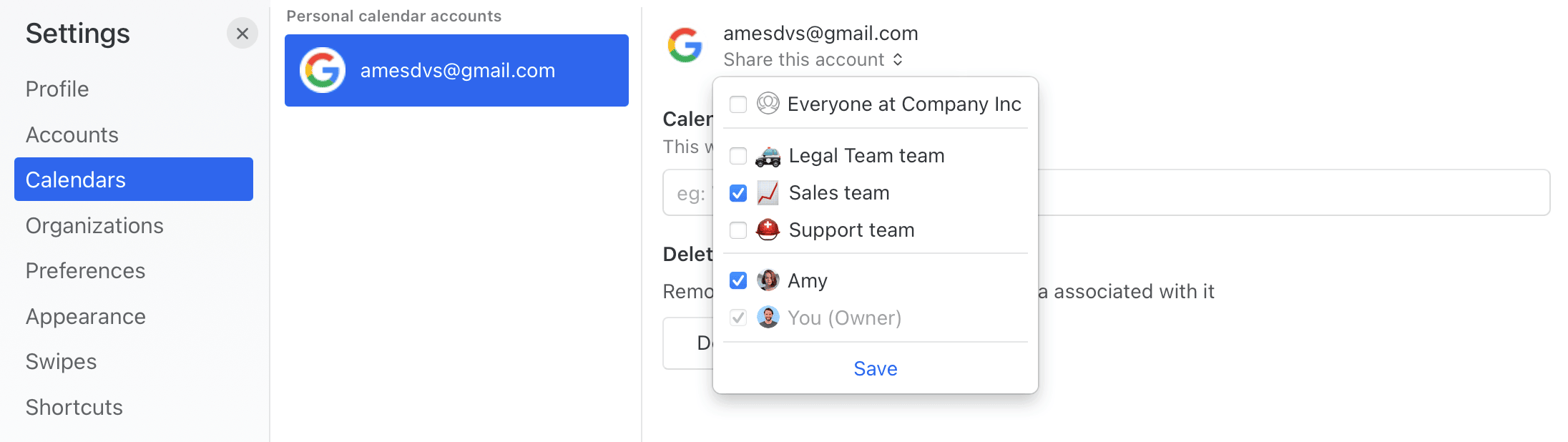
Calendar accounts are personal by default. Share one with your whole organization, specific teams, or specific people. Everyone you share with sees its calendars in their calendar sidebar and can pick them when creating events.
1. Go to **Settings** > **Calendars** and select the account.
2. Click **Share this account**.
3. Choose **Everyone**, teams, or people, then click **Save**.
Go to Settings > Calendars > select an account > Share this account.
{% hint style="warning" %}
All calendars in an account are shared together, based on the account's sharing settings.
{% endhint %}
To change who has access, click **Edit sharing**. To stop sharing, click **Make private**.
Only the account owner and organization admins can change sharing, rename the account, or change calendar colors. Give the account an **Account description** (like "Work" or "Support team") to change how it's labeled in the sidebar and menus.
When inviting a new member, admins can also choose which shared calendar accounts they get access to.
## Calendar colors, notifications, and visibility
Each account's **Calendars** tab lists its calendars. The same list appears at the bottom of **Settings** > **Preferences** > **Calendars**.
* **Color:** click a calendar's name to pick a color. Only the account owner and organization admins can change colors.
* **Notifications:** turn reminders on or off for each calendar, or use **Enable notifications** and **Disable notifications** for the whole account.
* **Visible:** show or hide the calendar in your calendar view. This is personal and doesn't affect teammates.
Hidden calendars don't sync while hidden. When you show one again, its events load right away.
## Calendar preferences
Go to **Settings** > **Preferences** > **Calendars**.
| Setting | What it does |
| ---------------------------------------- | -------------------------------------------------------------------------------------------------------------------------------------------------------------------------------------------- |
| **Show calendar in invite emails** | Shows the [invite card](/docs/core-features/calendar/invites.md) above emails with a `.ics` invite. On by default. |
| **Automatically collapse invite emails** | Collapses the email under the invite card. On by default. |
| **Start week on** | The first day of the week in the calendar. Sunday by default. |
| **Time format** | **1:00 PM** or **13:00**. |
| **Hours visible at once** | How many hours the day and week layouts fit on screen, from 6 to 24. 12 by default. See [Hours visible at once](/docs/core-features/calendar/views-and-navigation.md#hours-visible-at-once). |
| **Default meeting time** | How long new timed events are. 15 minutes to 2 hours, including 25 and 50-minute options. 30 minutes by default. |
| **Default reminder for timed events** | Reminders added to new timed events. 10 minutes before by default. |
| **Default reminder for all-day events** | Reminders added to new all-day events. None by default. |
| **Default calendar** | The calendar new events go on. When set to **None**, Missive picks a visible calendar you can write to. |
| **Open map links in** | Google Maps, Apple Maps, Bing Maps, or DuckDuckGo Maps. |
### Hidden calendar prompt
When you create an event on a hidden calendar, Missive asks whether to add that calendar to your view. To change this, go to **Settings** > **Preferences** > **General** and set **Add hidden calendar when creating events** to **Ask**, **Show**, or **Don't show**.
## Reminder notifications
Calendar reminders appear in three places:
* **Desktop and mobile notifications.** Turn them on or off under **Settings** > **Preferences** > **Notifications**, in the **Calendar reminders** row.
* **The** [**Activity feed**](/docs/core-features/activity-feed.md)**.** An orange dot on the bell icon means you have unread reminders. It adds 1 to your app icon badge count, however many reminders there are. To opt out, open the Activity feed settings and uncheck **Unread** for **Calendar reminders**.
* **Per calendar.** Turn off reminders for specific calendars in the [Notifications column](#calendar-colors-notifications-and-visibility).
## Related
* [Calendar](/docs/core-features/calendar.md)
* [Create and edit events](/docs/core-features/calendar/events.md)
* [Calendar invites](/docs/core-features/calendar/invites.md)
* [Calendar FAQ](/docs/core-features/calendar/faq.md)
---
# Agent Instructions
This documentation is published with GitBook. GitBook is the documentation platform designed so that both humans and AI agents can read, navigate, and reason over technical content effectively. Learn more at gitbook.com.
## Querying This Documentation
If you need additional information that is not directly available in this page, you can query the documentation by asking a question.
Perform an HTTP GET request on the following URL with the `ask` and `goal` query parameters:
```
GET https://missiveapp.com/docs/core-features/calendar/accounts-and-settings.md?ask=&goal=
```
`ask` is the immediate question: it should be specific, self-contained, and written in natural language.
`goal` is what the user is ultimately trying to achieve, the reason they need the answer. Sharing it helps GitBook give you a better, more relevant answer. A goal is most helpful when it describes the outcome the user wants rather than restating the question. For example, with `ask=how do I create an API token`, a goal like `automate deployments from our CI pipeline` lets GitBook tailor the answer to that use case.
The response will contain a direct answer to the question and relevant excerpts and sources from the documentation.
Use this mechanism when the answer is not explicitly present in the current page, you need clarification or additional context, or you want to retrieve related documentation sections.