> For the complete documentation index, see [llms.txt](https://missiveapp.com/docs/llms.txt). Markdown versions of documentation pages are available by appending `.md` to page URLs; this page is available as [Markdown](https://missiveapp.com/docs/core-features/calendar/events.md).
# Create and edit events
Create, edit, and respond to calendar events in Missive.
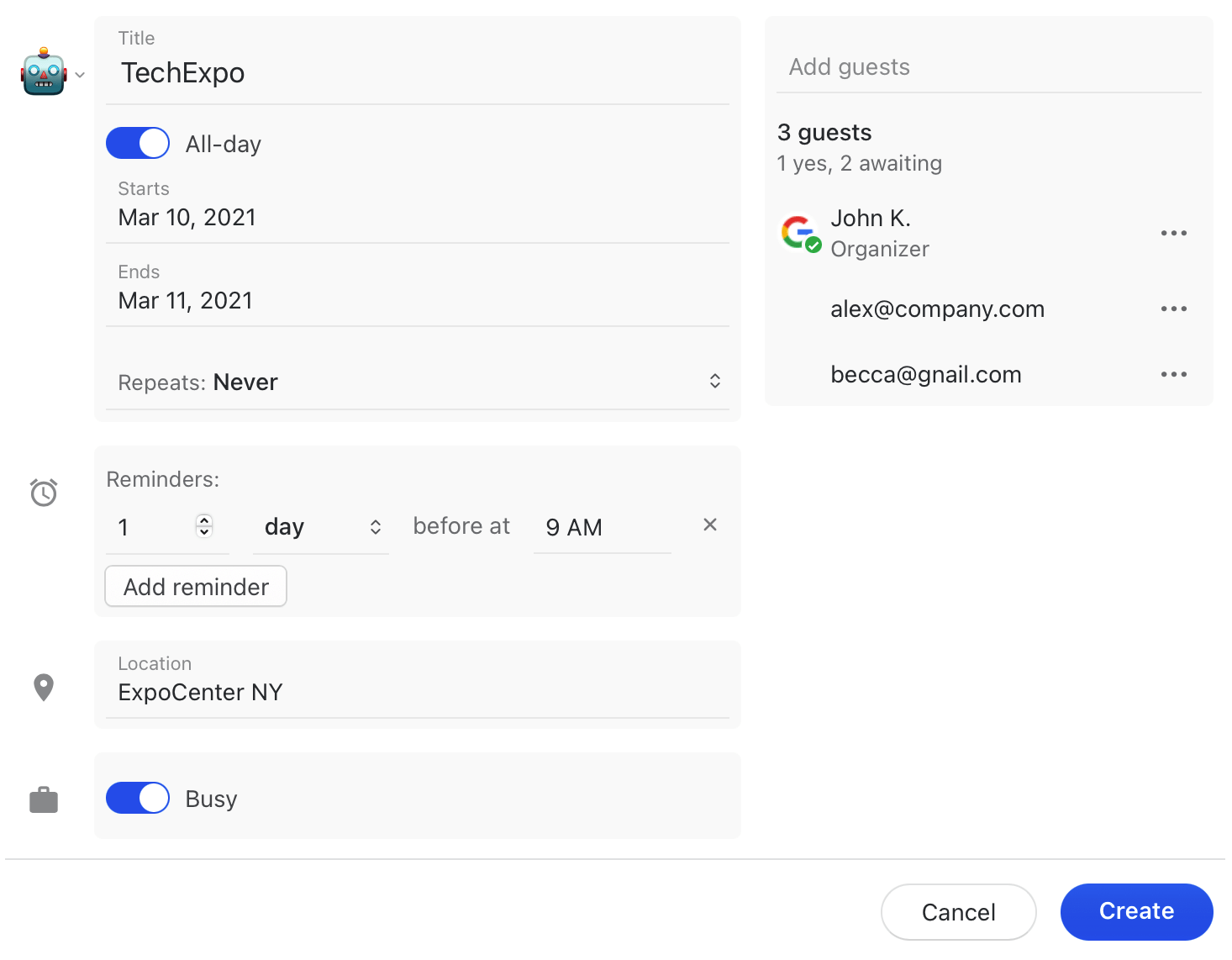
Create events with guests, video calls, recurrence, and reminders. The same compact form opens whether you're creating a new event, viewing an existing one, or editing it.
## Create an event
There are several ways to start a new event:
* **Drag** across empty space in the day or week view to select a time. The selection snaps to 15 minutes. Hold Space while dragging to move the whole selection, or press Escape to cancel.
* **Double-click** empty space to create an event at that time.
* **Right-click** an empty spot and choose **New event**.
* Click the **+** button next to the date in the mini calendar.
* Press ⌘/Ctrl + Y (desktop app) or X with the Gmail preset.
* Search for **New event** in the command bar.
* On touch devices, long-press empty space and drag, or tap the floating **+** button.
New timed events use your **Default meeting time** (30 minutes unless you change it). Timed events default to **Busy** and all-day events to **Free**.
### Create an event from an email
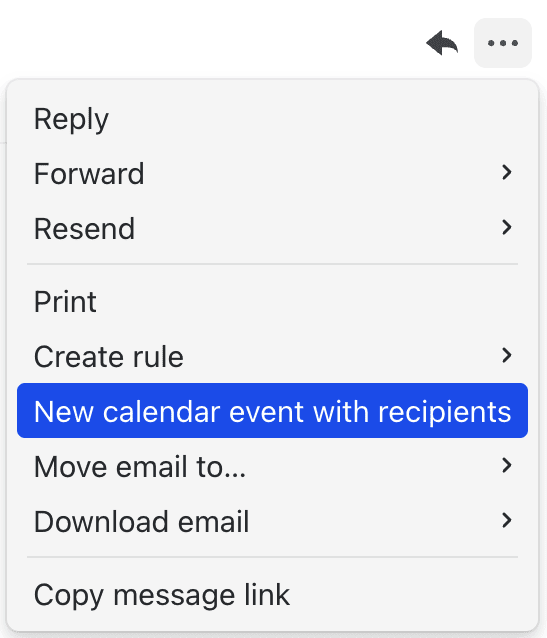
Open the message **...** menu and choose **New calendar event with recipients**. Everyone on the email is added as a guest. You can also run this from the command bar (⌘/Ctrl + K).
## Event details
### Title
Type a title. Click the emoji button to the left of the title to add an emoji. It shows up on the event in your calendar.
### Date, time, and all-day
Pick a start date and time, then an end time. The end time list shows the duration next to each option (**30min**, **1h**, **1h 30min**). You can also type a time like `2pm` or a duration. The end date only appears when an event spans multiple days.
Turn on **All-day** for events without a specific time.
### Time zone
Each event has a time zone. By default it's yours, shown greyed out. Click it to pick a different zone, for example when you're scheduling a meeting for a trip or with someone in another region. Each zone in the list shows its current local time.
When the event's time zone differs from yours, an eye button appears next to it. Click it to switch between **View in the event's time zone** and **View in your time zone**. Only the display changes, not the event itself.
{% hint style="info" %}
To see several time zones side by side in the calendar grid, add time zone columns. See [Multiple time zones](/docs/core-features/calendar/views-and-navigation.md#multiple-time-zones).
{% endhint %}
### Repeat
Choose **Does not repeat**, a preset (**Every day**, **Every week on Monday, Tuesday, Wednesday, Thursday, Friday**, **Every week**, **Every month**, **Every year**), or **Custom** to build your own rule:
* **Repeats every**: 1 to 99 days, weeks, months, or years
* **On**: the weekdays it repeats on (weekly)
* **Each** or **On the**: specific dates of the month, or the first, second, third, fourth, fifth, or last weekday of the month (monthly)
* **In**: the months it repeats in (yearly)
* **Ends**: **Never**, **On** a date, or **After** a number of occurrences
### Guests
Type at least three characters in **Add participants** to search **Teammates**, **Teams**, **Contacts**, and **Past recipients**. Press Enter to add any email address. Picking a team adds all its members at once.
Guests you add also show up on your calendar grid so you can check they're free. See [Meet with](/docs/core-features/calendar/meet-with.md).
Once you add a guest, you're added as the organizer. The guest list shows a response summary (for example, "2 yes, 1 maybe, 3 awaiting") and a colored dot next to each person. If you own the event, open a guest's menu to **Mark as optional**, **Mark as required**, or **Remove** them.
Click **Email all participants** to start an email to everyone on the event.
### Video call
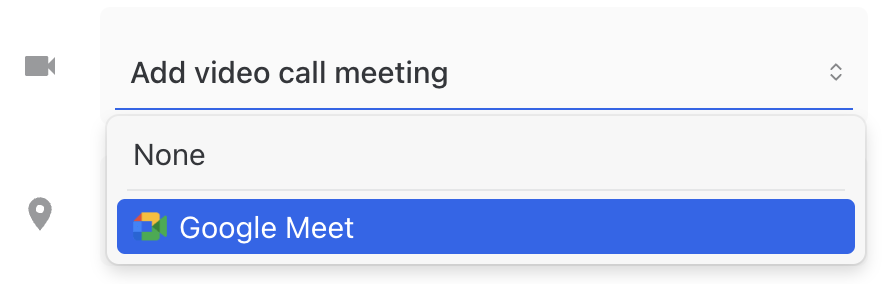
Choose a video call from **Add video call meeting**:
* **Google calendars:** Google Meet
* **Microsoft calendars:** Microsoft Teams and Skype, depending on what your account allows
Integrations that create meetings, like Zoom, also appear in the list. They add the meeting link to the event's **Location**.
Once an event has a meeting, use **Copy link** or **Join**.
### Attachments
Files attached to the event in Google Calendar or Outlook are listed on the event. Click **Open** to view a file or **Copy link** to share it.
{% hint style="info" %}
You can view attachments in Missive, but you can't add them. Attach files from Google Calendar or Outlook.
{% endhint %}
### Location and description
Add a **Location**. Once saved, links open in your browser, addresses open in your maps app (set this in [calendar settings](/docs/core-features/calendar/accounts-and-settings.md#calendar-preferences)), and phone numbers can be dialed.
The **Description** supports rich text: bold, links, lists, and so on.
### Calendar
Choose which calendar the event goes on. The list shows every calendar you can write to, grouped by account. Set a **Default calendar** in [calendar settings](/docs/core-features/calendar/accounts-and-settings.md#calendar-preferences).
If you create an event on a calendar that's currently hidden, Missive offers to add it to your view.
### Google labels and Outlook categories
Color-code events with the same labels or categories you use in your calendar provider. The event takes the label or category color in Missive, and the change syncs back to your provider.
{% tabs %}
{% tab title="Google" %}
Pick one **Label** for the event. Google's built-in colors show with their names (Tomato, Flamingo, Graphite, and so on), and custom labels keep the names you gave them in Google Calendar.
The **Label** field only appears if the calendar has labels.
{% endtab %}
{% tab title="Outlook" %}
Pick one or more **Categories** from your Outlook category list. Outlook colors an event by its first category, so the most recently checked category moves to the front.
Create or rename categories in Outlook. They sync to Missive automatically.
{% endtab %}
{% endtabs %}
Moving an event to another calendar clears its label or categories.
### Availability and visibility
Set **Availability** to **Busy** or **Free** to control how the event shows up to people checking your schedule.
Set **Visibility** to control who can see the event's details:
* **Google:** **Default visibility**, **Public**, or **Private**
* **Microsoft:** **Default visibility** or **Private**
Private events show a lock icon next to their title on the calendar.
### Reminders
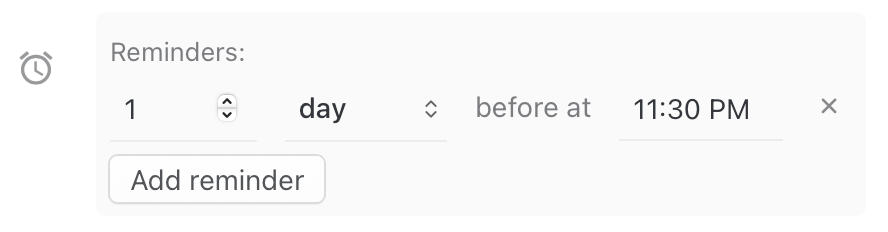
Add one or more reminders per event. Each reminder fires a number of minutes, hours, days, or weeks before the event starts. All-day event reminders fire a number of days or weeks before, at a time you choose (9:00 AM the day before by default).
New events use your default reminders from [calendar settings](/docs/core-features/calendar/accounts-and-settings.md#calendar-preferences). Reminders appear in the [Activity feed](/docs/core-features/activity-feed.md) and as desktop and mobile notifications.
You can change your own reminders on any event, even invites you can't otherwise edit.
## Focus time
Focus time blocks time on your calendar for deep work. It can automatically decline meetings that get scheduled over it.
To create focus time, open a new event and change the type at the top of the form from **Event** to **Focus time**. Then set:
* **Automatically decline meetings**: on by default
* **Only new meeting invitations** or **New and existing meetings**: which meetings to decline
* **Decline message**: an optional note sent with the decline
Focus time events are always timed events. They don't have guests, video calls, or reminders.
{% hint style="warning" %}
Focus time is only available on the primary calendar of a Google Workspace account. It's not available for personal Gmail accounts or Microsoft calendars. Google may also refuse it on Workspace plans that don't include focus time.
{% endhint %}
An event's type can't be changed after it's saved. To turn focus time into a regular event (or the reverse), create a new one.
## Move and resize events
Drag any event you can edit to move it to a different time or date. In the day and week views, drag it vertically to change the time, or across columns to move it to another day. Drag it to the edge of the calendar to scroll to the previous or next period automatically.
To resize a timed event, drag the top or bottom edge of the event block. To resize an all-day event, drag either end.
Press Escape at any time during a drag to cancel and put the event back where it was.
If the event's form is already open, dragging updates the time in the form. Click **Update** to save it.
When you move a recurring event, Missive asks whether to reschedule **This event** or **All events**.
{% hint style="info" %}
Snoozed conversations, task due dates, read-only events, and multi-day events in the agenda view can't be dragged. Moving and resizing is not available on touch devices.
{% endhint %}
## Edit recurring events
When you save changes to a recurring event, choose which occurrences to update:
* **This event**
* **This and following events**
* **All events**
Some options are hidden depending on what you changed. For example, changing the repeat rule can't apply to just one occurrence.
## Respond to events
Answer an invitation with **Yes**, **Maybe**, or **No** right from the event. If the event is recurring, choose whether your answer applies to **This event** or **All events**. If you were invited on more than one of your accounts, each account gets its own set of buttons.
You can also respond from the email invitation. See [Calendar invites](/docs/core-features/calendar/invites.md).
## Duplicate, delete, or move to another calendar
Open the **...** menu at the top of the event, or right-click the event in the calendar:
* **Duplicate** opens a copy of the event with you as organizer. Guests are reset to awaiting a response.
* **Delete** removes the event. For recurring events, choose which occurrences to delete. For invites, this option reads **Remove from this calendar**.
To move an event to another calendar, change its **Calendar** field and click **Update**.
## Who can edit an event
You can edit any event you organized or created. For events you were invited to, you can change your response and your own reminders. Other fields are editable only if the organizer lets guests modify the event.
Events on read-only calendars, like holiday calendars, can't be edited.
## Related
* [Meet with](/docs/core-features/calendar/meet-with.md)
* [Views and navigation](/docs/core-features/calendar/views-and-navigation.md)
* [Calendar invites](/docs/core-features/calendar/invites.md)
* [Calendar accounts and settings](/docs/core-features/calendar/accounts-and-settings.md)
* [Calendar FAQ](/docs/core-features/calendar/faq.md)
---
# Agent Instructions
This documentation is published with GitBook. GitBook is the documentation platform designed so that both humans and AI agents can read, navigate, and reason over technical content effectively. Learn more at gitbook.com.
## Querying This Documentation
If you need additional information that is not directly available in this page, you can query the documentation by asking a question.
Perform an HTTP GET request on the following URL with the `ask` and `goal` query parameters:
```
GET https://missiveapp.com/docs/core-features/calendar/events.md?ask=&goal=
```
`ask` is the immediate question: it should be specific, self-contained, and written in natural language.
`goal` is what the user is ultimately trying to achieve, the reason they need the answer. Sharing it helps GitBook give you a better, more relevant answer. A goal is most helpful when it describes the outcome the user wants rather than restating the question. For example, with `ask=how do I create an API token`, a goal like `automate deployments from our CI pipeline` lets GitBook tailor the answer to that use case.
The response will contain a direct answer to the question and relevant excerpts and sources from the documentation.
Use this mechanism when the answer is not explicitly present in the current page, you need clarification or additional context, or you want to retrieve related documentation sections.