> For the complete documentation index, see [llms.txt](https://missiveapp.com/docs/llms.txt). Markdown versions of documentation pages are available by appending `.md` to page URLs; this page is available as [Markdown](https://missiveapp.com/docs/core-features/calendar/invites.md).
# Calendar invites
Answer calendar invites from your inbox and spot conflicts with your day.
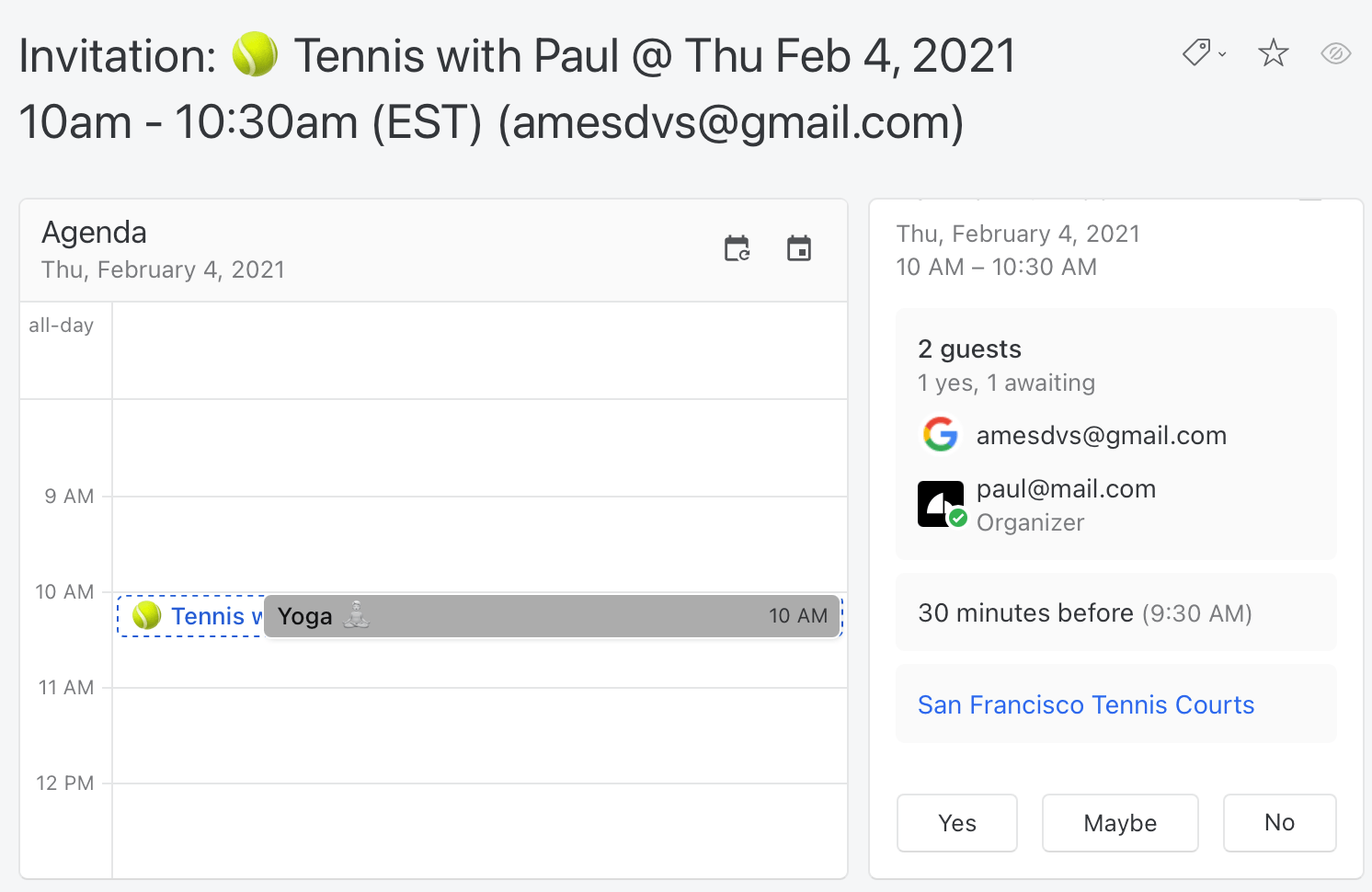
When an email contains a `.ics` calendar invite, Missive shows it as an interactive card above the message. See the invite on your calendar, spot conflicts, and respond without leaving the conversation.
## What the invite card shows
On the left, a day or week calendar opens on the invite's date and time. Your other events show faded around it, so you can see right away if it conflicts with something. Use the arrows, **Today**, and **Go to date** to look around, and the calendar filter to choose which calendars to show.
On the right are the event details: time, location, video call, guests and their responses, description, attachments, and reminders.
On narrow screens, the details stack above the calendar.
## Respond to an invite
Click **Yes**, **Maybe**, or **No**. Missive sends your response from the calendar the invite was sent to. If it reached more than one of your accounts, each one gets its own buttons.
You can change your answer as often as you like. Missive waits until you stop clicking before sending it.
### Invites that aren't on your calendar
If the invite wasn't sent to any of your connected calendars, the card shows **Going?** with the same buttons. Pick an answer, then choose which calendar to add the event to.
If you haven't connected a calendar yet, the card offers **Add a calendar** so you can check for conflicts and respond.
## Reminders and edits
Once the event syncs to your calendar, the card shows the live event. Add or change your own reminders with **Add reminder**, then click **Update**. This works even when the organizer doesn't let guests edit the event.
Other fields are editable only if the organizer lets guests modify the event.
## Cancelled and outdated invites
* **This event was cancelled** means the organizer cancelled it.
* **This invitation is out of date** means a newer version exists. Click **Open latest event** to see it.
You can't respond to cancelled or outdated invites.
## Invite settings
In **Settings** > **Preferences** > **Calendars**:
* **Show calendar in invite emails**: show the invite card. On by default.
* **Automatically collapse invite emails**: collapse the email under the card, since the card has everything you need. On by default.
## Related
* [Create and edit events](/docs/core-features/calendar/events.md)
* [Calendar accounts and settings](/docs/core-features/calendar/accounts-and-settings.md)
* [Calendar FAQ](/docs/core-features/calendar/faq.md)
---
# Agent Instructions
This documentation is published with GitBook. GitBook is the documentation platform designed so that both humans and AI agents can read, navigate, and reason over technical content effectively. Learn more at gitbook.com.
## Querying This Documentation
If you need additional information that is not directly available in this page, you can query the documentation by asking a question.
Perform an HTTP GET request on the following URL with the `ask` and `goal` query parameters:
```
GET https://missiveapp.com/docs/core-features/calendar/invites.md?ask=&goal=
```
`ask` is the immediate question: it should be specific, self-contained, and written in natural language.
`goal` is what the user is ultimately trying to achieve, the reason they need the answer. Sharing it helps GitBook give you a better, more relevant answer. A goal is most helpful when it describes the outcome the user wants rather than restating the question. For example, with `ask=how do I create an API token`, a goal like `automate deployments from our CI pipeline` lets GitBook tailor the answer to that use case.
The response will contain a direct answer to the question and relevant excerpts and sources from the documentation.
Use this mechanism when the answer is not explicitly present in the current page, you need clarification or additional context, or you want to retrieve related documentation sections.