> For the complete documentation index, see [llms.txt](https://missiveapp.com/docs/llms.txt). Markdown versions of documentation pages are available by appending `.md` to page URLs; this page is available as [Markdown](https://missiveapp.com/docs/core-features/calendar/views-and-navigation.md).
# Views and navigation
Calendar layouts, view options, continuous scrolling, time zones, and the calendar sidebar.
Choose how much of your schedule you see at once, scroll through it continuously, and compare time zones side by side.
## Layouts
Pick a layout from the layout menu in the calendar header.
| Layout | What it shows | Shortcut |
| ---------- | ----------------------------------------- | ----------------------------------------------------------------------------------------- |
| **Day** | One day, or 2 to 9 days side by side | D or 1 for one day, 2 to 9 for that many days |
| **Week** | A full week | W or 0 |
| **Month** | A month grid | M |
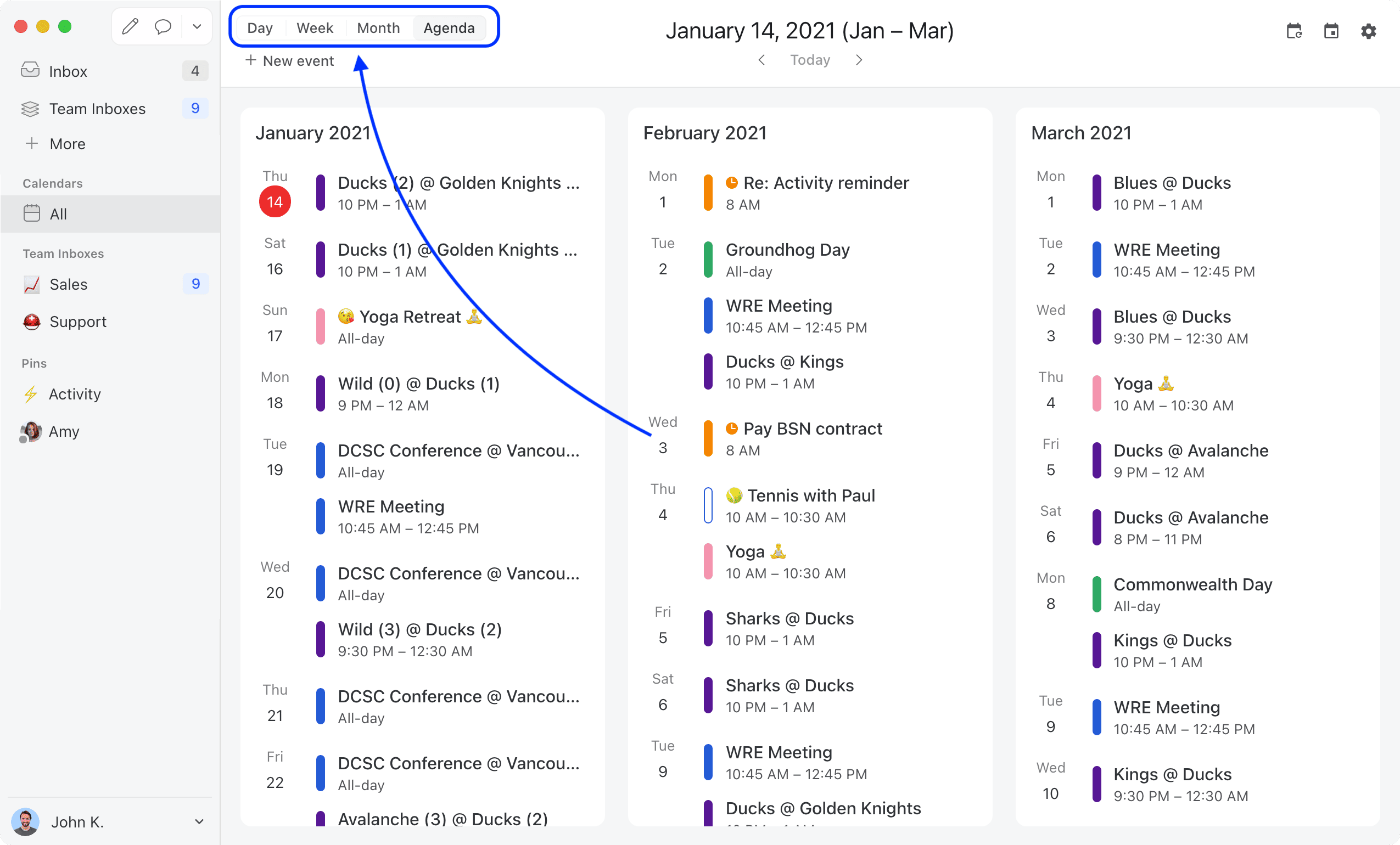
| **Agenda** | A list of upcoming events, month by month | A |
To show several days in the day layout, open the layout menu and choose **Number of days**. The menu button then reads, for example, **4 days**. For a work week, use the week layout and turn off **Show weekend**.
The agenda view.
The calendar opens on the week layout on desktop and 4 days on phones. Missive remembers the layout you pick, separately for the desktop app, the web, and mobile.
## View options
The layout menu also has these options:
| Option | What it does | Default |
| ------------------------ | -------------------------------------- | ------------------- |
| **Number of days** | Show 2 to 9 days in the day layout | 1 day (4 on phones) |
| **Show weekend** | Show or hide Saturday and Sunday | On |
| **Show declined events** | Show or hide events you declined | On |
| **Show week numbers** | Show the week number next to each week | Off |
| **Fade past events** | Dim events that have already ended | On |
**Show weekend**, **Show declined events**, **Show week numbers**, and **Fade past events** sync across your devices. **Number of days** is saved per device.
Set the first day of the week and 12 or 24-hour time in [calendar settings](/docs/core-features/calendar/accounts-and-settings.md#calendar-preferences).
### Hours visible at once
The day and week layouts show 12 hours at once by default, and the hours stretch to fill the window. Show fewer hours to give short events more room, or more hours to see your whole day without scrolling.
* Press ⌘/Ctrl + + to show fewer hours, ⌘/Ctrl + - to show more, and ⌘/Ctrl + 0 to go back to 12.
* Or set **Hours visible at once** (6 to 24) in [calendar settings](/docs/core-features/calendar/accounts-and-settings.md#calendar-preferences).
This setting syncs across your devices.
{% hint style="info" %}
The shortcuts are only available in the desktop app. In a web browser, those keys zoom the page, so use the setting instead.
{% endhint %}
## Scroll and navigate
The calendar scrolls continuously. There's no need to page from one week or month to the next.
* **Day and week:** scroll sideways through days. The view snaps to a day at a time. Scroll up and down to move through the hours.
* **Month:** scroll up and down through weeks. The title shows the month in the middle of the screen.
* **Agenda:** scroll sideways month by month (two months side by side on desktop). Past days in the current month are folded away behind **Show past events**.
Events load as you scroll. Missive remembers how far down you scrolled in the day and week views.
Use the header to jump around:
* **Previous** and **Next** arrows move by a page: the number of days shown, a week, a month, or two agenda months. Or press ⌘/Ctrl + ← and ⌘/Ctrl + →.
* **Today** jumps to today. If today is already visible, it scrolls to the current time. Or press T.
* Click the date title (or press ⌘/Ctrl + L) to open **Go to date**. Type a date or a phrase like "next Friday" or "March 3". Use ↑ and ↓ to change the date by a day, or Shift + ↑ and Shift + ↓ by a month.
Click a date number, or **N more** in the month view, to open that single day. Click **Back** to return to where you were.
### Mini calendar
The mini calendar at the bottom of the calendar sidebar lets you browse months without moving the main calendar. Click a day to jump to it. In the day and week layouts, the days currently in view are shaded. Click the month name to open **Go to date**.
## Calendar sidebar
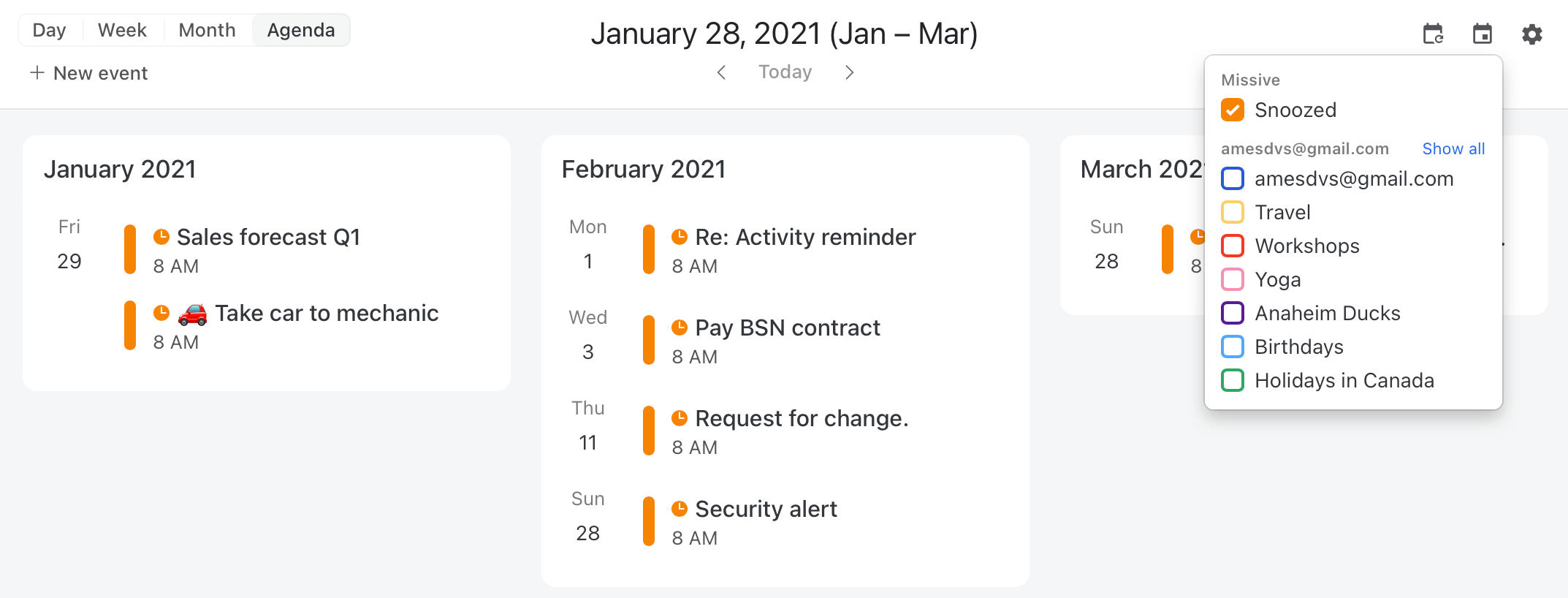
The calendar sidebar lists everything you can show on the calendar:
* The [Meet with](/docs/core-features/calendar/meet-with.md) field and the people you've added
* A **Missive** group with **Snoozed** conversations and tasks
* One group per calendar account, with each of its calendars
Click a calendar to show or hide it. Use **Show all** or **Hide all** on a group to toggle every calendar in it. Hidden calendars sync across your devices.
Right-click a calendar for more options:
* **Pin to sidebar** adds the calendar to your main sidebar for quick access
* **Open in new window** opens the calendar in its own window (desktop)
Click **Toggle calendar sidebar** in the header to collapse it. When it's collapsed, and on phones, use the **Calendars** button in the header to show or hide calendars.
To change a calendar's color, see [Calendar accounts and settings](/docs/core-features/calendar/accounts-and-settings.md#calendar-colors-notifications-and-visibility).
## Calendar groups
A calendar group is a saved set of calendars pinned to your main sidebar. Use groups to switch between views like "Work", "Family", or "Support team" in one click, instead of checking and unchecking calendars each time.
To create a group:
1. In the main sidebar, click **+ More** > **Calendars**.
2. Click **Create new calendar group**.
3. Name the group and click **Create**.
4. Check the calendars you want in the group.
Open the group from the main sidebar to see only its calendars. Checking or unchecking a calendar while a group is open changes that group, not your other views.
Each group keeps its own layout and its own task scope. Pick **My tasks** in one group and **All tasks** in another, and neither changes the main calendar.
Right-click a group in the main sidebar to **Rename** or **Unpin** it.
## Multiple time zones
In the day and week layouts, add time zone columns next to the hours to compare times across regions.
1. Click **+** (**Add time zone**) at the top of the hours column.
2. Search for a zone, or pick one from **Teammates** to use a teammate's time zone.
Each zone shows its offset and current time. Added zones are sorted by UTC offset, with your own time zone always closest to the calendar. To change or remove a zone, click its abbreviation (for example, **EST**) and pick another zone or **Remove**.
Time zone columns are saved per device. Your own time zone always follows your computer's system settings.
When you add teammates to [Meet with](/docs/core-features/calendar/meet-with.md), their time zones are added automatically.
## How events look
Events use their calendar's color, or their [Google label or Outlook category](/docs/core-features/calendar/events.md#google-labels-and-outlook-categories) color.
| Your response | Style |
| ------------- | -------------------------------------- |
| **Yes** | Filled |
| **Maybe** | Filled, dashed border |
| Not answered | Outline, dashed border |
| **No** | Outline, dashed border, struck through |
Past events are faded, unless you turn off **Fade past events** in the layout menu. A red line marks the current time.
Private events show a lock icon next to their title.
When the same event is on more than one of your calendars, or several people in [Meet with](/docs/core-features/calendar/meet-with.md) are in the same meeting, it shows once with a colored stripe for each calendar. Hover over it to see whose calendars it's on.
Events from calendars that only share free/busy information show as **Busy** with **Private** visibility.
## Snoozed conversations and tasks
Show [snoozed conversations](/docs/core-features/conversations/snoozing.md) and [task](/docs/core-features/tasks.md) due dates in the calendar by checking **Snoozed** or the tasks row in the **Missive** group of the calendar sidebar.
Click the filter icon next to the tasks row to choose:
* **My tasks**: tasks assigned to you
* **All tasks**: every task with a due date across your organization
* **Show completed tasks**: include tasks that are already done
Click a snoozed conversation or task to see its details. These items can't be dragged to a new time. Change the snooze or due date from the conversation.
## Calendar in the right sidebar
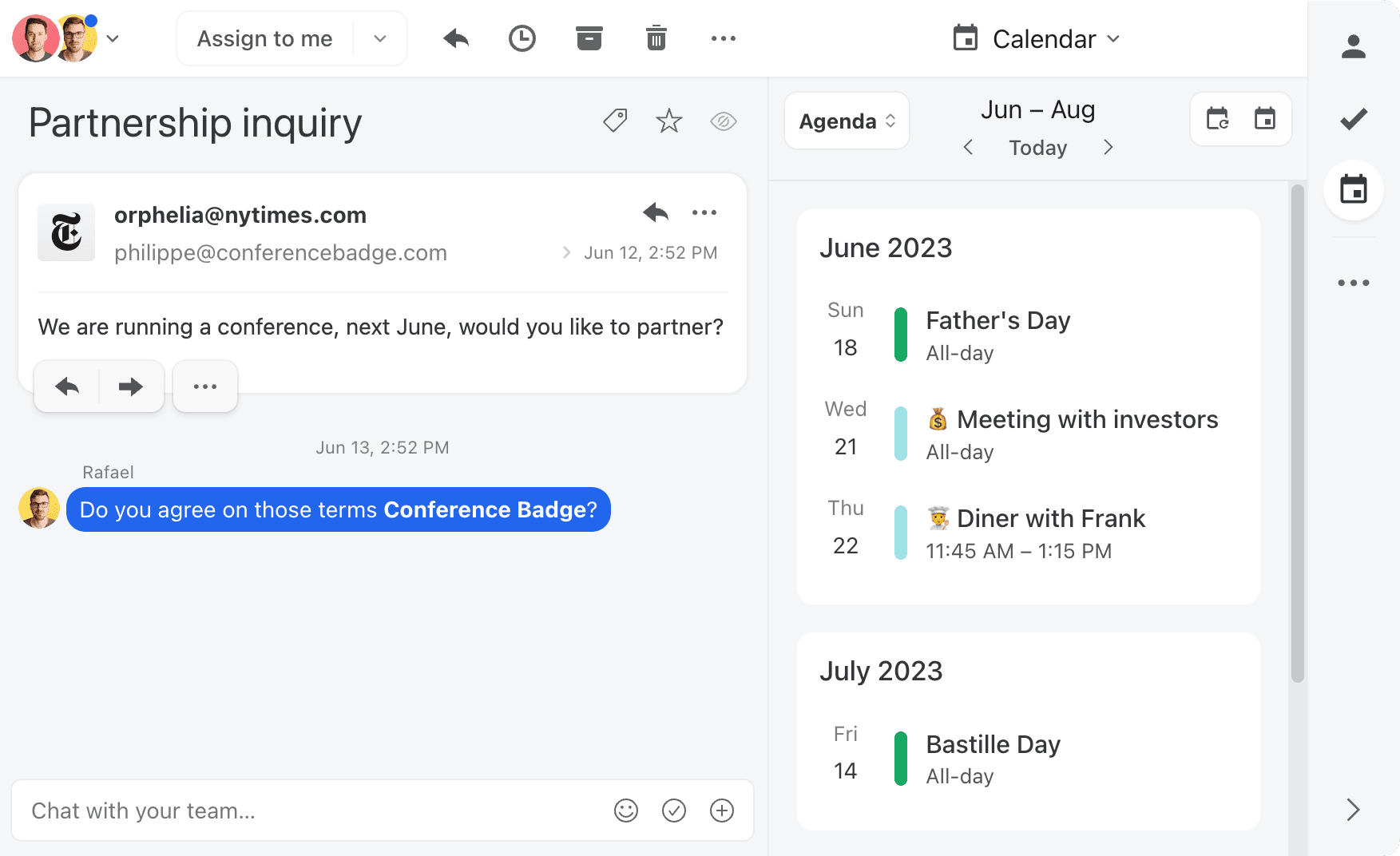
Open the calendar in the right sidebar to see your schedule next to the conversation you're reading. It opens on a compact month view, with dots for events and a list of the selected day's events below. Click **New event** to create one for that day.
The right sidebar calendar pages instead of scrolling continuously, and keeps its own date separate from the main calendar.
## Mobile
The calendar works on phones and tablets with the same layouts.
* Tap the date title to switch layouts, jump to today, or go to a date.
* Tap the **Calendars** button to show or hide calendars and use **Meet with**.
* Tap the floating **+** button to create an event, or long-press empty space and drag.
* On tablets, toggle the calendar sidebar from the header.
## Keyboard shortcuts
These shortcuts work while the calendar is focused.
| Action | Shortcut |
| --------------------- | -------------------------------------------------------------------- |
| Day view | D or 1 |
| 2 to 9-day view | 2 to 9 |
| Week view | W or 0 |
| Month view | M |
| Agenda view | A |
| Today | T |
| Open the selected day | Enter |
| Move by a day | ← or → |
| Move by a week | ↑ or ↓ |
| Previous or next page | ⌘/Ctrl + ← or ⌘/Ctrl + → |
| Go to date | ⌘/Ctrl + L |
| Focus Meet with | ⌘/Ctrl + F |
| Create new event | ⌘/Ctrl + Y |
| Refresh events | ⌘/Ctrl + R |
| Show fewer hours | ⌘/Ctrl + + |
| Show more hours | ⌘/Ctrl + - |
| Show default hours | ⌘/Ctrl + 0 |
⌘/Ctrl + L, ⌘/Ctrl + Y, ⌘/Ctrl + R, and the hours shortcuts are only available in the desktop app. See [Shortcuts](/docs/advanced-features/shortcuts.md) for the Gmail preset and customization.
## Related
* [Create and edit events](/docs/core-features/calendar/events.md)
* [Meet with](/docs/core-features/calendar/meet-with.md)
* [Calendar accounts and settings](/docs/core-features/calendar/accounts-and-settings.md)
* [Calendar FAQ](/docs/core-features/calendar/faq.md)
---
# Agent Instructions
This documentation is published with GitBook. GitBook is the documentation platform designed so that both humans and AI agents can read, navigate, and reason over technical content effectively. Learn more at gitbook.com.
## Querying This Documentation
If you need additional information that is not directly available in this page, you can query the documentation by asking a question.
Perform an HTTP GET request on the following URL with the `ask` and `goal` query parameters:
```
GET https://missiveapp.com/docs/core-features/calendar/views-and-navigation.md?ask=&goal=
```
`ask` is the immediate question: it should be specific, self-contained, and written in natural language.
`goal` is what the user is ultimately trying to achieve, the reason they need the answer. Sharing it helps GitBook give you a better, more relevant answer. A goal is most helpful when it describes the outcome the user wants rather than restating the question. For example, with `ask=how do I create an API token`, a goal like `automate deployments from our CI pipeline` lets GitBook tailor the answer to that use case.
The response will contain a direct answer to the question and relevant excerpts and sources from the documentation.
Use this mechanism when the answer is not explicitly present in the current page, you need clarification or additional context, or you want to retrieve related documentation sections.