> For the complete documentation index, see [llms.txt](https://missiveapp.com/docs/llms.txt). Markdown versions of documentation pages are available by appending `.md` to page URLs; this page is available as [Markdown](https://missiveapp.com/docs/core-features/canned-responses.md).
# Canned responses
Save time with canned responses. Create reusable templates for common replies.
Canned responses (or templates) are pre-written replies to common questions. Instead of typing the same answer repeatedly, you write it once and insert it with a few keystrokes.
In Missive, you can create a collection of canned responses and share them with a team or your entire company. You can also keep responses personal for your own use.
{% hint style="info" %}
Canned responses can also be combined with AI to generate replies based on your existing response library.
{% endhint %}
## Creating a response
{% stepper %}
{% step %}
**Open the responses panel**
Press ⌘/Ctrl + Shift + O. You can also click your avatar in the bottom-left corner of the sidebar and select **Responses**, or use the command bar (⌘/Ctrl + K) and search for "responses".
{% endstep %}
{% step %}
**Create a new response**
Click **Create new response** at the bottom of the panel (second column).
{% endstep %}
{% step %}
**Choose who can access this response**
* **Personal**: Only you can see and use it
* **Organization**: Everyone in the organization can use it
* **Team**: Only members of a specific team can use it
{% endstep %}
{% step %}
**Add content**
Add a title, optional subject line, and body content. You can also add:
* **To, Cc, Bcc fields**: Pre-fill recipient addresses when the response is inserted
* **Attachments**: Drag files into the body (inline) or at the bottom (as attachments)
* **Labels**: Categorize responses using organization labels
{% endstep %}
{% endstepper %}
## Inserting a response
There are three ways to insert a canned response into a draft:
**Using the # shortcut**
Type **#** followed by your search term anywhere in the draft composer. A dropdown appears with matching responses. Select one to insert it.
{% hint style="info" %}
You can disable the **#** shortcut in **Settings > Composer > Suggest responses while typing**.
{% endhint %}
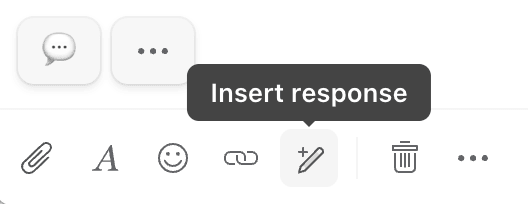
**Using the composer toolbar**
Click the responses icon in the composer toolbar to open the responses panel.
**Using the keyboard shortcut**
Press ⌘/Ctrl + Shift + O to open the responses panel, then search or browse for a response and press Return to insert it.
## Searching responses
The search matches title, subject, and body content. You don't need to type every character of a word for results to appear:
| Search term | Matches |
| ------------- | ---------------------------------------- |
| "ho bet pers" | "**Ho**w to be a **bet**ter **pers**on?" |
| "pers better" | "How to be a **better** **pers**on?" |
| "person?" | "How to be a better **person?**" |
To narrow down results:
* **Scope by team**: Prepend the team name (e.g., `sales refund policy`)
* **Scope by organization**: Prepend the organization name
* **Personal only**: Prepend `personal` to your search
## Variables
You can customize responses with dynamic content like your recipient's name using the variables templating engine:
```liquid
Hi {{ recipient.first_name | default: 'there' }},
```
If `recipient.first_name` is available, this renders as:
> Hi Philippe,
If not, it falls back to:
> Hi there,
Read the [Using variables guide](/docs/core-features/canned-responses/using-variables.md) for the full list of available variables and syntax.
## Attachments
You can attach files to responses:
* **Inline**: Drag and drop an image into the body to embed it
* **Attachment**: Drag and drop a file at the bottom to attach it
When you insert a response, its attachments are added to the draft.
## Edit on the fly
Sometimes response content gets outdated. You often notice this when composing a reply and searching for the right response.
No problem! You can edit the response directly from the panel and insert the updated version. Maintaining your responses becomes less of a burden when you can fix them as you go.
## Shortcuts
| Shortcut | Action |
| --------------------------------------------------- | ------------------------ |
| ⌘/Ctrl + Shift + O | Open the responses panel |
| Return | Insert the response |
| ⌘/Ctrl + Return | Insert when in edit mode |
| ⌘/Ctrl + F | Focus the search input |
| ⌘/Ctrl + N | Create a new response |
## Categorization
You can categorize canned responses using [organization labels](https://github.com/missive/docs-guides/blob/main/core-features/labels/README.md). Labels follow the same hierarchical structure as defined in **Settings > Labels**.
---
# Agent Instructions
This documentation is published with GitBook. GitBook is the documentation platform designed so that both humans and AI agents can read, navigate, and reason over technical content effectively. Learn more at gitbook.com.
## Querying This Documentation
If you need additional information that is not directly available in this page, you can query the documentation dynamically by asking a question.
Perform an HTTP GET request on the following URL with the `ask` and `goal` query parameters:
```
GET https://missiveapp.com/docs/core-features/canned-responses.md?ask=&goal=
```
`ask` is the immediate question: it should be specific, self-contained, and written in natural language.
`goal` is what the user is ultimately trying to achieve, the reason they need the answer. Sharing it helps GitBook give you a better, more relevant answer. A goal is most helpful when it describes the outcome the user wants rather than restating the question. For example, with `ask=how do I create an API token`, a goal like `build a script that syncs our docs to a CMS` lets GitBook tailor the answer to that use case.
The response will contain a direct answer to the question and relevant excerpts and sources from the documentation.
Use this mechanism when the answer is not explicitly present in the current page, you need clarification or additional context, or you want to retrieve related documentation sections.