> For the complete documentation index, see [llms.txt](https://missiveapp.com/docs/llms.txt). Markdown versions of documentation pages are available by appending `.md` to page URLs; this page is available as [Markdown](https://missiveapp.com/docs/core-features/connected-accounts/other-channels/whatsapp.md).
# WhatsApp
Connect WhatsApp Business to Missive for team messaging.
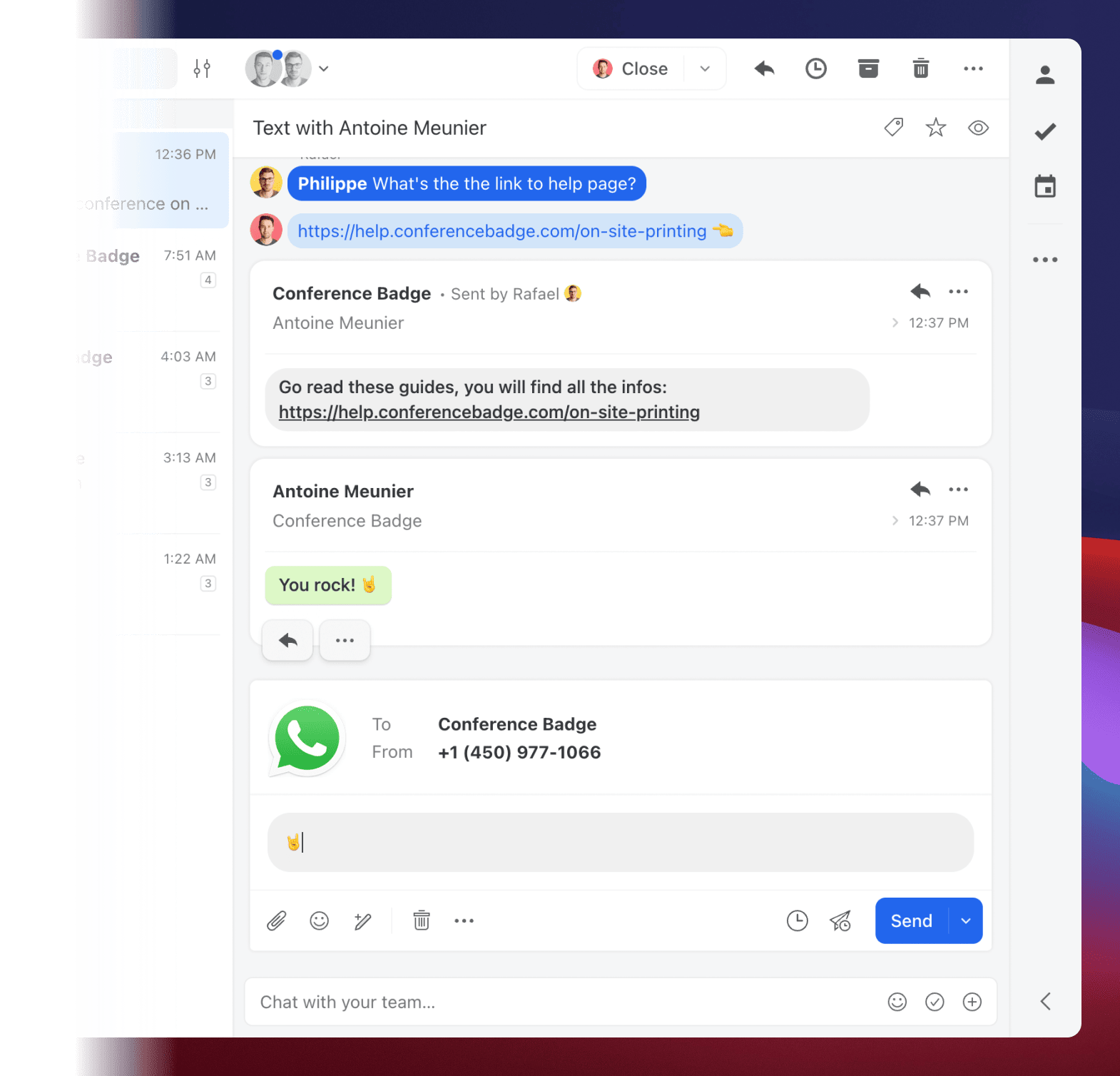
Connect your WhatsApp Business account to Missive through our native Meta integration. Scale your support team without sharing mobile devices - everyone can collaborate on WhatsApp conversations directly in Missive.
## How to connect
{% stepper %}
{% step %}
**Prerequisites**
Before connecting, you need:
* A [Meta Business Account](https://business.facebook.com)
* Business verification completed with Meta
* Compliance with WhatsApp Business Messaging Policy
{% endstep %}
{% step %}
**Open account settings**
Go to **Settings** > **Accounts** and click **Add account**.
{% hint style="info" %}
To open Settings, click your avatar in the bottom-left corner of the sidebar, then **Settings** (or press ⌘,).
{% endhint %}
{% endstep %}
{% step %}
**Select WhatsApp Business**
Click the **Others** tab, then select **WhatsApp Business**.
{% endstep %}
{% step %}
**Choose sharing options**
Select if this is a personal or shared account. For team collaboration, choose **Yes, share this account** and select the users or Team Inbox.
{% endstep %}
{% step %}
**Connect with WhatsApp**
Click **Connect with WhatsApp**. A Meta sign-in window opens.
1. Sign in with your Meta Business account
2. Select or verify your WhatsApp Business phone number
3. Grant the required permissions
4. Complete the authorization
{% endstep %}
{% endstepper %}
For detailed setup instructions, see the [WhatsApp setup guide](/docs/core-features/connected-accounts/other-channels/whatsapp/setup.md).
## Key benefits
**Direct Meta Integration**
Connect directly to the WhatsApp Business Platform without third-party providers.
**Multiple Phone Numbers**
Manage multiple WhatsApp Business phone numbers from a single Meta Business Account.
**Team Collaboration**
Work together on WhatsApp conversations with assignments, comments, and shared drafts.
**Message Templates**
Send approved templates to initiate conversations or reply outside the 24-hour window.
**Media Support**
Send and receive images, videos, documents, and other media types.
**Contact Management**
Automatically match WhatsApp contacts with your existing Missive contacts.
## Billing
Meta bills directly for WhatsApp Business Platform usage. Missive does not charge additional fees for WhatsApp.
## Resources
* [WhatsApp setup guide](/docs/core-features/connected-accounts/other-channels/whatsapp/setup.md)
* [Message templates](/docs/core-features/connected-accounts/other-channels/whatsapp/templates.md)
* [WhatsApp customer support tutorial](https://missiveapp.com/blog/use-whatsapp-for-customer-support)
---
# Agent Instructions
This documentation is published with GitBook. GitBook is the documentation platform designed so that both humans and AI agents can read, navigate, and reason over technical content effectively. Learn more at gitbook.com.
## Querying This Documentation
If you need additional information that is not directly available in this page, you can query the documentation by asking a question.
Perform an HTTP GET request on the following URL with the `ask` and `goal` query parameters:
```
GET https://missiveapp.com/docs/core-features/connected-accounts/other-channels/whatsapp.md?ask=&goal=
```
`ask` is the immediate question: it should be specific, self-contained, and written in natural language.
`goal` is what the user is ultimately trying to achieve, the reason they need the answer. Sharing it helps GitBook give you a better, more relevant answer. A goal is most helpful when it describes the outcome the user wants rather than restating the question. For example, with `ask=how do I create an API token`, a goal like `automate deployments from our CI pipeline` lets GitBook tailor the answer to that use case.
The response will contain a direct answer to the question and relevant excerpts and sources from the documentation.
Use this mechanism when the answer is not explicitly present in the current page, you need clarification or additional context, or you want to retrieve related documentation sections.