# Merging

Merge conversations to combine related threads into one. All messages, comments, labels, and assignees transfer to the target conversation.

## How to merge conversations

### Drag and drop

Drag a conversation from the list and drop it onto another conversation. The dragged conversation merges into the one you drop it on.

### Using a conversation link

1. Right-click the conversation you want to merge into another
2. Select **Copy Link**
3. Open the target conversation (where you want messages to end up)
4. Press <kbd>⌘/Ctrl</kbd> + <kbd>Shift</kbd> + <kbd>G</kbd> or right-click and select **Merge...**
5. Paste the conversation link
6. Optionally set a new subject for the merged conversation
7. Click **Merge**

### Using a copied conversation

1. Right-click the conversation you want to merge and select **Copy conversation**
2. Right-click the target conversation
3. Select **Merge copied conversation...**
4. Confirm the merge

### Batch merging

1. Select multiple conversations by holding <kbd>⌘/Ctrl</kbd> and clicking each one
2. Right-click the selection
3. Select **Merge**
4. All selected conversations merge into the first one

{% hint style="warning" %}
Merging cannot be undone. The source conversation is permanently combined into the target.
{% endhint %}

### Automatic merging with rules

Use [Rules](/docs/advanced-features/rules.md) to automatically merge conversations when specific conditions are met. The [Merge in conversation](/docs/advanced-features/rules/actions.md#merge-in-conversation) action combines incoming messages into existing conversations based on your criteria.

## What gets merged

When you merge conversations, the target conversation receives:

<table><thead><tr><th width="240.40618896484375">Data</th><th>How it's handled</th></tr></thead><tbody><tr><td><strong>Messages and comments</strong></td><td>Combined chronologically</td></tr><tr><td><strong>Labels</strong></td><td>Combined from both conversations</td></tr><tr><td><strong>Assignees</strong></td><td>Combined from both conversations</td></tr><tr><td><strong>Tasks</strong></td><td>Moved to the target conversation</td></tr><tr><td><strong>Subject</strong></td><td>See subject preservation rules below</td></tr><tr><td><strong>Description</strong></td><td>Combined if both have descriptions</td></tr></tbody></table>

## Subject preservation

When merging, you can choose which subject to keep in the merge dialog. If you don't manually select a subject, Missive applies these rules:

**Custom subjects** are subjects you've manually renamed. Default subjects like "New conversation" or subjects from email threads don't count as custom.

**Merging shared and private conversations:**

* If both have custom subjects: the shared conversation's subject is kept
* If only one has a custom subject: that subject is kept
* If neither has a custom subject: the most recent email subject is used

**Merging two private conversations:**

* If both have custom subjects: the target conversation's subject is kept
* If only one has a custom subject: that subject is kept
* If neither has a custom subject: the most recent email subject is used

**Merging two shared conversations:**

* If both have custom subjects: the target conversation's subject is kept
* If only one has a custom subject: that subject is kept
* If neither has a custom subject: the most recent email subject is used

{% hint style="info" %}
To ensure your preferred subject is preserved, select it manually in the merge dialog before confirming.
{% endhint %}

## Limitations

Merging is not available when:

* The conversation is a **chat room**
* You are a **guest** in the conversation
* The conversations are from **different organizations**
* Both conversations have **400+ messages** each

{% hint style="info" %}
Missive has a hard limit of 400 messages per conversation. When a conversation reaches this limit, new messages automatically create a separate thread. This prevents performance issues with very long conversations.
{% endhint %}

## After merging

The source conversation disappears and its messages appear in the target conversation. A merge event shows in the conversation history indicating which conversation was merged.

If you were viewing the source conversation, you're automatically navigated to the target.

## Undoing a merge

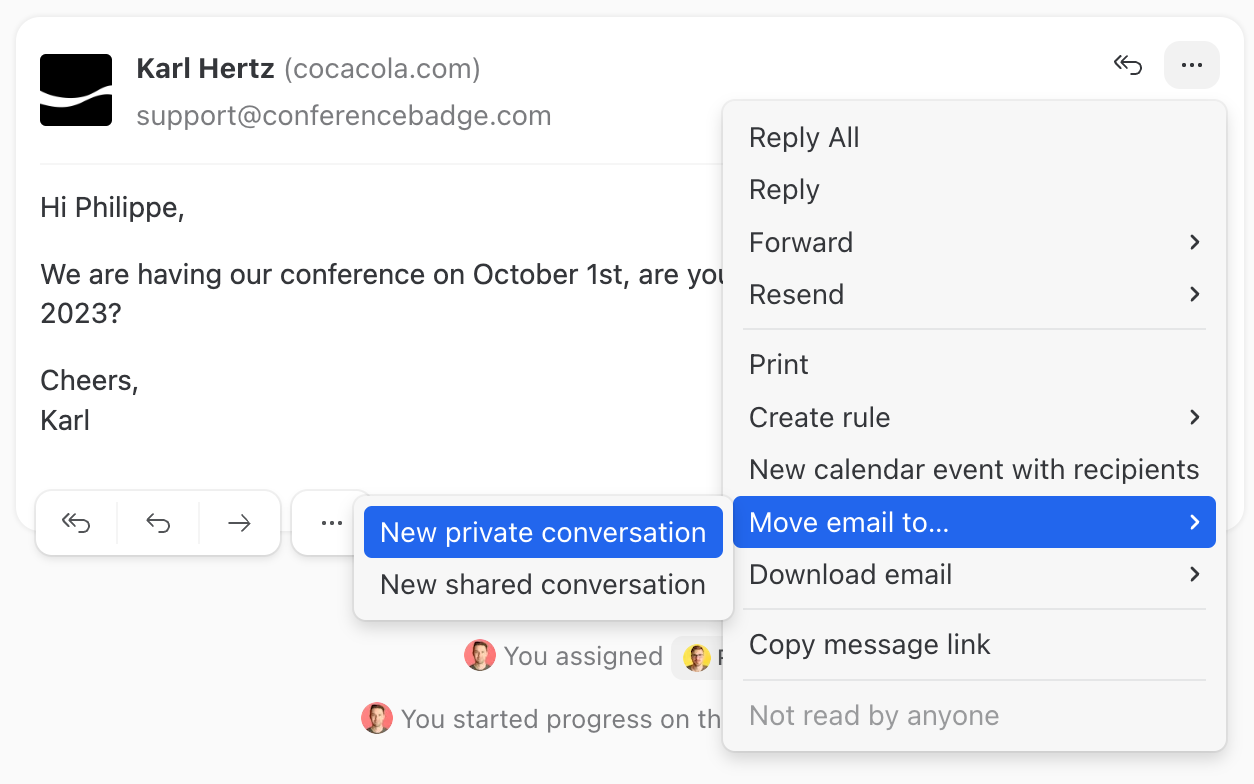
There's no one-click undo for merging, but you can move emails out of the merged conversation:

1. Open the merged conversation
2. Click the **More menu** (three dots) on an email you want to separate
3. Select **Move email to...** → **New private conversation** or **New shared conversation**

<div data-with-frame="true"><figure><img src="/files/Tl5IEHJR3UkGcVjn1AGf" alt="Move email to new conversation" width="563"><figcaption></figcaption></figure></div>

Each email you move ends up in its own conversation. If needed, you can then merge those single-email conversations together to recreate the original thread.

{% hint style="info" %}
Comments cannot be moved out of a conversation. Only emails can be separated this way.
{% endhint %}


---

# Agent Instructions: Querying This Documentation

If you need additional information that is not directly available in this page, you can query the documentation dynamically by asking a question.

Perform an HTTP GET request on the current page URL with the `ask` query parameter:

```
GET https://missiveapp.com/docs/core-features/conversations/merging.md?ask=<question>
```

The question should be specific, self-contained, and written in natural language.
The response will contain a direct answer to the question and relevant excerpts and sources from the documentation.

Use this mechanism when the answer is not explicitly present in the current page, you need clarification or additional context, or you want to retrieve related documentation sections.
