Search and filter
Missive’s search and filters help you quickly find conversations, messages, files, and participants across your personal and shared mailboxes. You can search from anywhere and refine your results using filters to narrow things down.
Searching in Missive
When you start typing in the search bar, Missive shows suggestions such as labels, recipients, domains, or mailboxes. Selecting one of these does not apply a filter to your search. Instead, it navigates you to that specific view.
For example:
Selecting a label takes you to that label’s inbox (every label is its own mailbox).
Selecting a past recipient shows all conversations with that person.
Selecting a domain opens its dedicated view.
These suggestions help you jump quickly to an existing view rather than refining your search. Press Tab before selecting to navigate without pinning the item to your sidebar.
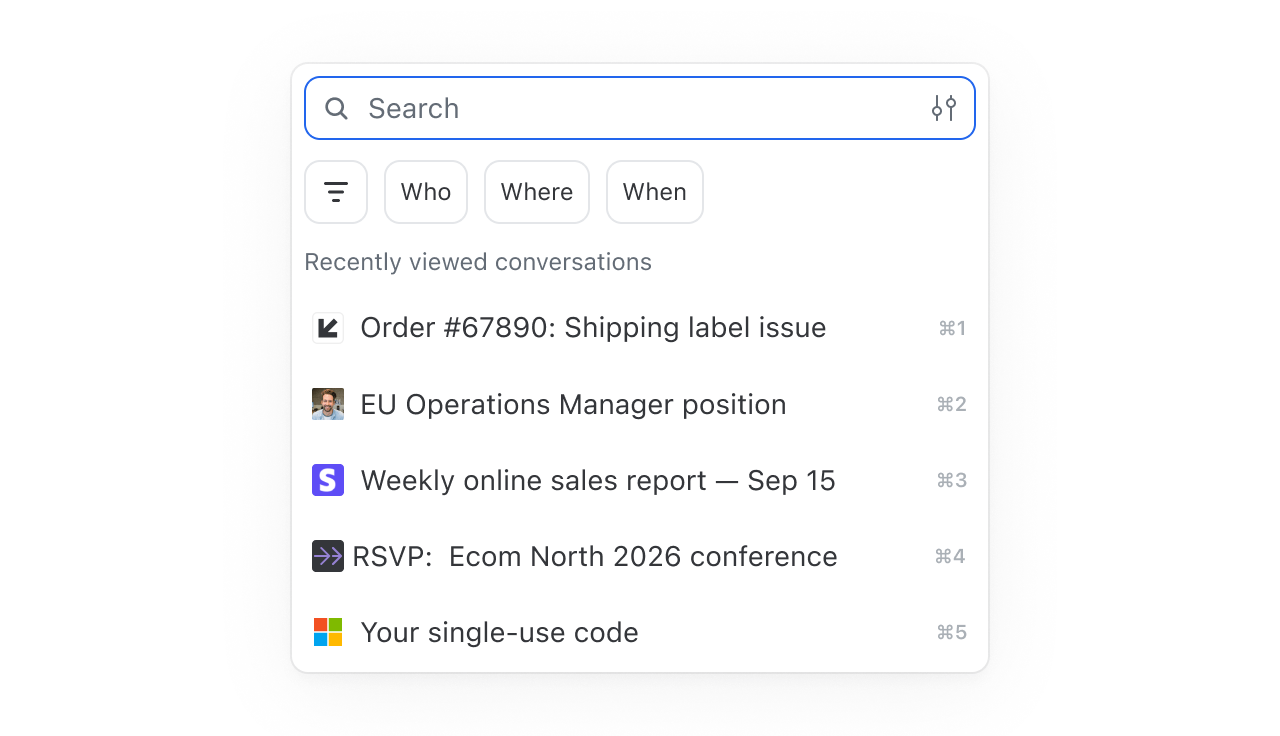
If you want to filter your results instead of navigating, use the Filters menu or the inline filter chips (Who, Where, When).

Filters
Filters let you narrow results based on specific criteria. You can combine them to quickly isolate what you’re looking for, such as conversations from a specific sender or domain, within a specific date range, items with attachments, or messages in a specific channel (email, SMS, WhatsApp, Messenger).
Filters categories
You can filter by the following property in Missive.
Accounts
Limit results to specific accounts or channels
Status / mailboxes
Inbox, Team Inbox, Starred, Not starred, Snoozed, Not snoozed, My drafts, Drafts, Send later, My sent, Sent, Comments, Open, Closed, Trash, Spam
Date range
Anytime, Last 7 days, Last 4 weeks, Last 3 months, Last 12 months, Custom range
Type
Internal or external conversations
Domains / addresses
Filter by a specific address or domain
From / To
Filter by direct participants
CC/BCC
Filter by carbon-copy and blind-copy recipients
Email subject
Match keywords in subject lines
Email body
Match text inside email content
Assigned to
Assigned to me, assigned to others, or select specific teammates
Teams and organizations
Filter by the team or organization the conversation belongs to
Labels
Show conversations with selected labels
Unread
Only show unread conversations
Has tasks
Only show conversations containing tasks
Has attachments
Only show conversations with files attached
Search scope and defaults
Search scope depends on where you are in Missive:
In Inbox: searches All conversations by default
In a team inbox: searches all the team's conversations by default
In any other mailbox: searches within that mailbox by default
The default date range is All time.
These defaults can be changed in Settings > Search, where you can:
Adjust the default date range
Exclude specific accounts from search
Choose where search runs when you're in Inbox, a team inbox, or any mailbox
Set the number of recent searches shown in your sidebar
Recently viewed conversations
When you focus the search bar, Missive shows your recently viewed conversations for quick access. You'll also see suggestions for team inboxes, calendars, labels, and contacts you can navigate to directly.

Searches in sidebar
Missive automatically keeps track of your most recent searches. Your latest search queries appear in your sidebar, giving you quick access to rerun them without typing again. You can change the number of recent searches shown (or disable this feature) in Settings > Preferences > Search.
Last updated