> For the complete documentation index, see [llms.txt](https://missiveapp.com/docs/llms.txt). Markdown versions of documentation pages are available by appending `.md` to page URLs; this page is available as [Markdown](https://missiveapp.com/docs/core-features/tasks/viewing-and-organizing-tasks.md).
# Viewing tasks
View, filter, and organize your tasks in Missive.
Missive gives you multiple ways to view, organize, and track tasks across your conversations and teams. Whether you’re focusing on your own work, monitoring tasks across your organization, or managing subtasks within a conversation.
## Tasks view
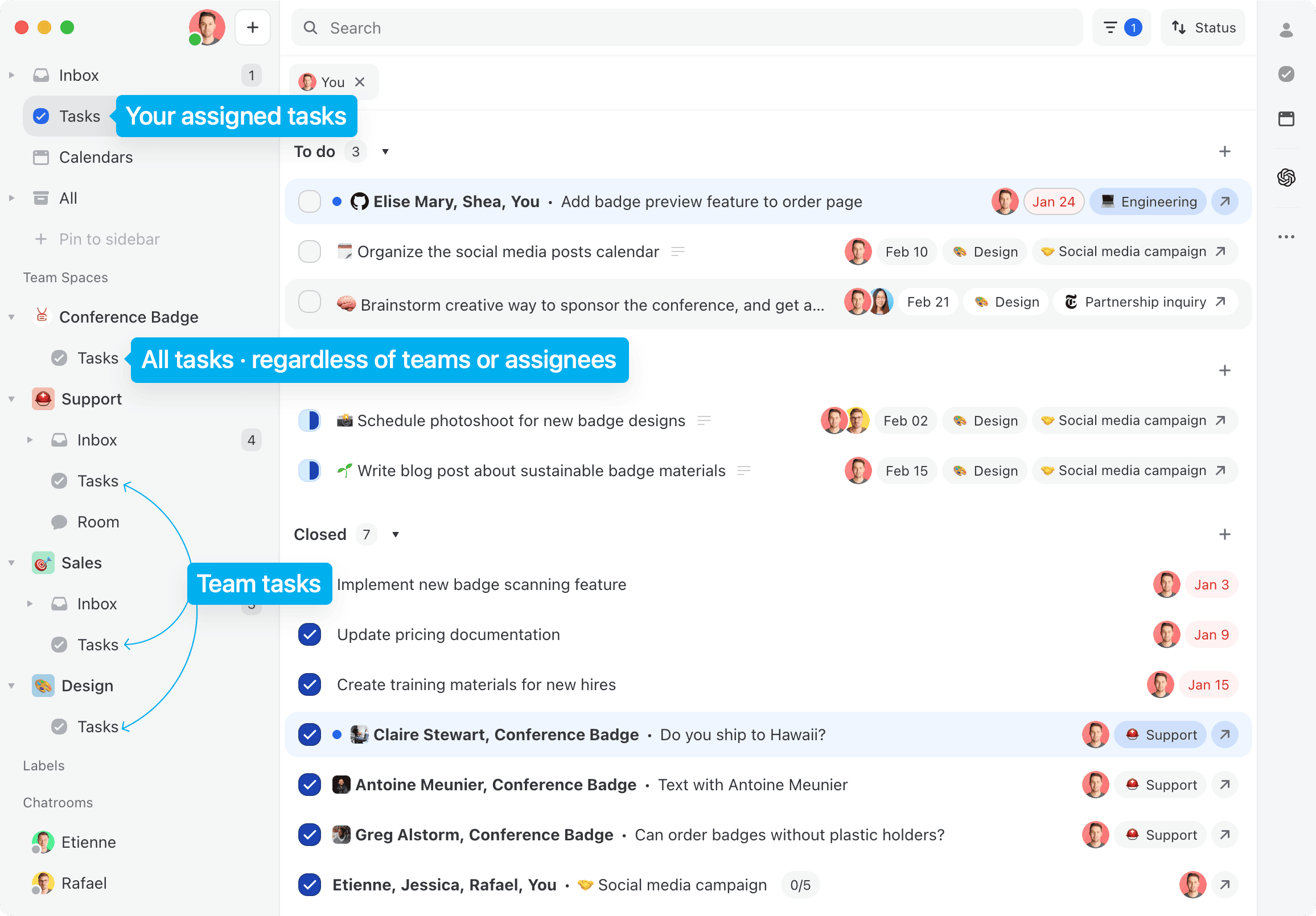
The Tasks views in your sidebar are the three main ways to view your tasks:
* **My tasks**: All your tasks across any teams or organizations
* **Organization tasks**: All tasks in your organization
* **Team tasks**: Tasks assigned to a specific team
Each row shows an at-a-glance status indicator to the left of the task:
* **Blue dot**: The task has unread activity
* **Clock icon**: The task is snoozed
* **Star icon**: The task is starred
Only one indicator shows at a time, in that order of priority.
### Organizing and filtering tasks
The Tasks view offers various ways to organize your work:
* Filter tasks by assignees, team, status, or other criteria
* Pin custom filtered views to your sidebar
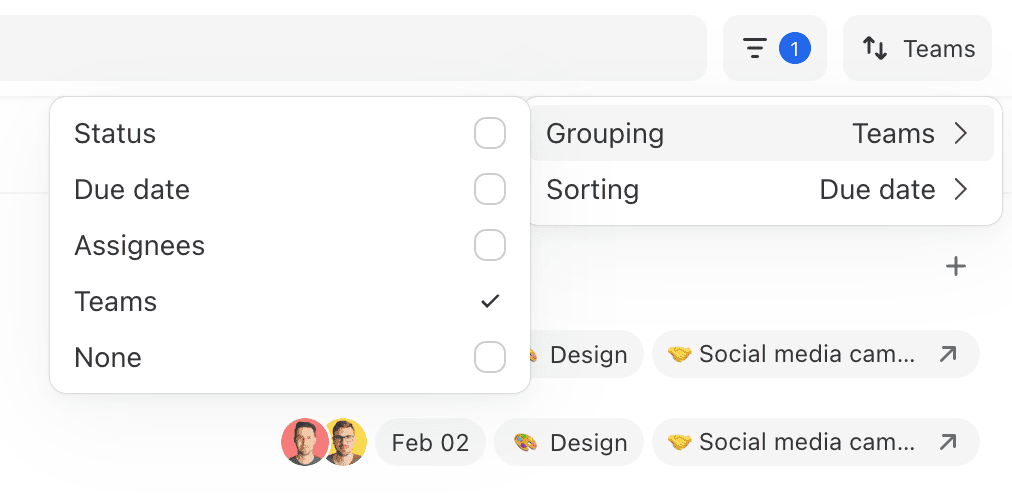
* Sort and group tasks according to your preferences
* Click on conversation pills to quickly access related conversations
## Subtasks
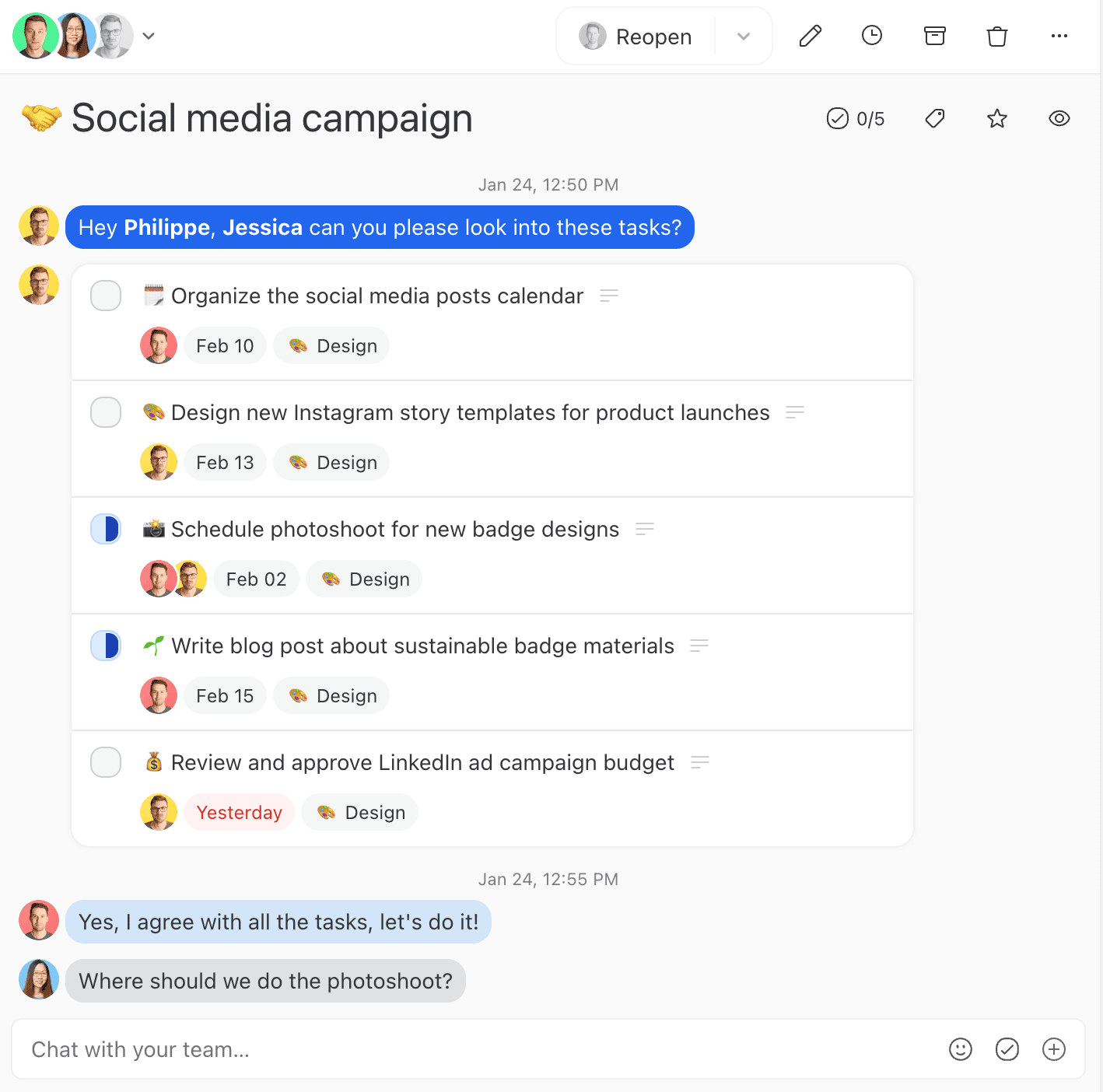
Subtasks are tasks created within a conversation. For larger projects, you can create a conversation and attach multiple subtasks to it. This allows you to assign the conversation to a project owner while distributing subtasks to different team members.
For example, when a new sales inquiry comes in, you can assign the conversation to a sales representative and create subtasks to track the entire sales process:
* Initial contact and qualification (Sales team)
* Product demo scheduling (Sales team)
* Technical requirements review (Engineering team)
* Contract preparation (Legal team)
* Account setup (Customer Success team)
This allows you to track the lead's progress through your sales pipeline while coordinating work across multiple teams. Subtasks appear in both the Tasks sidebar and the Tasks views.
## Tasks sidebar
The **Tasks** sidebar on the right side of a conversation provides a unified view of all task-related information:
* The conversation's task attributes (status, team, assignees, due date, description)
* All subtasks in the conversation, grouped by status (To do, In Progress, Closed)
Use the Tasks sidebar to manage both the conversation-level task and its subtasks without leaving the conversation.
## Calendar
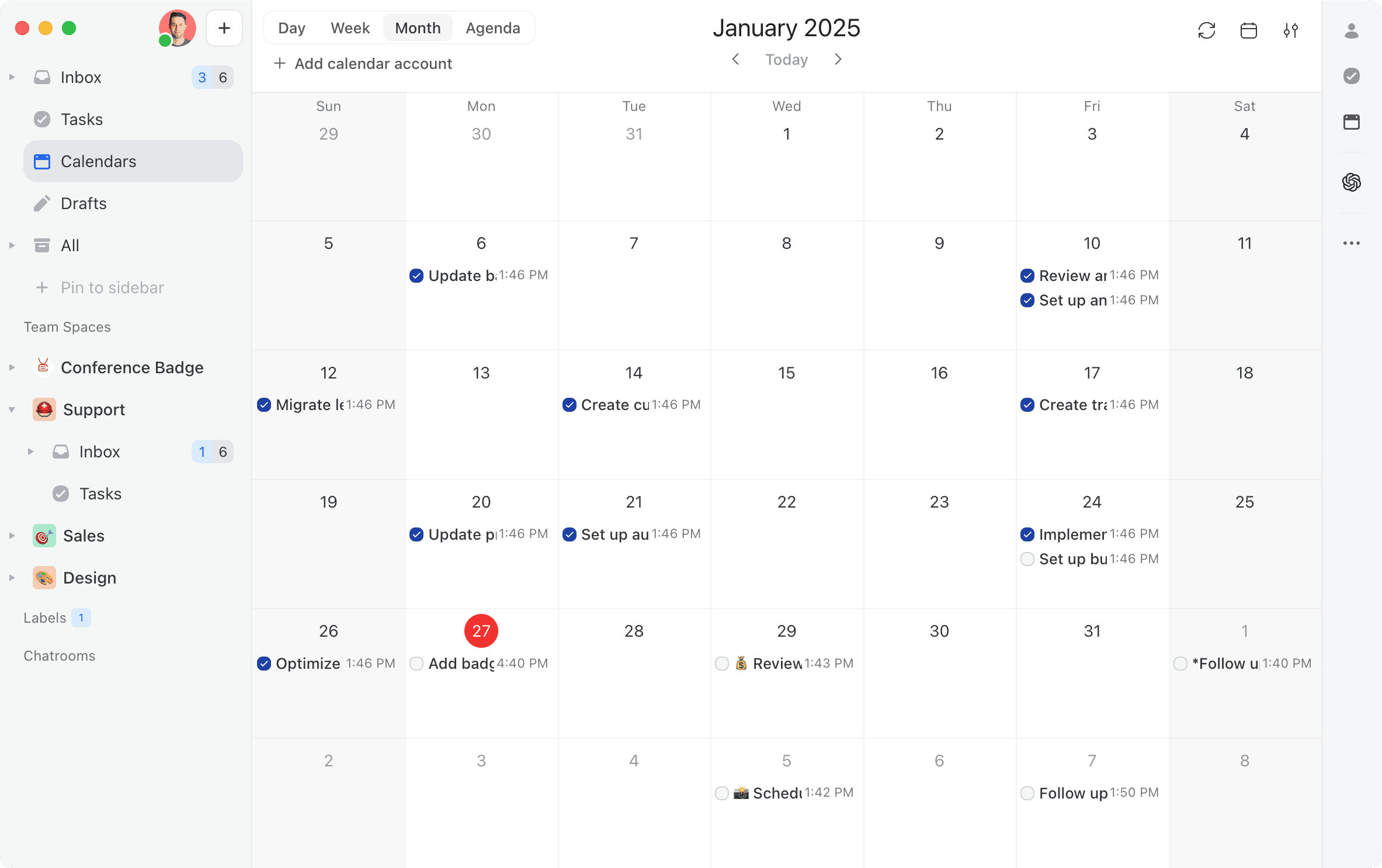
To view your tasks with due dates (and their progress status) in Missive built-in calendar, toggle on **My tasks** in the **calendar filter** (the second icon in the upper-right). Use the filter icon next to the tasks row to switch between **My tasks** and **All tasks**.
---
# Agent Instructions
This documentation is published with GitBook. GitBook is the documentation platform designed so that both humans and AI agents can read, navigate, and reason over technical content effectively. Learn more at gitbook.com.
## Querying This Documentation
If you need additional information that is not directly available in this page, you can query the documentation dynamically by asking a question.
Perform an HTTP GET request on the current page URL with the `ask` query parameter, and the optional `goal` query parameter:
```
GET https://missiveapp.com/docs/core-features/tasks/viewing-and-organizing-tasks.md?ask=&goal=
```
`ask` is the immediate question: it should be specific, self-contained, and written in natural language.
`goal` is optional and describes the broader end goal you are ultimately trying to accomplish on behalf of the user. GitBook uses it to tailor the answer towards what is most useful for that goal.
The response will contain a direct answer to the question and relevant excerpts and sources from the documentation.
Use this mechanism when the answer is not explicitly present in the current page, you need clarification or additional context, or you want to retrieve related documentation sections.