> For the complete documentation index, see [llms.txt](https://missiveapp.com/docs/llms.txt). Markdown versions of documentation pages are available by appending `.md` to page URLs; this page is available as [Markdown](https://missiveapp.com/docs/get-started/missive-interface/faq.md).
# Interface FAQ
Common questions about Missive's interface, navigation, and layout.
### Sidebar
How does Missive work if I belong to multiple organizations?
Your single Missive account can belong to multiple organizations at the same time. All organizations appear together in the same sidebar — there is no way to view only one organization at a time. Each organization has its own section in the sidebar with its own team inboxes, labels, and chats.
Your personal **Inbox** aggregates activity from all organizations: mentions, assignments, and emails from all of them appear together.
Conversations from different organizations are fully siloed — you cannot share a conversation from one organization with members of another.
To tell organizations apart at a glance, assign each one a distinct color in **Settings** > **Organizations** > select your organization > **Conversations color**. This color appears as the left border on conversations belonging to that organization.
Note that billing is per organization. If you are a member of two paid organizations, you are charged separately for your seat in each one.
What is the Activity feed?
The **Activity feed** is a panel that collects your personal notifications: @mentions in comments, emoji reactions to your messages, and calendar reminders. Click the bell icon at the top of the sidebar to open it.
An unread dot on the bell indicates new activity -- blue for mentions or reactions, orange for calendar reminders. Use the filter dropdown at the top to view a specific type, and the settings icon at the bottom to control which types are displayed and counted as unread.
Why does my app badge show unread messages when I have none?
The app badge (the number shown on the Missive icon or in the title bar) counts:
* Unread conversations in your personal inbox
* Unread conversations in team inboxes where you are an **Active member**
* Unread conversations in your unified **Team Inboxes** view
* 1 point if you have any unread **calendar reminders** in the Activity feed
* Unread messages or comments in conversations pinned to your sidebar
**Check your Activity feed first.** Click the bell icon at the top of the sidebar. If unread calendar reminders are contributing to the count, open the Activity feed settings and uncheck **Unread** for **Calendar reminders**.
**Check your Team Inboxes.** Open the unified view from **+ More** > **Main section** > **Team Inboxes**. If you see unread conversations there, it's because you're an **Active member** of one or more teams. To stop those from affecting your badge, go to **Settings** > **Teams**, click **Edit** on the relevant team, and change your role from **Active member** to **Observer**. If you're not an admin, ask your organization admin to make the change.
What shows up in my Inbox?
Your **Inbox** contains everything that needs your attention:
* An email arrives in one of your accounts
* A colleague @mentions you in a conversation
* A colleague invites you to a conversation
* A colleague posts in a conversation you're watching
* A colleague assigns you to a conversation
* A closed conversation assigned to you is reopened
* A snoozed conversation comes due
What's the difference between Inbox and All?
**Inbox** shows what needs your attention now. **All** shows your complete history across every channel: archived conversations, chats, drafts, sent items, and snoozed conversations. If you can't find something, check All.
What is a Team Inbox?
A Team Inbox is a shared space where messages from shared accounts (email, SMS, WhatsApp, etc.) arrive. Unlike your personal Inbox, conversations in a Team Inbox aren't assigned to anyone yet. They wait there until someone claims or assigns them.
Once assigned, the conversation moves to the assignee's Inbox and appears in the team's Tasks view. Archiving from a Team Inbox removes the conversation for everyone on the team.
How can I create custom sections in the sidebar?
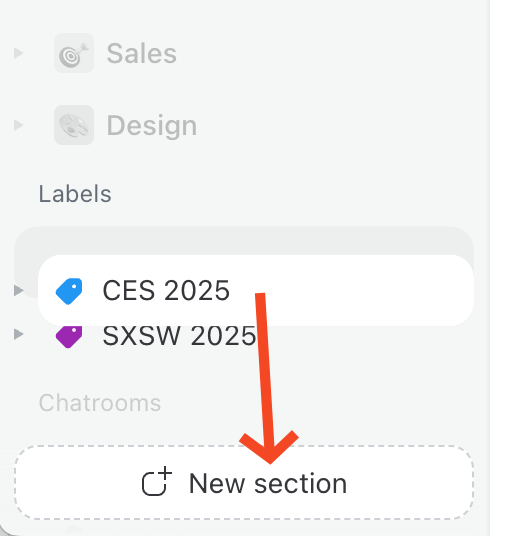
You can organize your sidebar by creating custom sections to group labels, views, or other items. There are two ways to create a new section:
**Option 1: Using the "More" menu**
1. Click the **More button**
2. At the bottom of the list, select Add custom section
3. Give your section a name
Your new section will appear in the sidebar, ready for you to organize items into it.
**Option 2: Using drag and drop**
1. Drag any label or view down to the "New section" drop zone at the bottom of the sidebar
2. Name your new section
3. Drag other items into this section to organize them
{% hint style="success" %}
Drag other items into this section to organize them. You can reorder sections at any time by dragging them up or down in the sidebar.
{% endhint %}
Can I reorder account sub-mailboxes in the sidebar?
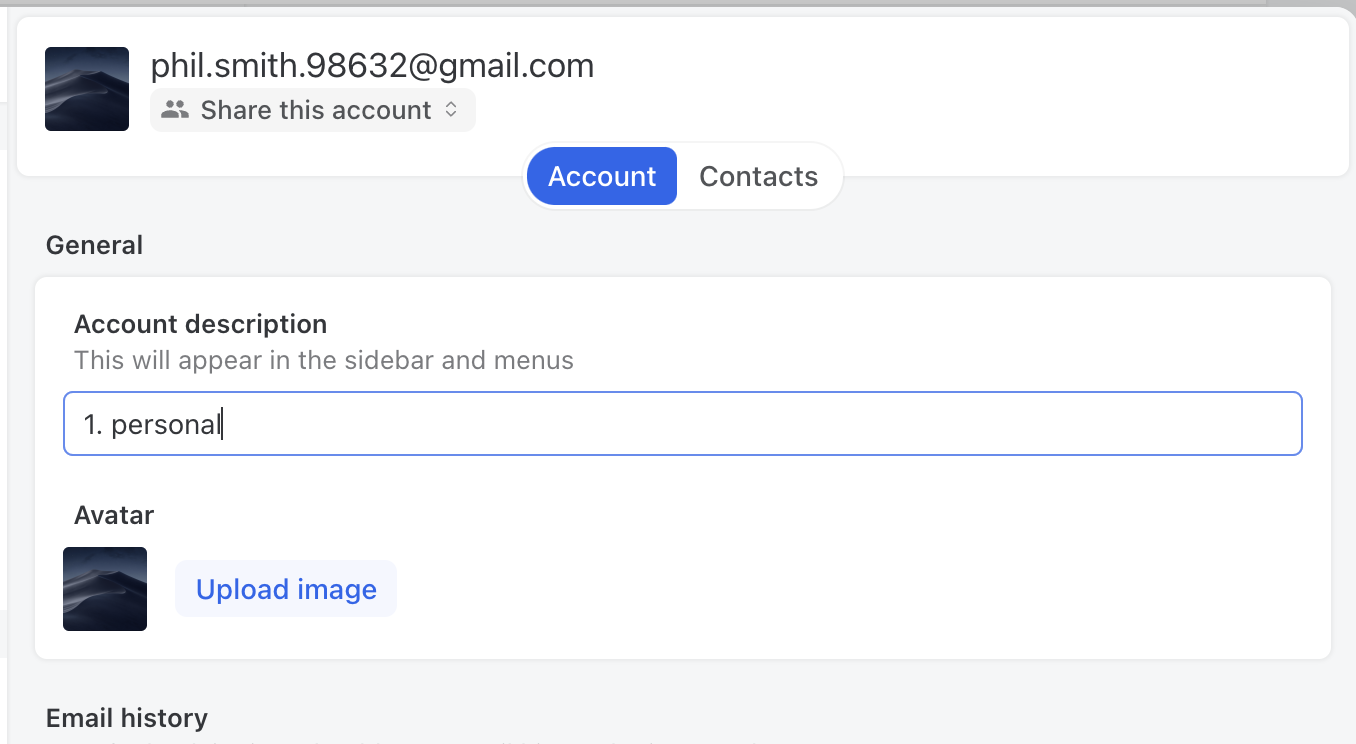
Missive does not offer a way to manually reorder email accounts, but you can customize the description of each account in your **Accounts** settings, as shown here:
Email accounts are listed in alphabetical order, so if you want to reorder them in a certain way, you can simply enter descriptions that start with a number:
1 - \[Description for account 1]\
2 - \[Description for account 2]\
3 - \[Description for account 3]
How do I hide or collapse the left sidebar?
On desktop, set the left sidebar to **Floating** in **Settings** > **Preferences** > **Appearance** > **Left sidebar**. Floating collapses the sidebar to the left edge to give you more room; it slides back open when you hover the edge or click the toggle button in the top bar.
You can also toggle the sidebar at any time with the button in the top bar, or by pressing ⌘/Ctrl + S in the Mac, Windows, and mobile apps. (In the web app, that shortcut is reserved by the browser, so use the button instead.)
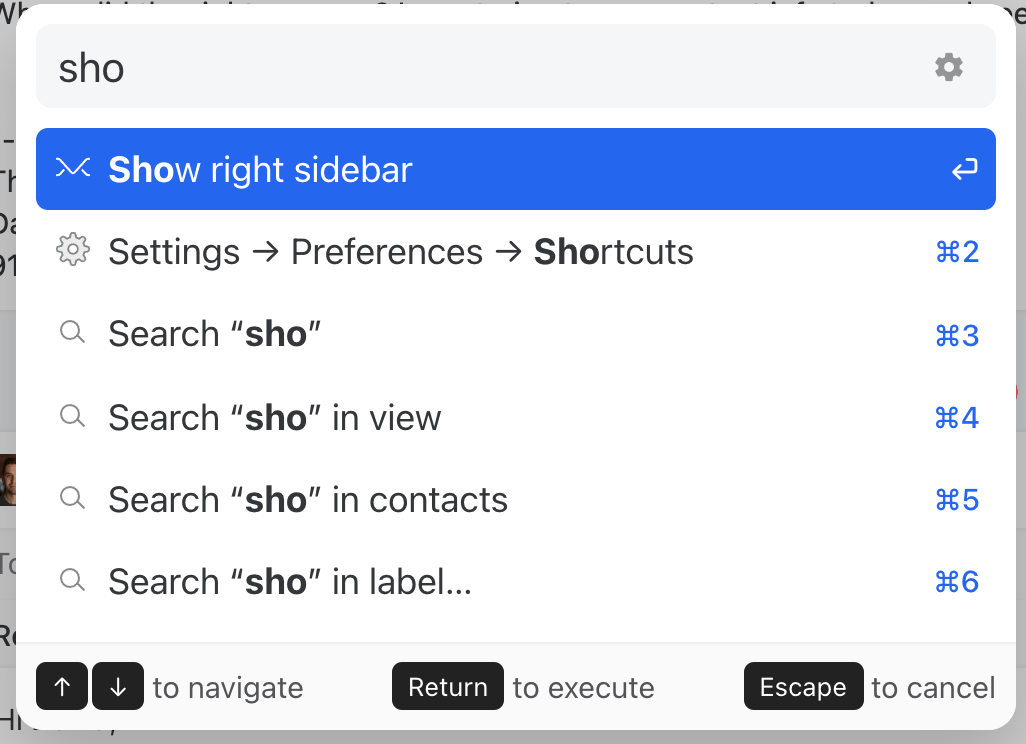
How can I open the right sidebar (fourth column)?
You can open the right sidebar (integrations + contacts) with ⌘/Ctrl + E, then:
Why is my label (mailbox) disappearing from my sidebar?
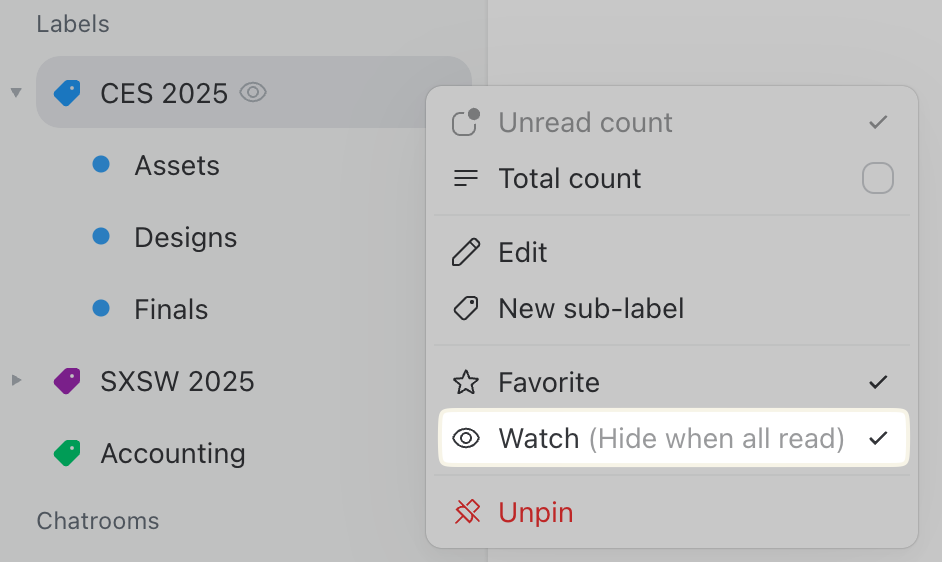
It's because you enabled the Watch option on the label or mailbox, which automatically hides it when there are no unread conversations left in it.
**Here are the steps to remediate the issue:**
1. Click the + More option in the sidebar
2. Open the label or mailbox
3. Right-click on it, and uncheck the **Watch** option:
Or simply hover the eye icon and click **Stop watching**.
### Accessibility
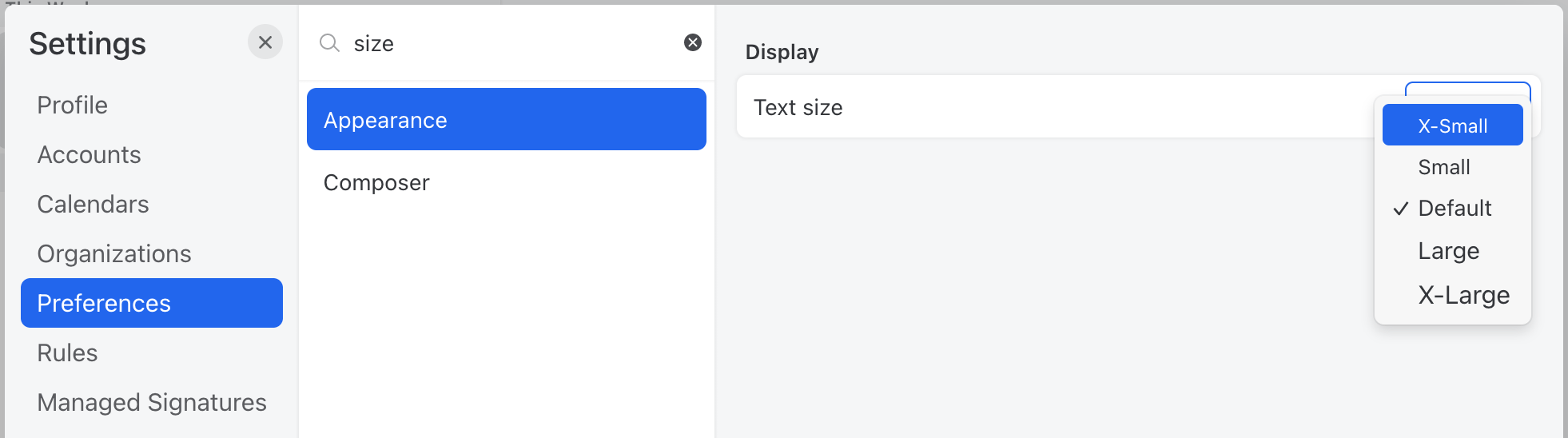
Can I change the size of the text in the app?
Yes. Go to **Settings** > **Appearance** and choose from X-Small to X-Large.
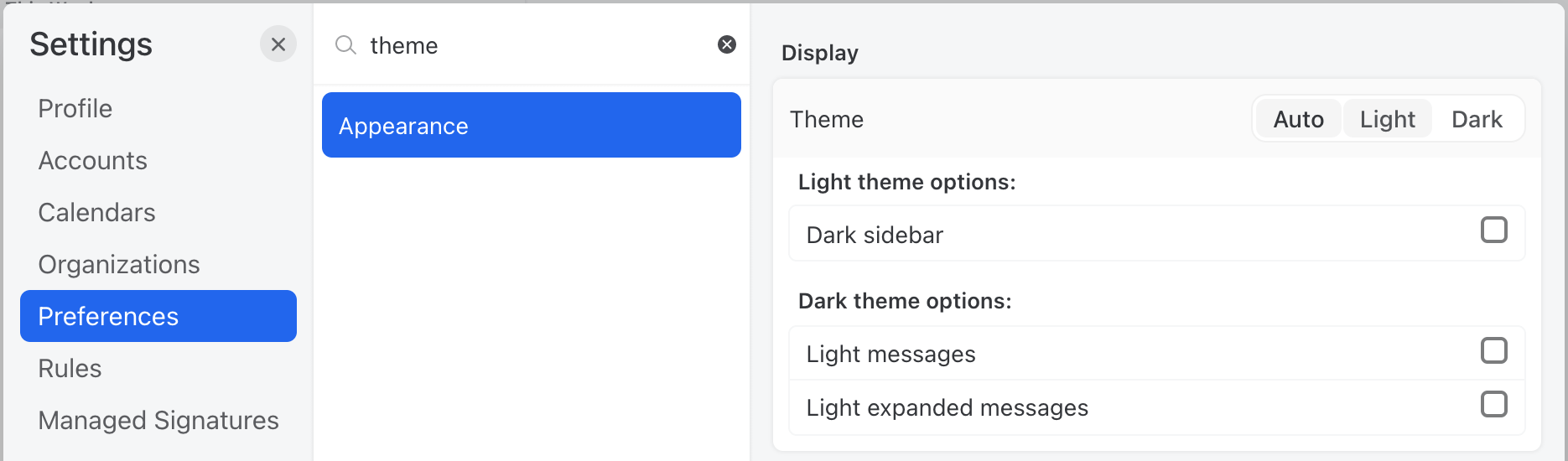
Do you have a dark mode?
Yes. In **Settings** > **Preferences** > **Appearance**, choose **Light**, **Dark**, or **Auto** (which follows your OS appearance settings). You can also switch themes from the command bar (⌘/Ctrl + K) by searching for "light", "dark", or "auto".
Why are some emails still white in dark mode?
When the app is in dark mode, Missive generates a dark version of HTML emails that were designed for a light background (like newsletters), so they blend in with the rest of the interface.
To see an email in its original colors, click the **sun** icon in the message header, or right-click the message and choose **View in light mode**. Click the **moon** icon or choose **View in dark mode** to switch back. Missive remembers your choice for each message.
If all your emails show with a light background, turn off the **Light messages** option under **Settings** > **Preferences** > **Appearance** > **Dark theme options**.
Can I reactivate a warning prompt?
Yes, the following prompts can be re-enabled at the very bottom of the **Settings > Preferences > General > Prompts** section:
* Archiving assigned conversations
* Archiving conversations from shared labels
* Trashing conversations from shared labels
* Closing conversations from Team Inboxes
* Removing conversations from Team Inboxes
* Trashing conversations from Team Inboxes
* Trashing team inboxes conversations from somewhere else
* Forgetting to add attachments
* Watching a conversation
* Unwatching a conversation
### Apps & Browsers
Can I change the language of the app?
Yes. Go to **Settings** > **Preferences** > **Appearance** > **Display** and pick a language under **Language**. You can also type "language" in the Settings search bar to jump straight to it.
Missive is available in:
* English
* French (Français)
* German (Deutsch)
The app switches right away, no reload needed. Your choice is saved to your profile, so it applies on all your devices. Until you pick one, Missive follows your device's language and falls back to English when it isn't available.
The language also changes how dates and times are written, and the "On \[date], \[sender] wrote:" line Missive adds above quoted text when you reply. Messages, canned responses, and anything else your team writes stay as written.
{% hint style="info" %}
Translations are in beta. If you spot text that's still in English or reads wrong, let us know.
{% endhint %}
Want another language? [Create a feature request](https://feedback.missiveapp.com/feature-requests/) for it.
Why did Missive switch to another language on its own?
If you've never picked a language, Missive follows your device's language. When we add a language that matches your device, Missive switches to it and tells you once with a short message.
To go back, click **Switch to English** in that message, or change it anytime in **Settings** > **Preferences** > **Appearance** > **Display** > **Language**. Once you pick a language yourself, Missive keeps it.
How to open Missive conversation links in the desktop app?
Missive supports opening links directly in the app by using **missive://** links instead of **https\://**.
You can press ⌥/Alt on your keyboard before clicking **Copy link** in order to copy the missive:// link, as shown here:
This is the best option if you share these links in an app that will make missive:// links clickable, like Slack and Todoist.
However, some apps don’t recognize missive:// links and won’t make them clickable, which isn’t very friendly.
The solution to this is to use https\:// and install a browser extension that automatically catches **** links and redirects to the desktop app. We recommend [Redirector for Chrome](https://chrome.google.com/webstore/detail/redirector/ocgpenflpmgnfapjedencafcfakcekcd) or [Redirector for Firefox](https://addons.mozilla.org/en-US/firefox/addon/redirector/). It lets you configure custom rules, so you can redirect ****\* to **missive://mail.missiveapp.com/$1** as shown here:
Why doesn’t Missive work in Safari’s private browsing mode?
Safari doesn’t allow data to be written in `localStorage` while in private browsing mode. Among other things, Missive uses `localStorage` to store your session token and identify requests to our server.
Where can I download the Windows app?
You can download the Missive desktop app for Windows at [missiveapp.com/download](https://missiveapp.com/download).
The download page includes apps for Windows, macOS, iOS, and Android.
Do you offer a Linux version?
No, we don't offer a desktop Linux app. Linux users can still use the web version of Missive at [mail.missiveapp.com](https://mail.missiveapp.com/), which is just as full-featured as the Windows and macOS desktop apps.
You are more than welcome to [upvote the feature request](https://feedback.missiveapp.com/feature-requests/p/linux-support).
Can I use Missive with a Chromebook?
Yes. You can do so by opening Chrome and going to [mail.missiveapp.com](https://mail.missiveapp.com/).
How can I fix the Windows Missive app being blurry?
This issue affects NVIDIA computers with the NVIDIA control panel. The fix is to disable **FXAA** for Missive.
**Steps**
1. Open NVIDIA control panel
2. Go to Manage 3D settings
3. Go to the Program Settings tab
4. Select missive.exe as the program
5. Turn off Antialiasing - FXAA
How to run Missive automatically at startup in Windows?
To run Missive automatically at startup in Windows 10, you need to add it to your Startup folder. See how in [this Microsoft guide](https://support.microsoft.com/en-us/windows/change-which-apps-run-automatically-at-startup-in-windows-9115d841-735e-488d-e749-9ba301d441e6#ID0EBD=Windows_10).
I can't see the unread message badge in my Windows taskbar?
You most likely have the "Use small taskbar buttons" options enabled. This automatically disables badges on taskbar buttons. To fix this, disable the "small taskbar" option in your Taskbar settings.
Can I enable trackpad swiping in macOS?
No, some other apps support swiping from the trackpad. However we find trackpad swipe is hard to get right both from a user perspective and technically speaking, as app developers. We tried several Mac apps that support swiping with the trackpad and found it brittle; it’s easy to swipe too far or not enough. Also, trackpads on Windows computers often aren’t as good as Mac trackpads which would make it harder to offer all users the same experience.
Missive’s current desktop swiping was quick for us to implement, and it also works great with our unique multi-swipe behavior as shown here:
How can I troubleshoot desktop notifications on Windows?
If you're not receiving notification banners on Windows, the system may be blocking them even though Missive is sending them. Follow these steps to verify your Windows notification settings:
**Check Windows notification settings:**
Press Win + I to open Settings.
* On **Windows 11**: Go to System > Notifications
* On **Windows 10**: Go to System > Notifications & actions
In the **Notifications from apps and other senders** list, find Missive and make sure its main switch is On. Click Missive to open its sub-menu and enable **Show notification banners**. Keep sound enabled if you want an audible alert.
**Check Do Not Disturb / Focus Assist:**
Verify that **Do Not Disturb** (called **Focus Assist** on Windows 10) is turned Off or scheduled so it does not silence banners during your work hours.
**Restart Windows Push Notifications System Service:**
If you're still not seeing banners, restart the Windows Push Notifications System Service:
1. Press Win + R
2. Type `services.msc` and press Enter
3. Locate **Windows Push Notifications System Service**
4. Right-click and choose **Restart**
**Check Missive notification settings:**
Within Missive, check **Settings** > **Preferences** > **Notifications** to ensure desktop notifications are enabled for Mentions and Chats. Make sure the **Send notifications to mobile device(s)** option is not suppressing desktop alerts while you are active.
**Check conversation-specific settings:**
In the conversation or chat room, click the eye icon (Watch feature) at the top and make sure notifications are enabled for that specific conversation.
**Browser users:**
If running Missive in a browser, allow notifications for mail.missiveapp.com in your browser permissions and keep a Missive tab open.
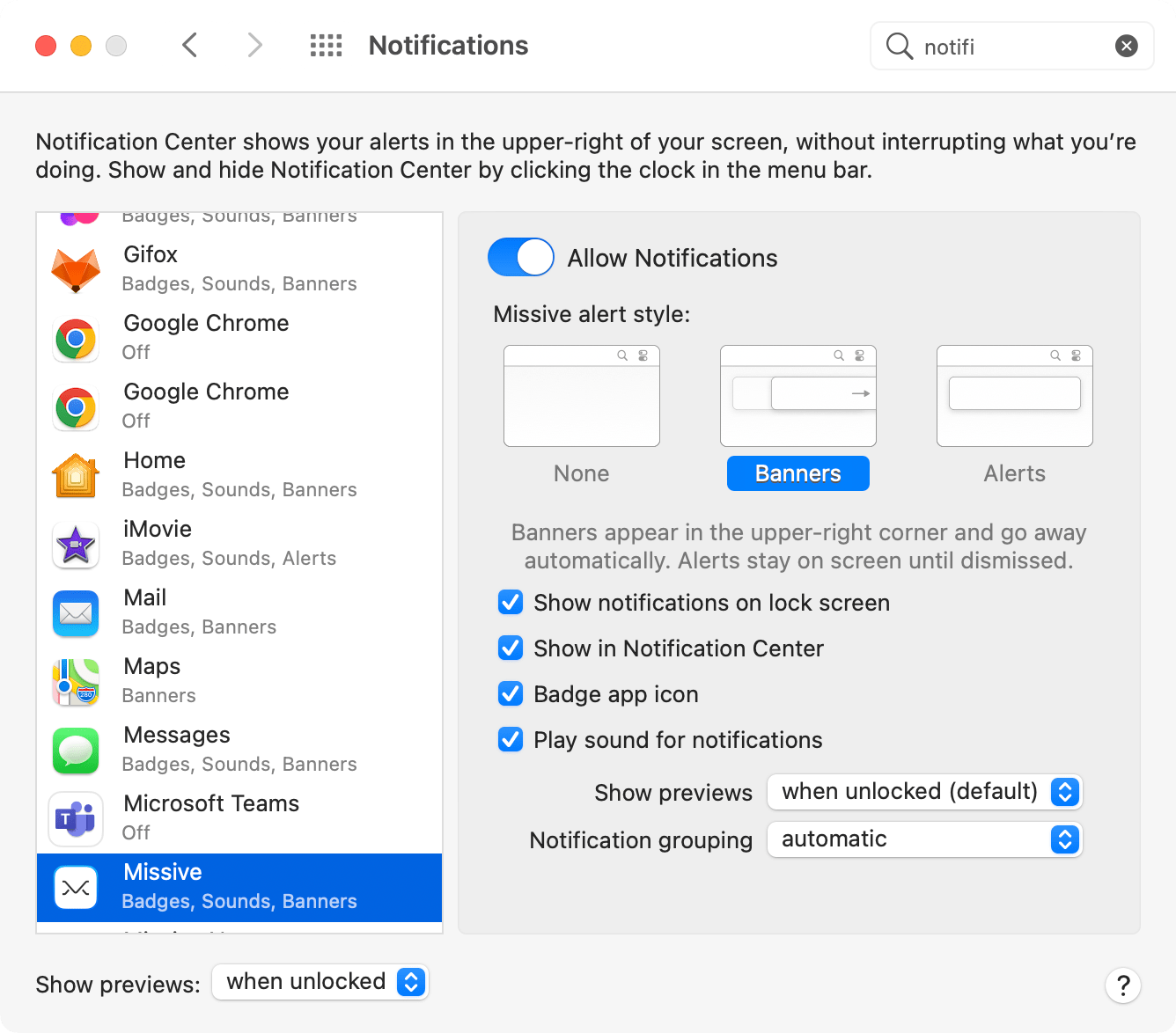
How can I change the desktop notification behavior in macOS?
This needs to be changed in your MacOS preferences:
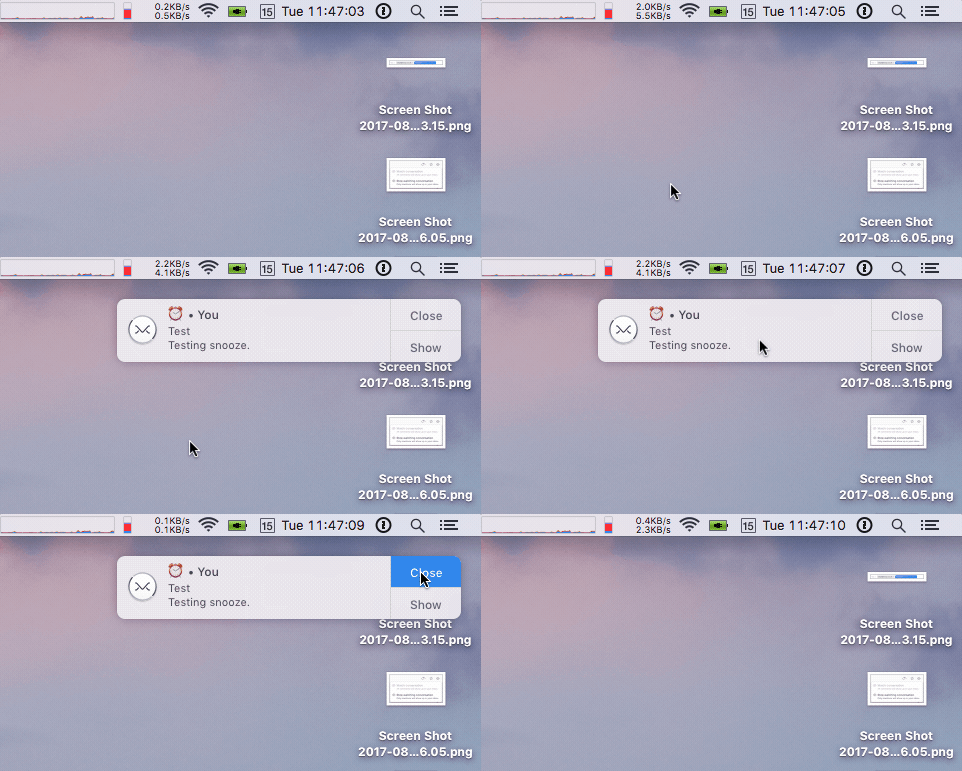
**Alerts** stay on screen until closed. They do offer a Close button as shown here:
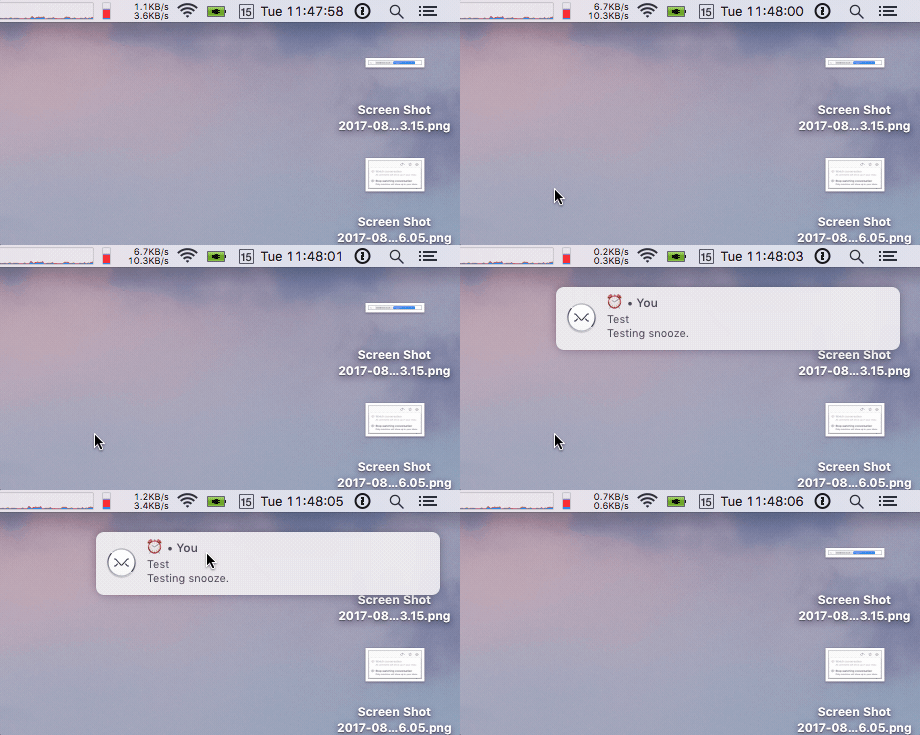
**Banners** dismiss themselves automatically after a couple seconds, but they do also give you a way to dismiss them manually. You need to click and hold the notification, then slide your cursor to the right a bit and release it, akin to a "swipe" gesture:
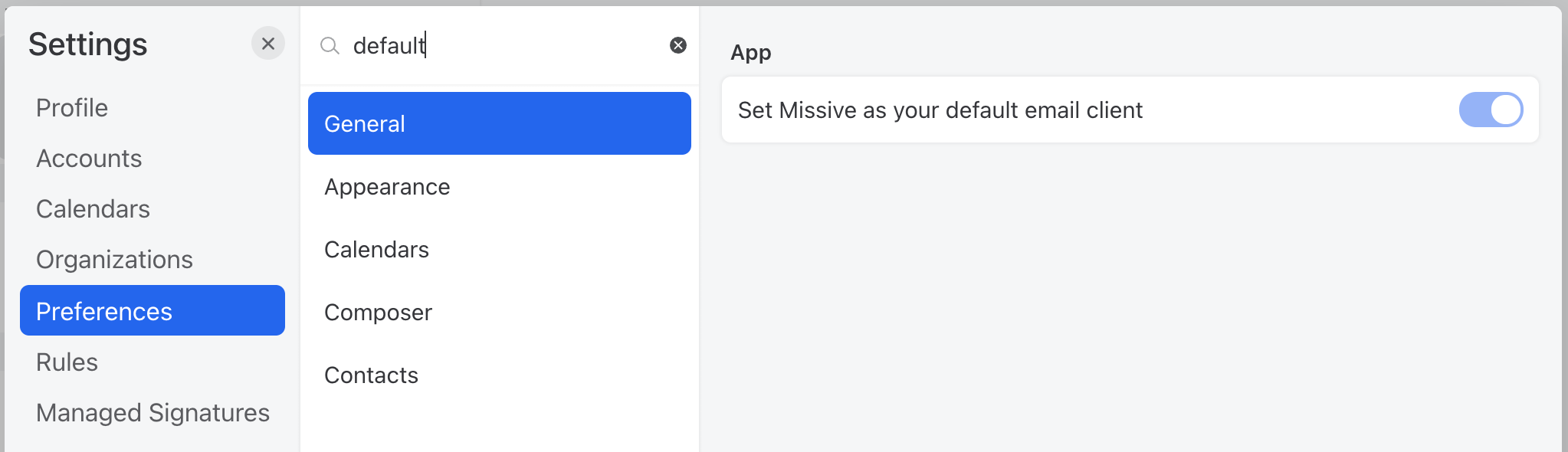
How to make Missive default email client app in macOS?
Go to **Settings** > **Preferences** and search for *default*.
I would like to change the default file saving location for Missive on Mac?
When downloading attachments Missive offers two options:
1. Download: Downloads directly into your system’s default “Downloads” folder
2. Save as…: Asks you where you want to download and will remember the location the next time
When double-clicking on an attachment, Missive downloads the attachment in a TMP folder provided by your system. Something like:
`/private/var/folders/vs/4cfg6_bd3vgcx3l_r272_m9m0000gn/T/missive/medias`
It is possible to open a file without it being on your system. If you right-click on the attachment and choose Open original, it will open it with your web browser. That’s the only way not to download it on your system. Your browser might automatically download some files, but that’s up to your browser.
You can change the default download folder in Settings > General > Download localtion. Please note that if you change this setting while using Missive in a browser, it will not affect the download location in the desktop app, and vice-versa.
I’m frequently prompted to install a helper tool. How can I resolve this issue?
**Follow these steps to resolve the issue:**
1. Uninstall Missive from your Mac. Make sure all related files are removed as well. We recommend using [AppCleaner](https://freemacsoft.net/appcleaner), a tool that effectively removes all associated files. Simply drag the Missive app into AppCleaner, select all the files, and remove them.
2. Once all files are removed, reinstall Missive. You can download a fresh copy from our [download page](https://missiveapp.com/download).
3. After opening the downloaded DMG file, remember to move the Missive icon into the Applications folder before opening it. This step is crucial for the proper installation of the app.
By following these steps, you should be able to use Missive without the persistent 'install helper tool' prompt. If you're still encountering issues, our support team is ready to help.
### General
Can I undo actions?
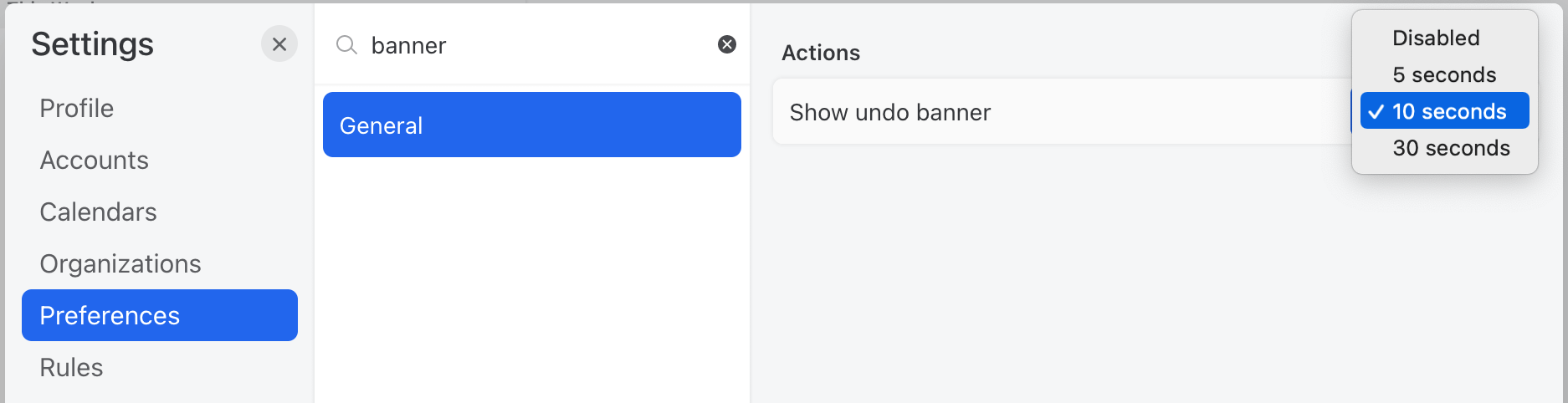
Yes, many actions can be undone. There are two ways to do this:
* Use the shortcut ⌘/Ctrl + Z
* Click the undo banner button. You can enable it in the "Actions" section of the preferences
How are time zones managed in Missive?
In Missive, your time zone is automatically set based on your computer clock.
Is it possible to load and read messages while offline?
You can load emails in advance by clicking specific folders; the 25 most recent conversations in each folder you click will remain loaded while offline. It’s also possible to compose replies offline. However, if you close the app, reopening it while offline won’t show any emails. But your offline draft edits won’t be lost. When you get an Internet connection again, emails will load, and your drafts will be available again.
This can be somewhat workable on a computer but is trickier on mobile since the device can decide to close the app whenever it’s put in the background (ie. you move to another app or the device goes to sleep). So if keeping your emails loaded is critical at a given moment, try to keep Missive always in the foreground and prevent the device from going to sleep.
You can upvote the feature request for [better offline support here](https://feedback.missiveapp.com/feature-requests/p/download-emails-locally-for-offline-access).
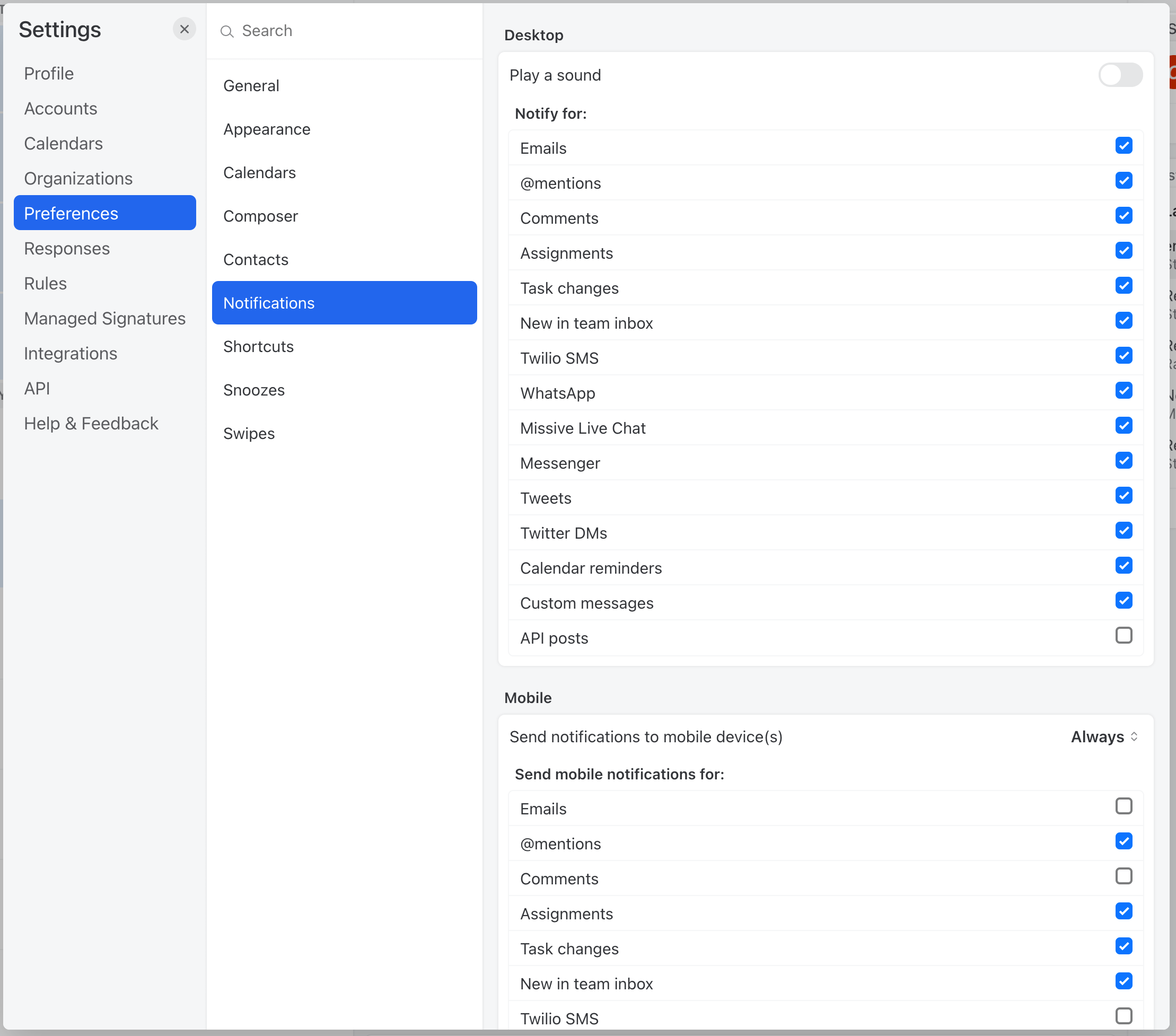
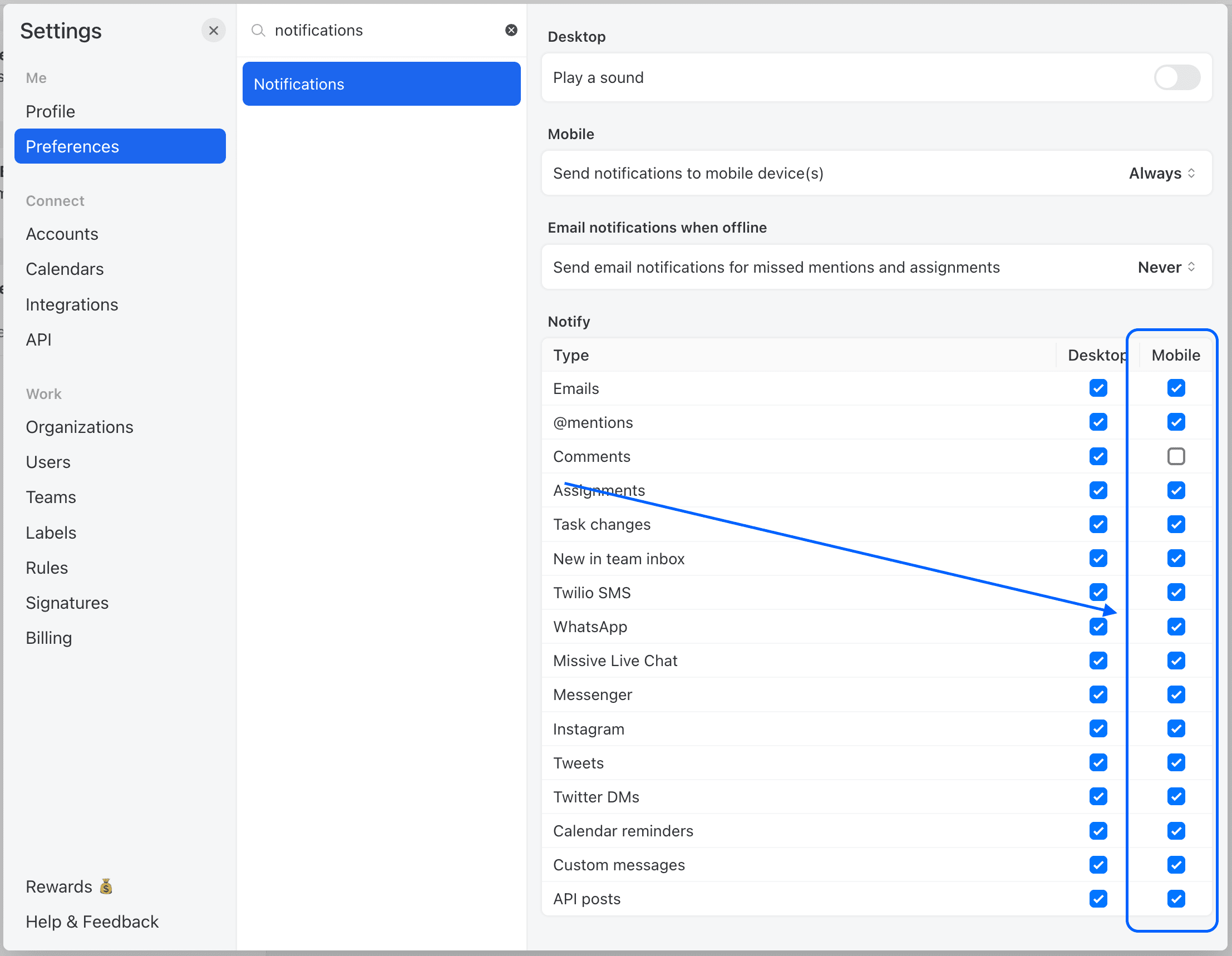
Where to enable or disable notifications?
**Preferences > Notifications**:
### Mobile apps
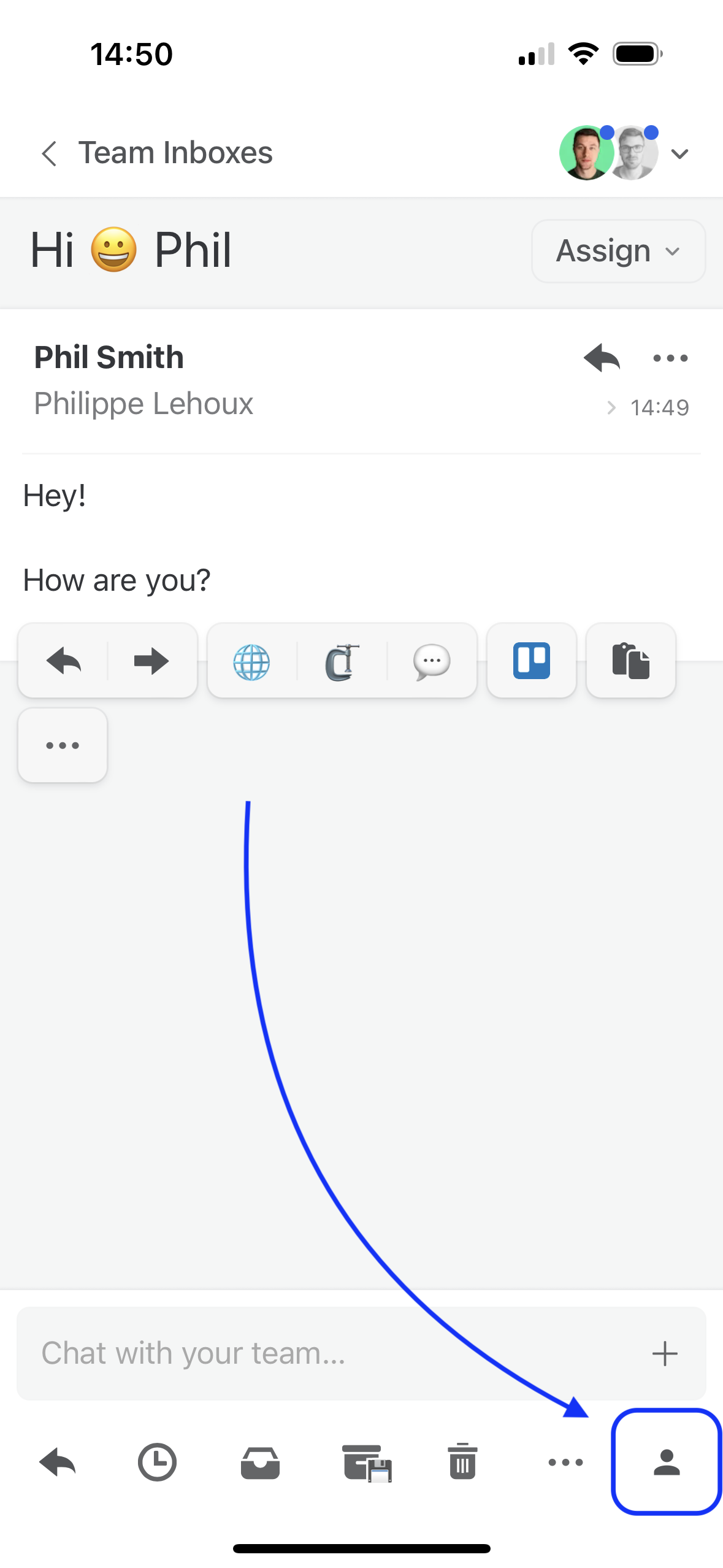
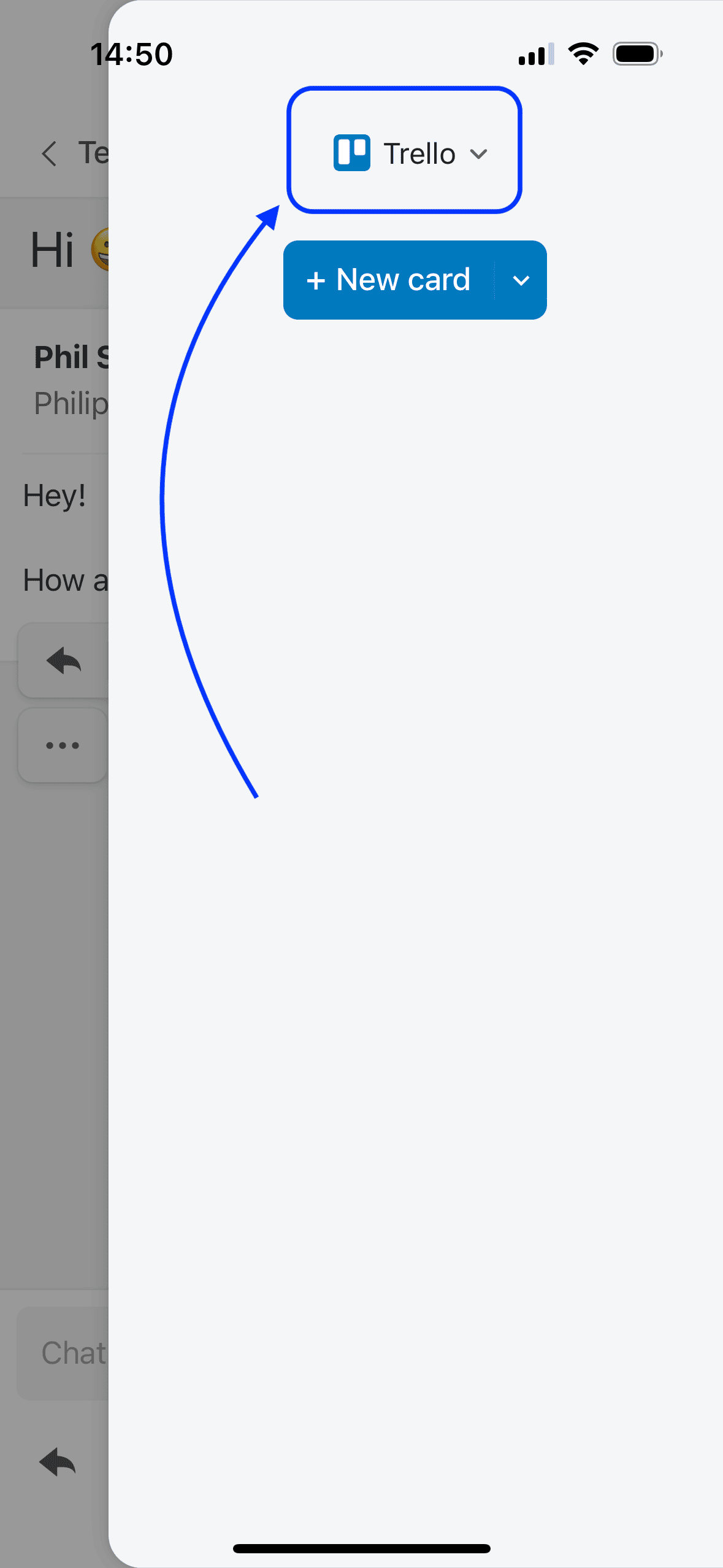
How can I access or change the integration loaded in my phone app?
You first need to select a conversation, then open the last selected integration:
Then you can select any other integration that you’ve also linked to your account by tapping the name of the current integration at the top:
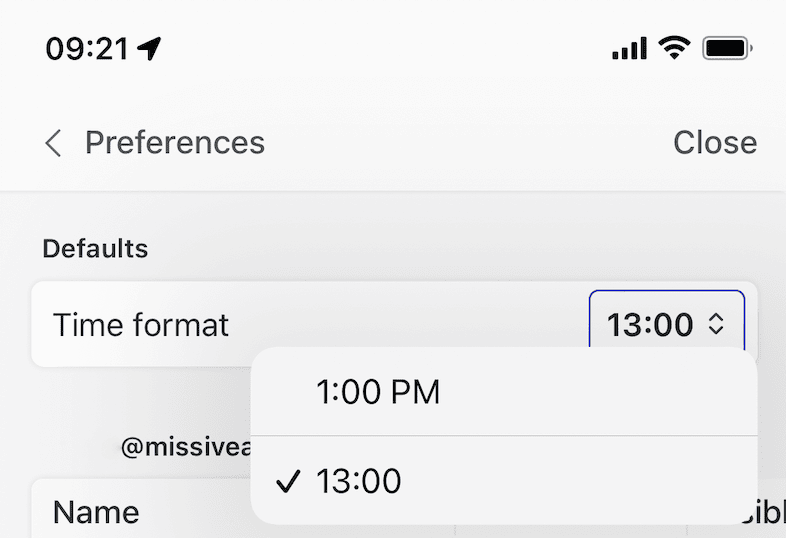
How can I change the time format on mobile?
In Missive, you can change the time format on mobile from AM/PM to 24 hour.
On mobile, go to **Settings** > **Preferences** and look for the time format.
How can I do a bulk action on many conversations?
Missive has a multi-swipe feature. When you swipe a conversation, you can move your finger up or down as well to select multiple conversations. You can only select conversations that are right next to the one you swiped first, but once you get used to it, you can clear your inbox quickly!
Here's an image showing the behavior; it was recorded on a desktop to show the cursor acting as a finger. On desktop, it works by holding down the Shift key and dragging conversations to swipe.
**This is helpful for:**
* Marking multiple emails as read
* Archiving multiple emails
* Starring multiple emails
* Trashing multiple emails
* etc.
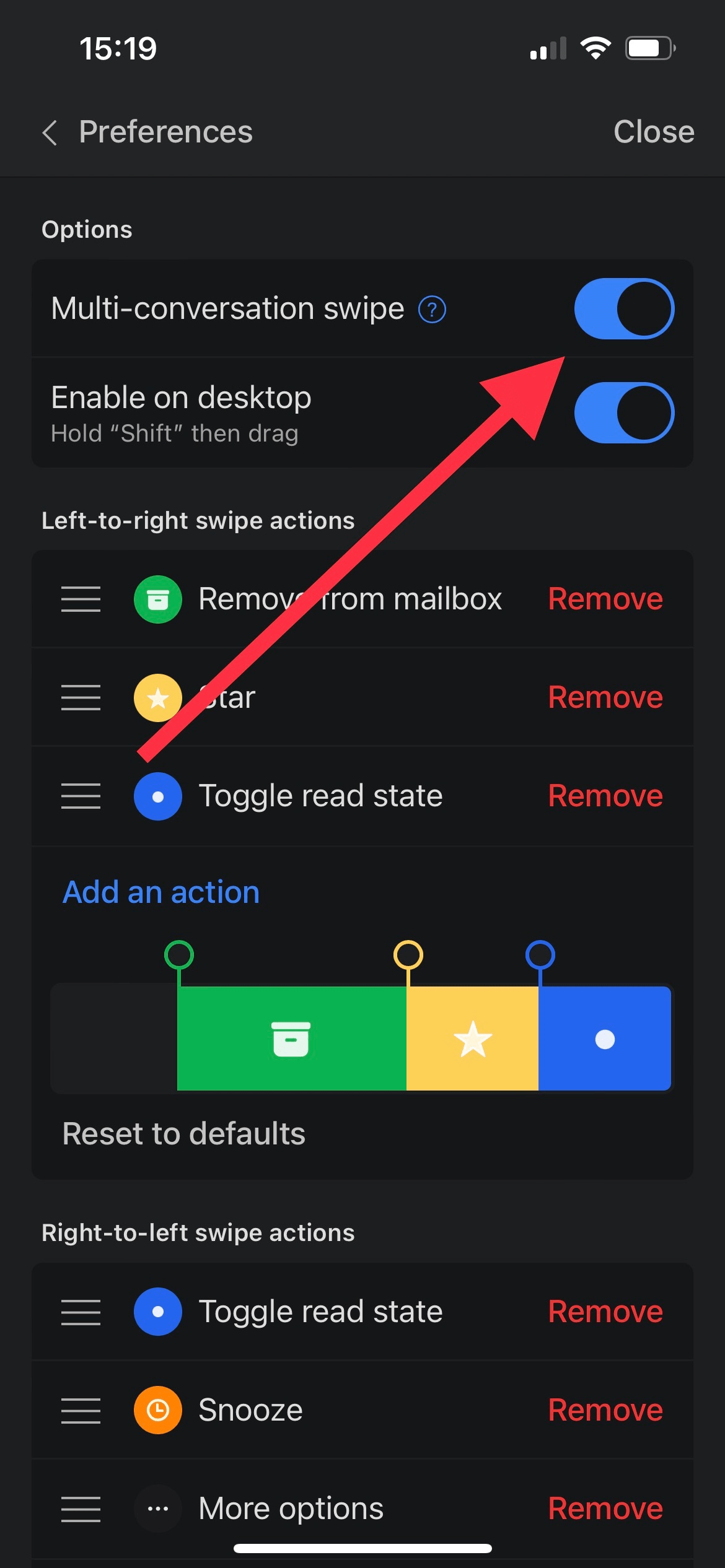
How can I disable multi conversations swipe?
If you fear you often mass-swipe conversations by mistake, it’s possible to disable this behavior. Note that this setting must be changed directly on your mobile device (not on your desktop), as it is device-specific.
**Preferences** > **Swipes**:
How can I forward an older message in a conversation?
Forwarding an email earlier in a thread is possible, just click the **...** icon at the top of the email then select the **Forward** option.
Why I'm not receiving notifications from Missive on my phone?
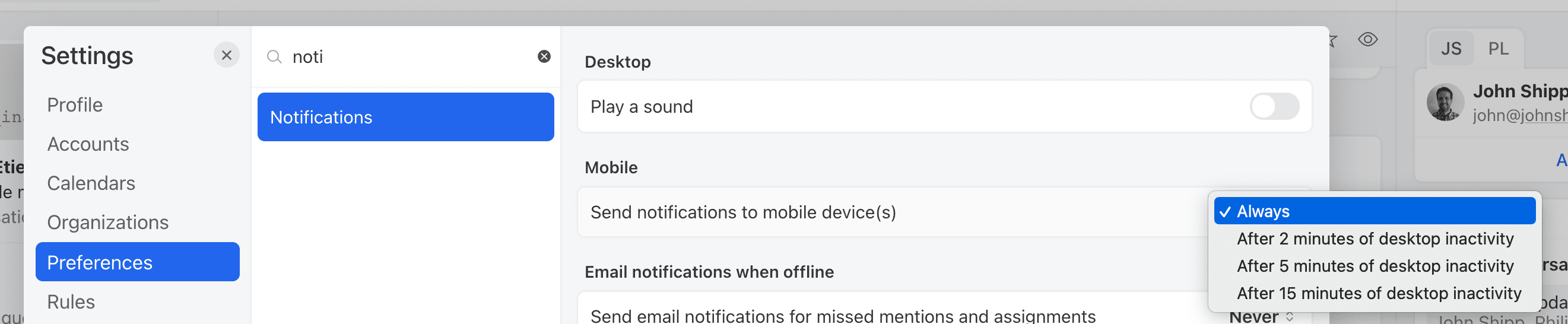
Make sure you have set this setting **Send notifications to mobile device(s)** to *Always*:
Unless you did, no notification would be sent until you are inactive from the desktop application.
Also, make sure you also have enabled mobile notifications for all desired types of notification events:
---
# Agent Instructions
This documentation is published with GitBook. GitBook is the documentation platform designed so that both humans and AI agents can read, navigate, and reason over technical content effectively. Learn more at gitbook.com.
## Querying This Documentation
If you need additional information that is not directly available in this page, you can query the documentation by asking a question.
Perform an HTTP GET request on the following URL with the `ask` and `goal` query parameters:
```
GET https://missiveapp.com/docs/get-started/missive-interface/faq.md?ask=&goal=
```
`ask` is the immediate question: it should be specific, self-contained, and written in natural language.
`goal` is what the user is ultimately trying to achieve, the reason they need the answer. Sharing it helps GitBook give you a better, more relevant answer. A goal is most helpful when it describes the outcome the user wants rather than restating the question. For example, with `ask=how do I create an API token`, a goal like `automate deployments from our CI pipeline` lets GitBook tailor the answer to that use case.
The response will contain a direct answer to the question and relevant excerpts and sources from the documentation.
Use this mechanism when the answer is not explicitly present in the current page, you need clarification or additional context, or you want to retrieve related documentation sections.