> For the complete documentation index, see [llms.txt](https://missiveapp.com/docs/llms.txt). Markdown versions of documentation pages are available by appending `.md` to page URLs; this page is available as [Markdown](https://missiveapp.com/docs/guides/de/core-features/connected-accounts/other-channels/whatsapp/setup.md).
# Einrichtung
Schritt-für-Schritt-Anleitung zur Einrichtung von WhatsApp Business für Missive.
Verbinden Sie Ihr WhatsApp-Business-Konto mit Missive über die WhatsApp Business Platform von Meta.
## Voraussetzungen
Bevor Sie beginnen, benötigen Sie:
* **Meta-Business-Konto:** [Erstellen Sie eins](https://www.facebook.com/business/help/1710077379203657?id=180505742745347) wenn Sie noch keines haben
* **Unternehmensverifizierung:** Ihr Meta-Business-Konto muss verifiziert sein. [Erfahren Sie, wie Sie es verifizieren](https://www.facebook.com/business/help/2058515294227817?id=180505742745347)
* **Einhaltung der WhatsApp Business-Richtlinien:** Ihr Unternehmen muss Folgendem entsprechen [WhatsApp Business Messaging-Richtlinie](https://business.whatsapp.com/policy)
## Verbinden Sie Ihr Konto
{% stepper %}
{% step %}
**Kontoeinstellungen öffnen**
Gehen Sie zu **Einstellungen** > **Konten** und klicken Sie auf **Konto hinzufügen**.
{% hint style="info" %}
Um Einstellungen zu öffnen, klicken Sie unten links in der Seitenleiste auf Ihren Avatar, dann **Einstellungen** (oder drücken Sie ⌘,).
{% endhint %}
{% endstep %}
{% step %}
**WhatsApp Business auswählen**
Klicken Sie auf den **Sonstiges** Registerkarte, dann wählen Sie **WhatsApp Business**.
{% endstep %}
{% step %}
**Bei Meta anmelden**
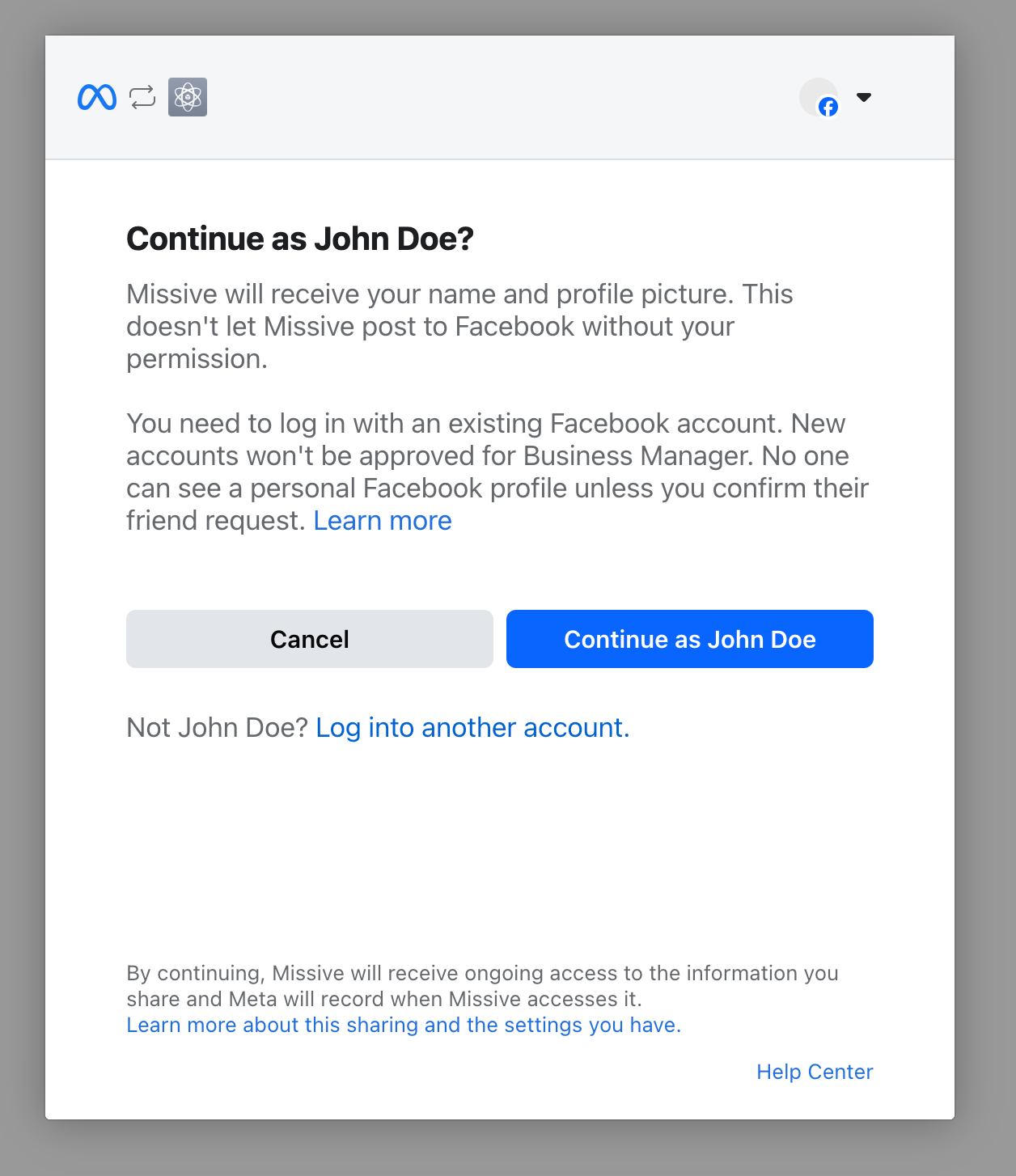
Melden Sie sich mit den Zugangsdaten Ihres Meta-Business-Kontos an, oder klicken Sie auf **Weiter als \[name]** wenn Sie bereits angemeldet sind.
{% endstep %}
{% step %}
**Berechtigungen prüfen**
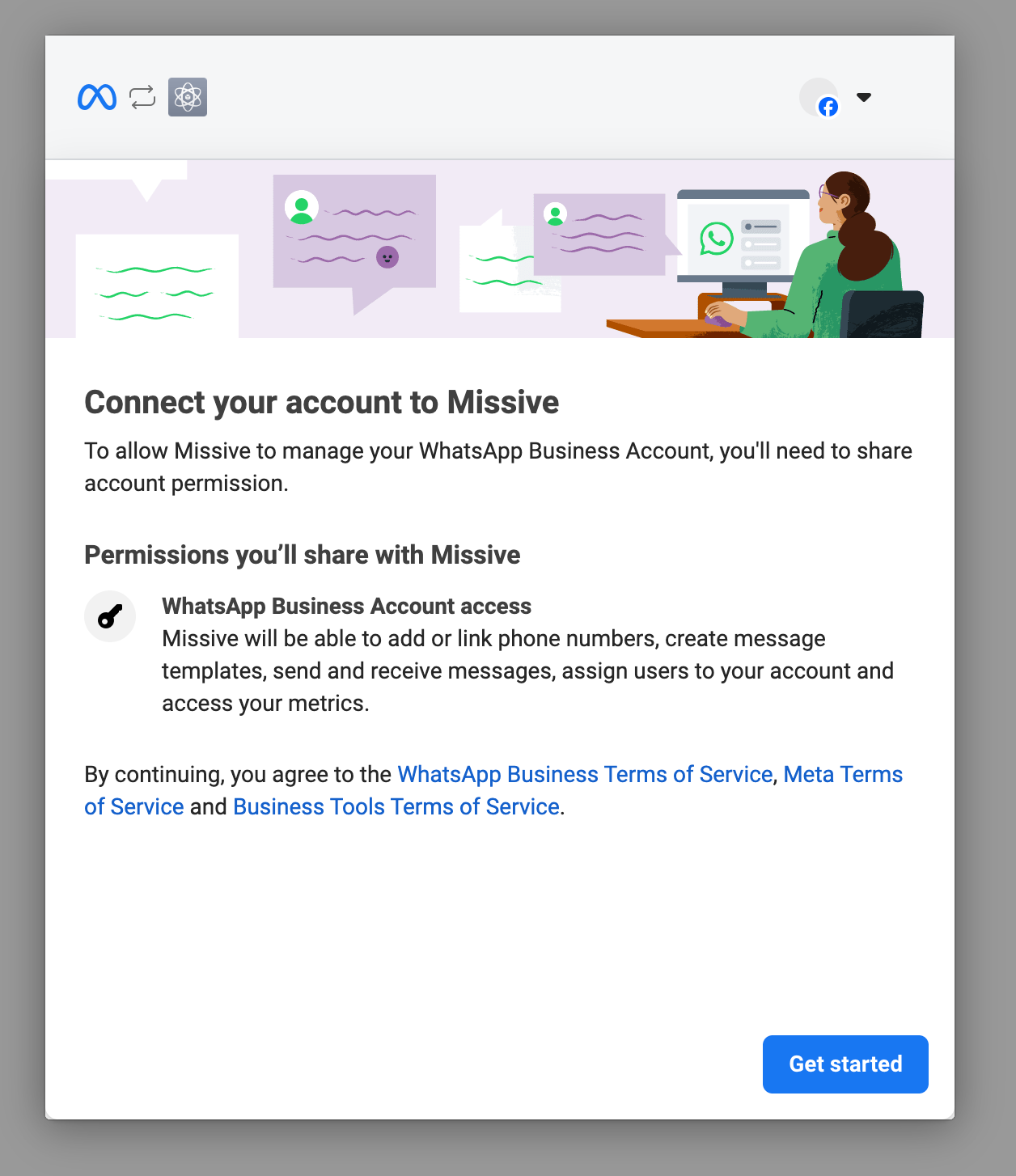
Prüfen Sie die Berechtigungen, die Missive benötigt, und klicken Sie auf **Loslegen**.
{% endstep %}
{% step %}
**Geschäftsdetails eingeben**
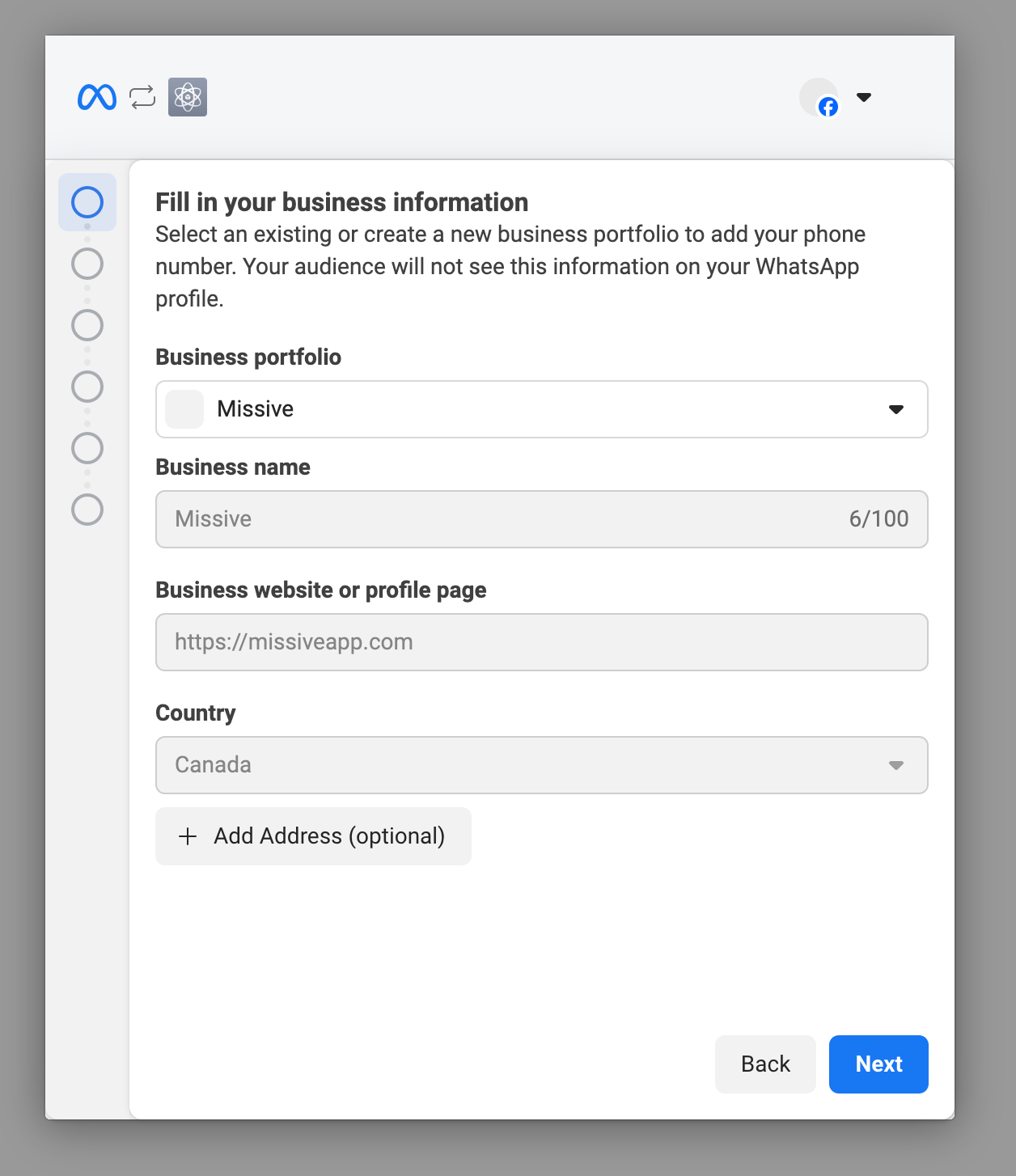
Füllen Sie Ihre Unternehmensinformationen aus und klicken Sie auf **Weiter**.
{% endstep %}
{% step %}
**WhatsApp-Business-Konto auswählen oder erstellen**
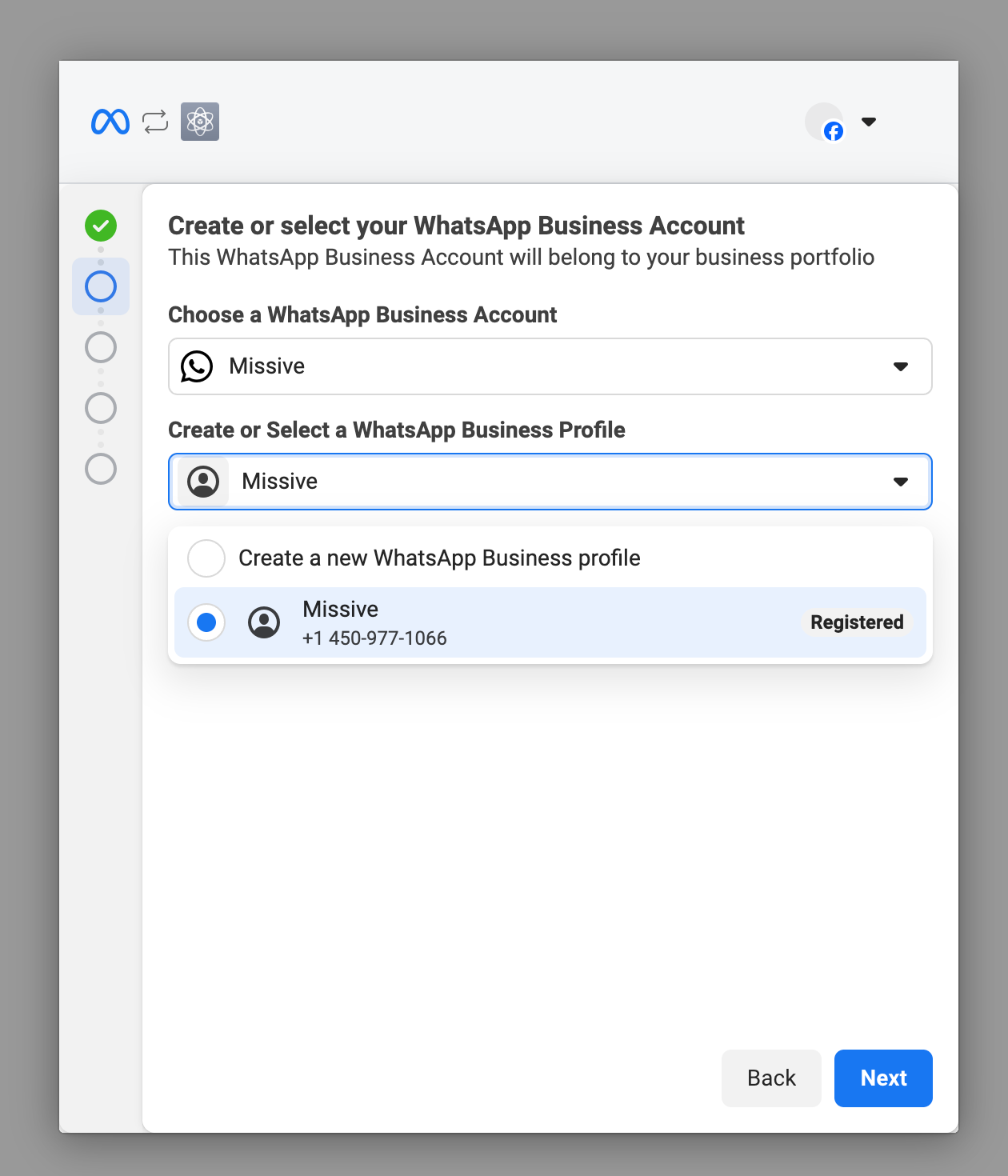
Wählen Sie ein vorhandenes WhatsApp-Business-Konto aus oder erstellen Sie ein neues, und klicken Sie dann auf **Weiter**.
Wenn Sie ein neues Konto erstellen, geben Sie bei Aufforderung Ihre Unternehmensdetails ein.
{% endstep %}
{% step %}
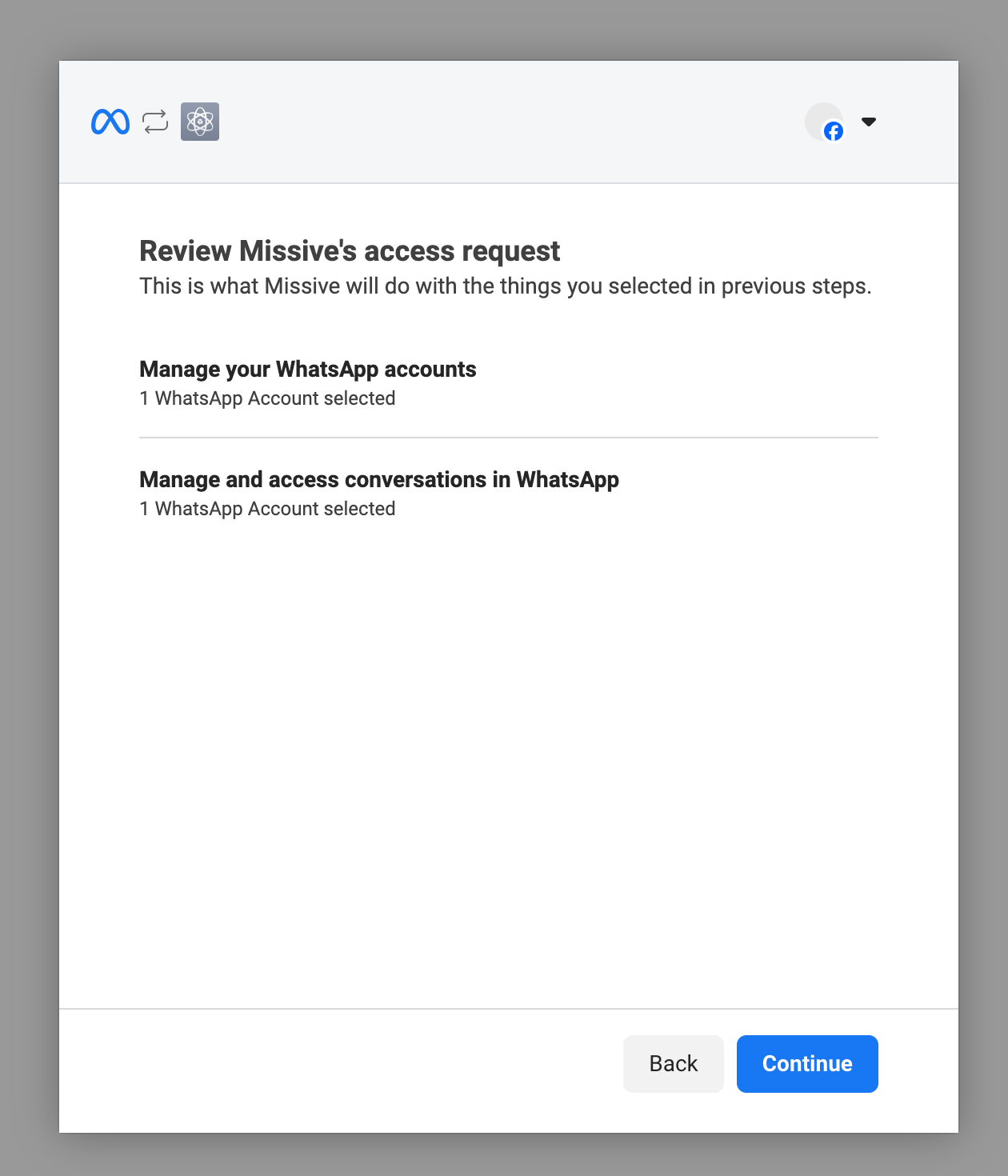
**Zugriff bestätigen**
Prüfen Sie die Zugriffsanfrage von Missive und klicken Sie auf **Fortfahren**.
{% endstep %}
{% step %}
**Telefonnummer verifizieren**
Geben Sie die Telefonnummer ein, die Sie für WhatsApp Business verwenden möchten. Wählen Sie die Verifizierung per SMS oder per Anruf.
{% hint style="info" %}
Wenn Sie den SMS-Code nicht erhalten, versuchen Sie es mit der Anrufoption. Verifizierungs-SMS werden manchmal blockiert.
{% endhint %}
{% endstep %}
{% step %}
**Zahlungsmethode hinzufügen (optional)**
Meta rechnet die Nutzung der WhatsApp Business Platform direkt ab. Sie können jetzt oder später eine Zahlungsmethode hinzufügen.
{% endstep %}
{% step %}
**Fertig**
Ihre WhatsApp-Nummer ist jetzt mit Missive verbunden. Neue Nachrichten werden in Ihrem Posteingang angezeigt.
{% endstep %}
{% endstepper %}
## Nächste Schritte
* [Nachrichtenvorlagen](/docs/guides/de/core-features/connected-accounts/other-channels/whatsapp/templates.md) zum Starten von Unterhaltungen
* [WhatsApp-FAQ](/docs/guides/de/core-features/connected-accounts/other-channels/whatsapp/faq.md) für häufige Fragen
---
# Agent Instructions
This documentation is published with GitBook. GitBook is the documentation platform designed so that both humans and AI agents can read, navigate, and reason over technical content effectively. Learn more at gitbook.com.
## Querying This Documentation
If you need additional information that is not directly available in this page, you can query the documentation by asking a question.
Perform an HTTP GET request on the following URL with the `ask` and `goal` query parameters:
```
GET https://missiveapp.com/docs/guides/de/core-features/connected-accounts/other-channels/whatsapp/setup.md?ask=&goal=
```
`ask` is the immediate question: it should be specific, self-contained, and written in natural language.
`goal` is what the user is ultimately trying to achieve, the reason they need the answer. Sharing it helps GitBook give you a better, more relevant answer. A goal is most helpful when it describes the outcome the user wants rather than restating the question. For example, with `ask=how do I create an API token`, a goal like `automate deployments from our CI pipeline` lets GitBook tailor the answer to that use case.
The response will contain a direct answer to the question and relevant excerpts and sources from the documentation.
Use this mechanism when the answer is not explicitly present in the current page, you need clarification or additional context, or you want to retrieve related documentation sections.