11.38.0
Règles : ajoutez des étapes pour relancer automatiquement
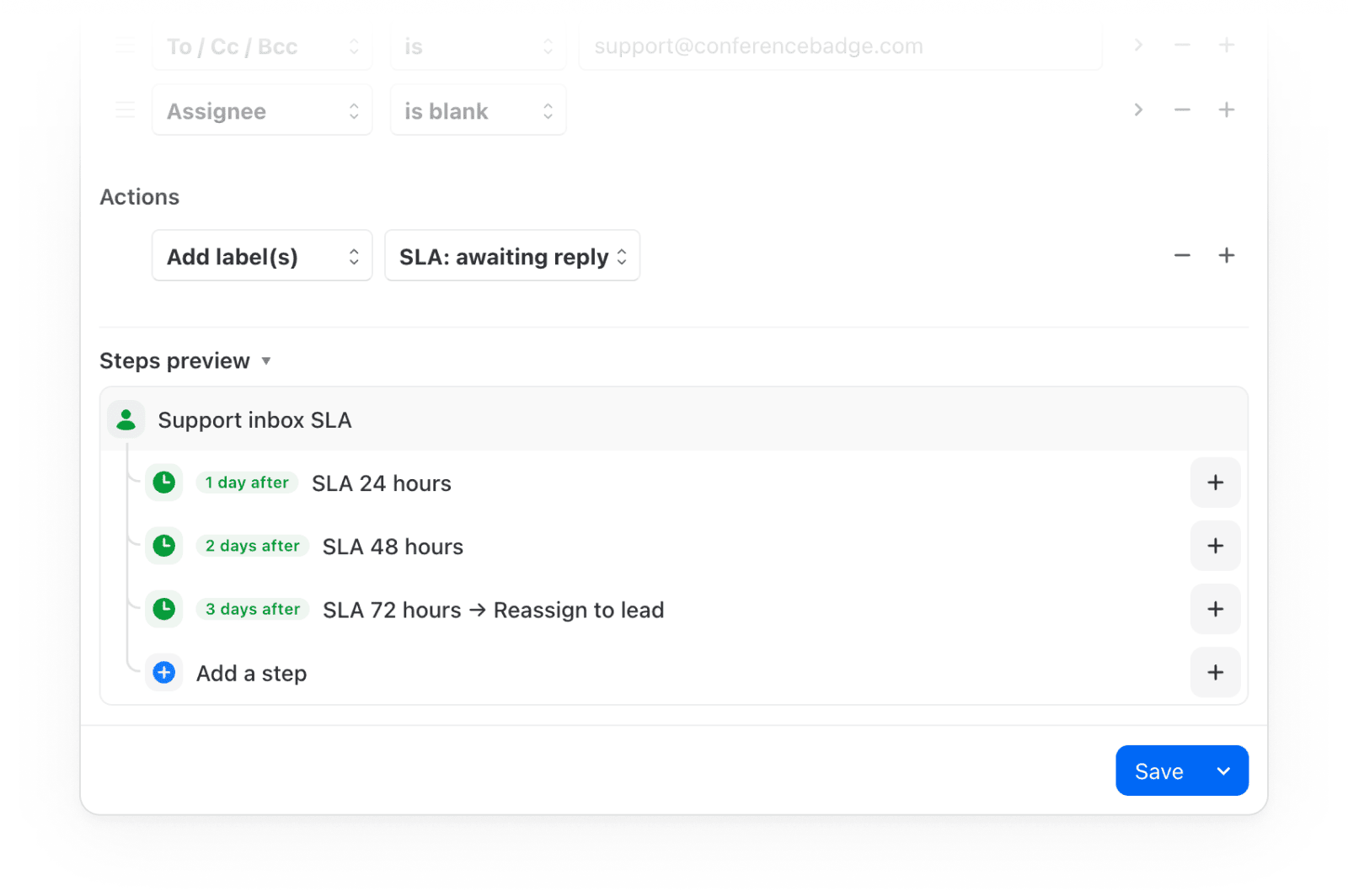
Les règles peuvent désormais s’exécuter en plusieurs étapes dans le temps. Chaque étape attend, vérifie ses propres conditions, puis agit sur la même conversation. Les alertes de SLA et les séquences de relance tiennent maintenant dans une seule règle au lieu de plusieurs. Par exemple :
- Escaladez les e-mails de support restés sans réponse : libellé à 24 h, notification au responsable à 48 h, réassignation à 72 h.
- Envoyez un rappel 3 jours après un devis resté sans réponse, relancez à 7 jours, puis fermez la conversation à 14.
Ouvrez une règle et cliquez sur « Ajouter une étape » pour commencer. Les délais peuvent se compter en temps calendaire ou en heures ouvrées.
Missive en espagnol (bêta)
Choisissez Español dans Paramètres > Apparence > Affichage. Une seule traduction couvre l’Espagne et l’Amérique latine.
Aidez-nous à améliorer les traductions
Quelque chose cloche ? Le lien « Suggérer des améliorations », à côté du réglage Langue, ouvre une page qui présente chaque texte avec son original anglais. Écrivez votre correction et envoyez-la-nous.
Remplacer la clé API d’une intégration IA
Quand une clé API expire, « Modifier les identifiants » sur l’intégration vous permet d’en saisir une nouvelle. Vos règles IA, vos modèles enregistrés et vos conversations avec l’assistant restent intacts : plus besoin de supprimer puis de recréer l’intégration.
Se connecter à des serveurs de messagerie aux certificats non fiables
Quand le certificat d’un serveur IMAP ou SMTP est auto-signé, expiré ou émis pour un autre hôte, le formulaire du compte propose désormais « Ne pas vérifier le certificat SSL / TLS » pour vous connecter malgré tout. L’option n’apparaît que si votre serveur en a besoin.
Amélioration des traductions française et allemande
De nombreux textes sont désormais plus naturels dans les deux langues, et les paramètres des règles ne débordent plus.
Clavier plus stable sur mobile
Le clavier ne gêne plus à de nombreux endroits sur iPhone, iPad et Android.
- Faire pivoter l’appareil garde le clavier ouvert, sans laisser d’espace vide
- En mode paysage, un long commentaire laisse le bouton d’envoi visible
- Sur Android, seule la zone de texte s’agrandit pendant la saisie
- Les menus de suggestions de recherche, de destinataires, de @mentions et d’emoji restent au-dessus du clavier et rétrécissent à mesure que vous filtrez
- Le texte saisi dans le champ À reste visible
- L’éditeur sur iPad ne réserve plus deux fois l’espace du clavier
- Les colonnes de fuseau horaire du calendrier, le sélecteur de fuseau horaire et les heures d’événements dans un autre fuseau affichent à nouveau l’heure de ce fuseau, et non votre heure locale.
- Sur mobile, les événements sur toute la journée utilisent à nouveau le sélecteur de date natif, avec des dates de début et de fin distinctes.
- Les heures des événements ne sont plus tronquées avec les grandes tailles de police.
- Les conversations épinglées suivent désormais une fusion au lieu d’afficher en boucle « Invalid resource ID(s) ».
- Les réactions déjà vues ne restent plus non lues dans le fil d’activité.
- Les événements d’invitation d’un invité affichent à nouveau son e-mail au lieu d’un jeton vide.
- La boîte de dialogue d’insertion de lien (Cmd+K) place à nouveau le curseur dans le champ URL à l’ouverture.
- Cmd+K dans l’éditeur ouvre à nouveau la boîte de dialogue d’insertion de lien après une première utilisation, au lieu de la barre de commandes.
- L’annulation dans le champ de commentaire ne perd plus son historique après une @mention, une #étiquette, un emoji ou Maj+Entrée.
- Le champ de recherche reprend le focus quand vous cliquez sur un lien dans un commentaire puis revenez dans Missive.
- Les nouveaux alias apparaissent dans le menu De de l’éditeur sans avoir à le rouvrir.
- Les objets longs ne débordent plus du bandeau d’envoi.
- Les modèles WhatsApp contenant une apostrophe près d’une variable numérotée ouvrent à nouveau le formulaire des variables, au lieu de ne rien insérer.
- Les tâches de règle réglées sur « Échéance le » ne sont plus créées déjà en retard.
- Les boutons « Ouvrir la documentation » et « Fermer » de la barre latérale de l’assistant d’aide fonctionnent à nouveau.
- L’app iPad ne revient plus de l’arrière-plan avec des zones vides dans les barres du haut, le champ de recherche ou la barre latérale.
- Sur Android, le bouton Retour revient d’un écran au lieu de deux.
11.37.1
Mise à jour de sécurité à la suite d’un incident touchant des applications et des navigateurs, dans lequel une autorité de certification a été compromise. L’application rejette désormais ses certificats. La mise à jour est fortement recommandée.
11.37.0
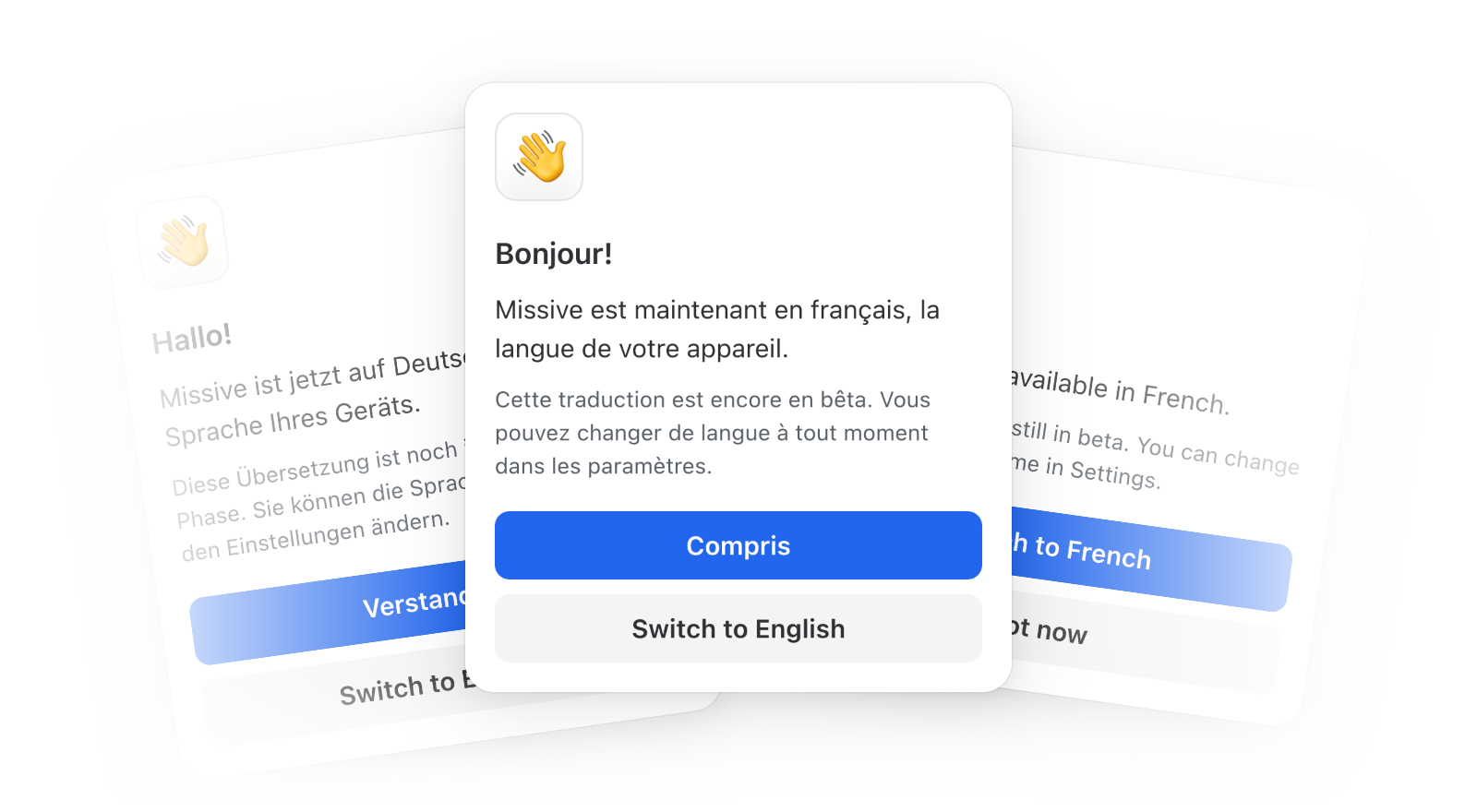
Missive en français et en allemand (bêta)
Choisissez votre langue dans Paramètres > Apparence > Affichage. Tant que vous n’en avez choisi aucune, Missive suit la langue de votre appareil.
Signalez-nous tout problème de mise en page ou toute traduction qui sonne faux. Dites-nous quelles langues ajouter ensuite !
Thème sombre pour les e-mails HTML
Avec le thème sombre, les e-mails HTML reçoivent une version sombre générée au lieu d’un bloc blanc éclatant, sans toucher aux couleurs de marque ni aux images. Le bouton soleil/lune à côté de Répondre repasse un seul message en clair.
Séparez les fils SMS et WhatsApp dans leur propre conversation
Quand des messages de contacts différents se retrouvent dans une même conversation, « Déplacer les messages vers une nouvelle conversation » dans le menu d’un message déplace ce fil dans une conversation à part.
Clavier plus fluide sur iPhone et iPad
La zone de rédaction, la zone de commentaire, les panneaux et les boîtes de dialogue suivent désormais le clavier en douceur à son ouverture et à sa fermeture. Nécessite iOS 17.2 ou ultérieur et la dernière mise à jour de l’application.
Glissez de nouveau plusieurs pièces jointes à la fois
Sélectionnez des pièces jointes avec Cmd-clic ou Shift-clic, puis glissez-les ensemble dans un brouillon, un commentaire ou une réponse enregistrée. Shift+Left/Right étend la sélection, et Backspace retire du brouillon tous les fichiers sélectionnés.
Cliquez sur « Brouillon » pour y accéder
Cliquer sur la pastille Brouillon d’une conversation dans la liste l’ouvre directement sur votre dernier brouillon, même au fond d’un long fil.
Les réunions Zoom s’affichent correctement dans les événements
Les réunions ajoutées avec le module complémentaire Zoom de Google affichent leur nom et le logo Zoom. Les événements avec un lien Zoom, Meet ou Teams dans le lieu ont une ligne vidéo avec un bouton Rejoindre.
Quitter la recherche garde votre conversation ouverte
La conversation que vous lisiez reste ouverte, avec votre position de défilement et vos messages développés intacts.
L’assistant IA lit les pièces jointes des commentaires et publications
Les fichiers joints aux commentaires internes et aux publications font désormais partie de ce que l’assistant peut lire, en plus de ceux des messages.
Boutons radio et cases à cocher redessinés
Les boutons radio et cases à cocher sélectionnés sont remplis du bleu de la marque. Les menus à choix unique, comme le tri des tâches ou le parent d’un libellé, utilisent des boutons radio, et les menus à choix multiple affichent de vraies cases à cocher.
Faites défiler horizontalement avec une molette classique
Les rangées qui débordent sur le côté, comme les filtres de boîte et les pièces jointes de la zone de rédaction, défilent avec une molette verticale, sans Shift.
- Les fuseaux horaires sont à jour, y compris pour le Mexique, qui a abandonné l’heure d’été.
- Un cinquième événement superposé dans les vues Semaine et Jour ne se cache plus sous le quatrième.
- Le menu de date d’échéance n’enregistre plus la date par défaut quand vous changez de mois puis choisissez un jour.
- Saisir une année à deux chiffres comme « 30 » dans un sélecteur de date donne désormais 2030, et non 0030.
- Le sélecteur de date et d’heure de Définir un statut ne se réduit plus à une largeur inutilisable.
- Effacer une plage personnalisée dans Statistiques réaffiche désormais les 7 derniers jours.
- Les conditions de règle ne disparaissent plus quand vous les glissez dans un groupe imbriqué.
- Créer un libellé que vous ne pouvez pas voir vous avertit désormais au lieu de le masquer sans rien dire, avec un bouton Partager avec moi pour vous y ajouter.
- Les icônes de libellé affichent de nouveau exactement la couleur choisie.
- Les pastilles de libellé sont plus lisibles dans les deux thèmes.
- Vous pouvez désormais retirer l’étoile des conversations Gmail à la fois étoilées et dans la Corbeille.
- Épingler un espace d’équipe configuré sur « Afficher uniquement la boîte d’équipe » n’épingle plus son salon masqué, ni sa pastille de non-lus impossible à effacer.
- La bulle de réponse apparaît désormais même quand vous terminez votre sélection de texte dans la marge à côté.
- La mise en évidence des mentions dans la zone de commentaire reste alignée sur le texte lors du défilement.
- Revenir à une conversation après l’envoi d’un brouillon restaure de nouveau votre position de défilement et vos messages développés.
- Les noms de fichiers comme
image@2x.pngne sont plus transformés en liens vers une adresse e-mail. - Le tableau des raccourcis clavier dans Préférences garde son en-tête en place pendant le défilement.
- Sur mobile, le menu de mise en attente n’a plus d’espace vide avant ses cases à cocher.
- Sur mobile, toucher le titre d’une nouvelle conversation sans objet ouvre désormais le clavier.
- L’assistant IA ne s’arrête plus sur une erreur quand un outil MCP ne renvoie aucun résultat.
11.36.1
L’estompage des événements passés devient facultatif
Les événements passés sont estompés par défaut. Une nouvelle case « Estomper les événements passés » dans le menu des vues du calendrier permet de le désactiver.
Des événements de calendrier plus colorés
Les blocs d’événement reprennent davantage la couleur de leur calendrier. Les événements passés s’estompent en entier, texte et indicateurs compris, et restent ainsi reconnaissables par calendrier.
Des sélecteurs de date plus lisibles
Le sélecteur de mise en attente et les autres sélecteurs de date affichent la grille, l’ombrage du week-end et des dates plus grandes. Choisir un jour d’un mois voisin vous laisse sur le mois que vous consultiez.
Un cadenas sur les événements privés
Une icône de cadenas signale les événements privés dans toutes les vues du calendrier, y compris les blocs libre/occupé synchronisés depuis un autre calendrier.
- Les événements de calendrier courts ne tronquent plus leur titre.
- Les descriptions d’événement ne perdent plus leur lien de réunion quand l’événement n’a pas de visioconférence associée.
- Cliquer sur une notification de tâche dans une conversation déjà lue l’ouvre désormais correctement.
- Des centaines de comptes déconnectés n’inondent plus l’application d’une bannière chacun.
- L’application ne se fige plus pour les organisations de plus de 1 000 comptes e-mail.
11.36.0
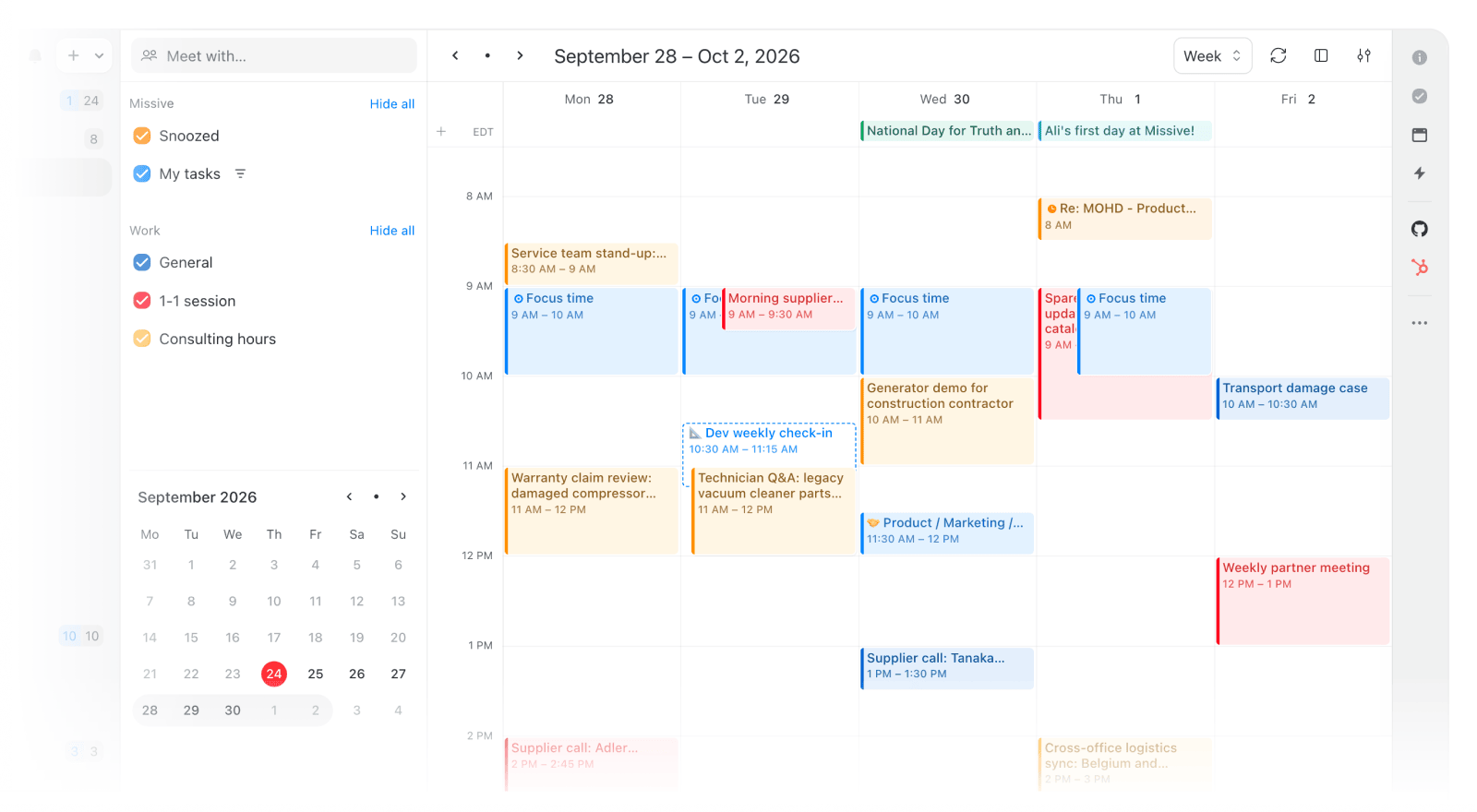
Un tout nouveau calendrier, avec la disponibilité de vos coéquipiers
Le calendrier a été entièrement reconstruit, avec tout ce que vous nous demandiez.
- Rencontrer :
Saisissez un coéquipier, une équipe ou un contact dans la barre latérale du calendrier et ses disponibilités s’affichent automatiquement. Cliquez sur Créer : tous sont ajoutés comme invités, et l’événement porte leurs noms. - Plusieurs fuseaux horaires :
Fini le calcul mental. Des colonnes de fuseau horaire supplémentaires apparaissent quand vos coéquipiers sont dans d’autres fuseaux, et chaque événement peut aussi afficher son propre fuseau horaire. - Plus de contrôle sur les événements :
Moment de concentration, récurrence personnalisée, libellés d’événement Google, catégories Microsoft, pièces jointes et préférences de rappels par défaut. - Plus d’options d’affichage :
Choisissez le nombre de jours affichés à la fois et le nombre d’heures visibles par jour. S’y ajoutent des options pour afficher ou masquer le week-end, les événements refusés et les numéros de semaine.
Épinglez n’importe quoi dans une conversation
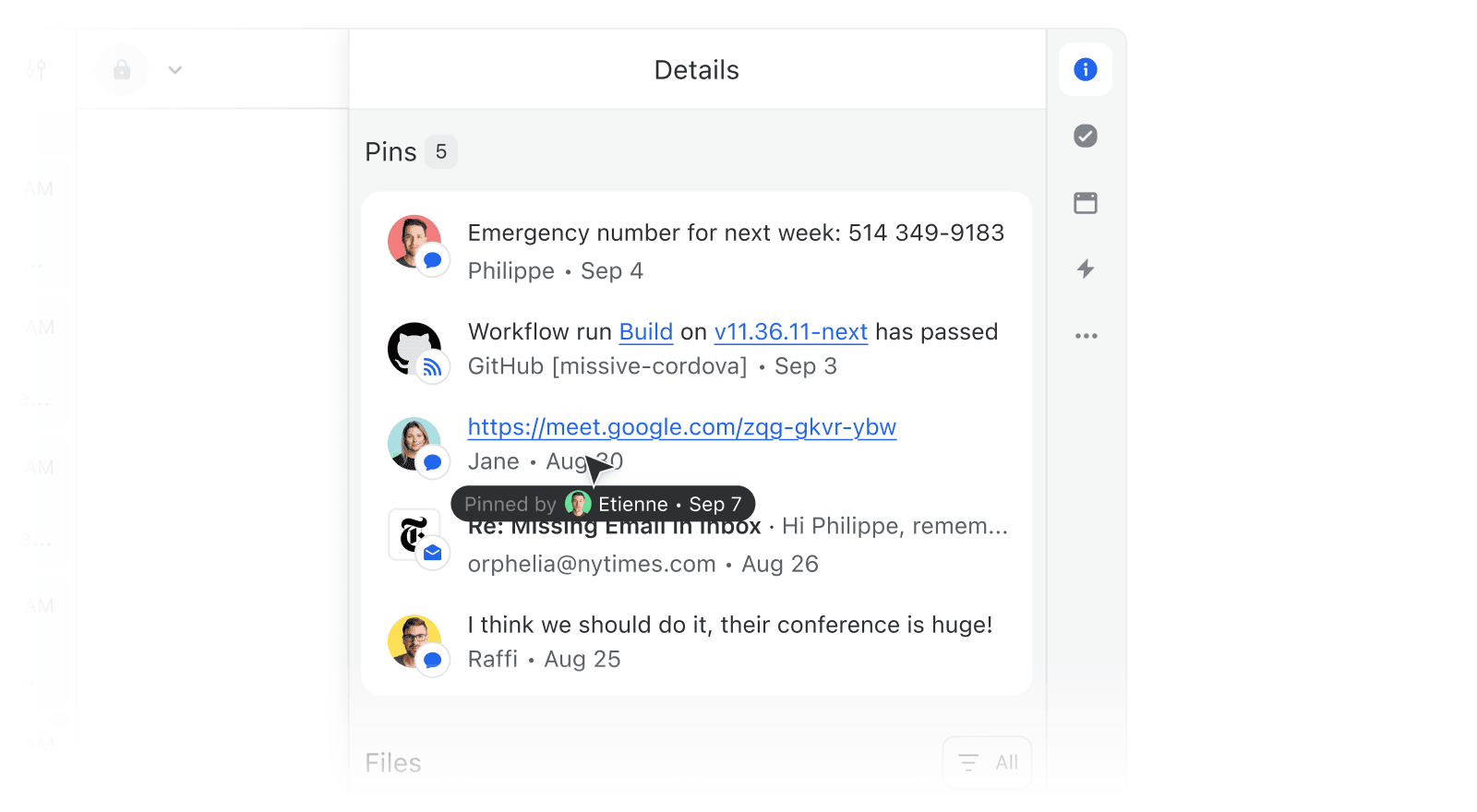
Ce lien enfoui sous 200 messages, la décision prise dans un commentaire la semaine dernière, l’adresse que tout le monde redemande. Épinglez n’importe quel élément et il reste à un clic pour tous les participants de la conversation, dans une section Épinglés dédiée de la barre latérale Détails.
Thème sombre repensé
Le thème sombre a été entièrement revu. Chaque surface, bordure et ombre suit désormais un système cohérent. Le thème clair a eu droit au même travail d’harmonisation.
Les filtres de boîte tiennent après un rechargement
Les filtres que vous appliquez à une boîte restent en place après un rechargement ou un redémarrage de l’application, au lieu d’être réinitialisés à chaque fois.
Serveur MCP disponible pendant l’essai
Le serveur MCP peut maintenant être activé quand votre plus grande organisation est sur le forfait Productive ou supérieur, ou en période d’essai.
Scopes OAuth pour les serveurs MCP personnalisés
Les serveurs MCP personnalisés ont maintenant un champ Scopes dans les Paramètres avancés, pour les fournisseurs qui exigent des scopes dans le flux OAuth.
- Les actions IA comme « Améliorer la rédaction » ne remplacent plus les liens ou les mentions par « [link removed] ».
- L’assistant IA intégré ne se ferme plus quand vous passez à une autre fenêtre ou à un autre onglet.
- Définir une date de rappel de suivi personnalisée dans la zone de rédaction ne fait plus disparaître l’option « Annuler la mise en attente si quelqu’un répond ».
- Le raccourci « Envoyer et mettre en attente » suit désormais les mêmes paramètres que le menu de mise en attente.
- Les longs brouillons ne laissent plus d’espace vide sous la zone de rédaction.
11.35.0
Alertes et confirmations repensées
Les avertissements, erreurs et confirmations ont désormais le même aspect et le même comportement partout dans l’application.
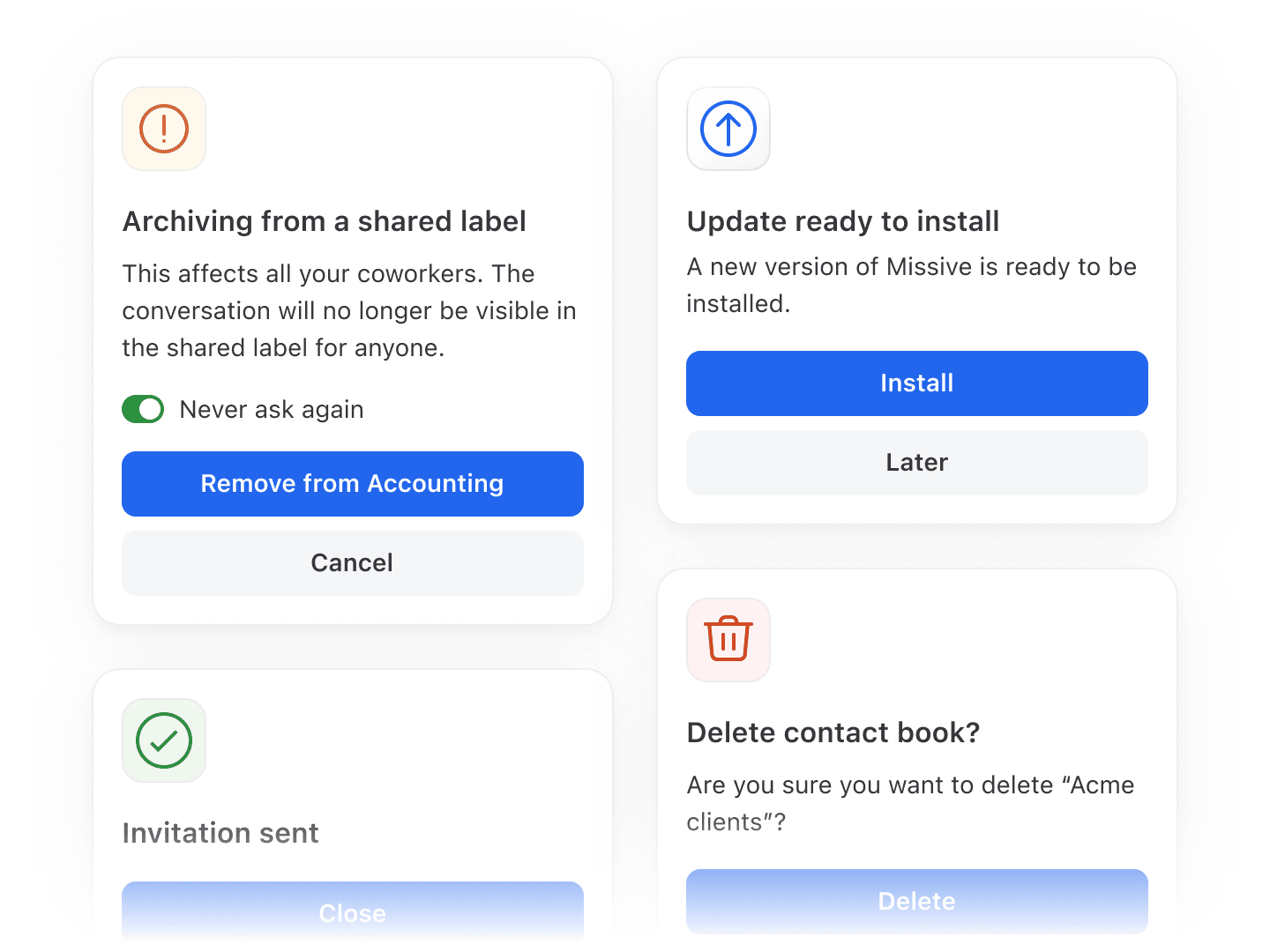
Archivage automatique pour Tout le monde, futurs membres compris • En savoir plus
Choisir Tout le monde dans la liste Archivage automatique d’un compte partagé couvre aussi les personnes qui rejoindront votre organisation plus tard, sans devoir ajouter chacune à la main. La liste affiche aussi toute votre organisation, pas seulement les personnes déjà sous Partager avec.
Des variables de signature identiques à la zone de rédaction
Les brouillons créés hors de la zone de rédaction, par l’assistant, par une règle ou via l’API et le serveur MCP, résolvent désormais {{ user.name }} et {{ user.email }} à partir de votre profil d’organisation, exactement comme la zone de rédaction. Les signatures gérées utilisaient auparavant votre adresse e-mail de connexion au lieu de l’adresse depuis laquelle vous envoyez réellement.
Un ordre des libellés stable pendant que vous les appliquez
La liste ne se réordonne plus quand vous cochez des libellés : un second clic ne peut plus tomber sur un libellé qui vient de glisser sous votre curseur. Utile quand un libellé appliqué par erreur partagerait la conversation avec des personnes qui ne devraient pas la voir.
- « Laisser dans la boîte d’équipe » n’est plus grisé dans le menu de mise en attente. Les options de mise en attente sont désormais les mêmes, que vous les ouvriez depuis la barre de commandes, le menu contextuel ou la conversation elle-même.
- Inviter un membre ne partage plus tous les sous-libellés simplement parce que leur libellé parent est partagé avec une équipe.
- Les signatures et réponses qui placent une variable dans un lien ne bloquent plus la rédaction.
- La flèche qui renvoie d’un commentaire cité à sa conversation d’origine est désormais visible sur téléphone et tablette, où il n’y avait aucun moyen de l’afficher.
- Les émojis de statut restent à droite de l’avatar dans Safari et sur iOS.
- Les contours des émojis sont plus lisses, sans les bords irréguliers ni les artefacts qui apparaissaient là où ils chevauchent un avatar.
- La case à cocher d’une tâche est de nouveau alignée sur la première ligne de son texte, et non plus sur le milieu du bloc.
- Refuser un événement de calendrier avec « Ne pas ajouter » ne l’ajoute plus quand même.
- Android : le geste Retour du système vous ramène de nouveau à la vue précédente sur Android 16, au lieu de fermer Missive.
- Android : Retour ferme désormais d’abord une boîte de dialogue ouverte, au lieu de naviguer en arrière sous celle-ci.
11.34.0
Le serveur MCP sort de la bêta • En savoir plus
Des applications IA externes comme Claude, ChatGPT ou Cursor peuvent désormais se connecter à Missive via le Model Context Protocol et agir sur vos conversations, contacts, calendrier et brouillons, avec les autorisations que vous choisissez. Un administrateur l’active pour l’organisation dans Paramètres, puis chacun connecte sa propre application.
- Demandez à Claude de résumer votre boîte de réception et de rédiger des réponses sans quitter la discussion
- Laissez un agent trier les nouvelles conversations à l’aide de votre CRM avant même que vous les regardiez
- Récupérez le contexte d’anciens fils dans un document que vous rédigez
- Enchaînez Missive avec d’autres outils compatibles MCP dans un même flux de travail

Voyez d’un coup d’œil ce que fait l’assistant
Plus besoin de rester devant les longues sessions de l’assistant. L’onglet de session indique maintenant ce qu’il est en train de faire, et une conversation renvoie aux sessions qui lui sont associées.
- Un indicateur de chargement sur l’onglet de session pendant que l’assistant travaille
- Un point bleu sur l’onglet et sur le bouton de la barre latérale quand il a fini de répondre, ou qu’il attend votre saisie ou votre approbation
- Un bouton « Aller aux sessions associées » quand des sessions sont associées à une conversation
L’assistant répond maintenant aux questions sur Missive
Demandez comment fonctionne une fonctionnalité, comment configurer une règle ou où se trouve un paramètre. La réponse vient directement de la documentation de Missive, pas d’une supposition.
Choisissez les filtres de recherche avant de taper
Les filtres Type (Interne / Externe) et Plage de dates de la recherche ne restent plus grisés tant que vous n’avez pas saisi de terme. Pratique quand tout ce que vous savez au départ, c’est que vous cherchez un commentaire, ou quelque chose de la semaine dernière.
De meilleurs aperçus de fichiers sur Android
Les pièces jointes sont désormais téléchargées localement et s’ouvrent dans votre application préférée au lieu du navigateur, comme sur iOS. Les PDF et images qui s’ouvraient sur une page blanche s’ouvrent maintenant correctement.
- Quand plusieurs intégrations ajoutent des actions rapides à la zone de rédaction, elles sont maintenant regroupées dans un menu déroulant au lieu de pousser le bouton Envoyer hors de vue.
- Taper
:smilepuis appuyer deux fois de suite sur Return n’insère plus l’émoji deux fois. - Le bouton « Tout télécharger » des pièces jointes n’apparaît plus sur mobile, où il n’a jamais vraiment fonctionné.
- Les images d’avatar cassées dans la liste de conversations affichent désormais l’icône par défaut au lieu du symbole d’image cassée du navigateur.
- Les sous-menus (comme ceux du menu de mise en attente) ne s’affichent plus derrière leur menu parent.
- Ouvrir Paramètres depuis le menu de mise en attente (l’icône d’engrenage) ferme désormais ce menu au lieu de le laisser ouvert par-dessus.
- Insérer « Toutes les réponses » ou « Tous les calendriers » comme jeton de contexte dans l’assistant ne fait plus planter le champ de saisie.
- Les jetons de contexte de boîte IMAP renvoient désormais à la bonne boîte, avec la bonne icône et le bon comportement au clic.
- L’autocomplétion d’un destinataire dans le champ Cc ne renvoie plus le curseur vers le champ À en acceptant une adresse inachevée.
- Les boîtes de dialogue plein écran sur mobile s’animent de nouveau en douceur.
- La couleur de la barre d’état sur mobile se met désormais à jour correctement à l’ouverture de Paramètres depuis la barre latérale.
11.33.0
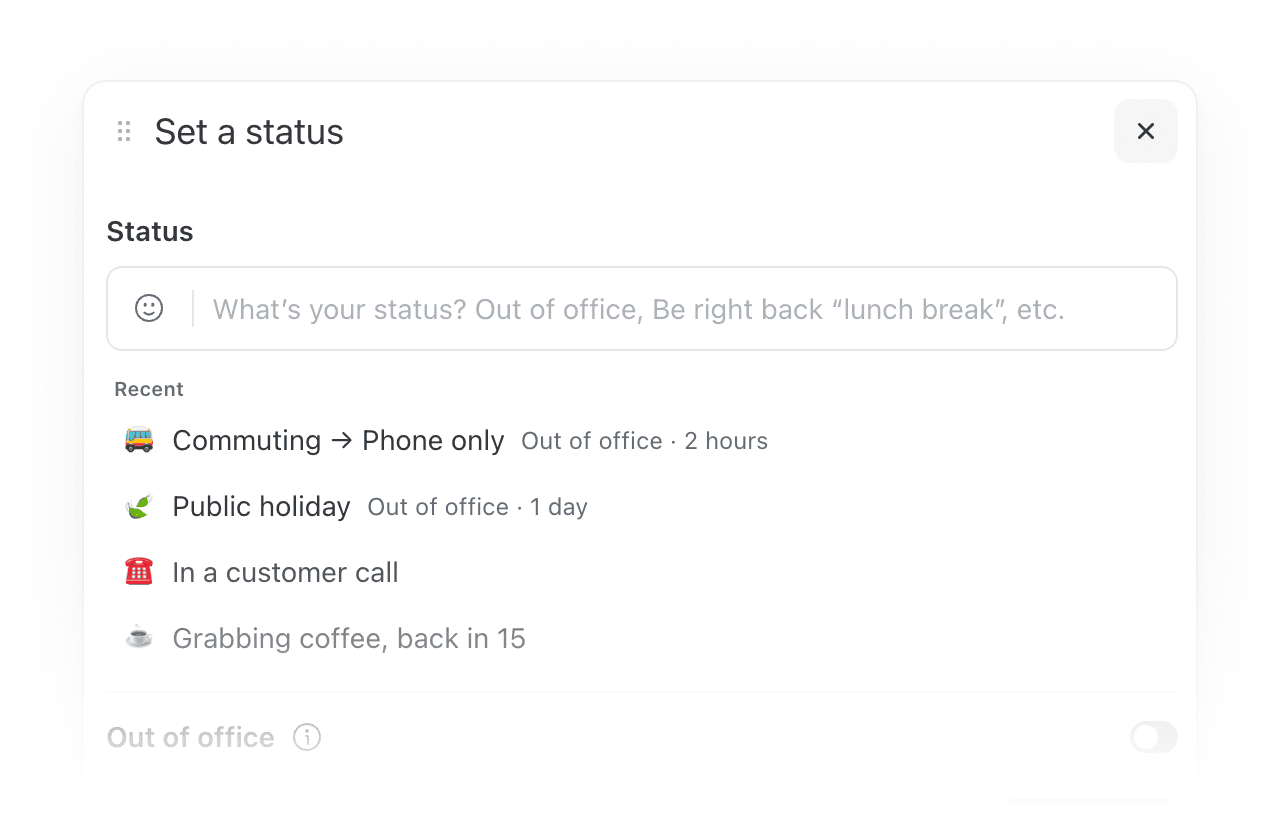
Recent statuses
Your recently used statuses are now saved in the status dialog. Reapply any of them with a single click and everything comes back: emoji, message, Out of office duration, and auto-responder settings. You can also search your full status history or apply any saved status from the command bar.
The assistant can now read your attachments
Missive AI can now open files attached to a conversation (PDFs, images, documents, and more) and use them as context.
- Summarize a contract or proposal that came in as a PDF
- Pull key figures from an attached spreadsheet or report
- Ask what an attached screenshot or image shows
The assistant can now start new messages, not just replies
Until now the assistant could only draft a reply in the conversation you had open, and it always used the recipients that thread implied. It can now compose a message from scratch and control who it goes to, so you can hand off the whole task instead of finishing it yourself in the composer. It works across email, SMS, and WhatsApp.
- Start a brand new conversation with someone, not just a reply
- Reply to a specific message in a thread rather than the most recent one
- Set or change the From, To, Cc, and Bcc fields
Search your calendar from the assistant
The assistant’s calendar tool can now search your events by keyword, instead of paging through your entire calendar. This is much faster on busy schedules and lets you ask things like “when is my next meeting with Acme?” without scanning every event.
Conversations reopen where you left off
Missive now remembers where you were in a conversation and restores it when you navigate Back or Forward. This is a real time saver when you're working through a thread of tasks or links one by one. Note that it applies to Back and Forward specifically (the browser arrows, or ⌘/Ctrl + Left and Right), not to reopening a conversation from the list, which still follows your usual open-on preference.
Managed configuration (MDM) for the desktop app • Read more
On managed machines, users often don't have administrator rights, so the in-app updater asks for credentials they can't provide and the update fails. IT administrators can now disable the in-app updater through device management and handle updates through their own tooling. Ready-to-deploy templates are available for macOS and Windows. Interface and most feature updates still arrive with a simple reload.
- macOS: apply a configuration profile, or point your MDM at Missive's preference domain
- Windows: import the registry file, or deploy the Group Policy template
- New OpenAI and Gemini models are now available in the model picker for the assistant, prompts, and AI rules, and Missive picks up future model releases automatically. Older models remain available under the Legacy submenu.
- Native browser UI (scrollbars, form controls, spellcheck underlines) now matches your light or dark theme instead of staying in the light variant.
- API: creating a draft now accepts an
add_default_signatureoption, so drafts made through the API can include the sending alias's signature just like drafts composed in Missive.
- Variables in a personal signature now fill in from your organization profile, so fields like your job title render properly in the "Add variable" preview and in the emails you send.
- Pasting a URL over selected text in the comment box now turns the selection into a link, instead of replacing it with the raw URL.
- Typing a slash date like
9/8in the snooze menu resolves to the date again, instead of forcing you to type "Sep 8". - The onboarding dialog no longer renders too small and clips its right side.
- Messages backfilled through the API with a custom account alias now show as outgoing (gray) instead of incoming (green).
- Recipient fields on SMS and other channel messages now update live when the recipient changes.
- The spinner when opening a calendar event from the Activity feed no longer spins forever after a fresh app launch.
- Integration forms that outgrew their dialog can be scrolled again, and narrow integration popups now open at a usable width.
- Inserting file links via the Google Drive integration.
11.32.0
Quo SMS account
Connect a Quo number (formerly OpenPhone) to send and receive SMS right inside Missive, alongside your email and other channels.
- Text a customer back from the same conversation view you use for email
- Route incoming SMS to a team so the right person can pick it up
- Collaborate on a reply with comments before sending
Send drafts directly from the assistant
After the assistant drafts a reply, you can now approve and send it without leaving the sidebar. Previously, you had to jump back to the composer. Missive checks that the draft hasn’t changed since you approved it, so you always send what you reviewed.
Configurable label suggestions in comments
You can now change the character that triggers label suggestions in the comment box or turn suggestions off entirely under Settings → Appearance. This helps teams that use # heavily in comments and were frequently interrupted by the suggestion menu.
New AI models: Sonnet 5 and Opus 4.8
Two newer models are now available in the model picker for prompts and the assistant.
- AI context tokens now respond consistently to clicks: left-click opens the referenced item, and right-click opens its menu (conversation, message, mailbox, label, team, and account actions).
- Tasks in the Tasks list now show snooze and star indicators, matching the conversation list.
- Middle-clicking a conversation in the desktop app now opens it in a new window.
- Typing “unwatch” in the command bar now surfaces the Stop watching action.
- Removing a user now requires typing a confirmation, reducing the risk of triggering an irreversible action by accident.
- Switching the From address on a reply now removes that address from To/Cc, so you don’t email yourself.
- Code blocks in the assistant no longer show encoded characters (like
>) instead of the actual symbol. - Copying text from an email in Firefox no longer shows a spurious “Couldn’t copy to clipboard” error when the copy actually worked.
- Arrow-key navigation in the sidebar no longer enters sub-mailboxes in collapsed team spaces.
- Fixed an issue that could create duplicate conversations when the same email arrived across multiple connected accounts.
- The “Mark as read” rule action now correctly marks the labeled copy as read when the label folder is in a different connected account.
- On mobile, selecting text in the composer drawer no longer accidentally drags the drawer when you’re trying to select text.
11.31.1
- PDF previews no longer appear truncated and now resize together with the preview dialog.
- CMD+K now opens the file options menu again while previewing an attachment, instead of being blocked by the preview.
- Drag and drop of files, attachments, and other draggable items works again inside dialogs that were affected by the new draggable dialog release.
- The Move to label… dialog now auto-closes after you move a conversation, instead of staying open.
- The account sidebar can now be resized narrower on platforms without window traffic lights (Windows, Linux, and browsers on any platform), where the extra spacing wasn't needed.
11.31.0
Draggable dialogs
No more closing a dialog just to check something behind it! Your draft, event, task and more can now be dragged and moved anywhere in the window. On mobile, dock them to keep the conversation visible underneath.
Collapsible left sidebar
Smaller screen users, this one's for you. Collapse the sidebar to give your inbox and conversations more room. Hover the window edge to peek at it, or click to pin it open. The collapse button shows your unread count so you never lose track of your inbox.
Filter tasks in your calendar
Use the calendar filter menu to switch between your tasks or all tasks.
Share any task or subtask via link
Right-click any task or subtask to copy a direct link and share it with a teammate.
Cleaner tables in Ask AI results
Tables generated by Ask AI now look polished. The styling also holds up when you insert the result into a draft sent through Gmail or other providers.
Unstar conversations in one click
Click the star icon directly on a conversation preview to unstar it. No need to open the conversation first.
- Searching inside a per-account Inbox now correctly limits results to that account, consistent with how Sent, Trash, and Starred already worked.
- Muted conversations no longer trigger notifications for task assignments or mentions. Check the Activity feed if you want to catch up later.
- Undoing "Archive from team inbox" no longer moves the conversation into your personal Inbox when it was only in the team inbox to begin with.
- Selecting "Search in label" from the Command Bar now keeps your query intact, so you don't have to retype it.
- Typing an emoji shortcut after an unfinished @mention or #label no longer gets stuck in mention-completion mode.
- The archive confirmation dialog now follows your preference in filtered mailboxes and mailboxes with organization labels, instead of always appearing.
- The signature switcher no longer drifts when you scroll or resize a draft. It also no longer shows a hover area for users who have never set up a signature.
- Double-tapping a file on mobile opens it. Long press opens the context menu.
- Copying multiple conversation links and pasting them into another app on iOS no longer inserts encoded spaces between URLs.
11.29.1
- Logging in with an OAuth provider on the desktop and mobile apps since the previous version.
11.29.0
Set your default meeting length
If your team runs 25 or 50-minute "speedy meetings," you no longer have to adjust every new event manually. Set your preferred duration once in Settings → Preferences → Calendars, and Missive will use it from then on.
Improved shared address management
Shared addresses (Google Groups, distribution lists, etc.) now live in their own section under Settings → Accounts. A new guided setup flow makes it easier to add them and configure how incoming emails get routed.
Copy attachments with a right-click
Right-click any attachment to copy it straight to your clipboard. No more opening a preview just to grab a file! Works for all file types on the app; PNG images in the browser.
Rule actions: Smarter AI model selection
AI actions now show all available models in two clear categories: Fast (runs immediately, can trigger follow-up rules) and Powerful (better results, runs in the background). The list stays in sync with your AI integration settings automatically.
Better Markdown rendering in comments
Missive now supports CommonMark, the standard behind GitHub, Notion, and many modern tools. Bold, italic, and strikethrough formatting using double delimiters (**like this**) displays exactly as intended.
Emoji-only status
Set a quick status with an emoji, no text required! A 🌴 or 🎧 now speaks for itself.
More reliable AI assistant for large tool call
When the AI handles a lot at once, like searching across multiple accounts or making bulk changes, it now processes results in smaller batches. Fewer errors, smoother long sessions
A proper dialog to import contacts from CSV
A new dialog walks you through CSV imports with instructions, drag-and-drop and downloadable templates for Google and Outlook formats. No more guessing why your file didn't work.
Redesigned contact book creation and editing
Creating and editing contact books got a more consistent design, with the ability to import contacts from CSV right after.
- Reopening a minimized composer window on the desktop app now correctly restores and focuses the window instead of leaving it hidden.
- Dismissing a calendar reminder now properly updates the app badge count on your device.
- Search no longer fails for organizations with many connected accounts when the default excluded-account filters exceed the previous limit.
- "Create draft with AI" rule action now correctly uses the sender alias selected in the rule configuration, instead of falling back to the triggering user's default alias.
- Reply drafts created by the AI assistant now include the quoted previous message, matching the behavior of manually composed replies.
- Pasting a table copied from an external source (e.g. a spreadsheet or webpage) into the composer now renders cleanly instead of inserting raw HTML.
- Copying text or email addresses on iOS no longer shows a "Couldn't copy to clipboard" error. The copy still worked, but the false error was confusing.
- Custom channel account avatars are now displayed correctly instead of showing a broken image placeholder.
- Cloud file attachment icons (Google Drive, Dropbox, etc.) in comment metadata now display properly.
- Long status text no longer gets cut off in the UI.
- Calendar events in the sidebar no longer overlap the conversation tile.
- Dialpad follow-up events (like transcriptions) for team-routed calls no longer resurface the conversation in individual users' personal inboxes.
11.27.1
- Changing the From alias in the composer not working properly (regression from 11.27.0)
11.27.0
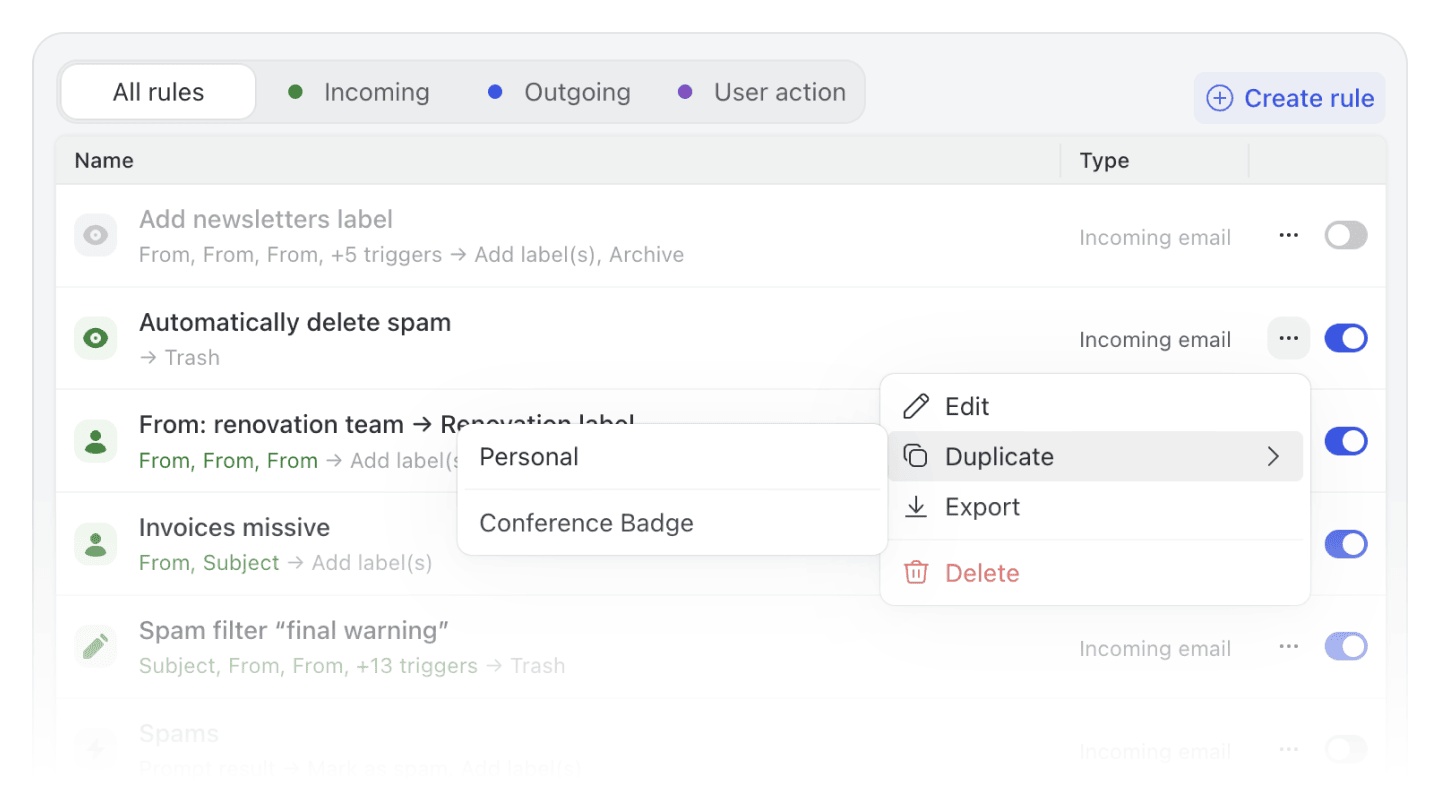
Duplicate rules to a different scope
Until now, if you built a useful personal rule and wanted to share it with your organization, you had to export the rule and re-import it manually. The Duplicate action now opens a sub-menu that lets you pick a destination: Personal, the rule's current organization, or any other organization you manage. Missive creates a pre-filled copy scoped to that target, automatically removing any conditions or actions that don't apply to the new scope. Much faster than export/import when you want to reuse a rule across contexts.
Improved MCP integrations in the assistant
MCP integrations are now loaded on demand instead of all up front, so connecting several integrations no longer burns tokens on capabilities the assistant never uses. Handling of multiple MCP integrations of the same type (e.g. two Stripe accounts) has also been improved so they stay distinct.
Instant calendar loading
Your calendar events are now saved on your device, so they show up immediately when you open or reload Missive. No more blank calendar while things load, fresh updates sync quietly in the background.
Out of office unassignment is now visible in conversations
When a teammate's Out of office status causes them to be unassigned from a conversation, that action now appears as a visible event in the conversation timeline, so the rest of the team can see why the conversation returned to the team inbox.
Conversation subjects preserved from out-of-office replies
Receiving an out-of-office auto-reply no longer overwrites the conversation's displayed subject line with the OOO message subject.
Mailto links now support the from parameter
When a mailto: link includes a from field (e.g. mailto:john@acme.com?from=sales@acme.com), Missive automatically selects the matching sender alias. Useful for CRMs, help desks, or internal tools that generate mailto links where the sending address matters.
Account provider icon badges in the sidebar
Per-account sub-mailboxes under your unified Inbox and All now show a small provider icon badge (e.g. Messenger, Aircall, Dialpad), so you can distinguish between accounts that share the same name. Only non-email accounts get a badge. You can turn this off under Settings > Preferences > Left sidebar.
Fixed freeze when opening drafts with very long canned responses
Indexing canned responses could cause a multi-second freeze for organizations with large response libraries. This has been resolved.
Better email quote detection for dashed separators
Quoted text detection has been improved for messages that use dashed separators (common in forwarded emails from HEY and other providers). Quoted text is now correctly collapsed in more cases.
- Search results now show the latest message preview and organization labels again, instead of the "N matches" count that replaced them in the previous release.
- Calendar reminders no longer fire for events that were rescheduled or deleted. Previously, moving an event could leave behind a stale reminder that would still notify you at the original time.
- Accepting a calendar invite that includes multiple team members now correctly RSVPs for the right person, instead of sometimes targeting the wrong attendee.
- The "Auto-shared users" dropdown in the organization label editor now lists all teams in your organization, not just teams with a team inbox.
- Triple-backtick code blocks in comments now render correctly when the code inside contains backticks (e.g. template literals or shell commands). Previously, the inner backticks broke the formatting.
- Image URLs with query parameters (e.g. Dropbox share links with auth tokens) pasted in comments are no longer stripped of their query string, which could break the link or prevent the image from loading.
- Scrolling to the bottom of search results no longer causes the jump-between-matches navigation bar to overlap conversation content.
- Copying text to the clipboard now shows a clear error dialog when the browser blocks the operation, instead of failing silently.
- Declining a single occurrence of a Microsoft recurring calendar event no longer declines the entire series.
- Dialpad forwarded calls to a shared number now correctly land in the shared team inbox instead of the operator's personal inbox.
- Email account deletion no longer gets stuck in a "being deleted" state indefinitely.
- Organization-owned Shopify integrations can now be reconnected after they disconnect.
- MCP tools no longer fail to load on Gemini when using multiple integrations from the same MCP server.
- Long-pressing a file attachment on mobile no longer triggers overlapping context menus.
mailto:links in comments now preserve query string parameters.
11.26.0
Search: Jump directly to matching results
Search results now open directly on the matching message or email, instead of dropping you at the bottom of the conversation. All matching entries are highlighted, and you can jump between them with navigation arrows. No more scrolling through long threads to find what you’re looking for.

Assistant can now manage labels and calendar events
Missive AI Assistant can now apply, update, or remove labels from conversations, and create, update, or delete calendar events on your behalf. You’ll be asked to approve actions before anything happens.
From this newsletter, create all next month’s events in my calendar.
Review all conversations in the Prospect label. If Stripe shows the company has upgraded, add the Customer label and remove Prospect.
Find conversations labeled Billing that mention a meeting date, then create calendar events and label the conversation Scheduled.

Label editor
The label menu now opens as a context menu, and the label editor has been rebuilt with a cleaner layout and emoji support for label icons.
Invite member
The flow for inviting users to your organization has been rebuilt with a cleaner, step-by-step interface.
Auto display mode for the right sidebar
The right sidebar can now automatically switch between fixed and floating depending on your window size. Wide window? It stays pinned. Narrow window? It floats as an overlay. You can find this option in the sidebar display settings.
Reply All no longer includes BCC recipients
BCC recipients are no longer carried over when using Reply All. You can re-enable the old behavior in Settings → Preferences → Composer.
“Mark as spam” available in the Spam folder
You can now select "Mark as spam" from the Spam folder to access the Block sender flow directly.
“More” button in sidebar
The button at the bottom of the left sidebar is now labeled "More" instead of "Pin to sidebar" to make it easier to understand.
New OpenAI models available
GPT-5.5 and GPT-5.4-mini are now available for the AI assistant.
Updated Facebook integration
The Messenger and Instagram integration now uses Facebook API v21.0 for better compatibility.
- The Shopify integration is back. You can now connect it using a custom or private app with your own API credentials in Settings → Integrations.
- MCP integrations no longer disconnect after being idle for a while.
- The app badge count now stays in sync when a new message arrives in a conversation you're already viewing.
- Send & Archive followed by Undo and then Send again now correctly keeps the conversation out of your Inbox.
- Replies in team conversations now correctly prefer the current team's sender alias when no exact alias match exists.
- Editing the label selection in an "Add label(s) with AI" rule action no longer resets the other fields.
- Creating a new shared account that exceeds your plan's included limit now shows a billing warning before proceeding.
- System mailboxes like Inbox, Trash, and Sent no longer show a broken Edit option in their context menu.
- Toggling a setting in Preferences now reliably persists, even when toggling quickly.
- Mobile: Calendar events can no longer be accidentally moved or resized.
- Mobile: Opening the assistant no longer causes the page to scroll unexpectedly.
11.25.0
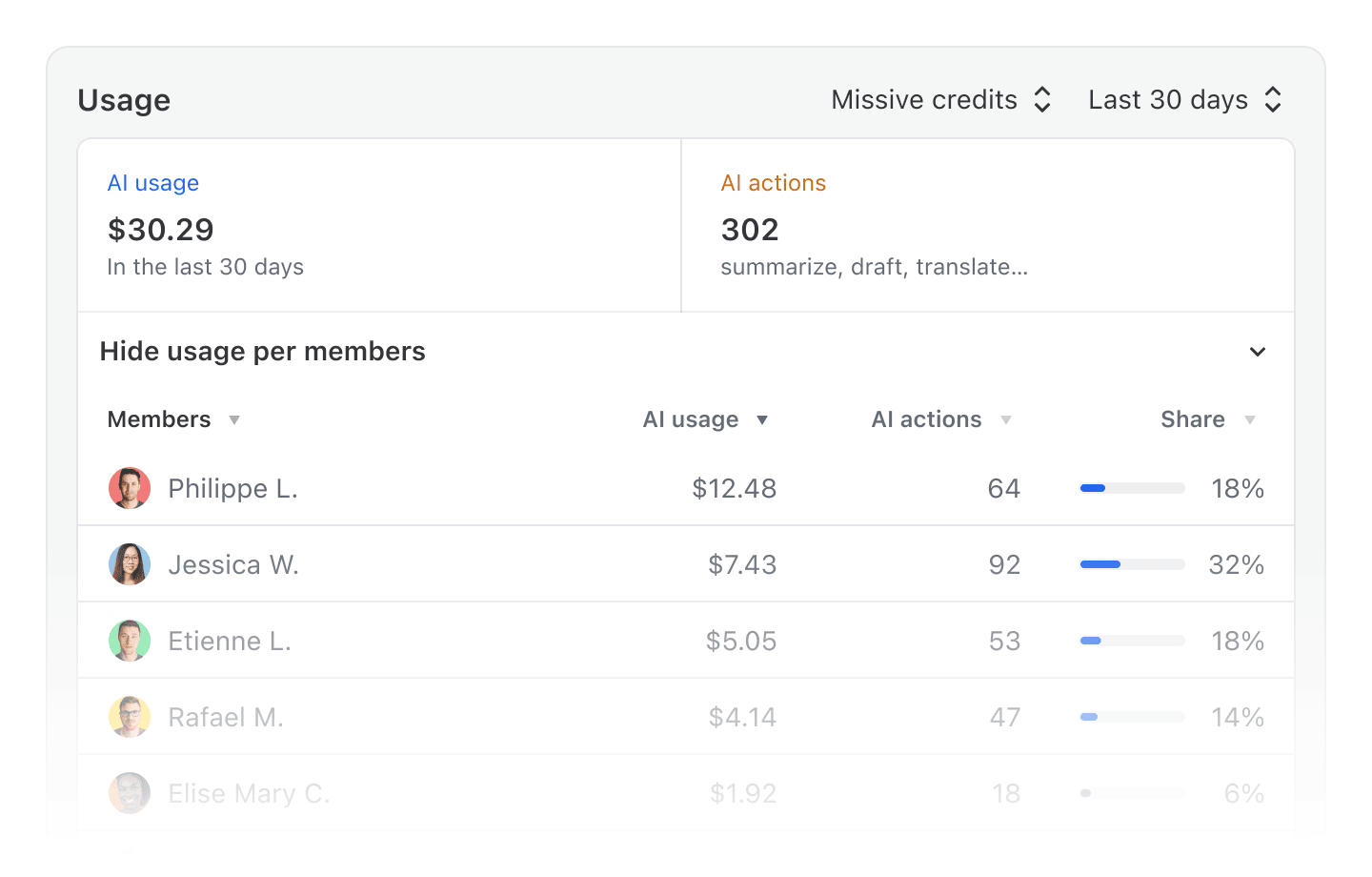
Missive AI Credits
For AI features, you can now choose between using Missive AI credits or bring-your-own-key (BYOK). Missive AI Credits let you purchase credits directly from Missive and start using the assistant, prompts, and AI rules without setting up an external provider account. Credits are linked to your organization for usage monitoring and can be shared with your team. To celebrate, all paid organizations get $5 of free credit. Go on, test it out.
Time series charts in Analytics
Click any metric cell in an Analytics report to expand an inline chart showing how that metric has trended over time for the selected entity (user, team, account, or organization label). Useful for spotting patterns, comparing periods, and understanding whether a number is improving or just spiking.

Drag to move and resize calendar events
Reschedule meetings without opening the event form. Drag any event to a new time slot to move it, or drag its edge to make it longer or shorter. Works in both weekly and monthly views, with support for cross-day moves, recurring event handling, and automatic navigation when you drag near the edge of the visible period. Press Escape to cancel mid-drag.
Invite teammates, teams, and organizations as calendar event guests
When adding guests to a calendar event, the search now surfaces your teammates, teams, and organizations alongside contacts and past recipients. No more hunting for email addresses or maintaining a separate contact book just to invite your own colleagues to a meeting.
AI assistant works more reliably on mobile
Fixed several issues where the assistant would close unexpectedly, the keyboard would disappear, or the @ mention picker would behave erratically on mobile devices.
Right-click context menu on tasks
Right-click any task row in the Tasks views to quickly change its status, assignees, team, or due date without opening the task first.
Right-click context menu on file attachments
Right-click any file attachment to access actions like download, open, or delete directly from the context menu.
- AI-generated drafts no longer produce extra blank lines between paragraphs, lists, and blockquotes
- Conversations with all messages already read now correctly collapse messages when "Expand messages by default" is turned off
- Shared addresses using the Regular Inbox method can now be saved without selecting additional users
- Copy-pasting text from external sources (notably ChatGPT and Google Docs) into the composer no longer strips line breaks between paragraphs
- Clicking a mailto: link or an email address in a contact's details now always opens the email composer, even when the default new message sender is set to an SMS account
- The Edit sharing dialog for shared accounts using the Regular Inbox method now correctly shows the actual account owner instead of the current user
- Conversation previews for generic accounts (Twilio, Dialpad, and others without a profile picture) now display the correct channel icon instead of a blank space
- The task creation dialog title field no longer unexpectedly grows taller after typing a few characters
- Pinned filtered mailboxes with open status no longer show unrelated items when the mailbox type filter is removed
- Newer emojis (like identification card, wings, and other Extended-A symbols) are now correctly detected as emoji icon in conversation titles
- The numpad Enter key now works in menus, forms, and label assignment dialogs
- Swiping to apply a label on mobile no longer leaves the conversation stuck in a swiped state
- The Send & Snooze date picker no longer shows both "Leave in Inbox" and "Archive" options simultaneously
- Deleting an attachment via its context menu no longer deletes a different comment's attachment
- On mobile, starting a new message from a custom account and tapping "Add a recipient" no longer causes the submit button to spin indefinitely
- Search fields inside dropdown menus (e.g. in Rules or integrations) no longer lose focus after each keystroke on Android
11.24.2
- Fixed an issue where pinned conversations in the sidebar could be incorrectly cleared under certain circumstances
- Fixed unread badge count not updating when marking a calendar reminder activity as read
11.24.0
AI tool calls now show details and progress
Tool calls display their parameters when expanded, and a spinner indicates when a tool is actively running. This makes it easier to understand what the assistant actually tried to do (for example, the exact search query it used), so when results aren’t what you expected, you can quickly adjust your prompt and guide the assistant in the right direction.
Setting to move conversation to top when commenting
By default, conversations move to the top when someone else comments, but not when you comment. Enable this new setting to also bump the conversation to the top of your mailbox or label when you add a comment:
Head to Settings → Preferences → General in the Actions section, then look for "Move conversations to top upon adding a comment”.
“Show in conversation” for attachments
From the files list in the right sidebar, you can now jump straight to the exact email or comment where a file was shared. This is a huge time saver in long threads, because you no longer need to hunt through dozens (or hundreds) of entries to find the message that included that PDF, image, or contract.
Todoist MCP integration
Connect Todoist to Missive AI to manage your Todoist tasks directly from your inbox.
Copy link for comments and posts
Right-click a comment or post to copy a direct link, useful for referencing specific discussions outside of Missive.
Revamped account sharing settings
Easier to update sharing permissions after an account is shared, with a new “Make private” option and clearer team inbox recommendations.
Sidebar: Automatically show labels/folders when connecting an account
Choose how your email labels/folders appear in the sidebar right during account setup, so you can organize your workspace from the start.
Conversations with many unread entries now open at the bottom
When a conversation has more than 40 unread entries, it opens at the most recent message instead of the unread marker.
Canned response editor now shows save status
See “Saving…” and "Saved" indicators when editing canned responses, so you know your changes are synced.
Less destructive AI proofreading
AI proofreading now preserves images, tables, and blockquotes instead of stripping or corrupting them.
Gmail and Outlook accounts auto-reconnection after temporary disconnections
If your Google or Microsoft account gets disconnected due to an expired token, Missive will automatically attempt to reconnect it in the background, reducing the need for manual re-authentication.
- Fixed delayed desktop notifications for comments when viewing a conversation.
- Fixed "New unread" indicator incorrectly appearing when all entries in a conversation are unread.
- Fixed search scroll getting stuck open after selecting an address, contact, or domain filter.
- Fixed keyboard search filters applying to the current mailbox instead of the search results.
- Fixed emojis disappearing in Settings when reordering teams.
- Fixed multiple attachments appearing in wrong order.
- Fixed sorted table columns not persisting their state correctly.
- Fixed push notifications sometimes not working when tapping a notification that launched the mobile app.
- Fixed sidebar "New section" input appearing behind the blurred backdrop.
- Fixed cancelling new section creation breaking sidebar sorting.
- Fixed MCP integrations failing to reconnect after their OAuth token expired.
11.18.0
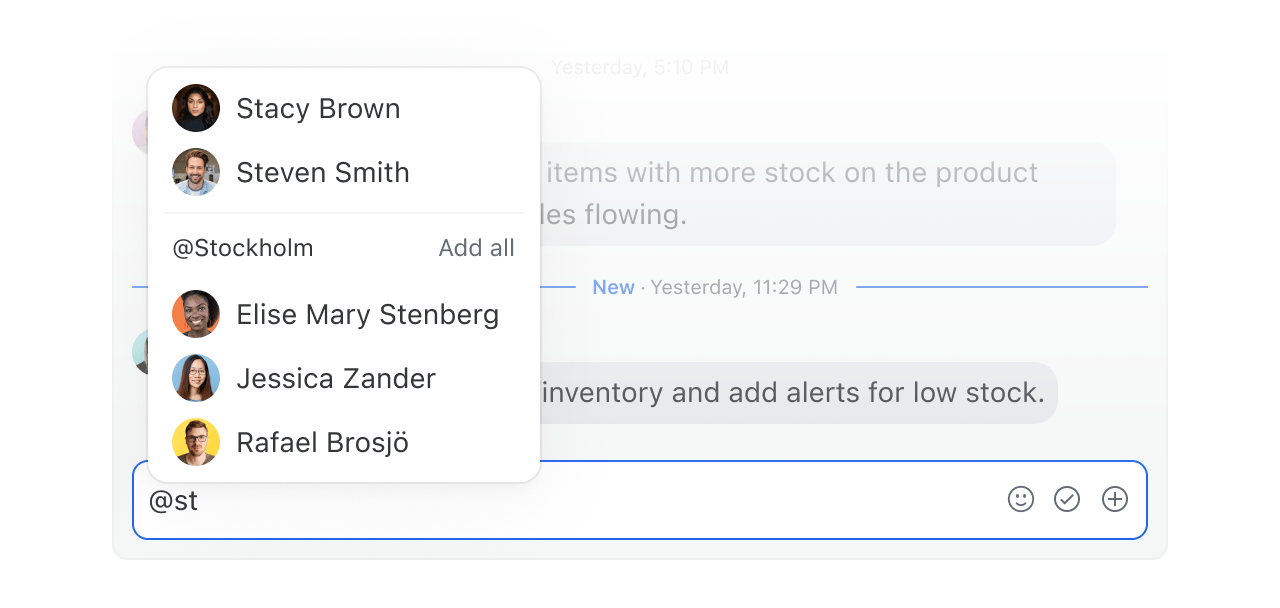
Custom @mention groups • Read more
Mention groups let you @mention multiple people at once with a custom group name. This is useful for project teams, roles, or any group that doesn't map to a formal team structure.
For example, if you have a remote team, you can mention everyone in a specific location (@toronto) instead of tagging everyone from that location individually.
Organization setting to customize user name format
Choose between short name, full name, first name with last initial, or first initial with last name.
For example, if you have a few John Smiths in your company, you can differentiate them easily with John Smith, John S, and J Smith.
You'll have to rock, paper, scissors to see who gets which name though.
Rules: Use business days in SLA conditions
SLA conditions can now be delayed based on an organization's or team's business days schedule.
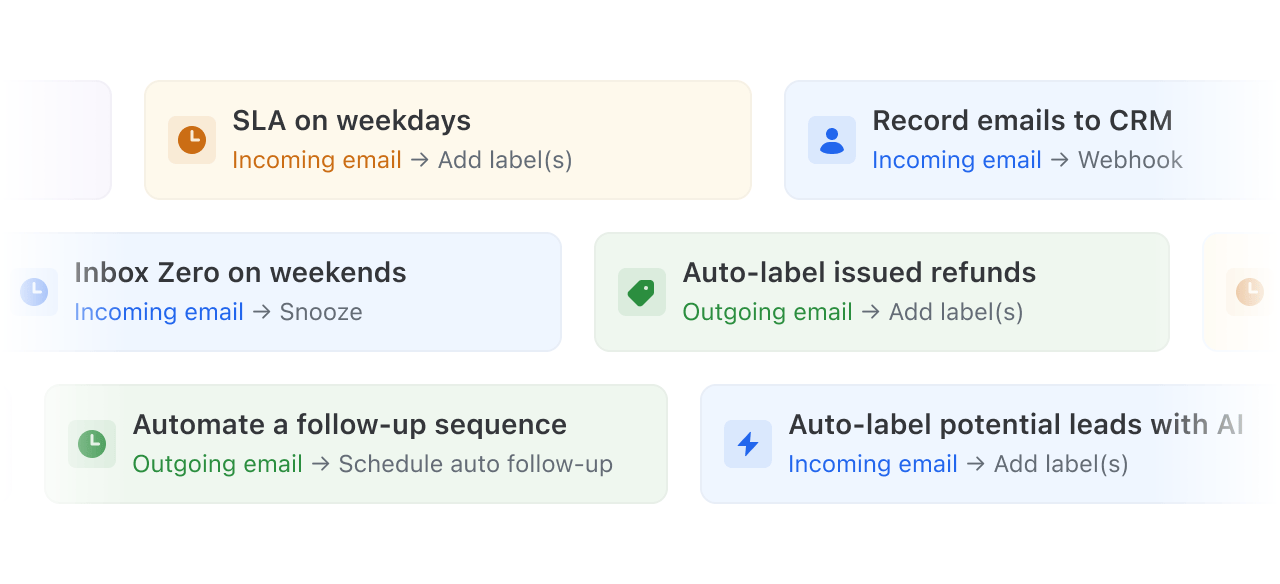
Rule template library • Read more
Get started faster with pre-built rule templates for common workflows. Browse templates for auto-labeling, SLA management, draft creation, and more. Each template can be customized to fit your specific needs.
Export and import rules
Share rule configurations across organizations or back up your automation setup. Export rules as JSON files and import them to quickly replicate complex rule sets.
New Missive documentation • Missive Docs
Also accessible through an in-app AI assistant that answers questions about Missive features, workflows, and best practices. The assistant can search the documentation in real-time and provide relevant guidance without leaving the app.
- Improved label picker performance with thousands of labels
- Render conversation and message previews for Missive links in task titles
- Render conversation previews for all tasks in calendars
- Show conversation events when messages are removed from a conversation
- API:
GET conversations/:id/postsendpoint now allows fetching posts for a conversation. - API:
GET conversations/:id/draftsendpoint now allows fetching drafts for a conversation. - API:
GET tasksandGET tasks/:idendpoint - API: New webhook types added to the
POST /v1/hooksendpoint
- Emoji picker width on mobile devices
- Text highlight lost when replying to an email
11.17.0
Out of office status with auto responder
Taking a well-deserved holiday break? You can now set up automatic replies right from your out of office status.

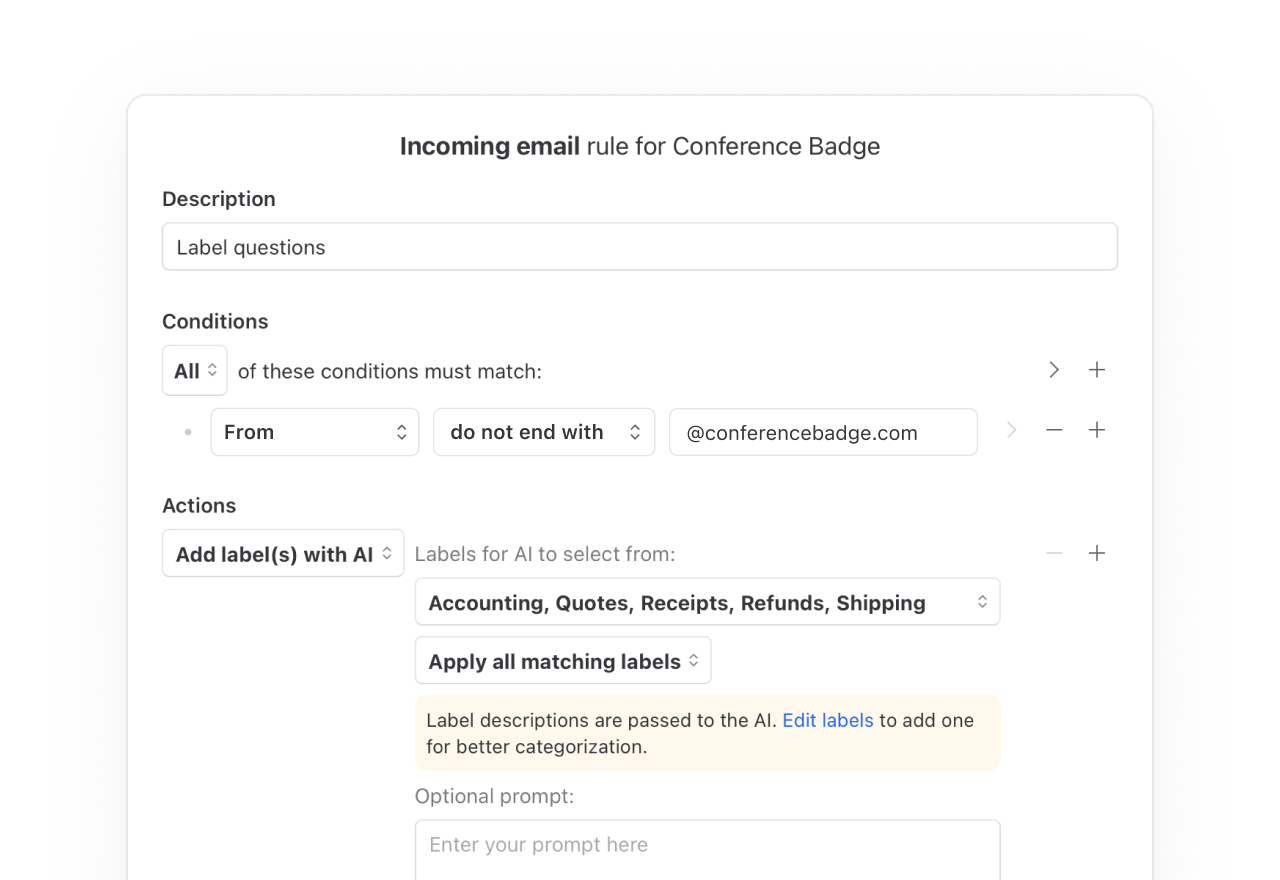
Rules: Add label with AI
Have AI automatically categorize incoming emails using your existing labels.
Rules: Include signatures in drafts created by rules
Create draft, Send response, and Schedule auto follow-up actions can now include the sender's signature. Enable via the "Include sender's signature" checkbox. Supports dynamic variables in organization-managed signatures.
Rules: AI rules for outgoing messages
Analyze messages before sending with AI. Prevent delivery of emails with typos, block messages mentioning sensitive information, or automatically create follow-up tasks from sent messages. Works with email, SMS, and social messaging accounts.
API: Response management endpoints
Create, update and delete canned responses via the API /responses endpoints.
API: New conversation filters
Filter conversations by email address or domain name in the /conversations endpoint.
- Improved address suggestions — In the draft composer, recently contacted addresses now appear higher in suggestions, making it faster to find relevant email addresses.
- Rules: Create draft with AI — optionally select a specific canned response to use as context for AI-generated drafts.
- Rules: Drag and drop rule conditions and actions — Never rebuild a rule from scratch again. Easily rearrange conditions and actions by dragging and dropping them into the right order.
- Command bar: View and search recent conversations — Quickly access and filter your most recent conversations directly from the command bar (Ctrl+e/Command+e) to resume work faster.
- API: DELETE /drafts endpoint now allows deleting messages scheduled to be sent later.
- API: GET /messages/id endpoint now supports a comma-separated list of message IDs to fetch message bodies in bulk.
- Mailbox unread count sometimes being decremented twice when marking a conversation as read
- Account filtering not working when applied to mailboxes
- Merge conversation action being unavailable in some contexts (pinned conversation, new windows, etc.)
- Arrow keys occasionally not opening or closing submenus
- Backspacing in search or filtered mailboxes failing to remove conversations
- Conversation title flickering while typing in an expanded comment box
11.16.3
- Search bar now stays visible on mobile when viewing search results
- Mailbox unread count sometimes decrementing twice when marking a conversation with unread messages and comments as read
- Removing email labels from conversations using the new label menu
- Applying a label to a non-selected conversation via right-click or long press on mobile
11.15.0
Files & Attachments:
We’ve completely reworked how files and attachments appear in Missive to make managing them faster and more intuitive, improving how you work with files every day.
- Unified view: See all attachments from a conversation directly in the Details sidebar, neatly grouped and easy to browse.
- Rich previews: Images now display inline previews (no downloads needed).
- New visuals & categories: Cleaner file thumbnails with type-based icons and improved organization.
- Filtering: Quickly find what you need by filtering by file category.
- Faster navigation: A rebuilt quick look experience and new keyboard shortcuts (like ⌘K) make previewing smoother than ever.
Pro tip: The keyboard shortcut to see unified files is Ctrl+Alt+S (Windows) or Command+Option+S (Mac).

- Add GPT-5 model to the OpenAI integration
- Allow integrations to write to the clipboard
- Editing a colleague’s profile avatar and name
- Copying an email body along with its header addresses
- iOS 26 rendering glitch when focusing the app on iPad
- “View all conversations” not being clickable for certain contacts
- Assigning someone when selecting multiple conversations won’t disassociate the team anymore
11.13.0
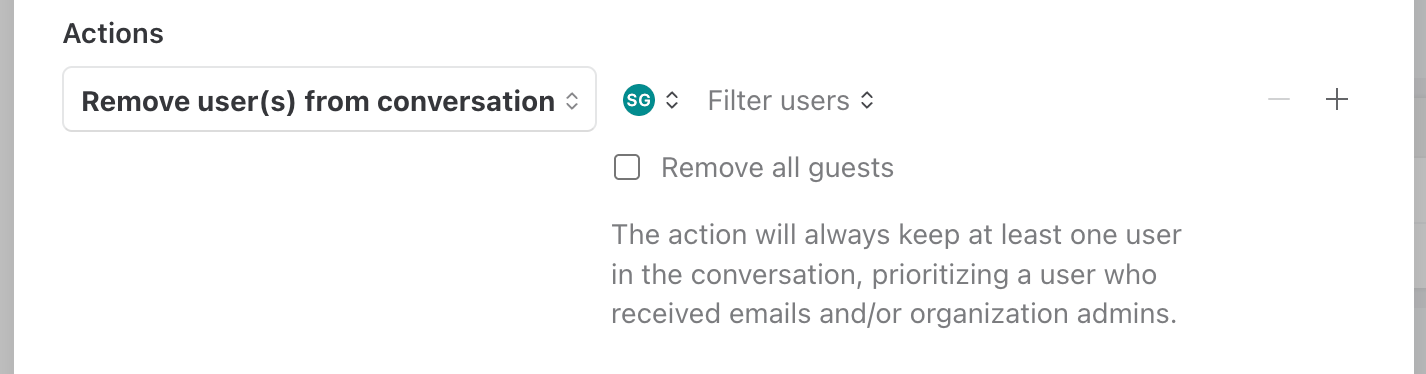
- Remove user(s) from conversation rule action
- Granular settings to control default filters when searching

- Removed default date range filter when searching
- When in a team inbox, searching in “Team → All” by default instead of the team inbox itself
- Contact “All conversations” not working in some cases
- Contact conversations searching globally instead of in the current mailbox
11.12.4
- Better preserve text style and color consistency when copying and pasting content
- Blank composer or new window appearing with no UI on the desktop app
- “Download” button not working in PDF preview on the desktop app
- Missing conversations when filtering by “Domains,” “Contacts,” “Addresses,” or “Phones”
- Some tasks failing to create or delete when filters applied
- Pinning a conversation to the sidebar not working from a new window
- “Merge conversations” button sometimes not working in the search view
- Address search suggestions not opening in rule editor
- Show darkened avatars in the access menu to indicate who has archived the conversation
- Due date color still showing for closed conversations
- Disabled “Delete” button no longer turns red when hovered in Settings > Labels