> For the complete documentation index, see [llms.txt](https://missiveapp.com/docs/llms.txt). Markdown versions of documentation pages are available by appending `.md` to page URLs; this page is available as [Markdown](https://missiveapp.com/docs/core-features/connected-accounts/sharing-options.md).
# Sharing options
Share accounts with teams, individuals, or keep them private. Configure who sees what.
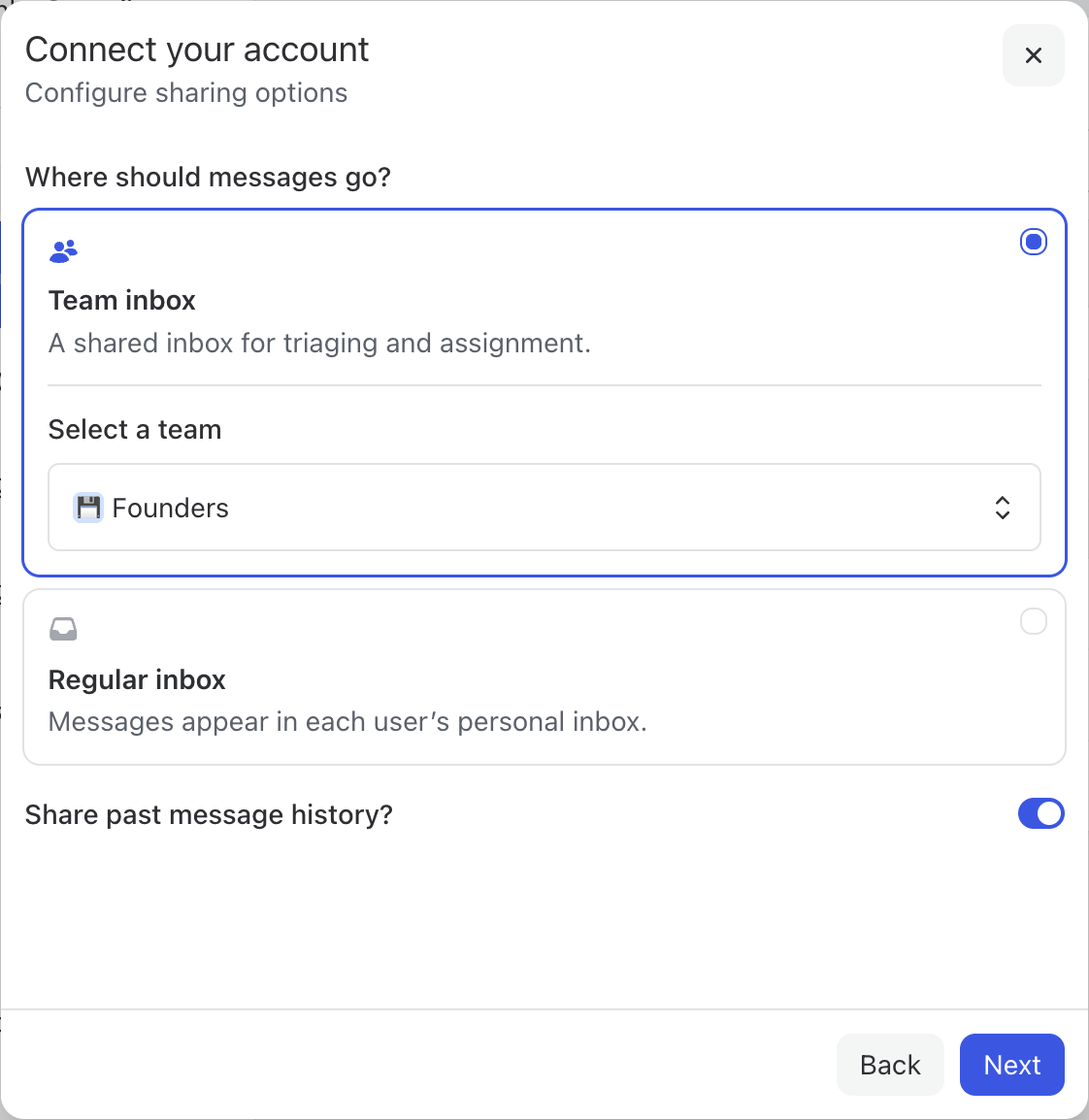
In Missive, shared accounts and addresses come with different sharing options to support a variety of workflows. When you share an account, you can choose whether incoming messages go to:
* **A team inbox:** A shared inbox for triaging and assignment between team members.
* **Regular inbox:** Messages appear in each user's personal inbox (or are auto-archived)
Below, we’ll explore the key differences so you can pick the option that best fits your team.
## Team Inbox
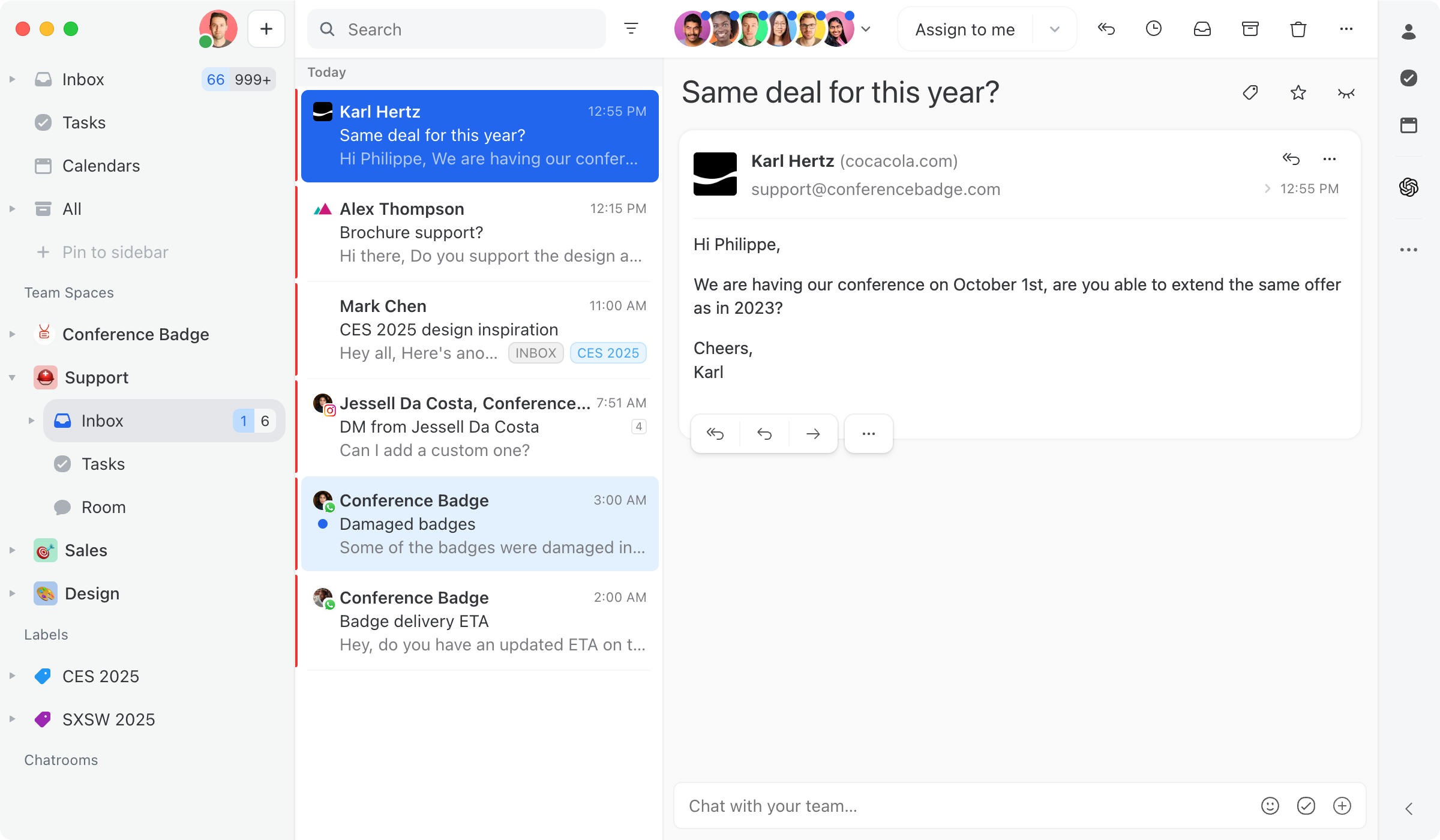
When choosing **Team Inbox**, new messages appear in the **Team Inbox** instead of the Inbox. The **Team Inbox** is shared among its team members, meaning that whenever a message is assigned / archived / closed, it will be removed from the **Team Inbox** for everyone. This is useful for teams who want a “triage” step that will clean up messages for all coworkers at once.
Let’s say we enable the **Team Inbox** flow for the account **** and select the ⛑️ **Support** team. All team members can now see incoming messages in the ⛑️ **Support** team inbox from the left sidebar.
You can easily assign conversations to anyone.
**When** [**creating a team,**](/docs/core-features/team-inboxes/creating-a-team-space.md) **you can define two types of users:**
**Active members** receive notifications for new messages. They see conversations listed in the [Team Inboxes](/docs/core-features/team-inboxes.md) mailbox in addition to the team inbox.
**Observers** do not receive notifications and see conversations listed in the team inbox only. This is perfect for **managers** who want to monitor the work being done but don’t want to be flooded with notifications.
These settings are available in **Settings** > **Teams**. You can read more about [triaging and assignment in this guide](/docs/core-features/triage-and-assignment.md).
## Inbox
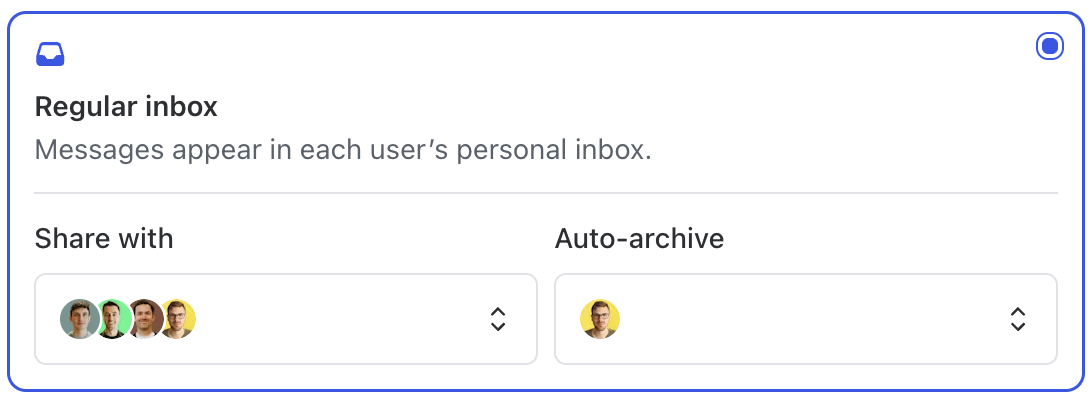
When choosing **Inbox**, new messages are received in each user's **Inbox** or are automatically archived (based on the sharing settings, see image below).
For users receiving new messages in their Inbox, conversations remain unread in their Inbox until they read / archive / trash it themselves. This is useful for people who want to stay master of their Inbox and see all messages that have been received and answered by anyone.
### Auto-archive option
For users in the **Auto-archive** section, conversations are automatically archived from their Inbox but remain fully accessible:
* Conversations won't appear in their Inbox
* No notifications are sent
* All emails are accessible via the **All** mailbox in the sidebar
* Searchable at all times
You can auto-archive for specific users, or pick **Everyone** to auto-archive for everyone the account is shared with, including future members of the organization.
This is useful for:
* Managers who need visibility without inbox clutter
* Team members who need occasional access but aren't primary responders
* Temporary access during someone's leave (can search and respond when needed)
## Shared addresses
For email accounts, you can share specific addresses without sharing the entire account. This lets you route emails to different teams based on the recipient address.
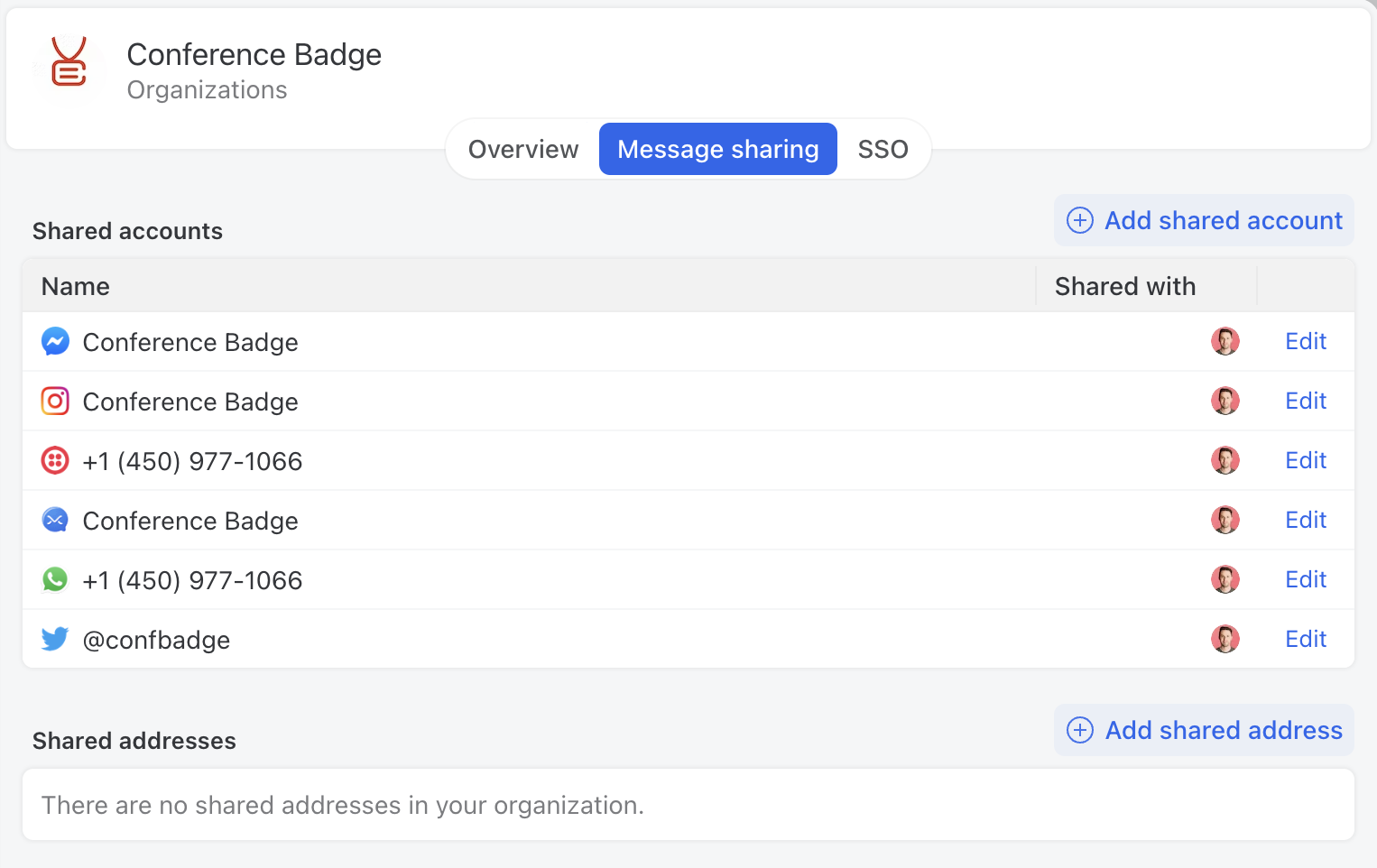
Add a shared address in **Settings** > **Accounts**. Click **Add**, then choose **Shared address** under the **Email** tab. Existing shared addresses are listed there too, alongside your accounts. (You can also manage them in **Settings** > **Organizations** > **Message sharing**.)
### Use cases
**Aliases**
Share emails sent to support@ with the Support team, sales@ with the Sales team, all from a single admin@ account.
**Google Groups**
Share emails sent to a Google Group with specific users or teams. See [Google Group address](/docs/core-features/connected-accounts/email-accounts/gmail-google-workspace/google-group-address.md) for setup instructions.
**Forwarded addresses**
Share emails from domain forwarders (GoDaddy, Gandi, Dreamhost, cPanel) with your team.
---
# Agent Instructions
This documentation is published with GitBook. GitBook is the documentation platform designed so that both humans and AI agents can read, navigate, and reason over technical content effectively. Learn more at gitbook.com.
## Querying This Documentation
If you need additional information that is not directly available in this page, you can query the documentation by asking a question.
Perform an HTTP GET request on the following URL with the `ask` and `goal` query parameters:
```
GET https://missiveapp.com/docs/core-features/connected-accounts/sharing-options.md?ask=&goal=
```
`ask` is the immediate question: it should be specific, self-contained, and written in natural language.
`goal` is what the user is ultimately trying to achieve, the reason they need the answer. Sharing it helps GitBook give you a better, more relevant answer. A goal is most helpful when it describes the outcome the user wants rather than restating the question. For example, with `ask=how do I create an API token`, a goal like `automate deployments from our CI pipeline` lets GitBook tailor the answer to that use case.
The response will contain a direct answer to the question and relevant excerpts and sources from the documentation.
Use this mechanism when the answer is not explicitly present in the current page, you need clarification or additional context, or you want to retrieve related documentation sections.