> For the complete documentation index, see [llms.txt](https://missiveapp.com/docs/llms.txt). Markdown versions of documentation pages are available by appending `.md` to page URLs; this page is available as [Markdown](https://missiveapp.com/docs/core-features/conversations/collaboration.md).
# Collaboration
Collaborate on emails with comments, @mentions, shared drafts, and assignments.
Conversations enable real-time collaboration with your team. Use @mentions to share conversations, discuss in the chat box, and stay updated on activity through watching.
## Mentions and sharing
When you @mention someone in a comment, they gain access to the conversation and it appears in their Inbox. Three types of mentions are available:
1. **@user** — Mention a specific person
2. **@team** — Mention all members of a team
3. **@group** — Mention a custom group of people (e.g., @design-leads, @Stockholm)
{% hint style="info" %}
If a conversation is private (not yet shared), adding a comment with a @mention automatically shares it with the mentioned teammate or team.
{% endhint %}
### Custom mention groups
Mention groups let you @mention multiple people at once with a custom group name. This is useful for projects, roles, or any group that doesn't map to a formal team structure. They can also be used as a way to differentiate people with the same name when they belong to different mention groups.
For example, you might create groups like:
* **@design-leads** — Senior designers across teams
* **@project-apollo** — Everyone working on a specific project
* **@Stockholm** — People in the Stockholm office
#### Setting up mention groups
To add someone to a mention group:
1. Go to **Settings** > **Users**
2. Click on a team member's name to open their profile
3. In the **@mention group** field, type the group name
You can add the same person to multiple groups by editing their profile multiple times.
#### Using mention groups
When typing a comment, type **@** followed by your group name. Missive will suggest matching groups. When you select a group, all members are mentioned at once.
### Alternative ways to share
Beyond mentions, you can also add people to a conversation through:
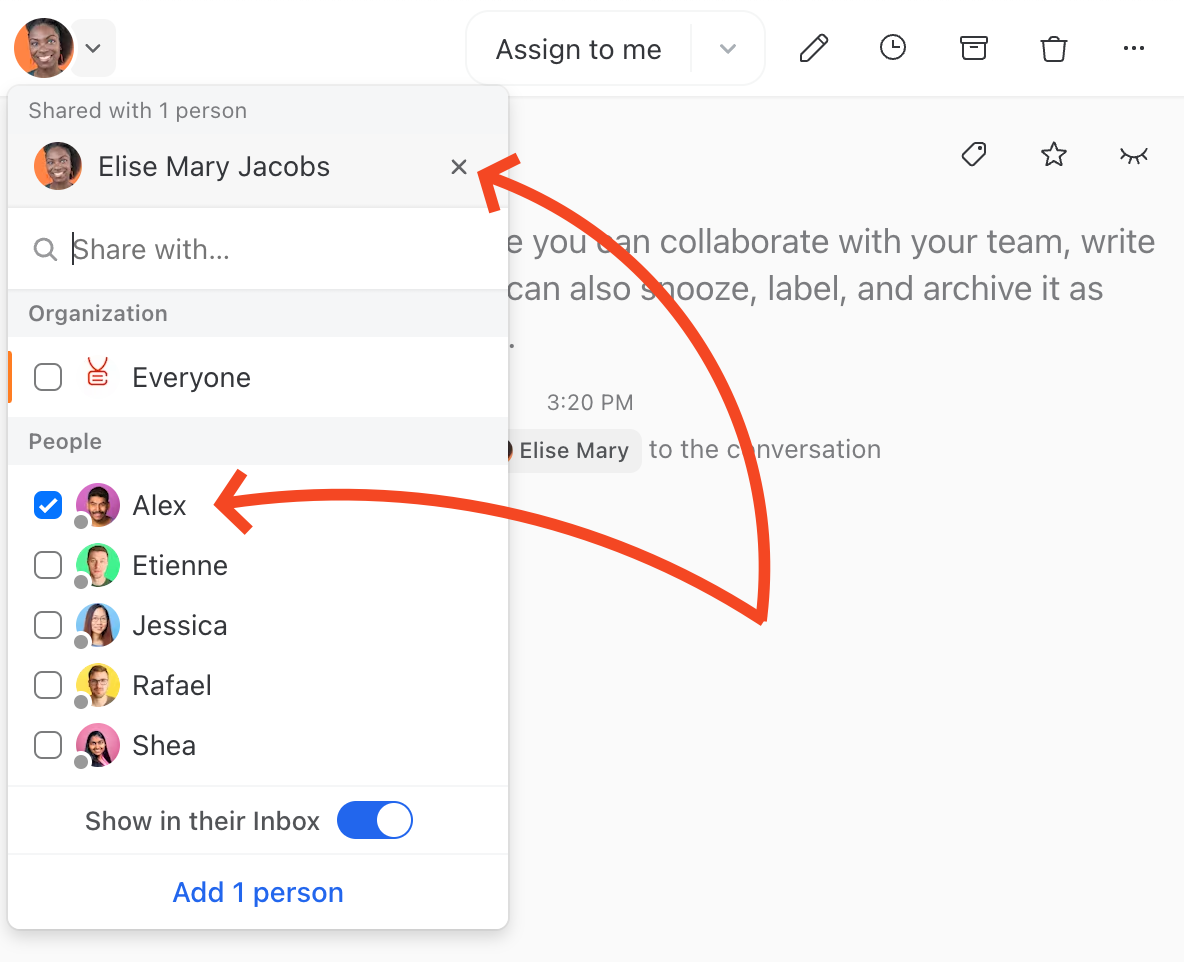
1. **Add people menu** — Click the avatars at the top of the conversation. You can choose whether to show the conversation in their Inbox or just give them archived access for reference.
2. **Assignment** — Assigning someone always shows the conversation in their Inbox and Tasks view.
## Linking to labels and mailboxes
Reference a label, team inbox, or mailbox directly in a comment so teammates can jump to it in one click. Type **#** in the chat box, then start typing the name. Missive suggests matching labels and mailboxes, with your recently used ones listed first. Select one to insert a link.
Clicking the link takes the reader to that label or mailbox. If they don't have access to it, Missive shows a short message explaining that instead of opening it.
{% hint style="info" %}
Prefer a different trigger, or don't want suggestions at all? Go to **Settings** > **Preferences** > **Appearance** and use **Suggest labels while typing** (in the **Comments** section) to turn suggestions off or pick another character (`/`, `!`, `~`, `^`, `>`, or `&`) instead of `#`.
{% endhint %}
{% hint style="info" %}
You can also copy a link without writing a comment: right-click a label or mailbox in the sidebar (or open its **...** menu) and choose **Copy link**. Paste it into a comment, email, or anywhere else.
{% endhint %}
## Individual read/watch statuses
At the top of each conversation, avatars show who has access. Different styling indicates their current state:
| Indicator | Meaning |
| ------------------ | -------------------------------------------------------- |
| **Orange clock** | User has snoozed the conversation |
| **Blue dot** | User has not read all emails in the conversation |
| **Grey avatar** | User has archived the conversation |
| **Colored avatar** | User has the conversation in their Inbox or Team Inboxes |
| **Blue ring** | User is currently viewing the conversation |
{% hint style="info" %}
If you don't see any avatars, the conversation is private. No one can see it but you.
{% endhint %}
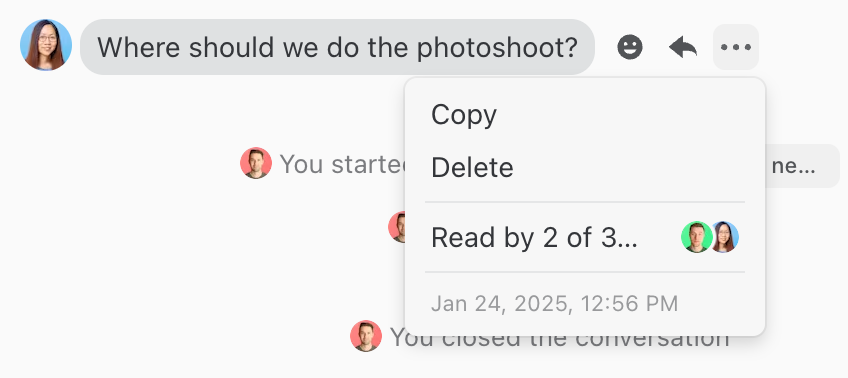
## Internal read receipts
Read receipts show who in your team has read messages or comments within a shared conversation. Access the list by opening the **More menu** (three dots) on any message or comment.
Internal read receipts
{% hint style="info" %}
On mobile, open the More menu for comments by double-tapping any comment.
{% endhint %}
Read receipts are enabled by default. To disable them:
1. Go to **Settings** > **Preferences** > **Appearance**
2. Toggle off **Show internal read receipts** for messages or comments
## Pinning entries
Pin any message, comment, or post to keep it within easy reach. Pinned entries collect in a **Pins** list you open from the conversation, so key updates don't get lost as the thread grows.
To pin an entry, open its **More menu** (three dots) and choose **Pin**. Choose **Unpin** from the same menu to remove it.
A pin count appears next to the conversation title. Click it to open the **Pins** list, where every pinned message, comment, and post is gathered in one place.
Pinning and unpinning also show up in the conversation history, so your team can see what was pinned and by whom.
{% hint style="info" %}
A conversation keeps at most 20 pinned entries. When you merge conversations, only the 20 newest pins are kept.
{% endhint %}
A pin count also appears next to conversations in your list. To hide it, go to **Settings** > **Preferences** > **Appearance** and turn off **Show pins count**.
## Watching and unwatching
Watching a conversation ensures you receive notifications for any new activity, even after archiving it.
| Status | Behavior |
| ------------- | --------------------------------------------------------------------------------------- |
| **Watched** | The conversation returns to your Inbox for any new message, comment, or task change |
| **Unwatched** | Returns to your Inbox only when you are @mentioned, assigned, or receive a direct reply |
### How to watch or unwatch
1. Open the conversation
2. Click the **eye icon** in the top-right corner
3. Select **Watch** or **Unwatch**
From this menu you can also configure desktop and mobile notifications for the conversation.
{% hint style="info" %}
You can also press ⌘/Ctrl + K to open the command bar and type "watch" or "unwatch".
{% endhint %}
### Automatic watching
By default, certain actions automatically make you watch a conversation:
* Being assigned to the conversation
* Posting a comment
* Creating a draft (configurable)
* Creating a task (configurable)
* Starting a new conversation (configurable)
{% hint style="info" %}
Assignees always watch the conversation. To unwatch, you must first unassign yourself.
{% endhint %}
To adjust automatic watching preferences:
1. Go to **Settings** > **Preferences**
2. Search for "watch"
3. Enable or disable the options you prefer
### Watching with rules
Use [Rules](/docs/advanced-features/rules.md) to automatically watch or unwatch conversations when specific conditions are met, such as when a label is added or a conversation is assigned.
{% embed url="" %}
---
# Agent Instructions
This documentation is published with GitBook. GitBook is the documentation platform designed so that both humans and AI agents can read, navigate, and reason over technical content effectively. Learn more at gitbook.com.
## Querying This Documentation
If you need additional information that is not directly available in this page, you can query the documentation by asking a question.
Perform an HTTP GET request on the following URL with the `ask` and `goal` query parameters:
```
GET https://missiveapp.com/docs/core-features/conversations/collaboration.md?ask=&goal=
```
`ask` is the immediate question: it should be specific, self-contained, and written in natural language.
`goal` is what the user is ultimately trying to achieve, the reason they need the answer. Sharing it helps GitBook give you a better, more relevant answer. A goal is most helpful when it describes the outcome the user wants rather than restating the question. For example, with `ask=how do I create an API token`, a goal like `automate deployments from our CI pipeline` lets GitBook tailor the answer to that use case.
The response will contain a direct answer to the question and relevant excerpts and sources from the documentation.
Use this mechanism when the answer is not explicitly present in the current page, you need clarification or additional context, or you want to retrieve related documentation sections.