> For the complete documentation index, see [llms.txt](https://missiveapp.com/docs/llms.txt). Markdown versions of documentation pages are available by appending `.md` to page URLs; this page is available as [Markdown](https://missiveapp.com/docs/administration/roles/faq.md).
# Roles FAQ
Common questions about user roles and permissions in Missive.
### Account
How to change my Missive account email address?
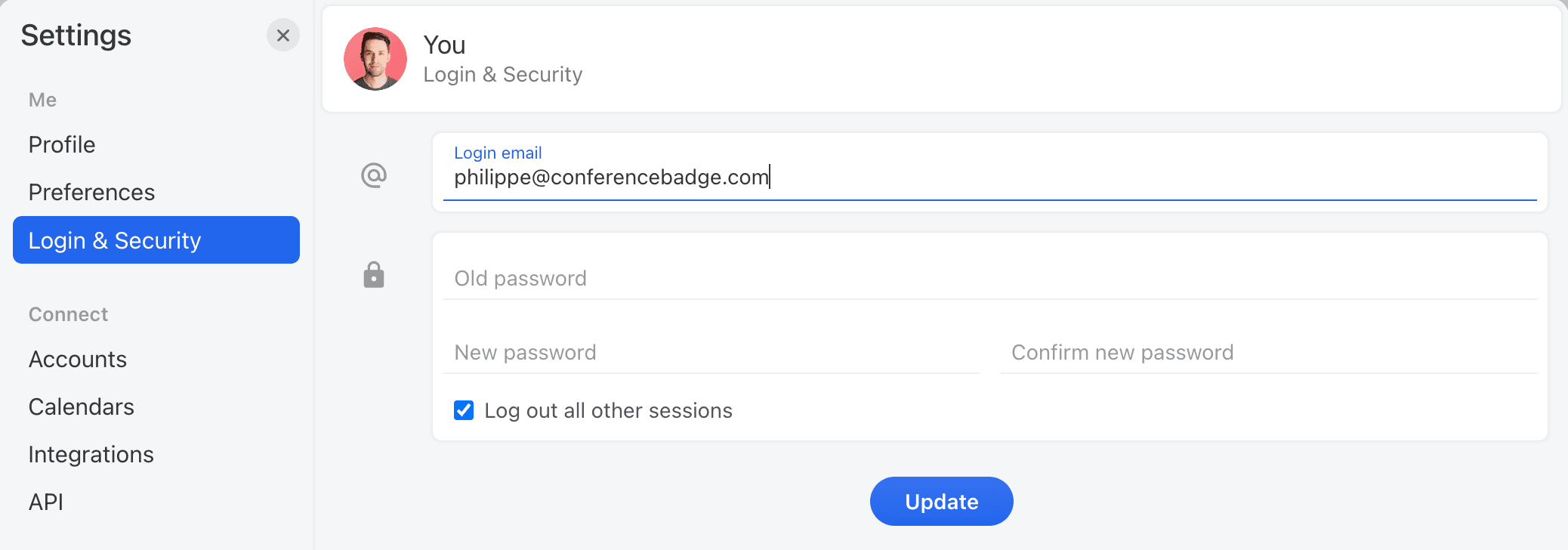
Go to your **Settings > Login & Security**, confirm your password and update your **Login email**. You will receive a verification email that you’ll need to click for the change to take effect.
How to delete my Missive user account?
{% hint style="danger" %}
Please know this action cannot be undone.
{% endhint %}
1. Go to **Settings**.
2. Make sure you are no longer a member of any organization:
1. If you own an organization, delete it in **Organizations > Delete organization**.
2. Otherwise, an admin must remove you in **Organizations > Users**.
3. Delete all your connected accounts (email, SMS, etc) in **Accounts > Delete account**.
4. Delete all your calendar accounts in **Calendars > Delete account**.
5. Delete all your integrations (Asana, Todoist, etc) in **Integrations > Delete integration**.
6. Go to **Login & Security**. You may need to type your password or confirm your identity with Google or Apple.
7. Scroll down to **Delete account** and click **Delete**.
8. A confirmation popup will appear; click **Delete**.
You will immediately be logged out of Missive with no means of logging back in.
Within 30 days, all traces of your Missive data and activity will be permanently deleted from our database, cloud storage, backups, and logs.
### Ownership
How do I transfer organization ownership?
If you're the current organization Owner, you can transfer ownership to another member:
1. Go to **Settings** → **Users**
2. Find the member you want to promote to Owner
3. Click the role dropdown next to their name
4. Select **Owner**
The previous Owner will automatically become an Admin. There can only be one Owner per organization.
{% hint style="info" %}
Only the current Owner can transfer ownership. Admins cannot perform this action.
{% endhint %}
**If you can't access the current Owner's account** (for example, if they've left the company), contact Missive support by sending an email through Missive with a copy of your most recent paid invoice attached. This security verification allows the support team to transfer ownership for you.
What's the difference between Owner and Admin?
Both roles have similar permissions for managing the organization. The key differences:
**Owner can:**
* Access and manage billing and subscriptions
* Delete the organization
* Transfer ownership to another member
**Admin cannot:**
* Access billing pages
* Delete the organization
* Transfer ownership
For day-to-day team management (adding users, managing settings, creating rules), both roles have the same capabilities.
### Avatars
How do I change my avatar?
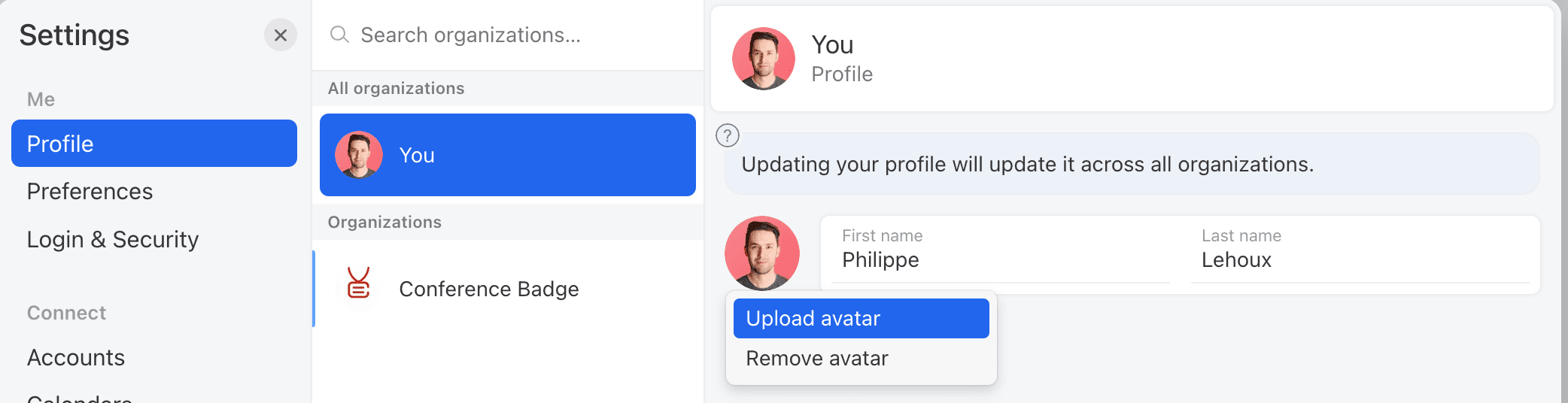
Go to your **Settings > Profile**, then click on the avatar (circle image) and choose the right option.
How do I change the avatar of a colleague?
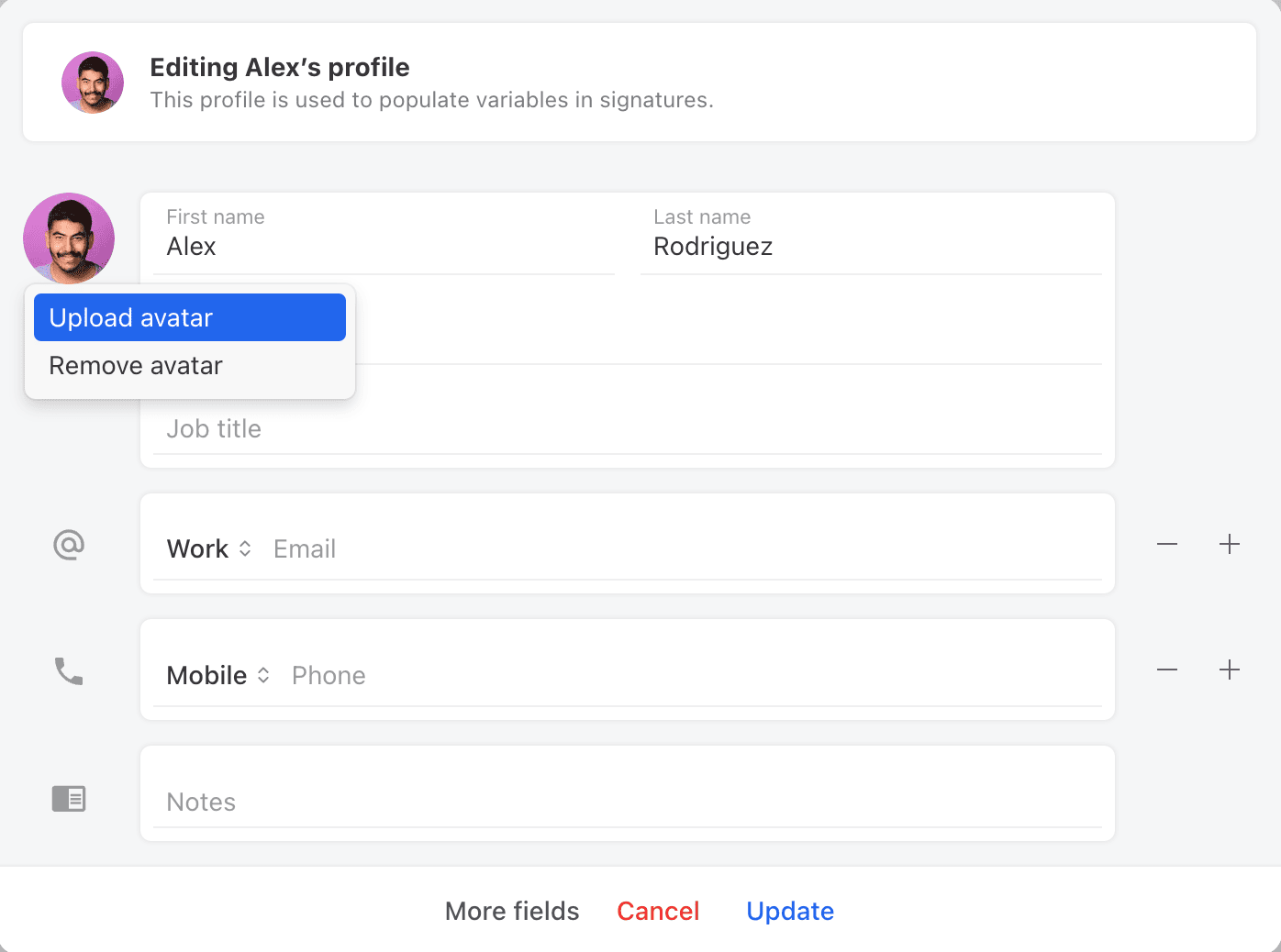
To change the avatar of a colleague you need to be an admin or the owner of your organization.
If so, go to **Settings** > **Users**, then click **More** > **Edit Profile** next to the user.
What are the meanings of the user avatars?
**Orange clock icon:**\
User has snoozed the conversation.
**Blue dot (top right corner):**\
User has not read all emails in the conversation.
**Greyed avatar:**\
User has archived the conversation.
**Colored avatar:**\
User has the conversation in their Inbox or Team Inboxes.
**Blue allow:**\
User is currently viewing the conversation:
---
# Agent Instructions
This documentation is published with GitBook. GitBook is the documentation platform designed so that both humans and AI agents can read, navigate, and reason over technical content effectively. Learn more at gitbook.com.
## Querying This Documentation
If you need additional information that is not directly available in this page, you can query the documentation by asking a question.
Perform an HTTP GET request on the following URL with the `ask` and `goal` query parameters:
```
GET https://missiveapp.com/docs/administration/roles/faq.md?ask=&goal=
```
`ask` is the immediate question: it should be specific, self-contained, and written in natural language.
`goal` is what the user is ultimately trying to achieve, the reason they need the answer. Sharing it helps GitBook give you a better, more relevant answer. A goal is most helpful when it describes the outcome the user wants rather than restating the question. For example, with `ask=how do I create an API token`, a goal like `automate deployments from our CI pipeline` lets GitBook tailor the answer to that use case.
The response will contain a direct answer to the question and relevant excerpts and sources from the documentation.
Use this mechanism when the answer is not explicitly present in the current page, you need clarification or additional context, or you want to retrieve related documentation sections.