Triage and assignment

Assignment

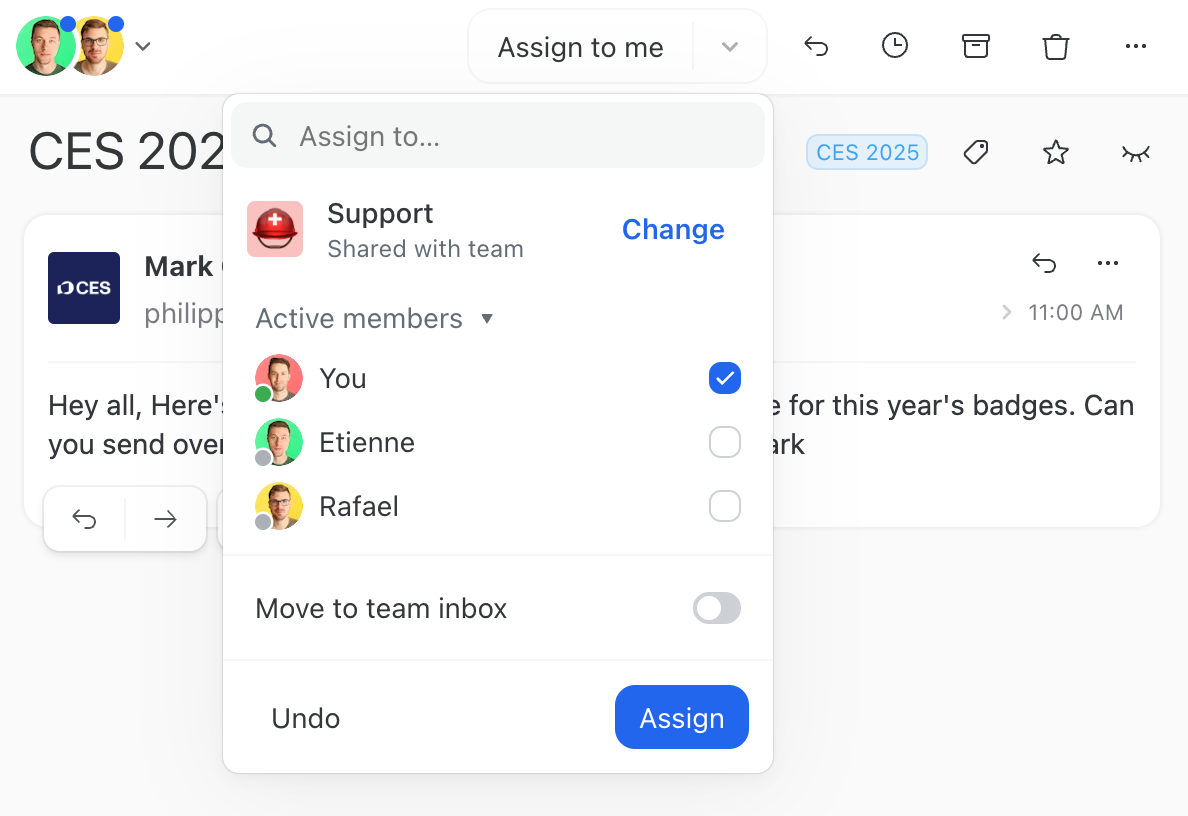
Missive offers an intuitive assignment flow. Out of the box, any conversation can be assigned to individuals or teams (Sales, Support, etc.).

You can either configure all messages received in an account to be consumed from:

  • A team inbox where they will be triaged by a team or

  • Assign an email directly from your personal inbox to a colleague for quick and easy delegation.

When a conversation gets assigned to you, it appears at the top of your Inbox.

The assignment flows described here can be used with shared accounts of any kind (email, WhatsApp, Facebook, Twilio SMS) as well as shared addresses.

Easily assign to the right stakeholders
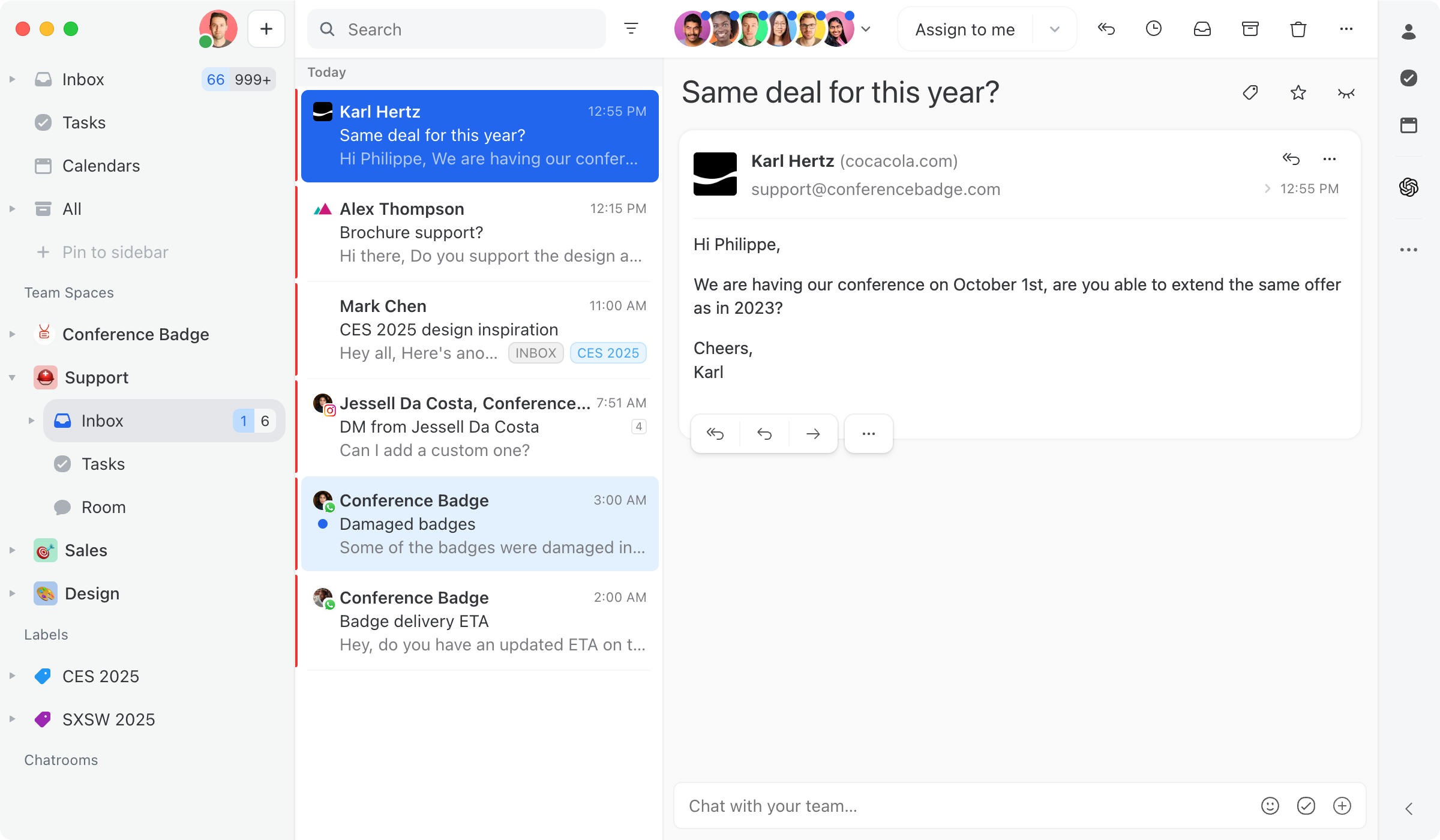
You can easily assign conversations to anyone from the assignment menu at top of all conversations.
Triage a shared inbox

When dealing with a lot of requests, it can be counter-productive for everyone to see all messages all the time. You may want to add a triage step where some teammate(s) dispatch messages to the relevant people. In Missive, you can do this with a team inbox, learn more in this guide.

Let’s say we enable a Team Inbox for the account orders@missiveapp.com and select the 🎯 Sales team. All team members can now see incoming messages in the 🎯 Sales team inbox from the left sidebar.

Every conversations can be assigned
You can easily assign conversations to anyone, once assigned, those conversations can be viewed in the team tasks view.
Find conversations assigned to a teammate

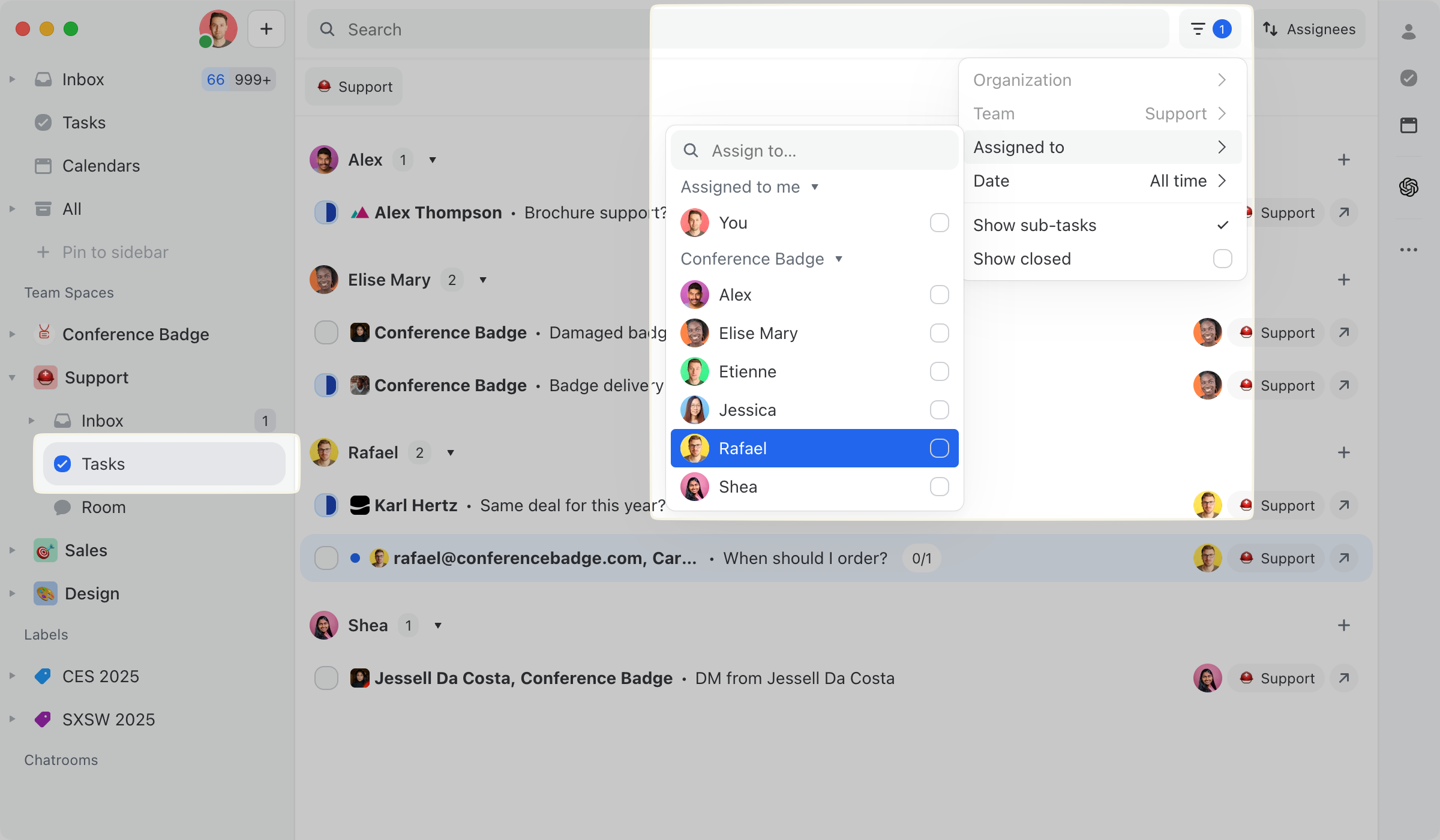
There are multiple ways to find conversations assigned to a teammate:

  • Expand a team inbox and select Assigned to others

  • Apply the Assigned to filter in a team inbox (or sub-inboxes like Assigned to others, Closed, All)

  • Apply the Assigned to filter in the team tasks view to monitor the status of conversations assigned to a teammate

When you apply a filter to a view, you can save this filtered view in your sidebar by clicking the green Pin button (or pin icon) at the top of the view.

Every conversations can be assigned
How to find conversations assigned to a specific member in the tasks view
Tasks

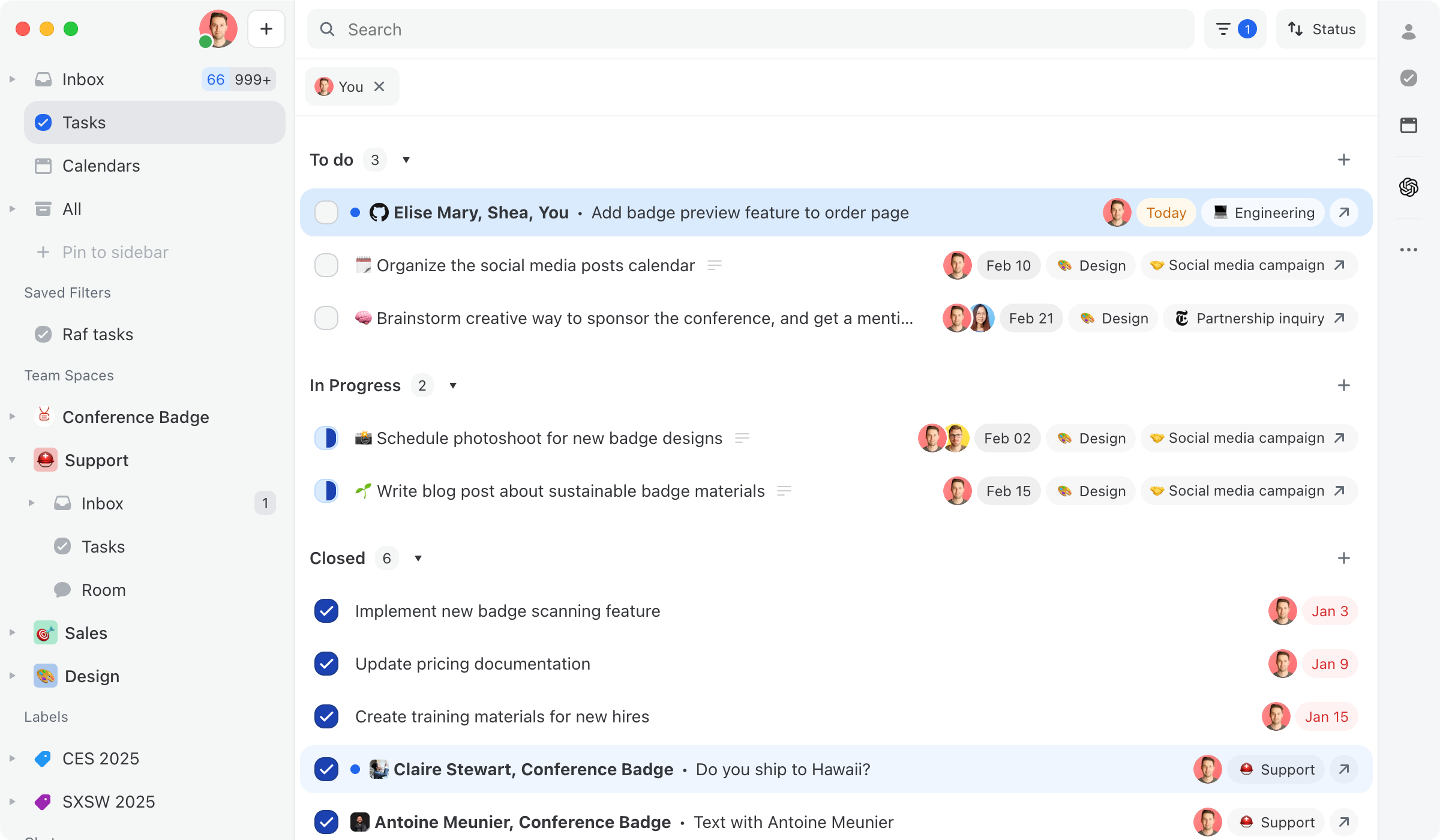
For conversations that are used as projects, granular assignment of tasks can also be used. You will get the same consistent experience whether an individual task or a whole conversation is assigned to you: the conversation will appear in your Tasks view.

Tasks view showing conversations and individual tasks assigned to me
The Tasks view shows both conversations and individual tasks assigned to you in one place.

Keyboard shortcuts

You can easily assign, reopen and close conversations using the keyboard:

Shortcut
Action

⌘/Ctrl + Shift + K

Open the assignment pop-up

⌘/Ctrl + D

Assign yourself as the only assignee and remove all other assignees

⌘/Ctrl + Shift + D

Keep the existing assignees and add yourself to the list

Last updated