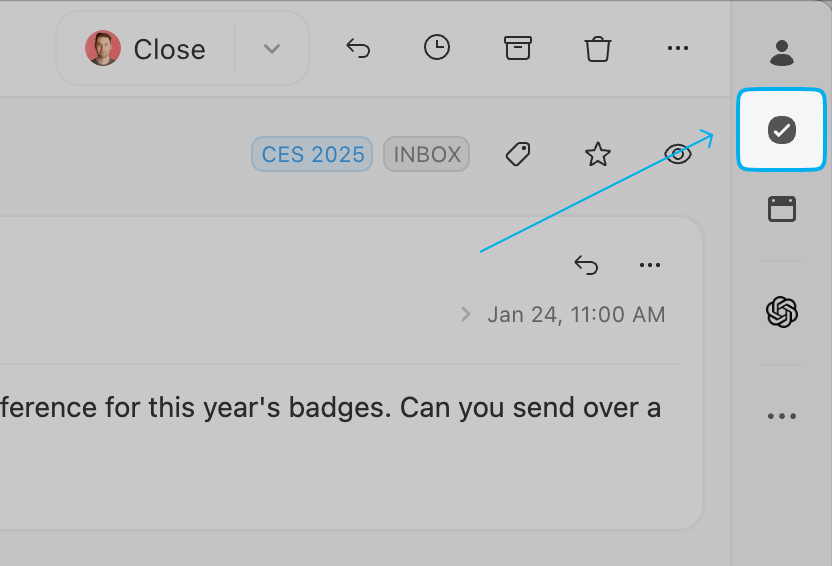
The Tasks view shows all your tasks in one place, regardless of type.
The Tasks view shows all your tasks in one place, regardless of type.
 To-Do: The task is not started yet
*
To-Do: The task is not started yet
*  In Progress: The task is currently being worked on
*
In Progress: The task is currently being worked on
*  Closed: The task is completed
* **Team**: The team the task is assigned to
* **Assignees**: The users responsible for the task
* **Due date**: The date the task is due
* **Description**: Additional context for the task
## Editing tasks
* To edit **conversation task attributes**: open the Tasks sidebar from the right panel.
* To edit a **subtask's attributes**: click directly on the attribute you want to modify.
You can also edit attributes directly from the Tasks views.
Closed: The task is completed
* **Team**: The team the task is assigned to
* **Assignees**: The users responsible for the task
* **Due date**: The date the task is due
* **Description**: Additional context for the task
## Editing tasks
* To edit **conversation task attributes**: open the Tasks sidebar from the right panel.
* To edit a **subtask's attributes**: click directly on the attribute you want to modify.
You can also edit attributes directly from the Tasks views.