> For the complete documentation index, see [llms.txt](https://missiveapp.com/docs/llms.txt). Markdown versions of documentation pages are available by appending `.md` to page URLs; this page is available as [Markdown](https://missiveapp.com/docs/advanced-features/rules.md).
# Rules
Automate your inbox with rules. Route, label, and respond automatically.
Rules automate your inbox. When a message arrives, gets sent, or someone takes an action - rules check conditions and run actions automatically.
{% hint style="info" %}
Rules require the **Productive** or **Business** plan. [See pricing](https://missiveapp.com/pricing).
{% endhint %}
## How rules work
A rule has three parts:
1. [Rule type](/docs/advanced-features/rules/rule-types.md) - When the rule runs (incoming message, outgoing message, or user action)
2. [Conditions](/docs/advanced-features/rules/conditions.md) - What must be true for actions to fire
3. [Actions](/docs/advanced-features/rules/actions.md) - What happens when conditions match
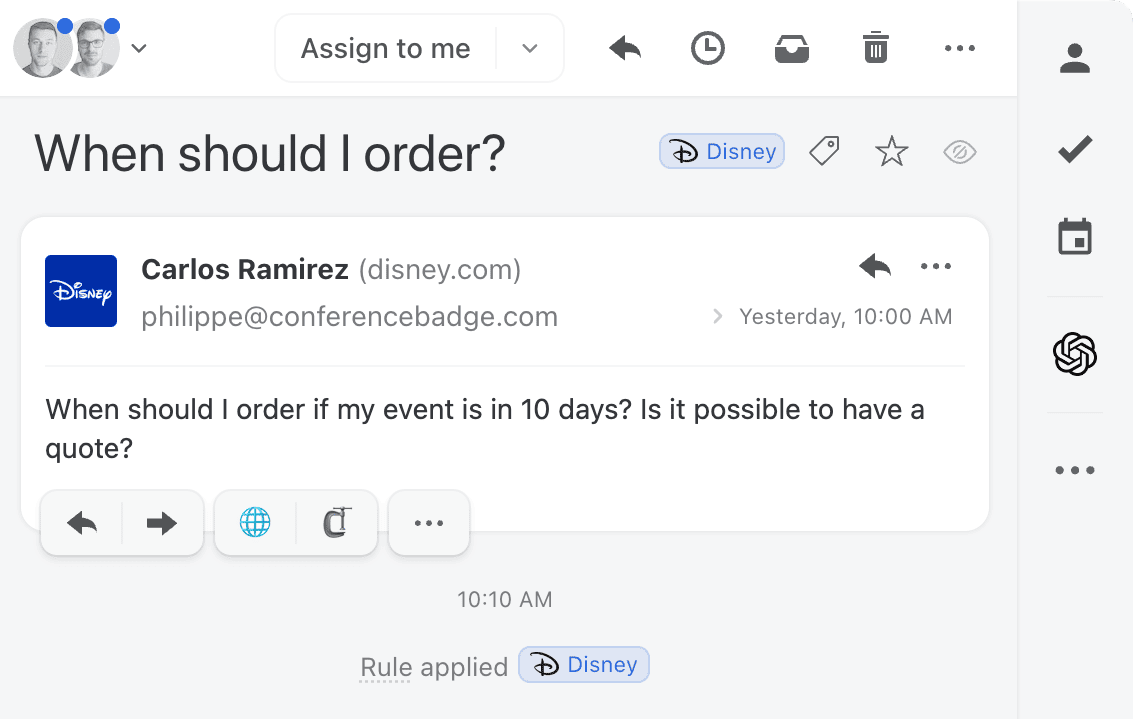
Here's a rule that labels emails from Disney:
| Component | Value |
| --------- | ------------------------------- |
| Rule type | Incoming email |
| Condition | **From** ends with "disney.com" |
| Action | **Add label(s)** → "Disney" |
## Personal vs organization rules
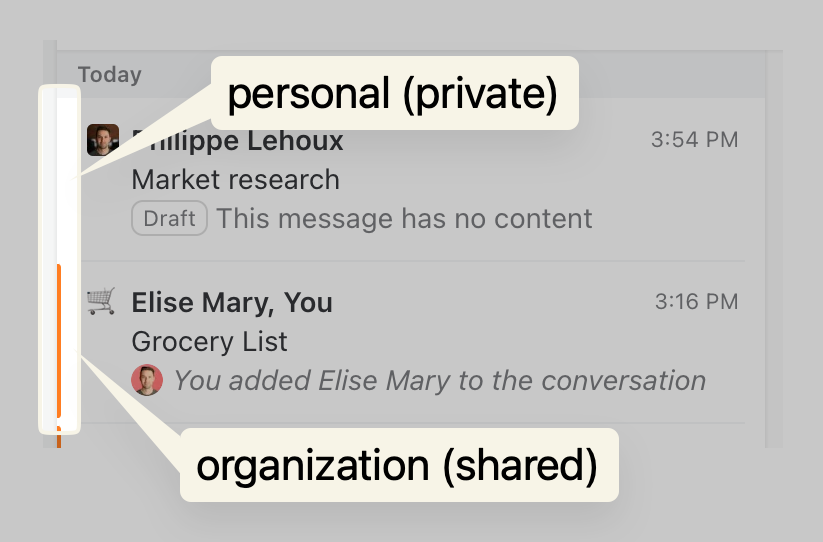
**Personal rules** run on your private conversations only.
**Organization rules** run on conversations shared with your organization - the ones with a colored banner.
If you need a rule to work on both, create it twice - once personal, once organizational.
{% hint style="info" %}
Only admins and owners can manage organization rules.
{% endhint %}
{% embed url="" %}
## Creating a rule
Open Rules from your account menu (click your avatar in the bottom-left corner of the sidebar) or go to **Settings** > **Rules**.
1. Select **You** for personal rules, or select an organization for organization rules
2. Click **Create rule**
3. Select the channel (Email, SMS, WhatsApp, etc.) and action type (Incoming message, Outgoing message, or User actions)
4. Add conditions to filter which messages trigger the rule
5. Add actions to define what happens when conditions match
6. Give the rule a description and click **Save**
## Duplicating a rule
To create a similar rule without starting from scratch:
1. Find the rule you want to copy
2. Click **•••** > **Duplicate** and pick a destination:
* **Personal** - copies the rule to your personal rules
* An **organization** - copies the rule to that organization's rules (any organization where you can manage rules)
3. The rule editor opens with a copy. Edit and save.
{% hint style="info" %}
**Personal** is disabled for rule types that only work at the organization level. Conditions and actions that aren't available in the chosen scope are dropped automatically.
{% endhint %}
## Enabling and disabling rules
To temporarily stop a rule from running without deleting it, find the rule in the list and click the toggle button on the right to disable it.
Disabled rules appear in light grey. Click the toggle again to reactivate.
## Rule order
Rules run alphabetically by description. To force a specific order, prefix descriptions with numbers:
```
01. Urgent emails
02. Customer routing
03. Auto-archive
```
## Reference
| Topic | What it covers |
| ------------------------------------------------------------------------- | ------------------------------------- |
| [Rule types](/docs/advanced-features/rules/rule-types.md) | When rules fire |
| [Conditions](/docs/advanced-features/rules/conditions.md) | What to check |
| [Actions](/docs/advanced-features/rules/actions.md) | What to do |
| [Workload balancing](/docs/advanced-features/rules/workload-balancing.md) | Round-robin and least-busy assignment |
## Next steps
* Browse [rule examples](/docs/advanced-features/rules/examples.md) for common use cases
* Learn about [AI rules](/docs/advanced-features/rules/ai-rules.md) to analyze message content
---
# Agent Instructions
This documentation is published with GitBook. GitBook is the documentation platform designed so that both humans and AI agents can read, navigate, and reason over technical content effectively. Learn more at gitbook.com.
## Querying This Documentation
If you need additional information that is not directly available in this page, you can query the documentation by asking a question.
Perform an HTTP GET request on the following URL with the `ask` and `goal` query parameters:
```
GET https://missiveapp.com/docs/advanced-features/rules.md?ask=&goal=
```
`ask` is the immediate question: it should be specific, self-contained, and written in natural language.
`goal` is what the user is ultimately trying to achieve, the reason they need the answer. Sharing it helps GitBook give you a better, more relevant answer. A goal is most helpful when it describes the outcome the user wants rather than restating the question. For example, with `ask=how do I create an API token`, a goal like `automate deployments from our CI pipeline` lets GitBook tailor the answer to that use case.
The response will contain a direct answer to the question and relevant excerpts and sources from the documentation.
Use this mechanism when the answer is not explicitly present in the current page, you need clarification or additional context, or you want to retrieve related documentation sections.