> For the complete documentation index, see [llms.txt](https://missiveapp.com/docs/llms.txt). Markdown versions of documentation pages are available by appending `.md` to page URLs; this page is available as [Markdown](https://missiveapp.com/docs/administration/security/faq.md).
# Security FAQ
Common questions about security settings in Missive.
Can I export my data?
Yes. Go to **Settings** > **Login & Security** > **Export your data** and pick a type: conversations, comments, contacts, email addresses, phone numbers, responses or rules. Missive posts a download link in your inbox when the export is ready.
See [Exporting your data](/docs/administration/security/exporting-your-data.md) for what each export contains and how the files are organized.
Can you read my emails?
Technically speaking, it would be false to claim we cannot read your emails. Missive imports your emails via IMAP like any email app does and stores them in a database. This includes text content and attachments. Storing this data in our own database is the technical foundation of a collaborative product like Missive. Thus, we naturally have access to the database that contains your emails in order to manage and maintain it in good shape for Missive to operate properly. This is the same situation as with your main email provider (Gmail, Office 365, etc).
That said, only a few of our engineers have access to the database in question. Even for these people, getting to your actual email content is not trivial. We built internal tools that allow our engineers to do their daily job (e.g. see what is going on in the system, the number of emails processed, etc.), but none of these tools display email contents. Needless to say, we are not in the business of scanning, sharing, or selling any of our users’ data. We never access a user’s data unless this user has specifically granted us permission and asked us to investigate a bug with their account, for instance.
You can read [our Privacy Policy here](https://missiveapp.com/privacy). We take the privacy and security of your data very seriously.
Do you support 2-factor Authentication (2FA)?
Yes, users connecting to Missive with an email and password can enable 2FA from their **Login & Security** settings.
For users connecting to Missive with Google, here's [how to enable 2FA](https://support.google.com/accounts/answer/185839).
How do I enable two-factor authentication (2FA)?
Enabling two-factor authentication (2FA) to your Missive account will add an extra layer of protection to your data.
For users connecting via OAuth, please read this tutorial for people who [sign in with Google](https://support.google.com/accounts/answer/185839) or this other for people who [sign in with Apple.](https://support.apple.com/en-ca/HT204915)
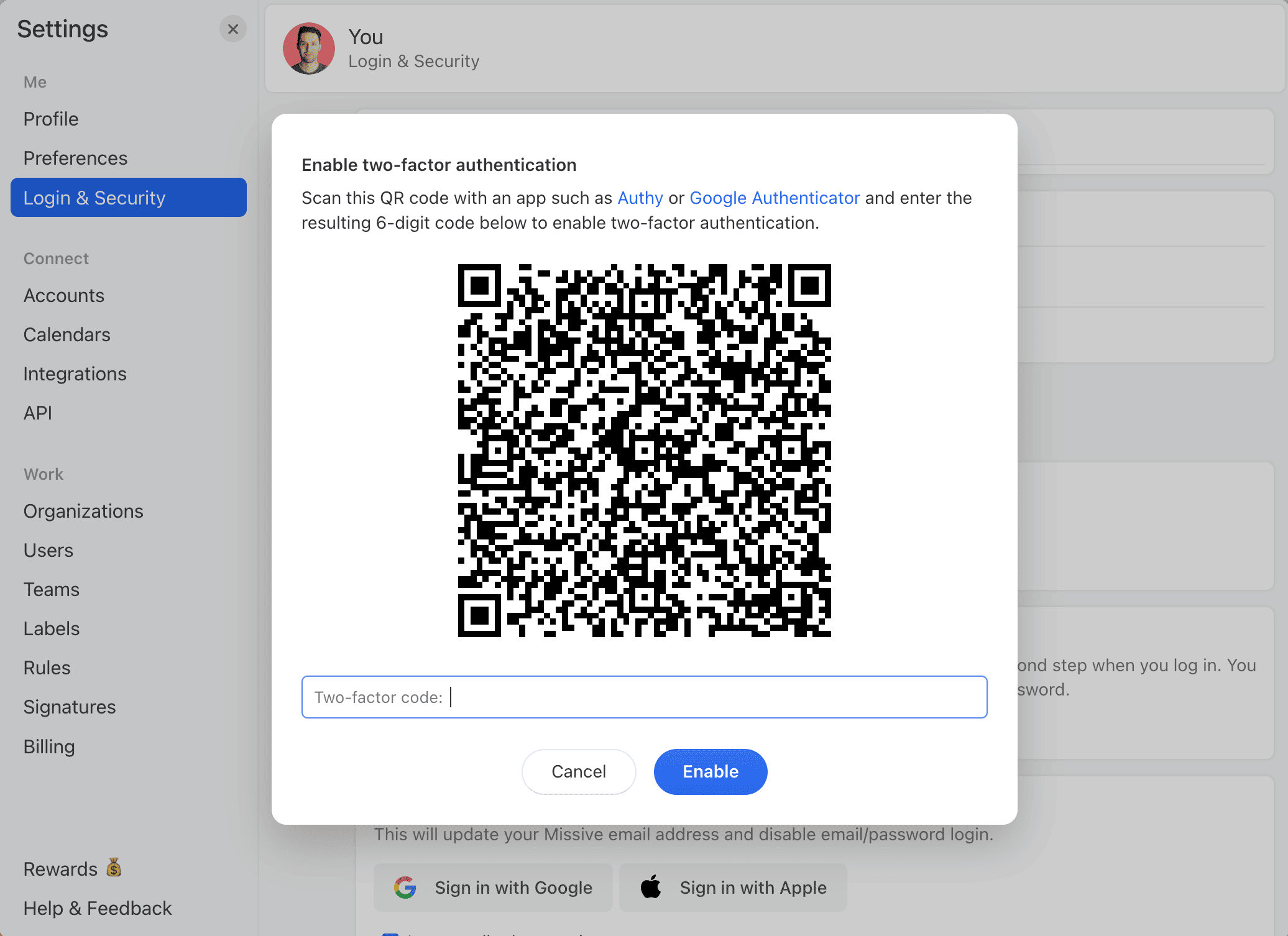
To activate 2FA on your regular Missive account, you will need to get an authentication app such as Authy or Google Authenticator.
**Once you have downloaded one of the apps, please follow these steps:**
1. Go to **Settings** > **Login & Security**.
2. Enter your account password
3. Click on Enable two-factor authentication
4. With the previously downloaded authentication app, scan the QR code
5. Enter the 6-code digit in Missive.
Can I enforce 2FA for all users in my organization?
It's not possible to enforce 2FA on users in the Free, Starter, or Productive plans.
Organizations on the **Business plan** can set up SAML SSO (Single Sign-On), which requires all users to authenticate through your identity provider (Azure, Okta, Google, etc.). While SSO is not the same as 2FA, it achieves a similar goal by centralizing and enforcing authentication policy through your chosen provider.
See [SAML and SSO](/docs/administration/saml-and-sso.md) for setup instructions.
What does 2FA mean next to my user name in my user's settings?
The 2FA badge displayed in the user list for organization admins shows who enabled 2-factor authentification.
How can I change my password?
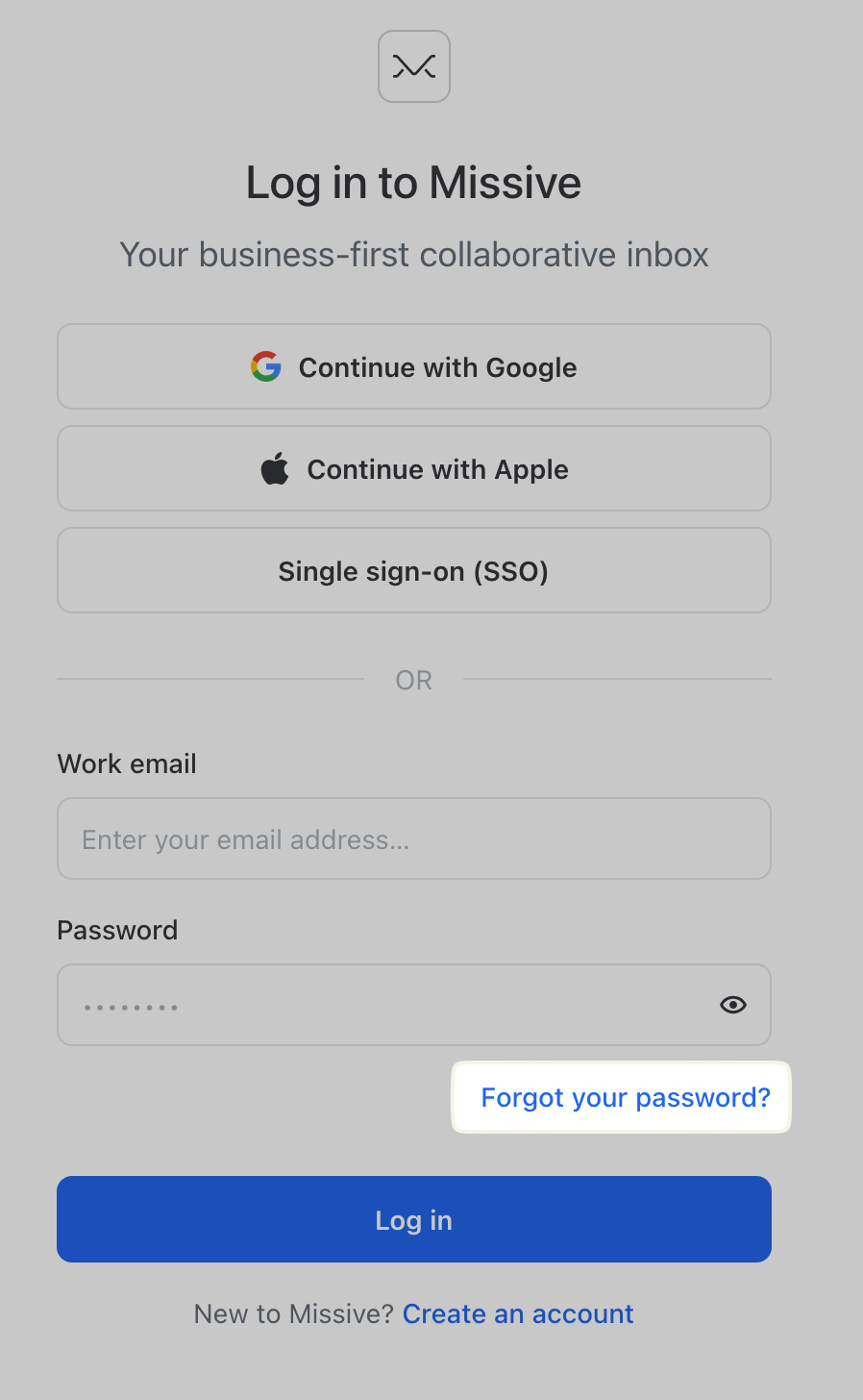
If you are logged out of the app, click on the "Forget my password" link on the login page, then enter your login email on our password reset page. You will receive an email containing instructions to reset the password for your account.
If you are still logged in, go to **Settings** > **Login & Security** to change your password.
How to change from Google login to username/password?
Go to **Settings** > **Login & Security** and click **Set a password**.
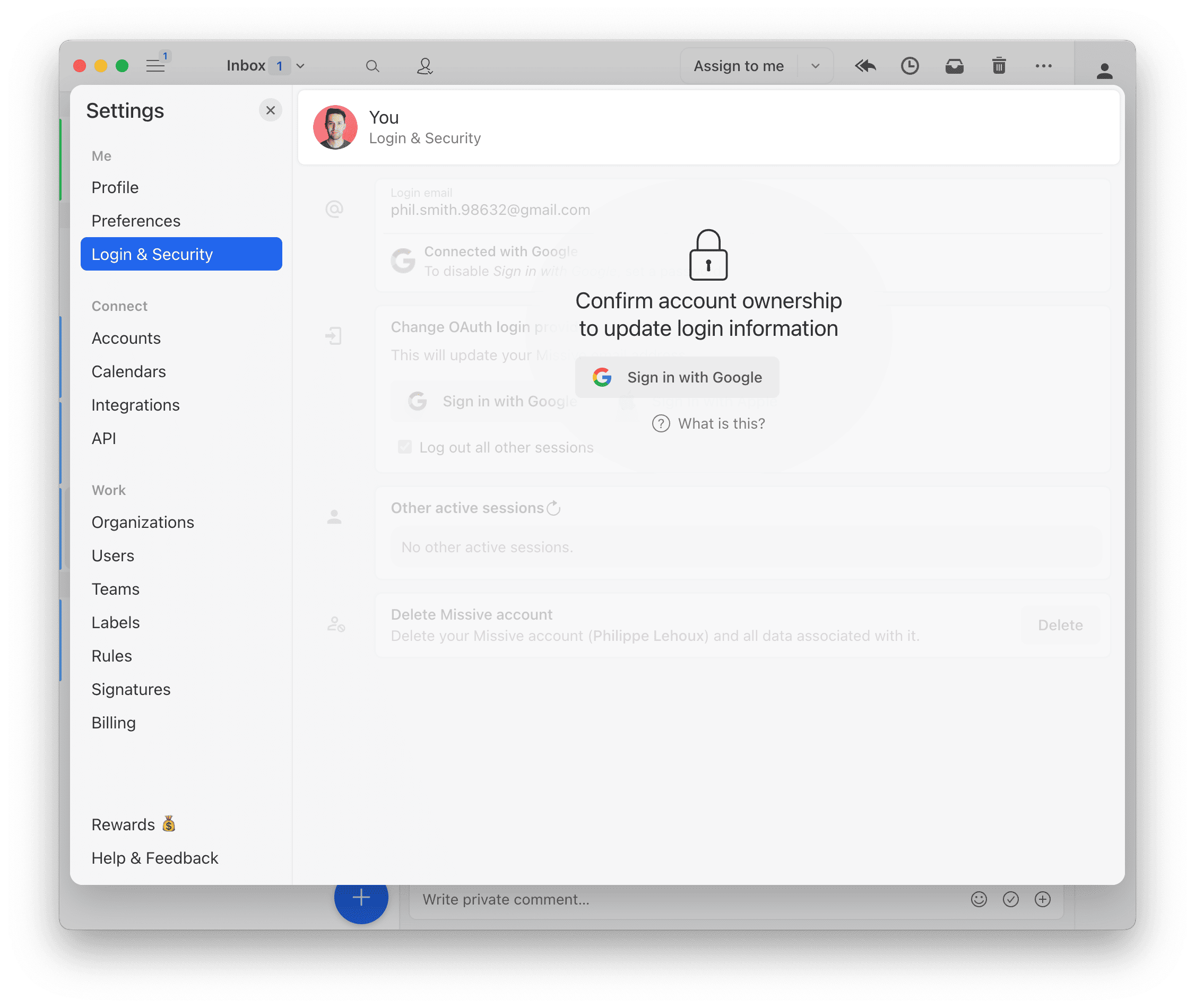
Why do I need to confirm my password in the settings?
This is only if you need to update your login credentials such as your email, password or OAuth provider. You can update any other settings without entering your password.
That is meant as a security step to make sure no one but the owner of this account can change the login information.
Why I always need to sign in again?
If you use Missive infrequently on a given device, this is normal. Missive sessions expire after 2 weeks of inactivity and require you to log in again.
This is for security reasons and is not configurable.
Is there a limit on how many active sessions I can have?
Yes. Each user can have up to **10 concurrent active sessions** across all devices and browsers.
Do you offer a bounty program?
We do encourage responsible disclosure of security issues related to Missive. Read more about our [bounty program here](https://missiveapp.com/security/bounty).
What is your uptime/downtime track record? (SLA)
In **2020**, we achieved 99.95% uptime.
In **2021**, we achieved 99.92% uptime.
Here's a breakdown per quarter:
* **2021** Q1 - 100%
* **2021** Q2 - 99.98% (maintenance)
* **2021** Q3 - 100%
* **2021** Q4 - 99.68%
In **2022**, we achieved 99.96% uptime:
* **2022** Q1 - 99.92%
* **2022** Q2 - 99.96%
* **2022** Q3 - 99.95%
* **2022** Q4 - 99.99%
In **2023**, we achieved 99.97% uptime:
* **2023** Q1 - 99.95% (maintenance)
* **2023** Q2 - 99.95%
* **2023** Q3 - 99.99% (maintenance)
* **2023** Q4 - 99.999% (maintenance)
* All maintenances happened during US Eastern nighttime.
As a reference, see here what 99.95% uptime represents on various basis (monthly, quarterly, etc): What happens when a user is removed from an organization?
Removing a user from an organization involves several steps and can have different implications. Here's what you need to know:
**Accesses to shared conversations**
The removed user will **lose access to all shared conversations** (those with the colored organization flag on the left). This is a background process that can take from a few minutes to several hours to complete.
If shared conversations contain emails from the user's personal email account, these emails will be removed from the shared conversations but will remain available to the removed user in new private conversations.
**Before removing**
If the departing user had a personal email, a team inbox, a WhatsApp number, an SMS line, or a social page connected, take action first to avoid data loss. See [Removing a user](/docs/administration/security/removing-a-user.md).
**Comments/Chat**
Removed user comments are kept in shared conversations for remaining users to see.
**Assigned conversations**
Missive will do everything needed to ensure that the removed user assigned conversations won’t fall into a crack:
* Conversations assigned to the user that are closed will remain closed but the user will be unassigned so that if a newer message comes in, the conversation will be moved back to the team inbox.
* Conversations assigned to the user that are still open will immediately be moved back to the team inbox upon removing the user.
Given that second point, something to consider is if you believe the user in question was not keeping their **Inbox** and **Tasks** view clean, meaning they did not archive / close conversations even when they were done handling it, you don’t want a large influx of their old assigned conversations to fill up your team inbox.
To avoid that, something you can do before removing users (or on a regular basis) is to check your organization **Tasks** view (located in the + More menu if you never opened it) and close old tasks your coworkers did not close.
Can I get a list of all IP addresses used by Missive's servers?
The servers Missive uses to connect to IMAP servers are hosted on Amazon Web Services (AWS). There are multiple IP addresses active at once and these may change several times a day.
If you need a list of IP address ranges to whitelist on your server, you can use the following file provided by AWS:
Although this may change in the future, all our servers currently originate from the US East 1 (N. Virginia) region, so you can filter the file and select only the IP ranges with "region": "us-east-1".
Note that this file may change regularly; you must synchronize the whitelist on your IMAP server accordingly. You can read more on the [expected usage of this file](https://docs.aws.amazon.com/general/latest/gr/aws-ip-ranges.html).
Are you having a service outage?
If we are experiencing issues with the service, we will post a message on our [status](https://status.missiveapp.com/) page.
How to install Missive if you don't have admin permissions on your computer?
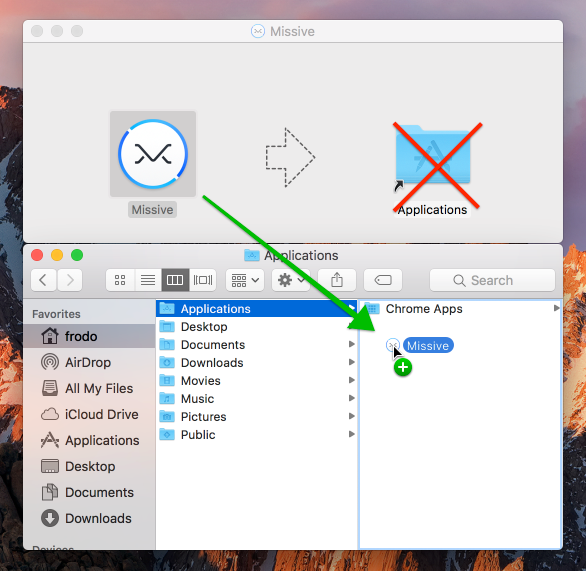
For the auto-update to work for users without admin privilege, Missive needs to be downloaded and moved to the user’s personal Applications folders (eg. `/Users/frodo/Applications`) whereas most apps are normally installed in `/Applications`.
If Missive hasn’t already been installed, jump to step 2.
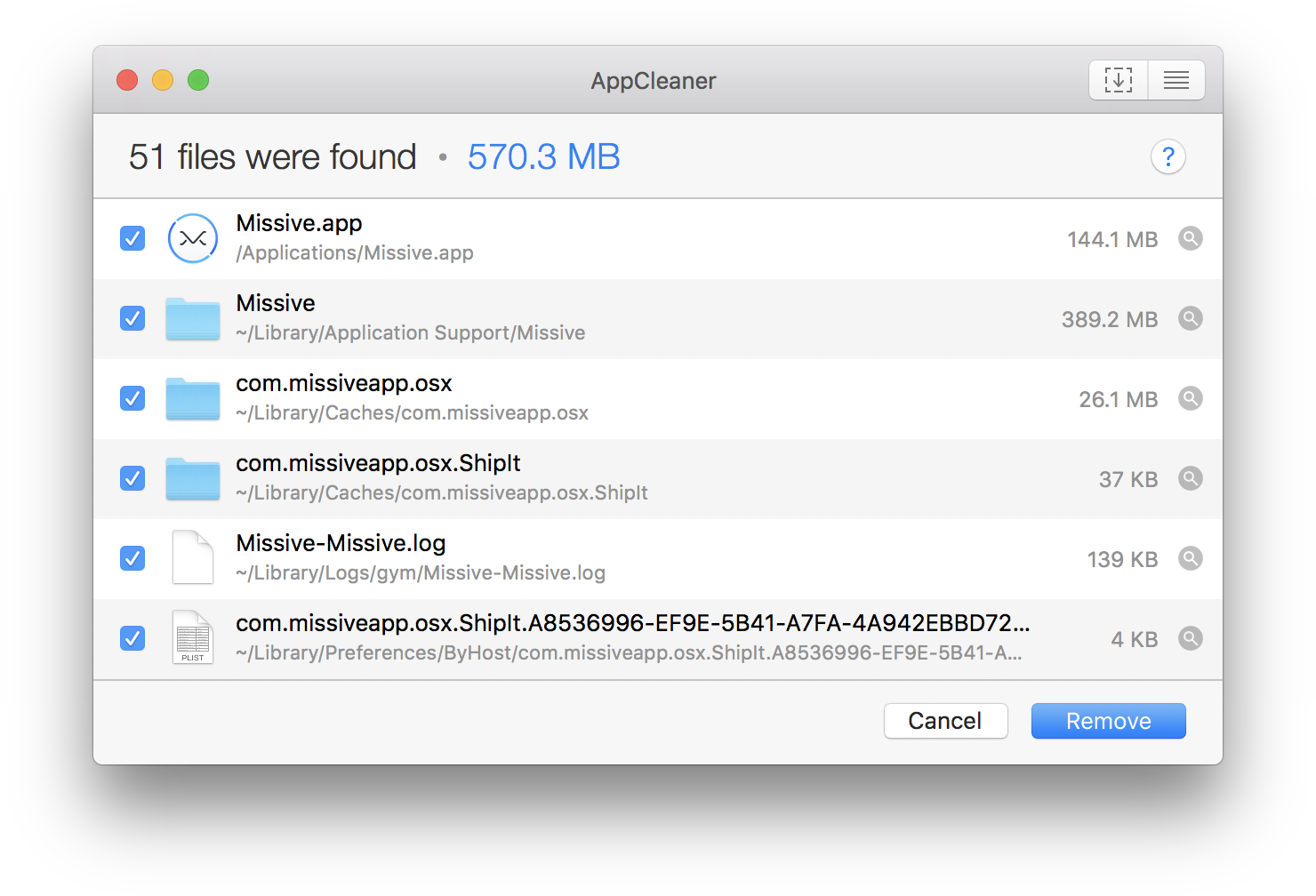
**1) From the admin account**, completely uninstall Missive and its related files. To do that, we recommend using [AppCleaner](http://freemacsoft.net/appcleaner).
**2) From the user account**, [download the latest Missive version](https://missiveapp.com/download) and open the `.dmg` file.
Do not move the app in the Applications shortcut provided. Instead, open another Finder window and go to the user's Home folder (⌘ + Shift + H) and drag Missive into the Applications folder. That folder doesn't require admin rights. If you're prompted with an admin/password dialog, you're most likely not dragging the app in the right directory.
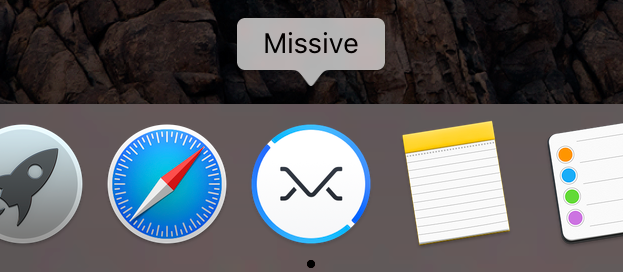
**3)** Open Missive from there, pin in to your Dock and you’re ready to collaborate! 😎
How can a department with sensitive data (e.g. HR) have more privacy in Missive?
The best setup for a team that handles confidential information is to establish their own separate Missive organization. Conversations in Missive are scoped to the organization they belong to, so members of one organization cannot access conversations from another.
By giving a sensitive department its own organization, you ensure:
* Confidential emails and chat conversations are only visible to members of that organization
* There is no risk of accidentally sharing sensitive conversations with the broader company
* Each organization has its own settings, teams, and access controls
See [Organization settings](/docs/administration/organization-settings.md) for more on how to configure a new organization.
Do you provide an MSI installer for Intune or other deployment tools?
No. Missive's build process doesn't produce an MSI file. Only the `.exe` installer is available from our [download page](https://missiveapp.com/download).
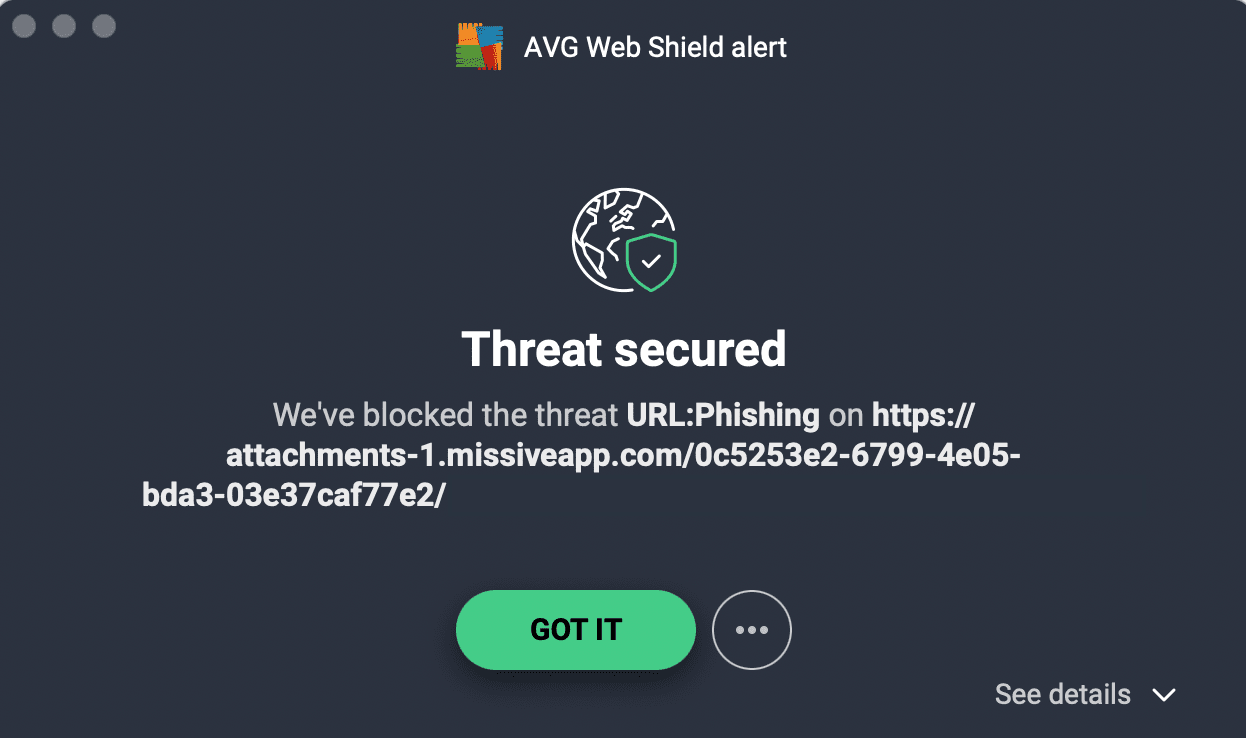
Why is AVG detecting images as threats?
AVG routinely flags regular images as threats, even on images hosted by Gmail. You can fill up this [form](https://www.avg.com/en-ca/false-positive-file-form) to help improve their algorithm.
---
# Agent Instructions
This documentation is published with GitBook. GitBook is the documentation platform designed so that both humans and AI agents can read, navigate, and reason over technical content effectively. Learn more at gitbook.com.
## Querying This Documentation
If you need additional information that is not directly available in this page, you can query the documentation by asking a question.
Perform an HTTP GET request on the following URL with the `ask` and `goal` query parameters:
```
GET https://missiveapp.com/docs/administration/security/faq.md?ask=&goal=
```
`ask` is the immediate question: it should be specific, self-contained, and written in natural language.
`goal` is what the user is ultimately trying to achieve, the reason they need the answer. Sharing it helps GitBook give you a better, more relevant answer. A goal is most helpful when it describes the outcome the user wants rather than restating the question. For example, with `ask=how do I create an API token`, a goal like `automate deployments from our CI pipeline` lets GitBook tailor the answer to that use case.
The response will contain a direct answer to the question and relevant excerpts and sources from the documentation.
Use this mechanism when the answer is not explicitly present in the current page, you need clarification or additional context, or you want to retrieve related documentation sections.