
December 4, 2023
How much time do we actually spend on email at work?
If your inbox feels like a full-time job, it’s because it kind of is. Here’s what the research says about how much time we spend on email, what factors drive it up, and six strategies to take some of that time back.
It’s Monday morning. You open your laptop, coffee in hand, ready to tackle the day. Your inbox had a wild weekend: 87 new messages, half of them marked “urgent,” most of them neither.
By the time you’ve triaged, replied, flagged, and deleted your way through, it’s lunchtime. Where did half your day go?
Welcome to the modern knowledge worker’s reality. Email, once a productivity tool, has become the thing that most gets in the way of productive work. Call it email overload: the inbox that never empties, the notifications that never stop.
This piece covers what the research actually says about email time, the real reasons it takes so long, and six strategies that work to take some of that time back.
How much time does the average person spend on email?
Research from Microsoft’s Work Trend Index and similar studies across knowledge work consistently shows:
- The average knowledge worker spends 8, 10 hours per week on email, roughly two hours a day.
- That number climbs for managers and people in communication-heavy roles, sometimes hitting 12, 14 hours weekly.
- The average employee drafts around 100, 120 emails per week, spending about five to six minutes on each.
- Total time on email, including reading, triaging, and searching, can account for 25, 30% of a full workweek.
Put differently: over the course of a year, the average office worker spends somewhere between 400 and 500 hours on email. That’s ten to twelve full working weeks, every year, on inbox work.
Why writing an email takes longer than it should
The raw typing is rarely the bottleneck. The things that actually eat time:
Purpose and complexity. A quick confirmation takes a minute. A proposal email or a sensitive follow-up can take 20+ minutes of drafting, re-reading, and editing.
Research and reference. If the email needs data, links, or supporting context, gathering that is usually the longest part. You often don’t realize the source you need is buried in a Google Doc you can’t find.
Writing ability. Some people naturally write tight; others need three drafts to get to the point. Practice helps.
Context switching and interruptions. Every Slack ping and calendar notification drags you out of the email you’re writing. Re-engaging costs you minutes every time.
Format and polish. Formal emails (reports, proposals, customer-facing notes) take longer than casual ones because formatting and tone require deliberate choices.
Attachments and supplementary material. Finding and attaching the right file, renaming it, making sure the right version is included, all of this adds up across a workday.
Proofreading. For any email that matters, rereading before sending is non-optional. That’s another 30, 60 seconds per important message.
The honest answer to “why does email take so long” is that most of the time isn’t writing. It’s everything around the writing.
How to spend less time on email
A handful of strategies that actually work, in rough order of impact.
1. Set specific times for email
The single biggest lever: stop checking email constantly.
Every time a notification pulls you into your inbox, you pay a context-switching cost that can take 15+ minutes to recover from. Do that ten times a day and you’ve burned hours on mode-switching alone.
What works better:
- Two or three dedicated email sessions per day. Morning, post-lunch, end of day. Process everything in each session, then close the tab.
- Notifications off during focused work. The world will not end if you reply in two hours instead of two minutes.
- An auto-responder for async expectations. Something like “I check email at 10am, 2pm, and 5pm” sets expectations with coworkers and customers.
The first week of this feels wrong. By week three, you’ll wonder how you worked any other way.
2. Use canned responses and templates
If you’re typing the same reply for the hundredth time, automate it.
Most modern email tools let you save canned responses. Customer service teams often use these heavily; everyone else underuses them.
Good candidates for templating:
- Responses to commonly asked questions
- Meeting scheduling replies
- Project status update formats
- Intro emails you send frequently
- “Thanks, got it, will reply properly tomorrow” for high-volume days
In Missive, you can insert a canned response anywhere in a draft by typing # and selecting the one you want. The savings add up fast, if a response takes 3 minutes to write fresh and 15 seconds to insert and tweak, you’re saving an hour a week on just ten uses.
3. Prioritize ruthlessly
Not every email is equally important, even though most people treat their inbox like everything is. A quick triage pass turns a wall of email into a prioritized list.
A practical system:
- Urgent + important: Handle now or within hours.
- Important, not urgent: Schedule a block to handle them this week.
- Urgent, not important: Delegate if possible, short-reply if not.
- Neither: Archive or delete. Seriously.
Newsletters, FYIs, and most automated notifications belong in the fourth bucket. The cost of missing one is usually zero. The cost of reading all of them is hours of your life.
4. Use email tools that actually help
Your inbox is not a wise choice for any other purpose than email. If Gmail’s built-in features are your entire workflow, you’re leaving productivity on the table.
A few categories of tools that genuinely help:
- Shared inbox tools if you work on email as a team. Missive, for example, handles shared inboxes for addresses like support@ or sales@, with assignments, internal chat, and rules that automate repetitive work.
- AI-assisted email for drafting, translating, summarizing long threads, and triaging. Most modern email tools have some AI layer now. They’re genuinely useful when used selectively, less so when used to generate fluff.
- Snooze features for emails you can’t deal with right now but don’t want to forget.
- Send-later scheduling so you can draft when you have energy and send when it lands best.
The shift in how good tools can help with email over the past two years has been genuinely significant. If you haven’t evaluated your email stack lately, it’s worth a look.
5. Use AI to speed up common tasks
This is now a real category, not a gimmick. AI in email can reliably:
- Summarize long threads so you don’t have to scroll through 40 replies to catch up.
- Translate incoming messages in languages you don’t speak.
- Draft replies from a short prompt, which you then edit.
- Fix grammar and tone on drafts you’ve written.
- Extract action items from long messages.
Missive’s AI integration lets you do all of these with your choice of OpenAI, Anthropic, or Gemini. You bring your own API key, so costs are usually pennies per use. For teams, AI rules can auto-categorize, auto-draft, or auto-label incoming email before anyone touches it.
The productivity gain isn’t from any single feature. It’s from compounding small time savings across hundreds of emails per week.
6. Filters, labels, and folders
If your inbox is a pile, no amount of discipline will save you. If it’s sorted, most of the work is already done.
A solid filter system:
- Auto-label by sender for recurring emails (your manager, specific customers, vendors).
- Auto-archive low-priority notifications so they exist if you need to search but don’t clutter the inbox.
- Move newsletters out of the main inbox to a “Reading” folder for later.
- Tag or label project-related emails so you can find them in a search later.
Setting these up takes an afternoon. Paid back within the first week.
In Missive, you can open the label menu with Cmd+Shift+L (or Ctrl+Shift+L on Windows) and apply labels from the keyboard.
The compounding case for getting serious about email
If you save 8 hours a week on email, not impossible with the strategies above, that’s a full workday every week. Over a year, that’s roughly 400 hours, or ten full weeks of work, freed up for actually productive work. And if you’re aiming for inbox zero on top of that, these strategies are the path.
You’re not going to eliminate email. But you can stop letting it eat your life.
The path is usually the same: fewer, more focused email sessions; heavy use of canned responses; ruthless prioritization; better tools; and a filter system that does the sorting for you. Put all five in place and you’ll get most of the way there. Skip them and you’ll keep losing your mornings to the inbox. (For the long version, our guide to email management best practices covers the full playbook.)
Missive is a collaborative email client built for teams and individuals who want to spend less time on email and more time on the work that actually matters. Shared inboxes, AI-powered rules, canned responses, and multi-channel support in one place. Try Missive free for 30 days, no credit card required.

March 1, 2023
Declutter Your Email Inbox: How to Organize Your Work Emails
Learn how to declutter your inbox & increase your productivity at work with simple tips.
Decluttering your inbox can feel like an overwhelming task, especially when you are bombarded with numerous emails on a daily basis.
But, with a few simple tips and tools, you can get your work email organized and under control.
A great way to overcome email overload!
Let's explore the best strategies to declutter your emails and keep your inbox organized.
Tips to Declutter Your Inbox Fast
Here's how you can quickly declutter your inbox and increase your productivity at work.
Unsubscribe from Unnecessary Emails

One of the quickest and easiest ways to declutter your inbox is to unsubscribe from emails that are no longer relevant to you. This includes newsletters, promotional offers, and any other email that you no longer need.
Use the "unsubscribe" link at the bottom of the email or go to the website's "subscription" settings to remove yourself from the mailing list. Alternatively, you can use the unsubscribe button in your email client like Missive.
Create Folders and Labels
Creating folders and labels can help you categorize and focus on your emails. For example, you can create folders for work projects, client emails, and personal emails.
You can also create labels for important emails, such as "Urgent" or "To Do". This way, you can find what you need without having to sift through hundreds of emails.
Use Stars or Flags

Another tip to help you declutter your inbox is to use the "star" or "flag" feature in your email client (star for Gmail inbox, flag for Outlook).
This allows you to mark important emails from specific senders that need your attention, and keep them separate from the rest of your messages. This way, you can see which messages need your immediate attention, and which ones can wait.
Use Filters
Filters can help you categorize and sort your emails. For example, you can set up filters to automatically move emails from a specific sender or with a certain subject line into a designated folder, or use tools like Clean Email to make the categorization process easier. This can help you keep your inbox organized and free from clutter.
Archive Old Emails

Archiving old emails can help you free up space in your inbox and keep it organized, without deleting them entirely. Archived emails are still accessible if you need to refer to them later, but they are no longer cluttering your inbox.
Most email clients have an "Archive" button or option that you can use to archive emails.
How to Organize Emails to Stay Clutter Free?
Once you've finally decluttered your emails, it's important to keep them clean. Here are some email organization strategies you can use to keep your cluttered mailbox far away.
Use the Two-Minute Rule

The two-minute rule states that if you can complete a task in less than two minutes, you should do it right away. The same rule applies to emails. If you can quickly respond to an email or take action on it, do it right away.
This way, you can clear up your inbox and avoid letting emails pile up.
Turn Off Email Notifications
Email notifications can be a major distraction, especially when you are trying to focus on your work. To avoid being distracted by constant email notifications, turn off your email notifications and check your inbox at designated times during the day.
This will help you stay focused on your work and avoid being sidetracked by emails.
Use Email Templates
Email templates can help you save time and be more efficient when responding to common questions or requests. For example, you can create a template for out-of-office replies, meeting requests, and follow-up emails.
Simply customize the template as needed and send it out. This way, you can respond to emails quickly and avoid having to write the same thing over and over again.
Follow Email Etiquette

We write a lot of emails. That means that we also write a lot of emails that elicit a response, even when we don't really need one. One sure way to have less email is to follow a few simple rules of etiquette.
For example, if you need a response, ask for one. But don't add questions that apply to other topics. You'll find yourself with clutter once more. You'll probably find that emailing at specific times keeps the clutter down as well. If your recipient is in a different time zone, try to email during a period when they'll be able to see it sooner rather than later.
This can help to keep you from waking up to an overloaded inbox of replies from late-night emails.
Use Rules and AI to Automate
No matter which email client you use, chances are that it includes some built-in features to help you automate and filter email. Missive, for example, offers powerful rules that you can use to optimize your workflow or automatically file certain emails into designated folders. Putting these to use can help you keep your inbox clear of clutter, often automatically.
For instance, send all promotional emails to their own folder. Newsletters? They get their own, as well. The only things that should find their way to your primary inbox are emails that are timely, important, and able to be handled soon.
With the power of AI, you can route emails in a way that's custom fit to your business, not just promotional, social, updates and inbox. For example, you want to automatically assign emails of a specific urgency or topic to a given individual, here's how to do that:
Shared inboxes for shared work
Every business has at least one contact point that is shared (usually it's your support@, info@, or sales@ email addresses). It's very common (and easy) for people to create a personal inboxes for these shared email addresses — but they quickly find that they can't have multiple people successfully work out of those inboxes without overlapping work. P.S. Shared, collaborative inboxes is what we do best at Missive.
Conclusion
In conclusion, decluttering your inbox can help you increase your productivity, focus on your work, and finally achieve inbox zero. By unsubscribing from unnecessary emails, creating folders and labels, using filters, following the two-minute rule, turning off email notifications, archiving old emails, and using email templates, you can quickly get your inbox organized and under control.
Using an email management software will also help to keep your inbox clean.
FAQ
How do you declutter email fast?
To declutter your email fast, begin by removing newsletters or promotional emails that you no longer want or read. Delete or archive unnecessary messages like spam or outdated ones. Give your inbox a little love by creating folders or labels and setting up filters to automatically sort incoming emails.
Make it a priority to respond to important emails promptly and develop a habit of regularly reviewing and managing your inbox. By following these simple steps, you'll be able to declutter your email swiftly and keep things organized.
How do I declutter my Gmail email?
Decluttering your Gmail inbox is easy. You can use the same steps as you would with any other email client. Start by unsubscribing from newsletters or mailing lists that you don't use. Delete spam and outdated messages. Create labels to categorize emails for easy finding.
You should also consider using a top-notch email client for Gmail that can make your email management a lot easier.

December 15, 2022
Shared mailbox rules: how to set them up (and what to use instead of Outlook)
Shared mailbox rules help teams automate incoming email — auto-replies, routing, filtering. Here's how to set them up in Outlook, where they fall short, and what a modern alternative looks like.
If your team handles a shared inbox like support@ or sales@, rules are how you stop every message from hitting every person. They route emails to folders, assign them to the right teammate, send auto-replies, flag VIPs — all the small bits of automation that keep a team inbox from becoming a pile of chaos.
Microsoft Outlook has had shared mailbox rules for years. They work, mostly, but they’re limited and not particularly pleasant to set up. This guide covers how to create them in Outlook, the common problems teams run into, and what a modern alternative looks like.
How to create rules for a shared mailbox in Outlook
To create rules on a shared mailbox in Outlook, you need Full Access permission to the mailbox and the ability to open it directly.
If you don’t already have a shared mailbox, follow Microsoft’s instructions to create one first.

Outlook on the web (new Outlook)
- Sign in to your Microsoft 365 account.
- Click your profile picture in the top right corner.
- Select Open another mailbox.
- Enter the shared mailbox email address and open it in a new browser window.
- In the shared mailbox, click the gear icon (⚙️) and select Rules in the left sidebar.
- Click + Add new rule.
- Name the rule, set your conditions (from, subject, contains, etc.), choose the actions, and optionally add exceptions.
- Click Save.
Outlook desktop (Windows)
- Open the Outlook app on your PC.
- Click File > Manage Rules & Alerts.
- In the Apply changes to this folder dropdown, select the shared mailbox.
- Click New Rule and walk through the rule wizard.
Outlook desktop (Mac)
- Open Outlook on your Mac.
- From the menu bar, select Tools > Rules.
- Choose the shared mailbox account you want to add a rule to.
- Set conditions (From, Recipients, Subject) and actions, then save.
Can Outlook rules be shared across users?
Individual Outlook rules can be exported and shared between users in the same organization. Rules created on a shared mailbox itself are already shared — any team member with Full Access can view, edit, or delete them.
Common shared mailbox rules (and how to set them up)
Here are the rules most teams actually need.
1. Send an auto-reply to incoming email
Useful for support inboxes where you want customers to know their message was received.
- In the Microsoft 365 admin portal, go to Teams & Groups > Shared mailboxes.
- Select the shared mailbox.
- Click Automatic replies.
- Write the reply you want sent to every incoming email.
2. Move emails with specific keywords to a folder
Useful when a shared alias receives a lot of noise you want out of the main queue — like automated notifications, newsletter subscriptions, or high-volume request types.
- Create a new rule in the shared mailbox (see the steps above).
- For the condition, select Move messages with specific words in the subject to a folder.
- Enter the keywords, then pick the destination folder.
- Save.
3. Filter out cold outreach
Most inboxes get hit with cold outreach. You can build a rule to catch the worst offenders automatically:
- Create a new rule.
- Set the condition to with specific words in the subject or body.
- Add trigger phrases like “quick question”, “saw your profile”, “30-second favor”, or the name of a specific sender.
- Choose Move to folder or Delete as the action.
- Save.
Outlook’s built-in spam filter catches a lot, but custom rules help with the outreach that slips through.
The common problems with Outlook shared mailbox rules
Outlook rules work, but anyone who’s run them for a while will recognize these issues:
- Permission headaches. Users need Full Access to create or modify rules, and organizations often lock this down to admins only — which means every change goes through IT.
- Rules don’t always fire. A common complaint: the rule is set up correctly, but some messages just slip through. Causes range from rule conflicts to server-side processing delays to mailbox size limits.
- No per-user customization. Shared mailbox rules apply to everyone. If half the team wants an email labeled as urgent and the other half doesn’t care, there’s no way to make the rule fire selectively.
- Rule storage is capped. Outlook’s inbox rules are limited to 256 KB total (in both web and desktop apps). Big teams with lots of rules eventually hit the ceiling.
- No collaboration logic. Outlook rules can move, copy, forward, flag, and auto-reply. They can’t assign an email to a teammate, round-robin conversations, or notify someone internally. For anything beyond basic filing and forwarding, the capability isn’t there.
- Content blindness. Rules match on sender, subject, keywords, and recipients. They can’t understand what a message is about — whether it’s a refund request, a feature request, or a billing question — unless the keywords happen to show up in the subject line.
For small teams doing light automation, these limits are fine. For growing teams — especially any team that wants email assigned to specific people, routed by workload, or categorized by meaning — Outlook rules run out of room fast.
This is where most teams start looking at a proper shared inbox tool.
What Missive is
Missive is a collaborative email client built for teams. Instead of a shared Outlook mailbox where everyone sees the same folder, Missive gives you a real team workspace on top of your existing email: shared inboxes for addresses like support@ or sales@, internal chat on every conversation, assignments, shared drafts, and rules that go far beyond filing and forwarding.
It works with Gmail, Outlook, Microsoft 365, and custom IMAP. Your email stays where it is — Missive just makes it workable for a team.
And it treats SMS, WhatsApp, Instagram DM, Messenger, and live chat as first-class channels alongside email, so all of it runs through the same rules engine.
How Missive rules work
A Missive rule has three parts:
- Rule type — when the rule runs (incoming message, outgoing message, or user action like a label change)
- Conditions — what has to be true for the rule to fire
- Actions — what happens when it does
Here’s the simplest possible rule:
Every email from acme.com gets labeled Acme automatically. No admin required, no permission dance.
The jump from Outlook becomes obvious when you look at what Missive rules can actually do.
Missive rules work across every channel, not just email
Outlook rules run on Outlook email. Missive rules run on email, SMS, WhatsApp, Instagram, Messenger, and live chat. The same routing logic you use for your support@ address can apply to SMS coming in from a customer or a DM on Instagram.
Missive rules understand team workflow
The Missive action list includes things Outlook doesn’t have a concept of: assign to user, assign to team, move to team inbox, close conversation, snooze, add note, send webhook. This is the layer that turns a shared mailbox from a shared folder into actual teamwork.
Missive rules can be triggered by user actions
Not just incoming messages. You can build rules that fire when someone adds a label, assigns a conversation, closes a thread, or posts a comment. For example: when someone labels an email “Receipt,” the conversation gets forwarded to your accounting address automatically.
Missive rules can use AI to read content
This is the biggest modern difference. Missive’s AI rules let you ask the AI a question about an incoming message and fire actions based on the answer. Instead of matching on the word “refund” in the subject line, you can ask: “Is this customer asking for a refund?” and act on a yes/no.
More on that below.
Shared inbox rule templates that work well
Here’s a set of rules worth setting up in any shared inbox. Most of these aren’t possible — or aren’t clean to build — in Outlook.
1. Auto-assign sent emails back to their author
Useful when multiple people send cold outreach or sales emails from a shared sales@ address. When the recipient replies, it goes straight to the person who originally wrote the message.
2. Round-robin assignment to online teammates
Distribute incoming conversations evenly. If your team has three support agents, each new message rotates to the next person in order. Anyone marked out of office gets skipped automatically.

You can also choose Least busy first if you want to balance by current workload instead of strict rotation. That one assigns to whoever has the fewest open conversations at that moment — good for teams where volume spikes unevenly.
3. VIP flagging
When a high-priority customer writes in, everyone on the team sees a warning note on the conversation.
Notes are internal — only the team sees them, never the customer.
4. SLA breach notification
Notify a manager when a support email hasn’t been answered within a target response time.

5. Auto-route by client domain to team inboxes
For agencies, accounting firms, or any business with dedicated accounts per client: route everything from a given client domain straight into that client’s team inbox, so only the assigned team sees it.
This replaces the Outlook pattern of “dump everything in a folder” with actual team ownership. Accounting firms and agencies use this heavily — every client domain gets its own routed inbox with the right contractors assigned.
6. Forward receipts to accounting on label
When anyone on the team labels an email “Receipt,” it’s automatically forwarded to the accounting system.
This is the kind of rule Outlook can’t build — triggered by a user action rather than an incoming message.
AI rules: what Outlook can’t do at all
Most email rules match on keywords. That works until it doesn’t — because customers don’t write the way rule-builders hope they will. Someone asking for a refund might write “can I get my money back,” “this didn’t work, please cancel,” or “I want out.” No keyword rule catches all three.
Missive’s AI rules solve this by letting the AI read the message and answer a question about it. You write a simple prompt, pick what to do with a yes or no, and the rule fires based on meaning instead of exact text.
Example 1: auto-categorize support email

One rule, five categories, zero manual triage. Pair it with a second rule that routes each label to a team (billing → finance team, technical → engineering support, etc.) and you’ve replaced the entire human triage step.
Example 2: escalate upset customers
Example 3: draft a reply for review

The draft waits for a human to review and send. You get the speed of automation without losing the review step.
AI rules bring your own API key from OpenAI, Anthropic, or Google. Missive doesn’t mark up the cost — you pay the provider directly, usually pennies per rule run.
Rules set once are rules half-used
One pattern worth flagging: most teams set up their rules once, early on, and never touch them again. The rules keep working, the team keeps growing, and features that ship in the years after don’t get adopted because nobody goes back to the rule list.
If you’re running shared mailbox rules in Outlook today, it’s worth asking: what would actually change if you could also assign emails to specific people, route by content rather than sender, get notified when an SLA breaks, or have AI triage the support queue before a human touches it?
If the answer is “a lot,” the tool is the limit — not the team.
Moving from Outlook rules to Missive
A rough mapping between what Outlook rules do and how Missive handles the same jobs:
Missive's 30-day free trial includes the full rules engine, so small teams can try it before paying. Paid plans start at $14/user/month billed annually ($18 monthly) and include every feature — AI rules included.
Missive’s rules documentation covers every condition and action available, and there are ready-made templates to copy if you want a faster start.
Missive is a collaborative email client with shared inboxes, internal chat, live drafting, and a rules engine that works across email, SMS, WhatsApp, Instagram, Messenger, and live chat. Try Missive free for 30 days, no credit card required.

December 7, 2022
Inbox zero method: how to actually master it (without losing your mind)
Inbox zero is supposed to make you more productive, not a slave to your inbox. Here’s how the method actually works, why strict interpretations of it can backfire, and the practical techniques that hold up in 2026.
We all drown in email. Most of us look at our inbox dozens of times a day, and the stream never stops. Postponing the triage just makes it worse.
Luckily, there’s a lot of techniques and tools to help. And one in particular has become the go-to framework.
The inbox zero method.
In this guide, we’ll cover what inbox zero actually means, the principles behind it, the steps to get there, and the tools that make it sustainable, including why a strict “zero emails in inbox” reading of the method can actually backfire.
What is inbox zero?
Inbox zero is an email management method aimed at keeping your inbox organized by handling every incoming email quickly: responding, archiving, delegating, or deferring. The goal is less stress and better focus, by keeping your inbox close to empty at all times.
The method was introduced by Merlin Mann on his website 43 Folders. It gained real traction after his 2007 Google Tech Talk, which turned inbox zero into a movement.
On his blog, Mann published five principles:
1. Not all emails are equally important. Focus on the few that matter most. 2. Your time is valuable and limited. You have more work than time; don’t pretend otherwise. 3. Shorter email responses are often better. Lengthy emails usually waste time on both ends. 4. Don’t feel guilty about a full inbox. Focus on clearing it, not on the emotions around it. 5. Be honest about your priorities and capacity. Don’t commit to responding to every email when you know you won’t.
Importantly, Mann himself has walked back the literal interpretation of the method. The original name was about the mental state (“zero anxiety about email”), not a literal count. Most people who try to keep their inbox empty at all times end up more stressed, not less.
The useful version of inbox zero is less about the number and more about having a clear, repeatable process for handling every incoming email.
Is inbox zero worth pursuing?
The core problem inbox zero tries to fix is real. A 2025 study from Atlassian found the average knowledge worker gets about 300 business emails a week and checks their inbox more than 30 times an hour. Every check breaks focus. It takes around 16 minutes to fully refocus on deep work after handling emails.
That’s hours of productive time lost every day to inbox-adjacent context switching.
Benefits of a working inbox zero practice
Better focus, less stress. A tidy inbox makes it easier to see what actually needs attention. The anxiety of a 2,000-email backlog is real; eliminating it frees up mental bandwidth.
More productive hours. Handling emails decisively (reply, archive, delegate, defer, or delete) means each one consumes minutes instead of hours of lingering.
Better email etiquette. People who apply inbox zero principles tend to write shorter, clearer emails. That helps everyone, including the people replying to them.
How to master the inbox zero method
The core workflow
When you process an email, do one of the following and move on:
- Delete or archive. If it’s irrelevant or not needed later, delete it. If you might need it for reference, archive it.
- Delegate. If it’s better handled by someone else, pass it to them.
- Respond. If you can answer in under two minutes, do it now.
- Defer. If it needs a longer response, snooze it to a specific time when you’ll handle it.
- Do. If it’s a task you can finish quickly, finish it now instead of leaving it in your inbox as a reminder.
The key is the decision itself. Every email gets a decision, not a “look at later.”
Step 1: Unsubscribe aggressively
The first step is cutting off the incoming flood. Unsubscribe from every newsletter, promo email, and notification you don’t actively want. Most email clients (including Missive) have a one-click unsubscribe feature. Use it on anything you haven’t opened in the last three emails.
If you can’t unsubscribe directly, create a filter that automatically archives or deletes messages from that sender.
Step 2: Organize with folders, labels, or categories
Whatever your email client calls them, create a system for categorizing the emails worth keeping. Keep it simple: three to five top-level categories works better than twenty. Overly complicated folder structures break down quickly.
Step 3: Set up rules to sort automatically
Rules (or filters) handle the sorting for you. Incoming newsletters go to a “Reading” folder. Internal CC emails go to a “FYI” folder. Receipts go to an “Expenses” folder. The goal is that your main inbox only contains things that actually need your attention.
In Missive, rules can also use AI to triage on content rather than just headers, automatically labeling, routing, or responding to emails based on what they’re actually about.
Step 4: Process each remaining email with decisions
Once the noise is filtered out, your main inbox should only contain real mail. Process each one with the core workflow above. No “maybe later”; every email gets a decision.
Strategies for staying at inbox zero
Getting to zero is one thing. Staying there is another.
The two-minute rule
If an email can be handled in under two minutes, handle it immediately. Don’t file it, don’t defer it, just do it. This alone eliminates a huge chunk of backlog.
The “touch it once” rule
When you open an email, do something with it: reply, archive, defer, delegate, or delete. Don’t just read it and leave it sitting there. If you can’t decide what to do with it now, you won’t be able to decide later either.
The “not cc’d, not replying” rule
If you’re only in the CC field, you’re being informed, not asked. Read it if you need the context, then archive. Don’t feel obligated to respond.
Check in batches, not continuously
Checking email every two minutes destroys focus. Check in three or four scheduled batches per day instead. The world will not end.
Email management tips for achieving inbox zero
A few practical techniques that compound:
Use canned responses for repeat questions. If you answer the same question more than twice a month, make a canned response and insert it in one click. This is especially useful for “out of office” variations, meeting requests, and standard project FAQs.
Use snooze to defer without forgetting. When an email needs handling later but not now, snooze it to a specific time. It disappears from your inbox and reappears at the scheduled moment.
Archive aggressively instead of keeping “just in case.” Modern email search is good enough that you don’t need to keep things in your inbox to find them. Archive first, search when needed.
Turn off email notifications. Notifications encourage continuous checking, which defeats the entire point. You’ll see the emails when you open your inbox on your schedule.
Tools to help you achieve inbox zero
Any email client can work for inbox zero, but some make it much easier. Gmail, Outlook, and Apple Mail all support folders, labels, filters, and snooze. Specialized tools like SaneBox and Clean Email help with the initial cleanup.
For teams that handle email collaboratively, though, standard clients hit their limits quickly. You can’t get to personal inbox zero if the same emails keep returning to a shared queue, or if your team doesn’t have clear assignment rules.
Using inbox zero with Missive
Missive is a collaborative email client built around team communication. It’s especially useful for inbox zero because it combines personal workflow tools (snooze, canned responses, rules) with team workflow tools (assignments, internal chat, shared labels) in one place.
1. Check emails in batches
Missive supports scheduling rules; you can set incoming emails to stay out of your inbox until 9 AM, for example. Anything that arrives overnight waits until your scheduled window.
2. Use labels to prioritize
Instead of a flat inbox, Missive lets you organize with shared labels using systems like MoSCoW prioritization:
- Must respond: the non-negotiables, today
- Should respond: important but not urgent
- Could respond: nice to handle if there’s time
- Won’t respond: no impact, archive
Shared labels work across your team, so everyone sees the same priority system.
3. Delegate with one click
The “could respond” tier often goes to an assistant or teammate. In Missive, assign the email with one click, leave an internal chat note about what you need, and the email moves out of your inbox into theirs.
4. Screen unknown senders
Missive lets you route emails from people outside your contacts to a separate “To Screen” folder; they don’t trigger notifications or clutter your main inbox. You review them on your schedule, and approved ones automatically go to your inbox next time.
5. Use AI rules
Missive’s AI rules can read email content and take actions automatically: labeling, routing, drafting replies, or escalating to humans when needed. This is the modern version of inbox filters, based on meaning rather than header matches.
6. Snooze strategically
Missive’s snooze function lets you push emails to specific times: after work, next Monday, or a custom schedule. Combined with rules, you can automatically snooze certain types of emails (like vendor newsletters) to off-hours so they never interrupt your workday.
Pro tip: Missive also blocks read tracking by default. Senders can’t see if or when you opened their email, so you can read messages on your schedule without getting pressured into immediate replies.
Why strict inbox zero might not be the goal
Since Merlin Mann introduced the concept in 2007, digital life has changed a lot. Now there’s way more than email to manage: chat apps, social notifications, texts, Slack, multiple inboxes across accounts. Trying to hit literal zero across all of them is exhausting.
In a 2020 Wired article, Mann himself revisited the method and emphasized that the point was always mental calm, not an empty inbox. Treating inbox zero as a strict target can create more stress than it removes.
The better framing: have a clear process for every email, handle them efficiently when you’re in your email window, and don’t beat yourself up if the number isn’t literally zero.
Conclusion
Inbox zero is achievable, but the real goal is a manageable relationship with email, not a specific count at the end of the day.
Unsubscribe from noise. Set up rules to handle the predictable stuff. Process what’s left with clear decisions (reply, archive, delegate, defer, delete). Use snooze and canned responses to compress your handling time. Pick a client that actually helps you work this way instead of fighting you.
Do that consistently and email stops being the thing that runs your day.
FAQ
What is the inbox zero method?
Inbox zero is an email management method that focuses on handling each incoming email decisively (respond, delegate, defer, archive, or delete) so your inbox stays manageable. The goal is reduced stress and better focus, not necessarily a literally empty inbox.
Is inbox zero actually achievable?
For most people, a literal zero is not sustainable. But the underlying practice, handling every email with a clear decision, is very achievable, and delivers most of the benefits. The name is misleading: it’s about mental state, not the count on your screen.
How long does it take to get to inbox zero from a full inbox?
If you have thousands of emails, start with aggressive unsubscribing and bulk archiving of everything older than a month (search-friendly archiving is better than leaving it in your inbox). Then apply the core workflow going forward. Most people get their inbox under control in a week or two of deliberate practice.
What’s the difference between archiving and deleting?
Archived emails stay searchable but disappear from your inbox. Deleted emails are gone after the trash empties (usually 30 days). Archive anything you might want to reference. Delete true junk.
Should I check email every hour or in batches?
Batches. Research consistently shows that frequent checking destroys focus. Three or four scheduled windows per day is enough for most roles. Emergencies can come through other channels.
Missive is a collaborative email client built around inbox zero principles: rules, shared labels, AI-powered triage, and team assignments all in one place. Try it free.

October 27, 2022
Email thread: what it is, how to use it, and why it breaks at scale
An email thread keeps a conversation together in one place, but they quickly become unwieldy when teams collaborate. Here’s how email threads work, how to manage them, and what to do when they stop working.
Email threads are the quiet workhorse of digital communication. You probably use them every day without thinking about it, that tidy stack of replies bundled into one conversation instead of fifty separate messages cluttering your inbox.
They work brilliantly for quick back-and-forth. They start to creak when five people reply-all at once. And they can become actively dangerous when internal discussion accidentally reaches an external recipient.
This guide covers what an email thread actually is, when threading helps, when it hurts, the unspoken etiquette, how to turn it on or off in the clients you use, and how modern teams handle threads when email alone isn’t enough.
What is an email thread?
An email thread is a chain of messages and replies grouped together as a single conversation. When someone hits “Reply,” the new message gets attached to the end of the thread so everyone following along can see the full history in one place.
Some people call it an email chain. Others call it a conversation view. Same thing.
Most email clients enable threading by default. Reply to a message and the subject line typically picks up “RE:”; that’s the marker most clients use to group related messages together. The thread stays ordered chronologically, oldest message first, newest at the bottom.
Threading is especially useful when multiple people are involved. Without it, a ten-message back-and-forth would mean ten separate entries cluttering everyone’s inbox. With threading, it’s one entry that expands when you need to read it.
When email threads help
Less inbox clutter
A conversation with 15 replies takes up one row in your inbox instead of 15. For anyone trying to stay close to inbox zero, threading is the difference between manageable and overwhelming.
Context is preserved
Email threads carry the full history of the conversation. When you reply three weeks later, you don’t have to dig through your sent folder to remember what was agreed; it’s all in the thread.
Everyone sees the same conversation
For team discussions, threading keeps everyone on the same page. New replies route to everyone already on the thread. Nobody has to forward the latest update separately.
Easier to search
Most search tools treat the thread as one searchable unit. One query pulls up the entire conversation, not individual replies scattered across time.
When email threads break
Threading is great until it isn’t. The same feature that keeps conversations tidy can cause real problems.
The “reply all” spiral
Five people on a thread. Two of them start a side discussion. Another person joins in. Now everyone gets every message, whether it’s relevant to them or not. By the time the thread has 30 messages, half the recipients are just deleting on sight.
Long threads become unreadable
Anyone who’s scrolled through a 50-message thread knows the feeling. Quoted text nested in quoted text. Different fonts from different clients. Messages that reference replies that happened three screens up. The thread technically contains all the information, finding what you need is another story.
Accidental data leaks
This is the dangerous one. A thread starts with a customer. Internal people get added for context. Someone replies with sensitive internal discussion, forgetting that the customer is still on the thread. The customer now has access to information they shouldn’t.
It happens constantly. Every team that handles email has a story about it. And unlike most email mistakes, there’s no undo.
Deleting one message can break the thread
In some clients, deleting an email removes the whole thread. Accidentally archive one? Sometimes the rest goes with it. If you only wanted to clear one message but lost the whole conversation history, good luck getting it back.
Not everyone sees threading the same way
Threading is a client feature, not an email standard. One person might see a tidy conversation view. Another might see ten separate messages. A third might use an older client that mangles the quoted text entirely. Same emails, different experiences.
Email thread etiquette
A few rules save everyone a lot of frustration:
Keep tangent discussions off the main thread
If three people need to hash something out that doesn’t involve the other seven, start a new thread. Don’t hijack the original one. Everyone on the main thread owes you their attention, and side conversations burn through it.
Never put sensitive information in a thread with external recipients
Assume anything on a thread will be seen by everyone still on it, including people you forgot were there. Internal-only discussion belongs in a separate channel, not as a reply on the existing thread.
Use clear subject lines
Subject lines determine how threads get grouped. Vague ones like “Follow-up” or “Quick question” are impossible to find later and merge with unrelated threads. Be specific: “Q3 budget review follow-up” or “Invoice #2341 timing question.”
Be thoughtful with reply-all
Before hitting reply-all, ask whether everyone on the thread actually needs to see your reply. Usually, they don’t.
Know when to move off email entirely
If a thread has more than 10 messages and is still going, email is probably the wrong medium. Jump on a call, have a meeting, or move to a chat tool. Trying to resolve complex decisions through long threads usually creates more confusion than it resolves.
How to enable (or disable) email threads in your email client
Most clients enable threading by default, but here’s how to check, or turn it off if you prefer individual messages.
Gmail
On the web:
1. Open Gmail in your browser 2. Click the gear icon in the top right, then See all settings 3. Under the General tab, scroll to Conversation view 4. Select Conversation view on (or off) 5. Click Save Changes at the bottom
On mobile:
1. Open the Gmail app 2. Tap the three-line menu in the top left 3. Scroll to Settings 4. Tap your account, then Inbox customizations 5. Toggle Conversation view on or off 6. Tap Done
Outlook
On the web:
1. Open Outlook in your browser 2. Click the gear icon in the top right 3. Under Mail settings, find Arrange message list 4. Select Group into conversations or Show messages individually
On mobile:
1. Open the Outlook app 2. Tap your profile icon in the top left, then the gear icon in the bottom left 3. Under Mail, toggle Organize By Thread
Apple Mail
On macOS:
1. Open Mail 2. In the top menu bar, click View 3. Toggle Organize by Conversation
On iOS:
1. Open the Settings app 2. Scroll to Mail 3. Under Threading, toggle Organize by Thread
Missive
Missive is a collaborative email client built for teams. Threading is always on, because grouping related messages together is the foundation of how teams actually work with email.
If a specific email deserves its own space (maybe it got attached to the wrong conversation, or it needs separate tracking), you can move it to a new conversation with one click. That’s the alternative to disabling threading entirely: keep the default, with the flexibility to split when needed.
When email threads aren’t enough
For individual use, threading is mostly fine. Where it really starts to strain is when teams handle email together.
A team of five handling a customer’s email thread has real problems:
- Who’s replying? Without assignment, two people might answer simultaneously, or nobody answers at all
- How do you discuss before replying? Internal questions often go into separate emails, fragmenting the context
- How do you keep sensitive internal discussion off the thread? Forwarding for internal review creates duplicate threads with a copy of sensitive content
- What if the customer emails again from a different address? Now there are two threads covering the same issue
Traditional email clients don’t solve any of these well. You end up with separate internal chains, forwarded messages, and tribal knowledge about who’s handling what.
This is where collaborative email clients like Missive help. Instead of forcing teams to work around email’s limitations, Missive adds the missing pieces on top:
- Internal chat lives inside the email thread. When you need to discuss a reply with a coworker, you @mention them in an internal chat attached to the conversation. They see full context, reply in the same interface, and the customer never knows the discussion happened.
- Assignments make ownership clear. Any email can be assigned to a specific person. The whole team sees who’s handling what; no double-replies, no dropped threads.
- Cross-channel merging. If the same customer reaches out via email, then chat, then SMS, those channels can be merged into one conversation. Full history in one place.
- Read-for-all. When someone resolves an email, they can mark it read for everyone. Nobody has to re-read what’s already been handled.
None of this replaces email threads, it just makes them work for teams the way they’ve always worked for individuals.
Frequently asked questions
What is an email thread?
An email thread is a series of messages with the same subject line grouped together as a single conversation. When someone replies, the new message appends to the end of the thread. Most email clients enable threading by default.
What’s the difference between an email thread and an email chain?
They’re the same thing. “Thread” is more common in technical contexts (Gmail’s documentation, software settings), “chain” is more common in casual use. No functional difference.
How do I remove someone from an email thread?
Edit the To, Cc, or Bcc fields when you reply, and remove their email address. They won’t receive the reply or any future messages on the thread, unless someone else includes them again. Worth sending a quick heads-up so they know why they’ve been removed.
How do I reply to just one person on a thread?
Instead of Reply all, use Reply. This responds only to the person who sent the last message. If you want to respond to a different subset, manually edit the recipients.
Can email threads be turned off?
Yes, in nearly every email client. Check the settings section above for your specific client. With threading off, each message appears as a separate entry in your inbox.
Are email threads secure?
The thread itself is as secure as any email. The risk isn’t the threading feature, it’s the common mistake of replying to a thread without checking who’s still on it. Always verify recipients before sending anything sensitive.
What’s the best way to manage long email threads?
Keep subject lines clear. Trim old quoted content when it’s no longer relevant. Start a new thread if the conversation topic shifts significantly. Move to a different medium (call, chat, meeting) if a thread exceeds 10+ messages and still isn’t resolved.
Missive is a collaborative email client that handles email threads the way teams actually need them to work, with internal chat, assignments, and shared visibility built in. Try it free.

April 19, 2022
How to add notes and comments to emails in Gmail
Gmail doesn’t have a native notes feature, but there are five workarounds. Here’s how to add notes to emails in Gmail, plus a better option for teams.
Gmail doesn’t have a native notes feature. You have five (and a half) workarounds: Google Tasks, Google Keep, Google Chat, drafts, inline quote replies, and labels as light status markers. Each has tradeoffs. For real team collaboration on an email, a tool like Missive (which lets you comment, assign, and chat on any email without forwarding) is usually the better answer.
Most of us have received an email from a customer or coworker that we can’t respond to right away. We need to check with someone, look something up, or come back when we have more context. Meanwhile, the email sits there and we forget why we left it.
If Gmail had a way to attach a note to an email, or comment on it like a Google Doc, this problem would be solved. It doesn’t. But there are workarounds, and a few better options outside Gmail, for teams that need to coordinate on email without creating a chain of forwards.
What are Gmail notes?
Gmail notes are annotations or context you attach to a specific email so you can pick it back up later without losing your place. Gmail doesn’t have a dedicated notes feature, but you can approximate one using other tools in Google Workspace, like Tasks, Keep, and labels, or by switching to a collaborative email client that treats notes as a first-class feature. This matters most when you need to remember something about an email thread or coordinate with someone else before replying.
5 (and a half) native Gmail options for adding notes
1. Using Google Tasks
You can add an email to Google Tasks to leave notes for yourself in the task description area.
Right-click on the email you want to add notes to and select “Add to tasks.” You can also click on the email and use the keyboard shortcut ⇧ + T (Shift + T).

You’ll see a task appear in the sidebar to the right of your email message. Click on it and add notes to yourself in the details area.

Click the mail icon below the task to open up the email you’ve associated with the note.

The downside: You can’t share your Google Tasks with others. If you want to collaborate on an email with a team member inside Gmail natively, you’ll need to forward the email to them or use Google Chat.
2. Using Google Keep
Google Keep can also be used to attach notes to an email in Gmail.
Open the email in which you want to add a note. Open the sidebar if it’s not already by clicking on the arrow on the left side of the screen. From the sidebar, select the Google Keep icon. A Google Keep panel will appear, where you can add as many notes as you need.

The downside: No text formatting and poor note organization. Notes stay tied to your personal account; there’s no way to share them inline with teammates.
3. Using Google Chat
You can use Google Chat to collaborate with team members, sort of.
Click Google Chat in the left sidebar of Gmail to trigger a chat pop-up. Add the team member or members you want to collaborate with, then copy, paste, and send the contents of the email you want to discuss with your team. It helps to add a link to the specific Gmail message thread so you can easily open it back up later.
The downside: Other team members can’t click the link you’ve added to reference the original email because it lives in your inbox, not theirs. And if you don’t provide enough details, the pasted content may not make much sense to the people you share it with.

This causes a lot of wasted time going back and forth. It usually saves more time to just forward the email to team members instead.
4. Using drafts to add comments
You can also use a draft to add notes for yourself. Reply to the email without sending it, and your message gets stored in your Drafts folder as a rough note attached to the thread.
5. Replying inline using quotes
Step 1. Sign in to your Gmail account, find the email you want to work with, and copy the text from the body of the email you want to reply inline to.

Step 2. Click reply.

Step 3. Click the Quote button to add a quote block in your email reply.

Step 4. Paste the text you copied from the original message next to the gray quote block line where your cursor is.
Step 5. Press Enter and reply with your response below the quote block.

5.5 Using Gmail labels
You can’t use labels to add the note itself, but you can use Gmail labels to indicate that a note is needed before a reply can be sent. Think of it as very lightweight status tracking inside your inbox. For real automation, you’d need a proper rules engine, which Gmail doesn’t offer natively.
How to comment and collaborate on email with Missive
Missive is a collaborative email client that sits on top of Gmail, Outlook, and other providers. It turns your inbox into a shared inbox where your team can comment, assign, and draft together without forwarding.
You can use it as a native desktop app on macOS and Microsoft Windows or as a web app in browsers like Chrome, Safari, and Firefox.
Here are the ways teams use Missive to add private annotations and collaborate with coworkers on email.
Explore Missive
💾 Download Missive for free👀 Book a demo
✍️ Explore our customers’ stories
💲 View pricing
Add private comments for yourself to emails
You can add private comments on any email and refer back to them later. Nobody else sees them unless you explicitly tag a coworker in.

Tag your team in comments on an email
Tag other team members in a comment by typing @ + their name. Tagging others will automatically share the email with them (without having to forward anything), so they can see your comment and reply to it.
They can reply with an inline comment or within a thread if they have multiple conversations within the email and want to keep topics organized.

Assign tasks with comments
You can turn a comment into a task if you have something you want to delegate to a team member or yourself without having to tab over to a project management tool and bog it down with more tasks.

If you’re anything like us, you like keyboard shortcuts. Missive makes it easy to create tasks: start typing your task description, then switch to task mode by pressing ⌘ + ⇧ + X on Mac or Control + Shift + X on other platforms.
Alternatively, type [ ] or - [ ] at the beginning of your comment. Assign the task to a team member using the @ + their name anywhere in your comment.
If you want to send tasks to a more formal project management tool, Missive has integrations with Asana, Trello, ClickUp, Todoist, and a Zapier connector for anything else you rely on.
Comment in style
Missive comments support styling options beyond plain text. You can add bold, italic, strikethrough, quote blocks, inline code, and code blocks.

Share attachments in a comment
Send attachments to customers without spending 10 minutes searching for them in Google Drive by dropping them into a comment. We use this to share zip files, PDFs, links, and screenshots without needing apps like Slack, where the context of the email itself gets lost.

Use rules to automate comments
To save time, you can use Missive’s rules and AI rules to automate comments based on message content, sender, timing, and more.
Delegating customer support when you’re busy
Let’s say you receive a new email from a customer that you can’t get to immediately, and your team likes to respond within 24 hours.
You can set up a rule in Missive to automatically move the email to a team inbox after a certain amount of time and add a comment that goes out to all members, letting them know you need someone to step in.

Stay on top of SLAs
You can set rules to apply to an entire team as well. Help your team maintain SLAs with customers by creating a rule that notifies everyone on the team whenever an email received during business hours goes 30+ minutes without a reply.

Automatically add reminders about critical customer details
Individual customers often have important details your team needs to be aware of whenever they’re interfacing with them.
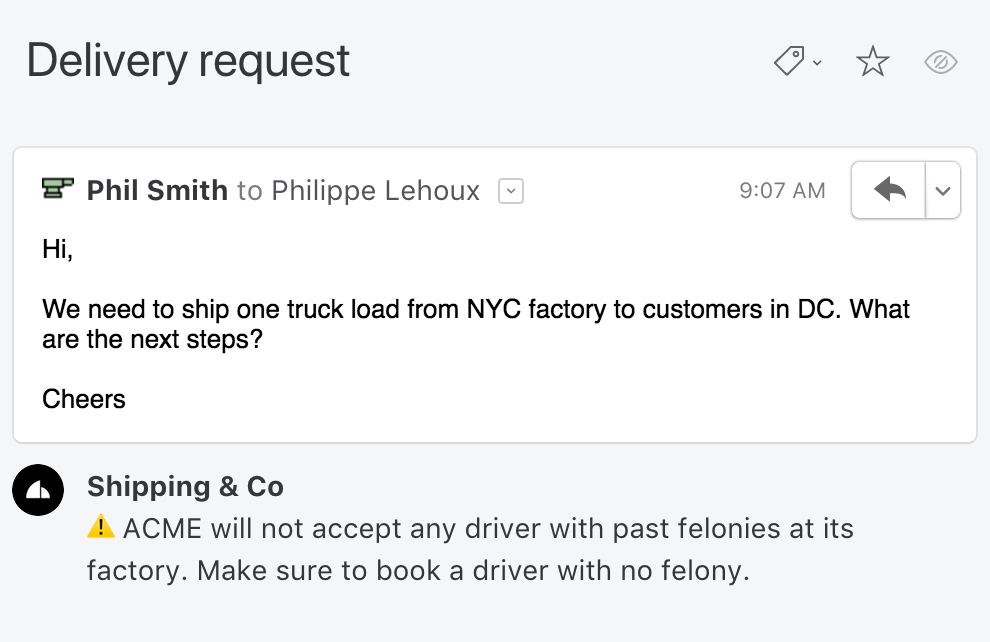
For example, imagine you’re a major freight carrier or 3PL provider and have a particular shipper/receiver who restricts certain types of drivers from their facility. You can use rules to automatically add reminders as comments to email exchanges involving that customer’s domain address (e.g., *@acme.com).

Adding comments to Gmail from a mobile device
You can also add comments, tasks, and attachments using the mobile app for iOS or Android. Handy for leaving context on a thread while you’re away from your desk.

The shortest answer
Gmail was built for one-person inboxes, not for teams working shared addresses. If you’re doing real collaboration (adding private comments, assigning conversations, drafting replies together, tracking who’s handling what), native Gmail will always feel like a workaround. A shared inbox tool like Missive sits on top of your existing Gmail account so nothing changes about your email address or your server. Your team just gets the collaboration layer Gmail doesn’t have. Tasks work for leaving notes for yourself on private emails, but the minute you need someone else’s input, you’re back to forwarding and CC’ing. That’s the gap the third-party option fills. Email overload gets a lot lighter when you don’t have to hop on Zoom for every quick question.
FAQ
What’s the difference between Gmail notes and Google Keep?
Gmail doesn’t have a dedicated notes feature, so “Gmail notes” usually refers to workarounds like Google Tasks, drafts, or inline quote replies. Google Keep is Google’s standalone note-taking app, which can be accessed from the Gmail sidebar to keep notes alongside your inbox. Neither lets you share a note attached to a specific email with a teammate.
Can I export notes from Gmail?
There is no official way to export Gmail notes in bulk without copy/pasting them individually. It’s possible via third-party add-ons, but Google doesn’t support this natively.
Can I share Gmail notes with my team?
Not natively. Google Tasks and Google Keep both keep notes private to the person who created them. To share notes on an email with your team, you either have to forward the email or use a tool like Missive that lets multiple people comment on the same email without forwarding.
What’s the best way to add notes to emails in a team setting?
Use a collaborative email client. Missive lets you add private comments or team comments to any email (from Gmail, Outlook, or any other provider), assign the conversation to a teammate, and turn comments into tasks with deadlines. Everything stays attached to the email itself, so context doesn’t get lost in chat or forwards.
Does Gmail have AI features for adding notes?
Gmail has Gemini-based AI features for drafting and summarizing emails, but nothing purpose-built for adding notes. If you want AI that reads an email and auto-adds context (like urgency flags or summary notes), you’ll need a tool like Missive with AI rules.

March 29, 2022
How to Create a Dynamic Email Signature?
Learn how to use Liquid templating in Missive to create email signatures that change automatically—like adding “Have a great weekend!” on Fridays, rotating seasonal messages, or embedding satisfaction surveys.
Most people use a simple and static email signature telling basic information about themself and their company (job title, phone numbers, address, etc.).

Others have more complex usage; for instance, they will gather feedback on how well they answered their customer questions.
What if you could be more creative? For instance, what if you could change your signature copy based on the day of the week? Like adding the sentence “Have a great weekend!” in emails sent on Friday!
Let me show you how, with Missive, the best business email client.
Key Takeaways
- Signatures that think for themselves: With Liquid templating, your signature can change automatically based on the day of the week, the season, or any condition you define, no manual edits needed.
- No coding background required: Just copy-paste the snippets below into Missive’s signature editor and adjust the text. If you can edit a template, you can do this.
- More than a party trick: Dynamic signatures are useful for rotating seasonal promotions, embedding satisfaction surveys, or adding day-specific sign-offs that make your emails feel more personal.
- Works for the whole team: With Missive’s managed signatures, admins can deploy dynamic signatures across every team member from one place, each one personalized with the sender’s name, title, and contact details.
The Basic Example: A Friday Greeting
Copy-paste the following code snippet in the signature editor where you want the sentence to appear:
{% assign today = "now" | date: "%A" %}
{% if today == "Friday" %}Have a great weekend!{% endif %}
The first line parses the current date and assigns the day value to the today variable. The second line checks if the today variable is equal to Friday and, if so, outputs the Have a great weekend sentence.
Adding a Fallback with If/Else
By adding an else statement, you could display an alternative sentence. The below code will display Have a great weekend! on Fridays and Cheers, every other day.
{% assign today = "now" | date: "%A" %}
{% if today == "Friday" %}Have a great weekend!{% else %}Cheers,{% endif %}
Philippe Lehoux

More Ideas for Dynamic Signatures
The Friday greeting is just the beginning. Here are a few other ways you can use conditional logic in your signatures:
Seasonal messages. Use the month to rotate holiday or seasonal greetings automatically: “Happy holidays!” in December, “Happy New Year!” in January, and your standard sign-off the rest of the year.
Satisfaction surveys. Embed a customer satisfaction survey link in your support team’s signatures so every reply gives the customer a chance to rate their experience. Tools like Nicereply, Simplesat, and Delighted integrate well for this.
Event promotion. Running a webinar or open house next month? Add a line to your signature that promotes it, then set it to automatically disappear after the event date passes, so you’re never promoting something that already happened.
Team-wide consistency with personal details. If you use Missive’s managed signatures, admins create one master template that pulls in each sender’s name, title, phone number, and other details from their profile. Update the template once, and every team member’s signature updates instantly, no chasing people to fix their phone number or title.
How It Works Under the Hood
Missive takes advantage of the powerful templating engine Liquid.js, the same engine that powers Shopify themes. That means you get real programming logic (if/else, date parsing, variables) right inside your signature editor, without needing external tools or developer help. See the full list of available variables.
p.s. Thanks to Laura Soar, one of our customers, who suggested this cool idea.
Frequently Asked Questions
How do I create a dynamic email signature?
In Missive, open your signature editor and paste Liquid templating code where you want dynamic content. For example, use {% assign today = "now" | date: "%A" %} to get the current day, then add an if/else statement to show different text depending on the result. No external tools or plugins needed; the logic runs right inside Missive’s signature editor.
Can I automate different signatures for different days of the week?
Yes. The code examples in this article show exactly how. You assign the current day to a variable, then use conditional statements to display different text: “Have a great weekend!” on Fridays, “Cheers,” on other days, or any variation you want. It updates automatically each day with no manual changes.
Can I manage dynamic signatures for my whole team?
Yes. Missive’s managed signatures let admins create a single master template with dynamic elements and deploy it across the entire team. Each signature automatically pulls in the individual sender’s name, title, and contact details from their profile, so everyone gets a consistent, branded signature without setting it up themselves.
Can I switch signatures without changing the From address?
Yes. Missive has an inline signature switcher in the composer: click the signature block in your draft and pick a different one, no need to change the address you’re sending from. Dynamic signatures built with Liquid work there too, so you can hop between a formal client signature and a casual internal one mid-draft.
Do dynamic signatures work on Missive’s mobile app?
Yes. The Liquid templating renders server-side before the email is sent, so dynamic signatures work the same way whether you send from desktop, web, or mobile. Your recipients will see the final rendered signature regardless of which device you compose on.

December 10, 2020
Missive security and privacy FAQ
Missive is SOC 2 Type II and GDPR compliant. Full FAQ on our security and privacy practices: encryption, AI data handling, SSO, data export, and account deletion.
Missive was built with privacy as a core principle, not an afterthought. We’re SOC 2 Type II compliant, GDPR compliant, encrypt data at rest and in transit, don’t sell user data, and block read trackers in emails by default. This FAQ answers the questions we hear most often about reliability, privacy, and security.
The short version:
- Missive does not sell user data to third parties, ever.
- All data in our database and cloud storage is encrypted at rest.
- SOC 2 Type II compliant, audited by an independent CPA.
- Fully GDPR compliant, with a published Data Processing Agreement.
- We pass Google’s yearly OAuth API security assessment (required for any service that connects to Gmail or Google Workspace).
- When viewing emails in Missive, read trackers and 1x1 tracking pixels are blocked by default.
Full details live in our privacy policy and security page. Everything below is the plain-language FAQ.
Can Missive access my emails?
Technically yes, the same way Gmail can read your Gmail and Outlook can read your Outlook. Missive imports email via IMAP or OAuth and stores it in our database. That’s the technical foundation of a collaborative inbox: your team can only work on a message together if the message is available to the app.
That said:
- Only a small number of our engineers have database access.
- Our internal tools surface system health signals (volume, performance, errors), not email content.
- We don’t scan, share, or sell user data.
- We only look at a specific user’s content when that user has explicitly asked us to, usually while investigating a bug they reported.
Why is Missive more secure than a shared Gmail or Outlook account?
Most teams that end up on Missive start by sharing passwords to a Gmail or Outlook account, or by setting up a distribution list that forwards to everyone. Both approaches break down on the security side:
- Shared passwords can’t be revoked cleanly. When someone leaves the team, you’re either rotating the password (and re-distributing it to everyone) or accepting that an ex-employee still has access. With Missive, access is per-user. Removing someone instantly cuts their access to every shared inbox they were part of.
- No audit trail. If three people share one Gmail login, you can’t tell who replied to which message, who deleted what, or who opened which attachment. Missive logs every action per user, with timestamps.
The short version: Missive doesn’t replace Gmail or Outlook as your mail server, your email still lives there. Missive adds an access layer designed for teams on top, which is more auditable and more revocable than sharing credentials.
Does Missive use my email content to train AI?
No. Missive does not train models on your data.
If you turn on Missive’s AI assistant or AI rules, the relevant content is sent to the AI provider you picked (OpenAI, Anthropic, or Google). Each provider has its own policy, but the pattern is consistent:
- OpenAI: does not train on API inputs unless you explicitly opt in. Prompts and responses retained for up to 30 days for abuse monitoring, then deleted.
- Anthropic: does not train on API inputs or outputs by default. Same 30-day safety retention.
- Google Gemini: same default for the paid API tier.
This is true whether you pay Missive for AI credits or bring your own API key (BYOK). BYOK also unlocks provider-side controls like OpenAI’s EU data residency for teams that need it. More detail in our AI overview docs.
Can senders see when I open their emails?
No. Missive blocks read trackers and 1x1 tracking pixels by default, so senders can’t tell whether you opened their message. You can even build rules on the “contains read trackers” condition, handy for auto-routing marketing email.
Where does Missive store my data?
Missive runs on Amazon Web Services (US East 1 region, Northern Virginia) for application hosting, with Crunchy Bridge for managed Postgres databases. Both are compliant with major security certifications and publish their security practices publicly.
If you need to allowlist our IP ranges on your mail server, AWS publishes the current list at https://ip-ranges.amazonaws.com/ip-ranges.json.
Is Missive SOC 2 compliant?
Yes. Missive has SOC 2 Type II compliance, audited by an independent third-party CPA based in California. Type II (as opposed to Type I) confirms that our security controls are both well-designed and consistently effective over time, not just a point-in-time snapshot.
The SOC 2 report is available on request. Email security@missiveapp.com to get a copy.
Is Missive GDPR compliant?
Yes. Missive is fully compliant with the EU’s General Data Protection Regulation. You can request a Data Processing Agreement and see the full list of subprocessors on our GDPR page.
Is Missive HIPAA compliant?
No. Missive is not HIPAA compliant and we don’t sign Business Associate Agreements (BAAs). If you work with Protected Health Information (PHI) and need a HIPAA-compliant email tool, Missive isn’t the right fit.
Is Missive PCI DSS compliant?
Missive itself doesn’t store or process payment card data. All payment processing for Missive subscriptions is handled by Stripe, which is certified as a PCI DSS Level 1 Service Provider. We don’t store or even relay card numbers through our infrastructure, so PCI scope sits with Stripe.
Does Missive support SSO and two-factor authentication?
Yes, both.
- Two-factor authentication (2FA) is available on every plan, Free included. Set it up in Settings > Login & Security using any TOTP app (Authy, Google Authenticator, 1Password, etc.).
- SAML SSO is available on the Business plan and works with any SAML 2.0 identity provider (Okta, Azure AD, Google Workspace, OneLogin, and so on).
- SSO enforcement lets admins require every user in the org to authenticate through your IdP, which is how most compliance programs expect centralized access to work.
Will Missive still be around in a few years?
Almost certainly yes. Missive has been running since 2015, is fully bootstrapped (no VC funding), profitable, and independently owned by the original founding team. Over 5,000 teams use Missive daily, across logistics, legal, real estate, professional services, and more.
No investor whims, no forced-sale pressure. We move at the pace that makes the product better.
Do you sell or share user data?
We do not sell user data, to anyone, ever. That’s the hard line. We do share a limited set of operational data with a small number of subprocessors (things like our email delivery provider, payment processor, and error reporting service), and those are all listed publicly on the GDPR page.
Can I export my data?
Yes. Go to Settings > Login & Security and request an export. You get:
- Conversations: every message (email, SMS, etc.), comment, assignment, and timestamp, in .json per organization.
- Comments: every internal chat comment you have access to, in .csv per organization.
- Contacts: every contact from every contact book you can access, in .csv per book.
- Email addresses and phone numbers: every From/To/Cc field across messages you can access, in .csv.
- Canned responses: in .html with attachments.
- Rules: in .csv per organization.
Missive delivers the export as a conversation in your inbox when it’s ready.
How do I delete my account and all my data?
Heads up: this can’t be undone. The full steps are documented here, and the short version is:
- Go to Settings > Accounts, delete each connected account (email, SMS, etc.) via Delete account.
- Go to Settings > Calendars, delete each connected calendar.
- Go to Settings > Integrations, delete each integration (Asana, Todoist, etc.).
- Go to Settings > Organizations. If you own one, delete it. If you’re a member, an admin needs to remove you.
- Go to Settings > Login & Security (you may need to re-enter your password or confirm with Google or Apple).
- Scroll to Delete account and click Delete.
- Confirm in the popup.
You’ll be logged out immediately. Within 30 days, every trace of your Missive data and activity is permanently deleted from our database, cloud storage, backups, and logs. This process satisfies Article 17 of GDPR (the right to erasure).
If you just want to stop paying, go to Settings > Billing and cancel your subscription instead.
Who do I contact with more questions?
- Privacy questions: privacy@missiveapp.com
- Security questions: security@missiveapp.com
- Security researchers reporting vulnerabilities: see our vulnerability disclosure program.
Missive is the collaborative email client for teams that treat inbox hygiene as a team sport. Start a free account at missiveapp.com.

November 20, 2020
Take your contact book to the next level
How to use Missive's contact groups and contact-based rules to automate VIP handling, language routing, team assignments, and spam filtering across email, SMS, WhatsApp, and more.
Sometimes you need to take particular actions for different groups of customers. Handling these exceptions can be difficult as your company grows. Without an automated system working on your behalf, it's easy to make mistakes.
With Missive, companies can create groups within their contact books. These are very useful tools for segmentation. But even more helpful is the ability to create workflows using these groups or individual contacts as conditions to trigger automatic actions.
Imagine you have a group of highly-select customers that require special attention and faster service. Instead of always having to be alert for when they contact you, with Missive, you can designate a group for them and then let it alert you when someone from this select cluster makes contact.
The previous is an example of our powerful contact-based rules. We're going to explore three scenarios (instructions included) on how you too can leverage this feature.
Key Takeaways
- Group your contacts, then automate around them: Create contact groups like "VIP," "German customers," or "Spammers" and use Missive's rules engine to trigger actions automatically whenever someone from that group reaches out.
- Works across every channel: Contact-based rules apply to email, SMS, WhatsApp, Messenger, Instagram, and Live Chat—not just email. Set up the rule once and it covers all your channels.
- Combine contact conditions with anything else: Contact group and company conditions can be combined with keyword matching, time-based triggers, AI analysis, and other conditions for precise automation.
- Add contacts to groups on the fly: You can add a sender to a contact group directly from the email viewer without leaving your inbox—no need to go to settings every time.
But first, let's learn how to create contact groups.
- Click on your name
- Go to Contacts

- If you don't have one already, create a Contact Book.

- Create a contact
- Create and add a group

- Repeat for other contacts
PROTIPYou can add contacts to a group directly from the email viewer. Click on the email address > Add to Contacts > Add Group
Scenario 1
Your top 20% of customers bring 80% of the revenue. You signed a strict Service Level Agreement and they expect the best treatment.
Group name: VIP customers
Actions: Notify Sales Team when they email + label as VIP + display 15 minute SLA post

Scenario 2
You're dipping your toes into the German market and you've hired Hans to help. He's bilingual, so he can answer emails in English and German. You need to have them translated automatically since you don't speak the language.
Group name: German customers
Actions: Assign messages to Hans + translate them to English using a webhook

Scenario 3
Your business (Company Inc) is consulting to the sales and legal teams at Acme Inc. Both teams email you to john@company.com. You need the lawyers' emails to be directed to your own legal team and forward a copy to another outsourced firm.
Group name: Acme Inc (Legal team) customers
Actions: Move messages to the Legal Team Inbox + forward them to the outsourced firm.

Bonus
Trash spam or undesired emails in the future by adding them to the contact group Spammers.
Group name: Spammers
Actions: Trash emails

Beyond Groups: Other Contact-Based Conditions
The scenarios above all use contact groups, but Missive's rules engine supports several other contact-based conditions. You can also build rules that check whether a sender or recipient is in a specific contact company (useful for B2B routing—e.g., route all emails from anyone at Acme Corp to your account manager), in a specific contact book, or simply whether they exist in your organization's contacts at all. That last one is particularly handy for treating known contacts differently from first-time senders—for example, skipping an auto-reply for people you've already been in touch with.
You can also use the "Create contact(s)" rule action to automatically add new senders to a contact book when a rule fires. This is useful for building your contact database from incoming leads or support requests without any manual data entry.
Frequently Asked Questions
Do contact-based rules work for SMS and WhatsApp, or just email?
They work across all of Missive's supported channels: email, SMS, WhatsApp, Messenger, Instagram, and Live Chat. The same contact group condition you set up for an email rule can be used in an SMS or WhatsApp rule. The only exception is custom channels, which don't support the rules engine yet.
Can a contact belong to multiple groups at the same time?
Yes. Groups work like tags—a single contact can be in "VIP," "German customers," and "Enterprise" simultaneously. If multiple rules match (one for each group), they'll all fire unless one of them includes a "Stop processing more rules" action.
Can I import contacts from a CSV file instead of adding them one by one?
Yes—right-click on a contact book and select "Import contacts (CSV)." Missive supports CSV files in Google and Outlook formats. If your contact book is synced with Google or Office 365, import the CSV through that provider's interface instead (Google Contacts or Outlook) and it'll sync to Missive automatically.
Can I combine a contact group condition with other conditions in the same rule?
Absolutely. You can combine "From is in contact group" with keyword conditions, time-based conditions (like business hours or unreplied-after timers), conversation state, AI analysis, and more. For example, you could create a rule that fires only when a VIP customer sends a message that's been unreplied for 30 minutes—combining a contact group condition with a time-based SLA condition.

March 6, 2020
How to receive emails in batches
Email batching saves focus time by scheduling when you check your inbox instead of reacting to every notification. Here’s how to set it up with alarms, add-ons, or rules.
Email batching means checking and responding to email at set times of the day instead of reacting to every notification as it arrives. The simplest way is to turn off notifications and set alarms. For more control, use a tool with built-in delivery-time rules (Missive) or a Gmail/Outlook add-on like Boomerang that lets you schedule inbox delivery windows.
If you check email every time a new message lands, you’re interrupting yourself dozens of times a day. Each interruption costs a few minutes of focus time. Over a full day, that’s a serious chunk of your attention gone to an inbox that didn’t actually need an immediate reply.
Batching is the fix: stop reacting, start scheduling. Decide in advance that you’ll process email at, say, 10am, 2pm, and 5pm, and treat the rest of the day as focus time. The question most people get stuck on is how to actually enforce this without constantly glancing at their inbox. Here are three ways to do it, from simplest to most flexible.
Why email batching works
Email is a pull medium that behaves like a push medium. You don’t have to check it, but the notification badge is designed to make you feel like you do. Every time you give in, you pay a context-switching tax: a few seconds to read, a few more to decide whether to reply, and a few more to get back into whatever you were doing before.
Batching removes the pull. You’re not ignoring your inbox; you’re giving it scheduled attention instead of continuous attention. Most people who try it find that the world doesn’t end when they’re unreachable for a few hours. The emails that feel urgent usually aren’t. The ones that truly are urgent come in through a different channel (phone, Slack, text).
3 ways to receive emails in batches
Option 1: Set alarms and turn off notifications
The simplest approach. Set two or three alarms at the times you want to check email, turn off all inbox notifications on your phone and desktop, and only open your inbox at those times.
Tradeoffs:
- You have to remember to close the inbox between sessions, or you’ll get pulled in by every new message
- If you miss an alarm, you miss a batch
- Urgent emails have to wait like everything else, which may not work for customer-facing roles
- It doesn’t scale to teams; each person has to enforce it individually
For solo work, this is often enough. For anything more complex, you’ll want actual rules.
Option 2: Use Boomerang (Gmail or Outlook add-on)
Boomerang is an add-on that layers on top of Gmail and Outlook. Among other features, it lets you hold incoming emails until a scheduled time so your inbox doesn’t ping you between batches.
Tradeoffs:
- Works inside Gmail and Outlook without requiring you to switch email clients
- Add-on based, so you’re paying a subscription on top of your email provider
- Better for solo users; limited collaboration features
- Rules for exceptions (like letting urgent senders through) are more basic than what a dedicated email client offers
Fine for individual use. Starts to feel limiting when you want more nuanced logic or you’re coordinating with a team.
Option 3: Use Missive
Missive is a collaborative email client that sits on top of Gmail, Outlook, and other providers. It offers delivery-time rules that are significantly more flexible than add-ons, and the same rules engine works across email, SMS, WhatsApp, Messenger, Instagram, and other channels.
Here’s how to set up a simple reception time rule in Missive:

When enabled, all emails arriving between midnight and 7:59 am won’t show up in your inbox until 8 am. You can create similar rules for other channels (WhatsApp, Messenger, SMS) and for different times of day. You can also create one to hold all emails during weekends or holidays.
The basic rule above is pretty blunt: it treats every email as equally low priority during off-hours. That’s rarely how real work looks. So let’s add exceptions for a business partner and a specific domain:

Same structure, but with an exception for emails coming from partner@company.com and john@mail.com. You can add another condition to let through any email with the word “urgent” in the subject. Now important emails get through instantly, and everything else waits.

Missive rules can filter incoming emails based on:
- Reception time
- Sender and recipient
- People in CC
- Subject
- Message content
- Attachment name
- Email accounts
- Labels
- Conversation state (unassigned, assigned, closed)
- Unreplied and open for X time
You can also use AI rules that read the content of a message and classify it (“is this urgent? is this a sales lead? is this a customer complaint?”) so that truly important messages break through the batching schedule automatically.
Because Missive is built for teams, you can also snooze emails for coworkers, not just yourself. This makes batching workable for shared inboxes where a whole team is processing messages together.
Turn off push notifications (on every device)
Batching only works if the device doesn’t interrupt you. Missive lets you choose which types of messages trigger notifications and which stay silent until you open the app. If you’re delegating email to an assistant, they can triage messages and @-mention you only for the important ones.

If you ever want to check emails before the scheduled batch window opens, you can access them in the Snoozed unified mailbox.
Let people know you’re batching
If you’re batching for the first time, the people who email you don’t know your new schedule. Until they figure it out from your response pattern, some will assume you’re ignoring them.
Two options for managing expectations:
Add a line to your signature. Something like: “I check email at 10am, 2pm, and 5pm EST. For anything urgent, text me at [number].” Keep it up for a few weeks until your senders have adjusted.

Send an automated response during off-hours. Add another action to the rule above so senders get a short auto-reply during email-free windows. They’ll gradually stop expecting instant replies, and you won’t feel like you’re ghosting them. Here’s what it looks like:

For more on this pattern, see our guide to auto-reply email templates.
FAQ
What is email batching?
Email batching is the practice of checking and responding to email at scheduled times throughout the day (often 2 to 3 times) rather than reacting to each message as it arrives. The goal is to reduce context switching and reclaim focus time for deep work.
Does email batching actually improve productivity?
Research on attention and context switching suggests yes. Each interruption costs time to recover focus, and email notifications are among the most frequent interruptions in knowledge work. People who batch report fewer unread messages at the end of the day and more uninterrupted work time, though the effect varies by role. It works best for roles where same-hour email response isn’t expected.
How many times a day should I check email?
2 to 3 times is a common starting point. Morning (to triage overnight messages), early afternoon (to handle anything that came in during deep work), and end of day (to close loops before signing off) works for most roles. Customer-facing roles may need more frequent windows with shorter intervals.
Will I miss urgent emails if I batch?
Only if you set up your rules poorly. In Missive, you can whitelist specific senders, domains, or keywords (like “urgent” in the subject) so truly time-sensitive messages come through immediately while batching applies to everything else. For non-email urgency, use a different channel: phone, text, or Slack.
Can I batch emails in Gmail or Outlook directly?
Neither Gmail nor Outlook has built-in reception-time scheduling. Gmail’s Inbox Pause feature (via third-party extensions) and Outlook’s Focused Inbox come close but are more rudimentary than dedicated rules. For real flexibility, use an add-on like Boomerang or a collaborative email client like Missive with a proper rules engine.
Does batching work for teams?
Yes, but it requires a tool built for it. Missive’s rules can apply to team inboxes so everyone on the team follows the same batching schedule for shared accounts like support@ or sales@. You can also snooze messages for coworkers, not just yourself, which is how shared-inbox batching actually works in practice.