March 17, 2025
What is the best email client for Outlook? Our top 7 picks
Looking for the best email client for Outlook? We compare the top 7 Outlook alternatives based on collaboration, AI features, security, and pricing. Find the best option for teams and individuals.
Email is the medium of business. It’s how requests, deals, and hires get started and made.
Most businesses live in their inbox, whether they like it or not. And that inbox is likely an Outlook inbox — over 3.7 million companies use Microsoft Outlook for email management.
Two main reasons for that:
- Outlook is the default email client for Microsoft 365, a suite many businesses rely on (Excel, Word, Teams).
- It offers enterprise-level security, compliance, and control (GDPR, HIPAA, encryption, granular user permissions).
However, like Word or Excel, Outlook was built mostly for enterprise solo use. It wasn’t built for collaboration, even as the world of business and email moved toward needing more of it.
In 2026, several tools meet the security and control standards of Outlook while offering more powerful inbox collaboration and coordination features suited for modern teams.
We’ll cover what to look for in an Outlook email client, introduce the seven most popular third-party options, and break down their key differences.
Here are the key features we looked at for Outlook email clients:
- User interface and experience
- Security and privacy
- Customization options
- Collaboration features
- Productivity features
- AI-specific features
All options have desktop and mobile email apps and support IMAP, MAPI, and POP3.
We’ve also covered a range of price points, including free email clients.
Missive
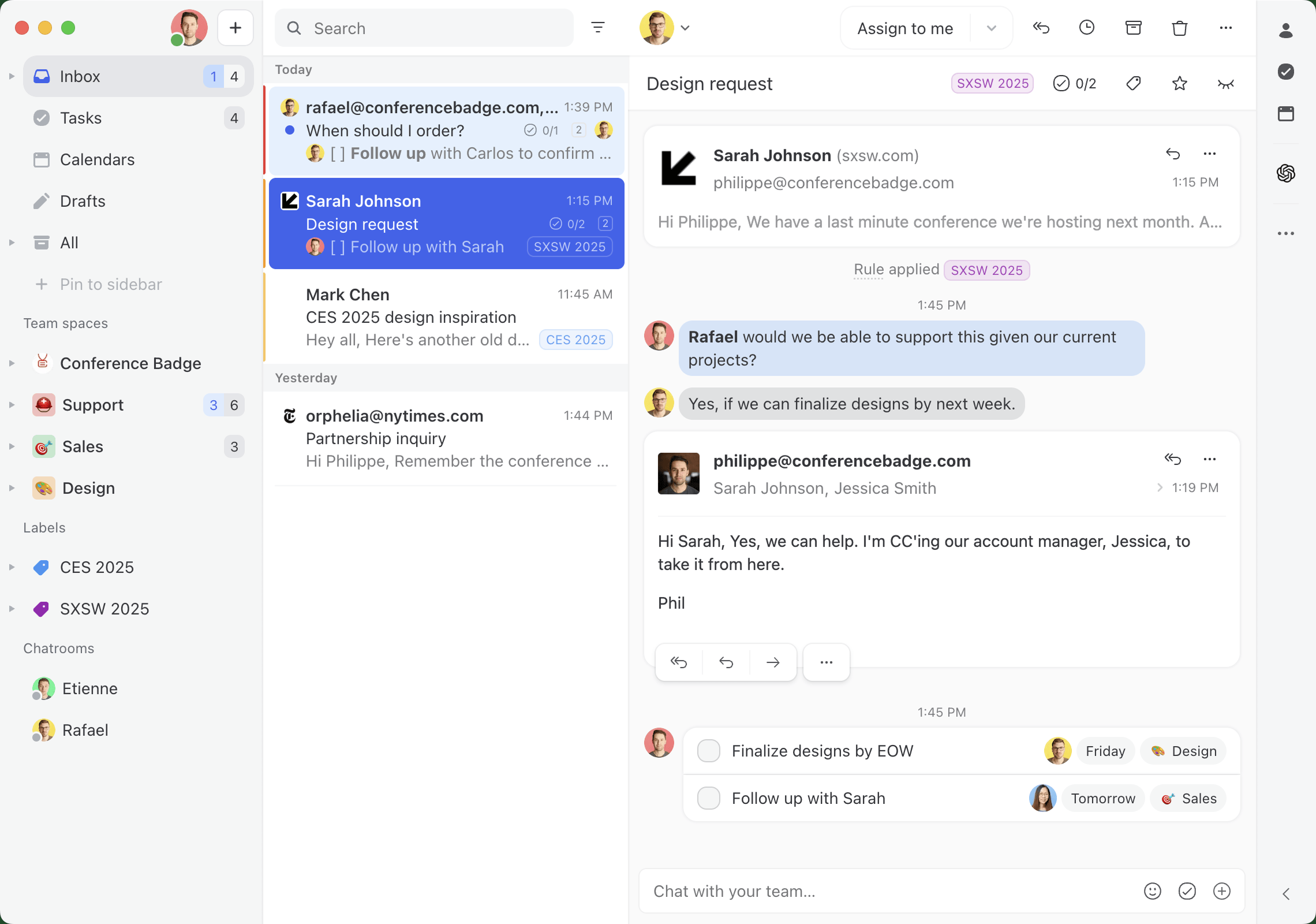
Missive is a collaborative inbox for teams that run on email. It’s built with collaboration as a priority, featuring contextual in-email chat using @mentions, which eliminates the need for forwarding.
You can assign or watch emails, and every action is logged, giving you visibility into who did what and when.
Missive supports all email providers (Outlook, Gmail, Yahoo, Apple Mail) and you can have multiple accounts (personal and business) in the same interface.
Under the hood, Missive has a powerful automation engine. You can:
- Route emails from a specific sender to certain people or teams.
- Create a service level agreement (SLA) with notifications to hold your team to a response standard.
- Have AI read and understand the contents of an email to spot deadlines, label as urgent, and assign to a senior staff member for reply.
- Have AI read and understand the contents of an email to catch spam and automatically trash it.
From a security perspective, Missive meets the same standard as Outlook. SOC 2 Type II report, encryption of data at rest and in transit, GDPR compliant.
Pricing starts at $14/user/month on an annual plan.
One thing to note: if you use folders in Outlook, they’re called labels in Missive.
In the same way some teams prefer Google Docs to Word for its collaboration features (commenting, multi-player drafting), you may prefer Missive to Outlook if you find yourself hitting Reply All and Forward all the time.
Thunderbird
Thunderbird stands out as the only open-source email client on this list.
It’s a community-driven, free email client that’s been around for nearly two decades. With a thriving online community and an ecosystem of 1200+ add-ons (including AI-powered ones for drafting replies), it’s considered one of the best email apps for users who prioritize a free, open-source option.
If you’re looking for more collaboration functionality, Thunderbird’s collaboration features come mostly from third-party add-ons: things like mail merging and adding notes/comments to emails. Workable, but likely unreliable given the nature of third-party connections.
From an organization perspective, Thunderbird calls their version of “folders” tags. Functionally, they’re the same.
Thunderbird is privacy-forward with built-in filters for phishing/spam and remote image blocking. It doesn’t have SOC or ISO compliance certifications, because of its free and open-source nature.

Canary Mail
Canary Mail is the most security-focused option on this list, and it pairs naturally with Thunderbird above it. Both give you end-to-end PGP encryption on your Outlook mail; the difference is the setup. Thunderbird is free but you generate and trade keys yourself. Canary is paid but handles it for you.
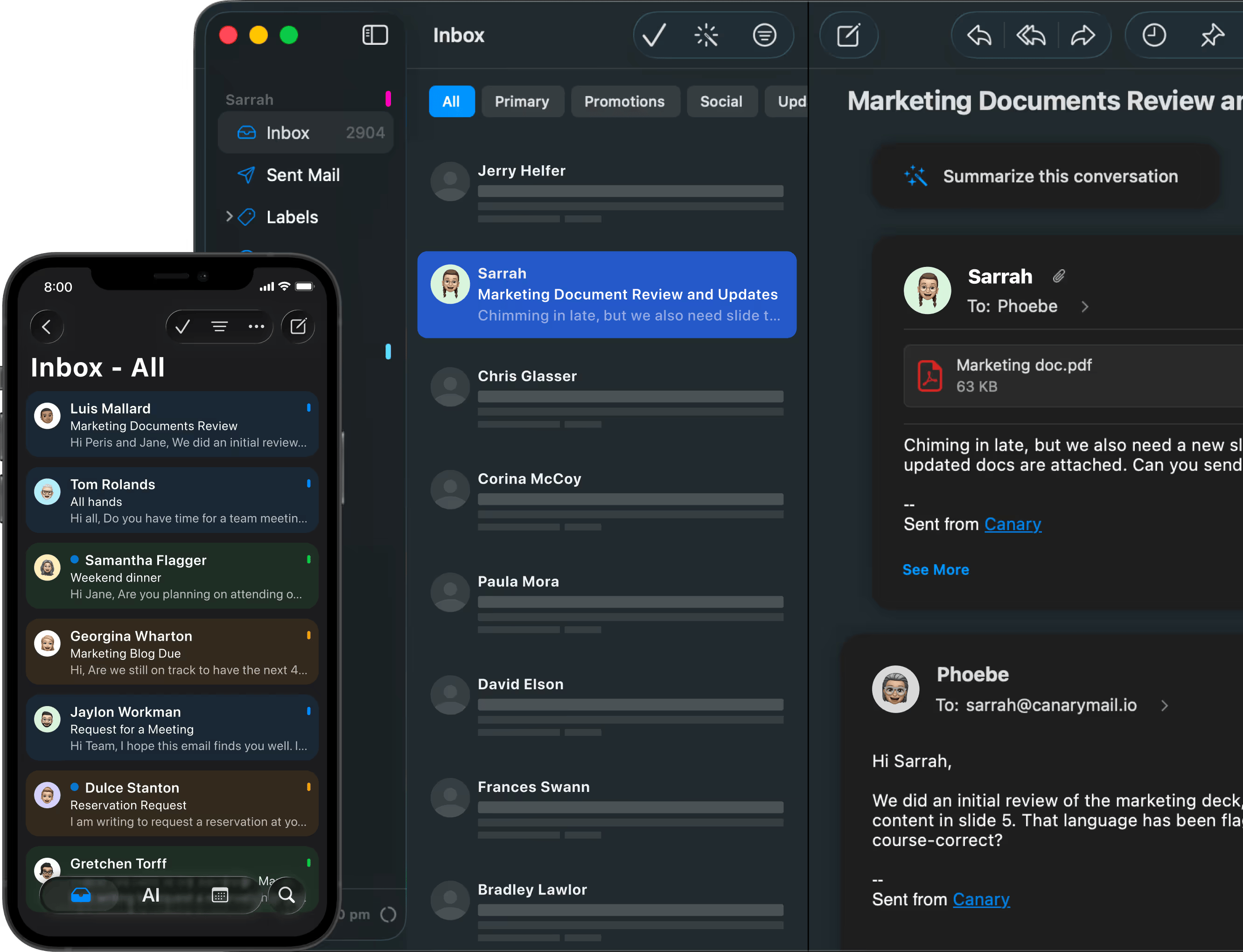
It connects to Outlook, Microsoft 365, Gmail, and any IMAP account. The standout is how it handles encryption: Canary encrypts messages on your device and manages the keys for you, so you get end-to-end protection (PGP plus its own SecureSend) without the manual setup. It also blocks email trackers and locks the app behind Face ID or Touch ID.
On the AI side, Canary’s Copilot summarizes long threads, drafts replies, and surfaces the messages that actually need attention. Unlike the basic AI drafting in Mailbird or eM Client, Canary keeps its AI privacy-first: no ads, and it doesn’t sell your data or train its models on your email.
Canary is built around individual use. It does offer team features like shared inboxes, assignments, and internal @mentions, but those sit in a separate product, Shared Inbox by Canary, sold on its own team plans.
On security and compliance, Canary Mail is GDPR and HIPAA compliant, with PGP end-to-end encryption on its top tier.
For pricing, there’s a free plan. Growth ($36/year) adds the AI Copilot and productivity features. Pro+ ($100/year) is the tier that includes PGP end-to-end encryption, SecureSend, and phishing protection. Both paid plans are also sold as one-time lifetime licenses.
Worth being clear about fit: if you’re already on Microsoft 365, you have encryption and compliance built in, so Canary is the narrowest pick here. Where it earns its place is for solo operators and small teams in fields like law, healthcare, finance, and consulting who handle sensitive information and want real end-to-end encryption to outside parties without involving IT. If that’s you, Canary Mail is worth a look.
Mailbird
Mailbird is for those who have too many email accounts. It’s known for its unified inbox, where you can flow multiple accounts into the same consolidated inbox view.
Mailbird doesn’t offer features related to collaboration or coordination. It’s a productivity improvement for Outlook power users who want to integrate popular apps into their email workflow and see all emails in one place.
From an AI perspective, Mailbird offers simple AI drafting through ChatGPT.
Of all the Outlook alternatives on this list, Mailbird has the most similar user experience to Outlook, including naming conventions (folders are folders, not labels or tags).
For security and compliance, Mailbird is GDPR compliant and does not have any external audits or certifications.
For pricing, Mailbird has a free version and a premium version at $4.99/user/month. There’s also a one-time payment option to buy the product outright at $49.50 (standard) or $99.75 (premium).
If you manage multiple Outlook accounts and need a unified inbox for all your emails, Mailbird might be a good fit.

eM Client
eM Client is similar to Mailbird. Most of its features are productivity-focused for individuals: shortcuts, watch/snooze, configurable layout.
The most unique and powerful feature in eM Client is its search. It covers all messages in your inbox and can also search within certain types of attached files (PDFs, Word docs, etc.).
On the collaboration front, it doesn’t have much beyond the ability to share folders (aka labels), calendars, and accounts.
Like Mailbird, eM Client offers basic AI drafting to help with typos and tone in replies.
On security and compliance, eM Client is GDPR compliant (though possibly outdated with 2018 references) and doesn’t have any external audits or certifications.
For pricing, eM Client has a sharp distinction between personal and business plans. There’s a free plan for non-commercial use, and paid plans are available as annual subscriptions or one-time payments.
The personal plan (without AI features) is $39.95/year or $49.95 one-time.
The business plan (with AI features) is $49.95/year or $188.95 one-time.
Both one-time payment options don’t include future feature updates. You can purchase lifetime upgrades separately at $90 per license.
If you’re looking for a slightly more productive version of Outlook and you want a free email app because you’re not using it for commercial purposes, eM Client might be a good option.

Apple Mail
If you’re a Mac user and you really don’t want to download another email client, does the default mail app from Apple work well for Outlook?
Well, compared to Thunderbird, Mailbird, and eM Client, Apple Mail isn’t going to give you any increased functionality.
If you use Apple Mail as your Outlook email client, you won’t have the integrated calendar or task management, and you’ll have to remember that folders are “labels” in Apple Mail.
The good news is that Apple Mail can support multiple accounts from multiple providers (via IMAP and SMTP standards), so if you have a Gmail account and an Outlook account that you’d like to unify into one well-designed, simple inbox, Apple Mail can do that.
If you want a free email client with a cleaner design than Outlook and don’t require advanced features, Apple Mail might be your best option.

Superhuman
When Superhuman first launched, it was solely focused on Gmail and Google email users. As of May 2022, it also supports Outlook users.
From a user interface perspective, Superhuman is the most distinct on this list. It looks nothing like an Outlook inbox, so if familiarity is a requirement, this might not be a good fit.
Superhuman offers several AI-powered features, the most notable being its ability to answer questions about your inbox.
Instead of traditional search (even as powerful as eM Client’s), you can ask your inbox direct questions. Instead of needing to remember a file’s name to look for a specific piece of information, you could ask: “What was the price that John from ACME quoted me?”
On the collaboration front, Superhuman offers the ability to @mention coworkers through Team Comments.
From a security and compliance perspective, it’s SOC 2 Type II, ISO 27001, CCPA, and GDPR compliant.
For pricing, Superhuman is on the higher end of this list, starting at $25/user/month on an annual plan.

Use cases and scenarios
To summarize our options for the best email client for Outlook users, we sorted them into two categories:
Individuals (you just want a better client for yourself)
- Thunderbird — you want open-source and lots of plug-in options
- Canary Mail — you handle sensitive mail and want built-in encryption without managing keys
- Mailbird — you want Outlook, but with a unified inbox
- eM Client — you want robust search
- Apple Mail — you want a better design, with less functionality
- Superhuman — you want AI and shortcuts galore
Teams (you want an email client for coordination and collaboration within a team)
- Superhuman — you just want to be able to @mention instead of forward
- Missive — you want shared inboxes, internal @mentions, shared labels, canned responses, watch/assign… basically the best email client that’s collaboration-first
Hopefully this has been a helpful overview of the types of email clients out there for Outlook users. If you’re interested in Missive, continue on and we’ll get into some tactical information.
Recent heavy Outlook users who made the switch to Missive:
Stephanie at Lighting Dynamics, manages 100+ email quotes a day. Her team used to use Outlook for email management:
With traditional Outlook forwarding, once an email was out of the shared inbox, there was no visibility. We never knew if it had been handled. It was chaotic.
And now, with Missive: “Missive checked all our boxes. It was a huge relief to see we could maintain the shared inbox model — without building custom software from scratch.”
Or Kason, from i-SOLIDS, who grew his sales team beyond himself:
We got to a point where we weren’t providing the same level of communication, response, and service that allowed us to get to this point. We were relying on Outlook email and it was like ‘are you responding to that or am I?’
And after a month with Missive, Kason recommends: “Don’t think about just choosing a tool for today but this tool needs to work for scale too — that’s a major decision factor.”
How Missive integrates with Outlook
- Create a free Missive account
- Select your email provider (most likely Microsoft 365 or Outlook)

- Determine how much history you’d like to sync (only paid accounts have unlimited history)

- Repeat for as many different email accounts (shared or personal) as you need.
- You have the option to sync contacts and calendar as well.
Get a detailed walk-through of how to configure Outlook to Missive, including terminology differences to help you get acclimated to your new inbox.
So what’s the best email client for Outlook users?
Like most things, it depends. If you’re a team that lives in their inbox day in and day out, and you’re looking for a collaboration-first inbox, give Missive a try.

March 13, 2025
Autopilot for Your Inbox with AI Rules
Revolutionize your inbox with Missive's AI Rules, where artificial intelligence meets your workflow to automatically sort, respond, and organize emails based on what they actually contain.
We've all been there. You open your inbox on Monday morning and face an avalanche of messages. Some need immediate attention. Others could wait. Many should be handled by different team members. And a surprising number don't need any response at all. While Missive's rule engine has always given you the flexibility to automate your workflow exactly how you want it, today we're taking that customization power to a whole new level.
What if your inbox could sort itself? What if it could understand what each email is about and take the right action automatically—all while you maintain complete control over how it behaves? What if you could define exactly how your emails are processed, based not just on who sent them, but on what they actually contain?

Today, we're launching AI Rules in Missive - a simple way to bring the intelligence of AI to your email workflow without the complexity. It's the same flexible rule engine you love, now with the power to understand email content the way you do.
What are AI rules?
AI Rules are an extension of Missive's existing rules engine. If you've used rules before, you know they're powerful for automating repetitive tasks based on simple conditions like sender address or subject line keywords.
Now, we're adding the ability to use AI to understand what an email is actually about.
Here's how it works:
- You create a rule with an "AI Prompt" condition
- You write a simple instruction for the AI
- The AI reads the email and gives an answer
- Your rule takes action based on that answer
No training data. No complicated setup. Just plain language instructions that the AI follows.
Real examples, real time saved
Let's look at some practical ways teams are already using AI Rules during our beta:
- A ⛑️ customer service team set up a rule that using this prompt:
Is this customer angry or upset? Respond with ONLY "YES" or "NO".
If the AI says YES, the email gets flagged as high priority and assigned to a senior agent.

- A 📈 sales team created a rule with this prompt:
Is this a qualified sales lead or just a general inquiry? Respond with ONLY ONE of these exact words: "sales lead" or "general inquiry".
Leads go straight to the sales pipeline, while general questions route to the support team. Their sales reps now spend more time selling and less time triaging emails.

- A ⚖️ legal firm uses AI to detect if an email contains a deadline or time-sensitive request.
Does this email contain a deadline, due date, or time-sensitive request? Respond with ONLY "YES" or "NO".
If it does, it gets tagged "Urgent" and triggers a notification and creates tasks. They haven't missed a filing deadline since.

The best part? These teams didn't need to become AI experts. They just wrote simple instructions in plain English.
One prompt, multiple rules
One of the most powerful features of AI Rules is the ability to use the same prompt across multiple rules. This lets you create sophisticated email triage systems without duplicating your AI analysis costs.
For example, you could recreate Gmail's smart categories with more flexibility and control.
First, create a prompt that categorizes emails:
Analyze this email and respond with EXACTLY ONE of these categories:
"SOCIAL" - for messages from social networks, dating sites, etc.
"PROMOTIONS" - for marketing emails, offers, discounts, newsletters
"UPDATES" - for notifications, confirmations, receipts, statements
Then create separate rules, all using this exact same prompt but with different matching conditions:


The beauty of this approach is that the AI only analyzes each email once, even though you have six different rules. The result is cached and reused across all rules, making this both efficient and cost-effective.
And unlike Gmail's fixed categories, you have complete control over:
- What categories to use
- What actions to take for each category
- How to prioritize different types of messages
- When to apply these rules (you could add additional conditions)
This is just one example of how you can use AI Rules to create a customized workflow that fits exactly how you and your team want to work.
Four ways to use AI in your rules
We've built four powerful AI capabilities into Missive:
1. AI Conditions
As shown above, use AI to analyze email content and make decisions. The AI can detect sentiment, identify request types, or extract specific information that would be difficult to capture with traditional keyword rules.
For example: "Is this customer angry?" or "Does this email contain a deadline?"
2. AI-Generated Posts
Have the AI create a helpful note about an email. The AI can summarize long threads, extract key points, translate emails or provide context for your team.
e.g.
Translate the email to English.

3. AI-Generated Tasks
Let the AI identify action items in emails and automatically create tasks. No more manually creating to-dos from your messages. For example:
Extract any tasks or action items from this email and create a task for each one.

4. AI-Generated Drafts
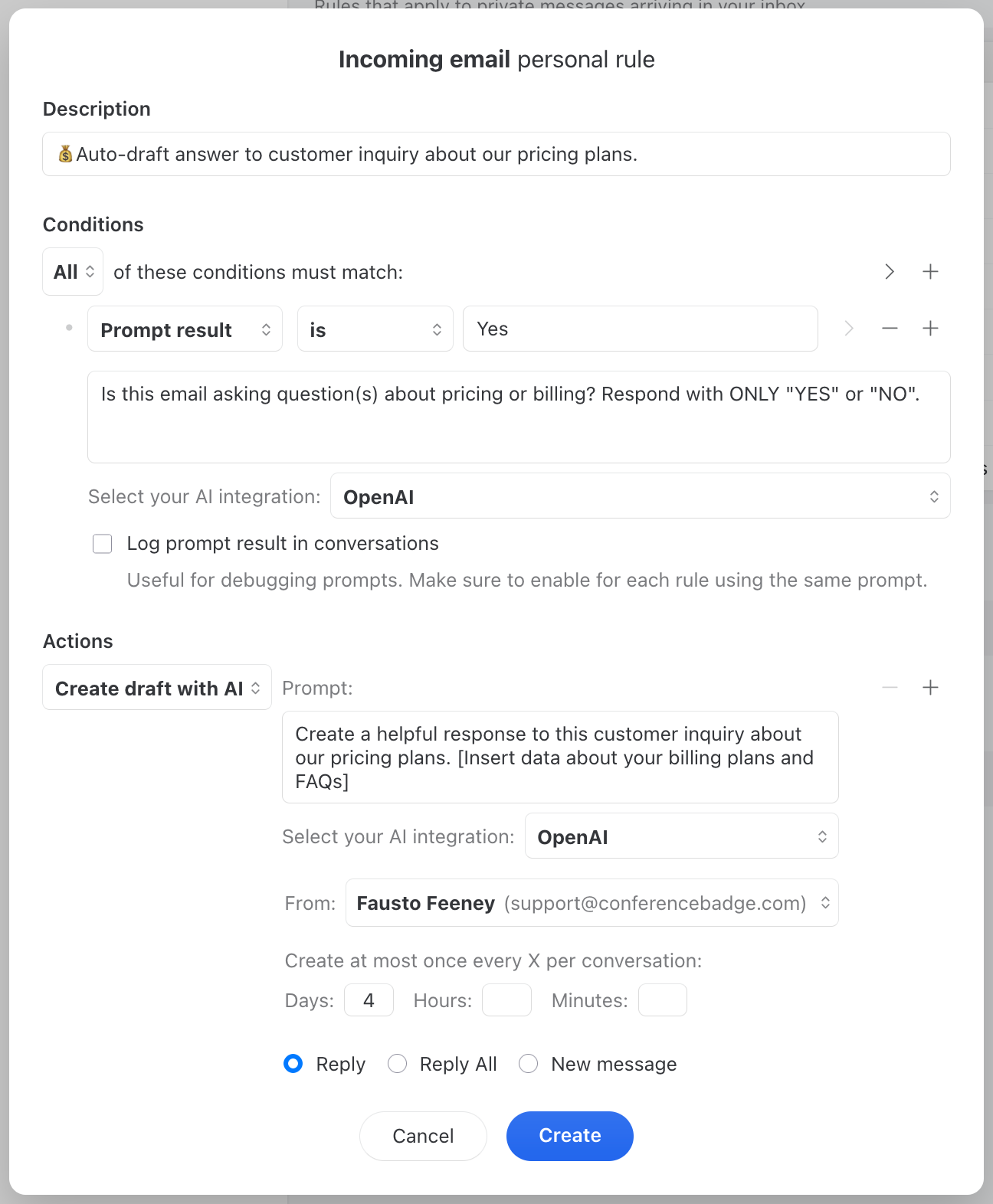
Automatically create response drafts for common inquiries. The AI can craft a personalized reply based on the email content, which you can review and send with a click:
Create a helpful response to this customer inquiry about our pricing plans.
The above draft example could be paired with an AI condition that makes sure the email is about billing!
Simple to set up, powerful in practice
We've worked hard to make AI Rules approachable. You don't need to be a prompt engineer or AI expert to get value from day one. The system uses gpt-4o-mini, which offers an excellent balance of speed, cost-effectiveness, and quality for email processing.
Your data, your control
We understand that email contains sensitive information. That's why:
- You connect your own OpenAI account
- You control exactly which emails get processed by AI
- Email content is only sent to OpenAI at the moment of rule processing
- No data is stored by OpenAI beyond what's needed for the immediate request
The inbox you've always wanted
For years, we've been building tools to help teams manage email more efficiently. Rules have always been at the heart of that mission - letting you automate the repetitive stuff so you can focus on the work that matters.
AI Rules take that automation to a new level. Now your inbox doesn't just sort emails based on simple patterns - it understands what they're about and what needs to happen next.
This isn't about replacing human judgment. It's about removing the tedious parts of email management so your team can focus on what humans do best: building relationships, solving complex problems, and delivering value to your customers.
AI Rules are available today for all Missive users on the Productive plan and above. Give them a try, and let us know what you think.
Your inbox will thank you.
Frequently Asked Questions
Want to learn more about AI Rules? Check out these helpful resources:
- Which OpenAI model is used for the AI rules?
- How do I set up AI rules in Missive?
- What plan do I need to use AI Rules?
- How do AI conditions work?
- Can I reuse the same AI prompt across multiple rules?
- How do I write deterministic prompts for reliable rule matching?
- How do I debug AI condition results?
- What's the difference between the three AI actions?
- How many tasks can be created with the 'Create AI Tasks' action?
- Can I customize the AI-generated tasks?
- What are the content limits for AI analysis?
- Will using AI rules slow down my email processing?
- What happens if the OpenAI API is unavailable or returns an error?
- How can I optimize my AI rule usage for cost efficiency?
- Can I combine AI conditions with regular conditions?
- What are some example use cases for AI Rules?
- How is my data handled with AI Rules?
- Do I need to be an AI expert to use AI Rules
- What is the difference between standard rules and AI rules?

February 3, 2025
Tasks in Missive: Your Inbox is Now Your Command Center
Our inbox is where work happens. It's where decisions get made. Where commitments are born. And let's be honest - it's what most of us use as a to do list.
Our inbox is where work happens. It's where decisions get made. Where commitments are born. And let's be honest - it's what most of us use as a to do list.
We've spent 10 years at Missive transforming email from a lonely slog into a team sport. But after hundreds of conversations with customers, we realized something obvious:
Instead of fighting how people naturally work, why not make their inbox exceptional at what they're already using it for?
Let's be real - we know the whole "inbox zero" thing is a myth, and that treating your inbox as a pure to-do list has its problems. But here's the thing: people are going to use their inbox to track work, whether we like it or not. So instead of preaching about the "right way" to work, we decided to give you tools that improve the way you already work.
We're putting tasks where they belong - right inside your inbox. But we're doing it thoughtfully.
This isn't about dumping more stuff into an already full inbox. It's about giving you the tools to turn that chaos into clarity:
- The ability to create multiple tasks attached to an email thread assigned to right stakeholders
- Task views that help you step back and see the big picture, not just your inbox
- Powerful filters let you cut through the noise and focus on what matters
- Calendar integration so you can plan your work, not just react to it

Now you can prioritize what matters, collaborate effectively, and keep your team in sync - all without leaving your inbox. No more scattered tools. No more lost context. No more wondering who's working on what.
Your inbox is finally becoming what it should have been all along: A clear, organized command center where email and tasks blend seamlessly, exactly where you already are.
This isn't about building another "everything app" or asking you to change how you work. It's about making your inbox better at what you're already using it for. We know that might sound contradictory, adding features while claiming simplicity, but we've been ruthless about only adding what matters.
Everything else? We left it out.
The goal isn't to make your inbox do everything. The goal is to make it do the things you're already using it for, exceptionally well.
Now, let's walk through what's changing and how it makes your work life smoother.
A New Chapter for Tasks
We've completely re-imagined how tasks work in Missive.
You'll now find dedicated views that brings together all your tasks in one place, everything's organized in a single view. And the best part? Tasks now come with assignment, rich-text descriptions, and due dates that automatically sync to your calendar.
To keep everyone aligned, we've introduced a new 'In progress' intermediate status; watch your work progress naturally from "To do" to "In progress" to "Closed" — giving your whole team clear visibility into what's moving forward.

What happen to "Assigned to me" mailboxes?
The "Assigned to me" and "Assigned to others" mailboxes have morphed into the Task views. The new Tasks view shows everything assigned to you across all your teams and organizations, while Team Tasks gives you a focused view of what's happening in specific teams.
Want to customize your view? Use filters to zero in on exactly what you need - like seeing only tasks for specific team members or projects. You can even pin your favorite filtered views to your sidebar for quick access. And when you need to check the conversation that sparked a task, just click the conversation pill to jump right to it.
Note: If your team was previously not closing conversations, the different task views will be populated with a lot of old tasks. It's important to go through them and close them to keep your task views clean and give you a fresh start.
Teams spaces
We are also introducing teams spaces, a new way to organize your teams. Every team has now a dedicated space in the sidebar, and every member will see the right elements depending on their role in the team.
In each team space, you will find the team inbox, the team chat and the newly introduced team tasks view. You can always disable the team chat or the team inbox for a specific team in the team settings.
The team inbox, under the team space, can still be expanded to reveal the Closed, Sent and All mailboxes.
When working from a team inbox, as soon as you click reply, the conversation will be turned into an 'In progress' task, assigned to you. And when you're done with the draft, you can just hit 'Send & Close' and the task will be automatically closed.
Some companies will use these team spaces as traditional teams (support, design, etc), and others will use it as dedicated client spaces — with one team space per client. How you decide to use it is entirely up to your business.

Checklists and Rules
If you have a checklist that your team goes through all the time, you can automate the whole thing with the new Create Task rule action. No more manual task creation.
Here's what I mean: Let's say every new client needs five things done — review their needs, check what you have in stock, work up pricing, draft a proposal, and get the thumbs up from your manager.
Instead of creating these tasks by hand every single time, just set up a rule.
Now when an email comes in with "New Client" in the subject (or when someone drops a #newclient tag in the conversation), boom - all five tasks get created automatically, assigned to the right people, with the right due dates. Simple, automatic, and nothing gets missed.

Conclusion
This is just the beginning. We're committed to making Missive the best place for teams to work together, and we have more exciting updates planned.
Your feedback has been invaluable in shaping these improvements, and we can't wait to hear what you think about the new tasks experience.
The best part? All these new features are available in every Missive plan. No upgrades needed.
Want to learn more about tasks in Missive? Check out our help guide for detailed information on how to make the most of these new features.
If you feel uncertain about the new tasks experience, and have any questions, we're here to help. We have 4 webinars scheduled in the next 2 weeks, and we'll be covering everything you need to know about tasks in Missive. Book a seat now using this link and we'll see you there!
Oh, one more thing, we gave Missive a fresh coat of paint too! We hope you like it.✨

January 14, 2025
Email Management Best Practices: How to Master Your Inbox
Say goodbye to email overwhelm with the top email management best practices for work. Take back control of your inbox with quick wins, daily habits, and team systems.
How Long Do You Spend on Emails Every Day at Work?
If you're like most professionals, the answer is: too long. From communicating with colleagues and clients to managing projects and deadlines, email remains the backbone of business communication. But as inboxes grow, so does the challenge of managing them without losing hours—or your sanity.
According to a study by McKinsey & Company, the average worker spends nearly a third of their workweek on email-related tasks. 🤯

For managers and executives, that number climbs even higher. The problem isn't email itself—it's the lack of a system for handling it. Without a deliberate approach, your inbox becomes a graveyard of half-finished tasks, buried priorities, and mounting anxiety.
This guide covers practical, proven email management best practices—from five-minute quick wins you can implement today to team-wide systems that scale as your organization grows. Whether you're an individual contributor drowning in unread messages or a team lead trying to bring order to shared inboxes, you'll find a framework that fits.
Who This Guide Is For
This isn't a beginner's introduction to email. If you're reading this, you already know email is a problem. You've probably tried folders, maybe filters, but nothing has stuck. This guide is built for:
- Business owners and team leads managing both their own inbox and their team's email workflow.
- Operations and support managers who need shared systems, not just personal hacks.
- Knowledge workers—lawyers, accountants, agency owners, e-commerce operators—who handle high volumes of client communication daily.
- Individual contributors looking to level up their productivity before inbox chaos becomes a team problem.
The practices below are organized in tiers: start with Quick Wins, build Daily Habits, set up Organization Systems, and then tackle Team Email Management and Automation. You don't have to overhaul everything at once—pick the tier that matches where you are right now.
Key Takeaways
- Batch Your Email: Schedule specific times to check your inbox rather than reacting to every notification.
- The Two-Minute Rule: If an email takes less than two minutes to answer, do it immediately; otherwise, snooze or task it.
- Leverage Templates: Use canned responses or snippets for recurring questions to save time.
- Zero Inbox Mentality: Aim to archive or delete messages once they are processed to keep a clean workspace.
- Collaborate Effectively: Use shared inboxes and internal comments to reduce forwarded email chains.
Email Processing Workflow
Before diving into specific practices, internalize this simple framework. Every email you open gets one of three treatments:
| Action | Criteria |
|---|---|
| Delete/Archive | No further action required or purely for reference. |
| Reply | The response takes less than 2 minutes. |
| Defer/Task | Requires deep work or a longer response time. |
This keeps your inbox from becoming a cluttered mess of unfinished business and gives you a clear decision path for every email you open.
Quick Wins (5 Minutes or Less)
These are the lowest-effort, highest-impact changes you can make right now. No new tools required—just a few minutes of deliberate action.
Unsubscribe from Unwanted Newsletters
Unsubscribing from newsletters and promotional emails that are no longer relevant is one of the simplest ways to reduce email clutter. With fewer unnecessary emails landing in your inbox, you'll spend less time sorting and more time on messages that actually matter.
Spend five minutes right now scrolling through your inbox and hitting "unsubscribe" on anything you haven't read in the last month. This single action can cut your daily email volume significantly.
Turn Off Notifications
Being bombarded by a constant flow of notifications hinders your focus and productivity. Let's be honest—do you really need to take action on every email the moment it arrives? Probably not.
Turn off email notifications entirely, or at least disable them during focused work periods. You can use rules to keep notifications enabled only for specific senders or subject lines that genuinely require immediate attention. The result: fewer distractions, more deep work.
Use Stars and Flags to Prioritize
Most email clients offer starring or flagging features that take seconds to use but make a real difference. When scanning your inbox, flag emails that need a response or follow-up. This creates a simple visual system so important messages don't get buried beneath newsletters and FYI threads.
Think of stars and flags as your inbox's "short list"—a quick-glance way to know what still needs your attention without re-reading subject lines.
Daily Habits That Stick
Quick wins reduce the noise. These habits change how you interact with email on a daily basis—they're the behavioral shifts that make everything else work.
Set Aside Dedicated Time for Emails
One of the most effective changes you can make is to stop checking email reactively and start processing it in batches. Set aside dedicated blocks—for example, 30 minutes in the morning and 30 minutes in the afternoon—to work through your inbox deliberately.
It's also important to avoid checking your email first thing in the morning. When you check email as soon as you wake up, you immediately get caught up in other people's priorities rather than focusing on your own goals. Instead, begin your day with a proactive task like exercise, planning, or deep work—then turn to email on your terms.
By batching email time, you protect your focus while still being responsive within a reasonable window.
Follow the Two-Minute Rule
The Two-Minute Rule, borrowed from David Allen's Getting Things Done methodology, is simple: if an email can be addressed in two minutes or less, handle it immediately. Don't flag it, don't defer it—just do it.
For emails that require more time, schedule a specific block to address them later. Labels can be useful for categorizing these deferred emails so your inbox stays tidy while nothing gets forgotten.
Touch It Once
The "touch it once" principle complements the Two-Minute Rule: when you open an email, take action on it right away. That action might be replying, delegating, archiving, or deferring with a snooze—but the key is to never just read an email and leave it sitting there.
- When you open an email, read it carefully and take action immediately—respond, delegate, or archive.
- Avoid leaving emails sitting in your inbox for extended periods. The longer they sit, the more likely they get buried or forgotten.
- If you can't take immediate action, file it in a designated folder or use the snooze feature to set a reminder for later.
By adopting this principle, you reduce the need to re-read and re-process the same messages multiple times, which saves significant time over the course of a week.
Snooze Strategically
Not every email needs attention right now, but that doesn't mean it should be forgotten. The snooze feature temporarily removes an email from your inbox and brings it back at a time you choose—tomorrow morning, next Monday, or whenever you'll actually be ready to handle it.
Snoozing is especially useful for emails that are blocked by someone else's input, reminders you'll need later in the week, or follow-ups that aren't due yet. It keeps your inbox clean without losing track of anything.
Avoid Multitasking
While it can be tempting to tackle multiple emails at once, multitasking is counterproductive. Studies consistently show that switching between tasks reduces productivity and increases errors.
Instead of juggling multiple threads, focus on one email at a time during your dedicated email blocks. Give each message the attention it deserves, take the appropriate action, and move on. You'll work faster and make fewer mistakes.
Organization Systems
Once your daily habits are in place, these systems help you find, sort, and manage email at scale. They're the structural backbone of a well-managed inbox.
Use Labels and Folders

Labels and folders are foundational tools for keeping your inbox organized. Here are the most practical ways to use them:
- By project or client: Create labels or folders for each project or client you're handling. This way, you can find and reference all related emails in one place.
- By category: Use labels to categorize emails by type—newsletters, promotions, social media updates—so you can prioritize what to read or delete.
- By priority: Establish labels for emails that require urgent attention or follow-up, such as messages from key clients or time-sensitive requests.
- By status: Track email status with labels like "Needs Response," "Waiting for Reply," or "Completed" to ensure nothing slips through the cracks.
The key is to use labels and folders in a way that suits your specific workflow. A simple, consistent system beats an elaborate one you won't maintain.
Set Up Rules and Filters
Rules and filters automate what you'd otherwise do manually—sorting, labeling, and prioritizing incoming mail. Here's a simple framework:
- Identify patterns: What types of emails do you receive regularly? Messages from specific senders, emails with certain keywords, or automated notifications?
- Create filters: Set up filters to automatically sort those emails into folders or apply labels. For example, a filter that labels all emails from your biggest client as "Priority."
- Review and adjust: Revisit your filters periodically. Add new ones as your workflow changes, and remove any that are no longer relevant.
Rules can also perform automatic actions beyond sorting—like auto-archiving low-priority notifications or assigning conversations to specific team members. You can find ideas for creating rules in Missive's rules and templates feature.
Inbox Zero vs. the 4D Method
Two of the most popular email management frameworks are Inbox Zero and the 4D Method. Rather than prescribing one, here's how they compare so you can choose what fits your style.
Inbox Zero
The inbox zero method focuses on processing every email until your inbox is empty. It follows four basic steps:
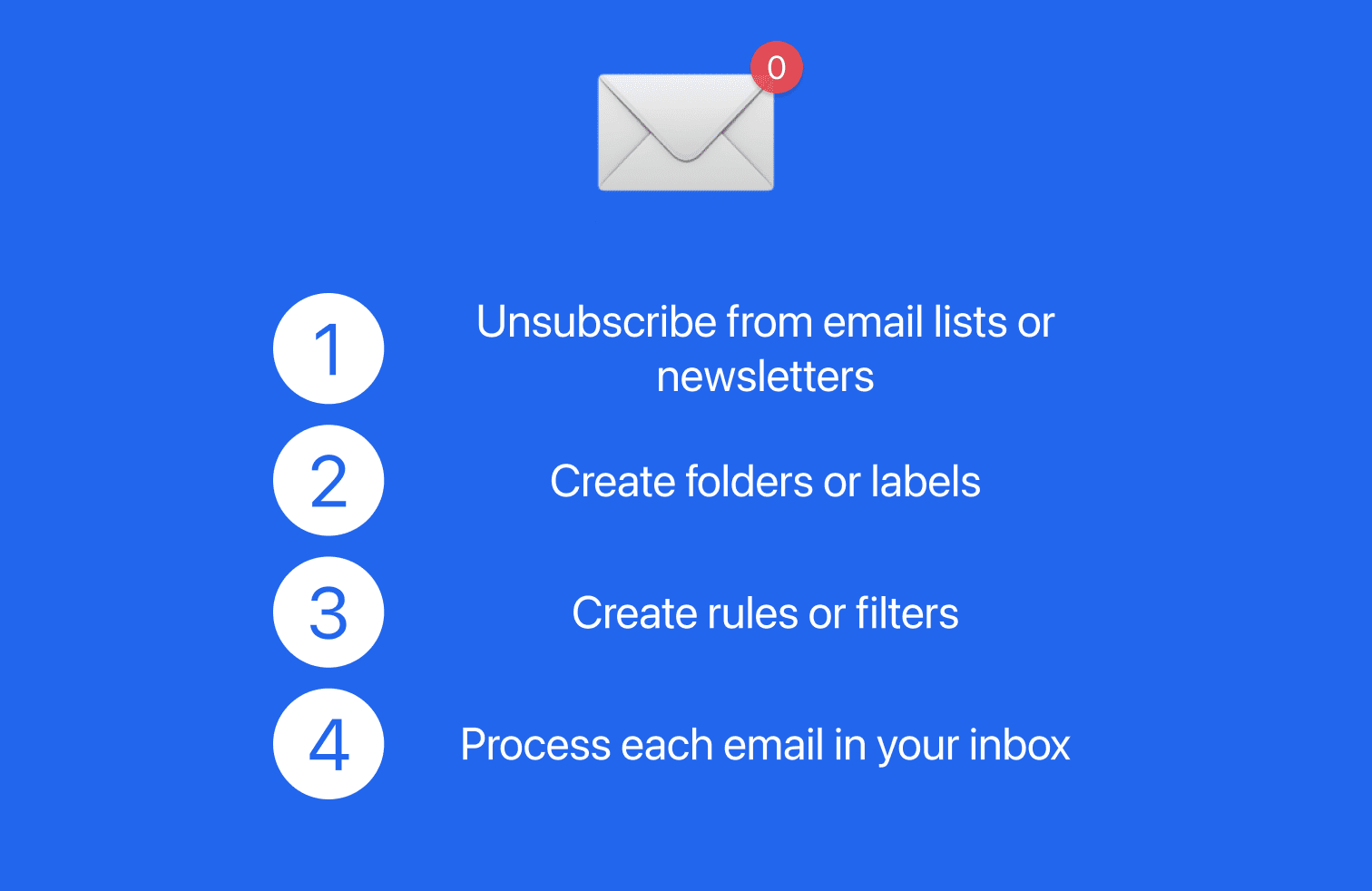
- Unsubscribe from irrelevant email lists and newsletters to reduce volume.
- Create folders or labels to organize the remaining emails into meaningful groups.
- Set up rules or filters to automatically sort incoming emails and prioritize important messages.
- Process each email by reviewing it, deciding what action is required, and taking that action—delete, respond, or file.
Inbox Zero works well for people who find visual clutter stressful and who process email in dedicated batches. The empty inbox serves as a clear signal that everything has been handled.
The 4D Method
The 4D Method is a rapid triage system. For each email, you choose one of four actions:
- Delete: If the email is irrelevant, remove it immediately.
- Delegate: If someone else should handle it, delegate the email to the right person.
- Do: If it takes less than a few minutes, handle it now.
- Defer: If it requires more time, file it away with a reminder to follow up later.
The 4D Method suits people who prefer speed over completeness—it's about making a quick decision on every email rather than achieving an empty inbox.
Both methods work. The important thing is picking one and applying it consistently. You can even combine elements: use 4D triage during your email blocks, and aim for Inbox Zero at the end of each day.
Team Email Management
Most email management advice focuses on individuals, but in reality, email is a team sport. Dropped balls, duplicate replies, and endless forwarding chains are team problems that require team solutions.
Take Advantage of a Shared Inbox

A shared inbox is the foundation of effective team email management. Rather than forwarding messages between teammates or CC'ing half the company, a shared inbox gives everyone access to the same conversations in one place.
With a shared inbox, team members can see who's handling what, assign conversations to specific people, maintain full transparency about customer interactions, and reduce the time spent managing individual inboxes. For example, in Missive, your team can see exactly who's working on a conversation without a single forwarded message.
Assignments and Accountability
A shared inbox only works when ownership is clear. Assign incoming conversations to specific team members so nothing sits in limbo. This creates accountability: everyone knows what they're responsible for, and managers can quickly see if anything is falling behind.
Establish a triage routine—perhaps a morning check where a designated person reviews new messages and assigns them. This prevents the "I thought you were handling it" problem that plagues teams relying on forwarded emails.
Eliminate Forwarding With Internal Chat
Email forwarding creates fragmented threads, lost context, and confusion about who said what. Instead of forwarding, use internal chat or comments that live alongside the email conversation. In Missive, you can discuss an email in a sidebar chat that stays attached to the original message—so the full context is always visible to the team without cluttering the customer-facing thread.
This single change can dramatically reduce internal email volume and eliminate the "forwarding chains" that eat up so much time.
Use Canned Responses for Consistency
When multiple team members are replying to similar inquiries, consistency matters. Canned responses—pre-written templates for common scenarios—ensure every customer gets an accurate, on-brand reply regardless of who's handling the conversation.
Some email tools like Missive allow you to customize canned responses with variables to personalize each message automatically. Shared templates mean everyone sends consistent, detailed replies without writing the same email from scratch every time.
Start New Threads When Necessary
When a conversation shifts to a new topic, start a new email thread. Replying to an existing thread about a different subject creates confusion and makes it harder to find information later.
When starting a new thread, include a descriptive subject line that accurately reflects the content. This helps recipients understand context and prioritize the message. It also keeps your team's shared inbox organized and searchable.
Document Your Processes
As your team's email practices mature, write them down. Document how conversations should be triaged, what templates exist, when to escalate, and how assignments work. This is especially valuable when onboarding new team members—instead of shadowing someone for a week, they can reference a clear playbook.
Process documentation also helps identify bottlenecks. If you can see the workflow on paper, you can spot where things slow down and make targeted improvements.
Automation and AI
Once you have solid habits and systems in place, automation amplifies them. The goal isn't to automate everything—it's to automate the repetitive, low-judgment tasks so you can focus on the messages that actually need a human.
Basic Rules and Automation
Start simple. Rules can automatically label incoming emails, move newsletters to a "Read Later" folder, assign customer inquiries to the right team member, or archive notifications that don't require action. Each rule you create eliminates a small, repeated manual step—and those steps add up quickly.
You can find practical ideas for creating rules in Missive's rules and templates feature.
AI-Powered Triage

Beyond basic rules, AI email assistants can understand conversation context and help you work faster. With the OpenAI integration in Missive, for instance, you can generate draft replies, summarize long threads, and translate messages—all without leaving your inbox.
AI is particularly useful for high-volume inboxes where the same types of questions come in repeatedly. It doesn't replace human judgment, but it handles the first draft so you can focus on editing rather than writing from scratch.
When Automation Helps vs. Hurts
Automation works best for predictable, repetitive patterns: sorting newsletters, labeling by sender, auto-assigning based on subject line keywords. It struggles with nuance—emotional customer complaints, complex multi-stakeholder threads, or situations that require reading between the lines.
A good rule of thumb: automate the triage, but keep a human on the response. And review your automation rules regularly. An outdated rule can quietly route important messages to the wrong place for weeks before anyone notices.
Tools That Help
The right tools make these practices easier to adopt and maintain. Rather than listing dozens of options, here's what to look for:
- Collaboration: A tool with shared inboxes, conversation assignments, and internal chat keeps your team aligned without forwarding chains.
- Organization: Automatic categorization, filters, and smart labeling reduce manual sorting.
- Efficiency: Canned responses, email templates, and keyboard shortcuts save time on repetitive actions.
- Follow-ups: Built-in reminders and features like auto-follow-up ensure nothing falls through the cracks.
- Calendar integration: A built-in calendar lets you schedule meetings and manage deadlines without switching apps.
- Tasks: The ability to turn emails into tasks or integrate with tools like Todoist bridges the gap between email and action.

An email management software like Missive combines all of these capabilities in one place. If you're a Gmail user, you might also want to explore the best email clients for Gmail.
When These Practices Backfire
No email system is perfect, and it's worth being honest about where common advice breaks down:
- Inbox Zero can become obsessive. If you find yourself checking email every ten minutes just to maintain an empty inbox, you've traded one problem for another. The goal is control, not compulsion. If a few unread messages don't bother you, that's fine.
- Over-labeling creates its own clutter. If you have 40 labels and spend more time categorizing than responding, simplify. Three to five labels that match your actual workflow beats a complex taxonomy you'll abandon in a week.
- Automation without review can backfire. An outdated filter might silently send client emails to the archive for weeks. Review your rules quarterly and test them after any major workflow change.
- Team adoption requires buy-in, not mandates. Switching to a shared inbox or a new email workflow only works if the team understands the "why." Start with a small pilot group, demonstrate the benefits, and expand from there rather than imposing a top-down overhaul.
The best email management system is the one you'll actually use. Start simple, iterate based on what's working, and don't let the pursuit of the perfect system keep you from making progress.
Conclusion
Effective email management isn't about finding one magic trick—it's about building layers of good habits, smart organization, and the right tools. Start with the Quick Wins to reduce noise, adopt Daily Habits to change how you process email, build Organization Systems to keep everything findable, and implement Team practices when you're ready to scale.
Remember: you don't have to do everything at once. Pick one tier, get comfortable, and then move to the next. Over time, these practices compound into a workflow that keeps your inbox under control and your focus where it belongs—on the work that actually matters.
Frequently Asked Questions
What's the difference between the 4D and Inbox Zero methods?
Inbox Zero aims for a completely empty inbox by processing every message through unsubscribing, organizing, filtering, and acting. The 4D Method is a rapid triage approach—for each email, you Delete, Delegate, Do, or Defer. Inbox Zero is a destination; 4D is a decision-making tool. Many people combine both: use 4D triage during email blocks and aim for Inbox Zero at end of day.
How long does it take to reach Inbox Zero for the first time?
For most people, the initial cleanup takes one to three hours depending on how many unread messages you have. The key is to be ruthless: mass-archive anything older than 30 days that you haven't acted on, unsubscribe aggressively, and set up basic filters. After the first pass, maintaining Inbox Zero typically takes just 15–30 minutes per day.
Should I manage team email differently than personal email?
Yes. Personal email management is about individual habits—batching, labeling, and triage. Team email requires shared systems: a shared inbox, clear assignment rules, canned responses for consistency, and process documentation. The individual practices still apply, but they need to be layered on top of team infrastructure to prevent duplicate replies, dropped conversations, and forwarding chaos.
What's the best way to get my team to adopt email management practices?
Start small. Pick one or two practices—like a shared inbox and a triage routine—and pilot them with a small group. Show measurable results (faster response times, fewer dropped emails) before expanding. Avoid mandating a complete workflow overhaul; instead, demonstrate how the new approach makes people's jobs easier. Document the process so new team members can onboard quickly.

November 28, 2024
The 10 best email clients for Gmail (2026), tested by use case
The 10 best email clients for Gmail in 2026, tested by use case: Missive for teams, Superhuman for solo speed, Apple Mail for Mac, Thunderbird for free.
Quick Answer: The best email client for Gmail depends on your use case. For team collaboration, Missive layers shared inboxes, assignments, and internal comments on top of Gmail. For solo speed, Superhuman. On a Mac, Apple Mail or Mimestream. For a free, open-source option, Thunderbird. They all connect to Gmail securely through Google's official OAuth.
"It was very startupy. Everybody just had their own Gmail." That's how Kendra Edelman Smith, COO of Weekly Accounting, describes the way her firm ran email before it had 50 people and 200 clients to answer to. You'd CC whoever needed to be looped in, and hope the right person answered.
Most teams know that feeling. Gmail is the most popular email service on earth, and for one person it's hard to beat. But Google never shipped a real desktop app, and Gmail's web interface was built for an individual checking their own mail, not for a team sharing the work. So the same question keeps coming up, whether you're a power user who lives in their inbox or an ops lead trying to get five people out of one account: what's the best email client for Gmail?
To answer it, we tested the current crop of clients across the criteria people actually care about: interface, email management, productivity features like snooze and schedule, collaboration, customization, and how well they juggle multiple accounts. Here's what we found, sorted by who each one is for.
What is a Gmail email client, and why use one instead of the Gmail web app?
Definition: A Gmail email client is a third-party desktop or mobile app that connects to your Gmail account (through OAuth or IMAP) and replaces the Gmail web interface with its own. It can add things Gmail lacks natively, like a true desktop app, a unified inbox across several accounts, or real team collaboration.
The reasons to switch fall into three buckets. Some people want a faster, calmer interface and better email management than the browser tab gives them. Some want one window for several Gmail accounts plus their other providers. And teams want to stop forwarding, CC'ing, and asking "did anyone reply to this?" in chat. The right pick depends on which of those is your actual problem.
The 10 best email clients for Gmail at a glance
The 10 best email clients for Gmail, reviewed
Missive: best for teams and collaboration
If your real problem is that email is shared work, a personal client won't fix it. Missive is built for the case where several people answer from the same Gmail address and need to do it without stepping on each other.
It connects your Gmail accounts through Google's official OAuth and turns shared addresses into team inboxes, so incoming mail lands in one place the whole team can see. You assign a conversation to one person and it leaves everyone else's inbox, which is the part that actually empties the shared pile. Teammates leave internal comments with @mentions instead of forwarding, and drafts are collaborative in real time, like a Google Doc, so two people can shape a reply before it goes out. Rules handle the routing: assign by keyword, balance workload round-robin or least-busy-first, or let AI label incoming mail. The same setup makes email delegation to an assistant or contractor straightforward, which is how leaner teams handle more volume without forwarding everything to one person.
This is exactly the setup Scale CPA, a fully remote accounting firm on Google Workspace, landed on. Before Missive, they force-forwarded everything from their scalecpa.com domain to a single admin Gmail account just to keep some visibility into who was handling what. They'd been weighing Front. As operations analyst Chris Wattinger put it, "Missive had all the stuff we wanted from Front, it was more affordable, and the implementation was pretty easy." The day-to-day payoff was the collaboration: "About 30 to 40% of our workflow is just working on client emails, and being able to tag somebody to draft or work on an email has been a huge value to us."
At Weekly Accounting, that's also where the comment system earns its keep. "We have these inboxes where everyone can help each other," says Brett Fairchild. "The comment system is invaluable. Every single day, Kendra and I are tagging each other on things."
Missive isn't perfect. There's a learning curve if you're coming from a plain inbox, some power-user customization is thinner than dedicated clients, and the more advanced collaboration sits on paid tiers. One quirk worth knowing: because Missive drafts are fully collaborative, they don't sync back to Gmail's own drafts folder.
Price: 30-day free trial, no credit card; paid plans start at $14 per user per month billed annually ($18 monthly). See Missive's pricing for current tiers. It tends to land well for small teams that want to collaborate around email.
Apple Mail (and Mimestream): best for Mac users
For macOS, Apple Mail is the quiet overachiever. It's free, pre-installed, deeply integrated with the system, and far more capable than people give it credit for: custom filters, smart mailboxes, notification control, send-later scheduling, and built-in privacy tools. For most Mac users connecting a Gmail account, it's enough.
If you want something built specifically around Gmail, look at Mimestream. It uses Gmail's own API rather than generic IMAP, so labels, categories, and search behave the way they do in Gmail, with a native Mac feel on top.
Price: Apple Mail is free. Mimestream is a paid subscription (verify current pricing).
Outlook: best for Windows users
On Windows, Outlook is still the default for a reason: strong search, a full calendar in the same window, and tight Microsoft 365 integration. It connects Gmail over OAuth without much fuss.
The honest caveat is that the newer Outlook has been divisive. Microsoft moved it closer to a desktop wrapper of the web app and dropped tools some power users relied on, and shared-mailbox handling took a step back. Plenty of people find the web version smoother than the new desktop build.
Price: Free with ads, or about $1.99 per month ad-free.
Thunderbird: best free, open-source option
If you want something free, private, and community-driven, Thunderbird has earned its reputation over the years. Tabbed viewing, strong custom search and filtering, built-in phishing and spam protection, and a deep add-on ecosystem. Setup wizards make connecting Gmail straightforward, and quick filters make triage fast.
Price: Free.
eM Client: best for customization
If tweaking every detail is the point, eM Client bundles mail, calendar, tasks, and notes and lets you reshape almost all of it: translation on the fly, contact watchlists, advanced attachment search, templates and snippets, and a customizable toolbar. The flip side is that all that flexibility can feel like a lot if you're coming from something simpler.
Price: Free for personal use; commercial licenses from around $60.
Gmelius: best for staying inside Gmail
If you're attached to the Gmail interface but want a little team power under the hood, Gmelius works inside Gmail itself. It adds shared inboxes, assignment, internal notes with @mentions, and Kanban boards without making anyone leave the tab they already know. Because it lives in Gmail, your mail never goes anywhere else.
Price: Starts at $24 per user per month, billed annually.
Spike: best for a chat-style experience
Spike rethinks email as a chat feed. Instead of chrono-threaded messages, you get conversational channels organized around people and teams, with notes, voice clips, and video calls in the same place. It keeps account unification and calendar support. The conversational design isn't for everyone, but for people who think in chat it clicks.
Price: Free plan available; paid from $5 per user per month.
Superhuman: best for individual speed
Superhuman is built for one person moving through their inbox as fast as humanly possible: keyboard-first, an AI engine for split inboxes and follow-up reminders, and a famously polished feel.
It's also the clearest example of why "best for you" and "best for your team" can be different answers. Geoff Todd, who runs Farsight, loves it: "I do love Superhuman. I've struggled to give it up. I'm properly addicted." But as his team grew, the limit showed up. "The main thing I struggle with is there's just this one list where everything's all jumbled in together." His read on where it's heading is the useful part: "As the team gets bigger, it's just going to be more and more useful that there's only one place to check." Superhuman has since added team comments and shared threads, so colleagues can weigh in on a message. But it's still built around your own inbox, not a shared one your team works out of together, which is the gap Geoff is pointing at.
Price: Starts at $30 per month.
Canary Mail: best for mobile and AI
Canary leans into AI on mobile: it prioritizes messages, writes summaries, and drafts replies from prompts, which closes a lot of the gap between phone and desktop email. If you do most of your email on the go, it's worth a look. Canary has also added a separate Shared Inbox add-on with assignment and internal comments, though team collaboration isn't the app's main focus.
Price: Free plan available; paid from $36 per year.
Mailbird: best for app integrations
If you run several Gmail accounts alongside other providers and want one tidy hub, Mailbird connects to 30+ tools like Google Calendar, Slack, Asana, and Trello, with a layout you can tailor and the usual snooze, tracking, and AI-assist features. It's built for individual productivity, though, so there's no shared inbox, internal chat, or assignment, and the free plan is capped at one account per device.
Price: Free plan available; premium from $4.03 per user per month annually, or $99.75 once.
How do I choose the right Gmail client for my team?
Start by being honest about whose problem you're solving.
If it's your own inbox and you mostly want speed, polish, or a calmer interface, a personal client wins. Superhuman for raw speed, Apple Mail or Mimestream on a Mac, Thunderbird if you want free and open, eM Client if you love to customize. None of them ask you to change how your team works, because the team isn't the problem.
If the problem is shared, the calculus flips. The moment more than one person answers from the same address, the things that matter are assignment (who owns this?), visibility (has anyone replied?), and a way to talk privately about a message without forwarding it. That's where forwarding chains and CC threads quietly fall apart, the way they did at Weekly Accounting when "everybody just had their own Gmail." A collaborative client like Missive (or Gmelius, if staying inside Gmail matters more than anything) is built for that, and a solo client, however nice, will keep papering over it.
A simple way to decide: if your email is a personal workflow, pick the client that feels best to you. If your email is a team's shared work, pick the one your whole team can actually work in. Many of the habits that make a shared inbox work hold up no matter which tool you choose, but they're far easier when the tool is designed for more than one person.
Is there a better email client than the Gmail web app?
For most power users and nearly every team, yes. Gmail's web app is excellent for one person doing their own email, but a dedicated client adds what the browser tab can't: a real desktop experience, a unified inbox across multiple accounts and providers, deeper productivity features that get you closer to inbox zero, and, with a tool like Missive, genuine collaboration. If Gmail in the browser already does everything you need, there's no rule that says you must switch. The clients above exist for the moments when it doesn't.
FAQ
What is the best email client for Gmail?
There's no single winner, because the best client depends on your use case. For teams that share an inbox, Missive adds shared inboxes, assignment, and internal comments on top of Gmail. For individual speed, Superhuman. On a Mac, Apple Mail or Mimestream. For a free, open-source option, Thunderbird. All of them connect to Gmail through Google's official OAuth, so your mail stays in your Google account.
Does Gmail have a desktop app?
Google has never released an official Gmail desktop app. Gmail is a web service, so a "desktop app" means a third-party email client (like Missive, Apple Mail, Outlook, or Thunderbird) that connects to your Gmail account and gives you a dedicated app window instead of a browser tab. You can also save Gmail as a browser-based progressive web app, but that's still the web interface.
Can I use a third-party email client with Gmail?
Yes. Google supports connecting third-party clients through OAuth, the secure sign-in flow where you grant the app access without sharing your password. Most modern Gmail clients, including Missive, use this official method. You can connect as many Gmail accounts as you need, and your email continues to live in your Google account.
What is the best free email client for Gmail?
For a fully free, open-source desktop client, Thunderbird is the standard pick: cross-platform, private, and highly extensible. Apple Mail is free on Mac and iOS and well integrated with the system. Missive’s 30-day trial is the easiest way for a small team to try shared inboxes before paying, with no credit card and room for up to 25 people. Outlook has a free, ad-supported tier on Windows.
What is the best email client for Gmail for teams or business?
For teams, the deciding features are shared inboxes, conversation assignment, and a way to discuss a message internally without forwarding it. Missive is built around exactly that, which is why accounting firms like Scale CPA and Weekly Accounting run their Google Workspace email through it. Gmelius is a strong option for teams that would rather add those capabilities inside the Gmail interface itself.
TL;DR
- The best email client for Gmail depends on your use case. Solo speed, Mac-native, free and open, or team collaboration are different problems with different winners.
- For teams, Missive is the standout: shared inboxes, assignment, and real-time collaborative drafts on top of Gmail, with a 30-day trial to start.
- For individuals: Superhuman for speed, Apple Mail or Mimestream on Mac, Thunderbird for free and open-source, eM Client for customization.
- Gmail has no official desktop app, so every option here is a third-party client connecting through Google's OAuth. Your mail stays in your Google account.
- Decide by whose problem it is: a personal inbox calls for the client that feels best to you; shared team email calls for one your whole team can work in together.
Try Missive free and get your team out of one shared Gmail account in an afternoon.

October 26, 2024
5 Missive features you gotta know
Five underused Missive features that quietly save the most time: merging threads, a custom sidebar, inline canned responses, the command bar, and custom thread names.
Five Missive features that quietly save the most time once you actually use them: merging email threads, customizing your sidebar, inserting canned responses inline with #shortname, the command bar (Cmd/Ctrl+K), and renaming threads so they make sense at a glance. Most people know Missive has these. Fewer people build them into their daily workflow.
When I started my career, my first experience with team email was chaotic. Multiple inboxes, scattered conversations, constant back-and-forth about who was handling what. It was a nightmare.
At my last job, we used Missive, and it was night and day compared to my previous experience. But it wasn’t until I discovered some of the hidden features that things really clicked for me.
Over the past few years I’ve used Missive daily, and for the last year I’ve been helping Missive customers uncover the hidden gems. Today I want to share the five features that transformed how I handle communication. These aren’t the flashy ones, they’re the practical, everyday tools that make a real difference.
1. Merging email threads
You know when someone starts a new email thread about something you’re already discussing in another thread? This used to drive me crazy. In Missive, you just drag one conversation onto the other and they merge into a single thread. Everything stays in order, nothing gets lost, and suddenly all your context is in one place.
Where this shines:
- A customer replies to an old email instead of the original thread for the same issue
- Multiple customers reporting the same issue
- Getting quotes from different suppliers
- Project discussions that branch off and need to be reconnected
Pro tip: You can’t undo a merge, but you can move messages out of a merged conversation into new private or shared ones.
2. Your sidebar, your rules
Customizing your sidebar might not sound revolutionary at first, but trust me: it’s like finally organizing your desk after years of chaos.
What makes it special:
- Move your most-used mailboxes to the top
- Hide the stuff you rarely touch
- Group things however they make sense to YOU
- Create separate sections for different projects or clients
How different teams use this:
Support teams:
- Support Team Inbox at the top
- Urgent issues section with labels
- Team chat of the Support team
- Archived mailbox hidden but accessible
Sales teams:
- Hot lead labels front and center
- Separate sections for each pipeline stage
- Quick access to Sales team room
- “Follow-up” label pinned
Project managers:
- Project-specific inboxes grouped
- Client communication sections
- Team room easily accessible
- Deadline-sensitive items labels
Pro tip: You can also create whole new sections. Just drag an item on top of the +More button in the sidebar.
3. Type # and save hours
This feature is genuinely powerful: inserting canned responses inline. Do you know what I mean?
Type a hashtag followed by your response name, and boom, your full message appears right where you’re typing. No more copying and pasting, no more digging through templates.
My team’s favorite uses:
- #hi: Personalized welcome messages for new email requests
- #followup: “Thanks for reaching out”
- #lmka: “Let me know if you need anything else, I’d be happy to help”
- #meet: Inserts a link with my Calendly availability
- #thanks: Thank-you messages with next steps
Power user tips:
- Create variations of common responses (formal vs. casual)
- Include variables for personalization
- Set up team-wide responses for consistency
- Use short, memorable hashtags for the ones you use most
- Create responses in multiple languages
4. The command bar (Ctrl/Cmd + K)
If you learn one keyboard shortcut in Missive, make it this one. Press Cmd+K on Mac (or Ctrl+K on Windows) and you’ve got instant access to pretty much everything.
Things you can do from the command bar:
- Create new emails, events, or tasks
- Access settings and preferences
- Switch between 1:1 rooms
- Search for specific messages
- Manage rules and labels
- Open contact books
- Set a status
- And much more
If I time-track myself for a week with and without using the command bar, the difference is about 3 minutes saved each day just from reducing mouse usage and menu navigation. Compound that over a year and it adds up fast.
5. Custom thread names that actually make sense
This last one is simple but brilliant. You can rename email threads to whatever you want.
Smart ways to use this:
- Add project phase indicators (“Brand Design - Phase 2 Feedback”)
- Include priority levels (“URGENT: Server Issue Resolution”)
- Add dates for time-sensitive stuff (“Q4 Planning - Due Oct 30”)
- Tag conversations by department (“HR: New Hire Onboarding - Sarah”)
Putting it all together: power user workflows
The real magic happens when you combine some of these features.
Handling an inbound request from big leads:
- Pin your “Big Leads” label to the sidebar
- Merge all email communication and Calendly invites into one thread
- Use the command bar for quick navigation between your other tasks
For support teams, try this workflow:
- Merge support requests from the same customer
- Rename threads with issue types and status
- Use canned responses for common solutions
- Organize the sidebar by priority levels
The impact on your daily work
Depending on your use case, after implementing these features across your team:
- Email response time drops by a few minutes per day
- Context switching goes down
- Team coordination improves
Getting started
Don’t try to implement everything at once. Start with the feature that addresses your biggest pain point:
- Drowning in split conversations? Start with merging
- Spending too much time on repeated responses? Focus on inline canned responses
- Can’t find anything? Organize the sidebar
- Lost in endless threads? Start renaming conversations
Give them a shot. Start with one, get comfortable, then move on to the next. You might be surprised at how much time you save. For more on how Missive fits into team email workflows, see our guide to shared inboxes.

March 13, 2024
7 auto-reply email templates (with examples for every situation)
Seven ready-to-use auto-reply email templates for out-of-office, support, job applications, and more, plus setup steps for Missive, Gmail, and Outlook.
An auto-reply email is a pre-written message your email client sends automatically when someone emails you, usually to let them know you’re out of office, to confirm receipt of a support request, or to acknowledge a business inquiry. Below are seven proven templates for the most common situations, plus the steps to set them up in Missive, Gmail, and Outlook.
Emails take up more than a quarter of the average workweek, so it makes sense that people dread coming back from vacation to a full inbox. A good auto-reply sets expectations for the sender, tells them who to contact in the meantime, and buys you a little breathing room when you’re back.
The catch is writing one that doesn’t make you look unreachable, confused, or unprofessional. Nobody wants an auto-reply like this one that said she might never answer, or the classic example where one auto-reply replied to another auto-reply in an infinite loop.
This guide covers what an auto-reply is, seven ready-to-use templates for different situations, and step-by-step setup instructions for Missive, Gmail, and Outlook.
What is an automatic email reply?
An automatic email reply (sometimes called an out-of-office reply, autoresponder, or canned response) is a message your email client sends on your behalf when an incoming message meets certain conditions. Common triggers:
- Time-based: dates you’re away on vacation, leave, or at a conference.
- Sender-based: emails from specific addresses, like a job applications inbox.
- Content-based: emails with certain subject lines or keywords, often used for support ticket confirmations.
Most email clients support auto-replies natively. Missive, Gmail, and Outlook all handle the basics, though each has different strengths, which you’ll see in the setup sections below.
7 auto-reply email examples for every situation
Each of these templates uses Missive’s variable syntax to auto-fill the recipient’s name and other details. If you’re not using Missive, just replace the curly-brace variables with plain text.
1. Out-of-office auto-reply (general template)
Whether you’re on vacation, a local holiday, or taking time off for family reasons, this template works for any out-of-office situation. The {{ user.status }} variable pulls in your current Missive status automatically, so one template covers every occasion.
I’ll be out of the office for {{ user.status | default: 'personal reasons' }} from the 19th to the 26th. I won’t be responding to emails during that time.
If you need help before I’m back, please contact Jane (jane@mycompany.com).
Kind regards,
[Your signature]
2. Out-of-office auto-reply for maternity or paternity leave
A longer leave needs a longer-horizon reply. Give a clear date range, point to a reliable backup contact, and set expectations about whether you’ll check email at all during the leave.
I’m on {{ user.status | default: 'parental leave' }} from November 19th until March 19th and won’t be checking email during that time.
For anything time-sensitive, please contact Jane (jane@mycompany.com); she’s covering my work while I’m away.
Best regards,
[Your signature]
3. Auto-reply for someone no longer with the company
When someone leaves, their inbox doesn’t stop receiving emails. A well-written auto-reply redirects the sender to the right person and keeps the door open for future business.
I’m no longer with the company and this email address isn’t being monitored.
Anything I was previously working on can now be directed to Jane (jane@mycompany.com). Thanks for the partnership over the years.
Best regards,
[Former employee]
4. Out-of-office reply with an alternative contact method
If your email isn’t the best way to reach you for urgent matters, this template gives senders a backup channel (phone, text, or a teammate) without inviting every non-urgent sender to call.
Thanks for your email. I’m currently out of office for {{ user.status | default: 'personal reasons' }} and checking email sparingly.
For anything urgent, you can text me at 555-555-5555; please identify yourself so I know who’s reaching out. For everything else, I’ll reply when I’m back.
Best,
[Your signature]
5. New support request auto-reply
Customer support is the most common use case for auto-replies. An instant “we got your message” acknowledgment goes a long way toward reducing anxiety and cutting down on duplicate follow-ups from the same person.
Thanks for reaching out. We’ve received your message and someone from the team will get back to you within 24 business hours.
In the meantime, you might find what you’re looking for in our help center: [help-center-url]
Best,
The Support Team
6. General business inquiry auto-reply
For info@ or contact@ inboxes, a quick auto-reply confirms the message landed and sets a response expectation. This prevents the sender from assuming their email got lost and emailing three more times.
Thanks for reaching out. We’ve received your message and will get back to you within 1-2 business days.
If your inquiry is about a specific product or service, mentioning it in the subject line helps us route you to the right person faster.
All the best,
[Your team]
7. Job application auto-reply
Candidates often apply to dozens of roles at once and have no idea whether their application was received. A simple acknowledgment with a realistic timeline respects their time and reflects well on your company.
Thanks for applying. We’ve received your application and will review it within the next two weeks. If you’re moving to the next stage, we’ll be in touch directly.
We appreciate the interest.
Best,
[Hiring team]
How to write a professional auto-reply
The seven templates above cover most situations. When you’re writing your own, keep these principles in mind.
- Keep it short. The sender should know three things within a few seconds: (1) why you’re not replying right now, (2) how long they should expect to wait, and (3) who to contact if it’s urgent. Anything beyond that is fluff.
- Stay professional. You don’t need to explain why you’re away or where you’re going. “Out of office” is enough. Avoid detailed stories about the vacation you’re on or the medical situation you’re dealing with.
- Warn the person you’re redirecting to. Before naming a coworker as the backup contact, make sure they know they’re the backup contact. Surprise coverage duties breed resentment.
- Be explicit about the alternative. If you’re saying “for urgent matters, contact X,” be clear about what counts as urgent. Otherwise every sender will decide their issue qualifies.
- Proofread. An auto-reply sends to hundreds of people while you’re not looking. A typo in your out-of-office reply is visible to everyone you correspond with for two weeks straight.
- Include a signature. Even for an auto-reply, your normal email signature tells the recipient how to verify they’ve reached the right person.
A few common mistakes worth avoiding:
- Forgetting to turn it off. Nothing undermines “I’m back from vacation and ready to work” like an auto-reply still saying you’re away until next Monday.
- Inviting “urgent” contact when you don’t want to be disturbed. If you offer an escape hatch, expect it to be used. If you genuinely don’t want interruptions, say so.
- Trying to be funny. A joke that lands in person rarely lands in text, and it definitely doesn’t land the two-hundredth time a stranger receives your auto-reply.
How to set up auto-replies in Missive
In Missive, auto-replies are built with rules and canned responses. The combination gives you far more control than a simple out-of-office toggle.
- Create the response. Go to Settings > Responses and write your template using variables for personalization.
- Create a rule. Go to Settings > Rules > Create rule, pick Email as the channel and Incoming message as the trigger.
- Add conditions. Filter which incoming emails trigger the auto-reply (all emails, specific senders, emails to a specific account, emails containing certain keywords, etc.).
- Add the action. Choose “Send response” and select the template you just created.
- Optional: throttle. Set “Send at most once every X per conversation” so the same sender doesn’t get the auto-reply 10 times on the same thread.
- Save.
For personal out-of-office replies, Missive also has a dedicated personal auto-response feature tied to your status. Set your status to “Out of office,” define the date range, and Missive handles the rest.
How to set up auto-replies in Gmail
Gmail’s vacation responder is the simplest option for a basic out-of-office reply.
- In Gmail, click the gear icon > See all settings.
- Scroll to Vacation responder at the bottom of the General tab.
- Turn it on, set the start and end dates, and write your subject and message.
- Optionally, limit the reply to people in your Contacts or to your organization only.
- Click Save Changes.
For more targeted auto-replies (specific senders, specific keywords), you’ll need to combine Gmail templates with filters:
- Enable Templates in Settings > Advanced > Templates.
- Compose your message, then click the three dots > Templates > Save draft as template.
- Create a filter (in the search bar, click Show search options) with your criteria, then select Send template as the filter action.
How to set up auto-replies in Outlook
Outlook splits between the new and classic versions; the steps are slightly different.
New Outlook and Outlook on the web:
- Click the Settings gear in the top right, then go to Accounts > Automatic replies.
- Toggle Turn on automatic replies.
- Set a time range if you only want the reply to run during specific dates.
- Write your reply. You can set a different message for people outside your organization.
- Click Save.
Classic Outlook for Windows:
- Go to File > Automatic Replies.
- Select Send automatic replies.
- Check Only send during this time range and set the dates if applicable.
- Write your reply in both the Inside My Organization and Outside My Organization tabs as needed.
- Click OK.
Microsoft’s setup guide covers the older and Mac versions as well.
FAQ
What should an auto-reply email say?
At a minimum: why you’re not responding (out of office, out of hours, reviewing a support ticket), how long the sender should expect to wait, and who to contact in the meantime if the issue is urgent. Three sentences is usually enough. Long auto-replies signal that you have too much to say about your absence; short ones signal you’ve got it handled.
How long should an out-of-office message be?
Two to four sentences. Any longer and the sender stops reading. Any shorter and you haven’t set expectations. The seven templates above are all in this range and can be used as a length benchmark.
Can I set up an auto-reply for specific senders only?
Yes, in every major email client. In Missive, add a condition to your rule filtering by sender address or domain. In Gmail, combine a filter with a template. In Outlook, use rules (File > Manage Rules & Alerts > New Rule) rather than the simple Automatic Replies toggle, which applies to everyone.
What’s the difference between an auto-reply and a canned response?
An auto-reply sends automatically based on rules you’ve set up, without any human action. A canned response is a saved template you insert manually into an email you’re about to send. The two overlap, most auto-replies are built from canned responses, but the key difference is whether a human is in the loop when it sends.
How do I set up an auto-reply for a shared inbox?
This depends on the client. In Missive, shared inboxes (like support@ or sales@) can have rules that send auto-replies on behalf of the team, so responses don’t get sent from a specific individual. In Gmail and Outlook, shared mailboxes usually need the auto-reply configured by an admin at the mailbox level, not the individual level; personal out-of-office replies don’t apply to shared addresses.
What should I write in an away message for Outlook?
Any of the templates in this guide will work. Outlook lets you set one message for people inside your organization and a different (usually more formal) message for people outside. The “out-of-office general template” and the “alternative contact method” template are the two most common picks for Outlook away messages.
Can auto-replies hurt customer relationships?
They can, if they’re poorly written. The most common complaints: auto-replies that don’t say when the person will be back, auto-replies that promise a follow-up that never comes, and auto-replies with no alternate contact for urgent situations. Done well, they set expectations and reduce anxiety. Done badly, they feel like being put on hold.
Should I include a link to my FAQ or help center?
For support auto-replies, yes. A linked help center deflects common questions and often resolves the sender’s issue before anyone on the team has to reply. For personal out-of-office replies, usually no; it adds clutter without helping.
Missive is a collaborative email client with rules, canned responses, and personal auto-responses that work across email, SMS, WhatsApp, Instagram, and more. Try Missive free.

March 7, 2024
Property management email templates (with examples)
Property management email templates for applications, move-ins, maintenance, rent reminders, renewals, and move-outs. Copy, paste, and personalize.
The best property management email templates cover the five moments that repeat every month: applications (auto-reply, approved, declined, waitlist), move-in, maintenance requests, rent reminders, renewals, and move-outs. Save them as canned responses in your email tool so your team can fire off a polished, on-brand reply without rewriting it each time.
Managing properties comes with a lot of communication. Whether you’re emailing potential tenants or resolving maintenance issues, there’s only so much you can handle one-off.
To help you build and maintain good landlord-tenant relationships, we’ve put together email templates that make it quicker to respond to maintenance requests, send rent reminders, follow up with applicants, and more. Let’s jump in.
The best property management email templates for your rentals
We’ve pulled together the templates you’ll actually use in daily property management work, with variable placeholders you can fill in.
If you’re using Missive, a collaborative email client for teams, you can copy/paste these directly into your canned responses and share them with your team so everyone sends the same clean message.
Application communication
First impressions matter, especially when it comes to attracting and retaining quality tenants. The application process sets the tone and often influences whether a tenant decides to move into one of your properties.
You might be thinking:
Wait, I don’t need an email template for applications; most of my leads come from Facebook Marketplace. I don’t do email marketing.
The good news is that these templates save time whether you’re sending via email or Facebook Messenger. With Missive, you can manage your Facebook Messenger account alongside email and reuse the same templates across both.
New application auto-reply
A template for an auto-reply when you receive a rental application:
We've received your application for {{ apartment.nameaddress | description: "Apartment name or address" | confirm }} and are currently reviewing it. We appreciate your interest!
We typically process applications within {{ numberday | description: "Number of business days to process application" | confirm }} business days. During this time, we may contact you for additional information if needed.
We look forward to reviewing your application and will be in touch soon with an update.
Regards,
{{ user.firstname }}
Approved application
When an applicant passes the credit check and is approved, here’s a follow-up email template to use:
We're thrilled to inform you that your application for {{ apartmentname | description: "apartment name or address" | confirm }} has been approved!
To make everything official, please complete the following steps within {{ numberday | description: “Number of business days to secure apartment" | confirm }} days:
Sign the Lease Agreement: You can review and sign the lease agreement electronically through our secure portal: {{ leaselink | description: “Lease link" | confirm }}
Submit Security Deposit: Pay your security deposit of {{ depositamount | description: “Security deposit amount" through {{ payment.method | description: “Payment method" | confirm }}.
Once you've completed these steps, we'll confirm your move-in date and send you additional information about move-in procedures.
Congratulations again! We're excited to welcome you to your new home.
Sincerely,
{{ user.firstname }}
Declined application
Some applicants won’t be approved. Here’s a template to make declining straightforward and respectful:
Thank you for your interest in residing at {{ apartmentname | description: “apartment name or address" | confirm }}. While we appreciate your application, we regret to inform you that it was not approved this time.
This decision was based on {{ deniedreason | description: “Brief explanation of the reason, e.g., credit history, insufficient income, etc." | confirm }}.
We hope you find a place you can call home soon. If your circumstances change, you may also consider reapplying in the future.
Thank you for your understanding,
{{ user.firstname }}
Application on the waitlist
Last one for applications: for when you need to tell an applicant they’re on the waiting list.
Thank you for your interest in residing at {{ apartmentname | description: “apartment name or address" | confirm }}. Your application has been placed on our waitlist due to high demand.
We typically contact waitlisted applicants when an available apartment meets their qualifications. The timeframe for this can vary depending on demand and availability. The timeframe for this can vary depending on demand and availability.
Thank you for your patience and understanding.
Sincerely,
{{ user.first_name }}
Move-in communication
A welcoming email with all the info new tenants need for their move-in kicks off the relationship well. A good message makes them feel valued and cuts down on the “wait, what time?” questions.
We're super excited to welcome you on {{ moveindate | description: “Move-in date" | confirm }} in your new home.
To make sure your move-in is as smooth as possible, here's an overview of everything you need to know:
Key Collection:
Your keys will be available for pickup between {{ pickuptimeframe | description: “Move-in date" | confirm }} on {{ moveindate | description: “Move-in date" | confirm }} to grab your keys. If it doesn’t work for you, let me know!
Apartment walkthrough:
We want you to have a smooth transition. We’ll do a brief walkthrough before your move-in date so you quickly feel at home.
Here are the details:
- Date & Time: Please let me know your availability in the week before your move-in day so we can schedule the walkthrough.
- What to Expect: We’ll guide you through the apartment, checking all appliances, plumbing, heating & cooling, doors & windows, lights & electrical, walls & ceilings, smoke detectors and any other specificities you should know.
- Report Any Issues: If you notice anything unusual during the walkthrough, we’ll gladly document it and do everything in our power to address any concerns before your move-in day.
If you have any questions, big or small, don't hesitate to email me or call me at {{ client.work.phonenumber }}.
See you soon!
{{ user.firstname }}
Maintenance requests
Most of the emails filling up your inbox as a property manager are maintenance requests. Replying quickly and letting the resident know you’re taking care of the issue is how you keep them happy.
Receiving a maintenance request
Acknowledge the request right away so the resident knows it’s on your radar:
Thank you for submitting a maintenance request regarding {{ issuedescription | description: “Brief description of the issue" | confirm }}. I have received your request and will look into this as soon as possible. If the issue is urgent, please call me at {{ client.work.phonenumber }}.
I appreciate you taking the time to let us know; we will follow up with you by {{ followdate | description: “Date you’ll get back to them" | confirm }}. Please let me know if anything changes or if you have any other questions in the meantime.
Regards,
{{ user.first_name }}
Issue resolved follow-up
Once the issue is fixed, a quick follow-up shows you care about the resident’s experience:
Just wanted to let you know that {{ resolutiondescription | description: “Brief description of the resolution" | confirm }}. Please let me know if you experience this issue again or if I can be of any further assistance.
Thank you again for your patience and for being a valued resident!
Sincerely,
{{ user.first_name }}
Two messages (acknowledge + resolution follow-up) set the right expectation and cut down on the “any update?” emails.
Rent payment reminder emails
If a resident is late on rent, a firmer reminder is in order. A few tips:
- Keep the tone warm and professional: this is a friendly nudge.
- Don’t sound accusatory. Assume they forgot or lost track of time.
- Give them the benefit of the doubt on the first reminder.
- Spell out the exact late fees that apply under the lease.
- Say when late fees will start accruing if the balance remains unpaid.
- Explain next steps if it stays unpaid past the late fee date (e.g., notice to pay or quit).
- Offer to discuss payment plans or assistance programs if relevant.
- Include account balance, where to pay, and who to contact with questions.
Here’s a template:
Here’s a friendly reminder that your rent payment of {{ rent.amount | description: “Rent amount" | confirm }} is now past due and considered late according to your lease agreement.
As agreed in your lease terms, a late fee of {{ latefee.amount | description: “Late fees" | confirm }} will be applied to your account if the balance remains unpaid by {{ latefeedate | description: “Date you’ll start charging late fees" | confirm }}.
Please pay as soon as possible to avoid further late fees and potential impacts to your rental and credit history. If you are unable to pay at this time, please contact me immediately so we can discuss arrangements or payment assistance options.
Your current balance of {{ rent.amount | description: “Rent amount" | confirm }} can be paid via {{ payment.method | description: “Payment method" | confirm }} Please let me know if you have any questions or concerns.
Regards,
{{ user.first_name }}
Renewals
Timely renewal notices are how you retain residents and avoid vacancies. Start at least 90 days before the lease expires (adjust for your local laws). The email should spell out any changes and give a clear deadline for notice to vacate.
A template:
I hope you’re doing great! Your lease term is approaching its end. We love having you as a part of our community and would love to keep you as a resident.
Lease Renewal Details:
- Current lease end date: {{ lease.end | description: “Lease end date" | confirm }}
- Proposed renewal terms: {{ lease.new | description: “New lease terms" | confirm }}
- New lease start date: {{ lease.start | description: “New lease start date" | confirm }}
- Renewal rent rate: {{ rent.new | description: “Renewal rent amount" | confirm }}
Next Steps:
- Take a moment to review the proposed renewal terms.
- Let us know if you're all set, and we'll send over the formal lease renewal agreement.
Don't hesitate to reach out if you have any questions or if there is anything specific you'd like to discuss regarding the renewal.
Looking forward to another great year together!
Regards,
{{ user.firstname }}
Move-out communication
When a resident decides to move out, you’ll need to communicate all the info they need for the process. It can feel like a lot, especially if you manage many properties, but templates handle most of it.
A few tips before the template:
- Send a move-out inspection reminder 30 days before the move-out. Flag that inspections look for damages beyond normal wear and tear.
- Include the date/time of inspection and whether residents need to be present. Offer to reschedule if the proposed time doesn’t work.
- Attach your move-out cleaning checklist so residents can prepare the unit. Mention any charges for major cleaning or repairs.
- Thank the resident for their tenancy and confirm you’re processing their security deposit return, along with your policy timeline.
With those in mind, here’s the template:
A friendly reminder that your lease is ending on {{ moveoutdate | description: “Moving out date" | confirm }}. Moving's not always a piece of cake, so here is everything you need for a stress-free exit.
Inspection Time:
To check for any damage beyond the "lived-in" kind, we'll be doing a move-out inspection on {{ inspectiondate | description: “Inspection date" | confirm }} at {{ inspectiontime | description: “Inspection time"}}. You're welcome to join, but it's not mandatory.
If you need a different time, let us know within 48 hours, and we'll reschedule the inspection.
Get the Place Ready:
Attached is our move-out checklist to help you spiff things up. Remember, major cleaning or repairs might result in some extra charges.
Also, please take all your stuff and toss any trash before the inspection. ️
Security Deposit:
Huge thanks for being an awesome tenant! As per our policy, your security deposit of {{ depositamount | description: “Security deposit amount" | confirm }} will be processed for return within {{ deposittimeframe | description: “Security deposit return timeframe" | confirm }} business days after you move out and the inspection is done. In the case of damage beyond normal wear and tear, we'll detail any deductions for damage.
Questions? We're Here!
If you have any questions about moving out or need a hand with anything, don't hesitate to reach out at {{ client.work.phonenumber }} or emailing me.
Wishing you all the best in your new adventures!
Regards,
{{ user.first_name }}
Best practices for property management emails
Being a good property manager isn’t just about caring for brick and mortar, it’s also about nurturing relationships. Whether you’re a manager or a landlord, a few email best practices save time and avoid misunderstandings:
- Personalize your communication. Use the resident’s name in the greeting instead of a generic “Hello.” It goes a long way.
- Use clear, descriptive subject lines. Subject lines should tell the resident what the email is about at a glance. Skip vague lines like “Lease Question” that could apply to anyone.
- Optimize for mobile. Most people read email on their phone. Use a single-column layout, larger fonts, and short paragraphs so your messages are easy to read on a small screen.
- Keep it professional. Even friendly greetings should stay polite with a business-like tone. Forget everything you learned in school about writing like Shakespeare: be clear and concise. And proofread; sloppy emails hurt your image fast.
Master property management email communication and you’ll deliver five-star service, operate efficiently, and support your team.
FAQ
How do I manage property management emails across a team?
Use a shared inbox tool so your whole team can see every tenant conversation, assign the right person, and avoid duplicate replies. Missive, for example, lets multiple leasing agents and maintenance staff work the same inbox without forwarding or sharing passwords.
What’s the best way to save property management email templates?
Save them as canned responses in your email client. That way, any team member can pull up the right template in one click and personalize the variables before sending. If you’re using Missive, you can share templates across your team so everyone sends the same polished message.
How quickly should I respond to tenant emails?
Same-day acknowledgment for anything, even if full resolution takes longer. For maintenance issues, acknowledge within a few hours and set a clear expectation for when you’ll follow up. For applications, reply within 24-48 hours. For response-time SLAs, 4 business hours is a solid benchmark for tenant communication.
Should I automate reminders for rent and lease renewals?
Yes, where you can. Rent reminders, late payment notices, and renewal notices all follow the same pattern every month or year, which makes them perfect for automation. Use your property management software’s built-in reminders, or set up rules in your email tool to handle the routine nudges and free your time for the stuff that actually needs a human.
How do I handle tenant complaints over email?
Acknowledge the complaint quickly (within a few hours), validate their frustration, and give a clear timeline for resolution. For anything complex or emotional, switch to a phone call after the first email response. Written channels are better for records; voice is better for tone. Missive lets you track every step of a complaint across email, SMS, and calls in the same thread so nothing falls through the cracks.

February 23, 2024
How to avoid emails going to spam
Emails end up in spam for four main reasons: list management, content, DNS authentication, and reputation monitoring. Here’s how to fix each one and improve your deliverability.
Emails end up in spam for four main reasons: poor list management (sending to unengaged or unconsented addresses), low-quality or keyword-stuffed content, weak DNS authentication (missing or misconfigured SPF, DKIM, DMARC, and BIMI records), and poor sender reputation monitoring. Fix all four and your deliverability improves substantially, even without any content changes.
Every day, approximately 350 billion emails are sent and received. Of those, more than 45% end up in spam. That’s a massive hit for businesses: marketing emails don’t reach subscribers, transactional emails don’t inform customers, and teams struggle to communicate effectively.

Email deliverability is something of a black box, much like SEO. The rules change often and aren’t fully disclosed by major Email Service Providers (ESPs) like Google, Apple, and Microsoft.
Sometimes they are disclosed, as with Google and Yahoo’s enforcement of stricter sender authentication requirements starting in February 2024 and tightened further since. More often, the rules stay opaque.
The good news: even with that uncertainty, you can significantly improve your email deliverability. If your messages are getting lost in the spam folder, read on; we’ll cover why emails end up there and how to prevent it.
What is email deliverability?
Before we dive into why your emails end up in spam, let’s start with a distinction that trips up most people:
Just because your emails show as “delivered” in your sending tool (bounce rate, delivery rate) doesn’t mean they’re actually reaching the recipient’s inbox.
Email deliverability is the odds that your email makes it to the inbox and not to spam. “Delivered” just means the recipient’s server accepted it; spam filtering happens after that.
Why do emails end up in spam?
Emails trigger spam filters for many reasons, but the story usually comes down to four pillars:
- List management: Sending emails to unsubscribed or dormant addresses is a major red flag. Your list should be built organically with permission-based opt-ins. If you’re still emailing old, inactive accounts that keep bouncing, your reputation takes a hit.
- Content and engagement: Excessive exclamation points, ALL CAPS, misleading subject lines, or irrelevant keywords can trigger spam filters and route your email to no man’s land.
- DNS configuration: Not implementing email authentication protocols like SPF, DKIM, and DMARC is another red flag for ESPs. These act like digital IDs, verifying that you’re who you say you are and preventing impersonation by spammers.
- Monitoring and optimization: Not regularly tracking deliverability metrics like spam rate, open rate, and click-through rate means you’ll miss signals about what needs to change, whether that’s content, list hygiene, or technical setup.
Avoid these red flags and your emails will land in the inbox far more often.
Best ways to prevent emails from going to spam
List management
Opt-in
How you collect emails and build your subscriber list matters a lot. If you use a deceptive method to grab email addresses and then send unsolicited messages, those recipients will be unhappy, and unhappy recipients mark you as spam.
Use an opt-in form that clearly tells users they’ll receive content from you by checking a box or a similar mechanism. Be clear, not sneaky.
Unsubscribe
Make it easy to unsubscribe. Don’t hide the link in gray-on-white at the bottom of your template. People who can’t unsubscribe flag your email as spam, which damages your reputation.
Google and Yahoo now require an unsubscribe button directly in the header of bulk email. Here’s what it looks like:

Cleaning your lists
Deprecated emails
Use a third-party tool to remove deactivated or banned accounts from your list. Those create hard bounces, and hard bounces hurt your reputation.
We like Neverbounce for this.
Sunset policy
If a group of subscribers hasn’t opened a single email in the last six months, send them a message asking if they’re still interested. Emails that consistently get ignored are likely to be flagged as spam, which isn’t good for your sender reputation and isn’t a great final touchpoint with your brand either. Be kind and warm about it; let them sail into the sunset if that’s their wish.
Content
The content you send matters more than almost anything else. People’s time is valuable, so when you ask for their attention, make sure what you’re sending is worth the read.
A quick checklist before hitting send:
- Is the content relevant and interesting?
- Is it well-written and to the point?
- Is it well-designed and easy to scan?
- Is it actually meant for my audience?
- Does it use any words that could trigger a spam filter?
- Would I want to receive this email if I were the reader?
Infrastructure configuration
Authenticating and securing your emails is a crucial step in making sure they reach the inbox. It’s often overlooked and one of the easiest wins for deliverability.
There’s a tight link between security and compliance here. ESPs want to reduce spam, scams, and phishing. To support that, they favor domains with well-configured security and authentication protocols in their DNS.
This part is tricky to set up but incredibly valuable. It can mean the difference between a +39% open rate and a +34% purchase likelihood.
So what are these authentication and security protocols?
Understanding DNS
DNS is the address book of the internet. Computers use DNS to look up domain names and find the corresponding IP addresses needed to connect to websites, servers, and other resources.
DNS is also where ESPs like Google, Apple, and Microsoft check how your emails are secured and authenticated:
- Who is authorized to send emails on behalf of your domain? (SPF)
- What signature should they look for to confirm the content is authentic? (DKIM)
- Is your domain protected by a policy? (DMARC)
- Is your sender identity verified with a logo? (BIMI)
Let’s go through each one.
Authorized senders list (SPF record)
SPF records are like a guest list for sending emails. An SPF record is a line of text that specifies which domains or IP addresses are permitted to send emails on behalf of your domain. It lives in your DNS manager, under TXT records.
Here’s an example SPF record:
v=spf1 ip4:192.0.2.0/24 ip6:2001:db8::/32 include:_spf.example.com ~all
If an email from your domain is sent to a recipient server from an IP not on your SPF list, deliverability takes a hit.
A quick tip: to check whether your DNS is configured properly and your email has a good chance of reaching the inbox, use Palisade’s free Email Deliverability Score tool. It audits your DNS configuration and suggests improvements.
Digital signature (DKIM records)
DKIM records add a digital signature to your emails that proves they’re authentic when they arrive at the recipient server. Think of it like the signature on the back of your credit card.
Each third-party service you use with your domain typically needs its own DKIM key and record.
Here’s an example DKIM record:
v=DKIM1; k=rsa; p=MIIBIjANBgkqhkiG9w0BAQEFAAOCAQ8AMIIBCgKCAQEAgAS4QZzH+/iM5ilpxexFK7uVnX5OasDMW61p7IvUjM+488QnpLqDTlsvGdJtG/oHgwRpXcNSxKKhtX3R4zg0MoSdLJYTEMiirr8UdeuGng/ZKM2XtLa+qGve6kp3H5NBx2uYHVj+E0WANeRT3bK5sMVRTYSAywN/m9ugX5T5PkbvJ2HRTmrX00ov4/VoVFSbfHZzaA/FDX/hyFnWEiOb1JihArP2+cMs+CYgIi7u8t+p0FqR/37kuEh5PLxOct/fnhqjn35XPn8C1s2fAC5J2WZjmmC5QM2qYV90isu03jeCI7Vap9ocKj5P+qJAlooYNujICd84ZmcHeA2UJqj22QIDAQAB
Defended domain (DMARC)
DMARC protects your domain from people trying to send fake emails (phishing, spam) on your behalf.
The DMARC policy is central to deliverability and security. It tells recipient servers what to do if the emails they receive from you aren’t authenticated properly through your SPF or DKIM (often called alignment).
Here’s an example DMARC record:
v=DMARC1; p=none; rua=mailto:dmarc@palisade.email; ruf=mailto:dmarc@palisade.email; fo=1;
Google and Yahoo have been enforcing DMARC policies for bulk senders since early 2024, and their requirements have continued to tighten since. If you’re sending any volume of email, DMARC alignment is non-negotiable.
Brand display and verified checkmark (BIMI)
BIMI was adopted by Google, Apple, Yahoo, and most major ESPs (still waiting on Outlook) back in May 2023. It’s now the standard way to verify your identity via email, display your brand logo in the inbox, and get a verified checkmark. You’ll see this rolled out by large brands like LinkedIn and Google:

Here’s an example BIMI record:
v=BIMI1;l=https://images.palisade.email/brand/bimi-logo.svg;a=https://images.palisade.emai/brand/certificate.pem
Monitoring
Monitoring your sender reputation is a big part of keeping deliverability high. Sender reputation is like a person’s reputation: it takes time to build and is easy to damage.
There’s no single tool that does it all, but several tools can give you partial visibility into your deliverability health.
Domain reputation, IP reputation, and spam rates
One of the best tools available, even if it only monitors your reputation from Google’s perspective, is Google Postmaster.
It gives you three key data points on sender reputation:
- Domain reputation: How Google views your domain holistically. All emails from all apps combine into one reputation.
- IP reputation: How the third-party app’s IP reputation affects your sender reputation.
- Spam rate: The number of users reporting your emails as spam.
Wrapping up
Email deliverability isn’t set-and-forget; it’s ongoing work, but worth it.
Many companies spend significant time A/B testing funnels and producing content but skip the critical step of making sure their emails actually reach the inbox. If your users aren’t seeing your content, what’s the point of investing so much in creating it?
It’s not easy. List management best practices change. Content engagement shifts with trends. DNS compliance evolves. Reputation monitoring is sensitive. After reading this, you should have a better understanding of email deliverability basics (and the difference between “delivered” and “in the inbox”), and know where to focus your attention first.
FAQ
Why do my emails keep going to spam?
The most common causes are missing or misconfigured SPF, DKIM, and DMARC records; sending to a dirty list with unengaged or invalid addresses; using content patterns spam filters flag (all caps, misleading subject lines, spam-trigger words); and poor domain or IP reputation. Start with DNS authentication; it’s the most impactful fix and often the most overlooked.
What’s the difference between delivered and inbox placement?
“Delivered” means the recipient’s email server accepted the message. Inbox placement means the message actually made it to the inbox instead of spam, Promotions, or other filtered folders. Your ESP will typically show you delivered rates but not inbox placement. For that you need deliverability tools like Palisade or Google Postmaster.
Do SPF, DKIM, and DMARC really matter?
Yes. Since Google and Yahoo’s 2024 enforcement changes, bulk senders (over 5,000 emails a day to Gmail or Yahoo addresses) that don’t have proper SPF, DKIM, and DMARC alignment see their messages quietly dropped into spam or rejected outright. Even for smaller senders, proper authentication measurably improves inbox placement.
How do I check if my email is set up correctly?
Free tools like Palisade’s Email Deliverability Score, MXToolbox, and Google Postmaster will audit your DNS configuration, flag missing records, and highlight issues with SPF, DKIM, DMARC, and BIMI. Run a check before you send any big campaign.
Does BIMI actually improve open rates?
Early data suggests yes, in the +10% to +39% range for open rates, because a verified logo in the inbox increases trust at a glance. The tradeoff is that BIMI requires a Verified Mark Certificate (VMC) from a certifying authority, which costs several hundred dollars per year and requires a trademarked logo.
Can I improve deliverability without changing my content?
Often yes. Proper DNS authentication (SPF, DKIM, DMARC), list cleaning (removing hard bounces and long-inactive subscribers), and consistent sending volume can all improve inbox placement without any content changes at all. If your content is reasonable and your deliverability is bad, the technical setup is usually the culprit.

January 30, 2024
What does CC mean in email? CC and BCC explained
CC sends an email copy to recipients who all see each other. BCC hides them. Here's when to use each, plus team alternatives and how AI is reshaping CC use.
CC (carbon copy) sends an email to additional recipients who can all see each other. BCC (blind carbon copy) sends the same copy but hides those recipients from everyone else. Use CC for visibility; use BCC for privacy or for emailing large groups without exposing every address.
Both fields were borrowed from paper-era business letters. “CC” originally referred to a literal carbon copy made on a typewriter. The mechanics have changed and AI has reshaped what teams use these fields for, but the etiquette still holds in 2026: “To” is for action, “CC” is for visibility, “BCC” is for discretion.
Key takeaways
- CC is for visibility, BCC is for privacy. CC lets all recipients see each other. BCC hides the recipient from everyone else. That’s the only functional difference; everything else is etiquette.
- “To” means “please act,” CC means “FYI.” If you need someone to do something, put them in the To field. CC signals they’re being kept in the loop, not that they need to respond.
- BCC has a reply-all trap. If a BCC’d person hits Reply All, their response goes to the sender and all visible recipients, but nobody sees the BCC’d person’s address. This can create confusion if the BCC’d person reveals context they shouldn’t have.
- For teams, shared inboxes beat CC chains. CC was designed for individuals. If you’re CC’ing coworkers on every customer email just to keep them informed, you’ve outgrown it; a shared inbox gives everyone visibility without the clutter.
What does CC mean in email?
CC stands for carbon copy. It’s a field in the email header that lets you send a copy of an email to additional recipients. When someone is CC’d, they can see the full email thread and every other recipient, including other CC’d people.
It’s a common way to keep people informed about a conversation without making them the primary audience. For example, a sales rep at a marketing agency might email a prospect and CC their manager. The manager sees every reply, but isn’t expected to weigh in. They’re there for context.
The technical difference between “To” and “CC” is almost nothing. The difference is convention: “To” is for the people the email is addressed to, CC is for people you want looped in.
What does BCC mean in email?
BCC stands for blind carbon copy. The mechanics are the same as CC, with one change: BCC’d recipients are invisible to everyone else on the thread. Nobody in the To or CC fields knows a BCC recipient exists.
This makes BCC useful in two situations:
- Mass emails where recipients don’t need to see each other. A company announcing a policy change to 200 customers doesn’t need every customer seeing everyone else’s address. BCC protects everyone’s privacy and prevents the awkward reply-all chains that follow.
- Privately looping someone in. You might BCC a manager on an email to a difficult client, so they have visibility without the client knowing they’re being watched.
BCC should be used carefully. Using it to quietly include a third party in a private conversation can erode trust if it comes out later, and in some industries (legal, regulated communications) it raises compliance questions.
What’s the difference between CC and BCC?
The main difference is visibility. CC recipients are visible to everyone; BCC recipients are hidden.
| CC (carbon copy) | BCC (blind carbon copy) | |
|---|---|---|
| Visibility | All recipients can see each other | BCC recipients are hidden from all other recipients |
| Recipient awareness | Everyone knows who else is on the email | Only you and the BCC’d person know they’re included |
| Purpose | Keep additional people informed transparently | Include someone without the other recipients’ knowledge |
| Reply-all behavior | CC’d people receive replies when someone hits Reply All | BCC’d people do not receive replies when someone hits Reply All |
| Best for | Transparency, collaboration, FYI loops | Privacy, mass emails, discreet oversight |
| Risks | Inbox overload, reply-all chaos | Trust and compliance concerns if discovered |
When should you CC someone?
CC is the right tool when you want someone to see the conversation, but you don’t need anything from them. Three common cases:
To share context without demanding a response. If you’re emailing a vendor about a billing issue and your coworker in finance should know it’s happening, CC them. They don’t have to reply; they just have a record.
To introduce a new person to an existing thread. When looping someone new into an ongoing conversation, CC’ing them is standard. They see the history and can jump in if they want.
To build a paper trail inside your company. CC’ing a project lead or manager on client communications keeps them informed and creates a reference for later. This is common at accounting firms like KPMG or law firms where project leads want visibility into junior staff’s client-facing emails without taking over.
When should you BCC someone?
BCC has fewer legitimate use cases than CC, and most of them come down to privacy.
Emailing a large group where recipients shouldn’t see each other. Event invites, newsletter blasts, or announcements to a client list. Putting everyone in BCC (and yourself in To) protects privacy and prevents reply-all disasters.
Sending a copy to yourself at another address. If you want a copy of an outgoing email in a separate personal or archive inbox without the recipient seeing it, BCC is the cleanest option.
Quietly looping in a supervisor. Use this one carefully. Occasionally a manager needs visibility on a conversation for oversight reasons (HR, compliance, escalation tracking). BCC keeps them informed without changing the dynamics of the conversation.
When should you not use CC or BCC?
There are three situations where reaching for CC or BCC is a mistake.
When you need a reply or action. CC’d recipients usually assume they don’t need to respond. If you actually need input from someone, put them in the To field. Anything else invites confusion and missed responses.
When you don’t have consent. If the thread contains sensitive information, adding new recipients without checking first is a fast way to lose trust. When in doubt, ask the original sender before looping anyone in.
When you’re CC’ing the same people over and over. If you find yourself CC’ing the same three coworkers on every customer email just so they have visibility, CC is the wrong tool. You’re trying to do shared work through a tool built for point-to-point communication, and everyone’s inboxes are paying for it. More on the alternative below.
What are the alternatives to CC’ing your team?
CC works fine for one-off visibility. It falls apart when “keeping the team in the loop” is a constant, not an exception.
Common symptoms that CC has outgrown its usefulness:
- Every customer email has four people CC’d, and none of them read most of them.
- Coworkers miss important messages because they’re buried under CC clutter (the inverse of inbox zero: everyone’s drowning in mail nobody asked for).
- When someone’s out, nobody knows which CC chains still need a reply.
- Reply-all threads spiral into side conversations that are impossible to follow.
The underlying problem is that CC was designed for individual senders. When a team shares responsibility for an inbox (support@, sales@, info@, or a partner address for a small firm), you need a tool built around shared work, not one that mimics it with CC. Our team email management piece goes deeper on what that shift looks like in practice.
The option most teams settle on is a shared inbox.
Shared inboxes: how they replace CC
In a shared inbox, every member of a team sees the same conversations automatically. Nobody has to CC anyone because everyone already has access. Instead of replying-all to coordinate a response, you discuss the thread internally, where the discussion stays attached to the email itself.
Missive is a collaborative email client built around this pattern. It works like a regular email client for your personal inbox, and then layers shared conversations, internal chat, and assignments on top for the addresses your team handles together.
What that looks like in practice:
- Connect shared addresses alongside personal ones. Your support@, sales@, and info@ addresses live next to your own inbox. Anyone on the team can see incoming emails without forwarding or CC’ing.
- @mention instead of CC. If you want a coworker’s input on a thread, @mention them in an internal chat attached to that conversation. They get notified and join the thread automatically. Nobody else on the email sees the mention; it’s not part of the visible email, just a layer of team discussion.
- Assign responsibility. Instead of “can you take this one?” in a CC’d reply, you assign the conversation to a specific person. It moves to their inbox, and everyone can see it’s theirs.
- Reuse team replies. Common responses live in a shared canned response library the whole team draws from, instead of forwarding old emails or CC’ing someone “for the template.”
- One inbox for every channel. If your team handles customer conversations over SMS, WhatsApp, Instagram, Messenger, or live chat alongside email, they all show up in the same place with the same team collaboration features.
The result is that CC goes back to being what it was originally for: an occasional FYI to someone outside the immediate conversation. Day-to-day team communication stops routing through the CC field entirely.
How are AI email tools changing CC and BCC use in 2026?
The biggest shift in 2026 isn’t about CC etiquette. It’s that AI tools are quietly replacing many of the patterns CC was invented to solve.
Three of those patterns are dissolving:
CC for visibility is becoming "AI summary on demand." Historically, you CC’d a manager so they could see how a client conversation was going. Now an AI email assistant can read every thread in a shared workspace and summarize what’s happening on request: “Brief me on the open conversations with this client.” The manager skips reading 30 CC’d threads and gets the picture in one shot. The CC was a low-bandwidth signal; the AI summary is a high-bandwidth one.
CC for routing is becoming "AI triage." Teams used to CC the person who probably should handle an inbound message, hoping they’d pick it up. Now AI Rules classify incoming mail by intent and assign it to the right teammate without anyone having to add a CC. The routing logic moves from the sender’s discretion to a system the team configures once.
CC for context is becoming "AI search across past threads." Looping someone new into a thread used to mean CC’ing them and forwarding the history. Now the AI can pull relevant prior conversations and contact context directly into the current thread, on demand. Less forwarding, less cluttering of other people’s inboxes.
BCC is changing less because its core use case (privacy and mass sending) doesn’t have an AI alternative. But the “quiet visibility” form of BCC, covertly looping in a manager, is also getting replaced by audit logs and AI summaries in collaborative inboxes. If a team operates in a shared workspace where the AI can summarize on request, there’s less reason to BCC anyone for oversight.
The practical implication: CC isn’t going away, but its centrality is fading. The teams running AI email well in 2026 use CC for what it was originally meant for (the occasional FYI to someone outside the immediate conversation) and let AI handle the routing, summarizing, and context-pulling that CC was getting overloaded with.
FAQ
What’s the purpose of CC in an email?
CC (carbon copy) lets you send a copy of an email to additional recipients who don’t need to take action, but benefit from seeing the conversation. It’s a way to keep people informed, create a paper trail inside a company, or loop in someone new without making them the primary audience.
What’s the difference between CC and BCC with an example?
CC and BCC both send a copy of an email to additional recipients. The difference is visibility. If you CC your manager on an email to a client, the client can see your manager is on the thread. If you BCC your manager on the same email, the client has no idea your manager is included.
Example: You email a vendor asking for an updated quote. You CC your procurement lead so they can follow along (the vendor sees them). You BCC your manager so they have a record for budget approvals (the vendor has no idea).
When should I avoid using CC?
Avoid CC when you actually need a response or action; CC’d people usually assume they don’t have to reply. Also avoid CC’ing the same coworkers repeatedly on routine team communications. That pattern is a sign you need a shared inbox, not more CC chains.
Should I use CC or BCC in email?
Use CC when transparency matters and you want all recipients to see each other. Use BCC when privacy matters, you’re emailing a large group of people who shouldn’t see each other’s addresses, or you need to discreetly loop someone in.
What happens if someone I BCC’d replies to all?
Their reply goes to the sender and every visible recipient (everyone in To and CC). The BCC’d person’s address still doesn’t appear in the message headers, but the content of the reply can give them away. If they reference something only the original email contained, other recipients will realize someone was quietly copied.
Can I tell if I’ve been BCC’d on an email?
Usually no. When you receive a BCC’d email, it arrives like any other message, but your address doesn’t appear in the To or CC fields. Some email clients show a small note like “bcc: you” in the headers, but only you can see it, not the other recipients. If you don’t see your address anywhere in the visible fields but you still got the email, you were BCC’d.
Is it rude to CC someone’s manager?
It depends on context. CC’ing a manager to keep them informed on routine updates is normal at most companies. CC’ing a manager specifically to escalate or pressure someone into responding (sometimes called “CC’ing the boss”) is usually seen as passive-aggressive. If the goal is accountability, a direct conversation is almost always a better move.
Does CC or BCC affect email deliverability?
Not directly, but very large recipient lists in CC or BCC can trigger spam filters or get flagged by your email provider. For sending to big groups (hundreds of recipients), a proper email marketing tool or mailing list is a better option than stuffing addresses into BCC. It also gives you unsubscribe handling and bounce tracking, both of which matter for staying out of spam folders.
Does CC work the same way in Gmail and Outlook?
Yes, the mechanics are identical across every modern email client. CC and BCC are part of the underlying email protocol (defined in RFC 5322), so Gmail, Outlook, Apple Mail, and any IMAP-based client all handle them the same way: CC recipients are visible in the headers, BCC recipients are not. The differences are interface-level. Gmail and Outlook both hide the CC and BCC fields by default and require you to click to reveal them, which is partly why people forget those fields exist. Other clients put them on screen by default.
What happens to someone after you CC them?
The CC’d person receives the email in their normal inbox, just like the people in the To field. They can see every other recipient (To and CC) and can reply or reply-all. Most email clients don’t visually distinguish a CC’d email from a directly addressed one in the inbox list. Convention says CC’d recipients aren’t expected to respond, but the email itself doesn’t enforce that; if they hit Reply or Reply All, their reply behaves like any other.
How do AI email tools handle CC and BCC in 2026?
AI email assistants treat CC and BCC the same way humans do: they read the conversation, see who’s on it, and consider that context when drafting replies or routing. The bigger change is that AI tools are reducing the need to CC at all. AI Rules can route mail based on intent (no need to CC the right person), AI assistants can summarize ongoing conversations on demand (no need to CC for visibility), and shared inboxes with AI search can pull context from prior threads (no need to CC for history). The AI tools don’t change what CC does; they make many of the reasons to use it less necessary. Our guide to using AI in your email inbox covers the patterns in more detail.
Missive is a collaborative email client built for teams that have outgrown CC. Connect your team’s shared addresses, discuss conversations internally, and handle email, SMS, WhatsApp, and more from one place. Try Missive free.