
March 3, 2026
What is an SMS Shared Inbox?
An SMS shared inbox lets multiple team members view, manage, and respond to text messages from a single phone number. Learn how it works and how to set one up.
You know the feeling—one phone, 50 customer texts, and no idea who on your team already responded to what. Maybe you've been forwarding screenshots of text conversations to coworkers, or worse, discovering that two people replied to the same customer with different answers.
For service businesses, sales teams, and support operations, SMS is one of the most effective ways to communicate with customers. Text messages have open rates north of 90%, most are read within minutes, and customers increasingly prefer texting over calling or emailing. But as your team and message volume grow, managing business texts from a single phone or personal device quickly turns into chaos.
That's where an SMS shared inbox comes in.
Key Takeaways
- Definition: An SMS shared inbox is a centralized platform where multiple team members can view, manage, and respond to text messages from a single phone number.
- Enhanced Collaboration: Teams can use internal comments and assignments to coordinate responses without the customer seeing the internal dialogue.
- Increased Accountability: Every action is logged, showing exactly which team member handled a specific message and when.
- Unified Communication: It integrates SMS into the same workflow as email and team chat, reducing tool switching.
What Is an SMS Shared Inbox?
An SMS inbox is like an email inbox. It's a place where texts from one or multiple phone numbers are received, stored, and managed. An SMS shared inbox adds a layer of collaboration to the inbox concept. This means SMS from a single number can be seen and assigned to multiple people who access them from their own devices with their own accounts.
Think of it this way: if a shared email inbox lets your whole team manage support@company.com together, an SMS shared inbox does the same thing for your business phone number. Everyone on the team can see incoming texts, claim conversations, collaborate internally, and respond—all without the customer knowing multiple people are involved.

Signs You Need an SMS Shared Inbox
Not sure if this is for you? If any of these sound familiar, it probably is:
- One person is the SMS bottleneck. All business texts go to a single phone, and when that person is out, texts go unanswered.
- You have no visibility into text conversations. Managers can't see what's being said to customers or how quickly the team is responding.
- Multiple people have replied to the same customer. Without clear ownership, duplicate or conflicting responses happen.
- Text history disappears when someone leaves. Conversations live on a personal device, and when that person moves on, the context goes with them.
- Customers complain about slow responses. SMS carries higher urgency expectations than email—people expect a reply within minutes, not hours.
- Your team forwards screenshots of texts. If this is how you share SMS context internally, you've outgrown your current setup.
- SMS is yet another tool in the stack. You're already managing email, WhatsApp, and chat in separate apps. Adding SMS to another silo makes things worse.
Personal SMS vs. SMS Shared Inbox
Here's how managing business texts from a personal phone compares to using an SMS shared inbox:
How Missive Handles SMS Shared Inboxes
Missive is a team inbox and chat app that brings all your communication channels—email, SMS, Instagram DMs, WhatsApp, and more—into a single collaborative workspace. Your SMS conversations sit right next to email and WhatsApp, so your team doesn't need to switch between apps.
One of the best features is the ability to collaborate inside SMS conversations. If a customer sends a text message and you don't know how to respond, you can @mention another team member directly in the thread to get their input before replying. The customer never sees the internal discussion.

You can also create team inboxes and assign certain SMS to specialized teams. Maybe a customer has a sales question—you can assign it to the Sales team manually or through automated rules. Missive's rules can also auto-assign incoming SMS to the right person, send canned responses, and track SLAs—same as your email workflows.

And for those questions that come through every day, multiple times per day? With Missive's canned responses, you can reply to popular SMS questions in seconds.

Pro tip: Use the shortcut Shift + Command + O to quickly open the responses popup.
Setting Up Your SMS Shared Inbox
To use SMS in Missive, you'll connect an SMS provider that handles the phone number and carrier relationship. Missive currently supports three providers: Twilio, Dialpad, and SignalWire. Here's how to set up each one.
Twilio
Step 1
Create a free Twilio account and buy a Twilio phone number.
Twilio's Console site allows users to quickly search for and provision phone numbers for your company. You can filter phone numbers based on location, phone number type, capabilities, and more from their Console.
Here's an in-depth guide to the phone number purchasing process. Or, if you prefer, you can also do a third-party phone number porting to Twilio.
You will be able to consult your number(s) in the Phone Numbers option under the Super Network category, which can be accessed by clicking on the sidebar's 3-dotted button.
Step 2
In the Twilio console, go to your dashboard and copy these two critical numbers: the Account SID and the Auth Token.

Step 3
Open Missive and go to Accounts > Add Account > SMS powered by Twilio

Select whether this SMS account will be shared with a team, like the Support team or if it will be a personal one.

Enter the Account SID, the Auth Token, and your Twilio Phone Number.

Step 4
Start engaging with customers via texts!

Dialpad
Step 1
In Missive, open your settings, click Integrations > Add integration > Dialpad then follow the instructions.
Step 2
Configure the Dialpad SMS inbox and Dialpad call logs by opening your settings, Accounts > Add account > Dialpad then follow the instructions.
SignalWire SMS
Step 1
Create a SignalWire account and get a SignalWire phone number.
Step 2
In your SignalWire dashboard copy these fields Project ID, Space Url and API Token, plus your phone number.

Step 3
Open Missive and go to Accounts > Add Account > SMS powered by SignalWire
Select whether this SMS account will be shared with a team, like the Support team or if it will be a personal one.
Enter the Space URL, the Project ID, the API token, and your SignalWire Phone Number.

SMS Shared Inbox Best Practices
Once you're set up, these practices will help your team get the most out of SMS:
- Set response time expectations. SMS carries more urgency than email. Aim to respond within 5–15 minutes during business hours, and set up SLA rules in Missive to flag conversations that are close to breaching.
- Create SMS-specific canned responses. Texts should be shorter and more conversational than email templates. Write canned responses that feel natural for texting—brief, friendly, and to the point.
- Use assignments religiously. Every incoming SMS should have a clear owner. Use Missive's rules to auto-assign based on keywords, phone number, or round-robin distribution.
- Keep internal discussion in the thread. Instead of switching to Slack or walking over to a colleague's desk, use Missive's internal comments directly on the SMS conversation. The context stays where the conversation lives.
- Don't treat SMS like email. Texts should be concise. If a response requires multiple paragraphs, it's probably better handled over email—and Missive makes it easy to switch channels within the same conversation.
Frequently Asked Questions
Can customers tell that multiple team members have access to our SMS number?
No. From the customer's perspective, they're texting a single phone number and having a normal conversation. All internal collaboration—comments, assignments, mentions—happens behind the scenes. The customer only sees the replies your team sends.
Does an SMS shared inbox work with my existing business phone number?
In most cases, yes. If you're using Twilio or SignalWire, you can port your existing business number to their platform and then connect it to Missive. If you're using Dialpad, your Dialpad number connects directly through the integration.
What's the difference between an SMS shared inbox and group texting apps?
Group texting apps (like group iMessage or WhatsApp groups) create a single conversation where everyone sees every message. An SMS shared inbox is different—customers text your business number individually, and your team collaborates internally on how to respond. The customer never sees other team members or internal discussions.
Can I use an SMS shared inbox for both support and marketing messages?
Yes, but with an important caveat. For support (incoming customer questions, order updates, scheduling), an SMS shared inbox works perfectly. For marketing blasts to large lists, you'll likely need a dedicated SMS marketing tool. However, for personalized outreach—like a sales follow-up or a check-in after a service call—Missive handles that well.

March 3, 2026
The Benefits of a Shared Inbox: Why One Inbox Is Better
Discover why consolidating into a single shared inbox improves team collaboration, accountability, and customer service—and how it compares to distribution lists, password sharing, and ticketing systems.
Email was built for individuals, but your business runs on teams. That tension is the root of most inbox chaos: important customer emails buried in someone's personal inbox, two people replying to the same message with different answers, and the constant "Did you see that email?" Slack messages that waste everyone's time.
If you've tried forwarding shared aliases to everyone's personal inbox, sharing login credentials, or setting up distribution lists, you know these workarounds create more problems than they solve. There's a better approach: consolidating your team's communication into a single shared inbox.
Let's explore what a shared inbox actually is, why having one inbox beats having many, and how to get started.
Key Takeaways
- Centralized Communication: Consolidate emails, SMS, and social media into one stream to eliminate context switching and missed messages.
- Enhanced Transparency: Provide team-wide visibility into conversations so no message is overlooked and coverage continues when someone is out.
- Improved Collaboration: Use internal comments and shared drafts to resolve customer issues faster without forwarding chains.
- Accountability: Assign specific conversations to team members to clarify ownership and prevent duplicate replies.
- Scalability: Streamline workflows with rules, labels, and automation to handle higher message volumes without increasing headcount.
What Is a Shared Inbox?
A shared inbox is an inbox that multiple team members can access to collaborate on shared email addresses—like support@company.com or sales@company.com—using their own individual accounts. Everyone logs in as themselves, but they all see the same incoming messages.
In most shared inbox software, you can assign emails to different team members, add internal comments to messages, see who's already working on a reply, and keep track of which emails have been handled or still need a response.
Unlike sharing a password to a single Gmail account (a common but risky workaround), a shared inbox gives each person their own login, their own identity, and clear visibility into who's doing what. And unlike a distribution list that just forwards copies to everyone, a shared inbox is a collaborative workspace where the team manages conversations together.
What Are the Advantages of Having Only One Inbox?
Having just one inbox for all your team's emails comes with meaningful benefits. Here are the ones that make the biggest difference day-to-day.
Centralized Communication (No More Forwarding Chaos)
Having one unified shared inbox makes it easy to manage and respond to all incoming emails by grouping them in one centralized tool. This can include your personal emails and the shared aliases of your business.

No more checking three different inboxes, forwarding emails with "FYI" and hoping someone acts on them, or digging through endless email chains to find that one message you know exists but can't locate. With a shared inbox, everything is organized in one place. Your team can collaborate and communicate without constant back-and-forth between apps, and since everyone has access to the same messages, prioritizing tasks and responding to urgent requests becomes straightforward.
Clear Ownership and Accountability
When everyone has access to the same inbox, it's easy to see which emails have been handled and which still need attention. Conversations can be assigned to specific team members, so there's never ambiguity about who's responsible for what.

Here's what this looks like in practice: a client emails with questions about a project. Instead of forwarding that email to your team and hoping someone responds, everyone can see it in the shared inbox along with who's been assigned to handle it. No confusion, no duplicate replies, no "I thought someone else was on it" moments. This kind of transparency also helps when someone is on vacation or out sick—any teammate can pick up where they left off because the full conversation history is right there.
An important distinction: visibility doesn't mean surveillance. A shared inbox creates transparency that everyone benefits from—it's about making sure nothing falls through the cracks, not about micromanaging how people work.
Better Collaboration Without Leaving Email
With a shared inbox, team members can discuss a customer email internally—adding comments, sharing context, or drafting a reply together—without leaving the conversation. There's no need to forward the email to a Slack channel, walk over to a colleague's desk, or start a separate email thread to figure out the right response.

In Missive, for example, you can @mention a teammate directly inside an email thread to get their input before replying. The customer never sees the internal discussion. This keeps the context where it belongs—right alongside the conversation—instead of scattered across multiple tools.
Improved Customer Experience
When customer inquiries are spread across individual inboxes, important messages inevitably slip through the cracks. A shared inbox centralizes all customer communication so the entire team can see what's coming in, who's handling it, and whether anything has been missed.
The result: faster response times, more consistent answers, and no more situations where a customer has to repeat themselves because the person who originally handled their case isn't available. Your team might also field questions across email, SMS, and social media—tools like Missive bring all those channels into one view, so the experience feels seamless for both your team and your customers.
Easier Onboarding for New Team Members
When a new hire joins the team, a shared inbox gives them instant access to the full history of customer conversations, internal discussions, and team workflows. They can see how experienced team members handle complex queries, learn the team's communication style, and get up to speed without needing someone to forward them a stack of old emails.
This is a significant advantage over personal inboxes, where institutional knowledge gets siloed inside individual accounts and walks out the door when someone leaves.
Scales With Your Team
As your company grows, a shared inbox becomes more valuable, not less. When the team was three people, everyone naturally knew what everyone else was working on. At 15 or 30 people, that visibility disappears—unless you have a system that maintains it.
With a shared inbox, you can create separate team inboxes for different departments, use rules to automatically route messages, and balance workload across a growing team. The structure scales with you instead of breaking under the weight of more people and more messages.
How Is a Shared Inbox Different from Alternatives?
If you're currently using distribution lists, sharing passwords, or considering a help desk ticketing system, here's how a shared inbox compares:
| Feature | Personal Inbox | Distribution List | Shared Inbox |
|---|---|---|---|
| Visibility | Private / siloed | Fragmented copies | Unified and transparent |
| Collaboration | None | Limited (reply-all) | Internal comments, shared drafts |
| Accountability | Unclear ownership | Unclear ownership | Assignments with status tracking |
| Security | Individual credentials | Individual credentials | Individual logins, role-based access |
| Scalability | Breaks as team grows | Creates clutter at scale | Rules, routing, and team structure |
Distribution lists simply forward a copy of every email to everyone's personal inbox. This means no shared view, no way to know who's handling what, and a lot of clutter. They're fine for one-way announcements, but they don't support collaboration.
Password sharing (logging into the same Gmail or Outlook account) gives a shared view but creates serious security risks—you can't tell who sent what, there's no audit trail, and one person changing the password locks everyone out.
Ticketing systems solve the accountability problem but can feel heavy for teams that primarily communicate over email. If your workflow is email-first and you want collaboration without turning every conversation into a numbered ticket, a shared inbox is the better fit.
When a Shared Inbox Might Not Be Right
To be upfront: a shared inbox isn't the answer for every situation. If your team only sends one-way announcements and doesn't need to collaborate on replies, a distribution list works fine. If you're handling thousands of support tickets per day with complex SLA requirements and multi-tier escalation, a dedicated help desk might serve you better.
A shared inbox is ideal when your team needs to collaborate on incoming messages—responding to customers, managing shared aliases, coordinating internally—and you want to do it without leaving email or adopting a rigid ticketing system.
How to Get Started with a Shared Inbox
Getting started is simpler than you might think. With a tool like Missive, you can invite your team, connect your email accounts, and start collaborating in minutes—no complex migration required.
A few tips to set yourself up for success: define who needs access to which inboxes, establish clear guidelines for how emails should be assigned and categorized, and check out our shared inbox best practices to make the most of your setup.
As your team grows, you can add rules to automatically route messages, create team-specific inboxes for different departments, and use labels to keep everything organized.
Explore Missive
💾 Download Missive for free👀 Book a demo
✍️ Explore our customers' stories
💲 View pricing
Frequently Asked Questions
What's the difference between a shared inbox and a distribution list?
A distribution list forwards a copy of every incoming email to each member's personal inbox. Everyone gets the message, but there's no shared view, no way to assign ownership, and no way to know if someone already replied. A shared inbox, by contrast, is a single collaborative workspace where the team manages conversations together—with assignments, internal comments, and full visibility into who's handling what.
Can I keep my personal inbox separate from the shared inbox?
Yes. In tools like Missive, your personal email and shared team inboxes live side by side but remain separate. You can see and manage both from the same app without your personal messages mixing into the shared workspace. Team members only see conversations in the inboxes they've been given access to.
What are the downsides of using a shared inbox?
The main challenge is that a shared inbox requires some upfront setup and team agreement on how to use it—who handles what, how to label conversations, and when to assign vs. claim. Without clear guidelines, you can end up with a messy inbox that's hard to navigate. It also may not be the right fit if your team doesn't need to collaborate on replies (for one-way announcements, a distribution list is simpler) or if you need the structured escalation workflows of a dedicated help desk.
Do shared inboxes work with Gmail and Outlook?
Yes. Most shared inbox tools, including Missive, connect to Gmail, Outlook, and any IMAP-compatible email provider. You don't need to switch email providers—you connect your existing accounts, and the shared inbox layer adds collaboration features on top.
How is a shared inbox different from just sharing a password?
Sharing a password to a single email account (like logging into the same Gmail) gives a shared view, but it comes with serious problems: no way to tell who sent which reply, no audit trail, security risks if someone changes the password, and potential violations of your email provider's terms of service. A shared inbox gives each team member their own login and identity while providing the same shared access—with the added benefits of assignments, internal comments, and role-based permissions.

January 20, 2026
Top 6 Google Groups alternatives for efficient team workflows
Google Groups isn't built for modern team collaboration. Explore our list of the 6 best Google Groups alternatives in 2026 to manage shared inboxes and workflows.
Although initially designed to be used as a discussion group, a lot of teams start out using Google Groups to manage shared email addresses like support@yourcompany.com or info@yourcompany.com. It’s a free feature that comes with Google Workspace, so it’s an easy first step to get everyone on the same page.
However, as teams grow, they may encounter limitations. The Google Collaborative Inbox feature lives in a separate interface (and tab), which can make it challenging to track tasks and responsibilities. This can lead to missed emails, unclear ownership, and difficulty in managing workflows.
If this sounds familiar, this article can help. We’ll walk you through the six best alternatives to Google Groups to help you find a tool that grows with your business and makes team collaboration feel simple.
What are Google Groups alternatives?
Google Groups can function as a group email list, a web forum/discussion group, a Q&A spot, and a Collaborative Inbox. While that flexibility is useful, its design may not be ideal for managing a high volume of team emails.
That's where Google Groups alternatives designed for team collaboration comes in. These are platforms built specifically to solve the problems you run into with Google Groups when you are trying to use Collaborative Inbox. They usually focus on one area and do it well, like creating a shared inbox for a customer support team or a project hub for internal collaboration. They offer more capable features centered on accountability and smooth workflows.
This list wouldn't be applicable to you if you're looking for moderation or message board functionality for your discussion forum, but if you have a busy shared inbox, then you're in the right place.
Ultimately, these tools bring much-needed structure to team email, so you can stop wondering if a critical message fell through the cracks. They make it clear who owns what and let you build workflows right where your conversations happen.
Key reasons to look for Google Groups alternatives
While Google Groups is a useful starting point, its features may not scale with the needs of a growing business. As your team gets bigger, you may encounter these common challenges.
- Constant context switching: Jumping between your personal Gmail and the separate Google Groups tab can be inefficient. This context-switching slows everyone down and adds friction to the workday.
- Unclear ownership: There’s no simple way to assign an email to a specific person. This can result in duplicate replies or, conversely, no one replying because everyone assumed someone else had it covered.
- Disorganized conversations: Relying on CCs and forwards to keep the team in the loop creates complex email threads. Important details get buried, and figuring out the history of a customer issue becomes a real chore.
- Limited workflow management: Google Groups lacks basic features for tracking a conversation's status (like Open, Pending, or Closed). You can't set up automations for repetitive tasks, like assigning emails based on keywords or sending automatic follow-ups.
- Lack of performance insights: You can't track key metrics like response times or email volume. Without that data, it's impossible to understand your team's workload, measure performance, or find areas to improve.
How we chose the best Google Groups alternatives for this list
To make sure we were recommending genuinely useful tools, we focused on a few key things when putting this list together.
- Collaboration features: We looked for tools with the essentials, like email assignments, internal notes for team chats, and collision detection to stop two people from replying to the same email at once.
- Workflow automation: The ability to create rules that automate repetitive tasks was a big one. The less manual work your team has to do, the more they can focus on what matters.
- Ease of use: A tool is only good if your team actually uses it. We gave priority to platforms with intuitive interfaces that don't require a month of training.
- Integrations: We picked tools that connect easily with other business software, especially those in the Google Workspace suite.
- Scalability: The alternatives we chose can grow with you, whether you're a small startup or a much larger company.
A quick comparison of the top Google Groups alternatives
| Tool | Best For | Starting Price (per user/month) | Key Feature |
|---|---|---|---|
| Missive | Unified team communication across email, SMS, and social media | $14 (billed yearly) | Multi-channel inbox and advanced AI-powered workflow automation |
| Help Scout | Customer support teams needing a help desk and knowledge base | $25 | Shared inbox combined with a powerful Docs feature for self-service |
| Hiver | Teams who want to manage shared inboxes inside Gmail | $25 | Deep Gmail integration with AI agents and analytics |
| Drag | Visual teams who prefer managing emails on a Kanban board in Gmail | $12 (billed yearly) | Turns Gmail into a visual, collaborative workspace |
| Groups.io | Replacing the forum and mailing list features of Google Groups | Free plan available; Premium starts at $20/month for the group | Modern, privacy-focused email discussion platform |
| Slack | Internal team communication and moving conversations out of email | Free plan available; paid plans on their site | Channel-based messaging and extensive AI-powered integrations |
The 6 best alternative to Google Groups for team collaboration
Here’s a closer look at each tool to help you find the best fit for your team's needs.
1. Missive
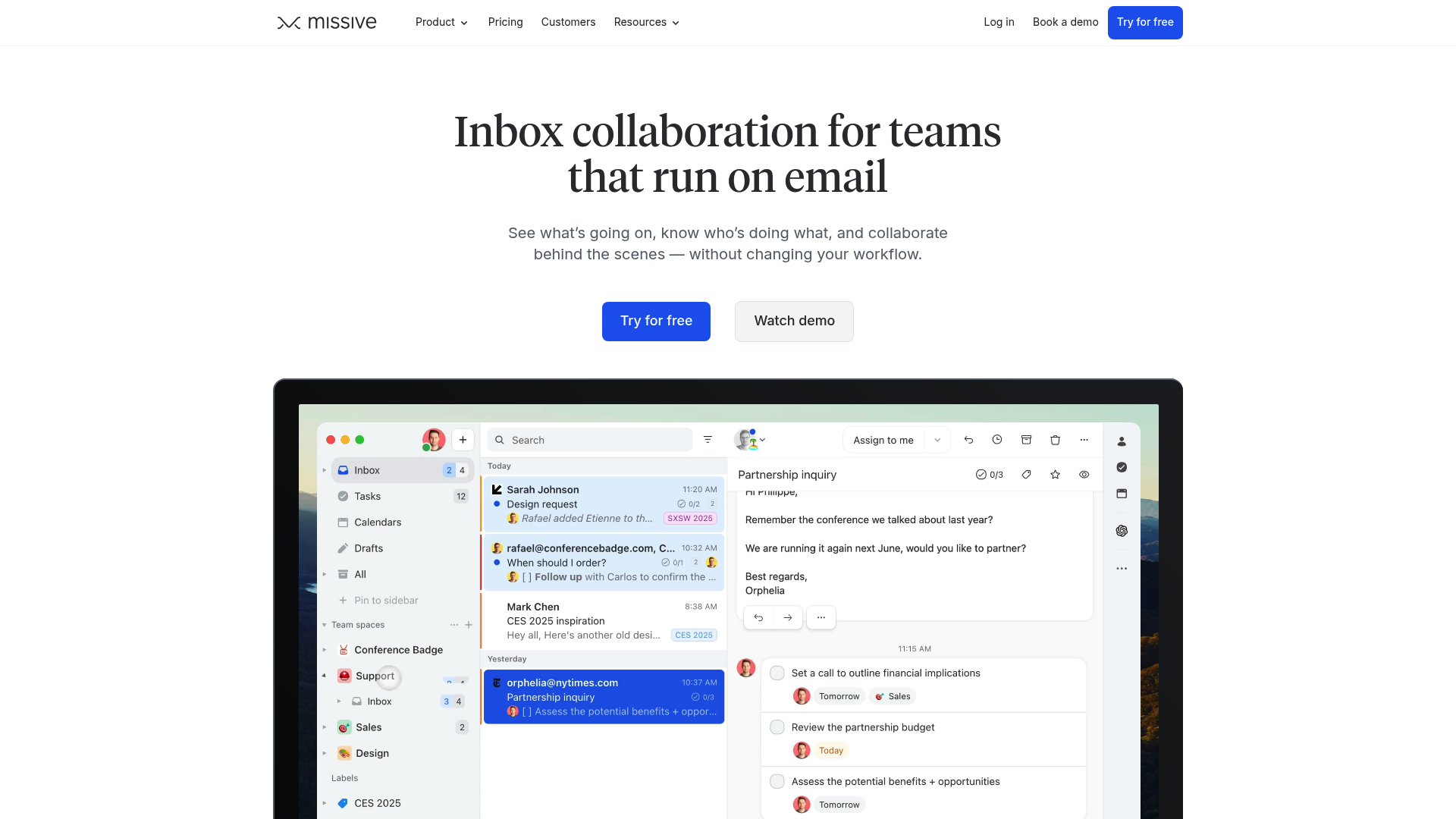
Missive is a collaborative inbox that pulls all your team’s conversations into a single place, no more tab switching. It includes features for managing email, SMS, WhatsApp, social media, and more. It also has built-in tasks, internal chat, and powerful automation, so your team can manage entire workflows without leaving their inbox. It works with all email providers, including Gmail and Outlook. Setup is guided, too: shared addresses like a Google Group have their own section under Settings > Accounts, with a walkthrough for connecting the address so the whole team sends and receives from it correctly.
Pros and cons: A key feature is its multi-channel support, letting your team manage every customer interaction from one place. Its AI-powered features, like drafting replies and spam filters based custom prompts, combined with automation rules for things like workload balancing, can increase team productivity. For solo users or very small teams who just need basic email sharing with a familiar web UI, the feature set might be more than you need.
Pricing:
- Free trial: 30 days with Productive features, no credit card required.
- Starter: $14 per user/month (billed yearly). Includes team inboxes, email, SMS, social accounts, and tasks for up to 5 users.
- Productive: $24 per user/month (billed yearly). Adds integrations, rules/automations, and basic analytics for up to 50 users.
- Business: $36 per user/month (billed yearly). Adds advanced analytics, SAML/SSO, and IP restrictions for unlimited users.
2. Help Scout

Help Scout is a customer service platform designed for personalized communication. It's a great Google Groups alternative for managing support emails, offering a clean shared inbox, a knowledge base (Docs), and live chat. Its AI features can automatically resolve up to 70% of routine questions.
Pros and cons: Help Scout is known for its user-friendliness and core help desk features like saved replies, collision detection, and internal notes. Its reporting tools also give you solid insights into your team's performance. On the other hand, it’s very focused on external customer support, so it may be less suitable for internal projects or managing a sales pipeline.
Pricing:
- Free: For up to 5 users, with 1 inbox and 1 Docs site.
- Standard: $25 per user/month. Includes 2 mailboxes, live chat, and basic workflows.
- Plus: $45 per user/month. Adds advanced workflows, unlimited AI drafts, and integrations like Salesforce and Jira.
- Pro: $75 per user/month. Adds unlimited workflows, SSO/SAML, and HIPAA compliance.
3. Hiver
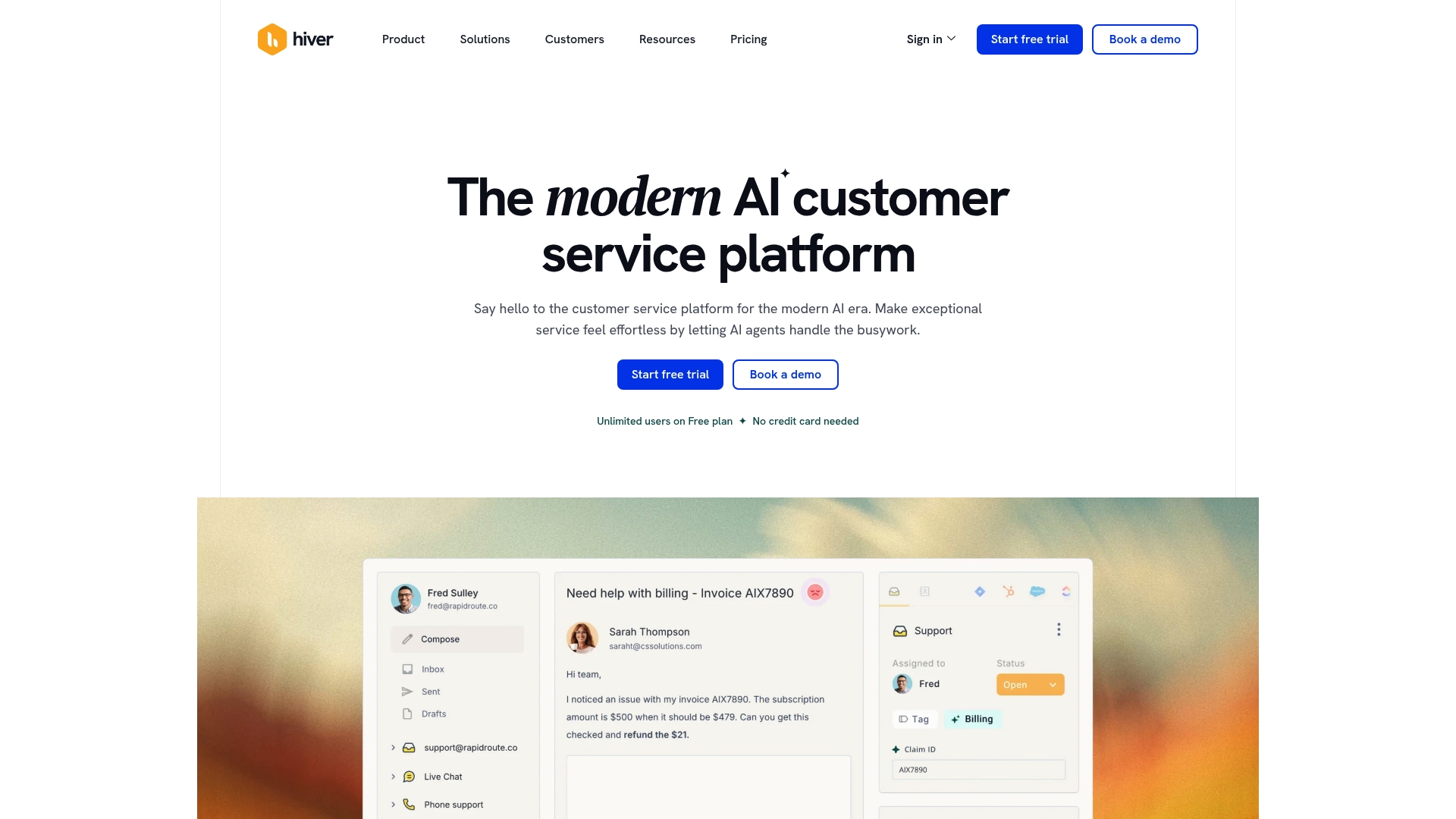
Description: Hiver is an AI-powered customer service platform for teams that primarily use Gmail. It integrates directly into the Gmail interface, turning it into a complete help desk without forcing your team to learn a new platform. It’s a solid choice for managing shared inboxes like support@ or sales@.
Pros and cons: Its tight integration with Gmail is a main draw, making it easy for your team to get started. Features like collision alerts, email assignment, and detailed analytics are all built right in. The biggest drawback is that it only works with Google Workspace, so it’s not an option if your team uses other email providers.
Pricing:
- Free: Includes email, live chat, and a knowledge base for unlimited users.
- Growth: $25 per user/month. Adds AI Compose, AI Summarizer, and rule-based automations.
- Pro: $65 per user/month. Adds AI Agents, AI Copilot, voice, WhatsApp, and CSAT surveys.
- Elite: $105 per user/month. Adds skill-based routing, HIPAA compliance, and custom roles.
4. Drag
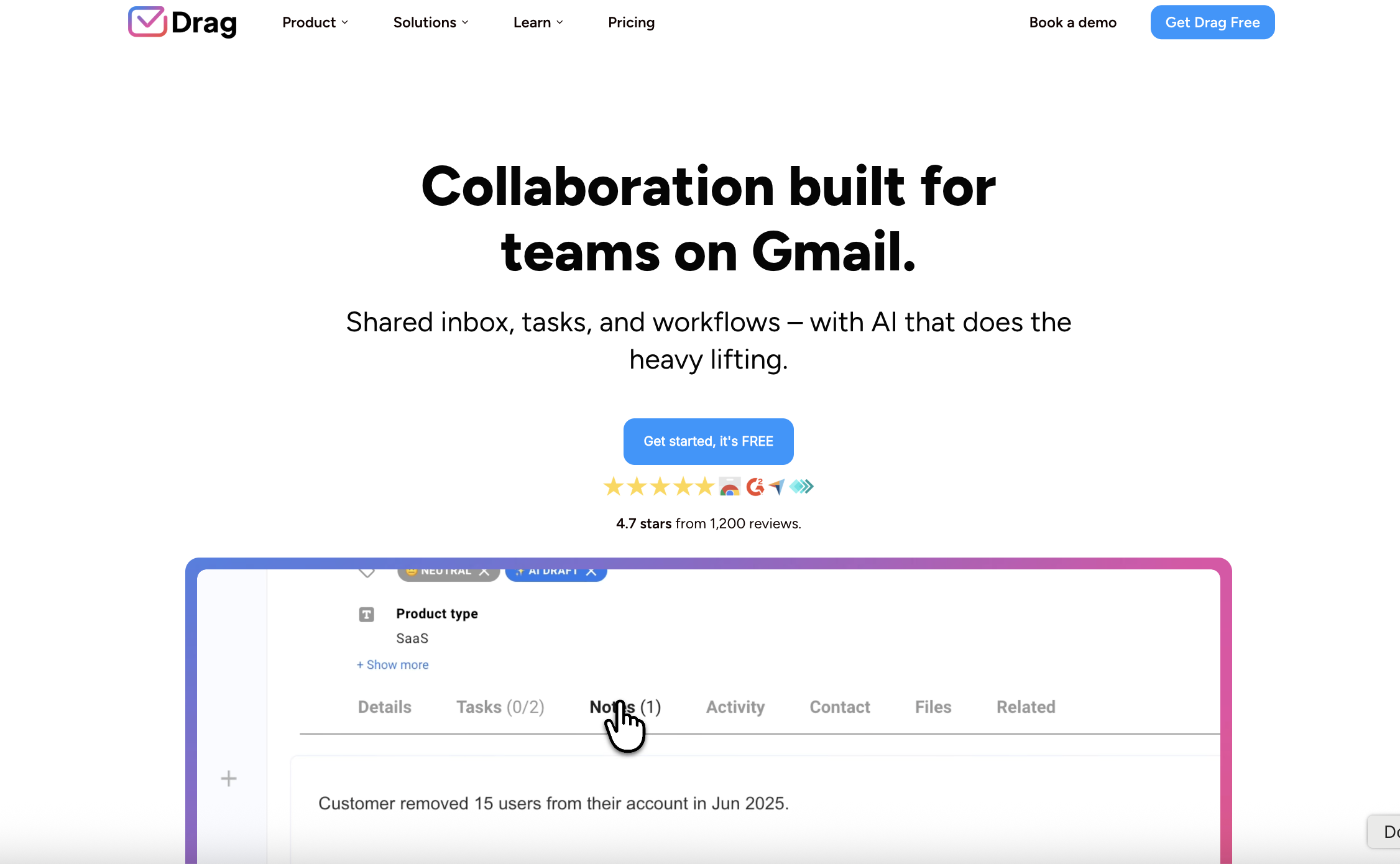
Description: Drag also operates inside Gmail but takes a unique, visual approach. It turns your inbox into a collaborative Kanban board, similar to Trello, letting you drag and drop emails between columns that represent different stages of your workflow.
Pros and cons: This visual workflow is well-suited for teams managing projects, sales pipelines, or support tickets in clear stages. The ability to add tasks, notes, and due dates directly to emails is a significant benefit for organization. However, if your team prefers a traditional list-style inbox, the Kanban-first approach might be less intuitive.
Pricing:
- Starter: $12 per user/month (billed yearly). Includes unlimited workspaces and basic automation.
- Plus: $18 per user/month (billed yearly). Adds AI assistants, email sequences, and file uploads.
- Pro: $24 per user/month (billed yearly). Adds WhatsApp channel support, API access, and custom roles.
5. Groups.io
If you're mainly using Google Groups as a mailing list or discussion forum, Groups.io is a modern replacement. It's designed for communities and offers a cleaner interface and more features than Google Groups, like a shared calendar, file sharing, wikis, and polls.
Pros and cons: Groups.io is privacy-focused (no ads or data mining) and offers great organization with features like hashtags. It is a suitable choice for non-profits, open-source projects, and hobby groups. While it's fantastic as a forum, it doesn't have the collaborative inbox features that business teams need for managing a high volume of customer emails.
Pricing:
- Free: For up to 100 members with core email group features.
- Premium: Starts at $20/month for the entire group, removing member limits and adding features like a calendar, files, and photos.
6. Slack
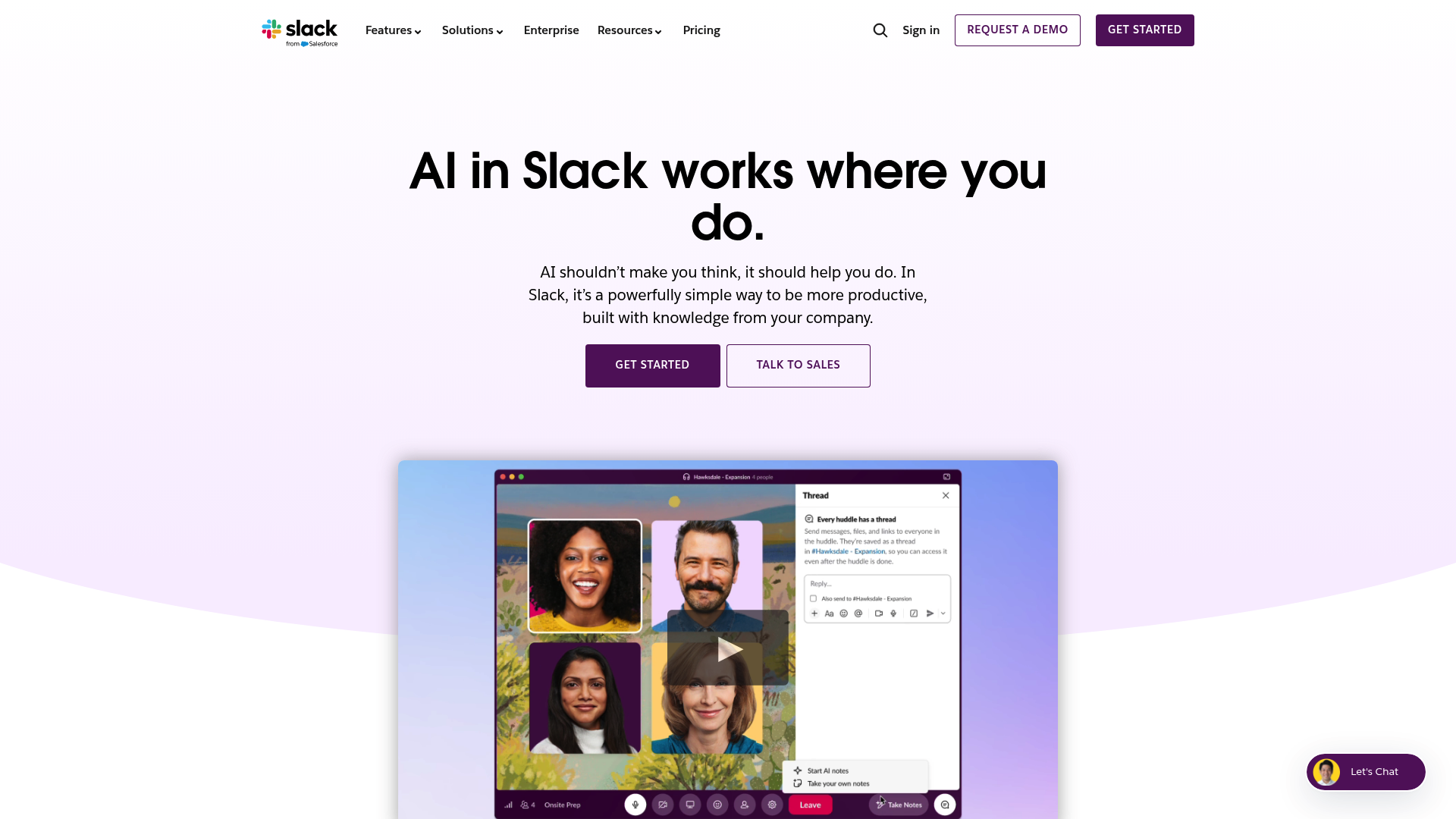
For many teams, an effective way to handle internal communication issues is to move away from email altogether. Slack is a channel-based messaging platform that organizes conversations by topic, project, or team, creating a searchable archive of all communication.
Pros and cons: Slack is designed for real-time internal collaboration and can dramatically reduce the number of internal emails you send and receive. Its extensive library of integrations makes it a central hub for all your team's work. The main thing to keep in mind is that it isn't built to manage external email from customers, so you'd still need a separate tool for your shared inboxes.
Pricing:
- Free: Limited message history and integrations.
- Pro, Business+, and Enterprise+: Paid plans are available with advanced features like unlimited message history, AI-powered summaries, and enterprise-grade security. You can visit their website for the most current pricing.
Understanding the fundamental differences between Google's own tools, like Google Groups and delegated access, can help clarify why so many teams seek out dedicated alternatives. This video offers a great breakdown of the pros and cons of each native Google option, highlighting the common pain points that the tools on our list are designed to solve.
How to choose the right Google Groups alternatives for your team
- First, identify your main challenge: What's the main problem you're trying to solve? Are you drowning in support tickets, struggling with forum moderation, or just need a better mailing list? A customer support team has very different needs than a sales team. For instance, if you need a knowledge base, Help Scout is a strong contender. If you love the idea of a visual workflow inside Gmail, Drag is built for you.
- Think about how your team works: Do you want a tool that lives inside Gmail, or would you prefer a standalone app? Do you need to manage other channels like SMS and social media? Missive excels at bringing all channels into one view (no more tab switching). Getting your team involved in this decision is key to making sure everyone actually uses the new tool.
- Test the tool: Most tools on this list offer a free trial or plan, which is a good way to evaluate them. Set up a pilot with a few teammates to test out the features in a real-world scenario. See how it feels to assign conversations, collaborate on replies, and organize your work. This is the best way to know for sure if a tool is the right fit.
It's time to upgrade your team's communication
While Google Groups is a functional starting point, it may not meet the needs of a growing business. Adopting a specialized collaboration tool can bring more clarity and accountability, leading to improved communication and customer satisfaction.
For teams looking for a platform that consolidates communication channels, automates tasks, and provides collaborative tools, Missive is one option to consider. You can get started on a 30-day free trial today, no credit card required.
Frequently Asked Questions
Q1: What are the main limitations of Google Groups that lead people to seek out Google Groups alternatives? A1: The main limitations are a lack of accountability (you can't assign emails), a user interface that is separate from Gmail, and no real workflow tools. This often leads to missed messages and confusion as a team grows.
Q2: Are there any free Google Groups alternatives for small teams? A2: Yes, several of the tools on this list, including Help Scout, Hiver, and Slack, offer free plans. Missive doesn’t, but every new team gets a 30-day trial. These are great for small teams or for trying out a platform's core features before committing to a paid plan.
Q3: How do I choose the right Google Groups alternatives if my team communicates on more than just email? A3: You should look for a multi-channel inbox. A tool like Missive is built for this, bringing email, SMS, WhatsApp, and social media into one shared space. This prevents your team from having to jump between different apps to talk to customers.
Q4: I like working in Gmail. Are there any Google Groups alternatives that work inside my inbox? A4: Absolutely. Tools like Hiver and Drag are designed to live directly inside the Gmail interface. They add shared inbox and workflow features without forcing your team to learn a completely new application.
Q5: What key features should I look for in Google Groups alternatives for customer support? I don't need forum moderation or message boards. A5: For customer support, look for features like email assignments, internal notes for team collaboration, collision detection (to prevent duplicate replies), saved replies for common questions, and analytics to track response times.

January 16, 2026
Ticketing system vs shared inbox
Ticketing system vs shared inbox: which is right for your team? We break down the pros, cons, and when to switch from a chaotic inbox to a structured tool.
Most teams start out with a simple shared email address like "info@" or "support@". It’s usually managed through a basic tool like an Outlook Shared Mailbox or a Google Group, and for a while, it works. It's simple, familiar, and gets the job done.
But then your team grows, and so does the email volume. Suddenly, that simple system is a source of chaos. Emails get missed. Two people send different replies to the same customer. No one is quite sure who’s handling what.
This is a common crossroads for growing teams: stick with the shared inbox, or move to a more structured ticketing system? The right answer really depends on how your team works. This guide will break down the practical differences, help you spot the signs that it’s time for a change, and show you how to choose a tool that actually helps your team.
What is a shared inbox?
A shared inbox is exactly what it sounds like: a standard email account that multiple people can use. Think Outlook 365 Shared Mailboxes or Google Groups for Business. They’re a popular starting point because they’re often included with software suites you already pay for.
The good parts:
- It's familiar. The interface is just a regular inbox, so there's no real learning curve. Your team can jump right in.
- It's cheap. They’re usually free with subscriptions like Microsoft 365 or Google Workspace.
- It's fast to set up. You can create a new shared address and grant access in minutes.
The not-so-good parts:
- No one owns anything. One of the biggest challenges is the "bystander effect," where everyone assumes someone else will reply, so no one does. Or, you get "agent collision," where two people reply to the same email with different answers.
- It's missing key features. Basic shared inboxes lack tools for tracking Service Level Agreements (SLAs) or building a knowledge base for common questions.
- You can't measure performance. It's difficult to track metrics like average response time. Managers are left guessing about team performance and can't spot where things could be better.
What is a ticketing system?
A ticketing system is specialized software built to manage customer communication. It turns every incoming message, whether from email, a web form, or social media, into a unique, trackable record called a "ticket." Each ticket gets a number and moves through a workflow from "open" to "resolved."
The good parts:
- Structured workflow. Every request becomes a ticket with a clear owner and status (like open, pending, or closed). This design enforces accountability and makes sure nothing gets lost.
- Built for collaboration. Features like internal notes and @mentions let team members discuss an issue privately within the ticket, keeping all context in one spot.
- Performance reporting. Ticketing systems have automatic dashboards that show clear data on metrics like first response time, ticket volume, and agent performance.
The not-so-good parts:
- Impersonal experience. Customers often feel like they’ve become just another number. The first thing they see is an automated email with a ticket ID, which can feel cold and robotic.
- Steep learning curve. Many help desks are complicated to configure and use, often requiring long training sessions, because they include a wide range of features.
- Rigid workflows. The strict processes in many ticketing systems can feel restrictive and get in the way of the natural conversations needed to solve complex problems.
A practical comparison of a ticketing system vs shared inbox
The real differences between these tools show up in your team's day-to-day work. Here’s how they compare on the things that matter most for collaboration and customer communication.
Ownership and accountability in a ticketing system vs shared inbox
With a shared inbox, ownership is vague. Teams often rely on manual tagging, shouting across the office, or just hoping the right person sees the message. This guesswork leads directly to dropped conversations and frustrated customers.
A ticketing system is built on accountability. Every ticket is assigned to a specific person or team. There’s no doubt about who is responsible for the next reply, which removes the friction of a shared inbox.
Collaboration and context with a ticketing system vs shared inbox
Collaboration in a shared inbox can be challenging. To discuss a customer email, you might forward it, CC a colleague, or switch to a chat tool like Slack. This scatters the conversation history everywhere, making it hard to piece together the full context later.
A ticketing system is designed for teamwork. Private notes and internal discussions happen directly on the ticket. This keeps the entire history of the conversation, both internal and external, in one place.
Tracking and performance: ticketing system vs shared inbox
A shared inbox offers no built-in analytics. If a manager wants to know how fast the team is replying, they have to use manual spreadsheets and guesswork, which is slow and often inaccurate.
In a ticketing system, automatic reporting is a core feature. Dashboards give you instant, clear data on key metrics. This helps teams spot bottlenecks, measure performance, and see trends in customer questions over time.
The customer experience in a ticketing system vs shared inbox
The experience with a shared inbox can feel personal, but it's often inconsistent. A customer might get conflicting answers from different people or have to repeat their issue every time someone new joins the thread.
A ticketing system provides a more consistent experience, since every agent can see the full conversation history. However, the automated responses and ticket numbers can make the interaction feel cold and transactional, as if the goal is to close a ticket rather than help a person.
7 signs you've outgrown a shared inbox
How do you know when a simple shared inbox is causing more problems than it solves? If your team recognizes several of these signs, it’s a clear signal that it's time for a better tool.
- Customers are following up on unanswered emails This is the most obvious red flag. If you’re regularly hearing, "Just checking in on this," it means messages are slipping through the cracks.
- "Agent collision" is a regular occurrence This happens when two teammates reply to the same customer at the same time. It confuses the customer and makes your team look disorganized.
- You have no idea who’s working on what The team relies on memory or verbal cues to track who is responsible for which conversation. Without clear ownership, important messages get dropped.
- You spend more time organizing than replying Your team is bogged down creating complex systems of folders and tags just to stay on top of the inbox. This is "shadow work" that can impact revenue and team burnout by focusing on managing the tool instead of helping customers.
- Urgent issues get buried in the noise In a chaotic inbox, a critical bug report looks the same as a password reset request. This can lead to dangerously slow responses for high-priority problems.
- You have no data to help you improve You can't answer basic questions like, "How many emails are we getting a day?" Without metrics, you’re making decisions without data and can't make informed decisions.
- Your internal communication is a mess of forwards and CCs If collaborating means forwarding an email with "FYI" or creating a long reply-all thread, your workflow is inefficient. This is a big red flag for collaboration and a sign you need a tool with built-in teamwork features.
Common drawbacks of ticketing systems
While ticketing systems solve the structural problems of a shared inbox, they often introduce a new set of challenges that can affect your team's workflow and customer relationships.
They turn human conversations into numbers
The ticket-based approach is impersonal. From the first automated reply with a ticket number, customers feel like they're just an entry in a queue. This can encourage agents to focus on metrics like "time to resolution" instead of actually solving the customer's problem.
They can introduce complexity
Many help desks come with a comprehensive set of features. This can make them difficult to implement and learn, requiring serious training time and frustrating new team members who just want to answer an email.
Their rigid workflows can hinder teamwork
Ticketing systems often impose strict, predefined workflows. While structure can be helpful, its rigidity can also stifle the creative discussion needed to solve complex problems. This often forces teams back to external tools like Slack for real collaboration, fragmenting the conversation all over again.
While ticketing systems offer more structure, it's important to understand the full picture. Seeing how others have navigated this transition can provide valuable insights into the benefits and potential pitfalls of moving away from a shared inbox.
Finding a middle ground
So, a shared inbox is too chaotic, but a traditional ticketing system is too rigid and impersonal. This is a common challenge, and it’s why a new category of tools has emerged: the collaborative inbox.
A collaborative inbox is a powered-up shared inbox. It's as fast as an email client and gives you the organization of a ticketing system, without forcing you to treat every customer conversation like a numbered ticket.
Missive is designed for teams that want to work together effectively, not just manage a queue. It keeps communication human while providing powerful, intuitive tools for collaboration.
.png)
- It feels like a real inbox, not a help desk. In Missive, conversations stay conversations. There are no ticket numbers, just clear assignments and an internal chat right next to the customer's email. You get all the accountability without the impersonal feel.
- Context is always clear. All your communication channels, including email, SMS, WhatsApp, and social media, live in a single unified inbox. Internal discussions happen right in the thread, so you never have to switch tools to find out what's going on.
- Ownership is simple and visible. You can assign any conversation to a teammate or a team. Everyone can see who is responsible for what at a glance, which eliminates email collision, duplicate work, and missed messages for good.
- Powerful, intuitive automation. You can use rules to automatically route messages, assign conversations, and send canned replies without a complex setup. Missive's AI rules can even analyze email content to detect urgency or sentiment, automating triage so your team can focus on the customer.
Choose a tool that fits how your team works
The choice between a shared inbox and a ticketing system isn't just about features; it's about finding a tool that matches how your support team needs to work.
A basic shared inbox can work for very small teams with low message volume, but it often breaks down as you grow. A traditional ticketing system brings structure and reporting, but often at the cost of complexity and a less personal customer experience.
The best tool enables your team to collaborate efficiently while keeping customer interactions human. It should adapt to your workflow, not force you into a rigid process.
If your team has outgrown the chaos of a shared inbox but doesn't want the impersonal rigidity of a traditional ticketing system, it might be time to see how a collaborative platform like Missive can bring clarity and calm back to your team's communication.

November 28, 2024
How to Centralize Client Communication for Better Team Productivity
Learn how to centralize client communication and improve team productivity for service businesses using Missive.
If you've ever found a three-week-old urgent request buried in a random folder—or opened your inbox on Monday morning to 47 unread emails in a single thread with ideas, debates, and decisions tangled together—you know the pain. These aren't rare horror stories. For service businesses managing dozens of client relationships, scattered communication is the norm, not the exception.
For process-driven industries like bookkeeping, plumbing services, or HVAC, client requests are the lifeblood of operations. But managing these requests efficiently often feels like juggling while blindfolded. With emails, SMS, and messaging apps replacing phone calls and sticky notes, businesses need a trackable, collaborative workflow to ensure no task falls through the cracks.
This guide will show you how to centralize your client communication using Missive—so your team spends less time searching for context and more time delivering great service.
Key Takeaways
- Eliminate Context Switching: Bringing email, SMS, and social media into one dashboard reduces mental fatigue and increases focus.
- Enhance Team Collaboration: Shared inboxes allow team members to discuss client messages internally before responding.
- Improve Response Times: Centralization prevents messages from falling through the cracks, ensuring faster and more consistent client support.
- Unified Client History: Access a full chronological record of all interactions across various channels in a single view.
Why Client Communication Gets Scattered (And Why You're Not Alone)
If you're like most service businesses, your communication probably looks something like this:
- Important client requests hiding in personal inboxes
- Crucial details scattered across Slack, WhatsApp, and email
- Team members playing email tag with "Did you handle this?"
- The dreaded "I thought someone else was on it" moment
- No visibility into who's working on what
The good news? You're not alone. The better news? Setting up a bulletproof, unified system with Missive is easier than you think.
What "Centralizing" Actually Means
Centralizing client communication doesn't mean forcing every message into a single inbox and hoping for the best. It means creating a system where every client interaction—regardless of the channel it arrives on—is visible to the right people, assigned to a clear owner, and tracked through to resolution.
In practice, that means bringing together these common communication channels:
- Email: Gmail, Outlook, and custom IMAP accounts.
- Social Media: WhatsApp, Instagram, and Facebook Messenger.
- Mobile: Business SMS and Twilio integrations.
- Internal: Team chat and collaborative comments on threads.
Instead of checking five apps and forwarding emails between teammates, your team works from a single shared workspace where nothing gets lost and everyone knows who's handling what.
Setting Up Your Centralized Client Communication System
A well-organized setup is the foundation of a smooth workflow. Here's how to configure Missive for managing client requests in a collaborative environment:
Step 1: Create Your Team Inbox
- Set up help@company.com for customer requests.
- Set up operations@company.com for things related to the business operation.
- Link these inboxes to teams in Missive (e.g., "Support Team" or "Operations Team"). Learn more about Team Inboxes.

Step 2: Set Up Assignments and Ownership
- Assign each request to a specific team member or group.
- Allow reassignments if the initial assignee is unavailable or needs support.
- This solves the "I thought someone else was on it" problem—every conversation has a clear owner.
Step 3: Enable Internal Collaboration (Without Clients Seeing)
- Create internal conversations for team discussions about complex client requests. This keeps conversations off email threads and in a dedicated space.
- Team members can @mention colleagues, share context, and make decisions—all without the client seeing a thing.
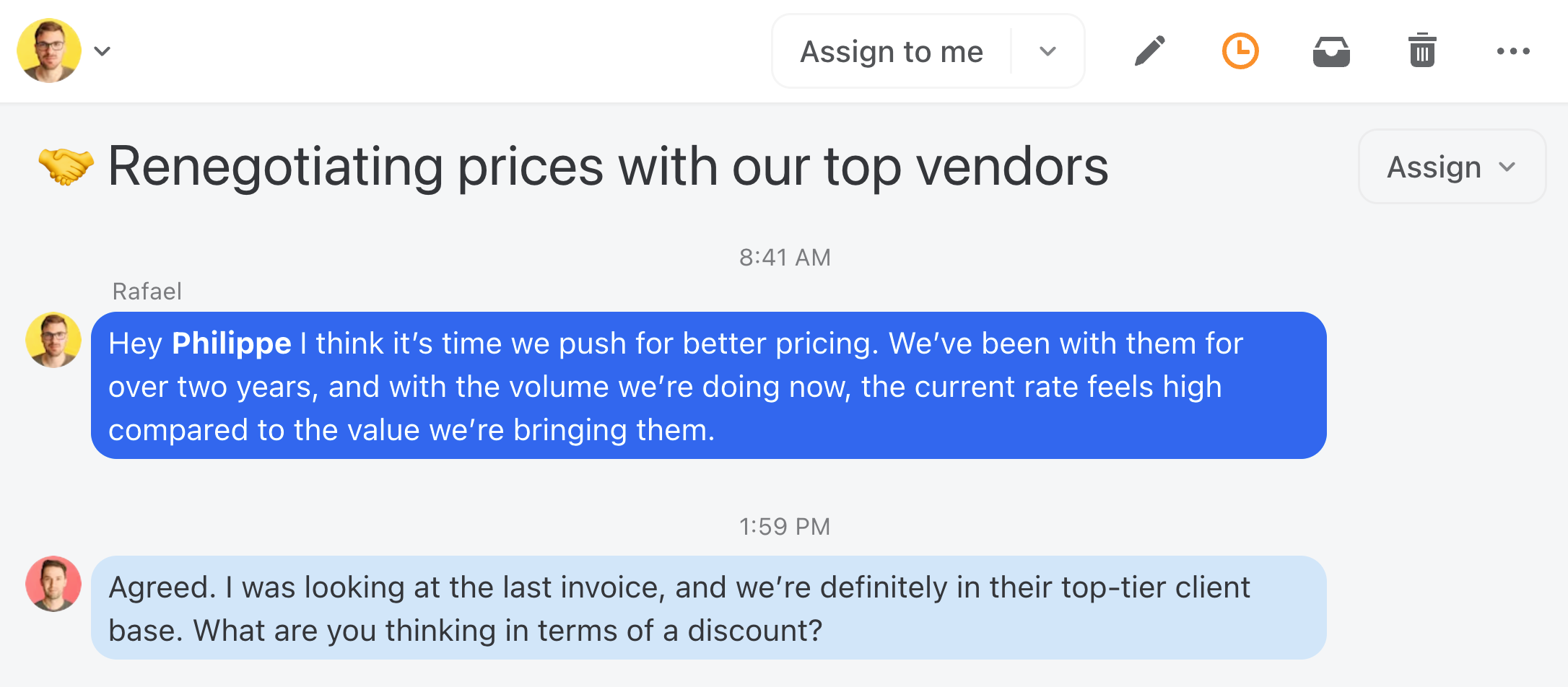
Step 4: Add Your Other Channels (SMS, WhatsApp, Social)
Missive isn't just for email. Connect your SMS lines, WhatsApp Business, and social media accounts so that every client touchpoint feeds into the same workspace. Your team can respond to a WhatsApp message and follow up over email—all from the same conversation thread.
Step 5: Set Up Contact Cards for Clients
- Save contact details (like phone numbers, email addresses, and notes) in Missive for easy reference.
- Add relevant labels like "VIP Customer" or "Maintenance Plan."

Step 6: Create Response Time Rules (SLAs)
- Use Missive's rules to set up automatic reminders for response times based on the urgency of a request. For example:
- Urgent requests: Respond within 2 hours.
- Routine inquiries: Respond within 1 business day.

Step 7: Build Your Canned Response Library
- Create templates for frequently asked questions, appointment confirmations, or follow-up emails.
- Examples:
- "Thank you for reaching out! A team member will contact you shortly."
- "Your request has been scheduled for [date]. If you have any questions, please let us know."
Your Day-to-Day Workflow: A Practical Walkthrough
With your configuration in place, here's how to handle client requests effectively:
When a New Request Comes In
Once a request arrives:
- Assign it to the appropriate team member directly in Missive.
- Include additional notes or files (e.g., a previous service history).
- Use labels like "Urgent," "Follow-Up Required," or "Pending Approval" to keep requests organized.
Pro tip: You can also create rules to automatically label conversations based on keywords. Read more here.
Tracking Progress Across Your Team
Team members can:
- Use internal chat to discuss requests or clarify details.
- Update the status of the request using shared labels like
Closing the Loop (And Keeping Records)
Once the service is completed:
- Send the invoice directly from Missive.
- Use a canned response for thank-you emails or service confirmations.
- Archive the conversation for future reference.
- Merge all messages related to the service into a single conversation.
Siloed vs. Centralized Communication
Still on the fence? Here's how a siloed approach compares to a centralized system like Missive:
| Feature | Siloed Communication | Centralized (Missive) |
|---|---|---|
| Visibility | Limited to account holder | Full team transparency |
| Collaboration | Forwarding/CCing required | Internal chat on threads |
| Organization | Manual folders | Shared labels and rules |
| Accountability | Unclear ownership | Assigned conversations with SLAs |
| Multi-channel | Separate apps per channel | Email, SMS, social in one place |
Best Practices by Role
For Business Owners and Managers
- Periodically review SLAs and adjust rules as needed.
- Provide feedback on canned responses or communication styles.
- Regularly review open conversations in Team Inboxes to ensure no request is left unassigned.
- Use Missive's analytics to track team performance (e.g., average response times).
- Redirect clients who email you personally to the team inbox—this solves the "CEO bottleneck" problem where only you have context on key accounts.

For Team Members
- Keep all communications within Missive to avoid scattered conversations.
- Mark completed tasks or close conversations promptly to keep the workflow moving.
- Use internal chat for questions instead of side-channel Slack messages or personal texts.
Common Mistakes to Avoid
Teams that rush into centralization without a plan often hit the same pitfalls. Watch out for these:
- Creating too many labels or folders. Start with five or fewer status labels and expand only when you have a clear need. Overcomplicating the system slows adoption.
- Not defining clear assignment rules. If nobody knows who should pick up a new request, it sits untouched. Decide upfront: round-robin, by client, by specialty, or by availability.
- Forgetting to set up SLA reminders. Without automated nudges, response times slip—especially during busy periods.
- Skipping team training on internal chat. If your team doesn't know about Missive's internal comments, they'll default to forwarding emails and CC chains. A 15-minute walkthrough prevents this.
- Trying to migrate everything at once. Start with one team or one inbox. Get the workflow right, then expand to other teams and channels.
Making It Work for Your Business
The key to managing client requests effectively is creating a system that's easy for your team to follow. Start simple, and as your team becomes more comfortable with Missive, refine the workflow to suit your specific needs.
By centralizing communication, assigning conversations clearly, and maintaining accountability, you'll not only handle requests efficiently but also provide a great client experience—earning trust and loyalty along the way.
Frequently Asked Questions
How long does it take to set up a centralized client communication system?
Most teams can get a basic setup running in under an hour. Creating your team inbox, connecting email accounts, and setting up a few labels is straightforward. The more detailed work—canned responses, SLA rules, and multi-channel connections—typically happens over the first week as you refine the workflow to match how your team actually operates.
What happens to our existing email history when we switch to Missive?
When you connect your email accounts to Missive, your existing messages sync over. Your team will have access to past conversations and can pick up where they left off. There's no need to manually export or import anything—Missive pulls in your email history automatically.
Can I centralize channels beyond email (SMS, WhatsApp, social media)?
Yes. Missive supports SMS (via Twilio), WhatsApp Business, Instagram, Facebook Messenger, and more. Every channel feeds into the same shared workspace, so your team can manage all client conversations without switching between apps.
How do I handle clients who keep emailing me personally instead of the team inbox?
This is one of the most common challenges for business owners. In Missive, you can set up a rule to automatically share conversations from your personal inbox with the relevant team. You can also use a canned response to gently redirect clients: "Thanks for reaching out! For the fastest response, please email help@company.com—my team monitors it around the clock."
What if my team resists changing how we handle emails?
Change resistance is normal. The best approach is to start small—have one team or department pilot Missive for a week. Once they experience the reduced back-and-forth and clearer ownership, adoption tends to happen naturally. A quick 15-minute onboarding walkthrough also goes a long way.

April 26, 2023
WhatsApp shared inbox: how teams handle WhatsApp messages together
WhatsApp is the world’s most-used messaging app, but its business tools aren’t built for teams. Here’s how a WhatsApp shared inbox works, why most companies need one, and how to set it up with Missive.
With 2.78 billion active users, WhatsApp is the most-used messaging app in the world. For a lot of customers, it’s the first place they’ll try to reach you: faster than email, less formal than a phone call, always within reach on their phone.
But WhatsApp’s own business tools aren’t built for teams. The WhatsApp Business app is a single-device, single-person product. Once more than one person needs to answer messages from support@ or sales@, you run into the same problem teams run into with shared Gmail accounts: overlapping replies, messages dropped, no visibility into who’s handling what.
A WhatsApp shared inbox solves that. This guide covers what it is, why teams adopt one, and how to set it up with Missive, including the 24-hour response window most new users don’t know about.
What is a WhatsApp shared inbox?
A WhatsApp shared inbox is a central place where multiple team members can see and respond to WhatsApp messages coming into a single business number. Instead of one person owning the WhatsApp phone, everyone on the team logs into a shared tool with their own account, and conversations can be assigned, discussed, and resolved collaboratively.
Think of it as the same pattern as a shared support@ email inbox, but for WhatsApp: one customer-facing phone number, many agents behind it, clear ownership per conversation.
How does a shared inbox work?
A shared inbox connects a single customer-facing address (or in this case, phone number) to a tool that multiple team members can log into with their own accounts. Each team member sees the same queue of conversations. Tools like Missive add assignments (so it’s clear who’s handling what), internal chat (so coworkers can discuss a reply without forwarding it), and rules (so routine messages get routed automatically). The customer still sees a single business number, but behind the scenes, a whole team is collaborating.
WhatsApp team inbox vs. WhatsApp shared inbox
These terms get used interchangeably. Both describe the same pattern: a single WhatsApp Business number, multiple agents behind it, clear ownership and collaboration on each conversation. Some vendors use “team inbox” to emphasize the collaboration angle and “shared inbox” to emphasize the central queue, but functionally they’re the same product category. What matters is whether the tool actually lets your team assign, chat internally, and apply rules, not which word is on the label.
Why WhatsApp Business App isn’t enough for a team
The free WhatsApp Business App is designed for sole proprietors and very small operations. Its limitations become obvious the moment you add a second person to the support rotation:
- One device at a time. The app is phone-based. If the owner of the phone is out, incoming messages either go unanswered or get relayed through screenshots in Slack.
- No assignments. There’s no way to mark “I’m handling this one” or “please respond to this, I’m stuck in a meeting.” Everyone on the phone sees everything, and handoffs happen out-of-band.
- No internal notes. You can’t discuss a customer’s message with a coworker without forwarding it somewhere else, losing context.
- No audit trail. When a message falls through the cracks, there’s no reliable way to figure out who saw it, when, and why it wasn’t answered.
- Mixed with personal. Many small businesses end up running WhatsApp Business on the owner’s personal phone, which blurs work-life boundaries and creates a single point of failure.
For a team of one, the Business App is fine. For two or more people sharing responsibility for a business number, it’s a daily source of friction.
What a WhatsApp shared inbox gives you
Once you move to a proper shared inbox tool, a few things change immediately:
Everyone on the team can see every conversation. No more “did someone reply to the customer?” because the conversation status (open, assigned, waiting, resolved) is visible to the whole team.
Conversations can be assigned. When Ahmed takes a billing question and Priya takes a technical one, the split is explicit. The customer doesn’t get two overlapping replies.
Internal notes live on the conversation. Want to flag that a customer is a VIP? Leave a note. Need to loop in a coworker on a tricky question? @mention them. The discussion stays attached to the conversation, not scattered across Slack and email.
Canned responses speed up repetitive replies. The same “here’s where to track your order” answer goes out in seconds, consistently, from anyone on the team.
You get history per customer. When the same customer messages again six months later, the full context is there: who handled them last, what was resolved, what to follow up on.
Rules can route conversations automatically. New WhatsApp message from a VIP contact? Auto-assign to a senior agent. Message in Spanish? Route to your Spanish-speaking team. Nobody has to be the human dispatcher.
What Missive is
Missive is a collaborative email client built for teams. Alongside email, it treats SMS, WhatsApp, Instagram, Messenger, and live chat as first-class channels. Everything your team might be asked to respond to lives in one place.
For WhatsApp specifically, Missive connects directly to Meta’s WhatsApp Business Platform. Your team gets assignments, internal chat on every conversation, shared drafts, templates, canned responses, and a rules engine that works across every channel you’ve connected.
Missive works on web, macOS, Windows, iOS, and Android with full feature parity, so the team member replying from their phone sees the same context as the one on a desktop.
How to set up a WhatsApp shared inbox with Missive
Missive integrates directly with Meta’s WhatsApp Business Platform. This is the official WhatsApp service for medium and large businesses, no third-party SMS gateway required.
Before you start, you’ll need:
- A Meta Business Account. Create one if your company doesn’t have one already.
- Business verification on that Meta Business Account. Meta needs to confirm your business is real before you can send messages at scale. Meta’s verification guide walks through it.
- Compliance with the WhatsApp Business Messaging Policy. In short: only message people who’ve opted in.
Once you have those in place, the setup is linear:
- In Missive, go to Settings > Accounts and click Add account.
- Open the Others tab and select WhatsApp Business.
- Sign in with your Meta Business Account.
- Review the permissions Missive is requesting and click Get started.
- Fill in your business details.
- Select or create a WhatsApp Business Account.
- Verify the phone number you want to use (by SMS or voice call, pick voice if the SMS doesn’t arrive, which happens).
- Add a payment method. Meta bills you directly for WhatsApp Business Platform usage; Missive doesn’t mark it up.
Once it’s connected, incoming messages arrive in Missive just like emails: assignable, taggable, searchable. Missive’s setup documentation has screenshots of every step if you get stuck.
The 24-hour response window (and why it matters)
This is the single most important thing to understand before your team starts using WhatsApp for support:
WhatsApp gives you 24 hours to respond to a customer’s message. After that window closes, you can’t send a free-form reply until the customer messages you again or you send an approved template.
This is a WhatsApp platform rule, not a Missive limitation. Meta designed it to stop businesses from spamming customers with unsolicited messages.
In practice, the 24-hour window means:
- Response SLAs matter more on WhatsApp than on email. A reply that takes 26 hours requires a template instead of a normal message, which is both more work and more restricted.
- Out-of-hours messages need a plan. If a customer messages at 11pm Friday and your team doesn’t log in until Monday, you’re already outside the window. Either set expectations with an automated response, or have at least someone watching on weekends.
- Templates are how you reinitiate. Approved templates let you send appointment reminders, order updates, or a “hey, we wanted to follow up on your question from last week” message even after the window closes.
Message templates: how to reopen a conversation
WhatsApp templates are pre-approved messages you can use to contact customers outside the 24-hour window or to initiate new conversations. They’re most commonly used for:
- Appointment confirmations and reminders
- Order updates and shipping notifications
- Customer service follow-ups after the 24-hour window closes
- Account alerts (password resets, suspicious login attempts)
You create templates in Meta Business Manager, submit them for WhatsApp’s approval (usually takes a few hours to a day), and once approved, they sync to Missive automatically. Templates can include variables like {{1}}, {{2}} for personalization (customer name, order number, appointment time).
One subtle gotcha: WhatsApp requires positional variables like {{1}} and {{2}}, not named ones like {{customer_name}}. If you see “Number of parameters does not match” errors in Missive, that’s almost always the cause. Edit the template in Meta Business Manager to use numbered variables and resubmit for approval.
Missive’s template guide has the full walkthrough.
Automating WhatsApp workflows with rules
Because Missive’s rules engine works across every connected channel, you can apply the same routing and automation to WhatsApp that you use for email. Some patterns teams use regularly:
Route by language. If a message comes in in Spanish, auto-assign it to your Spanish-speaking team. AI rules make this possible without hard-coding keywords.
Auto-tag by topic. AI-powered labels can categorize incoming WhatsApp messages as billing, technical, sales, or feedback. A second rule can then route each label to the right team.
Round-robin assignment. Every new WhatsApp conversation goes to the next agent in rotation, with anyone out of office skipped automatically.
VIP notes. When a priority customer messages, an internal note appears on the conversation reminding the team to escalate fast.
SLA alerts. If a WhatsApp conversation hasn’t been replied to within the 24-hour window, notify a manager before it expires.
Common WhatsApp shared inbox questions
Can multiple people reply to the same WhatsApp number at once? Yes. In Missive, any team member with access can reply to a WhatsApp conversation. The conversation history and assignments prevent overlapping replies.
Can we use our existing business number? Yes, though it takes time. You’ll need to port the number into WhatsApp Business Platform, which typically takes up to four weeks. An easier path is using a new number dedicated to WhatsApp, and keeping your existing phone line for calls.
Can we manage multiple WhatsApp numbers from one account? Yes. A single Meta Business Account can hold multiple WhatsApp Business Accounts, each supporting multiple phone numbers. Useful for agencies managing several clients, or businesses with separate numbers per region.
Does Missive support WhatsApp group messages? Not currently. The WhatsApp Business Platform requires additional technical work to enable group support. One-to-one conversations are fully supported.
Can we send voice notes? Not yet. Voice notes are on the roadmap but not available today.
Who pays for WhatsApp usage? Meta bills your business directly for conversations initiated on the Business Platform. Pricing varies by country and conversation type (business-initiated vs. user-initiated). Missive doesn’t add a markup, what Meta charges is what you pay.
Who should use a WhatsApp shared inbox
A few signs your team is past the point where the WhatsApp Business App is enough:
- More than one person needs to answer incoming WhatsApp messages
- Your business number is tied to a single phone, and handoffs are ad hoc
- You’ve had situations where customers were double-replied-to or left hanging
- You want to route WhatsApp alongside email, SMS, or live chat in one queue
- You need an audit trail of who said what to whom
- You’re running customer support or sales at any real volume through WhatsApp
If any of those sound familiar, a shared inbox tool will pay for itself in the first week through response-time improvements alone.
Missive is a collaborative email client with shared inboxes, internal chat, live drafting, and multi-channel support across email, SMS, WhatsApp, Instagram, Messenger, and live chat. Try Missive free for 30 days, no credit card required.

April 6, 2023
Shared Inbox for Gmail in 2026: How to Set One Up (and When to Move On)
Build a shared inbox for Gmail in 2026: delegation, Google Groups, and Collaborative Inbox setup steps, plus when to switch to real shared inbox software.
Quick Answer: A shared inbox for Gmail lets several people read, reply to, and manage one email address together. Gmail offers three native routes: account delegation, a Google Groups distribution list, and a Google Groups Collaborative Inbox. Each works for small teams but lacks real collaboration features, so growing teams usually move to dedicated shared inbox software.
Customer questions land at one address like support@ or billing@, but only one person can really see them. A shared inbox gmail setup fixes that. The rest of the team stops guessing who replied, forwarding threads around, and CC-ing each other in the hope that someone picks it up. Instead, everyone has access to the same conversations, so nothing falls through the cracks and no two people answer the same email twice.
Plenty of small and medium businesses run on Gmail, and for good reason. The catch is that Gmail was built for personal email, not for a team working a queue together. The good news: you have a few ways to share a mailbox in Gmail today, and a clear point where it makes sense to graduate to a tool built for this.
Definition: A shared inbox for Gmail is a single email address (like info@, support@, or sales@yourcompany.com) that multiple people can access and act on from their own logins. Instead of one person owning the password, the whole team can read incoming mail, reply, assign, and track what's been handled, all from one place.
Can you have a shared inbox in Gmail?
Yes. You can build a shared inbox in Gmail using features Google already gives you. There are three sensible native methods, plus one we'll mention only to talk you out of it. Each has trade-offs worth weighing before you commit your team to one.
The honest version: native Gmail can share access to mail, but it doesn't really help a team collaborate on that mail. There's no built-in way to leave a private note on a thread, draft a reply together, or see at a glance who's working on what. That gap is the whole reason this article has a second half.
How does a shared inbox work in Gmail?
A shared inbox in Gmail works by granting more than one person the ability to read and reply to the same set of emails. Here are the four ways people try it, from worst to best.
Sharing login credentials (don't)
The simplest approach is also the one to avoid: hand the username and password to everyone who needs in. It's easy, and that's the only thing going for it. You can't give granular access, everyone can change every setting, and a shared password is a real security risk. Skip it.
Delegated accounts
You can delegate your Gmail account to other people in your organization so they can read and send mail on your behalf from their own login, without the password. It's more secure than sharing credentials and quick to set up.
The limits show up fast for teams. There are no collaboration features, no shared view of who's handling what, and recipients can see the message was "sent by" a delegate. It's fine for one assistant covering one executive's inbox. It's not built for a team working a queue. If delegation is what you're after, our guide to email delegation covers it end to end.
Google Groups: distribution list
A Google Group gives you a few ways to share a mailbox. The first is a plain distribution list: every email sent to the group address gets forwarded to each member's personal inbox. That's useful for one-way blasts to billing@, info@, or marketing@, but it offers no collaboration and members can't reply as the shared address. It's a forwarding rule, not a shared inbox.
Google Groups: Collaborative Inbox
The better native option is the Google Groups Collaborative Inbox. Members see every email sent to the shared address inside their Google Group, and you get basic collaboration: assignments, labels, and a "resolved" status. There's no shared password to hand out, so security is better too. For a deeper look, see our breakdown of the Google Groups Collaborative Inbox.
It still has real gaps. There's no back-and-forth threading the way you'd expect, no merging related conversations, no saved shared reply templates, and no internal chat or comments. You also end up watching two places: your personal inbox and the group.
Advantages: real assignments and labels, better security than shared credentials, no extra cost on Workspace.
Disadvantages: separate views for personal and shared mail, no comments or internal chat, no collaborative drafting, limited threading.
How do I set up a shared inbox in Gmail?
We'll skip the credential-sharing walkthrough, since you shouldn't do it (and honestly, you don't need instructions to share a password). Here are the two methods worth setting up.
How to set up Gmail delegation
If you're on Google Workspace, first make sure your admin has enabled mail delegation for users. Personal Gmail accounts allow up to 10 delegates; organizations can have up to 1,000.
- Open Gmail on the web (you can't set up delegation in the mobile app) and click the Settings gear, then See all settings.
- Open the Accounts and Import tab.
- Under Grant access to your account, click Add another account.
- Enter the email address of the person you're delegating to.
- Click Next Step, then Send email to grant access.
Once they accept, your delegates can open the shared inbox from the account switcher in the top-right of Gmail.
How to set up a Gmail Collaborative Inbox
This takes a few more steps than delegation.
- Go to the Google Groups page and sign in.
- Click Create group and enter your group's name and address.
- On the privacy step, set Who can post to Anyone on the web so the group can receive outside email. Keep the other visibility settings tight so only invited members see messages.
- Open the group, go to Group settings, and under Enable additional Google Groups features, select Collaborative Inbox.
- Click Save changes.
You now have a Collaborative Inbox your team can use for a shared alias.
Native Gmail vs a real shared inbox: an honest comparison
Native Gmail methods are free and fine for the basics. Once collaboration matters (think a support or sales queue where several people work the same mail every day), the gaps add up. Here's a straight comparison.
The pattern teams describe is familiar. Kendra Edelman Smith, COO at Weekly Accounting, put her firm's early setup plainly: "It was very startupy. Everybody just had their own Gmail. You'd CC whoever needed to be looped in and hope the right person answered." That works until it doesn't, usually right when volume picks up.
A dedicated shared inbox closes those gaps without changing the address your customers already write to. If you're weighing tools more broadly, our roundup of the best email apps for Gmail compares the clients side by side; this article stays focused on the shared-inbox how-to.
How Missive turns Gmail into a real shared inbox
The reason teams outgrow native Gmail isn't the address, it's the collaboration. Missive connects your existing Gmail or Google Workspace account and makes the mail genuinely shared, so the whole team can work one queue without forwarding, CC chains, or a shared password.
When you connect an account in Missive, you choose whether it's personal or shared. Shared accounts automatically bring incoming mail to the team. If you only want to share specific aliases (say support@ and sales@ out of one admin@ account), you can set up shared addresses instead and route each alias to the right people. Google Groups work the same way: add the group address as a shared address and everyone sees one collaborative conversation instead of a separate copy landing in each person's inbox.
For incoming mail, you pick how it's delivered. A Team Inbox is a shared triage queue: when someone assigns, archives, or closes a message, it clears from the queue for everyone, so nobody re-reads what's already handled. Or you can have shared mail land in each person's regular Inbox. Managers can join as Observers to watch a team inbox without getting pinged on every message.
From there, the collaboration is the point. Anyone can assign a conversation to a teammate or a team, and it moves to that person's inbox and shows up in the team's task view. You can leave a private comment right on the thread and @mention a colleague to pull them in, which keeps the side conversation attached to the email instead of scattered across chat apps. When two of you need to reply together, you can write the draft at the same time, like a Google Doc, with each other's cursors visible. And rules can route, label, and assign incoming mail automatically based on who it's for or what it says.
That comment layer is what teams tend to miss most in native Gmail. Brett Fairchild at Weekly Accounting described how central it became: "The comment system is invaluable. Every single day, Kendra and I are tagging each other on things." For Scale CPA, which had been force-forwarding all of its scalecpa.com mail into a single admin Gmail account, the draft-together workflow was the unlock. As Operations Analyst Chris Wattinger put it, "About 30 to 40% of our workflow is just working on client emails, and being able to tag somebody to draft or work on an email has been a huge value to us." He added that "Missive had all the stuff we wanted from Front, it was more affordable, and the implementation was pretty easy."
One honest caveat worth knowing up front: Missive drafts don't sync back to Gmail's own draft folder. Because Missive drafts are fully collaborative, they can't be matched to Gmail's non-collaborative drafts. Replies you send still land in your sent mail as normal; it's only the in-progress drafts that live in Missive.
If you're trying to reach inbox zero as a team rather than as individuals, that shared, assignable queue is what makes it possible.
Is a shared inbox in Gmail right for my team?
Be honest about your size and workflow before you pick a method.
A delegated account is genuinely fine if it's one person covering one inbox and nobody needs to collaborate. Don't over-build for that.
A Google Groups Collaborative Inbox is a reasonable free step up for a small team that needs basic assignments and labels and can live without comments, shared drafts, and real threading. If you're already on Workspace and your volume is light, start there.
A dedicated shared inbox earns its place when several people work the same mail every day, when you're losing track of who replied, or when you want to manage email alongside SMS, WhatsApp, and social messages in one view. That's the moment native Gmail starts costing you more in coordination than it saves. It's also the right call for support, sales, and operations teams where collaboration is the job, not a side task. If team collaboration is the broader problem, our guide to collaboration software for small business puts shared inboxes in context.
FAQ
How do I create a shared inbox in Gmail?
You have two practical native options. Add delegates to a Gmail account so they can read and send mail from that inbox using their own login, or create a Collaborative Inbox in Google Groups so a team can share and triage a single address. Delegation suits one person covering one inbox; a Collaborative Inbox suits a small team sharing an alias.
Can you have a shared inbox in Gmail?
Yes. Gmail supports shared access through account delegation and through Google Groups (a distribution list or a Collaborative Inbox). All let more than one person handle the same mail. They cover the basics but don't include team features like private comments, real-time collaborative drafts, or automated routing.
How does a shared mailbox work in Gmail?
A shared mailbox in Gmail gives several people access to one set of emails so they can read, reply, mark as read, and organize together. You set it up by adding delegates to an account or by using a Google Groups Collaborative Inbox. Everyone with access works the same address instead of forwarding messages around.
What's the difference between a Google Group and a shared inbox?
A Google Group forwards mail to members or, as a Collaborative Inbox, lets them assign and label shared messages. A dedicated shared inbox goes further: internal comments, @mentions, collaborative drafting, automation rules, and a single view for personal and shared mail. A group shares the mail; a shared inbox helps a team work it.
Is it safe to share a Gmail password with my team?
No. Sharing one password removes any granular access control, lets everyone change account settings, and creates a real security risk if the account is compromised. Use delegation, a Google Groups Collaborative Inbox, or a shared inbox tool instead. Each gives team access without anyone handing around the login.
TL;DR
- A shared inbox gmail setup lets a team read, reply to, and manage one address (like support@ or info@) together.
- Gmail's native routes are account delegation, a Google Groups distribution list, and a Google Groups Collaborative Inbox. Never just share the password.
- Delegation fits one person covering one inbox; a Collaborative Inbox fits a small team that needs basic assignments and labels.
- Native Gmail can share access but lacks comments, collaborative drafts, automation, and a unified view.
- A dedicated shared inbox like Missive connects your existing Gmail, keeps your address, and adds assignments, @mentions, shared drafts, and rules.
- Choose by team size and workflow: start free where you can, and move on when coordination starts costing more than it saves.
Ready to turn Gmail into a real shared inbox your whole team can work? Try Missive free.

November 10, 2022
Distribution List vs. Shared Mailbox: Which One Should You Use?
Distribution list or shared mailbox, which should I use? What are their strengths and weaknesses? This blog...
Should I use (or still use) a distribution list or a shared mailbox? We get asked this question a lot, and although some say that it depends on your business needs, I say most businesses should opt for a shared mailbox over a distribution list. Let me explain.
Let’s start with understanding what they are and how they differ.
What is a Distribution List?
A distribution list is a method using a single email address to send emails to multiple people at the same time. Using a maintained list of email addresses, you can send emails to all recipients without having to use CC or BCC to manually enter all the addresses.
Companies have been using distribution lists mostly as a visibility hack and workaround. They want a group of people to see emails sent to a particular email address, for example, a support team getting emails from a shared mailbox (support@company.com).
The original email is replicated and sent to all the members of the list. The lists can be managed easily to add or remove recipients.
It's great for sending out information, but not for collaborating, coordinating a discussion, or even staying on top of the actual email thread.
Distribution lists were created in the early 1980s as a way to share news about certain subjects such as wine tasting. Like an email blast from your favorite blog, distribution lists were not meant for two-way communication aka. when you respond to emails and the visibility stops.
What Are the Disadvantages of Distribution Lists?
Distribution lists sounds like a great solution, but what about replies? This is where the email management all goes south. You have no way of knowing who has answered which incoming emails, what they said, or what they responded to.
This leads to duplicate responses, sending clients conflicting information, or simply not answering some messages at all.
This is where the second layer of hacking comes along. Businesses start developing intricate labeling systems on top of their distribution lists to keep track of who's working on what.

I've heard about these labeling chaos situations countless times. Those systems work at first, but you cannot scale much with them.
When Diane joined in 2014, we created a distribution list that went to both of us. It worked fine because we were small, but as we kept growing, the system became inefficient. - Canex Global
I've heard about these labeling chaos situations countless times. Those systems work at first, but you cannot scale beyond a couple people when you're relying on distribution lists and labels to stay in sync.
Simply put, distribution lists were not designed to be used for collaborative email management or in team setting.
Distribution lists are great for sending information or content to a lot of people at once, like a newsletter or internal communication for example, that don't require anyone to respond to emails or have open communication. They can be set up in Gmail (Collaborative Inbox) or Microsoft Outlook (Shared Mailbox), or into a marketing tool that will enable you to take advantage of segmentation.
What is a Shared Mailbox?
A shared mailbox is a mailbox that multiple team members can access simultaneously. Each member maintains a personal email account, but they all can "send as" and read messages from a particular email address.
Shared inboxes are a step up from a distribution list as they enable communication and collaboration around emails.
For example, Amy (amy@acme.com) and Lucy (lucy@acme.com) can receive and send messages from the shared mailbox address help@acme.com. They can reply using their personal accounts or use the shared address.
Users with access to the shared email inbox will be able to see and manage the mailbox from their personal account under their personal inbox. When an email is deleted from a shared inbox by a user, it will automatically be removed from the shared mailbox of all other users.
Contrary to distribution lists, most shared mailboxes offer collaborative features. For example:
- Ability to know who sent which email from a shared address
- Ability to assign messages to specific team members
- Ability to send canned responses or templates
- Ability to send from different email aliases with different signatures
A shared mailbox solves all the pain points presented by distribution lists.
- You promote accountability in the team
- You stop sending conflicting information to customers
- You add a notch of professionalism to your business belt by not responding twice or, even worse, not responding at all
How to Set Up a Shared Mailbox?
Setting up a shared mailbox isn't complicated. Most email clients offer some sort of shared inbox functionalities, however, as we'll see later the tools to manage share mailboxes don't offer all the same functionalities.
To create a shared mailbox in Google Workspace, you can either delegate an account to team members or use a Collaborative Inbox within Google Groups. Both enable team members to have access to shared email aliases and reply to messages, however, Collaborative Inbox enables teammates to collaborate around emails.
If you're using Outlook, you can create a shared mailbox to give permission to team members to view, edit and send emails using share email aliases such as support@company.com. You should note that shared mailbox in Outlook aren't available on mobile device.
Missive Team inboxes are shared mailboxes made for collaboration and assignment between team members. It is useful for teams who want a "triage" step that will clean up messages for all coworkers at once and for teams who want the ability to see read/unread status at an individual level instead of an email level.
Allowing you to answer the question: Is David working on that email? Without ever having to ask David.

You can set it up easily by creating a team and giving it access to the email address or email account that you want to share.
Distribution Lists vs. Shared Mailboxes: Which One Should You Use?

If your goal is to collaborate on incoming emails in a team setting, 10 out of 10 times go for the shared mailbox option. On the other hand, if your only goal is to broadcast information and you're not expecting replies, go for the distribution list.
Businesses with customer support, sales, or any other customer-facing teams will benefit the most from centralized emails coming into shared mailboxes, as it will enable better collaboration and make sure every team member are synchronized.
You can find very affordable ways to create distribution lists, whereas shared mailbox solutions tend to be a little more expensive. There's a reason for this; one was made with collaboration in mind, and the other is mostly a message forwarder.
What are some Disadvantages of Shared Mailboxes?
Mostly the added cost. Email wasn't mean to be a team activity but modern day business is a team sport so your out-of-the-box inboxes won't have very good shared mailbox functionality. Which means, if your business runs off of email inquiries and requests, you'll want software that is purpose built for collaborative teams and shared mailboxes.
Shared mailboxes are also the wrong tool for one-way communication, that's where distribution lists shine.
Which Shared Mailbox Tool Should I Use?
If you are looking for the best shared inbox software for your team emails, I suggest having a look at our guide.
As always, there are plenty of collaboration tool solutions out there. If you are looking for the barebones, most people start with Gmail's Collaborative Inbox or Outlook's Shared Mailbox but if you're working with a lot of volume, you might need a purpose-built collaborative inbox and they are not all created equally.
Try Missive for free
Depending on your needs, some features and functionalities might be more important than others, but being able to collaborate around shared emails is the most crucial aspect of a shared inbox tool.
Basic tools like Outlook or Gmail don't compete with a powerful tool like Missive. Sure they offer basic collaboration functionalities like labels and assignments, but with them, you won't be able to chat with coworkers inside an email conversation or compose an email collaboratively.
Considering a shared inbox tool with more advanced features can help your business offer better customer service, especially to those who process high volumes of emails every day.
No matter what tool you decide to use in the end, following shared inbox best practices will help your team collaborate smoothly and boost productivity.
A Better Solution to Distribution Lists
Missive is much more than a simple shared inbox medium; it's a collaborative inbox tool that empowers teams to collaborate around email and other channels of communication like SMS, WhatsApp, Messenger, and live chat.
It can be used in various scenarios in all areas of a business.
In addition to the shared inbox experience, you will also get access to these great features:
- Internal chat
- Live drafting
- Tasks and assignments
- Shared calendars
- Rules and automation (including AI)
- Canned responses
Bringing a distribution list or shared address into Missive is a guided setup: shared addresses have a dedicated section under Settings > Accounts that walks you through connecting the address step by step.
Book a demo to see how Missive can help your business.

November 4, 2022
How to manage a shared mailbox: 8 best practices for collaborative teams
Shared mailbox best practices from real ops, support, and accounting teams. Assign owners, coordinate in-thread, set SLAs that actually hold.
Quick Answer: Managing a shared mailbox well comes down to three things. Every conversation needs an owner. Your team needs a way to coordinate without cluttering the customer thread. And the inbox needs rules that escalate anything sitting unanswered too long. Without those three, you get duplicate replies, dropped emails, and no audit trail.
There's a moment in every team that switches from individual inboxes to a shared one when cracks start to show. Replies get missed. Numbers stop matching across team members. People wonder, quietly, whether they can trust the system they were asked to learn. That's the real cost of an unmanaged shared mailbox: not just dropped emails, but dropped confidence in the tool itself.
The shared mailbox best practices below come from real teams that worked their way out of those cracks. Three problems show up almost everywhere: the duplicate reply (two people drafting the same email), the ownership vacuum (everyone can see it so nobody owns it), and the audit trail problem (something goes wrong and there's no record of who did what).
Why do shared mailboxes break down, even when teams mean well?
Definition: A shared mailbox is an email address (support@, hello@, ops@) that multiple team members can read from and reply on behalf of. Unlike a distribution list, replies happen from a single shared address. And unlike a personal inbox, ownership of any given conversation has to be explicitly assigned, or it's nobody's.
Most teams don't fail at shared mailboxes for lack of effort. They fail because visibility alone isn't a system. When everyone can see every email, the default assumption becomes "someone else will get to it." That assumption multiplies, and conversations nobody flagged get buried under the next morning's volume.
The duplicate reply is the most embarrassing failure mode, but the ownership vacuum is the most expensive. A customer sends a quote request to ops@ on Monday. Three people see it, none of them claim it, and it surfaces Thursday when the customer follows up to ask why nobody responded. That's lost revenue, not lost time.
What does it actually cost when the shared mailbox is unmanaged?
The cost is concrete. Take Kyle's team at McRae's Environmental Services, a 70-year-old hydrovac operation in Western Canada. Six people work the dispatch desk, handling roughly a thousand emails a day across an Outlook shared mailbox. Before any best practices were in place, the team would scan the inbox each day and try to empty it before they left. Easy jobs got picked first. Harder ones, the ones needing coordination across operators or specialty equipment, got pushed aside. Some never came back.
Kyle's framing was direct: every missed job is missed revenue. Anywhere the shared inbox sits between an external request stream and an internal fulfillment stream, a missed email is a missed deliverable.
What does a well-run shared mailbox workflow look like?
The shared mailbox best practices below build on each other. Skip one and the next gets harder.
1. Document the process before you touch the inbox
Before configuring rules, assigning owners, or building labels, write down how you actually want the team to handle email. What constitutes a same-day reply? Who escalates billing questions? What's the tone standard? Without that document, every team member improvises, and the output looks chaotic to customers because the process is chaotic internally.
2. Assign every conversation, don't let anything sit unowned
This is what separates "we have a shared inbox" from "the shared inbox works." Every conversation needs a named owner. Visibility without ownership is the ownership vacuum. The model that works for most operational teams is specialty-based assignment.
At McRae's Environmental, Kyle's team assigned by the kind of work each email represented. Invoicing went to the finance person. Hazardous waste jobs went to the operator who handled that line. Video sewer inspections went to Kyle himself. The result, in his words: it's visual in front of his face, he can't miss it, it doesn't get lost. That's the qualitative shift the practice should produce.
The mechanics are the same in any decent shared inbox tool: assign at triage, keep an "unassigned" view as the daily backlog, and watch it trend toward zero by end of day. In Missive specifically, an assigned conversation jumps to the top of the owner's inbox, which makes it harder to forget.
Two setup traps worth flagging:
Know exactly what each action does. Every tool has its own verbs (assign, close, archive, send-and-close, snooze, task) and they don't all do the same thing across tools. In some, closing a conversation also closes its task; in others they're separate. Takaya, who runs accounting at Brunner Accounting, hit a version of this in Missive when a customer reply landed in a colleague's view rather than the team inbox: send-and-close had moved the conversation while leaving the task open. Her summary works as a universal warning: there are three plates running (conversations, tasks, and who's assigned) and you have to pay attention to all three.
Test your rules against real inbound mail. A common silent failure across rule-based inboxes: a rule looks correctly configured, fires fine in testing, then quietly does nothing in production because it's scoped to the wrong account or inbox. Yiyi at Stack AI ran into this when her organization rules worked but her personal ones wouldn't. Jaci, who runs a six-person accounting firm, hit a related version: her rules looked correct, but her personal account wasn't shared with the organization, so the org rules never fired on her inbound mail. After you set up rules in any tool, run a few real-world tests and watch what actually triggers.
3. Coordinate inside the thread, not in Slack
The single most reliable predictor of whether a team's shared inbox practices stick is whether internal coordination happens inside the email thread or somewhere else. Teams that coordinate in-thread build the audit trail they always say they want. Teams that coordinate in Slack lose context every time they switch tools, then drift back into forwarding emails to each other (the practice the shared inbox was supposed to replace).
The architectural rule working teams converge on: contextual comments live inside the conversation they're about. Ambient team communication (wins, general updates, water-cooler chat) lives in a dedicated chat channel or team room. Blurring those two creates a comment thread that becomes its own inbox.
Rob, who runs a private music school, describes the discipline plainly: anything to do with business should be on email so it can be labeled and tracked, not diluted in a separate WhatsApp chain. He replaced his agent's WhatsApp group with a pinned conversation in Missive for that reason. Brett and Kendra at Weekly Accounting follow the same rule, leaving comments and tagging each other daily for visibility on what each of them is working on.
Whatever tool you choose, look for one that puts internal comments inside each email conversation, not in a separate chat surface. In Missive, every conversation has an internal chat panel where you can @mention teammates without forwarding the email; the mention puts the conversation in their inbox with full context preserved. The architecture is the point: comments stay attached to the email they're about.
4. Set SLA alerts before you need them
A service level agreement (SLA) is a commitment to respond within a defined window. The shared mailbox version is usually a self-imposed rule: if an email has been sitting for X minutes without a response, escalate it. Done well, SLA rules surface conversations before the customer notices they were dropped. Done poorly, the alerts fire constantly and the team learns to ignore them.
What matters more than picking a threshold is understanding the three ways SLAs break silently after configuration, even when the rule looks correct.
Auto-responses don't stop the timer. Teams that send an automated acknowledgment ("Thanks for your email, we'll be in touch within an hour") often assume that satisfies the SLA. In most tools, including Missive, it doesn't. The timer started when the customer's email landed, and it keeps running until a person replies or the conversation is resolved. One support manager we worked with almost shipped an SLA configuration that would have given her dashboard a clean read while customers waited hours past breach.
Business hours have to match actual operating hours. Most shared inbox tools (Missive included) let you measure SLA timers in business hours, so the clock pauses overnight and on weekends. But the setting has to match reality. The same support manager had business hours set to 8 AM through 6 PM while her team's actual hours were 7 AM through 5 PM. Two hours of dashboard fiction every working day.
Know what action actually stops your SLA timer. Tools differ on this. In some (like Front), replying stops the SLA. In others (like Missive), you have to assign, close, or otherwise resolve the conversation explicitly. Jennifer, who runs Brown Trucking's email operations, hit this when she switched from Front to Missive. The logic makes sense once you understand it: a quick "I'll check on that" reply isn't a resolution. But it has to be explicitly known by the team. She rejected auto-assign-on-reply as a workaround for a reason worth thinking about: a team member sending a quick acknowledgment near end-of-shift might not be the right owner.
5. Use labels to make the inbox readable at a glance
Labels turn a wall of email into a navigable workspace. Use them for the type of request (billing, technical, sales), the stage of a conversation (new, follow-up, awaiting customer), or the client account a thread relates to. The discipline: use organization labels for anything collaborative and personal labels only for individual workflow. Mixing the two creates duplicate hierarchies that confuse new hires. Pin the most critical labels to the sidebar so they're one click away.
6. Build canned responses as a team, not individually
Canned responses are how teams reply consistently to the same five questions every customer asks. The trap is letting each team member build their own. You end up with five versions of the refund policy explanation, three welcome emails, and a tone that drifts depending on who replied. Build them once, share across the team, edit in one place. Shared templates also make onboarding faster, because new hires inherit the team's voice instead of inventing their own.
7. Automate the routine, use AI for the judgment calls
Two layers of automation work together. The deterministic layer handles routing: emails from a specific domain go to the right team, messages outside business hours get snoozed until morning, replies to certain templates auto-apply a label. Build these with rules. They're predictable, fast, and easy to debug.
The AI layer handles judgment calls rules can't make: reading the content of a message to decide which team it goes to, whether it's urgent, or what category it belongs in. Tools like Missive offer this through AI Rules. Not magic, just a useful triage layer on top of the deterministic ones. For a deeper walkthrough, see the guide to AI-driven inbox triage.
One cautionary note. Outgoing rules trigger on every message your team sends, including auto-replies. One team configured an out-of-office message as an outgoing rule rather than incoming. Every email they received triggered the reply, and because the reply itself was a sent email, it triggered the rule again. They woke up to 500 messages in their shared inbox. Outgoing rules need stricter conditions than incoming ones.
8. Protect access. No shared passwords, ever
Never share the password to a shared email account. Use a tool that gives each team member individual login credentials with access to the same shared mailbox. When someone leaves, you remove their account, not rotate a password across the whole team. Shared passwords also kill the audit trail: if five people log in as the same user, you can't tell who replied to what. Add multi-factor authentication and you've covered the basics.
How do teams know these practices are working?
The practical signals are simple. Unassigned conversations at end of day should trend toward zero. Duplicate replies should drop fast and stay there. SLA alerts should fire occasionally, not constantly. New hires should be productive within their first week, not their first month. The qualitative signal is the one Kyle described: it's visual in front of him, he can't miss it, it doesn't get lost. That's when the shared mailbox best practices have actually landed.
These practices make the biggest measurable difference for transactional-intermediary teams whose shared inbox sits between an external request stream and an internal fulfillment stream, where missed means lost work, not just lost time. The cluster: dispatch, freight and logistics, outsourced finance, wholesale quoting, aviation charter, and support teams running ticket-like email workflows.
Adoption isn't automatic even within that segment. One freight brokerage we worked with evaluated Missive against Front and ultimately moved to Front because they needed a different shape of cross-team collaboration. A logistics BDR we spoke with found Missive more complex than Front in the early setup phase. The honest version of "these practices work" is: they work for teams that invest in setup. If your team won't sit down for two hours to document the workflow and configure the rules properly, no shared inbox tool will save you. For teams that need a pure ticketing system instead, the answer is different.
FAQ
How do you manage a shared mailbox effectively?
Effective shared mailbox management comes down to three disciplines: every conversation gets a named owner through assignment, internal coordination happens inside the email thread (not in Slack), and SLA rules surface anything sitting too long before it gets buried. Document your process before configuring tools, then build labels, canned responses, and automation on top of that foundation.
How do you stop people from sending duplicate replies in a shared inbox?
Duplicate replies happen because nobody owns the conversation. The fix is to assign every incoming email to one person, either manually on arrival or automatically through routing rules. Once a conversation is assigned, it shows up in that owner's inbox and disappears from the unclaimed queue, so the rest of the team isn't tempted to start drafting in parallel.
What's the right way to assign emails in a shared mailbox?
The model that works for most teams is specialty-based assignment. Identify the categories of work your team handles (billing, technical support, specific client accounts, geographies, product lines) and route each category to the person or team that owns it. Use rules for the predictable cases and manual assignment for everything else. Make sure the unassigned view trends toward zero by end of day.
How do you set up an SLA for a shared inbox?
Pick a threshold that matches your team's commitment, then build a rule that escalates when a conversation has gone unanswered past that window. Configure business hours to match your actual operating hours (not assumed ones), check that auto-responses don't accidentally satisfy your SLA logic, and confirm what action actually stops the timer in your tool. In some tools replying is enough; in others (like Missive) you have to assign or close the conversation explicitly.
What should you never do with a shared mailbox?
Never share a password. Never coordinate in Slack about emails that are already in the shared inbox (you'll lose the audit trail). Never assume visibility equals accountability, because it doesn't. And never leave outgoing-message rules with broad conditions, because they can trigger on their own output and infinite-loop your inbox.
TL;DR
- Every shared mailbox conversation needs a named owner; "everyone is responsible" means nobody is
- Coordinate inside the email thread with internal comments, not in a separate chat tool. That's where your audit trail lives
- SLA rules break silently in three specific ways: auto-responses don't stop the clock, business-hours settings are often wrong, and tools differ on what action actually resolves a conversation
- Canned responses and labels only work if the whole team uses the same ones
- Shared passwords are a security risk and an accountability black hole. Use individual logins with team inbox access instead
Start a free Missive trial and set up your first shared inbox in under 10 minutes. The best practices above work in any tool. They just work faster in one built for them.

November 3, 2022
10 best shared inbox software for teams in 2026
The 10 best shared inbox software for teams in 2026, with current pricing: Missive, Front, Help Scout, Hiver, and more, plus how to pick and run one well.
The best shared inbox software for most teams in 2026 is Missive, which combines shared email, SMS, WhatsApp, and social channels with internal chat, assignments, and live co-drafting. Help Scout, Front, Hiver, Helpwise, Gmelius, Canary, and HubSpot are strong alternatives depending on your stack, and Google Collaborative Inbox and Outlook shared mailboxes cover the free basics. This guide compares all 10, with current pricing and honest tradeoffs for each.
Managing team email shouldn’t be a hassle. But if you’ve ever had a team reply twice to the same customer, or watched a support message fall through the cracks because nobody knew who was handling it, you know that “just using Gmail” stops working as soon as more than one person is responsible for an inbox.
That’s where shared inbox software comes in. These tools are built around the specific problems teams run into when multiple people need to handle email together: who’s replying, what’s been answered, what needs follow-up, and how to discuss messages without forwarding chains.
This guide covers what a shared inbox is, why your team probably needs one, the 10 best tools available in 2026, and how to actually manage a shared inbox well.
What is a team email?
A team email (sometimes called a shared email alias) is a single email address like support@company.com or sales@company.com that multiple team members can access and respond from.
It gives customers one consistent place to reach you, and gives your team a shared queue to work from. The tricky part is the “working from”, that’s what shared inbox software makes manageable.
What is a shared inbox?
A shared inbox is an email inbox that multiple coworkers can access and work from at the same time. Each person keeps their own login, but they all can send, read, and manage messages from specific shared addresses.
For example, John (john@acme.com) and Lucy (lucy@acme.com) can both handle emails arriving at help@acme.com, seeing what each other is working on, assigning messages, and responding without stepping on each other’s toes.
Unlike a personal email account, a shared inbox doesn’t get its own password for everyone to share (which would be a security nightmare). Access is granted through the tool’s admin settings, with clear roles and permissions per user.
How does a shared inbox work?
The basics are similar across tools: connect an email address, add team members, and now everyone can work the inbox together. What separates the good tools from the basic ones is what happens after that:
- Can you see who’s replying to a message, in real time?
- Can you assign conversations to specific people?
- Can you discuss a message internally without forwarding?
- Can you automate routing, labeling, and responses?
- Can you merge related conversations from different channels?
These are the features that make a shared inbox useful rather than just functional.
Should you use a shared inbox?
If your team is one or two people handling a low volume of email, you can probably get by with just giving everyone access to a Gmail account. It’s not ideal, but it works.
Once you have three or more people, or volume rises, the problems get real. Two people reply to the same customer. Messages get archived by someone who didn’t realize another teammate was still working it. Nobody knows whether that support ticket from Tuesday ever got resolved.
Shared inbox software exists specifically to solve these problems. Customer service teams, sales teams, operations, accounting firms, agencies: any team where multiple people respond to the same address benefits from moving off shared-password Gmail and into a proper tool.
Benefits of using a shared inbox
- Scale without creating new points of contact. Keep one clear address (help@acme.com) and add people behind it. Customers always know where to reach you.
- Clear ownership. Everyone sees who’s handling what. Duplicate replies become rare.
- Real security. No more password-sharing. Each person logs in with their own credentials.
- Better collaboration. Discuss replies with coworkers in context, no forwarding chains, no Slack debates about what to say.
- Faster response times. Multiple people can handle the queue in parallel, without conflicts.
- Better handoffs. Going on vacation? Just reassign your conversations. No “oh wait, that was in my personal inbox” moments.
The 10 best shared inbox software
Prices below reflect annual billing unless noted. Monthly billing on most of these tools runs 20-40% higher. Verified April 2026; this category moves fast, so spot-check current tiers before buying.
1. Missive
Best for teams that want real collaboration on email plus other channels.
Missive goes beyond basic shared inboxes. It’s a team inbox and internal chat app that lets your team collaborate across email, SMS, WhatsApp, Instagram, Messenger, and live chat, all in one place.
You can use Missive with personal email addresses as well as shared accounts, which makes it a genuine all-in-one tool rather than a separate system bolted onto your existing email.
The Team Inbox supports two user roles:
- Active members get notifications for new messages and see conversations in their personal inbox alongside the team inbox.
- Observers see the queue without getting notifications, perfect for managers who want visibility without being buzzed for every incoming email.
Other features that matter for real team work:
- Internal chat lives inside each email conversation. @mention a coworker and discuss without forwarding.
- Live drafting shows who’s typing a reply in real time, no more two people drafting answers to the same message.
- Assignments and tasks make ownership explicit. Any conversation can be assigned to a specific person.
- Shared calendars integrate meeting scheduling directly into the email flow.
- Rules automate routing, labeling, and replies, with AI-powered options for rules that read content, not just headers.
- Canned responses let your team answer common questions consistently in one click.
Price: 30-day free trial, no credit card. Paid plans start at $14/user/month billed annually ($18 billed monthly).
2. Google Collaborative Inbox
Best for small teams wanting a basic shared inbox inside Google Workspace.
Google Collaborative Inbox is a feature of Google Groups that lets team members manage conversations together. You can assign conversations to people, mark them resolved, and see what’s been handled.
It’s more functional than standard email forwarding but significantly more limited than purpose-built tools. Discussion happens outside the email (no internal chat threading), and it’s tied to Google Groups’ infrastructure, which has its own quirks.
Good for: small teams already fully in Google Workspace who want something free and basic.
Price: Free for Google Workspace users.
3. Outlook Shared Mailbox
Best for small teams already on Microsoft 365.
Outlook’s shared mailbox feature lets multiple users access a common email folder with permissions controlled by an admin. It’s free with Exchange Online, which makes it the default choice for teams already on Microsoft 365.
The tradeoffs are significant. Microsoft officially recommends not using it with more than 25 concurrent users. There’s no concept of assignments, internal discussion, or collaborative workflow; it’s just shared access.
Good for: small Outlook-based teams with low volume who need the cheapest possible solution.
Price: Free with Exchange Online / Microsoft 365 business plans.
4. Front
Best for enterprise teams with budget to match.
Front is one of the most well-known shared inbox platforms, aimed at larger organizations. It supports email, SMS, social media, and live chat in one interface, with features like internal comments, CRM-style contact profiles, analytics, and extensive integrations.
The enterprise positioning shows in the price: Front is consistently one of the more expensive options once you need multichannel and more than 10 seats. If you need its breadth and can afford it, it’s a capable platform. If you don’t need the full feature set, you’re paying for things you won’t use.
Price: Starter is $25/seat/month billed annually, capped at 10 seats and single-channel. Higher tiers (Growth, Scale, Premier) unlock more seats, channels, and enterprise features at significantly higher price points.
5. Helpwise
Best for small teams that want a lightweight shared inbox without a full help desk.
Helpwise is a focused shared inbox tool that handles email, SMS, and social media. It includes the basics (assignments, tagging, internal notes, rules) without the complexity of a full ticketing platform.
For teams who want “multiple people can work the same support email” without the overhead of Zendesk or similar, Helpwise is a reasonable middle ground.
Price: Standard starts at $15/user/month. Premium is $25/user/month and Advanced is $50/user/month.
6. Help Scout
Best for customer support teams who want a shared inbox plus a knowledge base.
Help Scout bundles a shared inbox with knowledge base tools, live chat, and customer profiles. It’s a full help desk platform designed for customer-facing teams, with features like SLA tracking, ticket management, and customer history.
The tradeoff is that it’s a support-specific tool. Using it as a general email client for internal communication doesn’t fit the model. For teams that specifically need support workflows with a knowledge base, it’s solid.
Price: Standard starts at $25/user/month. Plus is $45/user/month. Pro runs $65 to $75/user/month. AI Answers is billed separately at roughly $0.75 per resolution.
7. Hiver
Best for teams that want to keep working inside Gmail.
Hiver is a Chrome extension that adds shared inbox features on top of Gmail. You get assignments, tagging, internal comments, and automation without leaving the Gmail interface your team already knows.
The upside is familiarity: no retraining needed. The downside is that you’re limited to whatever Gmail allows, and you need to be using Google Workspace.
Price: Hiver recently restructured tiers. Free forever plan available. Growth starts at $25/user/month billed annually ($35 monthly), Pro at $45 annual ($55 monthly), Elite at $75 annual ($95 monthly). AI features are a separate $20/user/month add-on on top of the seat price.
8. Gmelius
Best for Gmail teams who want project management alongside their shared inbox.
Gmelius is another Gmail add-on, similar to Hiver in that it adds shared inbox features inside Gmail. Its differentiator is the Kanban-style project board that lets you visualize email as tasks, useful for teams who already treat their inbox like a to-do list.
Same tradeoff as Hiver: it’s Gmail-only and depends on extension behavior.
Price: Starting around $15/user/month (verify current pricing on their site).
9. Shared Inbox by Canary
Best for teams that want an AI-first shared inbox.
Canary’s Shared Inbox is a newer entrant focused on email-first collaboration with heavy AI integration. The core features are the usual (assignments, internal comments, status labels) but the AI layer is where it tries to differentiate: suggested replies, an AI chatbot for deflecting repetitive questions, and a clean analytics dashboard.
The interface is minimal and intuitive, which works well for teams that want to get going fast without a lot of configuration.
Price: Starting at $10/user/month. 7-day free trial available.
10. HubSpot
Best for teams already using HubSpot CRM.
HubSpot offers a shared inbox as part of its broader CRM platform. You can connect team mailboxes, Facebook Messenger, live chat, and chatbot tools into one interface alongside your CRM data.
This only makes sense if you’re already using HubSpot or planning to. Using HubSpot Conversations without the rest of HubSpot is overkill for most teams.
Price: Free tier available (with HubSpot branding on chat widgets). Paid Marketing Hub tiers start higher. Verify current pricing as HubSpot tiers change frequently.
Which shared inbox software is best for your team?
The right pick depends on your stack, your channels, and your budget. Quick picks by situation:
- Best for customer support teams: Missive if replies should feel personal and collaborative across email, chat, and socials. Help Scout if a built-in knowledge base matters more. Front at enterprise scale and budget.
- Best for Gmail users: Missive connects Gmail and Google Workspace accounts in minutes and works as a full email client. Hiver and Gmelius are the picks if your team must stay inside the Gmail interface itself.
- Best for Outlook and Microsoft 365: Missive works with Microsoft 365 accounts and adds the assignments, internal chat, and automation that native Outlook shared mailboxes lack. The native shared mailbox is fine for small, low-volume teams.
- Best free option: Hiver’s free plan, or Google Collaborative Inbox and Outlook shared mailboxes if you already pay for those suites and basic shared access is enough. Missive has no free tier, but its 30-day trial is the longest on this list.
- Most affordable paid plans: Canary at $10/user/month and Missive at $14 are the value picks. Helpwise at $15 is close behind.
- Best for multichannel (SMS, WhatsApp, socials): Missive and Front both handle it. Missive does it at a fraction of Front’s seat price.
- Best for remote teams: Missive. Internal chat inside every conversation replaces the forward-and-Slack shuffle that remote teams fall into.
How to manage a shared inbox well
Picking a tool is the first step. Using it well is what actually delivers results. A few principles that hold up across every tool:
Define ownership. Assignments should be used aggressively. Every email gets claimed by someone, or stays in an unassigned queue that a designated triage person works through. Unclear ownership is the #1 reason shared inboxes fail.
Set response time targets. If the goal is “respond within 4 hours during business hours,” say that out loud. Measure it. Hold people accountable. Without explicit targets, response times drift.
Use labels and tags consistently. Pick 5-8 labels that map to real workflow states (“Billing,” “Technical,” “Escalated,” “Needs Manager”) and train everyone to use them the same way. Inconsistent labeling is almost as bad as no labeling.
Build a canned response library. Track the 10-20 questions you answer most often. Write templated responses for each. Save everyone hours per week.
Automate the repetitive parts. Rules can auto-assign based on sender, keyword, or subject line. Incoming invoices go to Finance. Tech questions go to Support. Don’t make humans do routing that a rule can handle.
Hold a weekly review. What’s sitting in the queue too long? Where are we dropping the ball? What’s coming up as a recurring theme? Shared inboxes surface patterns that deserve attention.
Frequently asked questions
What is the best shared inbox tool for support teams?
Missive is the strongest pick for support teams that want replies to feel personal and collaborative: internal chat lives inside each conversation, live drafting prevents duplicate replies, and rules automate routing across email, SMS, WhatsApp, and socials. Help Scout is the pick when a built-in knowledge base is the priority, and Front fits enterprise support teams with enterprise budgets.
What is the best shared inbox for Gmail users?
Missive connects Gmail and Google Workspace accounts in minutes and replaces the Gmail interface with a collaborative one. If your team wants to keep working inside Gmail itself, Hiver and Gmelius add shared inbox features as extensions, with the tradeoff that you’re limited to what the Gmail interface allows.
What is the best shared inbox for Outlook users?
Native Outlook shared mailboxes are free with Microsoft 365 and fine for small, low-volume teams, but Microsoft recommends keeping them under 25 concurrent users and they have no assignments or internal discussion. Missive works with Microsoft 365 accounts and adds those collaboration features on top, which is why many Outlook teams graduate to it.
What is the most affordable shared inbox software?
Canary’s Shared Inbox starts at $10/user/month and Missive at $14/user/month billed annually. Google Collaborative Inbox and Outlook shared mailboxes are free with their respective suites if you only need basic shared access, and Hiver has a free plan. Missive is paid after a 30-day trial.
What’s the difference between a shared inbox and a distribution list?
A distribution list forwards incoming emails to everyone on the list, meaning 10 people get the same email in their personal inbox, and there’s no coordination about who replies. A shared inbox has one central queue everyone works from, with visibility into who’s handling what.
Is Google Collaborative Inbox a real shared inbox?
It’s a lightweight shared inbox, yes. It supports basic assignments and status tracking, but lacks features like internal discussion on threads, real-time collaboration, and deeper automation. Fine for small teams with low volume; insufficient for most growing teams.
Can you share a Gmail account as a shared inbox?
Technically, yes: multiple people can log into the same Gmail account. But this is a security risk (shared passwords), causes conflicts (two people replying to the same message), and provides no audit trail. A proper shared inbox tool solves all these problems.
What’s the minimum team size that needs shared inbox software?
Three or more people. With two, you can usually coordinate manually. Once a third person is involved, the cost of miscommunication starts outweighing the cost of a tool.
Do shared inbox tools work with any email provider?
Most do. Gmail, Outlook, Microsoft 365, Google Workspace, and custom IMAP are supported by all major shared inbox tools. A few (Hiver, Gmelius) are Gmail-specific.
Missive is a collaborative email client that treats team inboxes as a first-class feature, with assignments, internal chat, live drafting, multi-channel support, and AI-powered automation all in one place. Try Missive free for 30 days, no credit card required.