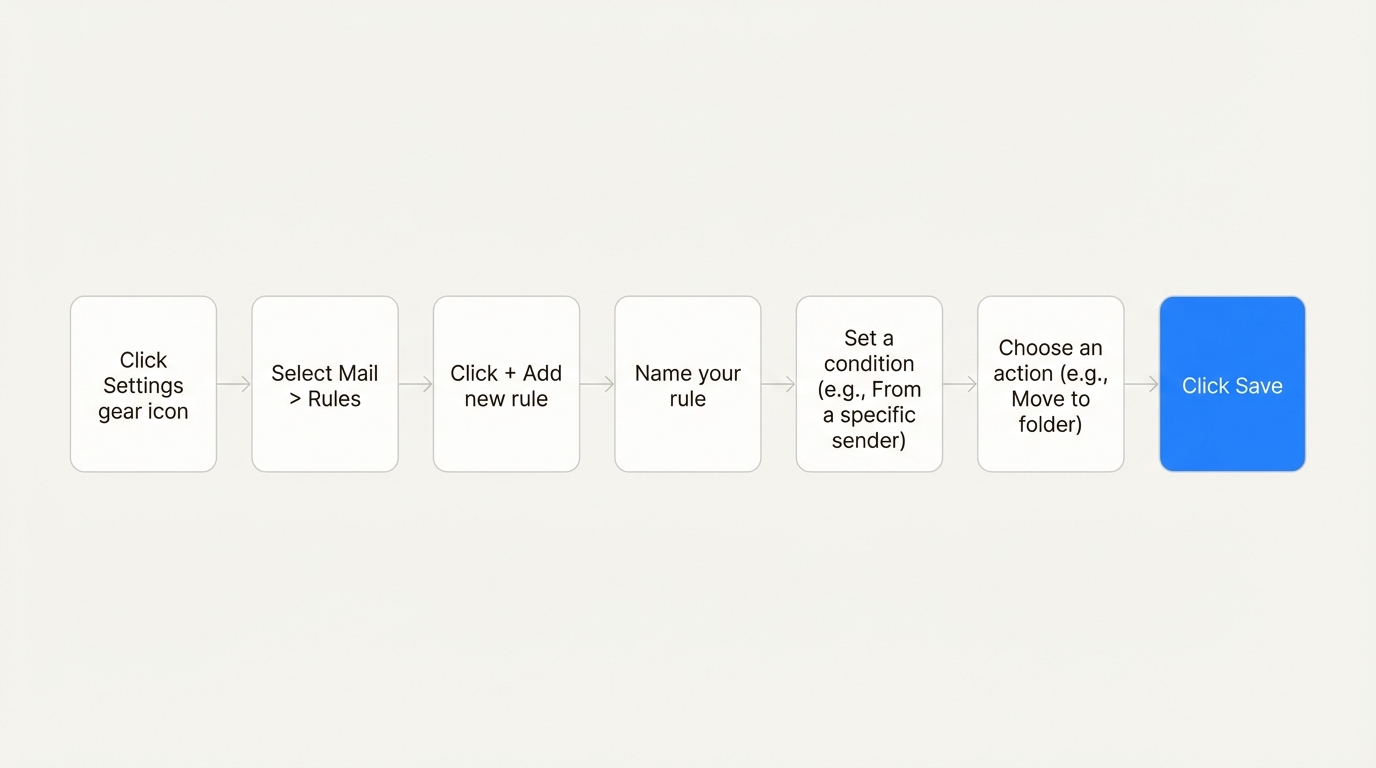
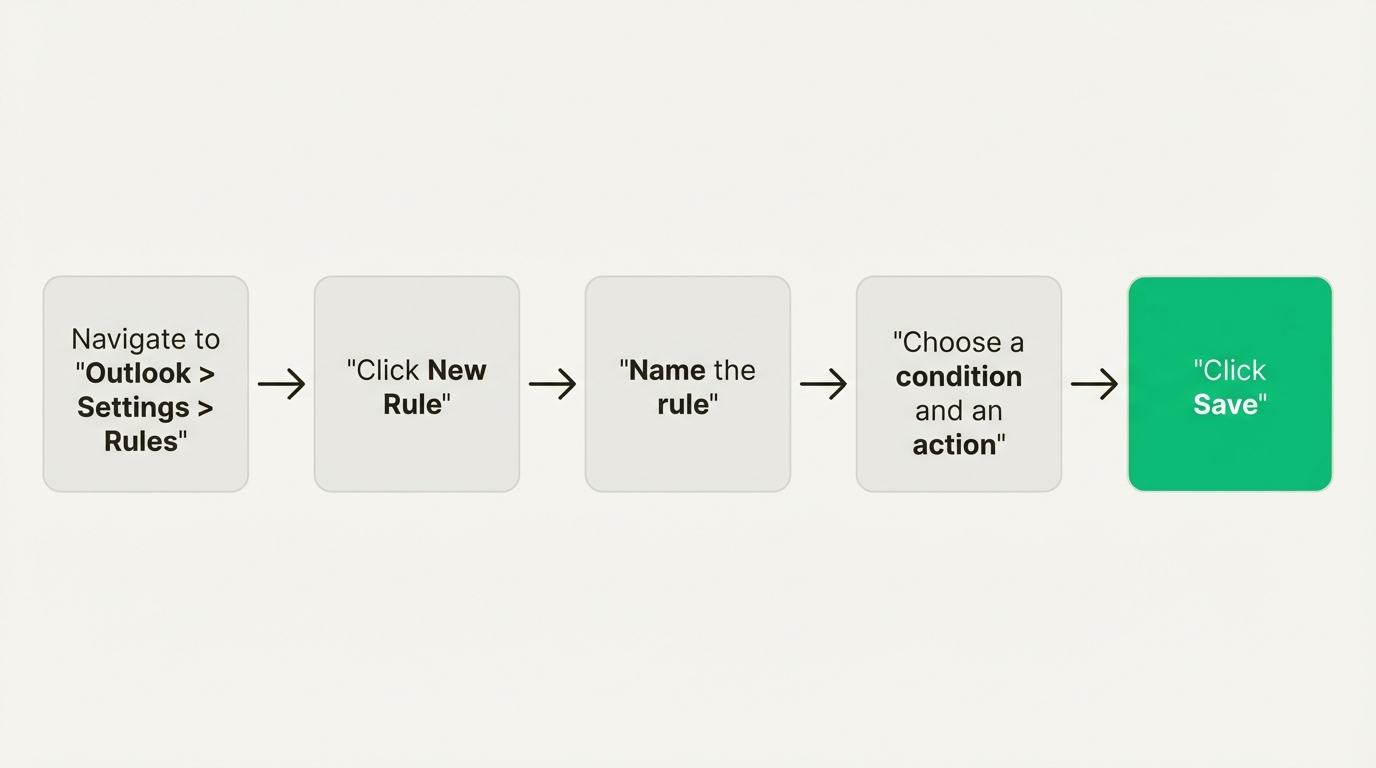
Quick Answer: The eight most useful ways to put AI to work in your email inbox in 2026 are: auto-categorizing and archiving incoming mail, routing emails based on intent, auto-unsubscribing from sources you ignore, escalating urgent messages to the right person, drafting replies to common questions using a grounded prompt, summarizing incoming sales leads, scheduling meetings using the assistant's calendar access, and pulling context from past conversations or contacts before you reply. The 2026 shift: AI in email moved from helping you write to acting on your behalf, with humans in the loop on send.
AI and email management go hand in hand. Some AI tools help you clean your inbox. Others draft emails faster than you can type them. The most interesting ones in 2026 do work in the background, classify what just arrived, route it to the right teammate, draft a reply grounded in your real context, and stage everything for human review before send.
This piece covers the eight practical, real-world ways teams put AI to work inside their inboxes this year. At Missive, our users get a lot of email (100+ a day in some cases). We crowdsourced the most useful patterns from real businesses already running them.
What is AI in email management?
Definition: AI in email management refers to using large language models (or rule-based AI systems) to read, classify, draft, route, or otherwise act on email content. The category ranges from in-composer drafters (you type a prompt, it writes a paragraph) to autonomous agents that read inbound mail, take actions, and surface results for your review. See our guide to the best AI email assistants for the full landscape.
The mechanics fall into three broad buckets:
Clean emails. A purge function (archive everything before a date) plus an ongoing system to keep your inbox clean (auto-categorization into folders or labels). SaneBox is the best-known example.
Draft emails. Prompts that take your writing style, structure, and tone into account, plus access to context (your knowledge base, your conversation history, your CRM) for grounded replies. Which model you pick matters less than the grounding, but our Claude vs GPT vs Gemini comparison breaks down the differences.
Kick off other tasks. The most interesting part. Tools like Missive's AI Assistant and AI Rules let you automate a chain of actions based on the content of an email: assign to the right person, create tasks, apply labels, log to your CRM. No manual triage.
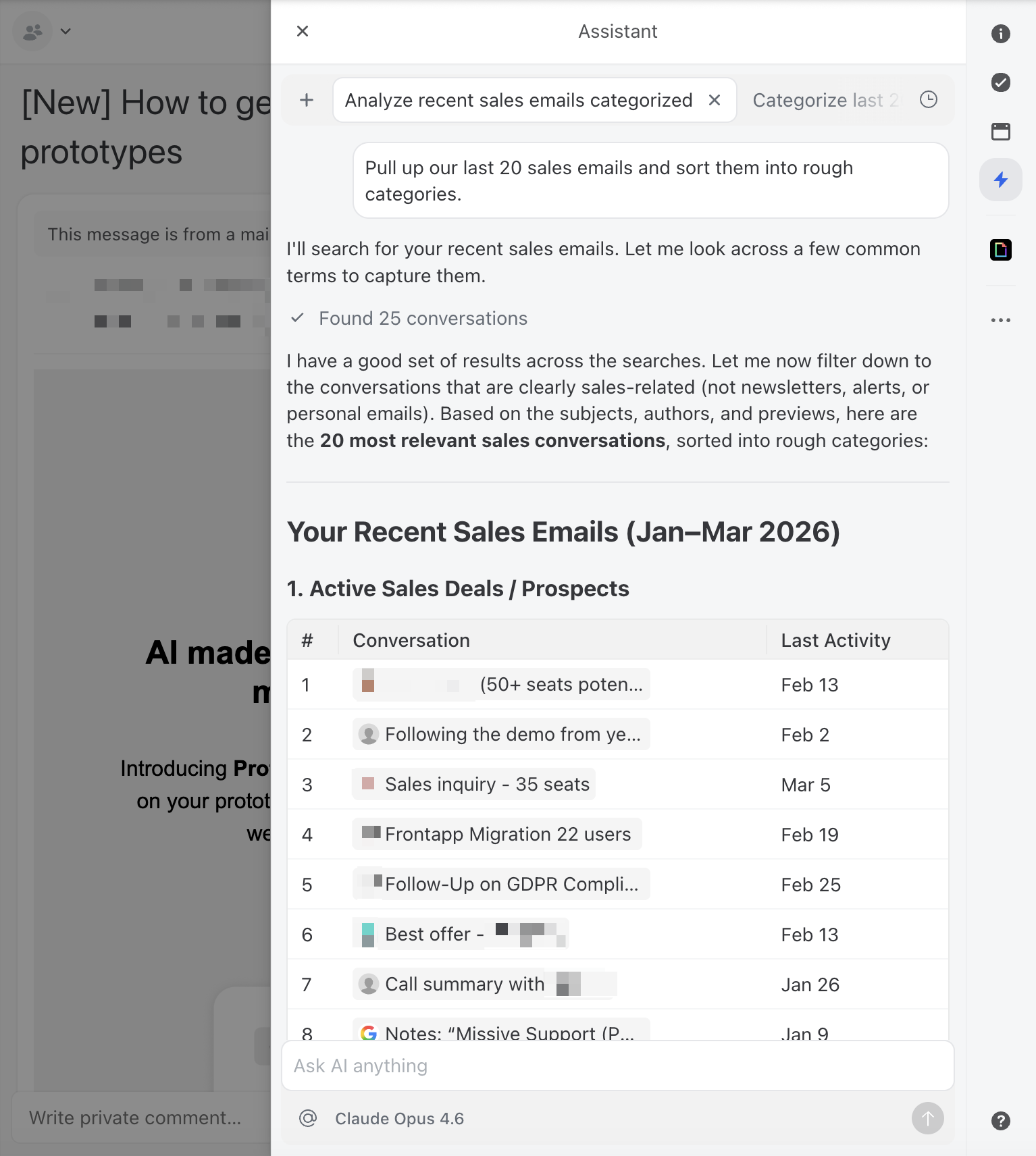
In practice, AI in email shows up in two places: as AI Rules that run in the background (categorizing, routing, escalating, auto-summarizing) and as the AI Assistant that you query inside individual threads (drafting, searching past conversations, checking your calendar, scheduling meetings). The strongest setups in 2026 use both. The 2026 shift is that all three buckets above are converging, with classify + draft + route now happening in one pass and you reviewing the output instead of doing the work. Our team email management piece covers what that looks like in practice for real teams.
Here are the eight AI email workflows worth setting up in 2026. The first four are background AI Rules; the last four are on-demand AI Assistant queries inside individual threads.
1. Auto-categorize and archive to reduce noise
Most inboxes get inundated, but not every email deserves equal attention. A clean inbox needs a categorization system.
Historically, you could set up rules based on sender or message content. With AI, you can categorize based on the meaning of an email, not just its surface features. It's the difference between filtering on "from: marketing@" and asking "is this email promotional?"
If you don't already have auto-categorization running, start with these patterns:
- Is this email promotional? → Add "Promotional" label → Archive
- Is this email a receipt or invoice? → Add "Receipt" label → Forward to bookkeeper → Archive
- Is this email a newsletter? → Add "Newsletter" label → Archive
By auto-filing certain emails out of your inbox using AI, you focus on the ones that need your attention. When you have free time, you visit the newsletter label to catch up on industry reading.
Most modern email clients have some version of this. If you want an add-on tool for Gmail or Outlook, SaneBox is the established choice. It works alongside your existing client (Gmail, Outlook, Apple Mail, Fastmail) via IMAP and learns from your behavior to filter low-priority messages into smart folders before you see them. Pricing starts at $7/month for one account on the Snack plan.
For an AI-first email client with built-in categorization, Missive (Starter $14/user/month annual, AI features on the Productive plan at $24/user/month annual) gives you flexible rules plus team collaboration, supports Gmail, Outlook, and more. Shortwave (Pro $14/user/month annual) is Gmail-only but the most AI-native experience available. Superhuman (Starter $25/user/month annual) added natural language inbox actions in 2026 and supports both Gmail and Outlook.
2. Route emails based on intent
AI saves time inside your inbox. Using it to trigger external workflows is where the impact compounds.
Example. A commercial real estate firm receives emails from buyers and sellers in a shared inbox. The two workflows are completely different. AI can read each inbound message, identify the intent, and trigger specific assignments, tasks, and summaries for the right team members.
If you run different workflows depending on the email type, this is the most valuable automation you can build. Drafts go to the assigned teammate. Tasks get created. Internal notes get posted. The conversation lands in front of the right person with the right context, without manual triage.
This works inside email clients with native AI Rules (Missive's AI Rules handle this end-to-end) or through external automation builders connected to your inbox:
- Make pairs a visual scenario builder with native AI agents and connects to Missive directly. Free tier available; AI steps consume credits faster than standard ones.
- Zapier added AI Actions on top of its classic builder. Massive integration library; older interface; AI credits sold separately.
- Missive's AI Rules handle this natively in the inbox, so the routing logic lives where the email lives.
3. Auto-unsubscribe from emails you don't read
Inbox maintenance is like pruning a tree. It needs regular attention.
With AI clients, workflow builders, or Missive's rules, you can automatically clean up email subscriptions without manually clicking unsubscribe on every newsletter. Two ways to set this up:
- Narrowly: specific senders or domains you want gone (the financial newsletter you signed up for during 2024 tax season and no longer read).
- Broadly: based on behavior, like emails from senders you haven't opened in 30+ days.
SaneBox includes a version of this, though some manual training is required. Cleaning services like Leave Me Alone or Clean Email take the opposite approach: they show you a sender-by-sender view and let you bulk-unsubscribe with one click. Both work alongside your existing email client. For a deeper walkthrough of AI-driven inbox cleanup, see our AI email cleanup guide.
4. Escalate urgent emails to management
Picture an accounting firm where each client has a dedicated team and a dedicated inbox.
Most inbound is routine: invoices, statements, quick questions. But occasionally, an urgent email from a client CEO arrives that needs partner-level attention. The team can't read every message in every client inbox, and important threads get buried.
AI can identify urgency and escalate the right messages automatically: assign to the partner, add a high-priority label, post a Slack notification, or kick off a follow-up task.
Other tools can do this too, but most require setting up specific folders or labels and rely on someone manually monitoring them. AI-based escalation reads the content and decides, which is far more reliable than keyword matching.
5. Draft replies for common questions
This works best if you have a public knowledge base, help center, or canned response library the AI can reference. With a grounded prompt and clean source material, AI can draft replies that read like a member of your team wrote them.
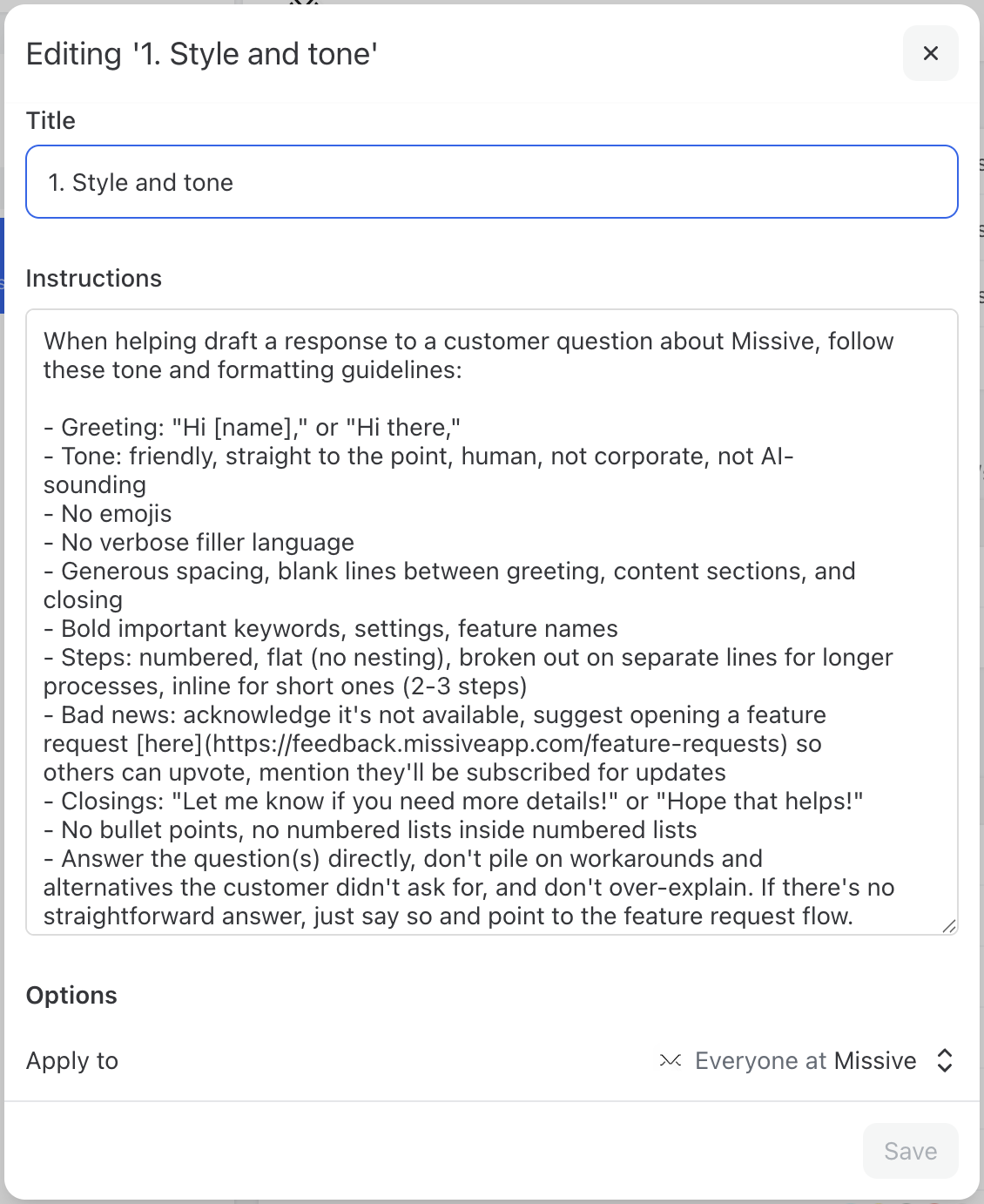
The prompt we use at Missive for our support team:
You are an expert customer support specialist for Missive, the collaborative
team inbox platform. Your job is to draft accurate, empathetic, and clear
replies to customer inquiries based only on official Missive documentation.

Rules:
- Use only information from missiveapp.com/docs and missiveapp.com.
- Never reference or quote other websites.
- Do not suggest third-party tools or workarounds.
- If documentation does not cover the topic, acknowledge it and offer to
  escalate to the dev team.
- Never invent features or information.
- Do not include email addresses, links to support, or "feel free to
  contact us."
- Always acknowledge the user's concern first, then offer solutions.
- When referencing documentation, create inline links (link words or
  phrases), never paste full URLs.

Style:
- Begin with "Hi [Name]," or "Hi there," if unknown.
- Be professional, empathetic, and concise.
- Use simple, clear explanations with a positive tone.
- Always use active voice.
- No signatures or closings (the email client handles that).

Process:
1. Carefully read the user's full message.
2. Search Missive documentation for relevant answers.
3. Classify response type:
   - Feature Request: "This is not possible at the moment, but you can
     open a feature request so others can upvote it. You'll be subscribed
     to updates if we work on it."
   - Malfunctioning Rule: Request screenshots of rule setup, a link to
     related conversation(s), and examples of the issue.
   - Sharing/Configuration Issue: Request a screen recording showing the
     behavior.
4. If information is missing, clearly state it and escalate.

Response Structure:
1. Friendly greeting
2. Acknowledge the issue
3. Provide the explanation or solution
4. State any next steps
5. Invite further questions if needed (no sign-off)
What makes this even more powerful is connecting your AI assistant to external tools. Missive supports MCP (Model Context Protocol) integrations that give the AI direct access to your documentation, CRM, billing system, and project management tools, without leaving your inbox. Connect your help center as a custom MCP server and the assistant pulls the exact article it needs to draft an accurate reply. Connect Stripe and it looks up a customer's invoice history before composing a billing response. Connect Linear and it creates a bug report straight from the conversation.
Pair this with your canned response library and the AI assembles drafts from your existing template snippets. Short opener and closer templates plus a context-aware middle paragraph drafted by AI = template speed with hand-typed feel.
For a fully automated version, create an AI Rule where a draft is generated every time an incoming email matches a specific intent. The human reviews and sends. That's the practical shape of "AI does the work, you supervise."
6. Summarize incoming sales leads
Don't want to pay for contact enrichment tools? Use AI to summarize new prospects directly inside the email thread.
When a cold inquiry comes in, AI can pull together what's known about the sender: their company, role, recent context from prior threads or notes, and any signals worth flagging before you reply. That summary lands as an internal note on the conversation, so when you (or your sales team) open the thread, you're already informed.
With MCP integrations like Attio, Missive's AI Assistant can pull CRM records, meeting notes, and deal stage context directly into the conversation. You see the complete picture of every prospect before you reply.
For deeper enrichment, tools like Clay or CRMs like HubSpot and Salesforce offer AI-powered data collection. The trade-off: more setup, more cost, but deeper context than a one-line summary.
7. Schedule meetings without leaving the thread
Email-based scheduling is one of the worst recurring loops in knowledge work. Someone asks for time. You check your calendar. You suggest three slots. They counter. You check again. Five messages later, a meeting exists.
The AI Assistant can collapse most of that loop. With calendar access (Google Calendar or Microsoft Outlook), the assistant reads your availability, finds open slots that match the requested window, and drafts the reply with concrete options. You review and send.
A practical example: a prospect emails asking to grab 30 minutes next week to walk through your integration. Open the AI Assistant inside the thread and ask it to find three slots, prefer afternoons, and draft the reply. The assistant checks for conflicts, finds the open times, writes a clean reply with three time options, and stages it for review. You add a sentence, hit send.
Same pattern works for support handoffs (find a slot for the customer to talk to engineering), interviews (offer three windows to a candidate), and check-ins (suggest times to a contractor or vendor). The assistant doesn't pretend to be a scheduling tool. It just removes the calendar-checking step from interrupting your reply.
8. Pull context from past conversations and contacts before you reply
Email is a long-running conversation, but every reply tends to start from a blank page. You don't remember what was said six months ago. You don't remember if this person ever asked about pricing, or whether you offered a discount last time, or what their company was working on when you talked last.
The AI Assistant has cross-account email search and contact lookup built in. Before you reply, you can ask it:
- Have I emailed this person before? What did we last discuss?
- What does our contact record say about this company?
- Find the conversation where we talked about pricing.
The assistant searches across all your connected accounts (Gmail, Outlook, IMAP), surfaces relevant past threads, pulls full contact details from your address book, and answers the question in the sidebar. You stay in the thread the whole time.
This is most useful for two patterns:
Re-engagement. A prospect or customer reaches out after a long quiet stretch. Before you reply, ask the assistant for the relevant history. You walk into the response knowing what you discussed, what you committed to, and what's changed since. The reply lands more grounded than asking them to remind you where you left off.
Onboarding to a thread. A teammate forwards you an email or a project gets reassigned. Instead of scrolling back through six months of context, ask the assistant for a summary of the relationship to date. You're up to speed in a sidebar message instead of fifteen minutes of reading.
Pair this with the canned response library and you get the full picture: the assistant pulls past conversations, references your saved templates, and drafts a reply that's both informed and on-voice. Two of the strongest AI Assistant capabilities in 2026, working together.
How is the AI-in-email landscape changing in 2026?
The interesting shift this year is from assistants (you ask, they help) to agents (they read and act, you supervise).
The first wave of AI in email helped you write faster: draft a reply, summarize a thread, adjust the tone. The work was still yours; the AI was a writing tool. The second wave (now arriving in 2026) does work in the background: reads inbound, classifies it, drafts replies grounded in your team's actual context, and stages everything for human review.
A worked example from the team email pillar: Charles Hudson at Precursor VC runs AI agents (built on the Missive API plus Claude Code) that watch his inbox, classify VC responses to founder intros, and draft the appropriate follow-up. When a VC accepts, the agent stages an intro draft. When a VC declines, the agent stages two drafts (a thank-you to the decliner and a forwardable explanation for the founder). Charles reviews and sends. "I don't trust it to send it autonomously," he said. "I have a draft only flag on."
The pattern is consistent across teams running AI email well: drafts are staged, never sent; the AI references the team's actual templates and writing style; the agent is always-on but bounded to specific workflows.
The implication for the eight ways above: each one becomes more useful when the AI has full context (MCP integrations to your CRM, billing, docs) and works inside a system that keeps humans in the loop on send. For deeper coverage of the tool landscape, the best AI email assistants in 2026 guide compares the eight options that matter, with verified pricing.
Frequently asked questions
What's the best AI tool for managing my email inbox?
The right tool depends on whether you work alone or with a team, and whether you want help drafting or an agent that acts on your behalf. For team email with AI woven through the workflow, Missive. For individual AI-first email, Shortwave. For premium speed plus AI, Superhuman. For inbox filtering without changing email clients, SaneBox. For Gmail or Outlook overlays, Fyxer AI. The AI email assistants pillar breaks down each option in detail, and Missive's pricing page covers the plan tiers if you want to start there.
Can AI read and act on my emails automatically?
Yes, with the right setup. AI Rules in Missive can read incoming email, classify it by intent, and trigger actions (assign to a teammate, draft a reply, apply a label, post a note). External tools like Make and Zapier connect to your inbox and run similar workflows. For anything important, keep a human in the loop on send. Auto-send is rare even where it's technically supported.
How do I write a good AI prompt for drafting email replies?
Three things matter most. First, ground the AI in real source material (your docs, your help center, your canned response library) so it doesn't hallucinate. Second, specify your tone and structure (greeting style, length, level of formality). Third, define what to do when the AI doesn't have an answer (acknowledge the gap, escalate to a human). The Missive support prompt above is a working example you can adapt.
Does AI work with both Gmail and Outlook?
Most AI email tools support both. Missive, Superhuman, Fyxer, MailMaestro, SaneBox, and Microsoft Copilot all work with Gmail and Outlook. Shortwave is Gmail-only. Google Gemini is built into Gmail Workspace plans; Microsoft Copilot is built into Outlook through Microsoft 365.
Can AI check my calendar and schedule meetings from my inbox?
Yes, if your AI tool has calendar access. Missive's AI Assistant connects to Google Calendar and Microsoft Outlook, so it can check your availability, find open slots, and draft scheduling replies with concrete time options. You review and send. This works for booking calls, scheduling interviews, or proposing meeting times to anyone you're emailing, without leaving the conversation.
Can AI search across all my past emails to give me context for a reply?
Yes. AI assistants with cross-account email search (Missive's AI Assistant is one example) can find relevant past threads across all your connected accounts (Gmail, Outlook, IMAP) and summarize them inside the current conversation. Ask "what did we discuss last time" or "find the thread about pricing" and you get the relevant history without scrolling through your inbox manually.
Is it safe to let AI process my business emails?
Modern AI email tools send your email content to your chosen provider (OpenAI, Anthropic, or Google) only when you actively use an AI feature, and most state in their terms that API data isn't used for model training. Verify your provider's data retention policies if you're in a regulated industry (legal, finance, healthcare). For especially sensitive content, look for tools with data anonymization features that strip personal data before content reaches the AI model.
TL;DR
- AI in email split into three buckets in 2026: cleaning (auto-categorize, auto-archive, auto-unsubscribe), drafting (replies, summaries, tone adjustment), and acting (route, escalate, kick off tasks via AI Rules). The strongest setups combine all three.
- The eight practical workflows worth setting up: auto-categorize incoming mail, route by intent, auto-unsubscribe from sources you ignore, escalate urgent messages, draft replies with a grounded prompt, summarize sales leads, schedule meetings using calendar awareness, and pull past context before replying. The first four are set-and-forget AI Rules; the last four are on-demand AI Assistant queries inside individual threads.
- The 2026 shift is from assistants (you ask, AI helps) to agents (AI reads and acts, you supervise). Tools like Missive's AI Rules, paired with MCP integrations, do the work in the background while you stay in the loop on send.
- A grounded prompt (with explicit source rules, tone guidance, and escalation criteria) beats a generic one every time. The Missive support prompt above is a working template.
- The right AI email tool depends on your shape: team vs solo, drafting vs acting, native client vs overlay. The AI email assistants pillar covers the eight options with verified 2026 pricing.
Try Missive free and put AI Rules to work in your team's inbox.


.png)

.png)
.png)