> For the complete documentation index, see [llms.txt](https://missiveapp.com/docs/llms.txt). Markdown versions of documentation pages are available by appending `.md` to page URLs; this page is available as [Markdown](https://missiveapp.com/docs/core-features/aliases-and-signatures/faq.md).
# Aliases & signatures FAQ
Common questions about aliases and email signatures in Missive.
### Aliases
Why does my alias name revert to my Microsoft 365 default name?
Microsoft/Office 365 only supports alias addresses, not alias names. Regardless of the display name you set in **Settings > Accounts > Aliases**, Microsoft will always use the default display name from your Microsoft 365 account settings when sending email.
Only Google Workspace supports custom alias names. If you need custom display names per alias, consider switching to a Google Workspace account.
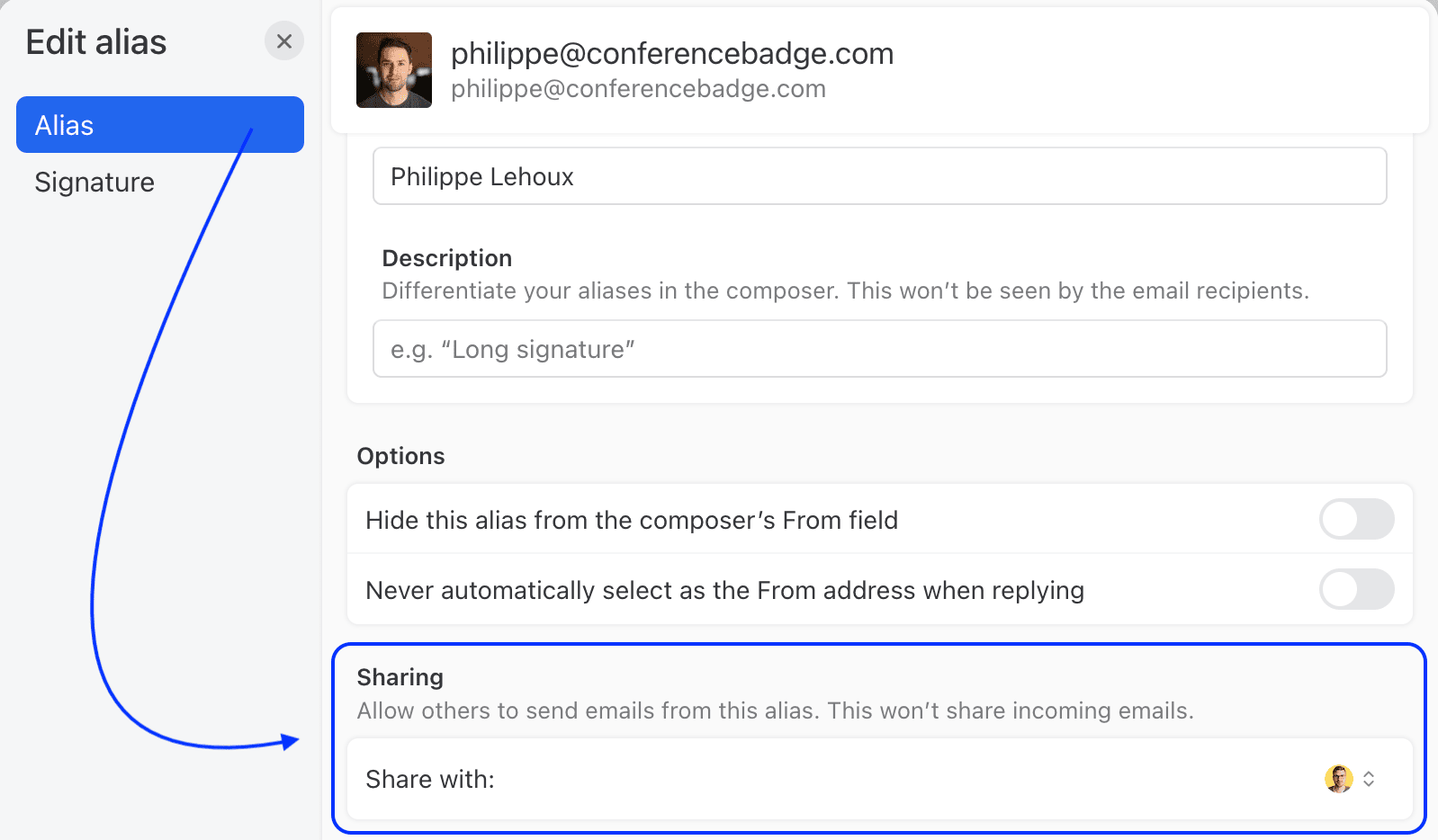
Can I let others reply as me or an alias I own without sharing the entire account?
**Yes, you can. Here’s how:**
1. Go to **Settings** > **Accounts**.
2. Select a personal email account.
3. Select the **Aliases** tab.
4. Click Edit next to the desired alias.
5. Click Allow others to send emails from this alias - Share with and choose which users.
You will always have access to all emails sent by others.
Can delegated users customize their name and signature on a shared account?
**Yes.** It’s possible for delegated users to customize their name and signature when sending from a shared account.
1. Go to **Settings** > **Accounts**.
2. Select the shared email account.
3. Select the **Aliases** tab.
4. Click Edit next to the desired alias.
5. Edit the name in the Alias.
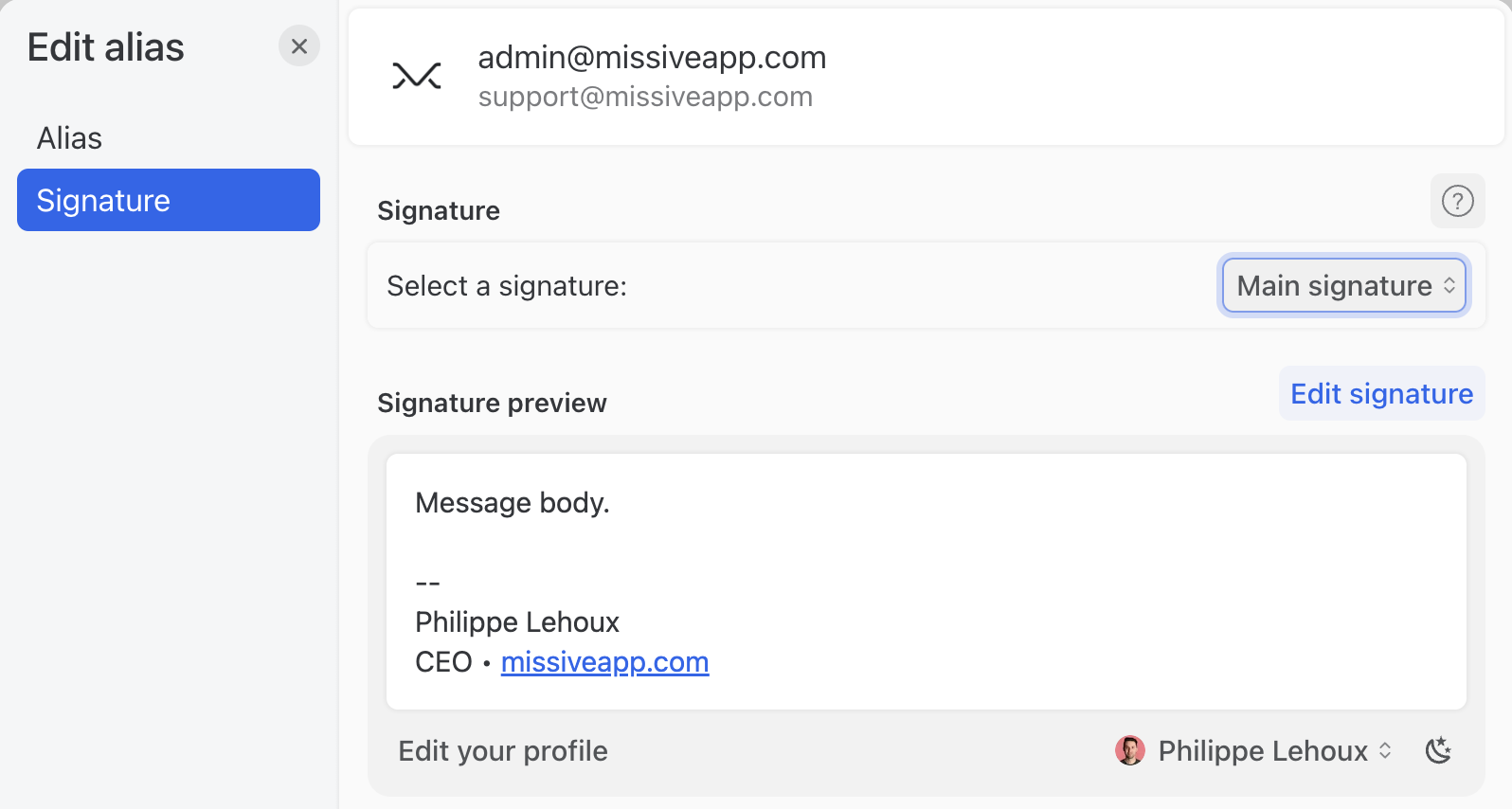
6. Select the Signatures tab.
7. Change the signature clicking the Select signature button.
How can I change the default From address when I create a new draft?
Click your name in the bottom left corner, then **Preferences**, and search for “default send”, you will see the options below to change the **Default sender** address, which is the default address set in your **From** field when you start a draft:
{% hint style="info" %}
This setting is personal, each user in your organization is free to define it as they like.
{% endhint %}
How can I prevent an alias to be used when I reply to emails?
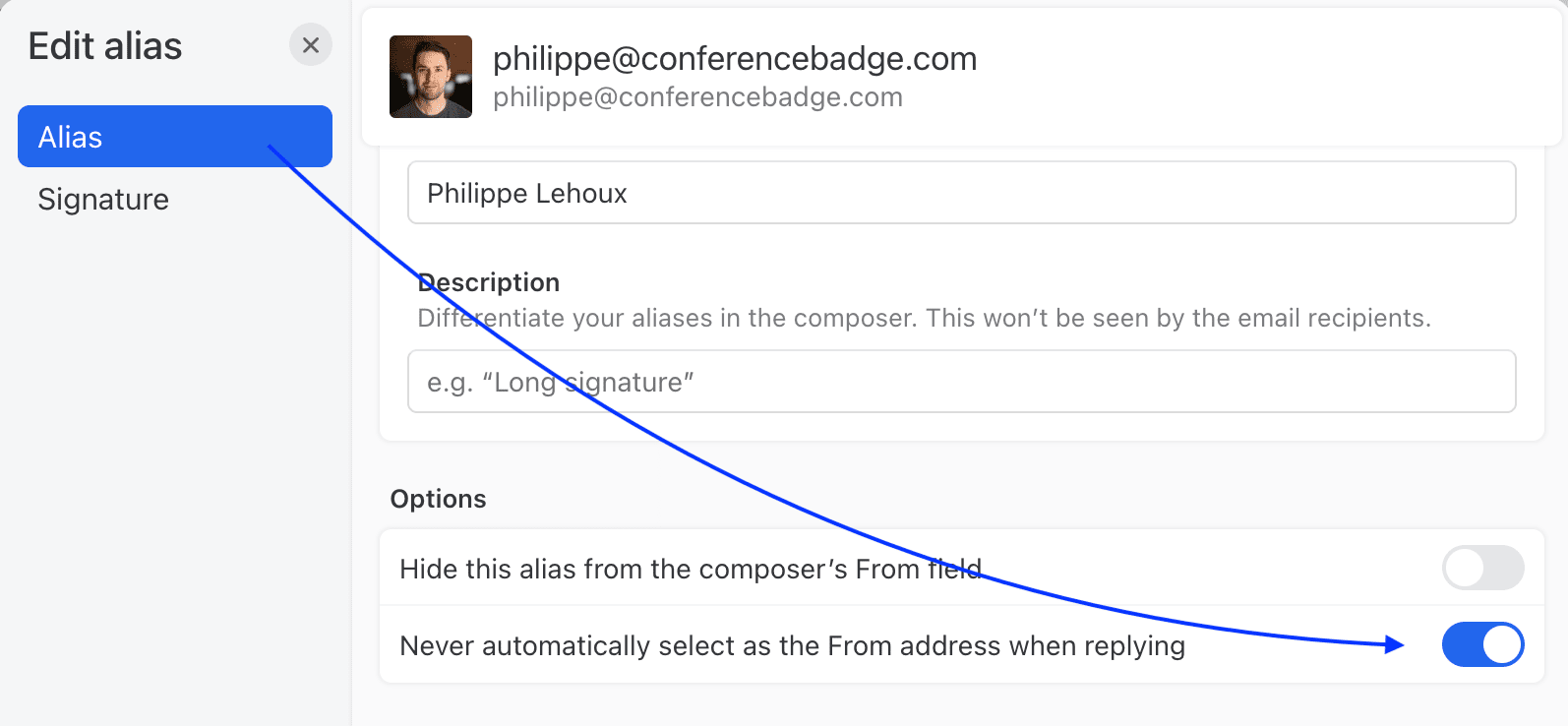
You can tell Missive to never automatically select a particular From address (known as an “alias”) when replying/composing a new email. You’ll still be able to manually set this alias in your **From** field if you need to.
1. Go to **Settings** > **Accounts**.
2. Select the desired email account.
3. Select the **Aliases** tab.
4. Click **Edit** next to the desired alias.
5. Check the option that says, “Never automatically select as the From address when composing an email”.
How do email aliases compare to email proxies?
In most everyday and business scenarios, users are far more likely to use email aliases than email proxies. The creation and configuration of email aliases or email proxies happens at the email provider level.
Here’s why:
* Email aliases are built into almost every email provider (Google Workspace, Microsoft 365, iCloud, etc.) and are commonly used for team roles (e.g., support@, billing@), personal organization, and filtering. They’re simple, familiar, and don’t change the sender’s identity.
* Email proxies are more niche and are mainly used for privacy, security, or anonymity. Tools like Apple’s *Hide My Email*, Firefox Relay, or burner-style email services are proxies — still far less common in business workflows. They are created and managed outside Missive. Missive simply receives messages forwarded from those proxy addresses.
### Signatures
Can I use a specific signature on the mobile app?
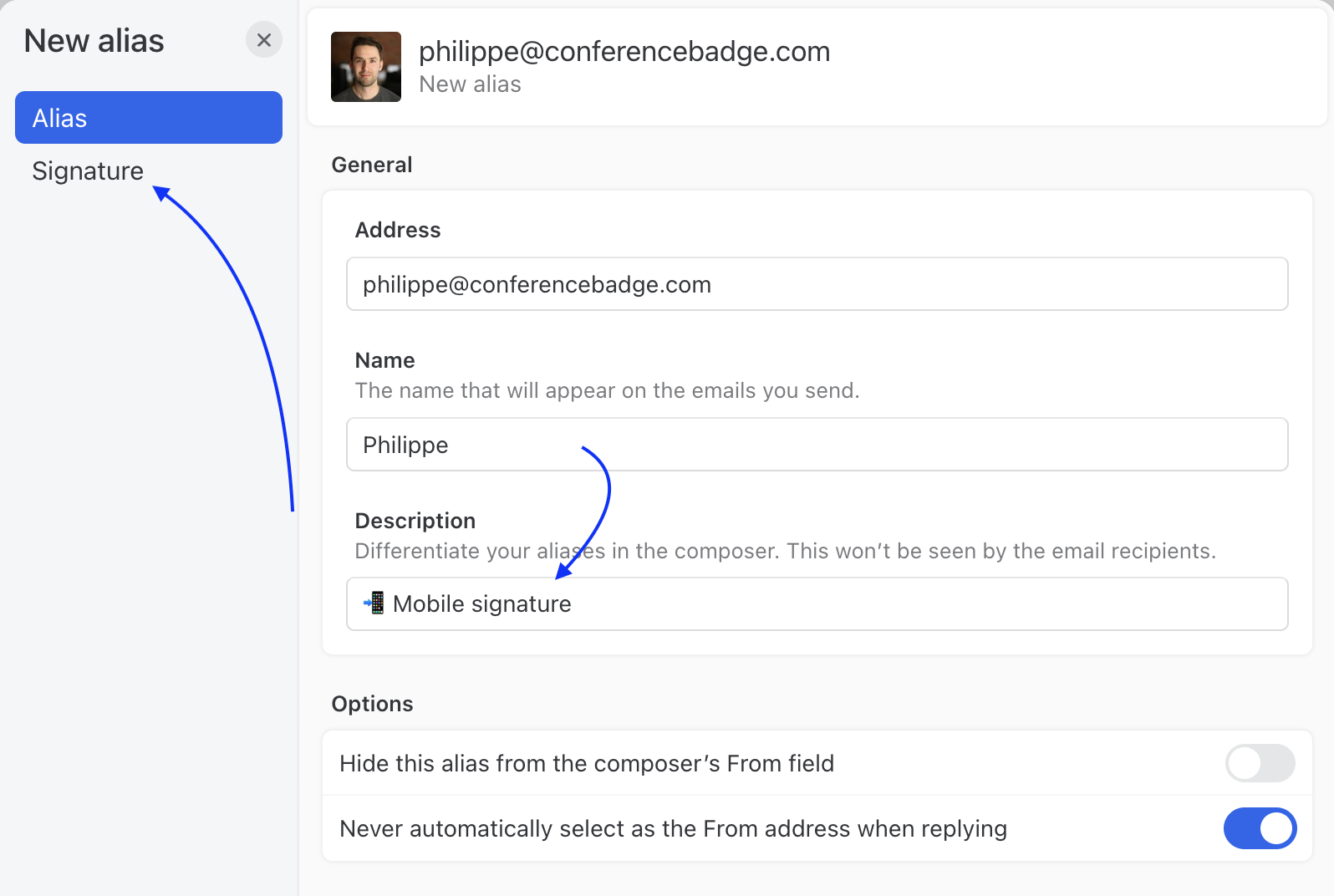
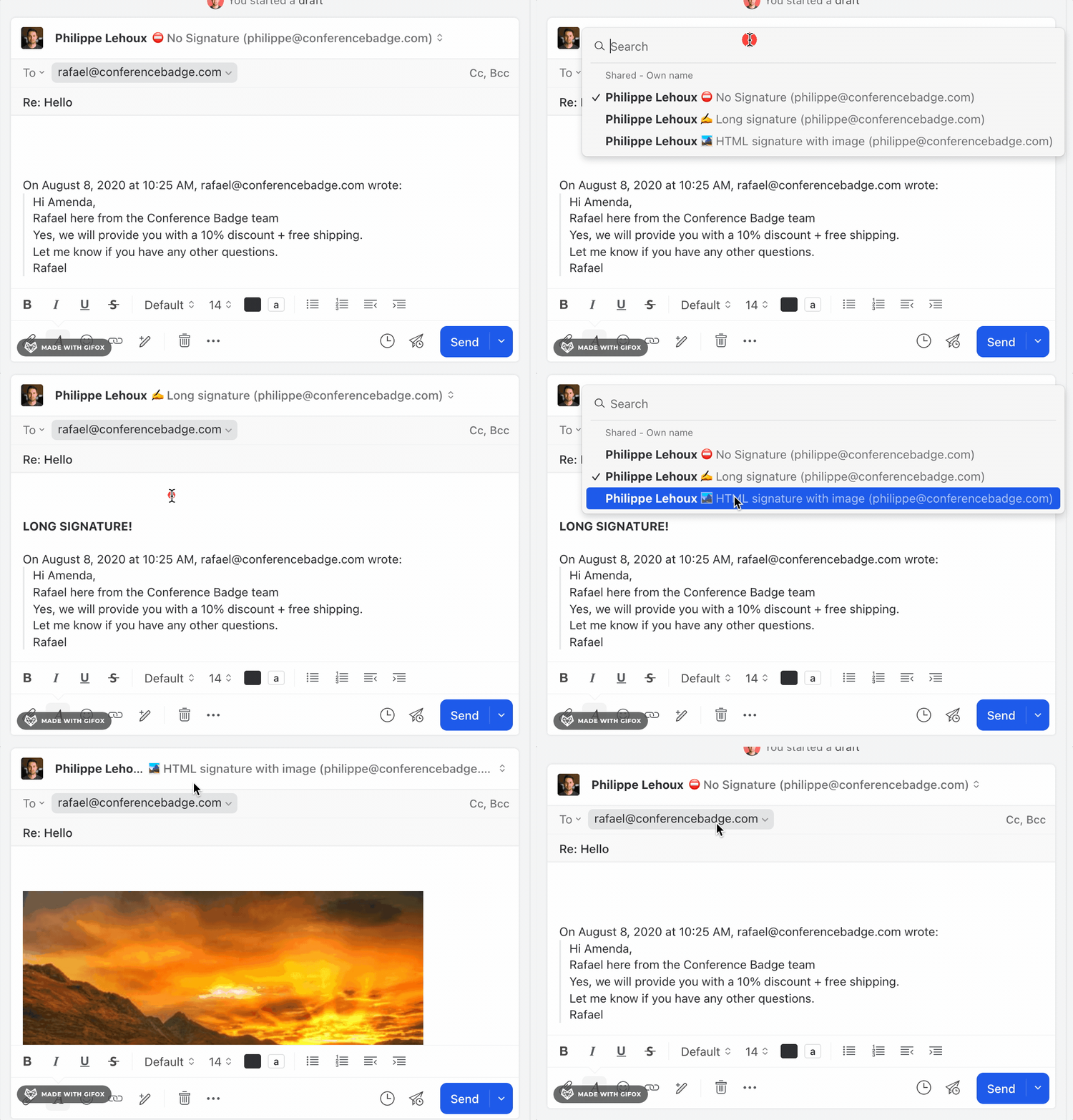
Missive does not offer a way to set mobile-specific signatures right now. However, you can set up any number of aliases for each of your email accounts, and each alias can have a different signature. You can give your alias a clear description like “Mobile signature”:
Even if you don’t have different alias addresses, you can create multiple aliases with the same Address and Name, just to set a different description and signature.
Assuming you send more emails from your computer, we suggest you set your desktop signature version on your default alias. Then when you send an email from mobile, you can manually switch to your mobile alias in the From field, which will change the signature used.
Can I use custom values within shared email signatures?
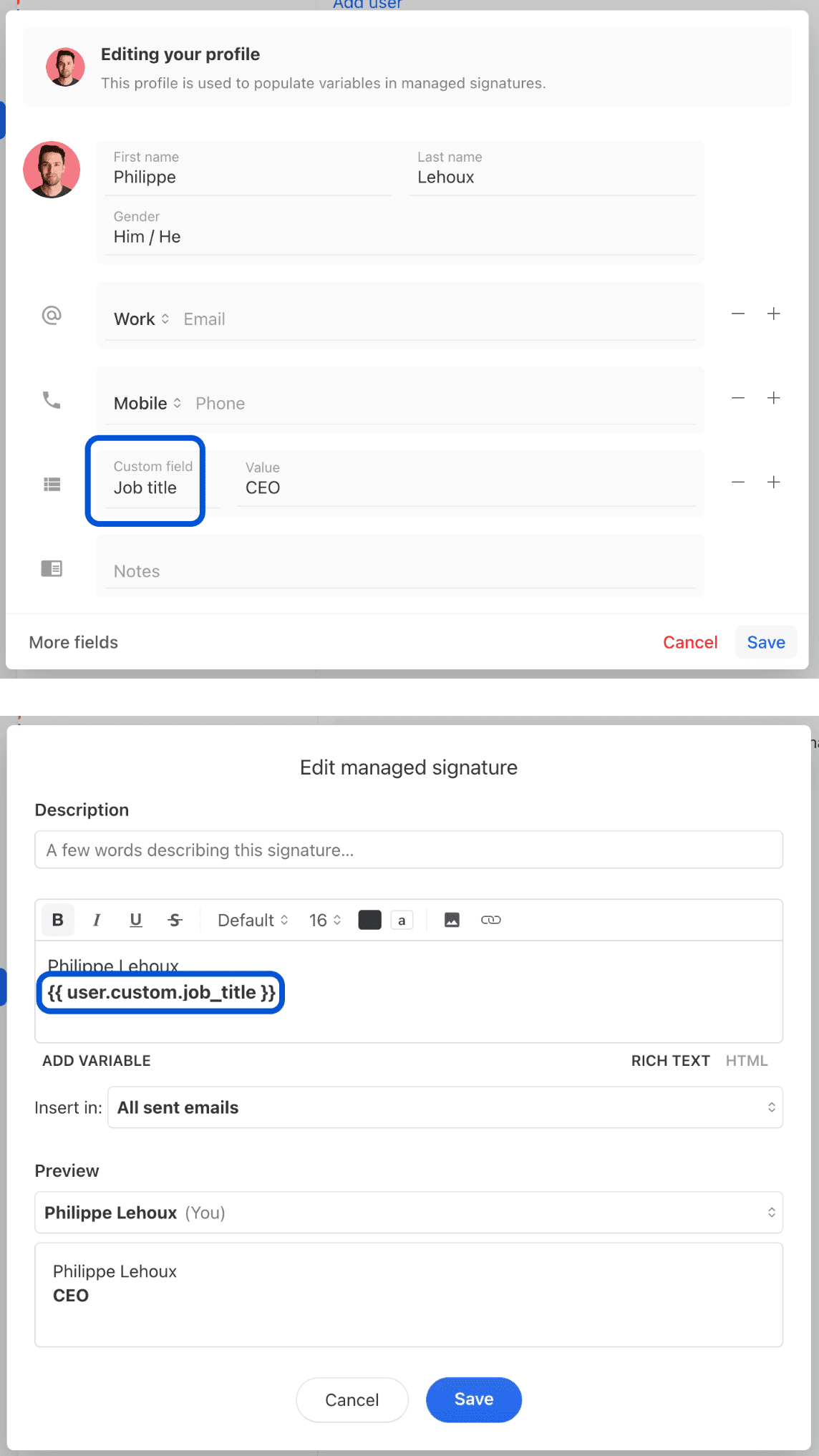
You can use custom fields within shared signatures. You can use them as:
`{{ user.custom.field_name }}`
If your custom field name is, for example, Job title, then it would be:
`{{ user.custom.job_title }}`
How can I add multiple phone numbers to a signature?
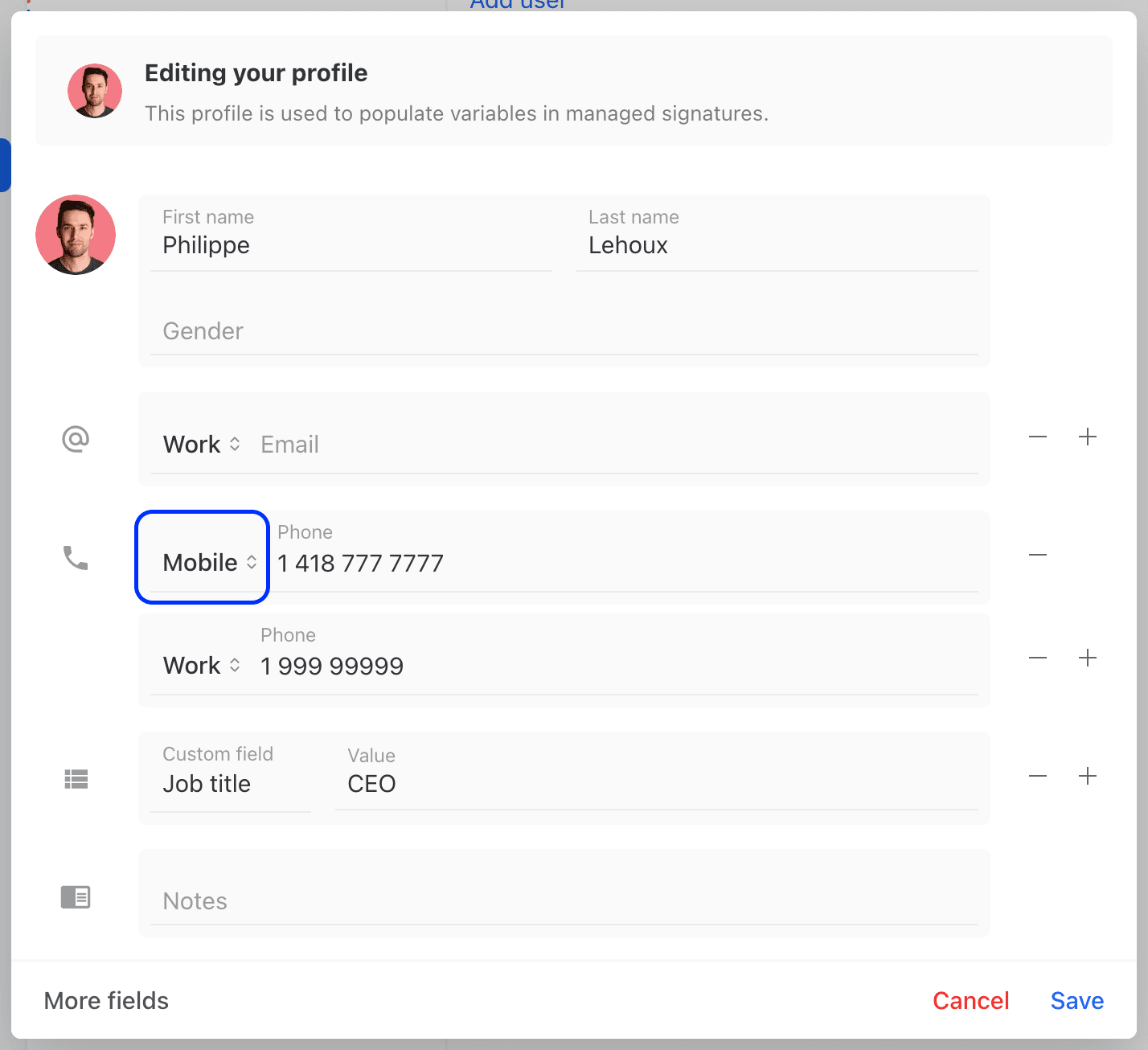
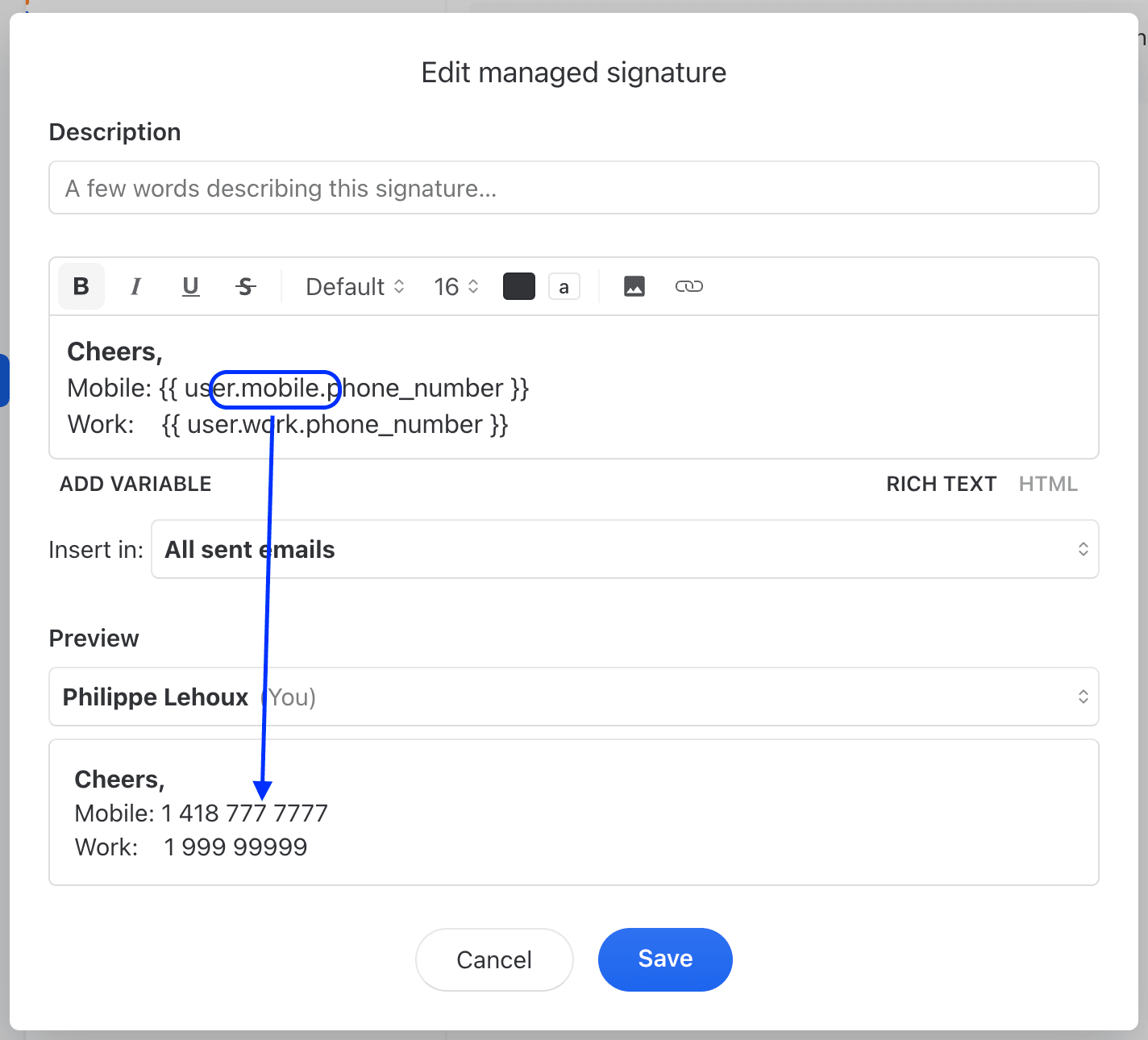
You can use variables to display multiple phone numbers in your email signature. For example, if you want to add your work and mobile phone number you can use these:
```
{{ user.work.phone_number }}
```
```
{{ user.mobile.phone_number }}
```
**How to video:** [**https://youtu.be/IoirxbF0DsU**](https://youtu.be/IoirxbF0DsU)
How can I define multiple signatures for the same email address?
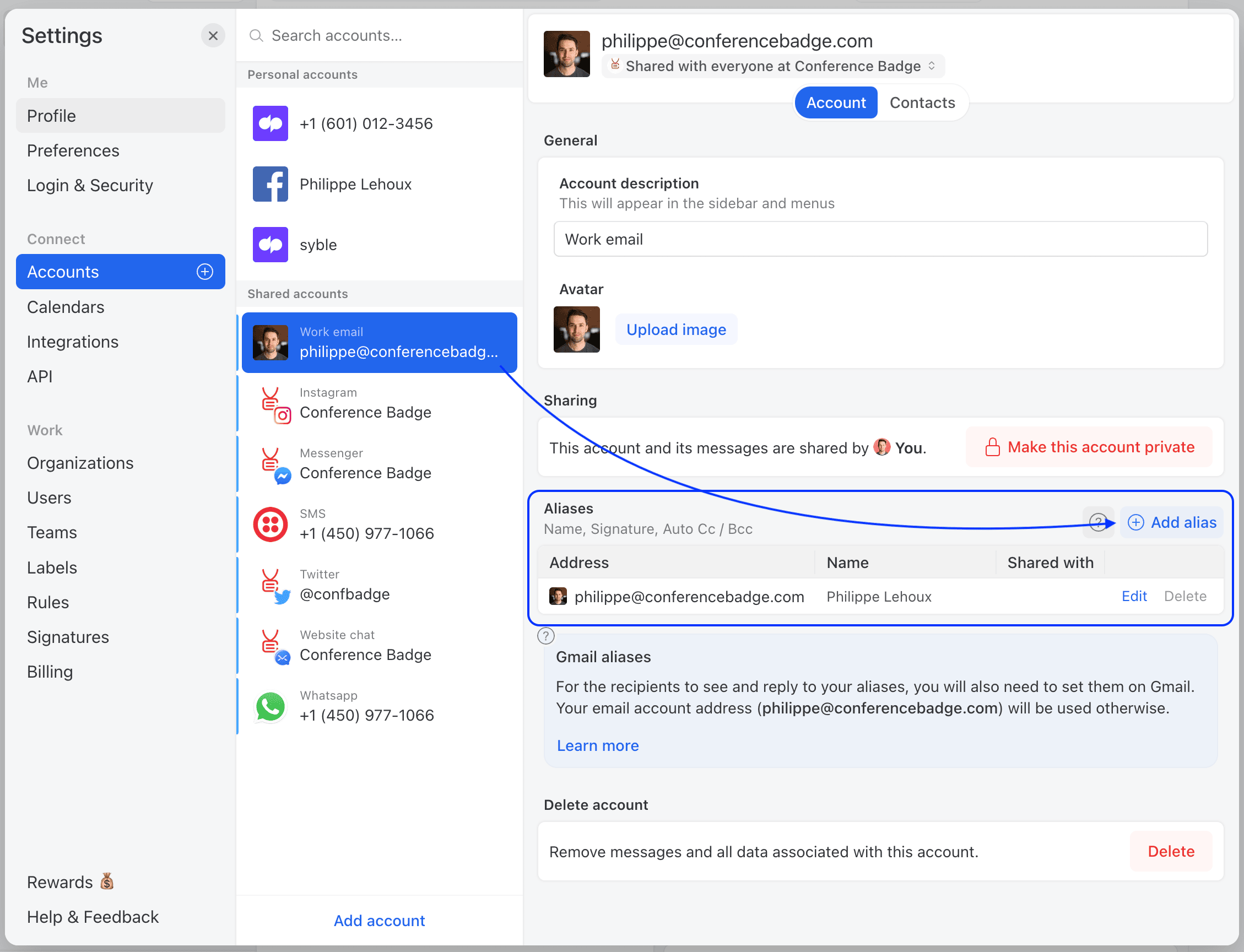
In Missive, you can setup any number of aliases for each of your email accounts, and each alias can have a different signature.
Even if you don’t have different alias addresses, you can create multiple aliases with the same Address and Name, just for the purpose of setting a different signature for each.
**Here’s where to add aliases the in Accounts settings:**
Each alias and signature can have their own unique description to help you pick the right one in the draft composer:
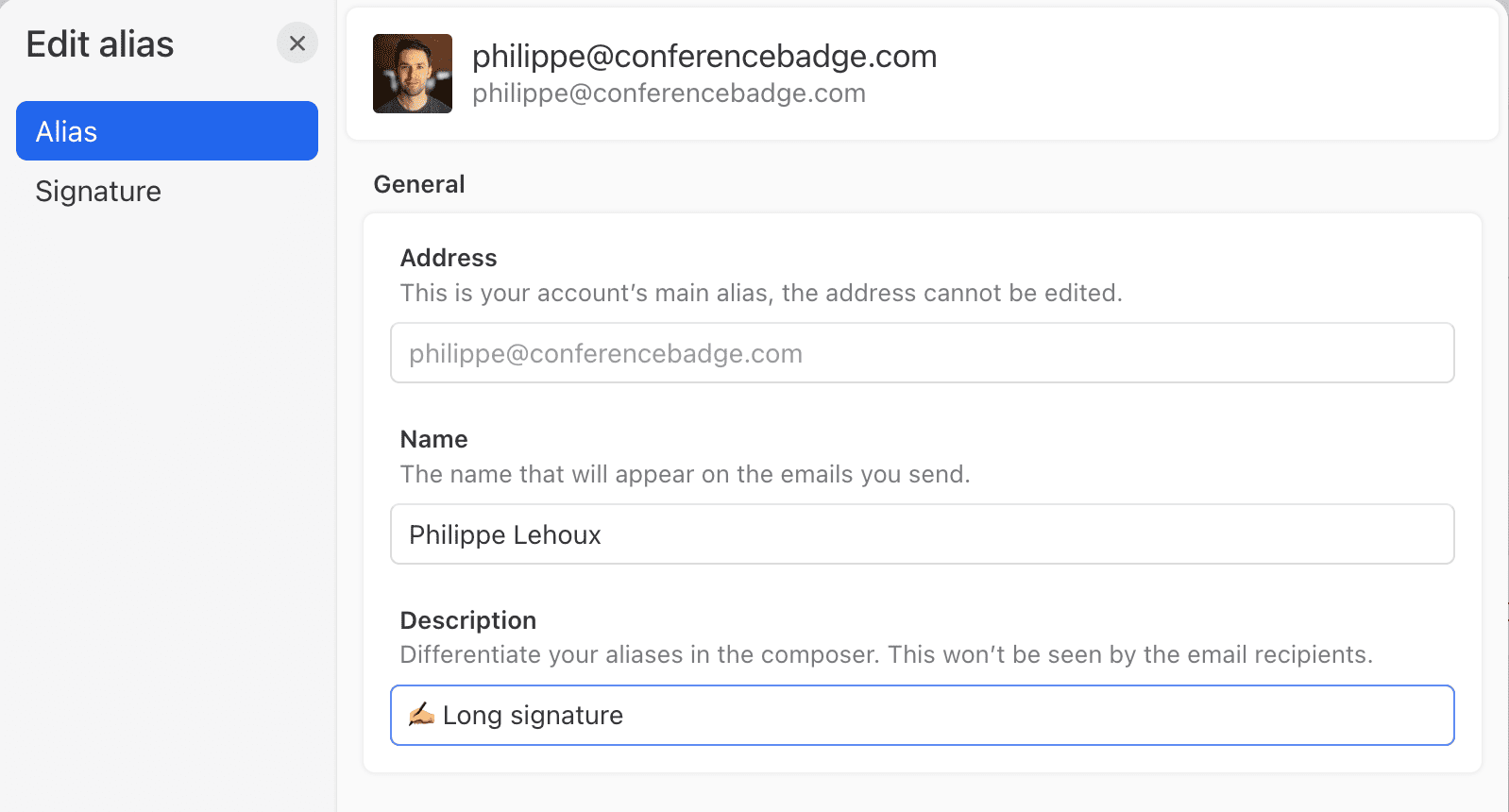
You can edit your alias description, in the alias edit menu:
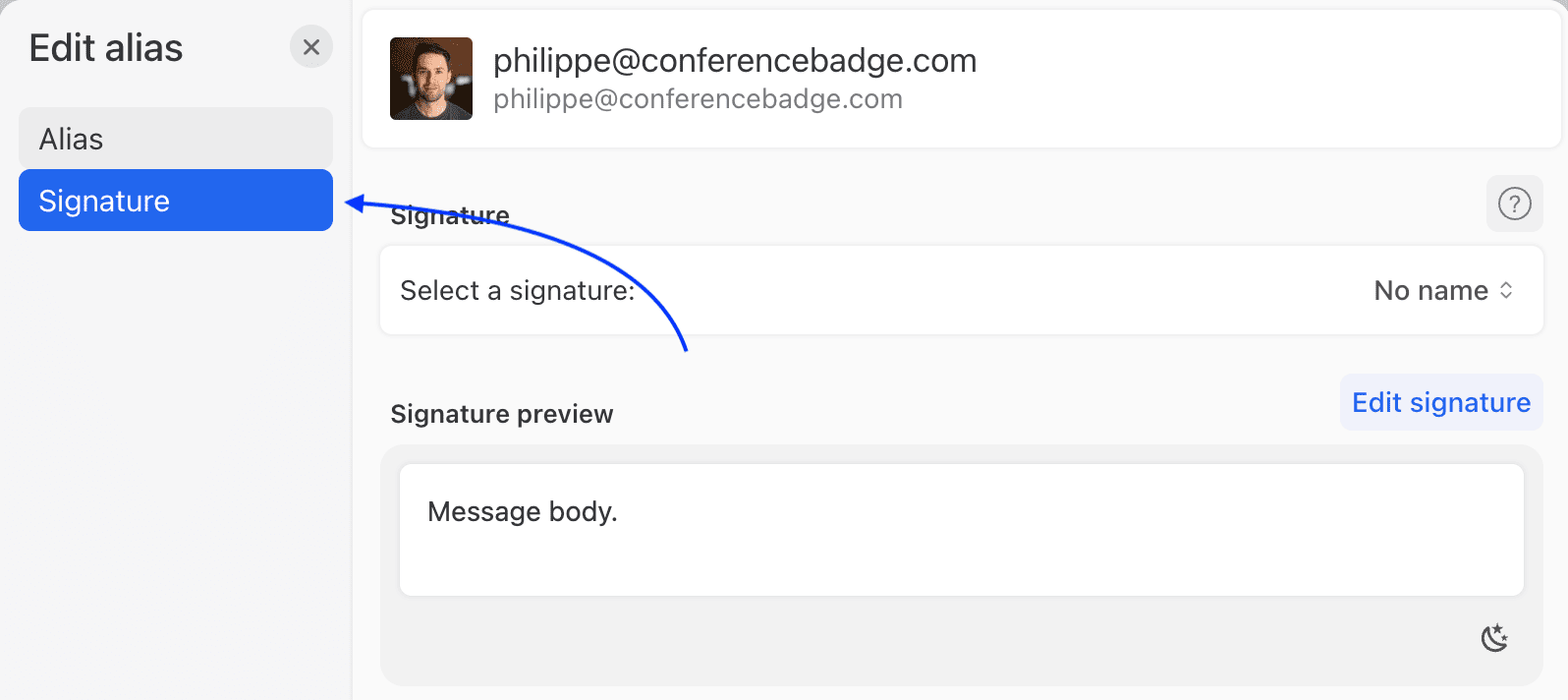
To edit the signature of each of those aliases, click on the Signature tab:
How can I make sure the image in my signature doesn't appear as an attachment?
If you want to include an image in your email signature, it's better to use an HTML signature instead of attaching the image directly. This will help prevent your email from being flagged as spam by some email providers.
To do this, you can create an HTML signature and add an `` tag with the URL of your image hosted on the web. This way, the image will be displayed in the signature without being attached to the email itself.
How to insert a user avatar in a managed signature?
You need to edit your managed signature in HTML mode, and add an image element with the variable {{ user.avatar\_url }} as its source. This will show the image your users have uploaded as their Missive avatar. It would look something like this:
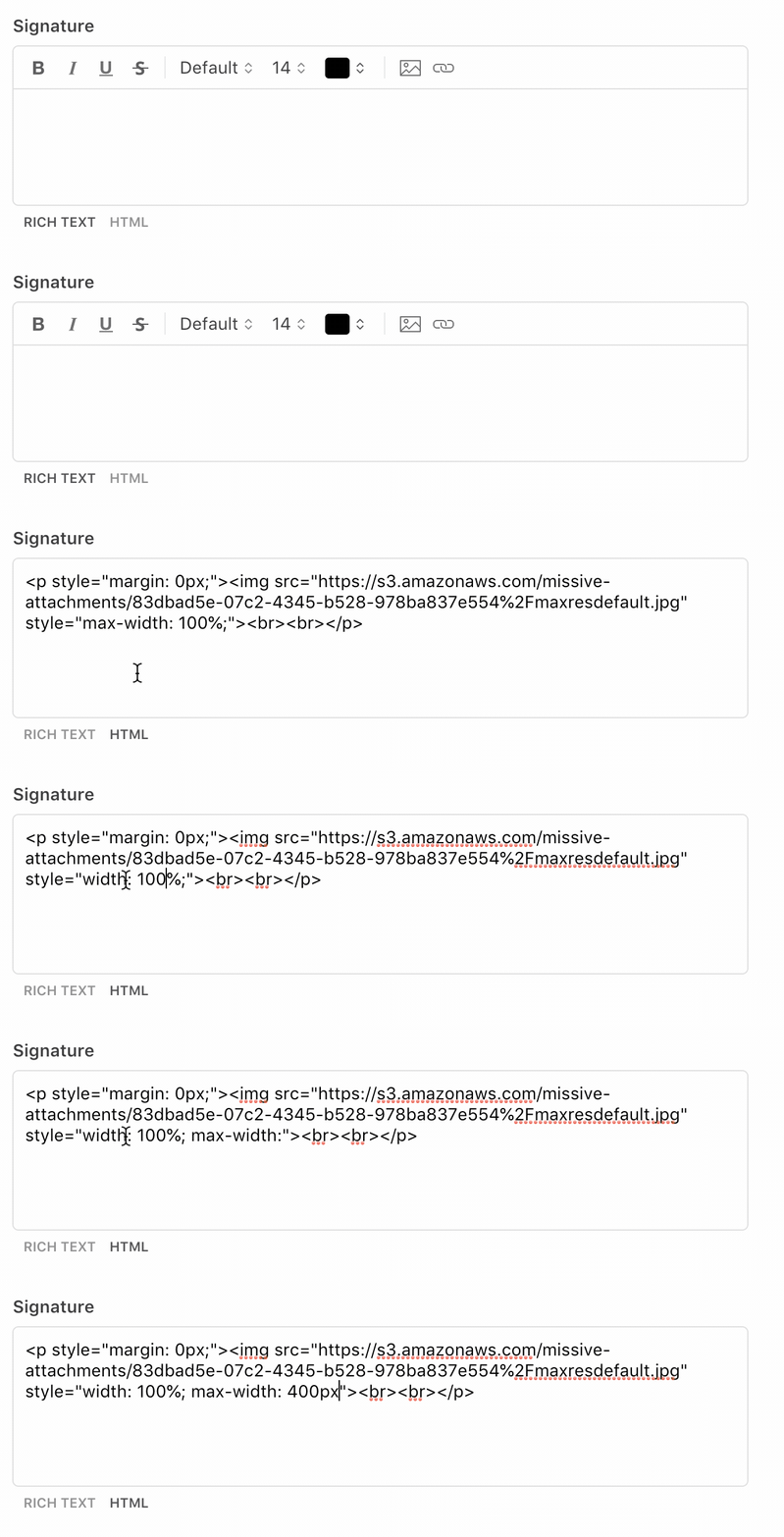
How to limit the size of an image in my email signature
1. Switch the signature editor to the HTML mode.
2. Add a `max-width: 400px` to the style element of the `img` tag.
3. Increment/decrement the value of `max-width` based on the desired result.
Why doesn't my signature appear when I reply to emails?
Your signature’s **Insert in** setting is most likely set to **First email sent**, which only inserts the signature on the first email of a conversation. Replies fall back to the shorter alternative signature defined below it, or no signature at all if that field is empty.
To insert your full signature on every email, go to **Settings** > **Signatures**, edit the signature, and change **Insert in** to **All emails**.
Why are my signature HTML tags stripped?
Missive strips HMTL tags that are not supported by the majority of email clients. Your signature HTML code probably uses modern tags known to not be well supported by email clients.
You might try to inline your styles. Paste your code in this [tool](https://templates.mailchimp.com/resources/inline-css/). The output HTML might be supported by Missive.
Why are some CSS styles removed from my HTML signature?
Missive strips a few CSS properties from signatures because they can break the app's layout instead of just styling the signature. The removed properties are:
* `position`
* `pointer-events`
* Negative margins (e.g. `margin-left: -50px`)
Positive margins, colors, fonts, and other standard styling are kept. If part of your signature shifts or disappears after saving, check whether it relied on one of these properties and use a supported approach instead (for example, padding or positive margins for spacing).
Why can't I edit my signature in my draft composer?
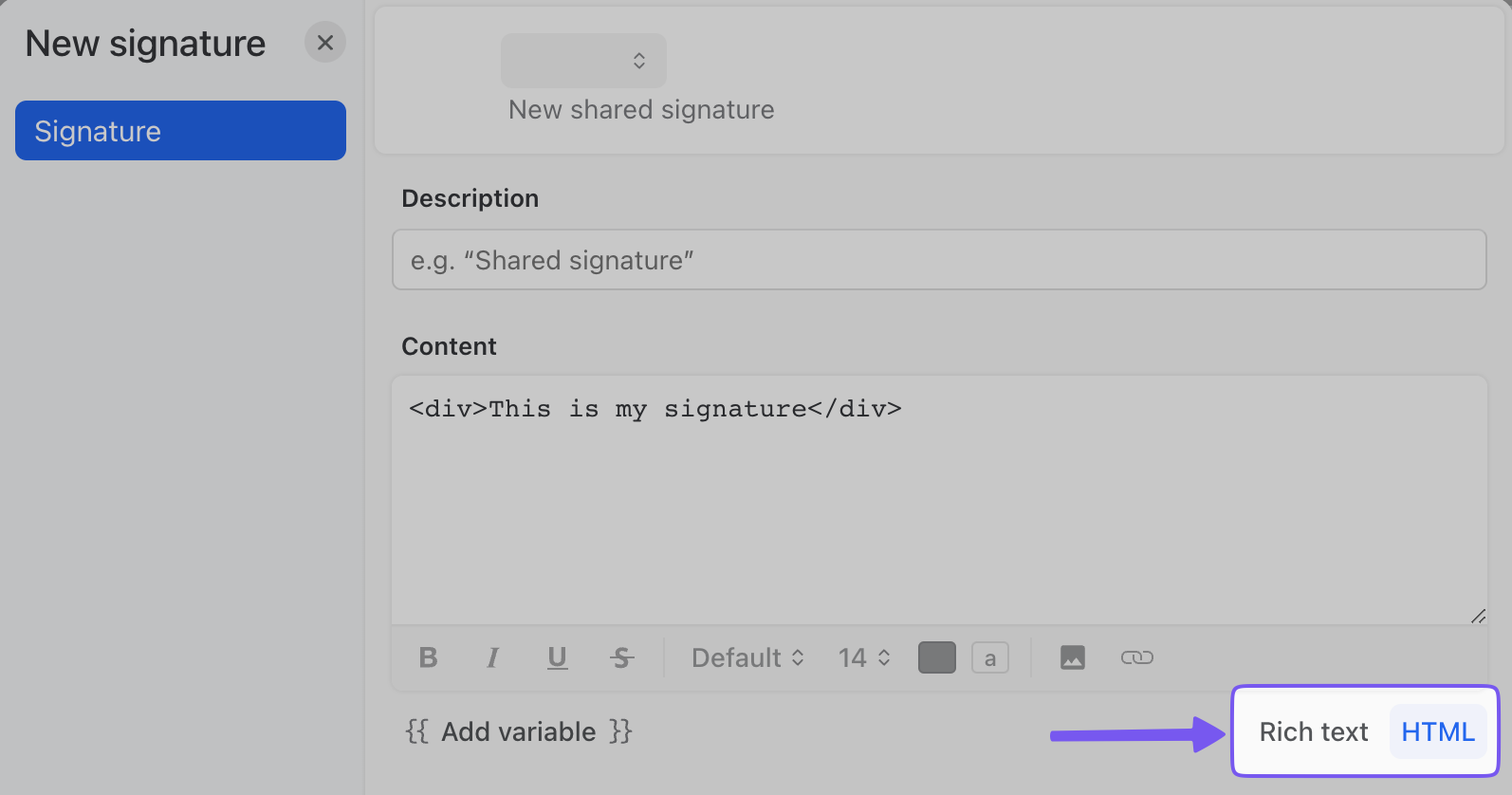
If you can't change your signature while drafting an email, it's likely because your signature is in the HTML format. This format can't be altered in the draft composer.
To switch formats, go to **Settings** > **Signatures**, click **Edit**, and look for the format toggle at the bottom of the **Content** field.
Be aware that if you switch from **HTML** to **Rich Text**, you might encounter some unexpected visual changes, especially if your signature's HTML code is too complex for **Rich text**.
Why can't I edit my signature in my settings?
You most likely have a managed signature. This means only Admins or Owners can make changes to it. You may contact them to request a change.
Learn more about roles and permission levels in an organization [here](broken://pages/a7JGvCGqb65bd7iql2Zr).
Is there a limit on how many signatures I can create?
Yes. The limits are:
* **Personal signatures:** 100 per user
* **Organization signatures:** 500 per organization
---
# Agent Instructions
This documentation is published with GitBook. GitBook is the documentation platform designed so that both humans and AI agents can read, navigate, and reason over technical content effectively. Learn more at gitbook.com.
## Querying This Documentation
If you need additional information that is not directly available in this page, you can query the documentation by asking a question.
Perform an HTTP GET request on the following URL with the `ask` and `goal` query parameters:
```
GET https://missiveapp.com/docs/core-features/aliases-and-signatures/faq.md?ask=&goal=
```
`ask` is the immediate question: it should be specific, self-contained, and written in natural language.
`goal` is what the user is ultimately trying to achieve, the reason they need the answer. Sharing it helps GitBook give you a better, more relevant answer. A goal is most helpful when it describes the outcome the user wants rather than restating the question. For example, with `ask=how do I create an API token`, a goal like `automate deployments from our CI pipeline` lets GitBook tailor the answer to that use case.
The response will contain a direct answer to the question and relevant excerpts and sources from the documentation.
Use this mechanism when the answer is not explicitly present in the current page, you need clarification or additional context, or you want to retrieve related documentation sections.