> For the complete documentation index, see [llms.txt](https://missiveapp.com/docs/llms.txt). Markdown versions of documentation pages are available by appending `.md` to page URLs; this page is available as [Markdown](https://missiveapp.com/docs/core-features/team-inboxes/creating-a-team-space.md).
# Creating a team
Create team spaces to organize shared accounts and collaborate with colleagues.
A team groups colleagues who collaborate on shared conversations. Each team has a **team space** in the sidebar that can include a team inbox, tasks, and a chat room.
You can create a team in several ways:
* On the fly in the onboarding process
* When connecting an account (email, SMS, or other channels)
* Directly in **Settings** > **Teams** > **Create Team**
{% hint style="info" %}
To open Settings, click your avatar in the bottom-left corner of the sidebar, then **Settings** (or press ⌘,).
{% endhint %}
{% stepper %}
{% step %}
**Team basics**
**Name, color and emoji**
Give your team a name and customize it with a highlight color and emoji. For example: ⛑️ **Support** in red, 💰 **Sales** in green, or 🔧 **Engineering** in blue.
**Active members and Observers**
When creating a team, you can define two types of users:
* **Active members** receive notifications for new messages. They see conversations listed in the [Team Inboxes](/docs/core-features/team-inboxes.md) mailbox in addition to the team inbox.
* **Observers** do not receive notifications and see conversations listed in the team inbox only. Ideal for managers who want to monitor work without being flooded with notifications.
**Dedicated inbox**
You can choose to have a dedicated inbox or not. Turning it off is useful if you only want to create a team for internal mentions or chats.
**Dedicated chat room**
You can decide if you want the team to have its own chat room.
{% endstep %}
{% step %}
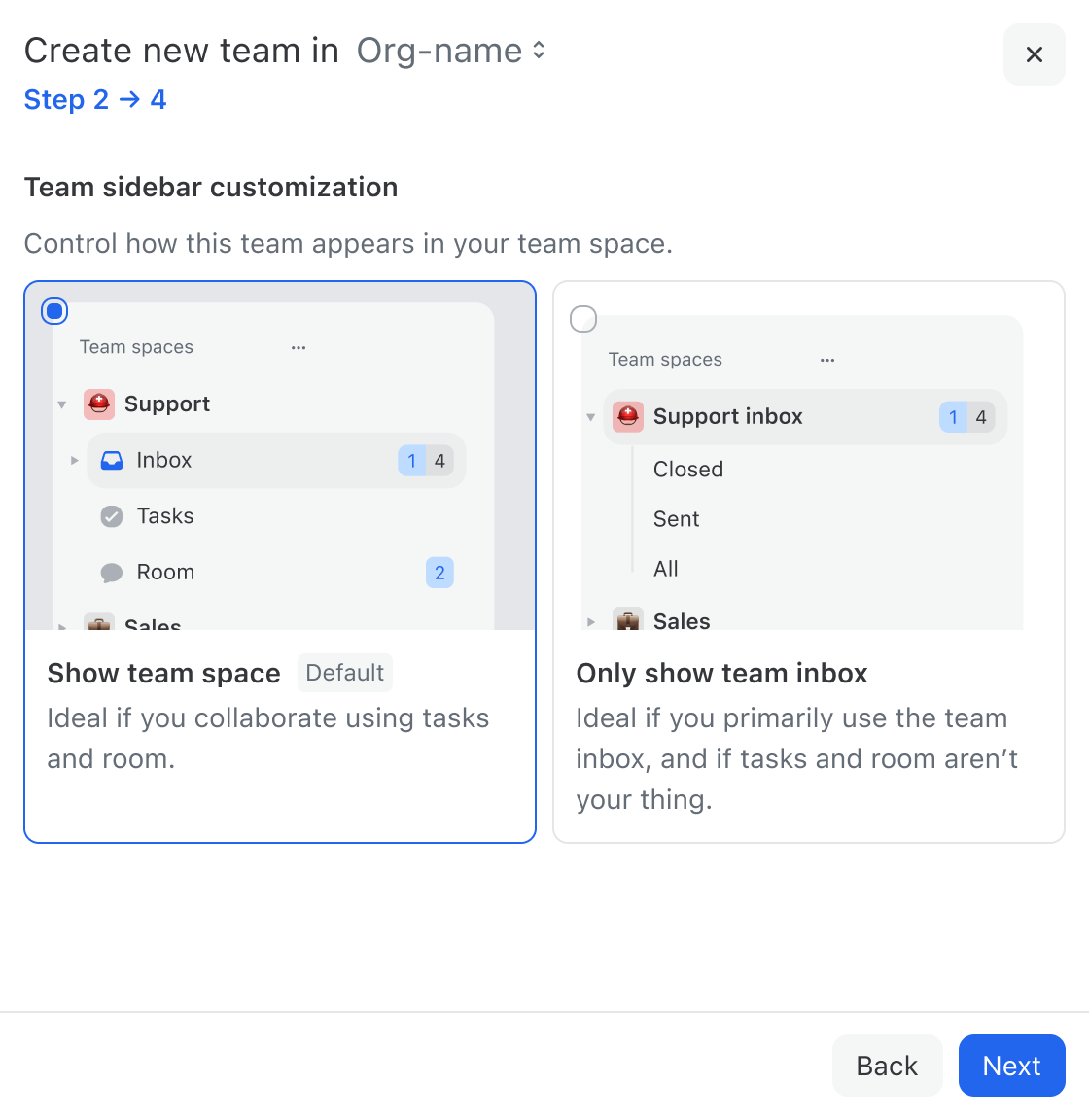
**Sidebar customization**
Choose how this team will appear in your sidebar. Missive offers two display options:
* **Show team space** (default) — Includes the team inbox, tasks, and room. Ideal if your team regularly collaborates using tasks or the team chat room.
* **Show only the team inbox** — Keeps your sidebar minimal, showing just the inbox without tasks or room.
{% endstep %}
{% step %}
**Business rules**
**Business hours**
This setting helps [Missive Analytics](/docs/advanced-features/analytics.md) accurately measure [Reply time and First reply time](/docs/advanced-features/analytics/reports.md#users) by excluding contacts made outside business hours.
You can also use business hours in [Rules](/docs/advanced-features/rules.md) to measure SLA conditions like "Unreplied and open after" only during working hours, excluding nights, weekends, and holidays.
**Inactivity period**
Determines when to segment long conversations so that people reusing old threads for new inquiries count as new conversations in your [analytics](/docs/advanced-features/analytics.md).
{% endstep %}
{% step %}
**Conversation rules**
**Mention options**
When a user mentions the team in a comment:
* Add only active members to the conversation (default)
* Add both active members and observers to the conversation
**Assignment options**
When a user replies to a message from a team inbox:
* Assign the conversation to that user (default)
* Leave the conversation in the team Inbox
When a reply is received in an already assigned conversation:
* Move conversation to the assignee's Inbox (default)
* Move conversation back to the team Inbox
{% endstep %}
{% endstepper %}
---
# Agent Instructions
This documentation is published with GitBook. GitBook is the documentation platform designed so that both humans and AI agents can read, navigate, and reason over technical content effectively. Learn more at gitbook.com.
## Querying This Documentation
If you need additional information that is not directly available in this page, you can query the documentation by asking a question.
Perform an HTTP GET request on the following URL with the `ask` and `goal` query parameters:
```
GET https://missiveapp.com/docs/core-features/team-inboxes/creating-a-team-space.md?ask=&goal=
```
`ask` is the immediate question: it should be specific, self-contained, and written in natural language.
`goal` is what the user is ultimately trying to achieve, the reason they need the answer. Sharing it helps GitBook give you a better, more relevant answer. A goal is most helpful when it describes the outcome the user wants rather than restating the question. For example, with `ask=how do I create an API token`, a goal like `automate deployments from our CI pipeline` lets GitBook tailor the answer to that use case.
The response will contain a direct answer to the question and relevant excerpts and sources from the documentation.
Use this mechanism when the answer is not explicitly present in the current page, you need clarification or additional context, or you want to retrieve related documentation sections.