Team Inboxes FAQ

Common questions about team inboxes and shared workspaces in Missive.

chevron-rightWhat’s the purpose of the Inbox when using team inboxes?hashtag
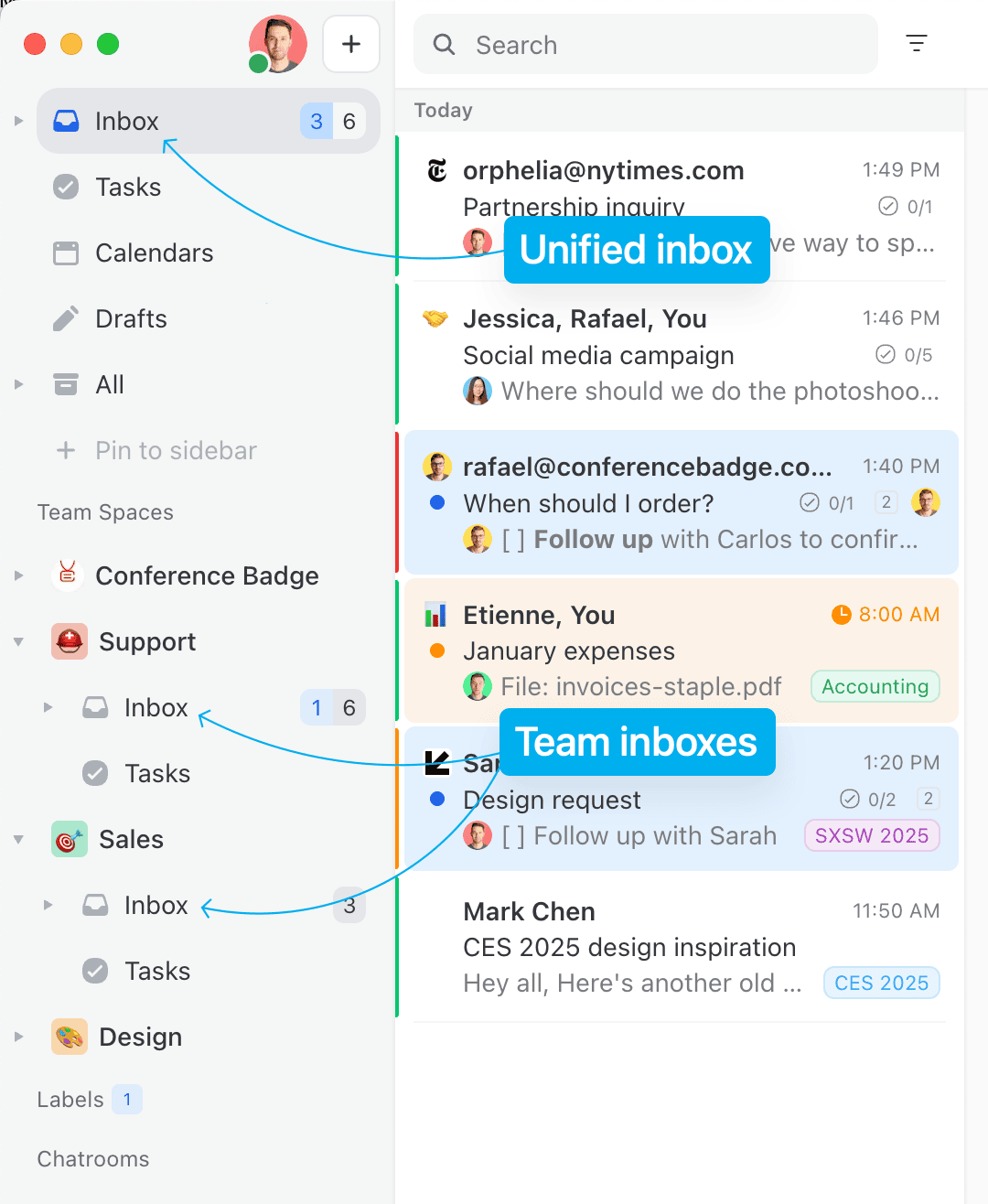
Unified inbox VS team inboxes

Inbox

The Inbox is the place where you consume everything that concerns you:

  • An email is received in one of your personal accounts.

  • A coworker mentions you in a conversation.

  • A coworker invites you to a conversation you had no prior access.

  • A coworker posts a comment in a conversation you are watchingarrow-up-right.

  • A coworker assigns you to a conversation.

  • A closed conversation assigned to you is reopened.

  • A conversation you had snoozed reaches its “snoozed until” time.

You will never miss anything important as long as you monitor your Inbox closely.

Team inboxes

Team inboxes offer a way to add a triaging step before emails reach the personal inbox of team members.

Some small businesses work without this triaging step; everyone just receives all emails in their Inbox, where they discuss and act on each email. Everyone archives each conversation when they see fit.

For businesses with an important flow of emails, this can get noisy. It’s better if one person can clear emails for everyone at once, by either archiving or assigning conversations, which is exactly what team inboxes do. When someone gets assigned to a conversation, the conversation is moved to their personal Inbox. So even if your team is using a Team Inbox, the Inbox is still everyone’s primary inbox.

Read more about Triage and assignment.

chevron-rightCan I see all my shared inboxes in one place?hashtag

Yes, the Team Inboxes mailbox gives you a unified view of conversations in the team inboxes you actively work on (teams you are an Active member of). It does not include conversations of team inboxes in which you are an Observer.

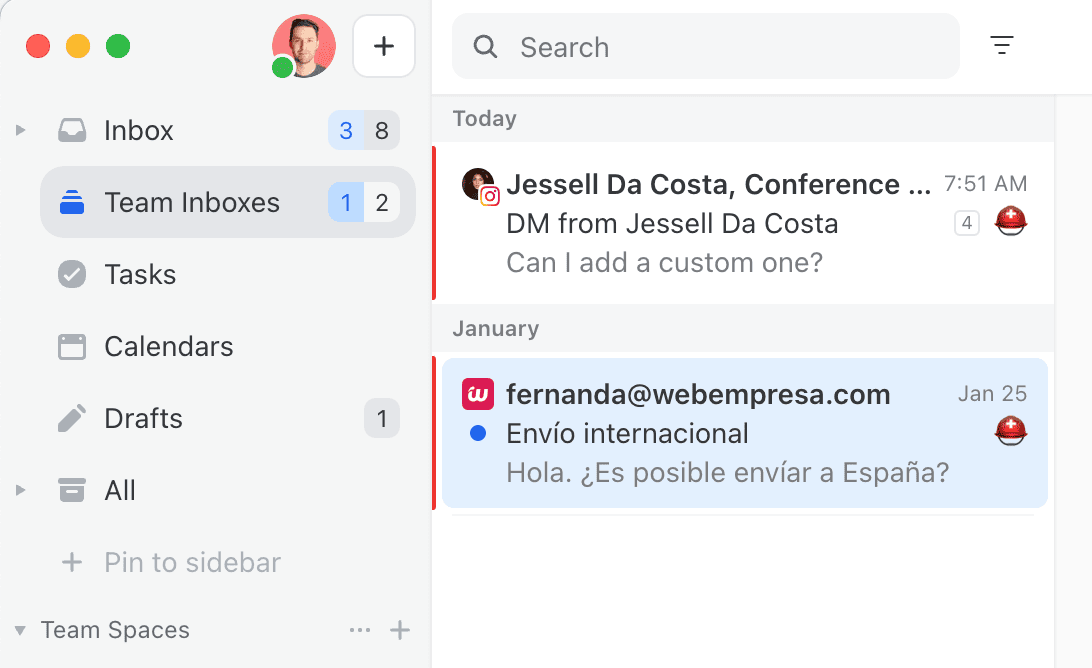
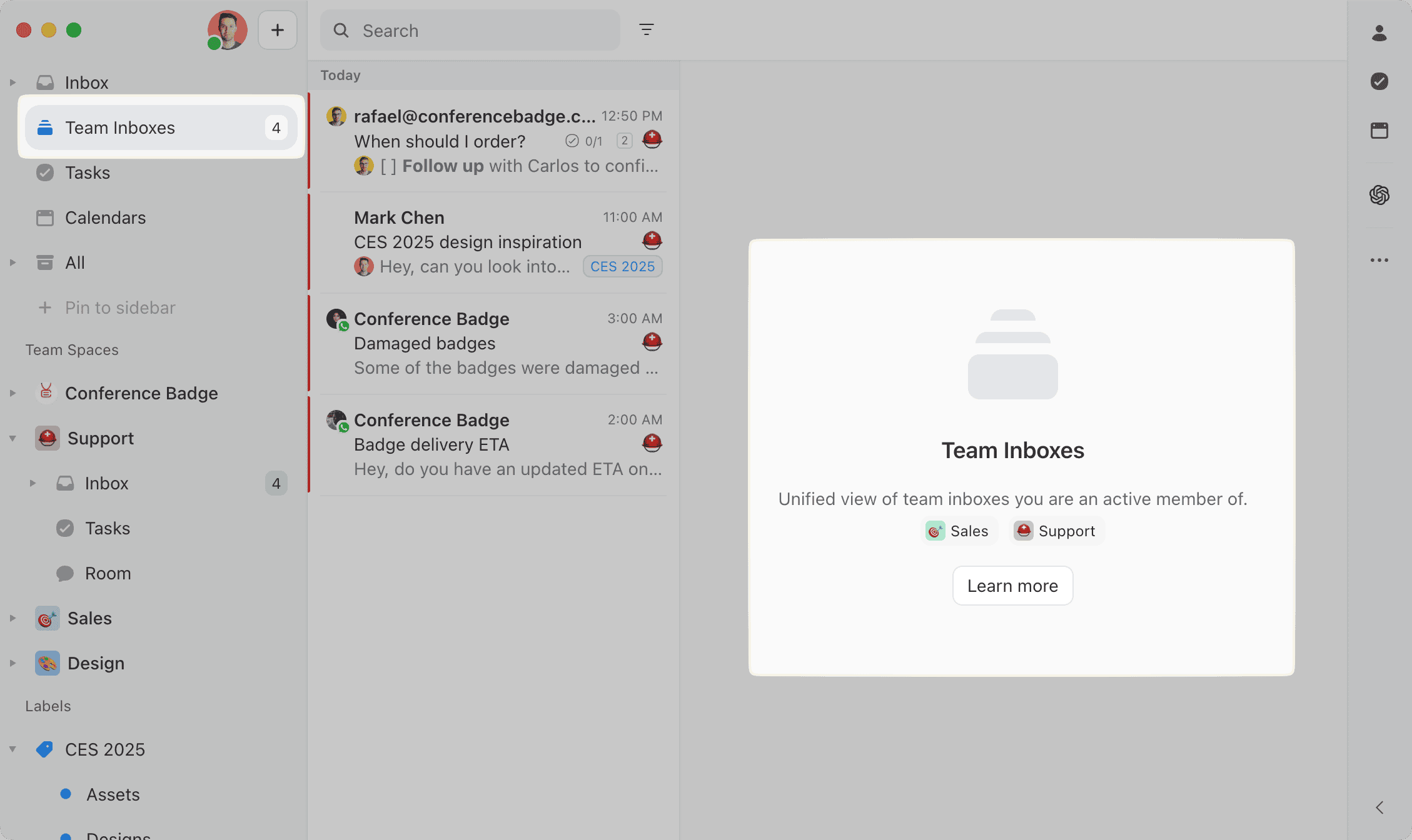
Team Inboxes mailbox
Press + Pin to sidebar > Main section to show the Team Inboxes unified mailbox in your sidebar.
Let’s say you are an active member of both the 📈 Sales and 🆘 Support teams. When you arrive at the office in the morning, instead of opening each team inbox separately, you can open the Team Inboxes mailbox and see everything in one place.

Read more about Triage and assignment.

chevron-rightInbox vs. Team Inbox: what’s the difference when sharing an account?hashtag

In Missive, shared accounts and addresses offer a few settings for different workflows:

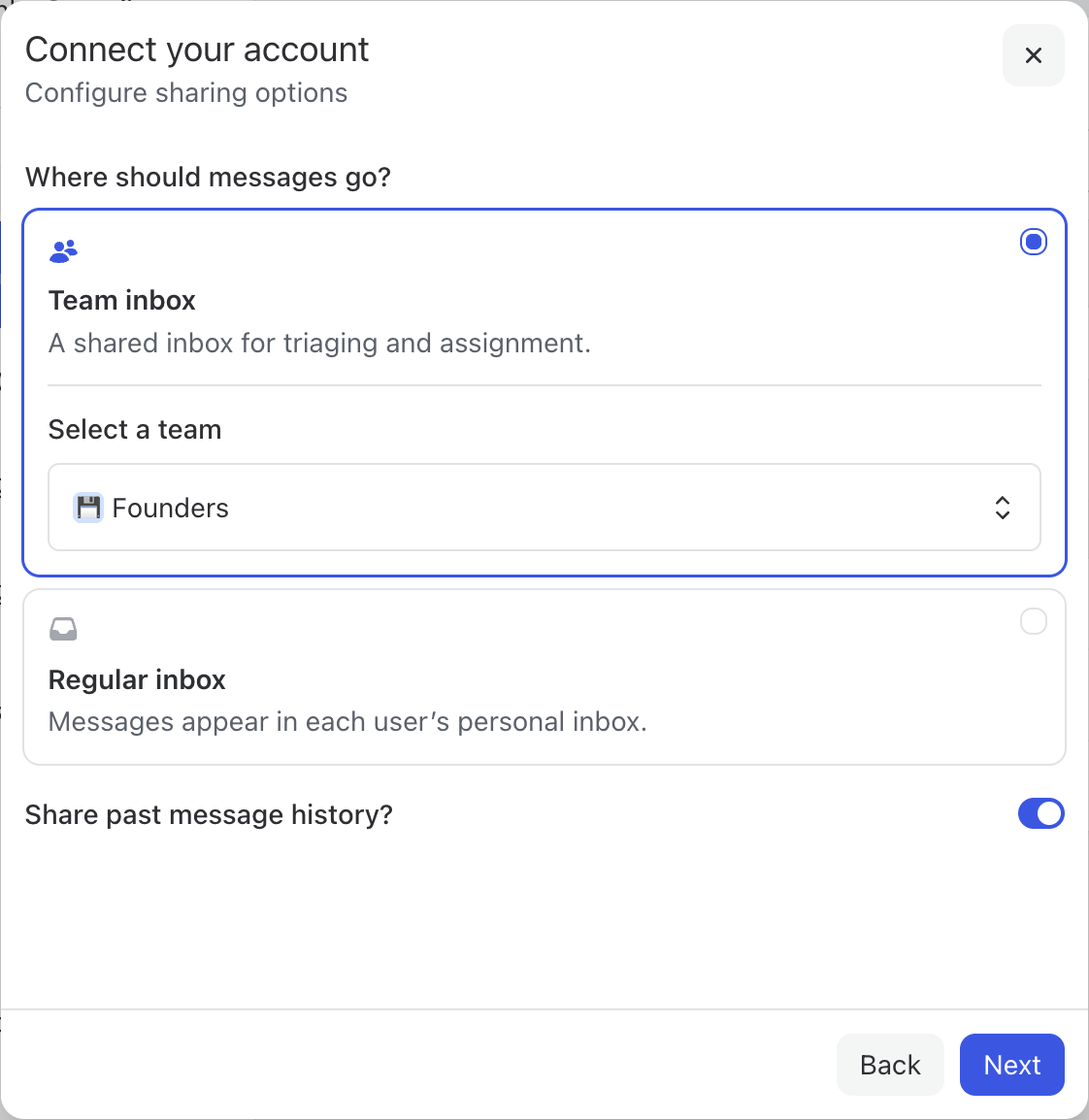
Team Inbox

When choosing Team Inbox, new messages appear in the Team Inbox instead of the Inbox. The Team Inbox is shared among its team members, meaning that whenever a message is assigned / archived / closed / trashed, it will be removed from the Team Inbox for everyone. This is useful for teams who want a "triage" step that will clean up messages for all coworkers at once.

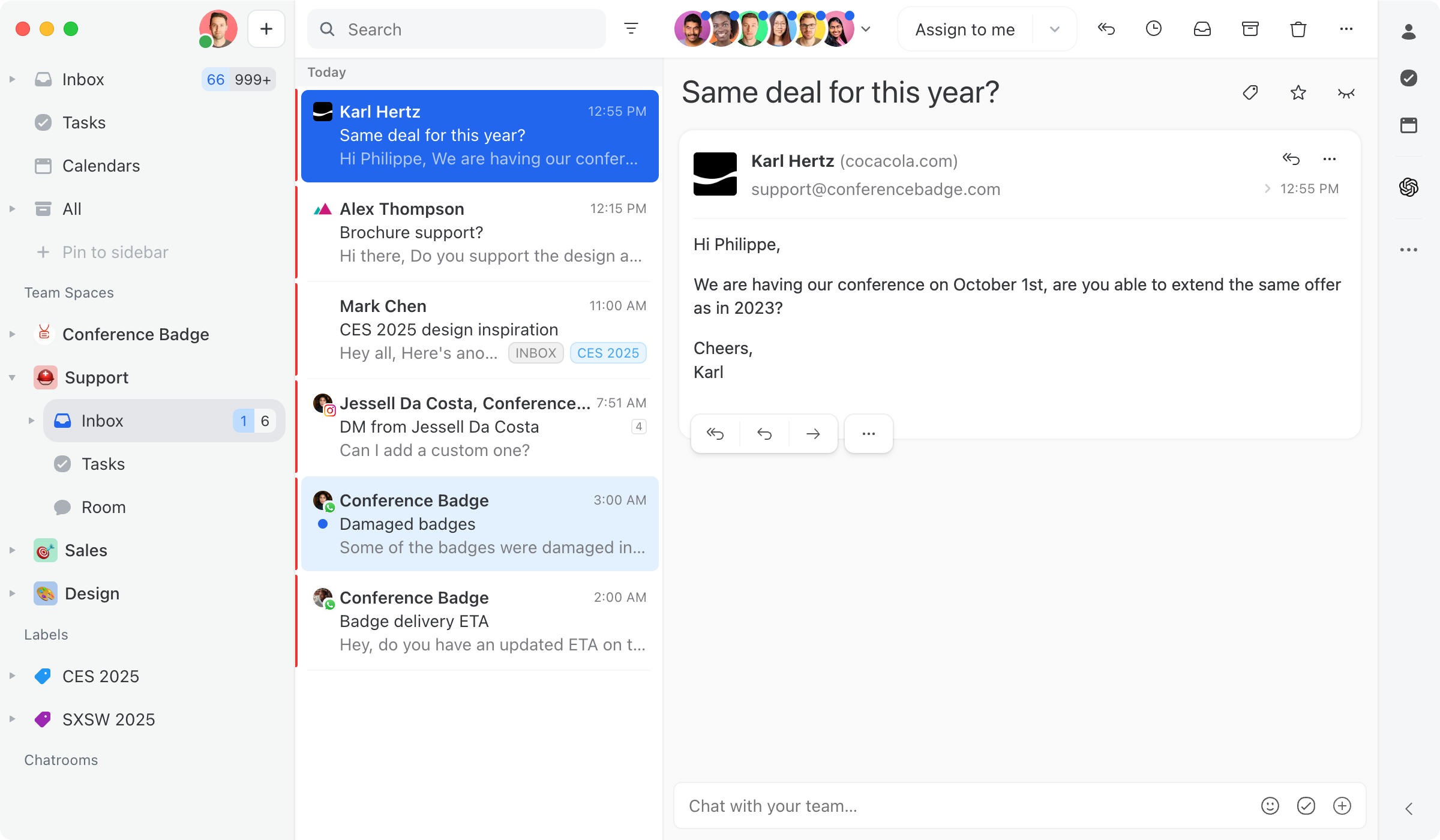
Let’s say we enable the Team Inbox flow for the account support@conferencebadge.com and select the ⛑️ Support team. All team members can now see incoming messages in the ⛑️ Support team inbox from the left sidebar.

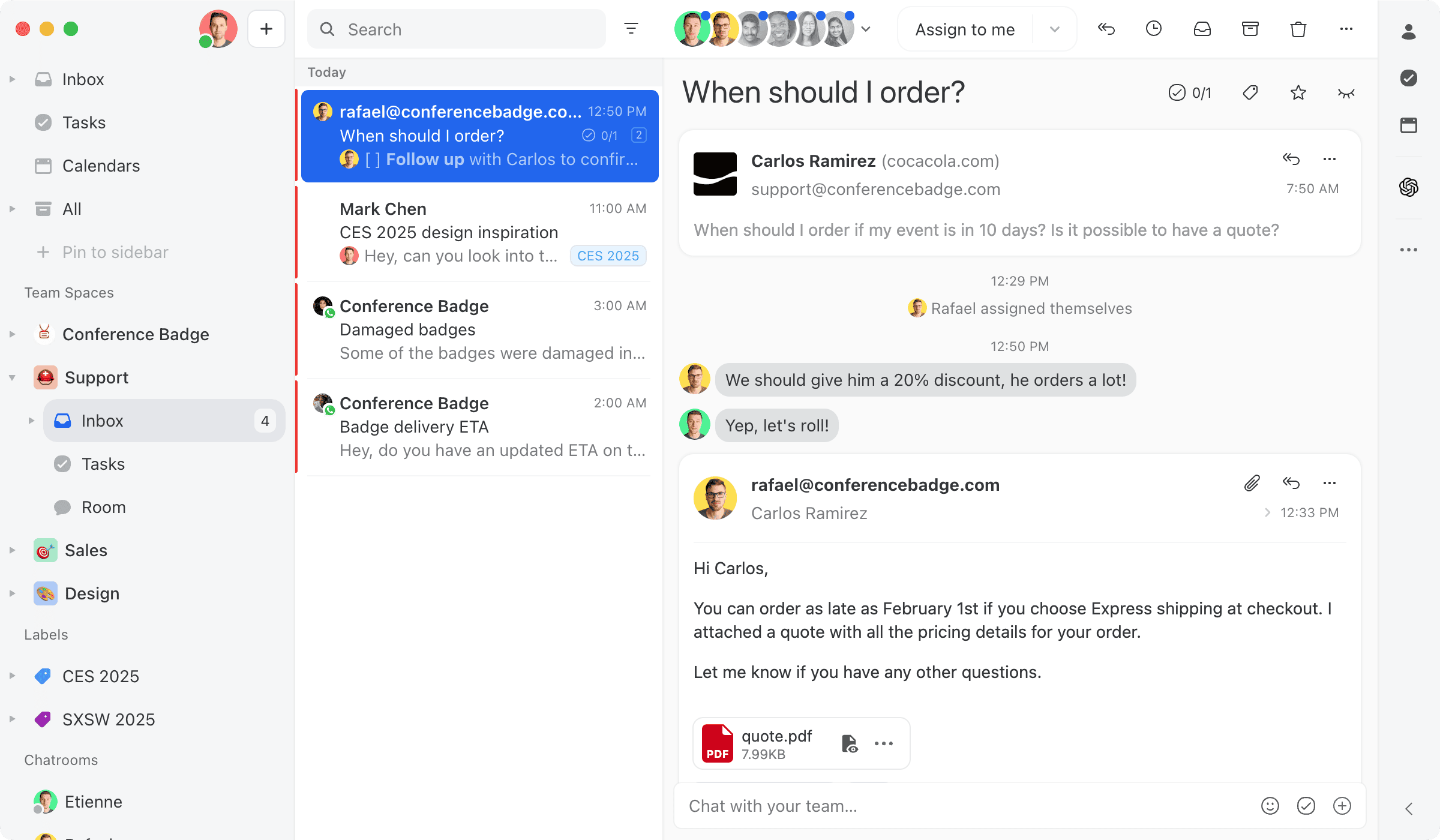
Every conversations can be assigned
You can easily assign conversations to anyone.
When creating a team, you can define two types of users:

Active members receive notifications for new messages. They see conversations listed in the Team Inboxes mailbox in addition to the team inbox.

Observers do not receive notifications and see conversations listed in the team inbox only. This is perfect for managers who want to monitor the work being done but don’t want to be flooded with notifications.

These settings are available in the Organizations > Message sharing tab. You can read more about triaging and assignment in this guide.

Inbox

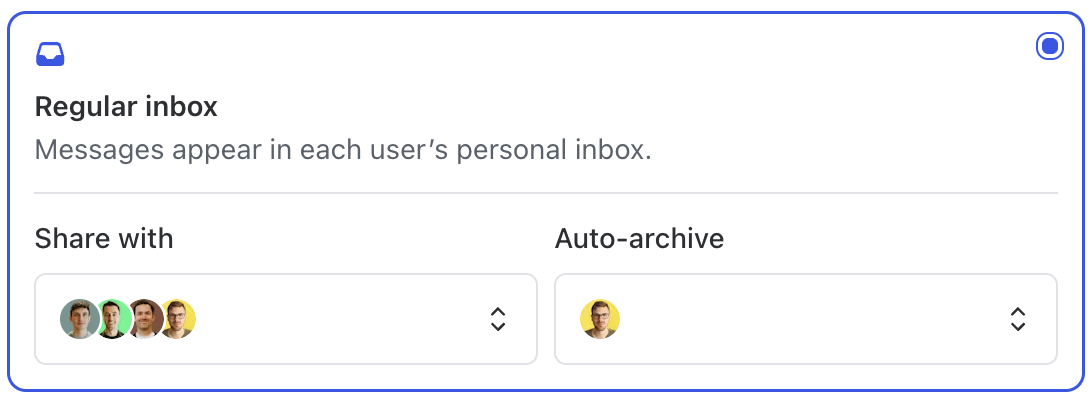
When choosing Inbox, new messages are received in each user's Inbox or are automatically archived (based on the sharing settings, see image below).

For users receiving new messages in their Inbox, conversations remain unread in their Inbox until they read / archive / trash it themselves. This is useful for people who want to stay master of their Inbox and see all messages that have been received and answered by anyone.

For auto-archived users, conversations will be searchable and accessible in their All mailbox at all times. Perfect for people who want to access all messages in an account without being distracted by notifications.

Shared Inbox flowchart

Take a look at this flowchartarrow-up-right to get a deep understanding of how shared inboxes work in Missive.

chevron-rightIs there a unified view of all my team inboxes?hashtag

Yes, the Team Inboxes unified mailbox. You can open it from the + Pin to sidebar menu of the left sidebar.

Here is how it works:

When creating a team, you can define two types of users: Active members and Observers.

  • Active members receive notifications for all new messages and chat comments. They see conversations listed in the Team Inboxes unified mailbox and the team inbox itself.

  • Observers do not receive notifications and only see conversations listed in the team inbox. This is perfect for managers who want to monitor the work being done but don’t want to be flooded with notifications.

The Team Inboxes unified mailbox is helpful for organizations having a lot of team inboxes (e.g. one team inbox per customer) where it’s impractical to look at all team inboxes individually. Using the unified mailbox improves productivity.

You can read more here.

chevron-rightWhat happens when I trash a conversation from a team inbox?hashtag

When you trash from a team inbox, you'll see a confirmation modal:

"This affects all your coworkers. The conversation(s) will no longer be visible in any team inbox for anyone."

This prevents accidental removal of conversations others are working on.

What happens:

  • Removes the conversation from the team inbox for everyone

  • Removes all assignees

  • Clears team assignment

  • Moves to trash for everyone with access

See Conversations FAQ for complete trash documentation.

chevron-rightCan I trash conversations as an Observer or delegated user?hashtag

Delegated users can trash conversations, but the behavior differs based on context:

  • From a team inbox: Trashes the conversation for everyone

  • From anywhere else: Only trashes the delegated user's access (others retain access)

Observers have similar behavior - they can trash, but from non-team locations it only affects their own access.

Deleting forever:

Delegated users and Observers cannot delete conversations forever for everyone. They can only remove their own access when attempting to delete forever.

See Conversations FAQ for complete details.

chevron-rightWhat are the meanings of the user avatars?hashtag

Orange clock icon: User has snoozed the conversation.

Blue dot (top right corner): User has not read all emails in the conversation.

Greyed avatar: User has archived the conversation.

Colored avatar: User has the conversation in their Inbox or Team Inboxes.

Blue allow: User is currently viewing the conversation:

Image showing user avatars
chevron-rightHow can a conversation be manually moved to a team inbox?hashtag

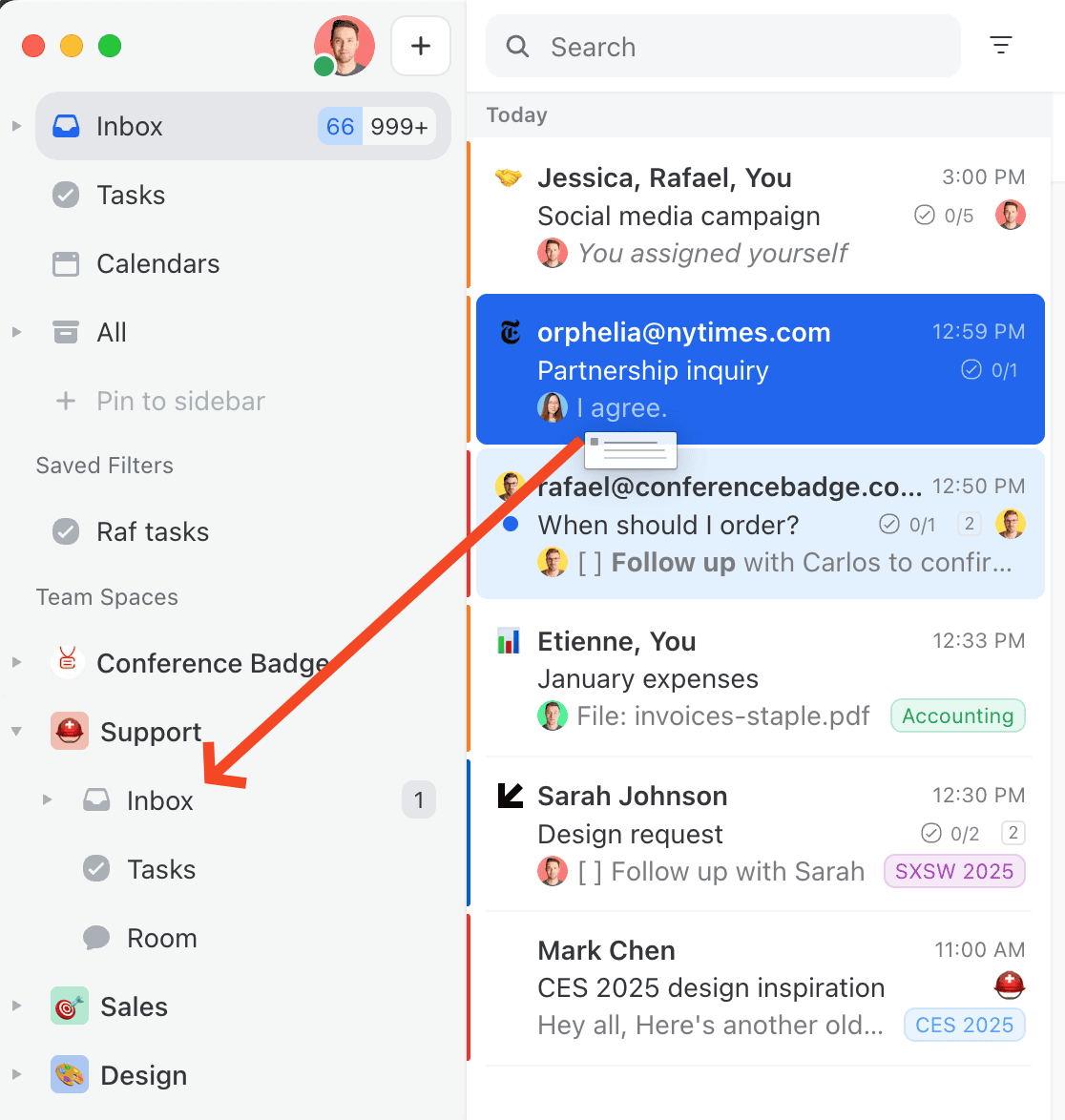
A conversation can be assigned/moved to a team inbox by simply dragging it directly into a team inbox in the sidebar.

On mobile, or if you prefer not to drag and drop, you can use the assignment menu to move a conversation to a team inbox too.

chevron-rightCan I move teams between organizations?hashtag

No, you cannot transfer teams between different organizations. If you need to split or transfer teams to another organization, you must unshare the accounts from the current organization and then reshare them with the new one.

Note that this process will result in the deletion of all associated chats and comments from the previous organization (once the shared account becomes a personal account). This data will be permanently lost.

Learn more about email sharing configuration.

chevron-rightCan I share an email address with multiple teams?hashtag

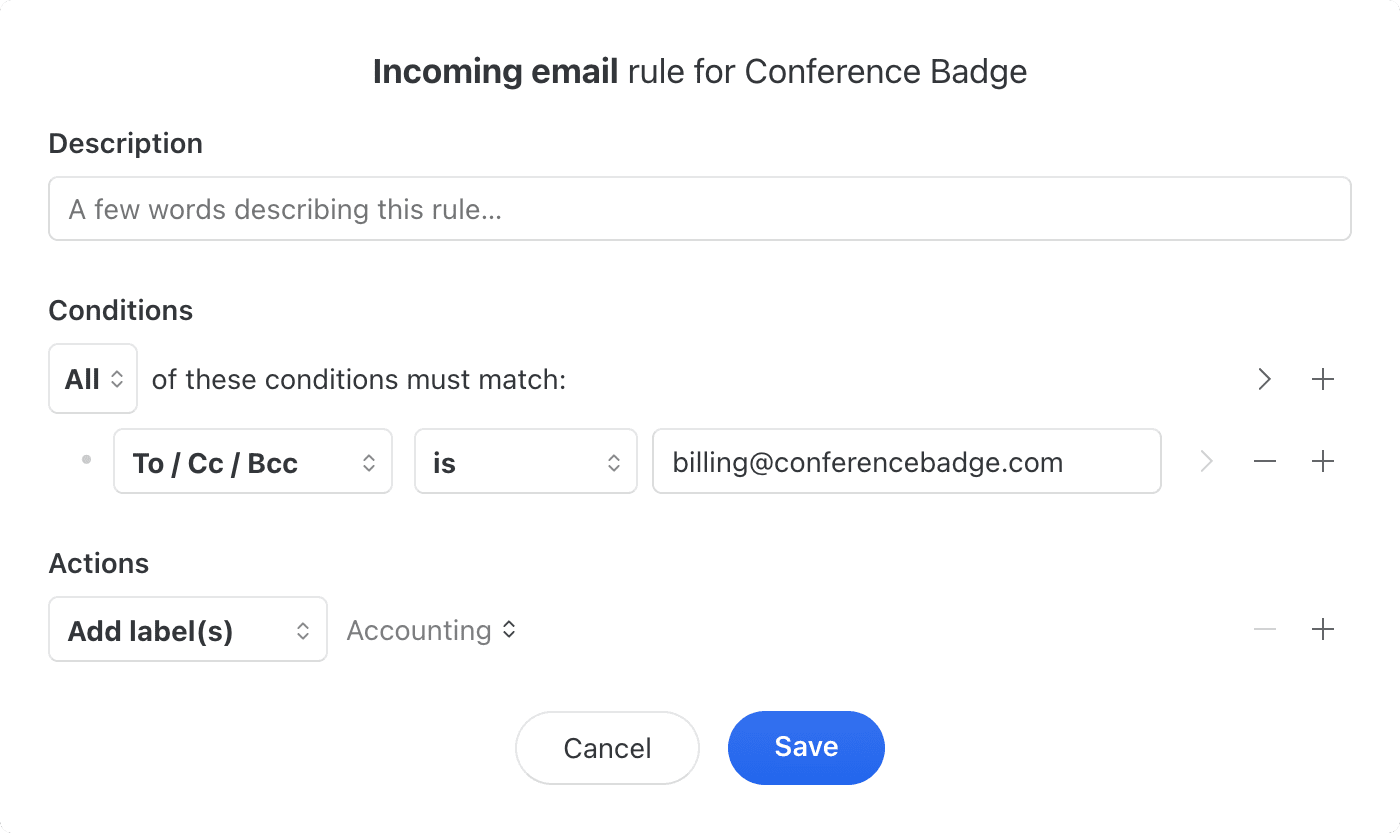
Conversations from a single email address can't be received in multiple team inboxes. However, you could use a rule to apply a shared label, and share that label with multiple teams. Teams could then open the label in their sidebar.

To create a rule to apply a shared label simply do as follows:

Rule to apply a shared label to share conversation with multiple teams
chevron-rightHow can I balance my team's workload?hashtag

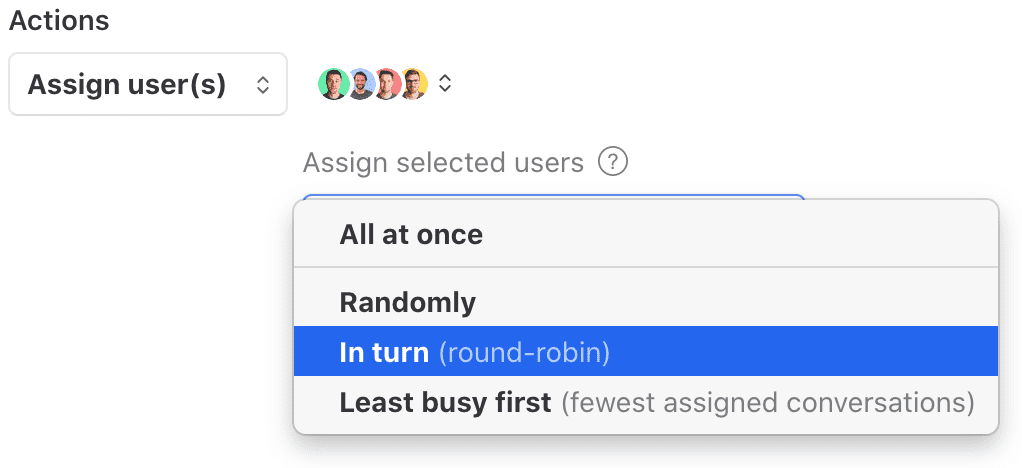
Missive lets you automatically distribute your team's workload with four distinct balancing methods. You can select one of them by creating a rulearrow-up-right with the Assign user(s) action.

Screenshot of Missive's workload balance methods in rules
chevron-rightHow to open team sub-mailboxes (Closed, Sent & All)?hashtag
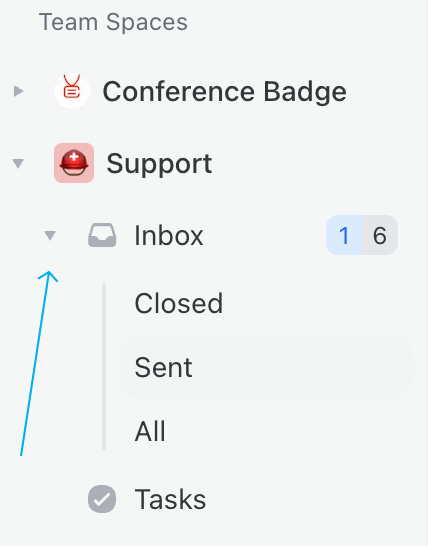
  1. Open the team space in the sidebar.

  2. Click on the arrow left of the team inbox to expand the sub-mailboxes.

Screenshot showing how to open team sub-mailboxes (Closed, Sent & All)
chevron-rightWhat happens if the same email is sent to multiple team inboxes?hashtag

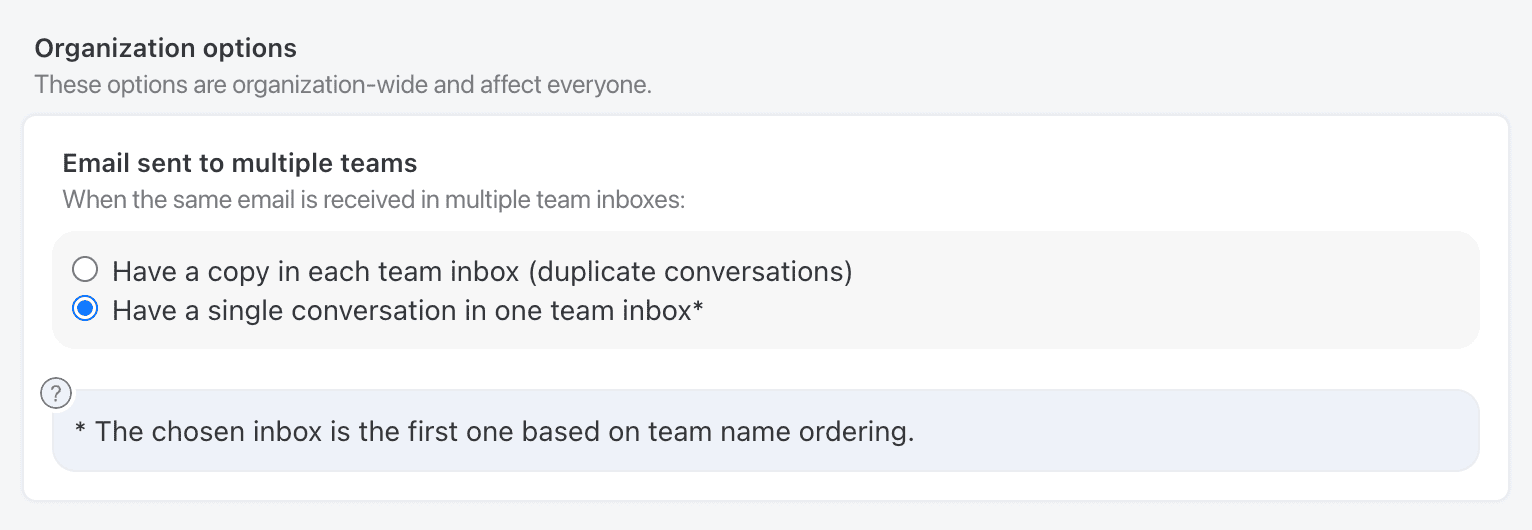
When an email is sent to multiple team inboxes (e.g. sales@, production@), the behavior depends on your organization settings:

  1. Duplicate Conversations (Default): The conversation will be duplicated in each team inbox. A note is added to both conversations with a link to easily merge them together.

  2. Single Conversation: The email will only create one conversation in a single team inbox. The inbox is chosen based on team name ordering (alphabetically). This helps prevent duplicate work and keeps all responses in one place.

You can change this behavior in Settings > Organization under "Email sent to multiple teams" options.

Organization settings showing email handling options for multiple teams
Organization settings page showing options for handling emails sent to multiple teams
chevron-rightWhat happens when an email is sent to multiple team inboxes?hashtag

When an email is sent to multiple team inboxes, it is duplicated in each team inbox.

To help you manage these conversations, an indication will appear under each email, to let you know that it has been duplicated. This way, you can keep track of which conversations have been duplicated and which ones are unique to a specific team inbox.

If a team member from one team inbox closes their conversation, it will remain open for the other teams. To simplify things, you can merge the conversations back together with just one click. This makes it easier to manage conversations across multiple inboxes, without the risk of missing an important message.

chevron-rightWhy I’m seeing all emails in a team even if I’m not part of it?hashtag

When you import an email account into Missive, you gain access to all of its content, regardless of whether you're part of the team associated with that email account.

If you prefer not to have access to the content of an email account, you can transfer it to a team memberarrow-up-right.

chevron-rightHow can I show most recent messages at the top and oldest at the bottom?hashtag

Missive does not offer a way to show latest emails (messages) at the top mainly because of its collaborative nature.

In Missive, each conversation is a chat room in itself. You can add chat comments in between emails, and the natural order for chat is top to bottom.

Image showing collaboration in Missive
Here is an example of a collaborative conversation with emails and chat in between.
chevron-rightHow to edit the active members and observers of a team?hashtag

To edit the active members and observers of a team:

  1. Go to Settings > Teams.

  2. Click Edit next to the team.

  3. Select active members and observers from the dropdown.

  4. Then click Save at the bottom of the modal.

Last updated