Conversations FAQ
General
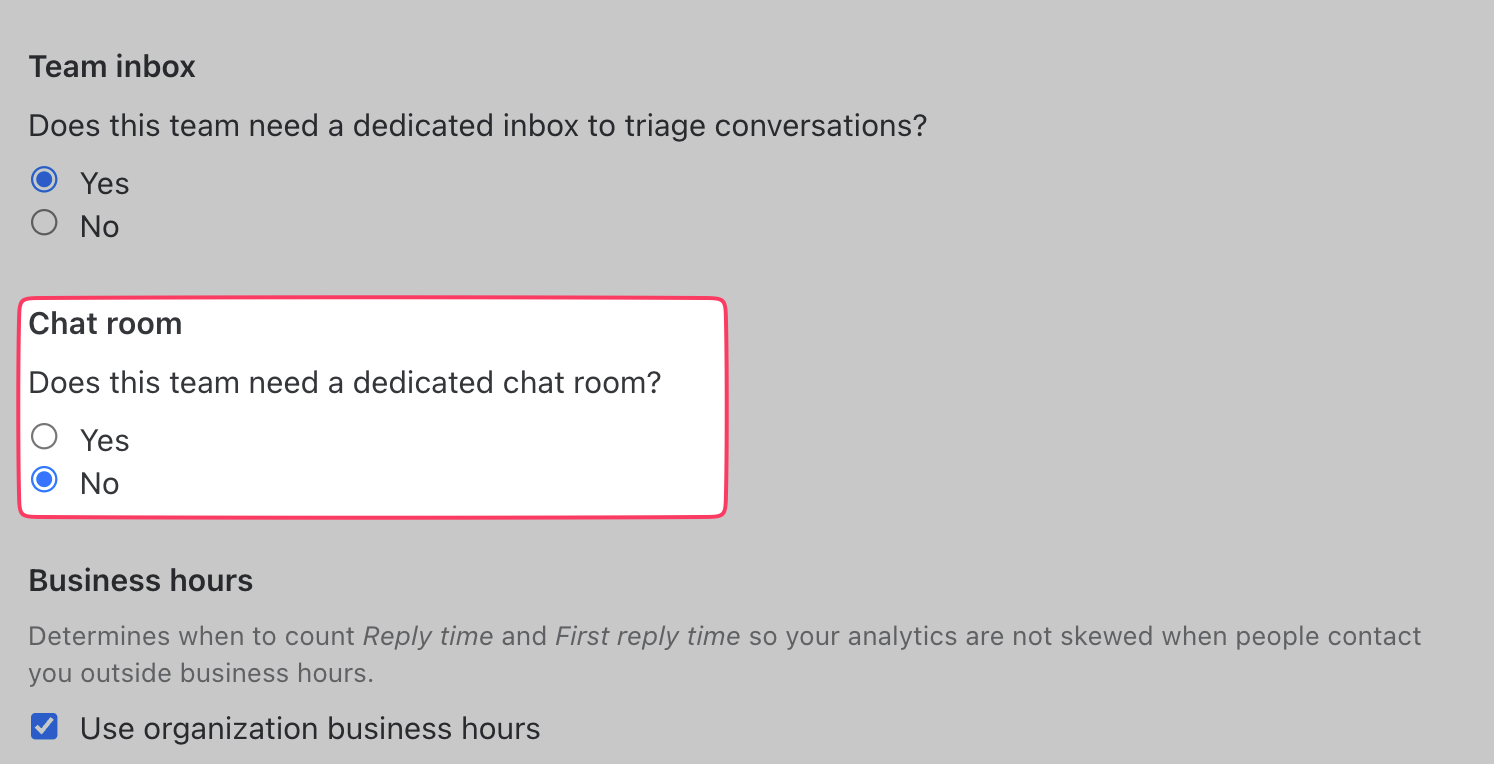
How to disable a dedicated Team Inbox chat room?
Go to Settings > Teams, select your team, click Edit, then set Chat room to No.

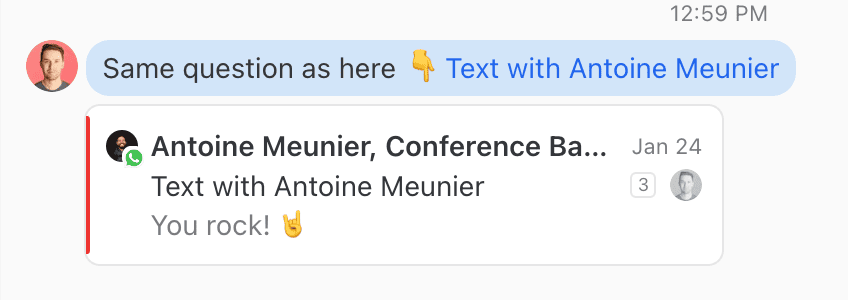
Can I cross-reference conversations?
Yes. Share a conversation's link (right-click in conversation list > Copy link) in another conversation.
A snippet of the linked conversation will appear for anyone who has access to it.

How can I merge two conversations into a single one?
Option A:
Right-click a message and click Copy link.
Right-click another message and click Merge copied conversation.
Confirm the action by clicking Merge.
Option B:
Drag and drop a conversation onto another.
Confirm the action by clicking Merge.
Option C:
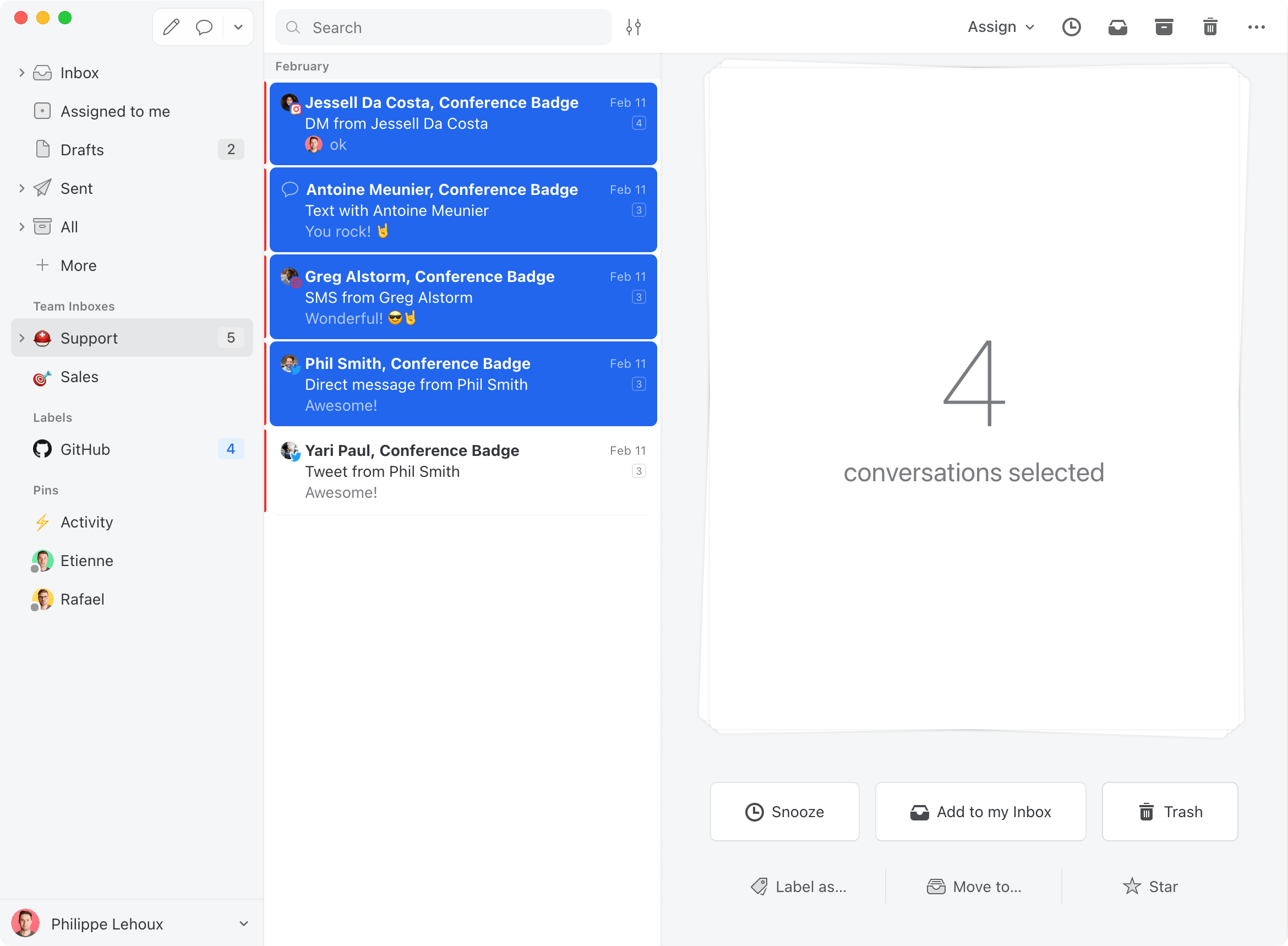
Select all the conversations you want to merge.
Click the Merge X conversations button.
Confirm the action by clicking Merge.
Option D:
In the right sidebar, in the Latest conversations section, drag & drop the conversation preview onto another.
Confirm the action by clicking Merge.
Option E:
Create a rule that will merge messages into a predefined conversation using the Merge conversation action.
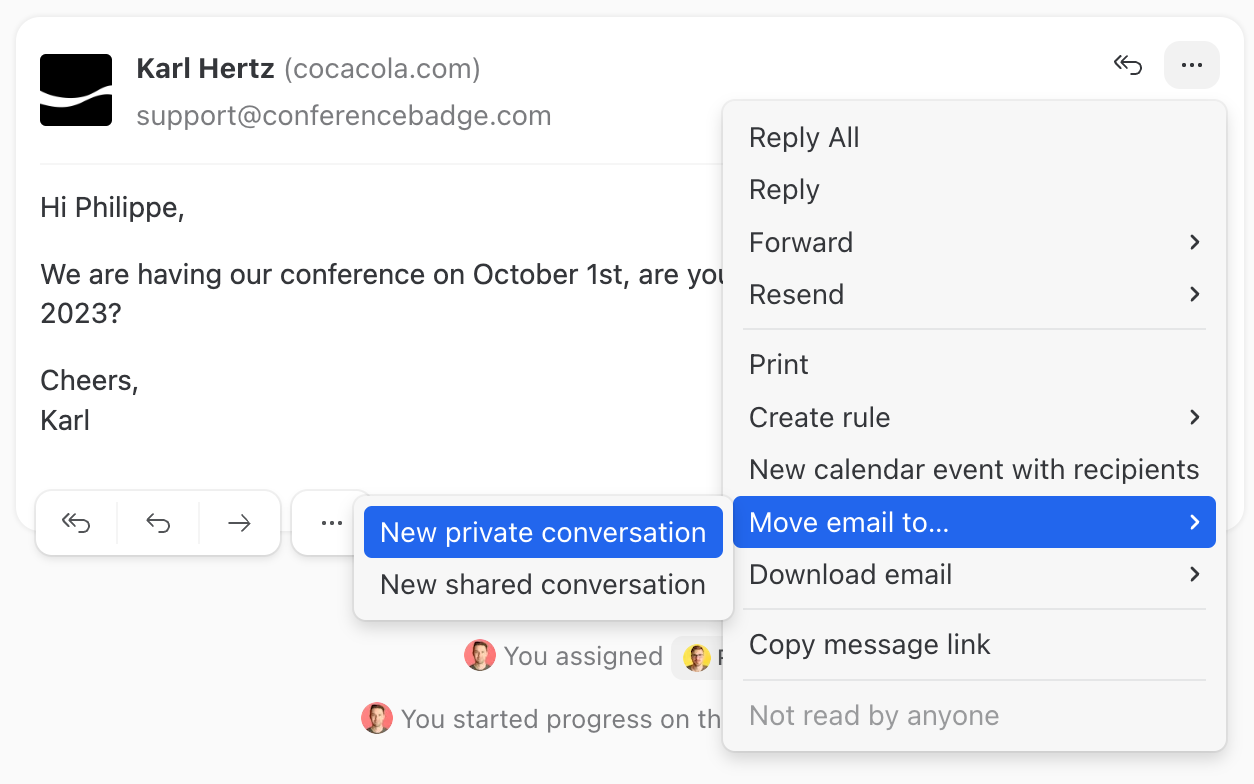
How can I un-merge two conversations?
You can use the Move email to option to move some emails out of the conversation. But you can't un-merge comments.

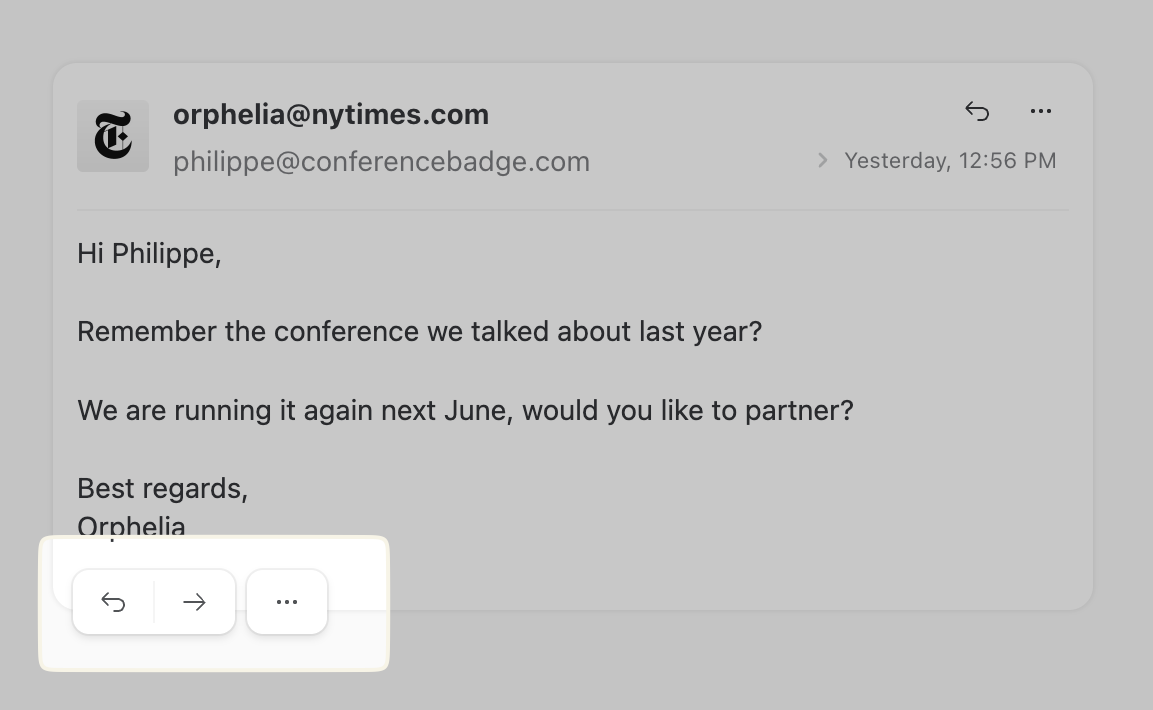
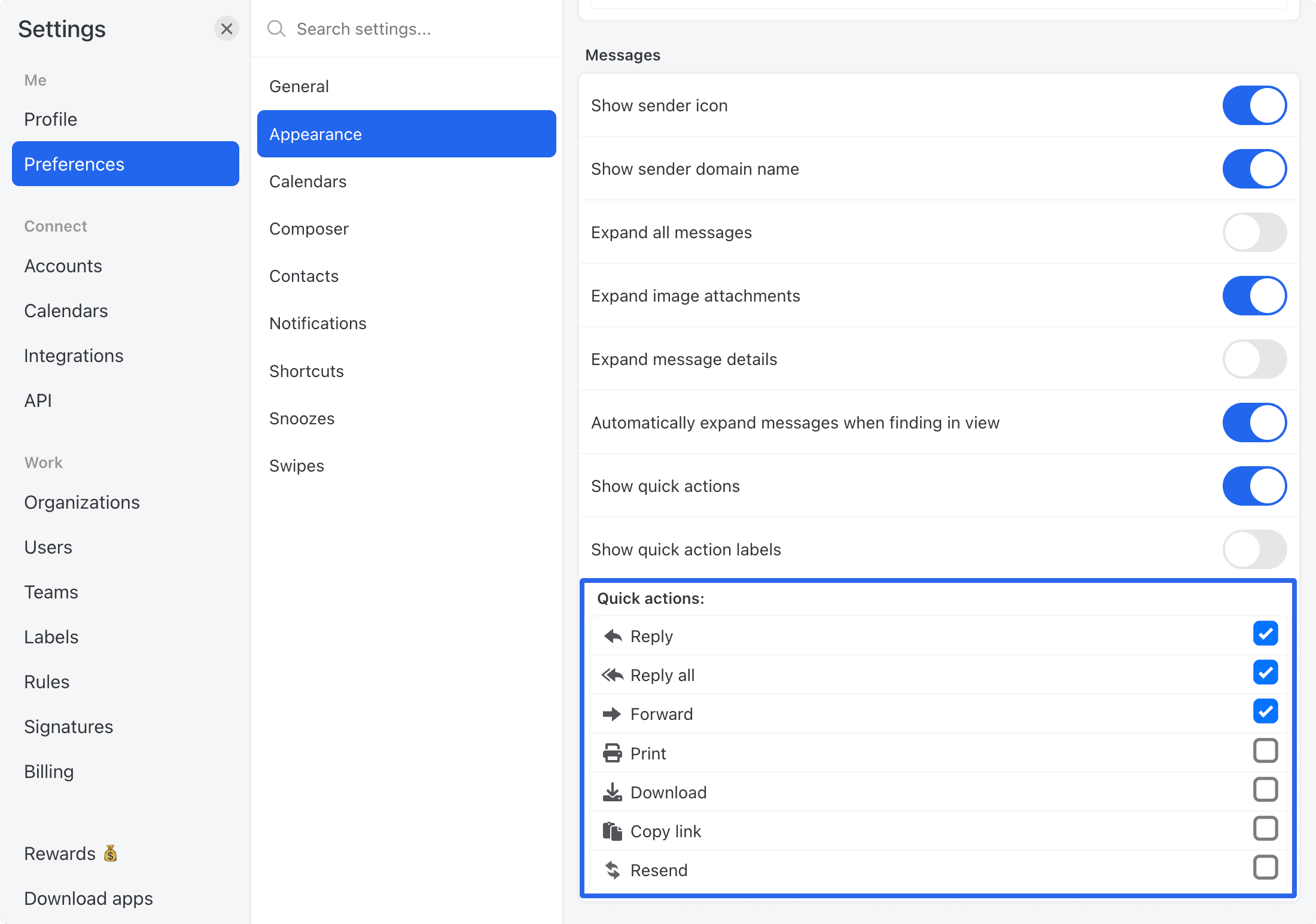
Can I customize the actions displayed under messages?

Yes. Go to Settings > Preferences > Appearance > Messages to check/uncheck the actions you want displayed.

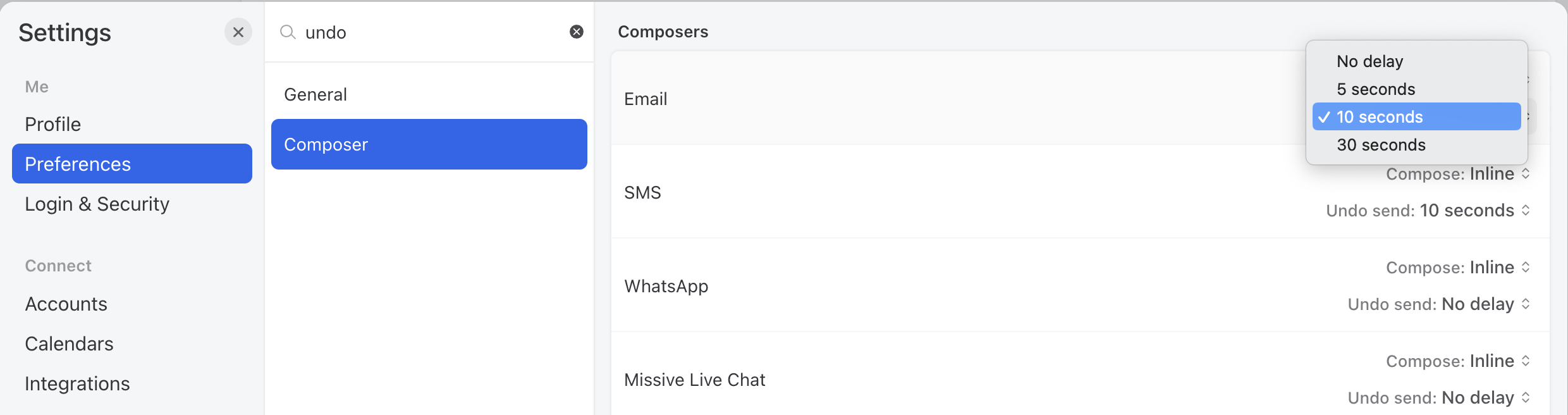
Can I undo sending a message (email, SMS, etc)?
You can choose a delay time to recall a recently sent email. You will see a banner to undo the action right after sending the message. You can configure the next delay options:
No delay
5 seconds
10 seconds
30 seconds
You can access this setting in the "Composing" section of the preferences.

How can I change the spell check and auto-correction language of Missive?
You can change the language of the spell check and auto-correction language by right-clicking on the comment input of any conversation, then select the Dictionaries option, then select up to three languages:

How to invite/add someone to a conversation?
There are three ways to add people to a conversation:
Posting a chat comment with a @mention. This always shows the conversation in the mentioned person’s Inbox.
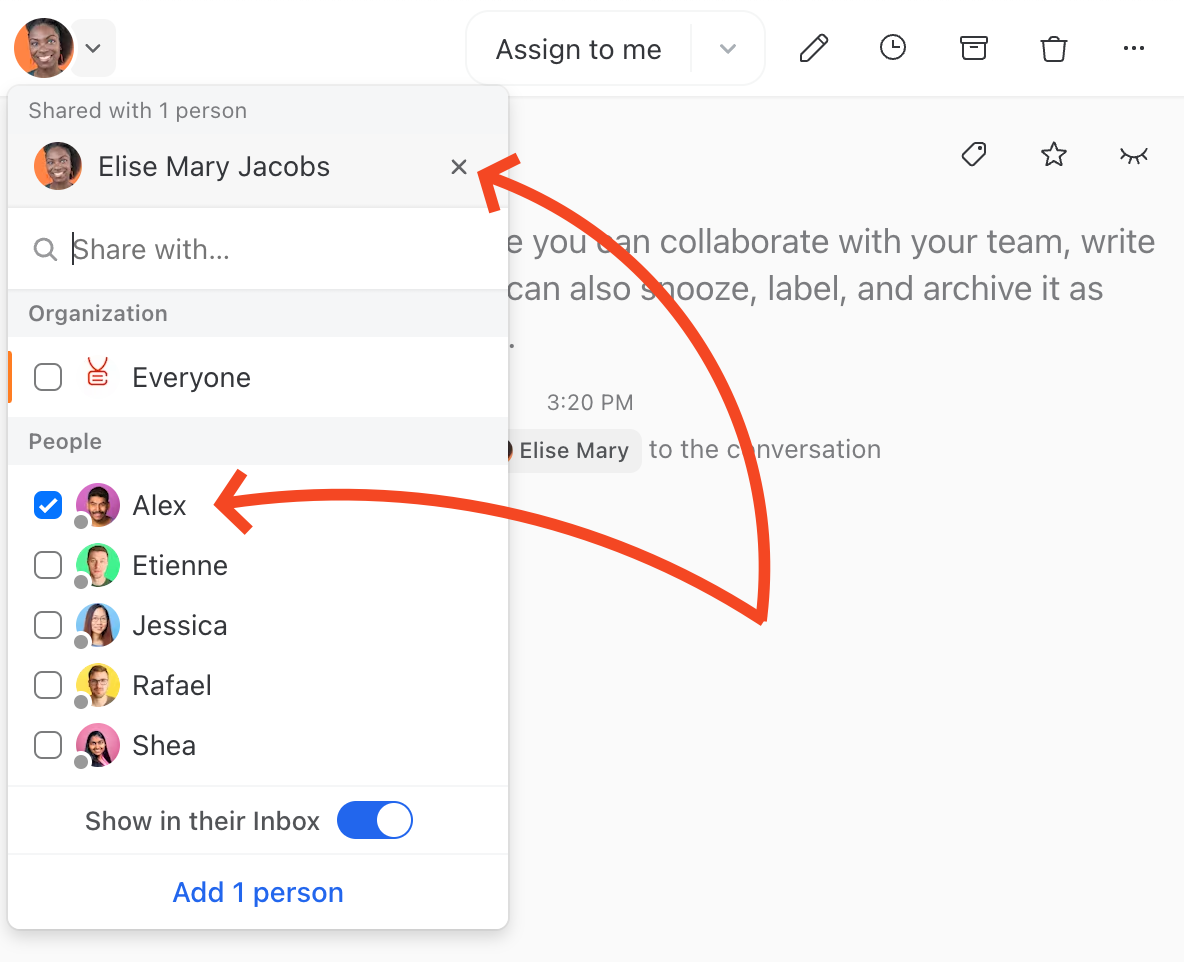
Adding the person through the “Add people” menu, at the top of the conversation. In this case, it’s possible to choose whether you want the person to see the conversation in their Inbox or only give them access to the conversation, archived, for future reference. This is done through the Show in their inbox checkbox. This checkbox remembers the last checked / unchecked state you used, so if you have previously unchecked it, you need to check it again to make sure adding people through this menu will make the conversation appear in their Inbox.
Assigning the person to the conversation from the assignment menu. This always shows the conversation in the mentioned person’s Inbox and Tasks view.

Where are the send later messages located?
In the sidebar click on + Pin to sidebar. A list will be displayed, click on the Send later mailbox.
See Drafts for details on scheduling messages.
Is it possible to do bulk actions?
Yes. You can select multiple messages at once by holding the Shift key. You will see a screen with available actions that can be applied to all selected messages.

Workflows
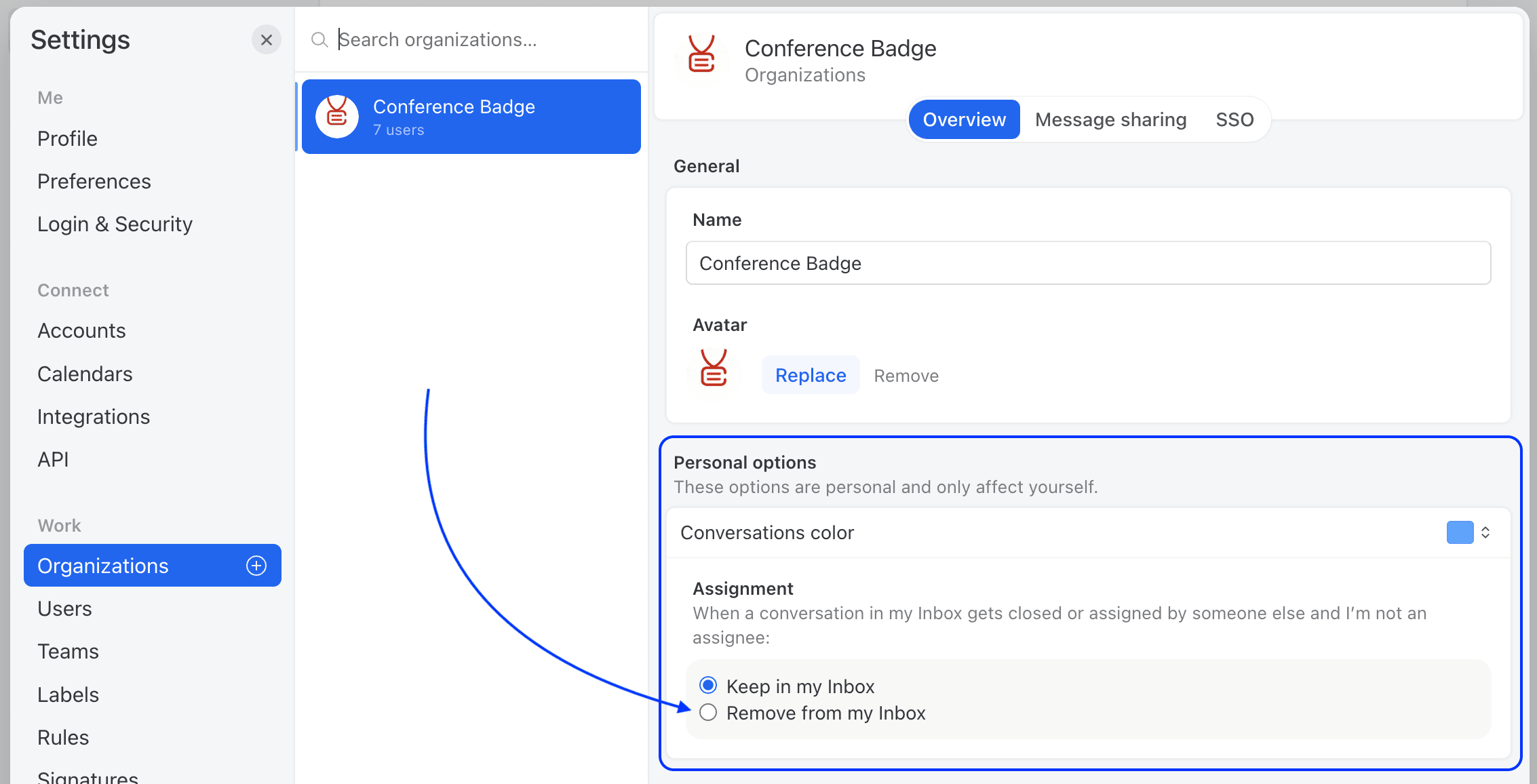
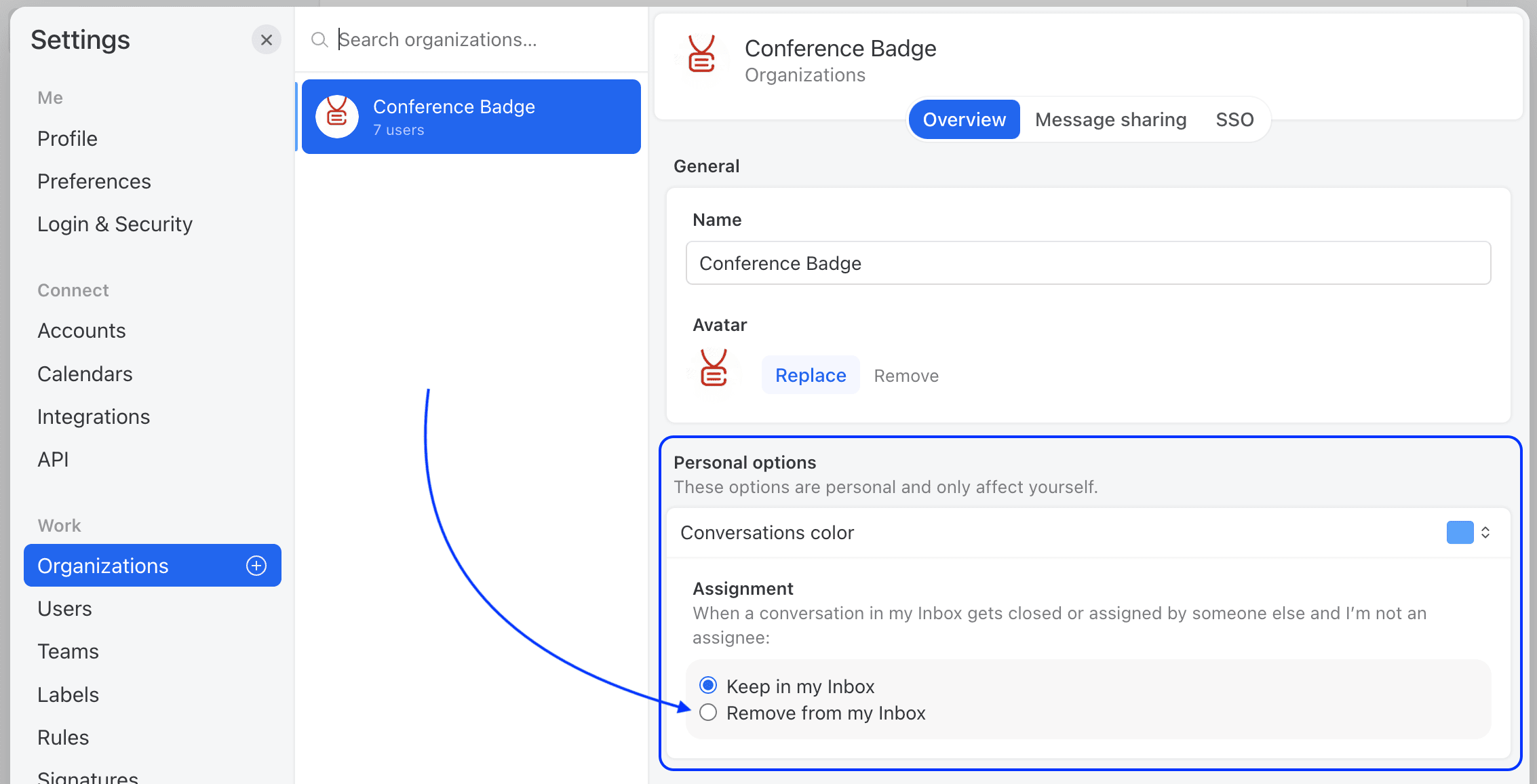
Can I automatically remove closed conversations from my Inbox?
If a conversation is in your Inbox, it’s most likely because someone mentioned you. To make it so that conversations are removed from your Inbox upon being closed, you can enable the following setting:

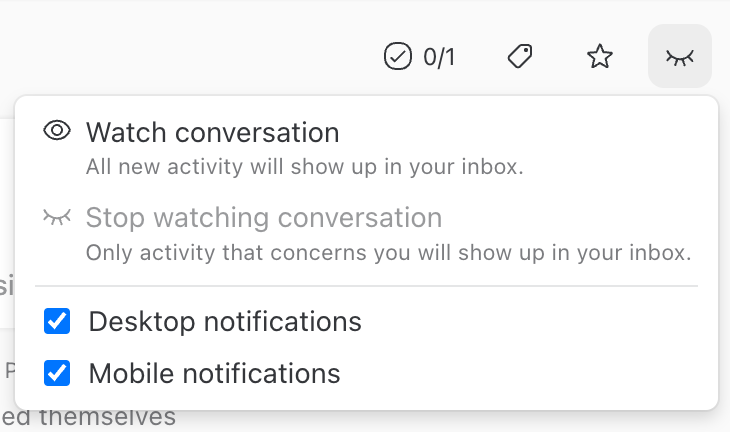
This setting won’t remove conversations from your Inbox if you are watching them. You can always manually click the eye icon at the top-left to start watching a conversation and avoid it being auto-archived upon closing:

You can read more about watching in this article.
Can I automatically watch (follow) conversations where I'm mentioned by a colleague?
You can create a New comment rule to automatically watch (follow) a conversation when you're mentioned by a colleague.
Here's how to do it:

Can I send a reply without closing a conversation?
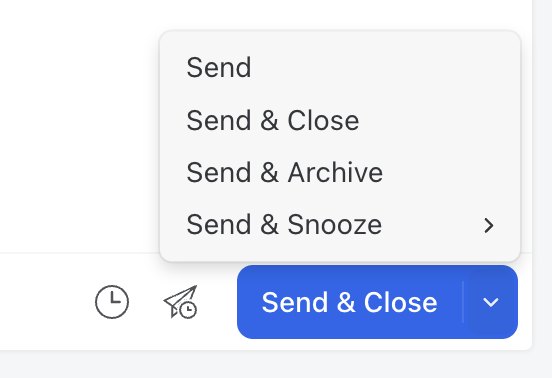
Clicking Send & Close removes the conversation from your Inbox; this is the expected behavior. If you want to send a reply without closing the conversation, you can use the menu next to Send & Close, and instead pick only Send:

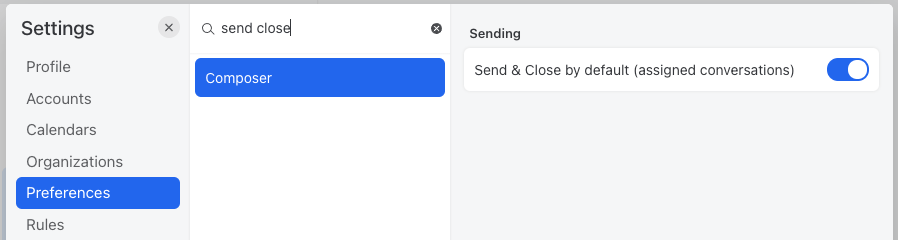
Alternatively, if sending without closing is the behavior you want most of the time, you can disable the following setting:

Can I trigger a series of actions from the user interface?
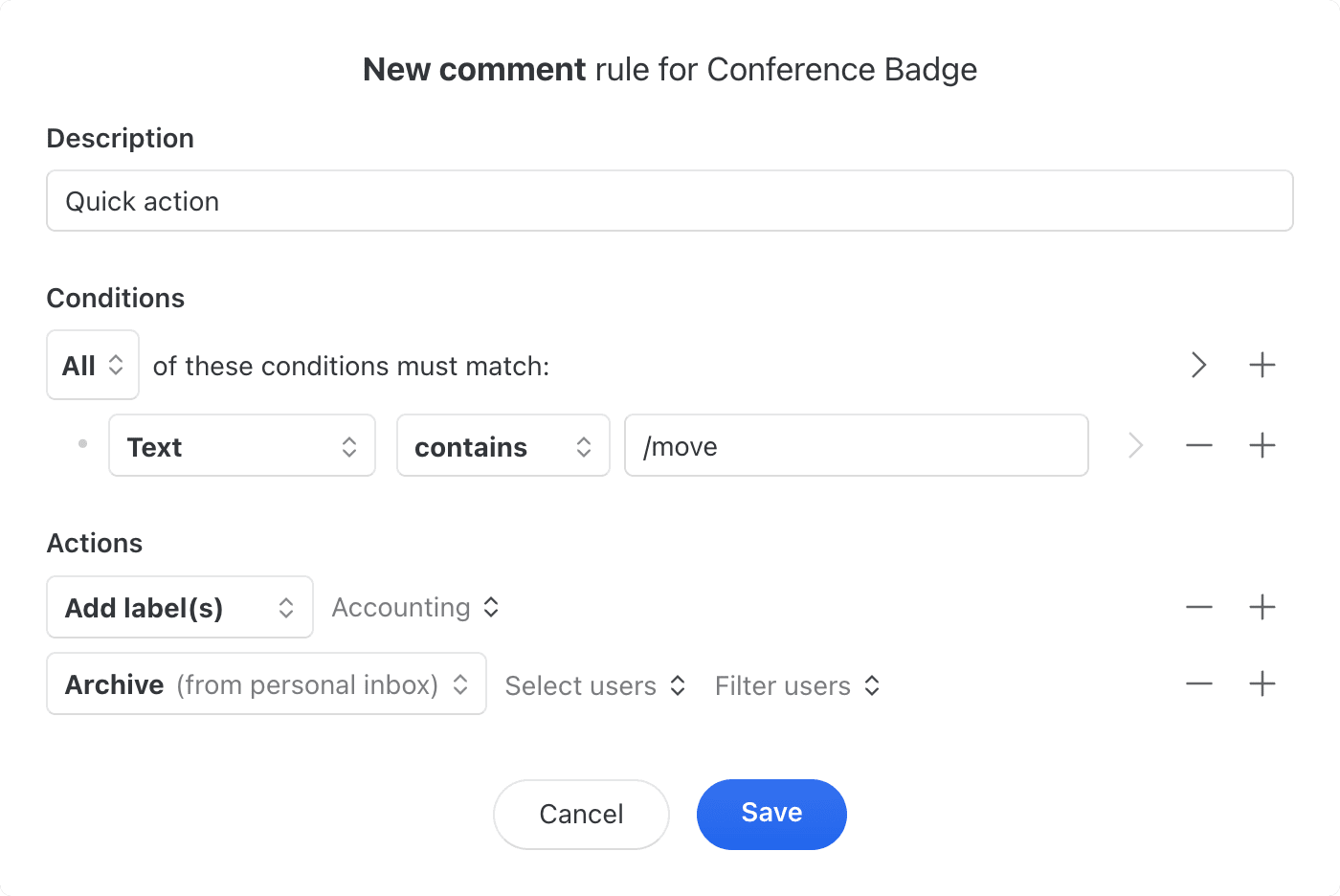
You can trigger series of actions using a New comment rule. To do so, create a new rule like this:

For example, with the above rule, typing /move in the comment/chat box of a conversation will trigger the label and archive actions all at once.
Can the read/seen state be shared with my colleagues?
In Missive, each user has their own (un)read state.
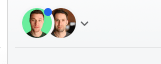
When reviewing conversations your coworkers are working on, seeing conversations you haven’t read, highlighted in blue, can help quickly target which conversations should be reviewed now VS those you have already reviewed. Also, when you select any conversation, regardless of your own read state, you can quickly see if coworkers have read it themselves by looking at their avatars at the top:

Here you can see a coworker (light green background) hasn’t read the conversation because of the little blue pin, whereas the other has read it.
Keep in mind that the primary way to triage and clean team inboxes is to assign/close conversations, not to mark them as read.
How can I give access someone to a conversation without moving it to their inbox?
In Missive, you can give a team access to a conversation without moving it to everyone's inbox.
Search for the team in the access menu
Switch off the 'Show in their inbox option'
How can I schedule an auto follow-up email?
Use Send Later with the "Discard draft if someone replies" option enabled. The email will only send if no one replies before the scheduled time.
See Drafts for step-by-step instructions.
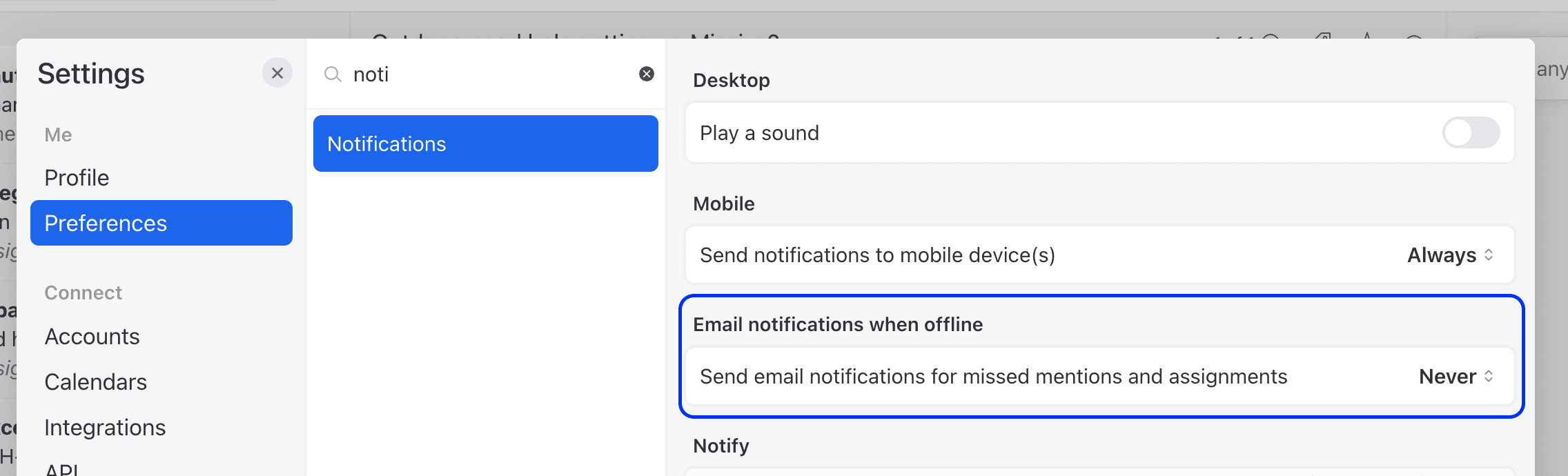
How can I stop receiving email notifications when I'm assigned or mentioned?
You can stop receiving email notifications when you are assigned or mentioned in a conversation.
Go to Settings > Preferences, search for Notifications, and set it to Never:

I'm missing @mentions, sometimes they are not in my Inbox?
It's probably because you have changed this setting:

With this setting, whenever a conversation gets closed, it is removed from your Inbox, even when you were @mentioned. This setting only excludes conversations you are watching.
We consider this an advanced setting that can be useful in unusual cases. It’s mainly a way for people who get too many notifications to “aggressively” clean their Inbox when coworkers close conversations. Most users should leave this setting to the Keep in my Inbox default.
Is it possible to use ticket numbers, like in an help desk?
Missive doesn't offer ticket numbers like a traditional help desk application.
But if you need something like ticket numbers, we have a nice workaround. In Missive, each conversation has a unique ID; this ID can act as a ticket number.
If you always want to append a ticket number to your emails, you can do so with a managed signature. If you need to insert a ticket number from time to time, you could do so manually using a canned response.
The ID of a conversation can be accessed in a canned response or a managed signature editor using the Insert Variable tool.
In both cases, the steps are the same:
Create a canned response or a managed signature.
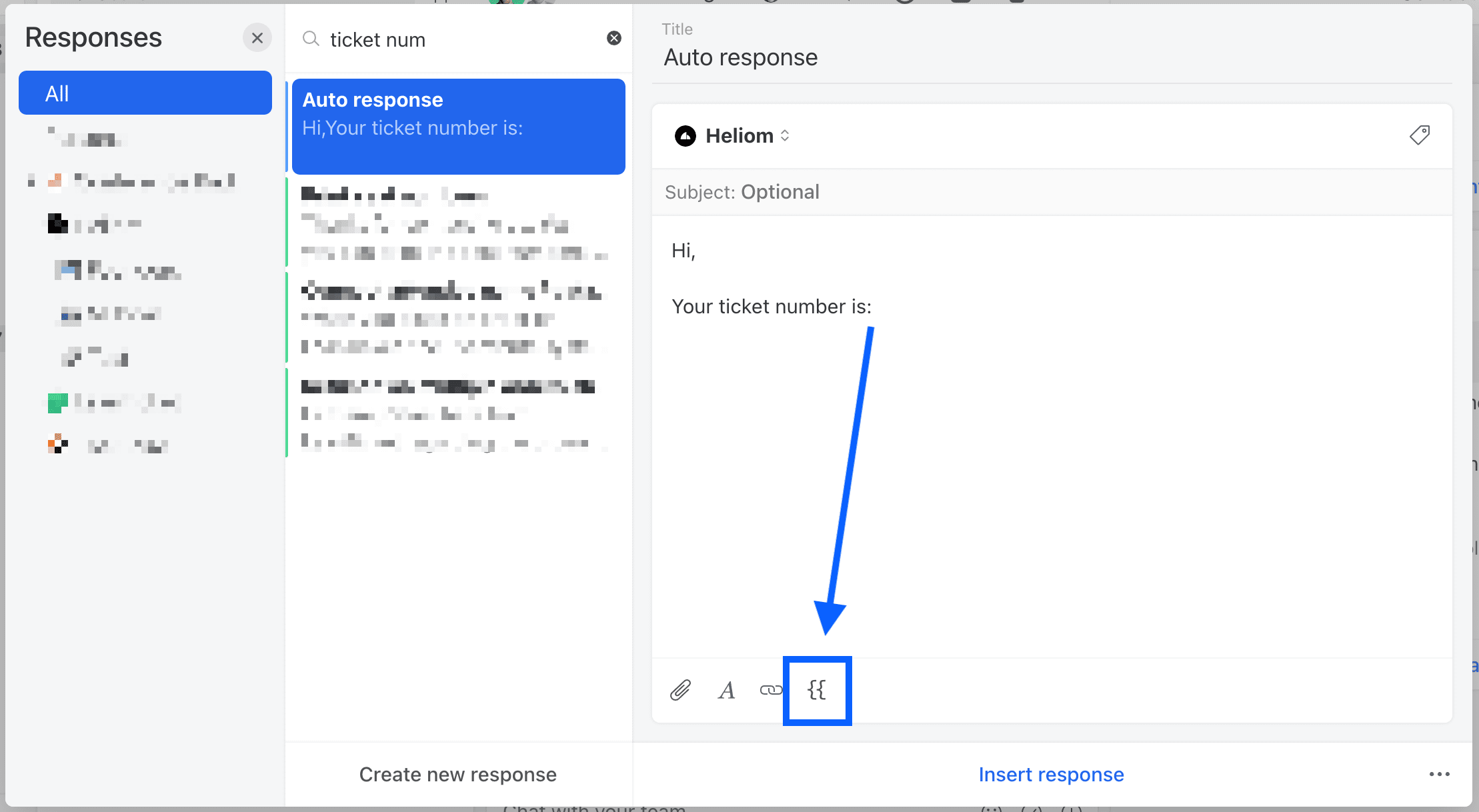
Select the Insert variable tool in the canned response or managed signature editor:

The Insert Variable tool icon in the canned response editor. Pick the
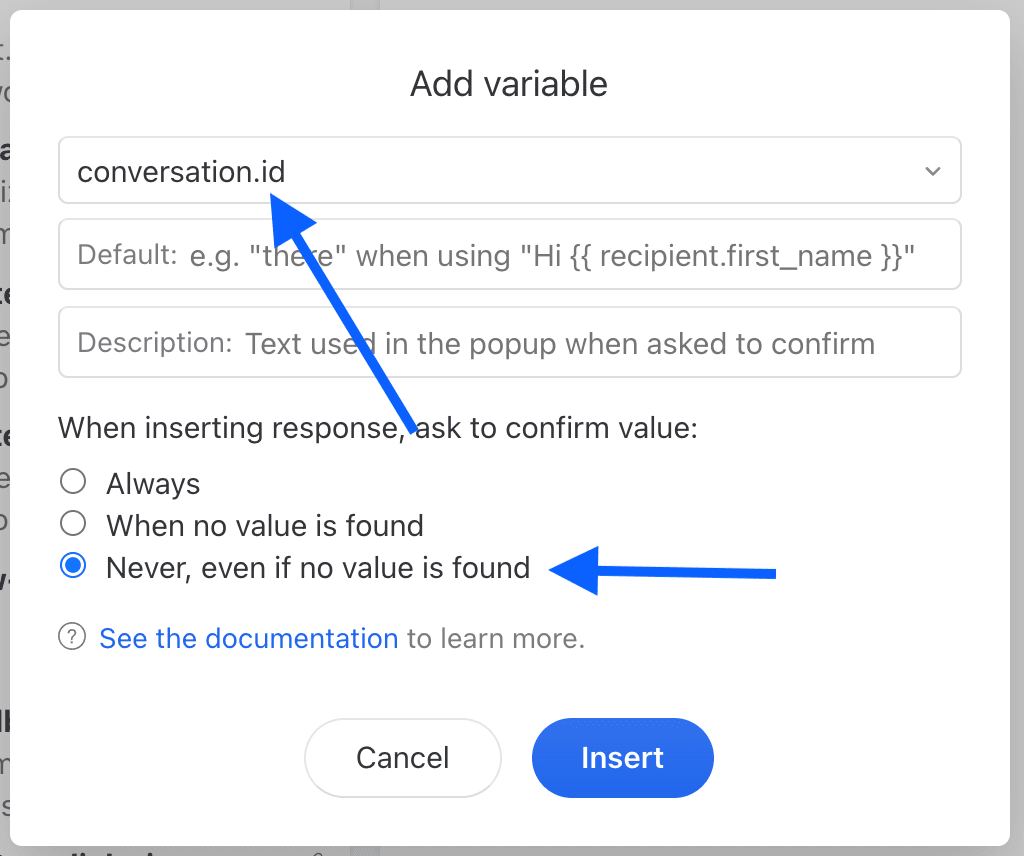
conversation.idvariable:
Select the option Never, even if no value found 
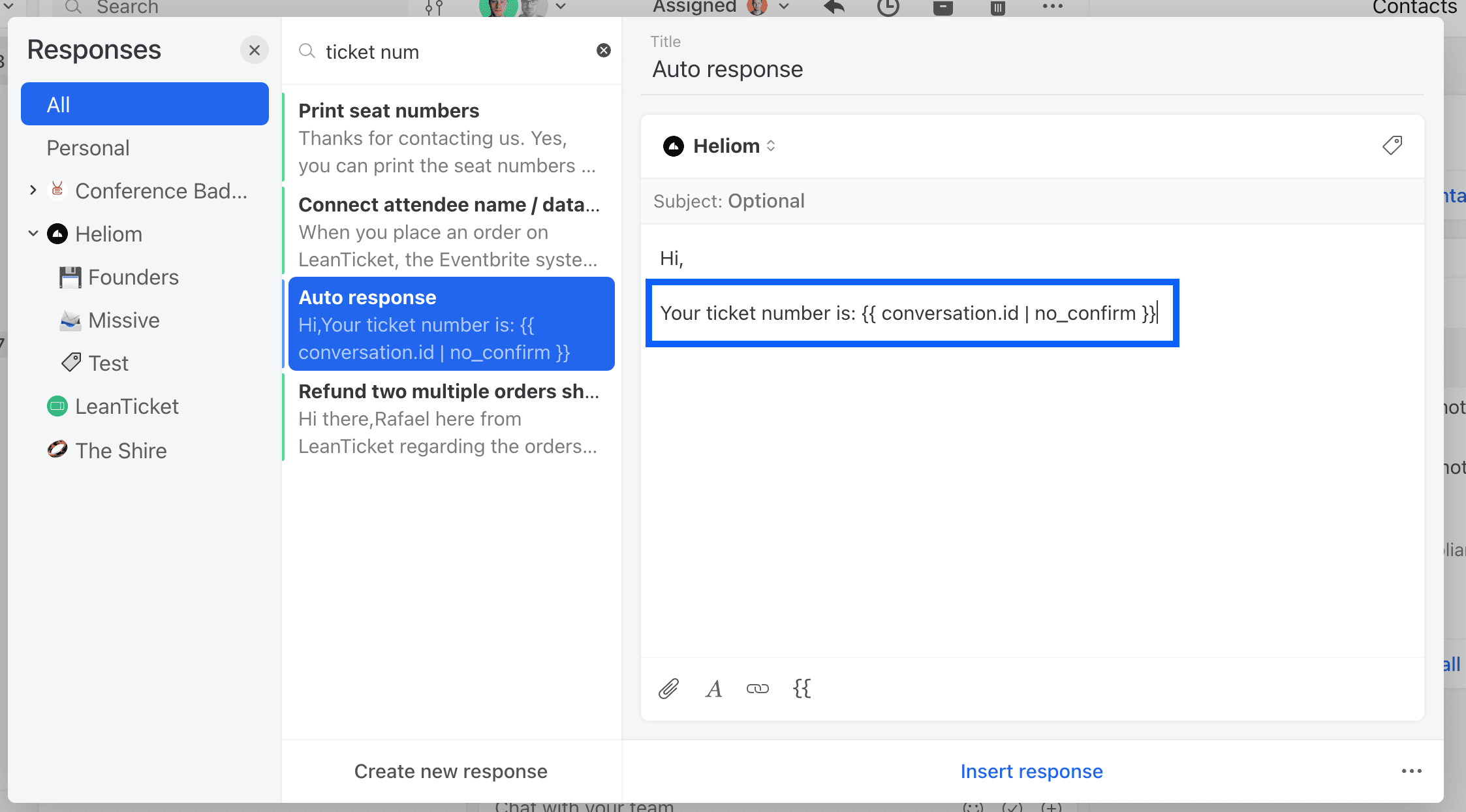
With a canned response: In a draft, simply insert this canned response to append a ticket number to your draft. With a managed signature: Configure the managed signature on your email account aliases.
When a customer email you back about a specific ticket number, press ⌘/Ctrl + L on your keyboard and paste the ticket number (Conversation ID). You will be auto navigated to the conversation related to the ticket number:

Why are my conversations closed when I archive them from my inbox?
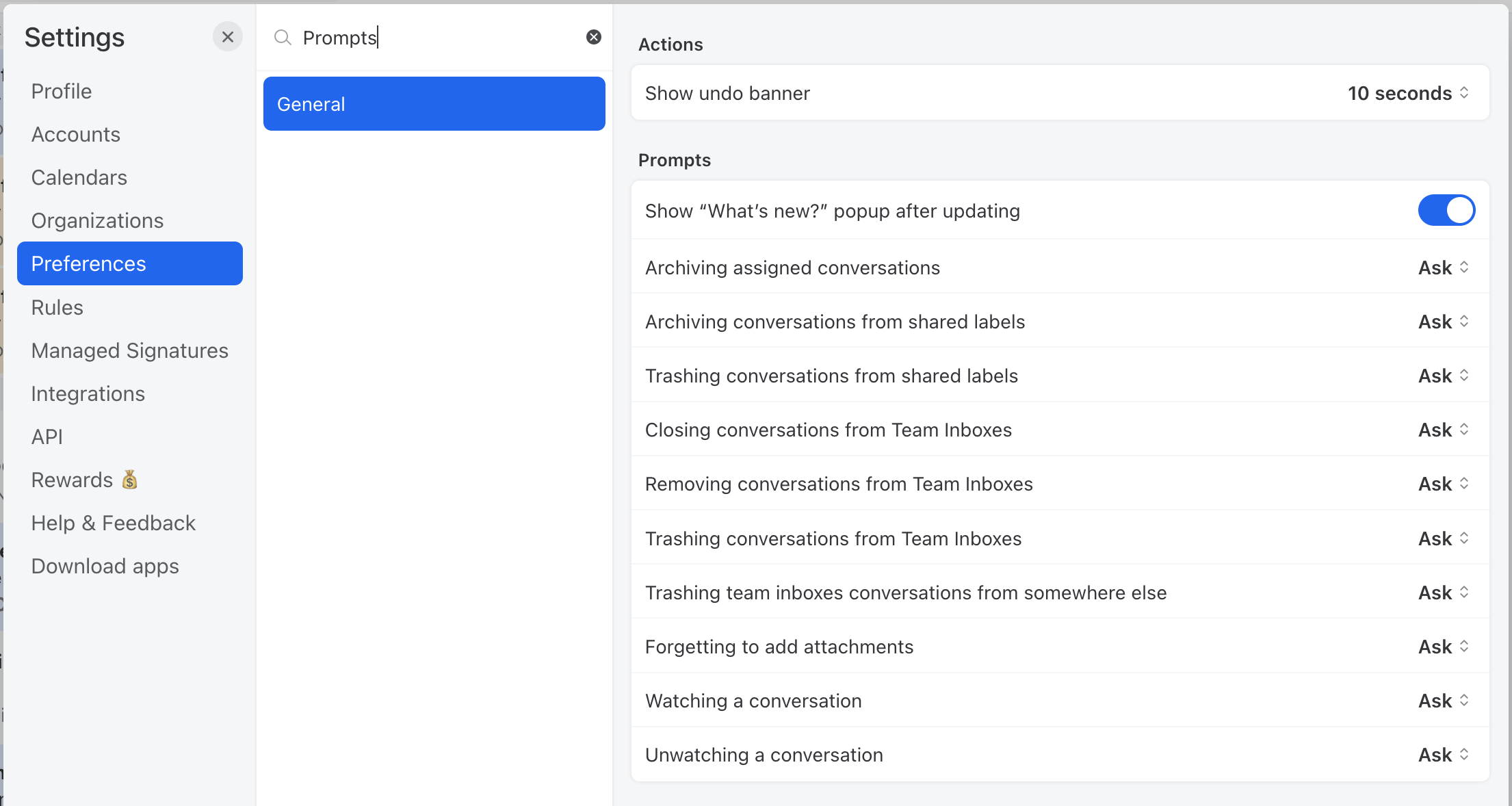
It appears that you may have altered your prompt settings at some point. You can modify these settings under the Preferences > General > Prompts section found in each user's settings. You'll need to reset the Archiving assigned conversations preference to its default setting, which is Ask.

Why is the archive box icon button not closing in the inbox?
In a team inbox the box icon always closes the conversation.
In your Inbox:
If you are assigned to the conversation, the box icon will prompt you if you want to archive & close, or just archive.
If you are not assigned to the conversation, the box icon archives the conversation.
Say user A is assigned to a conversation and mentions user B to ask a question. User B will see the conversation in their inbox, reply to the question, and they will want to archive the conversation from their inbox, but they may not want to close it because this conversation is still assigned to user A.
Navigation
How can I swipe conversations on desktop?
Press Shift, then hold left-click and drag a conversation to swipe it like you would on a touch device. Release the click to complete the action.
Swiping on desktop is enabled by default but can be disabled in Settings > Preferences > Swipes.
Can I customize swipe action colors?
Yes. Go to Settings > Preferences > Swipes to customize the colors of your swipe actions.
Where can I drag and drop conversations to?
You can drag conversations to:
Move to a mailbox — Drop onto a mailbox in the sidebar
Create a reference — Drop onto another conversation to insert a clickable link
Pin — Drop onto the Pins section in the sidebar
Merge — Drop onto another conversation and confirm
Snoozing
Can conversations be left in my inbox when I snooze them?
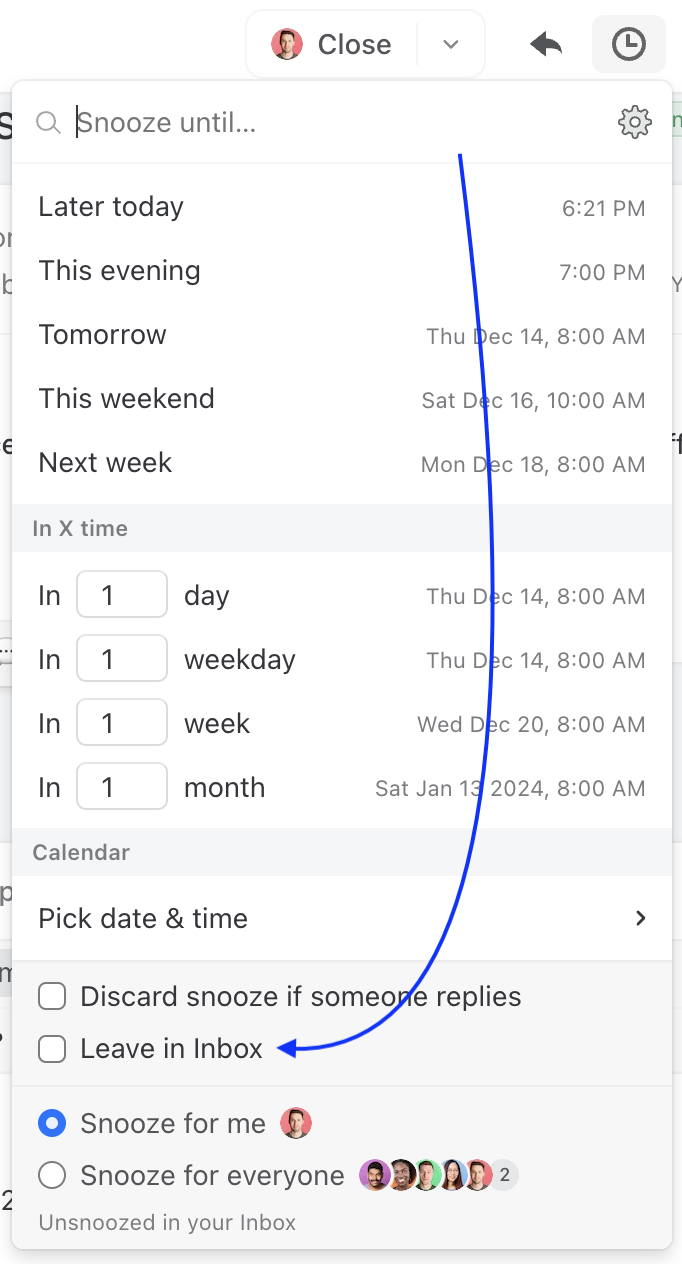
Yes. There is the Leave in Inbox option that can be checked / unchecked whenever you snooze an email, see here:

When you check or uncheck it, the state will be remembered as the default for the next time you snooze a conversation.
Where can I find snoozed conversations?
There are four ways to get to your snoozed conversations:
Click + Pin to sidebar > Open the Snoozed mailbox.
Click + Pin to sidebar > Open the Calendar (snoozed conversations appear there).
Click the search bar > search for
snooze> click the snoozed mailbox in results.Press ⌘/Ctrl + E > type
snooze> click Go to snoozed.
What is the “Discard snooze if someone replies” option?
When snoozing with the Discard snooze if someone replies option, the conversation will be moved out of your inbox, and moved back at a given time only if nobody responded to your last email. This option is helpful for follow-ups.
When I select 'next week' it doesn’t snooze until the next Monday, why?
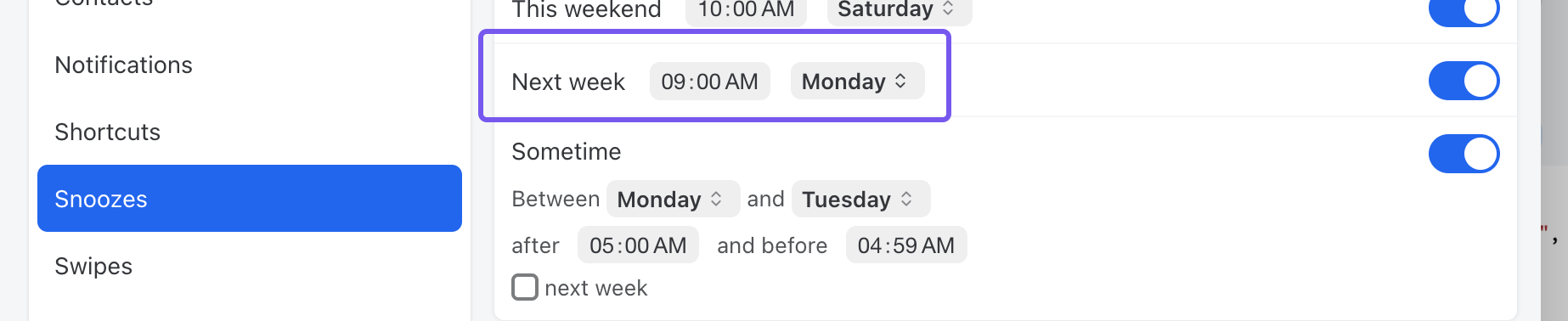
Are you puzzled because selecting 'next week' doesn’t snooze until the following Monday? This occurs because in your Snooze settings, Next week has been configured to be a day other than Monday.
You can modify this in your Preferences > Snoozes settings or by clicking the cog icon in the Send later or Snooze popup:

When you check or uncheck it, the state will be remembered as the default for the next time you snooze a conversation.
Comments
How can I rename a conversation?
Click on the conversation title at the top and type a new name. As conversations evolve, renaming keeps them relevant and easy to find.

How do I use emoji reactions?
Hover over a comment and click the emoji icon to react. Emoji reactions let you respond without sending notifications—useful for quick acknowledgments, showing agreement, or voting on ideas.
How can I format text in comments?
Use these formatting options in comments:
Bold: Wrap with
*asterisks*or press ⌘/Ctrl + BItalic: Wrap with
_underscores_or press ⌘/Ctrl + IStrikethrough: Wrap with
~tildes~Code: Wrap with
`backticks`Quote (partial): Start line with
>for a single paragraph quoteQuote (full): Start line with
>>to quote everything that followsLinks: Use
[text](url)or press ⌘/Ctrl + K
How can I quickly edit my last comment?
Press ⌘/Ctrl + ↑ to edit your most recent comment in the conversation.
How can I send multiple comments at once?
Create a new private conversation, add all your comments, then merge it into the target conversation. All comments appear at once.
I have unread comments or emails but I can't find where?
This might be a pinned conversation in your sidebar, such as the activity room. By default, pinned conversations with unread comments or emails are included in the application's badge count.
This behavior can be changed by right-clicking on any pinned item and unchecking the Include in badge count option.

I'm missing @mentions, sometimes they are not in my Inbox?
It's probably because you have changed this setting:

With this setting, whenever a conversation gets closed, it is removed from your Inbox, even when you were @mentioned. This setting only excludes conversations you are watching.
We consider this an advanced setting that can be useful in unusual cases. It’s mainly a way for people who get too many notifications to “aggressively” clean their Inbox when coworkers close conversations. Most users should leave this setting to the Keep in my Inbox default.
Can I stop getting comments and notifications from a specific conversation?
Yes, it's possible. Click on the eye icon of a conversation and select the desired settings:
Watch conversation: All comments will show up in your inbox.
Unwatch conversation: Only mentions will show up in your inbox.
Enable/disable desktop notifications.
Enable/disable mobile notifications.

How to quote or reply to a comment in a different conversation?
Start by replying to a comment, then move to another conversation. The quoted comment will stay attached to the comment box until you submit it. A link to the original conversation will be included.
How can I add multiple lines of text in a comment before it posts?
You need to press ⌥/Alt + Return to insert a new line in the chat box.
How can I delete a comment?
Owners and Admins can delete other people's comment, Members can only delete their own.
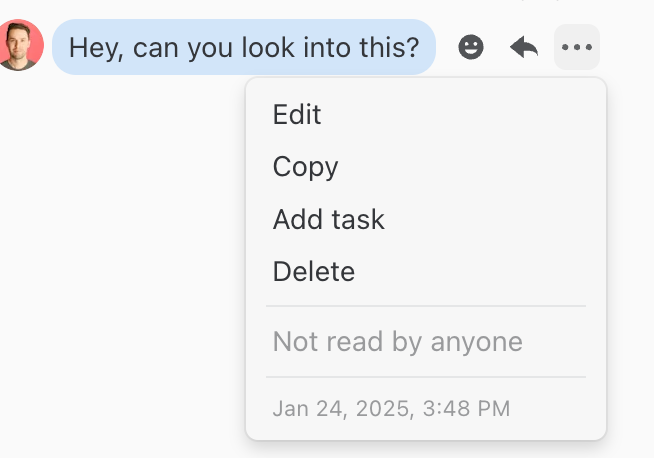
Click on the more icon (3 dots) on the right side of the comment and click Delete. The message will be deleted for everyone in the conversation and it cannot be undone.

What is the maximum file size for attachments in Missive comments?
For users with a free plan, you can attach files up to 100MB per comment in Missive's internal chat. However, if you have a paid plan, you can attach files up to 1GB per comment.
Please note this is separate from the 25MB total file size limit for email attachments. Learn more about email attachments here.
Drafts
How to change the language of the spell check?
macOS
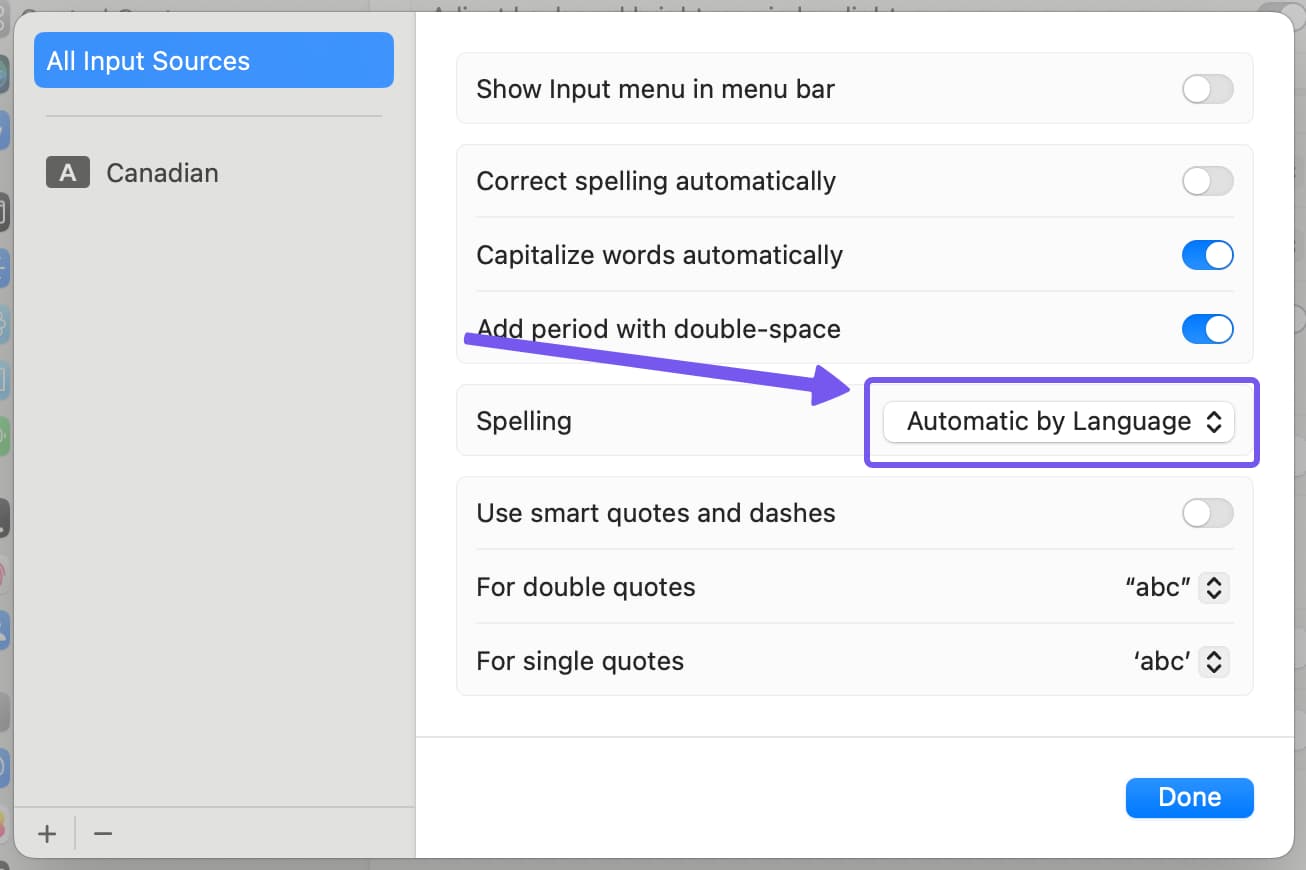
In the Missive app for Mac, spell check language should be detected automatically with no need to customize it.
If the spell check appears to not be working, you may need to change your macOS Keyboard > Text Input preferences.

Windows
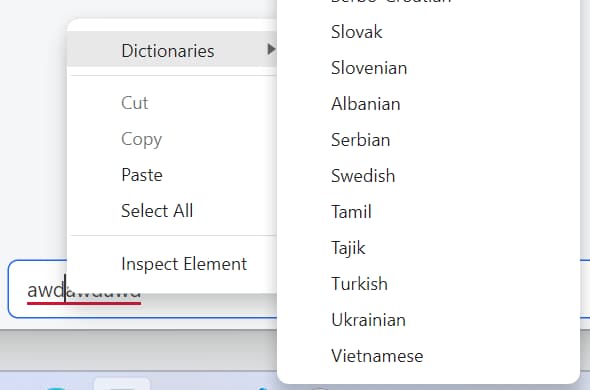
On Windows, you can customize spell check dictionaries to use up to 3 at the same time. To do so, write some random text in the draft composer or the chatbox, then right-click the text, and you will see the dictionary list you can customize. See the following image:

Can I compose messages in a right-to-left script? (Arabic, Hebrew)
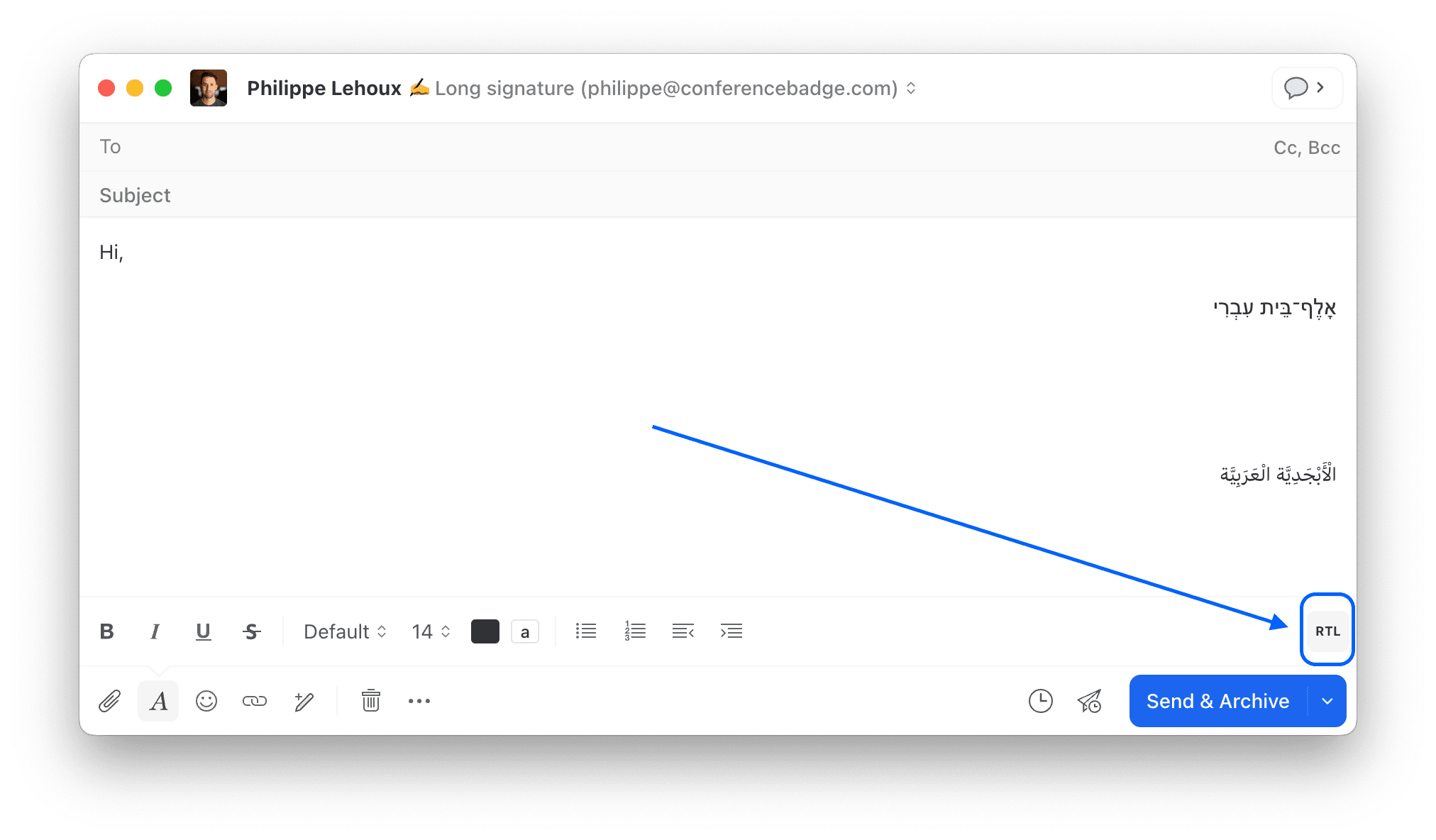
Yes! In the draft composer, Missive automatically switches a paragraph to RTL (right-to-left script) when starting the paragraph with an RTL character. It also adds an RTL button to the toolbar when that’s the case if you need to switch back to left-to-right.

Can I restore a discarded draft?
Yes, it's possible. Here's how:
Go to your All mailbox.
Click on the empty conversation.
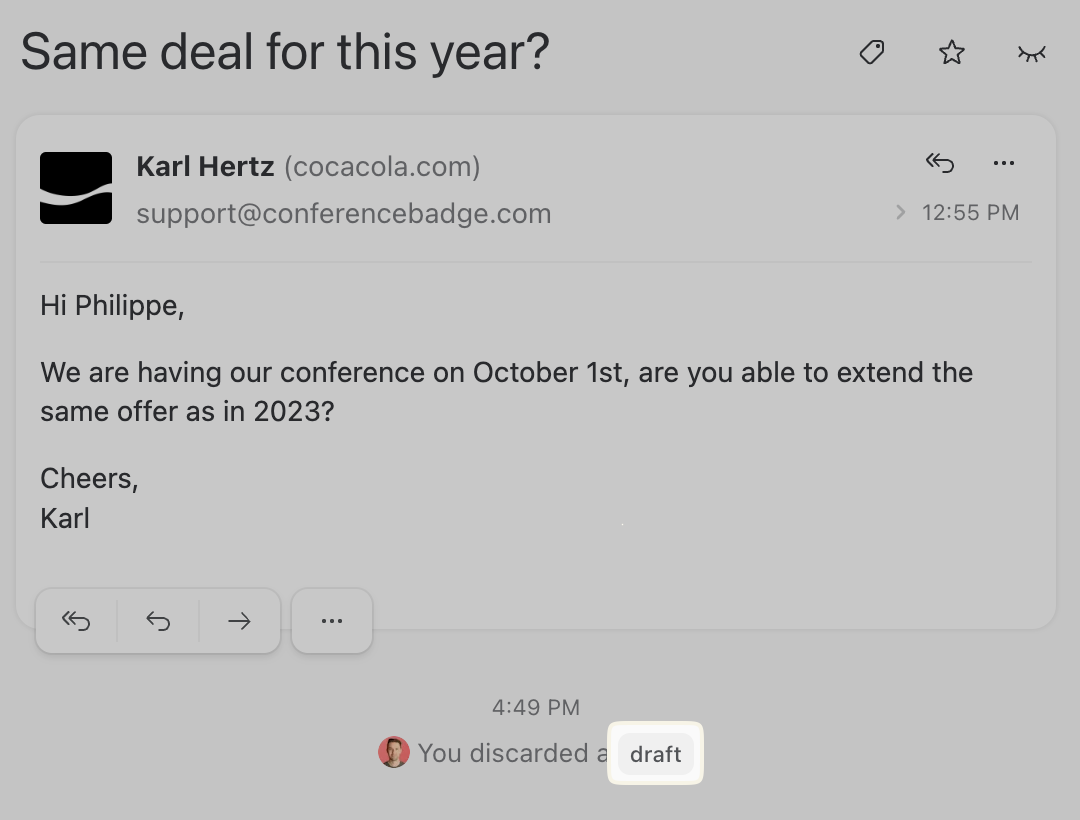
Click on the dark grey word draft (see image below).
In the new window, click on Restore.

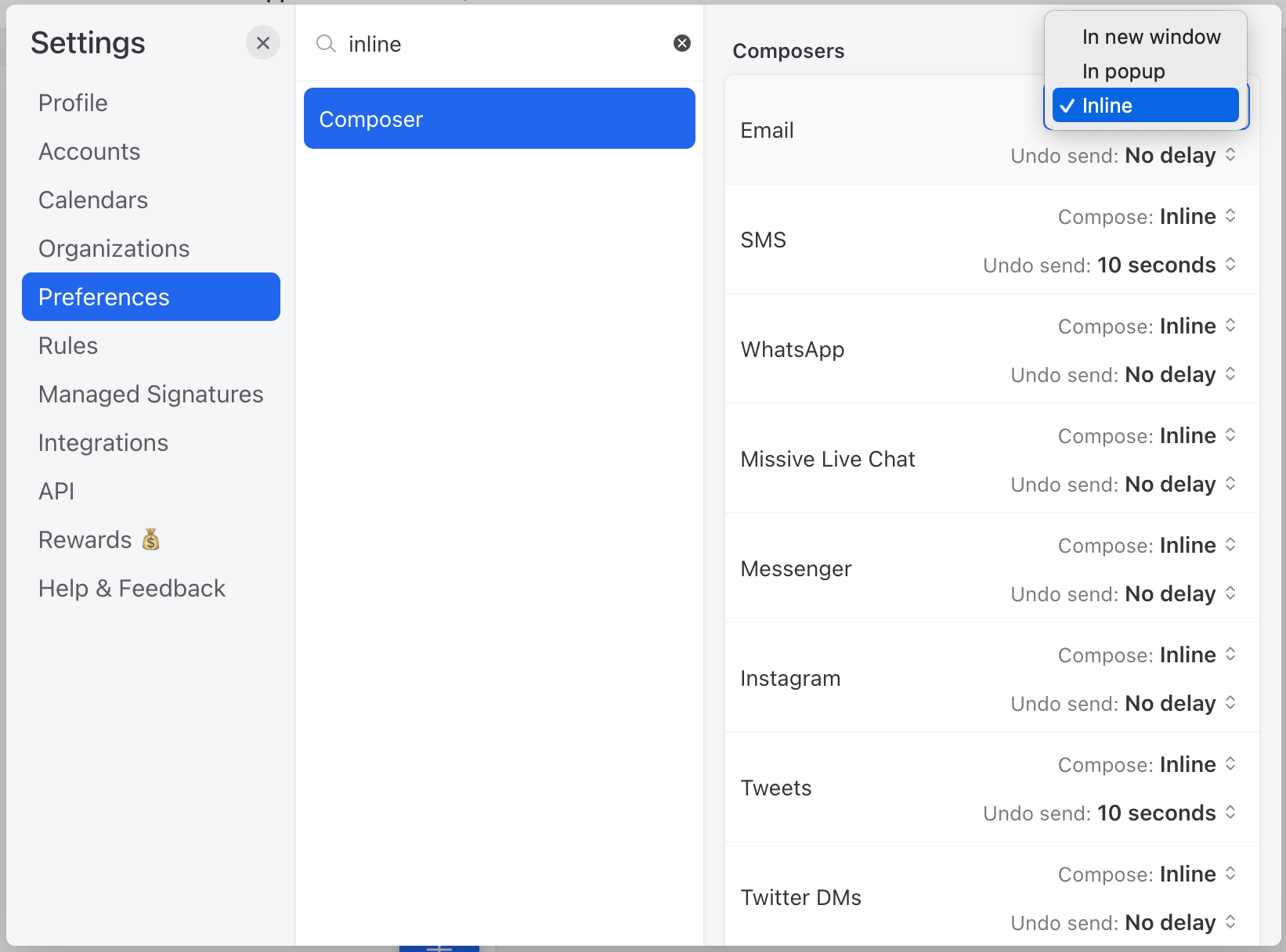
Can the draft composer be inline and not in a window?
Yes, there are three ways you can open the draft composer:
In new window. This option is great when you want your draft to be independent from the app's window.
In popup. Perfect when you need to focus only on the draft.
Inline. This last option is ideal when you want to see previous messages when drafting a new one.
You can access this setting in the "Composing" section of the preferences.

Do you offer draft collision detection?
Missive offers more than collision detection. Whenever someone starts replying to an email, coworkers will see this new reply being composed in real-time. So you not only see your coworker has started replying, but you see what they are replying. You can even open their draft and edit it simultaneously, just like on Google Docs.
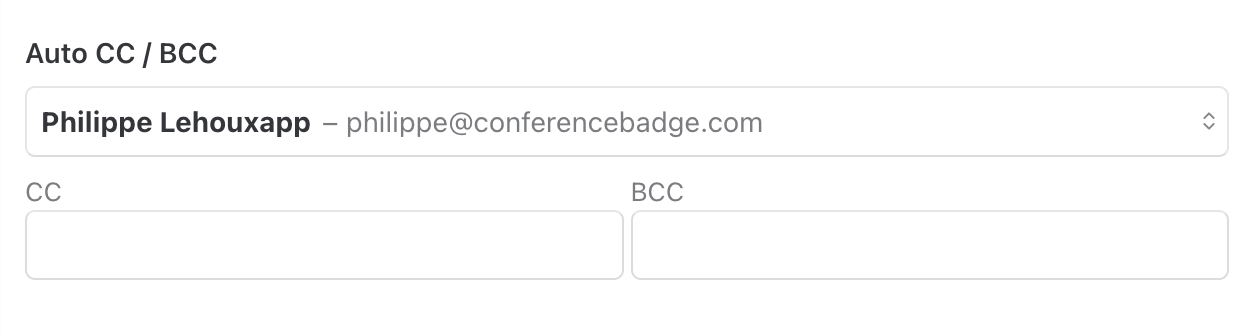
How can I auto Bcc an email address on all my sent emails?
Go to Settings > Accounts, select your account, scroll to Auto CC / BCC, and enter your address.

How can I change the default font color in the draft composer?
Changing the default color of the draft composer is not possible. You can manually change the color of your text in the composer by selecting the text tools, then clicking the color icon.
Changing text color in emails is not advised as it overwrites your recipient’s preferences.
Some people need to read the text in a specific color for health reasons; not using the default one prevents them from using their preference.
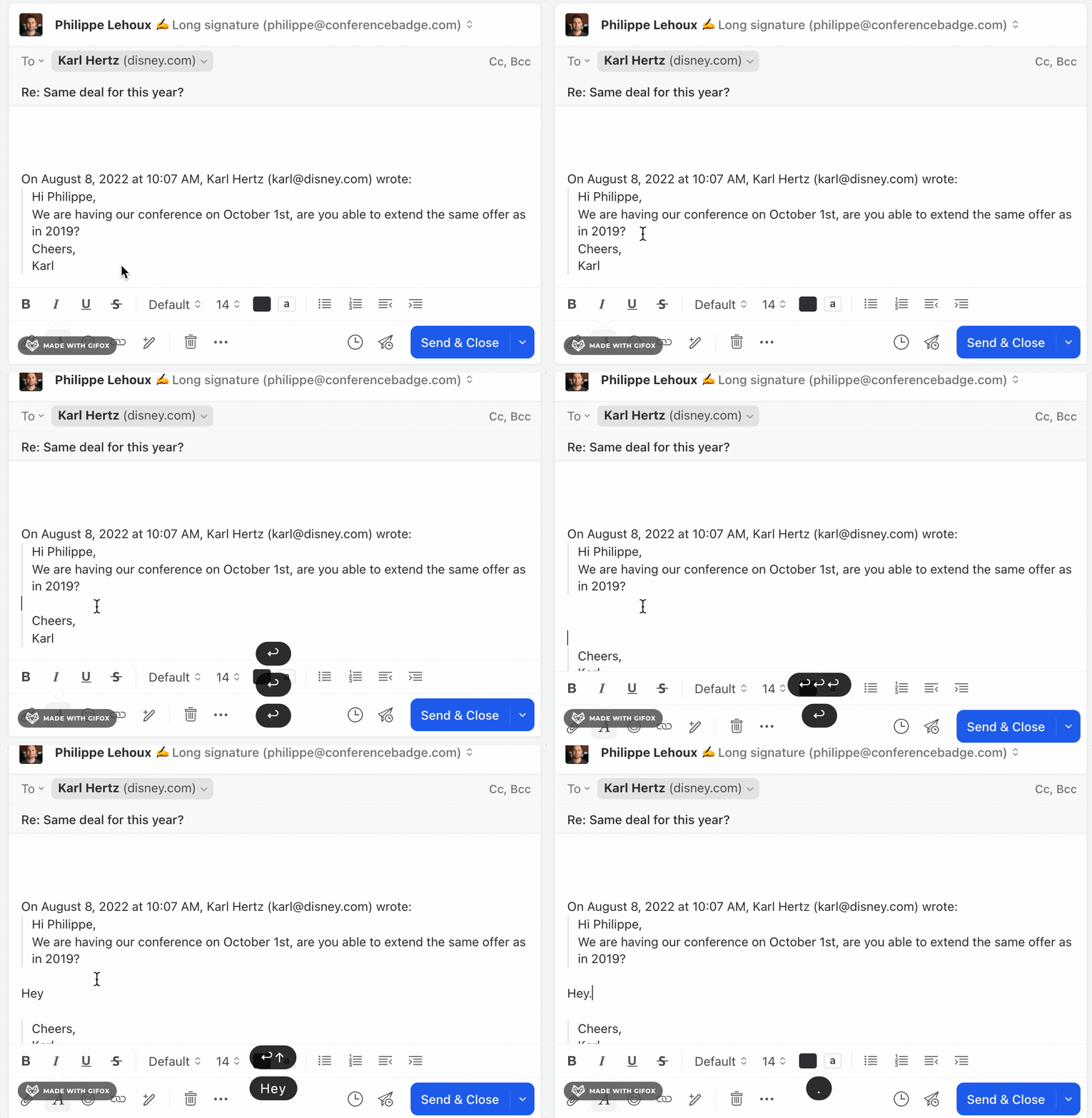
How can I insert my own sentences in between the quoted part of a draft?
You can press the Return key multiple times until all quote level are removed:

How can I recover a discarded draft?
To find back a discarded draft, open the All folder in your left sidebar (you may need to click + Pin to sidebar to open it), then you should see an empty conversation that says New conversation, select it, and you should see a line that says You discarded a draft which you can click to restore the draft.
If the draft was in response to another message, you would not see “New conversation”; you would see the previous message’s subject.
How to insert an inline image in a draft?
To insert an inline image, you can:
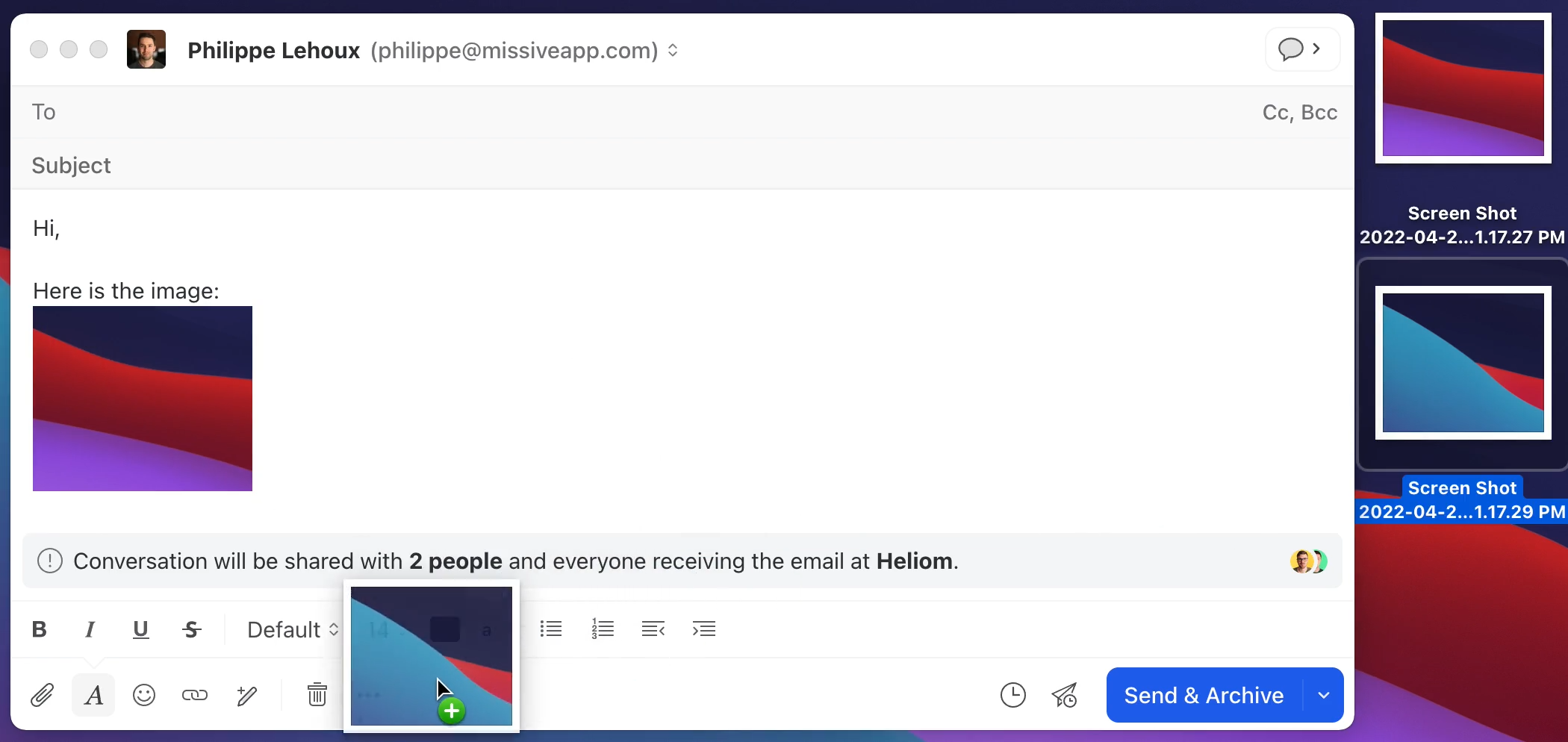
Drag and drop the image directly to the draft composer, in the text area.
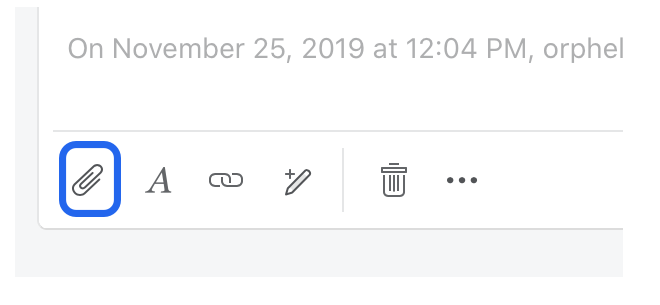
Click the attachment icon in the toolbar, select your image, then drag the attachment from the bottom tray to the body of the email.
To attach an image to the draft as a normal attachment:
Drag and drop it on the composer toolbar
Click the attachment icon in the toolbar, select your image.

How to schedule a follow-up reminder when writing a draft?
Use Send & Snooze to send your email and set a follow-up reminder in one action. The conversation returns to your Inbox at the scheduled time if no one replies.
See Drafts for details.
How to send an email to an email list?
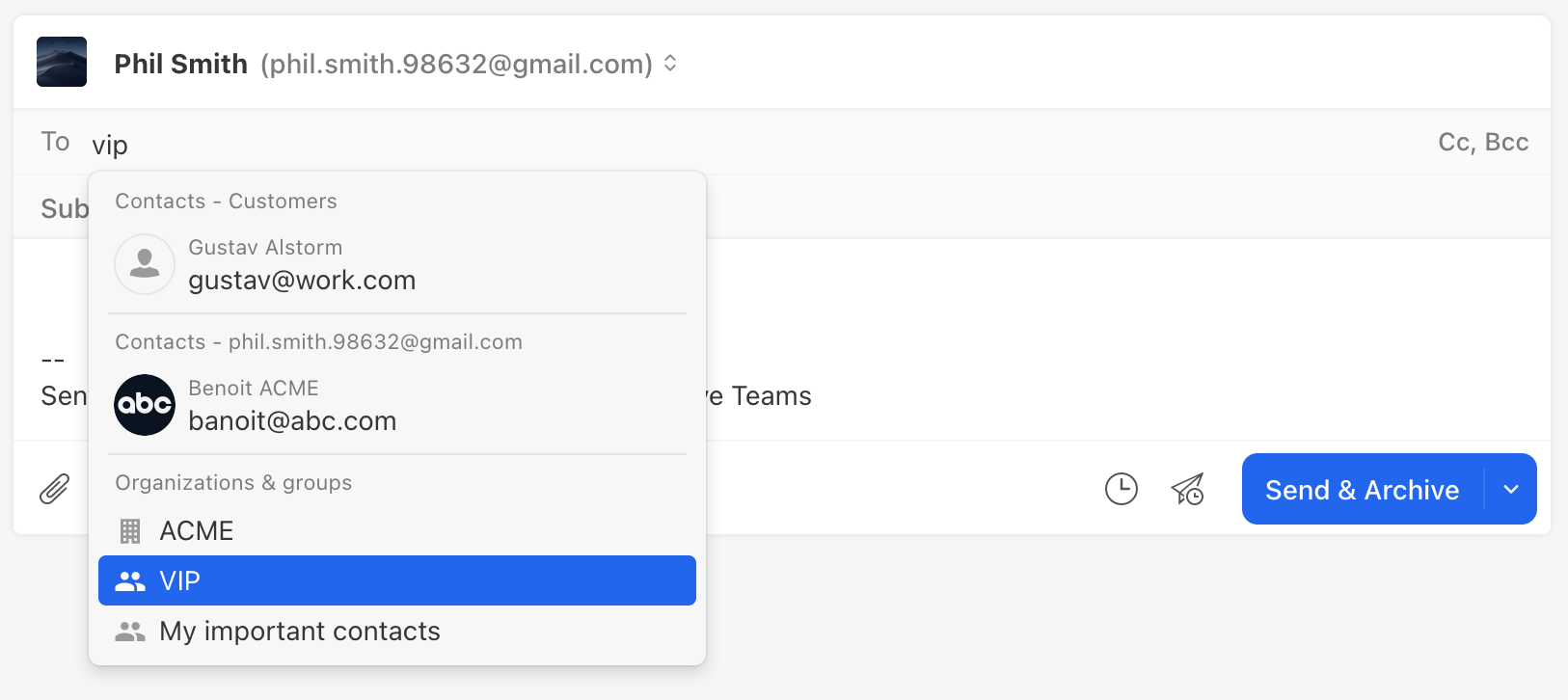
You can send email to Contact groups and organizations.
Contacts can be grouped into both organizations and groups. Organizations are typically used to map a group of related contacts (businesses). Each contact in an organization can have a title, department, and location. Groups are used to group unrelated contacts.
You can quickly send an email to everyone in a group or organization by searching for the organization or group name in the To/CC field of your draft.

Is it possible to Send and Archive by default?
The Send button has a little arrow menu on the right that offers alternate options, such as Send & Archive.
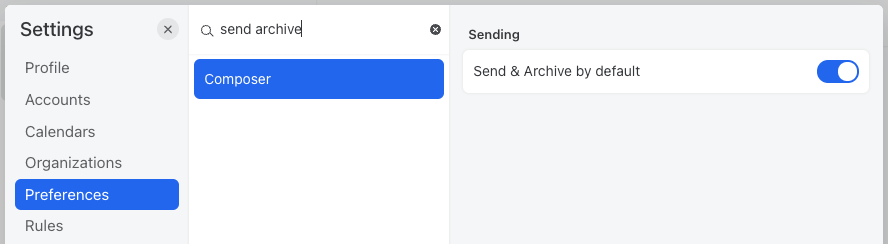
You may want to enable the Send & Archive by default setting so that your default Send button in the composer becomes Send & Archive instead. This lets you reply to and archive conversations in one click.

Is it possible to auto Bcc (Cc) based on recipients?
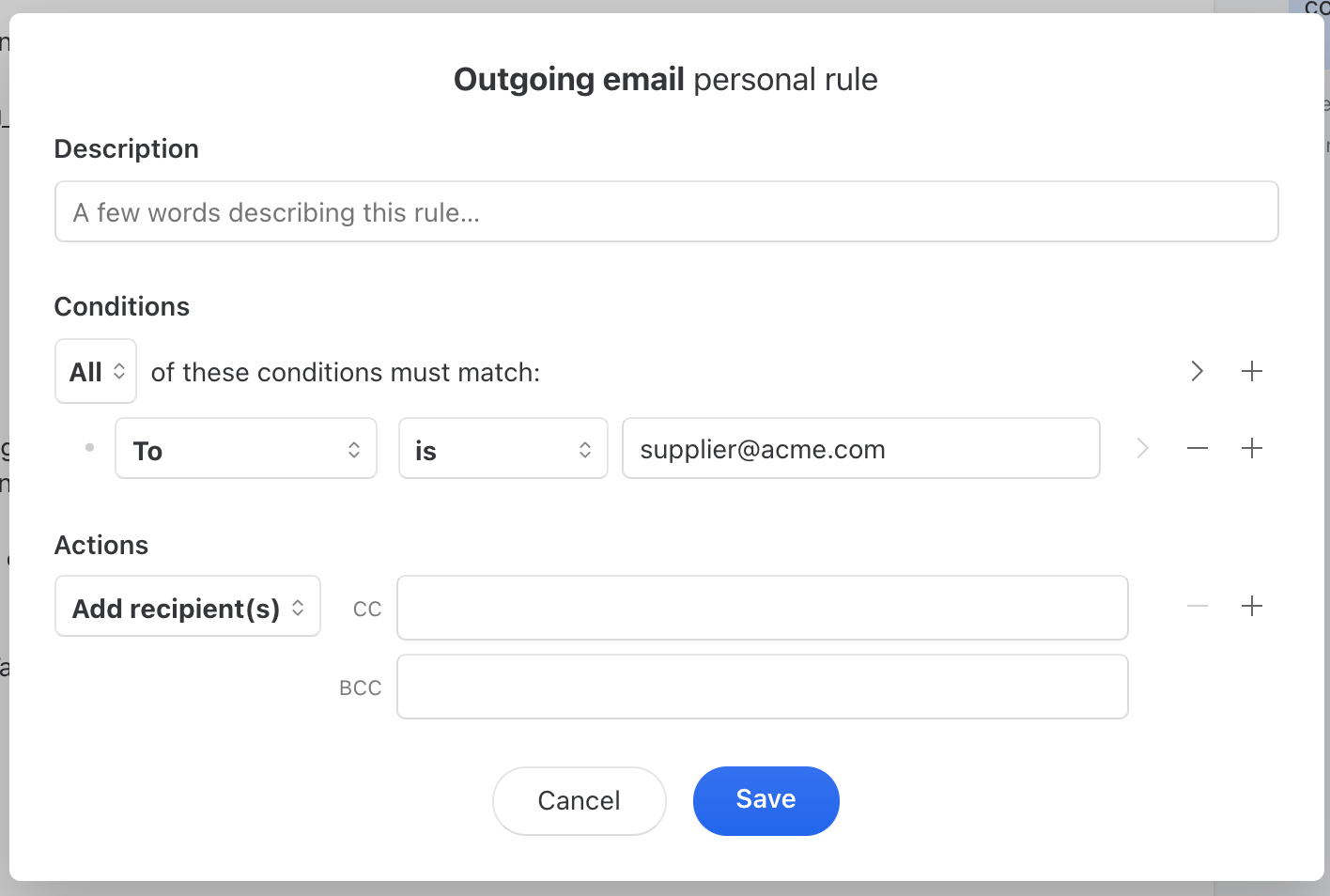
Yes, it is possible, with an outgoing message rule that looks like:

Make sure to create both a personal and organization rule if you sometimes reply in private and/or shared conversations.
Is it possible to dynamically BCC an email address in my sent emails?
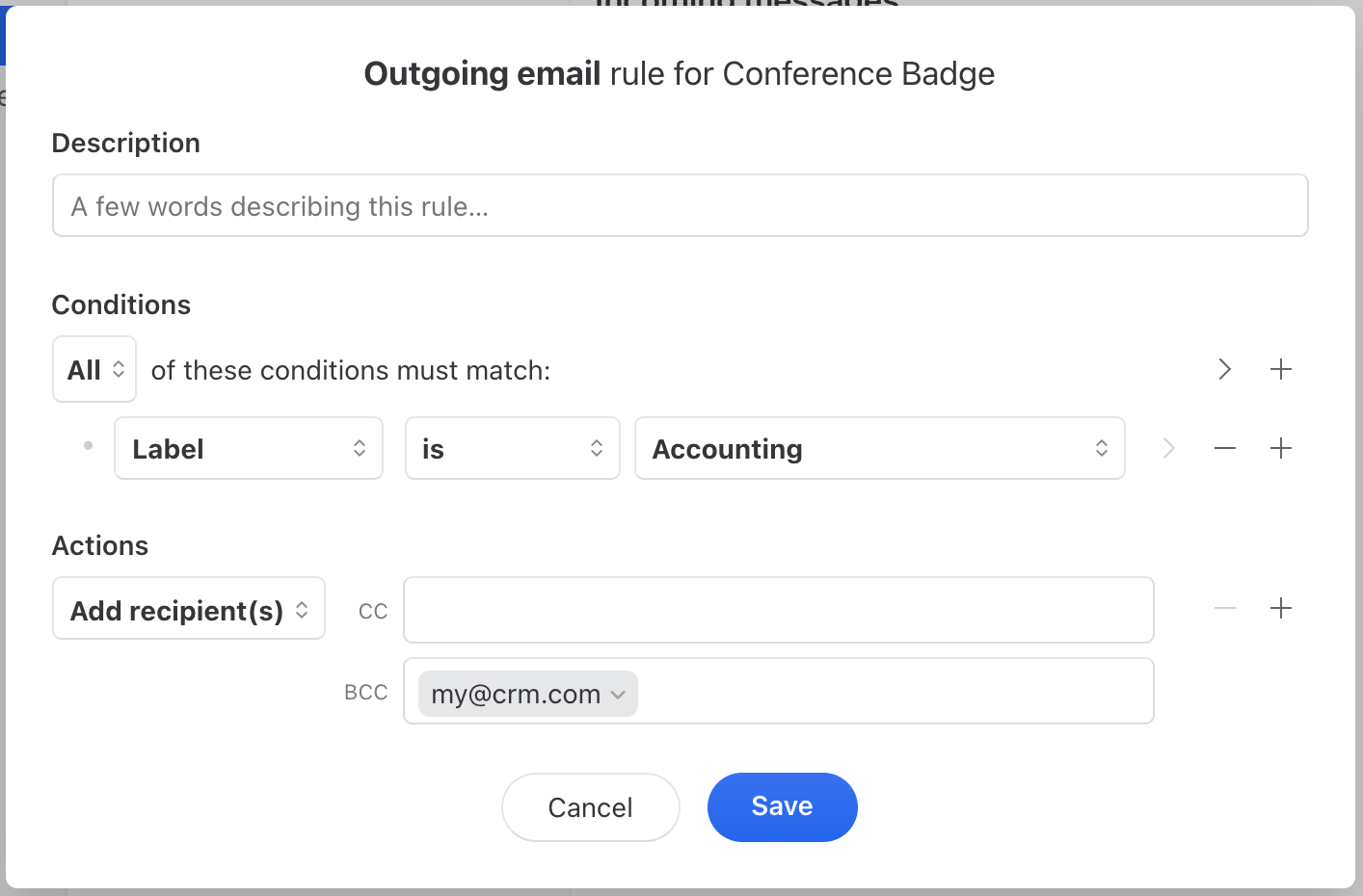
It’s possible to add BCC addresses to outgoing emails based on some conditions thanks to Rules. You can create a rule that says “When outgoing email has label X, add example@crm.com as BCC”. See this example:

Should I change the font size if my recipients complain it’s too big or small?
No, using Missive’s default font size when writing emails is the best option because you are telling Missive to not force any font size on your emails. This means that whatever font size your recipients see on their end is according to their preference. If they say it’s too big or small, they most likely have a Zoom or Font size setting they can adjust in their email app.
Who has access to my drafts?
When someone starts a reply, everyone with access to the conversation will see it appear in their Drafts mailbox.
New drafts that aren’t replies (created by clicking New email at the top left of the main window) are private to the person who created them. To share it with coworkers, you must invite them by @mentioning them in the chat box or clicking the little character icon at the top of the window.
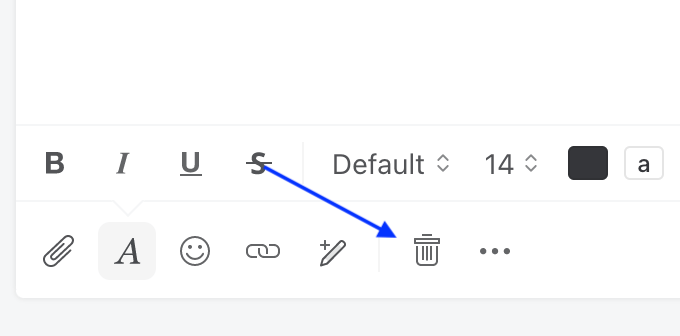
To discard a draft, open it first then click the little trash icon at the bottom, as shown in the screenshot below. This will remove the conversation from everyone’s Drafts mailbox. It will not delete any other message in the conversation.

Why is a conversation still listed in the drafts mailbox after I sent my email?
If the conversation is still listed in the drafts mailbox after you sent it, you have an unsent draft somewhere in the conversation. You should scroll up to find this unwanted draft and delete it.
Why is my email account Drafts folder not synced?
Missive does not synchronize drafts with Gmail, Office 365 or IMAP server for technical reasons. Missive drafts are 100% collaborative (like Google Docs), so it is very hard for us to synchronize them with email server drafts which are non-collaborative.
Why is my spell check app (Grammarly, LanguageTool, ...) is not working?
For your spell checker browser extension to work in Missive, make sure you have enabled this Preferences:

Why is there a [draft] token on my conversation?
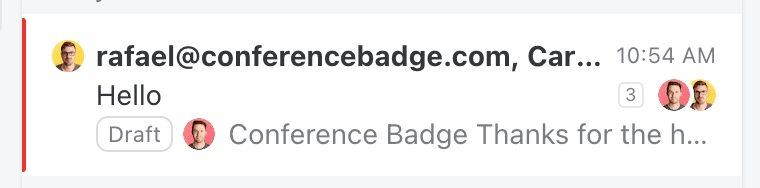
If you see a draft token (as shown in the image below) and are not sure why, it means that higher in the conversation you have a draft you never sent or discarded. Just scroll up to find it.

Attachments
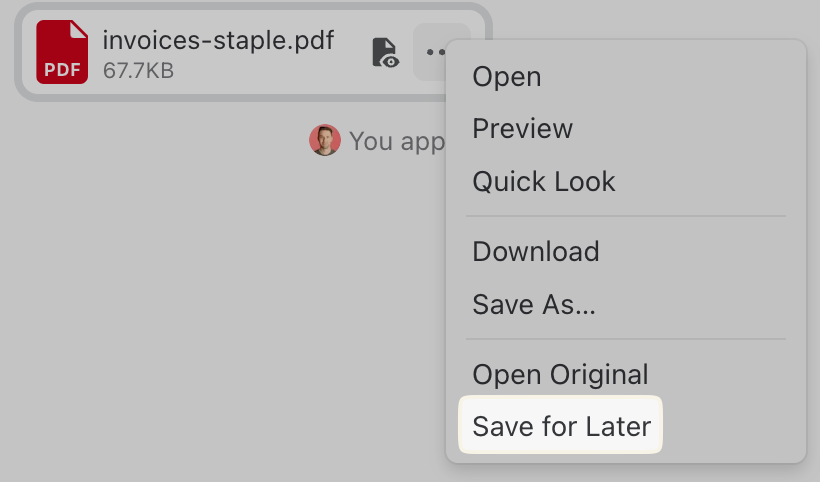
Can I save an attachment for later?
Yes. You can save an attachment for later by clicking on it and selecting the Save for later option.
Saved attachments are accessible from the Attachments section, making it easy to find them again without reopening the original conversation.
What is the attachment limit for an email?
Most email clients, including Missive, limit the size of email attachments to 25 MB or less because email providers often block larger attachments.
The attachment size limit depends on your email provider, not Missive.
For example, Gmail and Microsoft 365 (previously Office 365) both have an attachment limit of 25 MB. However, an administrator of a Microsoft 365 account can increase the limit to 150 MB. It's important to verify with recipients before sending large attachments as they may not be able to receive large messages depending on their email provider or the software they are using.
Can I delete attachments from an email in Missive?
No. Attachments can’t be deleted independently from an email.
Missive is an email client that mirrors what’s stored on your email provider. Since attachments are part of the original email message, they can only be removed by deleting the email itself. If an attachment exists on your email server, it will also appear in Missive.
Can I re-attach an attachment from an email to draft?
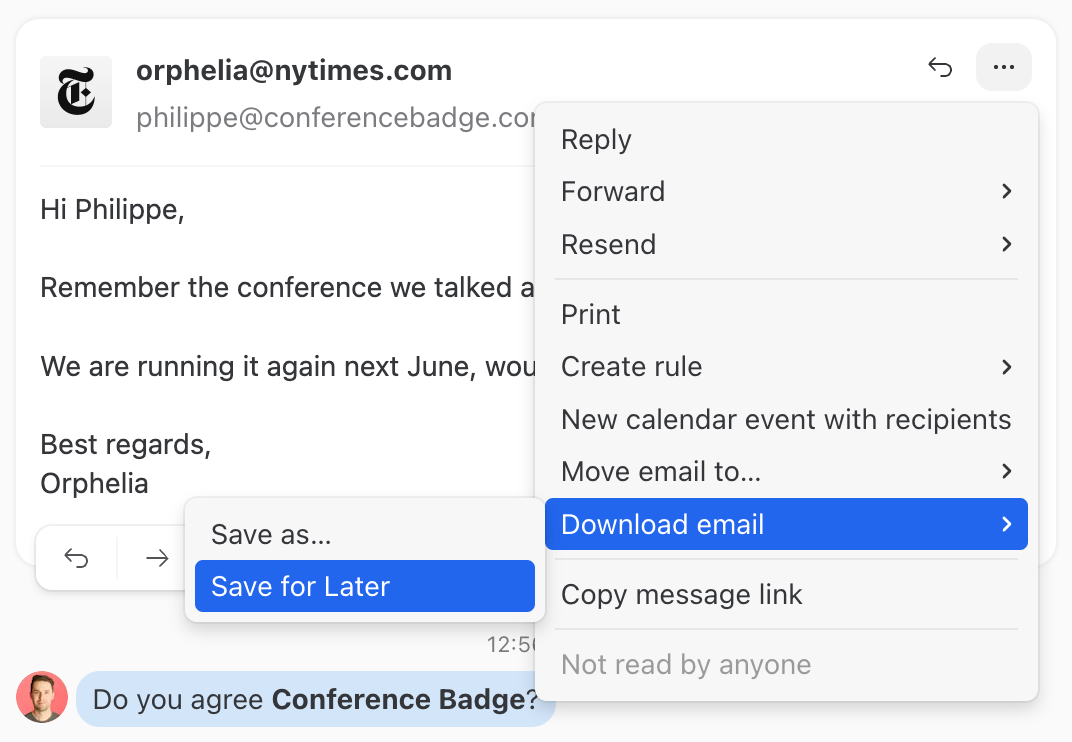
You can re-attach an attachment directly without downloading it first; click on the Save for Later option, then you can easily click the attachment icon in another draft to re-attach it.
Why are image attachments displayed instead of showing their filename?
Some image attachments are displayed inline instead of showing their filename.
This happens when the email includes images meant to be viewed directly, such as screenshots or photos, rather than traditional downloadable files.
Can image attachments display their filename instead of being auto-expanded?
You can modify how your image attachments are displayed in your emails to appear as attachments with their file names displayed instead of being automatically expanded in the email body.
Go to Settings > Preferences and uncheck Expand image attachments:

Images will now be displayed alongside other attachments, with their filenames visible.

How can I forward an email attachment?
To forward an attachment, open the email containing it and use the Forward option.
You can also download the attachment and manually attach it to a new email if needed.
Can you forward an email as an attachment?
In Missive, you can easily send an email as an attachment without having to download it first. To do this, you can click on Save for later. Then, when you're composing your new email, you can easily attach the email.

Alternatively, you can also download the email in .eml format.
Last updated