Labels FAQ

Can I move an email to a label instead of applying it?

Yes, we offer two ways to apply a label to a conversation:

  1. Label as: this will add the conversation and its messages to the label; it won't remove it from the currently selected mailbox. Label as is the default action when clicking the label icon at the top of the conversation view.

  2. Move to: this will move the conversation and its messages to the label while removing them from the currently selected mailbox. You can select the Move to action from the conversation context menu:
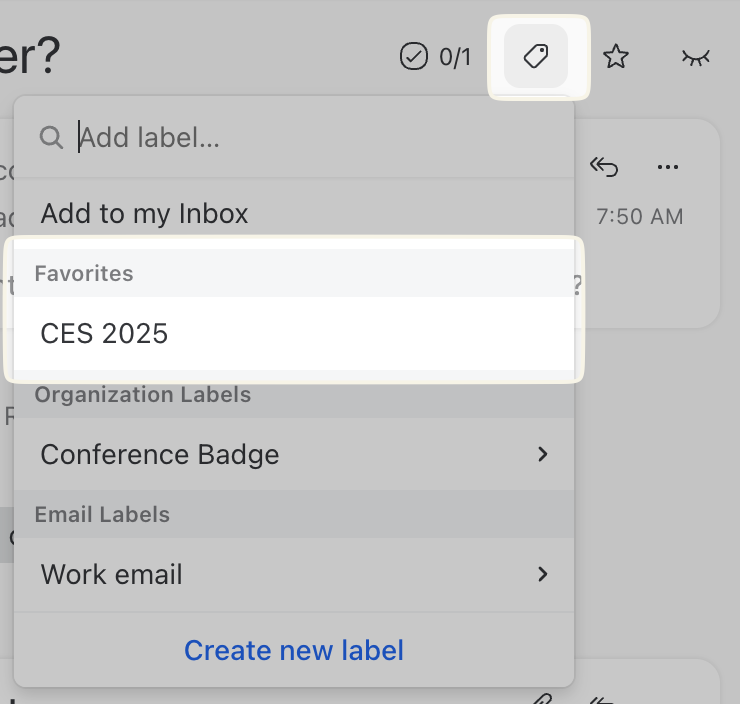
Label as: This action is also available in the conversation context menu or the Command bar, see below.
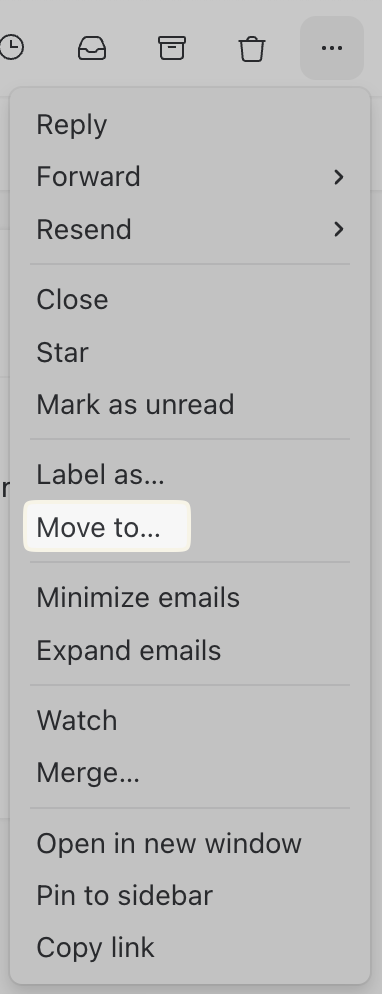
Move to... from the conversation context menu

If you prefer using your keyboard, you can quickly select the Move to action with the Command bar:

Press ⌘/Ctrl + E, then type move and select the right option

You can also change the default behavior when dragging and dropping a conversation into a label; read How to copy/move a conversation to a label when drag and dropping... below.

Can conversations be copied when dragged into a label instead of being moved?

When dragging a conversation into a label, you can either:

  • Remove the conversation from the current label (Move).

  • Add the conversation to the new label while keeping the current label applied (Copy).

You can change this behavior in your Preferences:

How to copy/move a conversation to a label when drag and dropping on it?

Go to your Preferences, search for drag, then change the setting When dragging a conversation:

How can I mark a label as favorite?

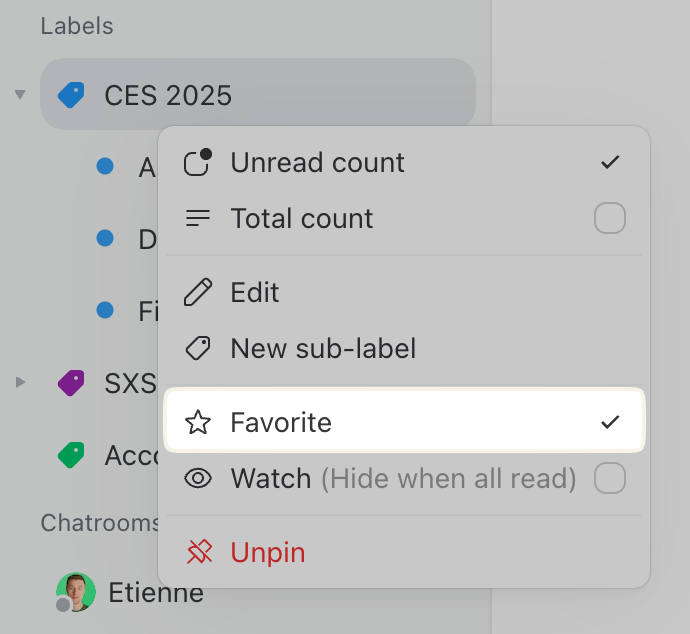
To mark a label as favorite, open it to have it listed in your left sidebar, then hit the “…” menu next to it (or long-press it on mobile), then you will see the Mark as favorite option:

When a label is marked as a favorite, it will then be easily accessible at the top of the label menu for easy access:

How can I navigate to a label?

You can either:

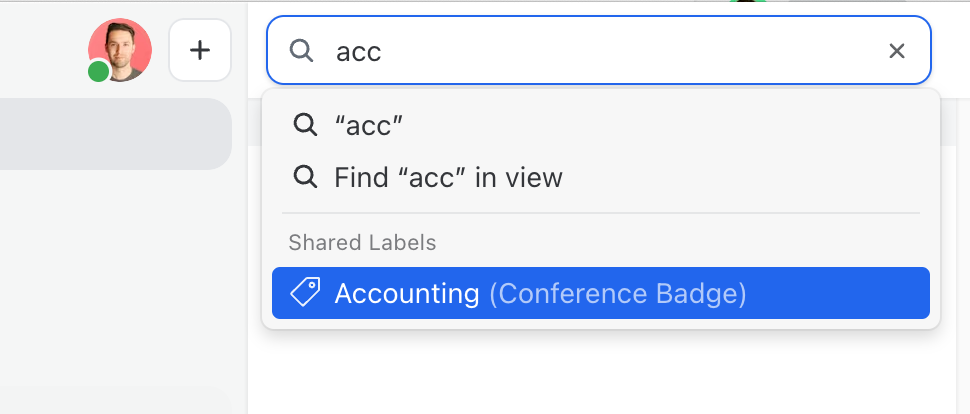
  • Search and navigate to a label using the search box at the top of the second column.

Navigate to a label with the search box
  • Use the ⌘/Ctrl + E shortcut to access the command bar and navigate to a label.

  • Open a label from the + Pin to sidebar in the sidebar.

How can I quickly apply a label when I have hundreds of them?

You can quickly search and apply a label to a conversation using ⌘/Ctrl + Shift + L.

You can also mark a label as a favorite so the label is always easily accessible at the top of the menu. To do so, just right-click any label in the sidebar and select Mark as favorite.

Image showing how to quickly apply a label
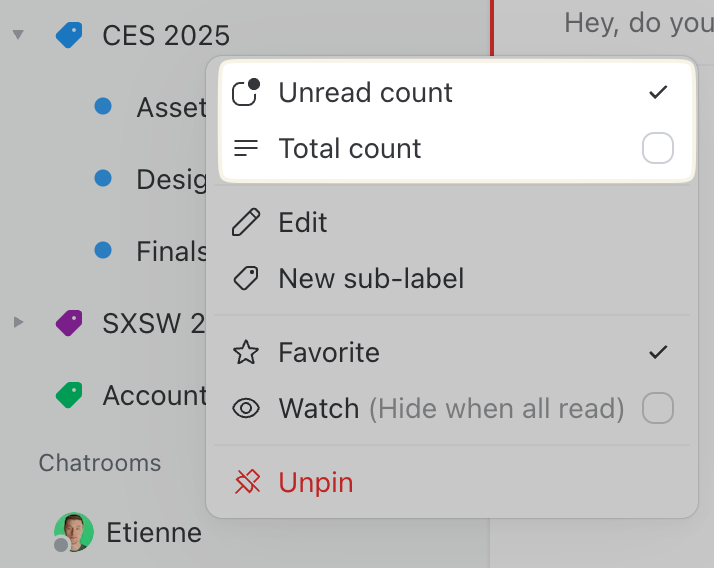
How can I see the number of total or unread conversations in a label or mailbox?

You can right-click the label or mailbox in the right sidebar to toggle the total or unread count display.

How do I rename labels?

To rename a label, go to Settings > Labels, select the label, and click Edit.

Is it possible to assign labels via the API?

You can assign labels via the Missive API using the Post endpoint combined with the add_shared_labels attribute.

It should be noted that it only works with Missive organization labels and not email account labels.

Is there a way to hide labels from the sidebar?

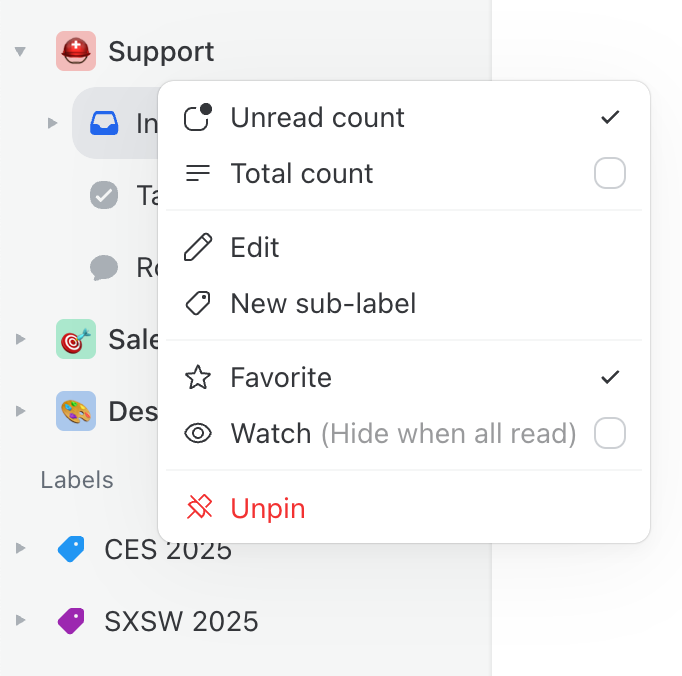
To hide a label from the sidebar, right-click on it, then select the Unpin option:

Hide labels from the sidebar

If you do not see the Unpin option in the label menu, it means you pinned all of the labels of your email account to the sidebar.

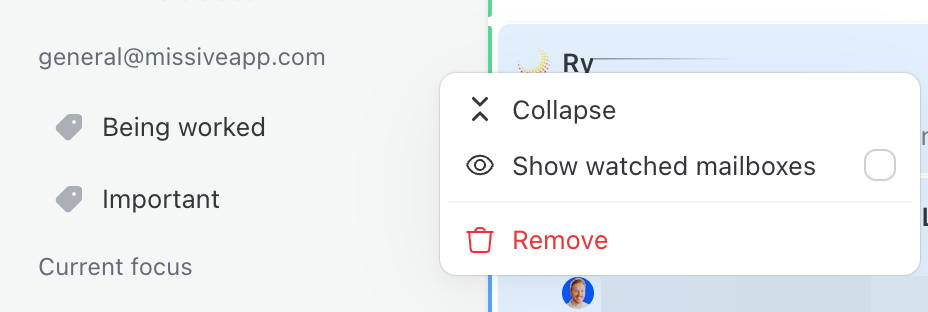
To hide them, you need to scroll up, click the "..." next to your email account name, then select the Remove option:

Hide labels from the sidebar

This will close all labels of the email account, you can reopen them individually from the + Pin to sidebar menu.

What are the differences between Gmail labels and organization labels?

Gmail labels are synced back and forth between Gmail and Missive. Anyone you give full access to your email account on Missive will have access to the labels of this account. Note that this applies to shared accounts only, not shared addresses.

Labels under your Organization settings are Missive-only labels that are not synced to Gmail. Their purpose is to allow labeling non-email conversations, which include SMS, Messenger, Instagram, and chat-only conversations. Gmail labels cannot be applied if a conversation contains no emails. They are also valuable to label emails across multiple email accounts.

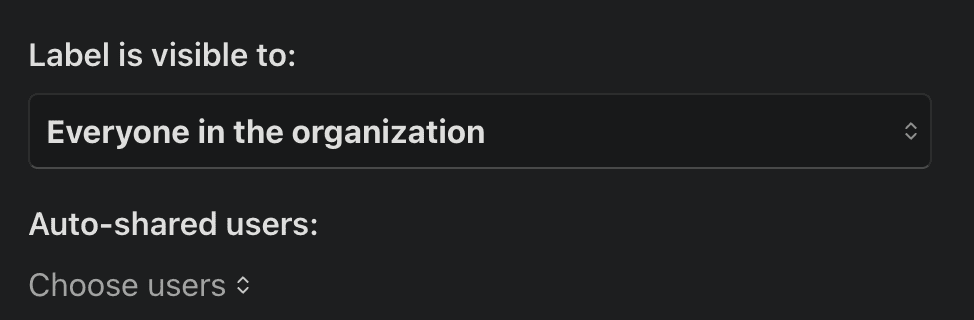
What does Label is visible to mean?

The "Label is visible to" setting determines who can view and apply the label to their conversations.

Label visible to field

The "Auto-shared users" setting controls which users automatically gain access to conversations within the label.

What is the maximum amount of organization labels I can create?

The current maximum amount is 10,000 organization labels per organization.

Where are my email folders / labels?

Missive supports folders and sub-folders. They are called Labels in the Missive interface.

You can open them by clicking the Pin to sidebar menu in the left sidebar and look for the Email Labels section.

How to video

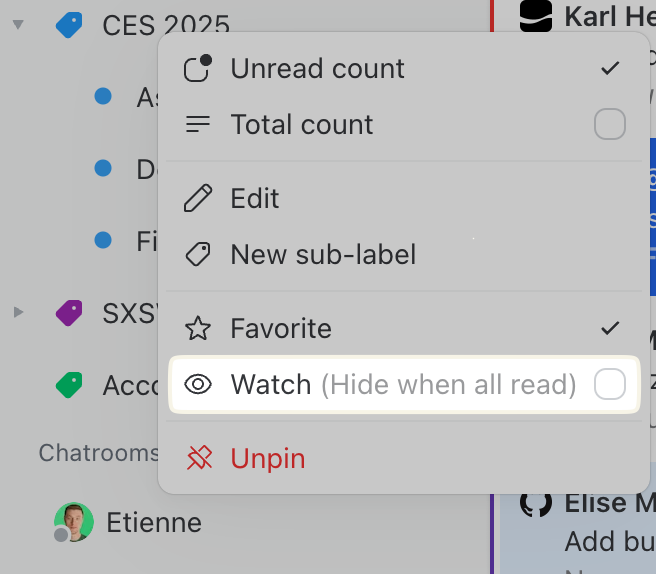
You can enable an option to always show a label if there is one or many unread conversations in it. Right-click on the label name in your sidebar and select the Watch option.

Image showing how to watch a label
Why are labels not showing up in my coworker’s sidebar?
  • The idea is that members of an organization may have different responsibilities and be interested in different labels.

  • Listing all labels in everyone’s sidebar by default may feel cluttered for those interested in just a few labels. We automatically show newly created labels in the sidebar for the person creating the said label, since they are likely to be interested in it.

  • Everyone can manage labels as they see fit: hidden labels can be opened by clicking + Pin to sidebar, and hidden again with right-click > Unpin.

Image showing how to customize the labels shown in your sidebar
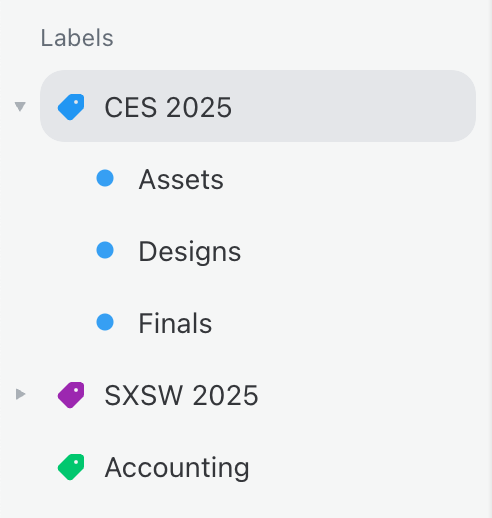
Example of labels pinned in the sidebar
Why can't I delete labels?
  • Only the owner and admins can delete organization labels.

  • Also, email account labels (those not created in Missive) can not be deleted from the app you need to do so from your email service provider (Gmail, Outlook, etc).

Last updated