> For the complete documentation index, see [llms.txt](https://missiveapp.com/docs/llms.txt). Markdown versions of documentation pages are available by appending `.md` to page URLs; this page is available as [Markdown](https://missiveapp.com/docs/core-features/understanding-label-types/managing-labels.md).
# Settings
Create, edit, and organize labels to categorize conversations in Missive.
### User Access / Sharing
By default, applying an organization label to a conversation will not automatically make the conversation visible to more coworkers, it will just label the conversation for teammates already having access to it. You can change that behavior and configure an organization label to automatically give some coworkers access to the conversations in that label by editing the **Auto-shared users** option.
A second option, **Label is visible to**, lets you control who sees the label listed in Missive. There are two options:
* **Everyone in the organization:** All organization members will be able to apply and remove the label from conversations.
* **Admins and auto-shared users:** Only organization admins and users defined in the **Auto-shared users** option will be able to apply and remove the label from conversations.
{% hint style="warning" %}
If you're not an admin and choose **Admins and auto-shared users** without adding yourself to the **Auto-shared users** option, you won't be able to see or apply the label. Missive warns you when this happens and offers a **Share with me** button to add yourself.
{% endhint %}
### Icon
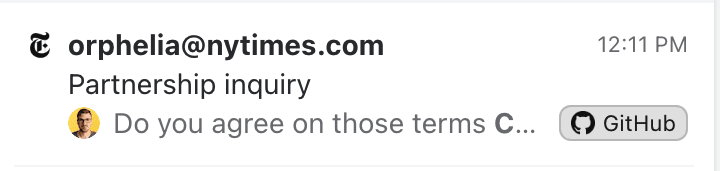
Each label can be customized with an emoji or, for organization labels, a custom uploaded image. The icon shows in the label token on the conversation preview alongside the label name:
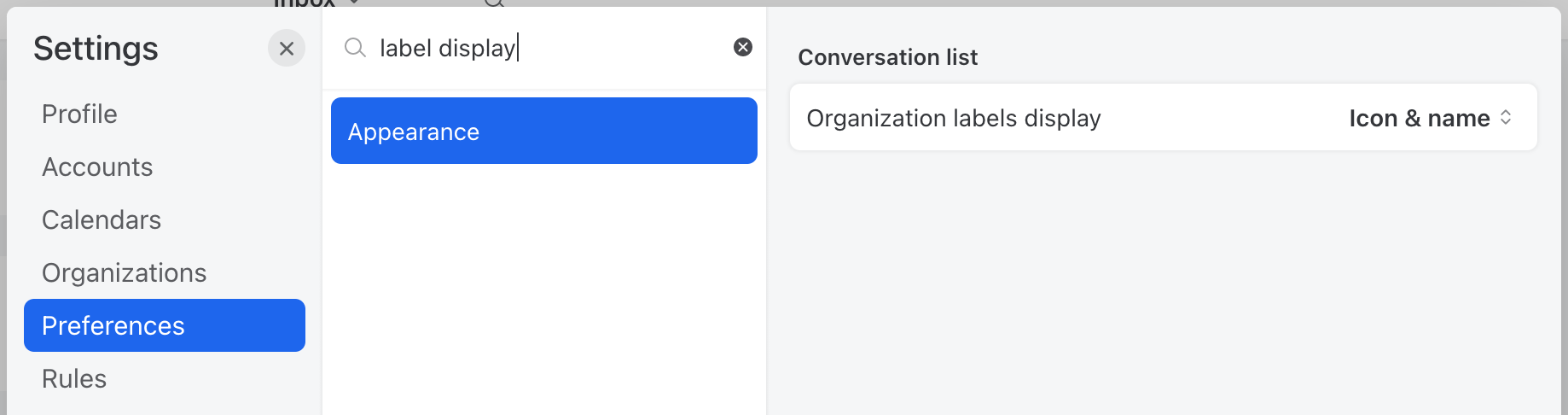
You can also customize whether you prefer to show only the icon and not the name in the label token in your **Settings > Preferences**:
---
# Agent Instructions
This documentation is published with GitBook. GitBook is the documentation platform designed so that both humans and AI agents can read, navigate, and reason over technical content effectively. Learn more at gitbook.com.
## Querying This Documentation
If you need additional information that is not directly available in this page, you can query the documentation by asking a question.
Perform an HTTP GET request on the following URL with the `ask` and `goal` query parameters:
```
GET https://missiveapp.com/docs/core-features/understanding-label-types/managing-labels.md?ask=&goal=
```
`ask` is the immediate question: it should be specific, self-contained, and written in natural language.
`goal` is what the user is ultimately trying to achieve, the reason they need the answer. Sharing it helps GitBook give you a better, more relevant answer. A goal is most helpful when it describes the outcome the user wants rather than restating the question. For example, with `ask=how do I create an API token`, a goal like `automate deployments from our CI pipeline` lets GitBook tailor the answer to that use case.
The response will contain a direct answer to the question and relevant excerpts and sources from the documentation.
Use this mechanism when the answer is not explicitly present in the current page, you need clarification or additional context, or you want to retrieve related documentation sections.