> For the complete documentation index, see [llms.txt](https://missiveapp.com/docs/llms.txt). Markdown versions of documentation pages are available by appending `.md` to page URLs; this page is available as [Markdown](https://missiveapp.com/docs/core-features/understanding-label-types/use-cases.md).
# Use cases
Label use cases: categorizing support tickets, tracking sales leads, and more.
Organization labels can be used in many creative ways to boost your team productivity; here are three examples.
### 1. Feature requests tracking
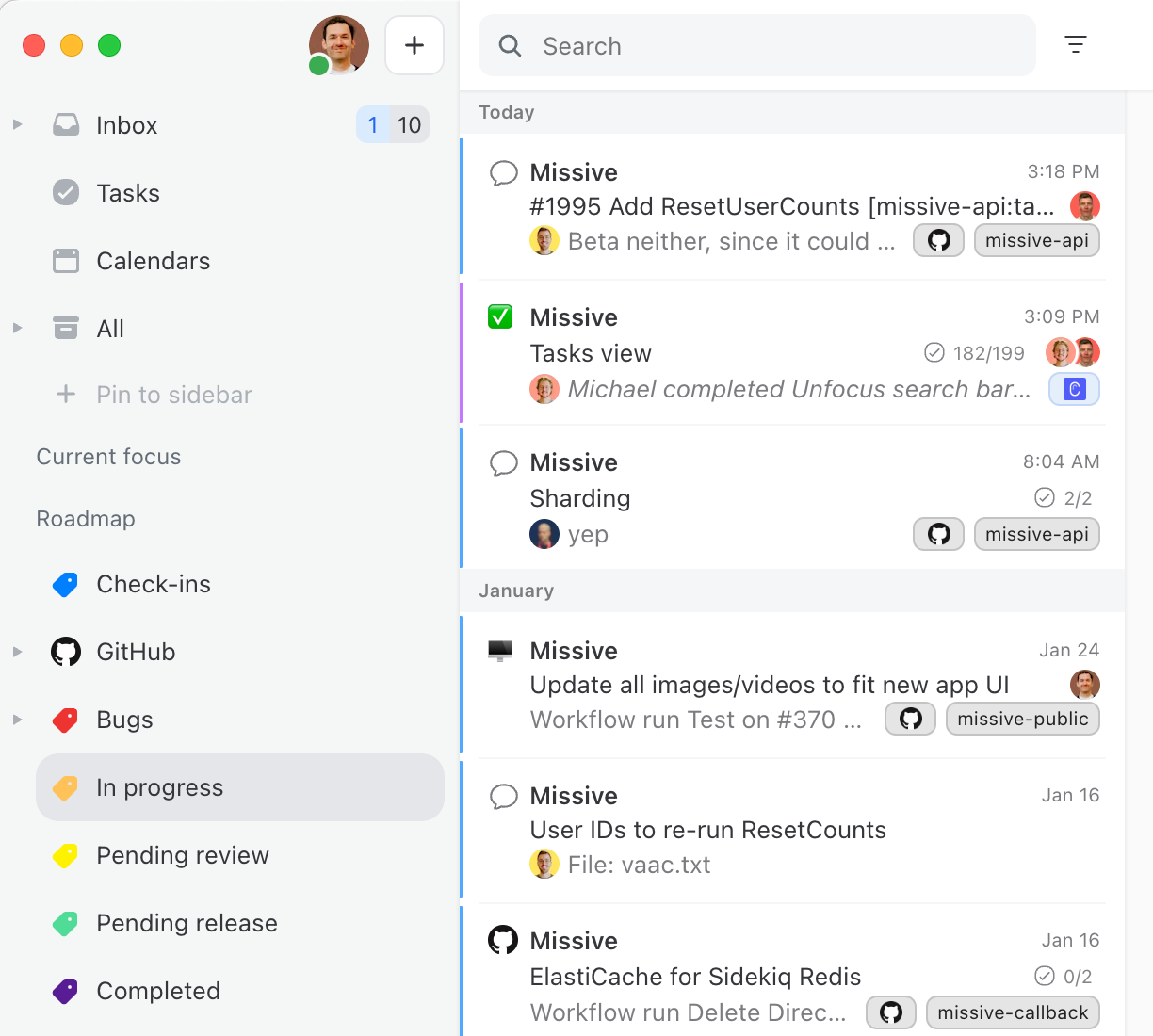
At Missive we use organization labels to track our user’s feature requests. To do so, we use six organization labels: **Bugs**, **Requested**, **Next**, **In progress**, **Pending release**, **Completed**. These are all nested under the parent **Features** label.
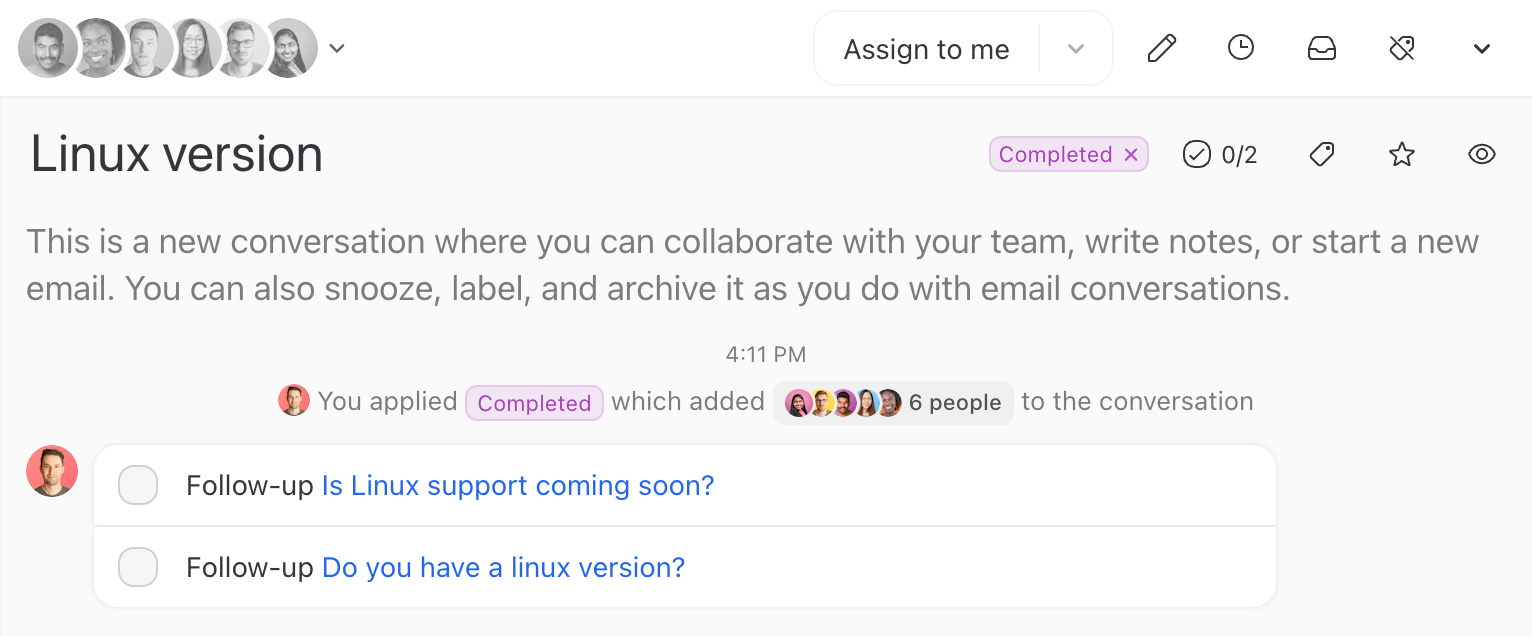
Every time one of our users asks for something new, we create and name a conversation to the feature being requested and label it with the **Features/Requested** label. We then create a task that links to the email conversation where the user asked for the feature. We do so for every user who requested the feature.
Conversations keep track of who requested a feature
When we start working on that new feature, we move the conversation to **Features/In progress**. There we can discuss implementation details. We can also contact some of the users who asked for it to see if our proposed implementation works with them and gather some feedback.
When the feature is completed but not released, we move it to **Features/Pending release**.
And finally, once a feature is released we move it to **Features/Completed**. We can then mark each task as completed after contacting everyone who was interested in it.
### 2. The water cooler
No one likes to be interrupted, but as a team, we still need to share and communicate on many different topics, some not urgent. Let's say I just found out about a really interesting product that could benefit the company operations if adopted; this is important but not urgent. I don't want to @mention my teammates and move the conversation I just created to everyone's inbox. This would interrupt their flow.
A better way of sharing non-urgent conversations is using an organization label. For example at Missive, we created one called **Water cooler** where we exchange about non-urgent but interesting stuff. Everyone can read the conversations in it whenever they want.
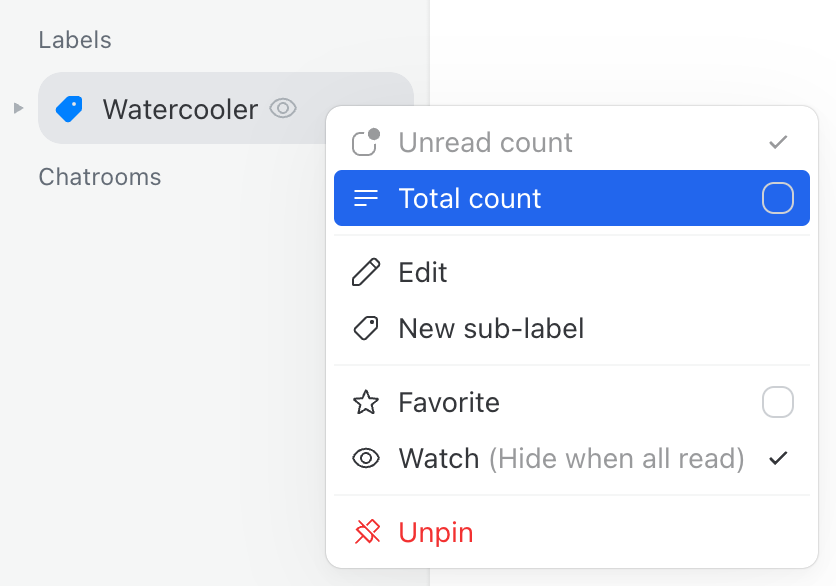
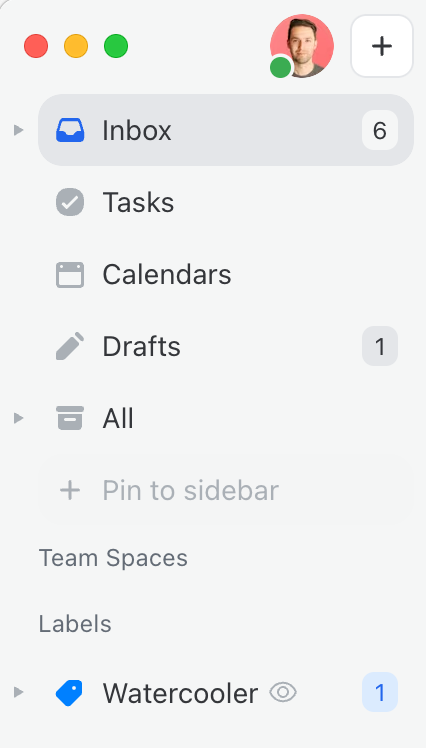
Each team member decides if they want to keep the label visible in their sidebar and show/hide the unread conversation count.
Right-click on the organization label to toggle total/unread counts
That's my preferred setup. That way, I can instantly see when there are new content and check it at my convenience.
{% hint style="info" %}
Make sure your label is shared. That way, when you apply the label to a conversation, the conversation will be shared with the relevant people automatically.
{% endhint %}
### 3. CRM system using Missive labels
Jacob from [IcePanel ](https://icepanel.io/)shares their innovative use of Missive to create a lightweight CRM for managing their sales process. Watch to learn how they leverage rules, labels, and filters to track sales leads, capture customer insights, and streamline communication within their team. Discover practical steps for setting up a sales funnel, managing procurement phases, and defining outcomes.
{% embed url="" %}
---
# Agent Instructions
This documentation is published with GitBook. GitBook is the documentation platform designed so that both humans and AI agents can read, navigate, and reason over technical content effectively. Learn more at gitbook.com.
## Querying This Documentation
If you need additional information that is not directly available in this page, you can query the documentation by asking a question.
Perform an HTTP GET request on the following URL with the `ask` and `goal` query parameters:
```
GET https://missiveapp.com/docs/core-features/understanding-label-types/use-cases.md?ask=&goal=
```
`ask` is the immediate question: it should be specific, self-contained, and written in natural language.
`goal` is what the user is ultimately trying to achieve, the reason they need the answer. Sharing it helps GitBook give you a better, more relevant answer. A goal is most helpful when it describes the outcome the user wants rather than restating the question. For example, with `ask=how do I create an API token`, a goal like `automate deployments from our CI pipeline` lets GitBook tailor the answer to that use case.
The response will contain a direct answer to the question and relevant excerpts and sources from the documentation.
Use this mechanism when the answer is not explicitly present in the current page, you need clarification or additional context, or you want to retrieve related documentation sections.