> For the complete documentation index, see [llms.txt](https://missiveapp.com/docs/llms.txt). Markdown versions of documentation pages are available by appending `.md` to page URLs; this page is available as [Markdown](https://missiveapp.com/docs/core-features/connected-accounts/faq.md).
# Connected Accounts FAQ
Common questions about connecting and managing accounts in Missive.
{% hint style="info" %}
[Gmail/Google Workspace](/docs/core-features/connected-accounts/email-accounts/gmail-google-workspace/faq.md), [Outlook](/docs/core-features/connected-accounts/email-accounts/outlook-office-365/faq.md), [Microsoft Exchange](/docs/core-features/connected-accounts/email-accounts/microsoft-exchange/faq.md), [iCloud](/docs/core-features/connected-accounts/email-accounts/icloud/faq.md), [IMAP](/docs/core-features/connected-accounts/email-accounts/imap/faq.md), [WhatsApp](/docs/core-features/connected-accounts/other-channels/whatsapp/faq.md), [Social](/docs/core-features/connected-accounts/other-channels/social/faq.md), [Live Chat](/docs/core-features/connected-accounts/other-channels/live-chat/faq.md), and [SMS](/docs/core-features/connected-accounts/other-channels/sms/faq.md) have dedicated FAQ pages.
{% endhint %}
### Email
Is it possible to disable (turn off) conversation view (email threading)?
Missive does not offer a way to disable conversation threading. Being a collaborative app where conversations are shared between coworkers and emails intertwined with internal chat comments, we consider threading to be part of the core experience.
Also, offering a way to disable threading would require substantial efforts on a technical level so we do not plan to work on this. We prefer investing energy in more features that make Missive’s offering so unique.
That said, we offer a way to move an email out of its original conversation into a new conversation. We believe this can be an alternative for people who are used to having each email in its own conversation as it lets you (with a single click) move an email that is more important than others out of the rest of the original conversation which may be too noisy.
Can I import more than one email account?
Yes. As a full-featured email client, Missive supports multiple email accounts. You can use it for work and personal email.
Is there a limit on how many personal accounts I can connect?
Yes. Each user can connect up to **10 personal accounts**.
Is there a limit on how many custom shared accounts an organization can have?
Yes. An organization can have up to **100 custom shared accounts**. This limit applies only to custom-type shared accounts. Email, WhatsApp, Messenger, and other channel types are unlimited.
How do I migrate to another email provider or change my IMAP server details?
#### Google Workspace (formerly G Suite) or Office 365
If you are migrating to or from Google Workspace or Office 365, you may skip to the section below.
#### IMAP servers
The Missive interface does not let users modify the hostname of an IMAP / SMTP account in-place because there’s a chance that the new hostname would point to a different email account with different emails, which would corrupt existing Missive conversations (lose assignment, chat comments, etc).
There are usually two different situations where people need to change the hostname of an email account:
* An internal change at your email hosting provider, requiring a simple hostname update.
* A migration to another provider, which involves transferring all emails between servers.
If you know your emails are still on the same physical IMAP server and only the hostname must be updated, just email us at and tell us the new hostname (do not tell us the password). We will double-check that the emails still have the same internal IDs and then proceed to update the hostname in-place for you.
If you are migrating to a different email hosting provider, then it’s too risky to change the hostname in-place because copies of the emails on the new server will be almost guaranteed to have different internal IDs. This means you must connect your new account(s) to Missive and migrate past emails to these new accounts before removing your previous accounts from Missive.
#### Steps
**Here is the order in which things should be done:**
1. Keep your current email accounts connected to Missive. This is very important to avoid losing Missive data such as chat comments, assignment, labels, snoozes, etc.
2. Connect your new accounts to Missive. If some of these accounts are shared in Missive (team inboxes like info@, support@), configure your newly connected email accounts with the same sharing settings.
3. If you have aliases defined in Missive, you must recreate them on your new accounts.
4. Change your domain’s MX records to point to your new email provider. This is done through your domain registrar or DNS / hosting provider’s interface. Once this is done, you will start receiving emails @yourdomain.com into your new accounts instead of your old accounts.
5. If you have defined [incoming or outgoing email rules](/docs/advanced-features/rules.md) using the Email account condition, you must update these rules to reference the new account(s).
6. Transfer all your emails from your old email accounts to your new ones.
If you are moving to Google Workspace, use their [Data Migration service](https://support.google.com/a/answer/9476255?hl=en). If you are moving to Office 365, see [this help article](https://docs.microsoft.com/en-us/exchange/mailbox-migration/mailbox-migration) from Microsoft. You may then skip to the next point below.
If you are moving to an IMAP server, the process is usually done using a traditional email client like Apple Mail, Mozilla Thunderbird or Outlook. It should be a matter of having the two accounts connected to the app, selecting all emails from an account and drag-and-dropping them to the other account, like [explained in this guide](https://mediatemple.net/community/products/dv/204405444/how-do-i-migrate-email-between-servers-using-imap) by hosting provider MediaTemple. The process is the same for any provider.
This step may take anywhere from a few minutes to several hours depending on the number of emails. As soon as the transfer begins, Missive will start synchronizing copies of the emails from the new accounts.
7. Wait for all these emails to be re-imported in Missive via the new accounts. They will be linked to existing Missive conversations behind the scenes; no duplication will happen. You can contact us at so we can check on our side to make sure that this process is completed.
8. When the previous steps are done, you can remove your old accounts from Missive. Since your conversations will now also reference the new copies of your emails, deleting the old copies won’t delete the Missive conversations, and neither their assignment nor comments.
Can I change the color of my default avatar?
The default user avatars admittedly aren’t perfect. Their color is generated based on your initials, so some colors can be close or identical.
To get the avatar you want, upload a custom one. It can be a photo or any other image. If you don’t have any handy, you can use this website to create nice-looking avatars.
Can I automatically share personal emails with my team?
Yes. Create a personal rule and, when conditions match, share the conversation using one of these actions:
1. Move to team inbox
2. Assign user(s)
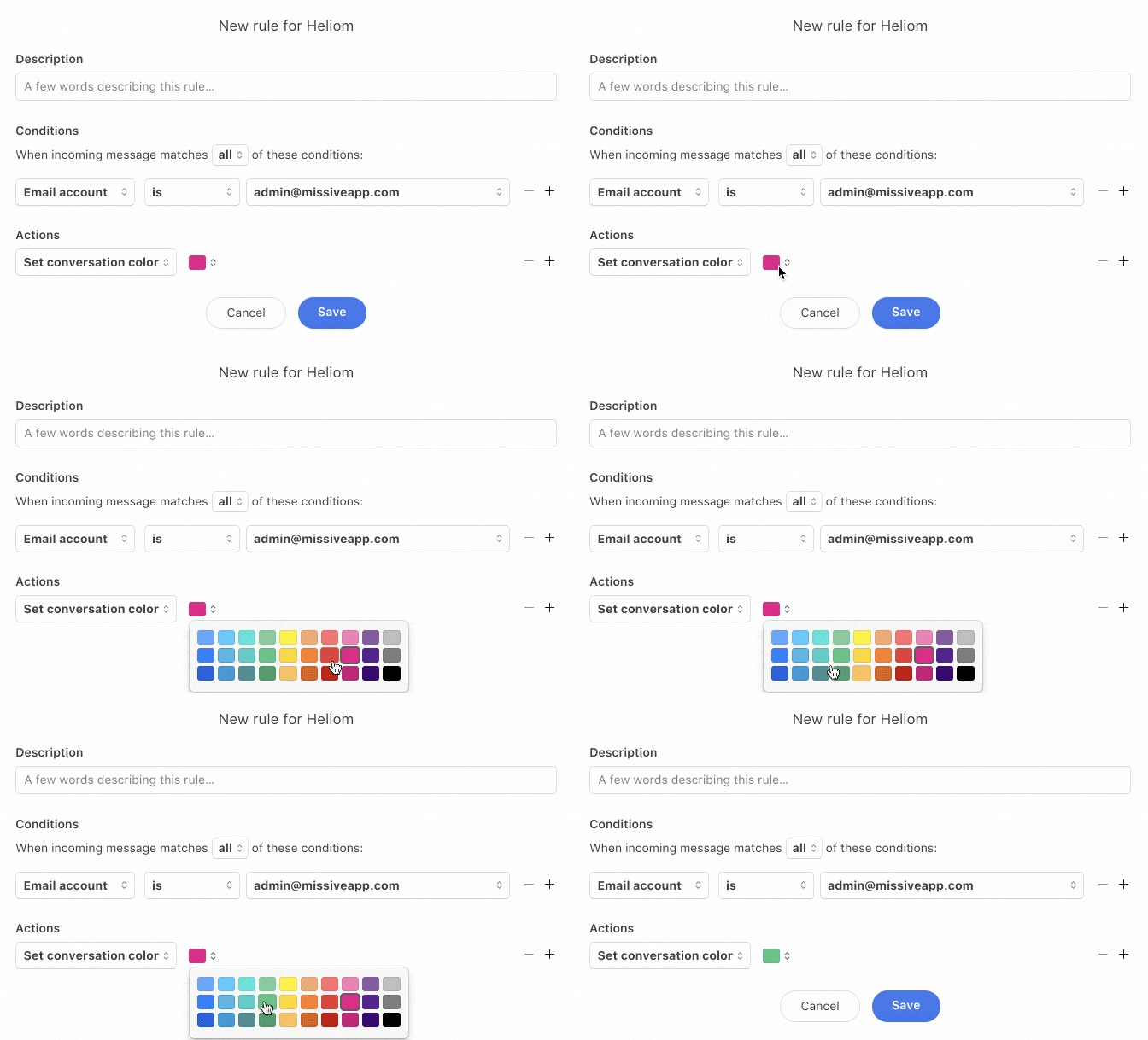
Can I set a different conversation color for each of my email accounts?
Yes. Use rules. Create one rule per email account and apply the color you want.
{% hint style="info" %}
This also works with time-based conditions. Example: apply a red color to conversations with no reply after 2 hours.
{% endhint %}
Can I send marketing emails (newsletters) with Missive?
Most likely not. Missive sends emails via your SMTP server. Sending high volumes through SMTP can hurt deliverability.
Your regular business emails may start landing in spam. This can affect Gmail, Office 365, and other providers.
Can I use email warmup services with Missive?
No, email warmup services are not compatible with Missive and should be disconnected before connecting an account.
Email warmup services gradually increase sending volume on a new or inactive email account to build sender reputation. External warmup services generate a constant high volume of automated emails flowing to and from your account. These emails are typically auto-archived in folders like "Instantly Warmup" or similar.
**Why this causes problems:**
Missive must sync all emails in your account, including these automated warmup emails. This high volume of disposable emails can significantly affect syncing reliability for the actual emails you care about.
**What to do:**
1. Disconnect any email warmup services before connecting your account to Missive
2. If already connected, remove the warmup service and wait for syncing to stabilize
3. Contact if you need help resolving sync issues related to warmup services
Warmup strategies are typically meant to run for only a few days or weeks before sending automated email campaigns. If you need to send bulk emails, use dedicated email marketing services instead of your regular SMTP server.
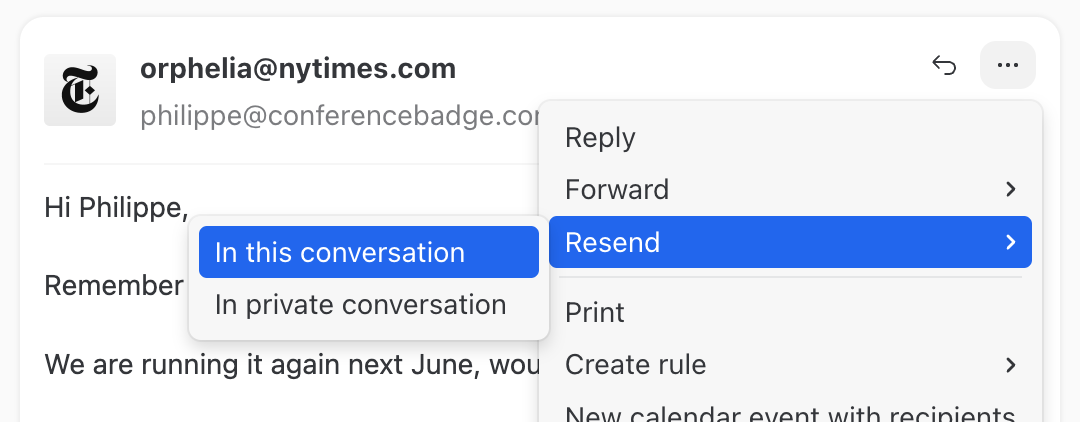
Can I resend an email as a new message?
Yes. Open the message’s **More** menu and select **Resend**. You can send it in the same conversation or a new one.
Instead of forwarding, resending shows the original sent email. It looks like you originally sent it. It adds no extra forwarding context.
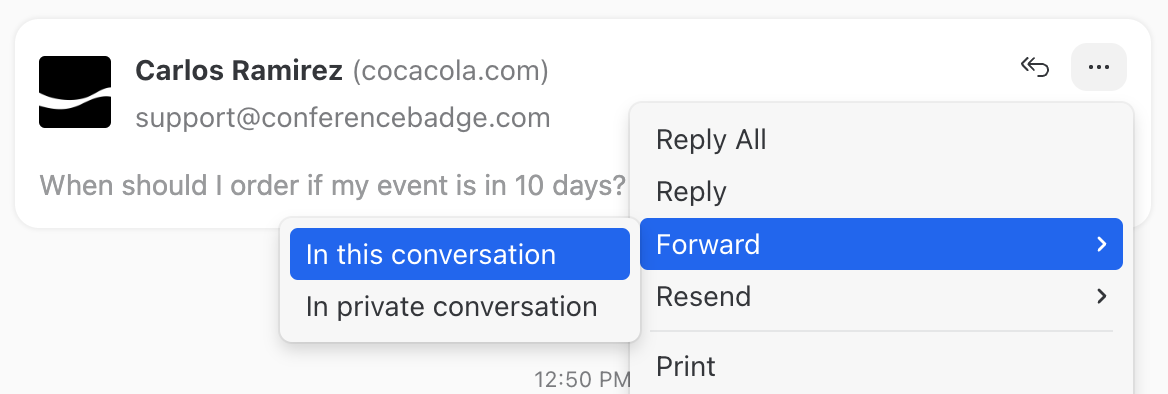
How can I forward in a new private conversation?
If you use Forward In this conversation, your forwarded email will appear in the original Missive conversation (thread) of the email you are forwarding. Similarly, if someone replies to the forwarded email, their reply will appear in the original conversation.
On the other hand, Forward In private conversation creates a fresh new conversation with only the forwarded email. Reply will go to this new conversation instead of the original one. This can be useful if you want your forwarded email to fork off a new conversation that isn’t linked to the whole original thread.
How can I connect a Yahoo email account?
To connect a Yahoo account to Missive, you need to select the IMAP option when adding an account and use Yahoo’s IMAP and SMTP details.
Also, you may be required to enable two-step verification on your Yahoo account and generate a third-party app password for Missive (instead of using your main Yahoo password).
How can I change the order of my email accounts on the sidebar?
Missive does not offer a way to manually reorder email accounts, but you can customize the description of each account in your Accounts settings.
Email accounts are listed in alphabetical order, so if you want to reorder them in a certain way, you can simply enter descriptions that start with a number:
1. Description for account 1
2. Description for account 2
3. Description for account 3
Does Missive offer an email hosting solution?
Missive does not offer direct email hosting; it acts as an email client like Apple Mail / Outlook on your desktop, except it operates in the cloud to provide collaborative functionality.
Do you offer read tracking?
No, we used to offer read tracking, but we stopped for [these reasons](https://missiveapp.com/blog/life-and-death-of-read-tracking).
How to export and download an email to the .eml format?
You can download an email by clicking the message menu and selecting Download email.
This saves the message as a .eml file that can be opened in most email clients.
How to delete only one individual email from a conversation?
To delete a single email from a thread:
1. Move the email to a new conversation.
2. Select this new conversation.
3. Trash the conversation by clicking the trash icon.
4. Go to the trash mailbox, select the conversation and click the **(x)** icon to delete it forever. This last step will only delete the email on the email server if the action is performed by the account owner.
How to delete an email account?
Go to **Settings** > **Accounts**, select the account, and click **Delete**.
Only the account connection is removed from Missive; emails remain on the mail server unless explicitly deleted.
What does "Message was deleted from [email account] outside Missive" mean?
This notice means the email was deleted from your mail server by something other than Missive. Since Missive syncs with your email provider, it mirrors what is stored there. When an email is removed on the server side, Missive detects the change and shows this notice in the conversation.
Common causes:
* Another email client (e.g., Gmail web interface, Outlook desktop app) deleted the message
* A server-side rule or filter automatically removed it
* On Outlook/Office 365, the in-place archive feature may have moved or removed it
The sender cannot delete emails from your inbox. This is strictly about changes happening on your own mail server, which Missive has no control over.
What does "Message was deleted because [User] was removed from the conversation" mean?
This notice appears when a user is removed from a conversation and that conversation contained emails from a personal email account they had connected to Missive. When a user is removed from a conversation, their personal account emails are automatically pulled out of shared conversations to preserve the privacy of their personal mailbox.
The messages are not gone. They moved into private conversations that only that user can see, either in their inbox or archived.
{% hint style="info" %}
This applies when the user is removed from a conversation but still belongs to the organization.
{% endhint %}
**To restore the messages:**
1. Re-add the user to the conversation where the notice appeared.
2. Ask them to locate the private conversations containing those messages (check their personal inbox and archived mailbox).
3. Have them merge those private conversations back into the original shared conversation.
To merge, they can right-click a message, click **Copy link**, then right-click the target conversation and click **Merge copied conversation**.
If you remove the user from that conversation again, the same thing will happen. If you need to remove the user from Missive entirely but still need access to their emails, migrate their email account to another Missive user before removing them.
How to create an internal distribution list?
In Missive there’s no need for an internal distribution list to forward emails.
You simply need to share conversations with the appropriate teammates to make sure everyone has access.
How to change my email account avatar in the conversation list?
Go into the Accounts preferences, select your account, click on your avatar, then choose Upload avatar to replace it with a custom image.
Why does my logo show in the conversation list but not inside the conversation?
The list and the message header request the logo at different sizes, and each size can land on a different image from your website. Usually the small lookup finds your favicon while the large lookup finds your social share image (`og:image`), which is over the 200 KB limit and gets rejected.
Compress that image under 200 KB, or add an `apple-touch-icon` to your site. Full details and every fallback in [Avatars and logos](/docs/core-features/connected-accounts/avatars-and-logos.md).
Where do sender avatars and company logos come from?
Missive checks, in order: a custom avatar uploaded in Missive, Gravatar for the exact email address, image tags on the sender's website, then the site's favicon. Images must be under 200 KB. Results are cached for 24 hours.
See [Avatars and logos](/docs/core-features/connected-accounts/avatars-and-logos.md) for the full lookup order and how to fix a missing logo.
How much of email account history is imported in Missive?
The amount of email account history that is imported depends on your Missive plan and the email provider.
Some providers limit how much history can be fetched, while others allow full historical imports.
How do I change the icon that is displayed when I send emails?
Missive fetches sender icons from your email service provider or your website.
If you want to change it, you’ll need to update the icon at the source (for example, your Google account profile or your domain’s favicon). Missive will then automatically reflect the change.
How can I transfer an email account ownership to another user in my organization?
Missive will handle your email account ownership transition without a problem, but it’s important to do things in the right order to avoid losing access to emails or causing disruptions.
In short: the new owner connects the same account to their own Missive user with the same sharing and email history import settings, then you contact Missive support to confirm the import is complete before removing the previous owner's version of the account.
For the full step-by-step process, including WhatsApp, SMS, and social accounts, see [Transferring ownership](/docs/administration/security/removing-a-user/transferring-ownership.md).
How can I print all emails in a conversation?
To start printing from any message in a conversation you first have to open the message, click the dropdown arrow and select Print.
How can I mass-archive emails?
Missive has a built-in mass-archive feature to archive thousands of old emails at once.
Go to **Settings** > **Accounts** > select your account > **Mass-archive**.
Select a predefined timeframe (last 30/90 days, last year) or pick a specific date. Emails older than your selection will be archived from both Missive and your email provider.
The process can take hours or up to a day depending on how many emails must be archived. Only the account owner can use this feature.
{% hint style="info" %}
For Gmail accounts, you can also use Gmail's interface to bulk archive. See [How to Mass Archive Gmail Emails](/docs/support/mass-archive-gmail-emails.md) for details.
{% endhint %}
How can I know if my emails are being tracked?
Missive auto blocks read trackers and 1x1 images to prevent senders from spying on what you do with their email.
Will my personal emails be shared with my coworkers?
No, your coworkers will never see your personal emails by default.
Personal emails are private unless you explicitly share them with others.
Why is my teammate not able to send emails?
They do not have access to any alias address to use in the From field.
To send emails, a user must be granted access to at least one email address or alias.
Why don’t the total count on my Inbox and its sub-mailboxes add up?
The counts should not necessarily add up.
Sub-mailboxes often overlap, meaning a single conversation can appear in more than one place and be counted multiple times.
Why can I change the title of an email thread? Is this change internal only?
Changing the title of an email thread only affects how the conversation is displayed internally in Missive.
The subject line of the original email remains unchanged for external recipients.
Why aren't my colleague and I seeing the same BCC addresses in the same conversation?
BCC recipients are treated differently by mail servers.
Each recipient only sees the BCC addresses that were visible to them when the email was sent, which can result in different users seeing different BCC fields in the same conversation.
Why are emails or conversations sometimes duplicated?
Sending emails from outside Missive (for example, directly from Gmail or Outlook) is known to cause duplicate conversations when the same messages are later synced into Missive.
This happens because Missive treats externally sent emails as new incoming messages.
How to find archived emails?
As you might have noticed, there is no archived mailbox in Missive, just like in Gmail.
When you archive a conversation, it is simply removed from the Inbox. You can find archived conversations by using search or by browsing other mailboxes such as All.
How can I access my Spam folder?
{% hint style="info" %}
Missive calls this folder **Spam**. If you're looking for a "Junk" folder, it's the same thing - just called Spam in Missive.
{% endhint %}
To access your Spam folder:
1. Click **+ More** in the left sidebar
2. Select **Main Section**
3. Click **Spam** to pin it to your sidebar
You can also access other default mailboxes (Drafts, Sent, Trash, All) using the same method.
How to send an email to a group of contacts?
Missive supports contact groups and companies, which both act as an alias for a group of people.
When you type the name of a group or company in the To, Cc, or Bcc field, it automatically expands to all associated contacts.
If I delete an email, is it deleted for everyone?
A delegated user cannot delete a conversation forever.
If the email account owner deletes the conversation forever, then it will be permanently deleted for everyone. Otherwise, the email may still exist for other users who have access to it.
Is it possible to delete a personal account but retain the messages?
Unfortunately, it is not possible.
Deleting a personal email account will also remove all its messages from Missive.
My company does not use Google Apps. Can we use Missive?
Yes, we support most IMAP servers.
This includes Office 365, iCloud, Outlook.com, and many other email providers.
Who has access to a new email sent from a shared email address?
When composing a new email, you can see if the email will be shared with colleagues at the bottom of the composer window.
By default, emails sent from shared addresses are visible to the team members who have access to that address.
Do I have to configure Missive-specific SPF records?
Since Missive acts as an email *client* and not a *server*, you do not have to configure any SPF or DKIM specifically for it.
Missive sends emails through the SMTP credentials you provided when connecting your account, like any other email client would (e.g. Microsoft Outlook on Windows, Apple Mail on Mac / iOS, etc.)
DKIM is also handled by your email provider and requires DNS (domain name) configuration. Your email provider should give you a DNS record (usually TXT) that you will need to add through your domain provider interface. If your hosting provider handles both your DNS and SMTP email delivery, this can sometimes be enabled by simply clicking a button in their interface.
My emails are landing in spam or not being delivered - how do I fix this?
Email deliverability issues are almost always related to your domain's DNS configuration, not Missive.
**Start here:**
* Read the [Email deliverability](/docs/core-features/connected-accounts/email-accounts/email-deliverability.md) guide for step-by-step troubleshooting using Mail Tester
* Most issues are caused by missing or incorrect SPF records
**Provider-specific help:**
* Gmail/Google Workspace: See [Gmail FAQ](/docs/core-features/connected-accounts/email-accounts/gmail-google-workspace/faq.md) for Gmail-specific spam diagnosis
* Office 365/Outlook: See [Outlook FAQ](/docs/core-features/connected-accounts/email-accounts/outlook-office-365/faq.md) for "Access denied" errors and IP whitelisting
### Attachments
Can I save an attachment for later?
Yes. You can save an attachment for later by clicking on it and selecting the Save for later option.
Saved attachments are accessible from the Attachments section, making it easy to find them again without reopening the original conversation.
Why are image attachments displayed instead of showing their filename?
Some image attachments are displayed inline instead of showing their filename.
This happens when the email includes images meant to be viewed directly, such as screenshots or photos, rather than traditional downloadable files.
How can I forward an email attachment?
To forward an attachment, open the email containing it and use the Forward option.
You can also download the attachment and manually attach it to a new email if needed.
What is the attachment size limit?
The attachment size limit depends on your email provider, not Missive.
Missive follows the limits enforced by your mail server, such as Gmail or Office 365.
Is there a limit on file uploads within Missive?
Yes. Missive enforces file size and rate limits for files uploaded directly through the app (for example, attachments in internal chat).
**Per file:**
| Maximum file size |
| ----------------- |
| 1 GB |
**Rate limits:**
| Window | Limit |
| ---------- | ----- |
| 15 minutes | 2 GB |
| 2 hours | 4 GB |
Can I delete an attachment from an email?
No, it is not possible to delete an attachment from an email without deleting the email itself.
Attachments are part of the original email message and cannot be removed independently.
### History
Can I import a PST email archive?
Missive does not support importing **.pst** files. It only supports synchronizing emails from “live” email accounts, so the way to get your .pst emails in Missive would be to use a regular email client such as Outlook to copy those .pst emails into one of the email accounts you have connected to Missive. Then Missive will automatically detect and import these new emails.
Can I import .eml files?
Missive does not support importing **.eml** files directly. To get .eml emails into Missive, import them into an email client (such as Apple Mail, Outlook, or Thunderbird) that is connected to one of your email accounts. Missive will automatically sync those emails from the account.
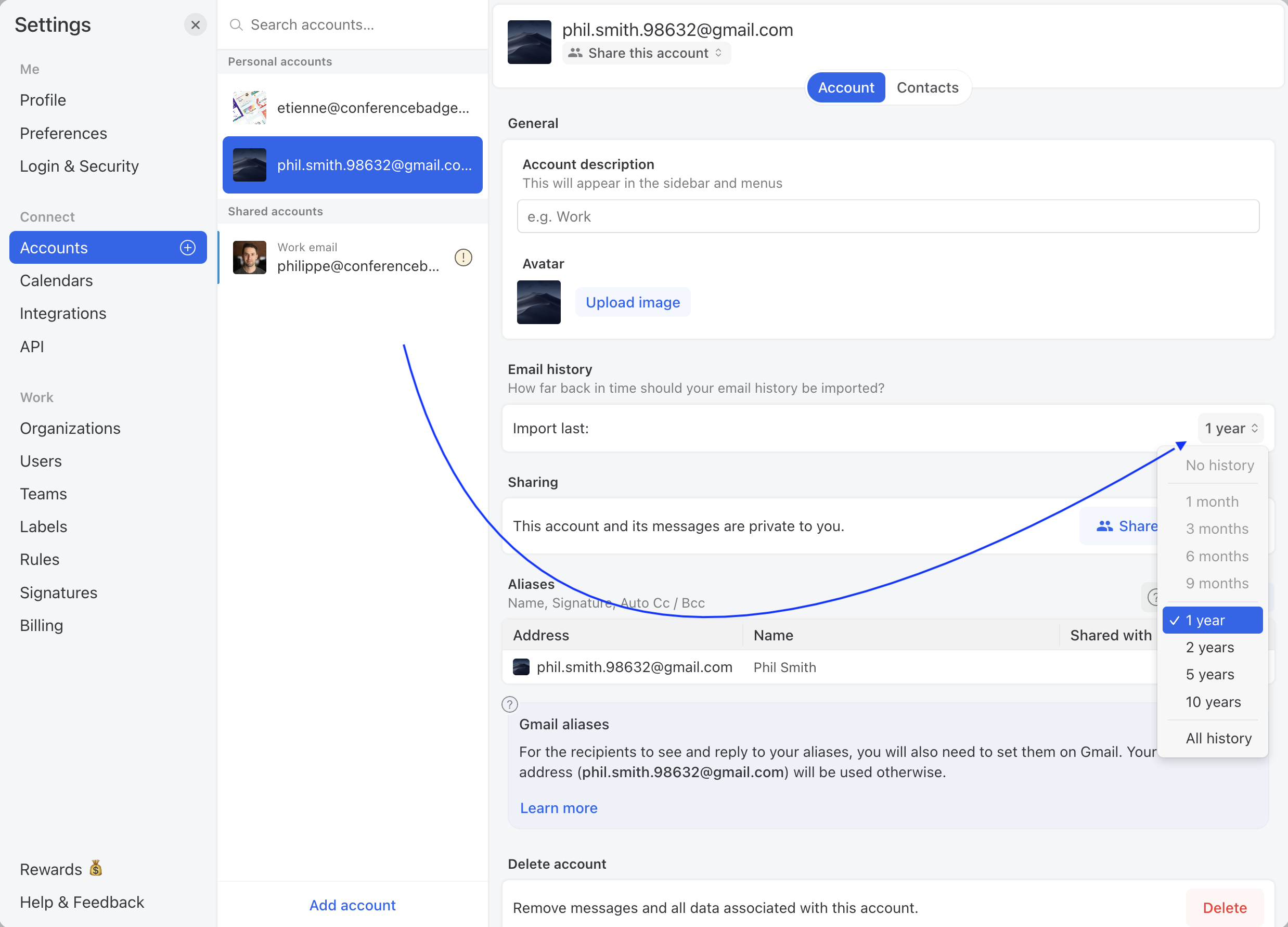
Can more email history be synced after the initial import?
Yes, you can import more email history from your Accounts settings. However, please note that the reverse process is not possible.
How long should it take to import all of my emails?
It usually takes under one day to import an email account with many years of history, but if your account is massive it can take up to a few days.
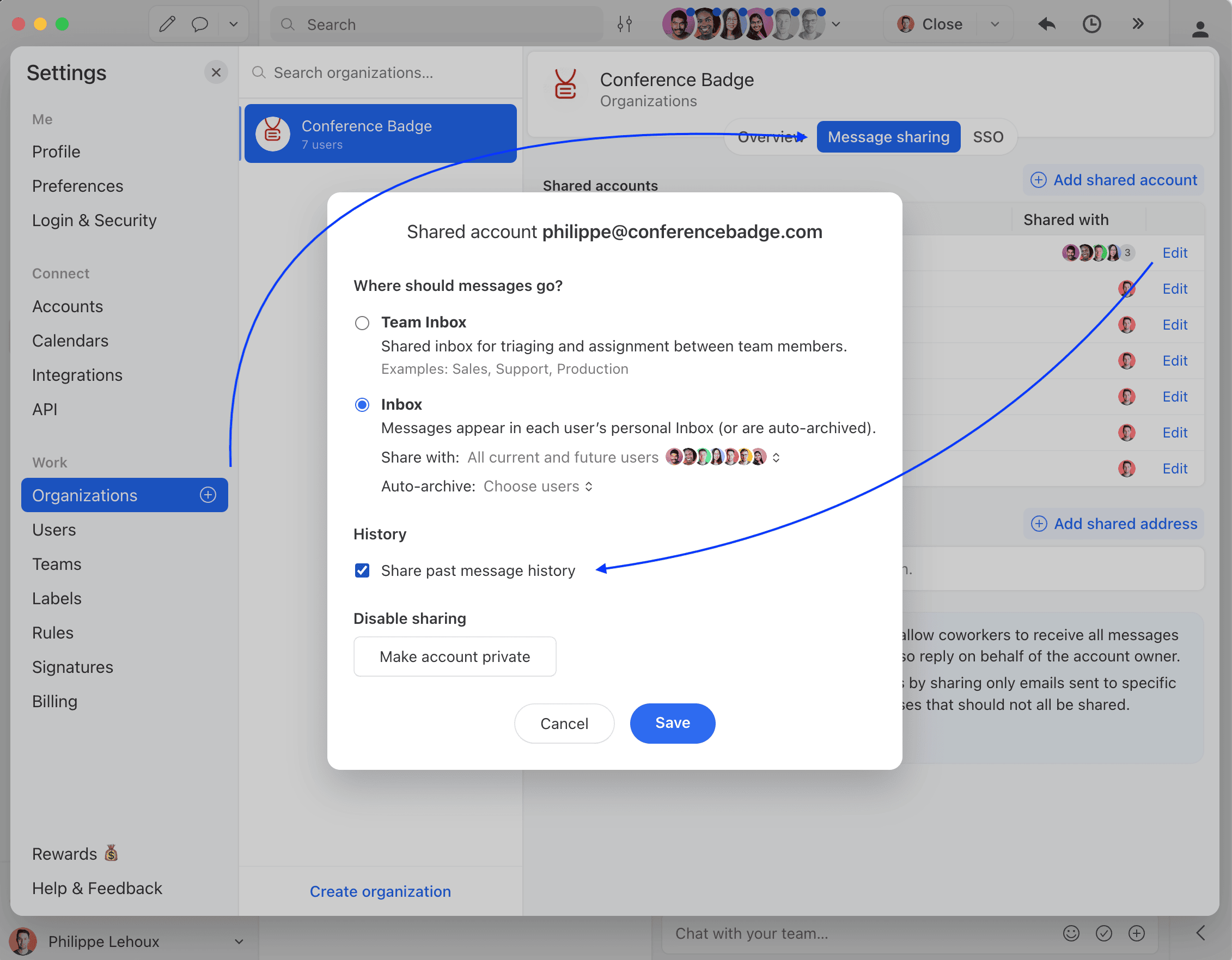
How to share past emails with shared account delegated users?
To do so you need to check the **Share past message history** in the sharing menu of your shared account. See:
Why aren’t all my emails imported?
This is probably just because you are on the 30-day trial, which only imports your last 30 days of email history. You can import your full history by subscribing to any paid plan. See [our Pricing page](https://missiveapp.com/pricing).
If you are already on one of these plans, check this [help page](#can-more-email-history-be-synced-after-the-initial-import) on how to fetch all of your history.
What happens to my conversations when I delete a connected account?
The answer depends on the account type.
**Email accounts:** Your emails remain on your mail server outside Missive. Missive conversations are deleted unless the same emails are also present in another email account connected to Missive within your organization. If another connected account holds a copy of those emails, the conversations and their history (assignment, chat comments, labels, etc.) are preserved.
**Other channels (SMS, WhatsApp, social media, live chat, voice, custom channels):** All associated conversations are permanently deleted from Missive when the account is removed. There is no way to recover them. If you reconnect the same channel later, past conversation history is not restored.
{% hint style="warning" %}
Before removing an Other channels account, make sure you no longer need access to its conversation history.
{% endhint %}
### Notifications
How can I silence notifications for a specific email account?
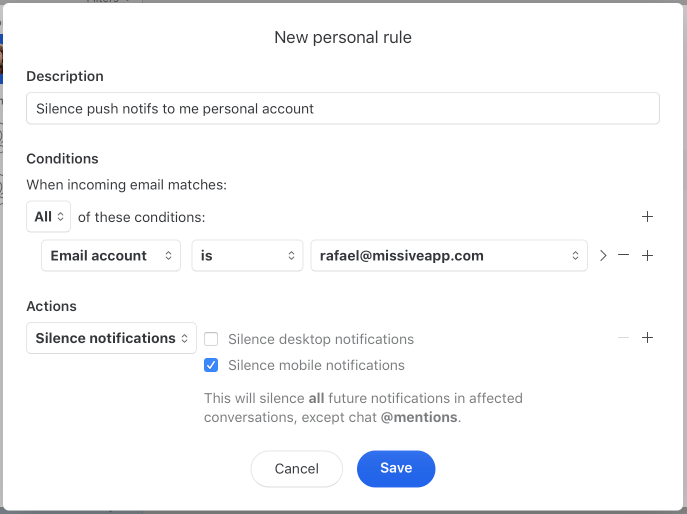
For a team inbox, change your membership from **Active member** to **Observer**. Go to **Settings** > **Organizations** > **Teams**, select the team, click **Edit**, and update your role. If you're not an admin, ask one to do this for you.
If you want to disable notifications for one of your personal email accounts, this can be done by creating a personal rule that triggers the **Silence notifications** action. See this example, where emails sent to a specific **Email account** are set to silence mobile notifications:
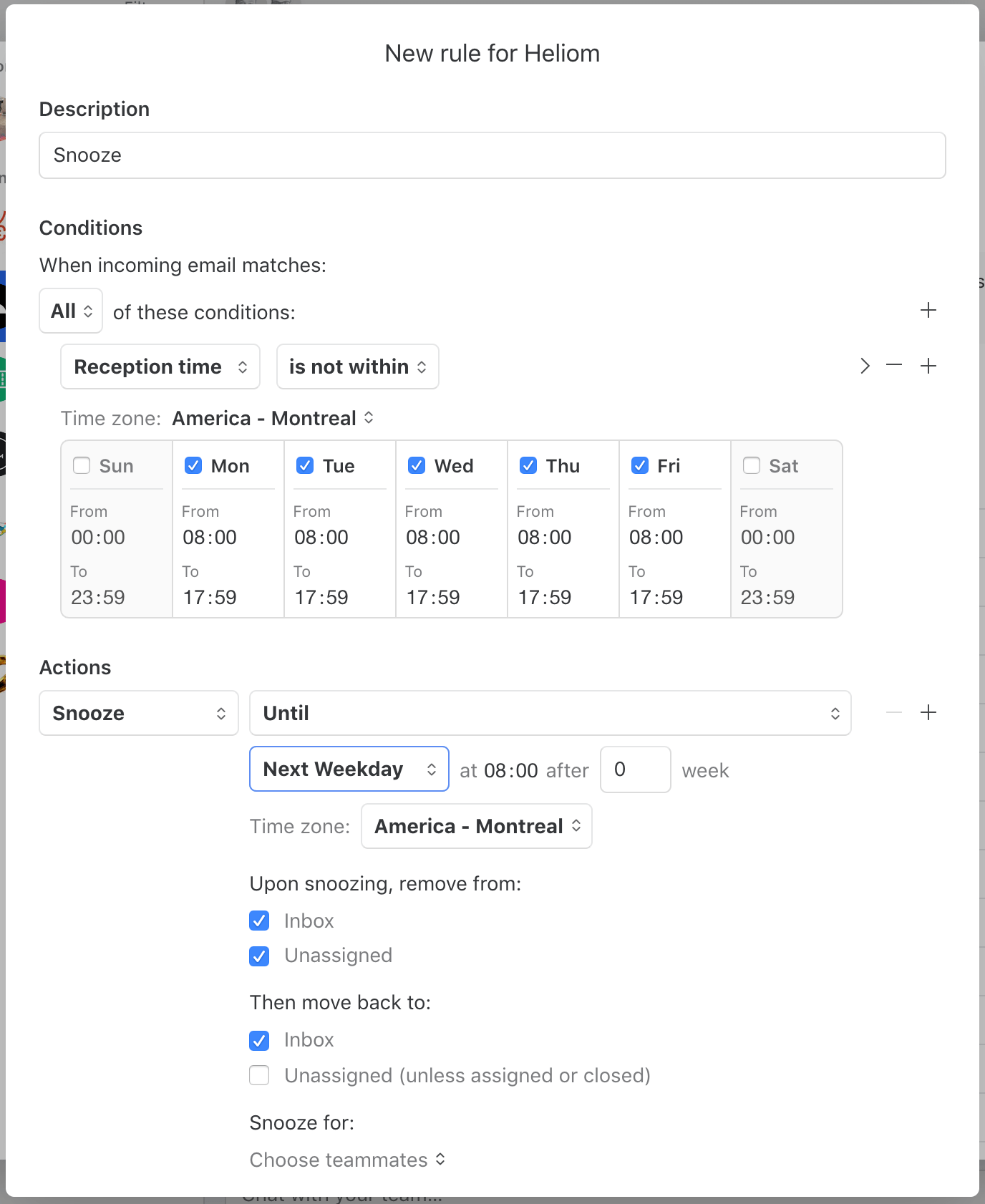
Is it possible to snooze notifications during the weekend?
Missive offers a snoozing [rule](/docs/advanced-features/rules.md) action for this use case, see this image:
### Sharing
For an overview of sharing options, see [Sharing options](/docs/core-features/connected-accounts/sharing-options.md).
Is there a limit on how many shared addresses an organization can have?
Yes. An organization can have up to **500 shared addresses**.
As the owner of a shared account, can I remove myself from the emails?
{% hint style="info" %}
The account owner is the user that imported the account in Missive.
{% endhint %}
No, sorry, as the *account owner*, you have access to all emails in it. If you want to control the email accounts without seeing their content, a work-around is to create one new user in your organization whose sole purpose is to import shared accounts. The downside is that it will cost your organization one more seat.
Can an admin of the organization manage a shared account?
{% hint style="info" %}
The account owner is the user that imported the account in Missive.
{% endhint %}
Only the owner of the shared email account can manage the contact syncing, aliases, auto CC/BCC setting, history fetching limit and signatures of an email account.
But an admin can manage and update the sharing settings of a shared account.
Do I need a "shared address" if my email account is already shared?
You most likely don't need any **shared address** if you have configured a **shared account**. Shared addresses are meant for situations where emails sent to multiple addresses end up in the same email account (e.g. ****), but you only want to give your coworkers access to specific emails based on the alias they are sent to (e.g. ****, ****). You could create two shared addresses in such a case, each with different auto-sharing settings.
[Read more about shared addresses](/docs/core-features/connected-accounts/sharing-options.md#shared-addresses)
How do I make a shared account private again?
A shared account can be made private again by the account owner or an organization admin (for example, after someone returns from leave).
1. Open **Settings** > **Accounts**
2. Select the shared account
3. Click **Edit sharing**, then **Make account private**
Only the account owner will have access to this account and its messages going forward.
**What happens to existing conversations:**
* Conversations that contain only emails from this account become private, but all colleague chat comments in those conversations remain visible to the account owner.
* Conversations that also contain emails from other shared accounts remain visible to colleagues who have access to those other accounts.
* Colleagues who participated in conversations using their own personal email accounts continue to have access to those conversations.
**If the account is later shared with another organization:**
Previous conversations that included chat comments from the original organization will not be visible to the new organization. Instead, fresh copies of those conversations (without the original chat comments) will appear for members of the new organization.
How to automatically share an email sent to multiple people?
By default, emails sent to the personal addresses of multiple Missive users are not shared. Each user gets the email in their own private conversation, requiring @mentions to bring people together and collaborate. However, there is a way to automate such sharing.
Let’s say and want to automatically collaborate if someone sends an email like:
> **To:**
>
> **Cc:**
>
> **Subject:** Hi guys
Here are the steps to allow the automatic sharing for such emails:
1. Each user connects their email account as a **personal account**. You may have done this already.
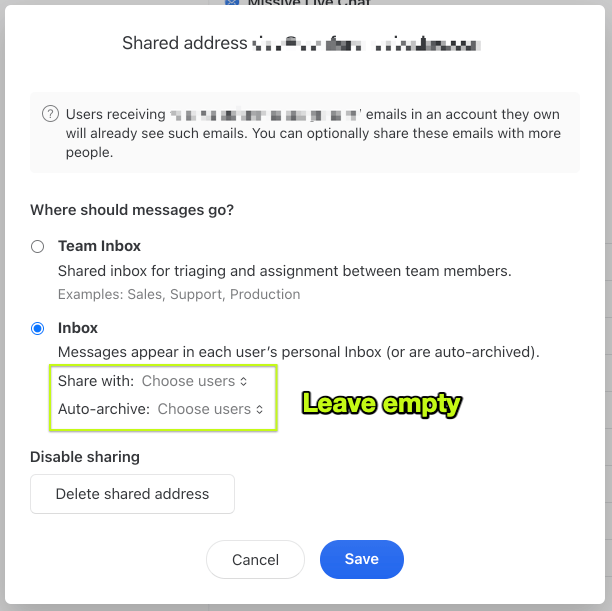
2. Go to **Settings** > **Accounts**, click **Add**, then choose **Shared address** under the **Email** tab.
3. Add **shared addresses** for “” and “”.
4. Don’t select anyone to automatically share emails with. This way, emails sent only to Claire or Hubert will remain private, but emails sent to ***both*** Claire and Hubert will be shared between the two.
5. Each user will receive a validation email with a link they must click.
Once all addresses are validated, Missive will start to automatically create shared conversations when multiple users receive the same email.
How do I prevent sensitive HR emails from being shared with the wrong people?
If HR sends an email to a distribution list that includes a shared address, or if someone replies through a shared account, those conversations become visible to everyone with access to that account. This is Missive working as designed, but it's a problem for confidential communications.
The solution is to create a separate organization for HR or other sensitive matters. Only authorized personnel are members, and email accounts are shared only within that organization. This makes accidental sharing impossible.
See [Sensitive communications](/docs/administration/sensitive-communications.md) for setup instructions.
---
# Agent Instructions
This documentation is published with GitBook. GitBook is the documentation platform designed so that both humans and AI agents can read, navigate, and reason over technical content effectively. Learn more at gitbook.com.
## Querying This Documentation
If you need additional information that is not directly available in this page, you can query the documentation by asking a question.
Perform an HTTP GET request on the following URL with the `ask` and `goal` query parameters:
```
GET https://missiveapp.com/docs/core-features/connected-accounts/faq.md?ask=&goal=
```
`ask` is the immediate question: it should be specific, self-contained, and written in natural language.
`goal` is what the user is ultimately trying to achieve, the reason they need the answer. Sharing it helps GitBook give you a better, more relevant answer. A goal is most helpful when it describes the outcome the user wants rather than restating the question. For example, with `ask=how do I create an API token`, a goal like `automate deployments from our CI pipeline` lets GitBook tailor the answer to that use case.
The response will contain a direct answer to the question and relevant excerpts and sources from the documentation.
Use this mechanism when the answer is not explicitly present in the current page, you need clarification or additional context, or you want to retrieve related documentation sections.