> For the complete documentation index, see [llms.txt](https://missiveapp.com/docs/llms.txt). Markdown versions of documentation pages are available by appending `.md` to page URLs; this page is available as [Markdown](https://missiveapp.com/docs/core-features/conversations/internal-chat.md).
# Internal chat
Start private conversations with teammates without leaving Missive.
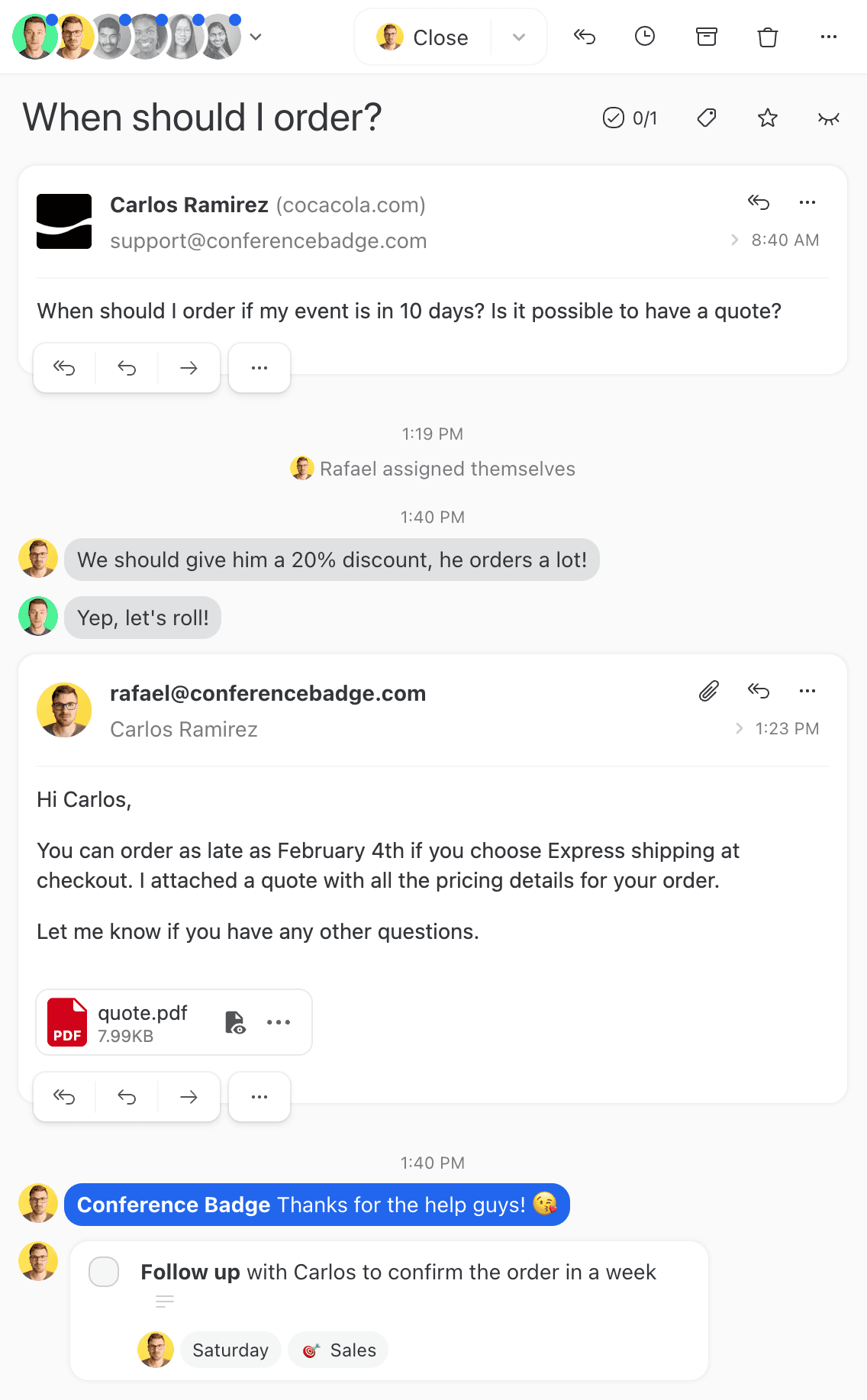
In Missive, everything external is email, everything internal is chat—and both live together in unified conversations. No more switching between your email client and a separate chat app to collaborate with your team.
## When to use internal chat
Internal chats are useful in many situations:
* **External communication:** Discuss messages received from outside the company (email, SMS, social media, etc.)
* **Ask for help:** Need guidance on how to respond? @mention a colleague directly in the email thread
* **Share context:** Provide background information before someone else replies
* **Express opinions:** Discuss ideas before taking action
Instead of forwarding an email or calling a manager, @mention someone and ask for help directly in the thread. They can access the full context instantly and guide you through the chat.
## Types of chat conversations
### Chat in any conversation
Every conversation has a chat box where you can talk with teammates. These internal chats are never seen by external recipients.
To start collaborating:
1. Open any conversation
2. Type in the chat box at the bottom
3. Use **@username** to mention specific people
{% hint style="info" %}
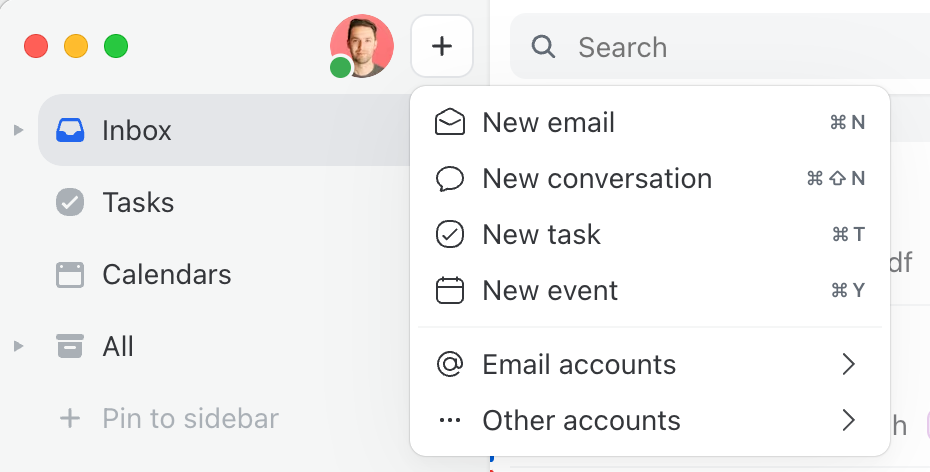
You can also click **New conversation** from the **+** menu to start a chat-only conversation with your team, or as notes for yourself.
{% endhint %}
### Team chat rooms
Teams can have dedicated chat rooms where all members can discuss together. Team rooms are automatically created when you configure a team with this option enabled.
Team chat rooms make it easy to **@team** several people at once. Each team can also have a dedicated **team inbox** where messages from shared accounts are directed.
Teams can represent anything:
* **A function or role:** Support, Sales, Marketing
* **A client group:** Delta Materials, Disney
* **A project:** Construction Site ABC, Spring 2026 Campaign
* **A social space:** General room, Random Facts channel
To configure team chat rooms:
1. Go to **Settings** > **Teams**
2. Select your team and click **Edit**
3. Enable or disable **Chat room**
### Organization room
Missive automatically creates a general chat room for your organization where all members can connect and engage beyond emails.
### 1-1 room
Missive also creates private 1-1 rooms between each team member. Start a conversation by clicking on a coworker's avatar in the sidebar or using the command bar.
## Creating a chat room
Missive is flexible with internal chats. A chat can be short-lived for a single discussion, or long-lived for an ongoing project.
1. Click the **+** button, then **New conversation**
{% hint style="info" %}
**New conversation** creates a conversation that behaves like email conversations: it can be labeled, archived, snoozed, assigned, etc.
{% endhint %}
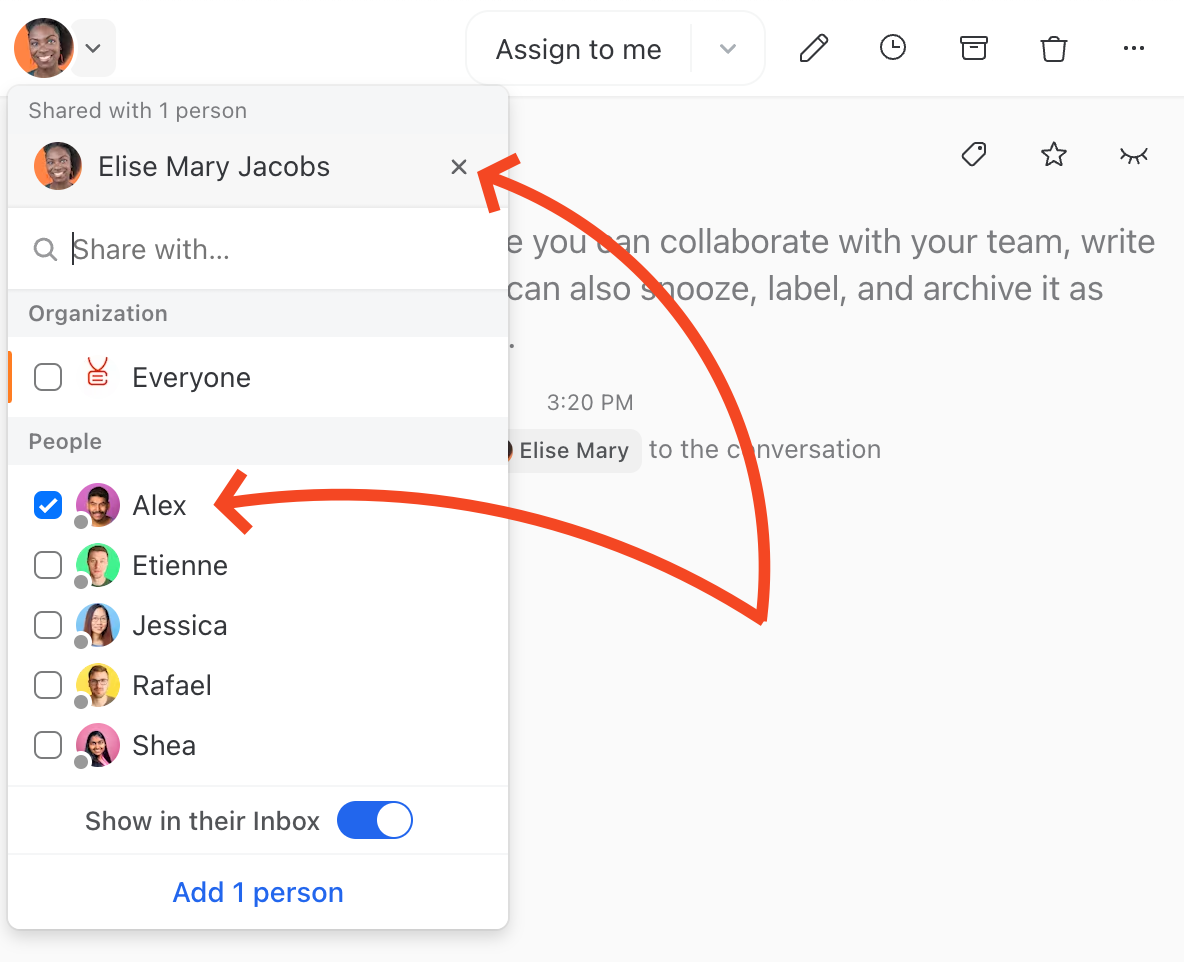
2. Pick a title, choose who should have access, and start chatting
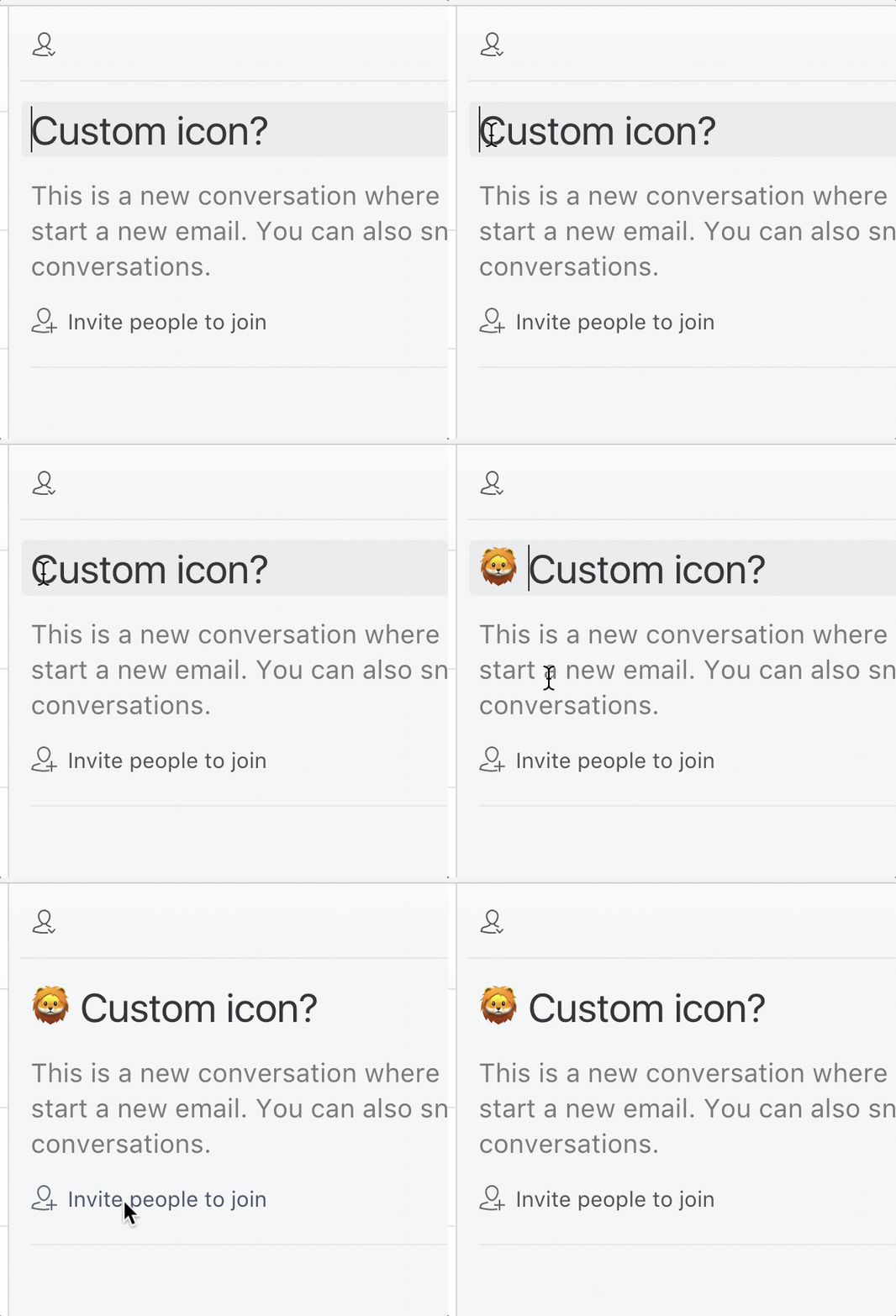
3. Optionally, customize the icon by prepending an emoji to the conversation title
### Add to sidebar
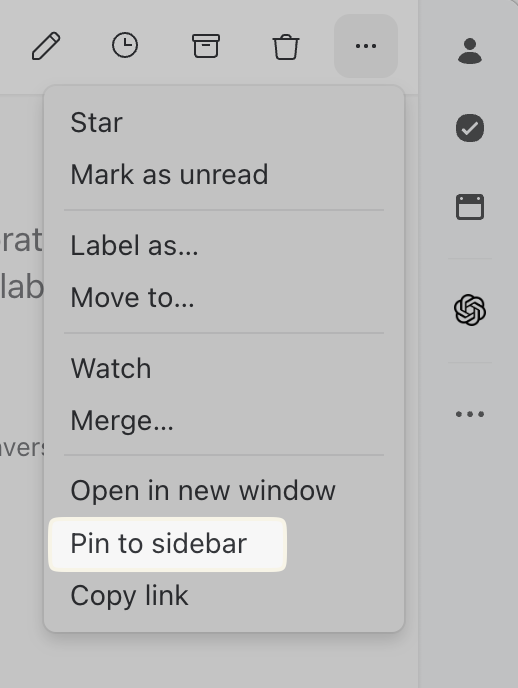
Conversations added to your sidebar stay right where you put them—unlike your Inbox where new conversations push older ones down. Use **Add to sidebar** to keep important chat rooms easily accessible.
{% hint style="info" %}
Create custom sections in your sidebar to group pinned items however you like.
{% endhint %}
---
# Agent Instructions
This documentation is published with GitBook. GitBook is the documentation platform designed so that both humans and AI agents can read, navigate, and reason over technical content effectively. Learn more at gitbook.com.
## Querying This Documentation
If you need additional information that is not directly available in this page, you can query the documentation by asking a question.
Perform an HTTP GET request on the following URL with the `ask` and `goal` query parameters:
```
GET https://missiveapp.com/docs/core-features/conversations/internal-chat.md?ask=&goal=
```
`ask` is the immediate question: it should be specific, self-contained, and written in natural language.
`goal` is what the user is ultimately trying to achieve, the reason they need the answer. Sharing it helps GitBook give you a better, more relevant answer. A goal is most helpful when it describes the outcome the user wants rather than restating the question. For example, with `ask=how do I create an API token`, a goal like `automate deployments from our CI pipeline` lets GitBook tailor the answer to that use case.
The response will contain a direct answer to the question and relevant excerpts and sources from the documentation.
Use this mechanism when the answer is not explicitly present in the current page, you need clarification or additional context, or you want to retrieve related documentation sections.