> For the complete documentation index, see [llms.txt](https://missiveapp.com/docs/llms.txt). Markdown versions of documentation pages are available by appending `.md` to page URLs; this page is available as [Markdown](https://missiveapp.com/docs/core-features/connected-accounts/other-channels/live-chat.md).
# Live Chat
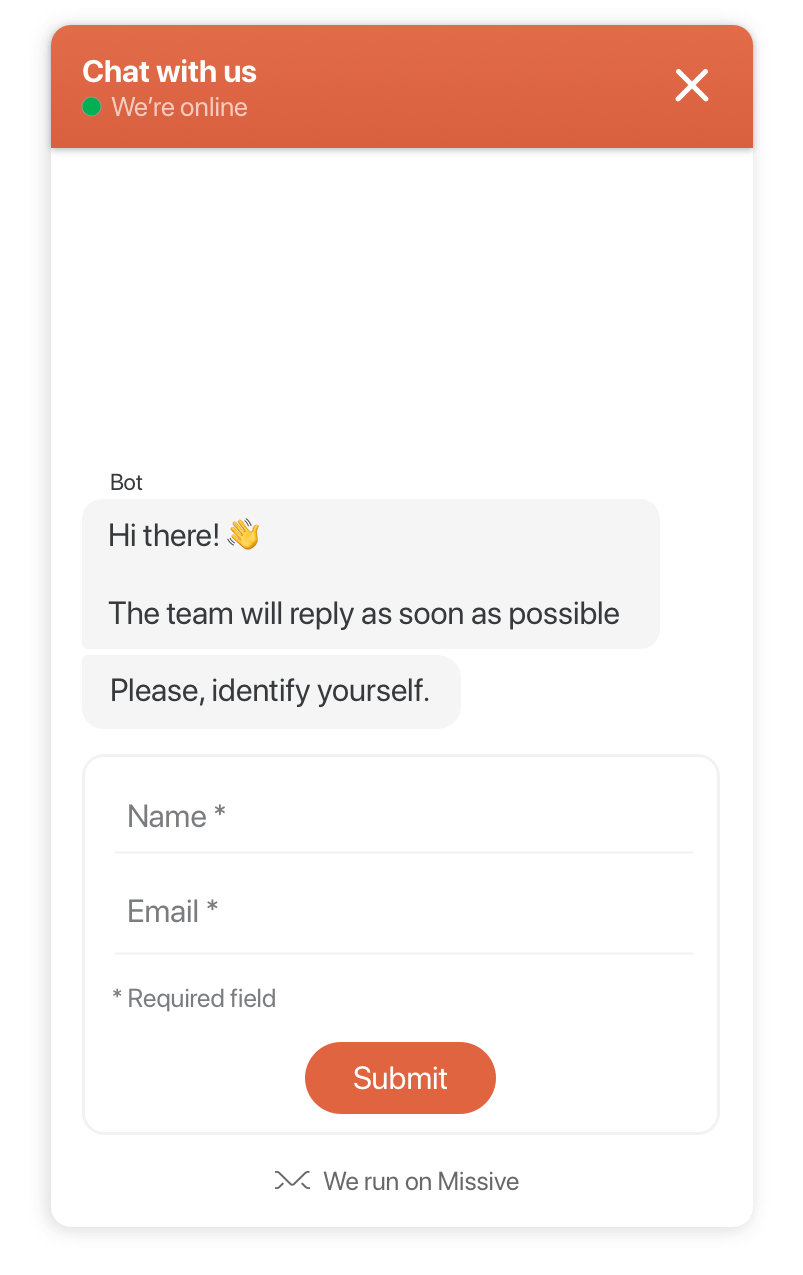
Add a live chat widget to your website and handle conversations in Missive.
Add a chat widget to your website and handle conversations in Missive. Live chat is perfect for time-sensitive support and sales questions.
Messages from your website appear instantly in Missive alongside email, SMS, and other channels. Route them to a Team Inbox or individual inboxes.
## How to connect
{% stepper %}
{% step %}
**Create a Twilio account**
Missive Live Chat uses [Twilio Conversations API](https://www.twilio.com/messaging/conversations-api). [Sign up for Twilio](https://www.twilio.com/try-twilio) if you don't have an account.
{% endstep %}
{% step %}
**Get your Twilio credentials**
1. Log in to the [Twilio Console](https://www.twilio.com/console)
2. Find your **Account SID** and **Auth Token** on the dashboard
{% endstep %}
{% step %}
**Open account settings**
Go to **Settings** > **Accounts** and click **Add account**.
{% hint style="info" %}
To open Settings, click your avatar in the bottom-left corner of the sidebar, then **Settings** (or press ⌘,).
{% endhint %}
{% endstep %}
{% step %}
**Select Live Chat**
Click the **Others** tab, then select **Live Chat by Twilio**.
{% endstep %}
{% step %}
**Choose sharing options**
Select if this is a personal or shared account. For team collaboration, choose **Yes, share this account** and select the users or Team Inbox.
{% endstep %}
{% step %}
**Enter credentials**
Fill in your Twilio details:
* **Account SID:** e.g., AC3hj2a7nj3bdde93...
* **Auth Token:** Your secret auth token
* **Chat service name:** A name for this chat (appears in Missive and Twilio, cannot be changed later)
{% endstep %}
{% step %}
**Connect**
Click **Connect** to create your Live Chat account.
{% endstep %}
{% step %}
**Install the widget**
After connecting, follow the [setup guide](/docs/core-features/connected-accounts/other-channels/live-chat/setup.md) to add the chat widget to your website.
{% endstep %}
{% endstepper %}
## Billing
You pay Twilio directly for usage. Under 200 active chats per month is free. Above that, see [Twilio Conversations pricing](https://www.twilio.com/messaging/pricing/conversations-api).
## Features
### Identify visitors & authenticate users
You decide whether you want your visitors to identify themselves (name, email address) or use the chat anonymously.
Your signed-in users can be authenticated automatically so they don't have to enter their name and email address. Authenticated users will appear as verified in Missive. See the [setup guide](/docs/core-features/connected-accounts/other-channels/live-chat/setup.md) for authentication instructions.
### One-to-many
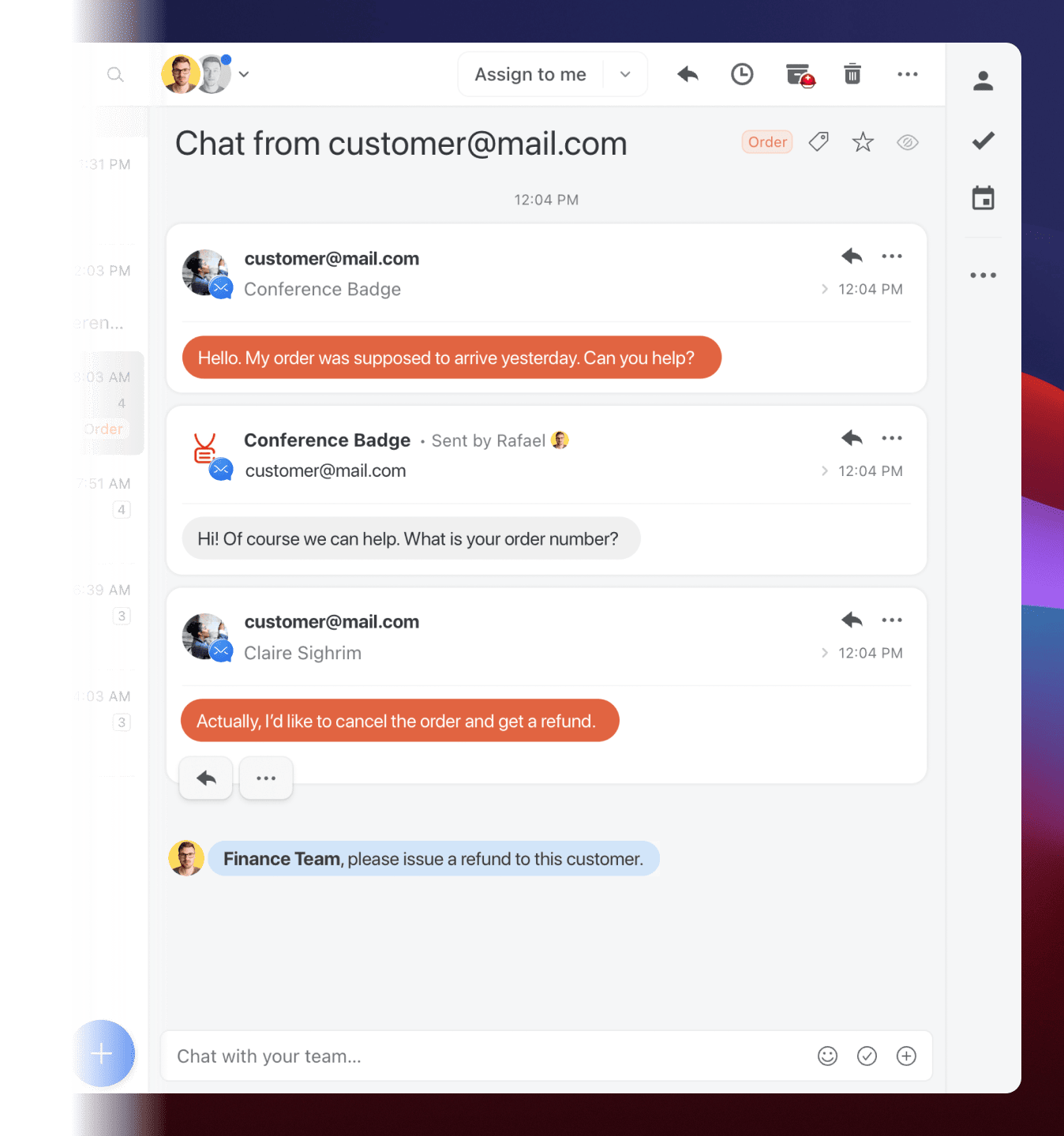
One chat can be handled by one or many support employees, either simultaneously or at different times.
Let's say, for example, a customer wants to know why she hasn't received a product she ordered through your website.
A support employee takes the chat, but things turn sideways, and now the customer wants a refund. Instead of telling the customer that he will pass the request to the appropriate team, he @mentions the Finance team, they immediately get access to the chat and refund the customer. The customer leaves happy with the swift response.
### Fits your branding
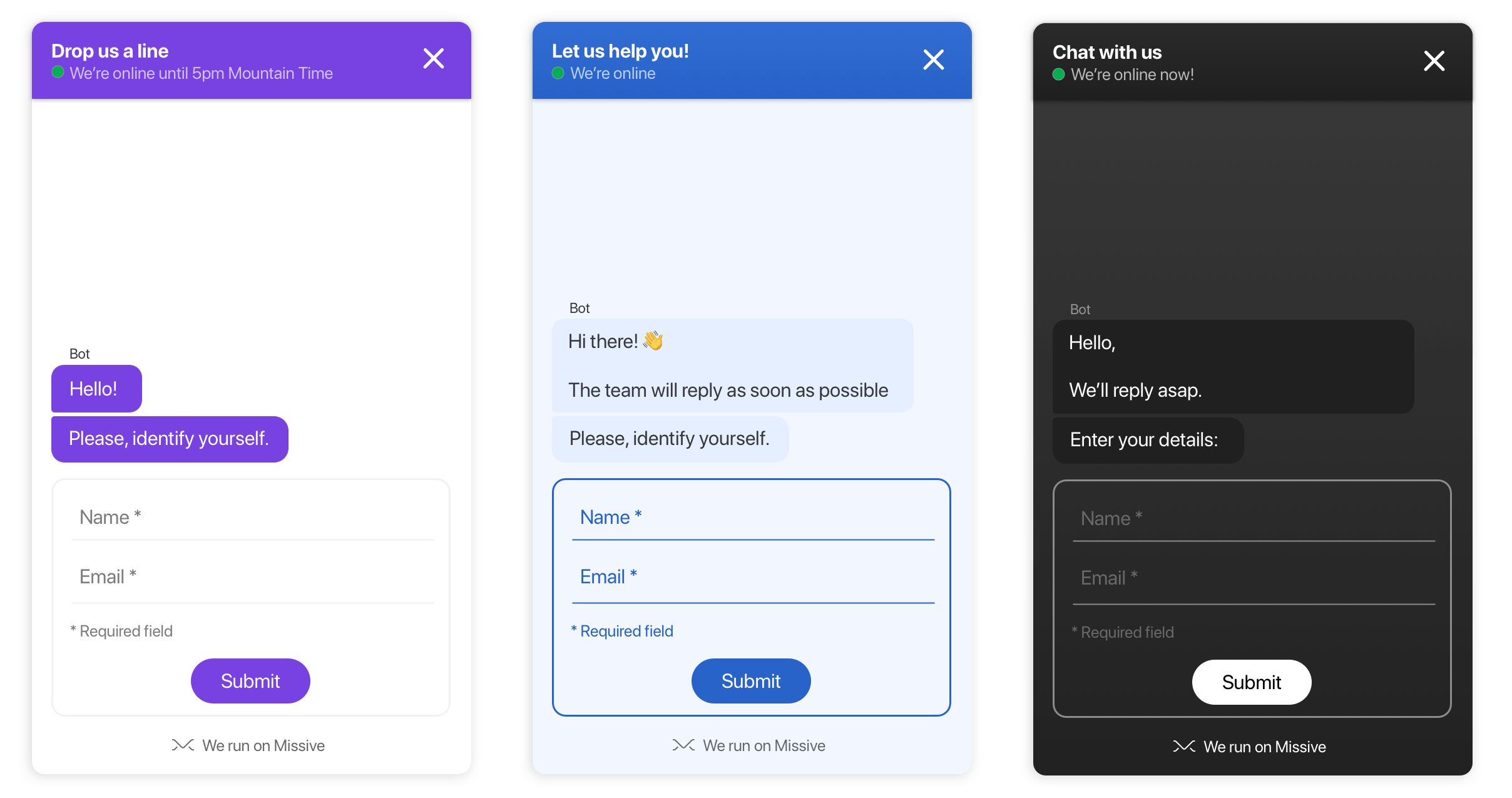
The chat widget is highly customizable. The chat's floating button will live in harmony with your website's look and feel. See the [setup guide](/docs/core-features/connected-accounts/other-channels/live-chat/setup.md) for customization options.
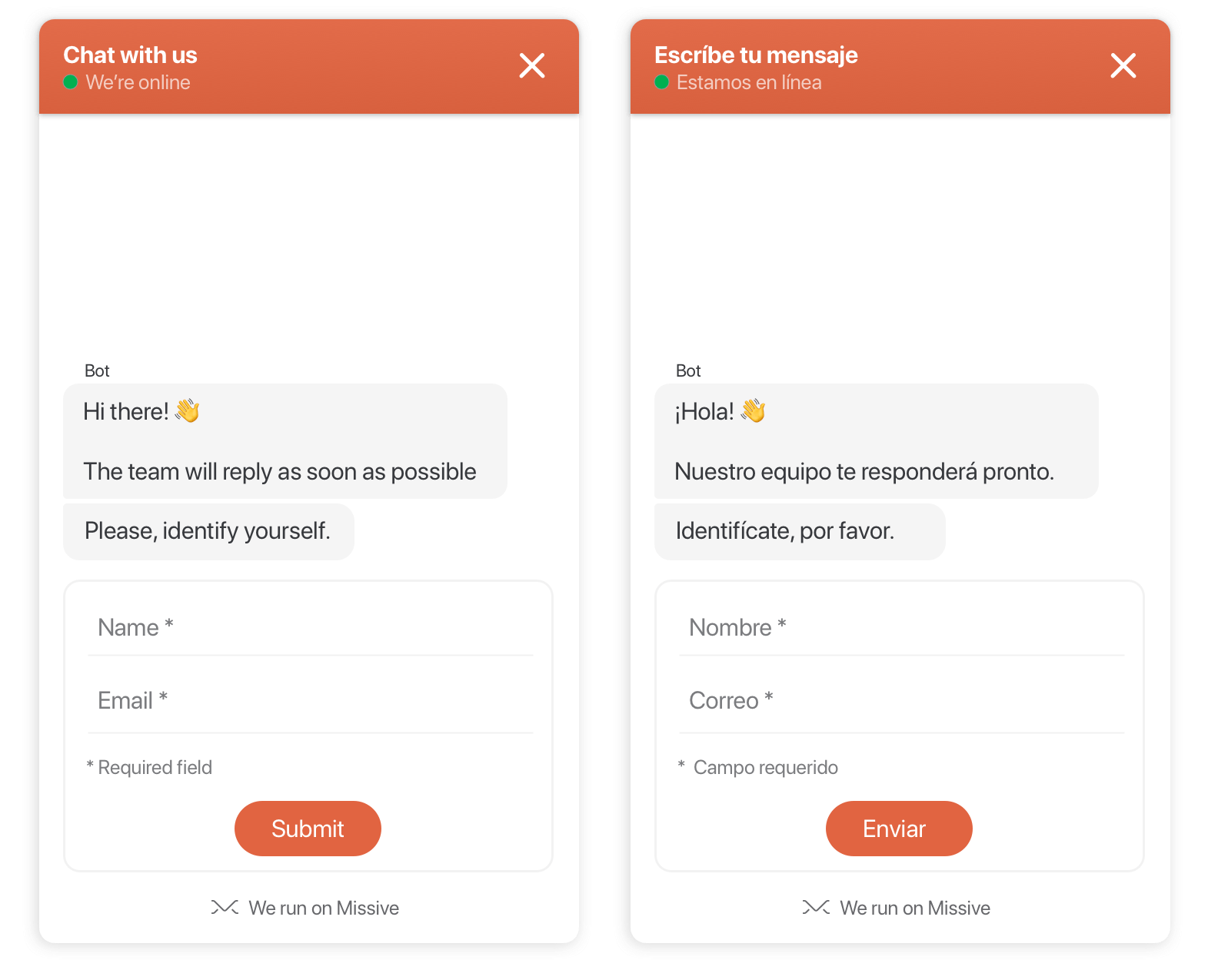
### Se habla español, or any other language
Is your website not in English? No problem, you can change (or translate) the text of the widget to anything you want.
### Schedules
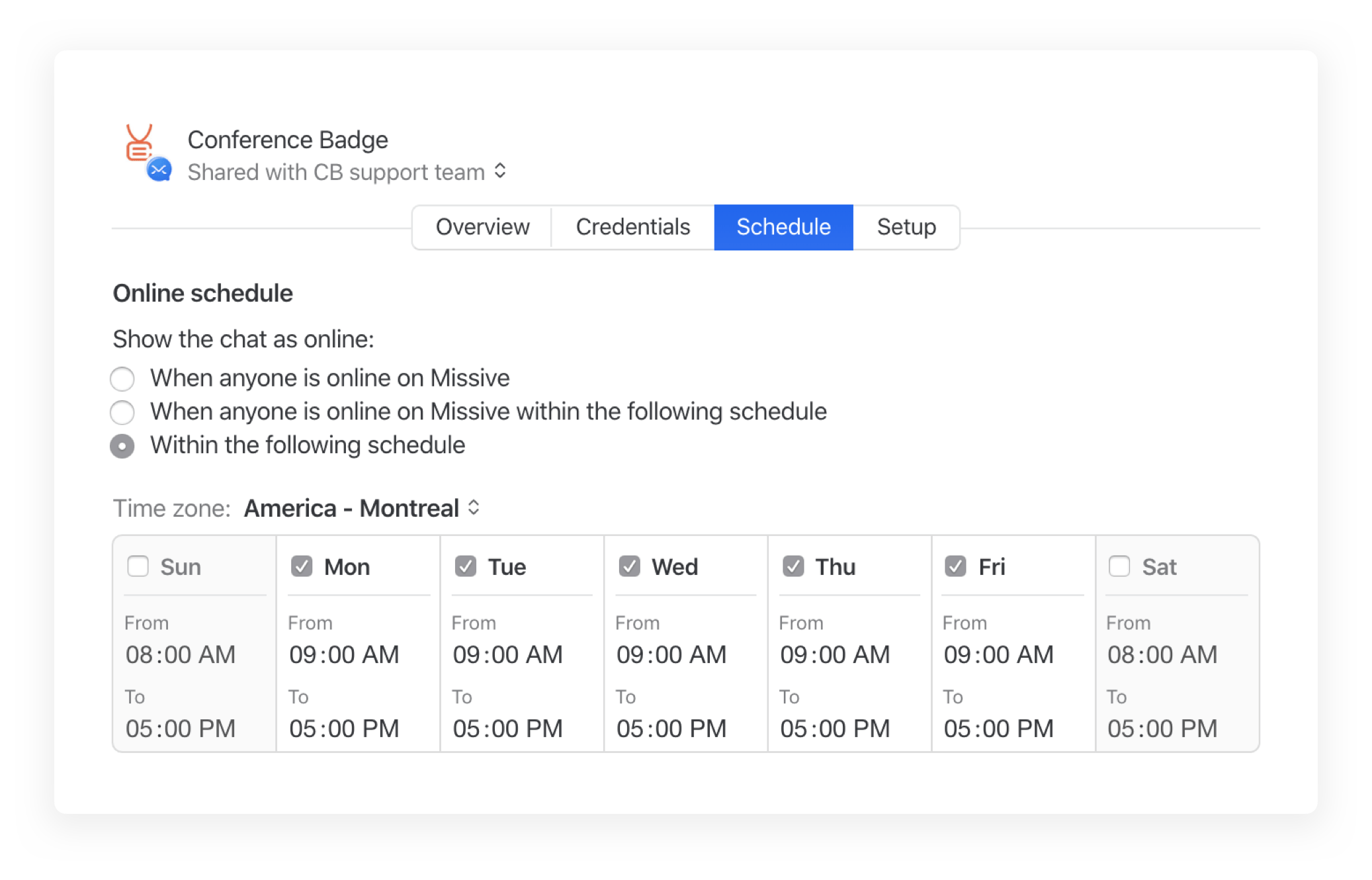
With Missive Live Chat, you can have an online / offline status based on your team's presence in Missive or via a pre-defined schedule. You will never let a customer guessing whether you're there to respond or not.
### File exchange
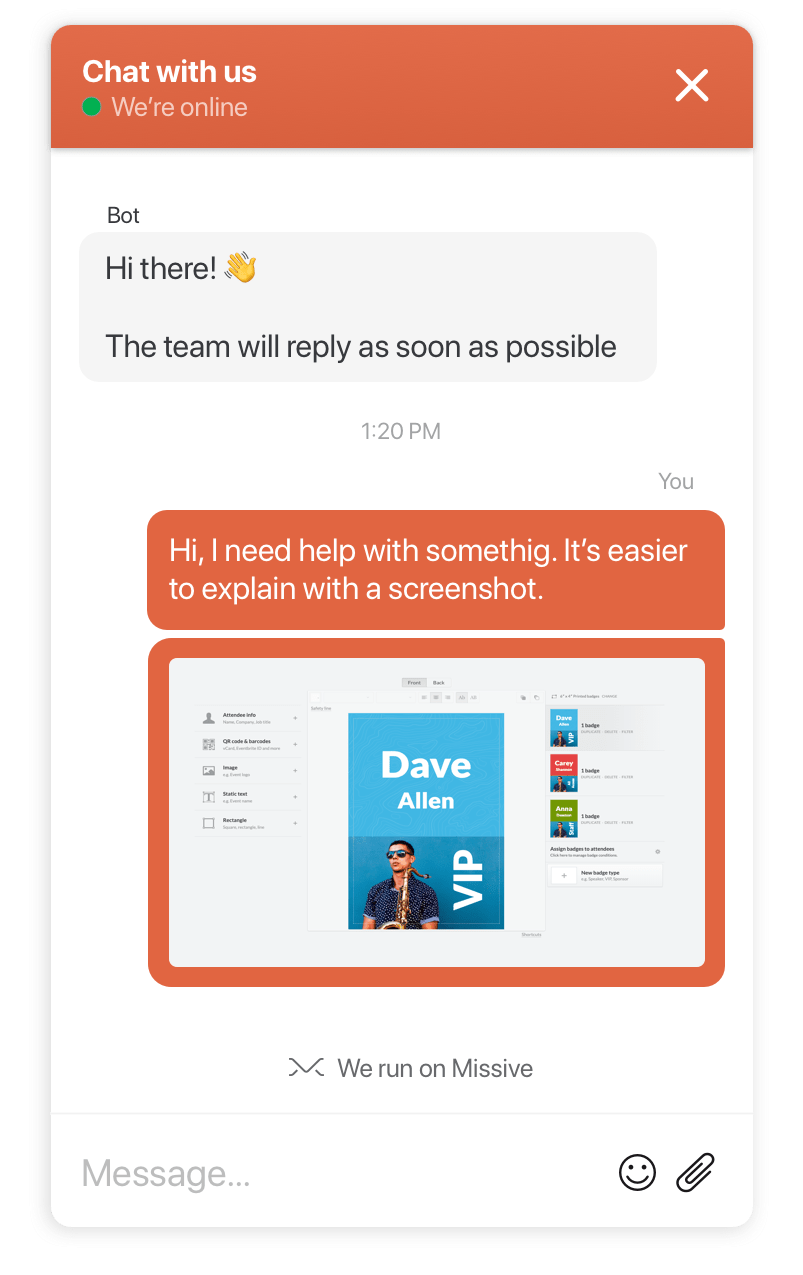
Both you and the user can easily attach images, PDFs, and other files in the chat. A screenshot is worth a thousand words ;)
### Automation
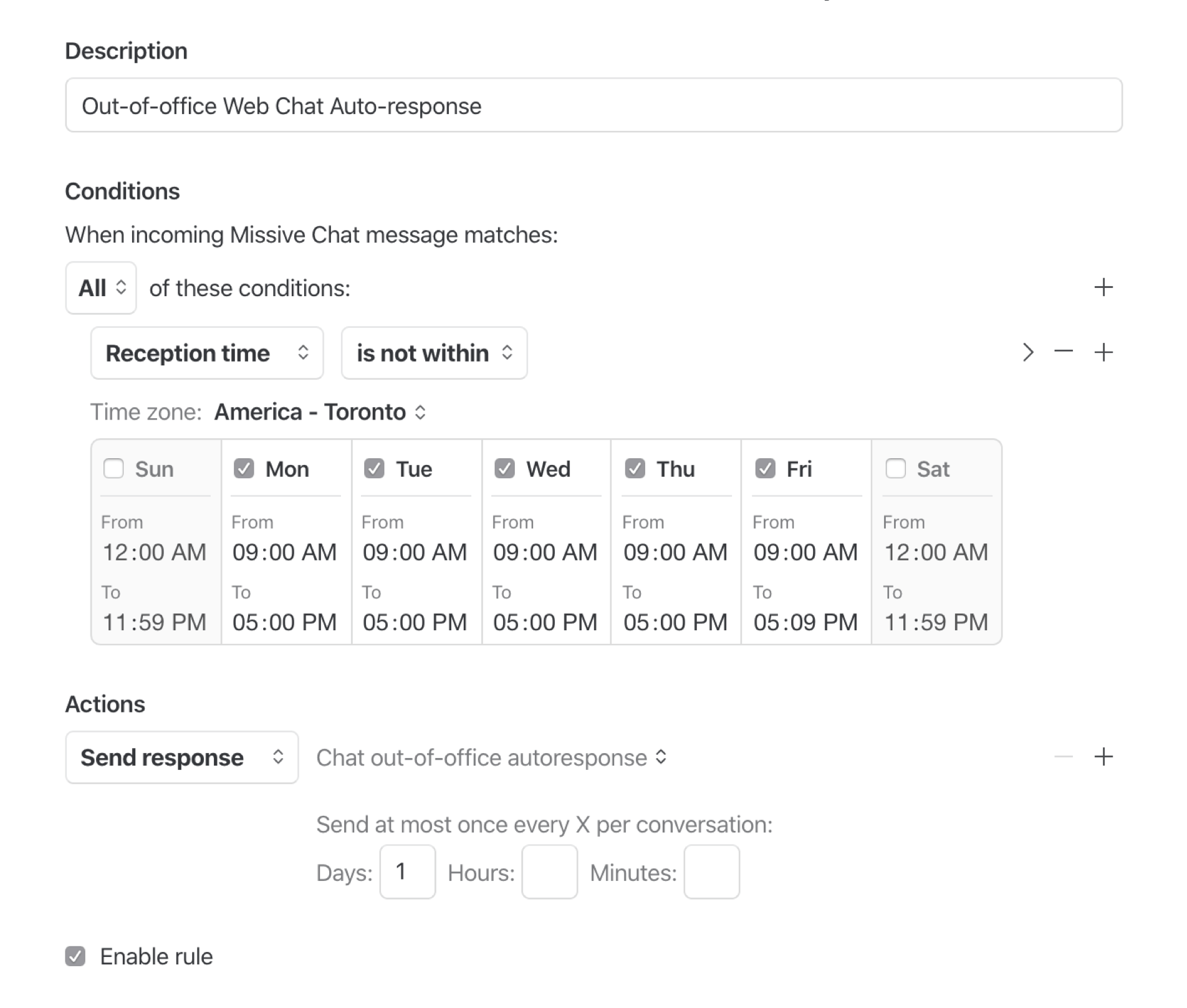
Harness the power of Missive and create automation rules to do actions or send messages when they match specific conditions. For example, when outside of business hours, let the system send a courtesy message to customers, letting them know you'll be back tomorrow.
### Read status
With read status, you always know if someone has read a message or not. This comes in handy when the customer no longer responds, but you want to see if they got the message.
### Automatic email follow up
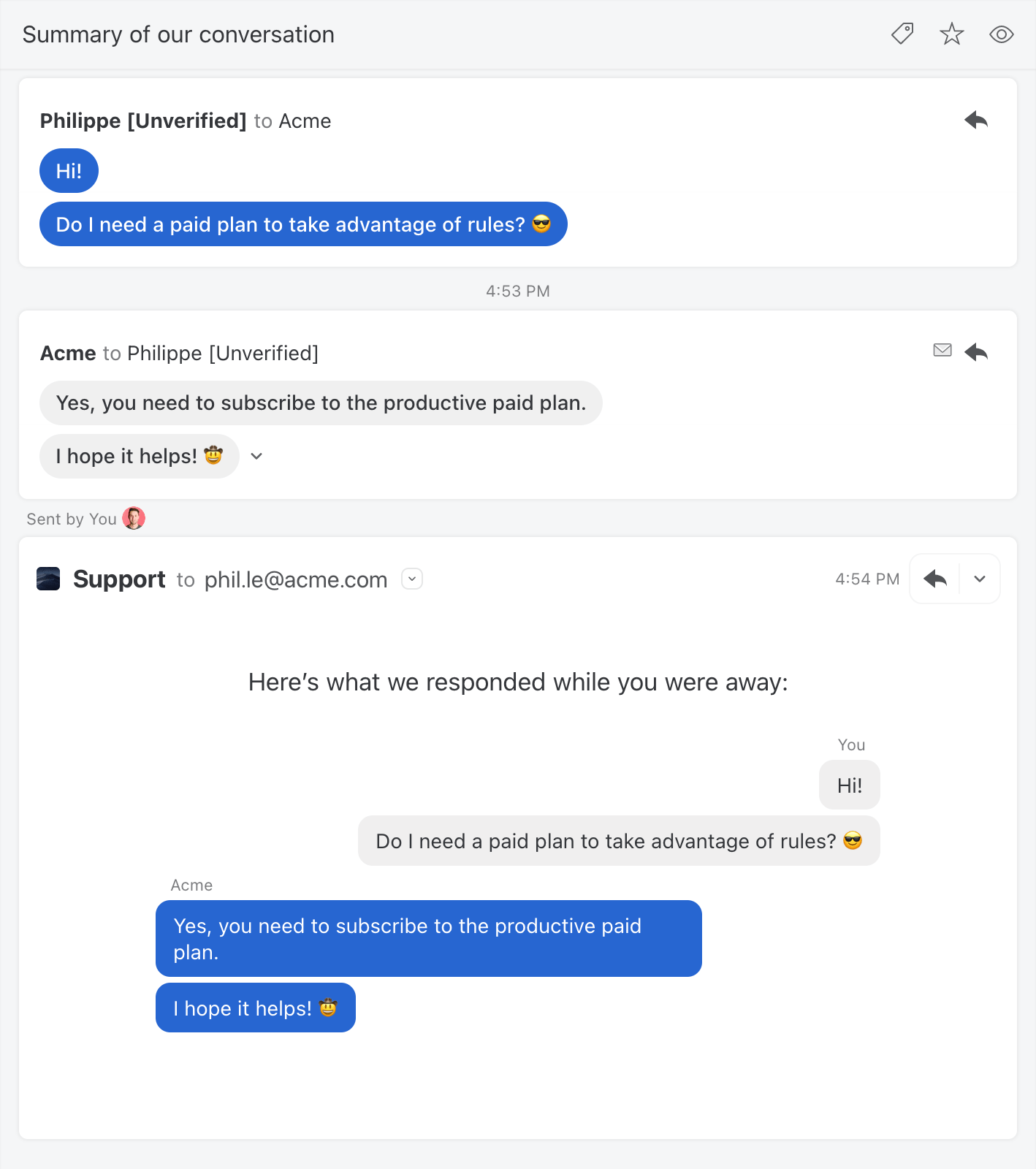
Make sure your customers always get their answers! When configured to do so, anytime an answer is unread after a configured amount of time, Missive will send a summary of the conversation to the visitor's email address to make sure they see it.
### Attach and display meta data
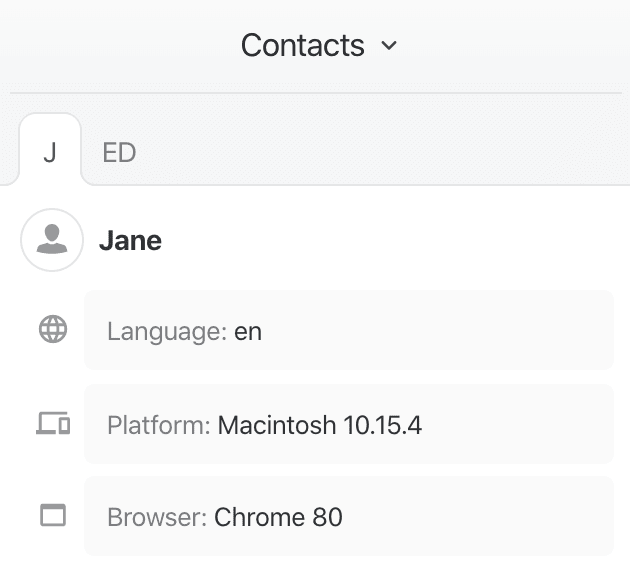
Missive Live Chat messages can include data to provide information about the person currently chatting with you. This data is displayed in the Contacts sidebar and will use the last message data.
### Emojis!
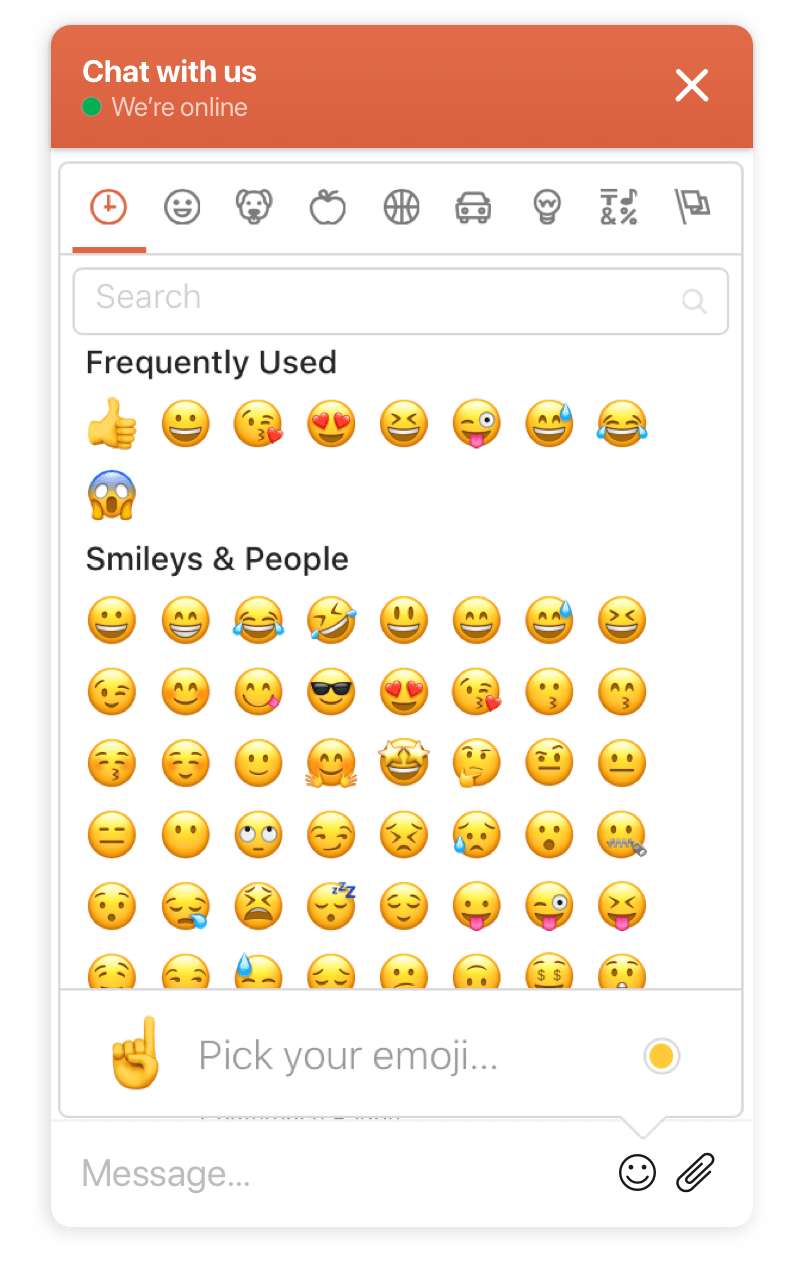
I mean, who doesn't enjoy Emojis in a virtual conversation.
---
# Agent Instructions
This documentation is published with GitBook. GitBook is the documentation platform designed so that both humans and AI agents can read, navigate, and reason over technical content effectively. Learn more at gitbook.com.
## Querying This Documentation
If you need additional information that is not directly available in this page, you can query the documentation by asking a question.
Perform an HTTP GET request on the following URL with the `ask` and `goal` query parameters:
```
GET https://missiveapp.com/docs/core-features/connected-accounts/other-channels/live-chat.md?ask=&goal=
```
`ask` is the immediate question: it should be specific, self-contained, and written in natural language.
`goal` is what the user is ultimately trying to achieve, the reason they need the answer. Sharing it helps GitBook give you a better, more relevant answer. A goal is most helpful when it describes the outcome the user wants rather than restating the question. For example, with `ask=how do I create an API token`, a goal like `automate deployments from our CI pipeline` lets GitBook tailor the answer to that use case.
The response will contain a direct answer to the question and relevant excerpts and sources from the documentation.
Use this mechanism when the answer is not explicitly present in the current page, you need clarification or additional context, or you want to retrieve related documentation sections.