Automatic follow ups

Automatic follow ups is a Missive rules template designed for sales teams that want to automatically follow up with their leads and prospects. With this rule, you'll be able to trigger a sequence of emails that will send on your behalf.

When enabled:

  • The rule will allow you to automatically schedule a set of follow-up emails after you’ve sent an email that contains a specific set of keyword.

Here’s how it works:

  • You need a consistent keyword or phrase in your trigger email

  • You need a pre-determined sender

  • You need to create a canned responsearrow-up-right for each follow-up email

  • You need to create a label for easier tracking


Outgoing email rule: Automatic follow ups

This rule is meant to help you follow up with prospective leads and prospects automatically, while ensuring the follow ups stop once a reply has been received.

plusAdd to Misisve

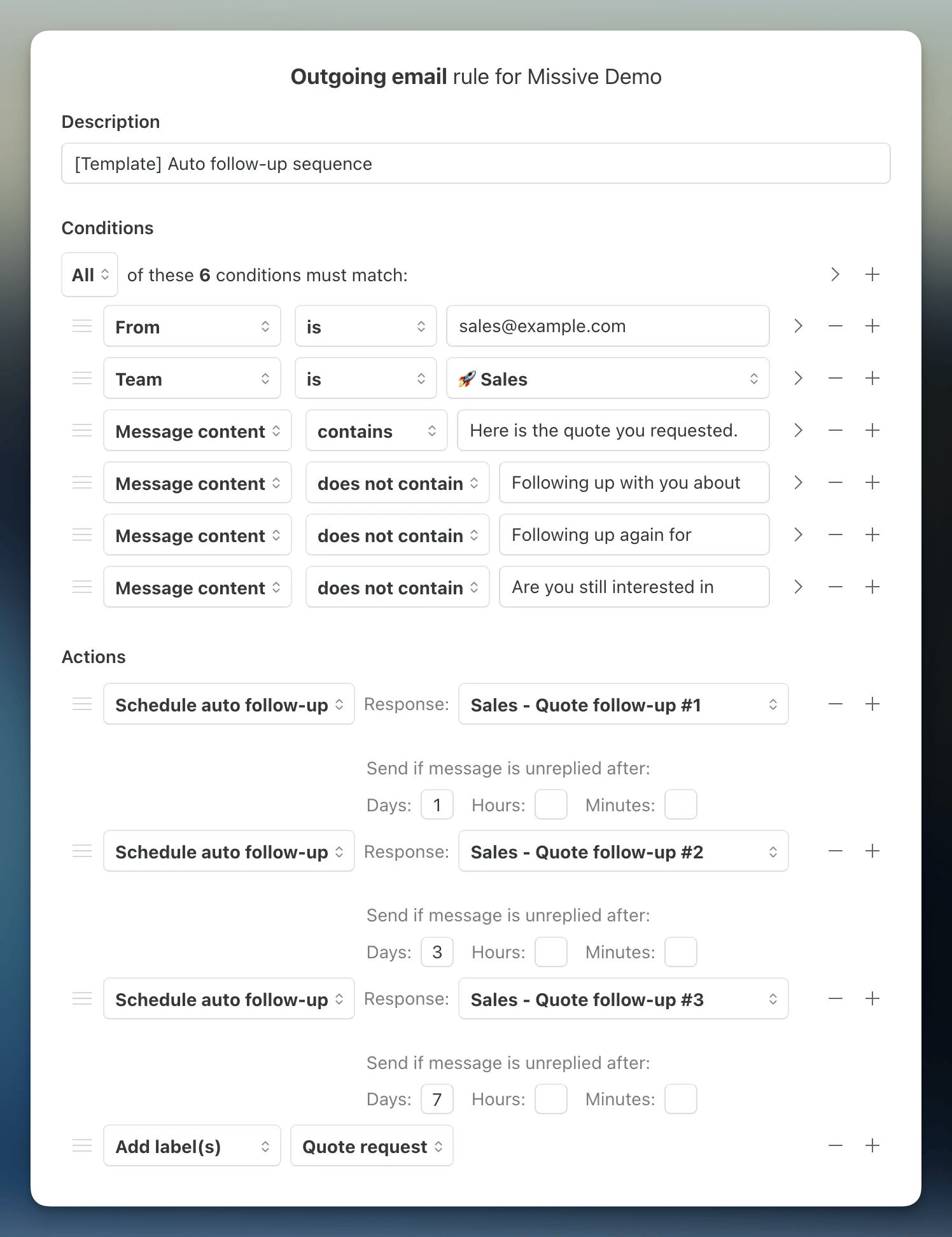
There are 6 conditions and 4 actions to make this rule work.

1

It only looks at emails sent from a specific address and specific team (Optional, depending on your use case).

2

And it will only trigger for emails that contain your pre-determined trigger phrase in the body, for example “Here is the quote you requested.”

3

The rule explicitly excludes the follow-up emails as possible triggers using pre-determined phrases and keywords in the body of those emails.

Note: This is critical to making a perfect follow-up rule. It prevents any possibility of a feedback loop where any outgoing email would trigger the same outgoing rule over and over because the conditions are too permissive.

4

Once the conditions are met, the rule will schedule the selected canned response to send.

5

The template has follow-ups being sent 1, 3, and 7 days after the initial email. If a new reply is received in the conversation where the rule triggered, the remaining scheduled drafts are discarded automatically.

For example: If the customer replies on the 4th day, the 1st and 2nd auto follow-up will be sent but the 3rd one will be discarded.

6

To make tracking easier while a deal is in progress, a label is added to the conversation.

Component
Value

Condition 1

From is → Set the sender(s)

Condition 2

Team is → Set the team(s)

Condition 3

Message content contains → Set the key phrase from the trigger email

Condition 4-6

Message content does not contain → Set the key phrase(s) from the follow-up emails

Action 1-3

Schedule auto follow-up → Pick a response + Set Send after

Action 4

Add label(s) → Set a label(s)


Triggering via API

You can trigger this rule from external systems (websites, CRMs, etc.) by sending the initial email via the Missive REST APIarrow-up-right.

When you send an email via API with send: true, outgoing rules run automatically. Include your trigger phrase in the email body to start the follow-up sequence.

See Automated email sequencesarrow-up-right in the API documentation for implementation details.

Last updated