> For the complete documentation index, see [llms.txt](https://missiveapp.com/docs/llms.txt). Markdown versions of documentation pages are available by appending `.md` to page URLs; this page is available as [Markdown](https://missiveapp.com/docs/core-features/connected-accounts/email-accounts/gmail-google-workspace/faq.md).
# Gmail FAQ
Common questions about Gmail and Google Workspace integration with Missive.
Can I search using Gmail search operators?
If your email provider is Gmail or Google Workspace, you can use Gmail search operators like has:attachment.
To find all emails with the word invoice and an attachment, your search would look like: "invoice has:attachment".
Will moving a Google Workspace user to an Archived License preserve their emails in Missive?
No. Archiving a Google Workspace user breaks their connection to Missive.
An archived Google Workspace user can no longer sign in, which means they can no longer authenticate with Missive. The email account connection breaks because archived accounts are read-only, making two-way sync impossible.
To keep emails accessible in Missive, at least one copy of those emails must exist in an email account that remains actively connected to Missive. Consider transferring the data to another active account before archiving the user.
How can I update my Google account email following a rename or domain change?
If your Google account email address was renamed or your domain was changed in Google, update it in Missive:
1. If you use **Log in with Google**, log out from Missive then log back in. This updates your login email.
2. Reconnect your email account: open **Settings** > **Accounts** > **Add account** > **Gmail or Google Workspace**, and select your same account. This won't duplicate the account, it will only refresh the email address. The options for **Email history**, **Team Inbox**, etc. will be ignored when reconnecting an existing account.
This ensures Missive properly syncs with Google's servers using the updated address.
Can I use a custom SMTP server with my Gmail account?
Yes. Keep the account connected through Google. You don't need to switch to an IMAP account. Only outgoing mail goes through the custom SMTP server (e.g., SendGrid). Incoming mail still syncs from Gmail.
**For addresses outside your Workspace domains:** In Gmail, go to **Settings** > **See all settings** > **Accounts and Import** > **Send mail as** > **Add another email address**, choose to send through an SMTP server, and enter your SMTP details. Then add the same address as an alias in Missive. See [Configuring Google aliases](/docs/core-features/connected-accounts/email-accounts/gmail-google-workspace/configuring-google-aliases.md).
**For addresses on your own Workspace domain:** Gmail doesn't offer the SMTP server option for these. Contact Missive support instead. We can set up the custom SMTP server on your Gmail account on our side. Send us:
1. Your SMTP details: hostname, port, username, and password or API key
2. Which Gmail account(s) should use it
{% hint style="warning" %}
Don't paste SMTP credentials in plain text in an email. Share them through a password manager's temporary link (1Password, Bitwarden, Dashlane, etc.).
{% endhint %}
Missive doesn't manage SPF or DKIM. Make sure your SMTP provider is authenticated for your sending domain. See [Email deliverability](/docs/core-features/connected-accounts/email-accounts/email-deliverability.md).
Can we sync Gmail smart categories?
Gmail categories (Primary, Promotions, Social, Updates, Forums) don't sync to third-party apps like Missive. But you can recreate this behavior using Gmail filters.
See [Using Gmail smart categories](/docs/core-features/connected-accounts/email-accounts/gmail-google-workspace/using-gmail-smart-categories.md) for setup instructions.
How can I bulk archive emails from my Gmail account?
**In Missive:** Go to **Settings** > **Accounts** > select your Gmail account > **Mass-archive**. Select a predefined timeframe or pick a specific date. This archives emails from both Missive and Gmail.
**In Gmail:** You can also use Gmail's search to bulk archive. Enter a search like `in:inbox before:YYYY/MM/DD`, select all emails in view, select all conversations that match this search, and hit Archive. Changes sync back to Missive automatically.
See [How to Mass Archive Gmail Emails](/docs/support/mass-archive-gmail-emails.md) for detailed steps on using Gmail's interface.
How can I bulk mark as read my emails?
You can bulk mark Gmail emails as read by selecting conversations and using the Mark as read action in Missive.
How many Gmail accounts can I have?
There's no limit to the number of Gmail accounts you can have, but Google may force you to verify the account authenticity via a phone number. One number can be linked to a limited amount of accounts.
In Missive you can add as many Gmail accounts as you want.
How to add Gmail to Outlook?
If you're trying to consolidate both your Outlook and Gmail accounts in a single place, then Missive is the way to go. It's as simple as:
1\. Creating a free Missive account\
2\. Adding your Gmail account\
3\. Adding your Outlook account
Now all your email is available from a single web/desktop/mobile interface.
How to mark all emails as read in Gmail?
You can mark all emails as read using Gmail's tools. Changes will be reflected in Missive.
Can I disable Google contacts syncing with Missive?
By default, when connecting a Google email account, you grant Missive the right to sync the account contacts. You can disable the syncing from your settings immediately after.
To stop syncing Google contacts:
1. Go to **Settings** > **Accounts**
2. Select your Gmail or Google Workspace account
3. Click the **Contacts** tab
4. Click **Stop syncing**
When you stop syncing, contacts already imported from that account are removed from Missive. They remain intact in Google Contacts.
What happens if I change my Google account password?
Changing your Google account password outside of Missive can revoke Missive's access. The account will show as disconnected or you'll see an authentication error.
To reconnect, go to **Settings** > **Accounts**, select your account, and click **Reconnect account**. This reconnects without duplicating it.
I'm getting an error when reconnecting my revoked Google account, how can I fix?
Instead of clicking Reconnect account in the yellow revoked banner, click the Add account button at the bottom of the Accounts settings and follow the steps. A new account should appear in the list, then you may delete the previous one.
Why am I getting "Access blocked: Missive is not approved by Advanced Protection"?
Google's Advanced Protection program restricts sign-in to a limited set of approved apps. Missive is a hosted SaaS product and does not qualify as an approved app under Advanced Protection by default.
**For Google Workspace admins:** You can work around this by marking Missive as a trusted app in the Google Admin Console.
{% hint style="warning" %}
If your organization uses nested organizational units, make sure to apply the trusted app setting at the correct level. Changes to a parent organizational unit do not automatically override settings already configured on a sub-organizational unit.
{% endhint %}
For personal Google accounts with Advanced Protection enabled, you must disable Advanced Protection to connect to Missive.
What is the meaning of error 5.7.0 when sending a message?
Error 5.7.0 generally indicates a Gmail or Google authentication or delivery restriction issue. The exact error text from Gmail can vary, but it often means a policy or permission problem on the provider side rather than Missive.
Why are my Gmail account emails not importing?
One common reason is you configured your Gmail to not make the All Mail folder available on IMAP, which is required for Missive to sync your emails properly. You need to enable the All Mail folder in your Gmail settings for full import.
Why is my Gmail email history not fully imported?
Gmail may limit how much history can be fetched over IMAP at once. Missive continues importing emails, and older messages may appear gradually as the sync continues.
### Google Groups
For setup instructions, see [Google Group address](/docs/core-features/connected-accounts/email-accounts/gmail-google-workspace/google-group-address.md).
Why are old conversations reopened when I connect a new employee's account?
This happens when your team uses a distribution list or Google Group where each member receives emails in their own personal inbox.
When you connect a new employee's account to Missive, their inbox is imported. Any emails already in their inbox that Missive hasn't seen before - for example, a reply they sent directly from their personal account without CCing the group - will be treated as new messages. This causes the related conversations to reopen.
**Solution:** Before connecting a new employee's account in Missive, have them mass-archive their inbox first. This ensures Missive doesn't treat their existing inbox emails as new activity.
Go to **Settings** > **Accounts** > select the account > **Mass-archive**, and archive everything before today. Once their inbox is clear, connect the account in Missive.
Why am I not receiving my Google Groups (shared address) validation email?
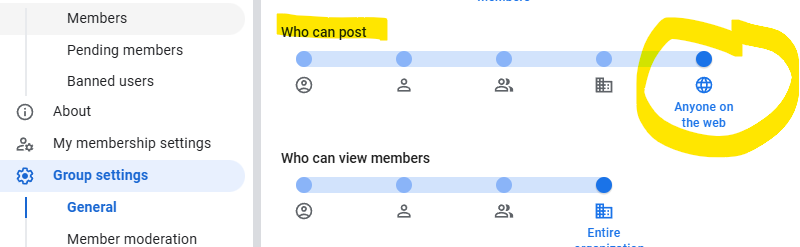
If you're not receiving your Google Groups validation email, check your group's posting permissions. The issue may be that your Google Group is not set to allow posts from "Anyone on the web".
**To fix this:**
1. Go to your Google Group settings
2. Navigate to "Group settings"
3. Check the "Who can post" section
4. Make sure it's set to "Anyone on the web" (highlighted in the yellow box in Google Groups settings)
5. Save your changes
This setting allows the Google Group to receive emails from non-members (Missive).
---
# Agent Instructions
This documentation is published with GitBook. GitBook is the documentation platform designed so that both humans and AI agents can read, navigate, and reason over technical content effectively. Learn more at gitbook.com.
## Querying This Documentation
If you need additional information that is not directly available in this page, you can query the documentation by asking a question.
Perform an HTTP GET request on the following URL with the `ask` and `goal` query parameters:
```
GET https://missiveapp.com/docs/core-features/connected-accounts/email-accounts/gmail-google-workspace/faq.md?ask=&goal=
```
`ask` is the immediate question: it should be specific, self-contained, and written in natural language.
`goal` is what the user is ultimately trying to achieve, the reason they need the answer. Sharing it helps GitBook give you a better, more relevant answer. A goal is most helpful when it describes the outcome the user wants rather than restating the question. For example, with `ask=how do I create an API token`, a goal like `automate deployments from our CI pipeline` lets GitBook tailor the answer to that use case.
The response will contain a direct answer to the question and relevant excerpts and sources from the documentation.
Use this mechanism when the answer is not explicitly present in the current page, you need clarification or additional context, or you want to retrieve related documentation sections.