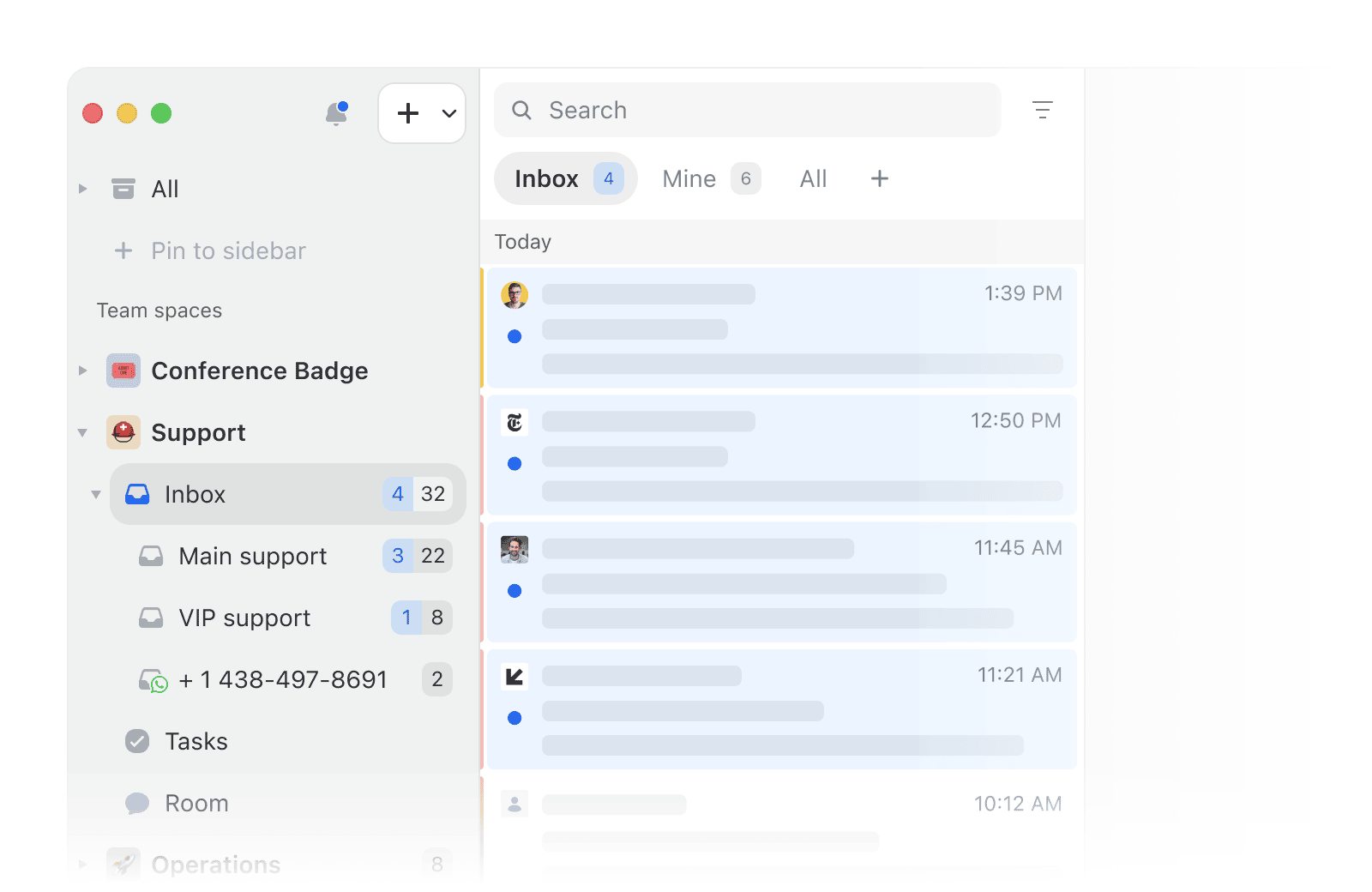
Every account in its team inbox
Each shared account now shows under its team inbox in the sidebar. To make room, team statuses moved to tabs above the conversation list. “Assigned to me” is now the Mine tab, and “Assigned to others” is Others. Choose which tabs to show with the + button, and Missive remembers the last one you used.
A built-in PDF viewer
PDFs now open in Missive’s own viewer on desktop and web. Zoom, rotate, browse thumbnails, search with Find, and print without leaving the preview. Password-protected PDFs open right in the preview too.
Drag attachments out of the desktop app
Drag a file from a conversation straight into Finder, Mail, Slack, or any other app. A new Attachments storage setting in Preferences shows the space used.
A little surprise at inbox zero
A long-requested feature is finally here. Reach inbox zero on desktop or mobile and see for yourself. We won’t spoil it.
Find your team when you sign up
Email verification now comes first, so we can suggest the organizations you can join. No more teammates accidentally creating a new organization when they should have joined yours.
Fine-tuning the new mobile experience
We kept polishing last release’s redesign, and the app now feels faster and more responsive. Swipes follow your finger exactly, the keyboard glides on Android, and the composer gets a compact toolbar back above it. Date headers now scroll away too, so your conversations get more room.
Shortcuts in toolbar tooltips
Hover Archive, Snooze, Assign, Reply, and other toolbar buttons to see their keyboard shortcut. Keys read the way your keyboard labels them.
Media pauses when you scroll away
Videos and audio attachments pause once they scroll out of view.
Quotes collapse in plain text replies
Replies sent as plain text, like many from Apple Mail, now tuck the quoted thread away like any other email.
Swipe to go back on Mac
In the Mac desktop app, swipe with two fingers to go back or forward, like in a browser.
Named buttons for screen readers
Icon-only buttons are now properly labeled for screen readers.
- Integrations now ask permission before reading a draft from a private conversation or another organization.
- Keyboard shortcuts work again after scheduling a reply with Send later, and after hiding Missive with Cmd+H.
- Search finds calendars, mailboxes, settings, and shortcuts with numbers in their names.
- RSVP buttons are no longer greyed out when you and a coworker are invited to the same event.
- Conversations linked in comments show their color flag again.
- Zoomed-in or zoomed-out views now behave correctly: dropdowns, the floating text toolbar, and chart hovers.
- Mobile composer and comments are more reliable: suggestions open above the line you type and the comment box keeps the right height.
- On phones, Close is back as a one-tap button, and unread counts sit centered again.
- Retina screenshots no longer upload at double their size.
- Confirming Japanese, Chinese, or Korean input in a date field no longer submits a half-typed date.