A shared mailbox in Office 365 (now Microsoft 365) lets several people read and reply from one address like support@ or info@. It’s a sensible first step when more than one person needs to work an inbox. The catch: it gives your team shared access, not a way to work that inbox together. There’s no way to hand a specific email to one person, see who’s already replying, or talk through a tricky message without forwarding it.
This guide covers what an Office 365 shared mailbox is, how to set one up, what it does well, and where teams outgrow it, plus how a shared inbox approach adds the pieces it’s missing.
What is an Office 365 shared mailbox?
A shared mailbox is an inbox that several teammates can open from their own Outlook account. Teams use them for the addresses no single person owns: sales@, info@, support@, hr@.
It’s Microsoft’s built-in delegation feature, available on any plan that includes Exchange Online. An admin creates the mailbox in the Microsoft 365 admin center, then grants members one of three permission levels: Full Access, Send As, or Send on Behalf.
A few things to know before you set one up:
- The shared mailbox doesn’t need its own license. Each member just needs their own Exchange Online or Microsoft 365 license.
- You can’t sign in to a shared mailbox directly. You reach it through your own account once you’ve been granted permission.
- Storage is capped at 50 GB by default. Going to 100 GB means assigning an Exchange Online Plan 2 license to the mailbox itself.
- If automapping is on (the default), the mailbox appears in members’ Outlook automatically after a restart, and it works in Outlook for iOS and Android too.

Why teams use an Office 365 shared mailbox
For basic shared access, a shared mailbox solves real problems.
Everyone sees the same inbox
Every member gets a full view of incoming mail and can follow threads without anyone forwarding them. You can also set up shared mailbox rules to sort and route messages automatically.
Less chasing for context
Because the whole thread sits in one place, people aren’t pinging coworkers to ask what happened with a customer. It cuts down on missed emails and double replies. Many teams pair the mailbox with Outlook folders so messages land under the right project.
Coverage when someone’s out
If a teammate is off for the day, anyone else can pick up the thread and reply. For customer-facing addresses, that usually means faster response times.
A few shared mailbox best practices help you get more out of these. But a shared mailbox only takes a team so far. Here’s where it runs out of room.
How to create a shared mailbox in Office 365
If you already have a Microsoft 365 account with admin access, setup takes a few minutes:
- Sign in with a global admin or Exchange admin account.
- In the Microsoft 365 admin center, go to Teams & Groups, then Shared mailboxes.
- Select Add a shared mailbox and enter a name and email address.
- Select Save.
- Under Next steps, choose Add members to this mailbox. Members are the people who can read incoming mail and see the replies.
- Select Add members, check the people who need access, and save.
That’s it. The mailbox shows up alongside members’ own inboxes in Outlook.
Where Office 365 shared mailboxes fall short
A shared mailbox is, at its core, a sharing mechanism. It gives people access to the same inbox but no real way to coordinate inside it. The gaps teams hit most often:
- You can’t assign an email, so no message has a clear owner.
- You can’t see who else is already replying, which leads to two people answering the same customer.
- You can’t discuss an email in context. To ask a coworker about a message, you forward it or switch to another tool.
- You can’t attach a task to a specific email.
- Integrations and automation are thin compared with dedicated tools.
None of that is a flaw in the feature. A shared mailbox was never built to be a collaboration tool. Once a team is busy enough that ownership and visibility start to matter, that’s the point to add a layer on top.
What Missive adds on top of Office 365
Missive connects to your Microsoft 365 account, regular or shared, and keeps everything you already have while adding the collaboration features the shared mailbox leaves out. Your team works the same inbox, but now they can see each other, divide up the work, and talk it through in one place.
Collaborative writing
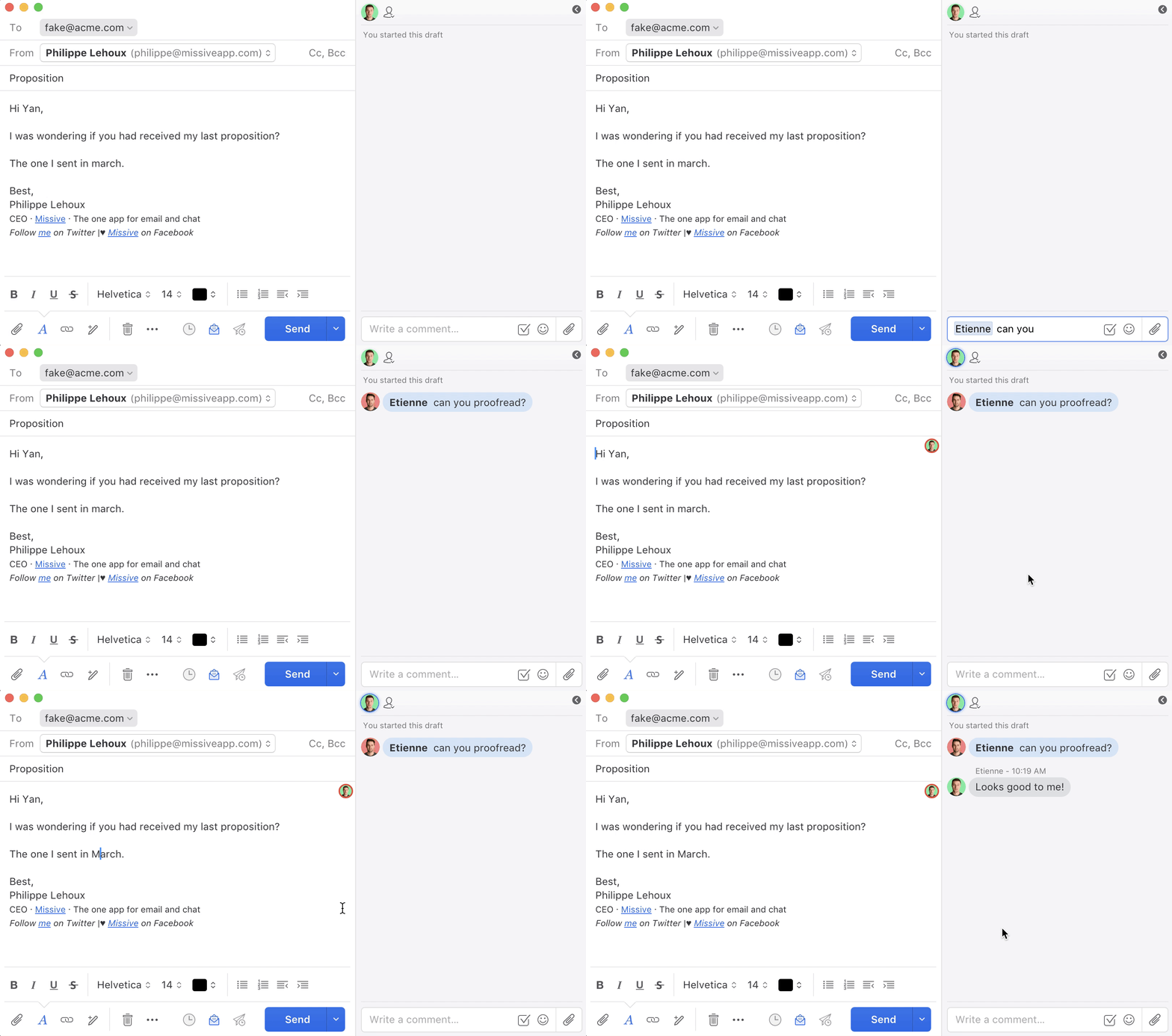
Draft replies together in real time. Teammates can highlight text, make edits, or leave comments right in the composer before anything goes out.
Chat around emails
Discuss a message without leaving it. Internal chat lets the team sort out a customer’s issue in the context of the actual email, instead of forwarding it or copying it into Slack.

Shared labels
Create team labels (Outlook calls them folders) to organize conversations. Make them from a conversation or in settings, and give each one a color or icon.
Assignment and tasks
Assign any email or conversation to one person or a group. Assigned conversations rise to the top of that person’s inbox and show up under Assigned to me, so ownership is never a guessing game. You can also turn an email into a task, or create standalone tasks, all visible in one task view.
Shared canned responses
Build templates for the questions your team answers over and over, then share them across the team. Drop one into a draft with a quick search instead of rewriting the same reply each time. Useful in support and sales, where the same questions come in daily.
AI assistant
Missive’s AI assistant drafts replies, summarizes long threads, and translates messages, using Anthropic, OpenAI, or Gemini through Missive AI credits or your own API key. Nothing it drafts goes out until a person approves it, so someone always reviews before anything reaches a customer.
Integrations
Connect the tools your team already runs, like Asana, HubSpot, Trello, and Shopify, so tasks and context sit next to the conversation instead of in another tab.
Security and compliance
Email carries sensitive information, so Missive holds itself to enterprise-grade security standards, including SOC 2 Type II compliance, an auditing standard that checks security controls hold up over time.
And more
You can also pick from three themes, plan meetings in a built-in calendar that shows teammates’ availability and time zones, and more. See the full feature list.
Want to see it on your own inbox? Try Missive free with your team, no credit card needed.
Frequently asked questions
What is an Office 365 shared mailbox?
An Office 365 shared mailbox is a mailbox that multiple users can access without a separate license. Common addresses like info@, support@, or hr@ are typically set up as shared mailboxes so multiple team members can send and receive from them. They’re managed through the Microsoft 365 admin center and don’t require their own user license, as long as members access them through their own licensed accounts.
Are Office 365 shared mailboxes free?
Yes, with caveats. Shared mailboxes themselves don’t require a separate license, but every user accessing one needs their own Microsoft 365 license. The shared mailbox itself is limited to 50 GB of storage and can’t be used to log in directly. For teams already paying for Microsoft 365, shared mailboxes are effectively free as part of the existing subscription.
How many users can access an Office 365 shared mailbox?
Microsoft doesn’t publish a hard limit on how many people can have access. In practice, teams tend to report that coordination and performance start to suffer past roughly 25 active users, since shared mailboxes are built for basic access rather than high-volume concurrent use. The mailbox is also capped at 50 GB by default (expandable to 100 GB with an Exchange Online Plan 2 license assigned to the mailbox). Teams that outgrow either one usually move to dedicated shared-inbox software.
What are the limitations of Office 365 shared mailboxes?
Office 365 shared mailboxes work for basic shared access but lack the collaboration features modern teams expect.
- No assignment. Anyone can reply to anything, with no clear ownership of who’s handling which conversation.
- No collision detection. Two team members can reply to the same email at the same time without warning.
- No internal notes inside conversations. Teammates can’t discuss an email without forwarding it or switching to a different tool.
- Limited automation. Server-side rules exist but are basic compared to dedicated shared-inbox tools.
- No analytics or reporting. No native way to see response times, volume by team member, or trends.
- Storage caps. 50 GB by default, which fills up quickly for high-volume support addresses.
What’s the difference between an Office 365 shared mailbox and a tool like Missive?
An Office 365 shared mailbox is a Microsoft feature that gives multiple people access to the same inbox. Missive is a dedicated shared-inbox application that connects to your Microsoft 365 account (or Gmail, or IMAP) and adds the collaboration layer that’s missing natively: assignment, threaded internal chat inside emails, real-time collaborative drafts, rules-based automation, and multichannel support.
Office 365 shared mailboxes are free if you’re already paying for Microsoft 365. Missive starts at $14/user/month.
When should you upgrade from Office 365 shared mailboxes to dedicated software?
The trigger points teams describe most often:
- You’ve sent the same reply twice because two people answered the same email.
- You can’t tell who’s working on what without asking.
- Internal discussion about emails is happening in Slack, in DMs, or in CC chains, instead of with the email itself.
- You’re hitting the 50 GB storage cap or noticing performance issues.
- You want to know response times, volume per agent, or trending topics, and Outlook doesn’t tell you.
If any of those resonate, dedicated shared-inbox software (Missive, Front, Help Scout, Hiver) is worth evaluating.
Can you assign emails in an Office 365 shared mailbox?
Not natively. Office 365 shared mailboxes don’t have an assignment feature; anyone with permission can reply to anything. Teams typically work around this by adding categories or moving emails to subfolders, but those are workarounds, not assignment. Dedicated tools like Missive add real assignment with status (open, closed, snoozed), notifications, and reporting.
Do Office 365 shared mailboxes show who’s replying?
No. There’s no native collision detection, so two people can start replying to the same email simultaneously without either knowing. Some teams notice this only after sending duplicate or contradictory responses to a customer. Tools like Missive show real-time presence (who has the email open, who’s drafting a reply) so the team can avoid stepping on each other.
How do you create an Office 365 shared mailbox?
Through the Microsoft 365 admin center: go to Teams & Groups, then Shared Mailboxes, select Add a Shared Mailbox, name it, give it an email address, and assign team members who need access. Members will see the shared mailbox alongside their own inbox in Outlook automatically. Setup takes a few minutes, but the result is basic shared access without any of the collaboration features dedicated tools provide.