> For the complete documentation index, see [llms.txt](https://missiveapp.com/docs/llms.txt). Markdown versions of documentation pages are available by appending `.md` to page URLs; this page is available as [Markdown](https://missiveapp.com/docs/core-features/connected-accounts/other-channels/live-chat/setup.md).
# Setup
Install the Missive chat widget on your website.
Missive Live Chat works on top of Twilio’s [Conversations API](https://www.twilio.com/messaging/conversations-api). Before creating your chat account, you first need to [sign up](https://www.twilio.com/try-twilio) for a Twilio account to get your Twilio credentials.
Once it's done, head over to your **Accounts** settings on Missive and add a **Missive Live Chat** account.
### Get your Twilio credentials
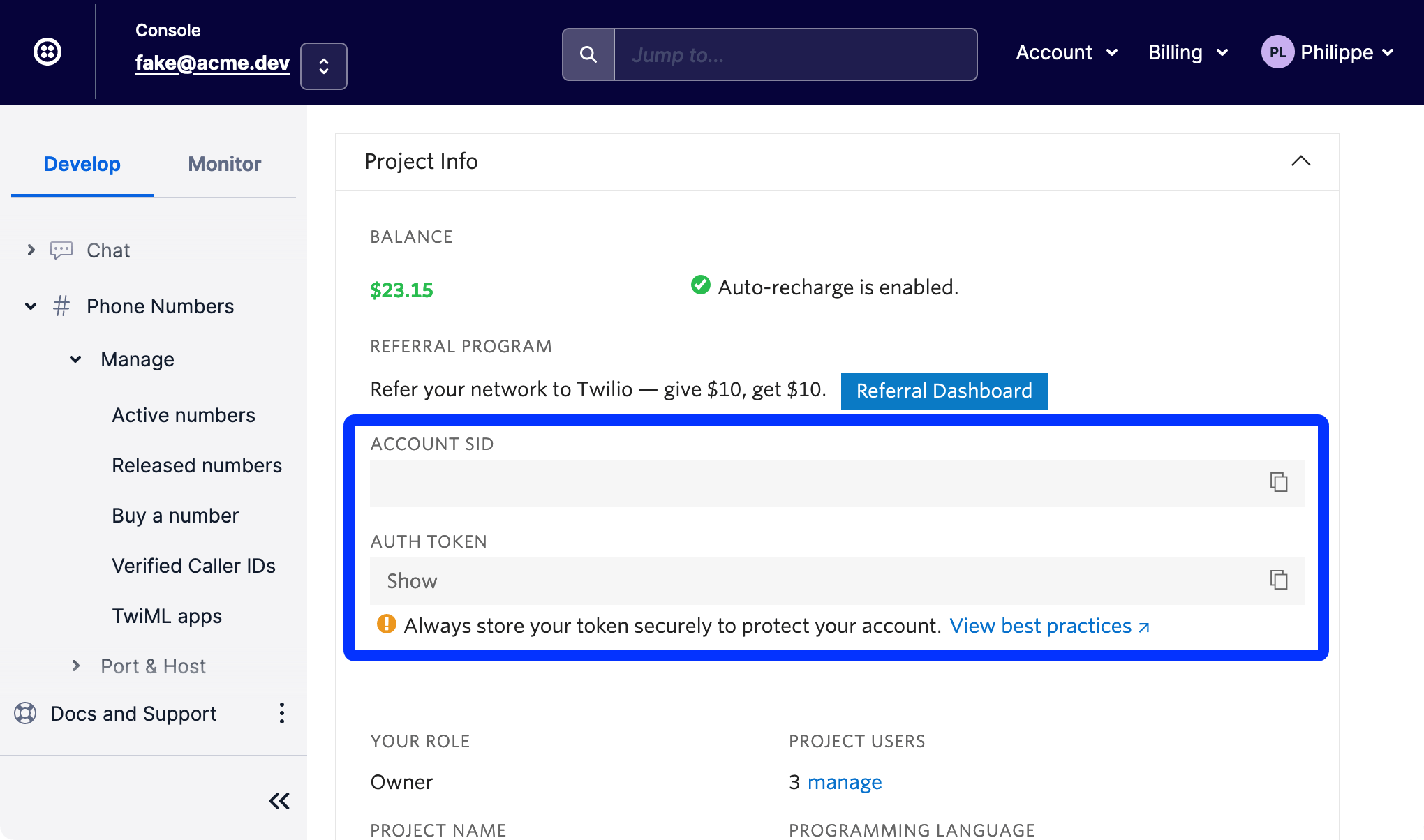
Both your Account SID and Auth Token are available in your Twilio dashboard page:
### Install on your website
To install the chat on your website, select the **Setup** page where you can copy the HTML code snippet that you need to paste into your website.
### Customization
#### Configuration
Here’s an example of all the available options and their default value. Most of them can be set from the **Setup** page of your Missive Live Chat account settings and will be instantly applied to all your chat widget instances.
If an option is set both from your Setup page and in your HTML, the HTML one will be used.
{% code title="missive-chat-config.html" %}
```html
```
{% endcode %}
#### JavaScript API
Missive Live Chat provides a JS API to let you programatically interact with the widget on your website.
It is required to wrap any usage of `window.MissiveChat` inside or after the `onReady` callback that you can define on your configuration object.
{% code title="missive-chat-api.html" %}
```html
```
{% endcode %}
| Method | Description |
| ---------------------------------- | ----------------------------------------------------------------------------------------------------------------------------------------------------------------------------- |
| `open()` | Opens the chat widget popup window. |
| `close()` | Closes the chat widget popup window. |
| `showButton()` | Shows the chat widget button. This doesn’t open the chat widget popup window, it only applies to the chat button. |
| `hideButton()` | Hides the chat widget button. This doesn’t close the chat widget popup window, it only applies to the chat button. Set `chat: { hidden: true }` in config to hide by default. |
| `setUser({ name, email, digest })` | Identify a logged in user. See “Identify and verify logged-in users” documentation below. |
| `setMeta({})` | Attach custom data to messages. Overwrites meta with the given object. `language`, `platform` and `browser` are always included and cannot be removed. |
| `addMeta({})` | Add custom data to your messages. Adds given object to the meta object without overwriting already set values. |
| `setVariables({})` | Update the styling variables. |
### Attach data to messages
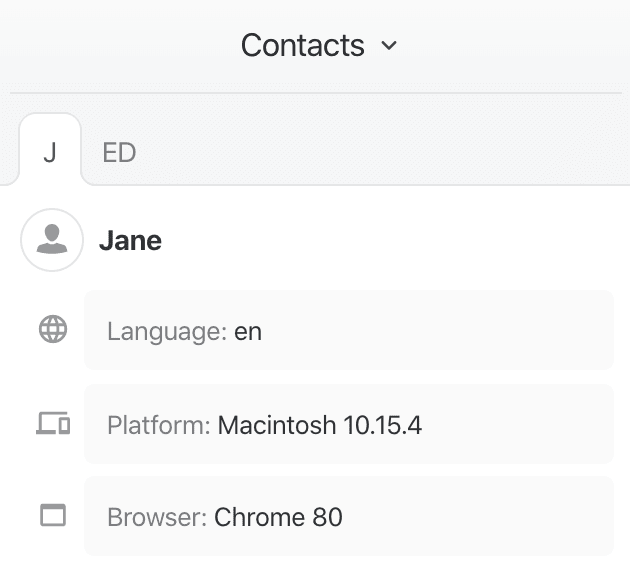
Missive Live Chat messages include data to provide information about the person currently chatting with you. This data is displayed in the Contacts sidebar and will use the last message data.
**Defaults**
By default, each message will include `language`, `platform` and `browser`.
**Custom**
Custom data can be provided by setting a `meta` object on the `w.MissiveChatConfig` object or via the JavaScript API (see above). A simple key/value object is expected.
{% code title="set-meta.js" %}
```javascript
MissiveChat.setMeta({
paid_user: 'true',
member_since: '2018',
})
```
{% endcode %}

### Identify and verify logged-in users
#### Identify
To identify your logged-in users, you must define a **user** key on the `w.MissiveChatConfig` object. The **user** object must have an **email** and optionally a **name** property.
{% code title="identify-example.js" %}
```javascript
w.MissiveChatConfig = {
"id": "c3a1b3de-5e3f-4283-baaa-8e1d63fea126",
"user": {
"name": "Jane Doe",
"email": "jane@acme.com"
}
}
```
{% endcode %}
Just like visitors entering a name/email themselves, these messages will be marked as \[Unverified] on Missive. That is so you’re aware that anyone could provide fake info.
#### Verify
You can verify your users by adding a **digest** property to the **user** object. The digest must be generated from the **Secret key** available in your Missive chat settings using the user’s email address as the encrypted content.
Get your secret key in your chat account settings:

Here’s how to encrypt with Ruby, Node.js and PHP. Other languages have equivalent functions.
{% code title="ruby-hmac.rb" %}
```ruby
# Ruby
digest = OpenSSL::HMAC.hexdigest(
'sha256',
'e72bvc5171hf23982d05j610514gfe2m',
'jane@acme.com'
)
```
{% endcode %}
{% code title="node-hmac.js" %}
```javascript
// Node.js
digest = crypto.createHmac(
'sha256',
'e72bvc5171hf23982d05j610514gfe2m'
).update('jane@acme.com').digest('hex')
```
{% endcode %}
{% code title="php-hmac.php" %}
```php
// PHP
digest = hash_hmac(
'sha256',
'jane@acme.com',
'e72bvc5171hf23982d05j610514gfe2m'
);
```
{% endcode %}
You must then define this computed digest in the **user** object of the `w.MissiveChatConfig` object.
{% code title="verified-user-config.js" %}
```javascript
// digest == 'd78c55fe6579a12831b5e0cdc5765ff7d110fefb2e386a43067accb51ce242f2'
w.MissiveChatConfig = {
"id": "c3a1b3de-5e3f-4283-baaa-8e1d63fea126",
"user": {
"name": "Jane Doe",
"email": "jane@acme.com",
"digest": "d78c55fe6579a12831b5e0cdc5765ff7d110fefb2e386a43067accb51ce242f2"
}
}
```
{% endcode %}
Messages marked with \[Cannot verify]? That means that while a digest was provided, it doesn’t match with the one generated by our server. Someone may be trying to impersonate one of your users or your encryption is incorrect.
---
# Agent Instructions
This documentation is published with GitBook. GitBook is the documentation platform designed so that both humans and AI agents can read, navigate, and reason over technical content effectively. Learn more at gitbook.com.
## Querying This Documentation
If you need additional information that is not directly available in this page, you can query the documentation dynamically by asking a question.
Perform an HTTP GET request on the current page URL with the `ask` query parameter, and the optional `goal` query parameter:
```
GET https://missiveapp.com/docs/core-features/connected-accounts/other-channels/live-chat/setup.md?ask=&goal=
```
`ask` is the immediate question: it should be specific, self-contained, and written in natural language.
`goal` is optional and describes the broader end goal you are ultimately trying to accomplish on behalf of the user. GitBook uses it to tailor the answer towards what is most useful for that goal.
The response will contain a direct answer to the question and relevant excerpts and sources from the documentation.
Use this mechanism when the answer is not explicitly present in the current page, you need clarification or additional context, or you want to retrieve related documentation sections.