Blog →
5 best alternatives to the Outlook for Teams integration

Blog →

by
Eva Tang
January 29, 2026
· Updated on
October 8, 2026
Connecting Microsoft Teams with Outlook aims to bridge the gap between your inbox and your chat app. However, users sometimes face challenges like a missing add-in, performance issues, or a workflow that requires switching between tabs.
Modern teams need a reliable way to discuss emails without getting tangled in endless reply-all threads or forwarding chains. The goal is simple: Can you talk about emails in the place where you’re drafting the email? Can you merge the functionality of new Outlook with the functionality of new Teams, but keep it all in one interface?
Outlook doesn’t support this natively, which is why we’ve put together this list. We’ll walk through five tools that bring your team’s email and chat into a single, unified workspace.
The official name is the Microsoft Teams Meeting Add-in for Outlook. Its main job is to let you schedule a Teams meeting right from your Outlook calendar. Instead of opening the Teams app to create an invite and then pasting the link into a calendar event, you can just click a button in Outlook desktop or mobile.
It’s designed to be a small bridge between email scheduling and video collaboration for the millions of people who use the Microsoft 365 suite. According to Microsoft, it’s a COM add-in that should show up right in your Outlook ribbon, as long as you have a supported version of Outlook (2013 or later) and a Microsoft 365 subscription. While it saves a few clicks when functioning correctly, some users report issues with its consistency.
The challenges with the add-in often stem from a few common issues. As Microsoft’s own support documents show, there are a few common problems.
To find Outlook-friendly tools that address these challenges, we evaluated them based on a few core principles. This isn’t just about features; it’s about how well they support the way modern Outlook teams need to work.
Here’s a brief overview of how our top picks stack up against each other based on those criteria.
| Feature | Missive | Front | Help Scout | Microsoft Teams + Outlook add-in | Slack + email integration |
|---|---|---|---|---|---|
| Unified inbox | Yes, native email and chat in one app | Yes, for multiple channels | Yes, but ticket-focused | No, two separate apps | No, email is forwarded into Slack |
| Internal comments | Yes, inside the email thread | Yes | Yes | Yes, but in a separate app (Teams) | Yes, on forwarded emails in a channel |
| Conversation owner | Yes | Yes | Yes | No | No |
| Multi-channel | Email, SMS, WhatsApp, social, live chat | Email, SMS, WhatsApp, social, live chat | Email, live chat, social media | Email and chat only | Email and chat only |
| Starting price | $14/user/mo (billed yearly), 30-day free trial | $25/seat/mo (billed annually) | Free plan available; paid from $25/user/mo | Included with Microsoft 365 ($6.00/user/mo+) | Free plan available; paid from $7.25/user/mo |
| Best for | Teams wanting a collaborative inbox | Support teams needing a multi-channel help desk | Support teams focused on a simple ticketing system | Teams fully invested in Microsoft 365 | Teams who live primarily in Slack |
Now, let’s dive into the details of each alternative to see which one might be the right fit for your team.
.png)
Missive is a team inbox and chat tool that brings all of your team’s communication, both internal and external, into one shared workspace. It is designed to function like a familiar email client while adding collaborative features. This design allows teams to manage shared inboxes, chat with teammates right next to customer emails, assign conversations, and collaborate on replies without ever leaving their inbox.
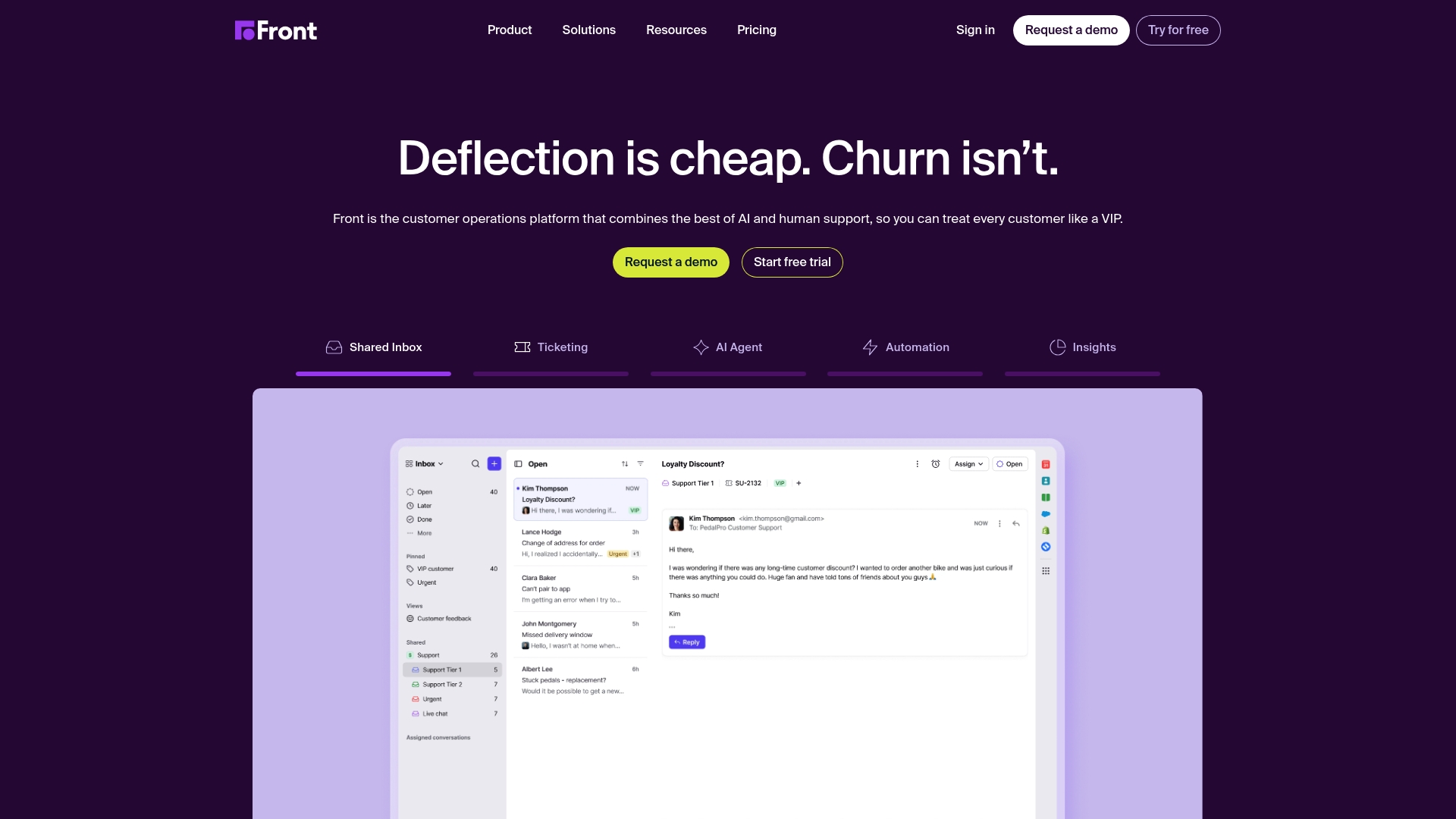
Front is a popular customer operations platform that aims to unify emails, apps, and teammates into a single view. It’s well-known for its ability to manage shared inboxes and for its wide range of third-party integrations (over 110 integrations), which makes it a common choice for support and operations teams.

Help Scout is a dedicated customer service platform built specifically for support teams, trusted by over 12,000 companies. It offers a shared inbox, live chat (Beacon), and a knowledge base builder. Its core philosophy is to keep communication human by avoiding things like ticket numbers.
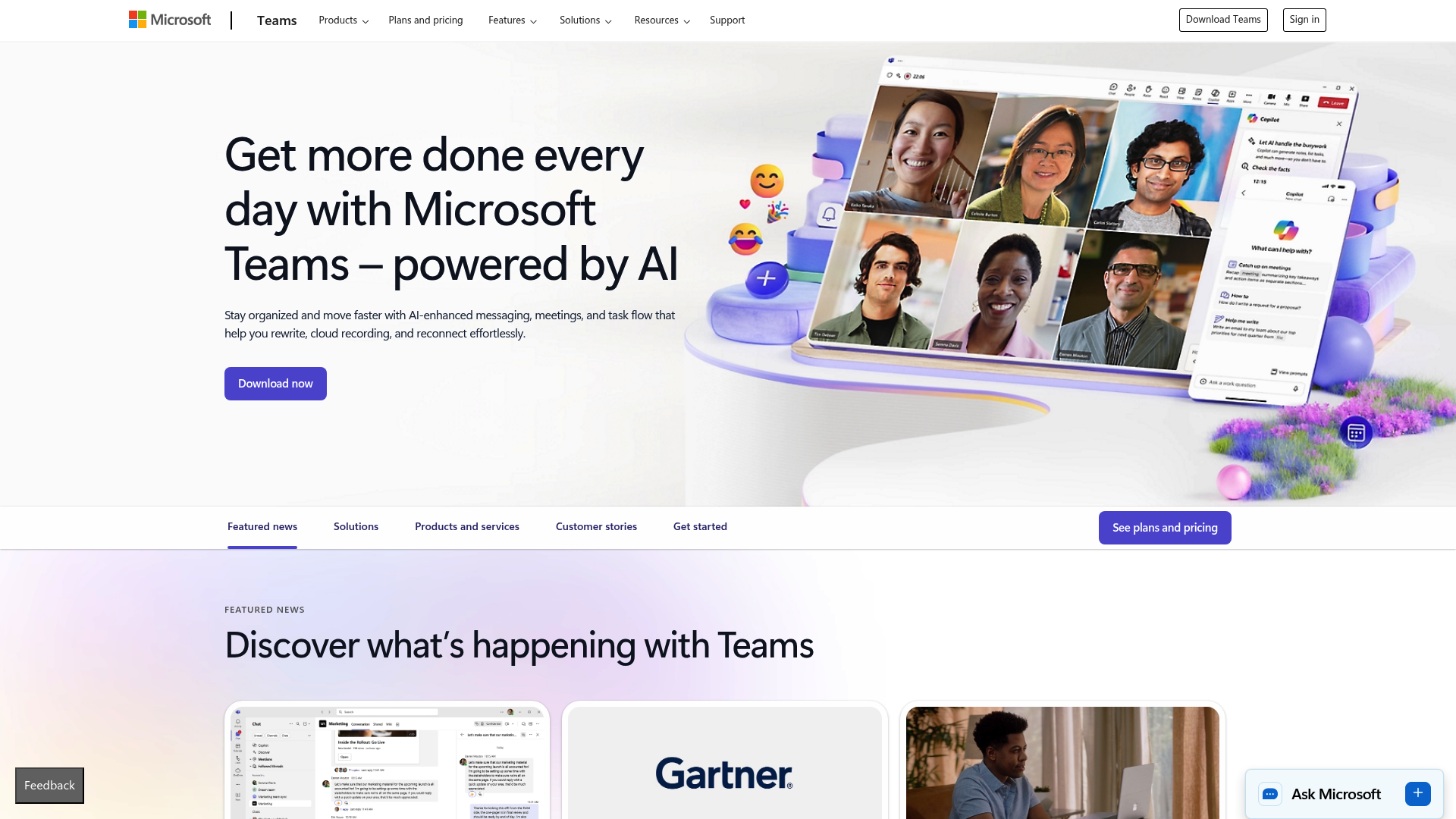
This isn’t an alternative in the same way, but it’s the default option for anyone using Microsoft 365. The Teams Meeting Add-in lets you create a Teams meeting directly from an Outlook calendar event. When it works, it’s a handy shortcut.
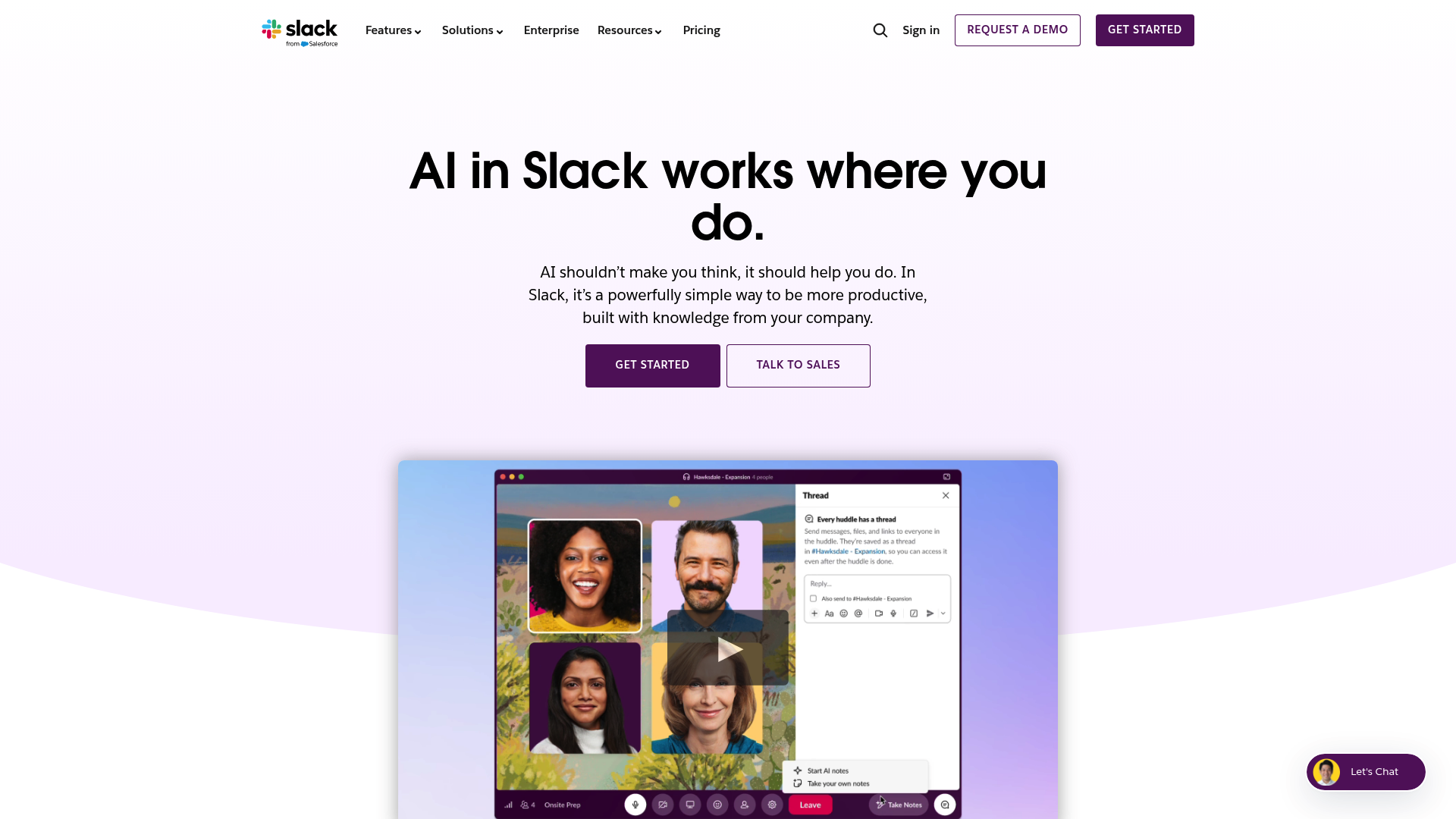
Many teams who live in Slack for internal communication try to use its email integration to pull important external messages into their workspace. This typically involves forwarding emails from an inbox to a dedicated Slack channel, where the team can then discuss it.
So, how do you pick the right tool from this list? Here are a few practical questions to ask yourself.
While the Outlook and Teams integration aims to connect two key tools, some teams find its reliability and narrow focus insufficient for their needs. An alternative is to adopt a platform where collaboration is built directly into the inbox itself.
Tools like those listed above are designed to address this challenge. They aim to combine emails, internal chats, and other messages into a single, organized workspace for team collaboration.
Ready to stop switching between apps and bring your team’s communication together? Try Missive free for 30 days, no credit card required, and see what a truly collaborative inbox feels like.

December 15, 2022
Shared mailbox rules: how to set them up (and what to use instead of Outlook)
Shared mailbox rules help teams automate incoming email — auto-replies, routing, filtering. Here's how to set them up in Outlook, where they fall short, and what a modern alternative looks like.

December 19, 2023
66 Most Significant Customer Service Statistics in 2026
These statistics can help you see the direction the customer service industry is heading in—and what you need to do to prepare your business in 2026.

March 23, 2021
Automate Customer Feedback
Four practical ways to use Missive rules to collect customer feedback—request social reviews, send feedback to a spreadsheet via webhooks, embed surveys in signatures, and automate follow-ups.

November 1, 2023
How to put the customer first (without letting it eat your business)
A customer-first strategy isn’t about saying yes to every customer. It’s about building a business that anticipates what customers need, listens when they speak, and serves them well, without sacrificing what makes your business work.

January 20, 2026
Top 6 Google Groups alternatives for efficient team workflows
Google Groups isn't built for modern team collaboration. Explore our list of the 6 best Google Groups alternatives in 2026 to manage shared inboxes and workflows.

May 18, 2022
ClickUp Email vs. Missive
A detailed comparison of ClickUp Email vs. Missive—from inbox organization and templates to automation, multi-channel support, and pricing—so you can decide which tool fits your team.

August 24, 2020
How to add live chat to WordPress (without another plugin you’ll forget to check)
Most WordPress live chat plugins create a separate inbox you have to remember to check. Here’s how to add live chat that feeds directly into the same inbox as your email.

June 12, 2020
How to reduce your response time?
When dealing with customers, doing it fast is almost always better. People expect to receive a diligent and...

October 26, 2023
The 12 best help desk software for small business in 2026
Compare the 12 best help desk software for small businesses in 2026, from shared inboxes to full ticketing systems, with current pricing and trade-offs.
