> For the complete documentation index, see [llms.txt](https://missiveapp.com/docs/llms.txt). Markdown versions of documentation pages are available by appending `.md` to page URLs; this page is available as [Markdown](https://missiveapp.com/docs/core-features/connected-accounts/other-channels/sms/faq.md).
# SMS FAQ
Common questions about SMS integration with Missive.
Can I have the same phone number for Twilio, Aircall and WhatsApp?
Yes, it’s possible. You will need to purchase a phone number on Twilio and [redirect its SIP trunk to Aircall](https://support.aircall.io/hc/en-gb/articles/10375356158109-SIP-Trunking-Using-your-Twilio-Numbers-with-Aircall). This enables calls via Aircall.
For WhatsApp, you need to add the number as your sender in the Twilio WhatsApp integration.
This way, you can use the same number for calls, SMS, and WhatsApp messages (WhatsApp calls are not supported).
Can I import my mobile phone SMS in Missive?
No. Missive cannot integrate with regular mobile phone numbers from carriers like AT\&T, T-Mobile, or Verizon.
Missive is a cloud service that communicates with providers like Gmail, Office 365, and Twilio over the Internet. Mobile carriers don't provide open protocols or documented APIs that would allow third-party services like Missive to access SMS messages the way we can with email servers.
To use SMS in Missive, you need a new phone number from a service provider:
* [Twilio](https://www.twilio.com/)
* [SignalWire](https://signalwire.com/)
* [Dialpad](https://missiveapp.com/integrations/dialpad)
These services provide phone numbers that work through Internet APIs. Your team sends and receives texts through Missive, but to recipients it appears like regular texting. This setup is commonly used by companies offering customer support through SMS.
Can I import past SMS history from Twilio or SignalWire?
When you connect an SMS account to Missive, only new messages received or sent after connecting will appear. Past SMS history is not automatically imported like it is with email accounts.
However, you can import historical SMS messages using the Missive API. The messages will be imported as **posts** to conversations, not as native SMS messages. This means they'll appear in Missive with the sender's name, but you'll still be able to respond to new messages normally.
**Key requirements when using the API:**
Use the `/posts` endpoint with these important parameters:
* `created_at` - Unix timestamp of when the SMS was originally sent/received
* `references` - Array with concatenated phone numbers in format `["+1222333444+1555666777"]` where both numbers (To and From) are sorted alphabetically and concatenated. This ensures new SMS messages from that contact appear in the same conversation as the imported history.
For technical details, see the API documentation for creating posts.
Can I send an SMS to multiple recipients at once?
Yes, it is possible with both Twilio and SignalWire SMS accounts. It's important to know that a separate message will be sent to each recipient.
Can I send links in SMS?
Yes, supposing you're using our Twilio SMS integration. You simply need to copy and paste the link to the body of the SMS. The receiving party should be able to click on it.
How can users unsubscribe or stop receiving my SMS messages?
If you are using the Twilio integration, they can simply reply STOP, STOPALL, UNSUBSCRIBE, CANCEL, END, or QUIT to any of your SMS. No new messages will be sent to their phone number.
They will receive the next message: "You have successfully been unsubscribed. You will not receive any more messages from this number. Reply START to resubscribe."
How should I configure Twilio Studio with Missive?
To receive your Twilio SMS in multiple applications (e.g. Missive) you need to use Twilio Studio and create two different webhooks: One webhook to Missive, and one to another software.
**Here's how you can configure your first Webhook to Missive:**
Create a Flow in Twilio Studio: Go to Twilio Studio and create a new flow. Give it a name that's easily identifiable.
1. Trigger Widget: Your flow begins with a Trigger widget, which is the entry point for incoming messages.
2. HTTP Request Widget for Missive: Add an HTTP Request widget to your flow. Configure this widget with the following settings:
**Request URL**:
**Request Method**: Choose POST.
**Content Type**: Set to application/json.
**Request Body**: Insert the following JSON structure:
```
{
"SmsSid": "{{trigger.message.MessageSid}}",
"SmsMessageSid": "{{trigger.message.MessageSid}}",
"ToState": "{{trigger.message.ToState}}",
"From": "{{trigger.message.From}}",
"MessageSid": "{{trigger.message.MessageSid}}",
"AccountSid": "{{trigger.message.AccountSid}}",
"ToCity": "{{trigger.message.ToCity}}",
"FromCountry": "{{trigger.message.FromCountry}}",
"ToZip": "{{trigger.message.ToZip}}",
"FromCity": "{{trigger.message.FromCity}}",
"To": "{{trigger.message.To}}",
"FromZip": "{{trigger.message.FromZip}}",
"ToCountry": "{{trigger.message.ToCountry}}",
"Body": "{{trigger.message.Body}}",
"NumMedia": "{{trigger.message.NumMedia}}",
"FromState": "{{trigger.message.FromState}}"
}
```
3. Connect the Trigger to the HTTP Request Widget: Link the incoming trigger to the Missive HTTP Request widget.
**Configuring the Second Webhook for Another Service:**
1. **Add Another HTTP Request Widget**: Add a second HTTP Request widget for the other service.
2. **Configure the Second Widget**: Input the necessary webhook URL and format for the second service. Ensure the method, content type, and request body are correctly set up as per the second service's specifications.
**Link Widgets Appropriately:**
1. **Sequential Processing**: Link the Missive widget to the second service's widget for sequential processing.
2. **Parallel Processing**: Link the Trigger widget directly to both HTTP Request widgets for simultaneous processing.
3. **Save and Publish**: After setting up, save the flow and publish it.
4. **Assign to a Phone Number**: In the Twilio console, assign this Studio Flow to handle incoming messages for your chosen phone number.
This approach should successfully configure two SMS webhooks for one phone number, with one being Missive, in Twilio Studio.
How to block SMS numbers?
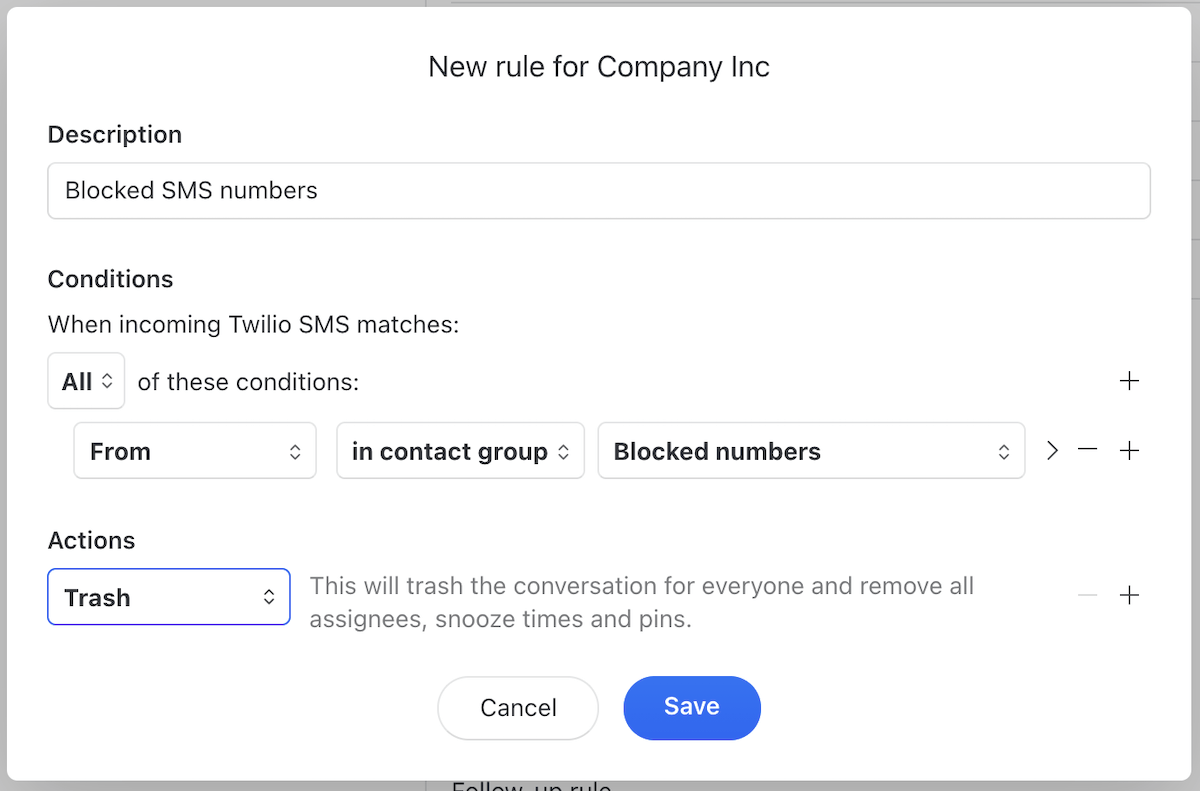
There is no out-of-the-box option, but it is possible to create an incoming SMS rule that matches a [contact group](https://missiveapp.com/features/contacts). The group can be named Blocked numbers, and the rule could trash the conversation. (Screenshot of the rule below)
To block a number, simply add it to the contact group Blocked numbers.
How to import an SMS (SignalWire) account?
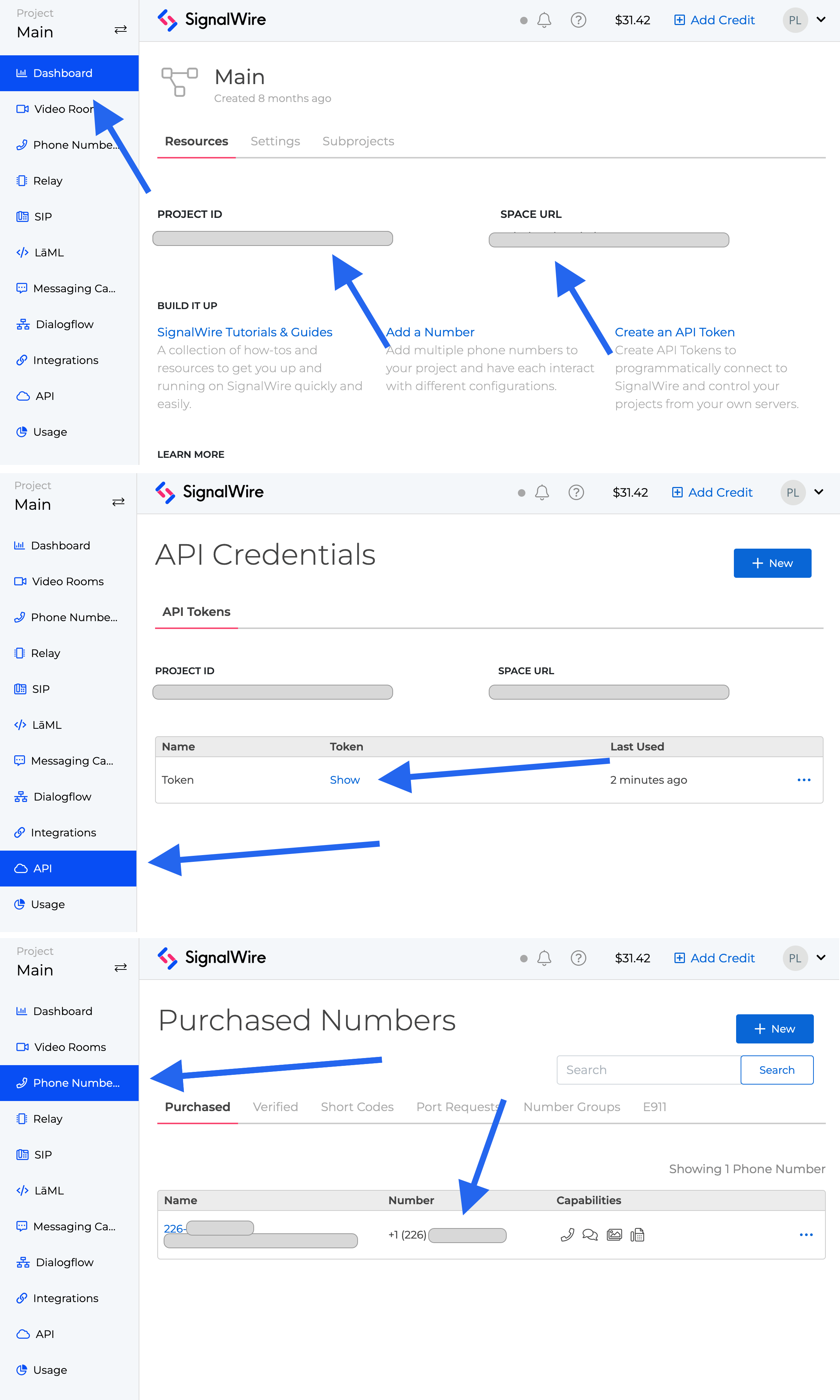
Missive needs your Project ID, Space Url and API Token, plus your phone number. All fields are available in your [SignalWire dashboard](https://signalwire.com/signin).
How to import an SMS (Twilio) account?
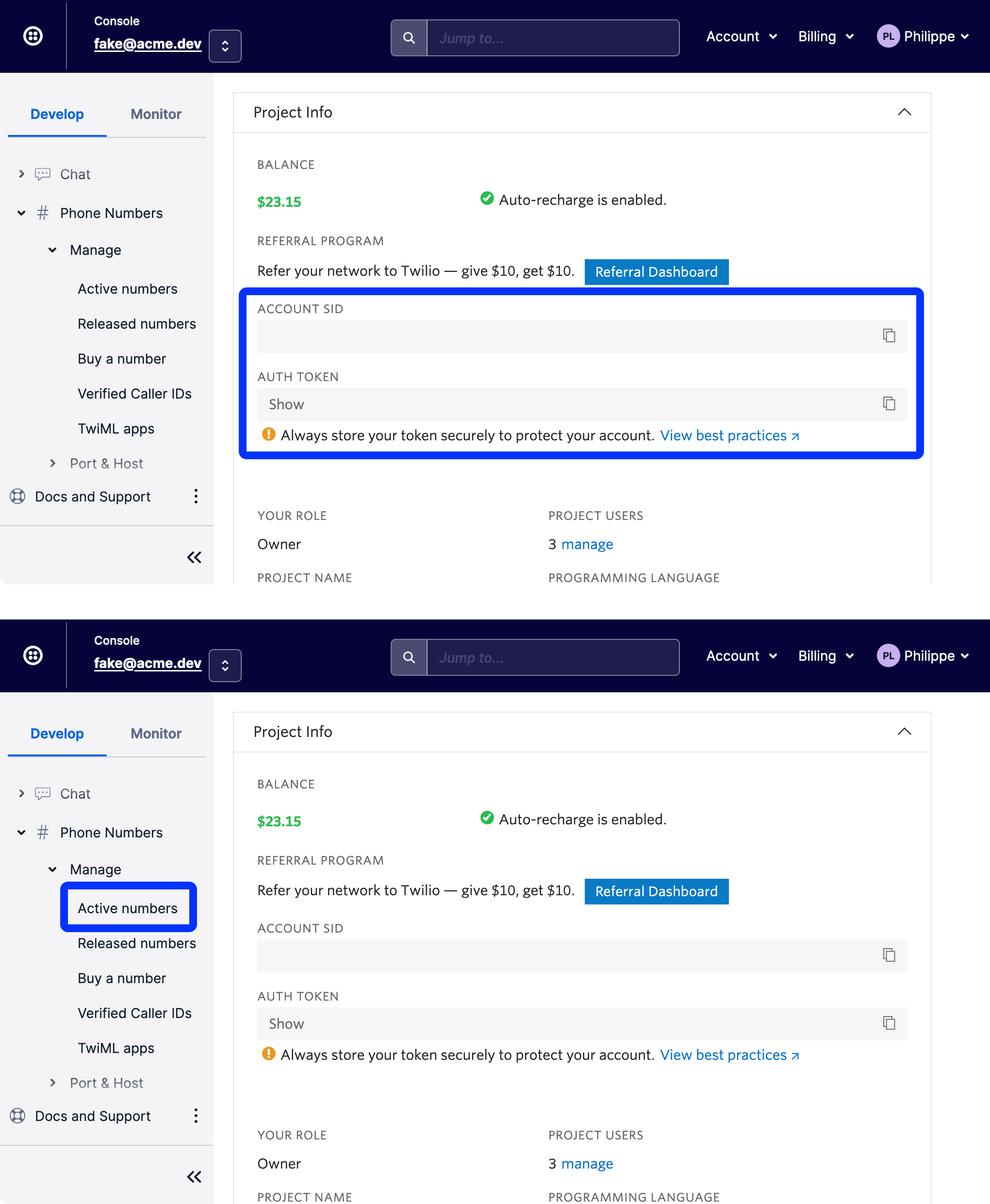
Missive needs your Twilio SID and Auth Token, plus your phone number. Both SID and Auth Token should be available in your [Twilio console page](https://www.twilio.com/console). Look for them on the right side of your screen.
Still from the console, you can access your Phone Numbers by the “three dots” button in the sidebar. It should be under the Super Network category. Here’s the [link](https://www.twilio.com/console/phone-numbers/incoming) in case you can’t find it. From there, you should have the option to buy a number. Once bought, that is the full number you will need to enter back on Missive. Don’t forget to enter the country code as well (your number should start with a plus + sign).
How to send group texts or SMS?
You can send SMS to Contact **groups** and/or **organizations**. When doing this, a separate message will be sent to each recipient.
[Contacts](https://missiveapp.com/features/contacts) can be grouped into both organizations and groups:
* Organizations are typically used to map a group of related contacts (businesses). Each contact in an organization can have a title, department, and location.
* Groups are used to group unrelated contacts.
To quickly send an SMS to everyone in a group or organization, simply search for the group or organization name in the To field of your message draft.
Bulk SMS is capped at 100 phone numbers per message. If your group has more than 100 contacts, split it into smaller groups before sending.
**Note that it is not possible to send group SMS** (i.e. an SMS to multiple recipients simultaneously in one single conversation). Twilio actually limited access to the group MMS feature as of [March 15, 2022](https://www.twilio.com/changelog/limitation-to-group-mms).
What does MMS mean?
MMS stands for Multimedia Messaging Service. Unlike text-only SMS, MMS can include graphic elements such as videos, images, audio, etc. Our Twilio integration allows you to send MMS messages.
You must use an MMS-enabled Twilio phone number. This service is currently available in the US and Canada.
---
# Agent Instructions
This documentation is published with GitBook. GitBook is the documentation platform designed so that both humans and AI agents can read, navigate, and reason over technical content effectively. Learn more at gitbook.com.
## Querying This Documentation
If you need additional information that is not directly available in this page, you can query the documentation by asking a question.
Perform an HTTP GET request on the following URL with the `ask` and `goal` query parameters:
```
GET https://missiveapp.com/docs/core-features/connected-accounts/other-channels/sms/faq.md?ask=&goal=
```
`ask` is the immediate question: it should be specific, self-contained, and written in natural language.
`goal` is what the user is ultimately trying to achieve, the reason they need the answer. Sharing it helps GitBook give you a better, more relevant answer. A goal is most helpful when it describes the outcome the user wants rather than restating the question. For example, with `ask=how do I create an API token`, a goal like `automate deployments from our CI pipeline` lets GitBook tailor the answer to that use case.
The response will contain a direct answer to the question and relevant excerpts and sources from the documentation.
Use this mechanism when the answer is not explicitly present in the current page, you need clarification or additional context, or you want to retrieve related documentation sections.