Blog →
How to manage multiple email accounts: A practical guide

Blog →

by
Eva Tang
January 30, 2026
· Updated on
If your email inbox feels cluttered, you're not alone. The average office worker receives on average 304 business emails a week. Now add your personal Gmail accounts, a side-hustle address, and a few shared Outlook inboxes, and you have a recipe for missed messages and constant tab-switching.
But it doesn't have to be that way. The answer isn't just to dump all your emails into one giant Outlook folder. It's about building a smarter, more collaborative system for your whole team. In this guide, we'll walk through common methods for managing inboxes, cover essential features for teams, and explore a few tools to help you succeed.
Managing a bunch of email accounts is more than just keeping a dozen tabs open for Gmail and Outlook. It’s about creating a single, intelligent system that helps your team instead of getting in their way.
When done right, you’re really aiming for a few things:
A good approach turns email from a reactive chore into an organized, proactive part of your team's workflow. This helpful infographic breaks down the four pillars of effective email management.
People have tried a few classic email management methods to solve the multiple-inbox problem. They might seem like a good idea at first, but they often cause new problems, especially for a team.
This is usually the first email management tactic that people try. You set up a rule in your personal Gmail accounts (or Outlook) to forward everything to your main work inbox. Or maybe you use an alias, so different email addresses all lead to the same place.
While this works for simple cases, it can create organizational challenges.
Limitations:
Most email providers like Gmail and Outlook let you add other accounts right into their app. It feels like an improvement because you can see everything in one place.
But these features were built for individuals, not for teams trying to collaborate on shared Outlook accounts like sales@ or info@.
Limitations:
This is where things get a bit more serious. A dedicated email client is an app built to help you manage multiple accounts in a unified inbox. They’re often faster and have better organizational tools than web interfaces.
It's a definite step up, but not all email clients are the same. Many are still designed for individual users who just want to organize their personal inboxes (think Outlook or Gmail). They often lack the collaborative and automation features that a growing business needs to manage communication across the whole team.
For a business, just seeing all your emails in one list isn't enough. You need a tool that helps your team be more productive, work together smoothly, and keep your data secure. Here’s what to look for.
A unified inbox should bring all your messages into a single stream. A great one doesn't stop at email. Today's communication happens everywhere, across multiple accounts, so your tool needs to handle SMS, WhatsApp, Instagram DMs, and live chat right alongside your emails.
A platform like Missive can help you centralize every customer conversation, no matter where it started. Your team gets the full context of every interaction without ever needing to switch apps, which can lead to faster replies and happier customers.
The back-and-forth of forwarding emails for a colleague's input can be slow and inefficient. Your team needs tools that let them work together right where the conversation is happening.
Look for these key features:
Tools like these are central to platforms like Missive, designed to turn messages into collaborative workspaces.
Repetitive tasks are a massive time drain. The right tool should let you automate them with powerful, customizable rules that are much smarter than simple filters. Imagine what you could do with:
AI can enhance this further. For example, Missive's AI Rules can analyze an email's content for urgency or sentiment and automatically trigger the right workflow, like assigning a frustrated customer's email directly to a senior support agent.
When you're handling all your business communications in one place, especially sensitive customer data, security is a priority.
Make sure any tool you consider has these essentials:
Platforms like Missive offer these enterprise-level features, giving you the control and confidence you need to manage your business's most important data.
Now that you know what to look for, let's see how a few popular email clients to compare. Here’s a quick breakdown of how they stack up on key features.
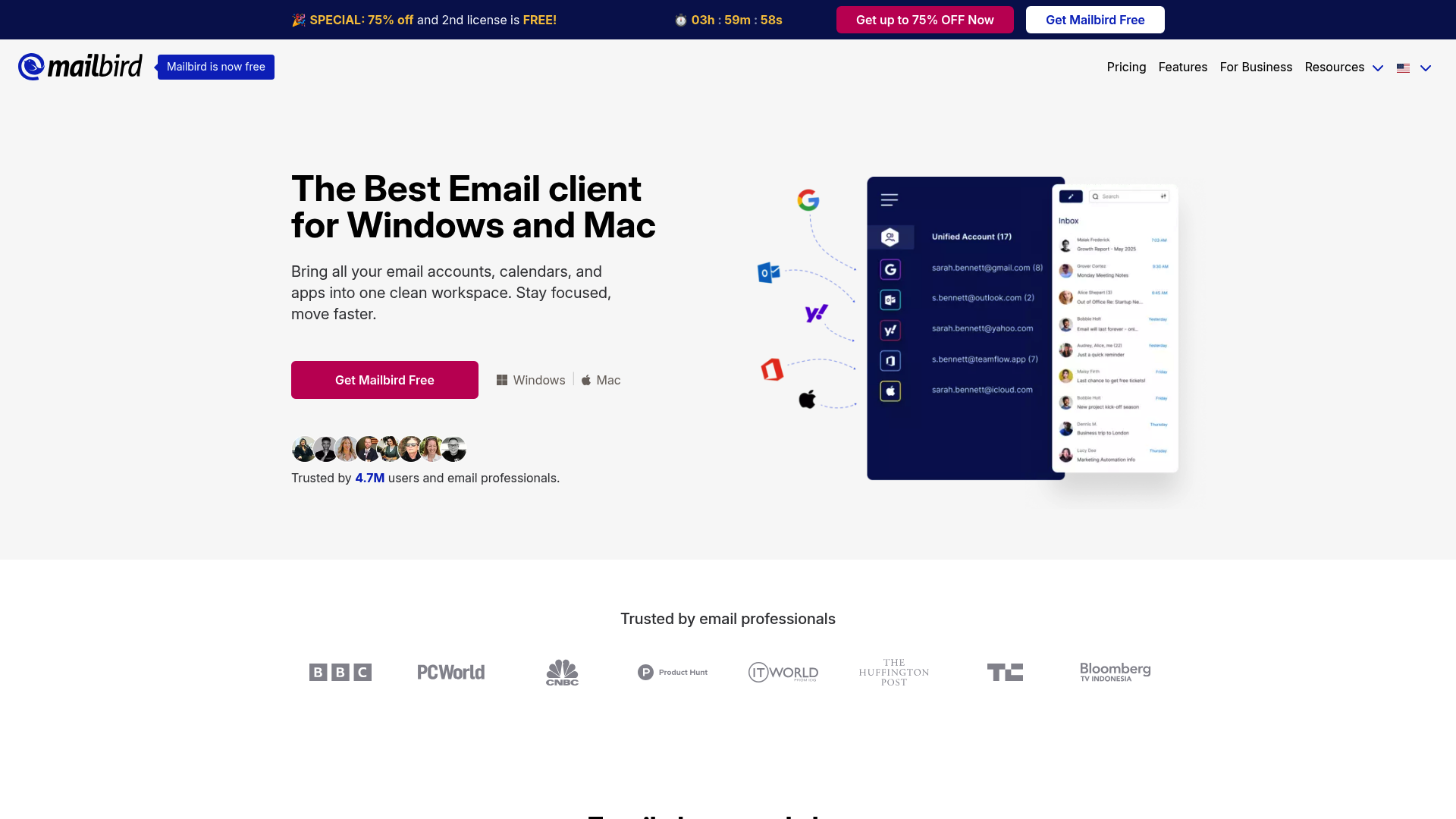
Mailbird is a popular email client for Windows and Mac, known for its clean interface and many app integrations. It lets you connect tools like Slack, Asana, and Dropbox, turning your inbox into a central hub for your work apps.
Strengths:
Limitations:
Pricing:
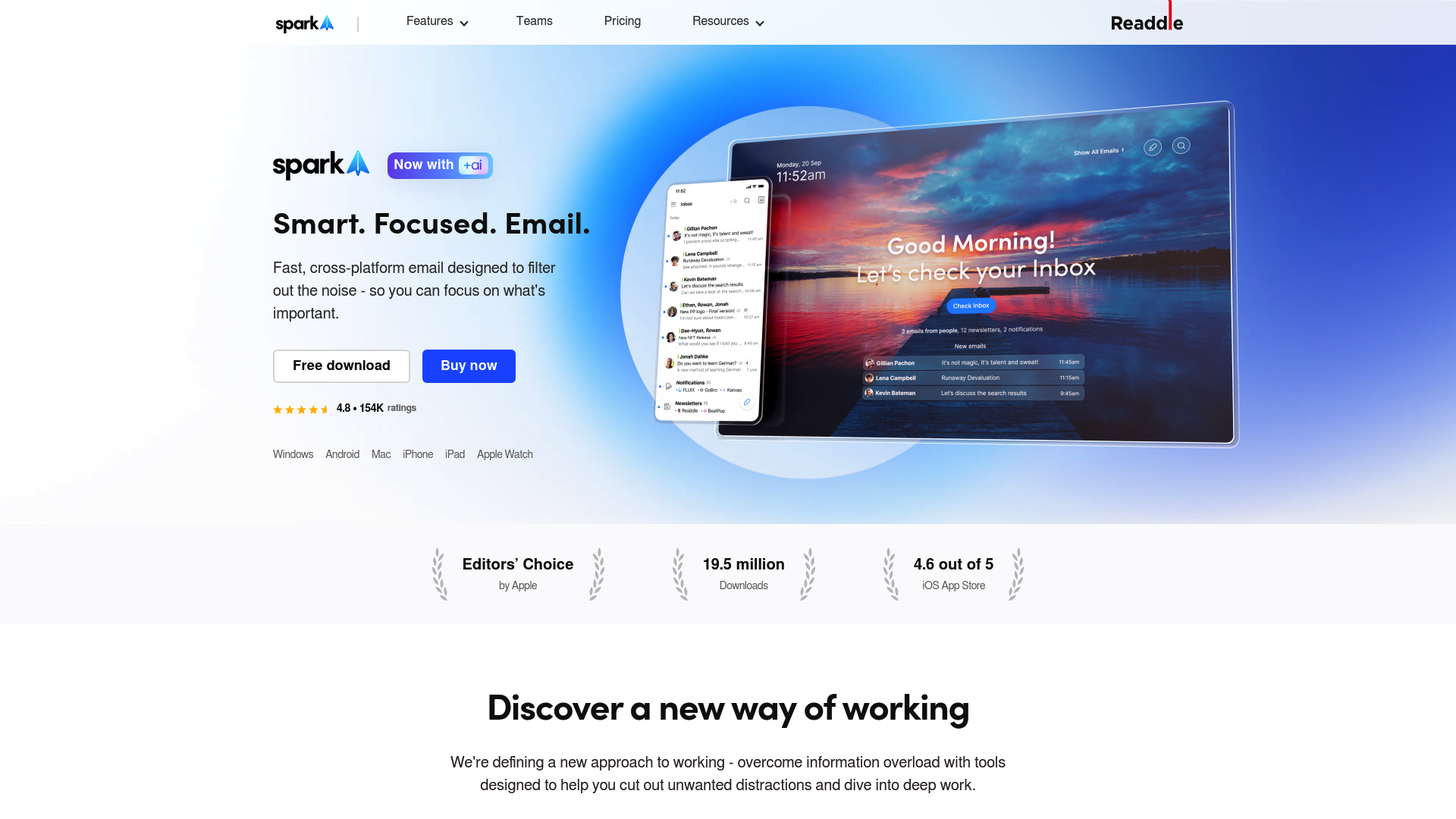
Spark is a modern email client with a "Smart Inbox" that automatically pushes important emails to the top. It's a favorite among Apple users but is available on all major platforms.
Strengths:
Limitations:
Pricing:
.png)
Missive is a inbox collaboration platform built for teams. It brings together email, SMS, WhatsApp, social media, and internal chat into one shared space where your team can work together.
Pricing:
To effectively manage multiple email accounts as a team, you need more than a tool that just puts all your emails in one list. While a unified view can help with organization, it may not address all challenges of team communication.
Key differentiators to look for include multi-channel support, deep collaboration tools that let your team work together, powerful automation to handle repetitive tasks, and strong security to protect your data.
While many tools are designed for individual organization, platforms like Missive are built for team communication. This approach can turn an inbox into a central hub for collaborative work.
For a deeper dive into how you can streamline your email workflows, check out this helpful video on managing multiple accounts directly within Gmail.
This video tutorial explains how to manage multiple email accounts within Gmail to save time.
Ready to stop juggling tabs and start collaborating? Try Missive free and see how a shared inbox can streamline all your team's communication.
An effective method is to use a collaborative platform with a unified inbox, like Missive. This brings all your communication channels (email, SMS, social media) into one place and includes team features like assignments, internal comments, and automation rules, which you can't get with simple forwarding or basic email clients.
While Gmail lets you add other accounts, it's designed for individual use. It lacks the collaborative tools needed for a team, like assigning conversations or seeing who is working on what. This can lead to confusion, duplicate replies, and missed messages in a team setting.
Look for enterprise-grade security. Key features include SOC 2 Type II compliance, Single Sign-On (SSO), two-factor authentication (2FA), and IP restrictions. These ensure your company and customer data are protected.
A unified inbox consolidates messages from all your accounts (e.g., support@, sales@, personal) and other channels like SMS or WhatsApp into a single view. This prevents you from constantly switching between apps and gives your team a complete picture of every customer conversation.
Email forwarding clutters your primary inbox, makes it hard to reply from the correct address, and offers no visibility for team collaboration. You can't tell if a colleague has already responded to a shared email, which can lead to inefficiencies and a poor customer experience.
Look for powerful, customizable rules. Good tools let you auto-assign emails to the right person, use canned responses with variables for quick replies, and even use AI to analyze email content and trigger specific workflows, saving your team a ton of time.

July 30, 2022
Email Management Tips for Lawyers: How to Waste Less Time
Practical email management strategies built for law firms—from shared inboxes and canned responses to delegation and automation—with tips from attorneys who've solved inbox chaos.

March 13, 2024
7 auto-reply email templates (with examples for every situation)
Seven ready-to-use auto-reply email templates for out-of-office, support, job applications, and more, plus setup steps for Missive, Gmail, and Outlook.

March 7, 2024
Property management email templates (with examples)
Property management email templates for applications, move-ins, maintenance, rent reminders, renewals, and move-outs. Copy, paste, and personalize.

December 10, 2020
Missive security and privacy FAQ
Missive is SOC 2 Type II and GDPR compliant. Full FAQ on our security and privacy practices: encryption, AI data handling, SSO, data export, and account deletion.

September 23, 2020
How to add live chat to Squarespace (and manage it without losing your mind)
Squarespace doesn’t have built-in live chat. Here are the six tools worth shortlisting (with prices), how to add a chat widget, and how to handle conversations alongside your email.

December 22, 2023
8 soft skills proven to improve customer service
Soft skills aren’t soft, they’re the skills that separate a good customer service team from a great one. Here are the eight that matter most and how to build them.

November 20, 2020
Take your contact book to the next level
How to use Missive's contact groups and contact-based rules to automate VIP handling, language routing, team assignments, and spam filtering across email, SMS, WhatsApp, and more.

November 21, 2025
The best Gmail alternatives for teams in 2026: pros, cons & features
The best Gmail alternatives for teams in 2026, compared. Pros, cons, pricing, and which tools actually solve the shared inbox problem.

January 22, 2026
10 best AI tools for small businesses in 2026
The 10 best AI tools for small businesses in 2026, with verified pricing: Missive, Jasper, Copilot, CloudTalk, Dialpad, Freshdesk, Aissist, HeyGen, Grammarly, and HubSpot.
