Blog →
What is the best email client for Outlook? Our top 7 picks

Blog →

by
Eva Tang
March 17, 2025
· Updated on
June 25, 2026
Email is the medium of business. It’s how requests, deals, and hires get started and made.
Most businesses live in their inbox, whether they like it or not. And that inbox is likely an Outlook inbox — over 3.7 million companies use Microsoft Outlook for email management.
Two main reasons for that:
However, like Word or Excel, Outlook was built mostly for enterprise solo use. It wasn’t built for collaboration, even as the world of business and email moved toward needing more of it.
In 2026, several tools meet the security and control standards of Outlook while offering more powerful inbox collaboration and coordination features suited for modern teams.
We’ll cover what to look for in an Outlook email client, introduce the seven most popular third-party options, and break down their key differences.
All options have desktop and mobile email apps and support IMAP, MAPI, and POP3.
We’ve also covered a range of price points, including free email clients.
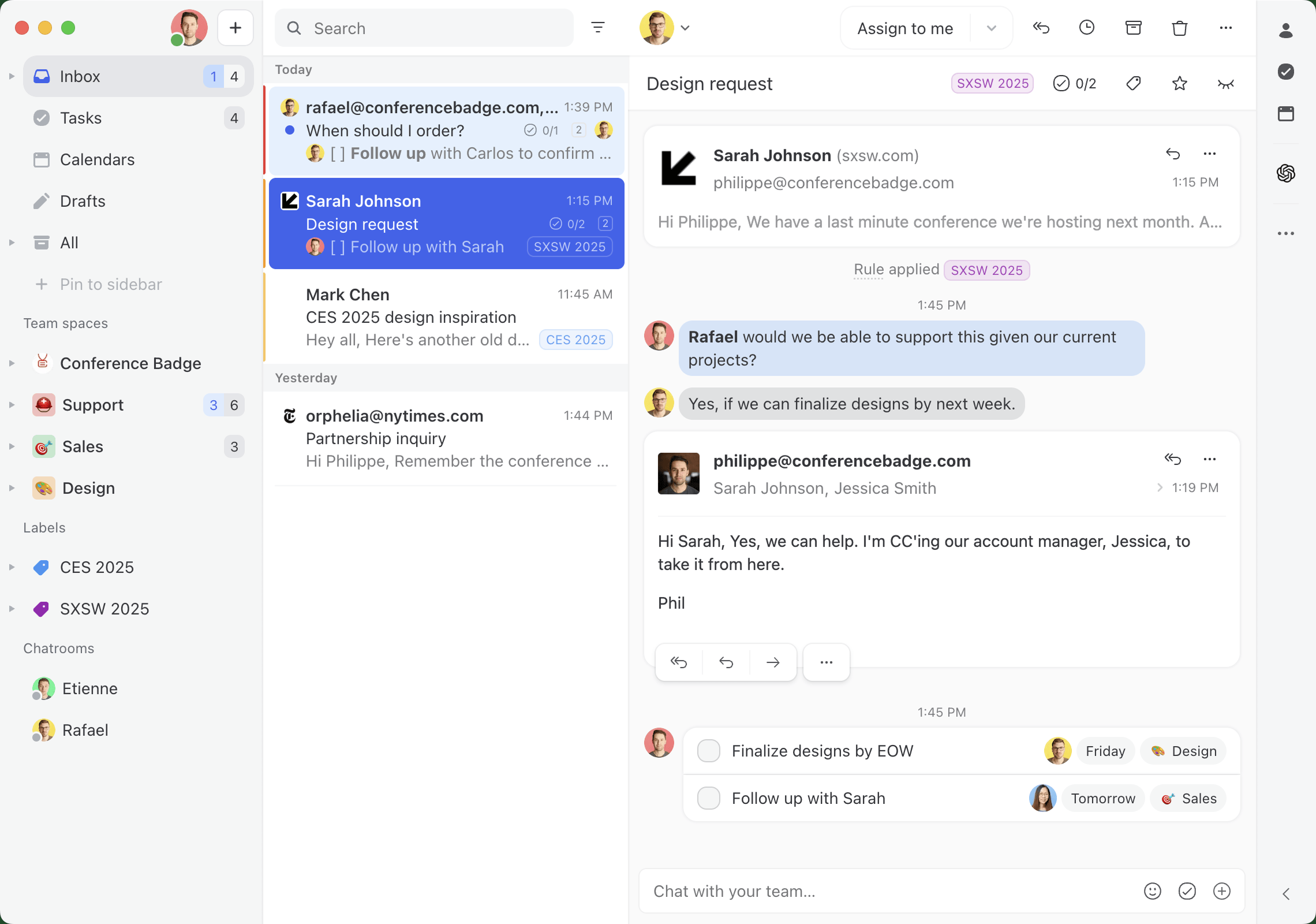
Missive is a collaborative inbox for teams that run on email. It’s built with collaboration as a priority, featuring contextual in-email chat using @mentions, which eliminates the need for forwarding.
You can assign or watch emails, and every action is logged, giving you visibility into who did what and when.
Missive supports all email providers (Outlook, Gmail, Yahoo, Apple Mail) and you can have multiple accounts (personal and business) in the same interface.
Under the hood, Missive has a powerful automation engine. You can:
From a security perspective, Missive meets the same standard as Outlook. SOC 2 Type II report, encryption of data at rest and in transit, GDPR compliant.
Pricing starts at $14/user/month on an annual plan.
One thing to note: if you use folders in Outlook, they’re called labels in Missive.
In the same way some teams prefer Google Docs to Word for its collaboration features (commenting, multi-player drafting), you may prefer Missive to Outlook if you find yourself hitting Reply All and Forward all the time.
Thunderbird stands out as the only open-source email client on this list.
It’s a community-driven, free email client that’s been around for nearly two decades. With a thriving online community and an ecosystem of 1200+ add-ons (including AI-powered ones for drafting replies), it’s considered one of the best email apps for users who prioritize a free, open-source option.
If you’re looking for more collaboration functionality, Thunderbird’s collaboration features come mostly from third-party add-ons: things like mail merging and adding notes/comments to emails. Workable, but likely unreliable given the nature of third-party connections.
From an organization perspective, Thunderbird calls their version of “folders” tags. Functionally, they’re the same.
Thunderbird is privacy-forward with built-in filters for phishing/spam and remote image blocking. It doesn’t have SOC or ISO compliance certifications, because of its free and open-source nature.

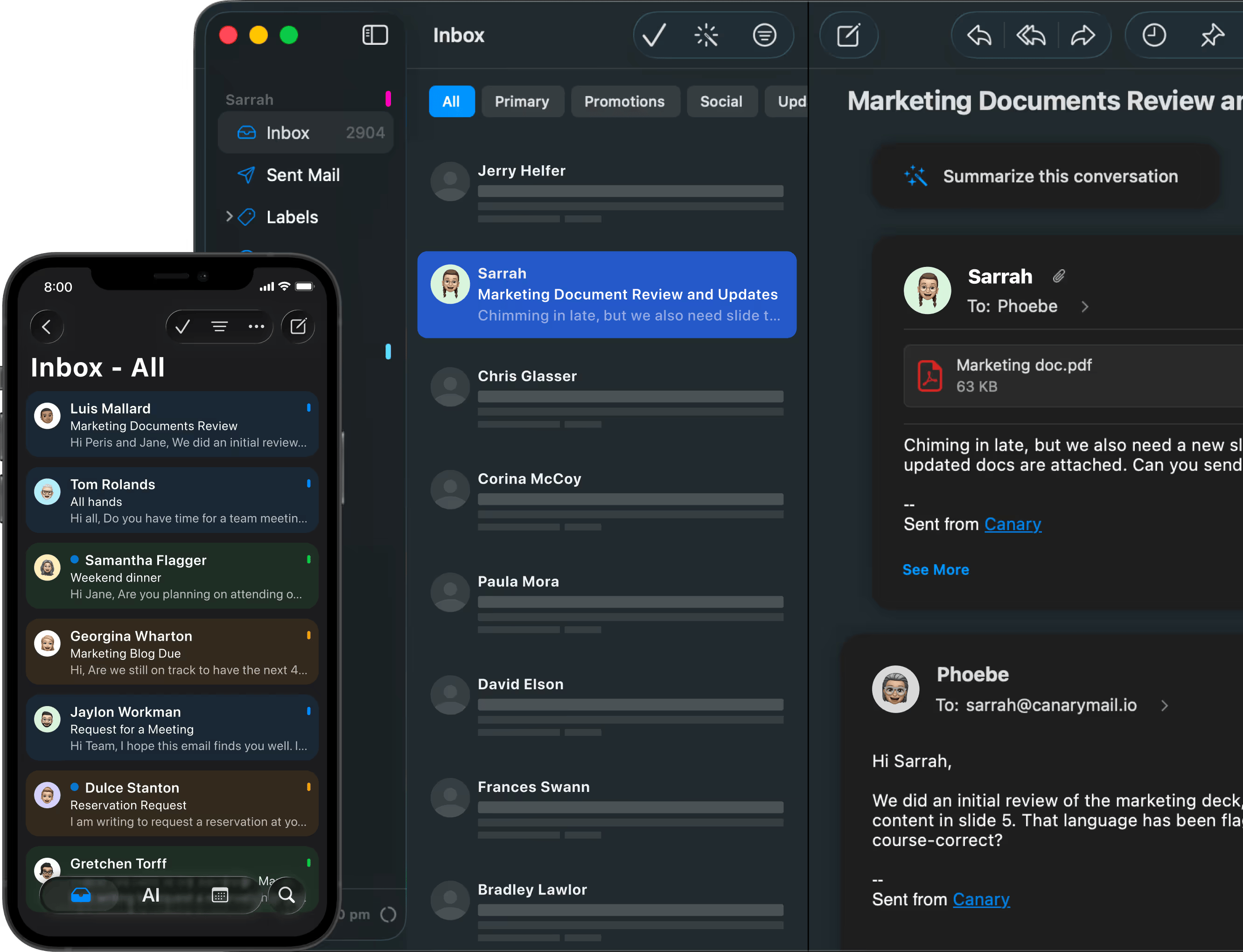
Canary Mail is the most security-focused option on this list, and it pairs naturally with Thunderbird above it. Both give you end-to-end PGP encryption on your Outlook mail; the difference is the setup. Thunderbird is free but you generate and trade keys yourself. Canary is paid but handles it for you.
It connects to Outlook, Microsoft 365, Gmail, and any IMAP account. The standout is how it handles encryption: Canary encrypts messages on your device and manages the keys for you, so you get end-to-end protection (PGP plus its own SecureSend) without the manual setup. It also blocks email trackers and locks the app behind Face ID or Touch ID.
On the AI side, Canary’s Copilot summarizes long threads, drafts replies, and surfaces the messages that actually need attention. Unlike the basic AI drafting in Mailbird or eM Client, Canary keeps its AI privacy-first: no ads, and it doesn’t sell your data or train its models on your email.
Canary is built around individual use. It does offer team features like shared inboxes, assignments, and internal @mentions, but those sit in a separate product, Shared Inbox by Canary, sold on its own team plans.
On security and compliance, Canary Mail is GDPR and HIPAA compliant, with PGP end-to-end encryption on its top tier.
For pricing, there’s a free plan. Growth ($36/year) adds the AI Copilot and productivity features. Pro+ ($100/year) is the tier that includes PGP end-to-end encryption, SecureSend, and phishing protection. Both paid plans are also sold as one-time lifetime licenses.
Worth being clear about fit: if you’re already on Microsoft 365, you have encryption and compliance built in, so Canary is the narrowest pick here. Where it earns its place is for solo operators and small teams in fields like law, healthcare, finance, and consulting who handle sensitive information and want real end-to-end encryption to outside parties without involving IT. If that’s you, Canary Mail is worth a look.
Mailbird is for those who have too many email accounts. It’s known for its unified inbox, where you can flow multiple accounts into the same consolidated inbox view.
Mailbird doesn’t offer features related to collaboration or coordination. It’s a productivity improvement for Outlook power users who want to integrate popular apps into their email workflow and see all emails in one place.
From an AI perspective, Mailbird offers simple AI drafting through ChatGPT.
Of all the Outlook alternatives on this list, Mailbird has the most similar user experience to Outlook, including naming conventions (folders are folders, not labels or tags).
For security and compliance, Mailbird is GDPR compliant and does not have any external audits or certifications.
For pricing, Mailbird has a free version and a premium version at $4.99/user/month. There’s also a one-time payment option to buy the product outright at $49.50 (standard) or $99.75 (premium).
If you manage multiple Outlook accounts and need a unified inbox for all your emails, Mailbird might be a good fit.

eM Client is similar to Mailbird. Most of its features are productivity-focused for individuals: shortcuts, watch/snooze, configurable layout.
The most unique and powerful feature in eM Client is its search. It covers all messages in your inbox and can also search within certain types of attached files (PDFs, Word docs, etc.).
On the collaboration front, it doesn’t have much beyond the ability to share folders (aka labels), calendars, and accounts.
Like Mailbird, eM Client offers basic AI drafting to help with typos and tone in replies.
On security and compliance, eM Client is GDPR compliant (though possibly outdated with 2018 references) and doesn’t have any external audits or certifications.
For pricing, eM Client has a sharp distinction between personal and business plans. There’s a free plan for non-commercial use, and paid plans are available as annual subscriptions or one-time payments.
The personal plan (without AI features) is $39.95/year or $49.95 one-time.
The business plan (with AI features) is $49.95/year or $188.95 one-time.
Both one-time payment options don’t include future feature updates. You can purchase lifetime upgrades separately at $90 per license.
If you’re looking for a slightly more productive version of Outlook and you want a free email app because you’re not using it for commercial purposes, eM Client might be a good option.

If you’re a Mac user and you really don’t want to download another email client, does the default mail app from Apple work well for Outlook?
Well, compared to Thunderbird, Mailbird, and eM Client, Apple Mail isn’t going to give you any increased functionality.
If you use Apple Mail as your Outlook email client, you won’t have the integrated calendar or task management, and you’ll have to remember that folders are “labels” in Apple Mail.
The good news is that Apple Mail can support multiple accounts from multiple providers (via IMAP and SMTP standards), so if you have a Gmail account and an Outlook account that you’d like to unify into one well-designed, simple inbox, Apple Mail can do that.
If you want a free email client with a cleaner design than Outlook and don’t require advanced features, Apple Mail might be your best option.

When Superhuman first launched, it was solely focused on Gmail and Google email users. As of May 2022, it also supports Outlook users.
From a user interface perspective, Superhuman is the most distinct on this list. It looks nothing like an Outlook inbox, so if familiarity is a requirement, this might not be a good fit.
Superhuman offers several AI-powered features, the most notable being its ability to answer questions about your inbox.
Instead of traditional search (even as powerful as eM Client’s), you can ask your inbox direct questions. Instead of needing to remember a file’s name to look for a specific piece of information, you could ask: “What was the price that John from ACME quoted me?”
On the collaboration front, Superhuman offers the ability to @mention coworkers through Team Comments.
From a security and compliance perspective, it’s SOC 2 Type II, ISO 27001, CCPA, and GDPR compliant.
For pricing, Superhuman is on the higher end of this list, starting at $25/user/month on an annual plan.

To summarize our options for the best email client for Outlook users, we sorted them into two categories:
Hopefully this has been a helpful overview of the types of email clients out there for Outlook users. If you’re interested in Missive, continue on and we’ll get into some tactical information.
Stephanie at Lighting Dynamics, manages 100+ email quotes a day. Her team used to use Outlook for email management:
With traditional Outlook forwarding, once an email was out of the shared inbox, there was no visibility. We never knew if it had been handled. It was chaotic.
And now, with Missive: “Missive checked all our boxes. It was a huge relief to see we could maintain the shared inbox model — without building custom software from scratch.”
Or Kason, from i-SOLIDS, who grew his sales team beyond himself:
We got to a point where we weren’t providing the same level of communication, response, and service that allowed us to get to this point. We were relying on Outlook email and it was like ‘are you responding to that or am I?’
And after a month with Missive, Kason recommends: “Don’t think about just choosing a tool for today but this tool needs to work for scale too — that’s a major decision factor.”


Get a detailed walk-through of how to configure Outlook to Missive, including terminology differences to help you get acclimated to your new inbox.
Like most things, it depends. If you’re a team that lives in their inbox day in and day out, and you’re looking for a collaboration-first inbox, give Missive a try.

October 17, 2023
How to deal with difficult customers (the rude, the angry, and everyone in between)
Difficult customers come in many flavors: angry, rude, demanding, impossible to please. Here’s how to handle every type without losing your mind — practical strategies, scripts, and when to walk away.

April 6, 2023
Shared Inbox for Gmail in 2026: How to Set One Up (and When to Move On)
Build a shared inbox for Gmail in 2026: delegation, Google Groups, and Collaborative Inbox setup steps, plus when to switch to real shared inbox software.

July 30, 2022
Email Management Tips for Lawyers: How to Waste Less Time
Practical email management strategies built for law firms—from shared inboxes and canned responses to delegation and automation—with tips from attorneys who've solved inbox chaos.

May 18, 2022
The 14 best team collaboration software for small businesses in 2026
The 14 best team collaboration tools for small businesses in 2026, by use case, with current pricing and honest trade-offs for each.

October 27, 2022
Email thread: what it is, how to use it, and why it breaks at scale
An email thread keeps a conversation together in one place, but they quickly become unwieldy when teams collaborate. Here’s how email threads work, how to manage them, and what to do when they stop working.

October 24, 2023
Customer Perception: 7 Ways to Improve It (with Examples)
Learn what customer perception is, how to measure it, and 7 proven strategies to improve it—with a focus on how your team's daily interactions shape what customers think of your brand.

November 28, 2024
How to Centralize Client Communication for Better Team Productivity
Learn how to centralize client communication and improve team productivity for service businesses using Missive.
March 6, 2026
Claude vs ChatGPT vs Gemini for email: Which AI model should your team use?
Most AI comparisons benchmark coding and math. Here's how Claude, ChatGPT, and Gemini actually compare for the work that happens in your inbox: drafting replies, summarizing threads, and helping your team respond faster.

November 29, 2024
17 Affordable Intercom Alternatives for 2026
The best affordable Intercom alternatives for 2026 are Missive, Zendesk, Help Scout, Freshdesk, and Crisp—all offering shared inboxes, live chat, and team collaboration at a fraction of Intercom's price.
