May 19, 2026
Canned responses: examples, variables, and how teams use them in 2026
Canned responses save teams hours a week, when done right. See real examples, variables that don't sound canned, and how teams use them in 2026.
Quick Answer: A canned response is a pre-written email template you can insert into a draft with a keystroke. Teams use them to handle repetitive greetings, closers, scheduling messages, and standard replies without retyping. The strongest setups combine short reusable snippets (openers and closers), variables for personalization, and a shared team library.
It’s not the question that’s expensive. It’s typing the same answer ninety times this week.
The catering coordinator who answers “what’s your menu minimum for an off-site?” forty times every Monday. The founder who pastes their calendar link into half their replies. The support lead who types the same response to a Canny feature request, day after day. None of this work is hard. It’s the volume that drains the day.
Canned responses are the obvious fix, and most teams set them up wrong. The standard advice (most of which still echoes around the internet) is to template the long stuff: the 200-word support reply, the formal onboarding email, the careful refund explanation. That’s not where the time actually goes. The teams who move fastest template the short stuff (openers, closers, the boring parts you write the same way every email) and write the substantive middle by hand. Custom paragraph. Hand-typed feel. Template-speed assembly.
This piece is about how that actually looks in practice, with real examples, the variables and shortcuts that make it work, and a comparison of how the major email tools handle the category in 2026.
What is a canned response?
Definition: A canned response is a pre-written, reusable piece of email content that you save once and insert into a draft with a keystroke or click, typically supporting variables (like the recipient’s name) so each insertion can feel personalized. The same idea also goes by “saved reply,” “email template,” “snippet,” and “quick reply” depending on the tool.
The mechanics are simple. You write a piece of email content once: a greeting, a closer, a paragraph answering a common question, a full reply to a frequently asked question. You give it a short name or trigger. From then on, you can insert it into any draft without retyping. Some tools support variables that fill in dynamic content (recipient name, your calendar link, an account-specific URL). Some tools support sharing the library with your team. Some only support personal libraries.
Adjacent to canned responses are OS-level text expanders like Text Blaze, Magical, and aText. These work across every app on your computer, not just your email client. Useful tools, but they don’t integrate with the rest of the email workflow (no team sharing of email-specific templates, no awareness of who the email is to, no integration with rules or AI). For team email work, an email-native canned response feature usually wins on the integration depth.
Why do teams use canned responses?
Five reasons, ranked roughly by how much time each one saves.
Repetition is exhausting. If you’ve ever copy-pasted the same paragraph into a reply three times in a morning, you understand the case for templates instantly. The question is rarely “should we template this” and almost always “how do we make the template not feel like a template.”
Speed. Inserting a canned response is faster than typing, often by an order of magnitude. A four-word calendar share template takes one keystroke to deploy versus ten or twelve seconds to type and paste. Multiply by every email that includes a calendar link.
Consistency. When everyone on the team uses the same wording for the same situations, the customer experience stops depending on which teammate caught the email. The feature-request deflection sounds the same whether it goes out from the founder or the new hire. The price-explanation paragraph carries the same numbers and caveats every time.
Onboarding speed. New hires inherit the team’s reply patterns without having to ask “how do you usually phrase this?” for the first three weeks. The library is the wordless training document.
Quality. Writing the answer once, carefully, beats typing it tired at 6pm for the ninetieth time. Templates are where the team’s best version of an answer gets enshrined.
Cecee Penney, Head of School at The Academy School, a K-8 independent school in Berkeley with around 110 students, runs into a version of this every year. “I get a new crop of families every year. At some point there will be a question that I’ve answered eight times and to be able to say to my team, hey if they ask this, the response is already written out and formatted and beautiful just populate it.”
The shape of the problem (a small team, returning patterns, the same questions arriving from different families) is what canned responses are for. The shape of the upside, in Cecee’s words: “We get to spend our time together as a staff getting to know each other, building culture, building morale, talking about kids and supporting kids which is the whole reason we’re here.”
What does a good canned response actually look like?
The best way to understand the category is to look at real ones. Here are five, in order from shortest to longest. The first three are the highest-value type and most teams don’t have any of them.
1. The smart greeting
Hi {{ recipient.first_name | default: "there" | confirm }},
That’s the entire template. Four characters of body text plus a variable, but it does the work of every email greeting you write. The variable inserts the recipient’s first name if Missive has it (so it renders as “Hi Sarah,”). If the recipient isn’t in your contacts, the default fallback makes it render as “Hi there,”. The confirm flag, which is available on every Missive plan, pauses the template right at the variable so you can review or override the name before it gets sent. That last part is the cleanest fix to the wrong-name email everyone has sent at some point.
This template gets used on essentially every outbound email. Most teams don’t have it. That’s the underrated bit.
2. The closer family
A small family of closer snippets that match common conversational contexts:
Let me know if this answers your question. Best,
Let me know if that makes sense! Best,
Let me know if you need anything else, I’d be happy to help. Best,
You don’t pick one generic sign-off. You build a small family (three to five) and let the conversational context dictate which one gets inserted. Answering a direct question gets “does this answer your question.” Explaining something nuanced gets “does that make sense.” Closing out a back-and-forth gets “if you need anything else.”
The shortcut flow makes this fast. Missive’s # shortcut searches across template titles, subjects, and body content as you type. So if you name your closer templates with a consistent short prefix (it doesn’t matter what; some teams use “lmk” for “let me know,” some use “close,” some use the closer phrasing itself), typing # plus those three or four letters surfaces the whole family at once. Hit Return to insert. Three keystrokes, one Return, done. Most teams type “Let me know if you have any other questions” by hand a hundred times a week and don’t realize it’s the highest-volume sentence in their outbound mail.
3. The calendar one-liner
My calendar is here.
Four words and a hyperlink. The most underrated canned response on this list, because nobody calls a scheduling one-liner a “canned response.” It just becomes muscle memory. But it gets used dozens of times a week in any role where people ask to meet, and typing those four words takes longer than triggering the template.
4. The “soften the no” template
A feature request reply that acknowledges the request, redirects to a place the user has agency (a public roadmap), and ends positive:
This feature is not possible at the moment. However, since a few requests
for it have been made, you can support its future implementation by voting
for it on our public roadmap and making suggestions in the comments:

{{ canny_link }}

By doing so, not only do popular requests have more chances to get
fast-tracked, but you will also automatically receive notifications about
the future development of the features you care most about.

Thanks for your feedback!
This is the longer-template archetype done right. It’s not generic. It does specific work: acknowledges the user, gives them a channel where they have real influence, and reframes “we can’t do this” as “you can influence whether this gets prioritized.” The {{ canny_link }} variable means the URL changes per product area or integration, so the same template covers many feature-area replies.
5. The voice-rich ask
Voice survives in canned responses. The standard SaaS review request reads like marketing copy. This one doesn’t:
By the way, if you’re loving Missive so far, we would greatly appreciate
it if you could spare a few minutes to leave a review about our services.
You can leave a review at these different places:

- Trustpilot
- Capterra
- G2

This would mean the world to our small, bootstrapped team!
“Small, bootstrapped team” is the kind of line that wouldn’t survive most companies’ style guides. It survives here because canned doesn’t have to mean sanitized. A template is a place to write your best version of a recurring message, which means the voice can be real.
Why are short canned responses underrated?
Look at those five examples again. The first three are short (a greeting, a closer family, a one-line calendar share). The last two are longer (the soften-the-no and the voice-rich ask). Most internet advice on canned responses focuses on type four and five. Most of the time-saving sits in type one, two, and three.
The math is straightforward. A 200-word support template used three times a week saves you maybe four or five minutes a week. A four-character greeting template used sixty times a day saves you something closer to two hours a week. Frequency matters more than length.
There’s a structural reason short templates are stronger. Emails have three pieces: an opener, a substantive middle, and a closer. The opener and closer say roughly the same thing in every email you send. The middle is where the actual work happens (and where the language genuinely varies). When you template the bookends and write the middle by hand, you get hand-typed feel on the substance and template-speed assembly on the boilerplate. That’s the composition model. It’s how the fastest teams actually work.
The other reason short templates are underrated is that they don’t feel like templates. Nobody describes the calendar-share one-liner as a canned response. The “got it, will follow up tomorrow” acknowledgement is the same: saved, reusable, used dozens of times a week, but invisible. These are the templates that have already won; the work is to recognize them and stop typing them by hand.
How do you keep canned responses from sounding canned?
Three patterns matter more than the rest.
Use variables for personalization, with fallbacks. Hi {{ recipient.first_name | default: "there" }}, is the basic shape. Names beat plan tiers and renewal dates. The variables that actually matter are the ones a human would otherwise type: first name, company, the specific calendar link, the URL the customer is asking about. Cosmetic variables (account creation date, plan tier) tend to make the email feel more templated, not less. Missive’s variables documentation covers the full syntax and the available fields.
Add a confirm pause for anything that could go wrong. Missive supports a confirm flag on variables that pauses the template at insertion time, surfacing the variable for human review before send. The right use case: anything that could embarrass you if it filled in wrong. The greeting variable is the classic example (you don’t want “Hi Sarah” going to the customer named Sara, and confirm lets you check). The product page link in a deflection is another good fit (because you want to confirm which page is the right one). Variables that have low blast radius (your own calendar link, your help center URL) don’t need confirmation.
Break the script when the situation is ambiguous or emotional. The template is a default, not a contract. When a customer’s email is angry, anxious, or unusual, rewrite the opener and probably the whole reply. The teams who treat canned responses as a tool (rather than a rule) sound much more human than the teams who treat them as an obligation.
A useful test: read your own draft out loud before you hit send. If you sound like a brochure, the template is doing too much of the work. If you sound like yourself, the template is in the right place.
How should teams organize a canned response library?
A library of fifteen well-named, well-shared canned responses beats a library of two hundred templates you can’t find. Three principles do most of the work.
Name by trigger. A canned response named “feature request reply” beats one named “FR” or “FRR-2026-v3.” When you’re typing fast and need a template, the name has to make sense in the moment. Names that describe the conversational context the template belongs in are easier to recall than names that describe the template’s content.
Pick a scope, then default to sharing. In Missive, every canned response lives in one of three scopes: Personal (only you see it), Team (a specific team sees it), or Organization (everyone in the workspace sees it). Each scope has a limit of 1,000 templates. The instinct is to keep things personal; the right default for any team running a shared inbox is usually to share, because shared templates are how a team builds consistency and how new hires get up to speed without asking.
Categorize by purpose. Group templates by what conversational moment they belong to: greetings, scheduling, closers, deflections, asks, explanations, follow-ups. Within Missive, organization labels (defined in Settings, with the same hierarchical structure as the rest of the workspace) let you tag templates with these categories. The category structure matters more than the tagging mechanism: the team should agree on what categories exist before populating them. The canned responses FAQ covers the search behavior and the team-vs-organization scoping nuances if you need the specifics.
The mechanics of insertion matter too. Missive supports three flows: type # followed by a search term anywhere in the composer (a dropdown appears with matching templates), click the responses icon in the composer toolbar, or hit ⌘/Ctrl + Shift + O to open the responses panel. The # flow is the muscle-memory move once the library is set up well; the search matches title, subject, and body content, so you don’t have to remember exact names.
How is AI changing canned responses?
The interesting shift isn’t AI replacing canned responses. It’s AI assembling drafts from the canned-response library and the email’s context, then handing the result to a human for review.
In the older workflow, a teammate reads an email, recognizes it as the kind of question template X answers, inserts template X, edits the middle, hits send. In the newer workflow, an AI agent reads the email, picks the right template from the library, fills in the variables from contact data, drafts a personalized middle paragraph based on the conversation history, and stages the result in the draft for a human to review and send.
The team email management piece covered Charles Hudson at Precursor VC running this exact pattern: his agents (built on the Missive API and Anthropic’s API via Claude Code) handle the watching, the classifying, and the drafting, with templates as the building blocks. Every draft gets human review before send. “I don’t trust it to send it autonomously,” Charles said. “I have a draft only flag on.”
What this means for the canned response library: the short snippets become even more valuable, not less. AI assembles drafts by stitching together pieces (a greeting snippet, a substantive middle drafted from context, a closer snippet matched to the conversational tone). A library of well-named short snippets gives the AI cleaner building blocks. A library of long fully-baked templates is harder to assemble from.
Missive’s AI Assistant takes this a step further. It can search your canned response library semantically (concept-based, not keyword-based) and pull the right templates into a draft on demand. You can reference your library directly in any prompt with @Responses, or let an AI Rule do it automatically on incoming messages. Because the search is concept-based, a German canned response about invoices can still match an English customer’s invoice question. The assistant matches the meaning, not the literal words. For the broader picture, six ways to use AI in your email inbox covers the adjacent patterns.
The teams setting up canned responses now, with AI in mind, are biasing their libraries toward short composable pieces. The full reply templates still have a place, but they’re a smaller share of the library than they used to be.
How do canned responses compare across email tools in 2026?
The six tools most teams consider, with the canned-response-specific feature set.
| Tool | Variables | Team sharing | Conditional logic | Insertion shortcut | AI integration |
|---|---|---|---|---|---|
| Missive | Yes (Liquid: name, company, confirm, default) | Personal / Team / Organization scopes | Yes (if/else) | # shortcut inline, plus toolbar and ⌘/Ctrl + Shift + O | AI Assistant searches library semantically; @Responses prompt reference |
| Front | Yes (snippets with variables) | Team sharing native | Limited | Snippet picker, keyboard shortcut | Copilot (paid add-on) |
| Help Scout | Yes (saved reply variables) | Team sharing native | Limited | Saved reply picker | AI Answers ($0.75/resolution add-on) |
| Hiver | Yes (in Gmail extension) | Team sharing within Gmail | Limited | Inside Gmail compose | AI Compose, AI Agents (Pro+) |
| Gmail (native) | No native variables | No team sharing | No | Templates dropdown in compose | Smart Compose / Gemini (separate) |
| Outlook (native) | QuickParts, no dynamic variables | No team sharing | No | QuickParts gallery | Copilot (separate add-on) |
Missive is built as a native team email client and the canned-response feature reflects that: Liquid variables with default fallbacks and confirm pauses, conditional logic, three sharing scopes, and an inline # shortcut that searches title, subject, and body. AI integration drafts replies pulled from the existing library rather than from a blank slate. The 1,000-template-per-scope ceiling is high enough that most teams never hit it.
Front treats canned responses as “snippets” with strong team sharing. AI assistance via Copilot is a paid add-on and feature parity with Missive is closest at the Growth tier and above. The deeper trade-off is on the broader tool: how Front compares to Missive goes into the rest.
Help Scout uses “saved replies,” and they integrate well with the ticket workflow: variables for ticket number, customer name, mailbox. The constraint is that everything sits inside helpdesk apparatus (case numbers, SLA timers, customer-facing portals). For a team that wants templates without the apparatus, this is overhead. Help Scout vs Missive covers the broader trade-off.
Hiver keeps templates inside Gmail via a Chrome extension. Team sharing works, variables work, but everything is bounded by what Gmail’s extension API allows. Customers migrating to standalone tools consistently cite extension glitchiness; the migration mechanics are in the Hiver vs Missive comparison.
Gmail’s native Templates feature (formerly Canned Responses) is the free baseline. It works for one person with a handful of templates, with no variables and no team sharing. If you’ve outgrown it, you’ve outgrown it. Adding team sharing on top of Gmail is the reason third-party tools exist.
Outlook’s QuickParts is the equivalent native feature: a personal library of reusable text blocks, no dynamic variables, no team sharing. Same shape as Gmail Templates.
How do I choose which canned responses to create first?
Two rules cut through most of the deliberation.
Audit a week of your sent folder. Pull up the past seven days of your outbound mail and find the five to ten messages or message fragments that look most similar across emails. Those are your candidates. Most people are surprised by what shows up: greetings, calendar share lines, “got it, will follow up tomorrow” closers. The boring stuff dominates.
Start with the short ones. Greeting, closer family, calendar one-liner. Maybe a quick “thanks for the intro” template. These take ten minutes to set up and start saving time immediately, because they get used many times a day. The longer templates (deflections, support replies, onboarding emails) can come later, once the short ones are in muscle memory. If you do customer support specifically, customer service response templates covers the phrasing patterns worth borrowing for the longer end of the library.
Resist the instinct to build twenty templates before you save your first one. The library compounds: every week you’ll notice another snippet worth templating. Better to grow it iteratively than to spend an afternoon building a comprehensive set you don’t end up using.
Frequently asked questions
What’s the difference between a canned response and an email template?
Functionally, none. “Canned response” usually refers to a shorter, often inline snippet (a greeting, a closer, a one-line answer). “Email template” usually implies a longer, full-message format with subject and body filled out. Different tools use different vocabularies for the same idea: Front calls them snippets, Help Scout calls them saved replies, Gmail used to call them canned responses and now calls them templates. Pick the tool’s term in context.
Can I use variables in canned responses?
Yes, in any tool worth using. The standard pattern is {{ recipient.first_name | default: "there" }} (or the tool’s equivalent syntax), which inserts the recipient’s first name if available and falls back to “there” otherwise. Missive supports a confirm flag that pauses the template at the variable for human review before send, available on every plan. Some tools also support conditional logic for more complex personalization.
How many canned responses should a team have?
Probably fewer than you think. Most teams over-build their library before they understand which templates they actually use. A library of fifteen well-organized, well-named templates is more useful than a library of two hundred you can’t find. Missive’s per-scope limit is 1,000 (personal, team, and organization each), but most teams operate well under 100 organization-shared templates plus another 20-50 personal templates per user.
Are canned responses the same as auto-replies?
No. Canned responses are templates you insert into a draft manually with a keystroke. Auto-replies are responses that send automatically based on a trigger (incoming email matching a rule, vacation period, etc.). The distinction matters because auto-replies remove human review from the loop; canned responses keep the human in. Most teams need a small number of auto-replies (a vacation autoresponder, maybe an out-of-hours acknowledgement) and a much larger number of canned responses (templates for everything the team handles by hand).
How are AI-drafted responses different from canned responses?
A canned response is a fixed template a human inserts. An AI-drafted response is generated dynamically by an AI model based on the email’s content and your library. In practice the two work together: AI uses canned responses as building blocks, assembling drafts from snippets and adding context-specific paragraphs in the middle. The human still reviews and sends in most setups. The interesting evolution is that short canned response snippets become more valuable in the AI era, not less, because they’re the cleaner building blocks the AI assembles from.
TL;DR
- A canned response is a pre-written email template inserted with a keystroke. The four-character “Hi {{ first_name }}” greeting is just as much a canned response as a 200-word support reply, and far more useful.
- Emails are composed, not templated. The fastest teams template openers and closers (the parts that say the same thing every time) and write the middle by hand. Hand-typed feel, template-speed assembly.
- A small family of closer variants matched to conversational contexts (“does this answer your question,” “does that make sense,” “let me know if you need anything else”) does the work of a single generic sign-off, without sounding generic.
- Variables with fallbacks make canned responses feel personalized; a
confirmpause makes them feel hand-typed. Shared team libraries beat personal ones for consistency and onboarding speed. - AI is changing the shape. Short canned-response snippets are becoming the building blocks AI assembles from, with humans staying in the loop on send.
Try Missive free and build your team’s canned response library.
May 5, 2026
AI email cleanup: how to triage and organize an overflowing team inbox faster
AI email cleanup rules read every incoming message and route, draft, or archive it before your team logs in. Two real customer setups, mistakes to avoid.
Quick Answer: To clean up a team inbox with AI, set up AI rules that read each incoming email and automatically label, archive, assign, or draft a reply before anyone has to open it. Tools like Missive let you write plain-English conditions so AI separates noise from real work, reducing hours of manual triage to minutes.
Most team inboxes don’t break in a single moment. They decay. Volume creeps up over months. People stop archiving things they should. Two teammates reply to the same customer with different answers. The easy emails get picked up first and the hard ones sit. By the time someone is finally tasked with fixing it, the team has usually been struggling for a long time.
The customers we talk to describe a slow build, not a breaking point. As Stephanie Ragusa at Lighting Dynamics put it, the inbox had become “a runaway train that we needed to rein back and figure out how to tackle and tame.” This guide is about taming it: how teams are using AI rules to clean up high-volume team inboxes today, with two real customer setups, the most common mistakes, and an honest take on where AI inbox cleanup hits its limits. AI is one set of tools in a broader inbox management playbook; this piece is specifically about what AI changes. The goal isn’t a one-time scrub. The goal is a system where the inbox doesn’t fill back up.
Definition: AI email cleanup uses rules that read each incoming message and automatically classify, sort, assign, or draft a reply, before a human opens it. It works best for shared team inboxes, where AI conditions can replace the manual triage step that gets harder as volume grows.
Why does your team inbox feel impossible to triage?
The breakdown is gradual. The decision to fix it is usually triggered by something specific.
Jacob Shadbolt, co-founder of Ice Panel, described the gradual half plainly: “It was kind of a slow burn because our emails were ramping up progressively. It wasn’t like all of a sudden we had a ton of emails.” Email volume drifted up to 50 to 100 a day, and Gmail plus a Notion tracker quietly stopped being enough. Then comes the trigger. For Jacob, it was a co-founder going on paternity leave and the full inbox landing back on his desk. For others it’s a missed job, a leadership mandate, or a duplicate reply with conflicting answers going out to the same customer.
Team inboxes have a few specific failure modes that personal inboxes don’t:
- A shared address like
support@orinfo@is a catch-all. Nobody owns it by default. - Internal visibility is poor. People can’t see what others have replied to without asking.
- Cherry-picking is frictionless. The easy emails get answered first. The hard ones sit.
- Volume scales faster than headcount, especially with AI-generated outreach increasing inbound noise without increasing real signal.
There’s also a less obvious dynamic, surfaced by LaFlamme Electric when their team digitized other parts of the business: “These new efficiencies became an amplifier for the problems with the email.” Email wasn’t the original bottleneck. It became the bottleneck once everything around it sped up.
If you’re scaling, expect this pattern. The fix isn’t more people scanning the inbox harder. The fix is letting software do the first pass before any human has to read.
What does inbox overload actually cost a team?
Kyle Goff runs dispatch at McRae’s Environmental. His team processes up to 1,000 emails a day across a shared operations inbox, and the cost of overload is direct enough that he names it bluntly: “Every missed job is missed revenue.” Important communications get overlooked. Worse, his team was unconsciously cherry-picking, taking the easy job and leaving the hard one sitting because that’s what the inbox lets you do.
That’s the visible cost. There’s also the embarrassing version: when nobody can see what teammates are doing, two people independently reply to the same customer with different answers. The customer notices. Duplicate-reply chaos isn’t just inefficient. It’s a credibility problem.
The hidden cost sits below all of this: context switching and cognitive load. People spend mental energy deciding what to read, what to ignore, what to escalate, before any actual work starts.
A useful scale reference, with an honest caveat: one Missive customer, a pharmaceutical research firm processing roughly 250 emails a day, eliminated approximately 1.5 hours per person per day of triage time. That gain came from consolidating multiple incoming addresses into a single inbound channel and routing with rules, not from AI specifically. But it shows what unstructured triage actually costs at scale.
How does AI email cleanup actually work?
There are two layers. The first reads the email and decides something about it. The second performs an action based on that decision. AI handles the first layer. Rules handle the second. Missive’s approach gives the AI the full thread, your contacts, and your calendar as context, which matters when the right action depends on who the sender is or what’s already been said. Cleanup is just one of several practical AI patterns worth running in an email workflow.
The clearest way to see this is to walk through two real customer setups.
Setup A: Auto-draft from documentation
Customer: Blake Oliver, Earmark (accounting CPE platform). Lean team, around 5 to 10 support tickets a day.
The rule:
- Condition (AI prompt): “Is this email a customer support request? Reply with only YES or NO.”
- Frequency guard: the rule is configured so it doesn’t re-fire on every reply within an ongoing thread. Set this with a “Number of messages” condition or a delay so the draft action only triggers on new requests.
- Action: Create AI draft. The drafting prompt points the AI at Earmark’s documentation, the FAQ, and a small set of canned replies, and tells it to use the customer’s first name.
The critical part of Blake’s prompt is the guardrail: “Only reply with information you have sourced from the above websites. Do not invent new information. If you can’t find the answer, include placeholders in the draft for where that information would go.”
That’s why his team trusts the drafts. The AI can’t make things up. If it can’t find an answer, it leaves a placeholder, and a human picks it up.
Before: a support teammate read every ticket from scratch, hunted through the FAQ, and drafted a reply from memory. After: when the rule fires, the draft is already there with a sourced answer and the customer’s first name. The teammate reviews, edits if needed, sends.
Blake’s framing of why this is better for customers, not just for the team, is worth pausing on. He described the typical support experience as one where “I’m directed to a support site where now I have to go in and search for an article. If the AI can find that answer for me in the documentation and send it to me, that’s great. And if it can’t, then a human can do it.”
Setup B: Triage by content type
Customer: Miller Bradford, Up Accounting (outsourced bookkeeping). Around 65 client team inboxes, three employees on the team.
The rule:
- Conditions: Number of messages in conversation = 1 (the rule fires only on the first email of a thread). AI prompt: “The email below, if it’s about a question, concern, error, or something we need to respond to, simply respond with ‘Yes’.”
- Action: Assign the conversation to that client’s accounting manager.
The structural insight most teams miss: there’s one rule per client team inbox. Not one global rule trying to route across everything.
Before: 65 client inboxes accumulating hundreds of routine bill-pay emails per week. The accounting manager was scanning every inbox for the few real questions buried among vendor invoices and automated notifications. Badge counts told them nothing. After: the routine bills sit quietly. Real questions surface as “assigned to me.” The accounting manager works from an actual to-do list instead of a sea of unread.
What both setups share
Three principles worth extracting:
- The AI prompt asks for a binary answer. YES or NO. Not classify-and-route in one shot. Multi-class classification is where AI rules get unpredictable.
- Actions are decisive. Assign to a person, or create a draft. Not “label and we’ll look later.” A label without an owner is a graveyard.
- The fallback is always human. When the model can’t help, a person picks it up. That’s what earns team trust.
Choosing a model
Don’t pin specific model versions. Use tier guidance instead:
- For the YES/NO classification step: a small, fast model. Cheap to run on every inbound. Sufficient for binary decisions.
- For the drafting step: step up to a frontier model with web search capability. Hallucinating a citation in a customer reply is a much more expensive error than miscategorizing a thread.
Practical setup steps
- Define what “noise” looks like for your inbox: newsletters, receipts, vendor updates, automated notifications, bill-pay emails.
- Define what “needs a reply” or “urgent” looks like, and what should happen when it appears: assign to a specific person, auto-draft, flag.
- Write plain-English prompt conditions. Aim for binary outputs, not multi-class classification.
- Add a frequency guard on drafting rules so they don’t fire on every reply in an ongoing thread. The “Number of messages” condition or a delay handles this.
- Run the rule on a small batch first. Review what misfired. Refine the prompt.
- For multi-team setups like Miller’s, duplicate the rule per inbox. Don’t try to build one rule that routes across teams.
A faster starting point: don’t go into the rule builder cold. Missive ships AI Rule templates in the docs, including a “Create draft with AI” template that maps directly onto Blake’s setup. Start there and customize, instead of building from scratch.
One more distinction worth making: AI Rules run automatically on incoming messages. AI Prompts are reusable one-click actions you trigger manually, useful for cleaning up a backlog or summarizing long threads after the fact. Both have a place. Rules prevent the inbox from refilling. Prompts help you dig out of what’s already there. The original walkthrough of how AI Rules work goes deeper on the rules side.
What are the most common mistakes teams make with AI email cleanup?
Most failures aren’t about the AI being bad. They’re about teams reaching for AI when something simpler would do better, or scaling automation faster than team trust.
Mistake 1: Using AI for what a simple rule does better.
At Nicholson Events, Shiran Nicholson built an AI-based spam filter, kept tweaking the prompt, and still got mislabeled results. She eventually replaced it with a simple rule, pattern-matching on sender or domain, and it outperformed the AI version. The lesson: use AI for context-dependent classification (sentiment, intent, “is this a question or a notification”). Use simple rules for explicit patterns (sender, subject line, domain). Don’t reach for AI when the pattern is already legible.
Mistake 2: Auto-archiving without team buy-in.
Tailor Hartman of Celerity Accounting tried it once and “got yelled at by some of my employees. Like, why are you doing that?” If the team can’t see what got archived and why, trust breaks faster than triage improves. Surface what automation is doing before scaling it up. People accept automation they can audit. They reject automation that disappears their work without explanation.
Mistake 3: Rules that half-clean.
Kason Knight at i-SOLIDS hit this one: a rule was forwarding emails to a folder but also leaving them in the original inbox. Result: the same email visible in two places, and constant ambiguity about whether it had been processed. The principle: if a rule moves an email, it should also remove it from the original location. Ambiguity is worse than no automation.
Mistake 4: Setting rules at the wrong layer.
Kason hit a related issue: a rule in Missive was duplicating notifications because the routing should have been set at the Exchange server level, not inside Missive. Pre-Missive routing belongs pre-Missive. If your mail server can already do something cleanly upstream, do it there.
The faster path most teams miss is starting from AI Rule templates rather than a blank canvas. Edit a working example. It’s the single biggest shortcut for teams that haven’t built any rules yet.
One more thing worth calendaring: revisit your rules every six months or so. The business changes, the team changes, volume changes, and rules quietly drift out of alignment with what you actually do.
The ceiling: be honest about it
In-app AI rules are excellent for context-dependent classification. Is this customer angry? Is this a bill? Does this need a reply? They are not well-suited for stateful logic. If a rule needs to look up a record in a CRM, consult a pricing table, or route based on data outside the email itself, that’s a job for an external workflow tool connected to Missive’s API, not a rule inside the app. Trying to push in-app rules past what they’re designed to do is the most frustrating failure mode of all.
Set this expectation early and you’ll save yourself the wrong kind of debugging.
What does a well-organized team inbox actually look like after AI cleanup?
Before, everyone scans the inbox and hopes. Newsletters, receipts, bill-pay emails, and real questions all sit in the same view, and prioritization is whatever each person decides individually.
After, the inbox shows a prioritized view where actionable emails are visible and each one has a clear owner. Noise is sorted off to the side. Real questions are assigned to the person responsible. Drafts are pre-populated where they can be. The team works from a list, not a feed.
Two things to keep in mind:
- It runs continuously. Rules fire on every new email, so the inbox doesn’t fill back up. The goal isn’t a one-time clean. It’s a system that doesn’t require re-cleaning.
- It doesn’t replace human judgment. AI cleanup won’t send replies you haven’t reviewed, and it won’t make judgment calls on sensitive emails. The human fallback isn’t a limitation. It’s the design.
There’s a team dimension that gets understated: AI cleanup means the whole team sees a cleaner inbox, not just the person who built the rule. When the rule assigns a real customer question to the right person, everyone else’s view also gets simpler. Many of the patterns that make shared mailboxes work hold up with or without AI involved; rules just sharpen them.
Inbound volume is going up regardless. We’ve written separately about why email overload has gotten worse in the era of AI-generated outreach. AI cleanup is how teams stay ahead of it.
Frequently asked questions
What is AI email cleanup and how does it work?
AI email cleanup uses rules that read each incoming message and decide what to do with it before a human sees it. The AI handles classification (is this a question, a bill, a newsletter), and a rule action handles the response (assign, archive, or draft a reply). It runs continuously on every new email, so the inbox stays organized as work comes in.
Can AI clean up a shared team inbox, or is it just for personal email?
Team inboxes benefit most. Personal inboxes already have one owner who knows what matters. Shared addresses like support@ or info@ lack that default ownership, and AI rules fix exactly that gap by classifying messages and assigning them automatically. Teams using Missive set up rules per shared inbox so real questions surface as “assigned to me” while routine noise sorts itself off to the side.
What’s the difference between AI email rules and regular inbox filters?
Regular filters match explicit patterns like sender address, subject line, or keywords. AI rules read the actual content and make judgment calls, like whether an email is asking a question, whether the customer sounds frustrated, or whether something needs a reply at all. Use simple filters when the pattern is obvious. Use AI rules when the decision depends on understanding what the message means.
Which AI email tool is best for cleaning up a high-volume team inbox?
The best fit is a tool that combines a real shared inbox model with native AI rules and full thread context. Missive runs AI rules on every incoming email, with the AI assistant having access to the full conversation, your contacts, and your calendar. That context matters when the right action depends on who’s asking and what’s already been discussed.
How long does it take to set up AI email triage rules?
Less than you think if you start from a template. Missive’s AI Rule templates include common setups like “Create draft with AI,” which most teams can configure in 10 to 15 minutes. The bigger time investment is testing on real conversations and refining the prompt. Plan for an hour to set up a first rule end-to-end, including a test run on historical emails.
TL;DR
- AI email cleanup uses rules that read incoming messages and automatically sort, archive, assign, or draft replies before anyone has to open them. Team inboxes benefit most because shared addresses like
support@orinfo@accumulate noise that manual triage can’t keep up with, and the breakdown creeps up gradually rather than hitting a single moment - Start by defining what “noise” and “needs a reply” mean for your inbox. Write plain-English AI conditions that return YES/NO, not complex multi-part instructions
- Use a small, fast model for classification and step up to a frontier model for drafting. Hallucinating a customer reply is much more expensive than miscategorizing a thread
- The most common mistakes are using AI for patterns a simple rule handles better, archiving without team buy-in, and never revisiting rules after they’re set
- AI rules have a ceiling: stateful logic that requires external lookups belongs in a workflow tool connected to Missive’s API, so set that expectation early
- Tools like Missive run AI rules on every incoming email with full conversation context. Start from AI Rule templates before building from scratch
Try Missive free and set up your first AI rule in under 10 minutes.
.png)
April 27, 2026
How to end email overload in the age of AI-generated noise
Email overload looks different in 2026 with AI-generated outreach and automated follow-ups. Nine strategies that actually work for the modern inbox.
Email volume isn’t what it used to be. Five years ago, “too many emails” meant maybe a hundred messages a day from coworkers, clients, and a few too many newsletters. Now it means an inbox where half the senders are AI agents, half the cold outreach was generated by a prompt, and the volume keeps climbing because writing email is effectively free.
The advice for managing email overload hasn’t kept up. Most articles still reference research from 2014 about checking email 74 times a day. The numbers, the tools, and the underlying problem all look different in 2026.
This article covers what email overload actually looks like now, why AI made it worse before it made it better, and the strategies that work for a modern inbox. We’ll also walk through how to set up an email management workflow that doesn’t fall apart the next time someone in your industry discovers a new outreach automation tool.
What is email overload?
Email overload, or email fatigue, is the feeling of being unable to keep up with your inbox. It used to be a personal productivity problem (too many things to read, not enough time). It’s now also a structural problem (the volume of legitimate-looking email has outpaced the human ability to triage it).
The clinical signs haven’t changed:
- You’re missing important messages because they’re buried.
- You feel anxious opening your inbox.
- Email crowds out the work you’re actually paid to do.
- You hit “archive all” on Friday and the relief lasts until Monday morning.
What’s changed is the cause. In 2014, the cause was almost always too many internal emails plus newsletter creep. In 2026, the cause is more often: cold outreach at scale, automated follow-up sequences, AI-generated newsletters from sources you don’t remember subscribing to, and meeting-related notification spam from every app you’ve connected to your calendar.
Why email overload got worse in the AI era
Three things compounded in the last 18 months.
Cold outreach went programmatic. Sales tools now generate personalized cold emails from a prospect list, send them on a schedule, and automatically follow up three to five times if there’s no reply. The unit economics that used to limit how many cold emails one person could send no longer apply. The marginal cost of sending another email is effectively zero.
Personal AI assistants generate response pressure. When the people emailing you are using AI to draft faster and follow up more aggressively, the implicit expectation of response time tightens. The thread you used to handle in two days now feels like it needs a same-day reply because everyone else is replying same-day.
Meeting and tool notifications layered on top. Every SaaS tool you connect to your calendar, your CRM, your project tracker, sends some flavor of email update. None of it is urgent individually. Collectively, it’s the loudest part of the inbox.
The combination is what makes 2026 email overload feel different from 2019 email overload. It’s not that you’re getting more email from coworkers. It’s that the surface area of “things that look like email worth reading” has expanded faster than your ability to evaluate them.
The good news: the same AI that’s contributing to the problem is now genuinely useful for solving it. The strategies below mix old-school discipline (which still works) with modern AI workflows (which finally do, after a few years of disappointing demos).
What email overload actually costs you
Before getting into solutions, it’s worth being specific about the cost. People underestimate this and tolerate inbox dysfunction for years.
Productivity. Frequent context-switches between email and focused work degrade both. Constant inbox checking trains your brain to expect interruption, which makes deep work harder even when email is closed. The cost shows up as projects taking 1.5x longer than they should.
Stress. A persistent unread count operates as a low-grade stressor. You’re never quite “done” because there’s always more in the inbox. For people whose primary job involves email-heavy communication (account management, sales, customer service, founders, lawyers, agencies), this is constant.
Missed opportunities. Buried emails are missed deadlines, missed introductions, missed renewals. A real cost of email overload is the deals and relationships that quietly evaporate because someone’s reply got lost in a stack of 200 unread.
Reputation. “She’s terrible at email” is a real reputation that follows people in their industry. If you go three days before replying to introductions, prospects, or partners, you become someone people stop including in opportunities.
These aren’t soft costs. They show up in revenue, in attrition, in the quality of work that gets shipped.
9 strategies to fix email overload in 2026
1. Set dedicated email blocks instead of constant checking
The single highest-impact change is also the oldest: stop checking email every time a notification fires. Set two or three dedicated blocks (morning, midday, end of day) and treat email as a batch task during those windows.
The version of this advice from 2015 stopped at “check three times a day.” The 2026 version adds: turn off email notifications on your phone entirely, and use focus mode on desktop during deep work blocks. The technology to interrupt you has gotten better, so the discipline to ignore it has to get better too.
2. Turn off notifications
Related to the above, but worth its own line: most email notifications are not urgent. Disable badge counts, banner alerts, and sounds. If something is genuinely urgent, the sender will text or call.
In Missive, you can configure notifications per account or per team inbox so urgent shared inboxes still alert you while personal email goes quiet.
3. Use filters and labels to triage automatically
Every modern email client supports rules that move messages out of your main inbox based on sender, subject, or content. A few categories that almost always benefit from filtering:
- Newsletters into a “Newsletters” folder you check once a week.
- Notifications from SaaS tools (Calendly confirmations, GitHub mentions, Slack digests) into a “Notifications” folder.
- Receipts and invoices into a “Receipts” folder for tax time.
- Cold outreach into a “Cold” folder you skim once a day.
The principle: anything you’d never read in real time shouldn’t land in your main inbox. The goal is for your inbox to contain only emails that genuinely require your attention.
4. Unsubscribe ruthlessly
Every newsletter you don’t actually read is contributing to the volume. Unsubscribe at the source rather than filtering, when you can. Tools like Unroll.me and Cleanfox bulk-unsubscribe, though many email clients now have native bulk-unsubscribe features built in.
If you’re a founder or executive, also audit which automated emails you’re getting from SaaS tools you no longer use. The five-year-old marketing tool that still sends you weekly reports is pure noise.
For a deeper guide to clearing out an inbox that’s already full, see our article on decluttering your inbox.
5. Use the right tool for how you actually work
This is where the 2026 advice diverges most from the 2023 version. The right tool depends on whether you’re handling email solo or as part of a team.
Solo, personal volume: Gmail or Outlook, plus a triage tool like SaneBox or a focused client like Superhuman if you want speed. The big upgrade is enabling AI-powered triage features (most clients now have them) and trusting them to handle the predictable categorization.
Team, shared inboxes: This is where Gmail and Outlook break down. They were built for individual inboxes, not for teams managing shared addresses like support@, sales@, hello@. Once two or more people are handling the same inbox, you need shared inbox software with assignments, internal discussion, and visibility into who’s handling what.
Missive was built for this case. It handles personal email and shared team inboxes in the same interface, with AI-powered rules that can read message content and take actions automatically. For teams that spend meaningful time on email together, the shift from forwarding-and-CC chaos to a shared queue with clear ownership is the single biggest reduction in email overload available.
For a side-by-side comparison of email management tools, see our roundup of the 11 best email management software for 2026.
6. Take breaks and protect non-work time
Email creates an “always available” expectation that’s bad for focus and worse for sustainability. Two specific habits help:
Don’t check email before or after work hours. The morning and evening checks rarely yield anything that couldn’t wait until 9am or be ignored entirely. They mostly just spread work-related stress across what should be personal time.
Use scheduled send. When you draft a reply at 11pm because that’s when you have time, schedule it for the next morning. This breaks the expectation that you respond at all hours and gives you breathing room to revisit the message in the morning if needed.
7. Set explicit response-time expectations
A surprising amount of email overload comes from unspoken expectations. People email you because they think you’ll respond within an hour. If you set the expectation publicly that you respond within one business day, the social pressure of every unread message drops dramatically.
Concrete things to do:
- Add a line to your email signature: “I check email twice a day and usually respond within 24 hours.”
- Set up an out-of-office message with a clearer SLA than the standard “I’ll respond when I’m back.”
- For internal communication, push non-urgent discussion to chat tools (Slack, Missive’s internal chat) and reserve email for things that genuinely need email.
8. Use AI to triage, classify, and draft replies
This is the strategy that’s genuinely new. In 2023, “use AI for email” mostly meant clicking a “draft reply” button that produced generic output. In 2026, AI in email actually works, but only if you set it up correctly.
Modern email AI does three things well:
Triage and classification. Rules that read the actual content of an incoming message (not just the sender or subject line) and apply labels, route to the right person, or auto-archive based on what the message is actually about. In Missive, AI Rules work with OpenAI, Anthropic Claude, or Google Gemini. You bring your own API key (BYOK) or use Missive AI credits.
Drafting replies in your voice. Tools that read the conversation context and draft a reply you can edit, rather than starting from scratch. The good ones use your past replies as style examples so the draft sounds like you. Missive’s AI Assistant drafts in context, can search past emails for relevant info, and updates the draft as you iterate.
Summarizing long threads. When you return to a 30-message thread you’ve been CC’d on for a week, AI summary in 30 seconds beats reading every message in 30 minutes.
For a comparison of AI email tools, see our article on the best AI email assistants.
The trap to avoid: don’t use AI to send replies you didn’t read. The goal is to compress the time you spend in the inbox, not to outsource the actual communication. AI-drafted replies sent without review are how you accidentally agree to something you shouldn’t have.
9. Use templates and canned responses
Most teams answer the same five questions over and over. A templates library means you can answer in one click and customize the last 10% by hand. This is a free productivity gain and most teams don’t have one.
Useful template categories:
- Common support responses (refund policy, password reset, etc.)
- Sales follow-ups by stage (after demo, after proposal, after silence)
- Internal coordination (status updates, project kickoff messages)
- Out-of-office scenarios (vacation, conference, sick day)
In Missive, templates are shared across the team, so a coworker’s well-written response becomes everyone’s response. For teams handling shared support inboxes, this is the difference between consistent customer service and “whoever picks up the email gets to wing it.”
Email overload isn’t going away
The volume of email isn’t going to drop. Cold outreach automation is going to keep getting more sophisticated. AI-generated content will keep filling inboxes. The expectation of fast response will keep tightening.
The strategy that works in 2026 is not to fight the volume directly, but to build a workflow that handles high volume by default. That means:
- Inbox configured so only emails requiring your attention reach your main view.
- AI rules and templates that compress repetitive work.
- Clear expectations so the social pressure of unread messages drops.
- Team workflow (if you have one) where ownership is visible and nothing falls through cracks.
The version of you who has all this set up spends 30 minutes a day on email and answers everything that matters. The version of you who doesn’t spends three hours a day and still misses things. The gap between those two outcomes is mostly setup, not effort.
Frequently asked questions
How many emails per day is too many?
There’s no universal number. The threshold is when email starts crowding out the work you’re paid to do, not when you hit a specific count. For most knowledge workers, the practical limit is 50-100 meaningful emails per day; above that, even disciplined inbox habits start failing without automation.
What’s the fastest way to reduce email volume?
Three things, in order of impact: unsubscribe from every newsletter you don’t actually read, set up filters to auto-route notifications and receipts out of the main inbox, and turn off email notifications on your phone. Those three changes alone usually cut perceived email overload by half.
Is inbox zero realistic?
For solo personal email, yes, with discipline. For shared team inboxes (support@, sales@), inbox zero is a useful daily target rather than a permanent state because new email arrives continuously. The goal for shared inboxes is “every message has clear ownership and a status,” not “zero unread.”
How do shared inboxes reduce email overload?
When a team handles email together without shared inbox software, email overload compounds: the same message gets read by multiple people, two people sometimes reply to the same thread, and nobody is sure who owns what. A shared inbox tool like Missive gives every conversation a clear assignee, lets the team discuss internally without forwarding, and stops the same message from being read four times.
Should I use AI to write all my emails?
No. Use AI to triage, classify, summarize, and draft. Always read AI-drafted replies before sending. The goal is to spend less time on email, not to outsource communication entirely. AI-drafted replies sent without review are how mistakes get sent.
What about email overload from internal communication?
Most internal email is better as chat. If your team is sending emails to discuss things that should be quick async messages, move that conversation to Slack, Microsoft Teams, or your shared inbox tool’s internal chat feature. Email is the wrong medium for “quick question” and “FYI” volume.
Email overload is structural, not personal. The right team email management workflow makes it manageable; the wrong one makes it your full-time job. Missive brings shared inboxes, AI rules, and team collaboration into one client. Try it free.
.png)
March 11, 2026
How to find new sales leads hiding in your inbox with AI
Your inbox already has leads in it. Here's how to use AI to surface sales opportunities from emails you're already receiving—without buying a database or sending cold outreach.
You probably have leads sitting in your inbox right now. Not the cold outreach kind—actual business opportunities buried in conversations you’re already having.
That email from a vendor asking about expanding your contract? A lead. The message from a past client mentioning a new project? A lead. The warm introduction from a colleague that got lost under forty other messages? Also a lead.
Most “lead finding” tools focus on outbound prospecting—scraping databases, buying contact lists, automating cold outreach. But for small and mid-sized businesses, some of the best opportunities aren’t hiding in a database. They’re hiding in your inbox, mixed in with newsletters, receipts, and reply-all chains you’ve been meaning to deal with.
The problem isn’t that these leads don’t exist. The problem is that when you’re processing hundreds of emails a day, they’re almost impossible to spot manually.
Here’s how to use AI to surface the sales opportunities already sitting in your email—and make sure they don’t slip through the cracks.
Why leads get buried in the first place
Email wasn’t designed for lead management. It was designed for communication. And for most teams, that means all communication—client follow-ups, internal updates, vendor invoices, newsletter subscriptions, meeting confirmations—lands in the same place.
When you’re a solo founder or a small team, you’re often the one fielding all of it. One events company owner described the situation perfectly: spending entire days just sorting through email, knowing that somewhere in the pile, actual deals were being missed. The volume was so overwhelming that they eventually hired an assistant just to stay on top of it.
That’s not unusual. A lot of businesses reach a point where the person who should be closing deals is instead playing email triage all day. And the irony is that the emails with the highest business value—the ones that could turn into revenue—look nearly identical to everything else in the inbox. There’s no flashing “THIS IS A LEAD” banner on them.
This is especially painful when a team shares an inbox. If three people have access to info@yourcompany.com, nobody knows if someone already flagged that inquiry, replied to it, or even noticed it. Leads don’t just get buried—they fall into gaps between people.
What AI can actually do with your inbox (and what it can’t)
Let’s be clear about something: AI isn’t going to magically turn your inbox into a CRM. It won’t build you a pipeline overnight. And if you’ve tried those “AI email assistant” tools that promise to auto-manage everything, you probably already know that the reality rarely matches the marketing.
What AI can do well is understand context. It can read an email and determine what it’s about—not just based on keywords, but on meaning. That’s a big deal when you’re trying to separate a genuine business inquiry from a newsletter, or distinguish a client asking about pricing from a client asking about an invoice.
Here’s where it gets practical. AI-powered email rules can:
- Identify potential leads automatically. An AI rule can read every incoming email and flag the ones that look like new business opportunities—someone asking about your services, requesting a quote, or expressing interest in working together.
- Categorize emails by type. Beyond just “lead or not lead,” AI can sort incoming messages into categories like billing, support, sales inquiry, partnership opportunity, and general inquiry. That alone saves hours of manual sorting.
- Route leads to the right person. Once AI identifies an email as a potential lead, it can automatically assign it to your sales person, add a label, or move it to a specific team’s inbox—so it doesn’t sit untouched while everyone assumes someone else is handling it.
- Escalate high-priority opportunities. You can set up rules that recognize urgency signals—like a returning client, a large event inquiry, or a time-sensitive RFP—and bump those to the top of the queue.
What AI won’t do: replace your judgment. It’s excellent at surfacing signals, terrible at building relationships. The goal is to get the right emails in front of the right people, faster.
Inbox-based lead finding vs. traditional prospecting tools
Most of the top-ranking articles for “find leads with AI” are really about outbound prospecting. Tools like Apollo, ZoomInfo, or Clay help you build lists of people to contact—they search external databases, scrape LinkedIn, and help you craft cold outreach at scale.
That’s a valid approach, but it’s a completely different problem. If you’re a professional services firm, an agency, a venue, a property management company, or any business where leads come to you through email, the bottleneck isn’t finding people to contact. It’s keeping track of the people who are already contacting you.
Think of it this way: outbound tools help you fish in a new lake. Inbox-based lead finding helps you stop dropping the fish that are already jumping into your boat.
For teams that handle a high volume of inbound email—accounting firms processing hundreds of client messages a day, logistics companies coordinating across carriers and customers, event companies juggling vendor and client communications—the ROI of not missing inbound leads is often much higher than the ROI of cold outbound.
How to set up AI-powered lead detection in your inbox
Missive is a collaborative email client built for teams. Unlike traditional email clients like Gmail or Outlook, Missive lets teams share inboxes, have internal conversations alongside email threads, assign messages to specific people, and automate workflows with rules—including AI-powered rules that can read and act on email content.
Here’s how to set up lead detection using Missive’s AI rules. The approach is straightforward, and you don’t need any technical background to do it.
Step 1: Define what a “lead” looks like for your business
Before you set up any automation, get specific about what you’re looking for. “Lead” means different things to different businesses.
For a corporate event services company, a lead might be: someone asking about availability, requesting a quote for AV services, or inquiring about venue rental. For a CPA firm, it might be a new business inquiring about tax advisory or bookkeeping services. For a logistics company, it could be a carrier reaching out about capacity or a customer requesting a freight quote.
Write down 3–5 specific types of emails that represent new business. The more concrete you are, the better your AI rule will perform.
Step 2: Create an AI rule with a prompt condition
In Missive, go to your rules settings and create a new rule. Choose “Incoming message” as the rule type, and add a “Prompt” condition. This is where you tell the AI what to look for.
Here’s an example prompt for a professional services firm:
“Is this email a potential new business inquiry? Look for: requests for quotes or pricing, questions about services or availability, introductions from referral sources, or expressions of interest in working together. Ignore newsletters, automated notifications, existing client correspondence about ongoing projects, and internal emails. Respond with ONLY ‘YES’ or ‘NO.’”
Keep the prompt specific to your business. The more context you give the AI about what matters and what doesn’t, the fewer false positives you’ll get.
Step 3: Set your actions
When the AI identifies a lead, you want something to happen automatically. In Missive, you can chain multiple actions together:
- Add a “New Lead” label so you can filter and track all identified leads in one view.
- Assign the conversation to whoever handles new business on your team.
- Add a task like “Follow up within 24 hours” to make sure no lead goes cold.
- Post an AI-generated note summarizing the inquiry so the assignee can respond without reading the entire thread.
That last one is surprisingly useful. Instead of the sales lead having to read a five-email thread to understand what someone’s asking for, the AI can post a quick summary like: “New inquiry from [contact] regarding AV services for a 200-person corporate event in March. Asking about availability and pricing.”
Step 4: Test, check, and refine
Turn on the “Log prompt result” option in your rule. This lets you see exactly what the AI returned for each email, so you can verify that it’s identifying leads accurately.
Run it for a week. Check the logs. You’ll probably find a few edge cases where the AI flagged something that wasn’t really a lead (like a vendor upsell), or missed something that was. Adjust your prompt based on what you see. It usually takes two or three rounds of refinement to get it dialed in.
One Missive customer working with an AI labeling rule for spam found that it was mislabeling some legitimate emails. Their solution? They simplified the prompt and combined AI with basic rules—using AI only where context understanding was genuinely needed, and simple sender/domain rules for everything else. That hybrid approach is often the most reliable.
Making lead detection a team effort
Here’s where this gets especially powerful for teams.
In a typical email setup—Gmail, Outlook, or Macmail—lead detection is an individual activity. You notice something in your inbox. Maybe you flag it. Maybe you forward it. Maybe you forget about it entirely because you got pulled into something else.
In a shared inbox, lead detection becomes a team activity. When the AI labels a conversation as a lead and assigns it to someone, the whole team has visibility. A manager can check the “New Lead” label to see what’s come in. If the assigned person is out of office, someone else can pick it up. If a lead requires expertise from multiple people—say, a complex event that needs both technical AV input and venue coordination—teammates can collaborate on the response using internal comments and collaborative drafting, all without the client seeing any of the back-and-forth.
This is the difference between lead finding as a personal habit and lead finding as a system. Systems don’t depend on one person remembering to check their email.
Beyond sales: other “leads” hiding in your inbox
Once you have AI reading your incoming emails for context, “lead detection” doesn’t have to stop at sales opportunities. The same approach works for:
- Partnership opportunities. Someone reaching out about a collaboration, a co-marketing opportunity, or a vendor relationship that could grow into something bigger.
- Upsell and expansion signals. An existing client mentioning a new project, asking about additional services, or hinting that their needs have grown.
- Recruitment leads. Inbound inquiries from potential hires, especially for industries where talent acquisition happens organically through email.
- Press and media inquiries. Journalists, bloggers, or podcasters reaching out for a quote or a feature—easy to miss if they land in a general inbox.
Each of these can be set up as its own AI rule with a dedicated label and routing logic. Over time, you build a system where the important emails surface automatically, and the noise stays in the background.
Is it safe to let AI read your inbox?
This is a fair question, and one that not enough people ask. When you set up AI-powered email rules, the AI does read the content of your emails to understand context. Here’s what you should know:
Missive integrates with OpenAI (as well as Anthropic and Google) for its AI features. When you connect your OpenAI API key, you control the account. OpenAI’s API does not use your data to train models unless you explicitly opt in. You can verify your data sharing settings directly in your OpenAI dashboard.
The AI processes email content to evaluate your prompt and return a result—that’s it. It doesn’t store your emails, doesn’t build profiles on your contacts, and doesn’t share data across accounts. Your team admin controls which AI integration is shared and who has access.
If data privacy is a priority for your industry—and it should be—take five minutes to check your AI provider’s data controls and confirm everything is configured the way you want it.
FAQ
Can my whole team see leads that AI identifies?
Yes. When an AI rule labels a conversation as a lead in a shared inbox, every team member with access can see it. Missive also supports “observers”—team members who can monitor the inbox without getting notifications for every message. This is useful for managers who want to keep an eye on new leads without being overwhelmed by the full email volume.
How is this different from using a CRM like HubSpot or Pipedrive?
It’s not a replacement for a CRM—it’s a complement. Think of AI lead detection in your inbox as the first step in the funnel: identifying that an opportunity exists. From there, you’d still want to log that lead in your CRM, track the deal, and manage the pipeline. The difference is that without inbox-level detection, many leads never make it to the CRM in the first place. Missive also integrates with tools like Pipedrive and HubSpot through its integration sidebar, so you can bridge the gap without leaving your email client.
What if the AI mislabels something?
It will happen, especially at first. That’s normal. Use the “Log prompt result” feature to review what the AI is doing, and refine your prompt over time. Many teams find that combining AI rules with simpler condition-based rules (like filtering by sender domain or subject line keywords) produces the most reliable results. Start with a narrower prompt and broaden it as you gain confidence in the results.
Do I need to be technical to set this up?
Not at all. Missive’s AI rules use plain language prompts—you describe what you want in regular English, and the AI follows your instructions. If you can write a sentence like “Is this email a new business inquiry?” you can set up an AI rule. No code, no API configuration beyond adding your OpenAI key, and no third-party middleware required.
What types of email accounts work with this?
Missive supports Gmail, Outlook, and any email account that uses IMAP. You can bring in multiple email accounts and apply AI rules across all of them. So if your business uses a shared info@ address, a personal work email, and a dedicated sales@ inbox, AI lead detection can run across all three.

March 10, 2026
How to summarize long email threads using AI
Long email threads bury decisions, action items, and context under layers of replies. Here’s how to use AI to summarize them — and why it matters more for teams than individuals.
Every team has that one email thread. The one with 47 replies, three people CC’d halfway through, and the actual decision buried somewhere around message #23. You need to catch up in two minutes before a meeting, and you’re scrolling, scrolling, scrolling.
AI can summarize that thread in seconds. But how you use it—and where—makes a big difference in whether it actually saves time or just gives you a vague paragraph you can’t act on.
Here’s a practical guide to using AI for email thread summarization: what works, what doesn’t, and how to get more out of it when your whole team shares an inbox.
Why email threads are so hard to follow
Long email threads aren’t just long—they’re structurally messy. Replies quote previous messages (sometimes partially, sometimes in full). People change the subject mid-thread. New recipients get added, old ones drop off. Side conversations branch out and never come back.
The result: important information—decisions, action items, deadlines—gets buried under layers of “thanks,” “sounds good,” and “looping in Sarah.” For an individual, this is annoying. For a team sharing an inbox, it’s a real operational problem. When a coworker asks “what’s the status of the Acme account?” and the answer lives across 30 emails and two weeks of back-and-forth, someone has to stop what they’re doing and go digging.
This is where AI summarization earns its keep—not as a novelty, but as a genuine time-saver.
How AI email summarization works
AI summarization reads the full text of an email thread, identifies the key points, and generates a condensed version. Under the hood, large language models (like Claude, GPT, or Gemini) process the conversation, figure out what’s important—decisions, questions, requests, deadlines—and produce a summary in natural language.
A few things to know about how this works in practice:
- Context matters more than length. A 50-email thread isn't necessarily harder to summarize than a 10-email one. What matters is how much context the AI has access to. Good tools give the AI the full conversation history, not just the latest message.
- Quoted text is noise. In long threads, replies often include the full chain of quoted messages below them. Smart tools strip these duplicates before sending content to the AI, so you're not wasting tokens (and money) on text the AI has already seen.
- Summaries are only as good as the source. If the original thread is confusing—people talking past each other, unclear pronouns, missing context—the AI summary will reflect that. Garbage in, garbage out.
The basics: summarizing a thread in Gmail, Outlook, or any email client
If you just need a quick personal summary, the native AI features in major email platforms can do the job.
Gmail (Gemini)
Gmail now offers AI-powered summaries at the top of long threads for Google Workspace users with Gemini. Open a long thread and you’ll see a “Summarize this email” option. It generates a brief overview of the conversation. It’s convenient and free (included with your Workspace plan), but it’s limited to your personal view of the thread—there’s no way to share the summary with teammates or connect it to any follow-up action.
Outlook (Copilot)
Microsoft Copilot in Outlook offers thread summarization for Microsoft 365 users with a Copilot license. Similar to Gmail’s approach: you get a personal summary at the top of the thread. It’s useful for catching up individually, but like Gmail, it lives and dies in your personal inbox.
Standalone AI tools
You can always copy the text of an email thread and paste it into ChatGPT, Claude, or Gemini directly. This works fine for one-off summaries, but it’s manual, doesn’t scale, and means your email content is leaving your email tool entirely.
Where these fall short
All of these approaches share the same limitation: they’re built for individual users reading their own inbox. If you work on a team—sharing inboxes, handing off conversations, collaborating on replies—personal summaries don’t solve the core problem. Your summary doesn’t help the teammate who picks up the thread tomorrow. And none of these tools connect a summary to any action: no task creation, no assignment, no internal note for context.
Summarization for teams: a different problem
For teams that collaborate on email, summarization needs to work differently. It’s not just “tell me what happened.” It’s “tell me what happened, make sure my teammates can see it too, and help us decide what to do next.”
Consider these real scenarios:
A teammate goes on vacation. You’re covering their inbox. There are 15 open conversations you’ve never seen before. You need to catch up on each one fast enough to respond competently by end of day.
A customer thread gets escalated. The support rep who’s been handling it passes it to a senior team member. That senior person needs to understand the full history—what the customer asked, what’s been tried, what the current status is—without reading 25 emails.
A long sales thread needs a decision. The prospect has been going back and forth with your team for weeks. Before a meeting, the account manager needs a summary of where things stand, what’s been promised, and what’s still open.
In each case, the summary needs to be visible to the team, connected to the conversation, and ideally tied to a next step.
How to summarize email threads in Missive
Missive is a collaborative email client that brings AI directly into your team’s email workflow. Rather than summarizing in a separate tool, the AI works inside the conversation—with full context and team visibility.
Here’s how summarization works in practice:
Ask the AI assistant
Open any conversation and click the AI icon to open the assistant sidebar. The assistant automatically has the full context of the thread—every email, internal chat message, and note. Just type something like:
Summarize this conversation. What’s the current status, and what needs to happen next?
The assistant reads the entire thread and generates a summary. Because it’s in the sidebar, the summary is linked to that conversation—you can scroll through it alongside the actual emails.
A few things that make this more useful than copy-pasting into a standalone AI chat:
- No copy-paste needed. The assistant already sees the full thread. You don't need to manually extract anything.
- Quoted text is handled automatically. Missive strips duplicate quoted content from thread messages before sending them to the AI, so long threads don't waste tokens on repeated content.
- You can switch models. Connect multiple AI providers (Claude, GPT, Gemini) and pick the best model for the task. For summarization, Claude Sonnet or Gemini Flash are fast and cost-effective.
Create a one-click “Summarize” prompt
If your team summarizes threads regularly, set up a shared AI prompt so anyone can trigger it in one click. Here are two examples from Missive’s documentation:
Handoff summary:
Summarize @Current conversation for a colleague taking over. Include: who the customer is, what they need, what’s been done so far, and what the next step should be.
Action item extraction:
Read @Current conversation and list all open action items, who’s responsible for each, and any deadlines mentioned.
Save these as shared prompts and your entire team can use them without writing their own instructions. The @Current conversation token tells the AI exactly what context to read.
Automate summaries with AI rules
For high-volume teams, you can have Missive automatically summarize threads using AI rules. The “Add AI note” action posts an AI-generated summary directly into the conversation as a team-visible note.
For example, you could set up a rule that triggers when a conversation reaches a certain length or when it gets reassigned—automatically generating a summary note so the new assignee has context immediately.
You can also use the “Add tasks with AI” action to automatically extract action items from incoming messages, turning a wall of email text into a clear checklist your team can work through.
What to look for in an AI email summarizer
Not all summarization is created equal. If you’re evaluating tools, here’s what actually matters:
Full thread access. The AI needs to see the entire conversation—not just the latest message, not just a truncated preview. Tools that only summarize the most recent reply miss the point entirely.
Token management. Long threads can be expensive to process if every quoted reply is sent to the AI. Look for tools that strip duplicate content automatically. Missive does this by default—quoted history is removed from all messages except the first, and very long threads are truncated intelligently to fit within the model’s context window.
Team visibility. A summary only you can see is a summary your teammate will have to recreate tomorrow. Look for tools where summaries can be shared, posted as notes, or attached to the conversation for anyone on the team to reference.
Connected actions. The best summary in the world is useless if it just sits there. Can you turn a summary into a task? Assign the conversation based on what the summary reveals? Draft a reply informed by the summary? The fewer steps between “I understand this thread” and “I’m acting on it,” the better.
Privacy and security. Email threads often contain sensitive information. Understand where your email content goes when it’s summarized. With Missive’s bring-your-own-key model, your content is sent to your chosen AI provider (OpenAI, Anthropic, or Google) for processing, but Missive doesn’t store or train on your data. There’s no AI markup—you pay your provider directly.
How AI email summarizers compare
Here’s a quick look at the main approaches:
The right choice depends on how you work. If you’re an individual in Gmail or Outlook, the built-in features are fine for quick catch-ups. If you’re on a team that shares email—especially customer-facing teams like support, sales, or operations—you need something that ties summarization to collaboration.
When AI summaries fall short
It would be dishonest not to mention the limitations. AI email summarization isn’t perfect, and knowing where it struggles helps you use it well.
Ambiguous threads confuse AI too. If the humans in the thread were confused, the AI will be too. When people reference “the thing we discussed” or “the attached document” (which isn’t attached), the summary will either skip those details or hallucinate context that isn’t there.
Nuance gets lost. Tone, subtext, and relationship dynamics don’t survive summarization well. A summary might say “the customer requested a refund” when the actual email was more like “I’m really disappointed and considering whether to continue working with you.” The factual content is right; the emotional register is flattened.
Action items aren’t always explicit. When someone writes “it would be great if we could get that sorted out by Friday,” the AI might or might not identify that as a deadline. Explicit requests (“Please send the invoice by Friday”) get caught reliably. Implied ones are hit-or-miss.
Summaries don’t replace reading. For high-stakes conversations—legal matters, sensitive customer issues, complex negotiations—a summary is a starting point, not a substitute. Read the thread yourself before making important decisions.
The practical takeaway: use AI summaries to get oriented fast, then dive into the specifics when the stakes are high.
Tips for getting better summaries
You’ll get more useful output if you give the AI a bit of direction:
Be specific about what you need. “Summarize this thread” produces a generic overview. “What decisions have been made in this thread, and what’s still unresolved?” produces something you can act on.
Ask for structure. “Summarize this thread as bullet points: key decisions, open questions, and next steps” gives you an organized output instead of a wall of text.
Provide context about your role. “I’m taking over this conversation from a colleague. Summarize the key points I need to know to respond to the customer’s latest message” tells the AI exactly what perspective to summarize from.
Use follow-up questions. If the first summary misses something, ask: “Were there any pricing details discussed?” or “Did the customer mention a deadline?” You can refine the summary in the same conversation.
In Missive, you can build all of these patterns into saved prompts and share them with your team. Instead of everyone writing their own summary requests from scratch, create a “Handoff summary” prompt and a “Decision log” prompt that anyone can trigger in one click.
FAQ
How accurate are AI email summaries?
For factual content—who said what, what was decided, what dates were mentioned—AI summaries are generally reliable. They struggle more with implied meaning, emotional tone, and references to external context (like attachments or prior conversations not in the thread). Always double-check summaries for high-stakes conversations before acting on them.
Does AI email summarization work with shared inboxes?
It depends on the tool. Gmail and Outlook’s built-in summaries are personal—only you see them. For shared inboxes, you need a tool like Missive where the AI has access to the full shared conversation (including internal notes and teammate replies) and where summaries can be posted as team-visible notes.
Is my email data safe when using AI summarization?
This varies by tool. With Missive, your email content is sent to your chosen AI provider (OpenAI, Anthropic, or Google) only when you actively use an AI feature. Missive doesn’t store your data or use it for training. You control which provider to use, and all major providers state that API data isn’t used for model training. Review your provider’s data retention policies if you’re in a regulated industry.
Can AI extract action items from email threads?
Yes—and this is one of the most practical uses. Instead of just asking for a summary, ask the AI to “list all action items, who’s responsible, and any deadlines.” In Missive, you can also use AI rules with the “Add tasks with AI” action to automatically extract action items from incoming messages and create tasks your team can check off.
What’s the best AI model for summarizing email threads?
For most email summarization, mid-tier models like Claude Sonnet, GPT-5 Mini, or Gemini Flash offer the best balance of speed, cost, and quality. You don’t need the most powerful (and expensive) model for summarization—save those for complex drafting tasks. If your threads are extremely long, Gemini’s large context window can be an advantage.
March 6, 2026
Claude vs ChatGPT vs Gemini for email: Which AI model should your team use?
Most AI comparisons benchmark coding and math. Here's how Claude, ChatGPT, and Gemini actually compare for the work that happens in your inbox: drafting replies, summarizing threads, and helping your team respond faster.
Every AI company says their model is the smartest, the fastest, the most capable. Good luck figuring out which one actually helps you clear your inbox faster.
If you're evaluating Claude, ChatGPT, and Gemini for email, whether that's drafting replies, summarizing long threads, or helping your team respond to customers, most comparison articles won't help you. They're benchmarking coding tasks and math problems. You're trying to get through 200 emails before lunch.
Here's a practical breakdown of how these three AI models compare for the work that actually happens in your inbox, plus what to consider if your team collaborates on email together.
Quick Comparison: Claude vs GPT vs Gemini at a Glance
| Claude (Anthropic) | GPT (OpenAI) | Gemini (Google) | |
|---|---|---|---|
| Best for | Nuanced writing, careful reasoning, following detailed instructions | General-purpose tasks, broad integrations, coding | Long documents, large context handling, Google Workspace |
| Email drafting quality | Excellent: natural tone, avoids over-formality | Very good: versatile but can lean generic | Good: improving fast, strongest with long context |
| Top model | Claude Opus 4.8 | GPT-5.5 | Gemini 3.1 Pro |
| Fast/cheap model | Claude Haiku 4.5 | GPT-5 Mini | Gemini 3.5 Flash |
| Context window | Up to 1M tokens (Opus) | 272K to 1M tokens depending on model | Up to 1M tokens |
| Speed | Moderate (Opus) to fast (Haiku) | Fast | Fast (Flash) to moderate (Pro) |
| Consumer pricing | Claude Pro: $20/mo | ChatGPT Plus: $20/mo | Gemini Advanced: $20/mo |
| API access | Separate from Pro subscription | Separate from Plus subscription | Separate from Advanced subscription |
One important note on pricing: if you're using any of these models through an email client or team tool (rather than through ChatGPT or Claude.ai directly), you'll typically connect via API. That means a separate account and pay-per-use billing, not your $20/month consumer subscription.
A note on model names: providers ship new versions every few months, so any table like this one ages quickly. Missive adds new OpenAI, Claude, and Gemini models to its model picker automatically as they're released, and older models stay available under a Legacy menu, so you're never stuck waiting for an update to try the latest one.
What Each AI Model Does Best
Claude: The Careful Writer
Claude tends to produce the most natural-sounding email drafts. Where other models might lean on safe, corporate-sounding language, Claude is better at matching tone, whether you need something warm and conversational for a customer check-in or precise and formal for a legal matter.
Claude also excels at following complex instructions. If you give it detailed guidelines like "reply in the customer's language, reference our return policy, and keep it under three paragraphs," it generally sticks to all of those constraints simultaneously. For teams with specific communication standards, this matters.
Where Claude falls a bit short: it's cautious by design. It may sometimes hedge or qualify answers more than you'd like, and its web connectivity is more limited than Gemini's Google integration.
ChatGPT: The Versatile All-Rounder
ChatGPT is the most widely adopted model and for good reason: it's consistently good across a broad range of tasks. It handles email drafting, summarization, translation, and quick research without dramatic weaknesses in any area.
The biggest advantage of ChatGPT is everything built around it. OpenAI has the most integrations, the largest community of users sharing prompts and workflows, and the most third-party tools built on top of it. If you need an AI model that connects to other business tools, ChatGPT's integration options are the broadest.
The tradeoff: ChatGPT can sometimes produce output that reads a little generic: serviceable but not as distinctive as Claude's writing. For teams sending high-volume, routine replies, this might not matter. For teams where every email needs to sound personal and carefully crafted, it's worth testing both.
Gemini: The Context Champion
Gemini's biggest differentiator is its context window: up to 1 million tokens on the Pro model (though flagship Claude and GPT models now offer comparable windows). In practical terms, that means it can process extremely long email threads, large documents, and extensive conversation histories without losing track of details from earlier in the thread.
For teams dealing with complex, multi-party email chains (think logistics coordinators managing shipment updates across dozens of vendors, or consulting firms with month-long client threads), Gemini's ability to hold all that context at once is a real advantage.
Gemini also benefits from deep Google Workspace integration. If your team already lives in Google Workspace, the connection between Gmail, Google Docs, and Gemini is smoother than what you'd get stitching together a different model with Google tools.
Where Gemini trails: its email writing quality, while improving fast, still isn't quite as polished as Claude's for tone-sensitive communication.
How They Actually Perform: Real Email Tasks
Benchmarks measure things like reasoning puzzles and coding challenges. Useful, but not what you're doing at 9 AM on a Monday. Here's how these models stack up on actual email work.
Drafting Customer Replies
This is the task most teams care about. You've got a customer email, and you need a professional, accurate reply, fast.
Claude consistently produces the most human-sounding drafts. It's better at picking up on emotional cues in the original email and adjusting tone accordingly. If a customer sounds frustrated, Claude's draft acknowledges that frustration naturally rather than defaulting to a chipper "Thanks for reaching out!" (For a deeper dive into using Claude specifically, see our guide on how to answer common customer inquiries with Claude.)
ChatGPT produces reliable, solid drafts. They're professional and clear, though sometimes a touch formulaic. For high-volume support teams where speed matters more than artistry, this is perfectly fine.
Gemini drafts are competent but can occasionally miss tonal subtleties. Where it shines is when the reply requires synthesizing information from a very long thread, Gemini handles "the customer asked about this in email #3, we responded in email #7, and now they're following up" better than the others.
Summarizing Long Threads
When you need to catch up on an email thread your coworker has been handling, or prep for a meeting by reviewing client correspondence, summarization quality matters.
All three models handle basic summarization well. The differences emerge with longer, more complex threads. Gemini's large context window gives it an edge on truly massive threads: it doesn't need to truncate or skip sections. Claude tends to produce more structured, useful summaries that highlight action items and decisions. ChatGPT lands in the middle: reliable and fast.
Translating and Multilingual Communication
For teams communicating across languages (whether that's a property management company coordinating with contractors, or a consulting firm serving international clients), AI translation built into your email workflow saves enormous time.
All three models support major languages well. The differences show up in less common languages and in maintaining professional register (the level of formality appropriate for business). Claude is particularly careful about register: it won't translate a formal German business email into casual English. Gemini benefits from Google Translate's decades of training data on multilingual content.
Finding and Applying the Right Response
Many teams maintain libraries of canned responses or templates for common questions. The real challenge isn't having the templates; it's finding the right one quickly and adapting it to the specific situation.
This is where AI gets interesting. Rather than keyword-matching against your templates, modern AI models use concept-based matching. A template about invoice timing written in English can match against a customer inquiry about billing schedules written in French, because the AI understands the underlying concept, not just the literal words.
The quality of this matching depends less on which model you use and more on how it's integrated into your workflow. Which brings us to a bigger question.
The Real Question: Model vs. Workflow
Here's something most comparison articles miss entirely: the best AI model in the world doesn't help if you're copying and pasting between browser tabs.
If your workflow looks like this (open email, copy text, switch to ChatGPT, paste, wait for response, copy response, switch back, paste into reply, edit), you're losing most of the time AI is supposed to save you. Multiply that by every email, every team member, every day.
The model matters less than how and where you use it.
For Solo Users
If you're an individual managing your own inbox, the consumer products work fine. ChatGPT, Claude.ai, or Gemini: pick the one whose output you like best for your type of communication and use it alongside your email client. (Need help choosing? See our roundup of the best AI email assistants.)
For Teams
If multiple people collaborate on email (sharing team inboxes, handing off conversations, drafting replies together), the integration layer becomes critical. You need AI that works inside that shared workflow.
This is where tools that have AI built directly into the team email experience have a significant advantage over using a standalone AI chat in a separate tab.
What "Built-In AI" Actually Means
Missive is a collaborative email client that integrates directly with all three major AI providers: Claude, ChatGPT, and Gemini. Rather than choosing one model and hoping it fits every situation, you can connect multiple providers and pick the right model for the task at hand.
Here's what that looks like in practice:
- An AI assistant that reads your conversations. When you open the AI sidebar in Missive, it already has the full context of the email thread you're looking at: every message, internal chat, and note. You don't need to copy-paste anything. Ask it to summarize, draft a reply, or pull out specific details, and it works from the complete conversation.
- It reads the attachments, too. The assistant can open the PDFs, images, spreadsheets, and documents attached to a conversation and use them as context, so a contract or proposal that arrived as a file is part of what it works from.
- Drafts you approve, across channels. The assistant can draft a reply or start a brand new message across email, SMS, and WhatsApp, including setting who it goes to. Once you've reviewed a draft, you can send it straight from the sidebar. Nothing goes out until you approve it.
- Switch models mid-conversation. Start drafting with Claude for the best writing quality. Switch to Gemini if you need it to process a particularly long thread. The assistant keeps your conversation context when you switch.
- One-click prompts your whole team can use. Create reusable AI prompts, like "draft a reply using our billing FAQ" or "summarize this thread for a handoff", and share them across your organization. Every team member gets the same quality output without needing to know prompt engineering.
- AI rules that work automatically. Set up rules that use AI to classify incoming emails, auto-label them, escalate urgent messages, or even draft responses to common questions, all without manual intervention. An accounting firm, for example, might use AI rules to flag emails that need a senior partner's attention versus routine paperwork their junior staff can handle. (For more on this, see Autopilot for Your Inbox with AI Rules.)
- Concept-based canned response matching. When you reference your canned responses in a prompt, Missive searches them using semantic matching rather than keywords. Your template about invoice timing will match against a customer asking about their bill, even across languages.
- Or bring your inbox into Claude or ChatGPT. If your team already works in an AI app, Missive's MCP server lets Claude, ChatGPT, Cursor, and other MCP-enabled apps connect to your conversations, contacts, calendar, and drafts, with the permissions you choose. An admin turns it on for the organization, then everyone connects their own app.
- Your data stays yours. AI in Missive follows your existing access controls. If a team member doesn't have access to a conversation, neither does their AI assistant. Sharing an AI integration with your team doesn't give anyone access to emails they couldn't already see.
- Two ways to pay for AI. Bring your own API key and pay OpenAI, Anthropic, or Google directly for your actual usage, with no Missive markup. Or buy Missive AI credits and skip setting up a provider account: credits belong to your organization, can be shared with your team, and come with usage monitoring. Either way, Missive's AI features (prompts, rules, the assistant) are included in the Productive and Business plans, with no per-seat AI add-on.
Pricing: What You'll Actually Pay
Understanding AI pricing is confusing because there are two completely different pricing structures: consumer subscriptions and API access.
Consumer subscriptions (ChatGPT Plus, Claude Pro, Gemini Advanced) cost ~$20/month and give you access to the chat interface with usage limits. These are great for individual use but don't typically integrate into email tools.
API access is pay-per-use, billed by tokens; a token is roughly ¾ of a word. This is what email tools and business applications use under the hood. You'll need an API key from each provider, which is separate from your consumer subscription.
What email AI actually costs in practice
Here's the thing most comparison articles skip: they show you pricing tables with per-million-token rates, but they never translate that into "what does it cost to reply to 50 emails today?" So let's do that.
A typical email interaction (the AI reads a 10-email thread and drafts a reply) uses roughly 2,000 to 4,000 tokens. That's the entire round trip: reading the conversation, processing your instructions, and generating a response. At that rate, even heavy daily use of an AI assistant stays well under a dollar per day when using mid-tier models.
Here's what that looks like across providers, roughly:
| Task | Model tier | Approx. cost per interaction |
|---|---|---|
| Draft a customer reply from a 10-email thread | Mid-tier (Claude Sonnet, GPT-5 Mini, Gemini Flash) | $0.01–0.03 |
| Draft a customer reply from a 10-email thread | Premium (Claude Opus, GPT-5.5, Gemini Pro) | $0.05–0.15 |
| Classify/label an incoming email with AI rules | Budget (Claude Haiku, GPT-5 Mini, Gemini Flash) | $0.001–0.005 |
| Summarize a long thread for handoff | Mid-tier | $0.02–0.05 |
| Translate and reply in another language | Mid-tier | $0.02–0.04 |
Note: Token pricing changes frequently. Check each provider's current pricing page for exact rates.
The smart approach: match the model to the task
The most cost-effective strategy isn't picking the cheapest model for everything; it's using the right model for each type of work.
Use budget models for automated tasks. AI rules run on every matching incoming email, so cost adds up fast. If you're using AI to auto-label, classify, or route 200 emails a day, you want the cheapest, fastest model available. Claude Haiku, GPT-5 Mini, or Gemini Flash are built for this: fast, cheap, and more than capable of reading an email and deciding "this is a billing question" versus "this is a sales inquiry." At a fraction of a cent per email, classifying 200 emails a day costs less than a coffee per month.
Use premium models for customer-facing drafts. When you're personally drafting a reply to a client, the per-interaction cost is negligible, maybe 5 to 15 cents. This is where you want Claude Opus or GPT-5.5 producing the best possible output. Even at 50 client replies a day, that's a few dollars.
Google offers a free tier. Gemini has a free tier with usage limits through Google AI Studio. For small teams with light AI usage, this can be enough to get started without any API cost at all.
What a typical team actually spends
For a team of 5–10 people processing a moderate volume of email, say a few hundred conversations a day across the team, expect monthly API costs roughly in the range of $10–50 per provider. That's not per person; that's total. Teams that use AI aggressively for both automated rules and manual drafting might push higher, but you control the dial completely by choosing which models to use where. (For a broader look at AI tools for smaller teams beyond just email, see our guide to the best AI tools for small businesses.)
The key distinction from help desk software that bundles AI at a premium: with bring-your-own-key in Missive, you pay the AI provider directly at their actual API rates, and Missive doesn't mark up that cost or charge extra for AI features. If you'd rather not manage provider accounts, Missive AI credits cover the same features from one organization-wide balance. Your prompts, rules, assistant: all included in Missive's Productive and Business plans.
Our Verdict: Which AI Should You Use for Email?
There's no single winner. The right choice depends on what you're doing:
- For the best email writing quality: Claude. It consistently produces the most natural, tone-appropriate drafts, especially for customer-facing communication. This is what the Missive team uses daily for their own customer support. For the highest quality, use Claude Opus 4.8. For a good balance of speed and quality on most daily tasks, Claude Sonnet 5 is the sweet spot.
- For the broadest set of capabilities and integrations: OpenAI's GPT models. They're the Swiss Army knife: good at everything, widely supported, with the most third-party tools. GPT-5 Mini handles most daily email tasks well at a reasonable cost.
- For handling extremely long threads and Google Workspace integration: Gemini. Its context window is unmatched, and if your team already lives in Google Workspace, the integration is the most natural. Gemini 3.5 Flash is fast and cheap for most daily tasks, with its large context window handling very long threads well.
- For teams who don't want to choose: Use a tool that lets you connect all three and pick the right one for each task. Draft customer replies with Claude Opus. Classify and label incoming messages with Gemini Flash or Claude Haiku (fast and cheap). Summarize long threads with Gemini Pro. The flexibility to use the best model for each job is more valuable than committing to a single provider.
The real productivity gain isn't in picking the perfect model; it's in getting AI out of a separate browser tab and into the place where you actually work: your inbox.
FAQ
Which AI is best for writing professional emails?
Claude generally produces the most natural-sounding professional emails. It's better at matching tone, following complex instructions, and avoiding the corporate-speak that other models sometimes default to. That said, GPT-5.5 is comparable and more versatile overall.
Can I use Claude, ChatGPT, and Gemini together?
Yes. Tools like Missive let you connect all three providers simultaneously and choose which model to use on a per-task or per-conversation basis. This is actually the recommended approach: different models have different strengths, and being able to switch between them gives you the best of each.
Which AI handles long email threads best?
The most expensive model of each AI provider has a context window of up to 1 million tokens. For very long, complex threads where you need the AI to remember details from much earlier in the thread, you'll want to choose Opus 4.8, GPT-5.5, or Gemini Pro.
Is it worth paying for ChatGPT Plus vs. Claude Pro vs. Gemini Advanced?
For personal, individual use: yes, any of these $20/month subscriptions are worth it if you use AI regularly. For team use, however, these consumer subscriptions don't typically integrate with business tools. You'll want API access instead, which is pay-per-use and often cheaper than you'd expect. A typical email interaction (reading a thread and drafting a reply) costs a few cents or less. For a team of 5–10 people, total monthly API costs typically land somewhere in the $10–50 range, well under what a single consumer subscription costs per person. And with tools like Missive that support bring-your-own-key, there's no AI markup on top of that.
How do AI models handle email security and privacy?
This depends more on your email tool than the AI model itself. When using AI through a tool like Missive, your existing access permissions apply: the AI can only see conversations you have access to. Sharing an AI integration with teammates doesn't expose your personal emails. It's worth asking any AI-integrated tool about their data handling: does the AI provider store your data? Is it used for training? Missive, for example, sends data to your chosen AI provider for processing but doesn't add its own data collection on top.
Do I need to be a prompt engineer to use AI for email?
No. While crafting good prompts helps in standalone AI chats, team email tools increasingly let you create reusable, pre-built prompts that anyone can trigger with a single click. A team lead or admin sets up the prompts once: "draft a reply using our FAQ," "summarize for handoff," "translate and reply", and every team member benefits without needing to understand prompt engineering. You can even set up persistent instructions that shape how the AI behaves across your entire organization, enforcing your brand's tone, setting boundaries, and providing domain context automatically.
.png)
March 5, 2026
How to answer common customer inquiries with Claude
Use Claude to draft faster, more consistent customer email responses, without sacrificing quality or your brand voice.
The problem with customer email at scale
You know the pattern. A customer emails asking about your return policy, and you write a thoughtful reply. An hour later, someone else asks the same question, and you write it again, slightly differently this time. By the end of the week, four different teammates have answered the same question four different ways, and now your customers are getting inconsistent information.
This is the daily reality for most small and mid-size teams handling inbound email. The questions are predictable, the answers exist somewhere in your head (or scattered across docs and past replies), and yet every response still takes manual effort. You can’t hire fast enough to keep up, and canned responses feel robotic.
Claude, Anthropic’s AI model, is particularly well-suited to this problem. It’s strong at following nuanced instructions, adapting tone, and handling the kind of unstructured, context-heavy communication that customer email requires. Here’s how to set it up in a way that actually works for a team.
Before you prompt anything: figure out what to automate
The biggest mistake teams make with AI email is jumping straight to “write me a reply.” Before you touch a prompt, spend an hour looking at your inbox. You’re looking for the 20% of question types that make up 80% of your inbound volume.
Pull up your last 50–100 customer emails and sort them into rough categories. You’ll likely find clusters like:
The first five categories are strong candidates for AI-assisted drafting. The last one, complaints and escalations, generally needs a human touch, at least for the initial response. We’ll come back to what you should not automate later.
If you use a team inbox tool like Missive, you can actually ask the AI assistant to do this analysis for you. Ask it to find recent conversations and categorize the types of inquiries. It’s a good first test of Claude’s usefulness before you build anything more structured.
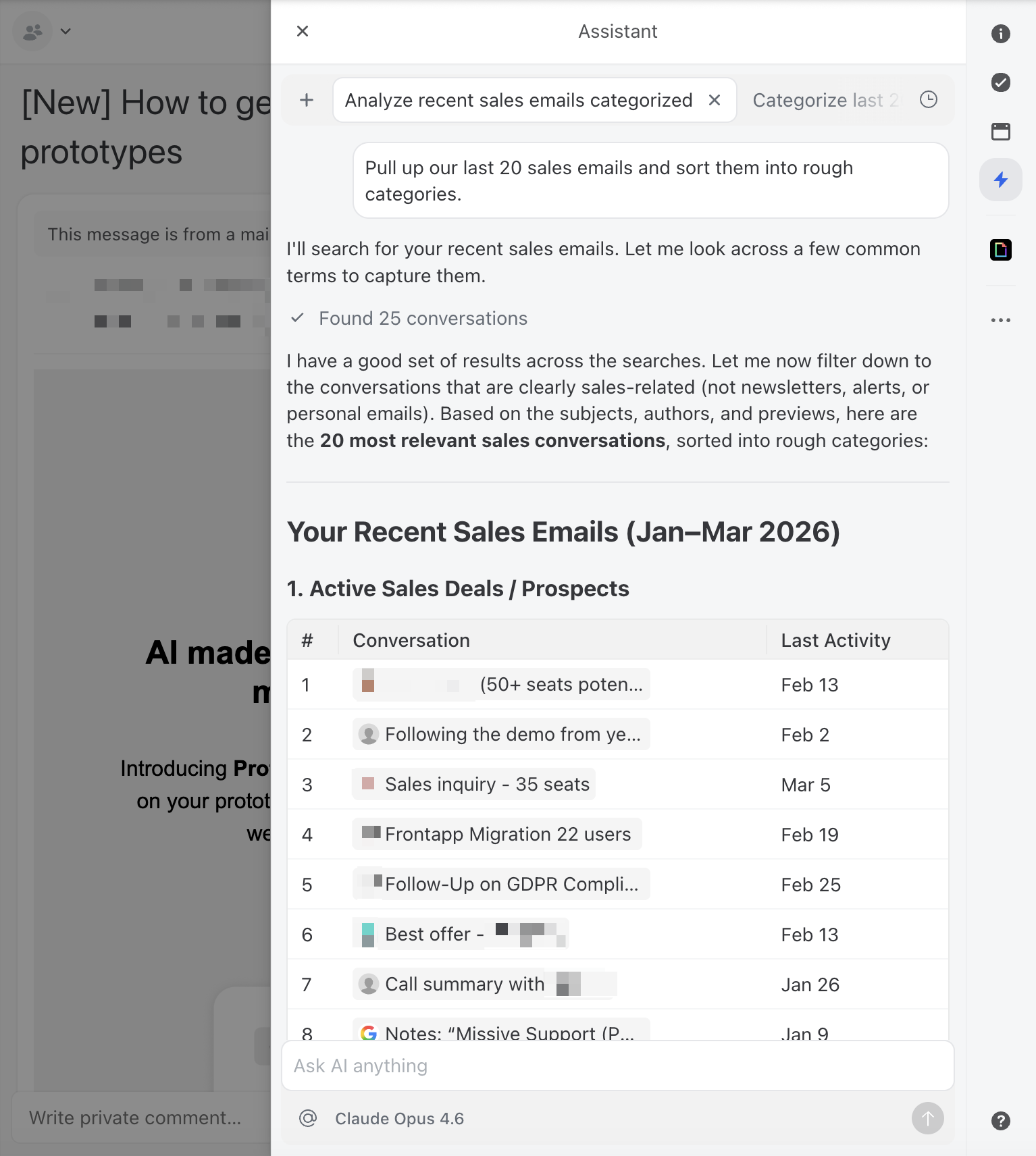
Teaching Claude your voice
Claude is good at writing. The problem is that it’s good at writing like Claude, helpful, slightly formal, and generic. Your customers can tell the difference between a human reply and a default AI reply, and that gap erodes trust fast.
The fix is a set of written instructions that define your communication style. Think of it as a style guide specifically for AI. This doesn’t need to be long, a few clear paragraphs work better than a multi-page document.
A good style instruction covers:
Here’s a practical tip: if you’re not sure how to articulate your style, gather 10 or so of your best customer email replies—the ones where you thought “yes, that’s exactly how we should sound.”
Paste them into a session with Claude and say:
Here are examples of customer emails that represent our ideal tone and style. Can you analyze these and create a style guide I can use as AI instructions?
Claude will pick up on patterns you might not even consciously notice, your sentence length, how you open and close emails, whether you use contractions, how you handle bad news. From there, you go back and forth to refine until it feels right.
In tools like Missive, you can scope AI instructions to specific team inboxes, so your support team gets one set of drafting guidelines and your sales team gets another. This means the AI adapts its voice depending on which inbox the conversation lives in, without anyone having to think about it.
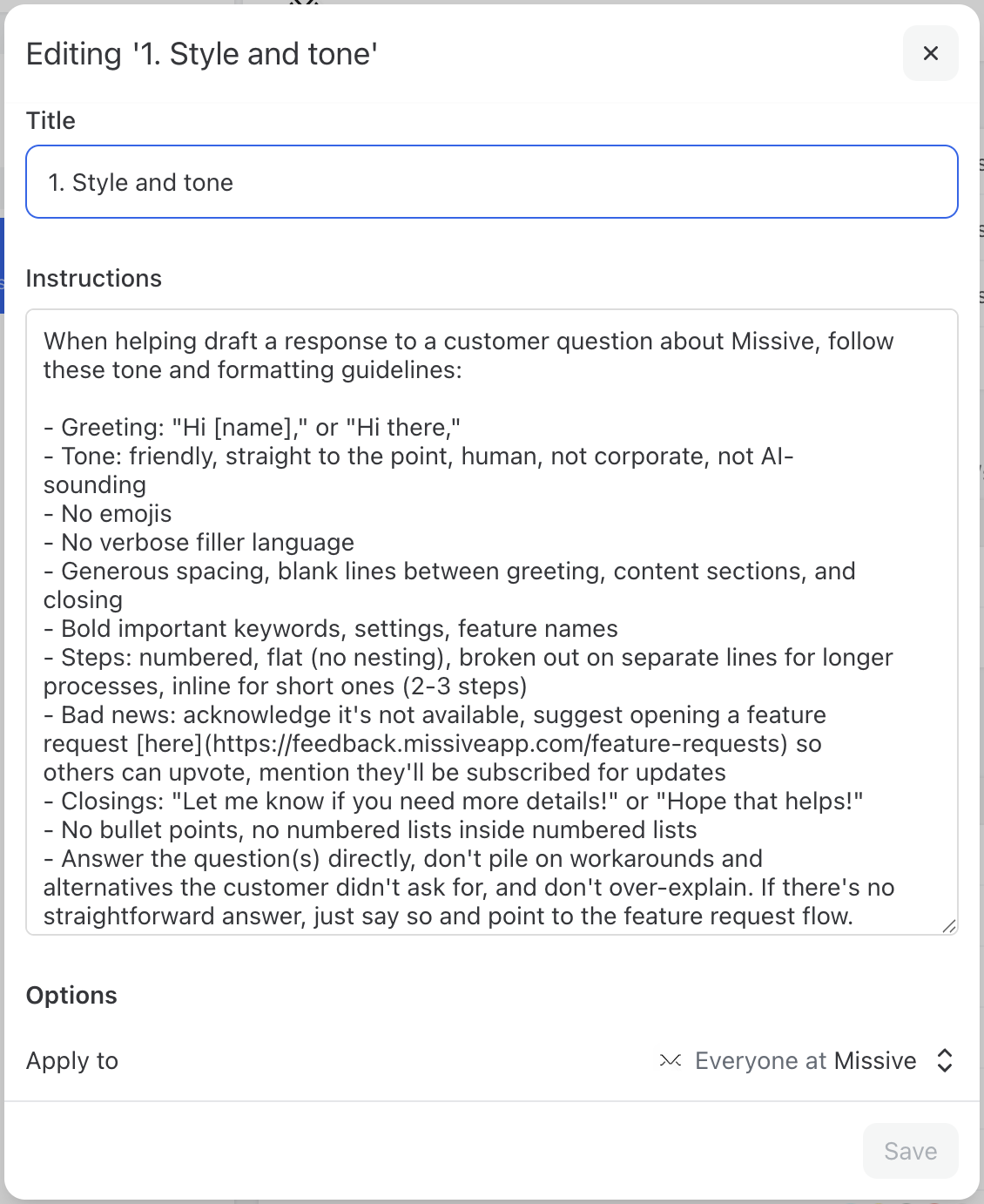
Building prompts that actually work
With your style guide in place, the next step is creating prompt templates for your most common inquiry types. A good prompt has three components: context about your business, the specific task, and constraints on the output.
Here’s a general template you can adapt:
You are a customer support specialist at [Company Name]. We [one sentence about what you do]. The customer has written to us with a question. Draft a reply that: - Directly answers their question using the information below - Matches our company tone (warm, professional, concise) - Includes a specific next step for the customer - Keeps the response under [X] sentences. Relevant information: [Paste your FAQ answer, policy details, or product information here]. If the customer’s question is ambiguous or you’re not confident in the answer, say so clearly rather than guessing. Flag it for human review.
Notice the last line. This is important. Claude is generally good about not fabricating information when explicitly told not to, and that instruction acts as a safety net. You want the AI to surface uncertainty rather than confidently give a wrong answer.
For recurring question types, create dedicated prompts. Here are two examples:
Prompt: Pricing inquiry
A customer is asking about our pricing. Draft a reply using these details: [Your pricing tiers, what’s included, any current promotions]. Be specific about what each tier includes. If they haven’t told us which tier they’re interested in, ask a clarifying question. Don’t volunteer discounts unless they specifically ask.
Prompt: Shipping and delivery
A customer is asking about shipping. Draft a reply using these details: [Your shipping options, typical delivery times by region, tracking process]. If they’ve provided an order number, reference it. If they haven’t, ask for it so we can look up the specific status. Be honest about timelines—don’t promise faster delivery than our standard windows.
Store these prompts somewhere your whole team can access them. Some team inbox tools let you save prompts as reusable one-click actions, this is ideal because it removes the friction of finding and pasting the right prompt every time.

The workflow: how this looks day to day
The goal isn’t to remove humans from the loop. It’s to change the human’s job from writing replies to reviewing them. Here’s what a good AI-assisted email workflow looks like:
- Customer emails in. The message lands in your shared inbox.
- Team member triggers AI draft. They select the appropriate prompt (or type a specific instruction) and Claude generates a draft reply with full conversation context.
- Review and edit. The team member reads the draft, adjusts anything that's off, adds personal touches, and corrects any inaccuracies.
- Send. The response goes out, faster than writing from scratch, more consistent than everyone freestyling.
- Team learns. When a draft needs significant edits, that's a signal to improve the prompt or add information to your instructions.
The review step is non-negotiable, especially early on. Even a well-prompted Claude will occasionally miss context, use slightly wrong terminology, or misjudge the situation. The review step catches these issues before they reach your customer.
This is actually why Missive’s AI assistant only drafts emails, it never sends them automatically. That’s a deliberate design choice, not a limitation. AI is good, but it’s not perfect. It can hallucinate details, misread tone, or confidently answer a question with outdated information. By keeping a human between the AI draft and the send button, you get the speed benefits of AI without the risk of a bad reply landing in a customer’s inbox. Some tools let AI fire off emails unsupervised. We think that’s a mistake, at least for now.
In a team setting, this is where collaborative tools earn their keep. If you’re working in a shared inbox, a teammate can comment on a draft internally “actually, this customer already reached out about this last week, add a note acknowledging that”, before anyone hits send. The AI draft becomes a starting point for collaboration, not a black box.
.png)
What this looks like in Missive
To make this less abstract, here’s how this workflow plays out in practice using Missive’s AI assistant with Claude.
Say a customer emails your shared inbox asking whether your product integrates with their project management tool, and whether that’s included in their current plan. It’s the kind of question your team gets several times a week—not complex, but it requires pulling together information from a couple of different places.
In Missive, a team member opens the conversation and launches the AI assistant in the sidebar. The assistant already has the full conversation context, not just the latest email, but any previous messages in the thread and any internal chat your team has had about this customer. It can also look up contact details to add context about who you’re emailing.
The team member selects a saved prompt like “answer product question” and the assistant drafts a reply. Because you’ve set up team-wide style instructions, the draft automatically matches your tone. Because you’ve built a prompt that includes your integration details and plan breakdowns, the response is specific and accurate.
The team member scans it, tweaks one line, and sends, total time maybe 30 seconds instead of five minutes of digging through docs.
Now here’s where it gets more interesting. Missive is rolling out support for MCP (Model Context Protocol), which means the AI assistant will be able to connect directly to your external knowledge sources—your Google Docs, product database, CRM, help center, or any other tool that supports MCP. Instead of pasting product details into your prompts manually, the assistant will pull that information on its own when it needs it.
For the integration question above, that means the AI wouldn’t just rely on what you’ve written in the prompt template or even what's in your inbox. It could check your documentation, cross-reference the customer’s plan in your CRM, and draft a response that’s accurate to what’s true right now, not what was true when you last updated the prompt.
The human still reviews and sends, but the draft requires less editing because the context is richer.
This is the trajectory: start with saved prompts, style instructions, and inbox context today, and as MCP rolls out, progressively connect more of your tools to have a meaningfully helpful AI agent.
Connecting Claude to your knowledge
The prompts above work when you paste relevant information directly into them. But the real unlock is when Claude can access your knowledge base automatically—your FAQ documents, product guides, policy pages, and past conversations.
There are a few ways to approach this, depending on your technical setup:
- Manual context: Copy and paste relevant docs into your prompt or AI sidebar. Low effort, surprisingly effective for small teams. Thisis where most teams should start.
- Connected documents: Some tools let you link Google Docs, PDFs, or other files so the AI can reference them when drafting. This isthe sweet spot for teams that have their knowledge organized butdon't want to build custom integrations.
- API and MCP integrations: For teams with developers on staff, the Model Context Protocol (MCP) allows Claude to pull from externaldata sources — your CRM, helpdesk, internal wiki, or even a vectordatabase like Pinecone — in real time. This is the path toward the"90–95% accurate AI rep" that requires minimal human editing.
Start with manual context. Get comfortable with the quality of Claude’s output. Then move toward connected docs or MCP as your volume and confidence grow. The mistake is over engineering the integration before you’ve validated that the prompts and instructions produce good results.
Where to keep a human in the loop
Not every customer email should get the same level of AI autonomy. For routine inquiries, a quick scan of the draft before hitting send is usually enough. But some situations deserve more careful human review, and knowing where to draw that line is what separates teams that use AI well from teams that damage customer relationships with it.
Give these extra attention before sending:
- Angry or escalated customers. AI can still draft a starting point here, but a frustrated customer can tell when they're getting a generic response. Have someone read the draft carefully, add genuine empathy, and adjust the tone before it goes out. That said, AI can also playa role in routing, tools like Missive let you set up AI rules that detect frustrated or escalated language and automatically assign the conversation to a manager or senior team member, so nothing slips through the cracks.
.png)
- Complex or ambiguous situations. If the email requires judgment—interpreting a contract, making an exception to policy, handling a sensitive personal situation—AI can help you organize your thoughts or pull together relevant context, but a human should write or heavily edit the final response.
- High-value relationships. Your biggest clients or most important partners deserve extra care. AI can help you research and prepare a draft, but give it a thorough personal edit before sending.
- Anything involving legal, medical, or financial advice. Claude is not qualified to give professional advice, and neither is anAI-generated email that sounds like it is.
A practical rule of thumb: if you’d hesitate to send the email without reading it twice, that’s a sign the AI draft needs more than a quick glance before it goes out.
Getting your team on board
Rolling out AI-assisted email to a team is as much a people challenge as a technical one. Here’s what works:
- Start with one person. Pick the team member who's most comfortable with AI (or most overwhelmed by email volume) and have them pilot the workflow for a week. Collect their feedback beforerolling out to everyone.
- Show, don't mandate. Demo a real example: "here's an email that took me 8 minutes to write, and here's Claude drafting a comparableresponse in 15 seconds." Time savings are visceral.
- Make the prompts accessible. If people have to remember prompt syntax or go find a document, they won't use it. One-click promptsin a shared library eliminate friction.
- Create a feedback loop. When someone edits an AI draft significantly, capture what they changed and why. Use that to improve your prompts and instructions. This is how the system gets better over time.
Measuring whether it’s working
Don’t just assume AI is helping, measure it. The metrics that matter:
- Response time: Are you replying faster? This is usually the first and most dramatic improvement.
- Draft acceptance rate: What percentage of AI drafts get sent with minimal edits? If you're rewriting most drafts, your prompts orinstructions need work.
- Customer satisfaction: Are your CSAT scores or reply quality holding steady (or improving)? AI should raise the floor of response quality, not lower the ceiling.
- Volume handled per person: Can each team member handle more conversations per day without burning out?
Check these monthly. The first week will be rocky as you refine prompts and learn what Claude handles well. By week three or four, you should see a clear pattern of which inquiry types Claude nails and which still need heavy human involvement.
Most teams see the biggest gains in response time—cutting average reply time from hours to minutes on routine inquiries. Draft acceptance rate is the metric to watch over time: if 70–80% of AI drafts are going out with only minor tweaks, your prompts and instructions are in good shape.
Frequently asked questions
Can Claude send emails automatically, or only draft them?
In most setups, Claude drafts responses that a human reviews before sending. Fully automated sending is technically possible through API integrations, but we’d strongly recommend against it for customer-facing email, at least until you’ve validated accuracy over hundreds of drafts and have solid error handling in place.
Which Claude model should I use for customer emails?
It depends on the task. Claude offers three model tiers, and each has a sweet spot:
- Claude Haiku: fastest/cheapest, good for categorization, translation, quick replies
- Claude Sonnet: best all-around for daily email drafting, balances speed/cost/quality
- Claude Opus: most capable, best for complex multi-part replies and sensitive comms
How do I teach Claude my company’s tone of voice?
Write a style instruction document (see the “Teaching Claude your voice” section above). The key is being specific about what you don’t want as much as what you do. “Don’t use exclamation points” is more useful than “be professional.” Feed this into your AI tool’s instruction settings so it applies to every interaction.
Is it safe to use Claude for emails containing customer data?
This depends on your AI provider setup. When you connect Claude through an API key, requests go through Anthropic’s infrastructure. Review Anthropic’s data retention and privacy policies, they offer options for zero data retention on API calls. If you’re in a regulated industry, check with your compliance team before sending customer PII through any AI service.
What types of customer emails should I NOT use Claude for?
Escalations, complaints, legal or compliance-sensitive matters, and high-value relationship management. As a rule: if the email requires judgment, empathy, or carries significant risk if handled poorly, keep it human. Use AI for the predictable, repeatable inquiries that eat up your team’s time.

March 3, 2026
How to Implement a Support Live Chat in a Small Company
A practical guide to adding live chat to your small business without overwhelming your team. Learn how to start small, set expectations, share the workload, and pick the right tool.
Customers needing support prefer live chat over other methods of communication. It's got the personalized feel of a phone call and the accuracy of an email. And consumers are more likely to buy from a company that offers live chat support.
But if you're running a small business, the idea of adding live chat can feel daunting. Will it generate a lot of extra work? More demanding customers? Will it pull focus from the other aspects of the company? These are real concerns—but with a proper deployment strategy, live chat can be a powerful channel that's highly scalable, even for a team of three or four people.
Here's how to implement it successfully without burning out your team.
Key Takeaways
- Start Small: Implement live chat on high-intent pages first (like pricing or checkout) before rolling it out site-wide.
- Set Realistic Expectations: Clearly define and display your availability hours so customers know when to expect a live response versus an email follow-up.
- Share the Load: Use tools that let you rotate chat duties across your team—even among non-support staff—so no one person carries it alone.
- Leverage Collaboration: Choose a live chat solution that integrates with your team inbox so chat, email, and SMS all live in one place.
- Use Canned Responses: Prepare templates for common questions to keep response times fast without sacrificing quality.
1. Roll It Out to a Few Select Pages First
Instead of adding the live chat bubble to all pages at once and risking getting swamped with requests, start with a selection of the pages where customers struggle the most or where real-time help drives the most value. Consider this:
- If possible, offer live chat to paying customers only.
- For a sales-oriented live chat, display it only on your pricing page.
- For a technical-oriented live chat, display it in your documentation guides.
This phased approach lets you learn how chat volume actually looks before committing to full coverage. You might find that two or three pages generate a manageable flow of conversations—and that's all you need to start.
2. Set Expectations and Fulfill Them
Don't start by offering 24/7 support. Your team will suffer and customers will be disappointed. It's better to start offering live chat during your business hours.
A good tip is to only show the chat bubble when someone from the team is online and available to respond. If you stick to this strategy, customers will be happy because they know that if they can access the chat, they'll get help promptly.
When I use a company's live chat that says "We respond within 2 or 3 hours," I immediately feel disappointed. There's nothing wrong with not being able to offer instant support, but if that's the case, ask people to email you instead. A live chat should be… live.
For after-hours inquiries, set up an auto-reply that acknowledges the message and lets the customer know when they can expect a response: "Thanks for reaching out! Our team is available Monday–Friday, 9am–5pm EST. We'll get back to you first thing tomorrow." This is far better than silence.
3. Share the Workload
In a small company, I'm a firm believer in sharing the support workload among all coworkers. It's a great way to have direct contact with customers, take in observations, and make the product or service better.
Even if it's just a few hours per week, you can get more valuable feedback from exchanging words with a customer than spending hours going through analytics or metrics.
A practical approach: create a simple rotation schedule. Maybe two people are "on chat" in the morning and two different people in the afternoon. In Missive, you can use Team Inbox assignments to make this seamless—incoming chats get routed to whoever is on duty, and if they need help, they can @mention a teammate right inside the conversation without the customer seeing.
It's also a good idea to pass a customer's case between coworkers as seamlessly as possible. This might be due to a shift ending or someone requiring other areas of expertise.
4. Prepare as Much as Possible
Chances are you already know which questions are asked the most. Maybe you already have an FAQ section on your website. Either way, you should set up templates of these answers so you can send them quickly.
This way you avoid losing time and can focus your attention on more complex queries or other sales efforts.
Also, try to send links to help articles as much as possible. If you don't have a knowledge base, build one as early as possible. It's one of the best investments you can make, support-wise. Even a simple FAQ page can deflect a significant number of repetitive questions and keep your chat queue manageable.
5. Be Cordial and Transparent
This might sound obvious, but doing customer support is not always easy. Always greet people, be agreeable, and show that you want to help.
If you don't have the answer to a question, simply say that you will follow up by email. The same applies if you need time to fix a problem—it's best not to keep the customer waiting in a chat window. A quick "Let me look into this and email you within the hour" is far better than ten minutes of silence.
Small teams have a genuine advantage here: customers can tell when they're talking to someone who actually knows the product. That personal touch is hard for larger companies to replicate, so lean into it.
To learn more about delivering stellar customer support, read this post.
6. Use the Right Tool
Live chat tools abound. If you're deploying an omnichannel strategy, look for a tool that centralizes all your communications into a single place—email, live chat, SMS, and more—so you're not adding yet another silo to manage. Missive is one of those tools.

We offer a live chat solution that is well suited for small companies looking to get started with live support. You can add schedules, create automatic responses, send preloaded responses, share the workload automatically, and more. And if you have fewer than 200 active chats per month, it's free.
Missive Chat can be added to any webpage. If you're using a CMS or ecommerce builder, check out our guides to set up live chat on them:
- How to add live chat to WordPress
- How to add live chat to Shopify
- How to add live chat to Squarespace
How to Automate Without Losing the Human Touch
Automation is your friend when you're a small team—but only if it doesn't make your customers feel like they're talking to a robot. Here's how to strike the right balance:
- Auto-routing: Use rules to automatically assign incoming chats to the team member who's on duty, or round-robin across your team. In Missive, you can set this up so chats go to the right person without manual triage.
- Schedules: Configure your chat widget to only appear during your team's working hours. Outside those hours, visitors see a contact form instead—their message becomes an email you can respond to the next business day.
- Canned responses for the first touch: An automatic greeting like "Hi! How can we help?" is fine. But after that, keep it human. Use canned responses to speed up answers to common questions, but personalize them before hitting send.
- Chat-to-email handoff: If a conversation requires more time or research, Missive makes it easy to continue the conversation over email. The customer gets a follow-up in their inbox, and your team doesn't feel pressured to resolve everything in real time.
What to Do When Things Go Wrong
Even with a great setup, things don't always go smoothly. Here's how to handle common issues:
- An angry customer in chat. Stay calm, acknowledge their frustration ("I understand this is frustrating"), and offer a concrete next step. If the conversation is going in circles, offer to follow up by email where you can take more time to resolve the issue properly.
- Nobody is available to respond. This is why schedules matter. If everyone gets pulled into a meeting, your chat widget should automatically go offline and show a contact form. Better to be offline than to leave someone waiting.
- A question you can't answer. Don't fake it. Say "Let me check with our team and get back to you by email within [timeframe]." Then actually follow through. Customers respect honesty far more than a wrong answer delivered quickly.
- Chat volume spikes unexpectedly. If you launch a promotion or get featured somewhere and chat volume jumps, temporarily restrict chat to fewer pages or paying customers only. Scale back up once you've got the capacity.
Frequently Asked Questions
What are the disadvantages of live chat for small businesses?
The main risk is overcommitting. If you offer live chat across your entire site with no schedule or staffing plan, it can create more pressure than your team can handle—leading to slow responses, frustrated customers, and burnout. The fix is simple: start with limited hours on specific pages, and expand only when you're comfortable with the volume. It's also worth noting that not every business needs live chat. If you get fewer than five customer inquiries per day, email support may be more practical.
How many chats can one person realistically handle per day?
It depends on complexity, but a reasonable benchmark for a small team member who also has other responsibilities is 10–20 chat conversations during a 4-hour shift. Simple questions (pricing, hours, shipping) take 2–3 minutes each. Technical or account-specific issues can take 10–15 minutes. If you're consistently hitting the upper end, it's time to add another person to the rotation or expand your knowledge base to deflect common questions.
Do I need live chat if I already have email support?
They serve different purposes. Email is great for detailed, non-urgent requests. Live chat is for moments when a customer needs a quick answer right now—like when they're on your pricing page deciding whether to buy, or when they're stuck in the middle of a task. The two channels complement each other, and with a tool like Missive, both land in the same team inbox so your team manages them in one place without context switching.
Can I use live chat without being online 24/7?
Absolutely—and you should. Most small businesses run live chat during business hours only. The key is being transparent about it: display your hours clearly, use schedules to show/hide the chat widget automatically, and set up auto-replies for after-hours messages so customers know when to expect a response. A well-managed 8-hour chat window is far better than a 24/7 promise you can't keep.

March 3, 2026
What is an SMS Shared Inbox?
An SMS shared inbox lets multiple team members view, manage, and respond to text messages from a single phone number. Learn how it works and how to set one up.
You know the feeling—one phone, 50 customer texts, and no idea who on your team already responded to what. Maybe you've been forwarding screenshots of text conversations to coworkers, or worse, discovering that two people replied to the same customer with different answers.
For service businesses, sales teams, and support operations, SMS is one of the most effective ways to communicate with customers. Text messages have open rates north of 90%, most are read within minutes, and customers increasingly prefer texting over calling or emailing. But as your team and message volume grow, managing business texts from a single phone or personal device quickly turns into chaos.
That's where an SMS shared inbox comes in.
Key Takeaways
- Definition: An SMS shared inbox is a centralized platform where multiple team members can view, manage, and respond to text messages from a single phone number.
- Enhanced Collaboration: Teams can use internal comments and assignments to coordinate responses without the customer seeing the internal dialogue.
- Increased Accountability: Every action is logged, showing exactly which team member handled a specific message and when.
- Unified Communication: It integrates SMS into the same workflow as email and team chat, reducing tool switching.
What Is an SMS Shared Inbox?
An SMS inbox is like an email inbox. It's a place where texts from one or multiple phone numbers are received, stored, and managed. An SMS shared inbox adds a layer of collaboration to the inbox concept. This means SMS from a single number can be seen and assigned to multiple people who access them from their own devices with their own accounts.
Think of it this way: if a shared email inbox lets your whole team manage support@company.com together, an SMS shared inbox does the same thing for your business phone number. Everyone on the team can see incoming texts, claim conversations, collaborate internally, and respond—all without the customer knowing multiple people are involved.

Signs You Need an SMS Shared Inbox
Not sure if this is for you? If any of these sound familiar, it probably is:
- One person is the SMS bottleneck. All business texts go to a single phone, and when that person is out, texts go unanswered.
- You have no visibility into text conversations. Managers can't see what's being said to customers or how quickly the team is responding.
- Multiple people have replied to the same customer. Without clear ownership, duplicate or conflicting responses happen.
- Text history disappears when someone leaves. Conversations live on a personal device, and when that person moves on, the context goes with them.
- Customers complain about slow responses. SMS carries higher urgency expectations than email—people expect a reply within minutes, not hours.
- Your team forwards screenshots of texts. If this is how you share SMS context internally, you've outgrown your current setup.
- SMS is yet another tool in the stack. You're already managing email, WhatsApp, and chat in separate apps. Adding SMS to another silo makes things worse.
Personal SMS vs. SMS Shared Inbox
Here's how managing business texts from a personal phone compares to using an SMS shared inbox:
How Missive Handles SMS Shared Inboxes
Missive is a team inbox and chat app that brings all your communication channels—email, SMS, Instagram DMs, WhatsApp, and more—into a single collaborative workspace. Your SMS conversations sit right next to email and WhatsApp, so your team doesn't need to switch between apps.
One of the best features is the ability to collaborate inside SMS conversations. If a customer sends a text message and you don't know how to respond, you can @mention another team member directly in the thread to get their input before replying. The customer never sees the internal discussion.

You can also create team inboxes and assign certain SMS to specialized teams. Maybe a customer has a sales question—you can assign it to the Sales team manually or through automated rules. Missive's rules can also auto-assign incoming SMS to the right person, send canned responses, and track SLAs—same as your email workflows.

And for those questions that come through every day, multiple times per day? With Missive's canned responses, you can reply to popular SMS questions in seconds.

Pro tip: Use the shortcut Shift + Command + O to quickly open the responses popup.
Setting Up Your SMS Shared Inbox
To use SMS in Missive, you'll connect an SMS provider that handles the phone number and carrier relationship. Missive currently supports three providers: Twilio, Dialpad, and SignalWire. Here's how to set up each one.
Twilio
Step 1
Create a free Twilio account and buy a Twilio phone number.
Twilio's Console site allows users to quickly search for and provision phone numbers for your company. You can filter phone numbers based on location, phone number type, capabilities, and more from their Console.
Here's an in-depth guide to the phone number purchasing process. Or, if you prefer, you can also do a third-party phone number porting to Twilio.
You will be able to consult your number(s) in the Phone Numbers option under the Super Network category, which can be accessed by clicking on the sidebar's 3-dotted button.
Step 2
In the Twilio console, go to your dashboard and copy these two critical numbers: the Account SID and the Auth Token.

Step 3
Open Missive and go to Accounts > Add Account > SMS powered by Twilio

Select whether this SMS account will be shared with a team, like the Support team or if it will be a personal one.

Enter the Account SID, the Auth Token, and your Twilio Phone Number.

Step 4
Start engaging with customers via texts!

Dialpad
Step 1
In Missive, open your settings, click Integrations > Add integration > Dialpad then follow the instructions.
Step 2
Configure the Dialpad SMS inbox and Dialpad call logs by opening your settings, Accounts > Add account > Dialpad then follow the instructions.
SignalWire SMS
Step 1
Create a SignalWire account and get a SignalWire phone number.
Step 2
In your SignalWire dashboard copy these fields Project ID, Space Url and API Token, plus your phone number.

Step 3
Open Missive and go to Accounts > Add Account > SMS powered by SignalWire
Select whether this SMS account will be shared with a team, like the Support team or if it will be a personal one.
Enter the Space URL, the Project ID, the API token, and your SignalWire Phone Number.

SMS Shared Inbox Best Practices
Once you're set up, these practices will help your team get the most out of SMS:
- Set response time expectations. SMS carries more urgency than email. Aim to respond within 5–15 minutes during business hours, and set up SLA rules in Missive to flag conversations that are close to breaching.
- Create SMS-specific canned responses. Texts should be shorter and more conversational than email templates. Write canned responses that feel natural for texting—brief, friendly, and to the point.
- Use assignments religiously. Every incoming SMS should have a clear owner. Use Missive's rules to auto-assign based on keywords, phone number, or round-robin distribution.
- Keep internal discussion in the thread. Instead of switching to Slack or walking over to a colleague's desk, use Missive's internal comments directly on the SMS conversation. The context stays where the conversation lives.
- Don't treat SMS like email. Texts should be concise. If a response requires multiple paragraphs, it's probably better handled over email—and Missive makes it easy to switch channels within the same conversation.
Frequently Asked Questions
Can customers tell that multiple team members have access to our SMS number?
No. From the customer's perspective, they're texting a single phone number and having a normal conversation. All internal collaboration—comments, assignments, mentions—happens behind the scenes. The customer only sees the replies your team sends.
Does an SMS shared inbox work with my existing business phone number?
In most cases, yes. If you're using Twilio or SignalWire, you can port your existing business number to their platform and then connect it to Missive. If you're using Dialpad, your Dialpad number connects directly through the integration.
What's the difference between an SMS shared inbox and group texting apps?
Group texting apps (like group iMessage or WhatsApp groups) create a single conversation where everyone sees every message. An SMS shared inbox is different—customers text your business number individually, and your team collaborates internally on how to respond. The customer never sees other team members or internal discussions.
Can I use an SMS shared inbox for both support and marketing messages?
Yes, but with an important caveat. For support (incoming customer questions, order updates, scheduling), an SMS shared inbox works perfectly. For marketing blasts to large lists, you'll likely need a dedicated SMS marketing tool. However, for personalized outreach—like a sales follow-up or a check-in after a service call—Missive handles that well.

March 3, 2026
The Benefits of a Shared Inbox: Why One Inbox Is Better
Discover why consolidating into a single shared inbox improves team collaboration, accountability, and customer service—and how it compares to distribution lists, password sharing, and ticketing systems.
Email was built for individuals, but your business runs on teams. That tension is the root of most inbox chaos: important customer emails buried in someone's personal inbox, two people replying to the same message with different answers, and the constant "Did you see that email?" Slack messages that waste everyone's time.
If you've tried forwarding shared aliases to everyone's personal inbox, sharing login credentials, or setting up distribution lists, you know these workarounds create more problems than they solve. There's a better approach: consolidating your team's communication into a single shared inbox.
Let's explore what a shared inbox actually is, why having one inbox beats having many, and how to get started.
Key Takeaways
- Centralized Communication: Consolidate emails, SMS, and social media into one stream to eliminate context switching and missed messages.
- Enhanced Transparency: Provide team-wide visibility into conversations so no message is overlooked and coverage continues when someone is out.
- Improved Collaboration: Use internal comments and shared drafts to resolve customer issues faster without forwarding chains.
- Accountability: Assign specific conversations to team members to clarify ownership and prevent duplicate replies.
- Scalability: Streamline workflows with rules, labels, and automation to handle higher message volumes without increasing headcount.
What Is a Shared Inbox?
A shared inbox is an inbox that multiple team members can access to collaborate on shared email addresses—like support@company.com or sales@company.com—using their own individual accounts. Everyone logs in as themselves, but they all see the same incoming messages.
In most shared inbox software, you can assign emails to different team members, add internal comments to messages, see who's already working on a reply, and keep track of which emails have been handled or still need a response.
Unlike sharing a password to a single Gmail account (a common but risky workaround), a shared inbox gives each person their own login, their own identity, and clear visibility into who's doing what. And unlike a distribution list that just forwards copies to everyone, a shared inbox is a collaborative workspace where the team manages conversations together.
What Are the Advantages of Having Only One Inbox?
Having just one inbox for all your team's emails comes with meaningful benefits. Here are the ones that make the biggest difference day-to-day.
Centralized Communication (No More Forwarding Chaos)
Having one unified shared inbox makes it easy to manage and respond to all incoming emails by grouping them in one centralized tool. This can include your personal emails and the shared aliases of your business.

No more checking three different inboxes, forwarding emails with "FYI" and hoping someone acts on them, or digging through endless email chains to find that one message you know exists but can't locate. With a shared inbox, everything is organized in one place. Your team can collaborate and communicate without constant back-and-forth between apps, and since everyone has access to the same messages, prioritizing tasks and responding to urgent requests becomes straightforward.
Clear Ownership and Accountability
When everyone has access to the same inbox, it's easy to see which emails have been handled and which still need attention. Conversations can be assigned to specific team members, so there's never ambiguity about who's responsible for what.

Here's what this looks like in practice: a client emails with questions about a project. Instead of forwarding that email to your team and hoping someone responds, everyone can see it in the shared inbox along with who's been assigned to handle it. No confusion, no duplicate replies, no "I thought someone else was on it" moments. This kind of transparency also helps when someone is on vacation or out sick—any teammate can pick up where they left off because the full conversation history is right there.
An important distinction: visibility doesn't mean surveillance. A shared inbox creates transparency that everyone benefits from—it's about making sure nothing falls through the cracks, not about micromanaging how people work.
Better Collaboration Without Leaving Email
With a shared inbox, team members can discuss a customer email internally—adding comments, sharing context, or drafting a reply together—without leaving the conversation. There's no need to forward the email to a Slack channel, walk over to a colleague's desk, or start a separate email thread to figure out the right response.

In Missive, for example, you can @mention a teammate directly inside an email thread to get their input before replying. The customer never sees the internal discussion. This keeps the context where it belongs—right alongside the conversation—instead of scattered across multiple tools.
Improved Customer Experience
When customer inquiries are spread across individual inboxes, important messages inevitably slip through the cracks. A shared inbox centralizes all customer communication so the entire team can see what's coming in, who's handling it, and whether anything has been missed.
The result: faster response times, more consistent answers, and no more situations where a customer has to repeat themselves because the person who originally handled their case isn't available. Your team might also field questions across email, SMS, and social media—tools like Missive bring all those channels into one view, so the experience feels seamless for both your team and your customers.
Easier Onboarding for New Team Members
When a new hire joins the team, a shared inbox gives them instant access to the full history of customer conversations, internal discussions, and team workflows. They can see how experienced team members handle complex queries, learn the team's communication style, and get up to speed without needing someone to forward them a stack of old emails.
This is a significant advantage over personal inboxes, where institutional knowledge gets siloed inside individual accounts and walks out the door when someone leaves.
Scales With Your Team
As your company grows, a shared inbox becomes more valuable, not less. When the team was three people, everyone naturally knew what everyone else was working on. At 15 or 30 people, that visibility disappears—unless you have a system that maintains it.
With a shared inbox, you can create separate team inboxes for different departments, use rules to automatically route messages, and balance workload across a growing team. The structure scales with you instead of breaking under the weight of more people and more messages.
How Is a Shared Inbox Different from Alternatives?
If you're currently using distribution lists, sharing passwords, or considering a help desk ticketing system, here's how a shared inbox compares:
| Feature | Personal Inbox | Distribution List | Shared Inbox |
|---|---|---|---|
| Visibility | Private / siloed | Fragmented copies | Unified and transparent |
| Collaboration | None | Limited (reply-all) | Internal comments, shared drafts |
| Accountability | Unclear ownership | Unclear ownership | Assignments with status tracking |
| Security | Individual credentials | Individual credentials | Individual logins, role-based access |
| Scalability | Breaks as team grows | Creates clutter at scale | Rules, routing, and team structure |
Distribution lists simply forward a copy of every email to everyone's personal inbox. This means no shared view, no way to know who's handling what, and a lot of clutter. They're fine for one-way announcements, but they don't support collaboration.
Password sharing (logging into the same Gmail or Outlook account) gives a shared view but creates serious security risks—you can't tell who sent what, there's no audit trail, and one person changing the password locks everyone out.
Ticketing systems solve the accountability problem but can feel heavy for teams that primarily communicate over email. If your workflow is email-first and you want collaboration without turning every conversation into a numbered ticket, a shared inbox is the better fit.
When a Shared Inbox Might Not Be Right
To be upfront: a shared inbox isn't the answer for every situation. If your team only sends one-way announcements and doesn't need to collaborate on replies, a distribution list works fine. If you're handling thousands of support tickets per day with complex SLA requirements and multi-tier escalation, a dedicated help desk might serve you better.
A shared inbox is ideal when your team needs to collaborate on incoming messages—responding to customers, managing shared aliases, coordinating internally—and you want to do it without leaving email or adopting a rigid ticketing system.
How to Get Started with a Shared Inbox
Getting started is simpler than you might think. With a tool like Missive, you can invite your team, connect your email accounts, and start collaborating in minutes—no complex migration required.
A few tips to set yourself up for success: define who needs access to which inboxes, establish clear guidelines for how emails should be assigned and categorized, and check out our shared inbox best practices to make the most of your setup.
As your team grows, you can add rules to automatically route messages, create team-specific inboxes for different departments, and use labels to keep everything organized.
Explore Missive
💾 Download Missive for free👀 Book a demo
✍️ Explore our customers' stories
💲 View pricing
Frequently Asked Questions
What's the difference between a shared inbox and a distribution list?
A distribution list forwards a copy of every incoming email to each member's personal inbox. Everyone gets the message, but there's no shared view, no way to assign ownership, and no way to know if someone already replied. A shared inbox, by contrast, is a single collaborative workspace where the team manages conversations together—with assignments, internal comments, and full visibility into who's handling what.
Can I keep my personal inbox separate from the shared inbox?
Yes. In tools like Missive, your personal email and shared team inboxes live side by side but remain separate. You can see and manage both from the same app without your personal messages mixing into the shared workspace. Team members only see conversations in the inboxes they've been given access to.
What are the downsides of using a shared inbox?
The main challenge is that a shared inbox requires some upfront setup and team agreement on how to use it—who handles what, how to label conversations, and when to assign vs. claim. Without clear guidelines, you can end up with a messy inbox that's hard to navigate. It also may not be the right fit if your team doesn't need to collaborate on replies (for one-way announcements, a distribution list is simpler) or if you need the structured escalation workflows of a dedicated help desk.
Do shared inboxes work with Gmail and Outlook?
Yes. Most shared inbox tools, including Missive, connect to Gmail, Outlook, and any IMAP-compatible email provider. You don't need to switch email providers—you connect your existing accounts, and the shared inbox layer adds collaboration features on top.
How is a shared inbox different from just sharing a password?
Sharing a password to a single email account (like logging into the same Gmail) gives a shared view, but it comes with serious problems: no way to tell who sent which reply, no audit trail, security risks if someone changes the password, and potential violations of your email provider's terms of service. A shared inbox gives each team member their own login and identity while providing the same shared access—with the added benefits of assignments, internal comments, and role-based permissions.