
January 30, 2026
How to manage multiple email accounts: A practical guide
Struggling to manage multiple email accounts? Learn the best strategies and tools to consolidate your inboxes, automate workflows, and collaborate effectively.
How to manage multiple email accounts: A practical guide
If your email inbox feels cluttered, you're not alone. The average office worker receives on average 304 business emails a week. Now add your personal Gmail accounts, a side-hustle address, and a few shared Outlook inboxes, and you have a recipe for missed messages and constant tab-switching.
But it doesn't have to be that way. The answer isn't just to dump all your emails into one giant Outlook folder. It's about building a smarter, more collaborative system for your whole team. In this guide, we'll walk through common methods for managing inboxes, cover essential features for teams, and explore a few tools to help you succeed.
What does it mean to manage multiple email accounts?
Managing a bunch of email accounts is more than just keeping a dozen tabs open for Gmail and Outlook. It’s about creating a single, intelligent system that helps your team instead of getting in their way.
When done right, you’re really aiming for a few things:
- Consolidation: This is the big one. It means pulling all your messages from different accounts into one unified view. No more jumping between Gmail or Outlook accounts to see what’s new.
- Organization: This is all about keeping things tidy without spending hours on manual sorting. You want smart labels, filters, and automations that organize messages for you, so you can focus on important tasks.
- Efficiency: The main goal here is to cut down on the time wasted checking different channels. A good system brings everything, from emails to social media DMs, into one spot.
- Collaboration: For teams, this is non-negotiable. It’s about handling shared inboxes like support@ or sales@ without the usual chaos. You need to know who’s working on what, prevent duplicate replies, and make sure no customer is ignored.
A good approach turns email from a reactive chore into an organized, proactive part of your team's workflow. This helpful infographic breaks down the four pillars of effective email management.
Common approaches to managing multiple email accounts and their limitations
People have tried a few classic email management methods to solve the multiple-inbox problem. They might seem like a good idea at first, but they often cause new problems, especially for a team.
Manual approach: Forwarding and aliases
This is usually the first email management tactic that people try. You set up a rule in your personal Gmail accounts (or Outlook) to forward everything to your main work inbox. Or maybe you use an alias, so different email addresses all lead to the same place.
While this works for simple cases, it can create organizational challenges.
Limitations:
- The main inbox can become cluttered, making it difficult to locate important messages.
- Replying from the correct address can be challenging.
- This method does not provide visibility for shared team inboxes. How do you know if your colleague already replied to that support@ email? You don't.
- You miss out on features a business tool offers, like assigning tasks, leaving private notes, or tracking conversations.
Using built-in client features
Most email providers like Gmail and Outlook let you add other accounts right into their app. It feels like an improvement because you can see everything in one place.
But these features were built for individuals, not for teams trying to collaborate on shared Outlook accounts like sales@ or info@.
Limitations:
- The user experience can be inconsistent across devices. Some features might only work on the desktop app, while others are mobile-only.
- They are built for one thing: email. If your team also handles customer questions through SMS, WhatsApp, or Instagram, you're still stuck switching between a bunch of different apps.
- Collaboration often relies on email forwards and CC chains, which can be inefficient. There’s no clean way to assign an email, ask a teammate a quick question about it, or see who’s working on what.
Adopting a dedicated email client
This is where things get a bit more serious. A dedicated email client is an app built to help you manage multiple accounts in a unified inbox. They’re often faster and have better organizational tools than web interfaces.
It's a definite step up, but not all email clients are the same. Many are still designed for individual users who just want to organize their personal inboxes (think Outlook or Gmail). They often lack the collaborative and automation features that a growing business needs to manage communication across the whole team.
Key features for managing multiple team email accounts
For a business, just seeing all your emails in one list isn't enough. You need a tool that helps your team be more productive, work together smoothly, and keep your data secure. Here’s what to look for.
Unified inbox for all channels
A unified inbox should bring all your messages into a single stream. A great one doesn't stop at email. Today's communication happens everywhere, across multiple accounts, so your tool needs to handle SMS, WhatsApp, Instagram DMs, and live chat right alongside your emails.
A platform like Missive can help you centralize every customer conversation, no matter where it started. Your team gets the full context of every interaction without ever needing to switch apps, which can lead to faster replies and happier customers.
In-app collaboration tools
The back-and-forth of forwarding emails for a colleague's input can be slow and inefficient. Your team needs tools that let them work together right where the conversation is happening.
Look for these key features:
- Shared drafts: Let your team write and edit replies together in real-time, just like in a Google Doc.
- Internal comments: Need to ask a question or get a manager's approval? Tag them with an @mention in a chat thread that stays right next to the email, completely hidden from the customer.
- Assignments: Get rid of the "who's handling this?" guesswork. Assign conversations to a specific person or team for clear ownership.
Tools like these are central to platforms like Missive, designed to turn messages into collaborative workspaces.
Powerful automation and AI
Repetitive tasks are a massive time drain. The right tool should let you automate them with powerful, customizable rules that are much smarter than simple filters. Imagine what you could do with:
- Auto-assigning incoming emails to the right person based on keywords, email address, or the sender.
- Using canned responses with dynamic variables to send personalized replies in seconds
- Setting up workload balancing to distribute new conversations evenly across your team, either round-robin style or to whoever has the lightest load.
AI can enhance this further. For example, Missive's AI Rules can analyze an email's content for urgency or sentiment and automatically trigger the right workflow, like assigning a frustrated customer's email directly to a senior support agent.
Business-grade security and access controls
When you're handling all your business communications in one place, especially sensitive customer data, security is a priority.
Make sure any tool you consider has these essentials:
- SOC 2 Type II compliance. This is a third-party audit that proves the company has strong security policies and follows them.
- Single Sign-On (SSO) and two-factor authentication (2FA) to keep your accounts secure.
- IP restrictions and detailed audit trails so you have full control over who can access what, along with a log of every action taken.
Platforms like Missive offer these enterprise-level features, giving you the control and confidence you need to manage your business's most important data.
Comparing popular email management apps
Now that you know what to look for, let's see how a few popular email clients to compare. Here’s a quick breakdown of how they stack up on key features.
Mailbird: A customizable option for Windows and Mac users
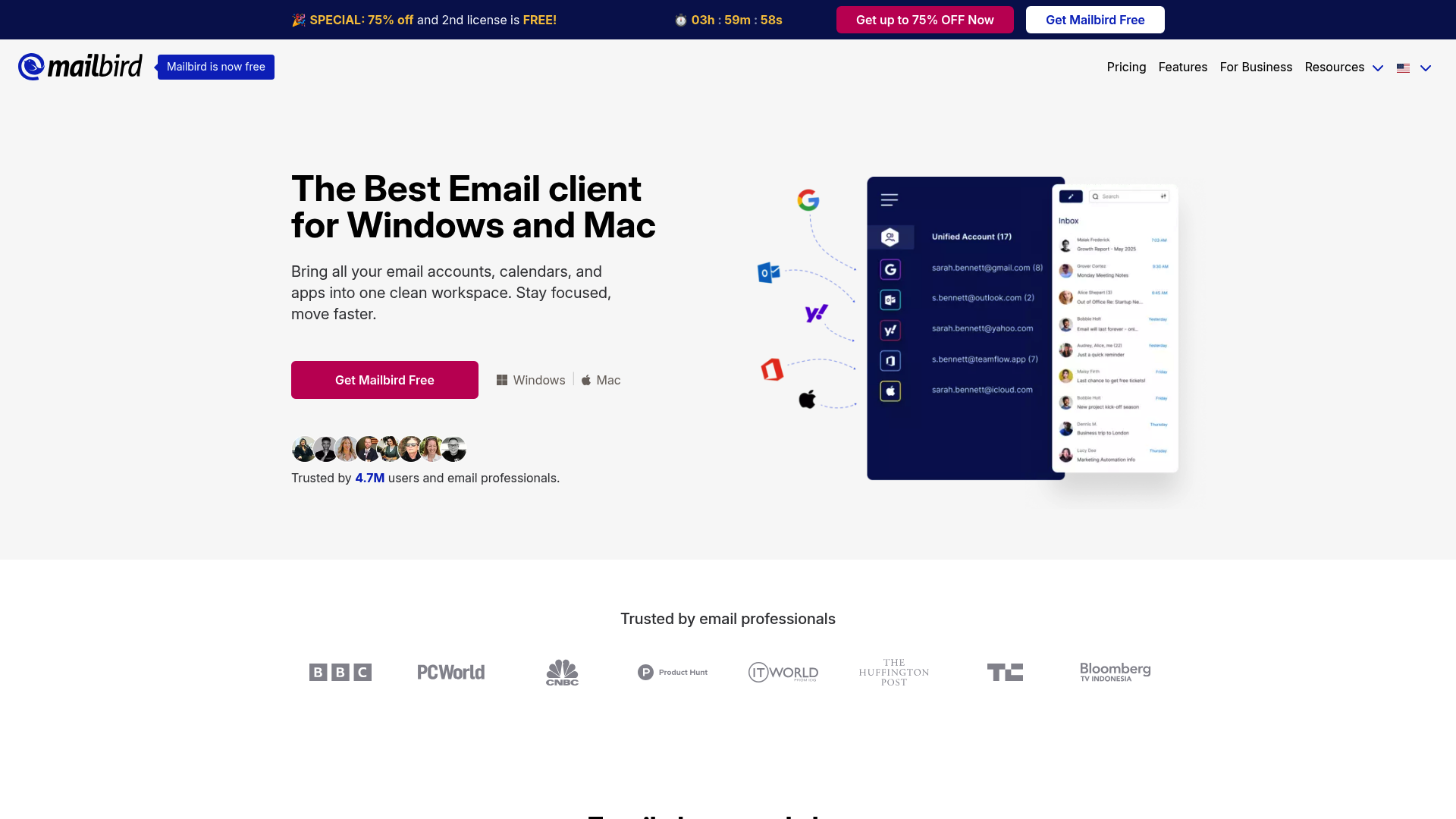
Mailbird is a popular email client for Windows and Mac, known for its clean interface and many app integrations. It lets you connect tools like Slack, Asana, and Dropbox, turning your inbox into a central hub for your work apps.
Strengths:
- It has a fast, simple, and easy-to-use interface.
- You can connect it with over 30+ tools, which is great for pulling your workflows into one place.
- The premium plans let you add an unlimited number of email accounts and come with handy features like email tracking and an AI writing assistant.
Limitations:
- While it integrates with other apps, it has limited built-in team collaboration features like assignments or internal chat. It is primarily a tool for individual productivity.
- Their documentation doesn't mention advanced security certifications like SOC 2, which could be a consideration for businesses handling sensitive customer information.
Pricing:
- Free plan: Available, but limited to one email account.
- Premium plan: Starts at $4.03/user/month when billed yearly.
Spark: A sleek choice for individuals and small teams
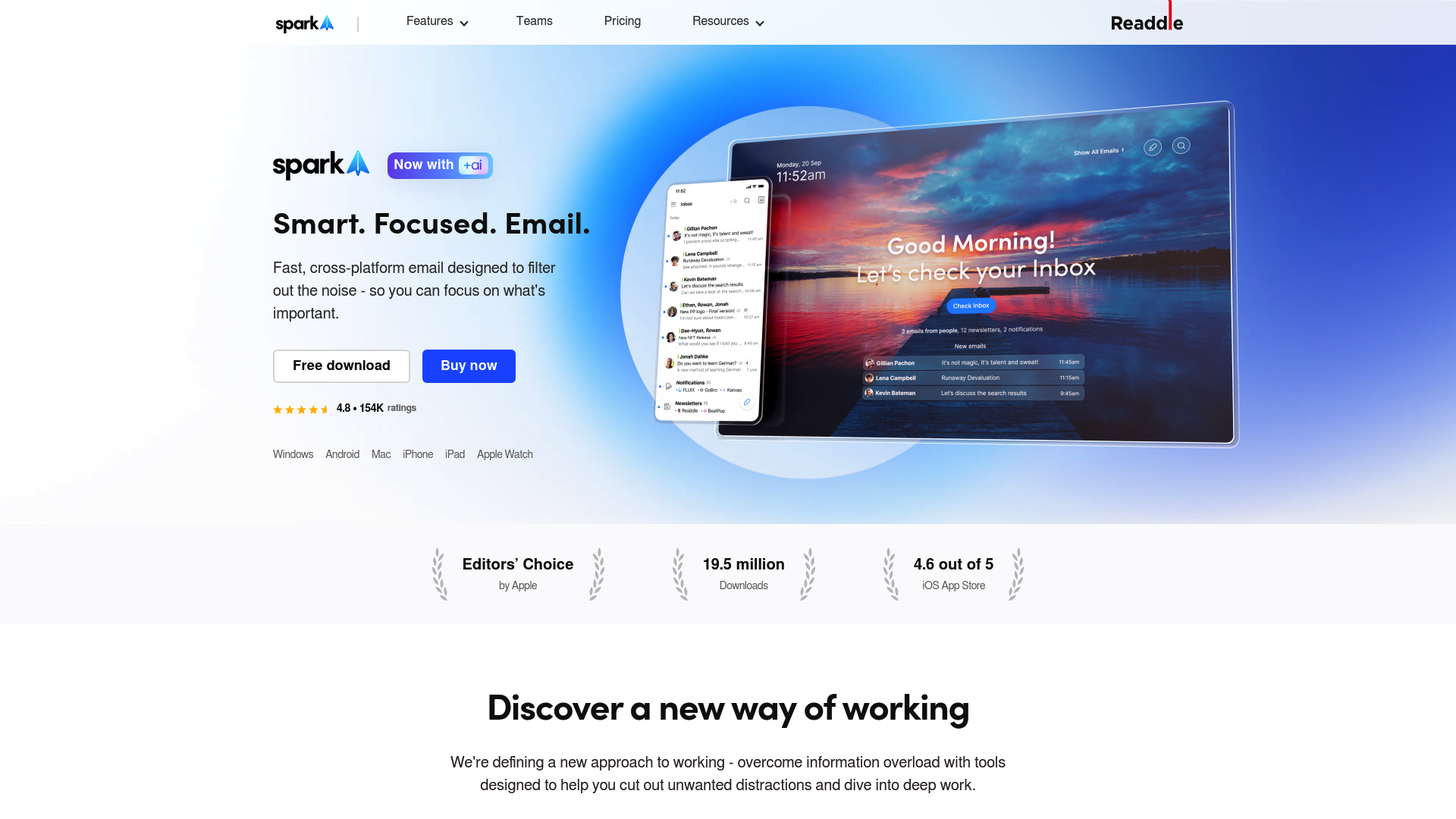
Spark is a modern email client with a "Smart Inbox" that automatically pushes important emails to the top. It's a favorite among Apple users but is available on all major platforms.
Strengths:
- Its interface is clean and intuitive, with great features like snooze, reminders, and a "Gatekeeper" that lets you screen and block new senders.
- It offers some solid team features, including shared inboxes, comments, and collaborative drafts.
- It also includes an AI assistant to help you summarize long threads and write replies faster.
Limitations:
- While it has good collaboration tools, it doesn’t offer the same level of advanced workflow automation, like workload balancing or AI-driven rules.
- Its main focus is on email. If you need to manage SMS, WhatsApp, or other channels, you may need different apps.
- According to its privacy policy, data is stored and encrypted via Google Cloud, which is secure but might not meet the specific compliance needs of all businesses.
Pricing:
- Free plan: Available with core features.
- Plus plan: Starts at $8.25/user/month.
Missive: A collaborative email client for teams
.png)
Missive is a inbox collaboration platform built for teams. It brings together email, SMS, WhatsApp, social media, and internal chat into one shared space where your team can work together.
- Comprehensive Collaboration: Missive includes tasks, assignments, an audit trail, and internal chat features built around conversations to provide clarity on team responsibilities.
- Email management for teams: Supports shared inboxes and personal accounts, real-time co-drafting, and shared labels to make your inbox a team sport.
- Multi-Channel Support: Missive is designed to handle various channels beyond email, allowing teams to manage customer conversations from a single platform for better context
- Advanced Automation and AI: The platform offers customizable rules, workload balancing, and AI features to summarize threads, translate messages, and trigger automated workflows.
- Enterprise-Grade Security: It provides security features like SOC 2 Type II compliance, SAML/SSO, and IP restrictions.
Pricing:
- Starter: $14/user/month (billed yearly).
- Productive: $24/user/month (billed yearly).
- Business: $36/user/month (billed yearly).
Choosing the right approach for your team
To effectively manage multiple email accounts as a team, you need more than a tool that just puts all your emails in one list. While a unified view can help with organization, it may not address all challenges of team communication.
Key differentiators to look for include multi-channel support, deep collaboration tools that let your team work together, powerful automation to handle repetitive tasks, and strong security to protect your data.
While many tools are designed for individual organization, platforms like Missive are built for team communication. This approach can turn an inbox into a central hub for collaborative work.
For a deeper dive into how you can streamline your email workflows, check out this helpful video on managing multiple accounts directly within Gmail.
This video tutorial explains how to manage multiple email accounts within Gmail to save time.
Ready to stop juggling tabs and start collaborating? Try Missive free and see how a shared inbox can streamline all your team's communication.
Frequently Asked Questions
What is the best way to manage multiple email accounts for a team?
An effective method is to use a collaborative platform with a unified inbox, like Missive. This brings all your communication channels (email, SMS, social media) into one place and includes team features like assignments, internal comments, and automation rules, which you can't get with simple forwarding or basic email clients.
Can I use Gmail to manage multiple email accounts effectively?
While Gmail lets you add other accounts, it's designed for individual use. It lacks the collaborative tools needed for a team, like assigning conversations or seeing who is working on what. This can lead to confusion, duplicate replies, and missed messages in a team setting.
What are the key security features to look for in a tool to manage multiple email accounts?
Look for enterprise-grade security. Key features include SOC 2 Type II compliance, Single Sign-On (SSO), two-factor authentication (2FA), and IP restrictions. These ensure your company and customer data are protected.
How does a unified inbox help manage multiple email accounts?
A unified inbox consolidates messages from all your accounts (e.g., support@, sales@, personal) and other channels like SMS or WhatsApp into a single view. This prevents you from constantly switching between apps and gives your team a complete picture of every customer conversation.
Why is it difficult to manage multiple email accounts with email forwarding?
Email forwarding clutters your primary inbox, makes it hard to reply from the correct address, and offers no visibility for team collaboration. You can't tell if a colleague has already responded to a shared email, which can lead to inefficiencies and a poor customer experience.
What kind of automation should I look for to help manage multiple email accounts?
Look for powerful, customizable rules. Good tools let you auto-assign emails to the right person, use canned responses with variables for quick replies, and even use AI to analyze email content and trigger specific workflows, saving your team a ton of time.

January 29, 2026
5 best alternatives to the Outlook for Teams integration
The Outlook for Teams add-in can be unreliable. Discover 5 better tools in 2026 that truly combine team chat and email into one seamless workspace.
Connecting Microsoft Teams with Outlook aims to bridge the gap between your inbox and your chat app. However, users sometimes face challenges like a missing add-in, performance issues, or a workflow that requires switching between tabs.
Modern teams need a reliable way to discuss emails without getting tangled in endless reply-all threads or forwarding chains. The goal is simple: Can you talk about emails in the place where you're drafting the email? Can you merge the functionality of new Outlook with the functionality of new teams, but keep it all in one interface?
Outlook doesn't support this natively for some reason, but that's why we’ve put together this list. We will walk through five tools that offer alternative Outlook for teams solutions for creating a single, unified workspace for all your team communication.
What the Outlook for Teams integration is supposed to do
The official name is the Microsoft Teams Meeting Add-in for Outlook. Its main job is to let you schedule a Teams meeting right from your Outlook calendar. Instead of opening the Teams app to create an invite and then pasting the link into a calendar event, you can just click a button in Outlook desktop or mobile.
It’s designed to be a small bridge between email scheduling and video collaboration for the millions of people who use the Microsoft 365 suite. According to Microsoft, it's a COM add-in that should show up right in your Outlook ribbon, as long as you have a supported version of Outlook (2013 or later) and a Microsoft 365 subscription. While it saves a few clicks when functioning correctly, some users report issues with its consistency.
Why the standard Outlook for Teams integration often isn't enough
The challenges with the add-in often stem from a few common issues. As this graphic based on Microsoft's own support documents shows, there are a few common problems.
- It frequently goes missing. Many users open Outlook to find the Teams button has vanished. Outlook might disable it for performance reasons, an administrator's policy could be blocking it, or it might not have been installed correctly in the first place.
- Troubleshooting is sometimes required. Getting it back often means digging into your settings, checking COM Add-ins, running diagnostics, or even reinstalling Teams.
- It’s a single-purpose tool. Even when it’s working perfectly, the add-in only solves one problem: scheduling meetings. It doesn't help your team collaborate on email responses, assign ownership of a customer query, or manage shared inboxes like sales@ or support@.
- It maintains two separate apps for communication. You’re still living in two separate apps. The email lives in Outlook, but the conversation about that email happens in a Teams channel. This splits the context, forcing you to constantly jump back and forth.
Criteria for evaluating Outlook for Teams alternatives
To find Outlook-friendly tools that address these challenges, we evaluated them based on a few core principles. This isn't just about features; it's about how well they support the way modern Outlook teams need to work.
- Unified experience: How well does the tool merge chat, email, and other channels into a single, intuitive view? Do you feel like you’re in one app, or two?
- Collaboration features: Can you comment internally, assign conversations, and work on drafts together right on an email, without turning it into a formal ticket?
- Simplicity and ease of use: Does the tool feel like a natural email client, or is it a complex system that forces your team to learn a whole new workflow?
- Automation and workflow: Can it handle the repetitive stuff for you, like routing messages, assigning conversations to the right person, and sending canned responses?
- Multi-channel support: Can it manage more than just email? What about SMS, WhatsApp, or social media messages?
A comparison of top Outlook for Teams alternatives
Here’s a brief overview of how our top picks stack up against each other based on those criteria.
FeatureMissiveFrontHelp ScoutMicrosoft Teams + Outlook Add-inSlack + Email IntegrationUnified InboxYes, native email and chat in one appYes, for multiple channelsYes, but ticket-focusedNo, two separate appsNo, email is forwarded into SlackInternal CommentsYes, inside the email threadYesYesYes, but in a separate app (Teams)Yes, on forwarded emails in a channelConversation OwnerYesYesYesNoNoMulti-channelEmail, SMS, WhatsApp, social, live chatEmail, SMS, WhatsApp, social, live chatEmail, live chat, social mediaEmail and chat onlyEmail and chat onlyStarting PriceFree plan available; paid from $14/user/mo$25/seat/mo (billed annually)Free plan available; paid from $25/user/moIncluded with Microsoft 365 ($6.00/user/mo+)Free plan available; paid from $7.25/user/moBest ForTeams wanting a collaborative inboxSupport teams needing a multi-channel help deskSupport teams focused on a simple ticketing systemTeams fully invested in the MS ecosystemTeams who live primarily in Slack
5 alternatives to the Outlook for Teams integration
Now, let's dive into the details of each alternative to see which one might be the right fit for your team.
1. Missive
Missive is a team inbox and chat tool that brings all of your team's communication, both internal and external, into one shared workspace. It is designed to function like a familiar email client while adding collaborative features. This design allows teams to manage shared inboxes, chat with teammates right next to customer emails, assign conversations, and collaborate on replies without ever leaving their inbox.
- Pros: A key feature of Missive is its native, inbox-first design. Collaboration is part of the foundation. It offers full two-way sync with any email provider, including IMAP, which means your actions are always consistent, no matter where you access your email. It also has a powerful mobile app, flexible automation rules, and AI features for drafting replies, summarizing long threads, and translating messages. It’s also SOC 2 Type II compliant, indicating a focus on data security.
- Cons: For very large enterprises that need rigid, ticket-based workflows and complex reporting dashboards, Missive might feel too flexible. It’s intentionally built for teams who want to keep conversations human rather than turning them into formal tickets.
- Pricing:
- Free: Up to 3 users with a 15-day conversation history.
- Starter: $14 per user/month for teams of up to 5 users and unlimited history.
- Productive: $24 per user/month for teams of up to 50 users, including integrations and automations.
- Business: $36 per user/month with advanced analytics and security features.
- Why we chose it: Missive was included because it integrates email and chat into a single application by design. It offers a range of features aimed at team collaboration.
2. Front
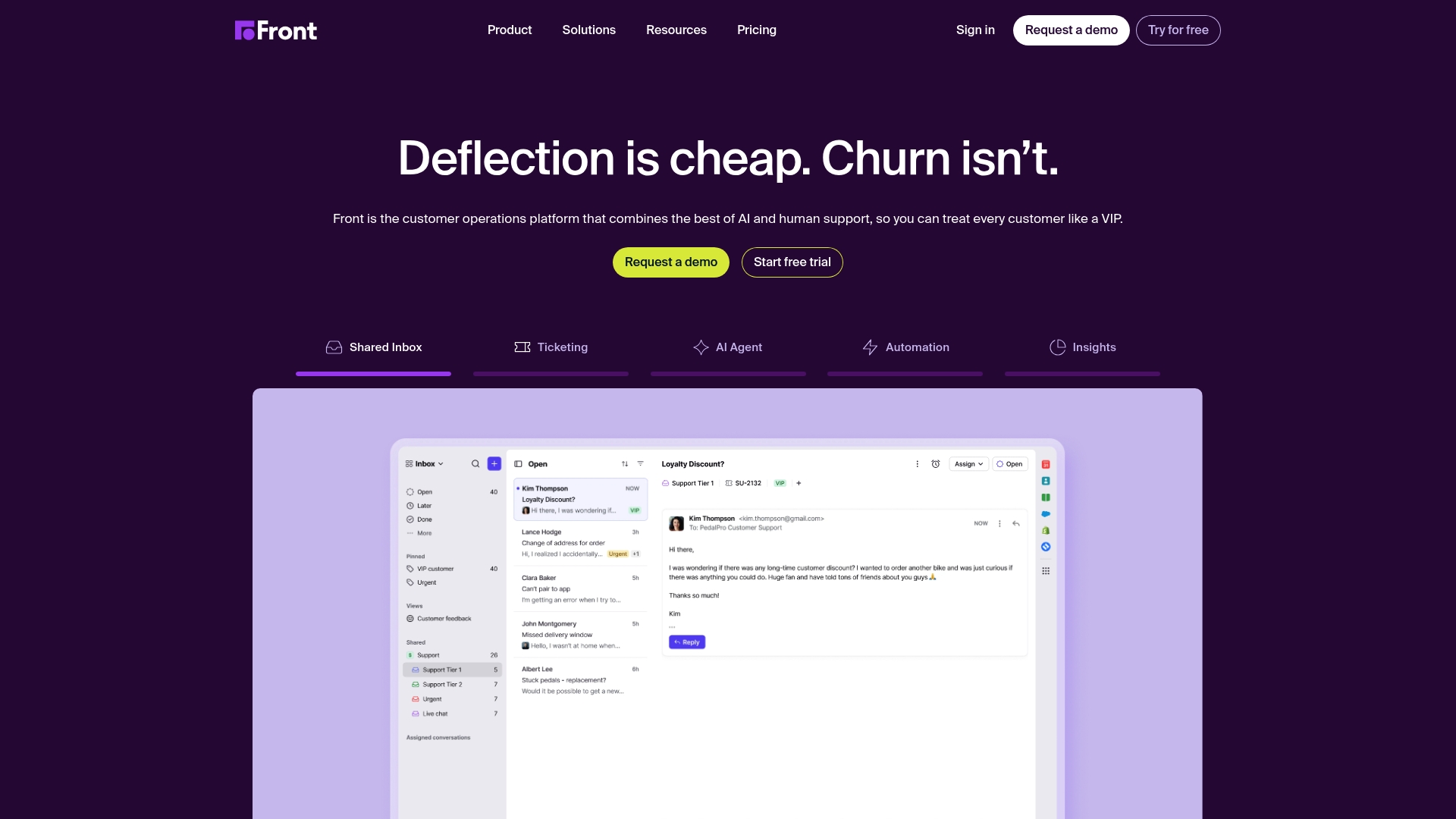
Front is a popular customer operations platform that aims to unify emails, apps, and teammates into a single view. It's well-known for its ability to manage shared inboxes and for its wide range of third-party integrations (over 110 integrations), which makes it a common choice for support and operations teams.
- Pros: Like Missive, Front is excellent at pulling multiple channels like email, SMS, and social media into one place. It has deep integrations with CRMs like Salesforce, and its rules engine is quite powerful for automating workflows. It also offers robust AI features for routing messages and providing analytics.
- Cons: Some teams may find Front's workflow leans towards a "ticketing" system, which may not suit all collaboration styles. The higher starting price and seat minimums can also make it less accessible for smaller teams. Its two-way sync is limited for IMAP accounts (it relies on email forwarding), and its mobile app lacks some of the advanced features found on the desktop version.
- Pricing (billed annually):
- Starter: $25 per seat/month, for up to 10 seats.
- Professional: $65 per seat/month, for up to 50 seats.
- Enterprise: $105 per seat/month.
- Why we chose it: Front is a major player in this space and a common alternative for teams that have outgrown a basic email setup. It represents a more structured, help-desk-oriented approach to solving the communication challenge.
3. Help Scout

Help Scout is a dedicated customer service platform built specifically for support teams, trusted by over 12,000 companies. It offers a shared inbox, live chat (Beacon), and a knowledge base builder. Its core philosophy is to keep communication human by avoiding things like ticket numbers.
- Pros: Help Scout is widely praised for its simplicity and ease of use. It’s very good at its primary job: helping support teams manage customer conversations efficiently. Its AI chatbot can reportedly resolve up to 70% of routine requests, and its reporting features are solid for measuring team performance.
- Cons: Help Scout is, first and foremost, a support tool. It isn't designed for broader team collaboration on sales, operations, or internal projects. The workflow is fundamentally about resolving "conversations" (which are essentially tickets), and it has a different feel from more email-centric collaboration tools.
- Pricing:
- Free: For up to 5 users and 1 inbox.
- Standard: $25 per user/month.
- Plus: $45 per user/month.
- Pro: $75 per user/month.
- Why we chose it: It is an example of a tool focused on a specific use case. It is included to show the trade-offs of using a specialized help desk versus a more flexible collaboration platform.
4. The Microsoft Outlook for Teams add-in
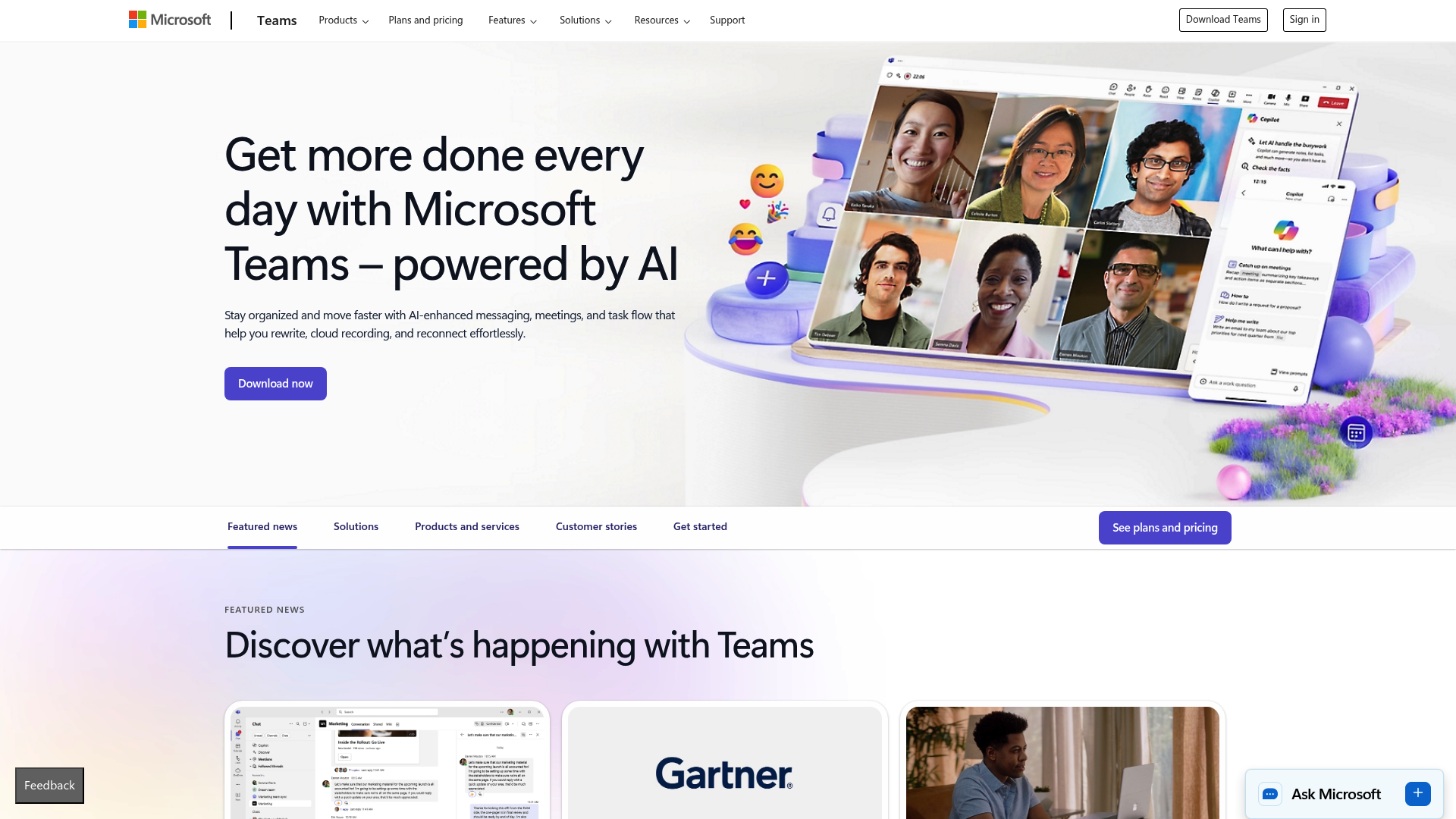
This isn't an alternative in the same way, but it's the default option for anyone using Microsoft 365. The Teams Meeting Add-in lets you create a Teams meeting directly from an Outlook calendar event. When it works, it’s a handy shortcut.
- Pros: It’s included with most Microsoft 365 business subscriptions (which also includes Microsoft office), so there’s no extra cost. For companies that are standardized on Microsoft’s tools, it's a native integration.
- Cons: As detailed in Microsoft’s own documentation, the add-in can be unreliable. Users report it can get disabled, fail to load, or disappear. More importantly, it only addresses a small part of the collaboration workflow. It doesn't help you discuss or manage the emails that lead to the meeting, leaving your context scattered across different apps.
- Pricing:
- Included with Microsoft 365 Business plans (starting from $6.00 user/month).
- Why we included it: This is the baseline option and is included to show what functionality is available natively within the Microsoft 365 ecosystem.
5. The Slack plus email integration
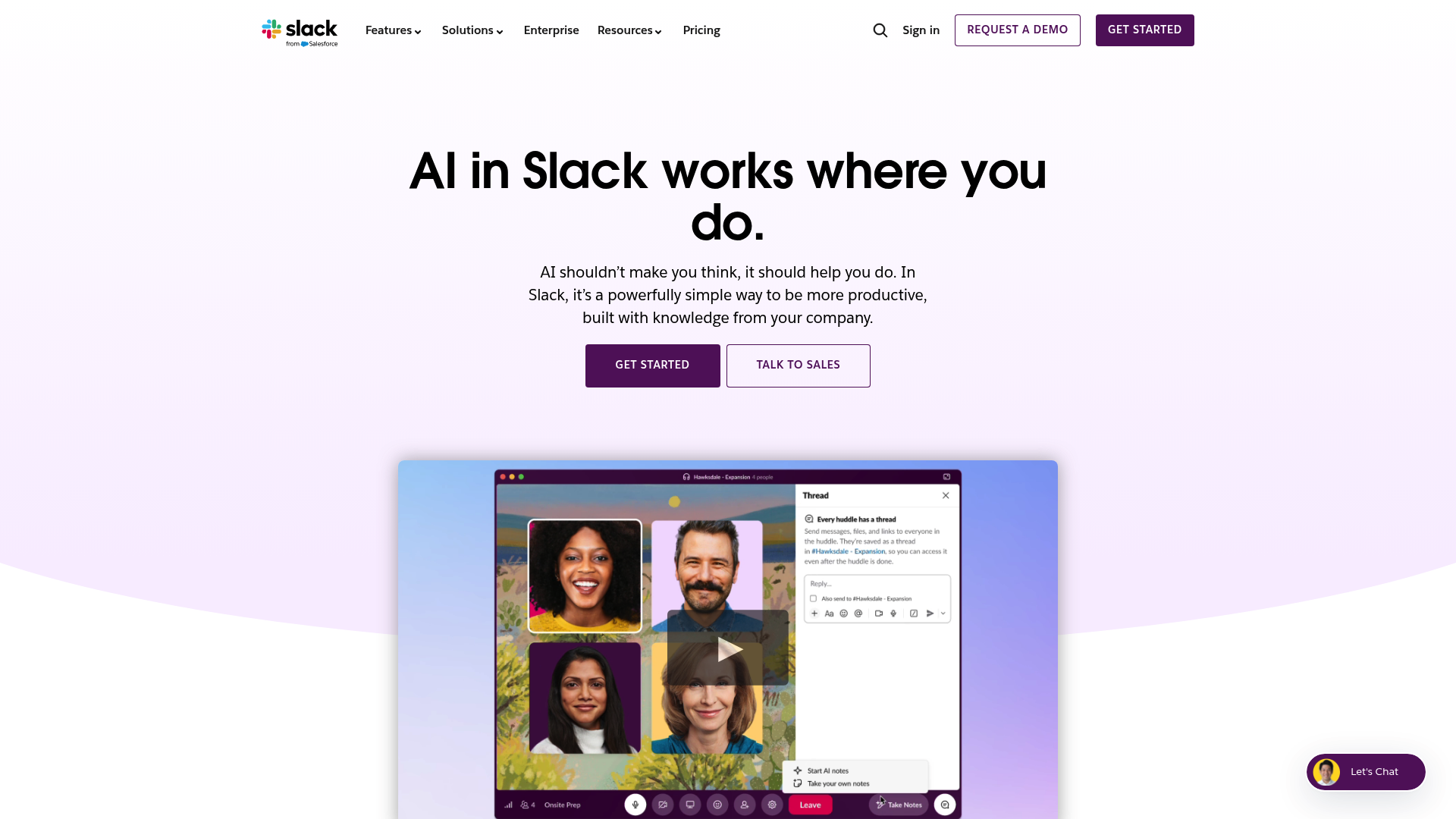
Many teams who live in Slack for internal communication try to use its email integration to pull important external messages into their workspace. This typically involves forwarding emails from an inbox to a dedicated Slack channel, where the team can then discuss it.
- Pros: For teams already centered around Slack, this keeps conversations in the tool they use most. It’s fairly simple to set up for teams on a paid plan and uses an interface everyone is already familiar with.
- Cons: This is often a one-way workflow. You can talk about the email in Slack, but you can't reply to the original sender from there. Someone still has to go back into their email client to respond, which can create confusion over who replied and may lead to duplicate work. This can fragment the conversation since replies must be sent from a separate email client.
- Pricing:
- This feature is available on Slack's paid plans, which start at $7.25 per user/month (billed annually). This doesn't include the cost of your email provider.
- Why we included it: This represents a common workaround and is included to highlight the workflow of integrating email into a chat-first application.
For a more in-depth look at how these tools work in practice, this video provides a helpful overview of integrating email and chat for better team communication.
This video explains how to integrate Outlook and Teams for better communication and collaboration by sending emails to channels and scheduling meetings.
How to choose the right Outlook for Teams alternative
So, how do you pick the right tool from this list? Here are a few practical questions to ask yourself.
- Start with your core workflow. Is your team's day-to-day work centered around an inbox, or is it centered around a chat tool? If it’s the inbox, consider a tool that enhances it.
- Consider all your channels. Don't just solve for email. Make a quick list of all the ways you communicate with customers and partners, whether it’s SMS, social media, or WhatsApp. Look for a tool that can bring them all into one view.
- Consider the benefits of native integration. While add-ins can offer quick fixes, fully integrated solutions often provide more reliability and functionality. A platform where email and chat were built to work together from day one will outperform two apps loosely connected.
- Distinguish between a help desk and a general collaboration tool. If your goal is team-wide collaboration across different departments like sales, operations, and support, a flexible platform may be more suitable than a ticketing system designed specifically for support teams.
Choosing the right collaboration tool
While the Outlook and Teams integration aims to connect two key tools, some teams find its reliability and narrow focus insufficient for their needs. An alternative is to adopt a platform where collaboration is built directly into the inbox itself.
Tools like those listed above are designed to address this challenge. They aim to combine emails, internal chats, and other messages into a single, organized workspace for team collaboration.
Ready to stop switching between apps and bring your team's communication together? Try Missive for free and see what a truly collaborative inbox feels like.

January 22, 2026
The 8 best AI tools for small businesses in 2026
Discover the best AI tools for small business in 2026. Our guide covers top platforms for communication, marketing, and productivity to help you grow.
Running a small business often feels like you're wearing a dozen hats at once. You're the CEO, marketer, customer support lead, and maybe even the janitor. It's a constant juggle to keep up, especially when you see larger companies with what seems like unlimited resources.
This is where artificial intelligence can step in. It is not some futuristic, complex tech anymore. Using AI is more like hiring a practical sidekick that helps level the playing field. Today's AI technology is affordable, easy to use, and can fit right into your daily work without requiring a computer science degree.
In this post, we'll walk you through a handpicked list of AI tools that can actually help your small business save time, cut costs, and improve your customer communication.
What are AI tools for small businesses?
What do we mean by "AI tools"? For most small businesses, it's software that can handle tasks that normally need a person. Think about writing emails, summarizing long conversation threads, transcribing calls, or setting repetitive workflows to run on their own.
Most of these tools run on what's called Generative AI (GenAI) and Large Language Models (LLMs). This is the technology that allows them to create new content, understand plain English, and provide useful replies.
The advantages are straightforward. Using AI tools can make your team more efficient by handling the tedious work, improve customer service with quick responses, help you get past writer's block, and pull valuable information from your daily business conversations.
How we selected the AI tools for this list
We didn't just pull these names out of a hat. To make this list genuinely useful, we measured each tool against a few criteria that are crucial for small business owners.
- Impact on Efficiency: We looked for AI tools that are great at automating repetitive, time-consuming tasks. The idea is to free up you and your team for the work that actually grows the business.
- Ease of Use: If an AI tool requires a week of implementing just to get going, it's not a good fit. Everything on this list is intuitive enough for anyone on your team to start using quickly.
- Affordability: We know budgets are tight. We focused on solutions with transparent pricing and a good return on investment.
- Collaboration and Integration: Another app that doesn't connect with your other software is the last thing you need. We picked AI tools that fit into your current workflow and help your team work together better.
Quick comparison of top AI tools
Here's a quick overview of the top AI tools we'll be covering. Each one targets a different core need for a growing small business, from communication to content creation.
| Tool | Primary Use Case | Key AI Feature | Starting Price (per user/mo) | Best For |
|---|---|---|---|---|
| Missive | Team Communication & Collaboration | AI-powered rules and drafts, summaries, and automations | $14 | Teams needing a unified inbox for email, social, and SMS |
| Jasper | Content Creation & Automation | AI content automation and brand voice | $59 (Pro plan, billed annually) | Marketing teams needing to create on-brand content at scale |
| Microsoft 365 Copilot | General Productivity | AI assistant with Work IQ within Office apps | $30 (add-on) | Businesses already invested in the Microsoft 365 ecosystem |
| Dialpad | Business Phone System & Meetings | Real-time call transcription and AI Live Coach Cards | $15 | Sales and support teams who primarily communicate via phone |
| Freshdesk | Customer Support Helpdesk | Freddy AI Agent and Copilot | $19 (Growth plan, billed annually) | Dedicated customer service teams looking to automate support |
| HeyGen | Video Creation & Localization | AI video translation with voice cloning and lip-sync | Free (basic), $29/mo (Creator) | Teams creating multilingual video content and scaling global marketing |
| Grammarly | Writing Assistance | Real-time grammar, tone, and AI agent suggestions | Free (basic), $12 (Pro plan) | Individuals and teams wanting to use AI to improve writing quality |
| HubSpot | Multi-departmental workflow optimization | AI-powered CRM, data enrichment, email personalization, content generation, chatbots | $20 ($15 billed annually) | Small businesses seeking an all-in-one solution |
The 8 best AI tools for small business
Alright, let's get into the details. Here's a closer look at what makes each of these AI tools a great pick for small businesses.
1. Missive
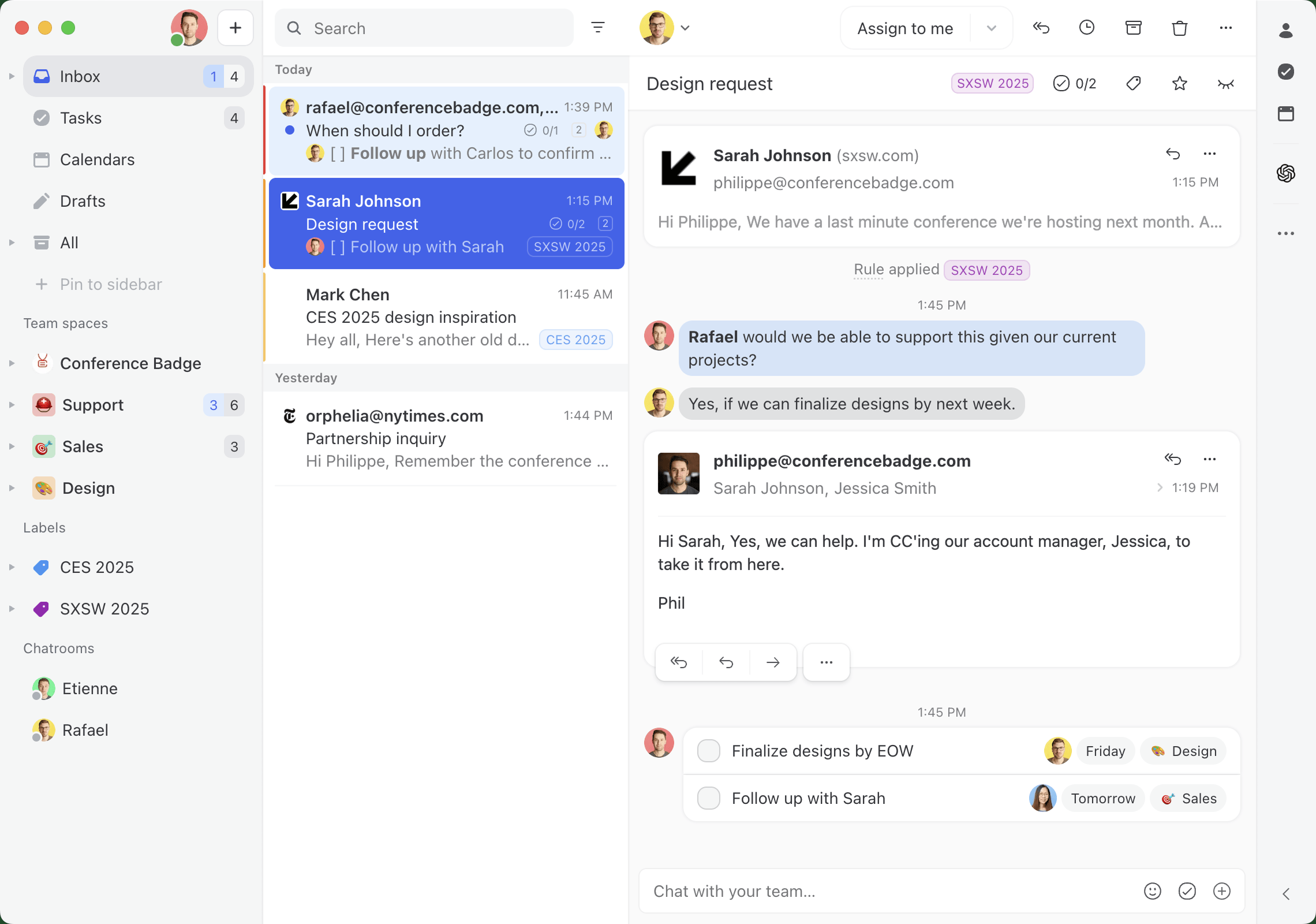
Missive is a collaborative communication platform that brings all your customer and internal messages into one unified inbox view. It's designed to manage everything from email, SMS, WhatsApp, Instagram, Messenger, and live chat in a single place. This means your team can work together on replies behind the scenes without messy email forwards or CC chains. The platform is designed for a conversational experience, contrasting with traditional ticketing systems.
Why it's on the list: Missive's AI features are built right into your team's daily workflow, which makes them very practical. You can generate instant AI drafts for quick replies, get summaries of long conversation threads in seconds, translate messages on the fly, and even build powerful AI rules. For instance, you can set up a rule that automatically detects an angry customer's email and assigns it to a senior team member for immediate attention.
Pros and Cons: Missive's biggest strength is its all-in-one, multi-channel workspace that prevents important messages from getting lost. The collaboration features, like chatting internally on an email thread or co-authoring a reply in real-time, are a huge help for teams. It's AI-powered rules are incredibly flexible, allowing you to personalize the AI workflows to your specific business. Missive is very powerful for collaboration, but a solo founder might find it has more features than they need right at the start.
- Starter: $14/user/month
- Productive: $24/user/month
- Business: $36/user/month
2. Jasper

Jasper is an AI content automation platform built with marketing teams in mind. It helps you whip up high-quality marketing copy, blog posts, and social media updates. Its standout feature is "Jasper IQ," which learns your brand voice, style guide, and product details to make sure everything it creates sounds consistently like your brand.
Why it's on the list: Jasper has been a leader in the AI writing space for a while, and it's a good fit for small marketing teams trying to produce a lot of content without hiring more writers. Its intelligent Content Pipelines can automate the entire process, from brainstorming an idea to getting it published.
Pros and Cons: Jasper is great for creating first drafts and getting past writer's block. It has a ton of templates for different formats, which is very helpful. The AI's output always needs a human eye for fact-checking and fine-tuning. Plus, while Jasper is useful for creating content, you'll need a different tool to manage the customer conversations that result from it.
Pricing:
- Pro: Starts at $59/seat/month (billed annually)
- Business: Custom pricing
3. Microsoft 365 Copilot

Microsoft 365 Copilot brings AI help directly into the Office apps your business probably already uses, like Word, Excel, PowerPoint, and Outlook. It's powered by an artificial intelligence layer called Work IQ, which gets to know you, your job, and your company to offer up tailored assistance.
Why it's on the list: For any business that relies heavily on the Microsoft suite, this tool is a natural fit. Its deep integration means there's almost no learning curve. You can ask it to draft an email in Outlook, create a presentation from a document in PowerPoint, or analyze data in Excel, all using natural language.
Pros and Cons: The smooth integration is its biggest advantage, making it easy to be more productive in apps you already know. The downside is that it's an add-on, so you first need a qualifying Microsoft 365 Business plan, which pushes the total cost up. Also, its collaboration features are spread out across different apps, which can feel disconnected compared to a single, unified communication hub.
Pricing:
- $30/user/month (as an add-on to a qualifying Microsoft 365 plan)
4. Dialpad
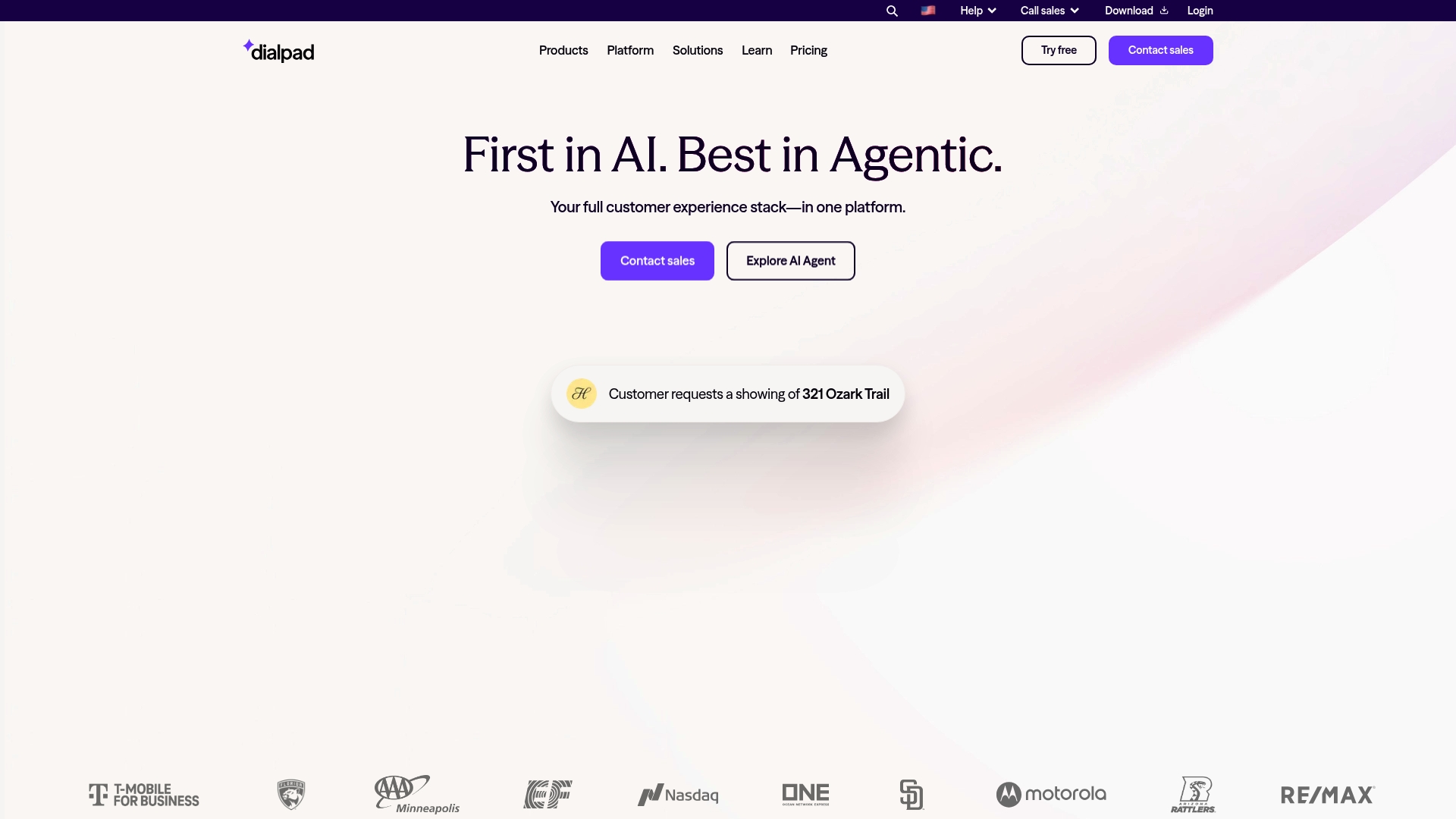
Dialpad is an AI-powered platform for voice communications: calls, messages, and meetings. Its AI features are what make it stand out. It offers real-time voice transcription during calls, creates post-call summaries with clear action items, and even gives agents live coaching with "AI Live Coach Cards" that pop up with helpful tips while they're on a call.
Why it's on the list: Dialpad is a great tool for sales and support teams who spend most of their day on the phone. It gives them live insights to improve their performance on the spot and automates note-taking with post-call summaries, freeing them up to focus on the conversation.
Pros and Cons: The real-time voice intelligence is a huge plus for any team that relies heavily on phone calls, and the AI analytics help managers spot trends without digging through call logs. However, Dialpad's main strengths are in voice and video. If your team also handles a lot of email, SMS, and social media messages, you might find you still need another tool to bring all those text-based channels together.
Pricing:
- Standard: $15/user/month
- Pro: $25/user/month
- Enterprise: Custom pricing
5. Freshdesk

Freshdesk is customer service software that comes with an AI chatbot named Freddy. The Freddy AI Agent can handle complex and repetitive customer questions on its own, across different channels. Meanwhile, the Freddy AI Copilot acts as a sidekick for human agents, helping with conversation summaries, reply suggestions, and the ability to analyze sentiment.
Why it's on the list: This is a specialized chatbot that can help a small business offer 24/7 support and automate the most common questions. Freshworks states it can resolve up to 80% of queries, which is a big help if you're trying to scale customer service without hiring a lot of people.
Pros and Cons: Freshdesk is excellent for managing support tickets and building out a self-service knowledge base, with it's AI chatbot helping to answer common questions before they even reach an agent. Its ticketing-based system offers a structured approach to customer support, which differs from the conversational model of an inbox-style tool. It's also heavily focused on external customer support rather than broader team collaboration or internal comms.
Pricing:
- Growth: $19/agent/month (billed annually)
- Pro: $55/agent/month (billed annually)
- Enterprise: $89/agent/month (billed annually)
6. HeyGen
HeyGen is an AI video translator that helps businesses translate and localize video content for global audiences without re-recording. Its AI video translator allows you to convert a single video into multiple languages while preserving voice tone, timing, and natural lip-sync, making international content distribution much more efficient.
Why it's on the list: HeyGen stands out for its ability to turn one piece of video content into many localized versions quickly. Instead of managing multiple production workflows, teams can scale their content across markets using AI-powered translation and dubbing.
Pros and Cons: The biggest advantage is how much time and cost it saves compared to traditional dubbing or reshooting. The voice cloning and lip-sync features make translated videos feel natural and engaging. However, results depend on the quality of the original video, and advanced features like lip-synced translation consume premium credits that are capped by plan.
Pricing:
- Free: Up to 3 videos/month (720p, watermark)
- Creator: $29/month ($24/month billed annually)
- Pro: $99/month
- Business: $149/month + $20/additional seat
7. Grammarly

Grammarly is an AI-powered writing assistant that offers smart suggestions on grammar, clarity, tone, and style to make your writing better. Its newer generative AI features can help you rewrite sentences, and it has specialized AI agents like a "Paraphraser" and "Proofreader" to help with specific writing tasks.
Why it's on the list: It's a simple, essential tool that helps everyone on your team to write more clearly and professionally, whether they're crafting an email, a marketing post, or a project update. It works across thousands of different apps and websites, so it's always there when you need it.
Pros and Cons: Grammarly's main strength is its simplicity and the fact that it can be used almost anywhere. It improves your writing. While its generative AI features are handy for rewriting and brainstorming, it's not built for creating long-form content from scratch. It also doesn't help with managing team communication workflows, like assigning tasks or collaborating on a customer response.
Pricing:
- Free: Basic writing suggestions and 100 AI prompts/month
- Pro: Starts at $12/member/month (billed annually) with 2,000 AI prompts/month
- Enterprise: Custom pricing
8. HubSpot
HubSpot Customer Platform is an AI-powered tool suite that packs marketing, customer service, and sales features into a unified platform. HubSpot's AI tools are designed to automate routine tasks across departments, including data analysis, prospect outreach, resolving simple customer inquiries, and personalizing marketing messages.
Why it's on the list: HubSpot Customer Platform's AI tools can be deployed across your entire organization. Its Smart CRM helps sales teams automatically enrich data records with information from calls, emails, and the web. Marketing teams can set up email campaigns using that data, while customer service teams can deploy chatbots so service reps have more room to deal with complex inquiries.
Pros and Cons: HubSpot is highly versatile, and its multi-functional AI toolset can significantly boost productivity across day-to-day tasks. The platform also benefits from a large ecosystem of integrations and learning resources. However, HubSpot can be tricky to scale: there are large pricing gaps between plans, and onboarding fees are required for Professional and Enterprise tiers. Its customer service features are also less specialized than dedicated support platforms.
Pricing:
- Free: Basic sales, marketing, and customer service tools
- Customer Platform Starter: $20/seat/month ($15/seat/month with annual commitment)
- Customer Platform Professional: Starts at $1,300/month (billed annually) with six core seats included
- Customer Platform Enterprise: Starts at $4,700/month (billed annually) with eight core seats included
How to choose the right AI tool for your business
When you're starting to use AI, it can be a daunting task. Here are a few simple tips to help you pick the right tool for your business.
- Start with your biggest headache. Don't just use AI for the sake of it. Figure out what the most time-consuming or frustrating part of your business is. Is it answering every single customer email? Writing social media posts? Find an AI tool that solves that specific problem first.
- Look for tools that integrate. The best tools are the ones that play nicely with the software you already use. If there is no native connection, you could look into AI-powered workflow and automation builders (like Relay.app) that can connect apps together, making it easier for your team to adopt and will keep your data from getting trapped in different siloed places. For example, Missive integrates with over 25 apps like Salesforce, Shopify, and Asana.
- Prioritize a unified workspace. Juggling a bunch of different apps can create more problems than it solves. Look for platforms that combine a few key functions, like communication and task management, to keep your team on the same page and working from one source of truth.
- Take advantage of free trials. Just about every AI tool on this list offers a free trial or a free version. Give them a spin with your team. See which one feels the most natural and provides the most value before you put any money down.
For a broader look at how different AI tools can impact a business, check out this video. It covers a range of applications and might spark some new ideas for how you can leverage AI in your own operations.
Can I use AI tools without technical expertise?
Adopting any new technology can be intimidating but AI is getting more and more user friendly everyday. With a common dialogue-focused interface and natural language usage, you can often just tell these AI tools what you're trying to do and they can provide insights into how to achieve it. Sometimes, the AI technology can actually optimize the set up work for you.
The future is collaborative and intelligent
AI is no longer a luxury just for big corporations. For small businesses, it's a useful partner that can help you improve productivity, put tedious work on autopilot, and deliver the kind of customer experience that builds loyalty.
The right tool can analyze and unlock valuable insights and give your team the breathing room to focus on what really matters: growing the business and building great relationships with your customers.
And the best place to start is by getting the foundation of your business streamlined: your communication.
Ready to see how AI can streamline your team's communication? Try Missive for free and bring all your conversations into one collaborative, intelligent inbox.

January 20, 2026
Top 6 Google Groups alternatives for efficient team workflows
Google Groups isn't built for modern team collaboration. Explore our list of the 6 best Google Groups alternatives in 2026 to manage shared inboxes and workflows.
Although initially designed to be used as a discussion group, a lot of teams start out using Google Groups to manage shared email addresses like support@yourcompany.com or info@yourcompany.com. It’s a free feature that comes with Google Workspace, so it’s an easy first step to get everyone on the same page.
However, as teams grow, they may encounter limitations. The Google Collaborative Inbox feature lives in a separate interface (and tab), which can make it challenging to track tasks and responsibilities. This can lead to missed emails, unclear ownership, and difficulty in managing workflows.
If this sounds familiar, this article can help. We’ll walk you through the six best alternatives to Google Groups to help you find a tool that grows with your business and makes team collaboration feel simple.
What are Google Groups alternatives?
Google Groups can function as a group email list, a web forum/discussion group, a Q&A spot, and a Collaborative Inbox. While that flexibility is useful, its design may not be ideal for managing a high volume of team emails.
That's where Google Groups alternatives designed for team collaboration comes in. These are platforms built specifically to solve the problems you run into with Google Groups when you are trying to use Collaborative Inbox. They usually focus on one area and do it well, like creating a shared inbox for a customer support team or a project hub for internal collaboration. They offer more capable features centered on accountability and smooth workflows.
This list wouldn't be applicable to you if you're looking for moderation or message board functionality for your discussion forum, but if you have a busy shared inbox, then you're in the right place.
Ultimately, these tools bring much-needed structure to team email, so you can stop wondering if a critical message fell through the cracks. They make it clear who owns what and let you build workflows right where your conversations happen.
Key reasons to look for Google Groups alternatives
While Google Groups is a useful starting point, its features may not scale with the needs of a growing business. As your team gets bigger, you may encounter these common challenges.
- Constant context switching: Jumping between your personal Gmail and the separate Google Groups tab can be inefficient. This context-switching slows everyone down and adds friction to the workday.
- Unclear ownership: There’s no simple way to assign an email to a specific person. This can result in duplicate replies or, conversely, no one replying because everyone assumed someone else had it covered.
- Disorganized conversations: Relying on CCs and forwards to keep the team in the loop creates complex email threads. Important details get buried, and figuring out the history of a customer issue becomes a real chore.
- Limited workflow management: Google Groups lacks basic features for tracking a conversation's status (like Open, Pending, or Closed). You can't set up automations for repetitive tasks, like assigning emails based on keywords or sending automatic follow-ups.
- Lack of performance insights: You can't track key metrics like response times or email volume. Without that data, it's impossible to understand your team's workload, measure performance, or find areas to improve.
How we chose the best Google Groups alternatives for this list
To make sure we were recommending genuinely useful tools, we focused on a few key things when putting this list together.
- Collaboration features: We looked for tools with the essentials, like email assignments, internal notes for team chats, and collision detection to stop two people from replying to the same email at once.
- Workflow automation: The ability to create rules that automate repetitive tasks was a big one. The less manual work your team has to do, the more they can focus on what matters.
- Ease of use: A tool is only good if your team actually uses it. We gave priority to platforms with intuitive interfaces that don't require a month of training.
- Integrations: We picked tools that connect easily with other business software, especially those in the Google Workspace ecosystem.
- Scalability: The alternatives we chose can grow with you, whether you're a small startup or a much larger company.
A quick comparison of the top Google Groups alternatives
The 6 best alternative to Google Groups for team collaboration
Here’s a closer look at each tool to help you find the best fit for your team's needs.
1. Missive
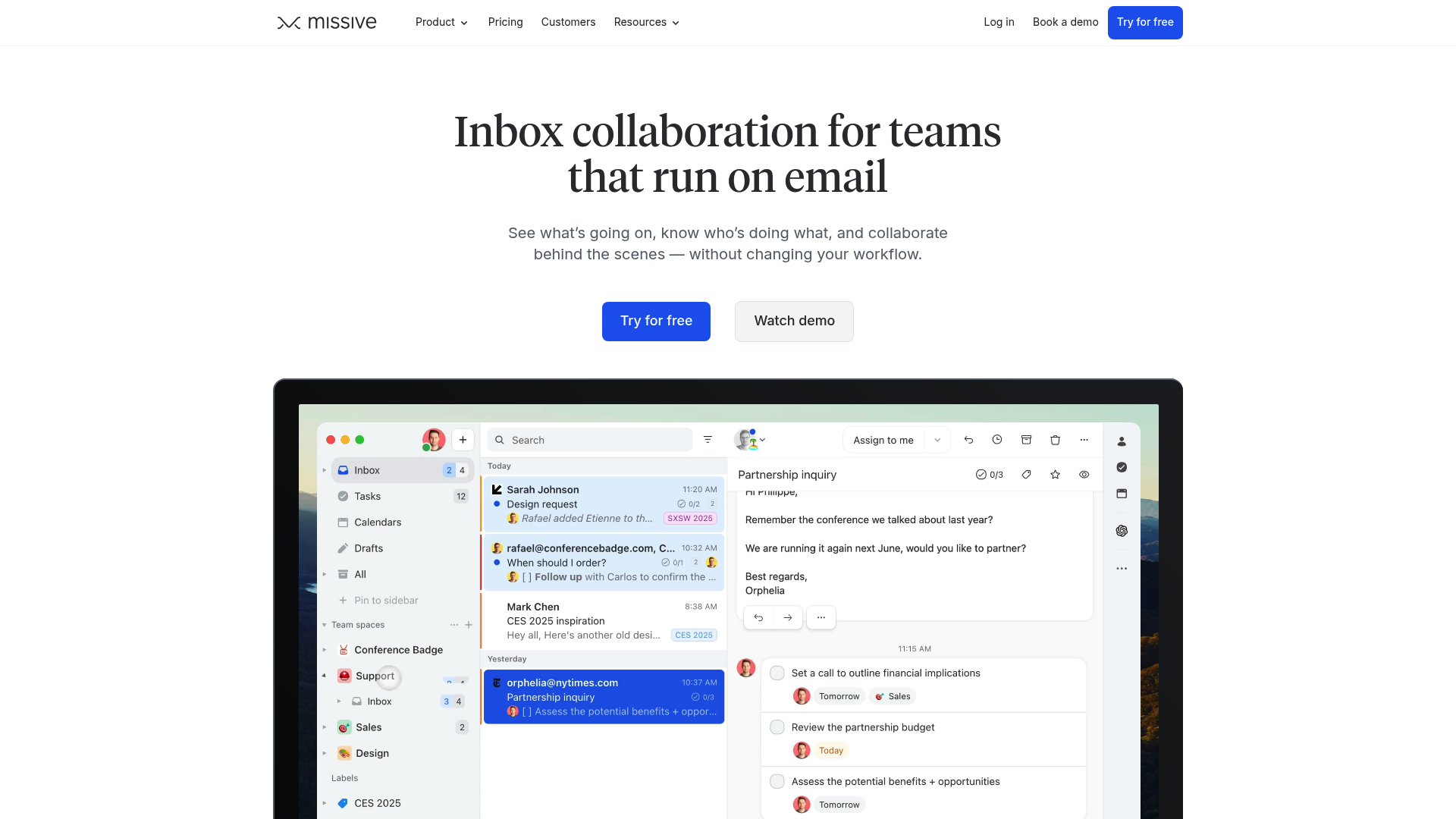
Missive is a collaborative inbox that pulls all your team’s conversations into a single place, no more tab switching. It includes features for managing email, SMS, WhatsApp, social media, and more. It also has built-in tasks, internal chat, and powerful automation, so your team can manage entire workflows without leaving their inbox. It works with all email providers, including Gmail and Outlook.
Pros and cons: A key feature is its multi-channel support, letting your team manage every customer interaction from one place. Its AI-powered features, like drafting replies and spam filters based custom prompts, combined with automation rules for things like workload balancing, can increase team productivity. For solo users or very small teams who just need basic email sharing with a familiar web UI, the feature set might be more than you need.
Pricing:
- Free: For small teams to try out the core features.
- Starter: $14 per user/month (billed yearly). Includes team inboxes, email, SMS, social accounts, and tasks for up to 5 users.
- Productive: $24 per user/month (billed yearly). Adds integrations, rules/automations, and basic analytics for up to 50 users.
- Business: $36 per user/month (billed yearly). Adds advanced analytics, SAML/SSO, and IP restrictions for unlimited users.
2. Help Scout
Help Scout is a customer service platform designed for personalized communication. It's a great Google Groups alternative for managing support emails, offering a clean shared inbox, a knowledge base (Docs), and live chat. Its AI features can automatically resolve up to 70% of routine questions.
Pros and cons: Help Scout is known for its user-friendliness and core help desk features like saved replies, collision detection, and internal notes. Its reporting tools also give you solid insights into your team's performance. On the other hand, it’s very focused on external customer support, so it may be less suitable for internal projects or managing a sales pipeline.
Pricing:
- Free: For up to 5 users, with 1 inbox and 1 Docs site.
- Standard: $25 per user/month. Includes 2 mailboxes, live chat, and basic workflows.
- Plus: $45 per user/month. Adds advanced workflows, unlimited AI drafts, and integrations like Salesforce and Jira.
- Pro: $75 per user/month. Adds unlimited workflows, SSO/SAML, and HIPAA compliance.
3. Hiver
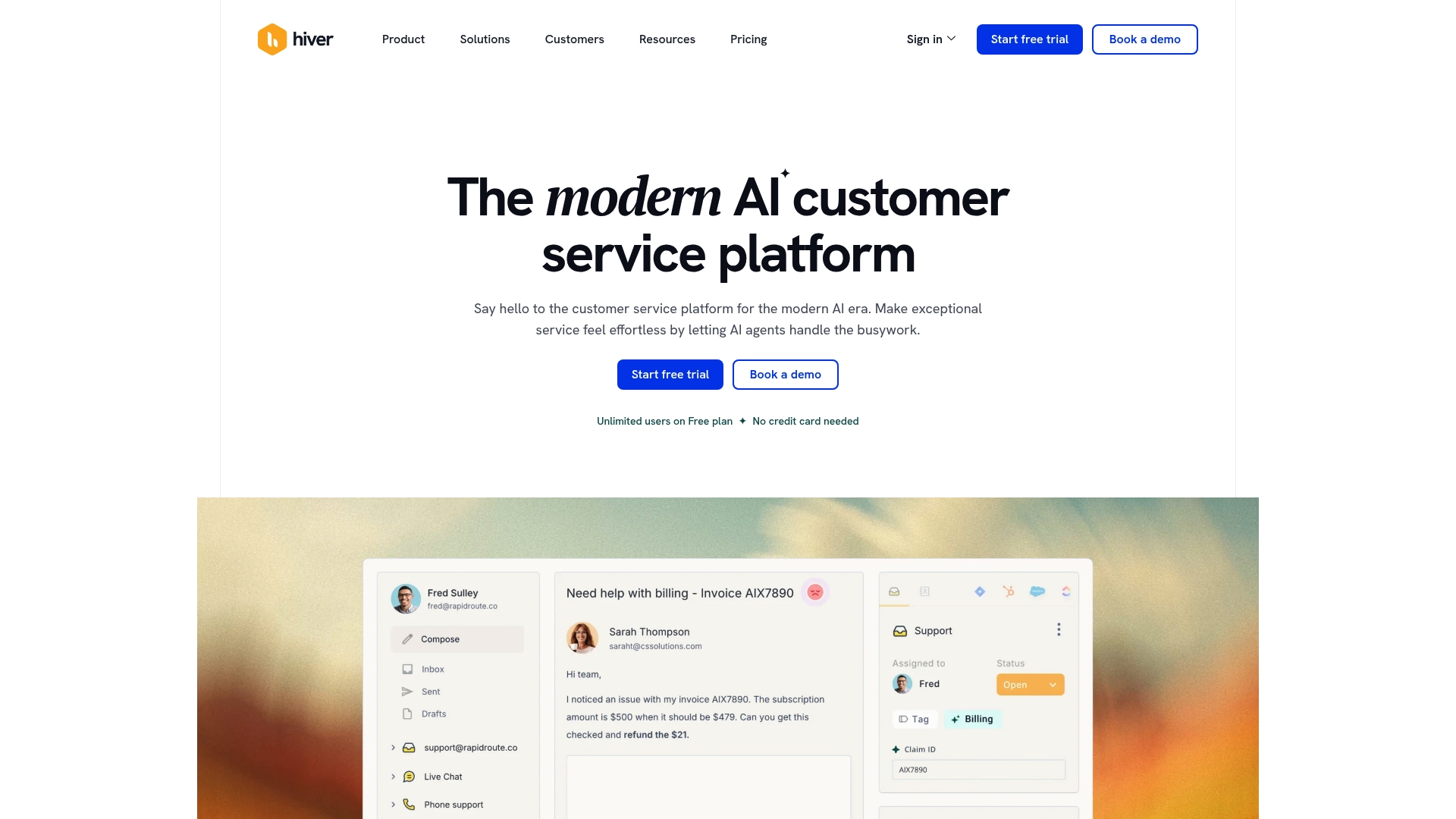
Description: Hiver is an AI-powered customer service platform for teams that primarily use Gmail. It integrates directly into the Gmail interface, turning it into a complete help desk without forcing your team to learn a new platform. It’s a solid choice for managing shared inboxes like support@ or sales@.
Pros and cons: Its seamless integration with Gmail is a main draw, making it easy for your team to get started. Features like collision alerts, email assignment, and detailed analytics are all built right in. The biggest drawback is that it only works with Google Workspace, so it’s not an option if your team uses other email providers.
Pricing:
- Free: Includes email, live chat, and a knowledge base for unlimited users.
- Growth: $25 per user/month. Adds AI Compose, AI Summarizer, and rule-based automations.
- Pro: $65 per user/month. Adds AI Agents, AI Copilot, voice, WhatsApp, and CSAT surveys.
- Elite: $105 per user/month. Adds skill-based routing, HIPAA compliance, and custom roles.
4. Drag
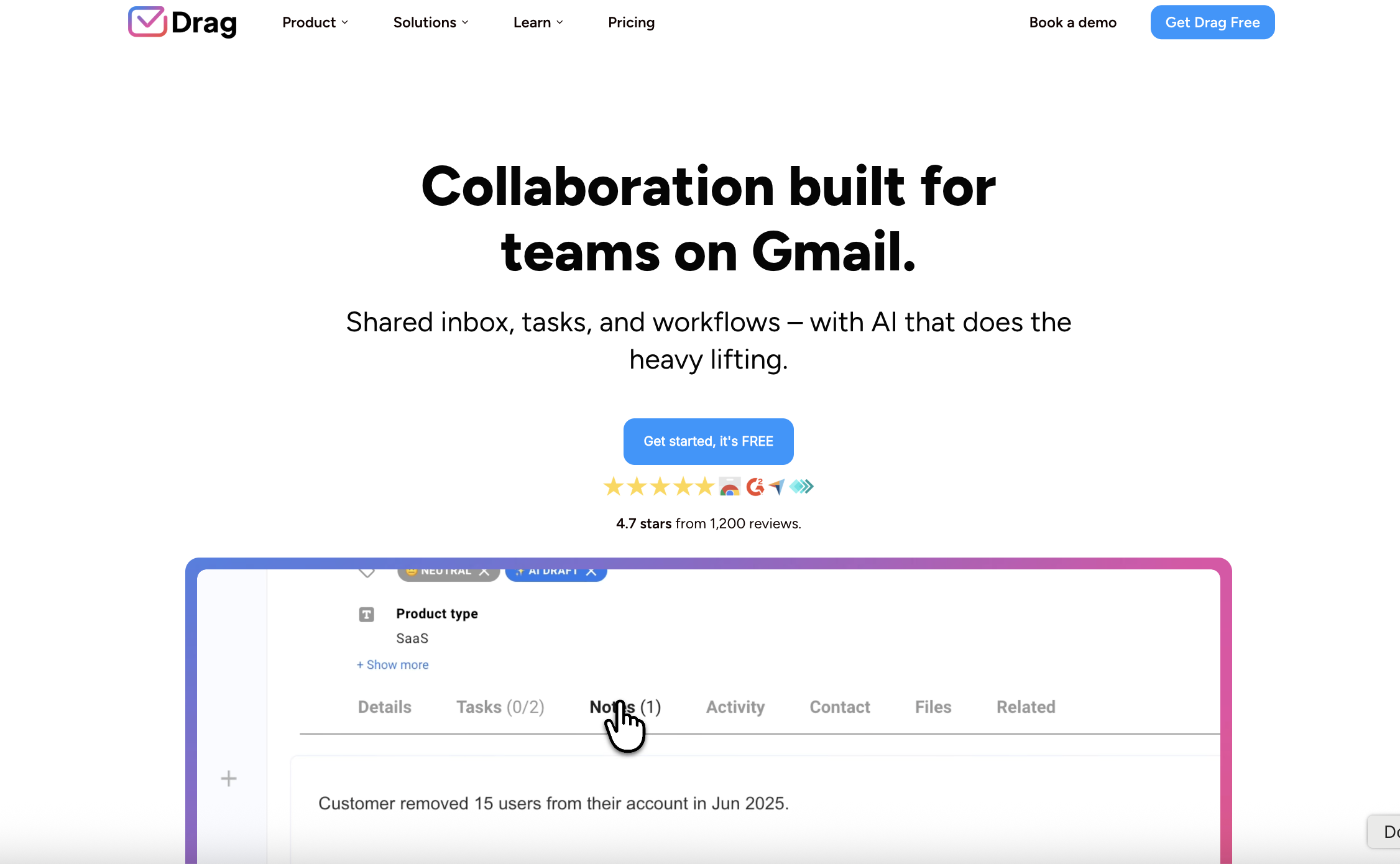
Description: Drag also operates inside Gmail but takes a unique, visual approach. It turns your inbox into a collaborative Kanban board, similar to Trello, letting you drag and drop emails between columns that represent different stages of your workflow.
Pros and cons: This visual workflow is well-suited for teams managing projects, sales pipelines, or support tickets in clear stages. The ability to add tasks, notes, and due dates directly to emails is a significant benefit for organization. However, if your team prefers a traditional list-style inbox, the Kanban-first approach might be less intuitive.
Pricing:
- Starter: $12 per user/month (billed yearly). Includes unlimited workspaces and basic automation.
- Plus: $18 per user/month (billed yearly). Adds AI assistants, email sequences, and file uploads.
- Pro: $24 per user/month (billed yearly). Adds WhatsApp channel support, API access, and custom roles.
5. Groups.io
If you're mainly using Google Groups as a mailing list or discussion forum, Groups.io is a modern replacement. It's designed for communities and offers a cleaner interface and more features than Google Groups, like a shared calendar, file sharing, wikis, and polls.
Pros and cons: Groups.io is privacy-focused (no ads or data mining) and offers great organization with features like hashtags. It is a suitable choice for non-profits, open-source projects, and hobby groups. While it's fantastic as a forum, it doesn't have the collaborative inbox features that business teams need for managing a high volume of customer emails.
Pricing:
- Free: For up to 100 members with core email group features.
- Premium: Starts at $20/month for the entire group, removing member limits and adding features like a calendar, files, and photos.
6. Slack
For many teams, an effective way to handle internal communication issues is to move away from email altogether. Slack is a channel-based messaging platform that organizes conversations by topic, project, or team, creating a searchable archive of all communication.
Pros and cons: Slack is designed for real-time internal collaboration and can dramatically reduce the number of internal emails you send and receive. Its extensive library of integrations makes it a central hub for all your team's work. The main thing to keep in mind is that it isn't built to manage external email from customers, so you'd still need a separate tool for your shared inboxes.
Pricing:
- Free: Limited message history and integrations.
- Pro, Business+, and Enterprise+: Paid plans are available with advanced features like unlimited message history, AI-powered summaries, and enterprise-grade security. You can visit their website for the most current pricing.
Understanding the fundamental differences between Google's own tools, like Google Groups and delegated access, can help clarify why so many teams seek out dedicated alternatives. This video offers a great breakdown of the pros and cons of each native Google option, highlighting the common pain points that the tools on our list are designed to solve.
This video offers a great breakdown of the pros and cons of each native Google option, highlighting the common pain points that the tools on our list are designed to solve.
How to choose the right Google Groups alternatives for your team
- First, identify your main challenge: What's the main problem you're trying to solve? Are you drowning in support tickets, struggling with forum moderation, or just need a better mailing list? A customer support team has very different needs than a sales team. For instance, if you need a knowledge base, Help Scout is a strong contender. If you love the idea of a visual workflow inside Gmail, Drag is built for you.
- Think about how your team works: Do you want a tool that lives inside Gmail, or would you prefer a standalone app? Do you need to manage other channels like SMS and social media? Missive excels at bringing all channels into one view (no more tab swtiching). Getting your team involved in this decision is key to making sure everyone actually uses the new tool.
- Test the tool: Most tools on this list offer a free trial or plan, which is a good way to evaluate them. Set up a pilot with a few teammates to test out the features in a real-world scenario. See how it feels to assign conversations, collaborate on replies, and organize your work. This is the best way to know for sure if a tool is the right fit.
It's time to upgrade your team's communication
While Google Groups is a functional starting point, it may not meet the needs of a growing business. Adopting a specialized collaboration tool can bring more clarity and accountability, leading to improved communication and customer satisfaction.
For teams looking for a platform that consolidates communication channels, automates tasks, and provides collaborative tools, Missive is one option to consider. You can start a free 30-day trial today, no credit card required.
Frequently Asked Questions
Q1: What are the main limitations of Google Groups that lead people to seek out Google Groups alternatives? A1: The main limitations are a lack of accountability (you can't assign emails), a user interface that is separate from Gmail, and no real workflow tools. This often leads to missed messages and confusion as a team grows.
Q2: Are there any free Google Groups alternatives for small teams? A2: Yes, several of the tools on this list, including Missive, Help Scout, Hiver, and Slack, offer free plans. These are great for small teams or for trying out a platform's core features before committing to a paid plan.
Q3: How do I choose the right Google Groups alternatives if my team communicates on more than just email? A3: You should look for a multi-channel inbox. A tool like Missive is built for this, bringing email, SMS, WhatsApp, and social media into one shared space. This prevents your team from having to jump between different apps to talk to customers.
Q4: I like working in Gmail. Are there any Google Groups alternatives that work inside my inbox? A4: Absolutely. Tools like Hiver and Drag are designed to live directly inside the Gmail interface. They add shared inbox and workflow features without forcing your team to learn a completely new application.
Q5: What key features should I look for in Google Groups alternatives for customer support? I don't need forum moderation or message boards. A5: For customer support, look for features like email assignments, internal notes for team collaboration, collision detection (to prevent duplicate replies), saved replies for common questions, and analytics to track response times.

January 19, 2026
How to create rules in Outlook: a complete guide
How to create rules in Outlook across every version (new, classic, Mac, web), plus what Outlook rules can’t do and when to use team alternatives.
To create a rule in Outlook, open Settings → Mail → Rules (or File → Manage Rules & Alerts in classic Outlook), click Add new rule, set a condition like “From [sender]” or “Subject includes [keyword],” then pick an action like “Move to folder” or “Delete.” Save, and Outlook will run the rule on every new message that matches.
Outlook rules are the built-in way to automate what happens to incoming email. They can file messages into folders, flag important senders, delete newsletters, or trigger alerts. But the exact setup is different in each version (new Outlook for Windows, classic desktop, web, and Mac), and there are a few limitations worth knowing before you invest time building them.
This guide walks through the steps for every version, what rules can and can’t do, and when a different tool is a better fit.
Understanding the basics of Outlook rules
Think of Outlook rules as a set of “if this, then that” instructions for your email. You tell Outlook what to look for in a message, and it automatically does something specific.
The goal is simple: save time, cut down on the mental energy a cluttered inbox drains, and make sure you never miss an important message.
Not all Outlook rules are the same, though. There’s a meaningful difference between server-side and client-side rules, and it can affect whether your automation runs when you’re away from your computer.
- Server-side rules: These run directly on the email server (like Microsoft Exchange). They work 24/7, even if your Outlook app is closed. They’re good for filing messages into folders or auto-forwarding. The new Outlook for Mac only supports server rules, which keeps things simple but cuts some options.
- Client-side rules: These only run when the classic Outlook application is open on your computer. They handle actions that need your local app, like playing a sound or showing a desktop alert. If Outlook is closed, your client-side rules are on pause too.
Rules are processed in the order they appear in your list, which can cause weird conflicts. A rule that moves emails from your boss to a “VIP” folder might fight with a rule that moves anything with the word “report” to a “Reports” folder. What happens when your boss emails you a report? To prevent that, Outlook has a “Stop processing more rules” option to make sure only the first matching rule fires.
One last thing: storage. Exchange Online limits the total space for all your rules to just 256 KB per mailbox. Once you hit that ceiling, you can’t create or update any more rules. It sounds like a technical detail, but for power users with dozens of workflows, it’s a surprisingly low limit.
How to create rules in Outlook (for every version)
The exact steps depend on which version of Outlook you’re using.
New Outlook for Windows and Outlook.com
The new desktop app and the web version work the same way.
According to Microsoft’s official guide:
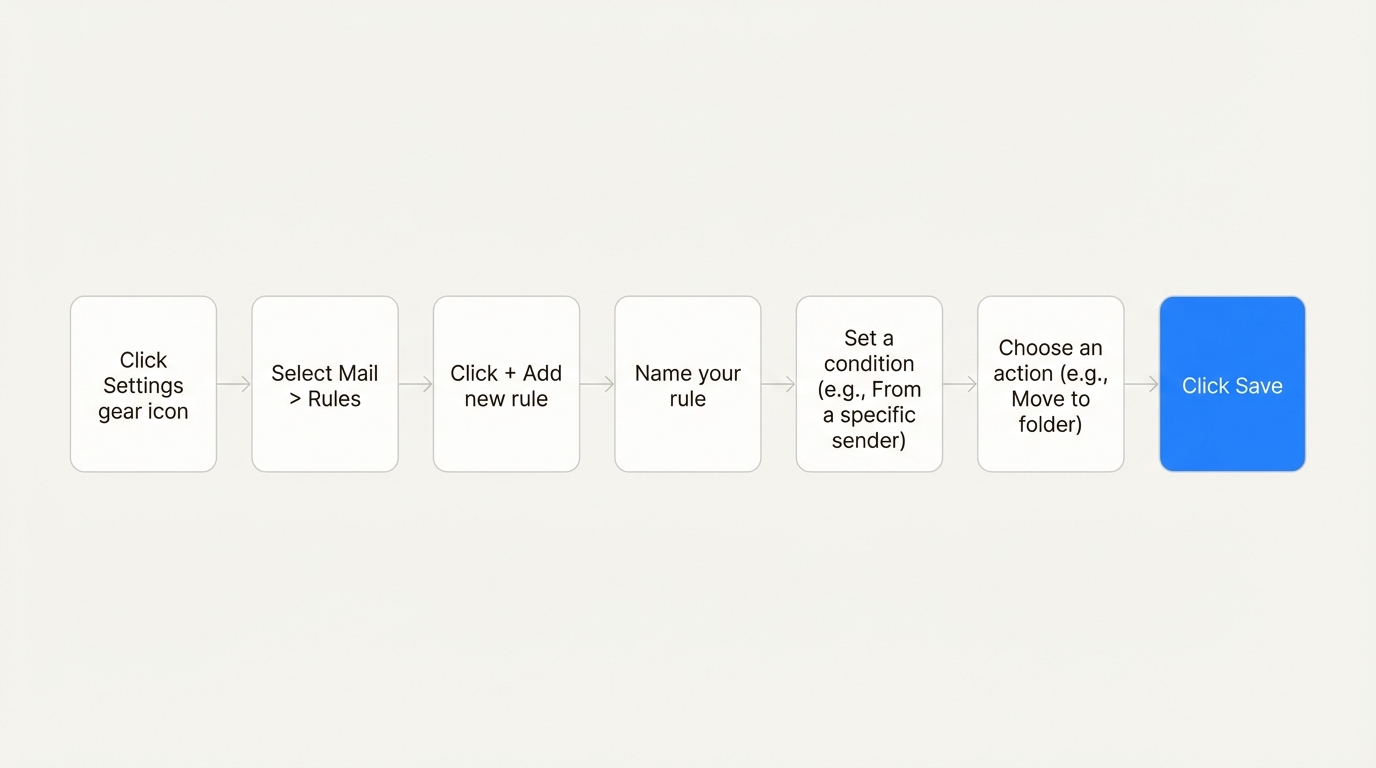
- Click the Settings gear icon in the top right corner, then go to Mail > Rules.
- Click + Add new rule.
- Give your rule a name that makes sense to you.
- Add a condition. This is the “if” part, like “From” a specific sender or “Subject includes” certain words.
- Add an action. This is the “then” part, like “Move to” a folder or “Delete.”
- If you have multiple rules, check the “Stop processing more rules” box to keep them from clashing.
- Click Save.
One important limitation: the new Outlook does not support rules for third-party accounts you’ve connected, like Gmail or iCloud. For those, you’ll have to set up sorting rules directly with that email provider.
Classic Outlook for Windows
The classic desktop version has the most detailed options, accessible through its Rules Wizard. It’s also where you’ll have to think about the client-side vs. server-side distinction.
There are two main ways to start:
- From a message: The fastest method. Right-click an email that’s a good example of what you want to automate, then select Rules > Create Rule. Outlook will pre-fill some of the conditions for you, like the sender’s name. This is what you want if you’re wondering how to create a rule from a selected email.
- From a template: For more control, go to File > Manage Rules & Alerts > New Rule. This opens the Rules Wizard, which gives you templates for common tasks like “Move messages from someone to a folder.”
The Rules Wizard walks you through a few steps: choose a template, set your conditions (the “if”), pick your actions (the “then”), add any exceptions, name the rule, and turn it on.
A useful feature here is the “Run this rule now on messages already in the current folder” option. It’s good for cleaning up an existing folder right after you create a rule.
Certain actions, like displaying a desktop alert, will trigger a warning that the rule will only run when Outlook is open.
Outlook for Mac
Outlook for Mac recently simplified its approach. To make rules more reliable, it now only supports server-side rules. Your automation will always work, even when the app is closed. The trade-off is that client-side actions like custom sounds are no longer available.
Here’s how to set one up:
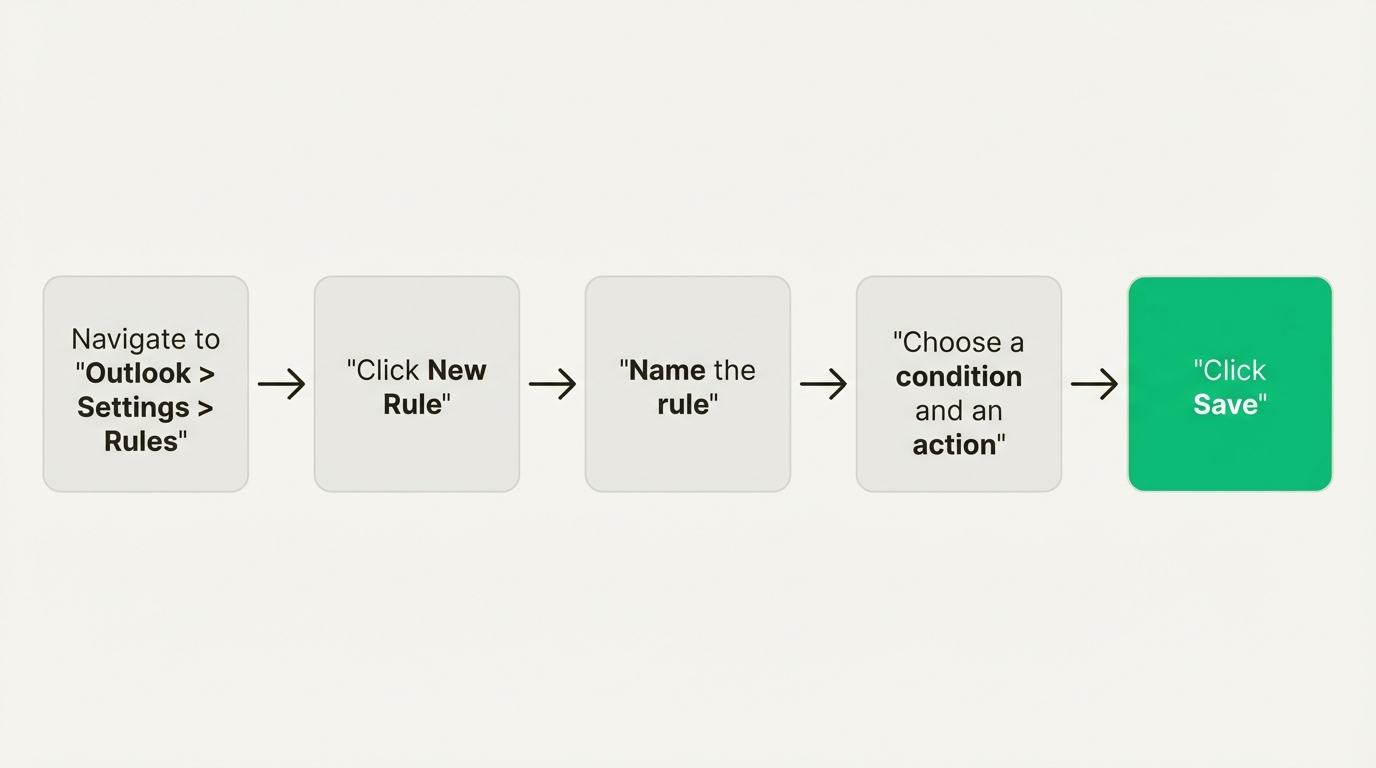
- From the top menu bar, go to Outlook > Settings > Rules.
- Click New Rule and give it a name.
- Choose a condition (like “From”) and an action (like “Move to Folder”).
- Use the “Stop processing more rules” option if you need to avoid conflicts.
- Click Save.
Features and limitations of Outlook rules
Now that you know how to build rules, here’s where they shine and where they fall short, especially for teams.
Core capabilities
For managing your own personal inbox, Outlook rules are capable. They’re particularly good at a few things:
- Sorting. You can automatically move messages based on the sender, keywords in the subject line, or whether you’re in the To or CC field. This is the quickest way to keep your main inbox focused on what needs your attention right now.
- Prioritization. Set up a rule to flag any message from your manager or with the word “urgent” in the subject. Important messages float to the top; nothing gets missed.
- Inbox cleaning. Tired of promotional emails and newsletters cluttering up your inbox? A rule can send them to a “Read Later” folder or delete them on arrival.
- Custom alerts. In classic Outlook, you can set up desktop alerts or sounds for high-priority emails, so you get an immediate heads-up when something important lands.
Limitations for team collaboration
These features were designed for individual use. In a team setting, the limits show up fast.
- They aren’t collaborative. Rules are tied to a single user’s account. You can’t create a rule to automatically assign a new customer question to the next available person on your support team. You can’t balance the workload for a shared inbox like
sales@company.com. That work stays manual, which means duplicate replies or missed emails. - They’re email-only. Business communication isn’t just email anymore. Your team is probably juggling messages from SMS, WhatsApp, website live chat, and social media. Outlook rules only work on email, so other channels get managed in separate tools. Conversations get split; customer messages slip through.
- They can be device-dependent. The client-side rule limitation is a problem for teams that need constant availability. A rule you built to notify you about an urgent lead won’t run after hours if your work computer is off. Real automation needs to be on all the time, not just when you’re at your desk.
- Rule management gets messy. As your list of rules grows, they start to conflict or break. The bigger issue is the 256 KB storage cap. Power users hit the ceiling and are suddenly unable to create any more rules. People work around it by shortening rule names or cramming multiple conditions into one rule to save bytes.
These limits show that Outlook rules are built for individual productivity. For teams that need collaborative automation across multiple channels, a different tool is a better fit.
When to consider alternatives to Outlook rules
Outlook rules are a great starting point for taming your personal inbox. When workflows involve multiple people, though, the individual-focused model runs out of room. If your team needs shared ownership, clear accountability, and a single place for all customer conversations, a more capable rule system is worth looking at.
Missive is a collaborative email client built for teams. It connects your team’s shared addresses (support@, sales@, info@) alongside personal inboxes, and it handles email, SMS, WhatsApp, Instagram, Messenger, and live chat in one place. Missive’s rules can do everything Outlook rules do and more: assign conversations in a round-robin, add internal comments for context, apply shared tags, and run automations across every channel, not just email.
Three examples of what Missive rules can do that Outlook rules can’t:
- Service level agreements: set up SLAs to maintain short response times across your whole team. Specify reminders and escalate to certain users if breached.
- Escalate urgent emails using AI: have AI process the context of incoming client emails. If they’re urgent, escalate and assign to a pre-selected person.
- Automatic follow-ups: trigger a sequence of follow-up emails based on an email you sent. Automatically stop following up once someone replies.
Here’s a deep dive into the difference between personal rules and organization rules:
FAQ
How do you create a new rule in Outlook?
In the new Outlook for Windows or Outlook.com, go to Settings > Mail > Rules > + Add new rule. Give the rule a name, pick a condition (like “From [sender]”), pick an action (like “Move to [folder]”), and save. In classic Outlook, go to File > Manage Rules & Alerts > New Rule to open the Rules Wizard. In Outlook for Mac, go to Outlook > Settings > Rules > New Rule.
How do I make certain emails go directly into a folder in Outlook?
Create a rule with a condition that matches the emails you want to sort (for example, “From: newsletter@example.com” or “Subject contains: Invoice”), then set the action to “Move to” and pick the folder. Check “Stop processing more rules” if you have other rules that might conflict. New messages matching the condition will land in the folder instead of your main inbox, and you can also run the rule on existing messages in classic Outlook via the “Run rules now” option.
How do you create a rule based on a selected email?
In classic Outlook for Windows, right-click the email and select Rules > Create Rule. Outlook pre-fills the conditions based on the selected message (sender, subject line, recipients), so you can confirm or tweak the details rather than building the rule from scratch. In the new Outlook and on Mac, the right-click option is more limited; you’ll usually need to open the full rule editor and enter conditions manually.
Can I set up Outlook rules to forward emails automatically?
Yes, but with caveats. You can create a rule with the action “Forward it to [email address]” to automatically forward matching messages. However, many organizations disable external auto-forwarding by default as a security measure against phishing and data exfiltration. If your rule silently stops working, check with your IT admin first.
Why aren’t my Outlook rules running?
The three most common reasons: (1) the rule is client-side and Outlook is closed, so it won’t fire until you open the app; (2) you’ve hit the 256 KB rules storage limit, and new rules are being silently ignored; (3) rules earlier in the list with “Stop processing more rules” are intercepting the message first. Microsoft has a broken rule troubleshooter for the first issue, and you can free up space by deleting unused rules or consolidating them.
Do Outlook rules work on mobile?
Rules created on desktop or web will run on any device as long as they’re server-side. You can’t create or edit rules from the Outlook mobile app directly; you’d need to open the web version in a mobile browser to make changes.
What’s the difference between Outlook rules and Missive rules?
Outlook rules are per-user and email-only. Missive rules are team-level and cross-channel. A Missive rule can assign an incoming conversation to a specific teammate, apply tags visible to everyone, add internal chat messages for context, and run across email, SMS, WhatsApp, Instagram, and live chat. Outlook rules can’t assign, can’t add team notes, and don’t know about anything outside of email.
Missive is a collaborative email client built for teams that have outgrown personal rules. Connect your team’s shared addresses, automate assignments with AI-powered rules, and handle every customer channel from one place. Try Missive free.

January 16, 2026
Ticketing system vs shared inbox
Ticketing system vs shared inbox: which is right for your team? We break down the pros, cons, and when to switch from a chaotic inbox to a structured tool.
Most teams start out with a simple shared email address like "info@" or "support@". It’s usually managed through a basic tool like an Outlook Shared Mailbox or a Google Group, and for a while, it works. It's simple, familiar, and gets the job done.
But then your team grows, and so does the email volume. Suddenly, that simple system is a source of chaos. Emails get missed. Two people send different replies to the same customer. No one is quite sure who’s handling what.
This is a common crossroads for growing teams: stick with the shared inbox, or move to a more structured ticketing system? The right answer really depends on how your team works. This guide will break down the practical differences, help you spot the signs that it’s time for a change, and show you how to choose a tool that actually helps your team.
What is a shared inbox?
A shared inbox is exactly what it sounds like: a standard email account that multiple people can use. Think Outlook 365 Shared Mailboxes or Google Groups for Business. They’re a popular starting point because they’re often included with software suites you already pay for.
The good parts:
- It's familiar. The interface is just a regular inbox, so there's no real learning curve. Your team can jump right in.
- It's cheap. They’re usually free with subscriptions like Microsoft 365 or Google Workspace.
- It's fast to set up. You can create a new shared address and grant access in minutes.
The not-so-good parts:
- No one owns anything. One of the biggest challenges is the "bystander effect," where everyone assumes someone else will reply, so no one does. Or, you get "agent collision," where two people reply to the same email with different answers.
- It's missing key features. Basic shared inboxes lack tools for tracking Service Level Agreements (SLAs) or building a knowledge base for common questions.
- You can't measure performance. It's difficult to track metrics like average response time. Managers are left guessing about team performance and can't spot where things could be better.
What is a ticketing system?
A ticketing system is specialized software built to manage customer communication. It turns every incoming message, whether from email, a web form, or social media, into a unique, trackable record called a "ticket." Each ticket gets a number and moves through a workflow from "open" to "resolved."
The good parts:
- Structured workflow. Every request becomes a ticket with a clear owner and status (like open, pending, or closed). This design enforces accountability and makes sure nothing gets lost.
- Built for collaboration. Features like internal notes and @mentions let team members discuss an issue privately within the ticket, keeping all context in one spot.
- Performance reporting. Ticketing systems have automatic dashboards that show clear data on metrics like first response time, ticket volume, and agent performance.
The not-so-good parts:
- Impersonal experience. Customers often feel like they’ve become just another number. The first thing they see is an automated email with a ticket ID, which can feel cold and robotic.
- Steep learning curve. Many help desks are complicated to configure and use, often requiring long training sessions, because they include a wide range of features.
- Rigid workflows. The strict processes in many ticketing systems can feel restrictive and get in the way of the natural conversations needed to solve complex problems.
A practical comparison of a ticketing system vs shared inbox
The real differences between these tools show up in your team's day-to-day work. Here’s how they compare on the things that matter most for collaboration and customer communication.
Ownership and accountability in a ticketing system vs shared inbox
With a shared inbox, ownership is vague. Teams often rely on manual tagging, shouting across the office, or just hoping the right person sees the message. This guesswork leads directly to dropped conversations and frustrated customers.
A ticketing system is built on accountability. Every ticket is assigned to a specific person or team. There’s no doubt about who is responsible for the next reply, which removes the friction of a shared inbox.
Collaboration and context with a ticketing system vs shared inbox
Collaboration in a shared inbox can be challenging. To discuss a customer email, you might forward it, CC a colleague, or switch to a chat tool like Slack. This scatters the conversation history everywhere, making it hard to piece together the full context later.
A ticketing system is designed for teamwork. Private notes and internal discussions happen directly on the ticket. This keeps the entire history of the conversation, both internal and external, in one place.
Tracking and performance: ticketing system vs shared inbox
A shared inbox offers no built-in analytics. If a manager wants to know how fast the team is replying, they have to use manual spreadsheets and guesswork, which is slow and often inaccurate.
In a ticketing system, automatic reporting is a core feature. Dashboards give you instant, clear data on key metrics. This helps teams spot bottlenecks, measure performance, and see trends in customer questions over time.
The customer experience in a ticketing system vs shared inbox
The experience with a shared inbox can feel personal, but it's often inconsistent. A customer might get conflicting answers from different people or have to repeat their issue every time someone new joins the thread.
A ticketing system provides a more consistent experience, since every agent can see the full conversation history. However, the automated responses and ticket numbers can make the interaction feel cold and transactional, as if the goal is to close a ticket rather than help a person.
7 signs you've outgrown a shared inbox
How do you know when a simple shared inbox is causing more problems than it solves? If your team recognizes several of these signs, it’s a clear signal that it's time for a better tool.
- Customers are following up on unanswered emails This is the most obvious red flag. If you’re regularly hearing, "Just checking in on this," it means messages are slipping through the cracks.
- "Agent collision" is a regular occurrence This happens when two teammates reply to the same customer at the same time. It confuses the customer and makes your team look disorganized.
- You have no idea who’s working on what The team relies on memory or verbal cues to track who is responsible for which conversation. Without clear ownership, important messages get dropped.
- You spend more time organizing than replying Your team is bogged down creating complex systems of folders and tags just to stay on top of the inbox. This is "shadow work" that can impact revenue and team burnout by focusing on managing the tool instead of helping customers.
- Urgent issues get buried in the noise In a chaotic inbox, a critical bug report looks the same as a password reset request. This can lead to dangerously slow responses for high-priority problems.
- You have no data to help you improve You can't answer basic questions like, "How many emails are we getting a day?" Without metrics, you’re making decisions without data and can't make informed decisions.
- Your internal communication is a mess of forwards and CCs If collaborating means forwarding an email with "FYI" or creating a long reply-all thread, your workflow is inefficient. This is a big red flag for collaboration and a sign you need a tool with built-in teamwork features.
Common drawbacks of ticketing systems
While ticketing systems solve the structural problems of a shared inbox, they often introduce a new set of challenges that can affect your team's workflow and customer relationships.
They turn human conversations into numbers
The ticket-based approach is impersonal. From the first automated reply with a ticket number, customers feel like they're just an entry in a queue. This can encourage agents to focus on metrics like "time to resolution" instead of actually solving the customer's problem.
They can introduce complexity
Many help desks come with a comprehensive set of features. This can make them difficult to implement and learn, requiring serious training time and frustrating new team members who just want to answer an email.
Their rigid workflows can hinder teamwork
Ticketing systems often impose strict, predefined workflows. While structure can be helpful, its rigidity can also stifle the creative discussion needed to solve complex problems. This often forces teams back to external tools like Slack for real collaboration, fragmenting the conversation all over again.
While ticketing systems offer more structure, it's important to understand the full picture. Seeing how others have navigated this transition can provide valuable insights into the benefits and potential pitfalls of moving away from a shared inbox.
Finding a middle ground
So, a shared inbox is too chaotic, but a traditional ticketing system is too rigid and impersonal. This is a common challenge, and it’s why a new category of tools has emerged: the collaborative inbox.
A collaborative inbox is a powered-up shared inbox. It's as fast as an email client and gives you the organization of a ticketing system, without forcing you to treat every customer conversation like a numbered ticket.
Missive is designed for teams that want to work together effectively, not just manage a queue. It keeps communication human while providing powerful, intuitive tools for collaboration.
- It feels like a real inbox, not a help desk. In Missive, conversations stay conversations. There are no ticket numbers, just clear assignments and an internal chat right next to the customer's email. You get all the accountability without the impersonal feel.
- Context is always clear. All your communication channels, including email, SMS, WhatsApp, and social media, live in a single unified inbox. Internal discussions happen right in the thread, so you never have to switch tools to find out what's going on.
- Ownership is simple and visible. You can assign any conversation to a teammate or a team. Everyone can see who is responsible for what at a glance, which eliminates email collision, duplicate work, and missed messages for good.
- Powerful, intuitive automation. You can use rules to automatically route messages, assign conversations, and send canned replies without a complex setup. Missive's AI rules can even analyze email content to detect urgency or sentiment, automating triage so your team can focus on the customer.
Choose a tool that fits how your team works
The choice between a shared inbox and a ticketing system isn't just about features; it's about finding a tool that matches how your support team needs to work.
A basic shared inbox can work for very small teams with low message volume, but it often breaks down as you grow. A traditional ticketing system brings structure and reporting, but often at the cost of complexity and a less personal customer experience.
The best tool enables your team to collaborate efficiently while keeping customer interactions human. It should adapt to your workflow, not force you into a rigid process.
If your team has outgrown the chaos of a shared inbox but doesn't want the impersonal rigidity of a traditional ticketing system, it might be time to see how a collaborative platform like Missive can bring clarity and calm back to your team's communication.

January 5, 2026
What we released in 2025
Looking back at 2025, we doubled the size of our team and set out to tackle some of the most requested features from our users.
Each year gives us 365 days to make Missive better for you, our users. I'm excited for 2026 and I'm incredibly proud of what we accomplished in the last 365 days.
Looking back at 2025, we doubled the size of our team and set out to tackle some of the most requested features from our users. We also shipped a handful of improvements that quietly make everyone’s day‑to‑day work in Missive smoother.
Here are some highlights from our favorite releases this year.
AI Rules
This year we introduced AI-powered rules that let automations understand message content rather than rely on static conditions. We expanded them with multi-channel support, model selection, and practical actions like AI labeling, draft creation, and pre-send checks for outgoing messages, making rules more useful in day-to-day workflows.
Rules also became easier to manage with drag-and-drop editing, support for signatures in rule-generated drafts, and the ability to remove users from conversations automatically.
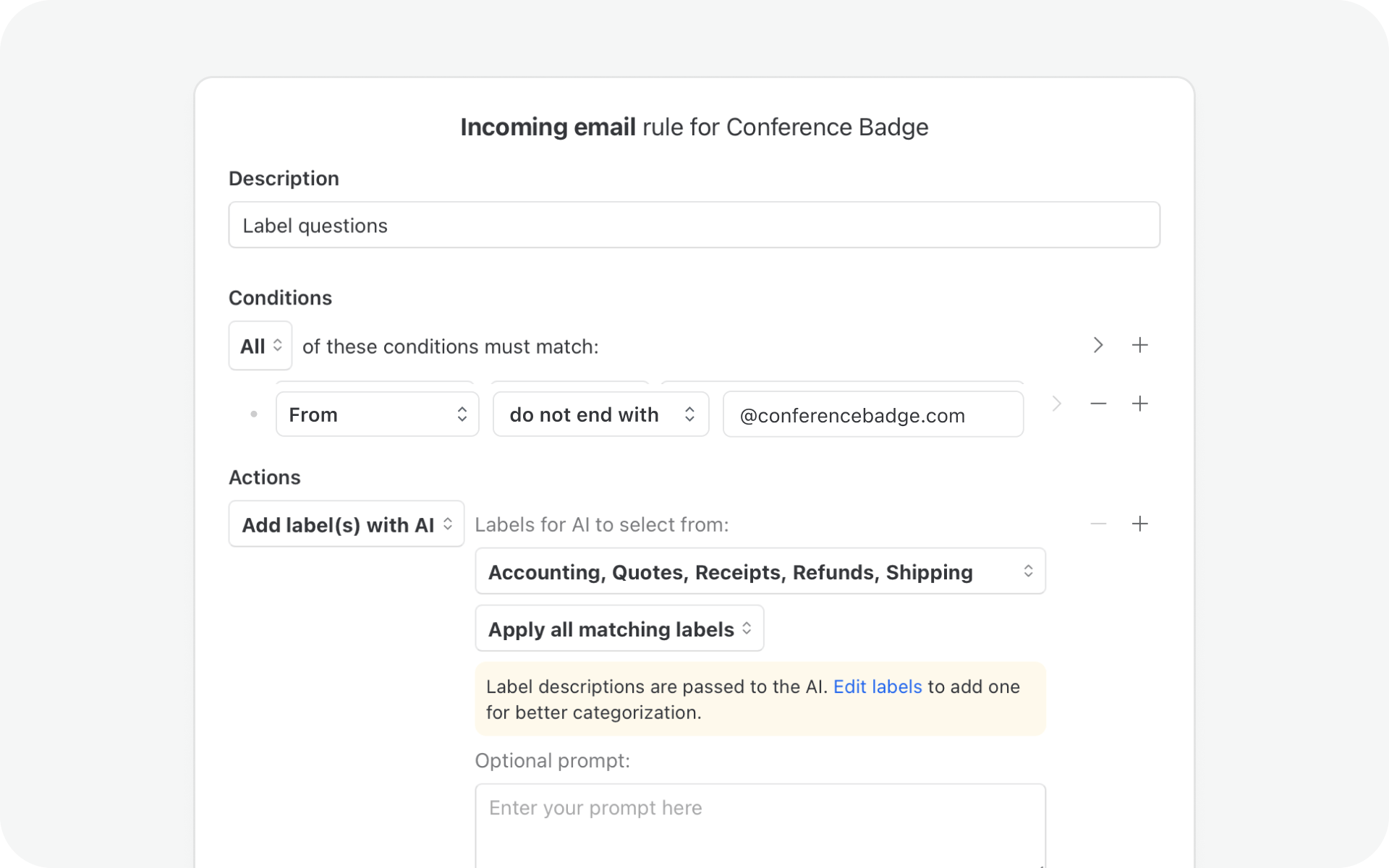
Tasks
We’ve completely re-imagined how tasks work in Missive. You’ll now find dedicated views that brings together all your tasks into one place.
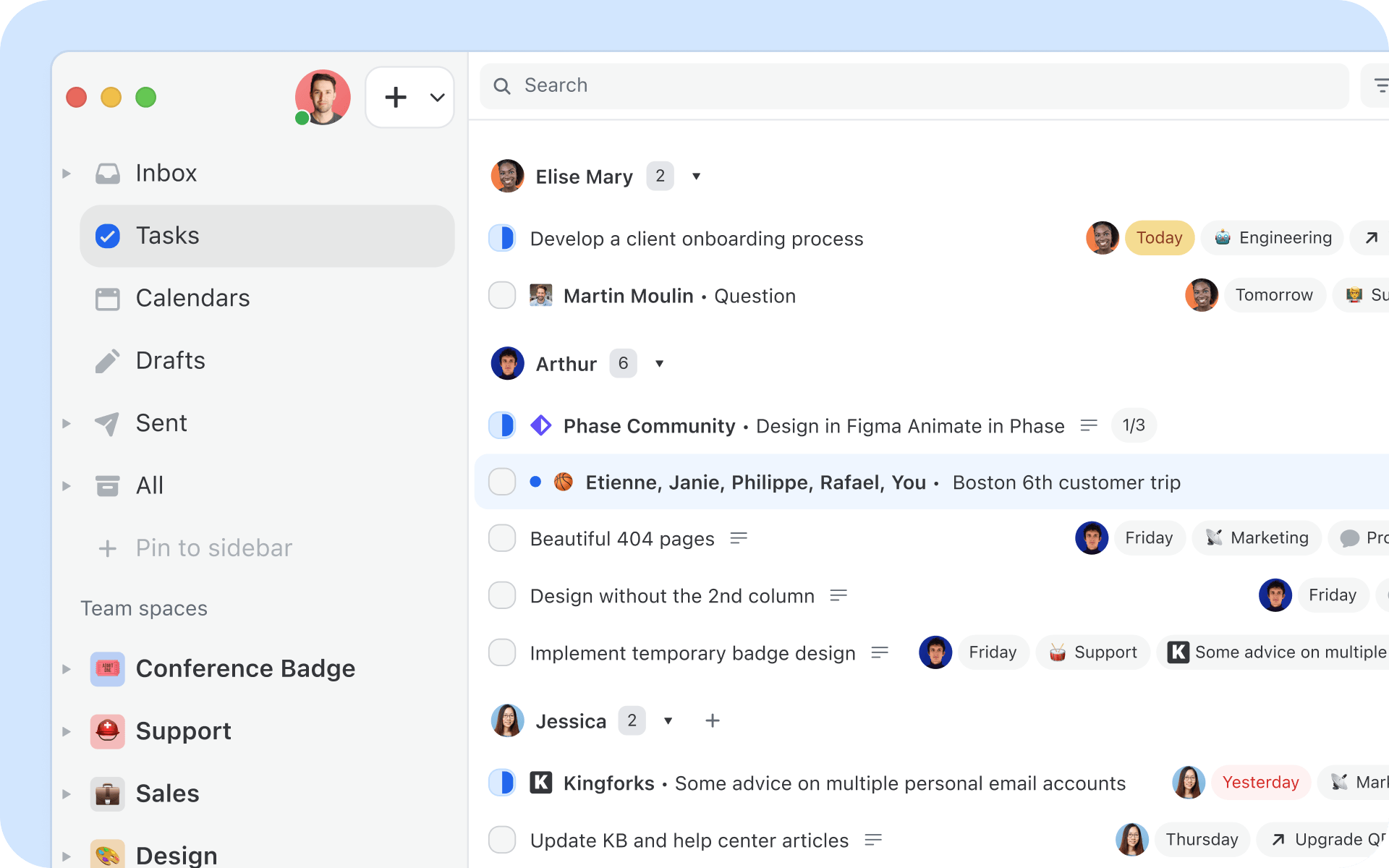
Search and filter
We added search and filter options to make it easier and more efficient to find the information you need. Filters with a specific date range, domain names, only conversations with attachments, etc.

Files & attachments
See all files and attachments from any conversation in one unified view. Cleaner thumbnails, category-based organization, and Quick Look with keyboard shortcuts make everyday tasks faster.
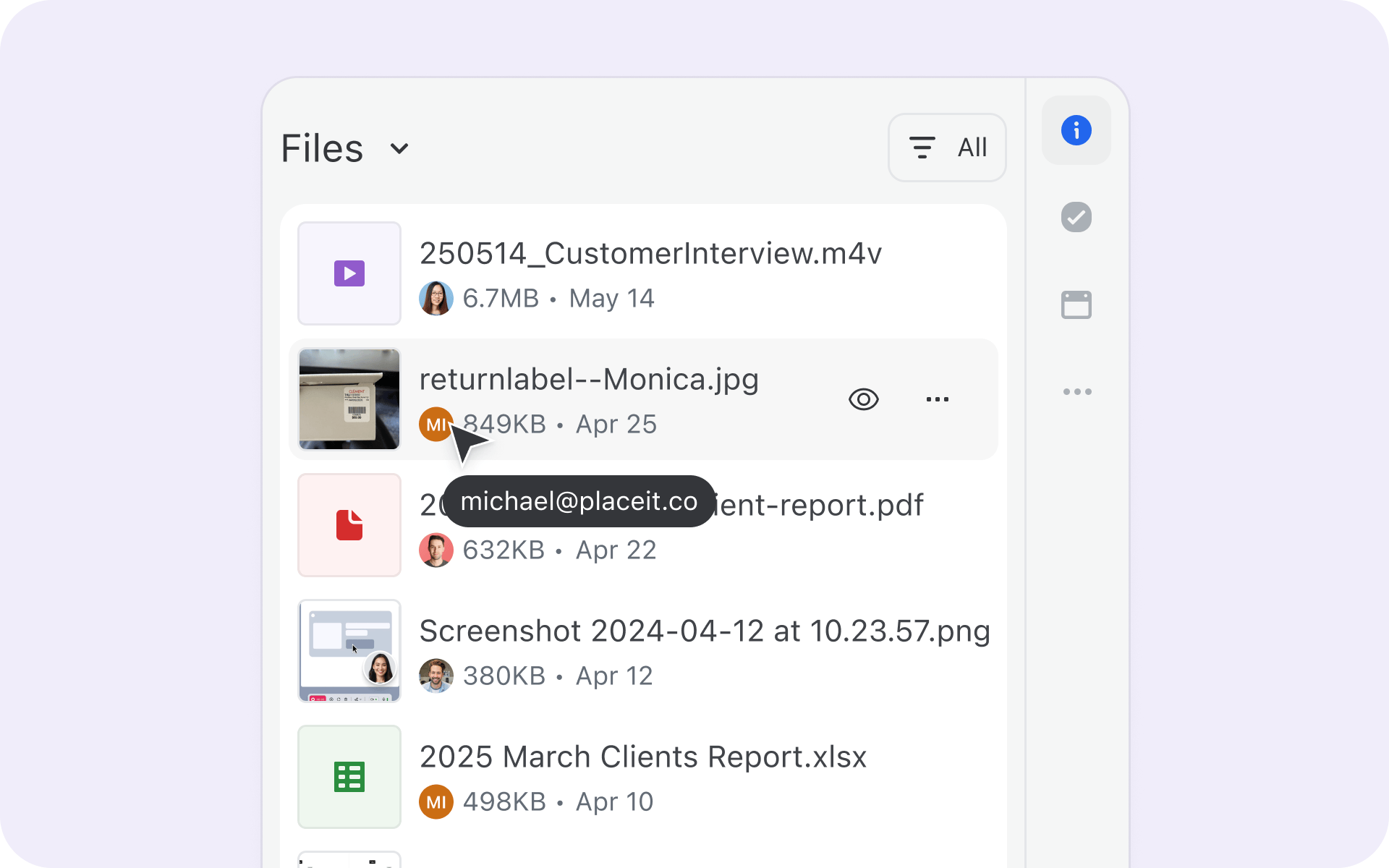
Out of office status: Auto response
Taking a well-deserved break? You can now set up automatic replies for your personal accounts right from your out of office status, no need for a rule.
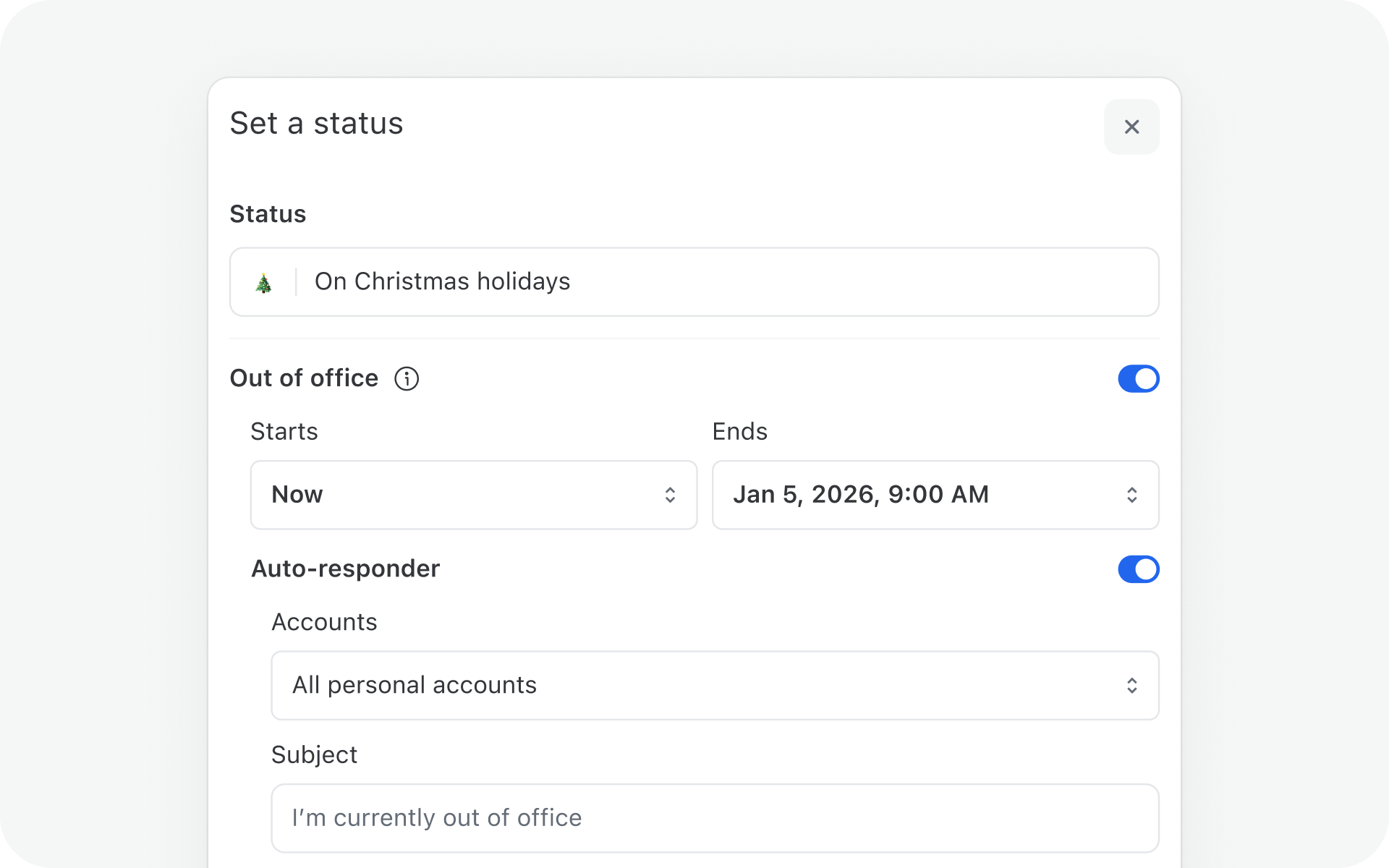
Guest Access
No more forwarding long threads or stitching together feedback from different tools. Guest Access lets you bring people outside your organization, like an accountant, contractor, or client—directly into specific Missive conversations.

My drafts & My sent
You can now toggle your Drafts and Sent mailboxes to show only the conversations with messages you personally created or all the ones from your colleagues, making it easier to focus on your own work.
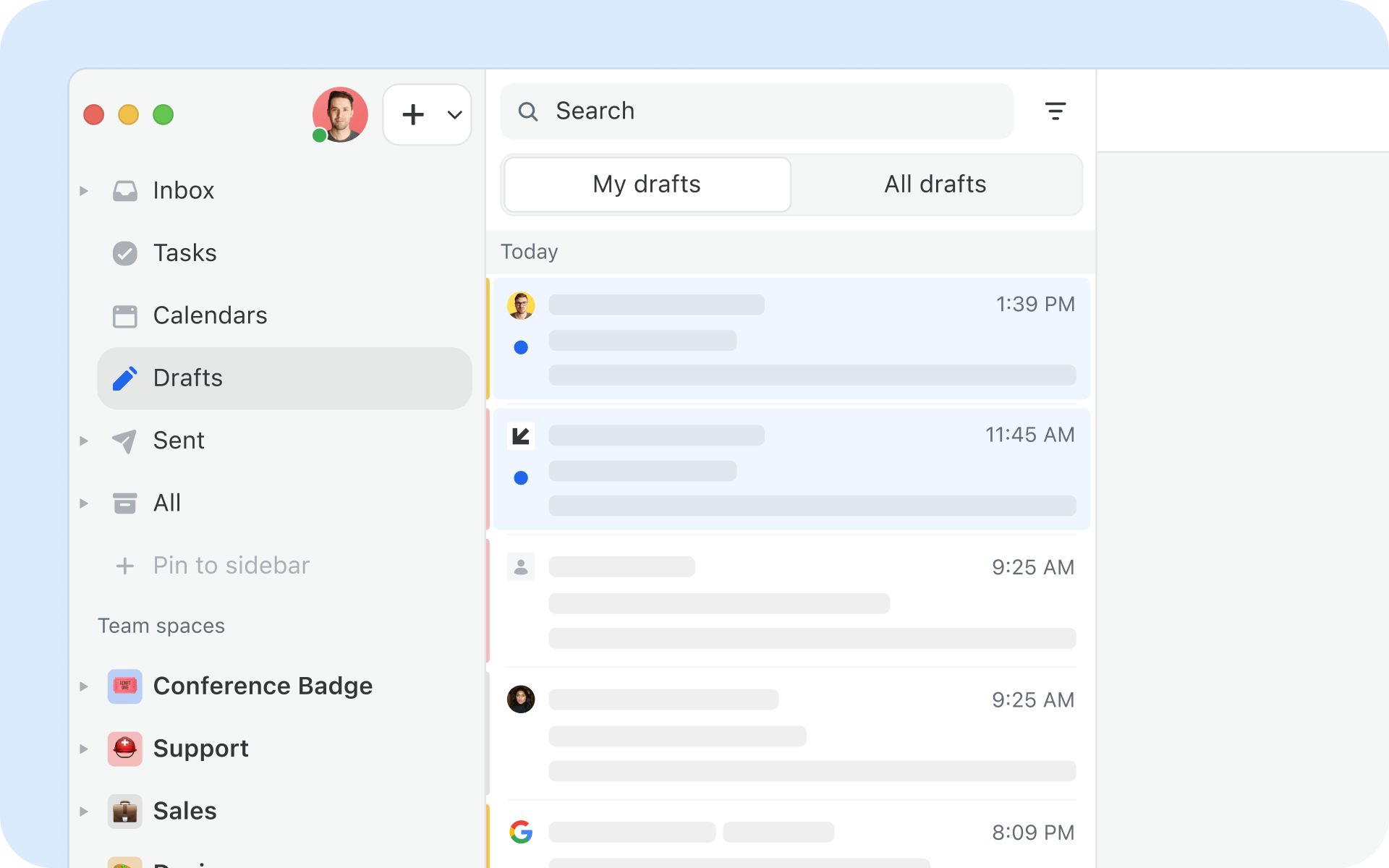
Onboarding: Account and team creation
We redesigned our signup and onboarding flow to better guide new organizations through their first steps, with clearer hand-holding around creating a team and connecting a first shared account.
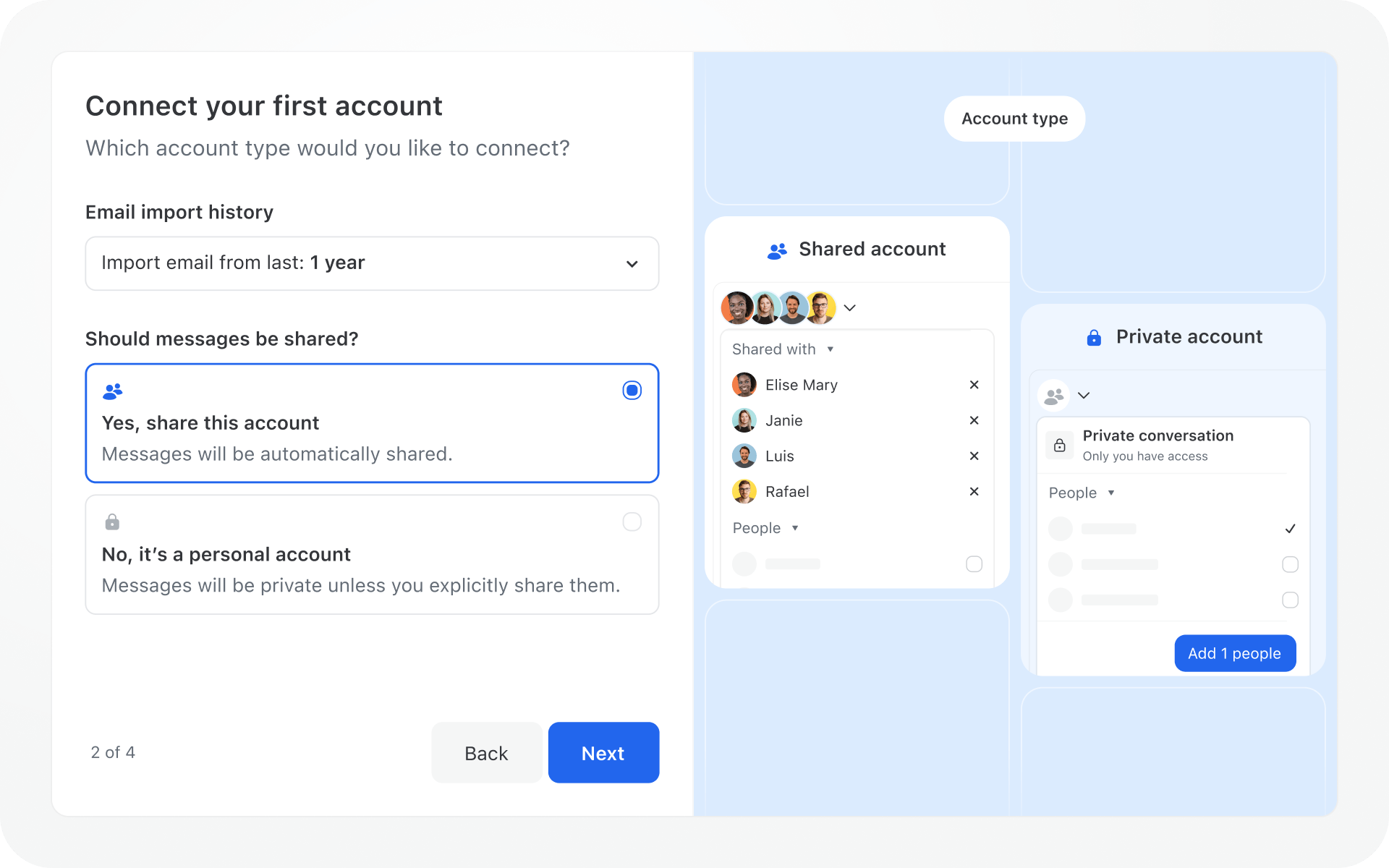
Teams spaces
A new way to organize your teams. Every team has now a dedicated space in the sidebar, and every member will see the right elements depending on their role in the team. Quickly access your team’s inbox, Tasks, and Chatroom from the same place.
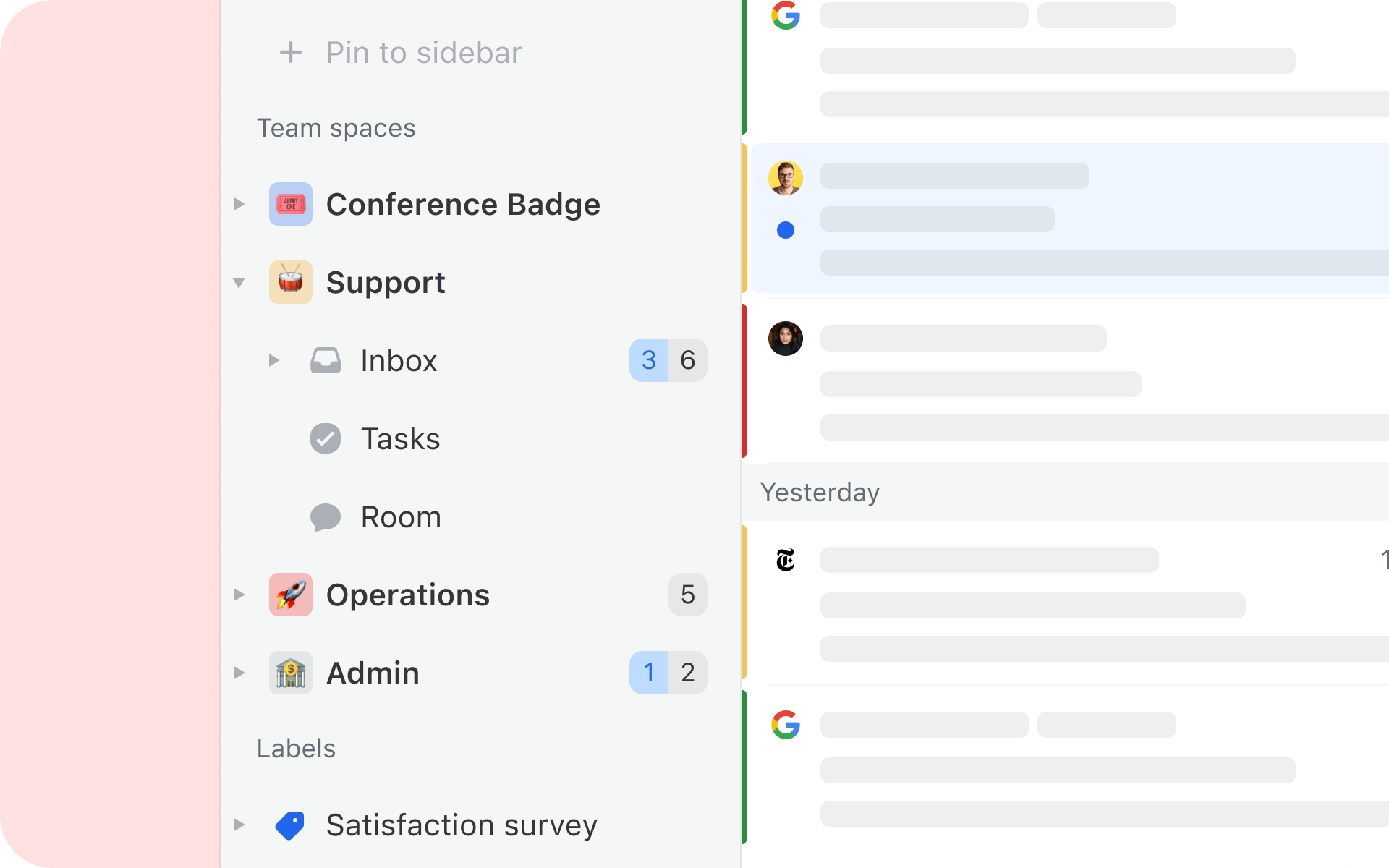
Native support for WhatsApp Business. No need to add a WhatsApp account via a third-party provider anymore, import directly from Facebook Business Manager.
And many more:
- Unread marker in conversations
- Dialpad call transcription (AI-enabled)
- Relay integration (connect to 200+ apps; automation + AI capabilities)
- Native support for WhatsApp Business
- Coworkers profile card
- Redesigned label menu (favorites + keyboard navigation)
- Natural language detection for snooze / send later
- Recently viewed conversations: in search modal and commandbar.
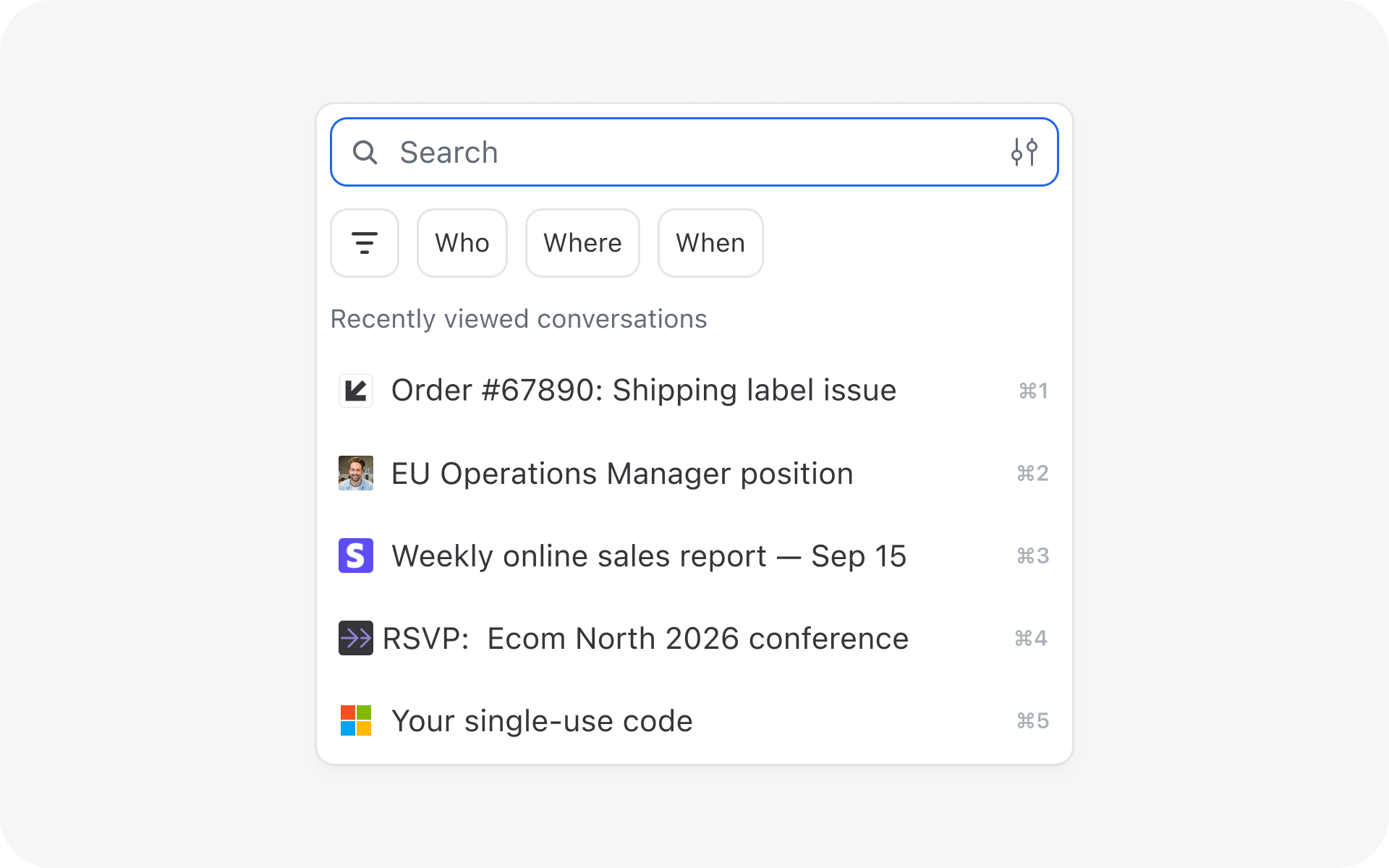

As always, we'll be regularly shipping improvements and posting them on our changelog. We can't wait to show you what we're cooking up in 2026 already.

November 21, 2025
The best Gmail alternatives for teams in 2026: pros, cons & features
The best Gmail alternatives for teams in 2026, compared. Pros, cons, pricing, and which tools actually solve the shared inbox problem.
Quick answer: Gmail works well for one person. For teams, it breaks down fast: no shared ownership, no internal chat on a thread, and no visibility into who replied to what. The best Gmail alternatives for teams in 2026 are Missive for collaboration, Hiver for Google Workspace users staying inside Gmail, and Front for high-volume customer-facing teams. For privacy or compliance, Proton Mail and Microsoft 365 are the strongest provider swaps.
Why teams outgrow Gmail
Most Gmail alternatives get recommended to individuals. The real break happens at the team level.
The pattern shows up the same way most places: a shared inbox sits behind a single Gmail login, two people accidentally reply to the same customer, three more emails get forwarded to internal threads that nobody can find later, and the “did you handle this?” Slack messages start piling up. Nobody is doing anything wrong. Gmail just wasn’t built for more than one person at a time.
It helps to be specific about what’s actually breaking. Gmail has two parts:
- Gmail the email provider: hosts your mailbox, delivers mail across the internet, handles uptime, spam filtering, and storage.
- Gmail the email client: the inbox interface you actually open in a browser or app.
The faucet-and-water analogy is useful here. The provider is your municipal water service, the client is the faucet on your sink. You can swap either one without touching the other.
That matters because most teams don’t need to replace Gmail’s underlying infrastructure. They need a better client on top of it, one designed for more than one user. For setting up a shared Gmail address with multiple people, Gmail itself is the wrong tool. A dedicated shared inbox is.
What teams should look for in a Gmail alternative
A Gmail alternative for a team is not the same product as a Gmail alternative for one person. The features that matter look different:
- Shared inbox support. Multiple people working a single address like support@ or info@ without sharing a password.
- Internal collaboration on the thread itself. Chat, mentions, drafts, and assignments inside the email, not in a separate Slack channel that nobody opens.
- Multi-account handling. Most teams aren’t just monitoring one address. Sales, support, billing, and a founder’s personal account often need to live in the same workspace.
- Rules and automations. Routing by sender, keyword, or label so the right person sees the right message without manual triage.
- Per-seat pricing that scales sensibly. Some tools cap seats at the lower tier or charge AI features as add-ons. That can be the difference between $14 and $115 a seat once the bill lands.
From what we see, most teams break down on the first two. The other three are how you keep the operation running at twenty seats and beyond. For more on the underlying workflow, see our guide to email collaboration for teams.
If your frustration is how Gmail works, not who delivers your email, skip to the client section below. If you need to change providers (privacy, compliance, cost, suite fit), the provider section is where to look.
The best Gmail alternatives for teams: email clients
These tools sit on top of Gmail (or any other provider) and replace the inbox interface. Your mail still lives where it always did.
Missive: Best Gmail alternative for team email collaboration
Best for: teams handling shared inboxes (support@, ops@, info@) where multiple people need to coordinate on the same emails without stepping on each other.
Picture a ten-person operations team running on a shared Gmail account. Before, emails got forwarded around, replies got duplicated, and half the inbox sat unanswered because everyone assumed someone else had it. Inside Missive, each thread has a clear owner, internal chat happens directly on the email (not in a separate Slack channel), and you can see who’s drafting a reply in real time before you start writing your own.
Missive connects to any Gmail account, plus Outlook, iCloud, and any IMAP provider. You get one inbox for every shared address, internal chat threaded into each email, collaborative drafting that works like Google Docs, assignments, rules, and AI workflows that draft and triage automatically using your own OpenAI key.
Pros:
- Works with Gmail, Outlook, iCloud, and any IMAP provider
- Internal chat sits inside the email thread, not in a separate app
- Collaborative drafting in real time, so two people can write a reply together
- Rules and AI workflows for routing and auto-drafting
Cons:
- No offline mode
- Calendar is basic; most teams keep Google Calendar alongside it
Pricing: Free plan for teams up to 3 users with 15 days of history. Paid plans start at $14/user/month (Starter, annual), $24/user/month (Productive), $36/user/month (Business).
Front: Best Gmail alternative for customer-facing support teams
Best for: larger customer support and operations teams that want a help-desk-style workflow with heavy SLA tracking, omnichannel routing, and enterprise compliance.
Front sits in the same category as Missive but takes a more help-desk-shaped approach. It’s polished, well-known, and used by support teams at scale. The main friction teams cite is pricing: the Starter plan is capped at 10 seats, the Professional plan jumps to $65/seat, and most of the AI features (Copilot, Smart QA, Autopilot) are sold as separate add-ons that can easily double the bill. Teams comparing Front and Missive often describe the products as broadly similar at the core, with Front costing meaningfully more once add-ons are factored in.
Pros:
- Multichannel support across email, SMS, chat, and social
- Mature SLA, analytics, and routing features
- Large integration catalogue and enterprise compliance options
Cons:
- Starter plan capped at 10 seats; growing teams forced to upgrade tiers
- AI features (Copilot, Smart QA, Autopilot) priced as separate add-ons
- Per-seat cost climbs fast at scale
Pricing: Starter $25/seat/month (annual, 10-seat cap), Professional $65/seat/month, Enterprise $105/seat/month. AI add-ons billed separately. No free plan; 14-day trial.
Hiver: Best Gmail alternative for Google Workspace teams
Best for: teams already living inside Gmail who want shared inbox features without adopting a new interface.
Hiver is a Chrome extension and add-on that layers shared inbox functionality directly on top of Gmail. Assignments, internal notes, collision detection, SLA tracking, and basic automation all appear inside the Gmail interface you already know. Adoption friction is the lowest of any tool on this list because your team doesn’t have to learn a new app, they just get new buttons inside Gmail.
The tradeoff is platform lock-in. Hiver is Gmail-first (with newer Outlook support), so it’s the wrong choice if anyone on your team uses a different provider, or if you want to consolidate multiple email accounts and channels into one workspace. The feature set is narrower than standalone tools, and analytics are more limited.
For Google Workspace teams that want to escape the Google Groups workflow without leaving Gmail, Hiver is the lowest-friction option.
Pros:
- Lives inside Gmail; near-zero adoption curve
- Email assignment, collision detection, internal notes, SLA tracking
- AI features included on paid tiers without per-feature add-ons
Cons:
- Tied to Gmail / Google Workspace (and Outlook); won’t work for mixed-client teams
- Narrower feature set than standalone tools like Missive or Front
- Reporting is shallower than dedicated help-desk tools
Pricing: Free plan available. Lite $25/user/month (annual), Pro and Elite tiers above that. 7-day trial.
The best Gmail alternatives for individual productivity
The tools in this section are built around the experience of one person processing their own inbox. They have some sharing features, but that’s not what they’re for.
Superhuman: Best Gmail alternative for keyboard-first individuals
Best for: founders, executives, salespeople, and other high-volume email users whose main bottleneck is their personal inbox speed, not team coordination.
Superhuman is the premium keyboard-first inbox. The pitch is honest: pay $25 to $33 a month, learn the shortcuts in a guided onboarding session, and process email noticeably faster. It works on top of Gmail or Outlook, layers AI drafting and summaries on every thread, and offers a clean, minimalist interface that loads instantly. Team features (Shared Conversations, Team Comments) exist but are not the product’s center of gravity.
Pros:
- One of the fastest keyboard-driven email experiences on the market
- Strong AI drafting, summarization, and triage built in
- Polished, minimalist interface
Cons:
- No real team collaboration (no shared inboxes, no assignments, no rules engine)
- Pricey at $25 or more a seat for a single-user tool
- Gmail and Outlook only; no support for other providers
Pricing: Starter $25/user/month (annual) or $30 monthly. Business $33/user/month (annual) adds CRM integrations and team comments.
Shortwave: Best AI-forward Gmail alternative
Best for: Gmail-only individuals and small teams who want AI to be the centerpiece of their email experience.
Shortwave is built around AI: AI search across your inbox, AI summaries of long threads, AI-assisted drafting that learns your voice, and AI categorization that bundles email into something closer to the old Google Inbox layout. There’s a generous free plan (with a “Sent with Shortwave” signature), a Personal plan around $7 a month, and team plans that unlock shared inboxes and admin controls.
The big limitation is provider support: Shortwave only works with Gmail and Google Workspace. If anyone on your team uses Outlook or iCloud, this isn’t an option for them.
Pros:
- AI is genuinely integrated everywhere, not bolted on
- Smart bundling and split inbox keep low-priority mail out of sight
- Real free plan; Pro tier reasonably priced for individuals
Cons:
- Gmail and Google Workspace only
- Team features exist but are not the focus
- Some AI features are usage-capped on lower tiers
Pricing: Free plan available. Personal $7/user/month, Pro $14/user/month, Business $24/user/month (all on annual billing).
Apple Mail: Best Gmail alternative for Apple-only individuals
Best for: individuals using iCloud Mail (or any provider) on Mac, iPhone, and iPad who want a clean, ad-free, native experience.
Apple Mail ships free on every Apple device and supports any standard email provider. It’s not a team tool, but if you’re a one-person operation deep in the Apple stack and your main complaint about Gmail is the ads in the free tier or the cluttered interface, Apple Mail is a clean swap. The interface stays out of your way, integrates with Apple’s Mail Privacy Protection and Hide My Email features, and works offline.
Pros:
- Free, native, and pre-installed on Apple devices
- Supports any standard email provider via IMAP
- Strong built-in privacy features
Cons:
- Interface isn’t designed for managing many accounts or shared workflows
- No team collaboration features
Pricing: Free.
For more options that work on top of Gmail, see our roundup of the best email clients for Gmail.
The best Gmail alternatives: email providers
These tools swap Gmail itself, not just the inbox interface. You’d choose one of these because of compliance, privacy, cost, or a different software stack, not because your team needs better collaboration.
Microsoft 365 (Outlook): Best Gmail alternative for enterprise compliance
Best for: larger organizations that need granular admin controls, data residency options, and compliance tooling like Data Loss Prevention and eDiscovery.
Microsoft 365 is the de facto enterprise alternative to Google Workspace. Outlook itself is a capable email client, but the real value at the enterprise end is everything around it: DLP, advanced eDiscovery, configurable data residency, deep IT admin controls, and integration with the rest of the Microsoft suite. Healthcare, financial services, and other regulated industries lean here for a reason.
For a deeper feature comparison, see Outlook vs Gmail for business.
Pros:
- Strongest admin and compliance controls in the category
- Deep integration with the rest of the Microsoft suite
- Multiple compliance certifications baked in
Cons:
- Search feels slower than Gmail’s, especially at scale
- Pricing climbs quickly when you factor in Teams Phone, Copilot, and compliance add-ons
Pricing: Business Basic $6/user/month (annual, web and mobile only). Business Standard $12.50/user/month (adds desktop apps). Business Premium $22/user/month. Note: prices increasing on July 1, 2026 (Basic to $7, Standard to $14).
Proton Mail: Best Gmail alternative for privacy and end-to-end encryption
Best for: privacy-first individuals and teams who need true end-to-end encryption and Swiss data jurisdiction.
Proton Mail is the most credible privacy-focused alternative to Gmail. End-to-end encryption is built in, the company is Swiss-jurisdictioned, and the free plan is usable for personal email. Tutanota (now Tuta) is a close cousin in the same category; the main practical difference is that Proton lets you bring your own email client through Proton Bridge, while Tuta requires you to use their branded app. We treat them as one entry here because the underlying tradeoff (encrypted email, smaller integration footprint) is the same.
The cost of privacy is reach: Proton has fewer third-party integrations than Gmail, and the free tier’s storage is tight. For most teams the question is whether the security model is genuinely a requirement or a nice-to-have. If you handle regulated data or work in journalism, legal, or any environment where end-to-end encryption matters, Proton is a serious option. For more on this category, see our guide to the most secure email clients for collaborative teams.
Pros:
- True end-to-end encryption
- Swiss data jurisdiction; strong privacy posture
- Free plan available for personal use
Cons:
- Limited third-party integrations
- Free tier storage is tight
- IMAP access requires Proton Bridge
Pricing: Free personal plan available. Mail Essentials (business) $6.99/user/month annual. Workspace Standard $12.99/user/month. Workspace Premium $19.99/user/month.
Zoho Mail: Best Gmail alternative for budget-conscious small teams
Best for: small teams that want a full suite of business tools (mail, calendar, docs, chat) at the lowest possible cost and don’t need a polished, market-leading interface.
Zoho Mail is the most aggressively priced option on this list. The free tier supports up to 5 users with a custom domain (webmail only, no IMAP), and the Mail Lite plan at $1/user/month adds IMAP, mobile apps, and 5 to 10 GB of storage. Above that, Zoho Workplace bundles in the rest of the Zoho stack (Calendar, WorkDrive, Cliq for chat) starting around $3/user/month, which makes it one of the cheapest ways for a small team to get an entire workspace.
The tradeoff is polish. The interface isn’t as fast or modern as Gmail or Outlook, and the broader Zoho suite is less intuitive than what Google or Microsoft offer. If features per dollar matters more to you than aesthetics, it’s hard to beat.
Pros:
- Cheapest business email on the market by a wide margin
- Solid free tier for very small teams
- Includes admin controls and eDiscovery at reasonable prices
Cons:
- Interface feels dated compared to Gmail and Outlook
- The wider Zoho suite is less intuitive than Google or Microsoft equivalents
- No IMAP on the free tier
Pricing: Free plan up to 5 users. Mail Lite $1/user/month (annual). Mail Premium $4/user/month. Workplace Standard $3/user/month bundles the wider Zoho suite.
Neo Mail: Best Gmail alternative for solopreneurs and new business owners
Best for: one-person businesses, freelancers, and new founders who need a custom-domain email but don’t yet have a domain or website set up.
Neo’s pitch is bundling. With the Starter plan you get a custom-domain inbox, a free .co.site domain if you don’t already own one, an AI-built starter website, and a calendar, all in one signup. For someone whose Gmail problem isn’t “my team is drowning” but “I look unprofessional emailing clients from gmail.com and I don’t want to spend a half-day wiring up DNS records,” Neo handles the parts that usually trip up a new business owner.
The tradeoff is that the free bundled domain is .co.site (not .com), and the platform is built for individual operators rather than teams. Collaboration features are thin compared to Google Workspace or even Zoho Workplace, and the AI website builder works best for one-page sites, not multi-page businesses with deep content needs. If you scale into a team, you’ll likely outgrow it.
Pros:
- Custom-domain email, free .co.site domain, and AI website builder bundled together
- Built-in calendar, read receipts, email tracking, and an AI email assistant
- Flexible billing terms with discounts for longer commitments
Cons:
- Free bundled domain is .co.site; .com or other extensions need a separate registrar
- Built for individuals, not teams; collaboration features are limited
- Narrower third-party integrations than Google or Microsoft
Pricing: Starter $2.49/mailbox/month (annual), Standard $4.99/mailbox/month, Max $9.99/mailbox/month. 15-day free trial.
iCloud Mail: Best Gmail alternative for Apple-only individuals
Best for: individuals fully invested in the Apple stack who already pay for iCloud storage and want a privacy-leaning, ad-free inbox.
iCloud Mail is fine, not a workhorse. The privacy features (Mail Privacy Protection, Hide My Email) are nice out of the box, and it works smoothly across Apple devices. The main constraint is storage: 5 GB free is shared with photos, backups, and other iCloud data, which fills up quickly.
Pros:
- Works smoothly across Apple devices
- Strong out-of-the-box privacy features
- Free up to 5 GB
Cons:
- 5 GB free storage is shared with everything else in iCloud
- No business or team features
Pricing: Free up to 5 GB. iCloud+ from $0.99/month for 50 GB.
Gmail alternatives compared: summary table
Prices below reflect annual billing unless noted. Monthly billing on most of these tools runs 20 to 30% higher. Verified May 2026; spot-check current tiers before buying.
| Tool | Best for | Starting price | Works with Gmail? | Team features |
|---|---|---|---|---|
| Missive | Team email collaboration | Free / $14/user/mo | Yes (any provider) | Shared inboxes, internal chat, drafts, rules, AI |
| Front | Customer-facing support teams | $25/seat/mo (10-seat cap) | Yes (any provider) | Shared inboxes, SLAs, routing, AI add-ons |
| Hiver | Google Workspace teams | Free / $25/user/mo | Gmail-first (also Outlook) | Assignments, notes, SLAs, AI |
| Superhuman | Individual speed | $25/user/mo | Yes (Gmail or Outlook) | Light (shared conversations, team comments) |
| Shortwave | AI-forward individuals | Free / $7/user/mo | Gmail only | Basic (shared inboxes on Business) |
| Apple Mail | Apple-only individuals | Free | Yes (any provider) | None |
| Microsoft 365 | Enterprise compliance | $6/user/mo (provider swap) | Provider swap | Strong admin and compliance |
| Proton Mail | Privacy and encryption | Free / $6.99/user/mo (provider swap) | Provider swap | Limited |
| Zoho Mail | Budget-conscious teams | Free / $1/user/mo (provider swap) | Provider swap | Basic admin and eDiscovery |
| Neo Mail | Solopreneurs and new business owners | $2.49/mailbox/mo (provider swap) | Provider swap | Limited (single-user focus) |
Frequently asked questions about Gmail alternatives
What’s the best Gmail alternative for small business teams in 2026?
For most small business teams, Missive is the strongest Gmail alternative because it adds shared inboxes, internal chat on the thread, collaborative drafting, and rules without forcing you to leave Gmail as your underlying provider. Hiver is the next pick if you want to stay inside the Gmail interface itself, and Front fits if you’re running a higher-volume customer support operation.
Can I keep Gmail as my email provider but use a different inbox app?
Yes. Tools like Missive, Superhuman, Shortwave, Hiver, and Apple Mail all run on top of Gmail or Google Workspace as the underlying provider. You keep your existing addresses, your existing storage, and your existing security model, and just swap the inbox interface. For teams, this is usually the right move because the pain point is how Gmail works, not who delivers your email.
What’s the difference between an email client and an email provider?
An email provider hosts your mailbox and delivers email across the internet. Gmail, Outlook (Microsoft 365), Proton Mail, and Zoho Mail are providers. An email client is the interface you use to read and write email on top of that provider. Missive, Front, Hiver, Apple Mail, and Superhuman are clients. You can swap one without touching the other.
Is there a Gmail alternative that supports shared inboxes and team collaboration?
Yes. Missive, Front, and Hiver all support shared inboxes with assignments, internal collaboration, and automation. Missive layers internal chat directly inside the email thread and works with any provider. Hiver lives inside the Gmail interface itself for teams that don’t want to switch tools. Front is most established with larger customer support operations.
What Gmail alternatives are best for privacy and security?
Proton Mail offers end-to-end encryption and Swiss data jurisdiction; it’s the strongest pure-privacy swap. Tuta (formerly Tutanota) is a similar option that requires using their branded client. For enterprise compliance, Microsoft 365 with E3 or E5 plans adds Data Loss Prevention, eDiscovery, and configurable data residency.
TL;DR
- Gmail is built for one person. Teams outgrow it when emails get forwarded, duplicated, or dropped.
- You can swap the email client (the interface), the email provider (the infrastructure), or both. Most teams only need to swap the client.
- For teams: Missive is the strongest collaborative Gmail alternative. Hiver works if you need to stay inside Gmail. Front fits high-volume customer support teams.
- For privacy or compliance: Proton Mail for end-to-end encryption, Microsoft 365 for enterprise admin controls.
- For budget: Zoho Mail at $1/user/month is the cheapest full-suite option.
Tired of forwarded emails, duplicate replies, and inboxes nobody owns? Try Missive free for 30 days, no credit card required, and see how team email is supposed to work.

September 16, 2025
The 6 most secure email clients for collaborative teams
We looked at 6 of the most popular email clients for teams on the market, and scored them on 6 criteria: security hygiene, auditing & accountability, access, removal, and sign-in controls, privacy & data handling, external verification, and data residency.
The 6 most secure email clients for teams
There are lots of secure email clients on the market—Tutanota, Neo Mail, ProtonMail, StartMail. But many of these fail to have the helpful collaborative features of more modern business email clients. Where you can have internal comments, real-time drafting, powerful automations, all in an intuitive interface.
Tutanota - Tutanota is a top tier secure email provider. It offers end-to-end encryption, send encrypted emails, but zero collaborative functionality or third-party integrations.
Neo Mail - Neo Mail is a modern business email platform designed for startups and small businesses. It offers a professional email with custom domain, built-in website builder, email tracking, and appointment scheduling, but has limited advanced integrations compared to enterprise-focused solutions.
ProtonMail - ProtonMail is a close competitor to Tutanota. It allows you to send password-protected encrypted emails, open source mobile apps, but no collaborative features.
StartMail - StartMail is another secure email provider. It offers local storage with ISO 27001 certified data centers and out of the box phishing and spam protection, but like the other options, it has little collaborative functions.
If you just need a few shared labels, email aliases, and calendars to make your team more productive, then any of these options would work great. But if you often have multiple team members working on email threads and/or high volumes of emails that need to be coordinated amongst multiple people—you'll want to look into true collaborative email clients.
If you rely on email for your business and you work with sensitive information, you'll want to know which of these shiny collaborative email clients have robust security and privacy standards underneath the hood.
Note: If you require a very high level of privacy like PGP, you're better off with one of the traditional options (i.e. Tuta) or Mailfence/Posteo/Zoho Mail for small businesses. But if PGP and full end-to-end encryption is not required, then keep reading on...
We looked at 6 of the most popular email clients for teams on the market, and scored them on 6 criteria:
- Security hygiene: The basics done right: encryption in transit/at rest, hardened cloud, secure SDLC, vulnerability handling. Shared mailboxes or delegated access without handing out the actual password.
- Auditing & accountability: A paper trail of who accessed, forwarded, or deleted an email—crucial for compliance and insider risk. Security/audit logs, permission-change trails, labeling/IRM options.
- Access, removal, and sign-in controls: Ability to restrict logins by IP address or location. Quick removal of access when an employee leaves, without disrupting others. SAML/SCIM/Okta/Entra/Google SSO, two factor authentication, hardware keys, role granularity.
- Privacy & data handling: What's stored (email content vs. limited metadata), AI/LLM data use, DPAs/BAAs.
- External verification: Third-party attestations like SOC 2 Type II, ISO 27001, CASA Tier 2, Google OAuth verification, regular audits.
- Data residency: Ability to keep data in specific regions (multi-geo, customer-selectable locations).
As a benchmark, we compared each of them to the gold standard of secure email providers and email security—Outlook/Microsoft 365.
Let's get into it.
| Provider | Security hygiene | Auditing & accountability | Access, removal & sign-in | Privacy & data handling | External verification | Data residency | Total |
|---|---|---|---|---|---|---|---|
| Outlook / Microsoft 365 | 10 | 10 | 10 | 9 | 10 | 10 | 59 |
| Missive | 9 | 8 | 9 | 8 | 9 | 7 | 50 |
| Hiver | 9 | 8 | 7 | 9 | 9 | 7 | 49 |
| Superhuman | 8 | 7 | 9 | 7 | 9 | 7 | 47 |
| Shortwave | 9 | 5 | 8 | 9 | 8 | 6 | 45 |
| Spark (Readdle) | 9 | 6 | 6 | 7 | 5 | 5 | 38 |
Outlook—the gold standard
Outlook is the most popular email service and email client for enterprises, especially those who deal with sensitive client information over email. Outlook has unmatched configuration options and incredibly detailed auditability.
Auditability is particularly important for professional industries like healthcare, finance, and public sector companies which have recording keeping requirements by law. Here's Outlook's score:
- Security hygiene (10): Mature encryption choices (S/MIME and Microsoft Purview Message Encryption) for internal and external recipients.
- Auditing (10): Unified Audit Log covers user/admin/mailbox actions with exportable detail.
- Access/removal (10): IP/country restrictions via Conditional Access, rapid token revocation and account disable for offboarding.
- Privacy (9): Enterprise-grade controls; effectiveness depends on your DLP/labels/retention configuration.
- External verification (10): Broad Microsoft compliance portfolio (SOC/ISO, etc.) and admin docs.
- Data residency (10): Multi-Geo lets you place mailbox data per user.
Bottom line: There's a reason why Outlook is the email service of choice for enterprises. Now, if only they could do collaboration well.
Missive—best secure email for team collaboration
Missive is a collaborative inbox designed for teams that supports all email service providers, including IMAP accounts. While it doesn't offer end-to-end encryption, it does have very high security standards, auditability, and external verification.
- Security hygiene (9): All data, including emails, files, and internal comments, is encrypted at rest and in transit. All emails and their attachments are stored on your email provider's servers. Ongoing hardening and a published Vulnerability Disclosure & Reward program.
- Auditing (8): Practical admin features (roles/permissions, IP restrictions on higher tiers); retains full history of internal chats and comments.
- Access/removal (9): Supports Single Sign-On (SSO) using any SAML-based identity provider (IdP). IP restriction, multiple roles/permissions. When you remove someone from your organization, they immediately stop having access to any conversation shared with them.
- Privacy & data handling (8): GDPR-ready. Credentials for external accounts are encrypted and managed using an industry-standard Hardware Security Module (HSM).
- External verification (9): SOC 2 Type II compliant.
- Data residency (6/10): All customer data is stored in the United States, hosted on Amazon Web Services (AWS).
Price: Starts at $14/user/month, paid annually.
Bottom line: Missive checks the boxes that most teams look for (SSO, SOC 2, TLS encryption) and is clear in public docs. Audit depth & residency options aren't M365-level, hence the gap.
Superhuman—best secure email with read receipts
Superhuman is a productivity-first email service build for high volume inboxes who loves shortcuts. It offers less collaboration functionality than others on this list, but it shines on it's access/removal functionality. By default, Superhuman does insert a pixel in all emails for it's read receipt feature, that might be a privacy concern for some.
- Security hygiene (8): Enterprise posture; Google Advanced Protection supported.
- Auditing (7): Centralized oversight and admin controls; but no audit trail and not nearly as deep as Microsoft's unified audit coverage.
- Access/removal (10): SAML + SCIM + MDM, plus SSO via Google/Microsoft/Okta.
- Privacy (7): Privacy policy describes processing of email-related data to provide features; evaluate scopes.
- External verification (9): SOC 2 Type II and ISO/CCPA/GDPR compliant.
- Data residency (6): No self-serve residency picker.
Price: Starts at $25/user/month, paid annually.
Bottom line: If you already run Okta/Entra and need fast onboarding/offboarding, Superhuman's Identity and Access Management system is excellent. Balance that with the privacy policy's scope.
Hiver—best secure email for Gmail-interface lovers
Hiver started is the Gmail-only option on this list. It has a a lot of the collaborative email functions like Missive but most of their customers use it as an alternative to a help desk. Here's how they rank from a security perspective:
- Security hygiene (9): Does not store emails (keeps limited metadata); brief encrypted staging for sync.
- Auditing (8): Exposes an activity timeline/reporting and analytics for shared mailboxes (on top of Gmail logs).
- Access/removal (7): Roles/permissions and instant Hiver offboarding; IP-based login restriction isn't offered by Hiver (rely on Google security & CA).
- Privacy (9): Hiver emphasizes operating within Gmail; earlier materials highlight minimal extra content storage.
- External verification (9): SOC 2 Type II and ISO 27001 complaint.
- Data residency 7 — Follows Google Workspace hosting; no independent region picker.
Price: Starts at $19/user/month, paid annually.
Bottom line: If your priority is "don't duplicate email content in another vendor," Hiver is attractive for Google Workspace shops.
Shortwave—best secure email with deep AI features
Shortwave is the most AI-forward email service on this list. They don't excel at any security standard compared to the other options, but they're a good middle ground option if you're looking for some thing with a lot of AI functionality and you're not required to have solid audit logs.
- Security hygiene (9): All data on Google Cloud, encrypted at rest/in transit. Collaboration avoids password sharing (no "delegated inbox," but team sharing of threads).
- Auditing (5): No detailed audit trails for individual actions like forwarding/deletion.
- Access/removal (8): Auth via Google OAuth; benefits from Google 2FA/passkeys and Advanced Protection; team owners can remove members from Settings → Members & Billing.
- Privacy (9) Limited sub-processors, no third-party LLM training claims on site.
- External verification (8): CASA Tier 2, but not SOC 2 Type II compliant.
- Data residency (6): Hosted on GCP; no customer-selectable residency.
Price: Starts at $24/user/month, paid annually.
Bottom line: Great in Google-first orgs, but if you need audit trails for compliance/forensics for your industry, you'll probably want a different option.
Spark—best secure email for minimal requirements
Spark is used by individuals and teams. They offer a familiar interface with some collaboration functionality, though they are the lightest security option on this list.
- Security hygiene (9): Push notifications use encrypted payloads deleted ~4 hours after send; "Send Later" stores messages encrypted until delivery. Hosted on GCP.
- Auditing (6): Audit trails come via Google Admin/Gmail logs rather than inside Spark. So like Shortwave, no audit trail functionality within Spark.
- Access/removal (6): Quick offboarding and strong auth (Google 2FA/passkeys/SSO), but no IP/location login restrictions in Spark today.
- Privacy (7): Clear docs on notification/scheduling storage windows; Spark +AI uses Azure OpenAI with Microsoft's data protections.
- External verification (5): Not SOC 2 compliant yet (in progress).
- Data residency (5): GCP-hosted; no customer region picker published.
Price: Starts at $4.99/month for individuals and $6.99/user/month for teams, paid annually.
Bottom line: Individual teams that want a polished client and understand the implications of server-side features for notifications/scheduling.
Use the scorecard like a buyer, not a auditor
- Pick your "non-negotiables."
If you need in-region storage or multi-geo, Outlook wins today. If your priority is not storing email content in a third-party tool, all of these tools would work. - Map IAM to how your team works.
Already on Okta or Entra? Favor clients with SAML/SCIM so onboarding/offboarding stays tight (Missive, Superhuman). - Decide how much "paper trail" you need.
If audits and forensic trails matter (e.g., legal/finance), Outlook's unified audit log is hard to beat, but Missive's auditability is highest amongst the rest. - Understand AI data paths.
Shortwave publishes a limited sub-processor list and "no 3rd-party LLM training" stance; Spark +AI routes requests per its policy; Missive documents Google OAuth verification. Pick the path you're comfortable with.
Tuta, ProtonMail or even Zoho Mail has a lot of the enterprise-grade security features (encrypted mail, PGP, etc) right out of the box, but the collaborative-first email clients we mentioned here might be able to meet your security standards with a little custom development. For example, you can feed all of the data/comms out to a third-party compliance service to make sure you hit the regulatory requirements.
At the end of the day, it'll depend on what trade offs you're willing or unwilling to make. Most businesses want some level of security but also usability and collaboration. How much of each will depend greatly on your use case.
Email Security FAQ for busy owners
Which of these options offer end-to-end encryption and encrypted emails?
Short answer is none. While most of these options have some form of encryption, the higher scoring ones are encrypted via TLS at rest and in transit, but none of them offer the same level of encryption features as Tuta or ProtonMail.
Is Outlook "more secure" than these tools?
It's more controllable out of the box—especially for audit, labeling/IRM, and data residency. That's why we use it as the baseline. Your best option is the one that fits your constraints and is configured well.
Do these tools read my emails?
Policies differ. Some tools process email content to power features (e.g., read receipts, scheduling, AI summaries). Some store only metadata. Always confirm what's stored and for how long.
Are there other options with different encryption options?
If you're primarily looking for encryption features, but don't want to go with your standard Tuta, then you might want to check out Zoho Mail, Mailfence, or Posteo. The latter options offer OpenPGP end-to-end encryption and the former is basically enterprise level controls that isn't Outlook.

July 24, 2025
7 Fyxer AI alternatives: from email clients to add-on tools
Compare 7 Fyxer AI alternatives for 2026, from Gmail-native add-ons like Gmelius and Hiver to team inboxes like Missive. Pricing verified April 2026.
Fyxer AI promises to save you an hour a day by triaging your inbox, drafting replies in your voice, and taking meeting notes. If you’re weighing it against other options, this piece breaks down what Fyxer does well and walks through seven alternatives, from Gmail-native add-ons to full-featured email clients built for teams.
A quick note before the list: email AI pricing has shifted meaningfully in the past six months. Prices below reflect annual billing unless noted. Monthly billing usually runs 20 to 40% higher. Verified April 2026, but always spot-check current tiers before buying.
What is Fyxer AI
Fyxer AI is an AI assistant that connects to your Gmail or Outlook inbox. It does three things well:
- Triaging and categorizing emails
- Auto-drafting replies in your voice and tone
- Taking notes on meetings (with a scheduling link to book time)
It genuinely feels like a capable assistant managing your email inside your existing Gmail or Outlook inbox. No new interface, no complex installation. Just an organized “person” who opened your messy inbox and took over, in a way that still gives you final control over what goes out.
Within 10 minutes of setting up Fyxer AI, all my emails were auto-tagged into one of their default labels (I use Gmail):
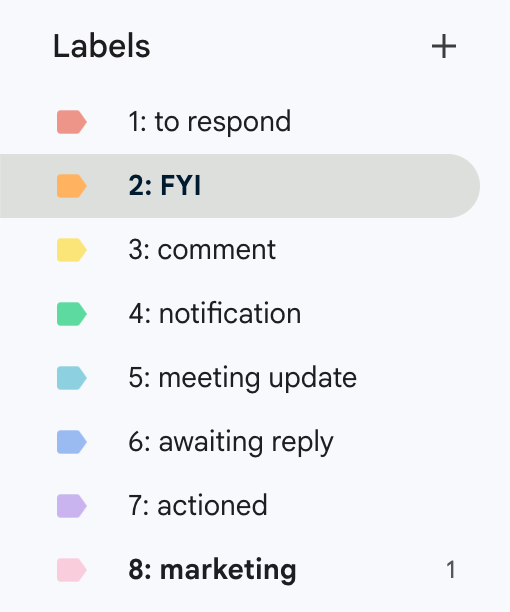
To enable auto-drafting, you give Fyxer AI’s draft prompter a bit of context about your tone and business.
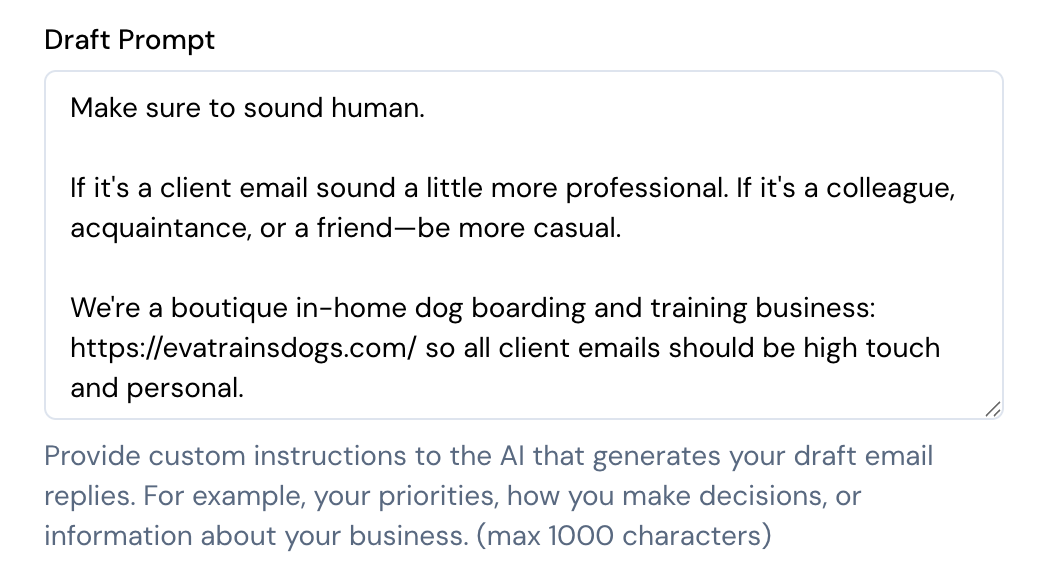
And here’s what an auto-drafted reply looked like:
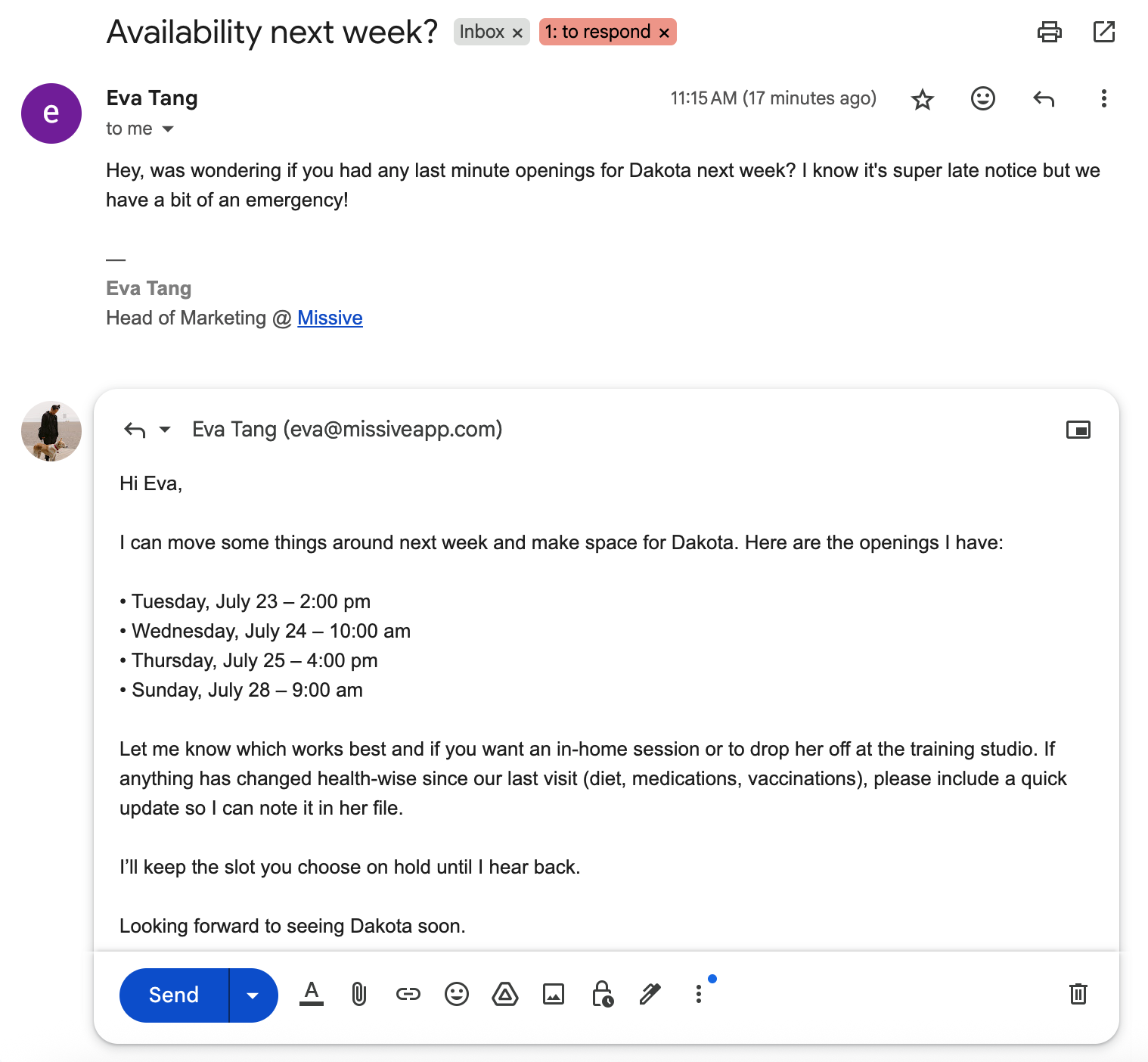
This is a great experience if you want to stay in the Gmail or Outlook interface but need ongoing organization and administrative help because of the volume of emails you personally handle.
Like Superhuman, Fyxer AI is focused on inbox throughput, how much faster can you process your emails. That’s an important goal, but often times it’s the wrong goal. Maybe the real question is whether you should be replying to most of those emails in the first place, which we’ll get into for some of the Fyxer alternatives.
We grouped the seven alternatives into three types:
- Similar functionality and similar interface (Gmelius, Hiver)
- More functionality and different interface (Missive, Shortwave, Spike)
- Similar functionality across multiple independent tools (Clean Email + Copilot, SaneBox + Gemini)
We’ll start with similar functionality and interface and work our way down the list.
Gmelius: Gmail-only Fyxer alternative
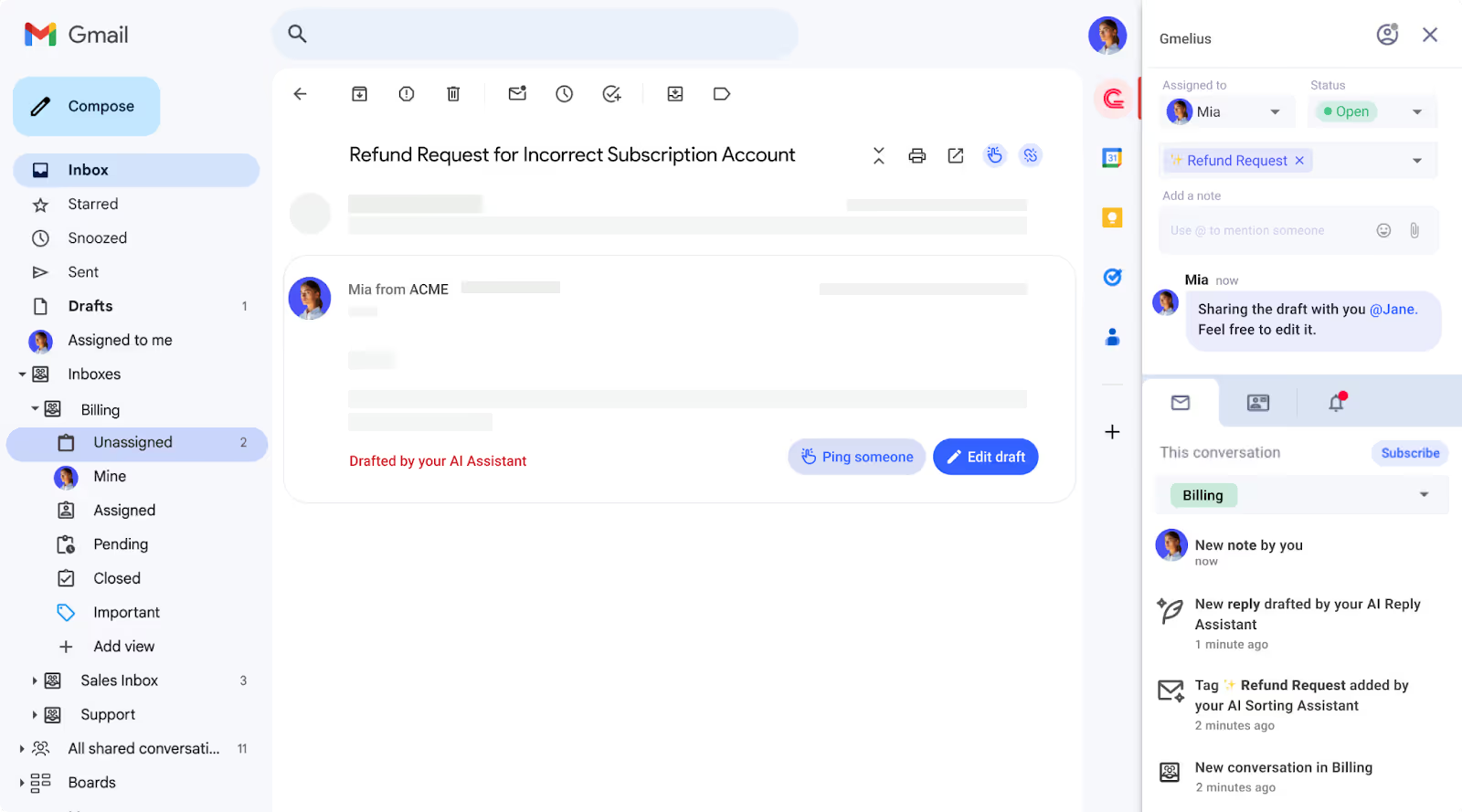
Like Fyxer, Gmelius lives on top of your existing Gmail interface, so you get a familiar experience with new functionality layered on.
Gmelius also has an AI-powered assistant that auto-categorizes emails and drafts replies on your behalf. There are small differences between the two, though. By default, Fyxer only drafts replies for emails auto-labeled “to respond.” Gmelius tries to respond to every email, but for anything it detects as promotional, it adds a note saying it didn’t respond because the email is promotional. Small detail, but Fyxer’s execution feels smoother.
On the other hand, Gmelius is a collaboration-focused tool, not a purely productivity-focused one like Fyxer. That means Gmelius has more for teams working together in an inbox: internal chat on emails, assignments, automation rules that run based on AI tagging, SLA escalation, and more.
Both Gmelius and Fyxer have a closed AI assistant, meaning you can’t bring your own AI key or pick the model. If you don’t have a strong preference, that’s fine.
Gmelius is a little more expensive than Fyxer for the AI-inclusive tier. Meli (capped at 5 users) starts at $19/user/month billed annually, and Growth starts at $25/user/month billed annually, compared to Fyxer’s $22.50/user/month.
If you want a Fyxer alternative oriented more to teams, but with much of the same functionality and interface, Gmelius is worth a look.
Hiver: Customer support Fyxer alternative
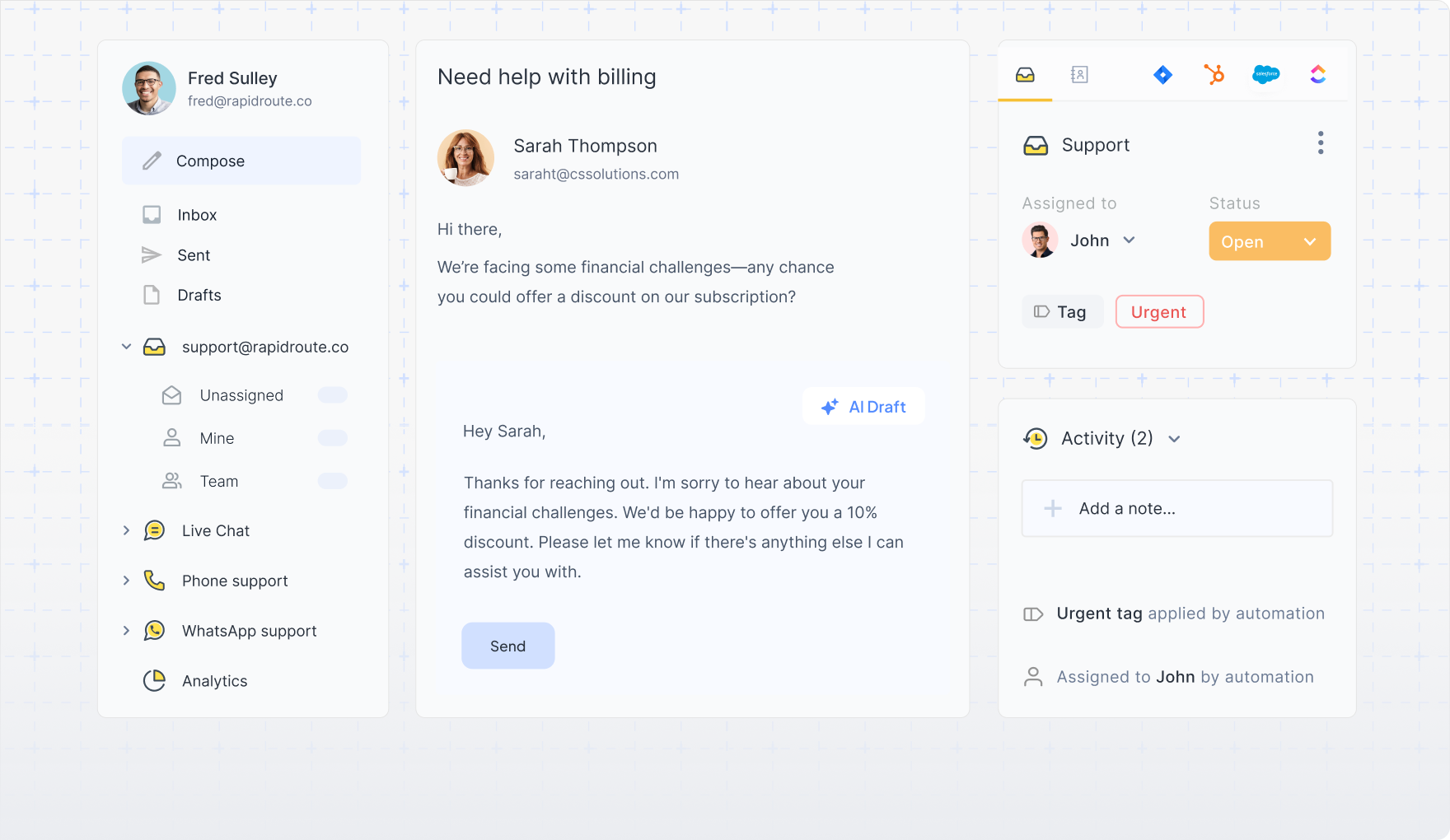
Like Gmelius, Hiver integrates directly into your existing email client, giving you a familiar interface to work with. Unlike Gmelius, Hiver supports both Gmail and Outlook accounts.
Like Fyxer, Hiver has an AI-powered email assistant that can auto-draft replies and auto-label emails based on their contents. But Hiver’s core users are customer support teams working out of shared inboxes, so it’s not quite as simple as Fyxer’s default experience.
If you’re an executive who just wants to replace Fyxer’s lightweight functionality without team features like collaboration, automated workflows, analytics, or SLA monitoring, Hiver might be overkill. Could you get it to work? Absolutely. Will it feel like it was built for your use case? Probably not.
Hiver’s Growth plan with AI (AI Compose and AI Summarizer) starts at $25/user/month billed annually. Heavier AI features like AI Agents and AI Copilot are on Pro at $65/user/month, and AI QA is on Elite at $105/user/month.
Missive: Fyxer alternative for teams
Now we move into tools with more functionality than Fyxer, but a less familiar interface.
Missive is an email client for teams that collaborate in their inbox. Like Fyxer, you can set up AI-powered email assistants that triage, label, and draft replies. Unlike Fyxer, Missive is much more flexible in how you implement it, which depending on who you are, could be a good or bad thing.
Missive lets you bring your own AI key and pick the model. If you want to use a specific model for drafting emails and a different one for triaging, you can fine-tune that experience.
Because Missive is a collaborative inbox built for your whole team, your AI assistant can assign and triage emails to the right teammate, not just sort them in your own inbox. Picture an old client emailing you because you have a long-standing relationship, but the question is really for your support team. Missive’s AI rules can route it there automatically.
The same is true for drafting replies. Instead of drafting only against your personal inbox, Missive’s AI rules can help your whole team auto-draft replies to customers.
That’s critical if you’re handling hundreds or thousands of emails every day. The most common questions get taken care of by an AI assistant, and your team focuses on the rest.
Where Missive is lighter than Fyxer is scheduling. Missive has a calendar that’s good for team visibility but doesn’t layer AI scheduling or meeting notes on top. If booking links and meeting transcripts are the main thing you want, Fyxer covers that ground.
Pricing-wise, Missive’s AI-inclusive Productive plan is $24/user/month billed annually, comparable to Fyxer. The Starter plan at $14/user/month covers the shared inbox basics without AI rules.
Shortwave: Full-featured Fyxer alternative
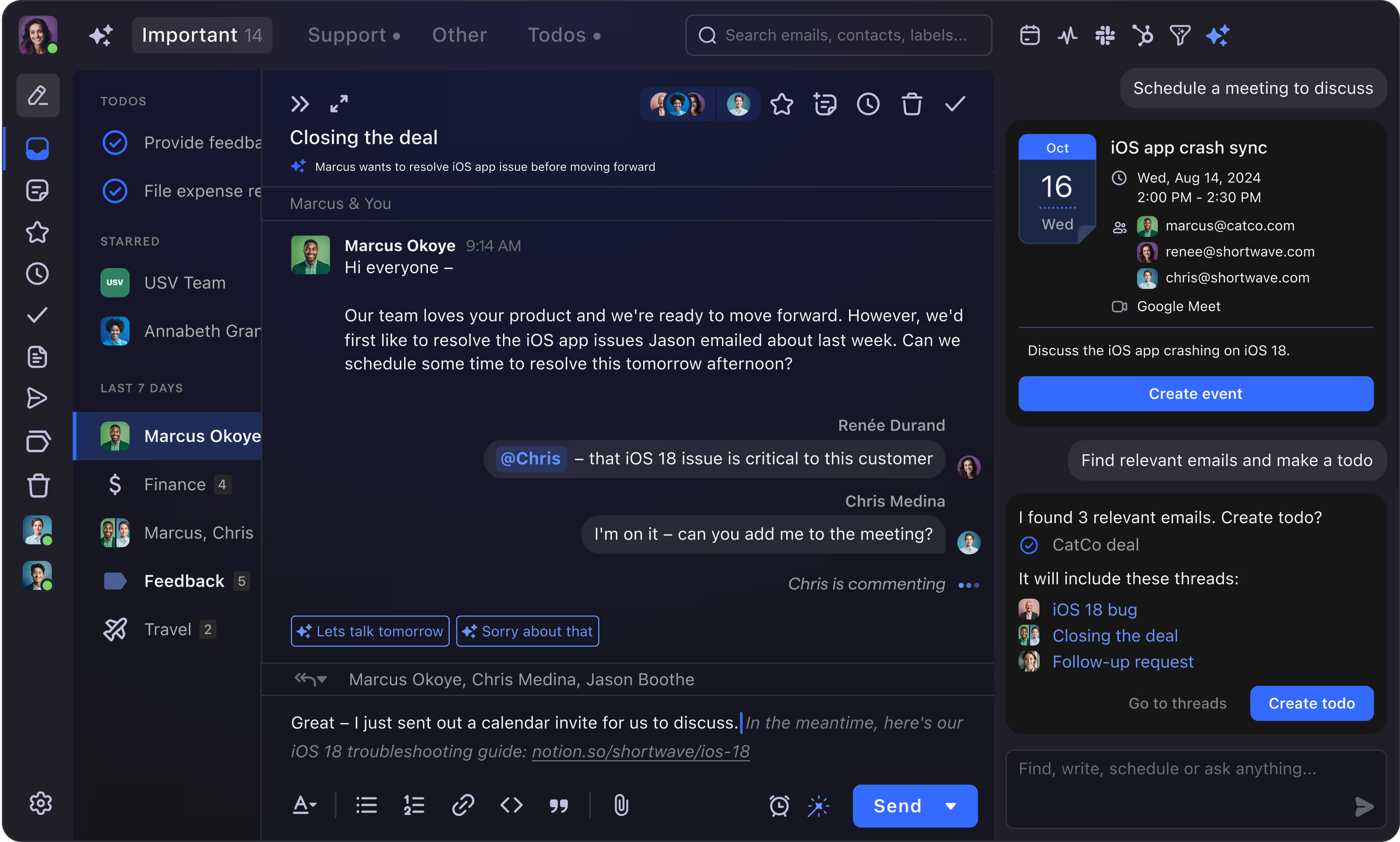
If you’re looking for an AI-powered email client that’s essentially Fyxer with more features, Shortwave might be a good fit.
Shortwave has all of Fyxer’s AI assistant features right out of the box, auto-drafting emails, default AI categorization, calendar scheduling, and it adds some team collaboration features too.
Shortwave is its own email client, so it looks and feels different from Gmail and Outlook. It also only supports Gmail accounts natively. There’s a workaround for Microsoft 365, Outlook, and other providers, but it’s essentially forwarding your email to a Gmail account to connect to Shortwave, which many teams will find unworkable.
If you don’t want or need the customization and flexibility that Missive has, you don’t care about BYOK (bring your own keys), and you use Gmail or Google Workspace, Shortwave could be a good Fyxer alternative for you.
Pricing has shifted. Shortwave Pro is $14/user/month billed annually for individuals, and Business is $24/user/month billed annually for teams that need shared inboxes and Google Workspace support.
Spike: Conversational Fyxer alternative
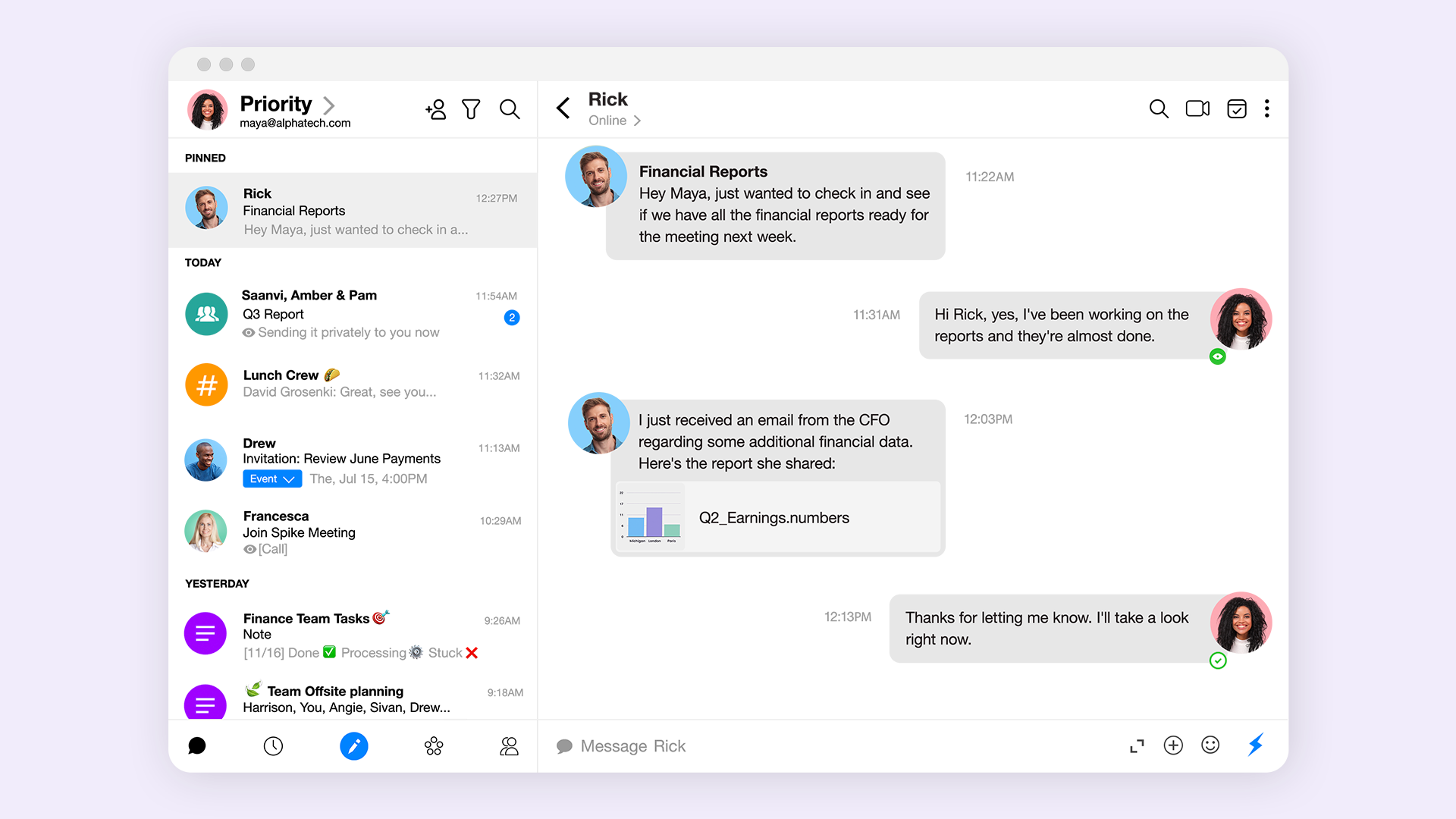
Spike turns email into a conversational tool, which makes it a distinct kind of Fyxer alternative. It reformats your cluttered inbox into a chat-like feed organized by sender, cutting repetitive headers and signatures so you can focus on the actual conversation.
Like Fyxer, Spike uses AI to manage your inbox. Its priority inbox works similarly to Fyxer’s auto-tagging, separating important mail from newsletters and promotional content. Spike’s AI can also summarize email threads and suggest replies, mirroring Fyxer’s core productivity features.
Where Spike stands apart is its focus on team collaboration, with features like group chats and shared notes built into the inbox itself.
Spike’s Pro plan starts around $5/user/month billed annually, with a Business tier roughly double that. It’s the cheapest option on this list if you’re an individual user testing the chat-style inbox idea.
Clean Email + Copilot
If you mostly loved Fyxer for its ability to sort and organize emails, there are AI-powered tools like Clean Email that focus only on that. For your drafting needs, you can use Copilot or Gemini (depending on whether you’re a Gmail or Outlook user) to help draft the occasional email.
Like Fyxer, Clean Email works within your existing email client. It has predetermined categories to suggest and label your emails, and it learns your preferences over time.
Copilot is a general AI assistant that comes with Microsoft 365. You can use simple prompts like “Check for typos and make this more professional,” or more complex prompts such as:
You’re an executive assistant replying to emails on my behalf. Take the existing tone of the conversation into consideration and match it. If it’s a customer or prospective client asking about a specific product question, use https://learn.missiveapp.com/ to find the answer. Do not make up any information.
Pricing-wise, Clean Email is $9.99/month for one account on monthly billing, or $29.99/year billed annually. Copilot is included free with Microsoft 365 Personal and Family plans, with Microsoft 365 Copilot for business running $30/user/month.
SaneBox + Gemini
An alternative to Clean Email and Copilot is SaneBox and Gemini. The functionality and features are incredibly similar, with minor differences around user interface. Gemini is also a better fit if you’re already in the Gmail or Google Workspace stack.
Where SaneBox stands out compared to both Clean Email and Fyxer is its third-party integrations. By connecting to tools like Todoist, SaneBox lets you create basic automated workflows inside your inbox, something in between Missive’s flexible rules and Fyxer’s single HubSpot integration.
SaneBox’s Snack plan starts at $7/month (monthly) or $59/year (annual) for one account. Gemini is bundled into Google Workspace Business Standard at $14/user/month, and Gemini Advanced for individuals is $19.99/month.
Which Fyxer AI alternative is right for you?
Fyxer AI is a solid pick for tackling email as an individual, plugging into Gmail or Outlook and helping you regain time through triage, drafting, and note-taking. But the right alternative depends on who’s actually using it.
If you’re a solo executive or professional and the Gmail-native experience matters most, Gmelius, Hiver, or Fyxer itself tend to be the closest fits. If you need team collaboration around a shared inbox, Gmelius, Missive, Spike, or Shortwave make more sense, with Missive and Shortwave offering more flexibility at the cost of a steeper learning curve. And if you just want inbox sorting with occasional AI drafting, a Clean Email or SaneBox pairing with Copilot or Gemini keeps costs low.
AI email tools are moving fast. The shortlist you build today is worth revisiting every six months, because pricing, features, and positioning all shift quickly in this category.
Frequently asked questions
Is Fyxer AI free?
Fyxer AI doesn’t offer a permanent free plan. It has a 7-day free trial on the Standard plan, after which it starts at $22.50/user/month on annual billing or $30/user/month on monthly billing.
What’s the best Fyxer alternative for teams?
For teams managing shared inboxes, Missive and Gmelius are the strongest fits. Missive works across Gmail, Outlook, and IMAP and lets you bring your own AI key. Gmelius is Gmail-only but sits natively inside the Gmail interface, which shortens the learning curve.
Does Fyxer work with Outlook?
Yes. Fyxer AI supports both Gmail and Outlook and is verified by both Google and Microsoft. It runs inside your existing inbox rather than replacing it.
What’s the cheapest Fyxer alternative?
If you’re an individual, Spike’s Pro plan at around $5/user/month (annual billing) is the lowest-cost option with AI features. Clean Email at $29.99/year is cheaper still if all you need is inbox cleanup without AI drafting.
Can I use Fyxer with a team?
Fyxer’s Professional plan ($37.50/user/month annually) and Enterprise plan support multiple inboxes per user and basic team setup, but Fyxer is fundamentally built for individual productivity. There’s no shared inbox, no conversation assignment, and no internal chat. Teams coordinating on email should look at Missive, Gmelius, or Hiver instead.
Do Fyxer alternatives let you bring your own AI key?
Most don’t. Fyxer, Gmelius, Hiver, Shortwave, and Spike all use closed AI assistants where you can’t choose the model. Missive is the exception: it integrates with OpenAI, Anthropic, and Gemini via your own API key, so you can pick which model drafts replies and which one handles triage.
Missive is a collaborative email client built for teams that work out of shared inboxes. With built-in AI rules, internal chat on every conversation, and support for Gmail, Outlook, and any IMAP account, Missive handles the team email workflow that Fyxer wasn’t designed for. Try Missive free for 30 days.