.png)
January 12, 2023
Team email management: how high-functioning teams actually run email together
Team email management means handling email together in one workspace: shared inbox, assignment, comments, rules. See how it works and how to choose a tool.
Quick Answer: Team email management is how a team handles email collectively in one shared workspace, instead of forwarding messages and CC’ing each other. The strongest setups combine a shared inbox, clear ownership, internal comments, and rules that route routine work, so each email has one owner, full context, and no chance of being dropped between teammates.
An email lands in support@. Two people open it. One starts drafting a reply, the other answers a different version of the same question. Neither realises until the customer writes back asking who they should listen to.
The cost is not the duplicated work. It’s the customer who waited three days for a reply because the email lived in someone’s inbox who was on PTO. It’s the deal that stalled because the founder needed context that lived only in the head of the team member they replaced. It’s the meeting scheduled to discuss a decision that was already made in a thread nobody could find.
Most teams hit this wall around the four-person mark. Below it, you can CC your way through life. Above it, you need a system. This guide is about what that system looks like in 2026, who’s built it well, and how to figure out which version of it fits your team.
What is team email management?
Definition: Team email management is the practice of handling email in a shared workspace where multiple people can see, discuss, and act on the same conversations, usually combining a shared inbox, ownership rules, internal comments, and automation so no message goes to nobody.
Three things have to be true for it to qualify. First, shared visibility: more than one person can see the inbox at the same time. Second, ownership: at any moment, each conversation has a single named person responsible for the next move. Third, a record: when someone takes an action, the rest of the team can see what they did. Without all three, you don’t have team email management. You have several people with passwords.
Every workaround most teams default to (forwarding chains, Gmail filters and a prayer, the shared password to a Gmail account nobody actually checks) is an attempt to bolt collaboration onto a single-user tool. A shared inbox model fixes the architecture instead of patching it.
Why is managing team email so hard?
The honest answer is that email was designed for one inbox per person. Every team workflow grafted onto that model is a workaround, and the workarounds break in predictable ways.
The “I thought you had it” handoff is the canonical failure. Two teammates see the same email, both assume the other will reply, and three days pass before anyone notices. The CC chain quietly excludes the one person who needed to see it. The forwarded thread loses two weeks of context in transit. The duplicate reply lands when two teammates respond to the same customer with slightly different answers.
What every one of these has in common is that the failure happens in the gap between visibility and action. Everyone could see the email; nobody owned it.
Stephanie Ragusa, who leads operations at Lighting Dynamics, described the workflow before the switch: “With traditional Outlook forwarding, once an email was out of the shared inbox, there was no visibility. We never knew if it had been handled. It was chaotic.” That sentence describes most teams’ first decade of email collaboration. The work happens, but nobody is sure if it happened.
How is team email management different from a shared mailbox?
The two get used interchangeably, and they shouldn’t. A shared mailbox is access. Team email management is workflow.
When Gmail or Outlook give you a shared mailbox feature, they mean multiple people can open the same inbox. That’s it. There’s no concept of who owns a given message, no place to discuss it without forwarding, and no record of what was decided. The mechanics are the same as a personal inbox, just with more keys to the door. For the adjacent breakdown, the difference between distribution lists and shared mailboxes is the right walkthrough.
Team email management adds the workflow layer. Assignment turns each conversation into something owned. Internal comments let teammates discuss the email next to the email itself. Rules route routine messages automatically. An audit trail captures who did what.
The simplest test: can you tell, right now, who is responsible for replying to the oldest unread email in your team’s inbox? If the answer is “whoever gets to it first,” you have a shared mailbox. If the answer is a name, you have team email management.
What are the signs your team has outgrown DIY email?
The signs are not subtle once you know what to look for. More than two people regularly touching the same inbox is the first one. Response times slipping past 24 hours when they used to be same-day is the second. The third is real customer-facing mistakes: two people replying with conflicting answers, a message dropped because the assigned person was out, the email that turned up three weeks late.
The fourth is more subtle. Someone has quietly built a Notion doc, a spreadsheet, or a Trello board that tracks what’s in the inbox. It started as a personal triage tool. Now the rest of the team checks it before they reply. Congratulations: you have a CRM made of duct tape, and it lives outside the place the actual work happens.
Scale CPA, a fully remote accounting firm with 15 employees serving about 100 small business clients, hit this wall in a specific way. Their two partners became the bottleneck: clients would email them, and they would manually delegate to the right manager dozens of times a day. When an employee suddenly stopped responding to clients, the team had no visibility into what had been missed. The triage step that worked at five people started failing the moment they crossed ten.
The pattern is consistent across industries. The workaround works until it doesn’t.
How do high-functioning teams actually manage email together?
Look closely at the teams who run email well, and the same five patterns show up.
Route every email to a single owner
The strongest principle in shared email is that every open thread has exactly one named owner at any given time. Without it, you fall back on whoever happens to see the message first, and the rest of the work happens through informal “did you grab that?” pings. With ownership in place, the customer always knows who they’re talking to, and the team always knows who to ask for status. When a conversation moves between people, the handoff should be explicit (an action someone takes, not an assumption someone makes) and visible to everyone with access. The mechanics differ by tool (Missive’s triage and assignment model is one approach), but the rule is the same regardless: name an owner, make the name visible, and change it deliberately.
Discuss in context, not in Slack
Internal comments belong next to the email itself, not in a separate tool. The whole history (the customer’s question, the side chat about how to respond, the final decision) stays in one place. Open the thread six months later and the reasoning is right there. The alternative (Slack threads about emails, project-management cards referencing emails, meeting notes about emails) multiplies the places someone has to look and almost guarantees that one of them goes stale. The structural fix is collaboration that lives inside the email, through @mentions and threaded comments, rather than alongside it.
Build rules for the recurring 80%
Most teams answer the same 20% of question types over and over again. The same vendor invoices, the same onboarding questions, the same scheduling requests. High-functioning teams move the recurring work off humans and onto rules: route by sender, subject, content, or label so the predictable mail finds the predictable owner without anyone having to triage it first. At Scale CPA, rules route high-volume client emails to dedicated team spaces while the rest stays in a central queue the partners can sweep without context-switching. The investment is upfront; the payoff lands every day after.
Use templates and AI for the obvious stuff
Canned responses handle the questions you answer fifty times a week. AI assistance drafts the rest, pulling context from past conversations and integrated tools. None of this replaces a person reading the email; it just removes the friction of typing the same thing for the hundredth time. The best implementations let the template carry variables (customer name, plan, last order) so the reply still reads as written for the person receiving it.
Make handoffs traceable
Reassignment, escalation, and status changes should leave a trail. If someone wants to know “who handled this and how,” the answer should be in the email itself, not in someone’s memory. An activity feed that records who touched the conversation, when, and what they did is the difference between a team that learns from its own work and a team that relearns the same lessons every quarter. Jennifer Brown at the logistics company Canex Global described the cost of the alternative bluntly: “If someone deleted an email, it disappeared for everyone, there was no tracking to see who did what, and it was chaos when working remotely.”
What features should team email management software have?
The category has converged on a recognisable feature set. Shared inboxes are the foundation: a single team space where messages from one or more accounts land and stay visible. Internal comments sit alongside the email itself, so the discussion lives in the same place as the message. Assignment turns each conversation into something owned, with the assignee’s name visible to the team. Rules and automation route incoming mail by sender, subject, or content.
Canned responses handle the questions you answer over and over again. AI assistance drafts replies, summarises threads, classifies inbound messages, and applies labels based on content. Multi-channel support matters more than it used to: a 2026 customer message is as likely to arrive via WhatsApp, SMS, Instagram, or live chat as via email. Integrations with the rest of your stack let the inbox pull context. Analytics give managers the basic answers: response times, who’s overloaded, what’s slipping.
The split between strong and weak tools in this category isn’t about which features exist. It’s about how well the workflow layer wraps the email layer. A tool that bolts collaboration onto a Chrome extension behaves very differently from one built as a native inbox.
How do team email tools compare in 2026?
The six tools most teams shortlist, with starting tiers on annual billing as published in May 2026. Verify against the vendor’s current pricing page before committing.
| Tool | Best for | Native channels | AI features | Data stays in your mail server | Starting price |
|---|---|---|---|---|---|
| Missive | Small to mid teams running conversational email and chat | Email, SMS, WhatsApp, Instagram, Messenger, live chat | Built-in assistant, prompts, AI rules | Yes | $14/user/mo |
| Front | Larger support and ops teams needing every channel and enterprise controls | Email, SMS, WhatsApp, Instagram, voice | Copilot, Smart QA (paid add-ons) | No | $25/user/mo |
| Help Scout | Customer support teams running on tickets | Email, live chat, social, WhatsApp | AI Answers ($0.75/resolution add-on) | No | $25/user/mo |
| Hiver | Teams committed to staying inside Gmail | Email, WhatsApp, live chat, voice | AI Compose, AI Agents (Pro+) | Yes (Gmail-native) | $25/user/mo |
| Gmelius | Small Gmail teams needing lightweight collaboration | AI assist (limited) | Yes (Gmail-native) | $10/user/mo | |
| Zoho TeamInbox | Teams already inside the Zoho ecosystem | Email, WhatsApp, Messenger, Instagram | Zia AI (basic) | No | $4–5/user/mo |
Missive is built as a native email client first and a collaboration tool second, the inverse of most of the category. The whole stack sits on top of a real inbox that syncs two-ways with your mail server. The same workspace handles email, SMS, WhatsApp, Instagram, voice, and custom channels. AI is included via Missive credits on the Productive and Business plans (BYOK is also supported if you’d rather use your own provider account). Pricing tops out near a third of Front’s at comparable feature parity.
Front is the most feature-complete tool in the category and the most expensive. Designed for larger teams with formal support or sales operations. Starter limits you to one channel, AI Copilot and Smart QA are paid add-ons, and pricing escalates fast above 10 seats. The Front vs Missive comparison goes deeper on the trade-offs.
Help Scout wraps each conversation in ticket apparatus: case numbers, SLA timers, dispositional reporting, a customer-facing knowledge base. If you have formal SLAs and a support org structured around defined response targets, that apparatus pays for itself; otherwise it’s overhead the team carries. The Help Scout vs Missive comparison walks through the trade-offs.
Hiver lives entirely inside Gmail as a Chrome extension. For teams committed to Gmail, that’s the appeal; the trade-off is a workflow layer bounded by what Google’s extension API allows. Customers migrating to standalone tools consistently cite extension glitchiness as the trigger. The Hiver vs Missive comparison covers the migration mechanics.
Gmelius is the lightweight option for very small Gmail teams. The Lite plan starts around $10/user/month, the cheapest paid tier on this list. Feature set is thinner than Missive or Hiver and Gmail-only, but for a three or four person team that needs basic shared inboxes, it’s defensible. The Gmelius vs Missive comparison covers where each wins.
Zoho TeamInbox is the right fit if your business already runs on Zoho. Pricing is genuinely cheap (around $4 to $5 per user per month at scale) and integration with the rest of Zoho’s apps is tight. Outside the Zoho ecosystem, the pricing advantage is the only reason to consider it.
How do I choose the right team email tool?
The cleanest decision frame is the one most evaluations skip: how much ticket apparatus does your work actually need around each customer interaction?
The light end is assignment, an internal comment thread, a rule to route inbound to the right owner, and an archive when the thread is done. That’s email collaboration. A founder talking to investors, a sales team running a multi-month deal, an ops team coordinating with suppliers, a small support team answering nuanced questions: all light-apparatus work. The customer-facing reply should feel like a person wrote it, because a person did.
The heavy end is ticket numbers, SLA timers, formal categories, escalation paths, customer-facing portals, dispositional reporting. That’s a helpdesk. High-volume customer support with formal response targets, a service desk fielding hundreds of standardised requests a day: that’s where the apparatus earns its keep.
If you live on the light end, Missive is built for teams whose work lives in the inbox: sales, ops, founder-led teams, professional services, small support teams. Front is for larger teams with multi-channel volume and the budget for enterprise features. Hiver is for Gmail-only teams unwilling to leave the interface. Gmelius is the cheap Gmail option for very small teams. Zoho TeamInbox is for teams already in the Zoho ecosystem.
If you live on the heavy end, Help Scout is the most human-feeling option in the helpdesk category. Zendesk and Freshdesk make sense if you genuinely need queue routing, SLA tracking, and the structural apparatus of a large support org.
If you’re unsure where you land, look at how the team currently talks about email work. If it sounds like “who’s owning this thread,” the light end fits. If it sounds like “what’s our average resolution time,” the heavy end fits. Most small-to-mid teams who think they need a helpdesk actually want the first conversation.
What does team email management look like in practice?
The same software does very different jobs depending on the team.
22 IMPACT, a global talent and creative agency based in London with about eleven people, started using Missive to solve a solo-operator problem before it became a team problem. Freedom Doran, the founder, was running ten or eleven accounts (personal, co-founder, junior assistant, talent, his mother’s company) and switching Gmail profiles dozens of times a day. Missive consolidated the accounts. The team workflow came later, when he onboarded a model booker and discovered that assigning emails was a better alternative than CC’ing her into every thread. The 22 IMPACT customer story covers the consolidation arc.
Italic, a Los Angeles direct-to-consumer e-commerce brand of 100 to 250 people, came to Missive after trying a competitor first. Founder Jeremy Cai had a hundred thousand sign-ups to email back asking why they joined. The first tool the team tried didn’t stick. The second time, with Missive, the team adopted it. Collaborative drafting (pulling in ops or finance to ask “can we ship this?” without leaving the email thread) was the change that made it work. Italic now runs four years of customer correspondence through Missive.
Gozel Law, a US immigration law firm of 10 to 25 people, runs on the @mention. Arif Gozel described the value as simple: “The ability to @mention everyone in a conversation, keeping the entire team informed, is invaluable to us.” For client work where one paralegal owns the case but three other people need to weigh in on a single email, the comment-thread-next-to-the-email pattern is the workflow. Email collaboration is especially well-suited to the way law firms handle client communication.
How is AI changing team email management?
The most useful way to read the AI shift in this category is to notice what it isn’t. AI is not just helping individuals write faster, although it does that. The bigger move is AI helping teams handle email faster, which is a different product.
Consider the old workflow for a small team doing inbound: someone drafts the outreach, sends, then sits in the inbox waiting for replies, manually classifying acceptances from declines, drafting follow-ups, building forwardable threads for stakeholders. Multiply that by 86 active threads and you have a team member’s full job description.
Charles Hudson, founder of Precursor VC, is one of the cleanest examples of what happens when AI agents move into that workflow alongside the human team. His agents (built on the Missive API and the Anthropic API via Claude Code) handle the watching, the classifying, and the drafting. When a VC accepts a meeting introduction, the agent stages a double opt-in intro draft. When a VC declines, the agent stages two drafts: a thank-you to the decliner and a forwardable explanation for the founder. The human stays in the loop on every send. “I don’t trust it to send it autonomously,” Charles said. “I have a draft only flag on.”
Three things make this work. Agents draft in your voice: Charles built a style guide once, a markdown file trained on his Substack posts and prior emails, and that single document now feeds every agent. Agents watch threads and route the next move: monitoring conversation IDs, classifying replies, staging the right next draft. Agents pull context the inbox can’t: looking up the company in Airtable, referencing the trend line, surfacing burn rate before drafting a reply.
The shift that matters for team email is the visibility one. AI drafts get the same treatment as human drafts: labelled, visible to the whole team, ready for review. As Charles put it: “Because these are shared, the EM team that’s in my inbox can also see them and they can run them too.” Agents and humans work in the same inbox. The work moves faster, and it stays auditable.
Frequently asked questions
How do you manage a team email inbox?
Shared visibility plus single ownership plus a record of what was decided. In practice: pick a shared inbox tool, assign every incoming message to one owner, discuss in internal comments rather than forwarding, and build rules to route the predictable 80% of inbound traffic automatically. The team rules matter as much as the software.
What’s the difference between a shared mailbox and team email management software?
A shared mailbox is access. Team email management is workflow. Gmail delegation and Outlook shared mailboxes let multiple people open the same inbox. Team email software adds assignment, internal comments, rules, and a record of how each conversation was handled.
Can a small team manage shared email without paying for software?
For two or three people sharing a low-volume inbox, Gmail delegation or a Google Groups collaborative inbox can work. The friction starts when you cross four people, more than about 50 emails a day, or any work where missing a message has real customer cost. That’s when free workarounds become more expensive than the software, in lost time and dropped messages.
Is team email management software better than a helpdesk?
More overlap than the labels suggest. Missive has assignment and rules; helpdesks handle email. The real split is what wraps each conversation. Helpdesks add ticket apparatus (case numbers, SLA timers, customer-facing portals) so the customer sees a support system. Team email tools keep the reply looking like email. Chris Wattinger at Scale CPA, an accounting firm, wanted “email collaboration without all the bells and whistles of a full ticketing system.” If you need the apparatus, pick a helpdesk.
How is AI changing team email management?
AI is now doing three things in this category: drafting replies in your team’s voice, summarising long threads before you click in, and running rules that used to require keyword filters. The bigger shift is from “AI helps the individual write faster” to “AI helps the team handle email faster,” with agents working alongside human teammates in the same shared inbox.
TL;DR
- Team email management is the practice of handling email collectively, combining a shared inbox, single ownership, internal comments, and rules, instead of forwarding and CC’ing.
- The signs you’ve outgrown DIY: more than two people touching the same inbox, response times slipping, duplicated replies, or a Notion doc quietly serving as a CRM.
- A shared mailbox gives access. Team email software gives workflow. They are not the same product.
- The category splits into collaboration tools (Missive, Front) and helpdesks (Zendesk, Help Scout). Pick based on how much ticket apparatus your work actually needs around each customer interaction.
- AI is now drafting replies, summarising threads, and running rules. The value is moving from individual productivity to team handling speed.
Try Missive free and run your team’s email in one shared workspace.

January 5, 2023
How to Improve Your Customer Service with Collaboration
Learn why customer service collaboration matters, how to implement it across teams, and which tools help your team resolve issues faster—with practical tactics for emails, calls, and cross-departmental coordination.
Offering an amazing customer experience to your customers plays a crucial role in the success and growth of your business. But, even when following the customer service best practices, top-notch service can only be achieved with collaboration between your teams.
By the end of this blog post, you’ll have a better understanding of the value of customer service collaboration, how to put it in place across your teams, and the tools that make it work in practice.
Key Takeaways
- Shared visibility: Use shared inboxes so every team member has context on customer conversations—without duplicating effort or forwarding emails.
- Internal context: Discuss solutions behind the scenes with internal comments alongside customer threads, so the customer only sees a polished response.
- Clear ownership: Assign every conversation to a specific person or team to prevent duplicate replies and dropped balls.
- Real-time collaboration: Use collaborative drafting to let senior staff review or co-write complex responses before they go out.
- Cross-departmental coordination: Break down silos between support, sales, and product teams so customer context flows through the entire lifecycle.
What Is Customer Service Collaboration?

Collaborative customer service is the practice of having many customer service team members work together to address customer inquiries, complaints, and issues.
Team members share information, coordinate efforts, and communicate to ensure that customers’ needs are met in a timely and satisfactory manner.
In practice, this means more than just having a team—it means giving that team the systems and habits to work as a unit. When a customer emails with a billing question that requires input from Finance, collaboration is what lets a support rep loop in the right person, get a quick answer via an internal comment, and send a single, accurate response—without the customer ever knowing multiple people were involved.
Overall, collaborative customer service is a valuable practice for any business looking to provide exceptional customer service and meet the needs of its customers.
Why Is Customer Service Collaboration Important?
Not all customer interactions are the same. Businesses often receive varied customer queries making collaboration within a service team crucial for providing exceptional customer service. It allows team members to share information, knowledge, and resources with one another.
Collaboration can help ensure that customers receive timely, accurate, and helpful help and that their needs are addressed in the most efficient and effective manner possible.
Now, more than ever, customers are looking for fast and accurate information at the tip of their fingers. That means that your company needs a unified front to be able to speak to all customer touchpoints, including sales, onboarding, success, and support.
Maintaining each department in the loop throughout a customer’s lifecycle helps ensure your customer feels valued. Service team collaboration helps build trust and loyalty that your customers can rely on and lean on. Increasing retention time by earning that trust is more cost-effective than having customers churning and having to bring on new clients. Studies have shown that it’s five times more expensive to acquire a new customer than to retain one.
What Are the Benefits of Collaboration in Customer Service?
1. Increased Knowledge Sharing
Since requests can be so varied and nuanced, knowledge sharing is imperative. Most of the time, there is a resolution in place that exists somewhere, and similar workarounds that solve the same issue.
Sharing knowledge also helps create self-help guides so your customers can try to solve their problems or answer their questions before contacting customer service. A study from 2017 by Harvard Business Review revealed that 81% of customers attempt to resolve issues themselves before reaching out to an employee.
2. Improved Resolution Time
In support, each team member has their own unique set of strengths they bring to the table. Some agents are stronger in resolving certain customer inquiries, as teams work on different client request types. What takes one person 30 min to work through, may take another 5-10 minutes. With constant communication, collaboration, and a knowledge base, you’ll be able to reduce those gaps in knowledge.
As agents build on their experience in solving customer requests, they start becoming subject matter experts. They are the go-to people within the team and company for specific areas of expertise that can help reduce time to resolution by helping increase the knowledge of the whole team.
Tools that enable internal chat directly inside email threads eliminate the delay of forwarding emails or switching to a separate messaging app. Instead of sending an email to your manager asking “How should I handle this?” and waiting for a response, you can @mention them right in the conversation and get an answer in minutes.
3. Improved Customer Satisfaction
No one individual is more important than the collective group. Promoting collaboration and teamwork helps drive efficiency and a better end-user experience.
When collaboration works, customers notice: they get faster answers, they don’t have to repeat themselves, and every interaction feels informed by the last. That consistency is what turns a satisfactory experience into a loyal relationship.
4. Improved Work Environment
Collaboration within a service team can help to foster a positive and supportive work environment. It can improve morale, team bonding, and motivation among team members, leading to better service.
Since better collaboration often translates into better customer satisfaction it can also mean better employee experience. Indeed, a recent study published by the National Library of Medicine has shown that positive interactions with customers during service interactions had a positive effect on employees.
Using the right collaboration tools will also insure that the work environment encourages teamwork.
How to Provide Exceptional Customer Service Through Collaboration?

Exceptional customer service requires collaboration between all members of your business, from the front-line staff to the management team. By working together, everyone can ensure that the customer experience is positive. Even small businesses following customer service tips need to collaborate to provide exceptional customer service.
Encourage Open Communication Between Teams
One way to do better customer service through collaboration is by encouraging open discussion. It can be done by building strong cross-departmental relationships through shadowing opportunities and combined team meetings.
A format I’ve found useful is having retro-style meetings—a structured format that gives both teams time to reflect on what went well, what didn’t go well, and what we can improve on. This helps establish clear expectations and goals to strengthen internal relationships between teams.
Collaboration can be promoted in recurring meetings with such topics as customer spotlights or team showcases to highlight some of the exceptional recent interactions colleagues have had to share their takeaways with the wider group. Showcases help inspire what going above and beyond means and it also helps uncover some knowledge gaps in resources and training.
Encourage Collaboration Between Sales & Customer Service Teams
Sales teams set the right expectations early on and customer support teams make sure to deliver on the expectations and promises made to the customer. It’s all about working together to agree on what those expectations should be and product limitations.
Customer service teams are crucial and important for sales teams. It’s important to discuss escalations, trends, and ways they can work better together.
Having a recurring meeting with an agenda for top-of-mind items that come across either team helps get both departments on the same page to improve customer transitions and handoffs between one another.
Another effective method is shadowing one another. It can help each team gain a new perspective while learning about the product and taking a page from each other’s book.
Personalizing and setting the right expectations from the start will help build trust and loyalty your customers can rely on.
Loop In Other Departments When It Matters
Collaboration doesn’t stop at support and sales. Some of the most valuable customer interactions require input from engineering, product, or finance. When a customer reports a bug, support shouldn’t have to copy-paste the issue into a Slack channel and hope someone responds. The right tools let you loop in an engineer directly inside the email thread—giving them full context without exposing internal discussion to the customer.
The key is making cross-departmental collaboration low-friction. If it takes five steps to get a product manager’s input on a feature question, your team will avoid doing it. If it takes an @mention, they’ll do it every time.
Share KPIs
Another key factor that helps promote customer service collaboration is sharing the same KPIs across teams and departments. Customer support teams are only as good as what the cumulative scores indicate (CSAT, Median Resolution Times, Productivity, SLAs, etc.).
While it’s great to have top performers on your teams, the impact isn’t as powerful when there are other performers also contributing to the team’s reputation.
Encouraging team-wide goals to hit certain metrics embodies a one-team mentality through collaboration. We’re only as good as our team KPIs are.
Fail Fast, but Learn Fast
Encouraging an autonomous environment allows us to encourage failure as an opportunity to improve. Within a no-judgment zone, we can all learn from each other’s failures and foster a healthy environment where, as a team, we uncover what went wrong and how we can all learn from the takeaways.
Make it known it’s a lesson for the entire team, as we’re all in the same boat and, more likely than not, a similar interaction will be coming around for the team to handle. We don’t know what we don’t uncover, so sharing both the good and the bad will help identify and uncover roadblocks along the way.
Watch for Collaboration Pitfalls
More collaboration isn’t always better collaboration. A few common traps to avoid:
- Over-collaboration: If every email requires three people’s input before a response goes out, you’ve created a bottleneck, not a system. Reserve collaborative drafting for complex or sensitive responses—most replies should be handled by the assigned owner.
- Notification fatigue: When everyone is CC’d on everything, important signals get lost in noise. Use targeted assignments and @mentions instead of broadcasting to the whole team.
- Unclear ownership: Collaboration tools only work if someone is clearly responsible for each conversation. A shared inbox where no one is assigned is just a group of people watching each other not respond.
How Can Customer Service Teams Collaborate on Emails and Calls?
Customer service teams need to be able to collaborate on emails and calls to provide the best possible service to clients.
A system for assigning responsibilities to each department in the company is important for emails. Your customer service team should also have a structure to guide them on how to follow up with customers after sending an email and who will be responsible for it.
Calls should be recorded and shared among departments so they can all learn from each other’s customer interactions.
Choosing a great shared inbox software and good call center software can be the key to better real-time and asynchronous collaboration. Integrating both inside one powerful platform like Missive and Aircall via the Aircall integration can help your teams communicate without having to jump between multiple apps. With features like assignment automation and round-robin workload balancing, Missive becomes an essential communication tool for your business.
When Should You Call a Customer?
Calls are a great way to communicate with customers when the interaction can go a couple of different directions or if the interaction will require multiple back and forths (customer needs to do A and after that, you’ll need them to do B for solution C).
Most of the time, it’s easier to explain your intent and demonstrate the best options over the phone than by following up via email.
Customer service agents should get in the customer’s shoes and call a customer when they anticipate a lot of questions coming, have to explain something complicated, or when it’s of urgent priority.
It’s also important to note that it’s always best to call early when the customer is most engaged and least frustrated.
When Should You Email a Customer?
Contrary to a phone call, emails should be the preferred method of communication when there’s less urgency. It’s also efficient when you need to keep multiple parties involved and want to allow the responsible parties whether that be from the customer’s side and/or other internal teams to respond with the most thoughtful impact.
When you need to break down complex, thorough concepts into bite-size pieces, it’s best to offer a call afterward to go over them.
Emails are also a great way to provide direction and purpose and drive the conversation in the right direction after phone interactions.
How Can You Collaborate on Calls?
Even if only one agent was on the call it’s important to keep everyone on the same page. The agent on the call is the primary point person and is the lead for providing the customer with the right information. This person is also in charge of delegating and leading the situation to the desired end result.
That sequence of events should be communicated to the relevant internal parties. Whether that be transferring the call to another internal team, taking detailed notes, asking critical investigation questions, or creating a follow-up customer service email ticket to document the interaction.
With calls, it can be tough to create a structure and assign team members to conversations. To solve this routing problem, most businesses either round-robin incoming calls or ring multiple agents simultaneously. There is no right solution. It all depends on the team, the number of agents available, and the expected volume.
Round-robin helps ensure fairness amongst the group. It’s great for reporting purposes and keeps the team honest. However, it can also lead to an increase in abandoned calls and current workflows being interrupted.
Ringing simultaneously to all team members is an approach that relies on team autonomy so that the agent with the best availability can pick up the phone (which helps limit distractions amongst ongoing investigations and workflows).
Conclusion
Customer service collaboration is key to offering a great customer experience. It involves sharing information, coordinating efforts, and communicating between your team members to ensure that the customer’s needs are met in a timely and satisfactory manner.
The tactics that make collaboration work—shared inboxes, internal comments, clear assignment, cross-departmental coordination—aren’t complicated individually. The challenge is building them into your team’s daily habits and choosing tools that make the right behavior the easy behavior.
By effectively implementing collaboration in customer service, businesses can provide exceptional customer service, build trust and loyalty with their customers, and improve retention rates. Start with one change—whether that’s introducing a shared inbox, setting up recurring cross-team meetings, or defining clear ownership for every conversation—and build from there.
Frequently Asked Questions
What tools help customer service teams collaborate?
Shared inbox tools like Missive centralize team email and allow internal comments, assignment, and collaborative drafting directly inside email threads. For calls, integrating with a phone system like Aircall keeps conversations in one place. The key is reducing the number of apps your team has to switch between—the fewer handoffs, the faster you resolve issues.
How do you measure customer service collaboration success?
Track metrics that reflect team performance rather than just individual output. Median resolution time, first-response time, CSAT scores, and the percentage of conversations that require reassignment or escalation are all good indicators. If collaboration is working, you should see resolution times decrease and fewer conversations bouncing between team members before getting resolved.
What’s the difference between a shared inbox and a collaborative inbox?
The terms are often used interchangeably, but there’s a practical distinction. A shared inbox typically means multiple people can access the same email account (like sharing a password or using Gmail delegation). A collaborative inbox goes further—it adds features like assignment, internal comments, collision detection, and audit trails so the team can work together without stepping on each other’s toes.

December 22, 2022
Gmail Delegation: Why It Might Not Be for You
Learn how to set up Gmail delegation, understand its key limitations—like no mobile access, visible sender info, and no collaboration—and discover better alternatives for team email.
Do you find yourself overwhelmed by the sheer volume of emails you receive each day? Are you struggling to keep up with the demands of your inbox?
You are not alone!
It can be easy to fall behind on your emails.
Some of you might be looking for a way to have their assistant manage their emails and calendar for them to finally achieve inbox zero.
Fortunately for you, there is a way to make it easier using email delegation. Google introduced Gmail delegation a little over a decade ago to help its users manage multiple email accounts and stay on top of their inboxes.
In this blog post, we will explore how to use Gmail delegation, its key limitations, and why a dedicated collaboration tool may be a better fit for your team.
Key Takeaways
- What it does: Gmail delegation lets you grant another person access to read, send, and delete emails in your account, without sharing your password.
- Key limitations: Recipients can see the email was sent by a delegate, there’s no mobile app support for delegates, and you can’t set different permission levels.
- Delegate limits: Personal Gmail allows up to 10 delegates; Google Workspace supports up to 1,000.
- No collaboration: Gmail delegation has no internal chat, no collaborative drafting, and no way to assign emails to team members.
- Better for teams: If you need more than one person managing email, a shared inbox tool like Missive offers assignment, internal comments, and clean delegation without recipients knowing.
What Is Email Delegation?
Email delegation is the process of delegating access to your email account to another person. This allows the delegate to access your inbox, reply to emails, and manage your emails on your behalf. It is a great way to save time and resources, as it allows someone else to handle your emails while you focus on other tasks.
This can be useful in a number of different situations. For example, if you are going on vacation and want someone else to be able to handle your email while you are away, you can delegate access to your account to that person.
To delegate access to your email account, you will need to set up a delegate relationship in your email client. This typically involves providing the email address of the person you want to delegate access to and granting them specific permissions.
Once the delegate relationship is set up, the delegate will be able to access your email account and perform certain actions. This may include reading and responding to emails, managing your calendar and schedule, and sending emails on your behalf.
Email delegation can be a useful tool for managing your email and ensuring that important tasks are taken care of even when you are unable to do so yourself.
It is important to remember, however, that delegation should be used with caution and only granted to people you trust.

What Is Gmail Delegation?
Gmail Delegation is a feature offered in both the public and the Google Workspace version that allows you to give someone else (a Gmail delegate) access to your Gmail account.
This person can:
- Send and receive emails on your behalf
- Delete emails
However, they can’t:
- Access your account settings
- Change your password
- Use Gmail chat or Google Meet on your behalf
One important limitation to know upfront: Gmail delegation only works in a desktop web browser. Delegates cannot access delegated accounts through the Gmail mobile app on iOS or Android. If mobile access matters to your workflow, this is a significant constraint.
How Is a Delegated Gmail Account Different from a Collaborative Inbox?
A delegated Gmail account allows you to give another person access to your Gmail account, while a Collaborative Inbox is a shared email account that multiple people can access and use to manage email communications.
A delegated account can be useful if you need someone else to manage your email while you are unavailable or if you want to share your Gmail account with someone else like an assistant.
Google Groups’ Collaborative Inbox, on the other hand, is a shared email account that is set up specifically to allow multiple people to access and manage email communications. A collaborative inbox is often used by teams or organizations to manage customer service inquiries or other shared communications. Multiple people can access a shared mailbox to see and respond to emails sent to the alias.
Here’s a quick way to think about it: Gmail delegation is designed for one person helping one person (e.g., an assistant managing an executive’s inbox). A collaborative inbox is designed for a team managing a shared address (e.g., support@ or info@). And a dedicated shared inbox tool goes further, adding assignment, internal discussion, and real-time collaboration on top.
Benefits of Email Delegation
Email delegation has several benefits. These advantages include:
- Improved productivity: Delegating email tasks to an assistant, for example, can free up your time to focus on other important tasks.
- Better organization: Delegating email tasks to someone else can help ensure that important messages are not missed and that tasks are done on time.
- Improved communication: Giving email tasks to someone else can help make sure people get fast answers with the right focus, which can make communicating with customers and coworkers better.
- Flexibility: Email delegation allows you to delegate tasks even if you are not physically present, making it a useful tool for managing your email while you are on vacation or working remotely.
To summarize delegating emails can save you time, as you no longer have to manage your emails on your own. Additionally, email delegation can help to ensure that important emails are not missed or forgotten.
However, email delegation should be handled carefully and that access is only given to people you can trust. Make sure that expectations and rules for delegates are clear.
It is important to remember that email delegation is not the best solution for shared inboxes. A shared inbox tool is more suitable for your team to collaborate on shared aliases.
How to Set Up Gmail Delegation
Setting up Gmail delegates can be done in only a few simple steps.
If your account is part of an organization, you’ll first need to make sure that the Google Workspace admin has turned on email delegation for users.
Here’s how to set up Gmail delegation:
- Open your Gmail account (you can’t set up delegates in the Gmail app on iOS or Android) and go to the Settings menu ⚙️ in the top right corner.
- Click on See all settings and select the Accounts and Imports tab.
- Under the Grant access to your account section, click on the Add another account link.
- Enter the email address of the person you want to delegate access.
- Click on the Next Step >> button and then click on the Send email to grant access button to send a delegation request to the delegate.
Gmail users with organizational emails can delegate access to a group with the same domain. Members outside of the group are not allowed to the delegated Gmail.
Troubleshooting Common Issues
If you run into problems setting up Gmail delegation, here are the most common causes:
- Don’t see the delegation option? Your Google Workspace admin may not have enabled email delegation for your organization. Ask them to check Settings > Gmail > User Settings > Mail Delegation.
- Delegate didn’t receive the invitation? It can take up to 24 hours for the delegation invitation to arrive. Check the delegate’s spam folder as well.
- Delegate accepted but can’t access? After accepting, it may take up to 24 hours before the delegated account appears in the delegate’s Gmail account switcher.
How Do I Access Delegated Account in Gmail?
To access a Gmail delegated account, you need to be given delegated access by the owner of the account. Here’s how to do it:
- Open your Gmail account and click on the account profile (the circle with a photo or with your initials in it) in the top right corner.
- In the drop-down menu, select the delegated account you want to access.
- The Gmail delegated account will open, and you will be able to view and send emails as if you were the owner of the account.
Once the delegated account is loaded, you’ll be able to manage the Gmail account exactly like you would with your account.
How to Remove Delegates Access in Gmail?
To remove delegate access in Gmail, follow these steps:
- Log in to your Gmail account and click the ⚙️ in the top right corner to open the Gmail settings menu.
- Click the See all settings button at the top of the sidebar.
- Select the Accounts and Imports tab.
- Under the Grant access to your account section click on delete right next to the delegate you want to remove.
- Confirm that you want to remove delegate access by clicking the Ok button.
The removed delegate will no longer have access to your account and won’t be able to view or send emails from it.
Why Gmail Delegation Is Probably Not for You
There are several reasons why Gmail delegation may not be the best tool for delegating emails. A tool like Missive might be the best solution for your needs.
Here are the main limitations when using Gmail delegates.
1. Can See That It Was Sent by Someone Else

When a delegate sends an email from the owner’s account, the recipient will see that it was sent by the delegate and not the owner. This can be confusing and may not be suitable in all cases.
In Missive, emails sent by delegates aren’t different from an email sent by yourself. The recipient won’t be able to know if the email was sent by you or someone else on your behalf.
2. Calendar & Contacts Need to Be Shared Separately
To delegate access to your Google calendar and Google contacts in addition to your emails, you need to grant delegate access to each of these separately. This can be inconvenient and time-consuming.
With Missive, you can share your calendar automatically so the person assisting you can create, respond and manage your events. Contacts contained in a contact book can also be shared with others. You can have multiple contact books if you want to keep some contacts private.
3. Can’t Set Multiple Permissions Level
With Gmail delegation, you can only grant delegates the same level of access to all people. You cannot have multiple levels of delegates to manage their permissions like sending and deleting emails on your behalf.
When you grant the delegate access to your Gmail account, you are giving the delegate access to all of your emails. It is not possible to share only specific emails or folders with a delegate.
Missive makes it easy to manage the permissions you give to a delegate. You can give delegate access to certain emails or folders while keeping other emails and folders private. Additionally, you can easily revoke access to emails and folders whenever you need to. This makes it easy to manage and control your emails and folders, even when delegating access to others.
4. Can’t Share with People Outside the Organization
Gmail delegation is only available to users of Google Workspace (previously known as G Suite) or Gmail. If you are not using Google Workspace, you will not be able to use this feature. Additionally, you can also only add a delegate within your organization or with a Gmail address if you’re not part of one. If you need to delegate tasks to someone outside of your organization or to someone who is not using Gmail, Gmail delegation is not an option.
With Missive you can share your inbox with anyone, there are no restrictions on the email provider you’re using or if the delegates have the same email domain as you.
5. No Collaboration
Gmail delegation does not offer any built-in collaboration features. You and your delegate will not be able to work on emails together in real time. If you need to collaborate with your delegate on emails or other tasks, you will need to use another tool.
With Missive, you can chat with your delegates directly in an email conversation and even collaborate on drafts.
Gmail Delegation vs. Missive
Here’s a side-by-side comparison to help you evaluate which approach fits your needs:
| Feature | Gmail Delegation | Missive |
|---|---|---|
| Recipients see who sent? | Yes (shows delegate name) | No (recipients see the shared address) |
| Mobile app support | No | Yes (iOS & Android) |
| Internal team chat | No | Yes (inside email threads) |
| Collaborative drafting | No | Yes (real-time) |
| Assign emails to team members | No | Yes (manual & round-robin) |
| Granular permissions | No (all-or-nothing access) | Yes (per-folder, per-label) |
| Works outside Google Workspace | No | Yes (any email provider) |
| Collision detection | No | Yes |
| Shared calendar & contacts | Separate setup required | Built-in |
Overall, while Gmail delegation can be a useful feature in certain cases, it may not be the best tool for delegating emails depending on your needs and requirements.
Missive makes it easy and safe to delegate emails. You can decide who to delegate to, what access to give, and what actions are allowed, without having to share passwords.
Setup is guided as well. Shared addresses have their own section under Settings > Accounts, with a walkthrough for connecting a shared address, so you skip the permission guesswork that delegation is known for.
Explore our ultimate guide to email delegation with Missive to learn how to get started.
Conclusion
Gmail delegation works well for simple scenarios: one assistant helping one executive manage their inbox, or someone covering email during a vacation. It’s free, it’s built into Gmail, and it doesn’t require sharing your password.
But the moment you need more than that (multiple people collaborating on email, mobile access for delegates, invisible delegation where recipients don’t know someone else sent the email, or granular control over who can see what), Gmail delegation falls short.
For teams that rely on email as a core part of their workflow, a dedicated collaboration tool fills the gaps that Gmail delegation leaves open. Whether you’re managing customer support, coordinating sales outreach, or running operations, the right tool turns email from a bottleneck into a shared workspace.
Frequently Asked Questions
Can I access a delegated Gmail account on my phone?
No. Gmail delegation only works in a desktop web browser. Delegates cannot access delegated accounts through the Gmail mobile app on iOS or Android. If you need mobile email delegation, you’ll need a tool like Missive that supports delegation on its mobile apps.
How many delegates can I add to my Gmail account?
Personal Gmail accounts can have up to 10 delegates. Google Workspace accounts can have up to 1,000 delegates, though the practical limit depends on your organization’s policies.
Do delegates need a Gmail account?
For personal Gmail, delegates must have a Gmail address. For Google Workspace, delegates must be within your organization or have a Gmail address if you’re not part of an organization.
Can delegates delete my emails permanently?
Delegates can move emails to trash, but emails remain recoverable for 30 days. They cannot permanently delete emails or access your account settings.
What’s the difference between Gmail delegation and Gmail aliases?
Delegation gives another person access to read and send from your inbox. Aliases (like yourname+label@gmail.com) route emails to your own inbox; they don’t involve another person. They serve completely different purposes.

December 20, 2022
Best Customer Service Responses Templates
Learn how to create effective customer service response templates that save time, maintain consistency, and still feel personal—plus ready-to-use examples for common support scenarios.
Customer service has become an on-demand industry. Consumers expect a business to provide self-service options, live chats, and a social media presence. That’s on top of traditional channels like email and phone contacts.
Research from Hubspot tells us that 90% of customers expect an immediate response to a customer service email. That means a response in 10 minutes or less. With multiple channels bringing in hundreds or thousands of queries, that’s a difficult task.
That’s why many businesses have turned to customer service automation to assist. Automating simple tasks is great for efficiency, freeing up human agents for more complex queries. Yet, the personal touch can often be lost with automated responses.
We’ll cover what response templates are, some tips on how to create your own to reply with, and we’ll even share some of our favorite and most used email templates.
Key Takeaways
- Speed without sacrifice: Templates let your agents respond in seconds to common questions while still personalizing the details that matter—customer name, specific issue, next steps.
- Consistency across your team: When everyone works from the same templates, your brand voice stays uniform whether the customer talks to a senior agent or someone on their first week.
- Know when to go off-script: Templates work best for straightforward questions. The moment a conversation gets nuanced or emotional, your agents should shift to a genuine, unscripted dialogue.
- Share and improve together: The best templates aren’t static—they’re shared across your team, refined based on feedback, and updated as your product and policies evolve.
What is a Response Template?
A response template is a tool that customer service teams use to bridge the gap between automation and personalization. If you work in customer service, then you know that a lot of simple questions with the same answer get asked every day.
Sometimes, we use automated email responses to tell a customer their customer service email has been received, send out-of-office messages, and so on. They’re not very flexible, though.
(And although we love email, they can go way beyond just email templates).
Response templates also use pre-written text to answer frequently asked questions. The critical difference is that a human agent can select a response template, then customize details to personalize it for the customer.
This saves a lot of time writing out similar messages, while still giving the customer a personalized response. Templates can be set up in email clients like Gmail, third-party inbox management apps, messaging services, and more.
We’ll be focusing on their applications in customer service. They’re not exclusively used for customer communications, though. Managers and trainers also use templates to share information like coaching techniques with employees and trainees.
What is Customer Service Automation?
When we say customer service automation, we’re talking about using technology to automate services. Whether it’s an helpdesk, a CRM system or a live chatbot, it comes under the same definition if it’s automating a customer service function.
Email response templates, or canned responses, can assist your automation efforts.
How Response Templates Benefit Customer Service
Canned responses can be highly effective customer service tools when they’re used correctly. Sticking to your customer service best practices will help you design satisfying responses.
Use the principles of customer psychology to anticipate customer needs. Established patterns like reciprocity and the desire for instant gratification can help you predict user behaviors. You can use this to build and refine your solutions over time.
1. Efficiency Savings
Response templates help customer service teams reach peak efficiency. You can use well-tailored responses to improve your automation. This will, in turn, streamline the workload for your human agents.
Using responses that answer questions thoroughly and provide additional resources can cut down on repeat queries. For example, answering the customer’s question and then also providing a link to your knowledge base.
When you combine well-designed responses, great customer service agents, and a reliable knowledge base, you can optimize your response times. Your agents can provide solutions to time-consuming, complex, issues while your automation helps with immediate answers.
2. Customer Satisfaction
These faster response times will go towards improving customer satisfaction. So will getting accurate answers the first time. Customer satisfaction relies on more than this, though. Knowing when to use automation and when to switch to bespoke service is vital.
Recent studies from comm100 and Userlike into CX trends and automation tell us some interesting facts. Average Satisfaction rates for bot-chats are 87.58%. Yet, many customers feel bots lack understanding and 60% prefer to wait in a queue to deal directly with a human.
There’s an opportunity there. The more friction you can remove between automated and human service, the more you can improve customer satisfaction. The customizable nature of response templates is one way you can help bridge the gap.
3. Personalization
Personalized service is something that customers value highly. When customers feel like their issues are being listened to, they’re more satisfied. Response templates can help your agents provide fast and efficient support while giving them room to personalize the details.
Delivering proactive support to your customers that is personalized to their needs will help you engage them. This can be important when you’re looking to foster customer loyalty and create brand ambassadors.
If you reply to a lot of support emails, here’s how we create email templates within Missive to save you a lot of time.
Tips for Creating Customer Service Responses
These are just a few potential applications of response templates. You can use them for a wide variety of customer responses. The important part is making them sound personal and relevant. These are the best tips for crafting your response templates for a better customer experience.
Pro tip: Because customer service emails are the most common form of support, we recommend you start with email templates first, then retrofit them to fit other channels that your support team manages.
1. Keep it Conversational
The whole point of a template is to be useful for as many people as possible. That means you must use simple and clear language when you write a response template. Avoid jargon and sales-speak, and keep the tone conversational.
2. Address the Issue
Make sure that your response addresses the core customer complaint. If there are several issues, address each one. Giving a response that only solves half of a customer’s complaint or problem will only lead to unnecessary follow-ups and angry customers.
3. State the Next Steps
Always include what happens next in your reply. Whether that’s something you have to do internally or something you need from the customer. Reassurance on timeframes and next steps can cut down on repeat queries, increase perceived product service, and remove anxieties for your customers.
4. Be Flexible
Using response templates is a balancing act. If you use them for every response, it can start to feel robotic to the customer. A conversation can go many different ways and you can’t have a template for every scenario. Make sure you still treat every customer as an individual.
A question like “what is the pricing?” is easy to answer. A template response can still feel more personal than an auto-response with a link to some FAQs. If a customer follows up with a more complex use question, though, it’s probably time to start a real dialogue.
5. Test & Improve
Collect feedback from customers, if you have the capability use behavioral data too. You can monitor the performance of your responses. Using KPIs like their impact on customer satisfaction, you can see which responses work and improve those that don’t.
Customer Service Email Response Templates
Here are some examples of customer service email response templates that will help with everyday queries.
“How To” Answer & Helpful Follow-up Email
Thanks for your question! I’m happy to help you with [how-to question].
Just [how-to answer] and you’re done!
You can follow the step-by-step guide in our knowledge base tutorial here [link].
If you need to [related how-to question], you can check out this tutorial [link].
Please don’t hesitate to contact me again if you have any more questions.
Regards
[team member/team]
Customized Instant Support Response
Thank you for reaching out. We’re sorry to hear you’re experiencing this issue. Our support team is currently investigating [issue details] and will update you within [response timeframe] business days.
Please feel free to use this [thread/email/ticket] to update us with any further details in the meantime. We’ll provide further updates as soon as they are available.
Regards
[team member/ team]
Request for Feedback
I’m contacting you to follow up on your recent [support issue]. I just wanted to make sure that the issue was resolved and that you were satisfied with my support. Please don’t hesitate to contact me if you have any follow-up questions.
If you have the time, I’d love to get your feedback on the support you received. We value customer service highly and if there’s any way we can improve our support process for you, please let us know here [link].
Thank you for your time
[team member/team]
Billing or Account Question
Thanks for reaching out about your [billing question/account issue]. I’ve looked into this and here’s what I found:
[Explanation of the billing or account detail]
If you need to make any changes to your account, you can do so directly from your account settings here [link]. Otherwise, I’m happy to help with that on our end—just let me know.
Let me know if you have any other questions.
Best,
[team member/team]
Escalation or Handoff to a Specialist
Thank you for your patience while I looked into this. Your question about [issue summary] requires some specialized expertise, so I’m bringing in [specialist name/team] who can give you the best answer.
They’ll have the full context of our conversation, so you won’t need to repeat anything. You should hear from them within [timeframe].
In the meantime, if anything else comes up, don’t hesitate to reach out.
Thanks,
[team member/team]
Using Templates in Inbox Management Apps
Business is using more remote support than ever. Enabling inbox collaboration through third-party apps is now a common practice. These kinds of apps can help you collaborate with your remote teams and contractors.
Using apps like Missive, you can share your response templates with remote teams, too. This means you can provide a consistent tone of voice and service across separate support channels. Missive also supports template variables—placeholders like {{first_name}} and {{company}} that auto-fill with the recipient’s details, so your templates stay personal without your agents needing to manually edit every message.
Once you’ve added your templates to the app, it’s as easy as selecting from a drop-down menu to add them to your responses.
Final Thoughts
When it comes to customer service, the most important part is putting the customer first. Data analytics can give you insights into trends, but they can’t tell you what customers are feeling. Following these customer service tips for small businesses can help ensure your clients have a great customer experience and turn any angry customer into a potential advocate.
Being open to communication with your customers is the best way to get real feedback. When you have a better understanding of your customer’s emotions, you can create more meaningful interactions. Response templates are just a tool to help facilitate those interactions—start with three or four templates for your most common questions, share them with your team, and refine them as you learn what works.
You can try Missive and its shared response templates for free by downloading the app.
Frequently Asked Questions
Why use response templates instead of fully automated replies?
Automated replies are rigid—they send the same message regardless of context. Templates give a human agent a starting point that they can customize for each customer’s specific situation. The result is the speed of automation with the personal touch that makes customers feel heard. Use automation for acknowledgments (like “we received your message”), and templates for actual answers.
How do I keep templates from sounding robotic?
Write them the way you’d actually talk to a customer—conversational, not corporate. Use contractions, skip the jargon, and leave obvious placeholders where agents should add specifics (the customer’s name, their exact issue, a relevant detail). The best templates read like a helpful starting draft, not a finished script.
How many templates does a support team typically need?
Start small. Most teams can cover 80% of their common inquiries with 10–15 well-crafted templates across categories like how-to questions, billing, account issues, feedback requests, and escalations. You can always add more as patterns emerge—the goal is coverage without clutter.
Can my whole team share the same templates?
Yes, and they should. Shared templates ensure consistent messaging across your team, which is especially important when multiple agents handle the same customer over time. In Missive, templates are shared across your organization and can include variables that auto-fill with customer details, so every agent sends on-brand replies without starting from scratch.

December 19, 2022
Improve Your Small Business Customer Service with 14 Tips
14 actionable customer service tips for small businesses—from centralizing communication and using canned responses to collaborating as a team—plus the tools that make it all manageable.
As a small business owner, you are probably aware of the importance of offering first-rate customer service to the development and success of your enterprise. It can enhance your entire reputation and brand image in addition to helping you to retain current consumers and draw in new ones.
In today’s competitive market, it’s important to go above and beyond in meeting the needs and expectations of your customers. In fact, a recent study from American Express showed that 33% of people would consider switching companies immediately after receiving poor customer service.
This article covers 14 practical tips to help your small business deliver better customer service—from communication and personalization to team collaboration and choosing the right tools.
Key Takeaways
- Centralize communication: Use a shared inbox to manage emails, social media, and chats in one place so no message falls through the cracks.
- Prioritize personalization: Use customer data and canned response variables to provide tailored experiences that build long-term loyalty.
- Don’t try to be everywhere: Pick the channels your customers actually use rather than spreading your small team too thin across every platform.
- Gather and act on feedback: Regularly solicit customer feedback to improve both your service and your product.
- Collaborate, even with a small team: Assignments, internal comments, and shared visibility prevent overwhelm and duplicate work—even for a team of two or three.
Why Is Customer Service Important for Small Businesses?
Most of us know that providing good customer service is important, however, it might be a little harder to express why this is true. By understanding why customer service is important you’ll be able to better understand why investing in it is a good idea for your business.
There are 4 principal reasons why investing in customer service might be a good idea for your business.
- Customer satisfaction & revenue: Providing high-quality customer service leads to increased customer satisfaction, which can lead to loyal customers and repeat business. It can be particularly important if your small business has a limited customer base. A study found that 89% of businesses with customer service that is significantly above average had better revenues than their competitors.
- Competitive advantage: It would be surprising to learn that your business is in a competitor-free space. Providing exceptional customer support can differentiate your small business from your competitors, giving it a competitive advantage in the market.
- Brand reputation: Providing high-quality customer service can improve your business’s brand reputation, making it more attractive to potential customers.
- Improve product or service: Providing excellent support can provide valuable customer feedback that can be used to improve your product or service.
Good customer service is essential for providing assistance and support to customers before, during, and after they purchase your products or services. And happy customers are not likely to switch to your competitor.
In fact, a recent study showed that a bad experience will almost make your customer switch to your competitor. The same study showed that 64% of consumers think that pricing is less important than their experience.
While it might be hard as a small team to provide a good customer experience and it can be tempting to automate your customer support, it’s important to make sure the interactions you have with your clients provide value and respond to their needs.
Creating a positive reputation for your business is an amazing asset to develop. Indeed, study showed that 72% of customers will share their positive experience with others. After all, word of mouth from happy customers is one of the most powerful forms of marketing.
It’s well known by now that keeping customers is better in the long term than continually attracting new ones. and clients who had a good experience are more likely to stay and repeat their purchase over and over again.
Another aspect of customer service that is less talked about is the fact that it provides a great communication channel with your clients. It can be valuable to gain insight into your product or service from people actually using it and to discover new segments or use cases that you didn’t think about in the first place.
What Makes Good Customer Service?
Great client service is only as good as the people delivering it. After all, they are responsible for managing customer interactions and ensuring that clients are happy with their experiences.
To make it efficient, helpful, and personalized, you should follow some key aspects:
- Communication: Being able to effectively communicate with customers, both in terms of listening to their needs and expressing information clearly.
- Empathy: Understanding and being able to relate to the customer’s perspective, and showing genuine care and concern for their satisfaction.
- Responsiveness: Being able to efficiently address any issues or concerns that your customer may have, and providing timely solutions. all the new communication channels, people expect faster response time than ever before.
- Problem-solving: Being able to identify and resolve issues and challenges and to provide solutions that are satisfactory to the customer.
But you might be wondering how can you make sure the service you provide actually answers these questions. Well, it has been proven that we’re not good at analyzing if the service we provide is good or not. So why not use your interactions with your clients to gain some valuable feedback and work on the parts that could be improved
Overall, great customer care is about making your clients feel valued and satisfied and going above and beyond to meet their needs and expectations. With the customer service best practices, you can ensure that you’re offering a great experience to your clients.
The Best Solutions for Your Small Business Customer Service
A great way to ensure you can offer a great customer experience to your customers is by using customer service software to manage all inquiries. We’ve already covered the best customer service email software in another article, but here’s a summary of the 5 best solutions to help you offer the best customer support.
| Solution | Best for | Pricing |
|---|---|---|
| Missive | All small businesses looking for a powerful and affordable solution | Starting at $18/month |
| Zendesk | Businesses looking for a ticketing solution | Starting at $19/month |
| Help Scout | Businesses that need a knowledge base solution | Starting at $25/month |
| Front | Bigger businesses with large teams | Starting at $19/month *on a year contract |
| Freshdesk | Businesses using other Freshworks solutions | Starting at $18/month |
14 Tips for Successful Customer Service in Your Small Business
As we’ve seen, offering great support is crucial for any small business. We’ve gartered the best tips that we’ve observed from our own experience to help you bring your customer service to the next level.
While our goal isn’t to help you build a customer service plan from the ground up. We think these strategies will provide a way to implement a consistent and effective way to manage interactions with your customers.
We also recommend you have a look at our best practices for customer service guide to learn more.
Here are 14 small business customer service tips you should start using.

1. Show Love and Care
Showing love and care helps to foster a positive relationship with clients. This can lead to increased customer satisfaction and loyalty, which can ultimately result in repeat business and positive word-of-mouth advertising for your business. Additionally, showing love and care can also help to reduce the likelihood of negative customer experiences, which can damage the reputation of your company.
In a small business, where every customer matters, demonstrating love and care can be a valuable tool for building and maintaining a successful customer service experience.
2. Use Feedback to Improve
It can be beneficial that the feedback from your customers is used by your company to help improve the overall customer experience but also your product and/or service. Your clients are in the best place to let you know what works and what doesn’t with your offer.
You can also use their feedback to develop new features, new products, or new services as you will probably learn what are the limitations they are facing.
3. Offer a Comprehensive Self-Help Resource
According to an article published in Harvard Business Review, 81% of customers attempt to resolve problems themselves before contacting customer service. Creating resources your users or future clients can access 24/7 to solve and answer their basic questions or problems can help your business, no matter what you’re offering.
A comprehensive and easy-to-navigate self-help section on your website can bring many benefits:
- Provide customers with immediate answers to their most common questions, which can save them time and effort to reach out to support. This can also free up your customer service team to focus on more complex and urgent inquiries, allowing them to provide better service to customers who do need to contact them.
- Improve the overall customer experience by making it easy for customers to find the information they need quickly and efficiently. This can reduce frustration and improve customer satisfaction, leading to higher levels of customer loyalty and retention.
A well-designed self-service section on your website can provide numerous benefits for both your customers and your customer service team. However, you should make sure that your knowledge base content stays accurate and that it is updated regularly.
This doesn’t have to be complicated—even a simple FAQ page counts. Start with the 10 questions your team answers most frequently, and build from there.
4. Be Effective
Being able to efficiently and effectively solve your customers’ problems and meet their needs is important for small businesses because it helps to improve customer satisfaction and retention.
According to a study done by Statista, 27 percent of the respondents cited lack of effectiveness as the primary cause of their customer service frustration.
When customers feel like their issues are being addressed in a timely and satisfactory manner, they are more likely to continue doing business with the company.
Try focusing on effectiveness in your customer interactions instead of just trying to resolve the most tickets in the least amount of time. A thoughtful response that solves the problem on the first try is always better than a fast reply that requires three follow-ups.
5. Give the Same Level of Support to All Customers
Giving the same support to the smaller clients as you would for the bigger ones can be beneficial for your business. Often the smaller ones are the most public in their praise and love for your product.
Small businesses often rely on word of mouth for their reputation, and if a small customer feels neglected or not valued, they are more likely to speak negatively about your business to others. On the other hand, if a small customer feels valued and receives excellent customer service, they are more likely to spread positive word of mouth and potentially bring in more business.
Giving the same level of support to all customers also shows a level of fairness and consistency, which can improve customer satisfaction and loyalty. Customers are more likely to continue using a business if they know they will receive the same level of support every time.
Furthermore, as a small business, you probably have limited resources and may not be able to offer different levels of support based on the size or value of a customer. Treating all customers equally allows your company to utilize its resources efficiently and effectively.
6. Follow-Up with Customers
Following up with customers has been a big win for us at Missive since the very beginning. When you’re small, you don’t have all the features that some of your bigger competitors might have.
We’ve followed up on emails 2+ years old. People were a lot more impressed that we did follow up after all this time than annoyed, especially since we were shipping a feature they wanted or that blocked them to try Missive to begin with.
7. Be Honest
Honesty is a crucial aspect of excellent customer service because it helps to build trust and credibility with your customers. When you are upfront and transparent about your products and services, customers are more likely to feel confident in their decision to do business with you.
If one of your customers has a problem or complaint, it is important, to be honest about the situation and take steps to resolve it in a timely and satisfactory manner. It demonstrates a commitment to customer satisfaction and can help to prevent negative reviews or complaints from spreading.
At the very beginning of Missive, we weren’t afraid to refer people to competitors. That is also when follow-ups are important. You have some leads that you have redirected somewhere else, but you know you can eventually reach back with a good chance to convert.
Being honest means being upfront about your products and services, including any potential limitations or restrictions. It also means being open and honest about any mistakes or issues that may arise and working to resolve them quickly and fairly.
8. Be Responsive and Available to Customers
According to HubSpot Research, 90% of customers say “immediate” responses to customer service questions are important or very important. In addition, according to 60% of customers, “immediate” means within 10 minutes.
While answering all customers’ questions within 10 minutes might be hard for a small business with limited resources, it is still important to be responsive and available to your clients. A realistic goal for small teams: aim for same-day email responses during business hours, and set up auto-replies to acknowledge receipt when you can’t respond right away.
When customers feel like they can rely on a company to quickly and efficiently address their needs, they are more likely to return and recommend the business to others.
Additionally, being responsive and available can help small businesses to identify and resolve customer issues more quickly preventing small issues from turning into larger problems that may be more difficult and costly to fix.
At Missive, we rarely have emails sit in the team inbox for more than a few hours. The right balance between immediate (a lot of questions get answered by themselves if you give people a bit of time and good self-help resources) and too long (you do want your customers to feel like you’re dedicated and responsive) has to be found.
Overall, being responsive and available to customers is an essential part of providing good customer service, and it is especially important for small businesses that rely on customer loyalty and repeat business to thrive.
9. Don’t Get Overwhelmed
Getting overwhelmed by the support of customers’ requests can result in poor communication, slow response times, and a lack of attention to detail. This can lead to frustrated customers who do not feel valued or heard, which can ultimately harm the reputation of your business.
At Missive, it’s been a tremendous weight off our collective shoulders when we started using assignments to stop receiving replies that were assigned to someone else. We know we’re all always a single @mention away.

With good customer service collaboration, team members are not overwhelmed. They can take the time to fully understand customer needs and provide personalized, efficient solutions leading to increased customer satisfaction and loyalty.
Even for a two-person team, having visibility into who’s handling what—through assignments or a shared inbox—makes the difference between organized support and emails falling through the cracks.
10. Know Your Product
As a small business owner, you probably know your product or service down to the last detail. But by making sure your team is knowledgeable about your product or service, they will be able to better understand and address customers’ questions and concerns. This can help to build trust and confidence with clients.
Knowing your product also allows you to be proactive in addressing potential problems or issues that may arise. If you are familiar with the product or service, you can anticipate potential issues and work to prevent them from occurring. This can save you time and resources, as well as improve the overall customer experience.
In addition, having a deep understanding of your product or service allows you to better tailor your customer service to the needs of your customers. You can offer personalized recommendations or solutions based on your knowledge of the product or service, helping to improve customer satisfaction and loyalty.
11. Offer Personalized Service
By treating your customers as individuals rather than just a transaction, you can differentiate yourself and stand out from competitors. This means going above and beyond to ensure that each customer feels valued and appreciated. Taking the time to understand a customer’s unique needs and tailoring the service to meet those needs can help build strong, long-lasting relationships.
When a customer feels like they are being treated as an individual rather than just a transaction, they are more likely to return to your business in the future. This helps to increase customer retention and can ultimately lead to increased profits.
12. Be Present on Multiple Communication Channels
Having a presence on multiple communication channels allows customers to choose the method that they feel is most comfortable and convenient to use.
A study from Statista found that 42% of customers prefer calling, 20% prefer emailing, and 38% prefer digital channels to contact customer service.
Depending on the industry, these numbers can change. And chances are, if you’re a SaaS, emails will be among the preferred methods to get support.
That said, being on every channel isn’t realistic for most small teams. Start with email (the backbone of business communication), then add one or two channels based on where your customers actually reach out. A small team stretched across five platforms will provide worse service than one that’s excellent on two.
Being available on the right platforms—whether that’s email, SMS, live chat, or social media—is what builds strong customer relationships. A unified inbox that brings all these conversations into one view can make multi-channel support manageable for even a small team.
13. Use Canned Responses
Adding a response to a draft is really easy with the search option.
You are probably getting a lot of the same questions over and over again and manually answering all of them can be time-consuming, especially for a small team. Canned responses are a great way to make replying to these emails a lot faster.
Templates also allow you to ensure that all responses to common questions are consistent and that your customers receive the same level of service and information no matter who they are interacting with within your business.
Using canned responses can also free up time for your team to focus on more complex or unique customer inquiries, allowing for better and more efficient customer service overall.
However, as we’ve seen in the previous tip, personalized service is the key. It’s best to personalize these templates with variables to make your reply more friendly. A template that starts with “Hi {{first_name}}” and references their specific situation will always feel more human than a generic copy-paste.
14. Use the Right Tools

Using internal tools for customer service can greatly improve the efficiency and effectiveness of the support provided. With good collaboration software for small businesses such as Missive, you and your team can easily work together to track and respond to customer inquiries, resolve issues more quickly, and improve overall customer satisfaction.
The important thing is choosing a tool that fits your team’s size and workflow. Traditional help desks turn customers into ticket numbers and often come with complexity that small teams don’t need. A collaborative inbox keeps conversations human while giving you the structure—assignments, internal comments, shared visibility—to work as a team.
Overall, using technology can help you provide better, faster, and more personalized service, which can lead to increased customer loyalty and ultimately, more business for your small company.
There are many tools and platforms available that can help your business improve its customer cares, such as live chat, a customer relationship management (CRM) system, and a messaging system.
These tools can help you to respond to customers quickly and efficiently but having to switch between all these apps can be counterproductive. With Missive, you can gather all your communications channels in one collaborative communication tool that integrates many other tools you might already be using.
Conclusion
Exceptional customer service is crucial for your small business—it drives satisfaction, builds your reputation, and keeps customers coming back. The 14 tips in this article all come back to a few core principles: communicate clearly, treat every customer with care, and give your team the systems to collaborate effectively.
You don’t need to implement everything at once. Start with one or two changes that address your biggest pain point—whether that’s centralizing your inbox, setting up canned responses, or defining who handles what—and build from there.
Have questions on how can Missive help your business? Read how LANDR is using Missive to solve customer inquiries efficiently or book a demo!
Frequently Asked Questions
How many support channels should a small business offer?
Start with one or two channels your customers already use—typically email and one other (live chat, SMS, or social media). It’s better to provide fast, consistent support on two channels than slow, scattered support on five. Add channels as your team grows and you have the capacity to maintain quality on each one.
When should I hire my first dedicated support person?
A common signal is when customer inquiries regularly take founders or core team members away from product or growth work for more than a few hours each day. If response times are slipping, customer satisfaction is declining, or your team is visibly stressed by the volume, it’s time. Many small businesses make their first support hire between 50 and 200 active customers, depending on the complexity of inquiries.
What response time should small businesses aim for?
For email, aim for same-day responses during business hours—under four hours is a strong benchmark. For live chat, customers expect near-immediate responses (under five minutes), which is why you should only offer chat when someone is actively available to answer. Set up auto-replies or acknowledgment messages to manage expectations when your team can’t respond right away.

December 15, 2022
Shared mailbox rules: how to set them up (and what to use instead of Outlook)
Shared mailbox rules help teams automate incoming email — auto-replies, routing, filtering. Here's how to set them up in Outlook, where they fall short, and what a modern alternative looks like.
If your team handles a shared inbox like support@ or sales@, rules are how you stop every message from hitting every person. They route emails to folders, assign them to the right teammate, send auto-replies, flag VIPs — all the small bits of automation that keep a team inbox from becoming a pile of chaos.
Microsoft Outlook has had shared mailbox rules for years. They work, mostly, but they’re limited and not particularly pleasant to set up. This guide covers how to create them in Outlook, the common problems teams run into, and what a modern alternative looks like.
How to create rules for a shared mailbox in Outlook
To create rules on a shared mailbox in Outlook, you need Full Access permission to the mailbox and the ability to open it directly.
If you don’t already have a shared mailbox, follow Microsoft’s instructions to create one first.

Outlook on the web (new Outlook)
- Sign in to your Microsoft 365 account.
- Click your profile picture in the top right corner.
- Select Open another mailbox.
- Enter the shared mailbox email address and open it in a new browser window.
- In the shared mailbox, click the gear icon (⚙️) and select Rules in the left sidebar.
- Click + Add new rule.
- Name the rule, set your conditions (from, subject, contains, etc.), choose the actions, and optionally add exceptions.
- Click Save.
Outlook desktop (Windows)
- Open the Outlook app on your PC.
- Click File > Manage Rules & Alerts.
- In the Apply changes to this folder dropdown, select the shared mailbox.
- Click New Rule and walk through the rule wizard.
Outlook desktop (Mac)
- Open Outlook on your Mac.
- From the menu bar, select Tools > Rules.
- Choose the shared mailbox account you want to add a rule to.
- Set conditions (From, Recipients, Subject) and actions, then save.
Can Outlook rules be shared across users?
Individual Outlook rules can be exported and shared between users in the same organization. Rules created on a shared mailbox itself are already shared — any team member with Full Access can view, edit, or delete them.
Common shared mailbox rules (and how to set them up)
Here are the rules most teams actually need.
1. Send an auto-reply to incoming email
Useful for support inboxes where you want customers to know their message was received.
- In the Microsoft 365 admin portal, go to Teams & Groups > Shared mailboxes.
- Select the shared mailbox.
- Click Automatic replies.
- Write the reply you want sent to every incoming email.
2. Move emails with specific keywords to a folder
Useful when a shared alias receives a lot of noise you want out of the main queue — like automated notifications, newsletter subscriptions, or high-volume request types.
- Create a new rule in the shared mailbox (see the steps above).
- For the condition, select Move messages with specific words in the subject to a folder.
- Enter the keywords, then pick the destination folder.
- Save.
3. Filter out cold outreach
Most inboxes get hit with cold outreach. You can build a rule to catch the worst offenders automatically:
- Create a new rule.
- Set the condition to with specific words in the subject or body.
- Add trigger phrases like “quick question”, “saw your profile”, “30-second favor”, or the name of a specific sender.
- Choose Move to folder or Delete as the action.
- Save.
Outlook’s built-in spam filter catches a lot, but custom rules help with the outreach that slips through.
The common problems with Outlook shared mailbox rules
Outlook rules work, but anyone who’s run them for a while will recognize these issues:
- Permission headaches. Users need Full Access to create or modify rules, and organizations often lock this down to admins only — which means every change goes through IT.
- Rules don’t always fire. A common complaint: the rule is set up correctly, but some messages just slip through. Causes range from rule conflicts to server-side processing delays to mailbox size limits.
- No per-user customization. Shared mailbox rules apply to everyone. If half the team wants an email labeled as urgent and the other half doesn’t care, there’s no way to make the rule fire selectively.
- Rule storage is capped. Outlook’s inbox rules are limited to 256 KB total (in both web and desktop apps). Big teams with lots of rules eventually hit the ceiling.
- No collaboration logic. Outlook rules can move, copy, forward, flag, and auto-reply. They can’t assign an email to a teammate, round-robin conversations, or notify someone internally. For anything beyond basic filing and forwarding, the capability isn’t there.
- Content blindness. Rules match on sender, subject, keywords, and recipients. They can’t understand what a message is about — whether it’s a refund request, a feature request, or a billing question — unless the keywords happen to show up in the subject line.
For small teams doing light automation, these limits are fine. For growing teams — especially any team that wants email assigned to specific people, routed by workload, or categorized by meaning — Outlook rules run out of room fast.
This is where most teams start looking at a proper shared inbox tool.
What Missive is
Missive is a collaborative email client built for teams. Instead of a shared Outlook mailbox where everyone sees the same folder, Missive gives you a real team workspace on top of your existing email: shared inboxes for addresses like support@ or sales@, internal chat on every conversation, assignments, shared drafts, and rules that go far beyond filing and forwarding.
It works with Gmail, Outlook, Microsoft 365, and custom IMAP. Your email stays where it is — Missive just makes it workable for a team.
And it treats SMS, WhatsApp, Instagram DM, Messenger, and live chat as first-class channels alongside email, so all of it runs through the same rules engine.
How Missive rules work
A Missive rule has three parts:
- Rule type — when the rule runs (incoming message, outgoing message, or user action like a label change)
- Conditions — what has to be true for the rule to fire
- Actions — what happens when it does
Here’s the simplest possible rule:
Every email from acme.com gets labeled Acme automatically. No admin required, no permission dance.
The jump from Outlook becomes obvious when you look at what Missive rules can actually do.
Missive rules work across every channel, not just email
Outlook rules run on Outlook email. Missive rules run on email, SMS, WhatsApp, Instagram, Messenger, and live chat. The same routing logic you use for your support@ address can apply to SMS coming in from a customer or a DM on Instagram.
Missive rules understand team workflow
The Missive action list includes things Outlook doesn’t have a concept of: assign to user, assign to team, move to team inbox, close conversation, snooze, add note, send webhook. This is the layer that turns a shared mailbox from a shared folder into actual teamwork.
Missive rules can be triggered by user actions
Not just incoming messages. You can build rules that fire when someone adds a label, assigns a conversation, closes a thread, or posts a comment. For example: when someone labels an email “Receipt,” the conversation gets forwarded to your accounting address automatically.
Missive rules can use AI to read content
This is the biggest modern difference. Missive’s AI rules let you ask the AI a question about an incoming message and fire actions based on the answer. Instead of matching on the word “refund” in the subject line, you can ask: “Is this customer asking for a refund?” and act on a yes/no.
More on that below.
Shared inbox rule templates that work well
Here’s a set of rules worth setting up in any shared inbox. Most of these aren’t possible — or aren’t clean to build — in Outlook.
1. Auto-assign sent emails back to their author
Useful when multiple people send cold outreach or sales emails from a shared sales@ address. When the recipient replies, it goes straight to the person who originally wrote the message.
2. Round-robin assignment to online teammates
Distribute incoming conversations evenly. If your team has three support agents, each new message rotates to the next person in order. Anyone marked out of office gets skipped automatically.

You can also choose Least busy first if you want to balance by current workload instead of strict rotation. That one assigns to whoever has the fewest open conversations at that moment — good for teams where volume spikes unevenly.
3. VIP flagging
When a high-priority customer writes in, everyone on the team sees a warning note on the conversation.
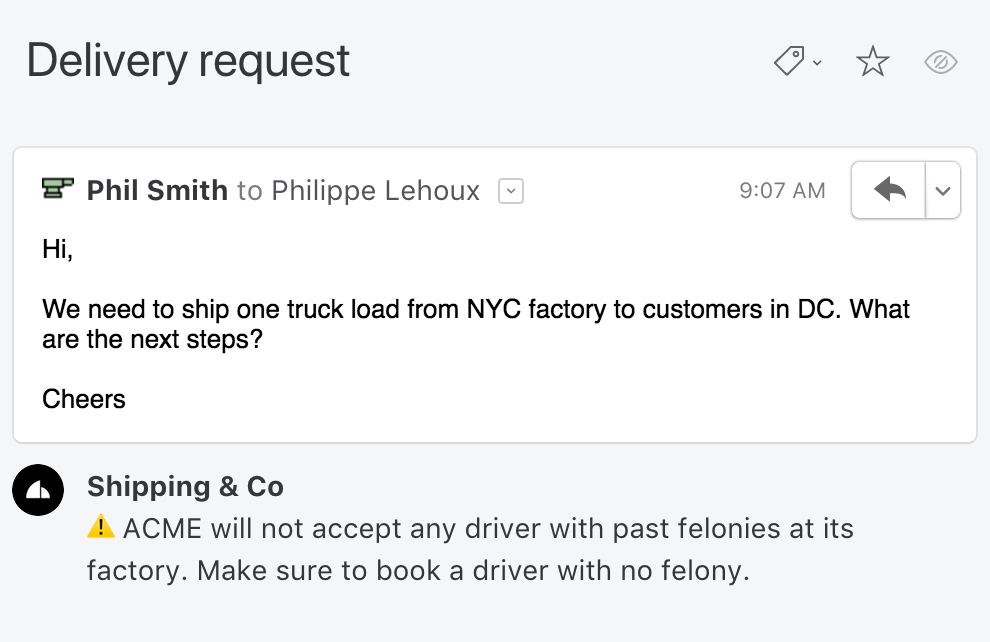
Notes are internal — only the team sees them, never the customer.
4. SLA breach notification
Notify a manager when a support email hasn’t been answered within a target response time.

5. Auto-route by client domain to team inboxes
For agencies, accounting firms, or any business with dedicated accounts per client: route everything from a given client domain straight into that client’s team inbox, so only the assigned team sees it.
This replaces the Outlook pattern of “dump everything in a folder” with actual team ownership. Accounting firms and agencies use this heavily — every client domain gets its own routed inbox with the right contractors assigned.
6. Forward receipts to accounting on label
When anyone on the team labels an email “Receipt,” it’s automatically forwarded to the accounting system.
This is the kind of rule Outlook can’t build — triggered by a user action rather than an incoming message.
AI rules: what Outlook can’t do at all
Most email rules match on keywords. That works until it doesn’t — because customers don’t write the way rule-builders hope they will. Someone asking for a refund might write “can I get my money back,” “this didn’t work, please cancel,” or “I want out.” No keyword rule catches all three.
Missive’s AI rules solve this by letting the AI read the message and answer a question about it. You write a simple prompt, pick what to do with a yes or no, and the rule fires based on meaning instead of exact text.
Example 1: auto-categorize support email

One rule, five categories, zero manual triage. Pair it with a second rule that routes each label to a team (billing → finance team, technical → engineering support, etc.) and you’ve replaced the entire human triage step.
Example 2: escalate upset customers
Example 3: draft a reply for review

The draft waits for a human to review and send. You get the speed of automation without losing the review step.
AI rules bring your own API key from OpenAI, Anthropic, or Google. Missive doesn’t mark up the cost — you pay the provider directly, usually pennies per rule run.
Rules set once are rules half-used
One pattern worth flagging: most teams set up their rules once, early on, and never touch them again. The rules keep working, the team keeps growing, and features that ship in the years after don’t get adopted because nobody goes back to the rule list.
If you’re running shared mailbox rules in Outlook today, it’s worth asking: what would actually change if you could also assign emails to specific people, route by content rather than sender, get notified when an SLA breaks, or have AI triage the support queue before a human touches it?
If the answer is “a lot,” the tool is the limit — not the team.
Moving from Outlook rules to Missive
A rough mapping between what Outlook rules do and how Missive handles the same jobs:
Missive's 30-day free trial includes the full rules engine, so small teams can try it before paying. Paid plans start at $14/user/month billed annually ($18 monthly) and include every feature — AI rules included.
Missive’s rules documentation covers every condition and action available, and there are ready-made templates to copy if you want a faster start.
Missive is a collaborative email client with shared inboxes, internal chat, live drafting, and a rules engine that works across email, SMS, WhatsApp, Instagram, Messenger, and live chat. Try Missive free for 30 days, no credit card required.

December 14, 2022
Text vs email vs call: when to use each for customer contact
Text, email, or call? Each has a clear best use case. Here’s how to pick the right channel for every customer interaction, and why mixing them up costs you the response.
Text is best for short, low-urgency confirmations where you don’t need a reply. Email is best for anything that needs a record, attachments, or a detailed response. Calls are best for complex issues, urgent matters, or conversations where tone and nuance matter. The channel you pick often matters more than what you say in it.
Every business has more ways to reach customers than ever. Texts, emails, calls, WhatsApp, Instagram DMs; the channels have multiplied but the attention people give any one of them has shrunk. Pick wrong and your message ends up buried, ignored, or worse, read at the wrong moment and acted on in a way you didn’t intend.
This guide covers when to use each of the three core channels, what each is best at, what each gets wrong, and how to combine them so customers actually hear from you.
Which channel is best for contacting customers?
It depends on three things: urgency, complexity, and whether you need a record.
- Text when the message is short, time-sensitive, and doesn’t need a reply (appointment reminders, order updates, passcodes)
- Email when the message is detailed, needs attachments, or creates a record for later reference (proposals, contracts, multi-point responses)
- Call when the issue is complex, emotional, or urgent and back-and-forth clarification will move faster in real time
If you pick based on what’s easiest for you rather than what’s clearest for the customer, you’ll get worse response rates on every channel.
Text messaging: pros, cons, and when to use it
Text is underrated for business. Open rates sit above 90% for most industries, far higher than email. People respond faster too: typical response time for a text is a few minutes, versus hours or days for email.
Strengths:
- High open and response rates
- Immediate and expected to be brief
- Hard to bury in a flood of other messages
- Works across every mobile phone without an app
Weaknesses:
- No good way to send attachments or long content
- Impersonal at scale
- No obvious record-keeping for the business unless integrated into a proper system
- Limited security; don’t send confidential information over text
When to use text:
- Appointment reminders and confirmations
- Order status updates (“shipped,” “delivered”)
- Two-factor codes and login verifications
- Short one-off questions where a quick yes/no is enough
- Follow-ups after a longer email or call to nudge a response
When not to use text:
- Initial outreach to a new customer (too familiar)
- Anything confidential or legally sensitive
- Complex information or decisions
- Conversations that need a paper trail
If you want more on this specific channel, see our guide to SMS customer service.
Email: pros, cons, and when to use it
Email is the workhorse of business communication. It’s cheap, scalable, keeps a record, and lets you send attachments, links, and structured content. The tradeoff: inboxes are crowded, and your message is competing with everything else a person sees that day.
Strengths:
- Built-in record-keeping and searchability
- Handles attachments, formatting, and long content
- Scalable to any audience size
- Works asynchronously; customer replies when they can
- Standard across every industry
Weaknesses:
- Easy to ignore, delete, or lose in the pile
- Response times can stretch to days
- No guarantee the recipient even opened it
- Spam filters and deliverability issues can kill your message before it’s read
When to use email:
- Anything that needs a permanent record (contracts, agreements, receipts)
- Detailed responses, proposals, or reports
- Sharing documents, links, or long content
- Non-urgent outreach where the customer can reply on their schedule
- Follow-ups after a meeting or call with a written summary
When not to use email:
- Urgent issues that need a response within the hour
- Short questions that would get answered faster by text
- Emotional or sensitive conversations that benefit from voice
If your team handles a lot of customer email, email management software matters more than most people think. Good email etiquette in customer service matters too; the difference between a well-organized reply and a rushed one shows up in the response you get back.
Phone calls: pros, cons, and when to use it
Calls feel old-fashioned, but they’re still the fastest way to handle anything complex or emotional. A five-minute call often replaces a ten-email thread.
Strengths:
- Immediate back-and-forth; you can clarify in real time
- Conveys tone, empathy, and urgency in ways text can’t
- Best channel for complex, emotional, or high-stakes conversations
- Harder to misunderstand than written communication
- Builds relationship in a way async channels don’t
Weaknesses:
- Not scalable; calls take time
- Requires both people to be available
- Easy to miss, and voicemail is ignored almost as often as email
- No automatic record unless you’re using a call tracking system
When to use call:
- Complex issues that need back-and-forth
- Urgent matters where an email would sit too long
- Sensitive conversations (complaints, cancellations, difficult news)
- Closing a sale or negotiating terms
- Confirming details before committing to something major
When not to use call:
- Simple confirmations or reminders
- Anything that needs a written record on the recipient’s end
- First contact with someone who hasn’t asked for a call
- Information that’s easier to share as text or a link
How to combine all three channels
Most real customer interactions span multiple channels. Done well, that means each message lands on the channel best suited to it. Done badly, it means the customer gets the same message three times and feels spammed.
A reasonable pattern:
- Email for the record. Contracts, proposals, detailed responses, and anything that needs to be referenced later.
- Text for the nudge. Confirmations, reminders, and short follow-ups when an email has gone unanswered for a day.
- Call for the hard stuff. Complaints, negotiations, and anything where tone matters.
The mistake most teams make is defaulting to one channel because it’s easiest for them and using it for everything. That’s why so much business communication feels off: a customer gets a text about a $50,000 contract, or an email response to an urgent complaint, and the mismatch itself sends a bad signal.
Handling multi-channel communication in one place
If your team is communicating with customers across text, email, and other channels, keeping it all in separate apps creates its own problem. Context gets lost. A customer emails about an issue, follows up with a text, and the person responding to the text has no idea what the email said.
Missive is built for teams that communicate with customers across multiple channels. Email (Gmail, Outlook, Microsoft 365, or custom IMAP), SMS, WhatsApp, Instagram, Messenger, and live chat all land in one shared inbox where your team sees the full conversation history across every channel and responds from whichever one makes sense.
A few features worth knowing about for this specific problem:
- Assignment and internal chat. Every conversation can be assigned to one person and discussed privately by the team without forwarding or CC chains. When the customer switches channels, the conversation stays together.
- AI rules. Route urgent messages to senior staff, escalate upset customers, auto-draft replies, and tag conversations by topic. The rules read message content and work across every connected channel.
- Canned responses. Save your most-used replies and insert them inline by typing
#shortname, so common confirmations go out in one keystroke regardless of channel. - SLA tracking. Set response time targets and get notified when a customer has been waiting too long, on any channel.
FAQ
What’s the fastest way to reach a customer?
Text messaging. Open rates are above 90% and median response times are under 5 minutes. Email open rates average around 20-30% and response times run hours to days. Calls get an immediate answer only about 25% of the time; the rest go to voicemail.
Is it unprofessional to text a customer?
It depends on context. Texting is standard for confirmations, reminders, and short updates in most B2C industries (retail, healthcare, services, logistics). For first outreach to a new customer or for formal business communication, email or phone is more appropriate. If the customer has already texted you, text is appropriate to respond.
When should I call instead of email?
Call when the issue is urgent and needs resolution today, when the conversation is complex and will take a dozen back-and-forth emails to resolve, or when the situation is sensitive and tone matters. A five-minute call often replaces a full day of email threads.
How do I follow up if my email goes unanswered?
Wait two to three business days, then send a short follow-up email. If that goes unanswered for another two days, a text referencing the email (“Hi, I sent you an email Monday about X, wanted to make sure it didn’t get lost”) often works well. For high-stakes follow-ups, skip to a phone call after the second email.
What’s the best channel for customer complaints?
Phone calls, in most cases. Complaints are emotional, and customers feel heard faster on a call than through written channels. If the complaint comes in by email or text, respond in that channel first to acknowledge, then offer a call to resolve it.
Should I use one channel or multiple?
Use whichever channel the customer used first, then switch if the situation calls for it. If they email, reply by email. If they text, text back. Switch to a call only when the complexity or sensitivity of the situation justifies it, and always tell them you’re going to call before you call.
Missive brings email, SMS, WhatsApp, Instagram, Messenger, and live chat into one shared inbox with assignments, internal chat, and AI rules. Try Missive free for 30 days, no credit card required. Or book a demo to see how it fits your team.

December 7, 2022
Inbox zero method: how to actually master it (without losing your mind)
Inbox zero is supposed to make you more productive, not a slave to your inbox. Here’s how the method actually works, why strict interpretations of it can backfire, and the practical techniques that hold up in 2026.
We all drown in email. Most of us look at our inbox dozens of times a day, and the stream never stops. Postponing the triage just makes it worse.
Luckily, there’s a lot of techniques and tools to help. And one in particular has become the go-to framework.
The inbox zero method.
In this guide, we’ll cover what inbox zero actually means, the principles behind it, the steps to get there, and the tools that make it sustainable, including why a strict “zero emails in inbox” reading of the method can actually backfire.
What is inbox zero?
Inbox zero is an email management method aimed at keeping your inbox organized by handling every incoming email quickly: responding, archiving, delegating, or deferring. The goal is less stress and better focus, by keeping your inbox close to empty at all times.
The method was introduced by Merlin Mann on his website 43 Folders. It gained real traction after his 2007 Google Tech Talk, which turned inbox zero into a movement.
On his blog, Mann published five principles:
1. Not all emails are equally important. Focus on the few that matter most. 2. Your time is valuable and limited. You have more work than time; don’t pretend otherwise. 3. Shorter email responses are often better. Lengthy emails usually waste time on both ends. 4. Don’t feel guilty about a full inbox. Focus on clearing it, not on the emotions around it. 5. Be honest about your priorities and capacity. Don’t commit to responding to every email when you know you won’t.
Importantly, Mann himself has walked back the literal interpretation of the method. The original name was about the mental state (“zero anxiety about email”), not a literal count. Most people who try to keep their inbox empty at all times end up more stressed, not less.
The useful version of inbox zero is less about the number and more about having a clear, repeatable process for handling every incoming email.
Is inbox zero worth pursuing?
The core problem inbox zero tries to fix is real. A 2025 study from Atlassian found the average knowledge worker gets about 300 business emails a week and checks their inbox more than 30 times an hour. Every check breaks focus. It takes around 16 minutes to fully refocus on deep work after handling emails.
That’s hours of productive time lost every day to inbox-adjacent context switching.
Benefits of a working inbox zero practice
Better focus, less stress. A tidy inbox makes it easier to see what actually needs attention. The anxiety of a 2,000-email backlog is real; eliminating it frees up mental bandwidth.
More productive hours. Handling emails decisively (reply, archive, delegate, defer, or delete) means each one consumes minutes instead of hours of lingering.
Better email etiquette. People who apply inbox zero principles tend to write shorter, clearer emails. That helps everyone, including the people replying to them.
How to master the inbox zero method
The core workflow
When you process an email, do one of the following and move on:
- Delete or archive. If it’s irrelevant or not needed later, delete it. If you might need it for reference, archive it.
- Delegate. If it’s better handled by someone else, pass it to them.
- Respond. If you can answer in under two minutes, do it now.
- Defer. If it needs a longer response, snooze it to a specific time when you’ll handle it.
- Do. If it’s a task you can finish quickly, finish it now instead of leaving it in your inbox as a reminder.
The key is the decision itself. Every email gets a decision, not a “look at later.”
Step 1: Unsubscribe aggressively
The first step is cutting off the incoming flood. Unsubscribe from every newsletter, promo email, and notification you don’t actively want. Most email clients (including Missive) have a one-click unsubscribe feature. Use it on anything you haven’t opened in the last three emails.
If you can’t unsubscribe directly, create a filter that automatically archives or deletes messages from that sender.
Step 2: Organize with folders, labels, or categories
Whatever your email client calls them, create a system for categorizing the emails worth keeping. Keep it simple: three to five top-level categories works better than twenty. Overly complicated folder structures break down quickly.
Step 3: Set up rules to sort automatically
Rules (or filters) handle the sorting for you. Incoming newsletters go to a “Reading” folder. Internal CC emails go to a “FYI” folder. Receipts go to an “Expenses” folder. The goal is that your main inbox only contains things that actually need your attention.
In Missive, rules can also use AI to triage on content rather than just headers, automatically labeling, routing, or responding to emails based on what they’re actually about.
Step 4: Process each remaining email with decisions
Once the noise is filtered out, your main inbox should only contain real mail. Process each one with the core workflow above. No “maybe later”; every email gets a decision.
Strategies for staying at inbox zero
Getting to zero is one thing. Staying there is another.
The two-minute rule
If an email can be handled in under two minutes, handle it immediately. Don’t file it, don’t defer it, just do it. This alone eliminates a huge chunk of backlog.
The “touch it once” rule
When you open an email, do something with it: reply, archive, defer, delegate, or delete. Don’t just read it and leave it sitting there. If you can’t decide what to do with it now, you won’t be able to decide later either.
The “not cc’d, not replying” rule
If you’re only in the CC field, you’re being informed, not asked. Read it if you need the context, then archive. Don’t feel obligated to respond.
Check in batches, not continuously
Checking email every two minutes destroys focus. Check in three or four scheduled batches per day instead. The world will not end.
Email management tips for achieving inbox zero
A few practical techniques that compound:
Use canned responses for repeat questions. If you answer the same question more than twice a month, make a canned response and insert it in one click. This is especially useful for “out of office” variations, meeting requests, and standard project FAQs.
Use snooze to defer without forgetting. When an email needs handling later but not now, snooze it to a specific time. It disappears from your inbox and reappears at the scheduled moment.
Archive aggressively instead of keeping “just in case.” Modern email search is good enough that you don’t need to keep things in your inbox to find them. Archive first, search when needed.
Turn off email notifications. Notifications encourage continuous checking, which defeats the entire point. You’ll see the emails when you open your inbox on your schedule.
Tools to help you achieve inbox zero
Any email client can work for inbox zero, but some make it much easier. Gmail, Outlook, and Apple Mail all support folders, labels, filters, and snooze. Specialized tools like SaneBox and Clean Email help with the initial cleanup.
For teams that handle email collaboratively, though, standard clients hit their limits quickly. You can’t get to personal inbox zero if the same emails keep returning to a shared queue, or if your team doesn’t have clear assignment rules.
Using inbox zero with Missive
Missive is a collaborative email client built around team communication. It’s especially useful for inbox zero because it combines personal workflow tools (snooze, canned responses, rules) with team workflow tools (assignments, internal chat, shared labels) in one place.
1. Check emails in batches
Missive supports scheduling rules; you can set incoming emails to stay out of your inbox until 9 AM, for example. Anything that arrives overnight waits until your scheduled window.
2. Use labels to prioritize
Instead of a flat inbox, Missive lets you organize with shared labels using systems like MoSCoW prioritization:
- Must respond: the non-negotiables, today
- Should respond: important but not urgent
- Could respond: nice to handle if there’s time
- Won’t respond: no impact, archive
Shared labels work across your team, so everyone sees the same priority system.
3. Delegate with one click
The “could respond” tier often goes to an assistant or teammate. In Missive, assign the email with one click, leave an internal chat note about what you need, and the email moves out of your inbox into theirs.
4. Screen unknown senders
Missive lets you route emails from people outside your contacts to a separate “To Screen” folder; they don’t trigger notifications or clutter your main inbox. You review them on your schedule, and approved ones automatically go to your inbox next time.
5. Use AI rules
Missive’s AI rules can read email content and take actions automatically: labeling, routing, drafting replies, or escalating to humans when needed. This is the modern version of inbox filters, based on meaning rather than header matches.
6. Snooze strategically
Missive’s snooze function lets you push emails to specific times: after work, next Monday, or a custom schedule. Combined with rules, you can automatically snooze certain types of emails (like vendor newsletters) to off-hours so they never interrupt your workday.
Pro tip: Missive also blocks read tracking by default. Senders can’t see if or when you opened their email, so you can read messages on your schedule without getting pressured into immediate replies.
Why strict inbox zero might not be the goal
Since Merlin Mann introduced the concept in 2007, digital life has changed a lot. Now there’s way more than email to manage: chat apps, social notifications, texts, Slack, multiple inboxes across accounts. Trying to hit literal zero across all of them is exhausting.
In a 2020 Wired article, Mann himself revisited the method and emphasized that the point was always mental calm, not an empty inbox. Treating inbox zero as a strict target can create more stress than it removes.
The better framing: have a clear process for every email, handle them efficiently when you’re in your email window, and don’t beat yourself up if the number isn’t literally zero.
Conclusion
Inbox zero is achievable, but the real goal is a manageable relationship with email, not a specific count at the end of the day.
Unsubscribe from noise. Set up rules to handle the predictable stuff. Process what’s left with clear decisions (reply, archive, delegate, defer, delete). Use snooze and canned responses to compress your handling time. Pick a client that actually helps you work this way instead of fighting you.
Do that consistently and email stops being the thing that runs your day.
FAQ
What is the inbox zero method?
Inbox zero is an email management method that focuses on handling each incoming email decisively (respond, delegate, defer, archive, or delete) so your inbox stays manageable. The goal is reduced stress and better focus, not necessarily a literally empty inbox.
Is inbox zero actually achievable?
For most people, a literal zero is not sustainable. But the underlying practice, handling every email with a clear decision, is very achievable, and delivers most of the benefits. The name is misleading: it’s about mental state, not the count on your screen.
How long does it take to get to inbox zero from a full inbox?
If you have thousands of emails, start with aggressive unsubscribing and bulk archiving of everything older than a month (search-friendly archiving is better than leaving it in your inbox). Then apply the core workflow going forward. Most people get their inbox under control in a week or two of deliberate practice.
What’s the difference between archiving and deleting?
Archived emails stay searchable but disappear from your inbox. Deleted emails are gone after the trash empties (usually 30 days). Archive anything you might want to reference. Delete true junk.
Should I check email every hour or in batches?
Batches. Research consistently shows that frequent checking destroys focus. Three or four scheduled windows per day is enough for most roles. Emergencies can come through other channels.
Missive is a collaborative email client built around inbox zero principles: rules, shared labels, AI-powered triage, and team assignments all in one place. Try it free.

November 30, 2022
Retool Tutorial: Integrating Your Data into Missive
Learn how to use the Retool integration to add your data into the Missive Side Bar with this easy-to-follow...
The process of switching between multiple apps to get all the information you need is counterproductive.
You may experience this problem if you have to switch between your CRM and email client to access information about your client.
Wouldn't it be great to quickly access all of the information you need directly in your email?
If you are using Missive to manage your personal and team emails and you want to display data from your own database or from a Google Sheet, Retool is a good tool to use.
Here is a tutorial on how to use the Retool integration to add this data to Missive.
What Is Retool?
Retool is a powerful and flexible tool that helps you build custom internal applications quickly and easily. It provides a simple, but powerful, drag-and-drop interface that lets you add any data source to custom applications and share them with your team.
How to Use Retool with Missive?
Retool is a great way to create a custom integration that connects a source of data with an application used by your team. You can easily use this low-code solution to build the internal tools you need to kickstart your team's productivity.
In this tutorial, we'll explore how to use Retool to display data from a Google Sheet next to your emails in Missive.

1. Creating Our Queries in Retool
To be able to see the data of a Google spreadsheet alongside conversations, we'll need to query our Google Sheet document in a Retool application embedded in Missive.
We must first create three queries in our Retool application. To do so, let's log in to Retool and create a new app by clicking on Create new > App. If you don't already have one, create a Retool account.
Then we must create our data queries:
- One will query data from the Missive application.
- One will query data from a Google Sheet.
- One will merge those two data sources and display the correct data in the Retool application (Missive sidebar).
We can add a data source to your Retool application by clicking the + icon and selecting the Resource query. We will first create the query that gets the data of the selected conversation in Missive.
We can add a data source to your Retool application by clicking the + icon in the bottom left panel named Code and selecting Resource query.
To start let's create a query that will fetch the data of the selected conversation in Missive.

Below, we're calling the query getCurrentConversation , but feel free to change the name if you wish. The resource select should be set to ParentWindow and the selector input should be set to conversation.

The second query connects our Google Sheet to Retool. To create it, add a new query as we did previously. In Resource , select + Create a new resource. Then select Google Sheets and follow the instructions.

From there, we can select the spreadsheet you would like to connect to.

We can test with one that has the same columns as this one:

Lastly, we need to create the query that will merge the data from Missive with the spreadsheet. we'll simply name it query. For this one, select Query JSON with SQL as the Resource.

The query should be as follows:
select * from {{ googleSheet.data }} where Email = ANY({{getCurrentConversation.data.email_addresses.map(x => x.address.toLowerCase())}})
In a nutshell, this will find all of the rows in the spreadsheet where the email address is equal to at least one in the selected conversation in Missive.
2. Creating a UI for Missive
Now that we have the correct data, we can build a simple user interface to display it. In the right panel of the Retool editor, select the Create tab, then drag and drop the Key Value component in your application.

Then select the dropped component and in the Inspect tab of the right panel and in the Data input paste {{ query.data[0] }}.

That's it! We've got a basic but functional application.
Before we try it in Missive, let's make some stylistic changes to the Retool application so it renders better in the Missive right sidebar.
For this, select the More menu at the top-right corner, then select the Scripts and styles option.

Then paste this CSS code:
._retool-container-table1 {
width: 100% !important;
}
._retool-container-keyValue1 {
width: 100% !important;
}
The ._retool-container-keyValue1 class name depends on the name of your component. Make sure to update it according to your component name.

This CSS will make the component dynamically resize with the Missive sidebar width.
3. Adding Our Retool Application in Missive
It's time to try this in Missive! Copy the link View link of your application:

In Missive, open the Settings > Integrations and add a Retool integration, paste the copied link in the Retool public URL input:

Lastly, add this ?_embed=true at the end of the pasted URL. It will remove the Retool header from the integration for a far better look.

Also, make sure to disable the Enable mobile layout from your Retool app settings:

And here is the final result!
Using Missive JS API from Retool
You can also take advantage of Missive JS API from your Retool app. Here are the steps to do so:
1. Enable parent window communication
By default, Retool will block any communication between the app and its parent window (Missive). You can enable it in your Beta settings:

2. Add missive-retool.js library to your Retool app
Add this script in the Scripts and styles section of your Retool app:
https://integrations.missiveapp.com/retool/missive-retool.js


3. Use the Missive JS API
You can now use the Missive JS API from your Retool app. You can, for example, add a link that will add new comments and tasks to the selected conversation:


November 17, 2022
Embracing Hard Limits
All software needs limits. Learn to embrace hard limits throughout your codebase in a proactive and...
All software needs limits. Almost every part of any software needs a hard limit. At least every part that deals with lists. In most languages and databases, this means arrays and strings.
This sounds obvious, but I suggest every engineer reading this open up their codebase and look around. Surely you have length validations here and there, but if you never dedicated half a day to go over all lists aiming to set a limit on each, you likely have several cracks remaining.
I do not mean obvious user-facing limits, such as the 5-user cap on Starter or the 25-user cap on our free trial. I mean limits that 99% of users will never hit. For instance, pasting several paragraphs in your email subject instead of the body. Or likewise, typing the “Notes” of a contact in the “First name” field. Or everyone’s infinite loops you’ll be plagued with as soon as you introduce a public API.
The only scenario where you do not need a hard limit is when a list is always accessed through pagination. After all, pagination means there is already a LIMIT involved.
Embrace Hard Limits
I love hard limits. I love knowing they are there. I love introducing new ones with any new feature. Hard limits are key to keeping me asleep at night.
They are also low-effort; they don’t need public documentation. You naturally implement decent error messages for the few outliers that will hit them, but nobody needs to have these limits in mind to plan whether they will affect their business.
You should even make it a requirement to not have to disclose these limits. If you start seeing a significant enough number of exceptions, you’ve most likely just set it too low. The point is not to annoy or restrain users; it’s to avoid crashes. Increasing one limit from 500 to 1000 will not cause your app to crash, but it may make the difference between one user hitting that limit every month instead of every day.
It’s also an occasion to remember that our world is diverse. Stay humble, accept and embrace the fact that some of your customers will have use cases you never expected. Don’t fall into the trap of accusing people of misusing your software.
One day, we did have an organization hit a roadblock due to a limit and they emailed us. They needed to set over 25 custom fields on a contact. Did we ask them to explain their situation and figure how they could adjust their usage? Of course not. We had set that 25-limit arbitrarily at first so we could just as well increase it to 50. Problem solved!
Avoid Bikeshedding
I suggest you constraint yourself to a short list of numbers for all your limits:
1 • 5 • 10 • 50 • 100 • 500 • 1000 • 5000
These are the easiest to remember for anyone. There is also a wide enough gap between each to make decisions easy. It’s wasteful to wonder whether 100, 200 or 300 is appropriate. Any doubt 100 isn’t enough? Pick 500, that’s plenty!
“1” comes into play when used as KB or MB. What should be the max length of an HTML email body? I’m sure you’ll agree 1 MB is OK, given that’s roughly a Harry Potter book.
What size of JSON payload should our web server refuse to parse? Either 5 MB or 10 MB sounds great. The latter is what Amazon API Gateway uses.
When you reply to an email thread and we quote it under your response, where do we stop? 10 KB of quoted text for the win.
How many labels will you apply to that one conversation? I hope 100 is fine with you.
How many concurrent sessions do you need before you smell like multiple users not wanting to pay a fair price per seat? Never heard a soul needing more than 10.
The list goes on.
Hope you enjoyed this and will spend your next morning adding sweet limits all over your codebase. Do it, it’s fun! ✌️