
October 24, 2023
Customer Perception: 7 Ways to Improve It (with Examples)
Learn what customer perception is, how to measure it, and 7 proven strategies to improve it—with a focus on how your team's daily interactions shape what customers think of your brand.
Have you ever tried a new app or software and felt instantly "at home"? Or the opposite, where everything just felt... off?
That's the power of customer perception at work.

Top-notch features are merely part of the formula. The positive feeling users get while using a product or contacting customer support is what truly sets a brand apart. And here's the thing about perception—it doesn't come from your marketing. It comes from the moments customers actually interact with you.
In this article, we'll cover what customer perception is, how to measure it, and proven strategies for improving it—with a focus on how your team's daily interactions shape what customers think of your brand.
Key Takeaways
- Definition: Customer perception is the collective feeling, experience, and opinion customers have about your brand based on every interaction.
- Consistency Is Key: Providing a unified brand voice across all communication channels builds trust and reliability.
- Response Speed: Fast, efficient communication is one of the highest-rated factors in positive customer sentiment—72% of customers want immediate service.
- Internal Collaboration: Using shared inboxes and internal chat ensures the whole team has the context needed to provide seamless support.
- Proactive Feedback: Actively seeking and acting on customer feedback can flip negative perceptions into brand loyalty.
What Is Customer Perception?
Customer perception is how a person thinks and feels about a product, service, or company. Also known as consumer perception, it's formed by a person's direct experiences—using a product, talking with a support team, or navigating a checkout flow.
It's also indirectly shaped by the price and quality of the product, what customers see in ads, what they hear from friends, online reviews, and social media. Every one of these touchpoints contributes to a running mental scorecard your customers keep—whether they realize it or not.
Customer Perception vs. Customer Satisfaction
These terms often get used interchangeably, but they're different. Customer satisfaction measures how well a specific experience met expectations—"Was my support ticket resolved?" Customer perception is broader. It's the cumulative impression of your entire brand—"What do I think of this company?" You can have high satisfaction on individual interactions and still have a perception problem if your pricing, design, or communication feels off.
How Expectations Shape Perception
Customer perception doesn't form in a vacuum. It's the gap between what customers expect and what they actually experience. Set expectations too high with your marketing and underdeliver, and perception tanks—even if the product is objectively good. Underpromise and overdeliver, and perception soars.
This is why consistency matters so much. When every interaction—from your website copy to your support emails to your onboarding flow—delivers on the same promise, customers develop trust. When the experience is inconsistent, they develop doubt.
Why Customer Perception Matters
Customer perception is important because if customers feel positive about your business, they're more likely to buy again and recommend it to others. When people shop, they don't just buy products or services—they buy what they believe or feel about them.
Here's why it matters so much:
- Brand reputation: A brand's reputation isn't built overnight. When customers have a positive perception, they associate the brand with reliability, trustworthiness, and value for money. Negative perception does the opposite—poor quality, dishonesty, or a waste of money.
- Customer loyalty: Loyal customers are like gold. They not only buy repeatedly but also recommend the brand to others. A big part of earning this loyalty is positive customer perception.
- Word-of-mouth recommendations: People talk. A fantastic experience gets shared with friends and family. But a poor perception leads to negative word-of-mouth, which is especially harmful—88% of consumers worldwide most trust recommendations from people they know.
- Business growth: Positive perception leads to increased sales, repeat business, and long-term growth. Negative perception results in fewer sales, loss of valuable customers, and slower growth.
The Cost of Negative Perception
Negative perception compounds. A single bad support experience might cost you one customer. But if that customer posts a review, tells their network, or shares on social media, the ripple effect can be significant. And here's the uncomfortable truth: it takes far more effort to recover from negative perception than to maintain positive perception. Prevention—through consistent, quality interactions—is always cheaper than repair.
How to Measure Customer Perception
Measuring customer perception doesn't need to be complex. It's all about being a good listener, tuning into customer signals, and—most importantly—being ready to evolve.
Here are six ways to measure customer perception of your brand:
1. Collect Customer Feedback Through Surveys and Forms
Understanding your customers' opinions and feelings about your product or service is key. There's no better way to do this than directly asking.
Use customer satisfaction surveys (CSAT) to gather specific information. Surveys give you quantifiable insights that guide improvements, whether it's about a new feature, overall user experience, or service quality.
Tools like Tally or Typeform let you gather customer opinions easily.

While surveys often have set questions, feedback forms offer users the chance to freely express their experiences. Place these forms on your platform or website, and give customers an opportunity to share their thoughts when they're most relevant.
Here's how to use feedback to understand customer perception:
- Analyze data for common themes
- Implement changes based on constructive feedback
- Acknowledge positive feedback and identify areas of excellence
2. Net Promoter Score (NPS)
You can understand how customers feel by asking, "Would you recommend our product to a friend?" Their answer, on a scale from 0 to 10, gives you a score that tells you how they feel about your product.
Here's how to interpret the scores:
- Promoters (9-10): These are your brand champions. They love your product and will likely recommend it to other potential customers.
- Passives (7-8): These customers are satisfied but not enthusiastic. They might switch to a competitor if given a reason.
- Detractors (0-6): These users had a less than stellar experience and might spread negative feedback.

NPS provides a clear picture of your customer's loyalty, which often correlates with retention, growth, and profitability.
3. Online Reviews and Ratings
Review sites like G2 or Trustpilot offer a goldmine of customer insights. Are folks singing your praises or pointing out issues?

Frequent negative reviews describing bad experiences give you clear insight into what could be improved. Positive reviews highlighting customer success stories signal stronger perception.
4. Social Media Mentions
Social media posts and mentions can tell you a lot about how your customers feel. Whether your users spend time on X (formerly Twitter), LinkedIn, Instagram, or another platform, paying attention to details like LinkedIn post formatting can help you better interpret engagement and understand how your brand is perceived.
5. Customer Support Interactions
Your customer support team is on the frontline. They deal with the complaints and issues of long-term and new customers.
Dive into their chats, emails, and call logs. You'll be surprised how much you can learn about perception just by seeing what issues pop up frequently, what features users rave about, and—critically—how customers describe their experience in their own words.
This is an underutilized source of perception data. Surveys capture what customers think when prompted. Support conversations capture what they think when they have a real problem. If your team uses a shared inbox, you have a running record of every customer interaction—not locked away in individual mailboxes, but visible to the whole team. This makes it possible to spot trends, identify recurring frustrations, and understand how your support quality shapes perception over time.
To go a step further, choose a couple of recent customer interactions to follow up on. Ask each customer in-depth questions about their personal experience with your business and product.
6. Usage and Retention Data
While surveys and feedback methods capture the voice of the customer, observing consumer behavior is often more revealing. Key metrics to consider include:
- Frequency: How often are users accessing your product?
- Duration: How long are they spending each time they log in or use the product?
- Feature usage: Which parts of your product are customers using the most or least?
High usage often indicates that customers value your product, signaling a positive perception. Conversely, infrequent usage or neglect of key features might highlight improvement areas.
7 Ways to Improve Customer Perception
1. Provide Robust Customer Support
When customers have questions or run into problems, they want help quickly—72% of customers say they want immediate service.
Imagine you've just subscribed to a new CRM. But you can't figure out how to import your existing data. Now imagine calling up the company and getting the solution in minutes. Instead of the issue ruining your day, the company resolves it so you can start using the CRM.
Quick responses and friendly help can turn a frustrated customer into a super fan.
Aim to offer great customer service through:
- Emails
- Live chat
- Phone calls
- Video tutorials
- User-friendly documentation
- Comprehensive written FAQs
For best results, ensure your support team is well-trained and has the tools to address issues quickly. When team members can see full conversation history, draft responses collaboratively, and add internal context without the customer seeing, the experience feels seamless—even when multiple people are involved.
Take Dropbox for example. The brand offers detailed help articles, community forums, and direct support channels. By providing easy-to-understand resources, their users can quickly resolve most issues.

Suraj Nair, a senior digital marketer at SocialPilot, a B2B social media management tool, explains how a more proactive approach to customer support boosted customer perception.
"Our support team reached out to customers, offering personalized assistance and suggesting features to meet their specific needs," he says. "This improved customer satisfaction and changed their perception of us as a customer-centric company."
2. Create an Intuitive User Interface (UI) and Experience (UX)
Remember when you tried to use that one app and got lost five seconds in? We've all been there. Making your product easy and fun to use is key.
Your platform or website should be user-friendly. A well-organized dashboard, for example, can make navigation a breeze.
For example, Linear, a developer tool platform, became popular partly because of its clean, user-friendly interface. It's easy for new users to understand and navigate, enhancing their perception of the brand.

3. Roll Out Regular Feature Updates
By continually releasing new features or refining existing ones, you demonstrate commitment to your product's evolution. Whenever you release an update, communicate it to your user base.
For example, Notion, a productivity tool, frequently releases updates and new features based on what users are asking for, helping to cement their reputation as a responsive and innovative brand.
4. Use Transparent Pricing
No one likes unexpected billing surprises. Offering clear pricing tiers that detail what each entails can instill confidence in potential clients.
Provide clear, upfront pricing without hidden costs. Offer scalable solutions for different business sizes. Trello, the task management tool, uses a transparent tiered pricing model where users can easily see what they're getting at each level.

5. Engage With Your Community
Engage with the user community through forums, webinars, workshops, and social media. These mediums can provide valuable customer feedback and are a great way to connect with your customers.
For example, Atlassian has a vibrant community forum where users can share tips, ask questions, and provide feedback.

6. Prioritize Security and Privacy
Data breaches can be catastrophic to your bottom line and customer perception. Once you lose trust, it's hard to win it back. Make sure your data is secure and you comply with all relevant data protection regulations. Then, clearly communicate your security measures to your users.
For example, Salesforce heavily emphasizes its security measures, reinforcing the trust businesses place in them to handle sensitive data.
7. Share Educational Content
Produce content that educates users about your product and the broader industry. This could be through blog posts, webinars, or ebooks.
Onboarding tutorials, webinars, and knowledge bases can make the adoption of your product smoother.
For example, the ecommerce platform Shopify offers free resources for its users—online courses and blogs on everything from how to set up an online store to advanced ecommerce strategies, cementing its brand image as an industry leader and a helpful partner for businesses.

When Perception Is Already Damaged
Sometimes you're not starting from a clean slate. Maybe response times slipped during a growth phase. Maybe a product issue went unresolved too long. Maybe customers feel like they're talking to a wall.
Recovering perception is harder than building it, but it's not impossible:
- Acknowledge the problem publicly. Customers respect honesty. A straightforward acknowledgment—"We know our response times weren't where they should be, and here's what we've changed"—goes further than silence.
- Fix the root cause, not just the symptom. If customers complain about slow responses, the fix isn't apologizing faster—it's ensuring your team has the tools and processes to respond quickly in the first place.
- Follow up with affected customers. Reach out to customers who had bad experiences. A personal follow-up showing you remember and care can convert a detractor into a promoter.
- Measure recovery over time. Track your NPS, review sentiment, and support satisfaction scores monthly. Perception recovery is gradual—you're looking for a trend, not a spike.
How Customer Perception Helps Your Brand Stand Out
Customer perception is often the defining factor between thriving and surviving.
But a positive perception doesn't just happen. It's cultivated through attentive customer support, user-friendly products, transparent pricing, and consistent communication across every channel your customers use.
Businesses can boost relationships and their bottom line by placing the user at the heart of all decisions and constantly refining the customer experience. The teams that shape perception best are the ones with full visibility into customer conversations, the ability to collaborate internally without the customer seeing the seams, and the tools to respond fast and consistently.
Ultimately, improving customer perception is not just a nice-to-have bonus—it's a fundamental pillar of business success.
Frequently Asked Questions
What is customer perception?
Customer perception is how people think and feel about a product, service, or company based on direct experiences like using a product or talking with support, as well as indirect factors like pricing, advertising, reviews, and social media.
How do you measure customer perception?
You can measure customer perception through customer satisfaction surveys, Net Promoter Score (NPS), online reviews and ratings, social media mentions, customer support interactions, and usage and retention data.
What are the main customer expectations?
Customers expect immediate service (72% want help right away), transparent pricing without hidden costs, robust support through multiple channels, intuitive user experiences, regular product improvements, and strong security and privacy protections.
How do you improve customer perception?
Improve customer perception by providing fast customer support, creating an intuitive user interface, rolling out regular feature updates, using transparent pricing, engaging with your community, prioritizing security, and sharing educational content.

October 17, 2023
How to deal with difficult customers (the rude, the angry, and everyone in between)
Difficult customers come in many flavors: angry, rude, demanding, impossible to please. Here’s how to handle every type without losing your mind — practical strategies, scripts, and when to walk away.
Talk to anyone who’s worked in customer support and they’ll tell you the same thing: some days are really hard. Not because the work is complex, but because someone is yelling at them over a $12 charge.
It’s not getting better, either. Recent research shows that over 75% of customer service reps encounter rude behavior at least once a month. Around one in three customers admits to screaming or swearing at support staff. Response time expectations keep rising — a third of people will wait two minutes maximum for a chat response before hanging up.
The causes are a mix of higher expectations, stressful lives, and the feeling that being aggressive is the fastest way to get help. Whatever’s driving it, the reality is that every support team needs a plan for difficult customers.
Here’s what works — strategies that hold up whether you’re dealing with someone who’s rude, someone who’s angry, or someone who’s just genuinely impossible to please.
What counts as a “difficult customer”?
Not all difficult customers are the same, and the right response depends on which type you’re dealing with:
The angry customer is upset about a real problem — a billing error, a broken feature, an order that didn’t arrive. Their anger is usually justified, even if it’s misdirected. Solve the problem and they often become your biggest fans.
The rude customer is the one who treats support staff poorly regardless of the situation. Dismissive, condescending, sometimes personal. This isn’t about the issue — it’s about how they talk to people.
The demanding customer expects more than what they’re entitled to. They want a refund outside your policy, priority support on a free plan, or a custom feature built for them. They might be perfectly polite about it, but they’re still difficult.
The impossible-to-please customer will find something wrong no matter what you do. Fix one issue, they complain about another. Offer a solution, they want a better one.
Each type needs a slightly different approach. But there are fundamentals that apply to all of them.
Why customers act difficult
Understanding why someone is difficult helps you respond without taking it personally.
Sometimes it’s misaligned expectations — they thought your product would do something it doesn’t, or they didn’t read the fine print. Sometimes it’s a real failure on your end that they’re right to be upset about. Sometimes they’ve had a terrible day, their boss yelled at them, their kid is sick, and your support conversation is where all of it comes out.
When someone feels unheard or powerless, being aggressive feels like the only way to get attention. Yelling loud enough to get escalated is, unfortunately, a strategy that often works — which is why it persists.
Recognizing this doesn’t mean excusing the behavior. It means you can respond to the underlying situation instead of reacting to the tone.
The impact of difficult customers on your team
Constant exposure to difficult customers has real costs, and they show up in predictable places:
Employee wellbeing. Handling rude messages all day is exhausting. Stress levels rise, energy drops, and even good reps start cutting corners because they’re running on empty.
Staff turnover. Support teams with high difficult-customer exposure have higher turnover rates. You lose experienced people who understand your product and replace them with new hires who take months to ramp up.
Service quality. A stressed rep responds differently than a calm one. Their replies are shorter, less empathetic, more likely to miss nuance. Quality slips across the board.
Brand reputation. Unresolved difficult-customer interactions don’t stay inside your support inbox. More than half of consumers have publicly called out a company after a bad service experience. One viral complaint can undo months of good reviews.
The good news is that all of these are preventable with the right strategies and team setup.
How to handle angry customers
Angry customers are the most common type of difficult customer, and often the easiest to turn around. The anger is usually about a specific problem. Solve the problem and the anger usually goes with it.
1. Acknowledge before solving
The worst thing you can do with an angry customer is jump straight to problem-solving before they feel heard. Even if you know exactly how to fix it, start with acknowledgment:
“I can see why you’re frustrated — this isn’t what you should have experienced. Let me dig in and make it right.”
Notice what’s not there: no defensiveness, no “but here’s what happened.” Just acknowledgment. You can explain context later, after the customer feels heard.
2. Own what’s yours
If your company made a mistake, own it without deflecting. Customers have a very sharp radar for non-apologies (“We’re sorry you feel that way”). They also notice when you take genuine responsibility.
Compare these two responses to a major outage:
❌ “Our team is aware of the issue and working on it. We apologize for any inconvenience.”
✅ “You’re right — our uptime today has been unacceptable. Our engineering team has been on this since 9am. Here’s what happened and what we’re doing to prevent it.”
The second response humanizes you and sets realistic expectations.
3. Offer a fix, not a process
Don’t tell the customer about the process you’re going to follow (“I’ll need to escalate this to our billing team, who will review it and get back to you within 5–7 business days…”). Tell them what’s going to happen for them.
Better: “I’m refunding this now — you should see it in 3–5 days. I’m also flagging your account so this doesn’t happen again.”
4. Follow up
After you’ve solved the problem, follow up once to confirm everything is working. It’s a small gesture that often turns an angry customer into a loyal one.
How to handle rude customers
Rude customers are harder. The rudeness isn’t usually about the issue — it’s about how they treat people. Solving the problem doesn’t necessarily change the tone.
1. Don’t match the energy
The instinct when someone is rude to you is to be short back. Resist it. Staying professional isn’t about being a doormat — it’s about not giving them more fuel.
2. Use positive framing
Instead of “We can’t do that,” try “Here’s what we can do.” Instead of “You’ll have to…”, try “The fastest way to resolve this is…”
Small wording changes shift the dynamic from confrontation to collaboration.
3. Set clear limits when needed
If someone crosses the line into personal attacks or abusive language, it’s okay to push back. Calmly:
“I want to help you resolve this. I won’t be able to continue if you keep swearing at me — can we restart?”
Most people self-correct when called out directly and politely. The ones who don’t are the ones you need your team’s backup for.
4. Know when to pass it up
Some rude customers just need someone else. Managers often have more authority to offer compensation, refunds, or exceptions. Sometimes the problem is just that the customer wants to feel like they’ve been heard by someone senior.
Don’t treat this as failure. Knowing when to hand off is a skill.
How to handle demanding customers
Demanding customers want more than they’re entitled to. The challenge is saying no without losing them.
1. Explain the “why”
If someone asks for a refund outside your policy, don’t just say “That’s against policy.” Explain why the policy exists: “We don’t refund past 30 days because after that we can’t verify the original purchase conditions. What I can do is offer you a credit toward your next order.”
Most demanding customers back down when they understand the reasoning. The ones who don’t were probably going to churn anyway.
2. Offer alternatives
When you can’t give them what they’re asking for, offer something in the same spirit: a partial refund, an extended trial, a priority upgrade, a feature on your roadmap. The alternative often ends up being what they actually needed.
3. Know your limits
Some demands are unreasonable — a custom feature for a $10/month customer, priority support on a free plan, compensation for downtime that didn’t affect them. It’s okay to politely decline these. A business that says yes to everything eventually burns out the team and goes bankrupt.
How to handle impossible-to-please customers
These are the toughest. You fix one thing, they complain about another. You offer a solution, they want something better.
For these customers, sometimes the right answer is parting ways.
“I’ve tried three different approaches to address your concerns and it sounds like none of them are landing. I don’t think we’re the right fit for what you need — can I help you transition to a different provider?”
This sounds extreme, but it’s often the right call. An impossible customer costs your team far more than their subscription is worth. Letting them go frees up time and energy for customers who will actually appreciate your work.
What to do after a difficult conversation
Handling one rude customer is hard. Handling three in a row is brutal. Your own wellbeing matters, so build in recovery time:
Take a break. Step away from the inbox for ten minutes. Grab water, walk around, do anything that isn’t reading more messages.
Debrief with a coworker. Tell someone what happened. Sometimes you just need to vent. Sometimes they’ll catch something you missed in how the conversation went.
Write it down. For really bad interactions, keep notes. If the customer escalates or complains about you later, you want a record. If patterns emerge across customers, the notes help identify product or process issues.
Ask for backup. If you’re getting repeated abuse or threats, your manager needs to know. Letting it slide doesn’t just hurt you — it signals to others that it’s tolerable.
How team tools make this easier
Handling difficult customers alone is miserable. Handling them as a team — with shared context, clear assignment, and easy handoffs — is manageable.
In Missive, a collaborative email client built for team support, difficult-customer conversations get handled differently than in a traditional inbox:
Collective context. Your team sees the full history of the conversation. When someone tags you in for backup, you don’t need a five-minute briefing — you can read the thread yourself.
Internal chat on the conversation. Need to sanity-check a response before sending? @mention a coworker in the internal chat. They see the context, weigh in, and the customer never knows.
Easy handoffs. If you need to escalate or pass off a conversation, assign it to a manager or senior rep. The whole thread moves with it, no forwarding required.
Templates for tough scenarios. Save canned responses for common difficult situations — refund denials, policy explanations, escalations. Your team writes these once, then uses them consistently.
Read-for-all status. Mark a resolved conversation as read for the whole team. Nobody else has to open it and re-read the whole unpleasant exchange.
None of this makes difficult customers easy. But it shifts the weight from one person’s shoulders to the whole team’s, which is exactly where it belongs.
The hidden upside
Here’s the counterintuitive thing about difficult customers: they’re your best source of product feedback.
Happy customers don’t tell you what’s broken. They use your product, have a good experience, and move on. The customers who yell at you? They’re telling you exactly what’s not working. Their rage points straight at the issue.
If you can get past the tone, the content of their complaints is often valuable. A recurring complaint from difficult customers is usually a real problem other customers are having too — they just weren’t angry enough to say something.
Every difficult interaction is a data point. Collect enough of them and you’ll spot patterns that tell you what to fix next.
Missive is a collaborative email client that helps teams handle customer support together. When difficult conversations come in, your whole team can see them, weigh in, and respond — without forwarding chains or context loss. Try it free.
May 26, 2023
9 Tips & Examples to Write Effective Customer Service Emails
Write effective customer service emails with these tips & examples. Find out how to create a positive...
Building a business without offering an excellent customer experience is like constructing a house without a solid foundation.
In the short term, it might work, but as time goes on you’ll need that strong foundation of satisfied and loyal customers, otherwise your company will struggle to grow and succeed.
According to a recent report, even when people love your company or product, 59% of people will stop doing business with you after several bad experiences even if they love your company or product. The benefits of prioritizing customer service are well worth the investment.
And the preferred communication channel of your customer is without a doubt email.
In this article, we’ll dive into how you can improve your customer service emails and give you templates you can use to write more effective replies today.
Why Customer Service is Important?
Providing great customer service is important for the success and growth of any business. In fact, according to a report, 92% of companies that are investing to improve customer experience report better customer loyalty.
Plus, 84% of them also report an increase in revenue while 79% of businesses said customer experience also contributed to reducing their expenses.

As we can see the benefits for your business are vast. Here’s a breakdown of the most notorious advantages:
Customer satisfaction & retention
Customer satisfaction and retention isn’t only about providing quality products or services. It’s also about how easy interacting with your business is and the level of support and assistance you provide.
Clients who receive good customer service gain trust, are more likely to be satisfied, and have a positive image of your brand. They are also more likely to come back in the future.
Another benefit of offering good customer service is that you can maintain a good relationship with your customers. they are less likely to do business with your competitors based on the price or gimmicky features as they know they can trust your business support and will have a positive experience.
Company values & brand reputation
When your customers have a positive experience interacting with your company like receiving a fast and helpful reply, it leave them with a favorable image of your business.
In the long run the favorable impressions will help to build a strong brand reputation as your clients are likely to share their experience with others off and online.
Another benefit of providing excellent customer support is that it helps build trust can credibility. By going the extra mile to resolve your customers’ concerns and problems you build a reputation of reliability and care.
In the end, the experience your customers have when interacting with your company service can make or break the perception they have of your brand and give you a competitive advantage over your competitors.
Revenue & customer lifetime value
Studies have shown that a good customer experience will most likely result in repeat business from the customer. This means a steady revenue stream for your company.
It also reduces customer acquisition costs and increases customer lifetime value since you won’t need to attract as many new customers to be profitable and they will probably spend more in the future.
CLV (Customer Lifetime Value) represents the total revenue a customer generates throughout their relationship with your business.
By providing outstanding customer service, you enhance customer satisfaction, foster loyalty, and prolong the duration of the customer-business relationship.
Another advantage of great customer service is that it can be used to upsell and cross-sell. Communicating with your customers, customer service agents will be able to identify their needs and recommend products or services that could complement their first purchase.
Customer service is the direct connection between your customers and your business, so it’s essential to provide a great experience for them.
Plus it can also play a role in employee retention as they will feel more engaged and proud to be working for a company that values its customers.
We recommend you have a look at the best practices for customer service to take it from good to great.
What Are Customer Service Emails?
Customer service emails are email responses to your customers’ inquiries, complaints, or feedback. The goal is to solve their issue and to give them support for your product or service.
Some companies use automatically generated emails and others write their personalized emails to their customers. But with the advent of artificial intelligence, you can now take advantage of both worlds by using an AI email assistant.
For example, the OpenAI integration in Missive takes it a step further by enabling the AI model to use your canned response to generate personalized replies for your clients.
Emails could be used for a wide range of customer service use cases including:
- Problem resolution
- Follow up
- Technical issue troubleshooting
- Installations/getting started service
- Feedback
- Complaint management
By using one of the best software for your customer service emails, you can start offering great support in no time.
Why Should You Still Use Emails for Customer Service?
Despite the emergence of many new communication channels in the past decade, email is still one of the most used channels for customer service.
There are several reasons to explain this, but the main reasons are that it is widely available, easy to use, easy to keep track of, and can be used globally since an email can be sent at any time.
Here’s a quick reminder of why you should continue to use emails for your customer service:
- Enable detailed exchange that can be enhanced by attachments like documents.
- Makes it easier to keep track of all communication between your business and your customers.
- Emails are more flexible than other communication channels since they can be used 24/7 without having to offer real-time interactions.
- Can be scaled more easily since your agents are not tied down to one call at a time.
- Emails can easily be integrated with the tools you’re using to manage your customers like a CRM. It’s also easier to collaborate and involve multiple departments if needed by using a shared inbox software.
Although real-time communication channels like live chat, phone support, and social media are popular, email brings many advantages to customer service.
And if you’re managing multiple shared inboxes (think support@, info@), a dedicated email client like Missive or Mailbird, which allows you to organize multiple accounts within one interface—will save your team a lot of context switching.
By including email in your customer service communication channels, you can address the varied preferences and requirements of your customers, offering them a complete support experience.
Tips for Better Customer Service Emails
Now that we know why customer service via email is important, here are some tips to help you offer better customer service via email.
1. Respond Promptly
Timely email responses show care and commitment, managing expectations and avoiding customer frustration, but it's crucial to follow stated response time guidelines.
When it comes to responding to customer emails, you must prioritize the time it takes to reply. Most customers truly value receiving prompt replies. It shows that you care and are committed to addressing their needs efficiently.
We’ve all been there, we’ve sent an email to a company for support and they took forever to reply. Even if their response resolved our issue and we received the most caring email, our experience will still be tinted by the frustration of waiting for a reply.
Having a structure in place and respecting your SLA to address inquiries or concerns will help your business and let you provide helpful and satisfactory solutions. A great way to manage your client’s expectations effectively is by setting clear guidelines regarding your response time.
This could be by sending an automatic reply when you receive an email to your support email address with the timeframe it will take before one of your customer support team members get to reply.
By doing so, you can avoid any potential frustrations or disappointments resulting from delayed replies. However, you should make sure that the guideline is respected otherwise this could result in even more frustration on your customers’ side.
2. Personalize Your Responses
Personalize email responses by using the customer's name, customizing the reply to their specific needs, and acknowledging previous interactions to build strong customer relationships.
It's important to make an effort to personalize your responses to every email you receive. Putting in that extra effort can make a difference in building a relationship with your customers. When your clients feel like you value them and don’t feel like they are numbers, they will be more engaged with your business and feel satisfied with their customer experience.
Simple things like using your customer's name in your email can show that you see them as an individual and not just another customer. You can also add a personal touch and makes the interaction feel more friendly and genuine. After all, we’re all humans being those emails.
Next, take the time to understand their unique situation or problem and tailor your email response to answer their specific needs. By creating a unique reply to answer their inquiry, you show that you're invested in helping them find a solution and care.
Additionally, if the customer previously contacted your business, acknowledge those as well. It can be as simple as mentioning a previous conversation, order, or any other relevant information. This small gesture demonstrates that you care about the relationship you’re building and have an understanding of their history with your business.
3. Use Clear & Concise Language
Write clear and concise emails using simple language, avoiding jargon, breaking down information, and giving step-by-step instructions so your customers understand better and minimize frustration.
It's crucial to communicate in a way that everyone can understand.
Your email responses should be clear, concise, and simple to understand. You should (almost) always write your emails so they could be understood by people in grade 9. If your business is in a technical space, you should also remember that not all customers may be familiar with technical terms or complex language.
Avoid using jargon or complicated terminology that might confuse or make your customers feel like they are not good enough. You should instead use clear and straightforward language that gets your message across effectively.
To make your emails easier to understand, break down information into smaller, skimable chunks. Long paragraphs can be overwhelming, so organize your content into smaller sections and use bullet points when possible.
Additionally, if you need to give instructions, you should offer them step-by-step. With clear and concise instructions, your customers can easily follow steps to solve their problem leaving behind any confusion.
Clear, simple, and easy-to-understand email responses, can create a positive customer experience and minimize the chances of miscommunication or frustration.
4. Show Empathy & Understanding
Show empathy, understand your customer concerns, and resolve their issues to build strong relationships and improve your business reputation.
Having empathy and understanding when addressing your customers’ issues is important. Even if some of your clients show frustrations or disappointments, you want to show that you understand and acknowledge their feelings.
empathy can help you connect with your customers and demonstrates that you care about their experience. Assuring them that you are fully committed to resolving the situation can also help improve their overall experience.
In your interactions, the language you use can help to show your customers that you share their concerns and understand the situation. Choose words that show empathy, acknowledging the impact the issue may have had on them.
Additionally, make it clear that their feedback is valued by your business. It will encourage them to be open to communication and shows that you are continuously striving to improve based on their experiences.
By showing empathy, understanding, and a commitment to resolving their issue, you can build long-lasting customer relationships and create a positive reputation for your business.
5. Provide Detailed & Relevant Information
Improve your customer service by providing detailed information from the start, anticipating follow-up questions, and offering relevant resources to help them.
Going the extra mile by providing comprehensive and relevant information can take your customer service to the next level. Put yourself in the shoes of your customer and understand why getting all the necessary details in one go is important.
Take time to write a detailed response that leaves no questions unanswered. You can even go beyond and provide additional information or resources to help them with questions that may arise shortly. It will show that you value their time and are committed to assisting them effectively.
Anticipating follow-up questions doesn’t have to be complicated. Put yourself in the customer's position and consider what additional information they may need. You’ll save them and your company time since they won’t need to reach out again.
In addition to providing comprehensive responses, consider including relevant resources to further assist your customers. Sometimes, a link to a user guide or FAQ section can provide your customers with the in-depth information and step-by-step instructions they need.
You’ll also promote self-service and empower them to find additional information on their own at the same time. After all, 81% of customers are expecting more self-service options.
6. Proofread & Edit
Proofread and edit your emails to avoid errors and look profesionnal. It will also make them clear and easy to understand elimanating risk of confusion.
Every message you send via email to your customers acts as your business’ shop window. You must polish and proofread your communications. Before hitting that send button, take a moment to edit your email reply and make sure it’s mistake-free.
Scan for any grammar mistakes, typos, or spelling errors that might have slipped through. With thorough review, you can ensure that it presents a professional image to your clients.
After all, a well-written and error-free email sends a message that you pay attention to the details and makes your business look more professional.
In addition to checking for errors, editing your email to make them clear and easy to understand is equally important. Read through your message to make sure it flows smoothly and that the language used is clear and understandable.
Make sure there are no confusing or ambiguous statements that might be misinterpreted. This way you are sure your customers can fully understand your message and reduce unnecessary and forth.
7. Offer Additional Assistance
Let your customers that they should reach out for further assistance. It will show that their satisfactionis important to your business and that you are committed to resolving their issues.
Another tip that can improve your customer service is to encourage your customers to reach out again if they have additional questions or need more assistance. Let them know that you want them to be satisfied and that you're always available to help.
This way, you demonstrate that you care about their experience with your company and are there to resolve their issues.
Remember, offering your support beyond the initial reply is a key element of exceptional customer service that shows your clients that their satisfaction is important to you.
8. Follow Up & Close the Loop
<Send a follow-up email to make sure your customers are satisfied, offer more support, and ask for their feedback.
You can send an email to check if the solution you provided met their needs and if you can assist them further. This personal touch can go a long way in building strong customer relationships with your clients.
During the follow-up, you can also go the extra mile by offering your assistance for any problems they might encounter in the future. By doing so, your customers will feel valued and supported, which will build loyalty for your company.
You should also remember that your customers’ feedback is really valuable to help you keep improving. You should always seek their input and value their feedback. It shows that their opinions matter to you.
9. Monitor & Improve
Regularly analyze your customer inquiries and their feedback to identify areas that could be improved. Use it to update your resources and address common concerns for better customer service.
Keeping a close eye on your customer service email interactions is important to ensure you are continuously improving. You should always take time every other week or month to analyze the inquiries and problems your customers are facing.
It will give you valuable insights or your product or service. You’ll also be able to identify areas where your process could be improved.
By understanding common pain points or frequently asked questions, you can make informed decisions about how to better serve your customers. A good practice that we’ve implemented here at Missive is to keep track of all inquiries we get from our clients and update our website help section and improve our FAQ.
By doing so, your customers will be able to find the information they need without having to reach out for support.
If you follow previous tips, you’ll have collected tons of feedback that could be used to guide you toward areas where you could improve. It will also send a signal to your customer that you’re also paying attention to their feedback and are implementing their suggestions.
It’s also important that you don't wait for customers to raise the same concerns repeatedly before acting on them.
6 Customer Service Email Examples (With Their Customer Service Email Templates)
Creating the perfect response can be challenging. That's why we've built six customer service email examples accompanied by their ready-to-use canned response templates.
Here are our professional customer service email response templates that will make your interactions with your customers a breeze.
Auto Reply Email
A good practice to put in place is to send auto-reply when you receive an email at your support alias. However, you don’t want to send an auto-reply every time you receive an email as your customers who reply to their original email will be bombarded by your automatic response.
Using a tool like Missive makes it easy for you to set a rule to achieve that.

Here is an example of what could be contained in the email.
Before using this template, you should make sure you add a link to any valuable resource on your website.
Replying to Multiple Questions
In this example, we’ll provide you we a template that can be used to reply to a customer support email that contains multiple questions.
Replying to Negative Feedback
In this example, we’ll provide you with a template that can be used to reply to negative feedback you may receive. As you’ll see we try to avoid over-apologizing because it might make the interaction seem negative and won’t resolve the issue.
Replying to a Complaint
In this example, we’ll provide you with a template that can be used to reply to a customer complaint. As you’ll see, it is similar to the one used to reply to negative feedback.
Replying to a Cancellation Request
In this example, we’ll provide you with a template that you can use to reply to cancellation requests you may receive. We also included a section to ask for feedback.
Asking for Feedback
Our last example will provide you with a template to ask your customer for feedback after they reach out to your customer service.
Conclusion
In conclusion, offering excellent customer service is essential for the success and growth of your business. Without satisfied and loyal customers, your company will struggle to thrive in the long term.
In the end, customer service emails are an opportunity to provide outstanding support, build customer loyalty, and differentiate your brand from competitors. By implementing the tips and using our templates, you can write more effective customer service email responses and leave a positive and lasting impression on your customers.

May 4, 2023
Top 10 Customer Service Email Software Solutions
Compare the top 10 customer service email software solutions—including Missive, Zendesk, Help Scout, Front, and more—with features, pricing, and guidance on choosing the right tool for your team.
As a business owner, you already know how important providing excellent customer service is for your growth. Email is still one of the most popular ways customers use to reach out to businesses.
And response time to customer service emails is vital in building trust and loyalty. Surprisingly, 62% of companies don't respond to their clients' emails, while 46% of customers expect a fast reply in less than 4 hours.
To make sure you meet your customer's expectations, you need response time standards and to improve your team's communication skills.
Various customer service email software options are available to help achieve this. In this post, we will explore some of the top solutions to improve your customer service game.
Key Takeaways
- Email-first vs. ticketing: The biggest choice you'll make is between tools that feel like an email client (Missive, Front, Hiver, Drag) and tools that turn emails into support tickets (Zendesk, Freshdesk, Zoho Desk, Happyfox). The first approach keeps conversations feeling human; the second is better for high-volume, structured support.
- Gmail add-ons have limits: Hiver and Drag run inside Gmail, which makes onboarding easy but locks you into Google's ecosystem. Standalone tools like Missive and Front give you more flexibility across email providers and communication channels.
- Pricing varies wildly: Plans range from $10/user/month (Drag) to $229/user/month (Front Premier). Most teams can get what they need in the $18–$30/month range—paying more mainly unlocks analytics, CRM features, and advanced automation.
- Collaboration is the differentiator: The most useful features for team-based support aren't automation or AI—they're internal comments, shared drafts, and assignment workflows that keep your team coordinated without CC chains.
What is Customer Service Email Management Software?
A customer service email management software is a tool that helps your business manage all your customer support emails so you can offer the best service possible. It provides a centralized platform so you can receive, organize, collaborate, and respond to your customer emails.
It makes it easier to follow customer service best practices and manage emails. You can assign them to specific support agents and set up canned responses to common questions or inquiries. By adding these features to your tool kit you can improve your customer satisfaction.
Top 10 Customer Service Email Management Software
If you're looking for the best email management software to improve your customer service, you've come to the right place. Here are the top 10 customer service email management software to manage customer inquiries via email.
From shared inboxes to automated responses, they can make your customer service team more efficient. Let's dive in and explore the best options available.
| Software | Main Features | Pricing | G2 Rating |
|---|---|---|---|
| Missive |
|
|
4.8 ⭐️ |
| Zendesk |
|
|
4.3 ⭐️ |
| Help Scout |
|
|
4.4 ⭐️ |
| Front |
|
|
4.7 ⭐️ |
| Freshdesk |
|
|
4.4 ⭐️ |
| Zoho Desk |
|
|
4.4 ⭐️ |
| Hiver |
|
|
4.6 ⭐️ |
| Drag |
|
|
4.4 ⭐️ |
| Happyfox |
|
|
4.5 ⭐️ |
| HubSpot Email Marketing |
|
|
4.4 ⭐️ |
1. Missive

Missive is a solution for managing customer service emails with a team. It offers a shared inbox and email management software in one app. Missive was built with collaboration in mind. The goal is to reduce back-and-forth between communication apps.
Missive aims at humanizing customer support interactions.
Its focus is on simplifying communication and collaboration for teams. It offers a user-friendly interface and integrations with popular tools like Salesforce, Pipedrive, Grammarly, OpenAI, and Aircall.
Email Management
Missive is a robust email management tool. It offers a variety of features such as collaboration, email delegation, and management of multiple email addresses. It is ideal for any small businesses needing to efficiently manage their email communications.
You can easily manage emails with labels, assignments, and team inboxes all in a clean interface that is similar to a traditional email client UI. Plus, you can add labels to the sidebar to quickly access communications depending on their status.
Native App for All Communications
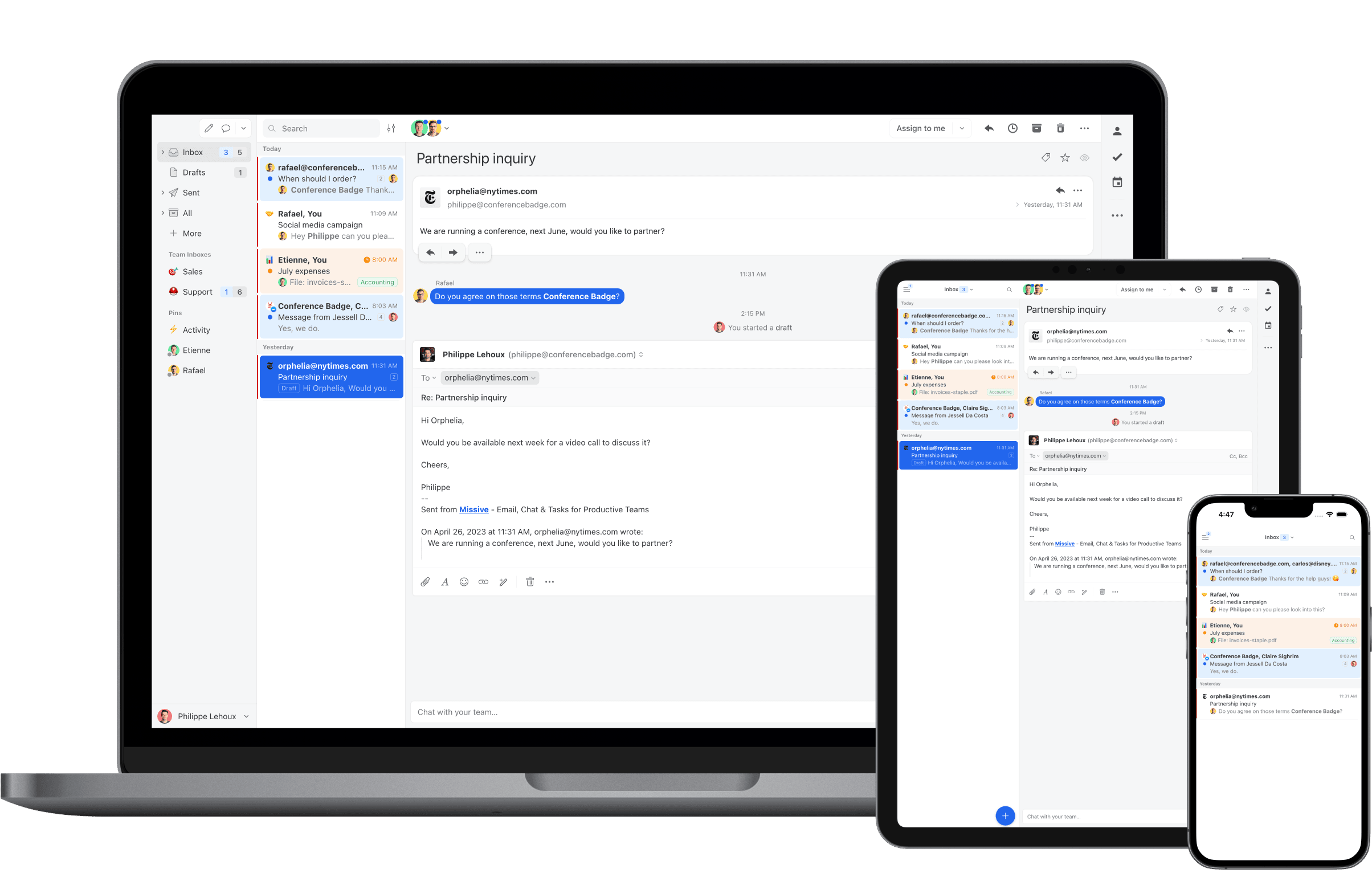
With Missive's native app on multiple platforms, you can efficiently manage conversations in one place without switching between different apps. Plus, you can manage all your communication channels inside one inbox and share them all with your team.
Missive offers support for various communication channels, including email, live chat, SMS, WhatsApp, Messenger, Instagram, and more.
Automation with Fine-Grained Control
Missive offers rules to automate your workflows for incoming/outgoing messages and user actions, allowing for a more personalized and customizable experience.
Plus you can use our OpenAI integration as an AI email assistant to make you more productive.
Chat with Team Members
Missive offers a direct chat feature within any conversation for collaboration and communication between team members.
You can also edit a live draft with team members in real time, just like you would with Google Docs.
Affordable Pricing
Missive's pricing is one of the most affordable on the list, making it a great fit for small businesses on a budget. Even with a budget-friendly plan, you won't miss out on features and quality.
| Free | Starter | Productive | Business |
|---|---|---|---|
| $0 / month | $18 / month per user | $30 / month per user | $45 / month per user |
2. Zendesk

Zendesk is a popular customer service email management software. It helps businesses manage their customer support communications. A range of features are offered to manage email communication with customers. These include ticket management, automation, and collaboration tools for teams.
Its ticketing system allows businesses to prioritize, and assign support requests. It ensures that all conversations get a reply.
In addition to email management, Zendesk also provides a range of other tools like live chat, and social media integration.
Pricing
Zendesk pricing starts at $18 per user per month for the basic version. More advanced features are available on higher-tier plans. Zendesk also offers a 30-day free trial for businesses to test out its features.
| Free | Growth | Pro | Enterprise |
|---|---|---|---|
| $0/month | $18/month per user | $59/month per user | $95/month per user |
3. Help Scout

Help Scout is a customer service email management software designed to manage customer support messages. It offers a range of features for teams to manage customer requests and track interactions.
Like Missive, Help Scout offers a shared inbox. It allows teams to collaborate on customer emails, assign conversations, and manage customer inquiries. They also have a knowledge base, which helps customers find answers to common questions quickly and easily.
Help Scout also offers a live chat feature to expand the ways customers can reach your business.
Pricing
Help Scout's pricing starts at $25 per month per user for their basic plan with a free 15-day trial.
| Standard | Plus | Pro |
|---|---|---|
| $25/month per user | $50/month per user | Pricing information is not available |
You can also explore some Help Scout alternatives here.
4. Front
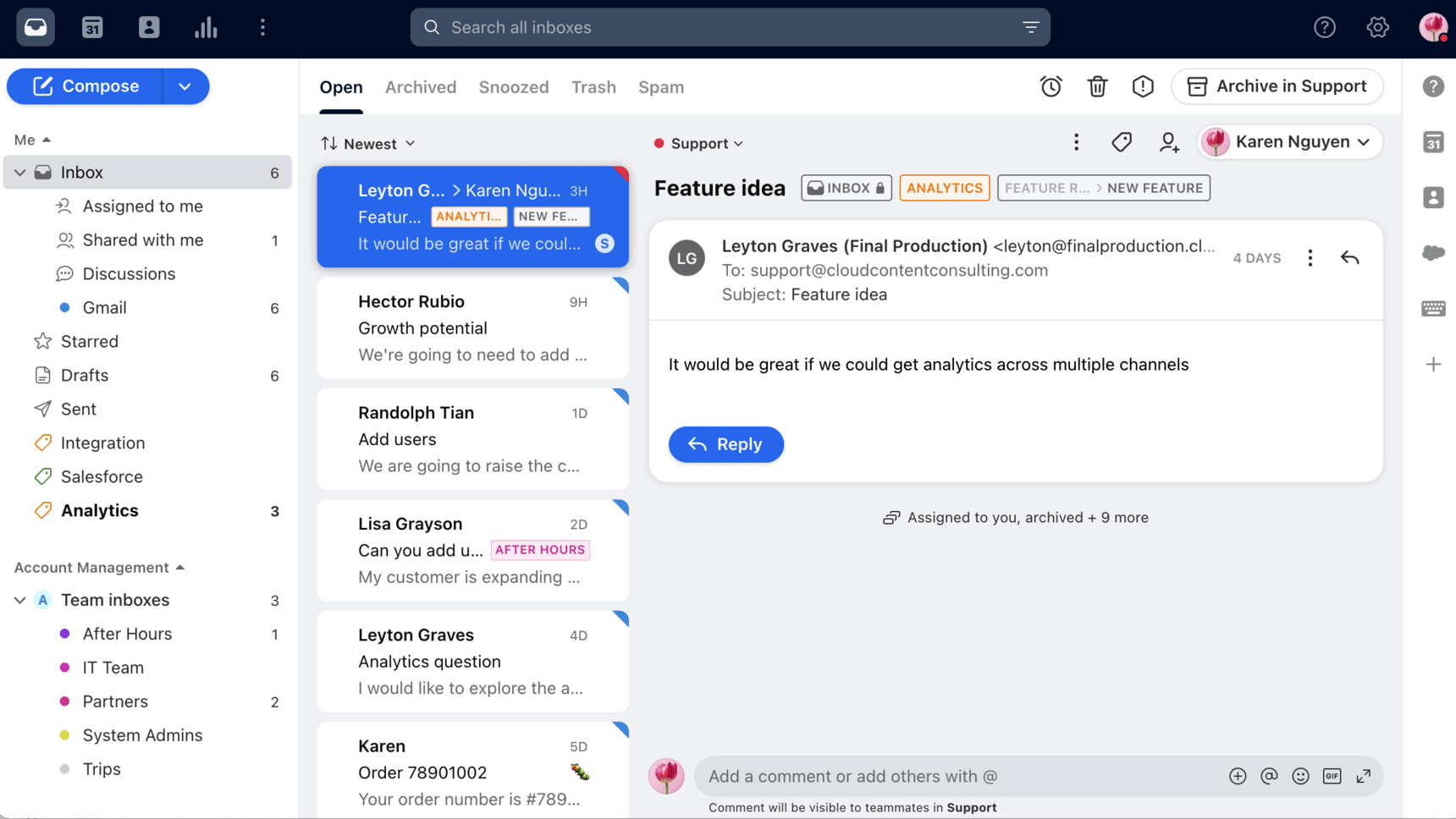
Front is a customer service email management software that manages customer interactions across many channels. Front helps teams to efficiently manage support activities. The platform offers automation capabilities such as rules to save time.
In addition to its basic features, Front also offers advanced features like CRM and analytics. However, these advanced features come with a higher price tag compared to the basic plan.
Pricing
Front's most basic plan starts at $19 per month per user on a one-year contract which only offers the basic features.
| Free | Growth | Scale | Premier |
|---|---|---|---|
| $19/month | $59/month per user | $99/month per user | $229/month per user |
5. Freshdesk

Freshdesk is a cloud-based customer service email management software that manages customer interactions across email, phone, chat, and social media.
The key features include multi-channel support, automation, and collaboration. Team members can work together to resolve support tickets.
Freshdesk can help your business improve its support with automation.
Unlike Missive which has a more “human” approach, Freshdesk uses a ticketing system for customer inquiries.
Pricing
Freshdesk offers a free option with basic features, and paid plans starting at $18 per person per month, which increase based on the number of agents and features needed. However, to access live chat functionality, a subscription to their Freshchat tool will be required.
| Growth | Pro | Enterprise |
|---|---|---|
| $18/month per user | $59/month per user | $95/month per user |
6. Zoho Desk

Zoho Desk is another cloud-based customer service software with a range of features to manage customer interactions.
It offers features like ticket management, automation, multi-channel support, and a knowledge base. With its ticketing system, you can track customer inquiries and support requests.
Like the other tools on the list, they also offer a rule feature to automate some tasks. You could use it to route tickets to the appropriate agent or team, set up response templates, and track SLAs.
Pricing
Zoho Desk pricing starts at $20 per user per month. They also offer a free trial for their paid plans.
| Standard | Professional | Enterprise |
|---|---|---|
| $20/month per user | $35/month per user | $50/month per user |
7. Hiver

Hiver is a customer service email management software built as an add-on for your Gmail account. With it, your team can manage customer emails received in Gmail. Team members are able to assign emails, set up reminders, track email threads, and tag emails for better organization.
One of the key features of Hiver is its shared inbox management. Similarly to Missive, it allows your team to work together on shared emails and tasks. It also offers email delegation and assignments, email notes, and comments.
However, it's important to note that Hiver only supports emails and live chat as communication channels and you'll need to be a Gmail user to use it.
Pricing
Hiver pricing starts at $19 per month per user. They also offer a free 7-day trial.
| Light | Pro | Elite |
|---|---|---|
| $19/month per user | $49/month per user | $69/month per user |
8. Drag

Drag App is a shared inbox software that transforms Gmail into a help desk for customer support. It allows your team to manage customer support emails, tasks, and internal communications in Gmail.
With Drag, your team can collaborate by assigning emails, adding notes and comments, and tracking email progress. Drag uses the same interface as Gmail so it is easier to get started than with some of the solutions on the list.
One of the key features of Drag is the ability to visualize email workflows in Kanban-style boards. This feature makes it easy to manage customer support requests by moving emails across different stages of a workflow.
Pricing
Drag pricing starts at $10 per month per user for their basic plan. They also offer a free plan.
| Starter | Plus | Pro |
|---|---|---|
| $10/month per user | $15/month per user | $20/month per user |
9. Happyfox
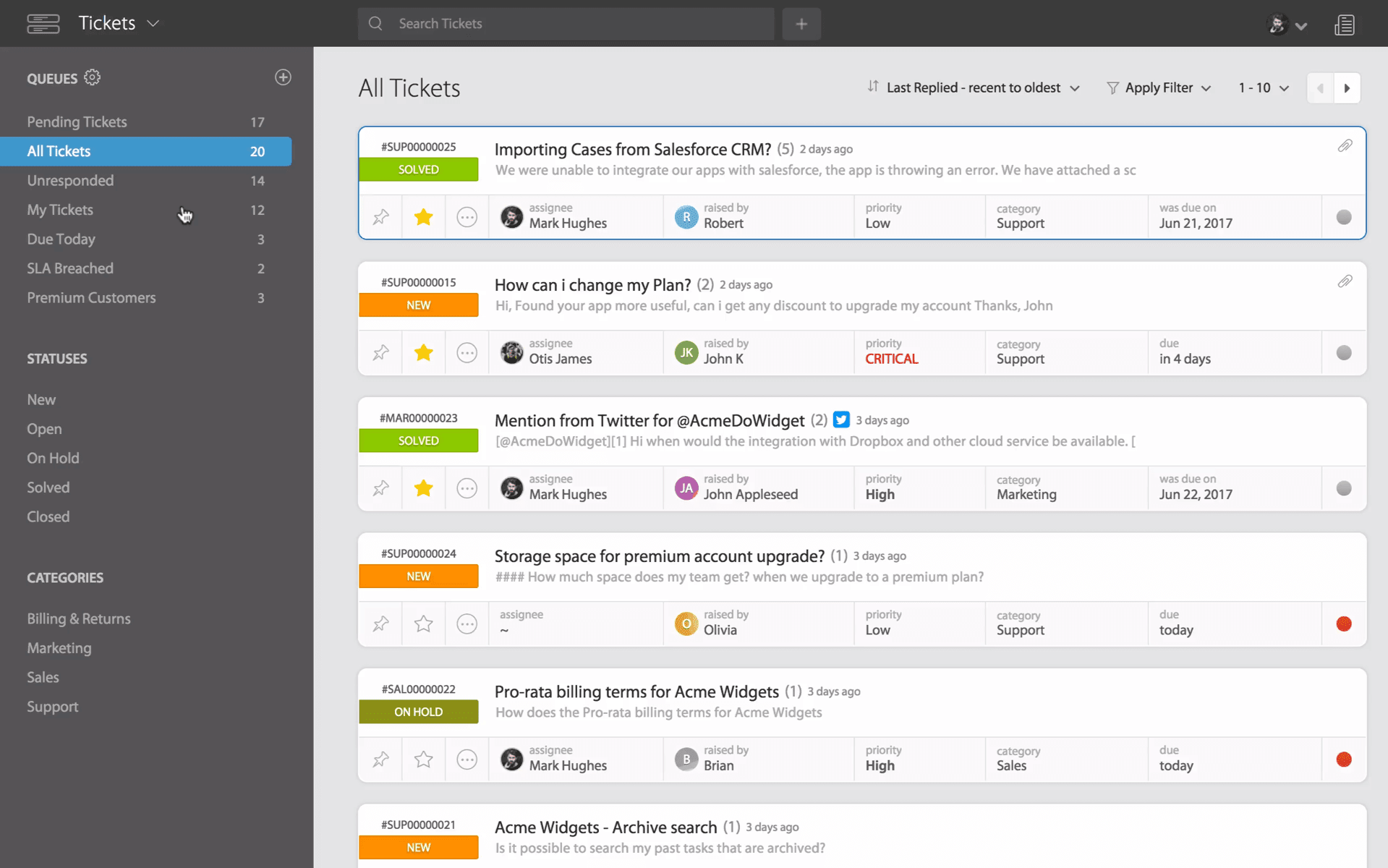
Happyfox is a cloud-based help desk software that offers a wide range of features. It offers ticketing, a knowledge base, community forums, live chat, and email management.
Like most tools on the list, Happyfox allows your business to manage customer queries across multiple channels from a single app. It also offers rules to improve support processes and reduce response times.
Pricing
Happyfox pricing starts at $39 per month for their most basic plan.
| Mighty | Fantastic | Enterprise | Enterprise Plus |
|---|---|---|---|
| $39/month per user | $59/month per user | $79/month per user | $99/month per user |
10. HubSpot Email Marketing
HubSpot’s email marketing solution is free, simple, and effective. It includes out-of-the-box email automation workflows, numerous department-specific templates, a CRM, and AI assistants to quickly fine-tune email copy.
Most notably, you can use it alongside HubSpot’s free customer service tools to unify customer communication across multiple channels: live chat, chatbots, and Facebook Messenger. All available communication channels are centralized under unified inboxes, so you can keep in touch with customers where they prefer.
That said, HubSpot’s customer service tools are designed primarily as an extension of its CRM and marketing platform. If you’re not already using HubSpot for sales or marketing, dedicated tools like Help Scout or Missive offer more focused workflows for shared inbox collaboration.
Pricing
HubSpot’s email marketing and customer service tools are available for free. Paid plans for the customer service solutions are as follows:
| Starter | Professional | Enterprise |
|---|---|---|
| $15/user/month | $90/user/month | $150/user/month |
The Importance of Customer Service Email Management Software
Providing excellent customer support is important for any business. But, managing customer inquiries and responding to them in time can be overwhelming. It is especially true as your business grows.
That's where customer service email management software comes in to save the day. This software can help your team be efficient and provide high-quality customer support.
With the right email management software, you can automate repetitive tasks, assign conversations, and respond faster. It will result in improved response times and reduce the workload for your support team. They will be able to focus on providing excellent customer service.
Implementing an email management software can save your business time and resources. Plus, providing excellent customer service can lead to increased revenue and profits.
How to Choose the Right Customer Service Email Software
Choosing the right customer service email software can make an impact on your business' success. But, with so many options available, it can be hard to understand what to look for when choosing the right software.
An email management tool for your customer support should reduce some pain points like slow response time, and inability to collaborate on support inquiries.
Here are some key factors to consider when selecting the right software for your business.

Features
Look for email software that can automate some basic tasks using rules and canned responses. It also needs to offer features to help you rank emails and help your team collaborate on support to provide top-notch customer service.
It can be useful to make a list of the features you need and compare them against the options available.
Scalability
The solution you choose to manage your customer service emails needs to be able to grow with your business. As your company becomes bigger, you'll handle more customer inquiries and have more support agents.
You don't want to switch software down the road. Putting in place a whole new way of working could disrupt your customer service.
Integration
A good customer service email software needs to offer a minimum of integrations so you can integrate the tools you're already using. For example, it can be a good idea if the solution offers integration with your CRM or a way to connect the two together.
Some tools like Missive, can also be used to manage your social media platforms. This way you can provide a seamless customer experience and keep all your interactions in one place.
Pricing
Check out the pricing options available and choose software that fits your budget and doesn't have any hidden fees. Also, beware of software that locks you in with a contract. For example, looking at the best Intercom alternatives may help you save a lot on your monthly subscriptions.
Reviews & Recommendations
Reviews from other users in your industry can help you get more information about the software. You can also ask for recommendations from colleagues or other people in your industry.
By considering these factors, you'll be well on your way to choosing the right customer service email software for your business.
Conclusion
In today's always-evolving business world, customer service is more important than ever. It has never been easier for customers to switch to competitors if they feel that their needs are not being met.
We have looked at some of the top email management software solutions available on the market today. By using one you can improve customer satisfaction, reduce response times, and grow your business.
So why not give one of these platforms a try and take your customer service to the next level?
FAQ
How Do I Create a Customer Service Email?
Creating an effective customer service email requires paying attention to several key elements to make sure that the communications are clear and stay positive. We recommend that you have a look at our guide but here's a summary of the most important elements:
- Respond Promptly
- Personalize Your Responses
- Use Clear & Concise Language
- Show Empathy & Understanding
- Provide Detailed & Relevant Information
- Proofread & Edit
- Offer Additional Assistance
- Follow Up & Close the Loop
- Monitor & Improve
What is the Most Popular Customer Support Software?
There are many popular customer support software on the market. They all have their unique strengths and features. It is impossible to determine the most popular tool since it will vary depending on the industry, company size, and features required. However here are some of the most popular customer support email software:
- Missive
- Zendesk
- Help Scout
- Front
- Freshdesk
- Zoho Desk
- Hiver
- Drag App
- Happyfox
- HubSpot
What is the Best Customer Service Email Format?
The best format for your customer service email is one that is clear, concise, and focused on resolving your customer's inquiry. However, there's not one size fits all customer service email format. It will always depend on your business brand and on the needs of your client.
Here are some general tips that can help you format your customer service email in an effective way.
- Use your customer's name to make it more personal.
- Read each customer message carefully to make sure you understand what they're communicating is also important.
- Structure your email with sections and use bullet points or numbered lists to make it more readable.
What's the difference between a shared inbox tool and a help desk?
A shared inbox tool like Missive keeps the email experience intact—your team works from an interface that looks and feels like a regular email client, and your customers receive replies from a normal email address. A help desk like Zendesk or Freshdesk converts emails into support tickets with IDs, statuses, and queues. Shared inboxes tend to work better for teams that want conversations to feel personal; help desks are better for high-volume support with structured workflows and SLA tracking.
Do I need customer service email software if I already use Gmail or Outlook?
Gmail and Outlook are designed for individual email—they don't show you who's working on what, they don't let you assign conversations, and they make it hard to discuss a customer's email privately with a teammate. If your team shares any email workload (support@, sales@, info@), you'll quickly run into duplicate replies, missed messages, and forwarding chaos. Customer service email software solves these problems without requiring you to abandon your existing email provider.

April 26, 2023
WhatsApp shared inbox: how teams handle WhatsApp messages together
WhatsApp is the world’s most-used messaging app, but its business tools aren’t built for teams. Here’s how a WhatsApp shared inbox works, why most companies need one, and how to set it up with Missive.
With 2.78 billion active users, WhatsApp is the most-used messaging app in the world. For a lot of customers, it’s the first place they’ll try to reach you: faster than email, less formal than a phone call, always within reach on their phone.
But WhatsApp’s own business tools aren’t built for teams. The WhatsApp Business app is a single-device, single-person product. Once more than one person needs to answer messages from support@ or sales@, you run into the same problem teams run into with shared Gmail accounts: overlapping replies, messages dropped, no visibility into who’s handling what.
A WhatsApp shared inbox solves that. This guide covers what it is, why teams adopt one, and how to set it up with Missive, including the 24-hour response window most new users don’t know about.
What is a WhatsApp shared inbox?
A WhatsApp shared inbox is a central place where multiple team members can see and respond to WhatsApp messages coming into a single business number. Instead of one person owning the WhatsApp phone, everyone on the team logs into a shared tool with their own account, and conversations can be assigned, discussed, and resolved collaboratively.
Think of it as the same pattern as a shared support@ email inbox, but for WhatsApp: one customer-facing phone number, many agents behind it, clear ownership per conversation.
How does a shared inbox work?
A shared inbox connects a single customer-facing address (or in this case, phone number) to a tool that multiple team members can log into with their own accounts. Each team member sees the same queue of conversations. Tools like Missive add assignments (so it’s clear who’s handling what), internal chat (so coworkers can discuss a reply without forwarding it), and rules (so routine messages get routed automatically). The customer still sees a single business number, but behind the scenes, a whole team is collaborating.
WhatsApp team inbox vs. WhatsApp shared inbox
These terms get used interchangeably. Both describe the same pattern: a single WhatsApp Business number, multiple agents behind it, clear ownership and collaboration on each conversation. Some vendors use “team inbox” to emphasize the collaboration angle and “shared inbox” to emphasize the central queue, but functionally they’re the same product category. What matters is whether the tool actually lets your team assign, chat internally, and apply rules, not which word is on the label.
Why WhatsApp Business App isn’t enough for a team
The free WhatsApp Business App is designed for sole proprietors and very small operations. Its limitations become obvious the moment you add a second person to the support rotation:
- One device at a time. The app is phone-based. If the owner of the phone is out, incoming messages either go unanswered or get relayed through screenshots in Slack.
- No assignments. There’s no way to mark “I’m handling this one” or “please respond to this, I’m stuck in a meeting.” Everyone on the phone sees everything, and handoffs happen out-of-band.
- No internal notes. You can’t discuss a customer’s message with a coworker without forwarding it somewhere else, losing context.
- No audit trail. When a message falls through the cracks, there’s no reliable way to figure out who saw it, when, and why it wasn’t answered.
- Mixed with personal. Many small businesses end up running WhatsApp Business on the owner’s personal phone, which blurs work-life boundaries and creates a single point of failure.
For a team of one, the Business App is fine. For two or more people sharing responsibility for a business number, it’s a daily source of friction.
What a WhatsApp shared inbox gives you
Once you move to a proper shared inbox tool, a few things change immediately:
Everyone on the team can see every conversation. No more “did someone reply to the customer?” because the conversation status (open, assigned, waiting, resolved) is visible to the whole team.
Conversations can be assigned. When Ahmed takes a billing question and Priya takes a technical one, the split is explicit. The customer doesn’t get two overlapping replies.
Internal notes live on the conversation. Want to flag that a customer is a VIP? Leave a note. Need to loop in a coworker on a tricky question? @mention them. The discussion stays attached to the conversation, not scattered across Slack and email.
Canned responses speed up repetitive replies. The same “here’s where to track your order” answer goes out in seconds, consistently, from anyone on the team.
You get history per customer. When the same customer messages again six months later, the full context is there: who handled them last, what was resolved, what to follow up on.
Rules can route conversations automatically. New WhatsApp message from a VIP contact? Auto-assign to a senior agent. Message in Spanish? Route to your Spanish-speaking team. Nobody has to be the human dispatcher.
What Missive is
Missive is a collaborative email client built for teams. Alongside email, it treats SMS, WhatsApp, Instagram, Messenger, and live chat as first-class channels. Everything your team might be asked to respond to lives in one place.
For WhatsApp specifically, Missive connects directly to Meta’s WhatsApp Business Platform. Your team gets assignments, internal chat on every conversation, shared drafts, templates, canned responses, and a rules engine that works across every channel you’ve connected.
Missive works on web, macOS, Windows, iOS, and Android with full feature parity, so the team member replying from their phone sees the same context as the one on a desktop.
How to set up a WhatsApp shared inbox with Missive
Missive integrates directly with Meta’s WhatsApp Business Platform. This is the official WhatsApp service for medium and large businesses, no third-party SMS gateway required.
Before you start, you’ll need:
- A Meta Business Account. Create one if your company doesn’t have one already.
- Business verification on that Meta Business Account. Meta needs to confirm your business is real before you can send messages at scale. Meta’s verification guide walks through it.
- Compliance with the WhatsApp Business Messaging Policy. In short: only message people who’ve opted in.
Once you have those in place, the setup is linear:
- In Missive, go to Settings > Accounts and click Add account.
- Open the Others tab and select WhatsApp Business.
- Sign in with your Meta Business Account.
- Review the permissions Missive is requesting and click Get started.
- Fill in your business details.
- Select or create a WhatsApp Business Account.
- Verify the phone number you want to use (by SMS or voice call, pick voice if the SMS doesn’t arrive, which happens).
- Add a payment method. Meta bills you directly for WhatsApp Business Platform usage; Missive doesn’t mark it up.
Once it’s connected, incoming messages arrive in Missive just like emails: assignable, taggable, searchable. Missive’s setup documentation has screenshots of every step if you get stuck.
The 24-hour response window (and why it matters)
This is the single most important thing to understand before your team starts using WhatsApp for support:
WhatsApp gives you 24 hours to respond to a customer’s message. After that window closes, you can’t send a free-form reply until the customer messages you again or you send an approved template.
This is a WhatsApp platform rule, not a Missive limitation. Meta designed it to stop businesses from spamming customers with unsolicited messages.
In practice, the 24-hour window means:
- Response SLAs matter more on WhatsApp than on email. A reply that takes 26 hours requires a template instead of a normal message, which is both more work and more restricted.
- Out-of-hours messages need a plan. If a customer messages at 11pm Friday and your team doesn’t log in until Monday, you’re already outside the window. Either set expectations with an automated response, or have at least someone watching on weekends.
- Templates are how you reinitiate. Approved templates let you send appointment reminders, order updates, or a “hey, we wanted to follow up on your question from last week” message even after the window closes.
Message templates: how to reopen a conversation
WhatsApp templates are pre-approved messages you can use to contact customers outside the 24-hour window or to initiate new conversations. They’re most commonly used for:
- Appointment confirmations and reminders
- Order updates and shipping notifications
- Customer service follow-ups after the 24-hour window closes
- Account alerts (password resets, suspicious login attempts)
You create templates in Meta Business Manager, submit them for WhatsApp’s approval (usually takes a few hours to a day), and once approved, they sync to Missive automatically. Templates can include variables like {{1}}, {{2}} for personalization (customer name, order number, appointment time).
One subtle gotcha: WhatsApp requires positional variables like {{1}} and {{2}}, not named ones like {{customer_name}}. If you see “Number of parameters does not match” errors in Missive, that’s almost always the cause. Edit the template in Meta Business Manager to use numbered variables and resubmit for approval.
Missive’s template guide has the full walkthrough.
Automating WhatsApp workflows with rules
Because Missive’s rules engine works across every connected channel, you can apply the same routing and automation to WhatsApp that you use for email. Some patterns teams use regularly:
Route by language. If a message comes in in Spanish, auto-assign it to your Spanish-speaking team. AI rules make this possible without hard-coding keywords.
Auto-tag by topic. AI-powered labels can categorize incoming WhatsApp messages as billing, technical, sales, or feedback. A second rule can then route each label to the right team.
Round-robin assignment. Every new WhatsApp conversation goes to the next agent in rotation, with anyone out of office skipped automatically.
VIP notes. When a priority customer messages, an internal note appears on the conversation reminding the team to escalate fast.
SLA alerts. If a WhatsApp conversation hasn’t been replied to within the 24-hour window, notify a manager before it expires.
Common WhatsApp shared inbox questions
Can multiple people reply to the same WhatsApp number at once? Yes. In Missive, any team member with access can reply to a WhatsApp conversation. The conversation history and assignments prevent overlapping replies.
Can we use our existing business number? Yes, though it takes time. You’ll need to port the number into WhatsApp Business Platform, which typically takes up to four weeks. An easier path is using a new number dedicated to WhatsApp, and keeping your existing phone line for calls.
Can we manage multiple WhatsApp numbers from one account? Yes. A single Meta Business Account can hold multiple WhatsApp Business Accounts, each supporting multiple phone numbers. Useful for agencies managing several clients, or businesses with separate numbers per region.
Does Missive support WhatsApp group messages? Not currently. The WhatsApp Business Platform requires additional technical work to enable group support. One-to-one conversations are fully supported.
Can we send voice notes? Not yet. Voice notes are on the roadmap but not available today.
Who pays for WhatsApp usage? Meta bills your business directly for conversations initiated on the Business Platform. Pricing varies by country and conversation type (business-initiated vs. user-initiated). Missive doesn’t add a markup, what Meta charges is what you pay.
Who should use a WhatsApp shared inbox
A few signs your team is past the point where the WhatsApp Business App is enough:
- More than one person needs to answer incoming WhatsApp messages
- Your business number is tied to a single phone, and handoffs are ad hoc
- You’ve had situations where customers were double-replied-to or left hanging
- You want to route WhatsApp alongside email, SMS, or live chat in one queue
- You need an audit trail of who said what to whom
- You’re running customer support or sales at any real volume through WhatsApp
If any of those sound familiar, a shared inbox tool will pay for itself in the first week through response-time improvements alone.
Missive is a collaborative email client with shared inboxes, internal chat, live drafting, and multi-channel support across email, SMS, WhatsApp, Instagram, Messenger, and live chat. Free for up to 3 users, try it free.

April 6, 2023
Setting up a Gmail Shared Inbox: How, Pros, Cons, & Alternative
Learn how to set up a Gmail shared inbox with instructions & helpful tips. Discover how Missive can...
Collaborating on shared emails is crucial for any business, especially when it comes to providing excellent customer service. Although it can be a challenging task, it is vital for building and growing a successful business.
A considerable number of small to medium-sized businesses (SMBs) rely on Gmail for their email needs. However, by default, Google's email client is not built to be a shared inbox and collaborate.
In this article, we'll explore how you can share your general inboxes with your team in Gmail, enabling you to work together more efficiently
Can You Have Shared Inboxes for Gmail?
The short answer is yes. You can have shared inboxes for Gmail by taking advantage of some of Google's features. As we’ll see below, there are four ways to share a mailbox in Gmail. They all come with some benefits and drawbacks that should be considered before choosing which solution will be used for your team.
How Does Gmail Shared Inbox Work?
To share a mailbox in Gmail you have four options. We will explore all of them with their benefits and drawbacks.
Share Credentials
This solution is by far the easiest and most obvious of them all. While sharing your login credentials may seem like a good idea at first, there are a lot of drawbacks to consider.
Firstly, there is a significant security risk that comes with sharing your login access to a Gmail account. It could potentially put your business at risk of attacks and information theft.
Moreover, you cannot give granular permissions to specific individuals who need access to the mailbox. This means that every person who has access to the login credentials can access all the settings and information in the mailbox, which can be problematic for your business.
Advantages:
- It is easy to set up.
Disadvantages:
- It poses a security risk.
- There is no granular access control.
- It does not facilitate collaboration.
Delegated Accounts
To avoid sharing login information you can delegate your Gmail account to anyone in your organization. This means that the delegates can receive and reply to emails that come into that inbox by using their own Gmail account.
There are some advantages to delegating your Gmail account. It's easy to use and set up, and it provides better security compared to sharing credentials.
However, there are also some disadvantages to delegating. For example, there are no collaboration features, and there's no email management for teams. Additionally, the recipient will be able to see that the email was sent by someone else.
Delegating a Gmail account can be a good solution if you want to avoid the security risk of sharing passwords. However, it's important to keep in mind that there's no collaboration, and the recipient can see who sent the email.
Google Groups
By creating a Google Group, you’ll have an easy way to give your team members access to a shared mailbox. There are three options available:
- Community forum
- Email distribution list
- Collaborative inbox
While the community forum might not be useful for sharing a mailbox with your team, the other two options might be a good fit. Let's take a closer look at them.
Email Distribution List
This is a good solution for teams that receive emails to general email addresses like billing@, info@, or marketing@, and want a one-way blast to a group of individual emails. With the distribution list, every email received is forwarded to every group member, but it doesn't offer any collaboration features or allow team members to reply using the shared email address.
Collaborative Inbox

That's where the Collaborative Inbox comes in. It lets group members see all the emails received to a shared email address in their own Google Group account and provides basic collaboration features like assignments, labels, and "closed" status. It also offers better security since you won't need to share any credentials.
However, keep in mind that Google Collaborative Inbox doesn't allow back-and-forth conversations, merging of conversations, or saved shared response templates. Also, it doesn't have any chat or comment features.
To summarize, here are the advantages and disadvantages of using a collaborative inbox:
Advantages:
- Better collaboration features
- Better security over sharing credentials
Disadvantages:
- Two separate inboxes for personal and shared emails
- No chat or comments features
How Do I Create a Shared Inbox in Gmail?
We won't be diving into how to share your credentials with your team because, as we mentioned earlier, it's far from the most optimal solution, especially when it comes to sharing an inbox in Gmail. And let's face it, even if you're considering this route despite our advice against it, you probably don't need a step-by-step guide on how to share them.
But, if you're looking to set up a shared inbox for Gmail, we've got you covered. Here's how you can do it.
How to Set up Gmail Delegates?
Setting up Gmail delegates is actually pretty straightforward.
If you're part of an organization, just make sure your Google Workspace admin has given users permission to use email delegation. It’s also important to keep in mind that personal accounts are limited to 10 delegates, while organizations can have up to 1,000 delegates.
Here’s how to set up Gmail delegation:
- Open your Gmail account (you can’t set up delegates in the Gmail app on iOS or Android) and go to the Settings menu ⚙️ in the top right corner.
- Click on See all settings and select the Accounts and Imports tab.
- Under the Grant access to your account section, click on the Add another account link.
- Enter the email address of the person you want to delegate access to.
- Click on the Next Step >> button and then click on the Send email to grant access button to send a delegation request to the delegate.
Gmail users with organizational emails can delegate access to a group with the same domain. Members outside of the group are not allowed to the delegated Gmail.
Once you’re done, your delegates will be able to access the shared inbox from the Gmail account dropdown menu.
How to Set up a Gmail Collaborative Inbox?
Creating a Collaborative Inbox list in Gmail is a little take a few more steps than adding delegates to an account.
- You’ll first need to create a Google Group. To do so simply head to the Groups page and log in to your Google account.
- From there, you’ll be able to create a new Group by clicking on the Create a group button.
- Enter the details of your new group and click on next.

- The following page lets you decide your privacy settings. You need to make sure that Who can post is set to Anyone on the web to be able to receive emails in this shared inbox. We recommend you choose the same setting as in the following screenshot so messages are only visible to your invited team members.

- Next, click on your group and then on Group settings. From there, check Collaborative Inbox under the Enable additional Google Groups features section.

- Click Save changes.
You now have a Collaborative Inbox that can be used as a shared inbox for your teams’ aliases.
Which Solution Should I Use as a Shared Inbox for Gmail?
As we've looked into different solutions to share a mailbox in Gmail, we've found that each option has its own pros and cons. However, there's one thing we can all agree on - never share your email account password, even if it seems like a convenient option. It's crucial for your business's security.
When trying to decide whether to delegate a Gmail account or use a Collaborative Inbox, there are a few factors to consider, such as:
- Team size
- Needed features
- Use case
For example, a delegated account can be a good option for a one-person team that doesn't need to collaborate with others. But for a team of a few people who need to work on the inbox simultaneously and collaborate on emails using features like shared labels, assignments, and status, a Collaborative Inbox is a better choice.
It's important to keep in mind that Gmail shared mailbox solutions do have their limitations, especially for larger teams or teams where collaboration is crucial, such as customer support teams or sales teams.
If you want to avoid having to adjust your workflow to fit the tool you're using, you might want to consider using a shared inbox software like Missive that can adapt to your workflow and make collaboration a breeze.
Missive: The Shared Inbox Software Made for Team Collaboration
Missive is a powerful shared inbox and collaborative email management software that can supercharge your team's productivity and efficiency. It's built with collaboration in mind to help your company to grow and thrive without any limitations. With its advanced rules that can be customized to your workflow, Missive is the ultimate solution for your customer service and sales teams.

One of the best things about Missive is the fact that it offers an all-in-one platform for managing all communication channels, including SMS, social media, and even WhatsApp. You won’t need to go back and forth between multiple apps and manage different inboxes for personal and team use. With Missive, everything is integrated into one unified inbox. Missive also lets you give granular permission to an individual team member.
Even better, Missive offers integrations with other tools you already use and love, such as Salesforce, Pipedrive, Grammarly, Zapier, Twilio, and Aircall. This means you can streamline your workflow and maximize your productivity without any extra effort.
Missive also offers advanced features including:
- Shared rules
- Assignments
- Chat and comments
- Shared labels
- Tasks
- Collaborative drafting
- Shared canned responses
- Calendar
- Mobile and desktop apps
While we can’t argue that Gmail is a great tool for personal emails, it’s hard to ignore the fact that it was not built for collaboration and shared inboxes.
FAQ
How do I create a shared inbox in Gmail?
You have two ways to create a shared inbox in Gmail. The first option is to add delegates to a Gmail account so they can manage emails in a certain inbox. The other option is to create a Collaborative Inbox in Google Groups to collaborate on a shared email alias.
Can you have shared inboxes for Gmail?
Yes, have shared inboxes for Gmail. A shared inbox allows multiple people to access and manage the same set of emails. This can be useful for teams or groups that need to collaborate on a specific set of emails. By setting up a Collaborative Inbox for your Gmail, everyone who needs access can easily view and respond to emails, making communication and collaboration more efficient.
How does shared mailbox work in Gmail?
A shared mailbox in Gmail allows multiple people to access and manage the same set of emails. When you set up a shared mailbox, all users who have access to it can read and reply to emails, mark them as read, and delete them. This is useful for teams or groups who need to collaborate on a specific email address, as it allows everyone to work together more efficiently.
In Gmail, a shared mailbox is set up by granting access to another Gmail user. This can be done by adding a delegate or using a Collaborative Inbox in Google Groups.

March 27, 2023
11 Email Etiquette Rules to Follow for the Best Customer Service
The 11 email etiquette rules every customer service team needs—from grammar and tone to canned responses, follow-ups, and response times—with practical tips for writing emails customers actually appreciate.
Customer service is the backbone of any successful business. Mastering the art of providing exceptional customer service is crucial for any growing company.
The email has emerged as the leading communication channel for customer service. A whopping 54% of consumers use customer support email, according to a study by Forrester.

As a result, it’s important to have proper email etiquette. It will help you provide timely and effective customer service to your clients. You’ll also be able to set yourself apart from your competitors.
In this article, we’ll explore some of the best practices for customer service and guidelines for email etiquette. Following them will help you provide excellent customer service and improve customer satisfaction.
Key Takeaways
- Canned responses are a starting point, not a shortcut: Templates keep your team consistent and fast, but every reply should be personalized to the customer’s specific situation. Nobody wants to feel like they’re talking to a bot.
- Tone matters as much as content: Being friendly and using simple language builds trust faster than being technically correct but cold. Thank customers for their patience instead of apologizing for delays.
- Show, don’t just tell: Screenshots, links to help articles, and attachments save everyone time. But don’t just dump a link and call it a day—most customers already tried self-service before emailing you.
- Respond to every legitimate email: Have an SLA in place and stick to it. The speed and reliability of your responses signal how much you value the relationship.
- Follow up after you solve the problem: Checking back in shows customers you genuinely care, and it’s a natural moment to ask for feedback or a review.
Why Having a Proper Email Etiquette Is Important for Customer Service?
Email is probably the first point of contact your customers will have with your business. This is why proper email etiquette is essential for customer service. The tone and professionalism of your email can make or break your customers’ impression of your company.
80% of customers think that their customer experience is as important as the products or services you provide. Customer service will help dictate their loyalty and if they repeat business. Another study from Microsoft stated that 61% of respondents have decided to use another brand due to poor customer service.
Having email etiquette in place will also help your team be more efficient, professional, and clear. They will also offer a uniform experience to all customers.
11 Email Etiquette Tips for Better Customer Service
Proper email etiquette is crucial for providing effective customer service to clients. Here are some tips for email etiquette in customer service.
1. Use Grammar & Spelling That Shows Your Professionalism
Nowadays customers aren’t just looking for a solution to their problems. They also want to choose a brand that is aligned with their vision when making a purchase decision.
Having proper grammar and spelling in your emails will not only make your business look more professional but also help your recipients better understand you.
After all, those rules are there for a reason.

Making sure that your team always sends spelling-free emails might be hard, but luckily for us, tools exist to make sure our messages stay mistake-free. Some shared inbox software, like Missive, even integrated with advanced tools like Grammarly to improve efficiency.
2. Take Advantage of Canned Responses
Let’s face it, some customer service inquiries are really common and can be answered with the same email.
Using canned responses can help you and your team by providing a well-written and detailed answer every time without having to spend the whole time crafting the answer.
However, you should remember not to overindulge in using canned responses too often. Your customer will certainly appreciate the feeling that they are talking to an actual human being and not interacting with pre-determined answers.
3. Stay Human
As we mentioned in the last point, your customers probably want to be treated as human beings and not just as ticket numbers. You should make sure that every email interaction you have with your clients is personalized and tailored to its recipient.
A study from Zendesk shows that 76% of customers expect some personalization when interacting with a company.
By showing that you care about your customers you can make a difference in client retention. It can also help build a brand that will attract potential clients.
While you should always stay professional, you should provide personalized service to your customers.
4. Make Sure You Include Details, Images, and/or Links
We’ve all heard it:
A picture paints a thousand words
And while it can sound cliché, it could be more true. Including attachments in your email is probably one of the best ways to help your customer with their inquiry.

It’s especially true for software companies. Providing a screenshot can help the recipient understand what you’re describing in your email.
The same can apply to any files that could help provide more detailed information.
Another great email etiquette to remember for customer service is to provide links to relevant articles, FAQs, guides, or videos. There’s no point in writing a lengthy email when the question or issue has already been answered in detail somewhere else.
The time saved by providing links to the information will let your team focus on emails that are of higher priority.
It can also be useful to go beyond the issue experienced by your customer and send them links to resources that can help them later on.
With that in mind, you should remember that 81% of customers attempt to resolve their issues themselves before reaching out to your team. So don’t just send links to useful resources and call it a day. Try to bring value to every exchange.
5. Avoid Getting Emotional
We all experienced it:
You receive an email from an angry customer and you just want to reply on the spot.
While it might be tempting to respond immediately, doing so when you’re still emotional can lead to unprofessional answers. It can exacerbate the frustration experienced by your customers.
It’s important to remember that your customers are people too with emotional ups and downs and their problems. Empathizing with them and focusing on providing a solution rather than dwelling on the issue will help with your clients’ interactions.
When you’re unsure how to handle a tricky email, it helps to get a second opinion before hitting send. In Missive, you can tag a teammate in an internal comment right inside the conversation—so you get feedback on your draft without forwarding the email or losing context.
6. Use Professional Email Addresses
If you’re still using a @gmail.com (or any provider’s) generic email address for your customer service, this should act as your last warning notice to make the switch to a business email address.
Your customers will certainly see your business email address as more professional and credible. It will help them take you seriously and trust you.
7. Make Sure You Follow-Up
Sometimes you want to take your customer service to the next level. Following up on inquiries you had in the past can be great email etiquette to adopt. It can bring many benefits:
- Customer satisfaction
- Issue resolution
- Customer feedback
- Reputation management
It could be as simple as sending a follow-up email to know if your customer resolved their issue. You could also take that moment to ask them if you could further assist them or if they could leave you a review.
8. Use Language That Is Easy to Understand
The goal isn’t to show off your wide vocabulary or use the most technical jargon to prove that you’re trustworthy. Your focus should be on being easily understood by your recipient. A good rule of thumb is to aim for a grade level equal to or lower than 8. This way you’ll make sure that the vast majority of your audience understands.
Of course, this tip needs to be adapted to your audience and industry. For example, if your business is in the tech industry and you’re dealing with developers, you should be using technical terms when necessary.
9. Use Short Descriptive Subject Lines
Email subject lines are important when determining if someone will open an email or not.
Using a short but descriptive subject will help your customer understand what your emails are about before even needing to open them. In fact, 64% of recipients decide whether to open an email based on the subject line.
You should aim for a descriptive subject line that is less than 9 words (60 characters) and that doesn’t use too much punctuation.
10. Be Friendly
Depending on your industry and customer base, being friendly can make your customer go the extra mile. Let’s face it, having a more casual tone can make a whole difference in customer satisfaction. It will ensure that your clients leave the email interaction with the feeling that you’re helpful and kind. And as we know by now, keeping customers is a lot more valuable than acquiring new ones.
You should also try to be thankful instead of always apologizing. For example, instead of apologizing for the wait time, you could thank them for their patience. You’ll see that the conversation will get a whole new tone from there.
11. Respond to All Emails on Time
Just so we’re clear here, we are not talking about responding to all those spammy emails that end up in your shared inboxes every day. We’re talking about all those legitimate emails from customers you receive.
You should make sure you have an SLA in place and that you are respecting it. This will send a strong signal to your customer that you care about them and they’ll also get an idea of when they should be expecting a reply.
Conclusion
Following this email etiquette for your customer service will help you provide a great customer experience. It will set you apart from the competition.
Making sure that no email is left unanswered and that everyone gets the right answer to their inquiry can be a demanding task. But with a shared inbox like Missive, your team can collaborate on customer service emails in real time—discussing tricky replies internally, sharing canned responses, and making sure nothing falls through the cracks. Give it a try and see the difference it makes.
Frequently Asked Questions
Should I use emojis in customer service emails?
It depends on your brand and audience. A casual B2C brand might use a well-placed smiley face to keep things warm, but for professional services, legal, or financial contexts, emojis can come across as unserious. When in doubt, match the tone your customer uses—if they’re formal, stay formal. If they use a friendly tone, a single emoji won’t hurt. The safe rule: never more than one per email, and never in a complaint resolution.
How do I apologize without over-apologizing?
Over-apologizing (“I’m so sorry, I’m really sorry about this, we sincerely apologize”) actually undermines confidence in your ability to fix things. Apologize once clearly, then shift to what you’re doing about it. Compare “I’m so sorry for this terrible experience, we’re really sorry” with “I apologize for the inconvenience. Here’s what we’re doing to fix it.” Better yet, reframe with gratitude: “Thank you for your patience while we sorted this out.”
What’s the right etiquette when a customer CCs multiple people?
Keep everyone on the thread unless someone explicitly asks to be removed. If the customer CC’d their manager or colleagues, they want those people to see the resolution. Reply all so nobody is left wondering what happened. If the thread becomes long and complicated, summarize the current status at the top of your reply so newcomers can catch up without reading 20 messages.
What should an out-of-office auto-reply include for customer service?
Keep it short and helpful: acknowledge their email, set a clear expectation for when you’ll be back, and—most importantly—tell them who to contact in the meantime. A vague “I’m out of the office” with no alternative contact is poor etiquette, especially for customer-facing roles. Include a name and email for someone who can help while you’re away.

March 8, 2023
Maximize Your Real Estate Agent Email Address
Learn how to set up a professional real estate email address, choose the right provider, manage your inbox efficiently, and collaborate with your team—so no lead slips through the cracks.
In the world of real estate, email communication is a critical aspect of building and maintaining relationships with clients.
As a realtor, you need to ensure that your email address not only looks professional but also reflects your brand and expertise. While using your broker’s email address may seem like a convenient option, it may not provide you with the level of control and flexibility that you need to effectively manage your email communication.
Plus, it comes with a major drawback that you’ll probably want to avoid.
Whether you’re a new or an experienced professional, here’s how to properly set up an email address for your real estate agent business to succeed in the competitive world of real estate. We’ll also explore how to properly manage your communication to be able to achieve the holy grail of email; inbox zero.
Here’s what we see happen over and over: a growing real estate team shares a single info@ or support@ login across three or four people. Everyone scans the same inbox, everyone sort of knows which emails are theirs, and it works—until it doesn’t. Someone misses a client email. A tenant sends a follow-up saying they’ve left three voicemails and nobody’s called back. One operations manager we spoke with ran a client survey and found that communication was the number one complaint—not pricing, not service quality, communication. That’s the pain this article is designed to help you avoid.
Key Takeaways
- Own your email address: Use your own domain (yourname@yourdomain.com) instead of your broker’s email—so you keep your address, contacts, and history if you ever switch brokerages.
- Set up for speed: Response time matters in real estate. Canned responses, auto follow-ups, and mobile access help you reply to leads fast—even when you’re showing properties.
- Centralize everything: Use an email client that brings email, SMS, social media DMs, and your calendar into one view so nothing falls through the cracks.
- Collaborate without chaos: If you work with a team or assistant, shared inboxes, internal chat, and assignments mean everyone knows who’s handling what—without forwarding chains or CC overload.
Should You Use Your Broker’s Email or Create Your Own?
As a realtor, chances are your broker is providing you with an email address that uses their own domain. But should you use it?
The simple answer is:
Don’t use your broker’s email
Instead, consider creating your own email address that you have full control over.
Here’s why:
By using your own email address as a real estate agent you can keep the same email address even if you switch brokers. You’ll also have more control over your email communication with clients.
Some of the drawbacks of using your broker’s email address include:
- If you switch brokers, changing your email address can be a hassle for you and your clients.
- If your broker changes their domain, you’ll have to update all of your contacts with your new email address.
- Your broker may use an email provider with limitations, such as a low sending limit or emails that aren’t optimized for deliverability.
Creating your own email address can give you more control over your email communication with clients. This way, you can keep the same email address even if you switch brokers.
How to Set Up Your Own Email?

You might be tempted to use a free email provider like Gmail, Outlook, or Yahoo and while it may seem like a great option, you might want to consider the fact that they don’t look professional. Do you really want to have another company name in your real estate email address?
As a client, you would probably think that yourname@yourdomain.com is a lot more professional and inspire trust than yourname@gmail.com.
There are many email providers that let you create a custom email address. You can find one that is easy to use, secure, and affordable.
Choosing Your Realtor Email Address
If you already have a domain, setting up your email address is straightforward. However, if you don’t have a website yet, take the time to decide on your business name. Your domain will likely be the name of your business or a variation if not possible.
Before settling on a name or domain, be sure to check your local laws to make sure it’s compliant. You want to make sure that the business name you choose suits you as it can be costly and hard to change down the line.
Your email address should be easy to remember and understand. One of the most common practices is:
yourname@yourdomain.com
It’s short, professional, and gives all the relevant information. Since it’s a really popular formula it also is really remembered by your clients or prospects.
You have many variations of this. Let’s use John Doe as the name in the example:
- First name: john@yourdomain.com
- Using your only first name is a great solution for an email address that is easy to remember and friendly, however, if you start having more people joining your company and someone else with the same first name joins, you’ll need to rethink the format
- First name and last name initial: johnD@yourdomain.com or john.d@yourdomain.com
- Using your first name and last name initial is a great solution if you have more than one person at the company with the same first name.
- First name initial and last name: doeJ@yourdomain.com or doe.J@yourdomain.com
- Using your first name initial and last name can be another great solution if you have more than one person at the company with the same first name. However, this format may look less friendly.
- First name and last name: johndoe@yourdomain.com or john.doe@yourdomain.com
- Using your full name can be a great solution if you consider that it represents your brand.
Choosing an Email Provider

Whichever provider you choose, you’ll want an email client on top of it that makes managing your inbox easier. Missive works with all major providers—Gmail, Outlook, IMAP—so your choice of provider doesn’t lock you in.
Google Workspace
Google Workspace (formerly known as G Suite) offers a professional email service that’s easy to set up and use. Prices start at $6 per user per month and include a custom domain, 30GB of storage, and access to other Google apps like Drive, Docs, and Sheets.
To set up your own email with Google Workspace, follow these steps.
Microsoft 365
Microsoft 365 offers an email service called Exchange, that integrates with other Microsoft apps like Office and OneDrive. Prices start at $12 per user per month for access to a custom domain and 50GB of storage.
To set up your own email with Microsoft 365, follow these steps.
iCloud
iCloud offers a simple email service that’s free with an Apple ID. However, to take advantage of custom domain names, you’ll need to subscribe to iCloud+ which starts at $0.99 per month with 50GB of storage.
To set up your own email with iCloud, follow these steps.
Your Web Hosting Provider
Many web hosting providers offer email services along with their hosting plans. Prices and features vary depending on the provider.
To set up your own email with your web hosting provider, make sure your web hosting provider offers email services and follows their instructions.
How to Manage Your New Email Address
Once you’ve chosen an email provider and created your own email address, it’s time to think about managing your inbox effectively. Using one of the best email clients for your new Google Workspace (Gmail) or Outlook email address will help you follow email management best practices.
Here’s the thing about real estate email: speed matters. Industry data shows that responding to a new lead within five minutes dramatically increases your chances of making contact compared to waiting even 30 minutes. Every tip below is designed to help you respond faster and more consistently—whether you’re at your desk or between showings.
Use an Email Client Designed for Email Management

Whether you choose Google Workspace (Gmail) or Microsoft 365 (Outlook), using a dedicated email client will make managing your emails much easier. These clients offer features like labels, folders, and search functions to help you keep your inbox organized and find important messages quickly.
Missive, for example, is one such email client that can help you manage your emails more efficiently. With its unified inbox, you can see all your emails in one place, including your Gmail and Outlook emails. Additionally, Missive allows you to collaborate with your team, or delegate to an assistant, assign tasks, and leave comments within your emails, making it easier to work with others.
For agents who spend most of their day in the field, mobile access is essential. Look for a client with full-featured mobile apps—not a stripped-down version—so you can triage leads, reply to clients, and coordinate with your team from your phone between showings.
One thing we’ve heard from real estate teams that tried using a help desk or ticketing system for client communication: it doesn’t work. Ticketing platforms are built for IT support, not client relationships. They structure conversations in ways that make it hard to follow threads, require extra clicks for basic actions, and turn your clients into ticket numbers. If you’re evaluating tools, look for something that feels like email—not a support portal.
Create Rules
Rules allow you to automate the process of sorting and filtering incoming messages. You can set up rules to automatically move messages from specific senders to designated folders or apply labels to certain types of messages. This can help you keep your inbox organized and reduce the amount of time you spend manually sorting through your emails.
For real estate, rules are especially powerful for routing leads: emails from Zillow, Realtor.com, or your website contact form can be automatically labeled and assigned to the right agent or team member.
If you manage properties alongside sales, you can also route by email type. One property management company we spoke with set up rules by client domain—emails from each property management firm automatically land in the right account manager’s queue. No scanning, no guessing, no manual sorting. They had about 17 routing rules covering all their active clients, and setup took an afternoon.
Rules can also be useful to send out-of-office replies whenever you are not available.
Set Up a Signature

A professional email signature can make a big difference in how you’re perceived by others. It’s an easy way to provide contact information and add a personal touch to your emails. Most email clients allow you to create a signature that will automatically be added to the bottom of every email you send.
You can include your name, job title, company logo, and contact information, among other things. This can help establish your brand and make a good impression on your clients or customers.
For real estate agents specifically, consider including your license number, brokerage affiliation, and any required disclosures in your signature. Many states and NAR guidelines require certain information to be present in agent communications—building it into your signature ensures you’re always compliant without thinking about it.
Set Up Response Templates
If you find yourself writing the same responses to certain types of emails over and over again, response templates can save you a lot of time. Most email clients allow you to create templates for common responses, which you can then insert into your emails with just a few clicks.
Some of them, including Missive, let you create a custom template using variables so they can dynamically change depending on the recipient. You can create a template for any type of email, such as a welcome email, a thank you email, or a follow-up email, among others. You can also customize each template to suit your specific needs.
For real estate agents, the most valuable templates to create first are: new buyer inquiry response, listing appointment follow-up, open house invitation, price reduction notification, and transaction status update. Having these ready means you can respond to a hot lead in under a minute instead of typing from scratch every time.
Set Up Auto-Follow Up

It’s easy to forget to follow up on emails that you send, especially if you send a lot of messages each day. From leads to potential buyers passing by clients, setting auto-follow-up reminders can help ensure that important messages don’t fall through the cracks.
Most email clients allow you to set reminders to follow up on emails after a certain amount of time has passed. But, some more advanced ones let you create a follow-up email in advance to send in certain conditions that are met. This can help ensure that you don’t forget to follow up on important emails.
Connect Your Social Media
If you use social media for business purposes, you may want to consider connecting your accounts to your email client. Some email clients come with advanced features like the ability to connect your social media accounts to receive and respond to your DMs and new posts alongside your emails. This can allow you to receive notifications and respond to messages directly from your inbox.
For real estate agents, this is particularly valuable. Leads come in from Instagram DMs, Facebook Messenger, and WhatsApp—not just email. A client that brings all these channels into one inbox means you’re not bouncing between five apps throughout the day, and you won’t miss a lead that came through social instead of email.
Connect Your Calendar

Connecting your calendar to your email client can help you stay on top of your schedule. Some email clients allow you to view your calendar events directly within your inbox, and some even allow you to schedule meetings and events from within the email client.
When you’re juggling showings, inspections, and closing meetings, having your calendar visible right alongside your email means you can respond to scheduling requests instantly without switching apps.
Organize Your Inbox
Keeping your inbox organized is key to effective email management. Consider using labels or folders to group related messages together, and be sure to archive or delete messages you no longer need.
A practical approach for real estate: create labels by transaction stage (New Lead, Active Showing, Under Contract, Closing) so you can see at a glance where every client relationship stands.
Track Your Response Times
If you manage a team, you probably have a gut sense of how quickly you’re getting back to clients—but gut sense isn’t enough. One property management team we talked to only realized their response times were slipping when clients started emailing to complain about unanswered messages. They had no data, just frustrated clients telling them something was broken.
Set a response time target—one business day is a reasonable starting point for email, faster for chat—and use your email client’s analytics to track whether you’re hitting it. In Missive, you can set up SLA rules that automatically flag conversations approaching your deadline, so nothing sits unanswered because everyone assumed someone else was handling it.
Set Up Collaboration

If you work with a team or an assistant, you may need to collaborate on emails from time to time. A few email clients allow you to share access to your inbox or specific folders with other users, making it easy to work together on important messages. Some of them even let you chat and comment directly in an email conversation or collaborate on drafts like you would in Google Docs.
This is where most real estate email setups fall apart. Here’s what it typically looks like without the right tools: everyone on the team logs into the same shared email account, scans every message to figure out which ones are theirs, and hopes nobody else is already working on the same reply. One team we spoke with described it as “everybody just kind of had to scan the inbox and stay on top of which ones were theirs.” That works for a two-person team. At five or ten people, it creates duplicate replies, missed emails, and the ever-present question: “I thought you were handling that?”
With a shared inbox and assignments, the dynamic changes completely. When a listing agent is at a showing and a client emails with an urgent question, another team member can see the full conversation history, jump in, and reply—without forwarding, CC chains, or guessing whether someone else already responded. One operations manager told us the moment they started using assignments, it was “a tremendous weight off our collective shoulders”—everyone stopped receiving replies that were assigned to someone else, and they knew they were always just a single @mention away.
Add All Your Aliases
If you have multiple email aliases, make sure to add them all to your email client so you can send and receive messages from each of them. This will ensure that you don’t miss any important messages that are sent to one of your alternate addresses.
Conclusion
Your email address is an extension of your brand—and in real estate, where relationships drive everything, getting it right matters. Own your domain so you’re not dependent on a brokerage. Choose a provider that fits your workflow. And set up your email client with the rules, templates, and collaboration tools that let you respond fast and stay organized.
The agents who win aren’t necessarily the ones working the hardest—they’re the ones who respond first, follow up consistently, and never let a lead go cold because it got buried in their inbox.
You can try Missive for $0 by downloading the app.
Frequently Asked Questions
What’s the best email address format for a real estate agent?
The most professional and widely recognized format is firstname@yourdomain.com (e.g., john@smithrealty.com). It’s easy to remember, looks professional on business cards, and clearly identifies both you and your business. If multiple people share your first name at the company, use firstname.lastname@yourdomain.com.
What happens to my emails if I leave my brokerage?
If you’re using your broker’s domain (e.g., john@xyzrealty.com), you’ll lose access to that email address and all the communication history tied to it. This is the biggest reason to use your own domain from day one—your email address, contact list, and conversation history stay with you no matter where you go.
How many email addresses do I really need?
Most agents need at least two: a personal business address (john@yourdomain.com) for direct client communication, and a shared team alias (info@yourdomain.com or support@yourdomain.com) for general inquiries that any team member can handle. If you run a team, you may also want a dedicated address for listings or transactions.
Can I use free Gmail for my real estate business?
You can, but it’s not recommended. A free Gmail address (john.smith@gmail.com) looks less professional than a custom domain, doesn’t build your brand, and lacks the business features you’ll need as you grow. Google Workspace starts at $6/month and gives you a custom domain with the same Gmail interface—it’s worth the investment.
How do I manage email when I’m showing properties all day?
Three things help: a mobile email app with full functionality (not just reading, but replying, assigning, and collaborating), canned responses for common questions so you can reply in under a minute between showings, and auto-follow-up rules that send a pre-written response if you don’t get back to a lead within a set time. If you have a team or assistant, shared inbox visibility means someone else can cover while you’re in the field.

March 1, 2023
Declutter Your Email Inbox: How to Organize Your Work Emails
Learn how to declutter your inbox & increase your productivity at work with simple tips.
Decluttering your inbox can feel like an overwhelming task, especially when you are bombarded with numerous emails on a daily basis.
But, with a few simple tips and tools, you can get your work email organized and under control.
A great way to overcome email overload!
Let's explore the best strategies to declutter your emails and keep your inbox organized.
Tips to Declutter Your Inbox Fast
Here's how you can quickly declutter your inbox and increase your productivity at work.
Unsubscribe from Unnecessary Emails

One of the quickest and easiest ways to declutter your inbox is to unsubscribe from emails that are no longer relevant to you. This includes newsletters, promotional offers, and any other email that you no longer need.
Use the "unsubscribe" link at the bottom of the email or go to the website's "subscription" settings to remove yourself from the mailing list. Alternatively, you can use the unsubscribe button in your email client like Missive.
Create Folders and Labels
Creating folders and labels can help you categorize and focus on your emails. For example, you can create folders for work projects, client emails, and personal emails.
You can also create labels for important emails, such as "Urgent" or "To Do". This way, you can find what you need without having to sift through hundreds of emails.
Use Stars or Flags

Another tip to help you declutter your inbox is to use the "star" or "flag" feature in your email client (star for Gmail inbox, flag for Outlook).
This allows you to mark important emails from specific senders that need your attention, and keep them separate from the rest of your messages. This way, you can see which messages need your immediate attention, and which ones can wait.
Use Filters
Filters can help you categorize and sort your emails. For example, you can set up filters to automatically move emails from a specific sender or with a certain subject line into a designated folder, or use tools like Clean Email to make the categorization process easier. This can help you keep your inbox organized and free from clutter.
Archive Old Emails

Archiving old emails can help you free up space in your inbox and keep it organized, without deleting them entirely. Archived emails are still accessible if you need to refer to them later, but they are no longer cluttering your inbox.
Most email clients have an "Archive" button or option that you can use to archive emails.
How to Organize Emails to Stay Clutter Free?
Once you've finally decluttered your emails, it's important to keep them clean. Here are some email organization strategies you can use to keep your cluttered mailbox far away.
Use the Two-Minute Rule

The two-minute rule states that if you can complete a task in less than two minutes, you should do it right away. The same rule applies to emails. If you can quickly respond to an email or take action on it, do it right away.
This way, you can clear up your inbox and avoid letting emails pile up.
Turn Off Email Notifications
Email notifications can be a major distraction, especially when you are trying to focus on your work. To avoid being distracted by constant email notifications, turn off your email notifications and check your inbox at designated times during the day.
This will help you stay focused on your work and avoid being sidetracked by emails.
Use Email Templates
Email templates can help you save time and be more efficient when responding to common questions or requests. For example, you can create a template for out-of-office replies, meeting requests, and follow-up emails.
Simply customize the template as needed and send it out. This way, you can respond to emails quickly and avoid having to write the same thing over and over again.
Follow Email Etiquette

We write a lot of emails. That means that we also write a lot of emails that elicit a response, even when we don't really need one. One sure way to have less email is to follow a few simple rules of etiquette.
For example, if you need a response, ask for one. But don't add questions that apply to other topics. You'll find yourself with clutter once more. You'll probably find that emailing at specific times keeps the clutter down as well. If your recipient is in a different time zone, try to email during a period when they'll be able to see it sooner rather than later.
This can help to keep you from waking up to an overloaded inbox of replies from late-night emails.
Use Rules and AI to Automate
No matter which email client you use, chances are that it includes some built-in features to help you automate and filter email. Missive, for example, offers powerful rules that you can use to optimize your workflow or automatically file certain emails into designated folders. Putting these to use can help you keep your inbox clear of clutter, often automatically.
For instance, send all promotional emails to their own folder. Newsletters? They get their own, as well. The only things that should find their way to your primary inbox are emails that are timely, important, and able to be handled soon.
With the power of AI, you can route emails in a way that's custom fit to your business, not just promotional, social, updates and inbox. For example, you want to automatically assign emails of a specific urgency or topic to a given individual, here's how to do that:
Shared inboxes for shared work
Every business has at least one contact point that is shared (usually it's your support@, info@, or sales@ email addresses). It's very common (and easy) for people to create a personal inboxes for these shared email addresses — but they quickly find that they can't have multiple people successfully work out of those inboxes without overlapping work. P.S. Shared, collaborative inboxes is what we do best at Missive.
Conclusion
In conclusion, decluttering your inbox can help you increase your productivity, focus on your work, and finally achieve inbox zero. By unsubscribing from unnecessary emails, creating folders and labels, using filters, following the two-minute rule, turning off email notifications, archiving old emails, and using email templates, you can quickly get your inbox organized and under control.
Using an email management software will also help to keep your inbox clean.
FAQ
How do you declutter email fast?
To declutter your email fast, begin by removing newsletters or promotional emails that you no longer want or read. Delete or archive unnecessary messages like spam or outdated ones. Give your inbox a little love by creating folders or labels and setting up filters to automatically sort incoming emails.
Make it a priority to respond to important emails promptly and develop a habit of regularly reviewing and managing your inbox. By following these simple steps, you'll be able to declutter your email swiftly and keep things organized.
How do I declutter my Gmail email?
Decluttering your Gmail inbox is easy. You can use the same steps as you would with any other email client. Start by unsubscribing from newsletters or mailing lists that you don't use. Delete spam and outdated messages. Create labels to categorize emails for easy finding.
You should also consider using a top-notch email client for Gmail that can make your email management a lot easier.
January 23, 2023
The 8 best AI email assistants in 2026: from inbox helpers to autonomous agents
The best AI email assistants in 2026: Missive, Shortwave, Superhuman, Fyxer, SaneBox, and more. Compare features, pricing, and which fits your team.
Quick Answer: The best AI email assistant in 2026 depends on your workflow. For team email, Missive combines AI drafting with shared inboxes and MCP integrations. For AI-first individual email, Shortwave is the most polished. For premium speed plus AI, Superhuman. For Gmail or Outlook overlays, Fyxer AI or MailMaestro. For inbox filtering, SaneBox. The big shift this year is from passive assistants (help you draft faster) to active agents (read your inbox, classify, draft, and route on your behalf with human review).
Two years ago, "AI email assistant" meant a Chrome extension that turned bullet points into a paragraph. In 2026, it usually means something closer to a colleague: a system that reads incoming mail, classifies it, drafts replies grounded in your actual context, and stages everything for human review before send. The category split is now between assistants (reactive, you ask, they help) and agents (proactive, they read and act, you supervise).
The shift matters because the right tool for you depends on which side of that split you live on. Most lists rank tools by features without naming the architectural difference. This guide does, with verified 2026 pricing for every option below.
What is an AI email assistant?
Definition: An AI email assistant is a tool that uses large language models to read, draft, classify, or otherwise act on email content. The category ranges from simple in-composer drafters (you type a prompt, it writes a paragraph) to autonomous agents that watch your inbox, take actions, and surface results for your review.
The mechanics depend on where the AI sits. Some tools (Superhuman, Shortwave, Missive) build AI into a native email client, with full access to your inbox context, threads, contacts, and integrations. Some (Fyxer, MailMaestro) overlay on top of Gmail or Outlook through a browser extension. Some (SaneBox) sit between your inbox and your client, filtering before mail arrives. Some (Microsoft Copilot, Google Gemini) are baked into the email provider itself.
The architecture choice has real consequences. Browser extensions are easy to start with but limited by what the extension API allows. Native clients have deeper integration but require switching email tools. Filtering services like SaneBox are invisible but don't draft. Copilot and Gemini ride on top of your existing Microsoft or Google subscription but aren't optimized for team workflows. Picking the right one is mostly about matching architecture to need.
Why use an AI email assistant in 2026?
The case for AI in email has changed since the early ChatGPT days. The original argument was speed: AI writes faster than you do. That's still true, but it's not the interesting part anymore.
The 2026 argument is about handling. The volume of email per knowledge worker hasn't dropped (it's still around a quarter of the workweek, and inbox zero remains an aspiration most people give up on by week two). What's changed is that AI can now do meaningful chunks of the work autonomously: classify inbound, draft replies grounded in past conversations and connected tools, route to the right teammate, surface what actually needs attention. Done well, this collapses the email workday from "process every message" to "review what the agent staged."
The shift toward team usage matters too. AI assistance for one person is a productivity tool. AI assistance in a shared inbox, working alongside teammates, with audit trail and human review, is a system. The teams who've adopted this pattern (covered in our team email management piece) consistently say the same thing: the speed is nice, but the consistency is the part that compounds.
How does the best AI email assistant in 2026 actually work?
The strongest tools share three traits.
They read full context, not just the current message. A reply drafted from one email is usually wrong. A reply drafted from the conversation history, the recipient's profile, your relevant past replies, and connected tools (CRM, billing, project docs) is usually right. This is why Model Context Protocol (MCP) integrations matter so much in 2026: they let the AI pull data from outside your inbox, so the reply reflects what's actually happening.
They draft, they don't send. The teams running AI email at scale (we covered one example in the team-email piece: Charles Hudson at Precursor VC) keep humans in the loop on send. The AI stages drafts; the human reviews and presses send. That's the practical shape of "AI does the work, you supervise."
They use your existing templates and voice. AI that drafts from your canned response library sounds like your team. AI that drafts from a blank slate sounds like AI. The strongest tools in 2026 reference your real templates and writing style.
With that frame, here are the 8 tools worth considering, ranked roughly by how much workflow they handle (lighter to heavier on the agent side).
The 8 best AI email assistants in 2026
Prices below reflect annual billing unless noted. Verified May 2026; spot-check current tiers before buying.
1. Missive: Best AI email client for teams
Missive is a team email and collaboration client that runs on top of your real inbox, with AI built deeply into the workflow rather than added as a sidebar. It supports Gmail, Outlook, IMAP, plus SMS, WhatsApp, Instagram, Messenger, and custom channels. Web, Mac, Windows, Android, iOS, iPadOS.
The AI Assistant. Missive's AI Assistant lives next to your conversations and works with full context of the thread you're looking at. It can search your emails across all connected accounts, check your calendar, look up contacts, find the right canned response via semantic search (matches concepts, not keywords; works across languages), and draft replies that you can review and send. You reference your template library directly in a prompt with @Responses or let an AI Rule do it automatically on incoming messages.
AI Rules. Beyond the assistant, Missive integrates AI into its automation system. AI Rules read the contents of an incoming email and trigger actions: route to a specific teammate, apply labels, draft a reply, post a summary as a team note. A commercial real estate company can have one rule that classifies inquiries as buy-side or sell-side and routes accordingly, with no manual triage.
MCP integrations. Missive supports Model Context Protocol integrations natively: Notion, Linear, Attio, Stripe, plus custom MCP servers for your own internal tools. When a customer emails about their subscription, the assistant can pull billing data from Stripe and project notes from Notion before drafting a reply, without leaving the inbox.
Shared prompts and Instructions. You can save reusable AI prompts (summarize a thread, translate, adjust tone) and share them across your team. Organization-level Instructions define how AI behaves consistently for everyone in your workspace.
Choose your AI provider. Missive supports OpenAI, Anthropic Claude, and Google Gemini, with model selection per conversation or an Auto mode that picks the best available model per task.
Price. Starter $14/user/month (annual), Productive $24/user/month (annual, the tier you want for AI features), Business $36/user/month (annual). AI is included via Missive credits on Productive and Business plans (BYOK is supported if you'd rather use your own provider account). Free plan for teams up to 3, with a 30-day trial on paid tiers. Full breakdown at missiveapp.com/pricing.
2. Shortwave: Best AI-first email client
Of every option on this list, Shortwave is the most committed to AI as the core experience. Built by former Google Inbox engineers, it treats AI search, AI summaries, AI drafting, and AI categorization as the default state of the inbox rather than features on the side.
Shortwave is Gmail-only (no Outlook, no IMAP), which is the trade-off for how tightly the AI is woven into the experience. The thread-bundle UI takes a few days to adapt to if you're coming from a traditional client, but most users report the learning curve pays off quickly.
For team collaboration, Shortwave supports shared threads, shared templates, and shared labels: a lighter version of what Missive offers, scoped to Gmail-native teams.
Price. Free tier for personal Gmail accounts (90 days of AI search history). Pro $14/user/month (annual). Business $24/user/month (annual, the team tier). Pricing has restructured multiple times in the past year; verify on the Shortwave pricing page before committing.
3. Superhuman: Best for premium speed plus AI
Superhuman built its reputation on raw speed: keyboard-first, sub-100ms interactions, the email client for people who actually love processing email. The 2026 version adds genuine AI features: Write with AI (drafts in your voice), Instant Reply (one-tap suggestions), Auto Summarize (long threads), and on the Business tier, Auto Drafts and Ask AI.
The trade-off is the price. Superhuman is the most expensive option on this list by some distance, and the value proposition rests on "your time is worth the premium." For sales teams and executives processing 200+ emails a day, the math often works. For everyone else, the price is a real consideration.
Now supports both Gmail and Outlook (the Outlook expansion was a recent move). Team Comments and Shared Conversations give you light collaboration features, but Superhuman is fundamentally a single-player tool with team accessories, not a team workflow tool.
Price. Starter $25/user/month (annual, $30 monthly), Business $33/user/month (annual, $40 monthly, adds Auto Drafts, Ask AI, CRM integrations with HubSpot, Salesforce, Pipedrive). Enterprise pricing on request.
4. Fyxer AI: Best AI overlay for Gmail and Outlook
Fyxer is the most popular standalone AI email assistant of 2026: it sits on top of your existing Gmail or Outlook account and handles three things: sorting your inbox into priority categories, drafting replies in your voice, and taking meeting notes from your calendar invites. Unlike browser-extension tools, Fyxer works as a server-side overlay, so it processes email even when you're not in the inbox.
The pitch is the dream version of an AI email assistant: when you open your inbox in the morning, the noise is already sorted out, and the messages that need replies have draft replies waiting. You edit and send, or write your own.
The catches: Fyxer charges overage fees when your inbound volume exceeds the plan's monthly allotment (so high-volume teams can hit unexpected bills), the Professional tier locks integrations behind a price step-up, and the integration depth outside HubSpot is thin.
Price. Starter $22.50/user/month (annual, $30 monthly): one inbox, one calendar, core features. Professional $37.50/user/month (annual, $50 monthly): multiple inboxes, HubSpot integration, attachment summarization. Enterprise: custom (minimum 50 users), adds SSO/SCIM and dedicated support.
5. SaneBox: Best for AI-powered inbox filtering
SaneBox is the one tool on this list that doesn't draft anything. It's filtering, not generative AI. The system learns from your behavior (who you reply to, how quickly, how often) and moves low-priority messages out of your main inbox into smart folders before you see them. SaneLater holds non-urgent mail; SaneBlackHole permanently kills senders you mark; SaneNoReplies tracks the messages you sent but didn't get a response to.
We include SaneBox because it solves a specific problem the others don't: if your bottleneck is volume rather than drafting time, removing 60% of the noise from your main inbox is more useful than getting help writing the messages that survive. It also works alongside any email client (Gmail, Outlook, Apple Mail, Fastmail) via IMAP, so you can stack it with another AI tool on this list.
Price. Snack $7/month or $59/year (1 account, any 2 features), Lunch $12/month or $99/year (2 accounts, 6 features), Dinner $36/month or $299/year (4 accounts, all features). Billed per inbox, not per user. 14-day free trial.
6. MailMaestro: Best AI writing extension
MailMaestro (formerly Flowrite) is the most polished of the browser-extension AI email writers. Install it in Chrome and it works inside Gmail or Outlook on the web, drafting full emails from bullet points, summarizing threads, rewriting your drafts in a target tone, and translating between languages.
The architecture matters here. Because MailMaestro runs as an extension, it integrates fast (no inbox migration) but it's bounded by what Gmail or Outlook expose. It also includes a useful enterprise feature: data anonymization before content goes to the AI model, which makes it more deployable for teams handling contracts, NDAs, or financial details.
The trade-off versus a native client like Missive or Shortwave: the AI assistant doesn't see your full conversation history across accounts, doesn't connect to your other tools, and doesn't run server-side. It's a drafter, not an agent.
Price. Free tier with limited generations. Pro around $12/user/month (annual, $15 monthly). Enterprise tier with anonymization and team management features available on request.
7. Shared Inbox by Canary: Best for AI ticket management
Shared Inbox by Canary is a team-focused shared inbox tool with AI features designed around the support-ticket workflow. Like Missive, it brings team email collaboration (assignments, internal comments, audit trail) into one workspace. Where it differs is the explicit AI Chatbot trained on your documentation, which can answer common inquiries without a human in the loop, plus AI-based ticket routing that classifies and assigns complex queries to the right team member.
Strong fit for teams whose inbound is mostly customer support and FAQ-style: the AI chatbot deflects routine questions, the shared inbox catches what needs human handling. Supports 15+ languages on the chatbot.
The constraint: Shared Inbox by Canary only supports email as a channel. If you handle customer messages on WhatsApp, Messenger, SMS, or live chat, you'll need a separate tool for those.
Price. Starter $10/user/month (100 AI chatbot responses included), Business $20/user/month (1,000 responses), Enterprise $30/user/month (10,000 responses).
8. Microsoft Copilot in Outlook: Best for Outlook users
If your organization already runs on Microsoft 365, Copilot is the AI email assistant that requires no new tool, no new login, and no new vendor relationship. Copilot drafts emails, summarizes threads, adjusts tone, and increasingly handles meeting prep and scheduling directly inside Outlook.
The reason to choose Copilot: zero migration friction, native integration with everything else in the Microsoft stack (Teams, Word, Excel, OneDrive, SharePoint), and an enterprise-trusted security posture. The reason to choose something else: Copilot is genuinely good at single-message drafting but isn't an autonomous agent, and the broader Microsoft 365 licensing requirement makes it expensive for teams that don't need the rest of the suite.
Works similarly for Outlook users to what Gemini does for Gmail users (covered in honorable mentions below).
Price. Microsoft 365 Copilot is $30/user/month, billed annually, as an add-on to a Microsoft 365 subscription. Trial available through Microsoft.
Honorable mentions
A few tools worth knowing about but not central to the list above.
Gemini in Gmail. Google's AI is built into Gmail Workspace plans for business users at no extra cost. "Help me write," summary suggestions, smart reply, and scheduling assistance all live inside the standard Gmail interface. Good baseline for Gmail teams; weaker than dedicated tools for anything beyond drafting.
ChatGPT and Claude as DIY options. For light users, an LLM chat interface in another tab is genuinely the cheapest "AI email assistant." Paste in the email, ask for a draft, paste the reply back into Gmail or Outlook. Free or near-free, no integration, all the friction of copy-paste. Works fine for occasional use; falls apart at volume.
Lavender. Built specifically for sales outreach with response-rate optimization and coaching. If your AI email need is cold outreach rather than general inbox handling, Lavender is the specialist option ($29/seat/month).
Clean Email. Not technically AI in the generative sense, but a powerful rule-based inbox cleaner that pairs well with any of the tools above. Useful for the one-time decluttering job.
How do I choose the right AI email assistant?
The decision frames mostly come down to three questions.
Are you working alone or with a team? Solo operators are usually best served by Superhuman, Shortwave, or Fyxer (depending on budget). Teams need shared visibility, assignments, internal comments, and audit trail. Missive is built for this, and Shared Inbox by Canary handles the support-ticket-shaped subset.
Do you want help drafting, or do you want an agent that acts? The assistant-versus-agent distinction is the most important call. Drafters (MailMaestro, Superhuman in its current shape, Copilot, Gemini) help you write faster, but you still process every message. Agents (Missive with AI Rules, Fyxer with server-side processing, Shared Inbox by Canary with the AI Chatbot) do work in the background that you supervise.
How tightly do you need it integrated with your other tools? If your CRM, billing, project management, and internal docs are critical context for replying, look for MCP support (Missive currently leads the email category here) or strong native integrations. If you mostly reply to standalone emails, the integration question matters less.
A useful test: log a week of your sent folder and look at what you actually wrote. If you keep typing the same 4-6 paragraphs, you need a tool that uses your canned response library and drafts from it. If you keep writing from scratch with custom context, you need something with deeper access to your data (calendar, contacts, CRM, docs). The right tool follows from what your actual work looks like, not from a feature list. For the broader email-tool category beyond AI features, email management software in 2026 covers the rest of the landscape.
How is AI actually changing team email management in 2026?
The most interesting shift this year isn't a single product feature. It's the operating pattern that pulls together canned responses, AI drafting, rule-based routing, and human review into something that looks more like a workflow than a tool.
Charles Hudson, founder of Precursor VC, runs one of the cleanest examples. His agents (built on the Missive API and the Anthropic API via Claude Code) handle the watching, the classifying, and the drafting. When a VC accepts a meeting introduction, the agent stages a double opt-in intro draft. When a VC declines, the agent stages two drafts: a thank-you to the decliner and a forwardable explanation for the founder. The human stays in the loop on every send. "I don't trust it to send it autonomously," Charles said. "I have a draft only flag on."
The pattern generalizes. The teams running AI email well in 2026 keep three things consistent: drafts are staged, never sent; the AI references the team's actual canned responses and writing style; and the agent is always-on but bounded: it works on a small set of well-defined workflows, not "all my email." Our team email management pillar covers the broader shape.
The implication for tool choice: the AI email assistant that's most useful isn't the one with the flashiest features. It's the one that fits cleanly into a workflow you actually run, with your real templates, your real team, and your real context.
Frequently asked questions
What's the difference between an AI email assistant and an AI email agent?
An assistant helps you do email faster: drafting, summarizing, suggesting replies, answering questions about your inbox. You're still the one processing every message. An agent works on your behalf: reading inbound, classifying, drafting, routing, sometimes pulling data from connected tools. You supervise rather than process. Most tools sit somewhere on this spectrum rather than purely at one end. Missive, Fyxer, and Shared Inbox by Canary lean toward the agent end; Superhuman, MailMaestro, Copilot, and Gemini are closer to the assistant end.
Is there a free AI email assistant?
Yes. Free options for 2026 include Shortwave's free tier (Gmail only, with capped AI features), Missive's free plan (for teams up to 3, with AI on paid plans), MailMaestro's free tier (limited generations), and the DIY approach using ChatGPT or Claude in a separate tab (no inbox integration, copy-paste required). Google Gemini is also included in most Google Workspace plans at no additional cost.
Can AI read and respond to my emails automatically?
Tools like Fyxer, Missive with AI Rules, and Shared Inbox by Canary's chatbot can read inbound mail and stage drafts (or send fully automated replies for narrow use cases like simple support questions). For anything important, keep a human in the loop on send. The teams running AI email at scale almost universally do this; auto-send is rare even where it's technically supported, because the cost of a wrong autonomous reply is much higher than the time saved.
Do AI email assistants work with Outlook?
Most of the tools on this list do. Missive, Superhuman, Fyxer, MailMaestro, SaneBox, Copilot, and (partially) Shared Inbox by Canary support Outlook accounts. Shortwave is Gmail-only as of 2026. If you're an Outlook-first team and don't want a third-party tool, Microsoft Copilot is the path of least resistance, though dedicated tools usually offer deeper functionality.
Can AI connect to my other business tools from my inbox?
Yes, and this is the most useful 2026 capability if your replies depend on context from CRM, billing, or project tools. Look for Model Context Protocol (MCP) support: Missive has built-in MCP integrations for Notion, Linear, Attio, Stripe, plus custom MCP servers. With these connected, the AI can pull customer billing info, reference internal docs, or log a bug report without you leaving the email thread. This is the difference between "AI helps you write" and "AI does the lookup work for you."
TL;DR
- AI email tools in 2026 split between assistants (you ask, they help draft) and agents (they read your inbox, classify, draft, and route in the background with human review). Pick based on which shape matches your workflow.
- For team email with AI woven through the workflow, Missive is the strongest fit and the only client in the category with built-in MCP support for Notion, Linear, Attio, Stripe.
- For AI-first individual email, Shortwave is the most polished. For premium speed plus AI, Superhuman. For Gmail or Outlook overlays, Fyxer or MailMaestro. For inbox filtering, SaneBox.
- The 2026 pattern that compounds: AI drafts from your real canned responses, references your actual conversation history, and stages everything for human review before send. Autonomous send is rare even where it's available.
- Match the tool to the workflow, not the feature list. The right AI email assistant is the one that fits into how you and your team actually work.
Try Missive free and put your team's email (and your AI workflow) in one shared workspace.